CS-Cart Block.io Bitcoin Wallet allows your customers to pay via Bitcoins on your store and make their checkout experience quite fast and secure.
CS-Cart Block.io Bitcoin Wallet add-on integrates block.io with CS-Cart. This allows store admin to enable bitcoin payment at his store.
It also lets you have a greater control over the checkout experience so that you can test and implement the most effective experience for your store.
It is one of the most reliable and secure payment solutions and monitors the transactions in real time.
Note: Before installing the add-on, extract the downloaded package.
- Install the License Manager add-on first.
- Then install the required add-on.
- Follow the license activation steps to generate your license key.
Features
- Well integrated with CS-Cart Multi-Vendor.
- Integrates with block.io, the most versatile and secure wallet for bitcoins.
- Admin can enable bitcoin payment at his store.
- Functionality to generate bitcoin address for the user.
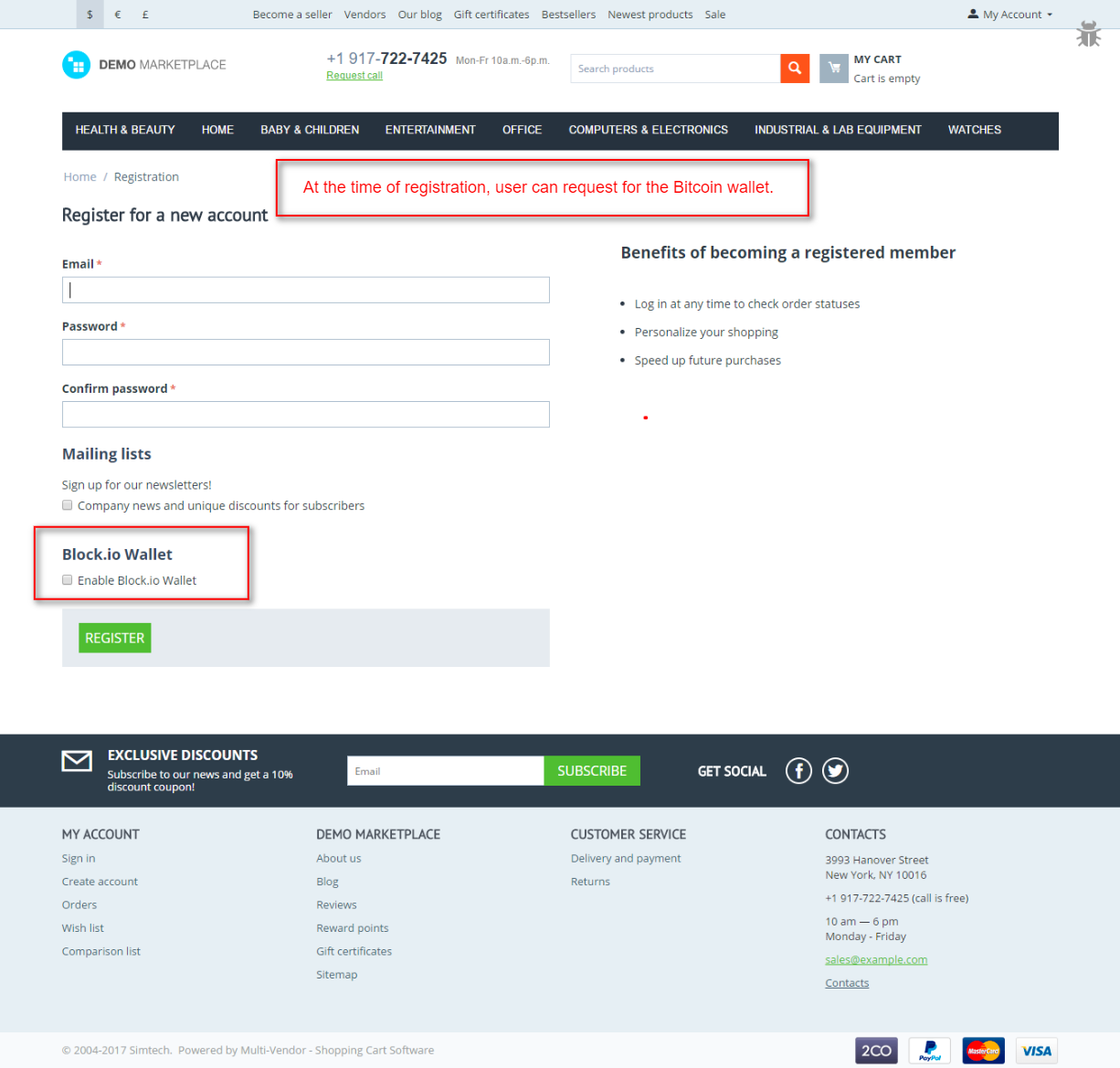
- The user can request for Bitcoin wallet/address from the profile page while registering at CS-Cart store.
- Functionality to generate a bitcoin address for the user who does not have one during payment.
- Easy to configure and manage at admin end.
Installation
After downloading the CS-Cart Payment By Block.io add-on, you’ll get one zip file, one install.txt file, and a relevant User Guide manual doc.
Please read it carefully for proper configuration.
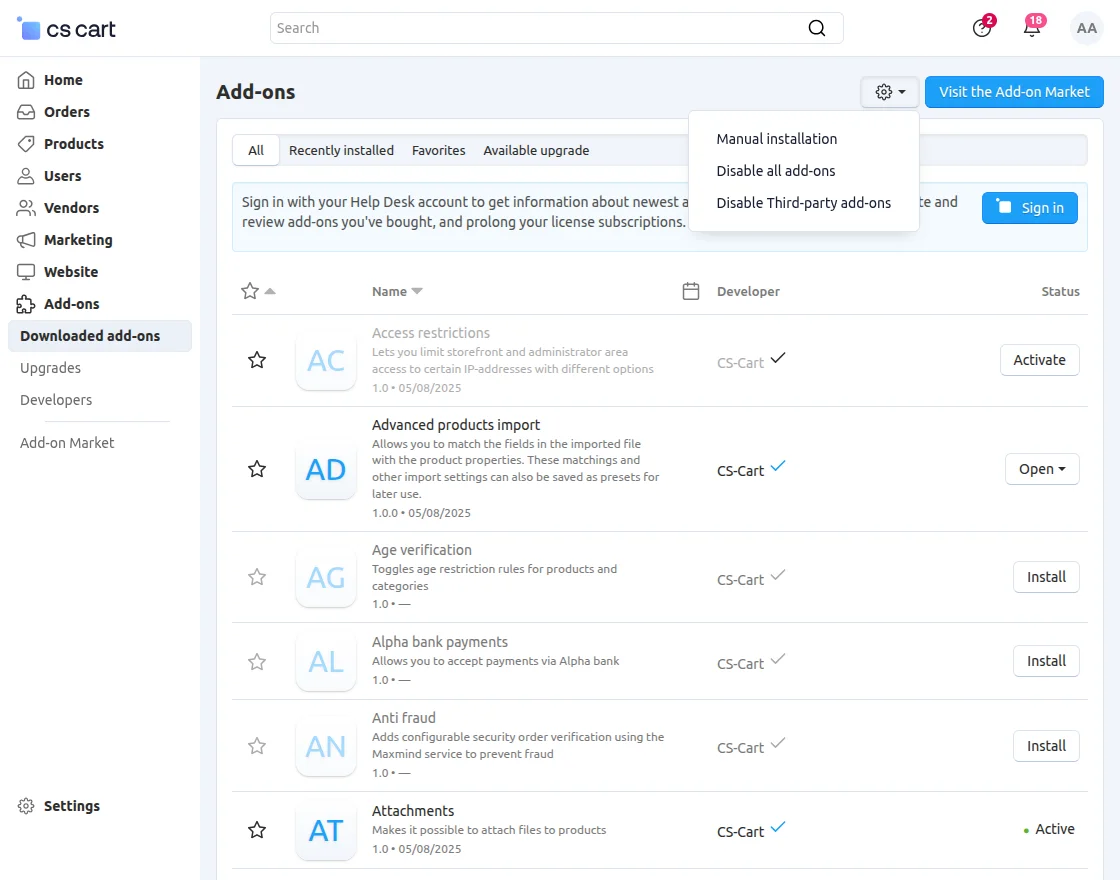
Go to Manage Add-ons, and click on “Manual Installation” as shown below in the snapshot.
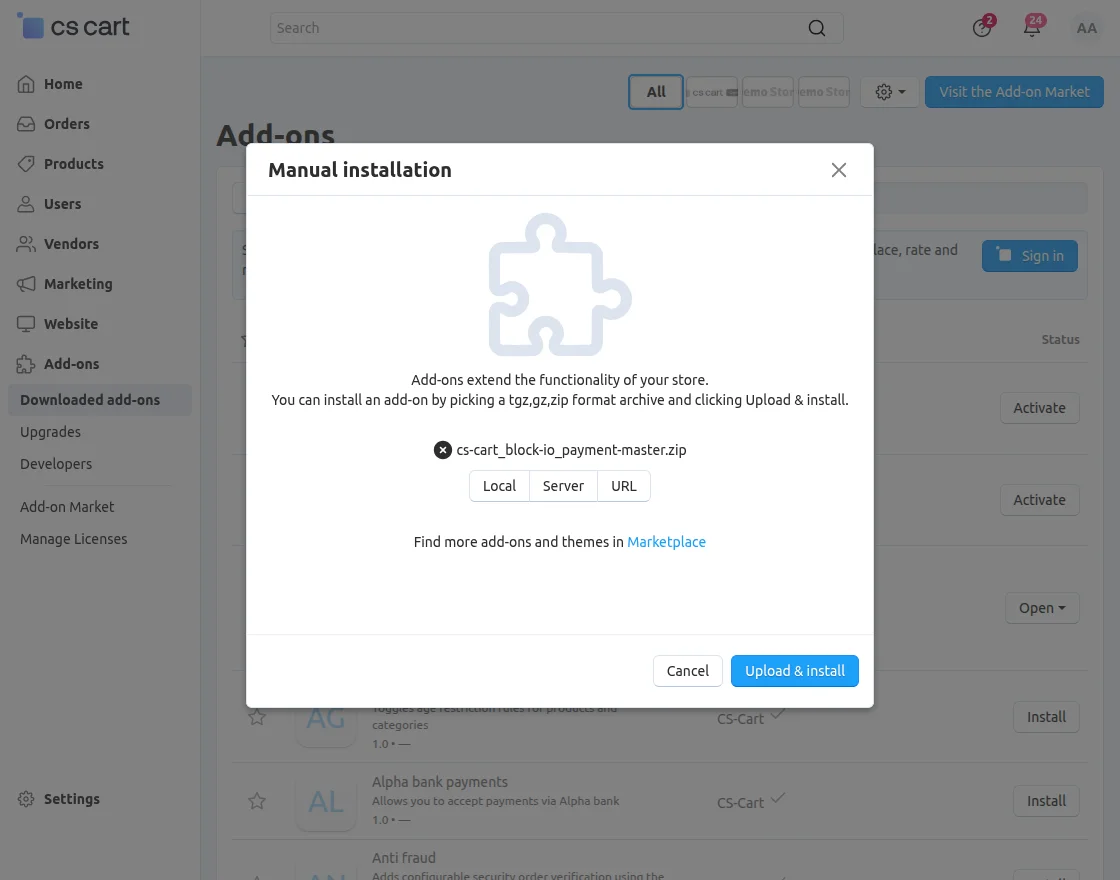
Click on “Local” to browse the zip file, and then click on “Upload & Install” as shown below in the snapshot.
Configuration
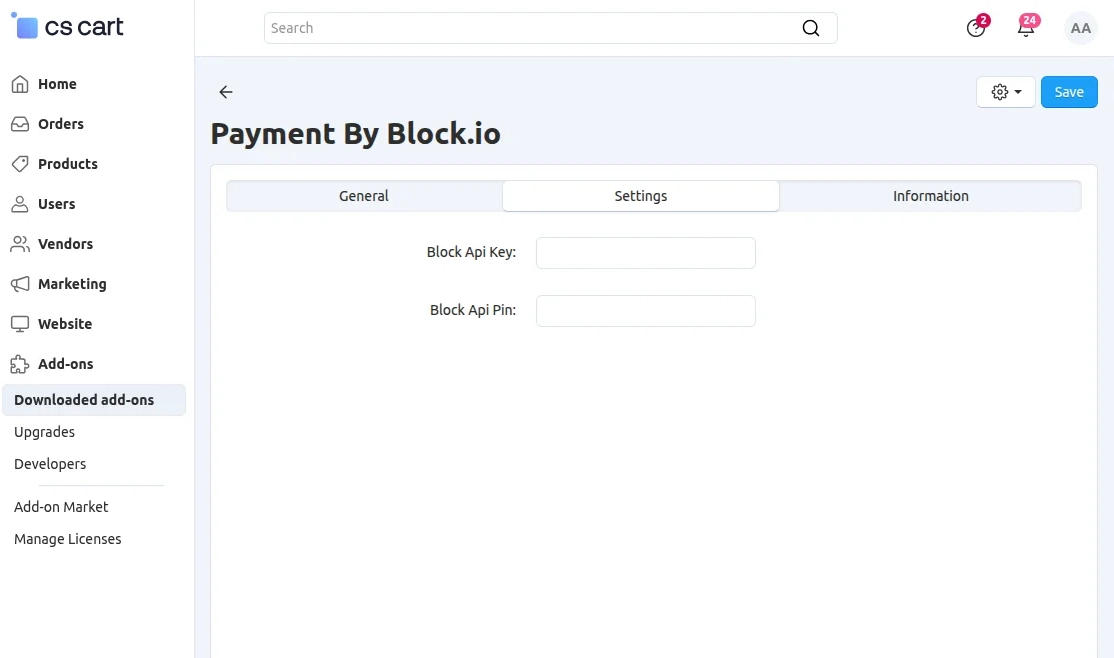
After installing CS-Cart Block.io Bitcoin Wallet, Click on Settings as shown below :
Enter the Block API key and Block API Pin & Save the settings.
Payment Method
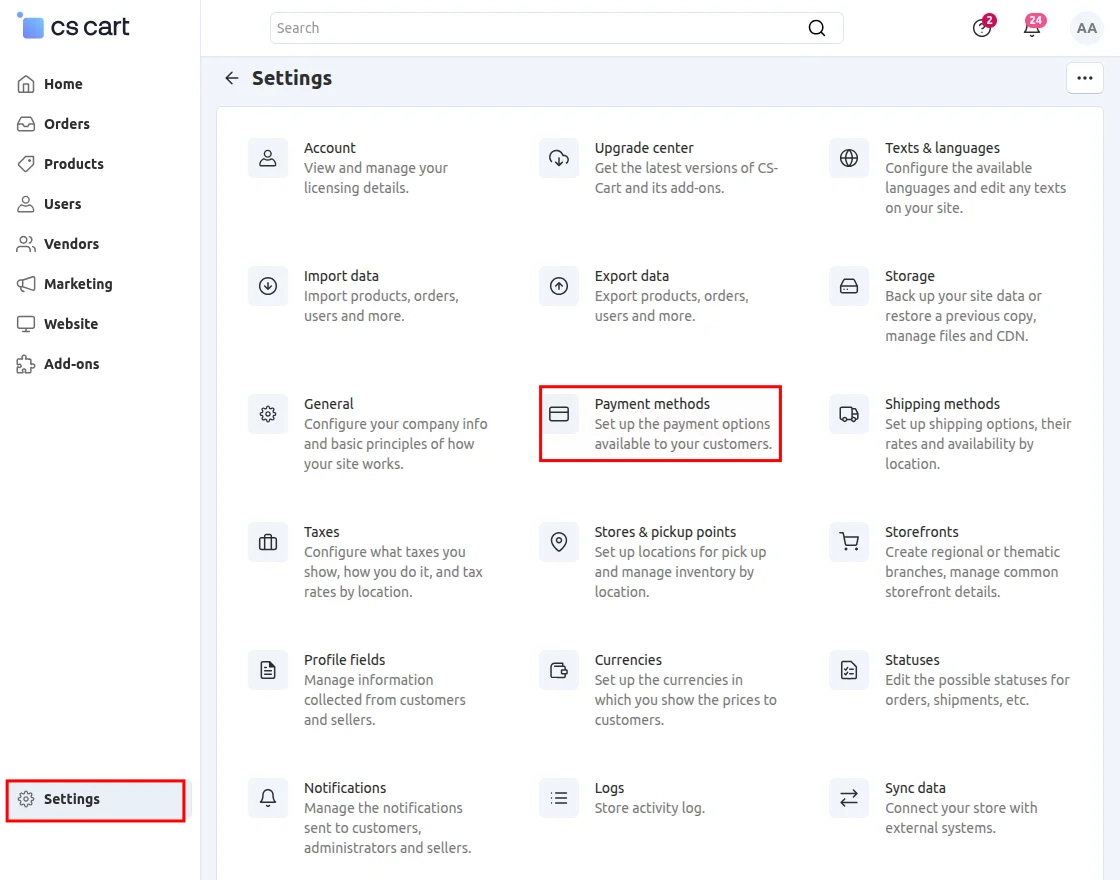
Go to “Settings” and click on “Payment Method”.
Click on “+” to create a new payment method.
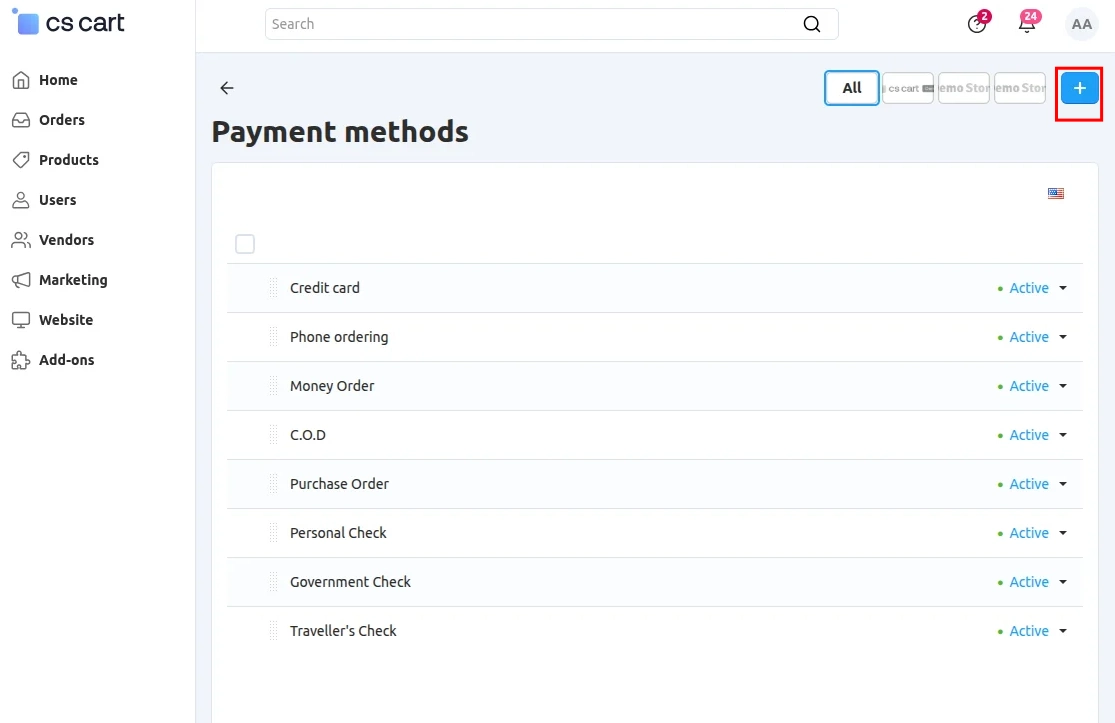
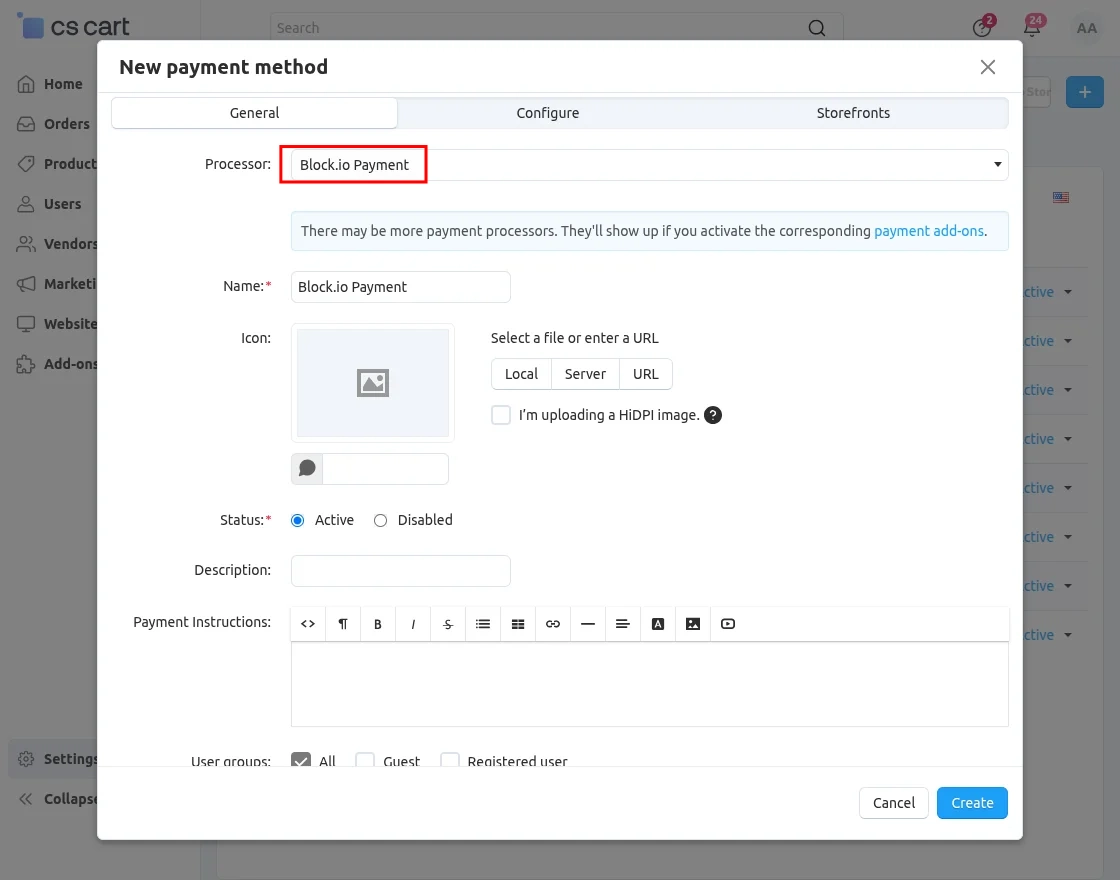
Set the parameters as shown below in the snapshot.
- Set the name of the payment method.
- For checkout choose the processor as “Block.io Payment”.
- Configure the tabs accordingly as shown below in the snapshot.
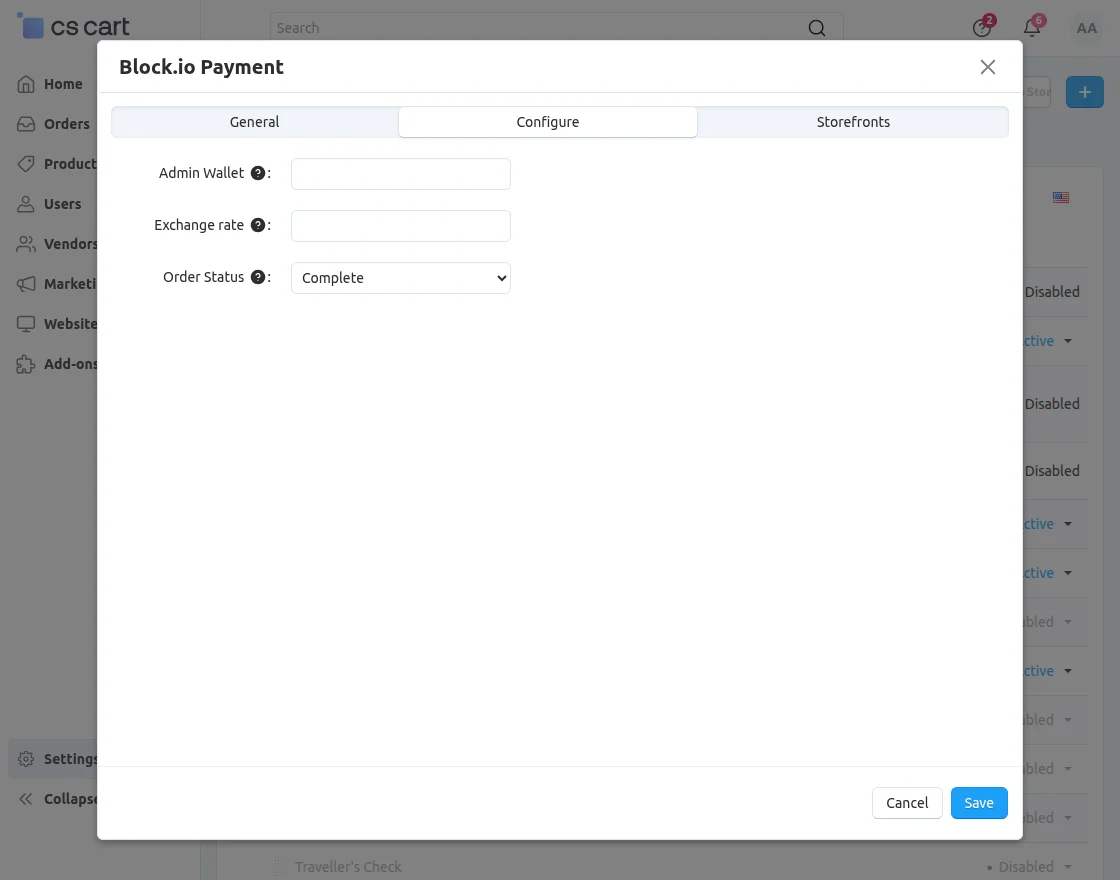
Click on “Configure” and set the parameters as shown below in the snapshot.
- Enter the Bitcoin Wallet Address of Admin where the order amount is received.
- Enter the Exchange rate.
- Set the order status which needs to be updated on successful bitcoin payment.
- Save the settings.
Front End View
Once the payment method is configured, option for payment via Bitcoin is available for customers at the front end.
For payment, customer needs to select the option as shown below in the snapshot and enter the necessary details for payment.
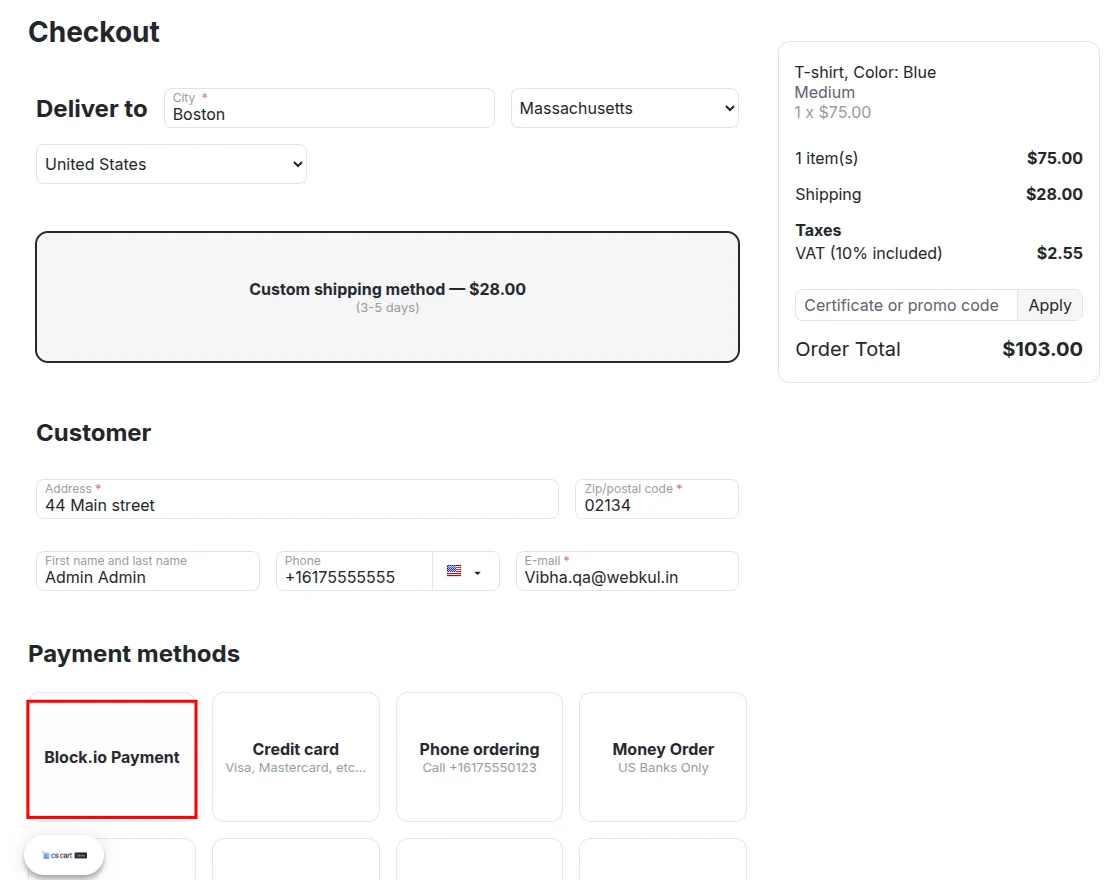
If the customer does not have Bitcoin wallet Address, it gets created automatically. Also, the user can request for a bitcoin wallet address while registering on your store as shown below.
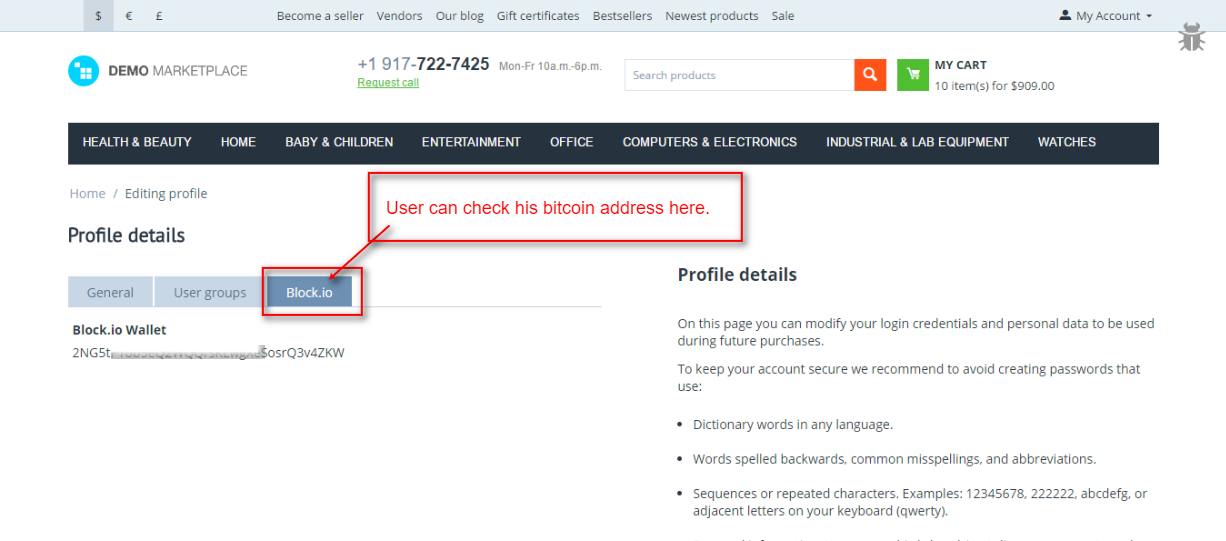
The user can check bitcoin address under his profile details at the front end as shown below.
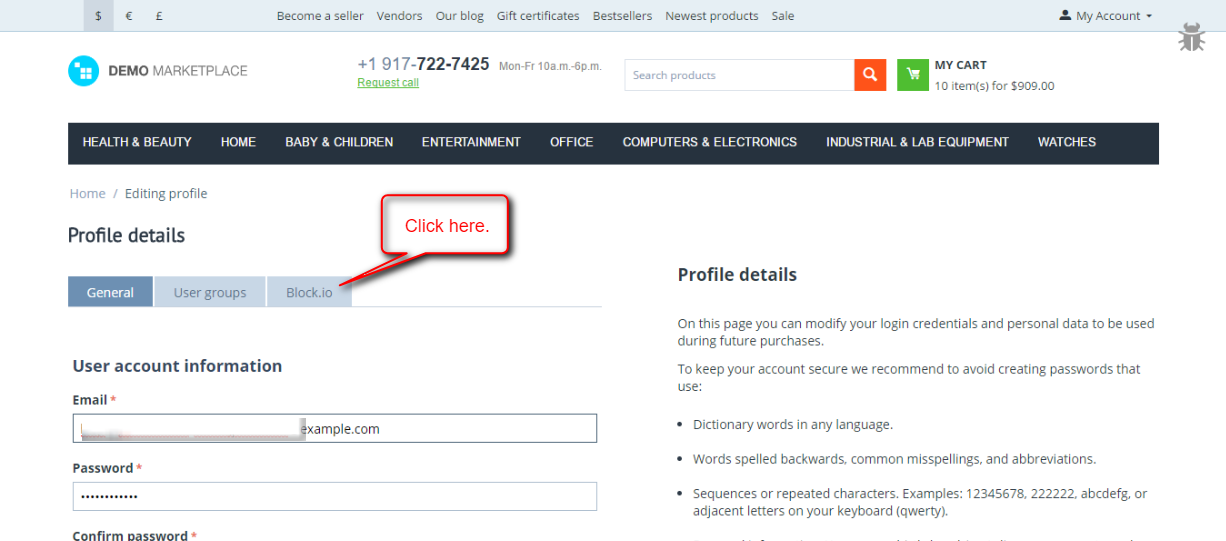
A separate tab, Block.io gets created and Bitcoin address is mentioned under that tab.
Support
This is all about CS-Cart Block.io Bitcoin Wallet.
Still have any issue, feel free to contact us at htt://webkul.uvdesk.com and let us know your views to make the module better.
Please explore our CS-Cart Development Services and top-quality CS-Cart Add-Ons.
Current Product Version - 1.2
Supported Framework Version - 4.18.x, 4.19.x, 4.20.x

Be the first to comment.