CS-Cart Advanced Import Export helps store owners manage bulk data efficiently and accurately.
This add-on simplifies the process of importing and exporting products, customers, and orders while improving overall store management.
With high-speed processing and queue-based execution, the add-on handles large volumes of data smoothly without affecting store performance.
It supports multiple file formats and flexible import options, making data migration and synchronization faster and more reliable.
The add-on is ideal for marketplace owners who want to automate bulk data handling, reduce manual effort, and improve operational efficiency.
Note: You need Queue Handler Add-on to use this add-on properly.
Note: Before installing the add-on, extract the downloaded package.
- Install the License Manager add-on first.
- Then install the required add-on.
- Follow the license activation steps to generate your license key.
Features
- Import and export products, customers, and orders easily in the CS-Cart Marketplace.
- Process bulk data with high-speed performance supporting up to 5000 products per second.
- Handle large data operations smoothly using queue-based processing.
- Support multiple file formats, including CSV, TSV, XML, XLSX, JSON, ZIP, and TAR.
- Choose flexible import options with Create Only, Update Only, and Create and Update modes.
- Update records using Product ID, Product Code, Email, or Product Name.
- Process product images efficiently with queue-based image processing.
- Configure entity-wise field mapping for accurate data import and export.
- Import data directly from FTP, SFTP, Google Drive, Amazon S3, Dropbox, Zoho Sheet, and Cloudflare R2 sources.
- Reduce manual effort with advanced bulk data management features.
- Improve store performance during large imports and exports with an optimized processing system.
Additionally, if you’re looking to start accepting secure online payments, you can integrate the CS-Cart Stripe Payment Gateway to enable seamless and secure transactions through Stripe.
CS-Cart Advanced Import Export Add-on Installation
After downloading the CS-Cart Advance Import And Export add-on, you’ll get one zip file, one install.txt file, and a relevant User Guide manual doc.
Please read it carefully for proper configuration.
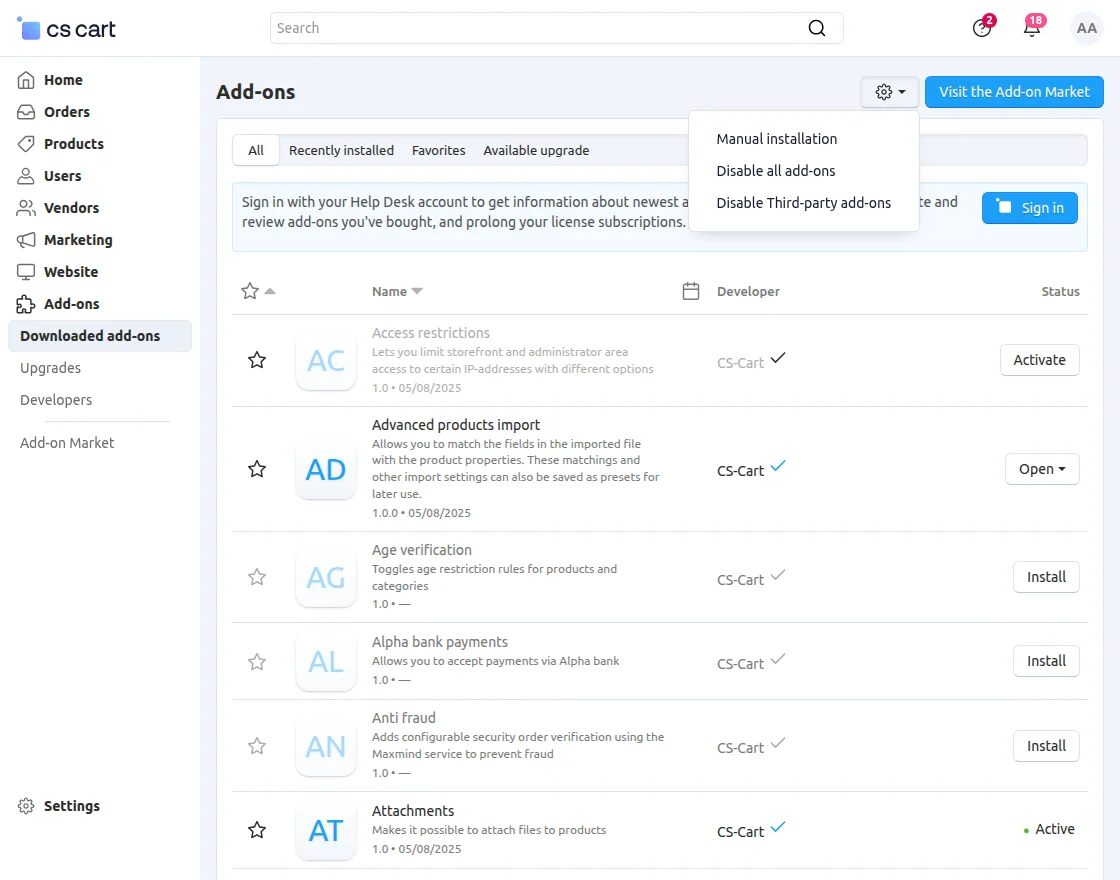
Go to Manage Add-ons, and click on “Manual Installation” as shown below in the snapshot.
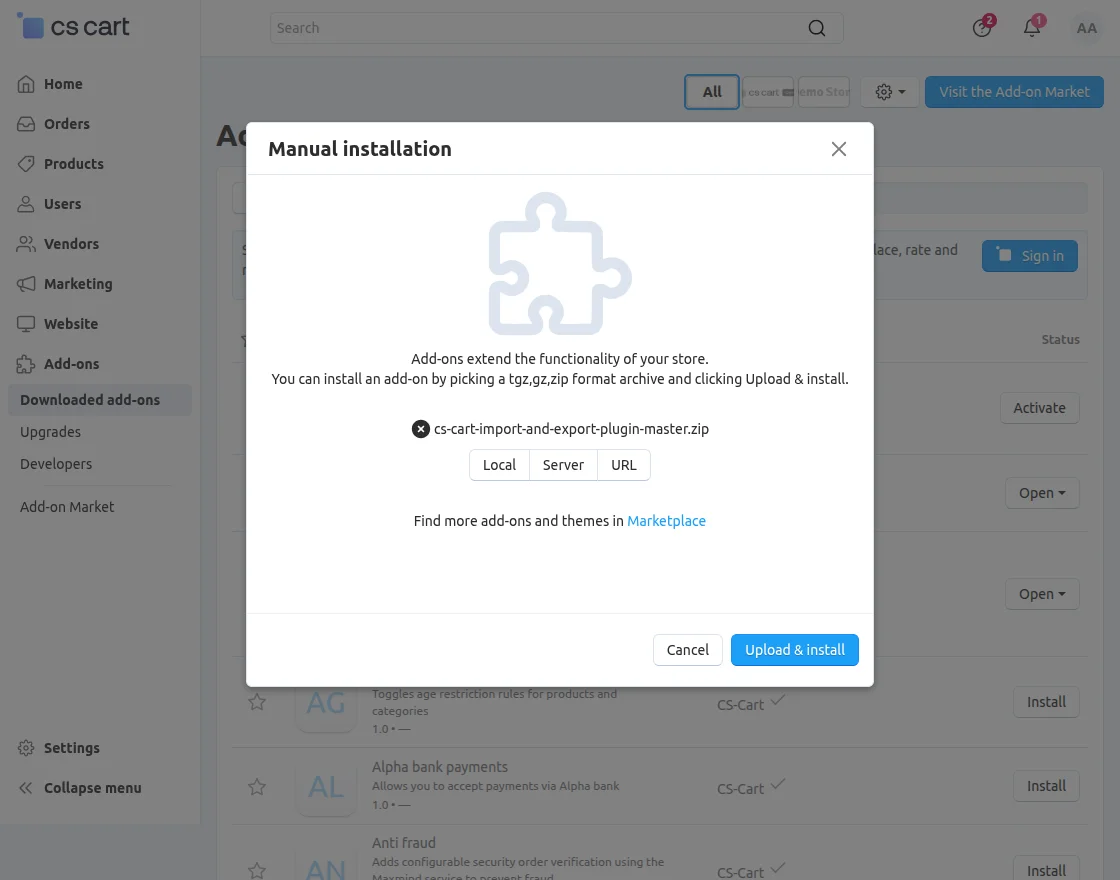
Click on “Local” to browse the zip file, and then click on “Upload & Install” as shown below in the snapshot.
Library installation
You can also download the library manually if needed.
Navigate to the following location using the terminal:
app/addons/wk_advance_import_export/lib
Run the command:
composer update
Advance Mapping
To configure advanced mapping for products, orders, and customers, navigate to Marketing >> Advanced Mapping from the CS-Cart admin panel.
Products Mapping
You need to enter the name for the product mapping configuration.
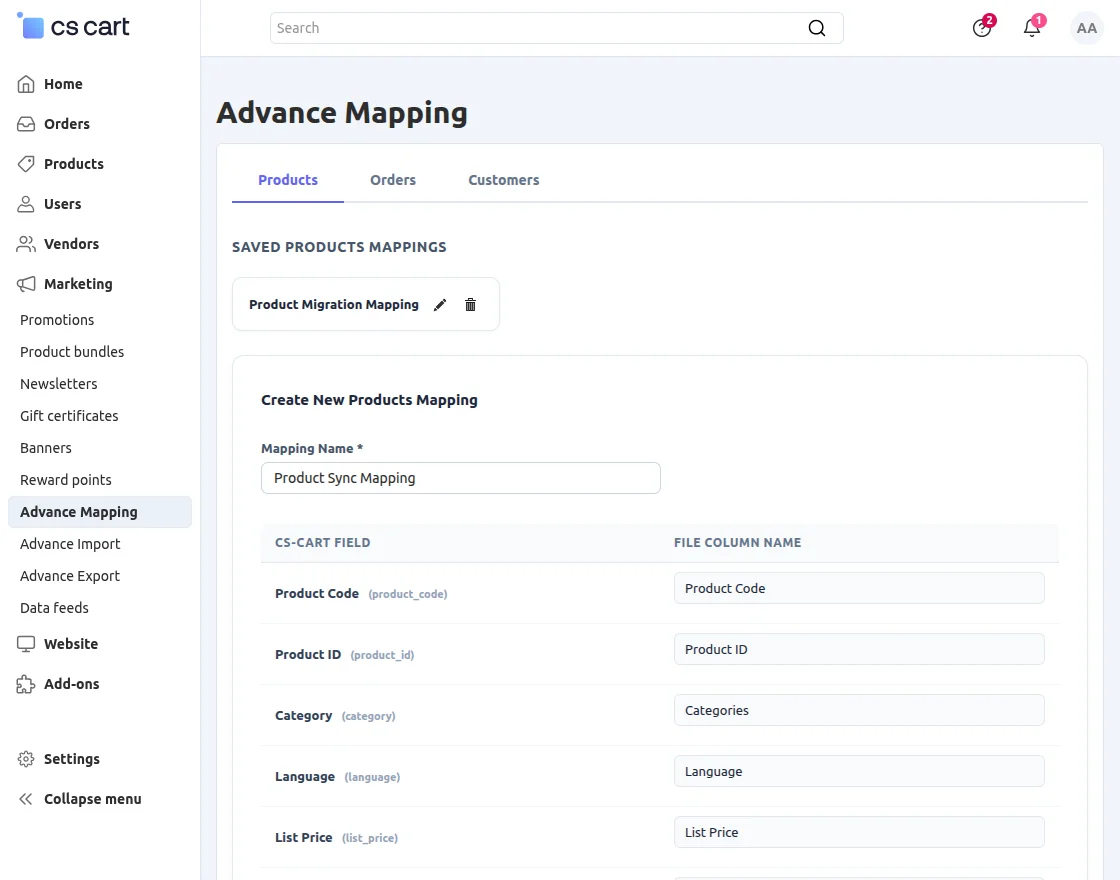
Map the product fields from your import file with the corresponding CS-Cart product fields.
Orders Mapping
Enter the name for the order mapping configuration.
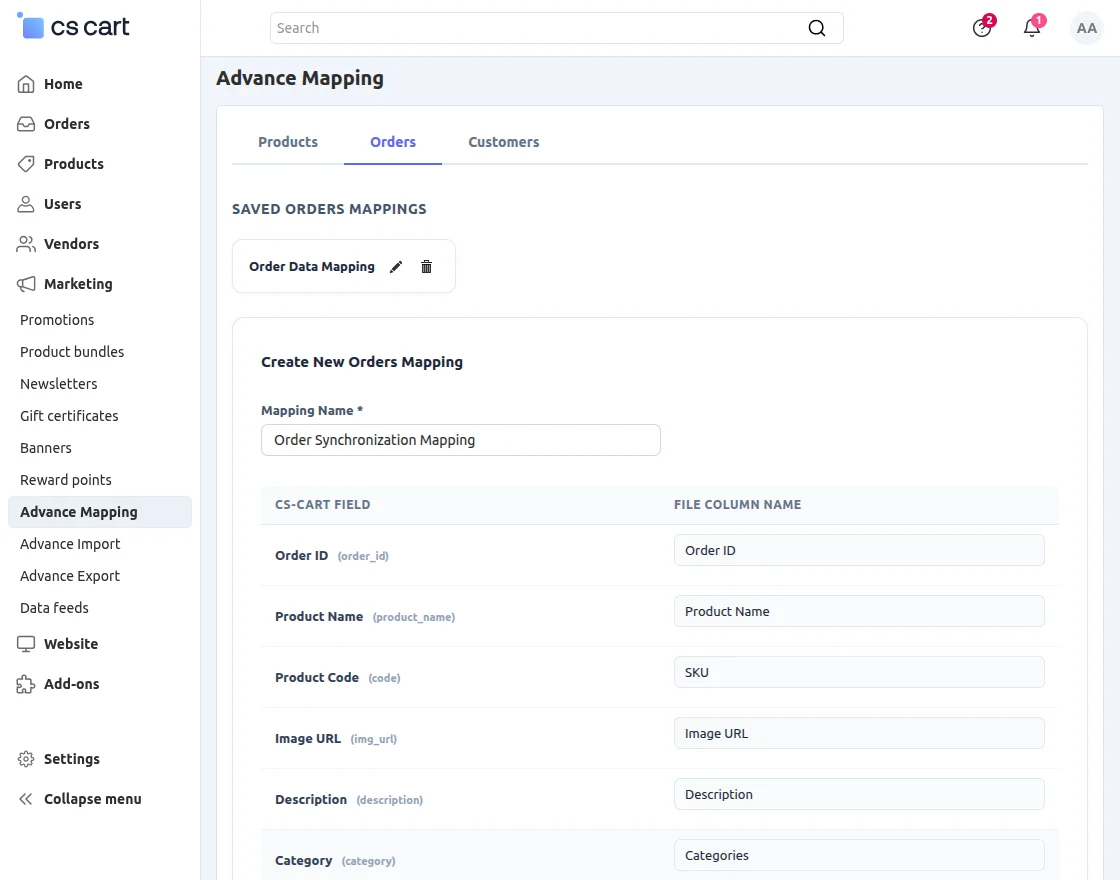
Map the order fields from your import file with the corresponding CS-Cart order fields. You can also skip this step if you want to use the default field mapping.
From here, you can easily manage mappings, including adding, editing, and deleting mapping configurations.
Customers Mapping
Enter the name for the customer mapping configuration.
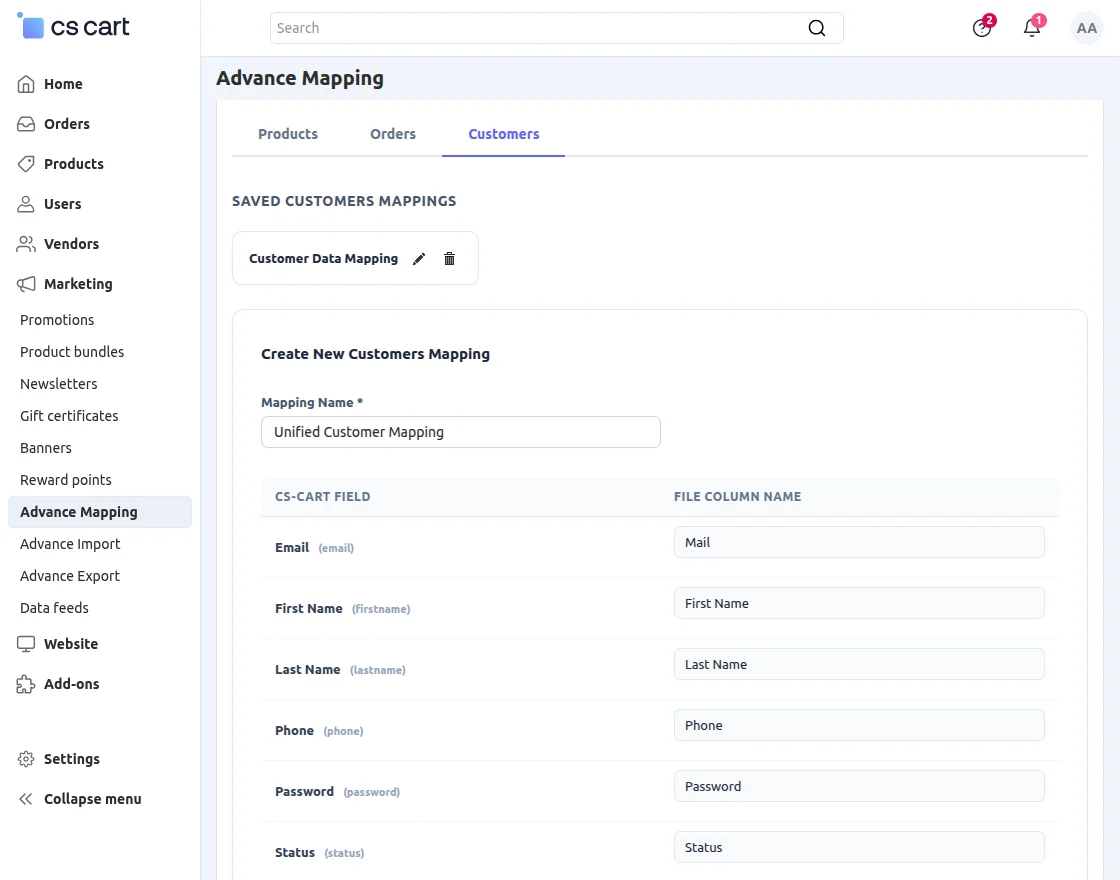
Map the customer fields from your import file with the corresponding CS-Cart customer fields. You can also manage, edit, or delete the mapping configurations as needed.
Advance Import
To import files, navigate to Marketing >> Advanced Import from the CS-Cart admin panel.
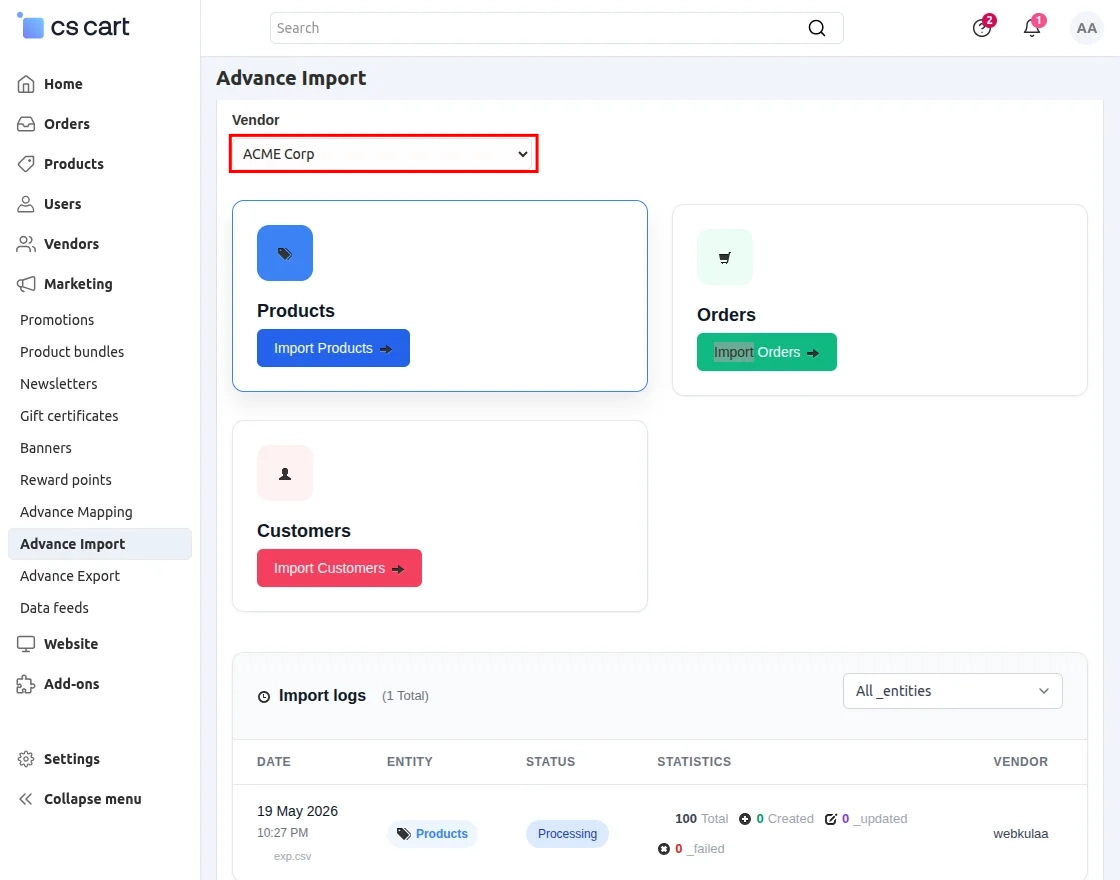
Select the vendor for whom you want to import products.
Product Import
Click the Product Import button to import products into the store.
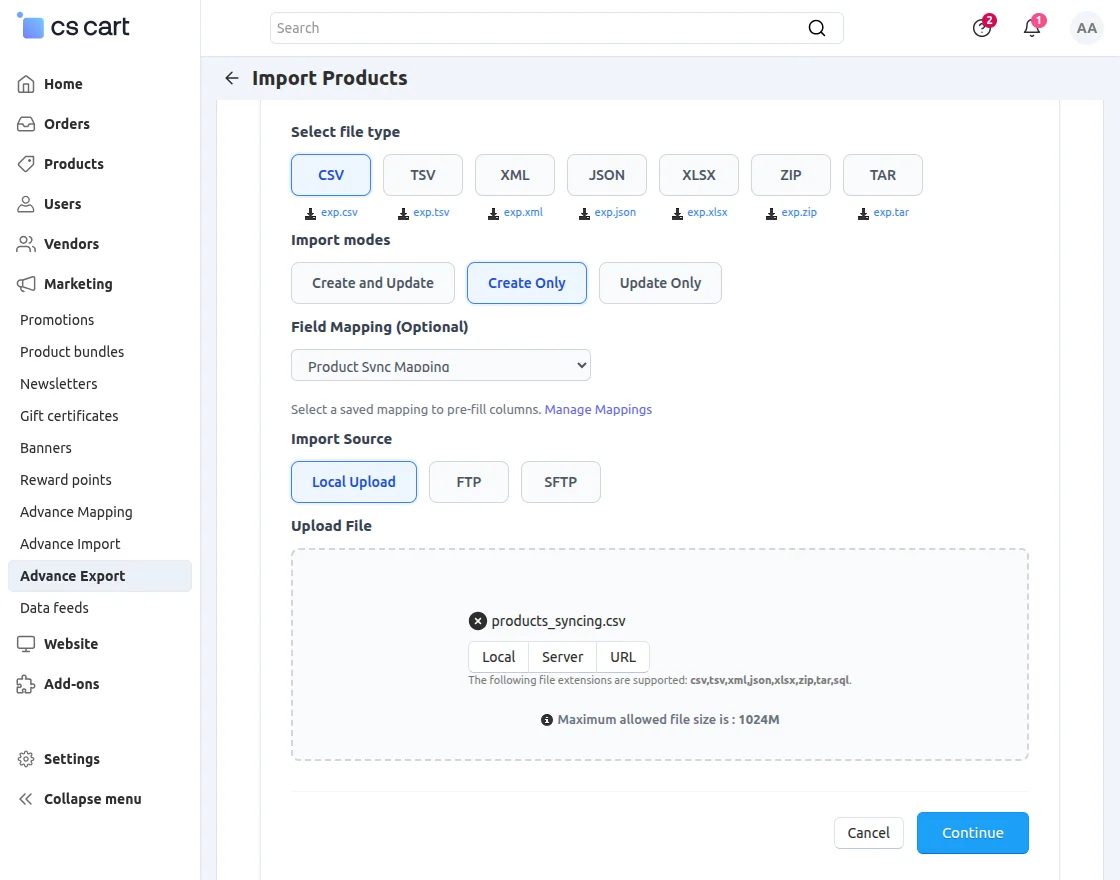
- Select File Type: Choose the file format you want to use for importing products.
- Import Modes: Select the required import mode according to your business needs.
- Field Mapping: Map the import file fields with the corresponding CS-Cart product fields.
- Import Source: Choose the source from where you want to import the product data.
URL: Enter the URL of the import source, such as Google Drive, Amazon S3, Dropbox, Zoho Sheet, Cloudflare R2, etc.
FTP: Enter the required FTP credentials to connect and import files from the FTP server.
SFTP: Enter the SFTP server credentials to connect and import files securely.
Orders Import
Click the Order Import button to import orders into the store.
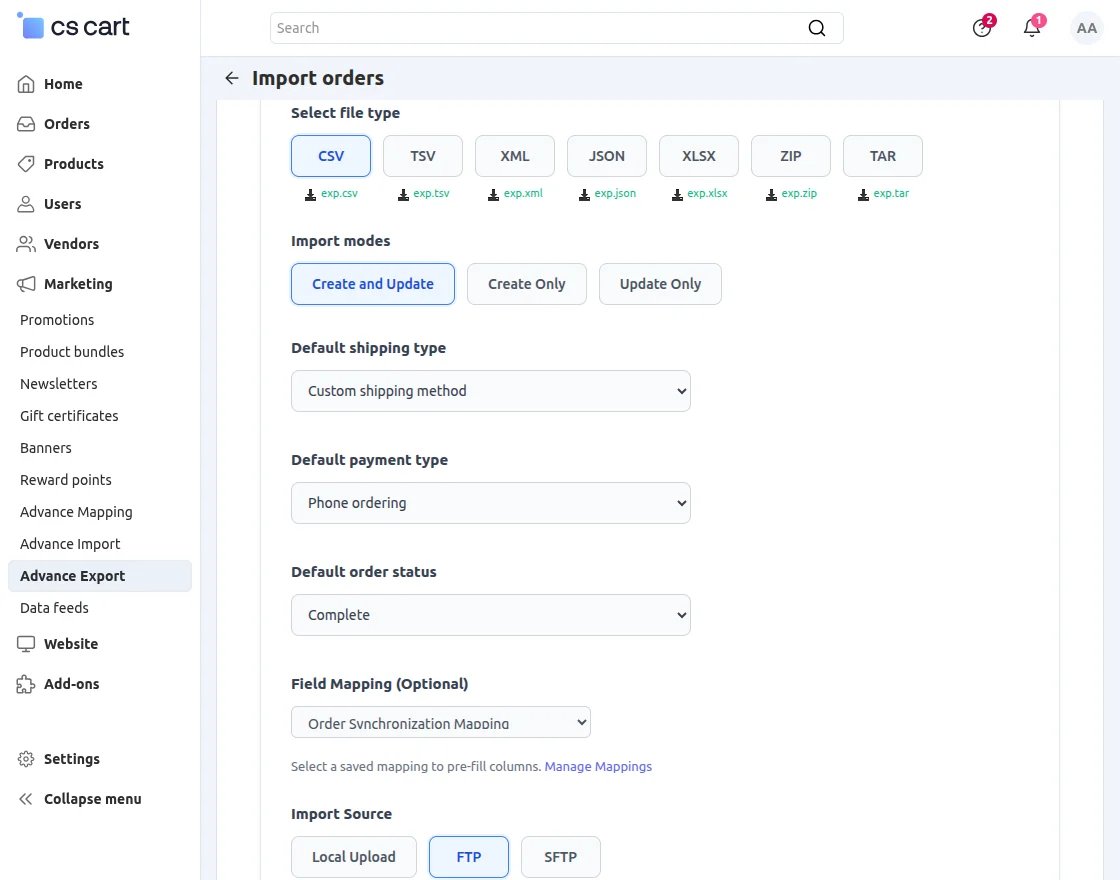
- Select File Type: Choose the file format you want to use for importing orders.
- Import Modes: Select the required import mode for the order import process.
- Default Shipping Type: Select the default shipping method to apply to imported orders.
- Default Payment Type: Choose the default payment method for imported orders.
- Default Order Status: Select the default order status for imported orders.
- Field Mapping: Map the import file fields with the corresponding CS-Cart order fields.
- Import Source: Choose the source from where you want to import the order data.
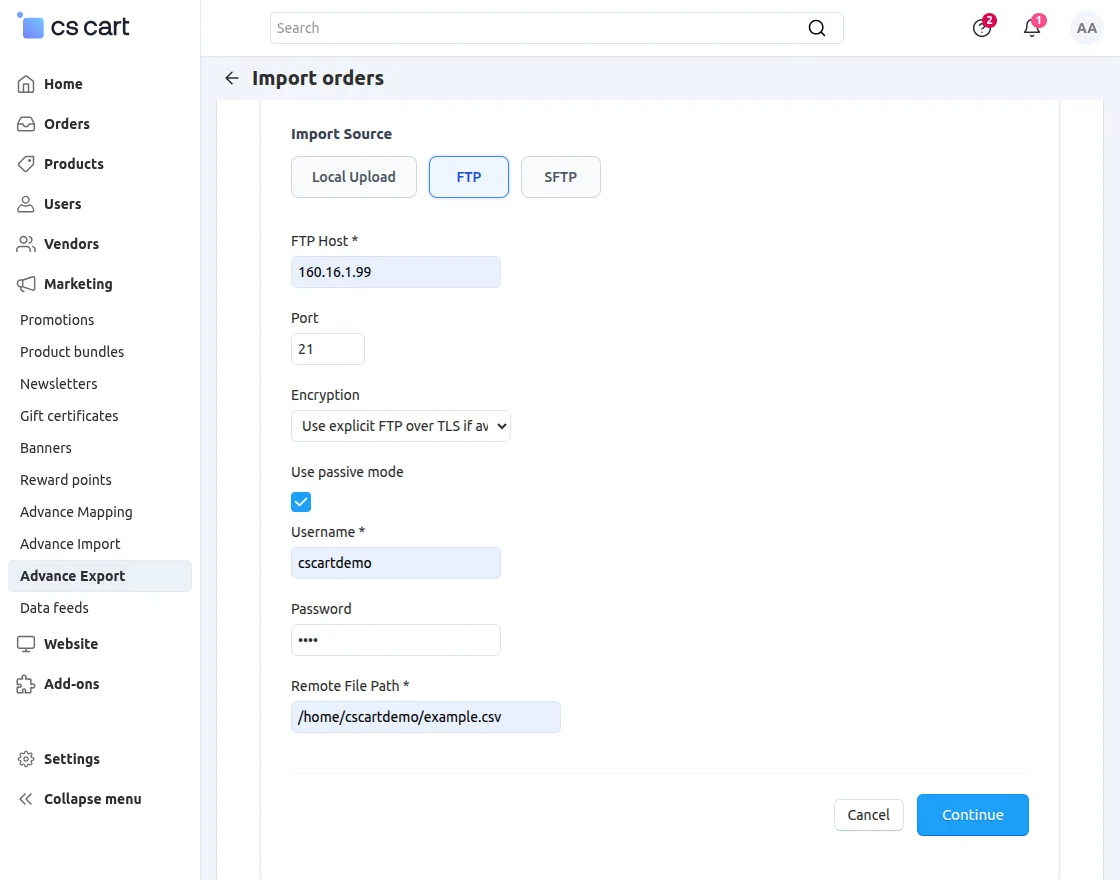
If you select FTP as the import source:
- Enter the file path from where you want to import the data.
- Enter the FTP Host and Port details.
- Choose the required encryption type.
- Fill in the Username and Password for FTP access.
Customers Import
Click the Customer Import button to import customers into the store.
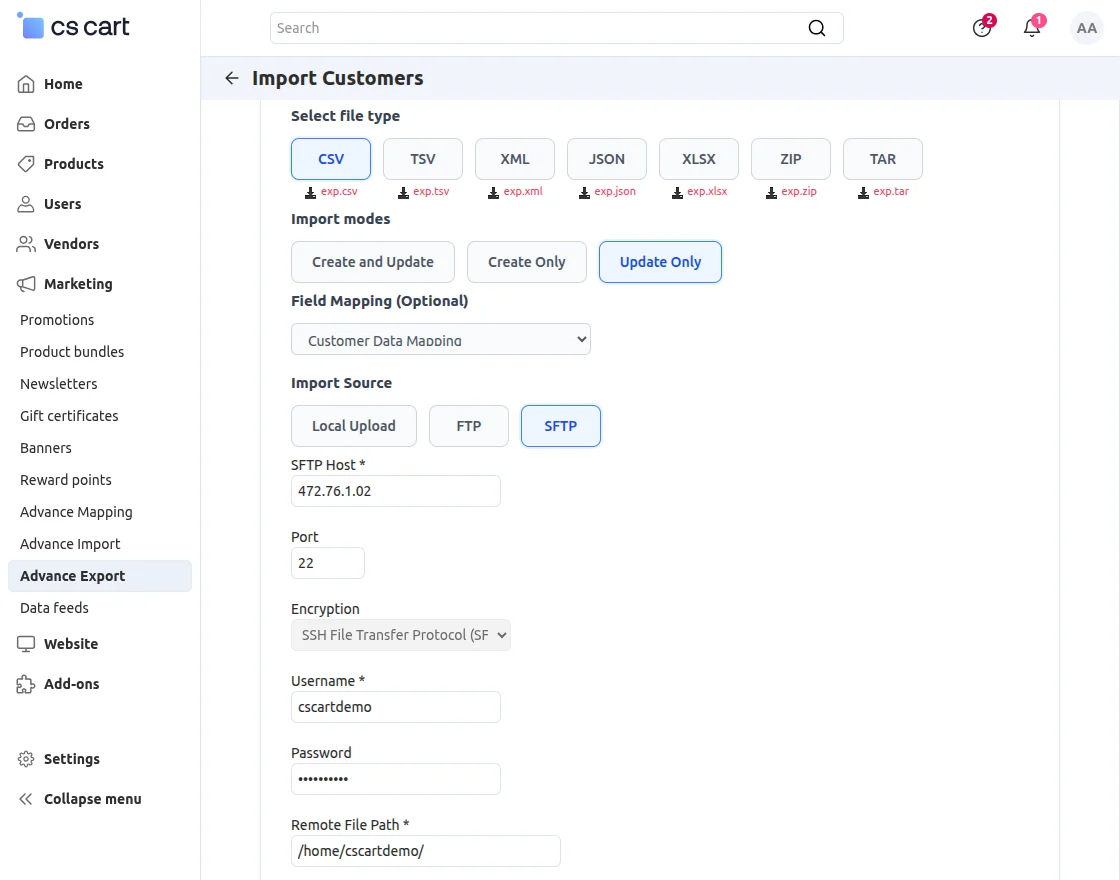
- Select File Type: Choose the file format you want to use for importing customers.
- Import Modes: Select the required import mode for customer import.
- Field Mapping (Optional): Map the import file fields with the corresponding CS-Cart customer fields, or skip this step to use the default mapping.
- Import Source: Choose the source from where you want to import the customer data.
If you select SFTP as the import source, enter the SFTP Host, Username, Password, and Remote File Path details to connect and import the data.
Advance Export
For advanced exporting of products, customers, and orders, navigate to Marketing >> Advanced Export from the CS-Cart admin panel.
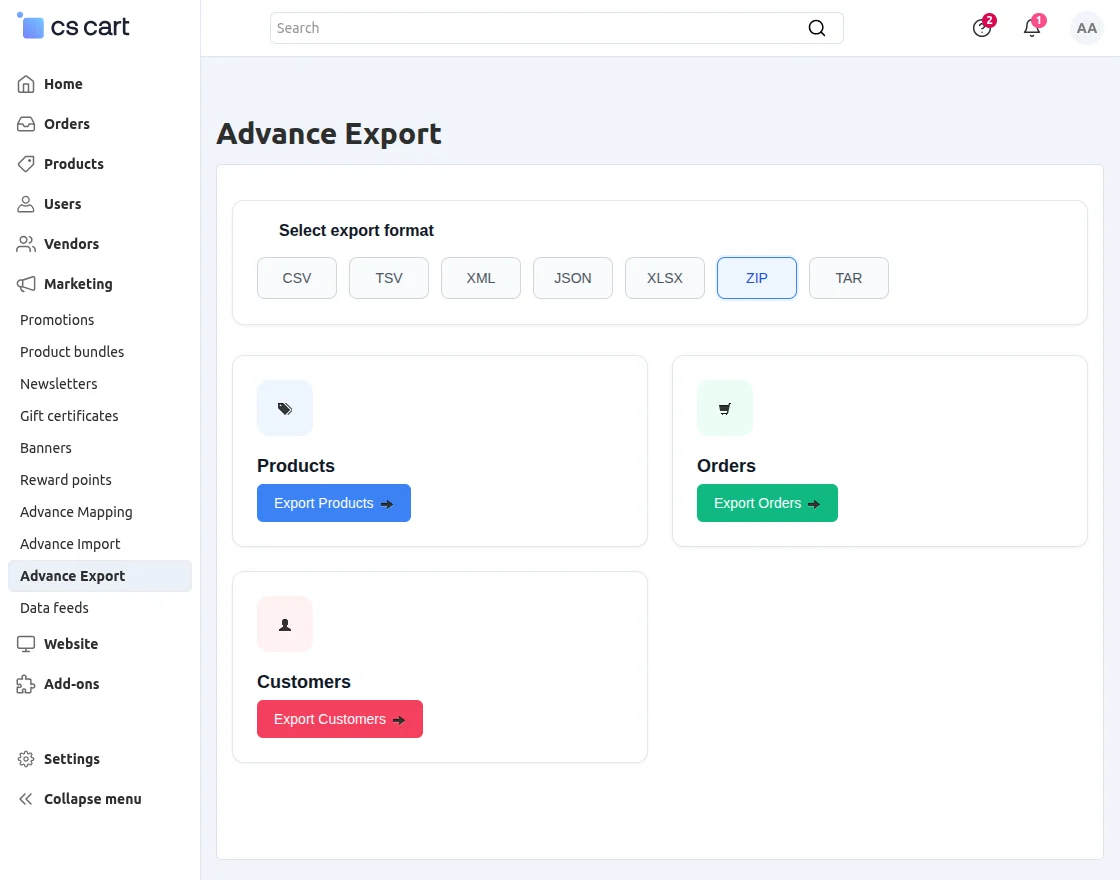
- Select Export Format: Choose the file format in which you want to export the product data.
Product Export
Click the Product Export button to export products.
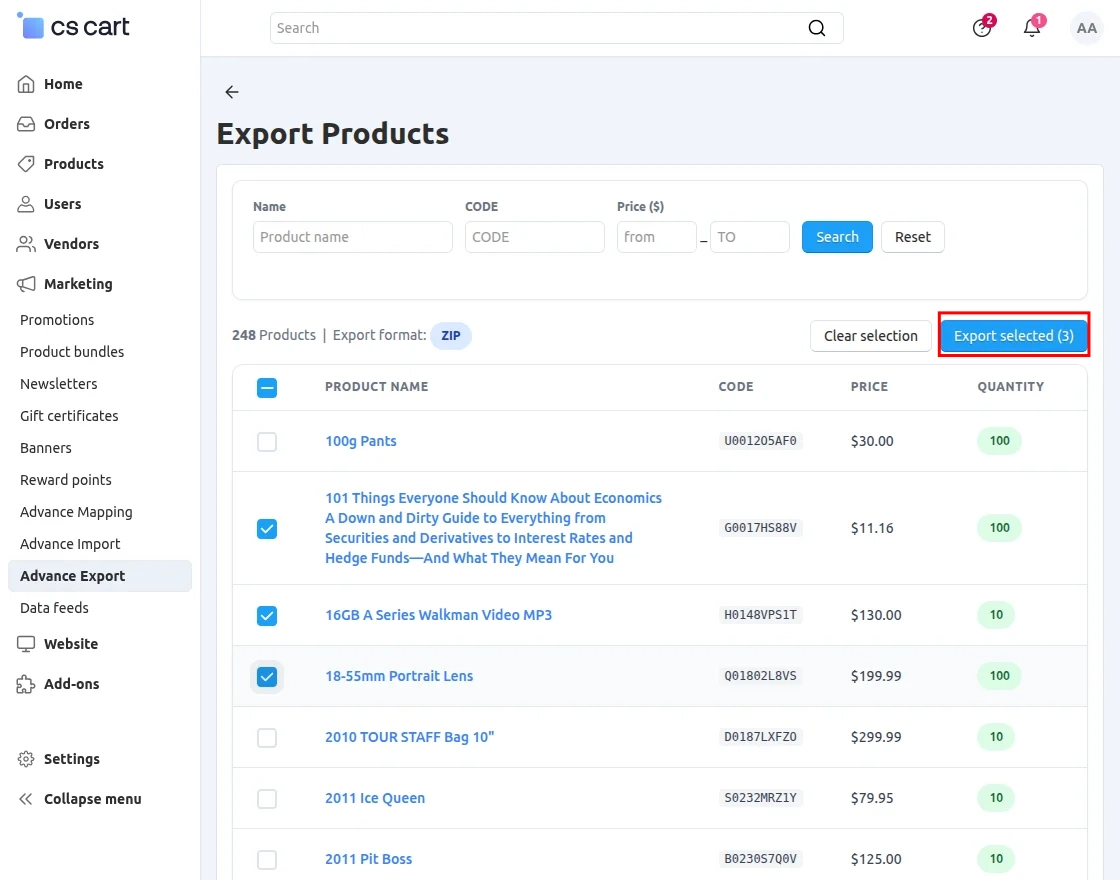
Select the products that you want to export from the store data.
Orders Export
Click the Orders Export button to export orders.
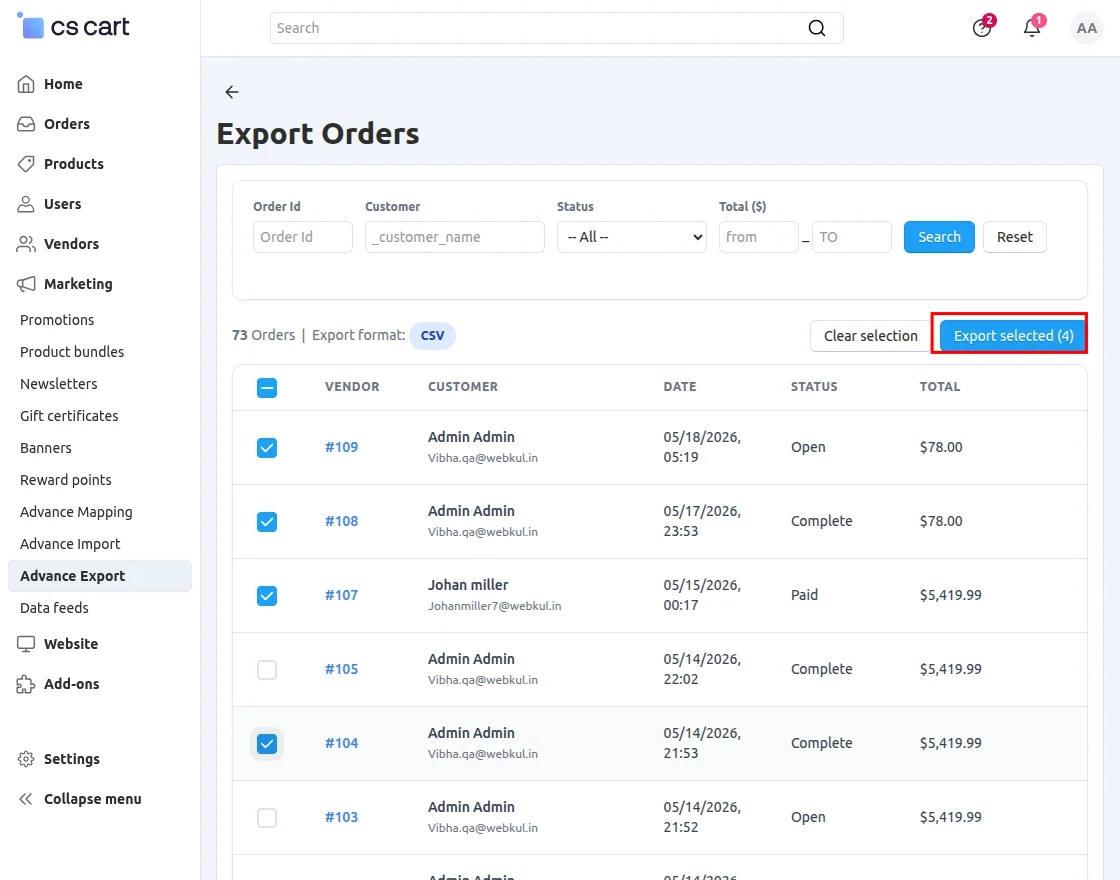
Select the orders that you want to export and proceed with the export process.
Customer Export
Click the Customers Export button to export customers.
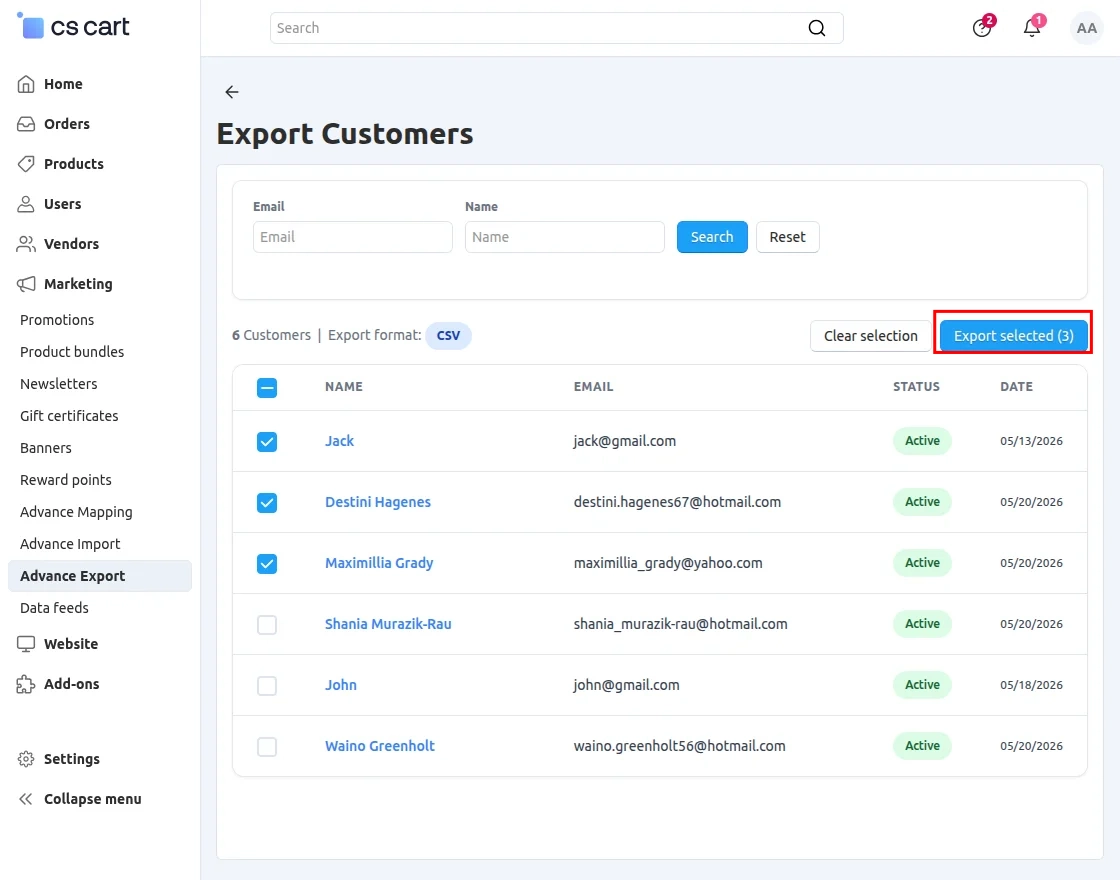
Select the customers that you want to export and proceed with the export process.
Support
If you have any questions, suggestions, or customization requests, feel free to contact us at [email protected] or submit a ticket at webkul.uvdesk.com.
Explore our premium-quality CS Cart Extensions to enhance your store functionality.
You can also explore our CS-Cart Development Services and Quality CS-Cart add-ons.
Current Product Version - 1.0
Supported Framework Version - 4.18.x, 4.19.x, 4.20.x

Be the first to comment.