


















Bagisto fashion commerce is designed for the fashion e-commerce store on the Bagisto platform.
It is specially designed for fashion sellers that sell different kinds of apparel.
With its user-friendly interface and visually appealing design, the Bagisto fashion commerce enhances the shopping experience for customers.
Customers can easily navigate various categories and discover the latest trends in fashion.
The Bagisto fashion Commerce is optimized for mobile devices, ensuring shoppers can browse and purchase items seamlessly, regardless of the device.
Also, to convert your store to a Multi-Vendor Marketplace, please check the Laravel Multi Vendor Marketplace extension.
Features
- The search history memory feature maintains previous searches for easy access in the future.
- Mega menu displays the entire navigation in a single interface.
- Display static content from Instagram concerning customer purchases, which is customizable.
- Create fashion-based sections on the homepage that significantly enhance user experience.
- An enhanced category filter enables customers to sort products effortlessly.
- Selected categories on the homepage can be displayed as a carousel.
- Support for multiple currencies and languages.
- Review section with details of images of purchased products.
- Size chart builder lets the admin create charts with several size systems and show them in a drawer on the product page.
- Category menu images appear next to the category links in the mega menu.
- Footer about text and social links can be managed from the admin configuration.
Installation
The installation is simple just like the installation of the Bagisto extension.
Step 1:
Unzip the extension zip and merge the “packages/Webkul” folders into the project root directory.
Step 2:
Open the composer.json file and add the following line under the ‘psr-4’ section:
"Webkul\\Fashion\\": "packages/Webkul/Fashion/src"
Step 3:
Autoload the composer
composer dump-autoload
Step 4:
In the bootstrap/providers.php file, add the following import and the class in return array:
use Webkul\Fashion\Providers\FashionServiceProvider;
FashionServiceProvider::class,
Step 5:
Run the following command to complete the setup. It runs the migrations, adds the default homepage sections, clears the caches and publishes the theme assets:
php artisan fashion-theme:install
After following these steps, the Fashion Commerce Extension should be successfully installed and ready for use in your Bagisto v2.5.0 project.
Initial General Configuration
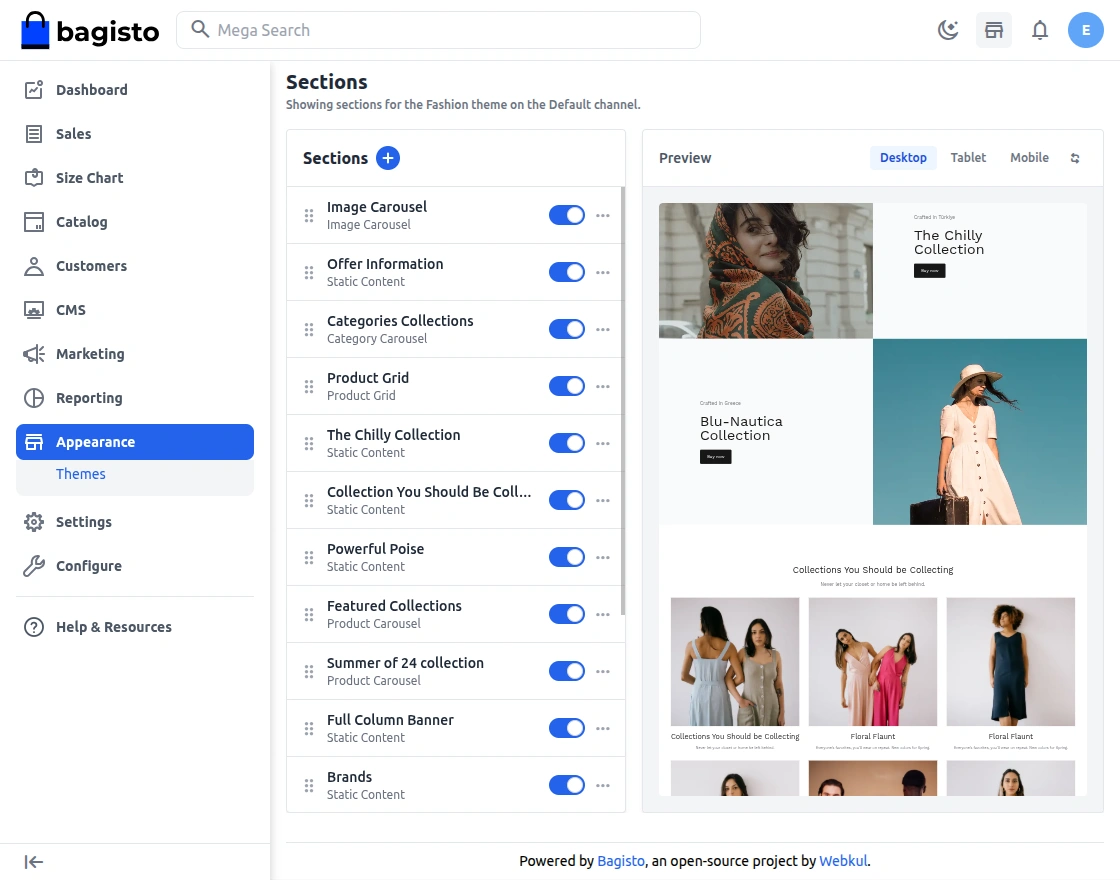
After successfully installing the Bagisto fashion commerce Theme, the admin can navigate to Appearance > Themes
Now, the admin will configure the fashion commerce configuration. The theme supports these section types: Product Carousel, Category Carousel, Image Carousel, Static Content, Footer Links, Services Content, Product Grid and Product Reviews. The installation adds a ready-made homepage built from them.
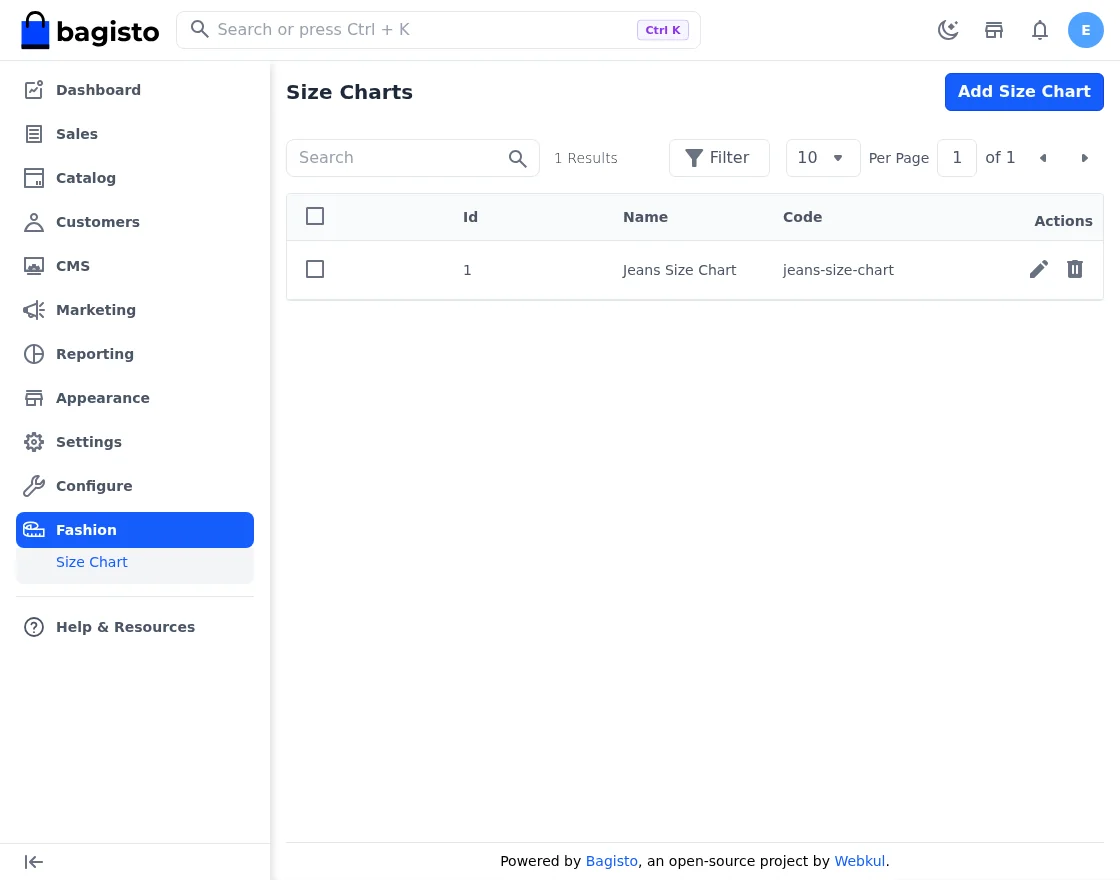
Size chart: The theme adds a Fashion > Size Chart menu in the admin panel. Here, the admin can create, edit and delete size charts. Each chart has a name, a unique code, a description and an optional “how to measure” image.
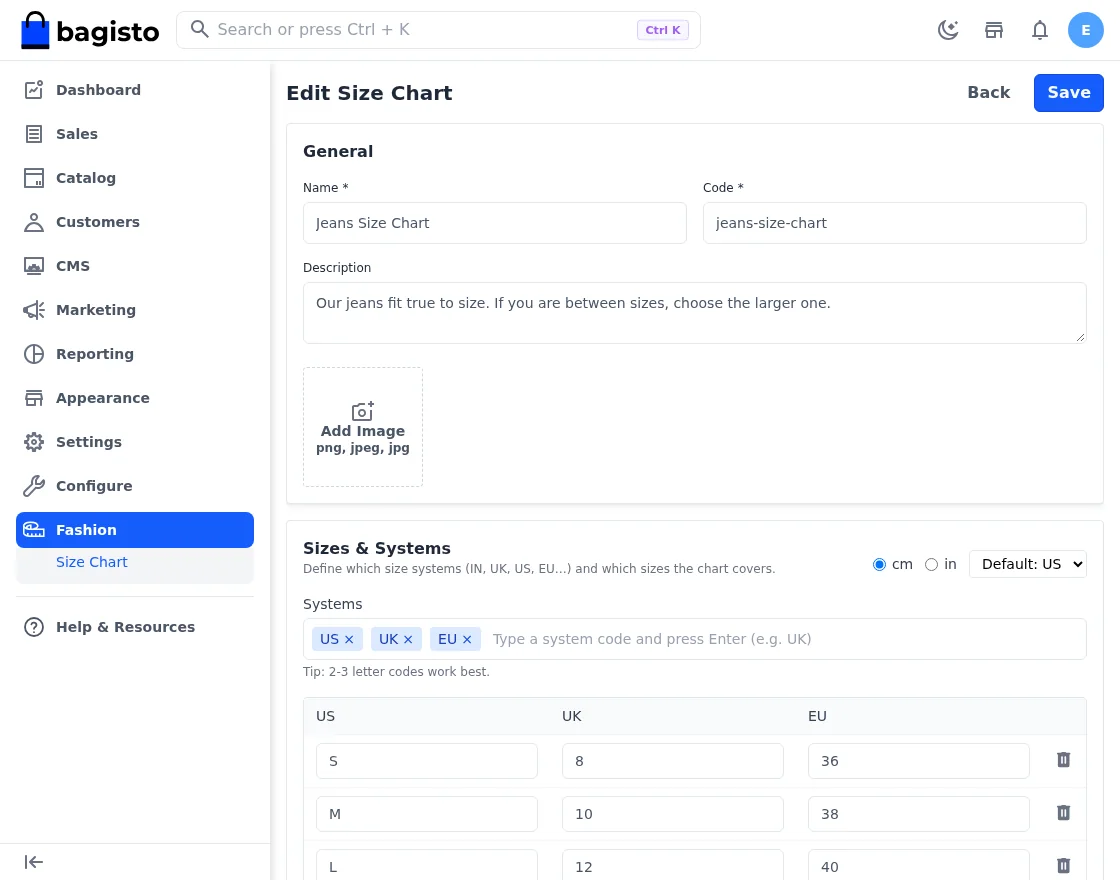
In the builder, the admin defines size systems, such as US, UK or EU, and adds the sizes to cover. The admin can also pick a default system.
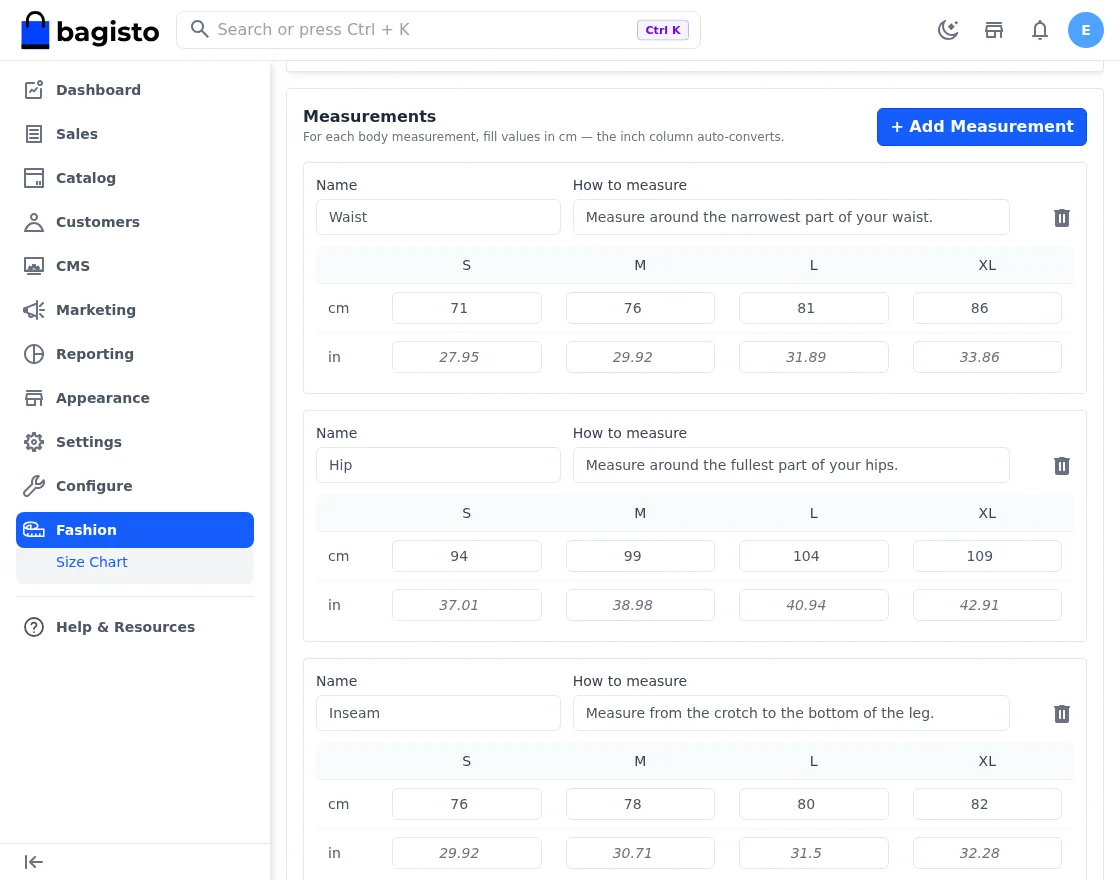
Next, the admin adds measurements, such as waist, hip or inseam, with a “how to measure” tip for each one. The values are entered in centimetres, and the inch values are calculated automatically.
To use a chart, open a simple or configurable product in Catalog > Products and choose it in the Select Sizechart Template card. Choosing none removes the assignment.
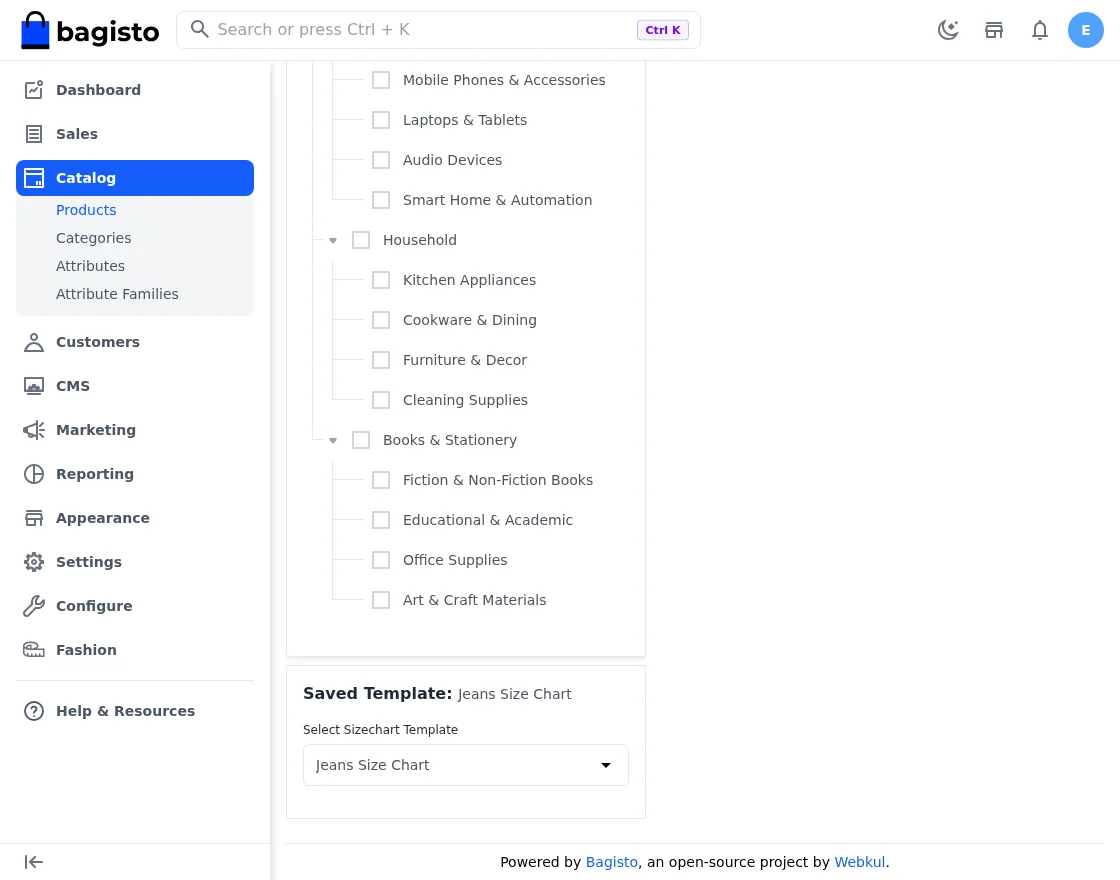
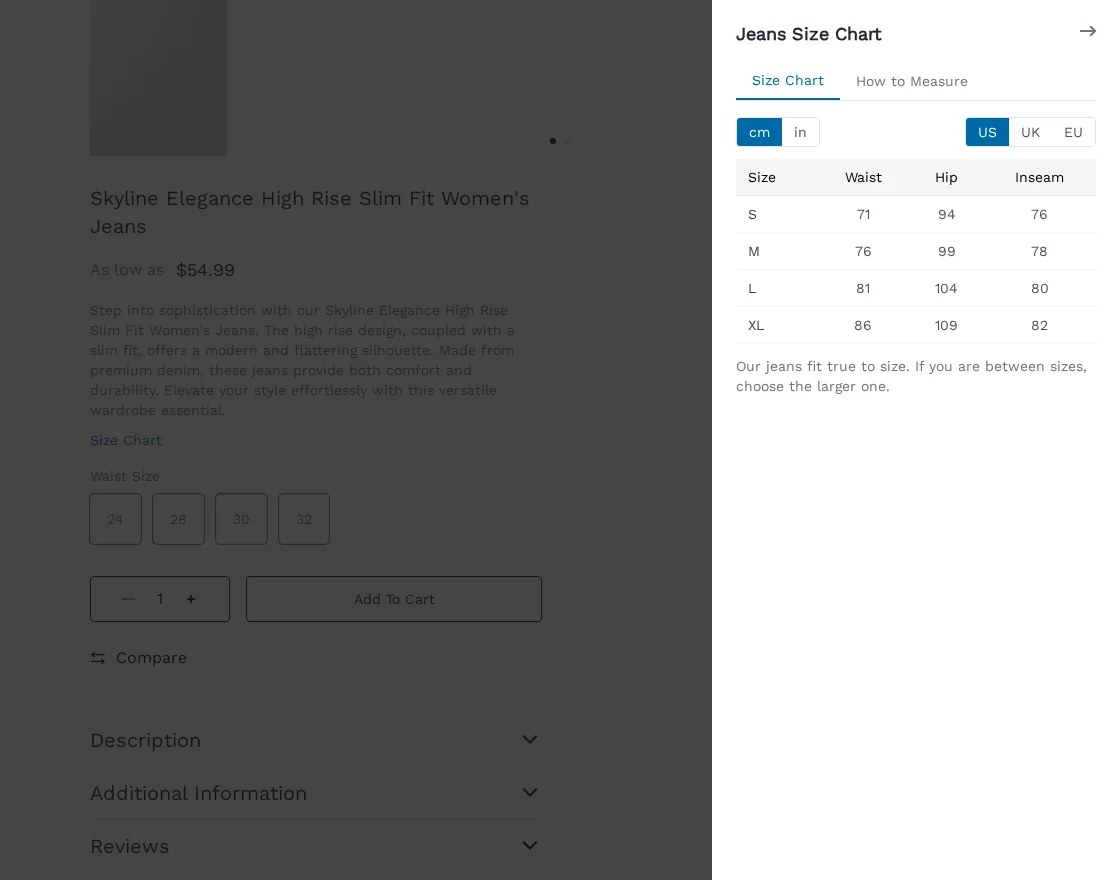
On the product page, customers open the chart from the Size Chart link. The drawer has a Size Chart tab and a How to Measure tab. Customers can switch between cm and in, and between size systems.
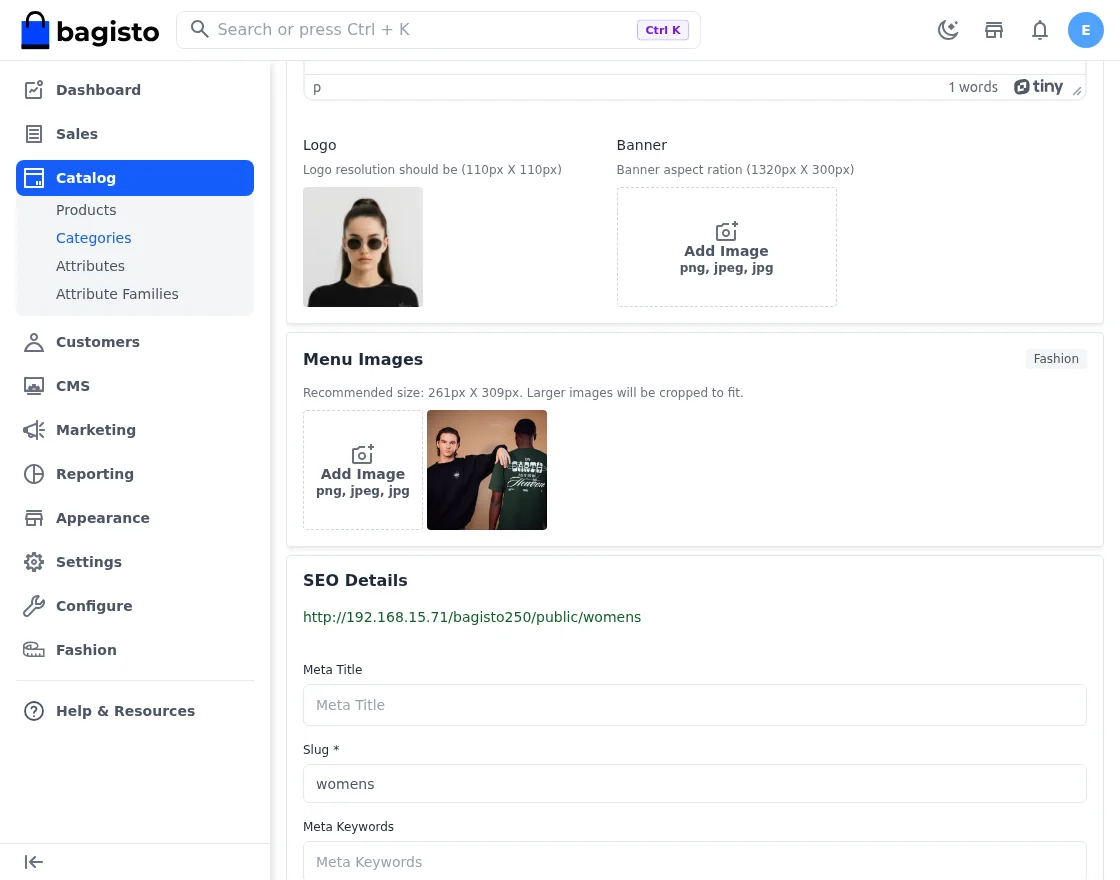
Mega menu images: The category create and edit pages in Catalog > Categories have a Menu Images card. The recommended size is 261px X 309px, and larger images are cropped to fit.
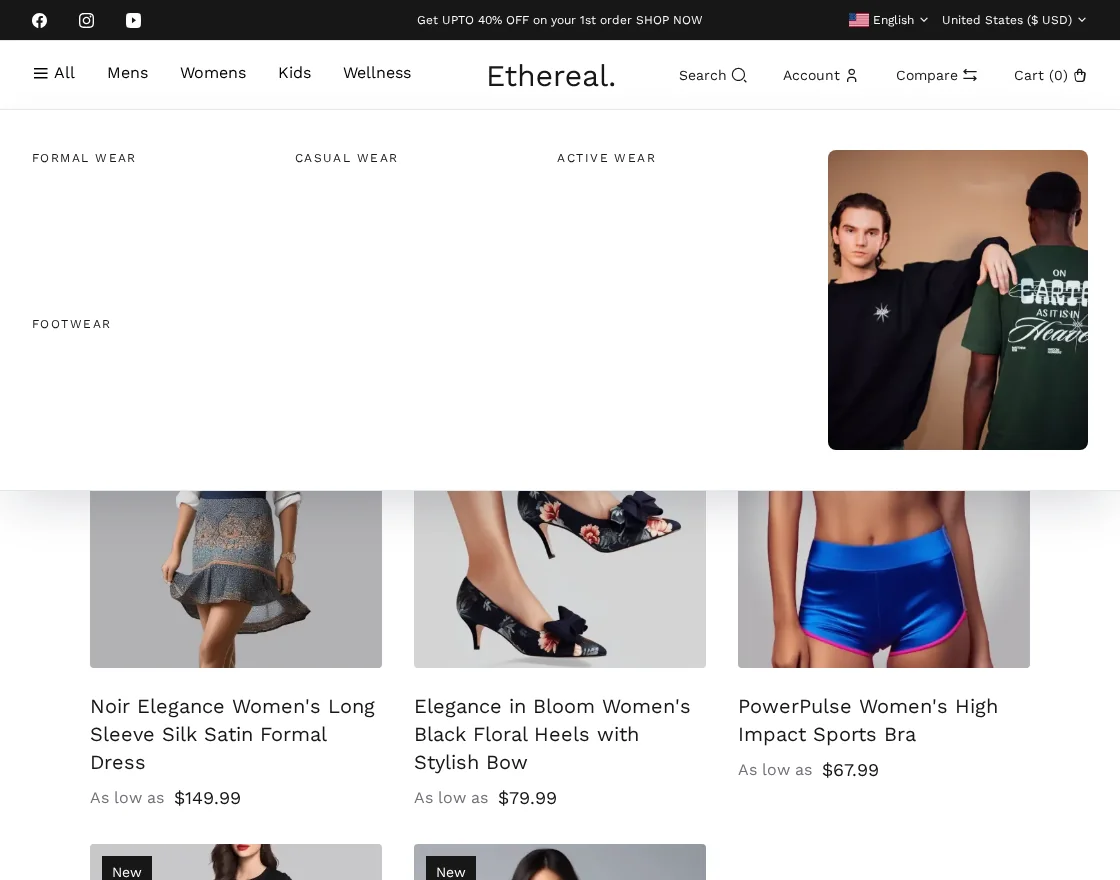
The first image appears beside the sub-category links when customers hover over the category in the mega menu.
Footer and social links: The Footer About Text is under Configure > General > Content and can differ for each locale. The Social Links setting is under Configure > Customer > Settings. It enables or hides the social icons and stores the Facebook, Instagram, Twitter, YouTube and LinkedIn links.
Product Carousel
Users can update and customize product carousel details from the admin end by adding filters, titles, descriptions, a featured image, product view limits, etc.
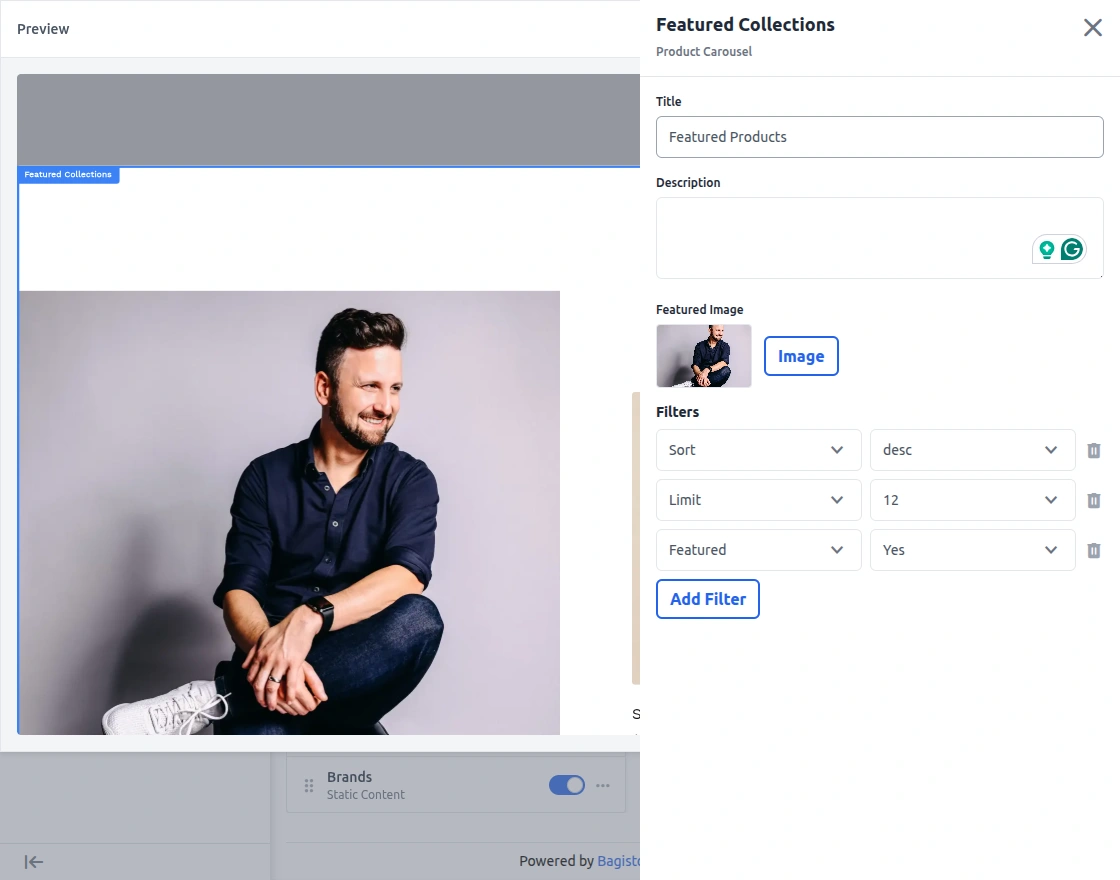
This is how the product carousel appears on the front end for customers.

Product Grid
Admins can configure the product grid by setting the title and description. They can also add filters for the grid type (3 or 4 columns), the limit (any of the store’s products-per-page values), and featured products.
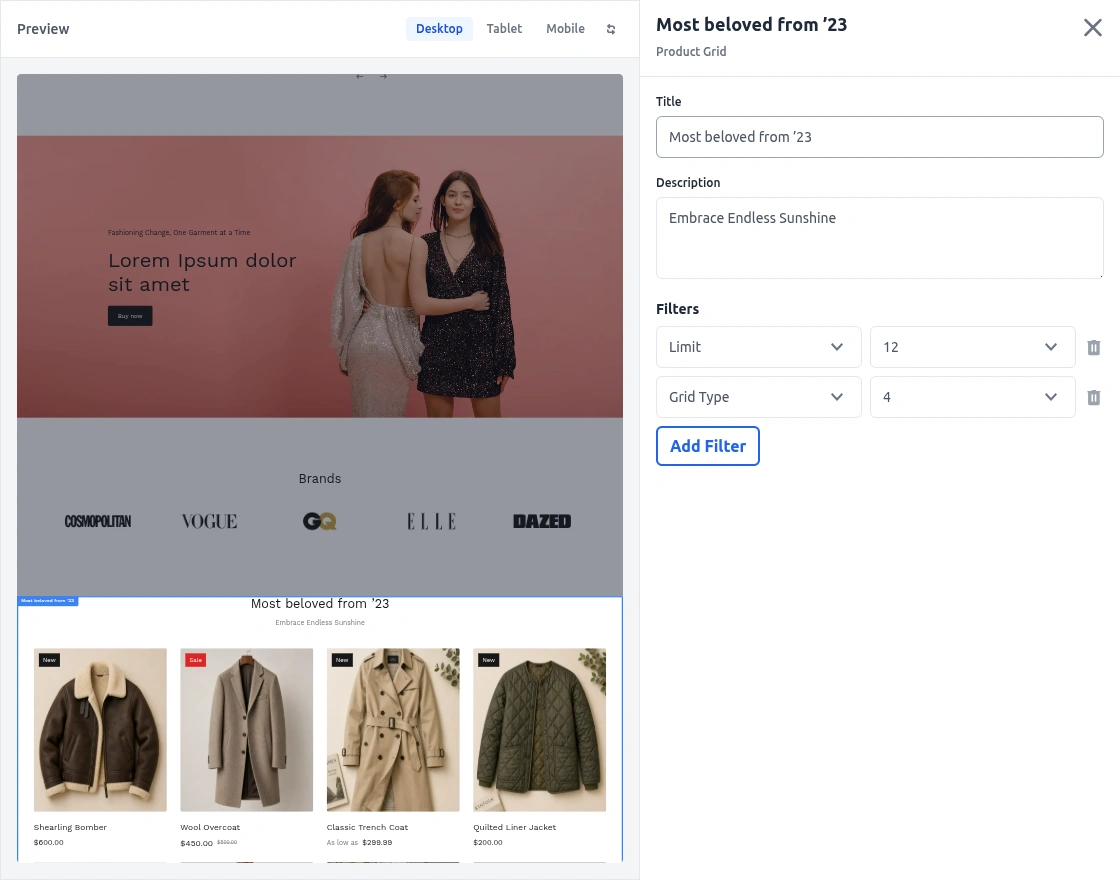
Here’s how the product grid looks to customers.

Review Carousel
Admins can display customer review carousel by adjusting the title and description. They can also add filters for the product ID, the limit, and the sort order (ascending or descending).
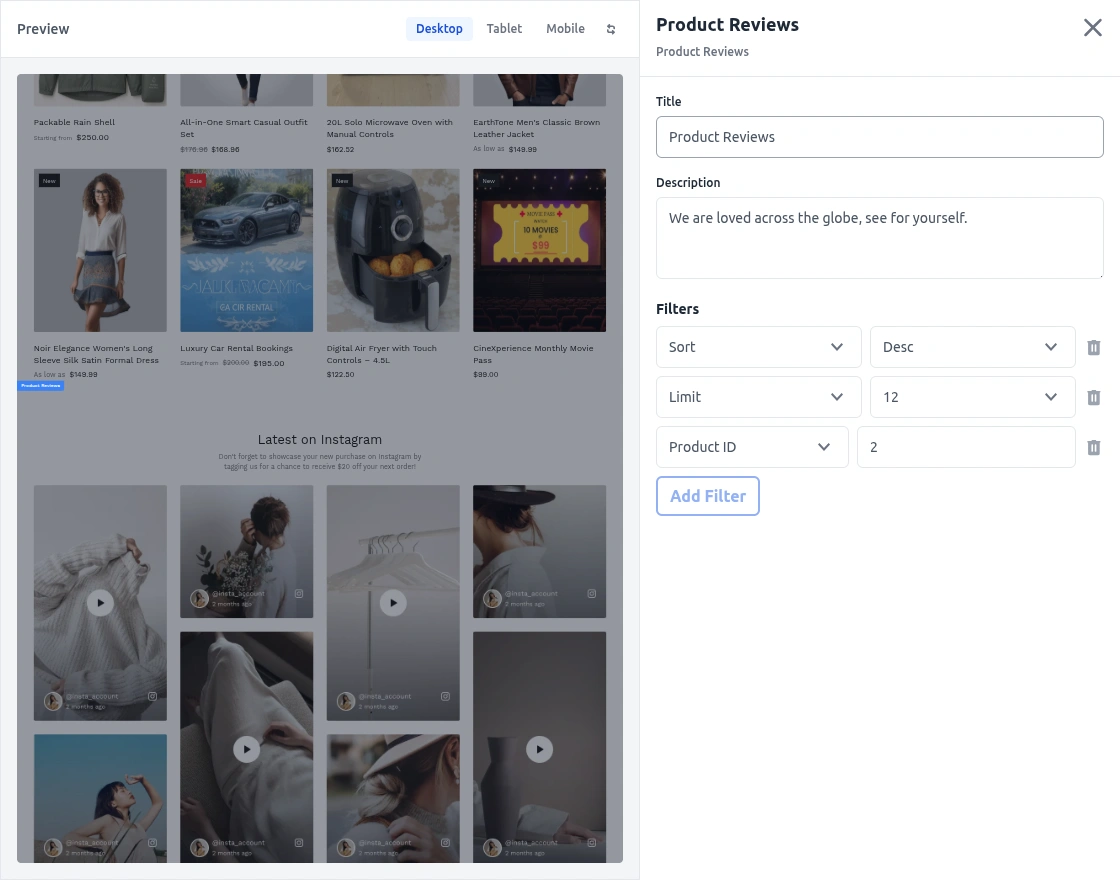
The review carousel section will appear to customers like this.

Service Content
Admins can add new services by entering titles and descriptions or editing existing services.
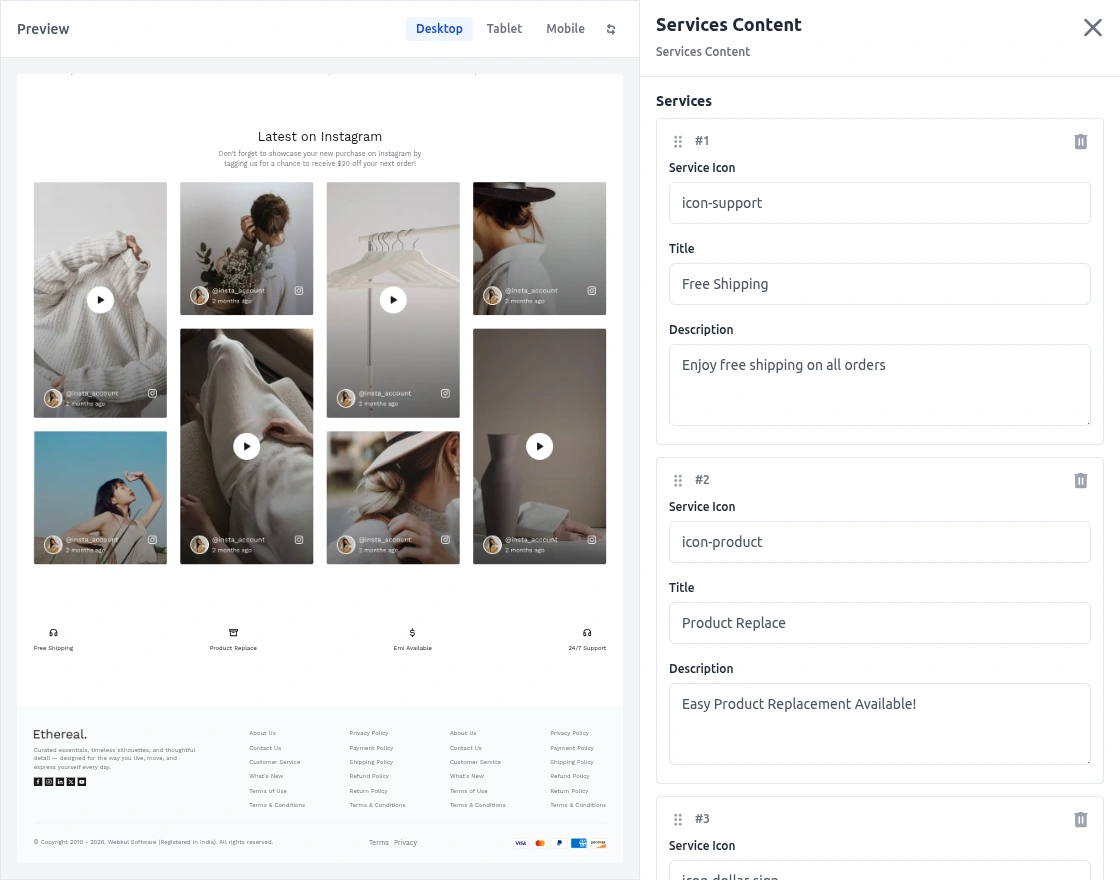
Service content will appear to the customer like this.

Banner
The admin can modify static content by writing HTML and CSS code and previewing the changes in the store.
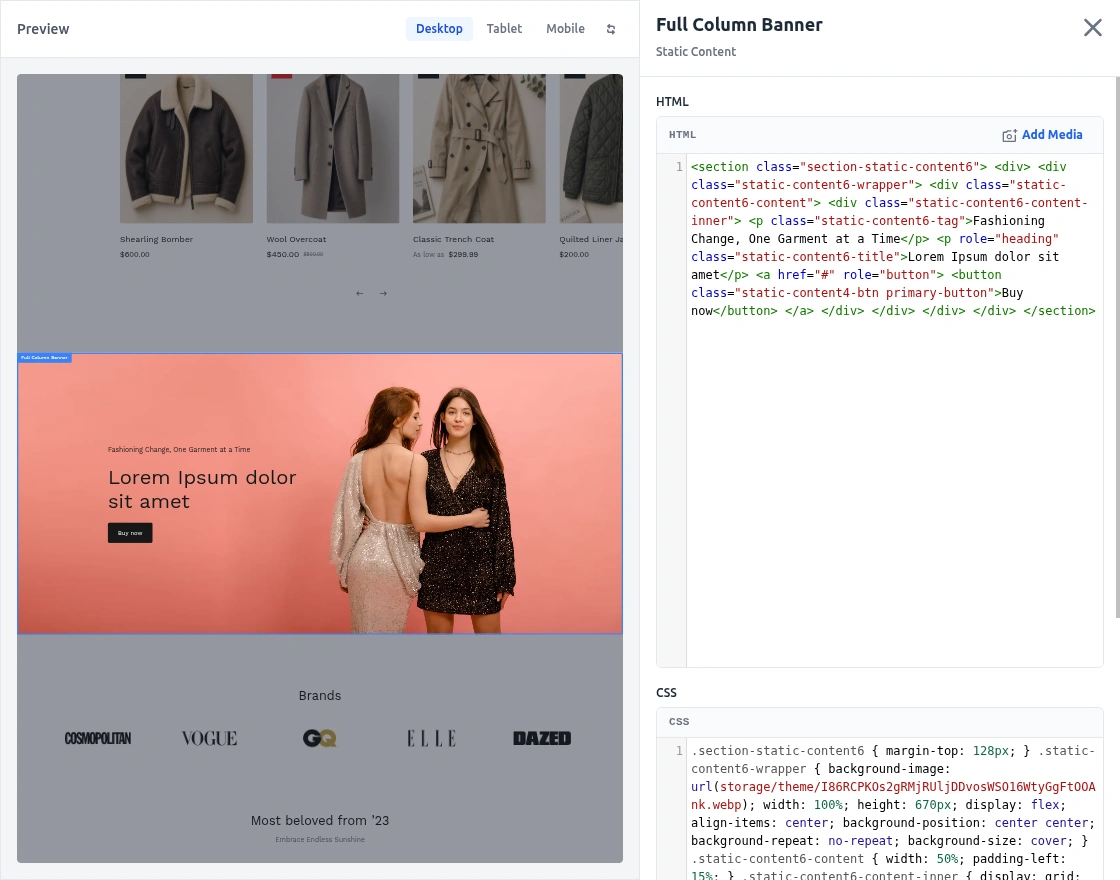
The banner will appear to customers like this.

Storefront
Here’s how the homepage looks to customers: they can see a variety of banner carousels displayed on the landing page.

Customer Login
Users can log in with their existing account credentials or create a new account.

Search Option
Customers can search for products by entering their names. Their recent searches are saved in the browser for future use.

Product filter
Customers can browse products by category and apply filters. They can also sort the listing and switch between grid and list views.

Compare Product
Users can add products to a comparison list, enabling them to evaluate and compare items before purchasing.

Shopping cart and mini-cart
The shopping cart allows users to view and manage all selected items before checkout.

While the mini-cart provides a quick overview of items added to the cart without leaving the current page.

Product Checkout
Customers can either continue shopping or review their shopping carts. They can then add necessary details, such as their address, to proceed with the checkout process.

Order Details and History
Users can view their order history and details in the “Orders” section under “My Account”.

Reviews
Users can submit reviews for any product, including text and images. These reviews are visible to customers in the review section.

Instagram post
Customers’ Instagram posts are displayed on the homepage of the fashion commerce.

Mobile Application
Once users finalize the customization, they can easily reach out to us for app installation.
Below is the link to the app we have created for our demo Fashion E-Commerce.
Users can install it directly on their mobile devices, enabling them to enjoy the features and functionality on the go.

They can download the app using the links below:
Support
So that is all for the Bagisto fashion commerce extension guide.
Also, If you want to convert your bagisto store into a vape shop, then you can check Vape Commerce.
For any further queries or assistance, you can drop us an email at [email protected]. You can also raise a ticket at our HelpDesk System.
Please explore our Laravel Development Services and Quality Bagisto Extensions.
Current Product Version - v2.5.0.0
Supported Framework Version - Bagisto v2.5.0

Be the first to comment.