Bagisto Advanced Product Filters module improves product discovery with powerful filters like category, rating, offer, discount, price, and availability.
It also enhances user experience with popular products and customer feedback, while giving store owners easy control through the admin panel.
Complete Features List for Bagisto Advanced Product Filters:
- Admin can enable or disable the entire Advanced Product Filter module.
- Category-based filter for product listing pages.
- Customer Ratings filter (1 to 5 stars).
- Stock Availability filter (In Stock / Out of Stock).
- Special Offers filter (On Sale, Buy 1 Get 1).
- Discount Range filter (10% & Up, 20% & Up, 30% & Up, 40% & Up, 50% & Up).
- Popular Products filter (Trending Now, Top Rated, Best Sellers).
- Price Range slider filter.
- Customer Feedback form with Yes/No response and optional text feedback.
- Admin can view all feedback submissions in a detailed DataGrid.
- Feedback tracking with page URL, category, IP address, and session details.
INSTALLATION
Bagisto Version: v2.4.4
Install Bagisto Advanced Product Filters by following these steps.
Step 1: Extract Package
Unzip the extension package and merge the packages folder into your project root.
Step 2: Register Service Provider
- Goto bootstrap/providers.php file and add the following line under ‘providers’
use Webkul\AdvancedFilters\Providers\AdvancedFiltersServiceProvider;

return
[
 AdvancedFiltersServiceProvider::class,
 ]
- Goto composer.json file and add following line under ‘psr-4’
"Webkul\\AdvancedFilters\\": "packages/Webkul/AdvancedFilters/src"
- Run these commands below to complete the setup
composer dump-autoload
php artisan advanced-filters:install
Admin Configuration
After successful installation of the module, the admin needs to navigate to :
Admin Panel → Settings → Configuration → General → Advance Filter

Enable Advance Filter: Toggle to enable or disable the advanced filter functionality for the storefront. The default value is enabled.
Show Feedback Form: Enable or disable the customer feedback form which asks “Did you find what you were looking for?” on the category and search results pages. The default value is disabled.
Show Out of Stock: Control whether out-of-stock products are displayed or hidden in the product listing. The default value is enabled.
Show Popular Products Section: Enable or disable the Popular Products filter section which includes Trending Now, Top Rated, and Best Sellers on the storefront. The default value is enabled.
All these settings are channel-based, meaning you can configure them differently for each channel.
Shop Filters Overview
When the module is enabled, customers see an advanced filter panel on category and search result pages. These filters help shoppers find products quickly and improve the overall shopping experience.
Category Filter
Customers can filter products by selecting one or more categories. Additionally, they can search categories using the built-in search option.
The system loads categories dynamically with pagination, which improves performance.

Customer Ratings Filter
Customers can filter products based on average ratings. The available options include:
- 5 Stars
- 4 Stars & Up
- 3 Stars & Up
- 2 Stars & Up
- 1 Star & Up
As a result, customers can quickly find highly rated products.
Stock Availability Filter
Customers can filter products based on stock status.
- In Stock – Displays products that are currently available.
- Out of Stock – Displays products that are currently unavailable.
Moreover, the filter supports configurable products. If any variant is in stock, the parent product is considered available.
Special Offers Filter
Customers can discover products with active promotions.
Available options include:
- On Sale – Displays products with discounted prices.
- Buy 1 Get 1 – Displays products linked to an active Buy 1 Get 1 cart rule.
Therefore, shoppers can easily find promotional deals.
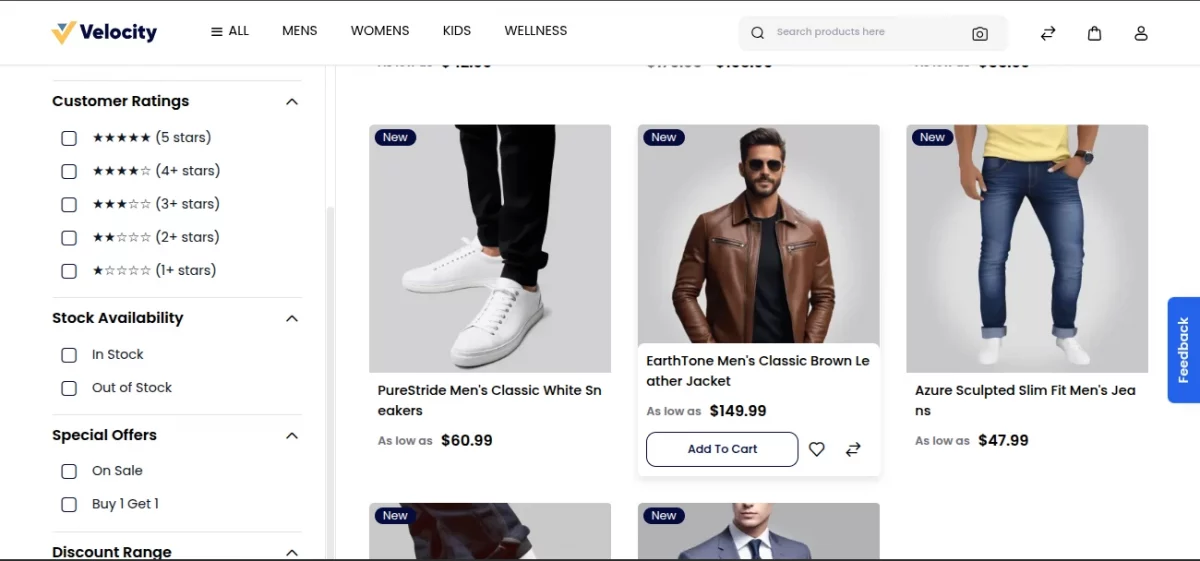
Discount Range Filter
Customers can filter products according to discount percentages.
Available options include:
- 10% & Up
- 20% & Up
- 30% & Up
- 40% & Up
- 50% & Up
The system calculates discounts using the following formula:
((Regular Price – Sale Price) / Regular Price) × 100
Popular Products Filter
Customers can discover products through popularity-based filters.
Trending Now displays the top five most-ordered products from the last 30 days.
Top Rated displays products with the highest average customer ratings.
Best Sellers displays products with the highest completed order count.
Consequently, customers can quickly find popular and trusted products.
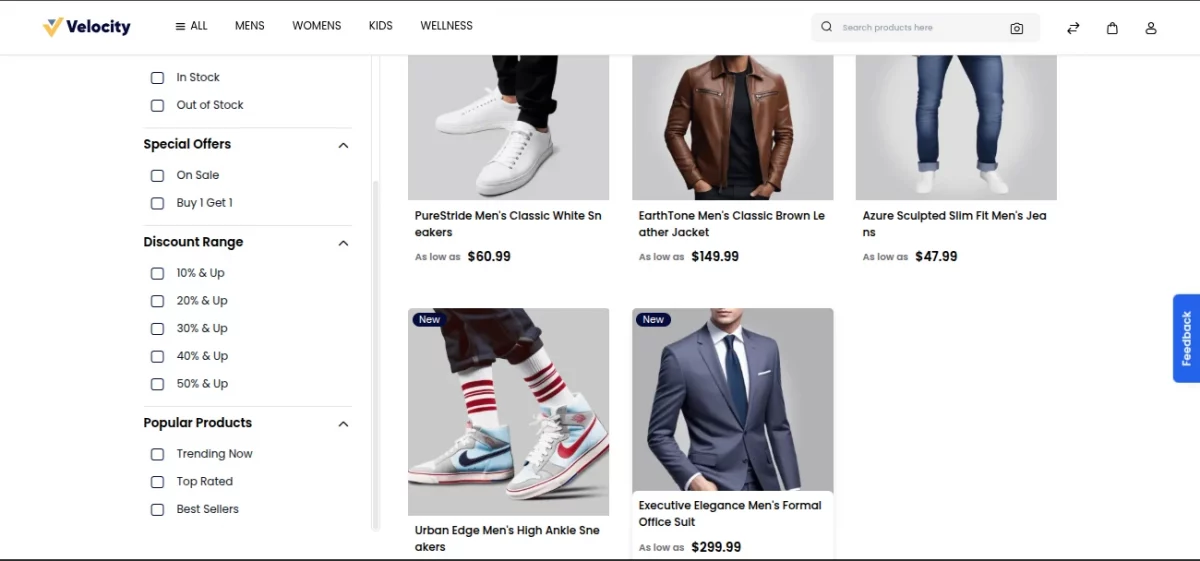
Price Range Filter
Customers can use the price slider to select a preferred price range. Furthermore, the slider automatically adjusts according to the minimum and maximum prices available within the selected category.
Customer Feedback System
The module also includes a customer feedback feature.
A feedback button appears on the right side of category and search result pages. When customers click the button, a popup opens with the question:
“Did you find what you were looking for?”
Customers can select Yes or No. Additionally, they can provide detailed comments in the feedback box.
After entering their response, they can click Submit Feedback.
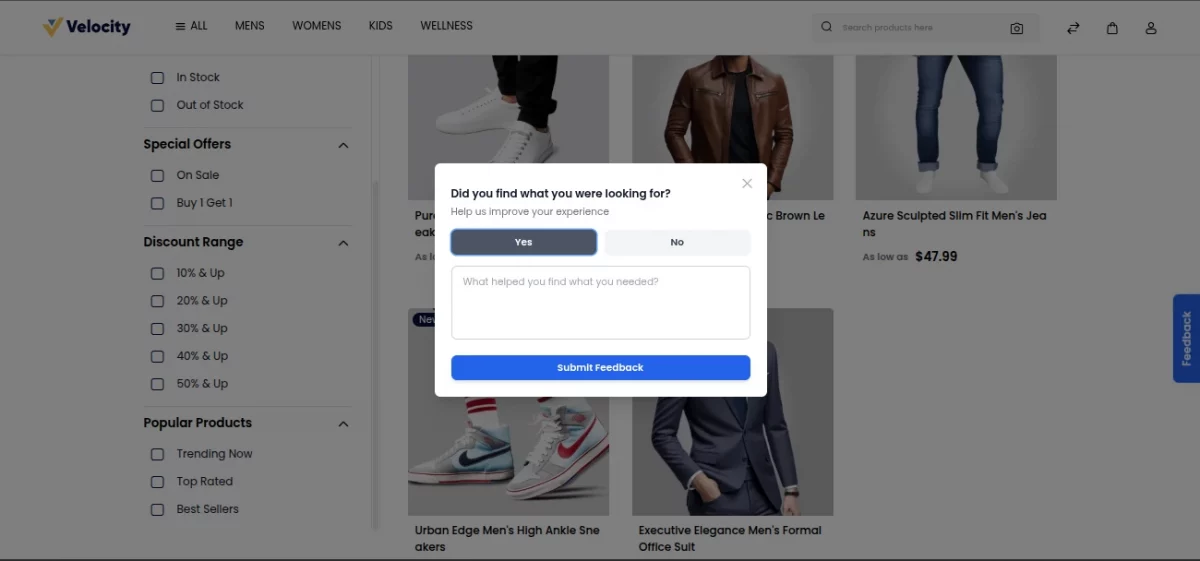
For registered customers, the system automatically records their name and email address. For guest users, the system records the submission as Guest.
Moreover, the system captures the following details:
- Page URL
- Category ID
- IP Address
- Session ID
As a result, store owners gain valuable insights into customer satisfaction and browsing behavior.
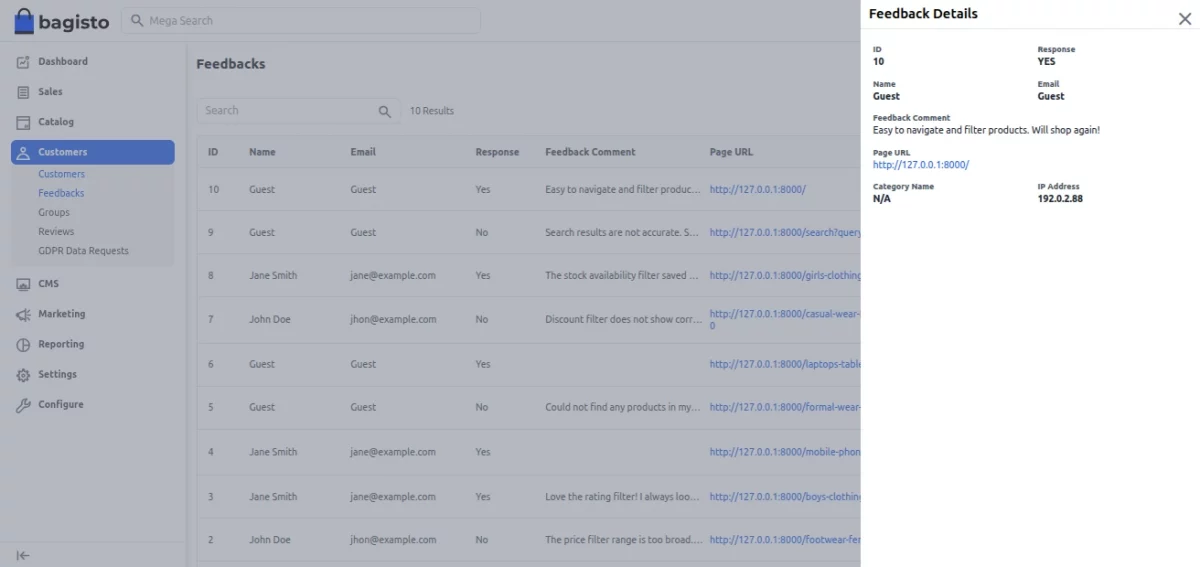
Admin Feedback Management
The admin can review customer feedback by navigating to:
Admin Panel → Customers → Feedbacks
The feedback DataGrid displays the following information:
Feedback ID
Displays the unique identifier of each feedback record.
Customer Details
Shows the customer name and email address. For guest submissions, the system displays Guest.
Response Status
Displays customer responses with visual badges:
- Green Badge – Yes
- Red Badge – No
Feedback Comment
Displays customer comments. The grid shows a shortened version, while the complete comment appears on hover.
Page URL
Displays the page where the feedback was submitted. Additionally, the URL appears as a clickable link.
Category Information
Displays the category name associated with the feedback. If no category exists, the system displays N/A.
IP Address
Displays the customer’s IP address for tracking purposes.
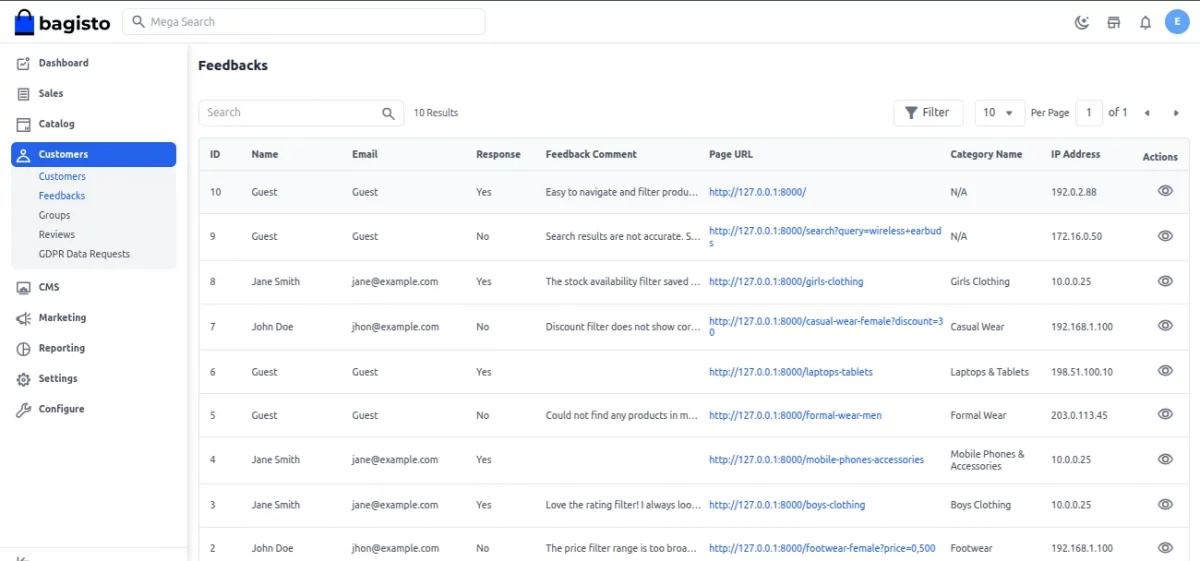
The admin can click the View icon to open a detailed drawer displaying all feedback details, including customer information, response status, comments, category, page URL, and IP address.
Support
So, that was all about the User Guide of the Bagisto Advanced Filters Module. For any queries or doubts, reach out to us at [email protected].
We hope this guide helps you. Do you still have a question? Feel free to raise a ticket. Just visit: https://bagisto.uvdesk.com/en
Current Product Version - v2.4,4
Supported Framework Version - v2.4.4

Be the first to comment.