Affiliate Product for SaaS module is a helpful extension that lets store owners list products they don’t sell directly. Customers are redirected to an external website to complete their purchase.
This module provides a dedicated Affiliate product type for Bagisto SaaS, enabling the Super Admin to control which tenants (store owners) can create and manage external affiliate products.
Features
- Tenants can easily create new products using the ‘Affiliate’ product type.
- Store owners can set an external website Hyperlink where the customer will be redirected.
- Option to enable or disable the display of the product price on the storefront.
- Store owners can customize the button caption text (e.g., “Buy on External Store”).
- Store owners can customize the button background color to match their theme.
- Store owners can customize the button font color.
- On the storefront, the normal “Add to Cart” button is replaced. Clicking it redirects the customer directly to the provided external hyperlink.
Installation of Affiliate Product for SaaS
- Unzip the respective extension zip and then merge the “packages” folder into the project root directory.
- Goto composer.json file and add the following line under ‘psr-4’:
"Webkul\\AffiliateProduct\\": "packages/Webkul/AffiliateProduct/src",
"Webkul\\AffiliateProductSaas\\": "packages/Webkul/AffiliateProductSaas/src"
- Run the below command to autoload the newly added files:
composer dump-autoload
- Goto bootstrap/providers.php file and add following line under ‘providers’ array:
Webkul\AffiliateProduct\Providers\AffiliateProductServiceProvider::class,
Webkul\AffiliateProductSaas\Providers\AffiliateProductSaasServiceProvider::class,
- Run the below mentioned command from the root directory in the terminal to complete the setup:
php artisan affiliate-product-saas:install
That’s it, now just execute the project on your specified domain.
Note: This extension is dependent on Laravel Multi-Tenant SaaS module and will only work when the Laravel Multi-Tenant SaaS module is installed and properly configured.
Tenant (Admin) Management
Once the Super Admin has allowed the affiliate product type, the tenant can log into their store admin panel to add these products.
Creating an Affiliate Product for Saas
Navigate to Catalog >> Products and click on the Create Product button. In the product type dropdown, you will now see the Affiliate option. Select it, enter the product SKU, and click save.
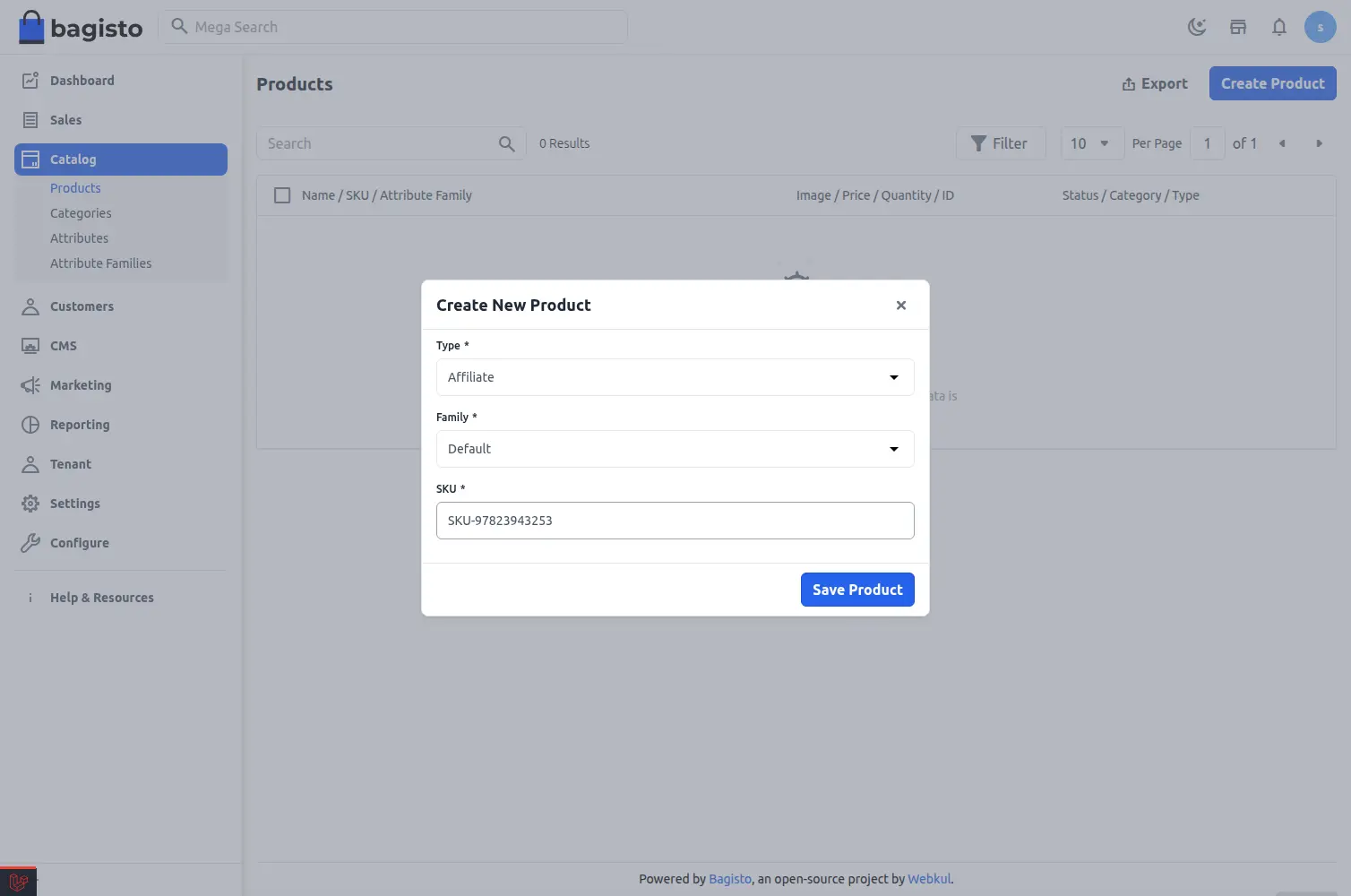
Now you will be redirected to the main product edit page. Here you need to fill in all the general details like name, description, categories, and images.
Affiliate Product Settings
Scroll down to find the special Affiliate settings section. Here you can configure the specific details for your external link.
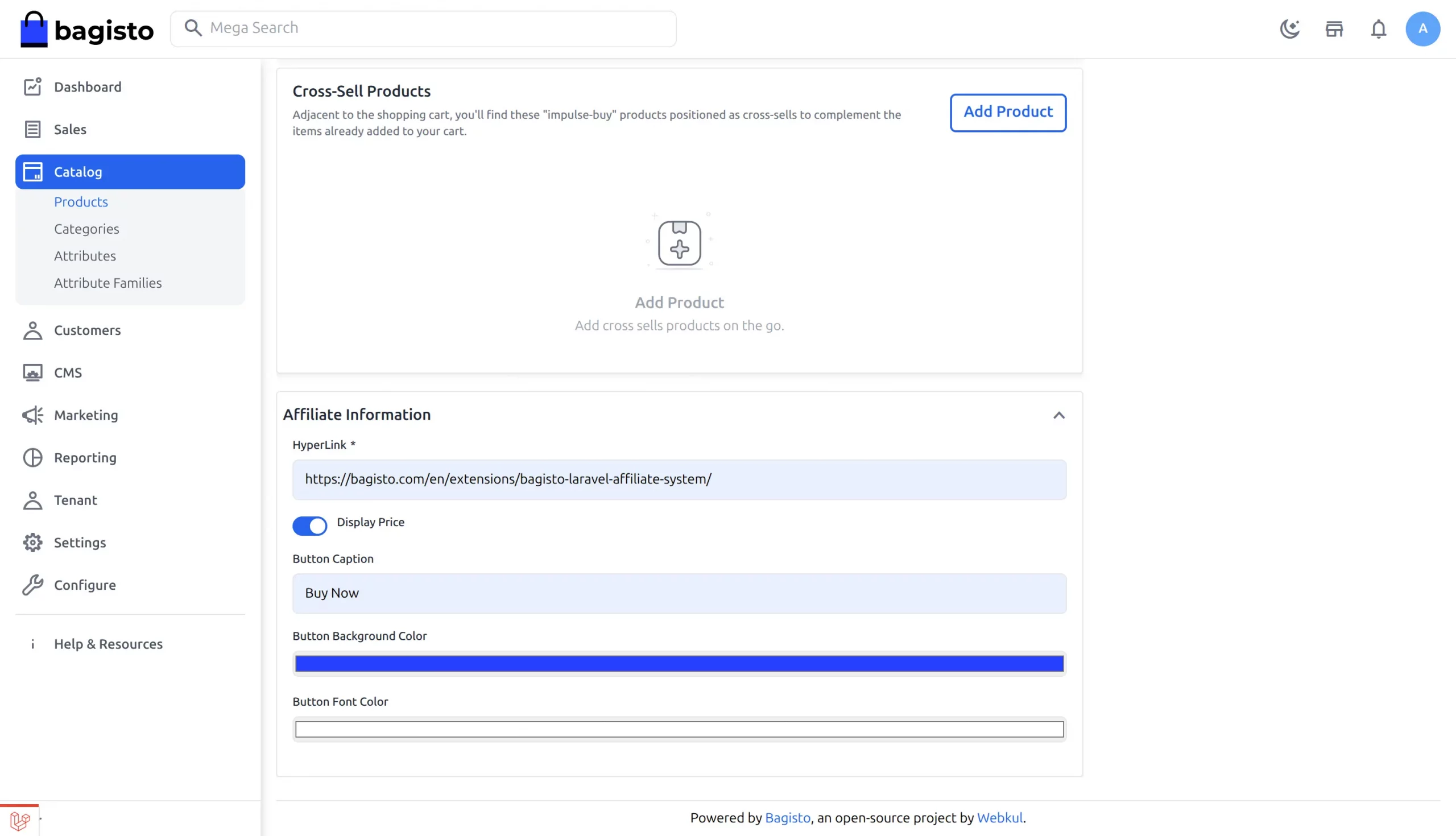
You can adjust the following settings:
- Hyperlink: Enter the external website URL where you want to send the customer. This must be a valid link starting with http or https.
- Display Price: Turn this switch on or off to choose if you want to show the product price on your store page.
- Button Caption: Write the exact text you want to show on the button.
- Button Background Color: Choose the background color of the button.
- Button Font Color: Choose the text color of the button.
Storefront View (Customer View)
When customers visit your store website, they can view the affiliate product just like any other item. However, they will see a few differences on the product page.
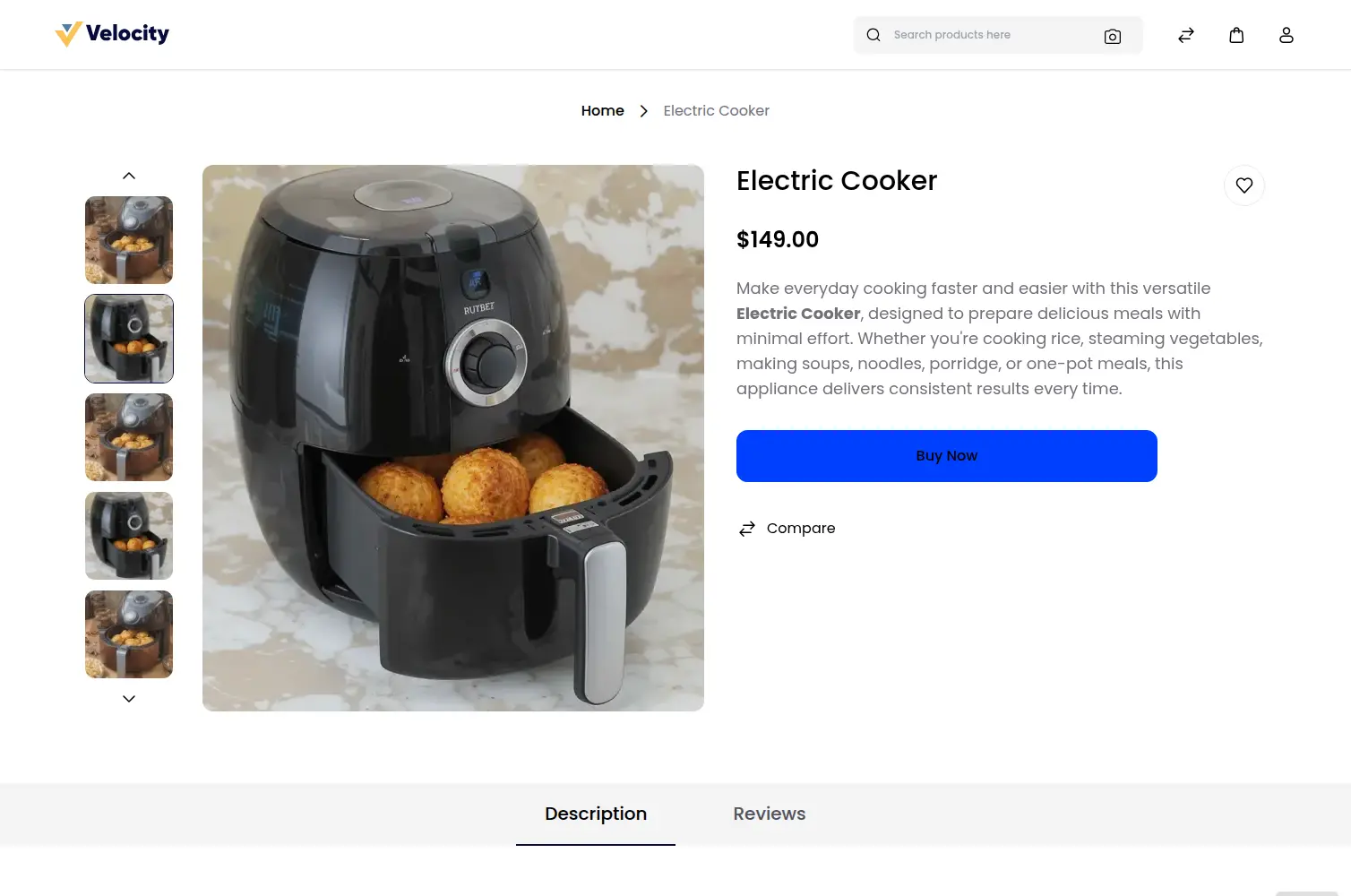
Instead of the normal Add to Cart button, they will see the custom button you created. The colors and the text will match your settings.
When the customer clicks this button, they will be sent directly to the external website link you provided. They cannot add this item to your store’s shopping cart.
Support
So, that was all about the User Guide for the Bagisto Affiliate Product SaaS Module. If you have any queries or doubts, please reach out to us at [email protected].
You can also raise a ticket at our HelpDesk System.
Please explore our Laravel Development Services and Quality Bagisto Extensions.
Current Product Version - 2.4.6
Supported Framework Version - 2.4.x

Be the first to comment.