Aureus License Manager helps you generate and verify a license key for your CS-Cart add-on. It ensures that only valid licenses can activate the add-on on your store.
This guide shows how to create a license key, install the required add-on, and activate it in CS-Cart.
Prerequisites
Before you start, keep these details ready:
- A registered Aureus panel account
- Your add-on order ID
- The add-on ZIP file
- Your store domain (production or development)
Register for the Aureus Panel
You need to register for the Aureus panel to generate the license key.
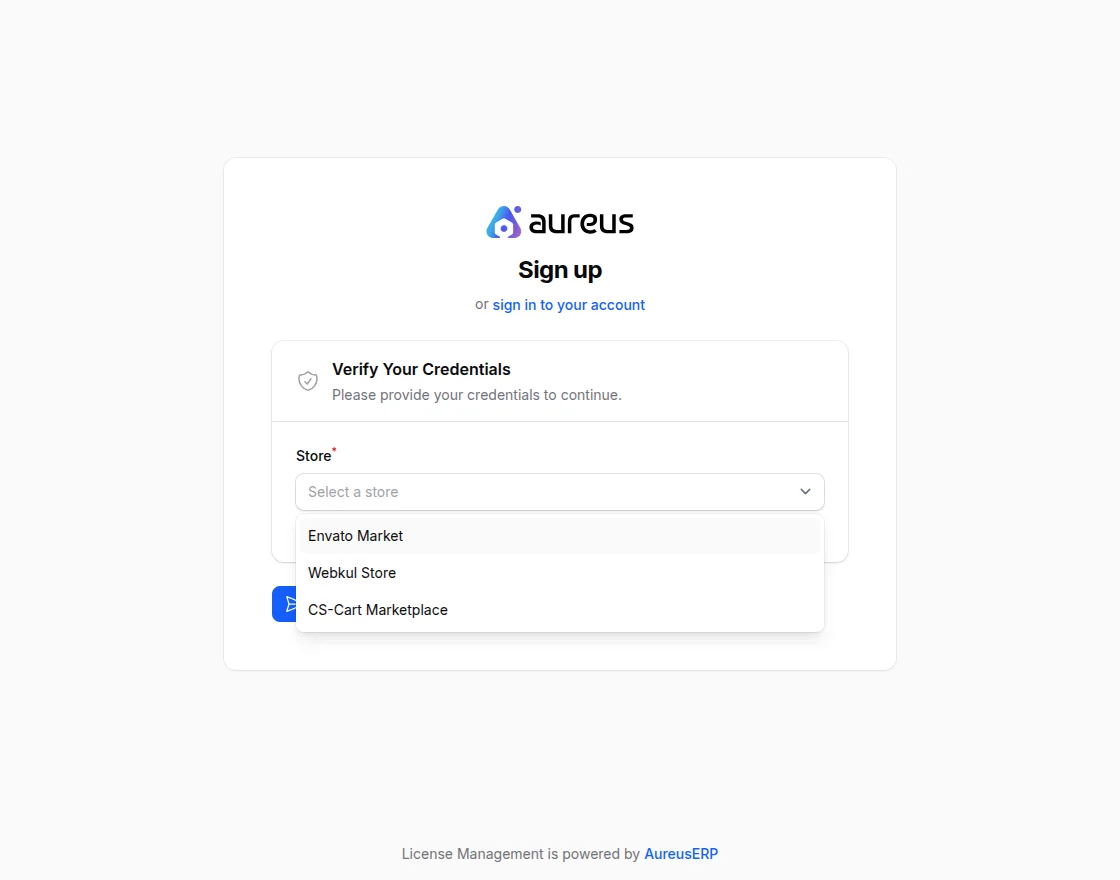
Select the store to create the license key.
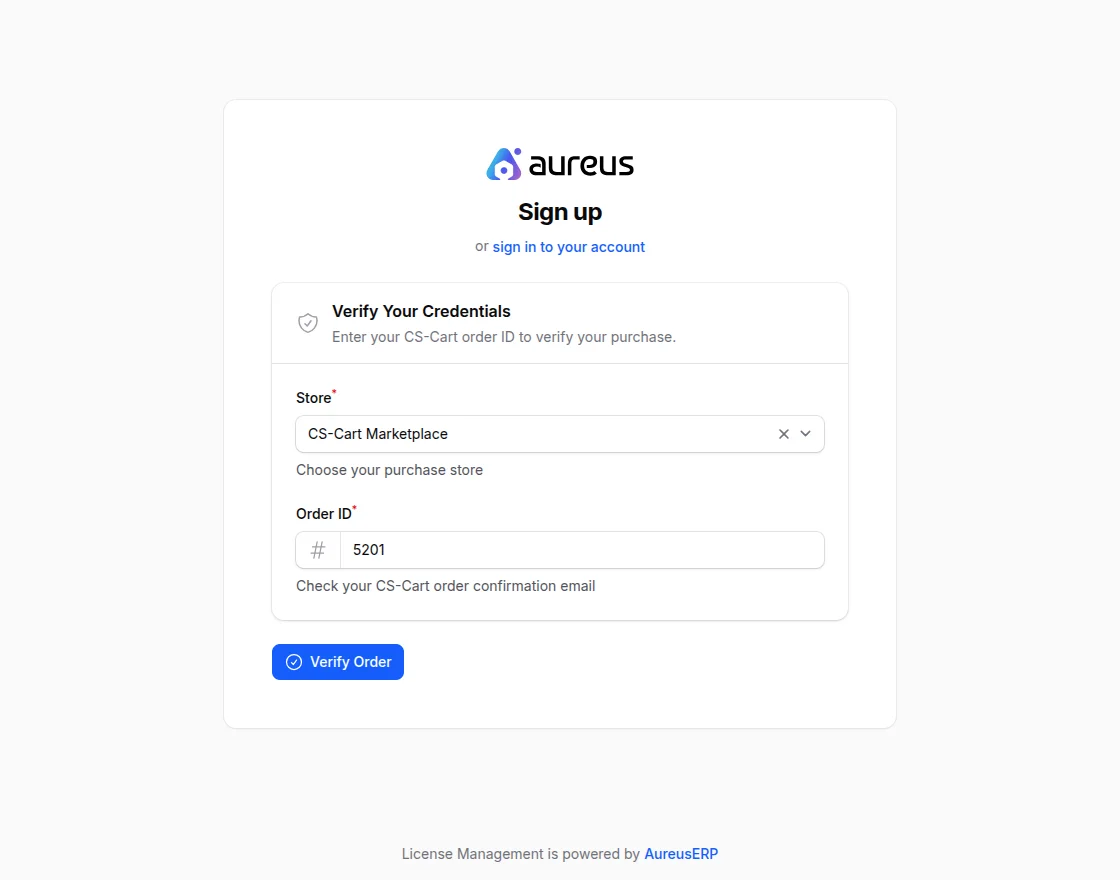
Store: Select the store from the available options.
Order ID: Select the order ID associated with the purchase.
Email Address: Enter the email ID to proceed with license key generation.
After filling in the details, verify them.
Sign In
If the account is already created, sign in to Aureus.
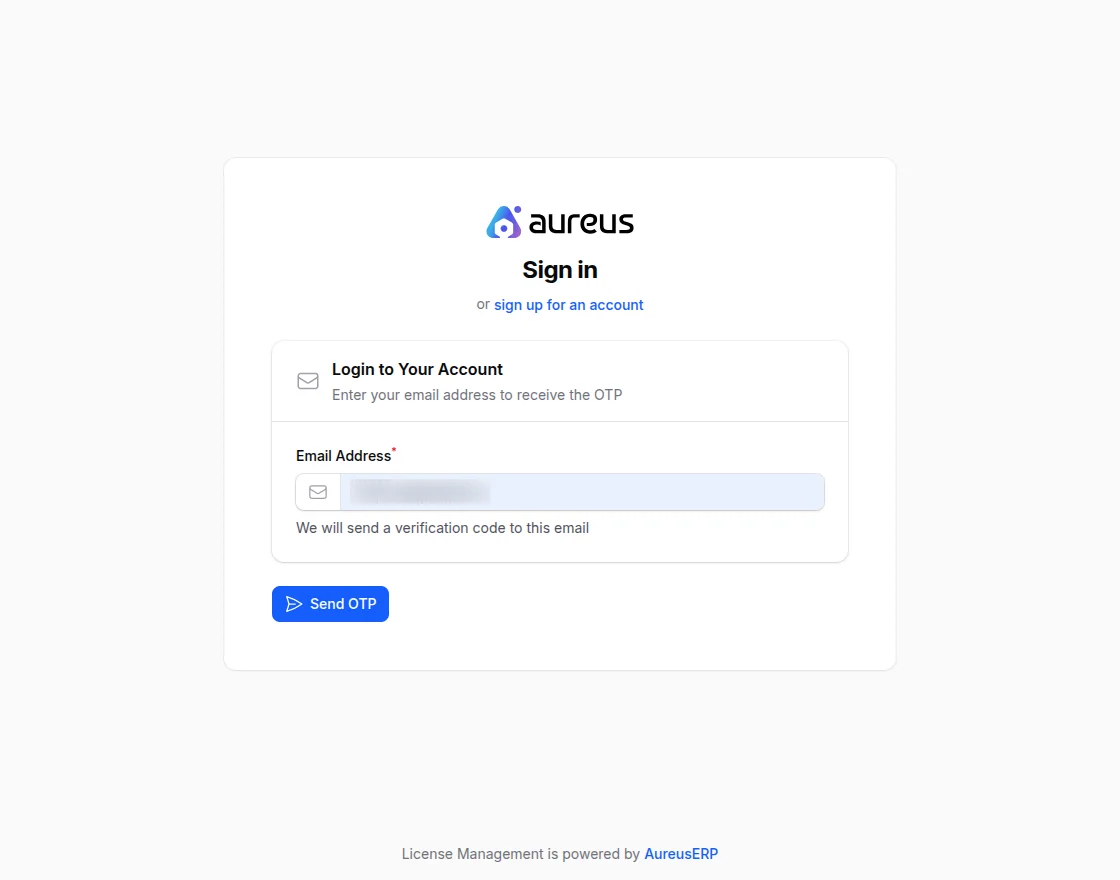
Enter your email, then enter the OTP to log in to Aerous.
License
To create a license key, navigate to the License section.
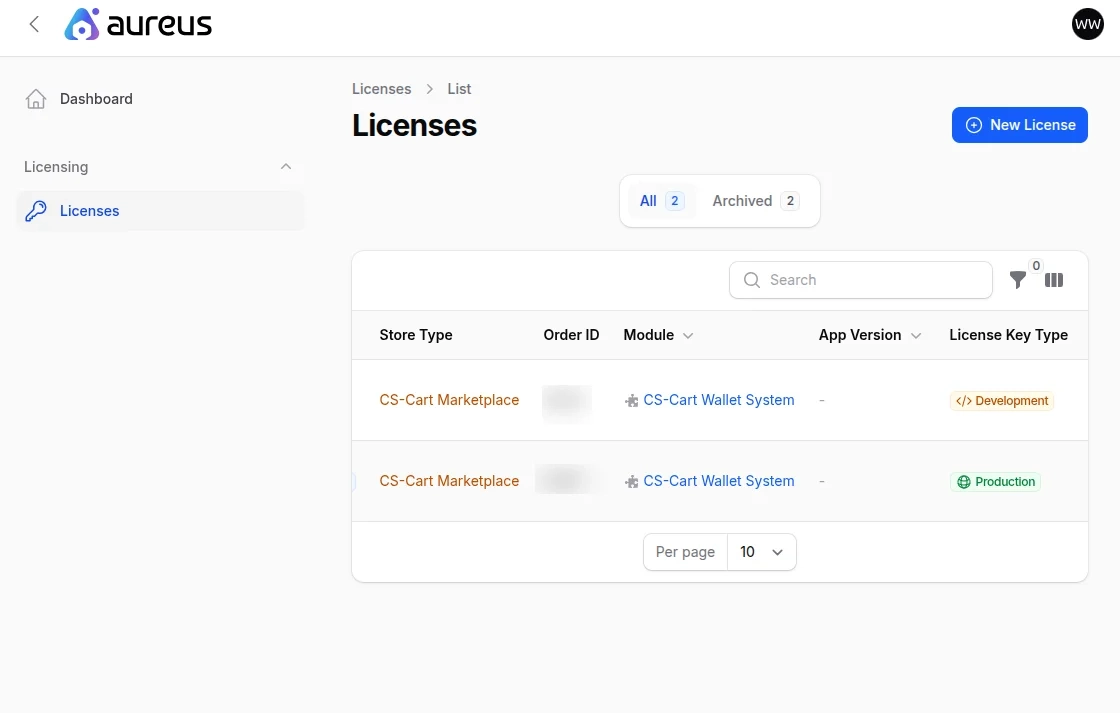
After that, click on Add License to create a new license key.
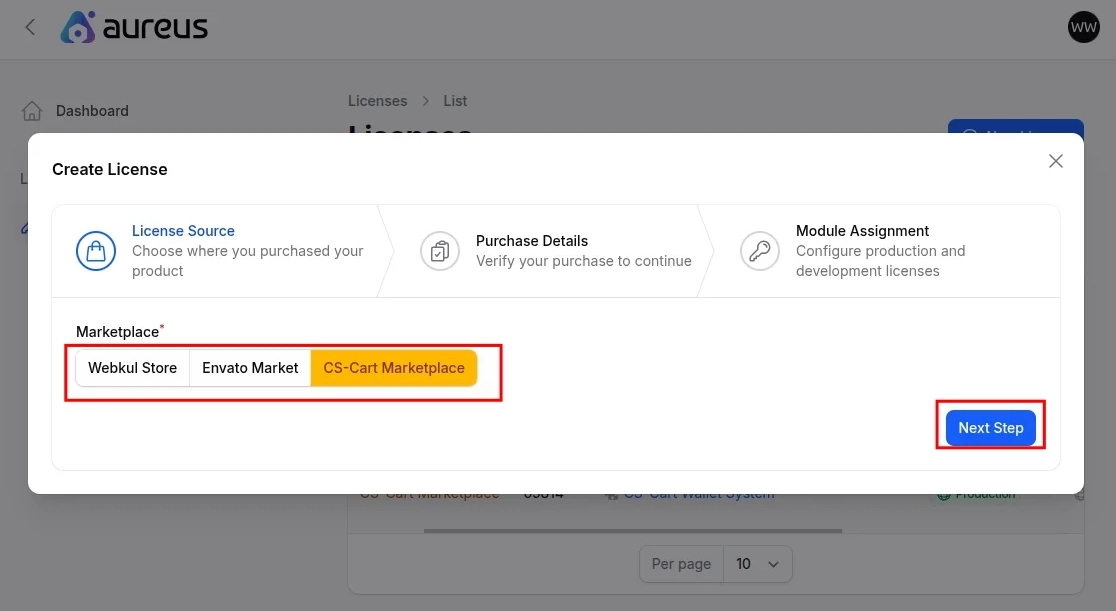
Select the marketplace from the available options.
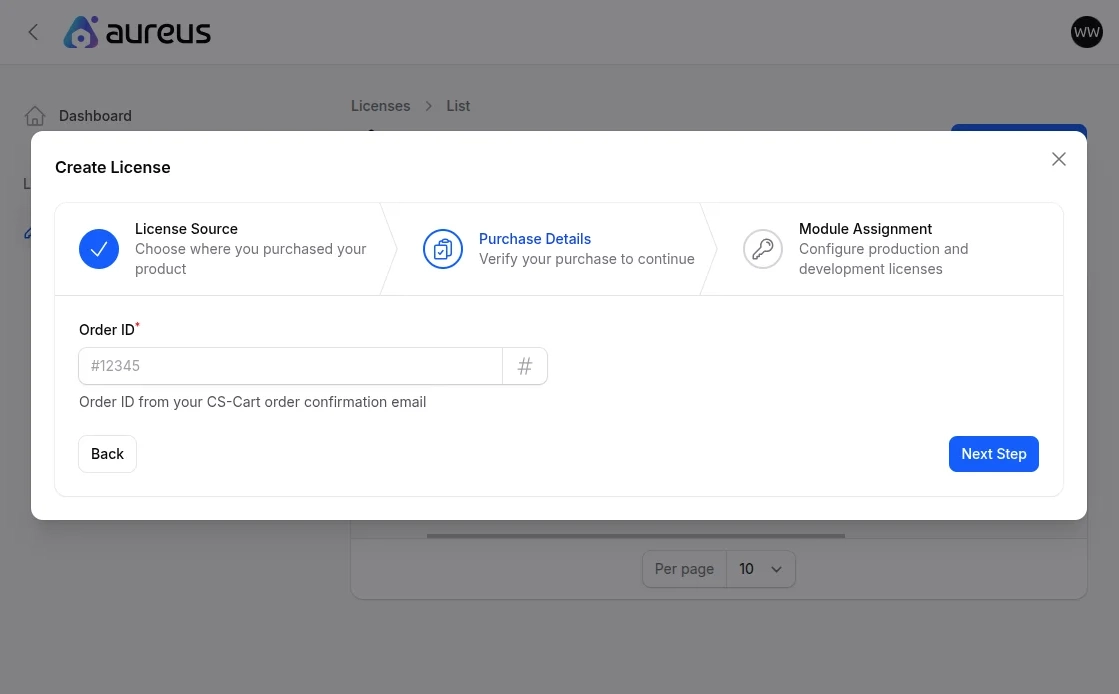
After entering the order ID, move to the next step.
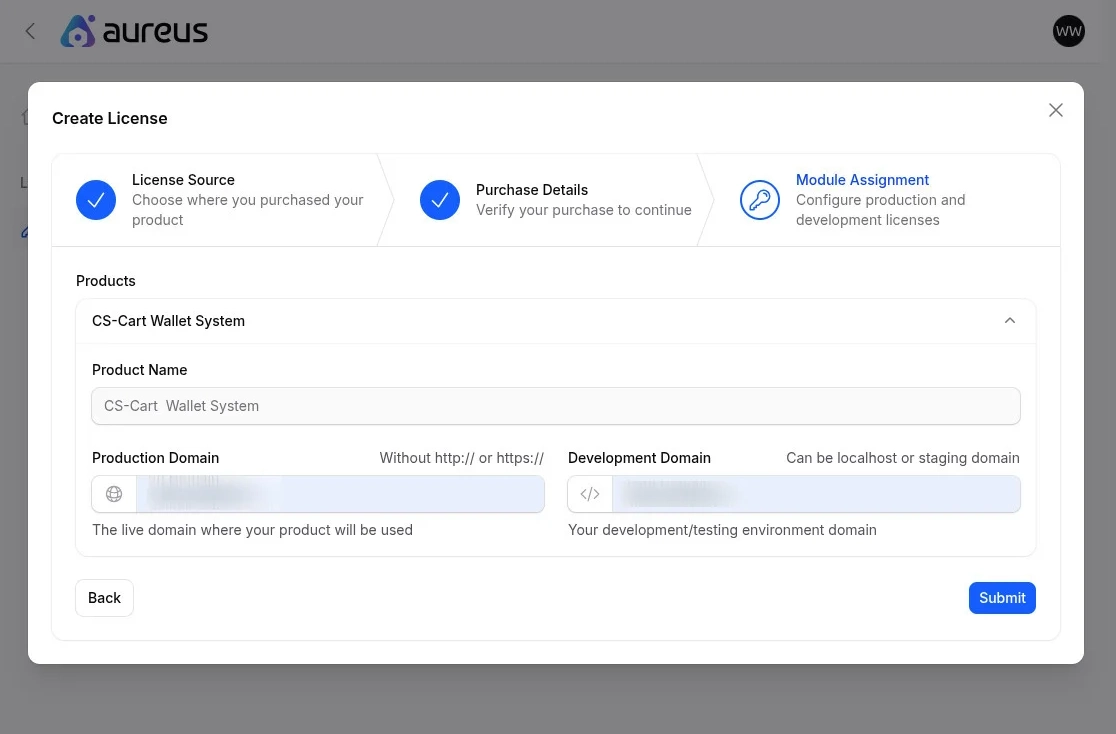
- Production Domain: Enter your production domain.
- Development Domain: Enter your development domain.
Note: Enter the full domain URL.
For example: yourdomain.com/cscart/store.
After submitting, the system creates the license key.
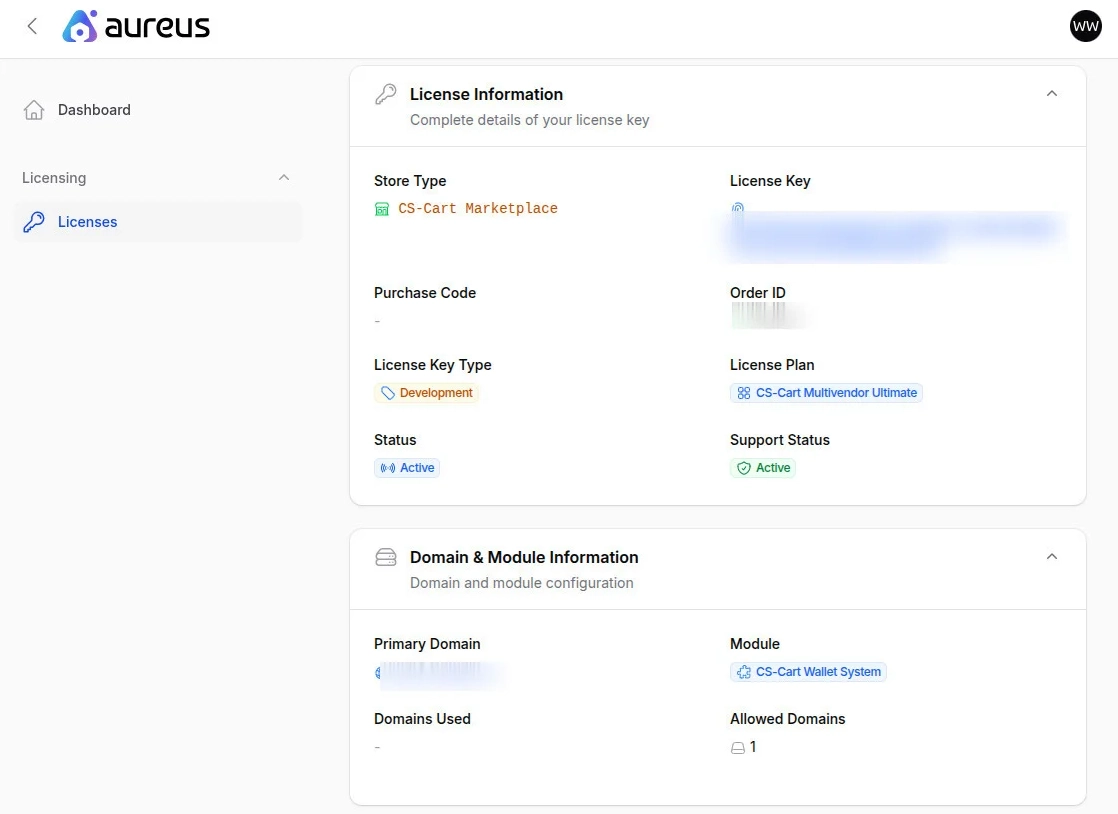
You can view the details by clicking the View button.
Addon Configuration
First, install the Webkul License Manager add-on.
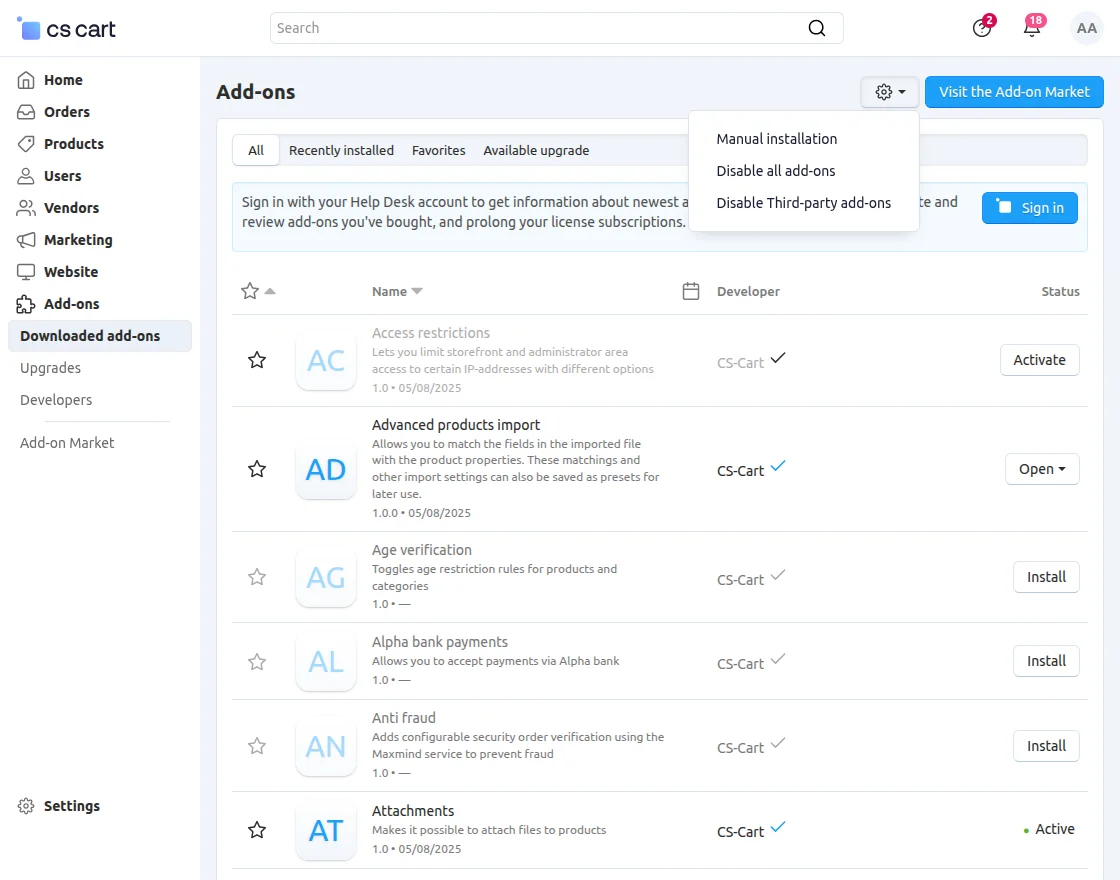
To install the add-on, navigate to Add-ons and click on Manual Installation.
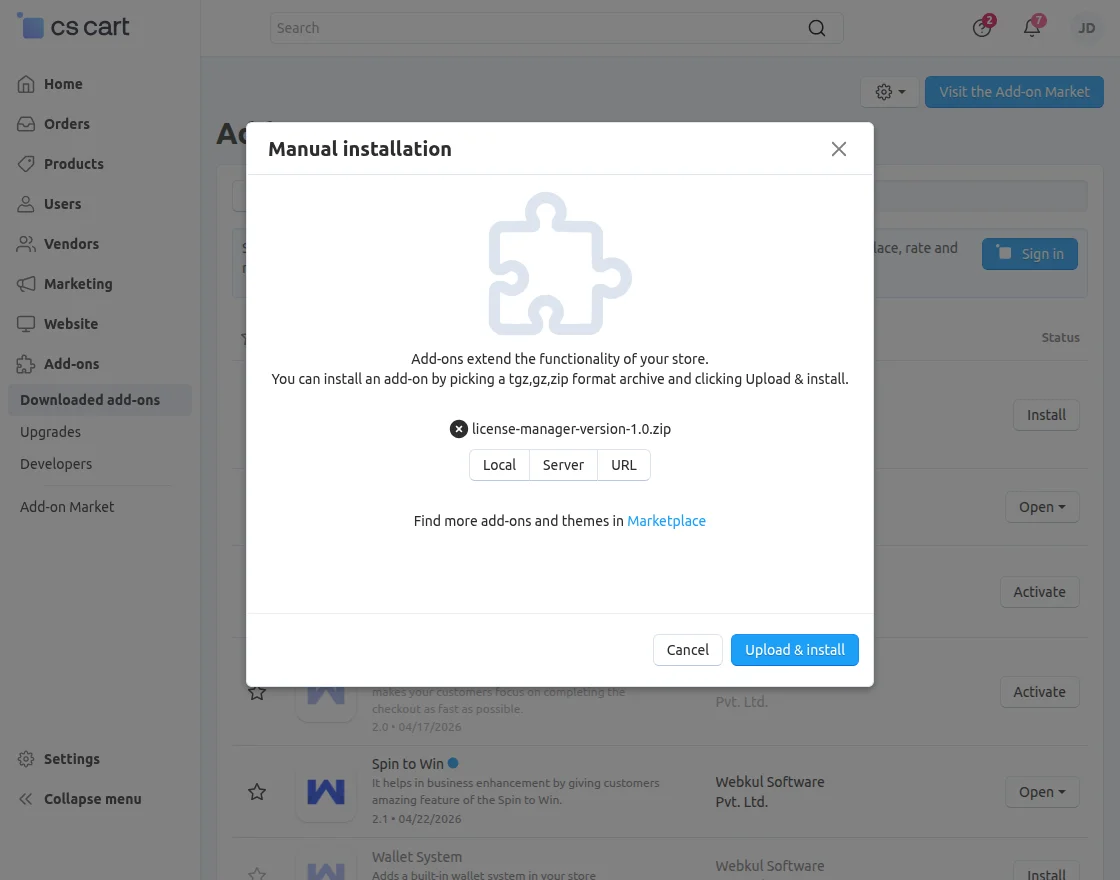
Click on “Local” to browse the zip file, and then click on “Upload & Install” as shown below in the snapshot.
After that, install the add-on you purchased.
Webkul License Manager
To manage the license key, navigate to Add-ons >> Manage Licenses.
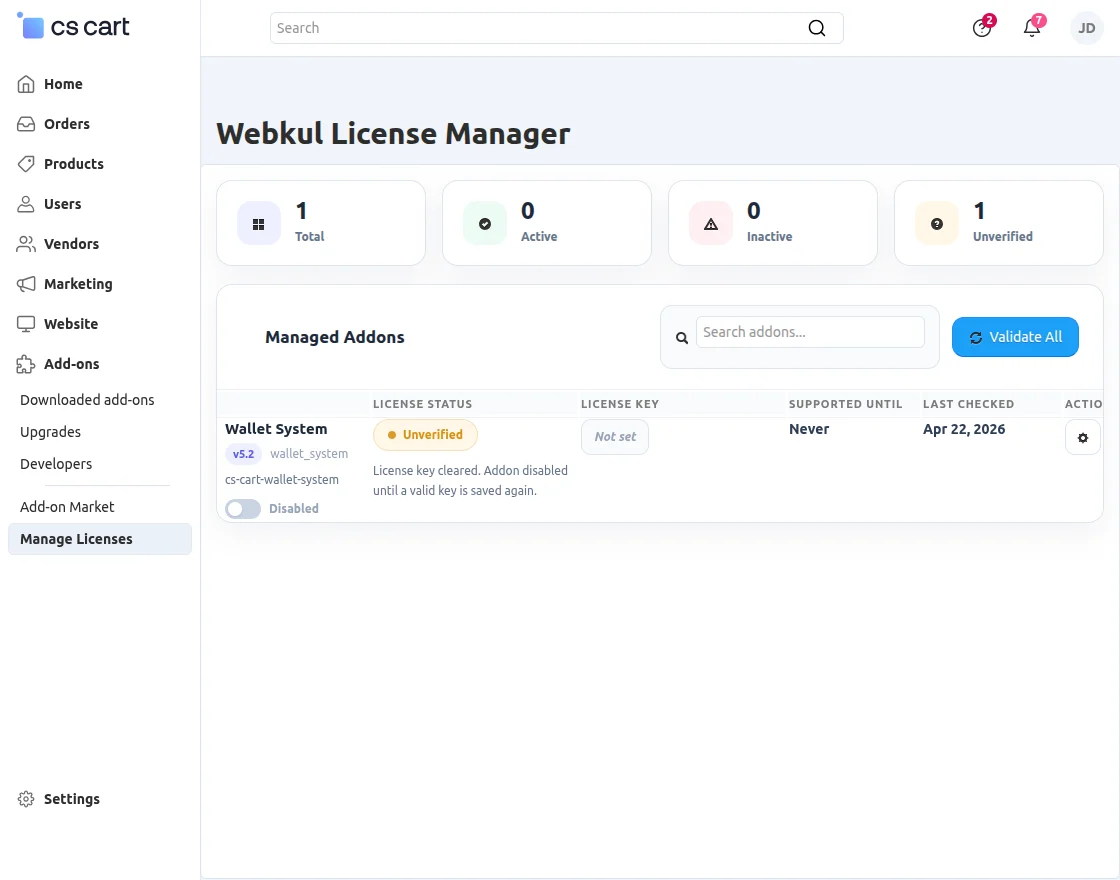
View the add-on details.
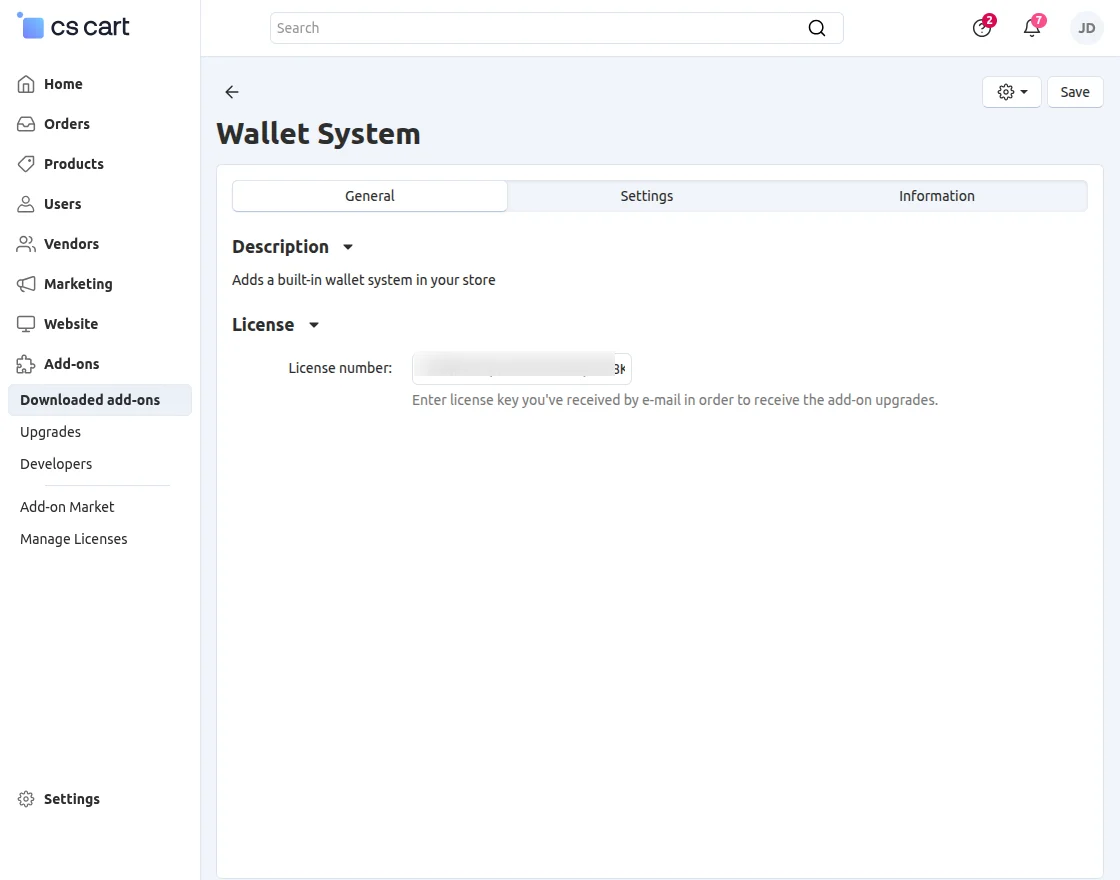
After saving the license key, the add-on activates.
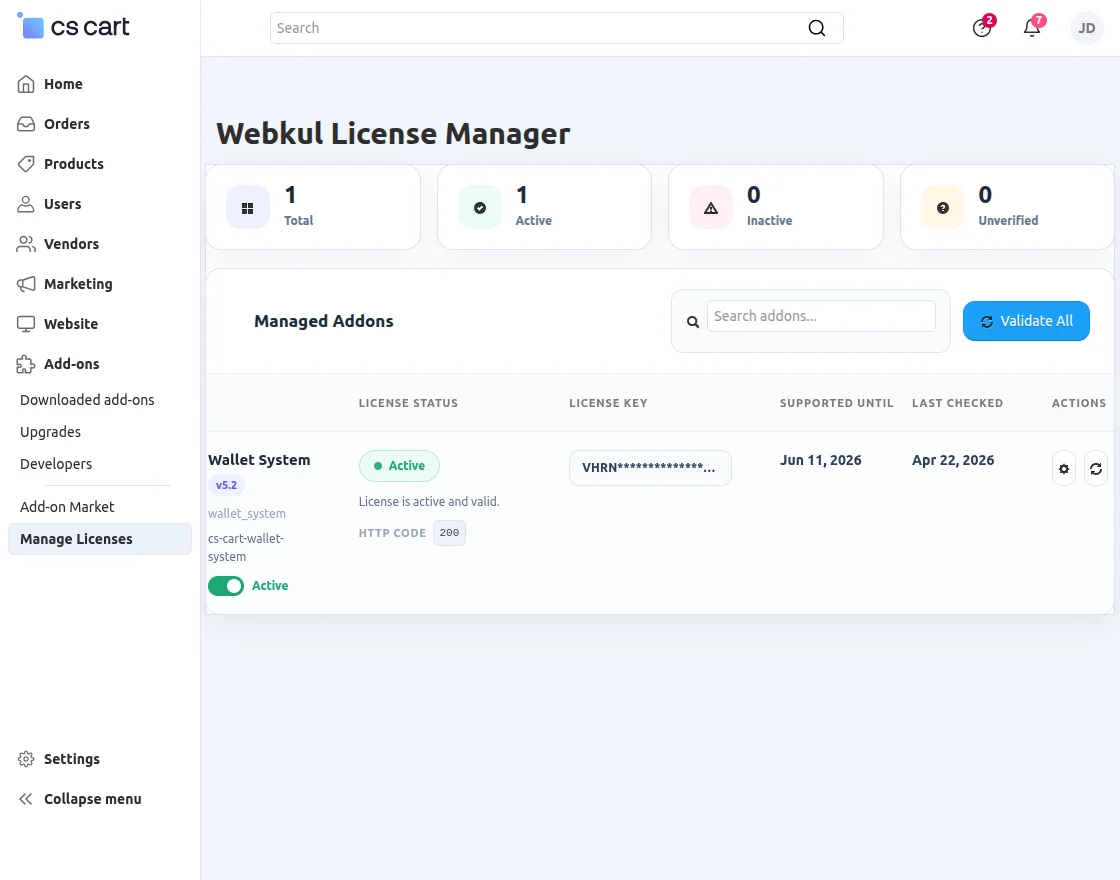
After activation, you can check the license status.
Support
If you have any questions, suggestions, or customization requests, feel free to contact us at [email protected] or submit a ticket at webkul.uvdesk.com.
Explore our premium-quality CS Cart Extensions to enhance your store functionality.
You can also explore our CS-Cart Development Services and Quality CS-Cart add-ons.

Be the first to comment.