In this blog we are going to learn about how to expose an Apex method as a REST resource using @HttpGet annotation.
rest annotation
–> REST annotation enables you to expose an Apex class or an Apex method as a REST resource. In salesforce, there are six REST annotations, that is :
1). @RestResource(urlMapping=’/your url’)
2). @HttpGet
3). @HttpPost
4). @HttpPut
5). @HttpPatch
6). @HttpDelete
–> Classes with REST annotation should be defined as global.
–> Methods with REST annotation should be defined as global static.
@Httpget
–> @HttpGet is used at method level. This method is called when a HTTP GET request is sent. To expose your apex class as REST resource you should use @RestResource(urlMapping=’/your url’) annotation at class level as shown below.
@RestResource(urlMapping='/your_url')
global class restExample {

    @HttpGet
    global static void exampleMethod() {

        // Write your code here
    }
}
–> Here url mapping is relative to https://instance.salesforce.com/services/apexrest/.
–> If your class is in namespace say ‘abc’, then API url must be as follows:
- https://instance.salesforce.com/services/apexrest/abc/you_url
–> URL are case-sensitive.
Example
Let’s create an account by sending a parameter through API url.
Step 1: Create an apex class say ‘restExample’.
@RestResource(urlMapping='/example')
global class restExample {
	/**
    * Webkul Software.
    *
    * @category  Webkul
    * @author    Webkul
    * @copyright Copyright (c) 2010-2016 Webkul Software Private Limited (https://webkul.com)
    * @license   https://store.webkul.com/license.html
    */

    // Method to get the Account name from parameter

    @HttpGet
    global static void getAccountName() {
        RestRequest req = RestContext.request;
        RestResponse res = RestContext.response;
        res.addHeader('Content-Type', 'application/json');
        String accountName = req.params.get('account_name');

        // Call the method to create Account
        if(accountName != null){
        	restExample.createAcc(accountName);
        } else {
            restExample.createAcc();
        }

    }

	// Create Account when param is set
    public static void createAcc(String accName) {
        try{

            Account acc = new Account(Name = accName, Description = 'Account is created by REST API');
            insert acc;

        } catch (Exception ex) {
           system.debug(ex.getMessage());
        }
    }

    // Create Account when param is not set
    public static void createAcc() {
        try{

            Account acc = new Account(Name = 'Name is not set', Description = 'Account is created by REST API');
            insert acc;

        } catch (Exception ex) {
            system.debug(ex.getMessage());
        }
    }
}
Step:2: Now, to expose above rest class create a site as shown below. Goto>> SetUp>> Develop>> Sites
# Register your domain:
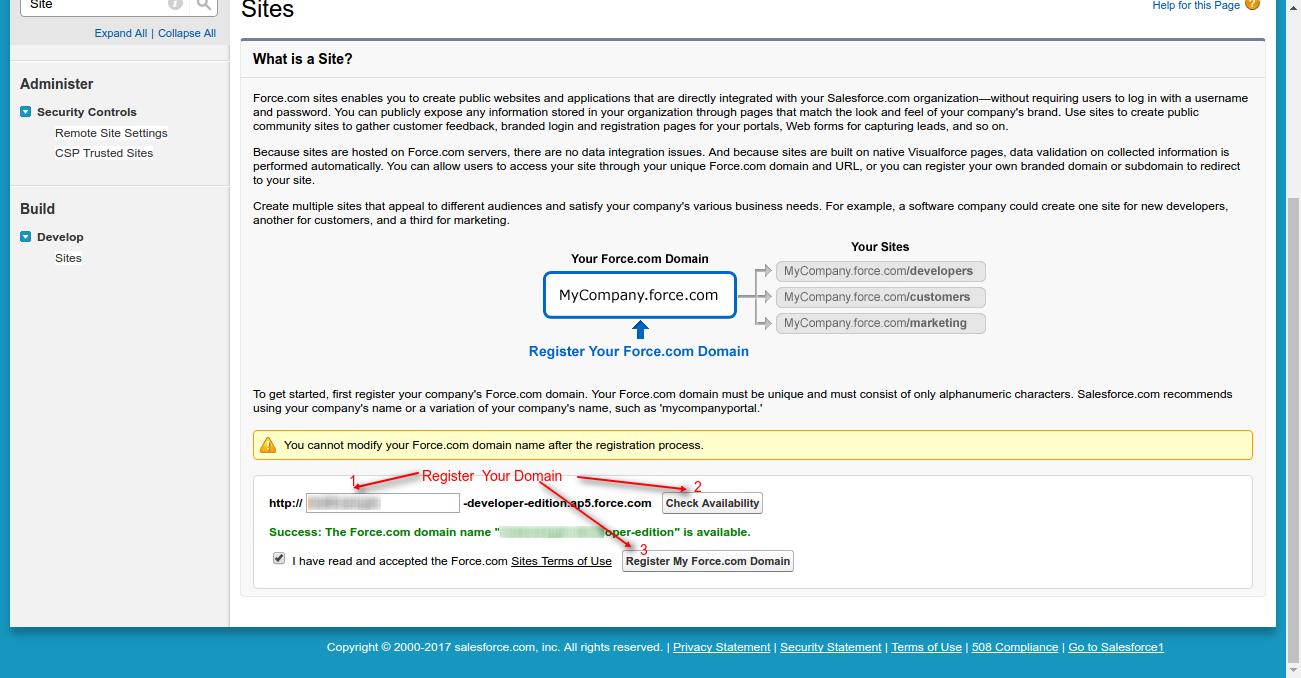
# Create New Site

# Copy the Default Web Address

# Now goto Public Access Setting :

# Provide Access to object which you want to expose in class.

# Expose Apex class :
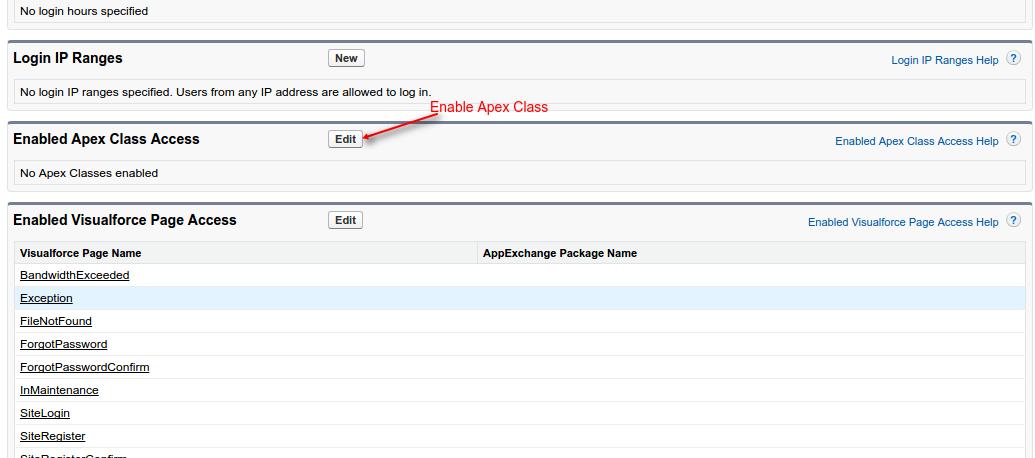

That’s all for setting up of site.
Step 3: Now paste Default Web Address(which you have copied from site setting) by appending:
1). Without sending any parameter : ‘/services/apexrest/example’ .
2). With parameter : ‘/services/apexrest/example?account_name=Webkul’
Now, goto account page and verify your results.
Output

Support
That’s all for @HttpGet Annotation In Salesforce, still if you have any further query feel free to add a ticket, we will be happy to help you https://webkul.uvdesk.com/en/customer/create-ticket/.

Be the first to comment.