WordPress WooCommerce Marketplace Seller Coupons allow sellers to generate coupons for their products.
The seller can provide the discount to the customers with the help of a coupon code. The customer can use the coupon at the time of checkout and take the advantage of the discount.
The coupon code will clearly identify who purchased items with a specific coupon code and can quickly identify the success or not of your promotion.
It is proven that adding coupons for discounts or free shipping will increase your conversion rate.
If you are using special discounts in your traditional advertising, emails, or direct mail, you will see a spike in traffic to these relevant pages.
WordPress WooCommerce Marketplace Seller Coupons is an add-on of WordPress WooCommerce Multi Vendor Marketplace Plugin. To use this plugin you must have installed the first WordPress WooCommerce Multi Vendor Marketplace Plugin.
Check a brief overview of the plugin –
Support
Dear Customers, if you have a question/query, please raise a ticket at webkul.uvdesk.com. We will do our best to answer as quickly as it is possible. Don’t give us a low rate without contacting support on the issue you’ve faced with. We are always happy to help you.
Features of Marketplace Seller Coupons
- Allows the seller to generate coupons for their products.
- The seller can set how many times a coupon can be used.
- The seller can set how many times a customer can use the coupon.
- The seller can set how many times a coupon will be applied to a product.
- The seller can define the minimum and the maximum cart total to use the coupon.
- The seller can allow selected customers to use the coupon.
- The seller can restrict any specific email as well to use the coupon.
- The seller can allow a coupon for a specific product and category.
- The seller can check the coupon history.
- Buyers can use the coupon at the checkout and avail the benefits of coupon.
- Global Coupon Analytics with dynamic date filtering and object caching.
- Detailed analytics report for individual seller coupons.
- Mixed Cart Support configuration in admin settings.
Installation of Marketplace Seller Coupons
The user will get a zip file which he has to upload in the “Add New” menu option in the WordPress admin panel. For this login to WordPress Admin Panel and under the Dashboard hover your mouse over the “Plugins” menu option which brings out a Sub-Menu and then select the “Add New” option.

After this, you will see an option on the top of your page that is “Upload Plugin”, click the option to upload the zip file.

After clicking on the “Upload Plugin” option, below that you will see a button “Choose File” click on the button to browse for the zip file as per the snapshot below.

After browsing the file, click the “Install Now” button to install the plugin as per the snapshot.

Now when the plugin is installed correctly, you will see the success message and an option to activate the plugin. Click on “Activate Plugin” to activate the installed plugin.

Admin End Configuration – Seller Coupon
After successfully installing the WooCommerce Marketplace Seller Coupon plugin,
The admin can configure the module from the WordPress admin panel.
The dedicated Seller Coupons section provides an intuitive interface for managing seller coupons and configuring module settings across the marketplace.
Navigate to Marketplace > Seller Coupons to access the configuration panel.
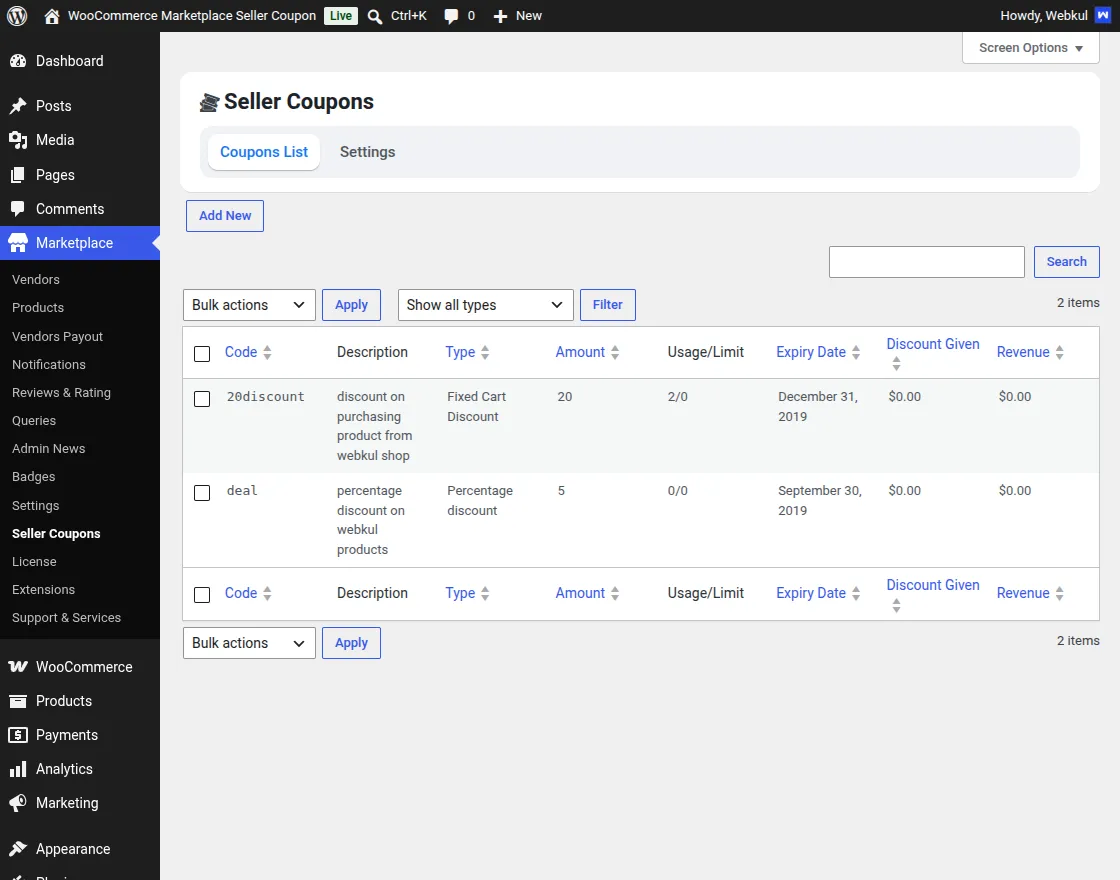
Coupons List
The Coupons List tab provides a centralized dashboard where the admin can monitor and manage all seller-created coupons.
It offers quick access to coupon details along with search, filtering, and bulk management options, making coupon administration more efficient.
The admin can:
- Create a new coupon using the Add New button.
- Search coupons using the coupon code.
- Filter coupons based on coupon type.
- Perform bulk actions on multiple coupons.
- View coupon details including:
- Coupon Code
- Description
- Coupon Type
- Discount Amount
- Usage/Limit
- Expiry Date
- Total Discount Given
- Revenue Generated
Settings
The Settings tab allows the admin to customize how seller coupons are displayed and validated throughout the marketplace.
With flexible configuration options, the admin can control coupon availability, layout, and compatibility with modern WooCommerce features.
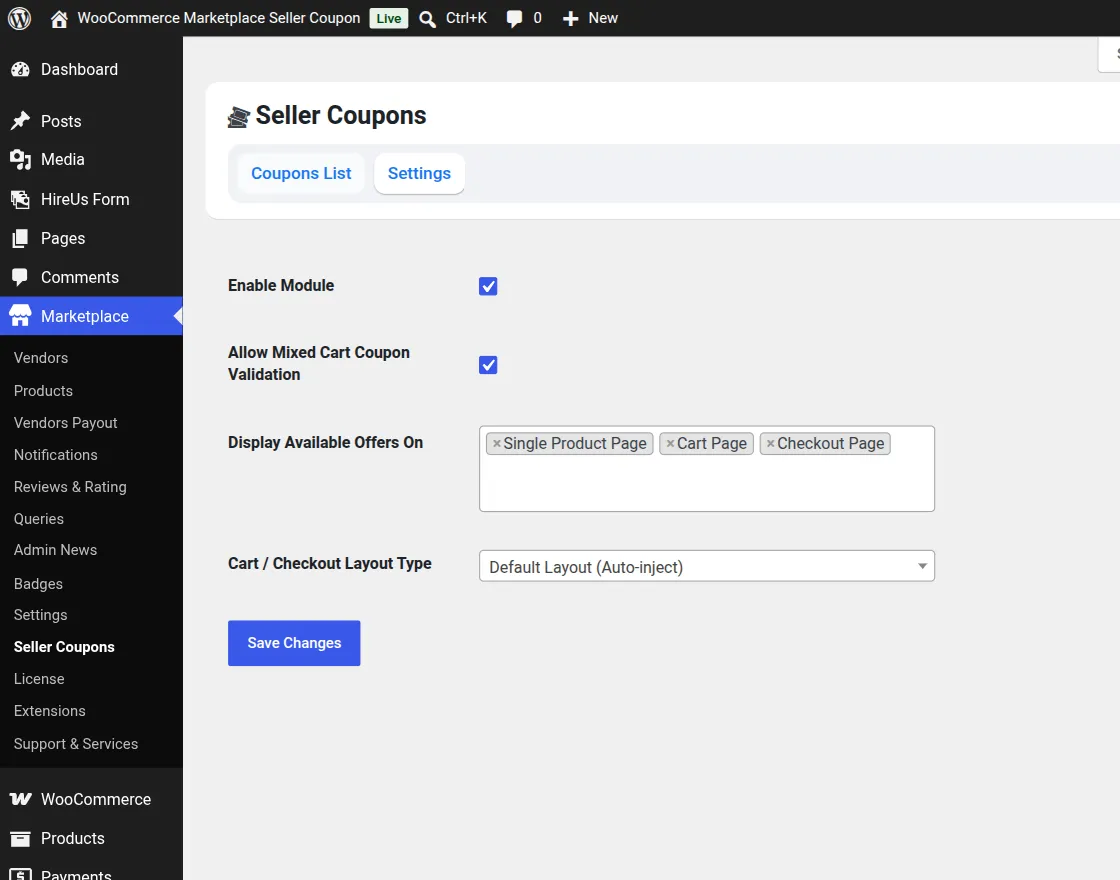
The admin can configure the following settings:
Enable Module
Enable or disable the Seller Coupon module for the marketplace.
Allow Mixed Cart Coupon Validation
Enable this option to allow seller coupons to be applied even when the customer’s cart contains products from multiple sellers.
Display Available Offers On
Choose where customers can view available seller coupons.
The available options are:
- Single Product Page
- Cart Page
- Checkout Page
The admin can select one or multiple pages depending on the store requirements.
Cart / Checkout Layout Type
Select the preferred layout for displaying available seller coupons on the Cart and Checkout pages. The plugin also supports the latest WooCommerce Checkout Blocks, ensuring a seamless coupon experience with dynamic badge injection.
Finally, click Save Changes to apply the configuration.
Seller End workflow of Marketplace Seller Coupons
Once the module is enabled by the admin, marketplace sellers can create, manage, and monitor their coupons directly from their seller dashboard.
To access the coupon management section, the seller will navigate to:
My Account > Manage Coupons
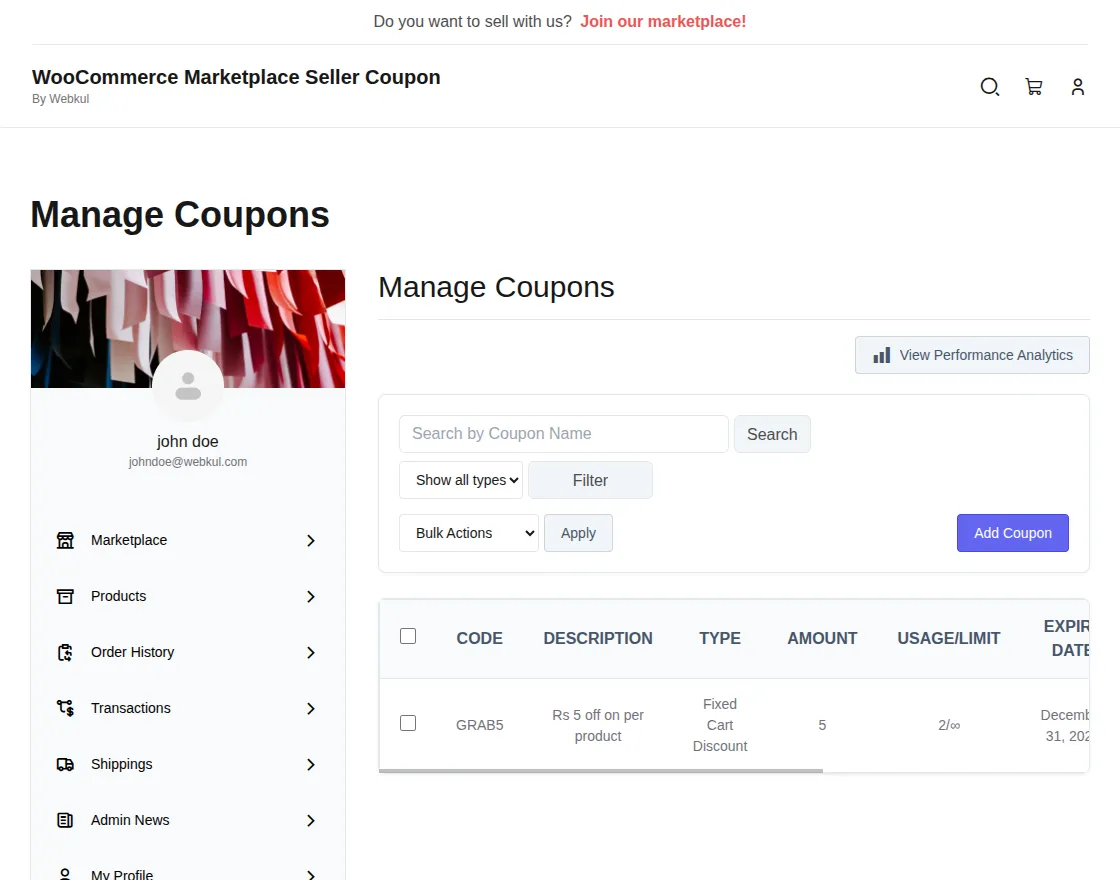
Click the Add Coupon button. The page allows sellers to configure all coupon details before publishing.
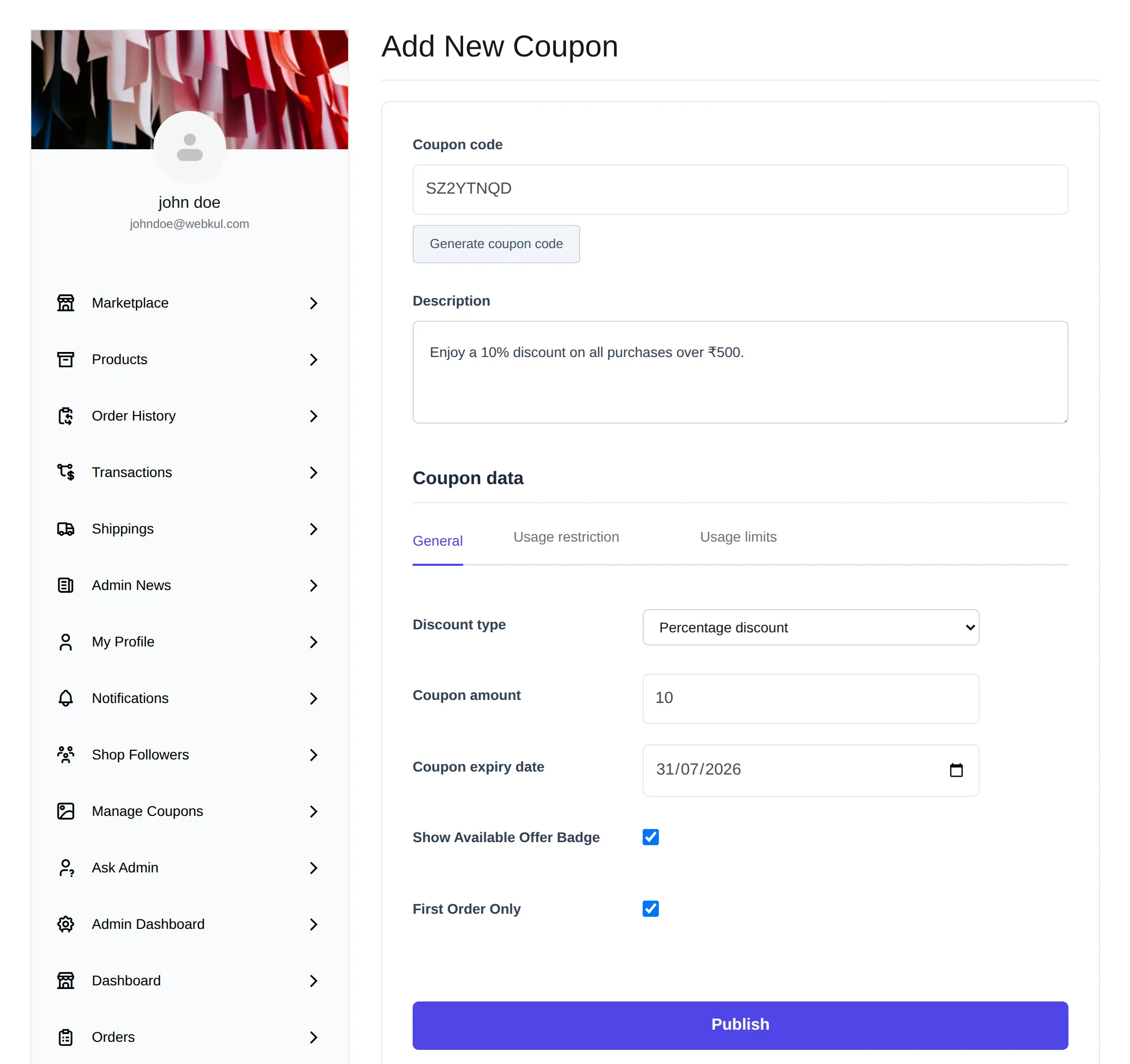
Coupon Code
Enter a unique coupon code that customers will use to redeem the discount during checkout.
Generate Coupon Code
Click Generate Coupon Code to automatically create a unique coupon code.
Description
Add an internal description to identify the coupon, promotion, or marketing campaign.
Coupon Data
The Coupon Data section allows sellers to configure the coupon’s discount, restrictions, and usage limits.
General
Configure the basic details of the coupon, including its discount type, amount, expiry date, and additional options.
Discount Type
Choose the type of discount that will be applied when the coupon is redeemed.
The available options are:
- Percentage Discount – Applies a percentage discount to the cart total.
- Fixed Cart Discount – Applies a fixed discount amount to the entire cart.
- Fixed Product Discount – Applies a fixed discount amount to each eligible product.
Coupon Amount
Enter the discount value. The amount is treated as either a percentage or a fixed value based on the selected discount type.
Coupon Expiry Date
Select the date until which the coupon remains valid. After this date, customers can no longer redeem it.
Show Available Offer Badge
Enable this option to display an Available Offer badge on supported store pages for better coupon visibility.
First Order Only
Enable this option to restrict the coupon to customers placing their first order only.
Usage Restriction
Configure the conditions that determine when the coupon can be applied. Sellers can define spending limits, product restrictions, category restrictions, and other eligibility rules.
Usage Limits
Set the maximum number of times the coupon can be redeemed. Sellers can also limit usage per customer and per item.
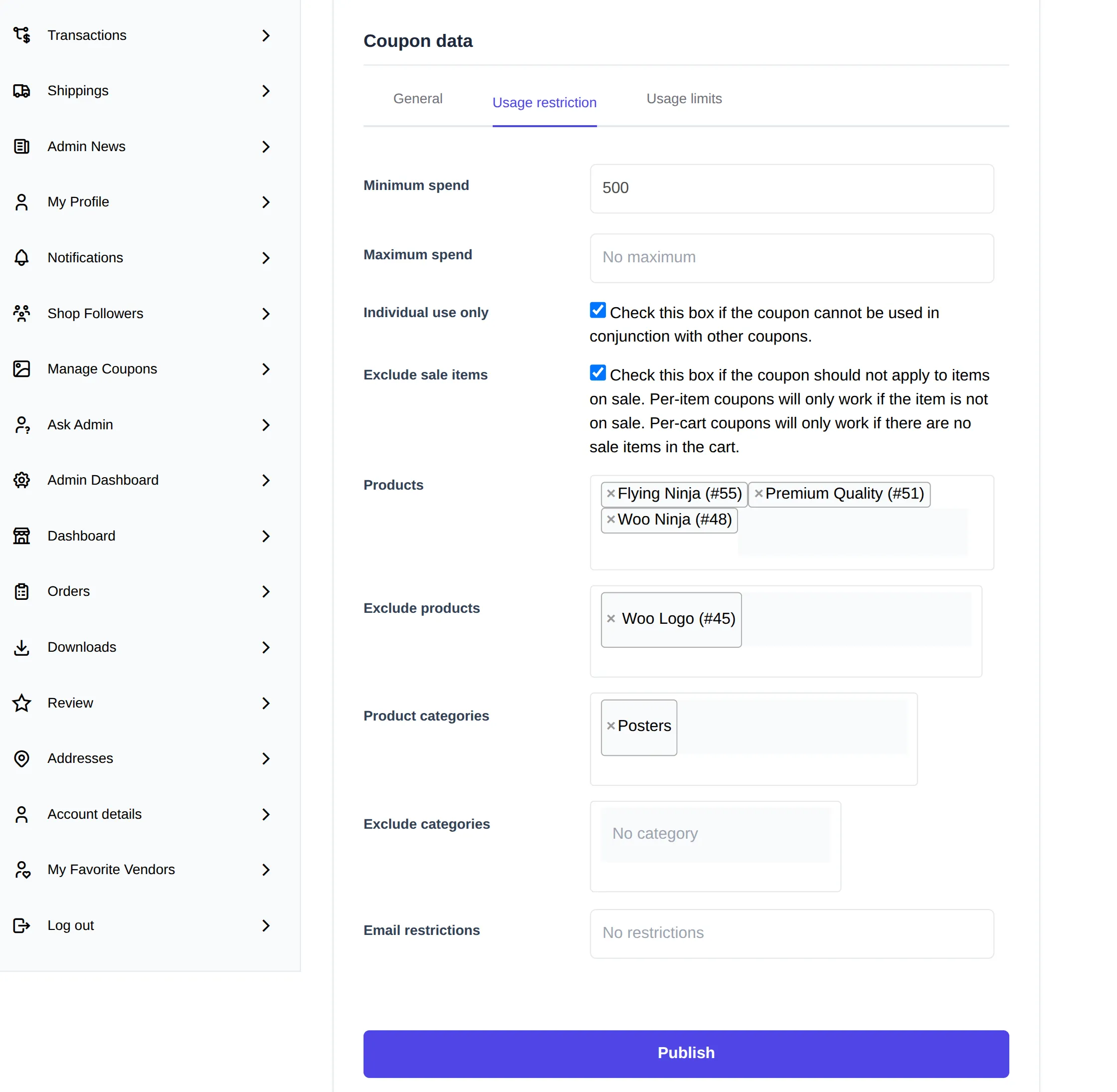
Minimum spend : Allows you to set the minimum subtotal needed to use the coupon. Note: The sum of the cart subtotal + tax is used to determine the minimum amount.
Maximum spend : Allows you to set the maximum subtotal allowed when using the coupon.
Individual use only : Tick the box if you don’t want this coupon to be used in combination with other coupons.
Exclude sale items : Tick the box if you don’t want this coupon to apply to products on sale. Per-cart coupons do not work if a sale item is added afterward.
Products : Products that the coupon will be applied to, or that need to be in the cart in order for the “Fixed cart discount” to be applied.
Exclude products : Products that the coupon will not be applied to, or that cannot be in the cart in order for the “Fixed cart discount” to be applied.
Product categories : Product categories that the coupon will be applied to, or that need to be in the cart in order for the “Fixed cart discount” to be applied.
Exclude categories : Product categories that the coupon will not be applied to, or that cannot be in the cart in order for the “Fixed cart discount” to be applied.
Email restrictions : Email address or addresses that can use a coupon. Verified against customer’s billing email.
NOTE : Leaving “Products” and “Exclude Products” blank allows the coupon to be applied to the entire store.
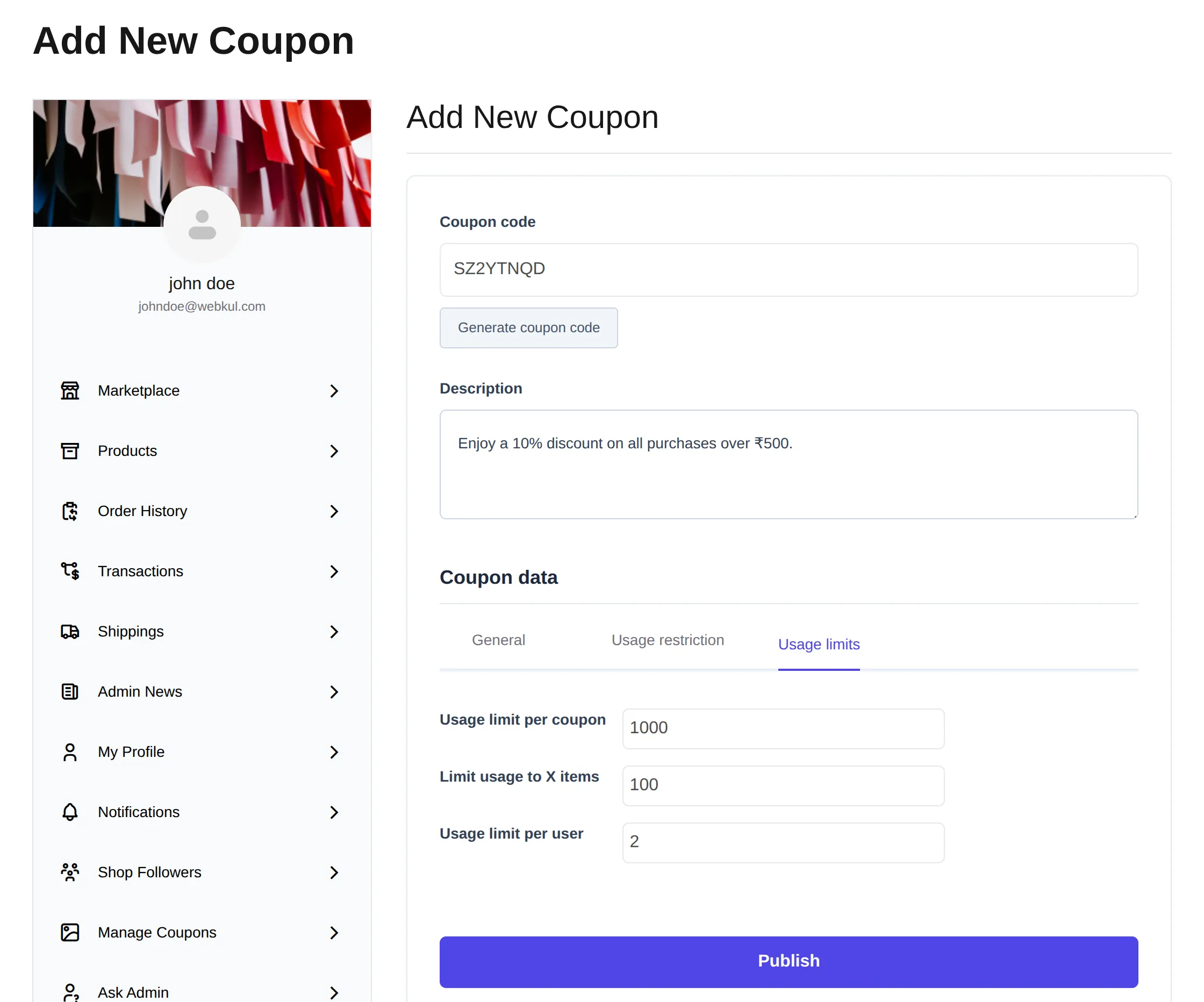
Usage limit per coupon : How many times a coupon can be used by all customers before being invalid.
Limit usage to X items : How many items the coupon can be applied to before being invalid. This field is only displayed if there are one or more products that the coupon can be used with, and is configured under the Usage Restrictions. (Note: Option is only available if you are creating a Product Discount coupon.)
Usage limit per user : How many times a coupon can be used by each customer before being invalid for that customer.
The seller can track the coupon usage under the coupon list and can edit or delete the coupon as well.
Front End Workflow of Marketplace Seller Coupons
Customer End
Once the seller publishes a coupon, eligible customers can view and redeem it while shopping. Available coupons are displayed on the configured store pages, making it easier for customers to discover ongoing offers.
Coupon Visibility
Customers can view the available coupons on the pages configured by the admin, such as the Single Product, Cart, and Checkout pages. This helps them quickly identify applicable offers before placing an order. 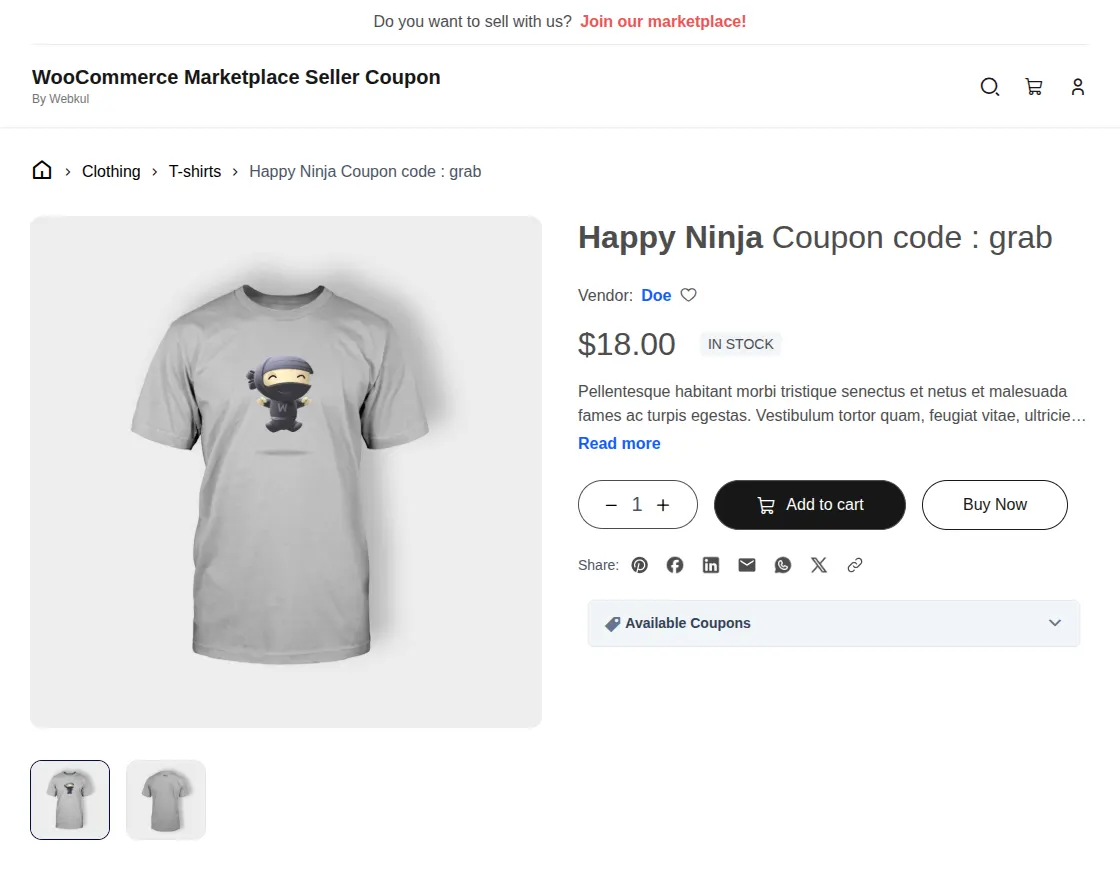
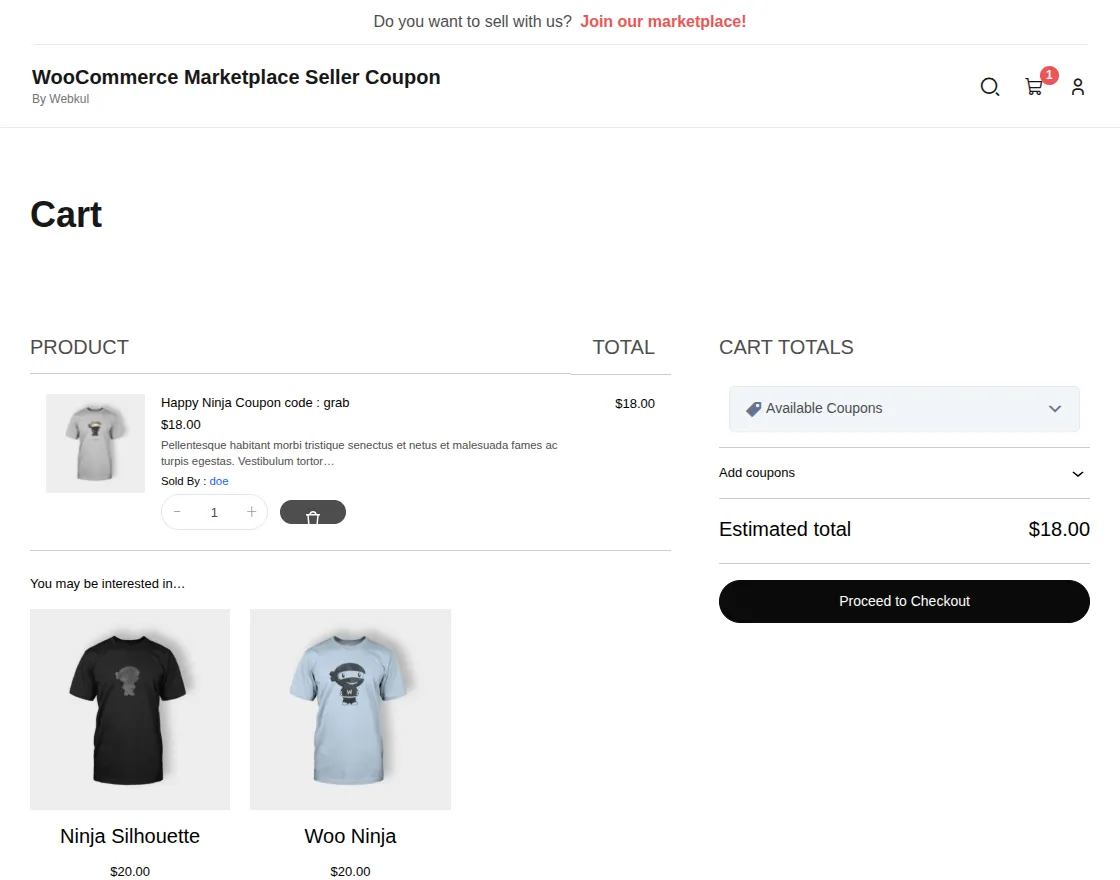
Available Offer Badge
When enabled by the seller, an Available Offer badge is displayed on eligible products. Customers can click the badge to view the coupon details and available discounts.
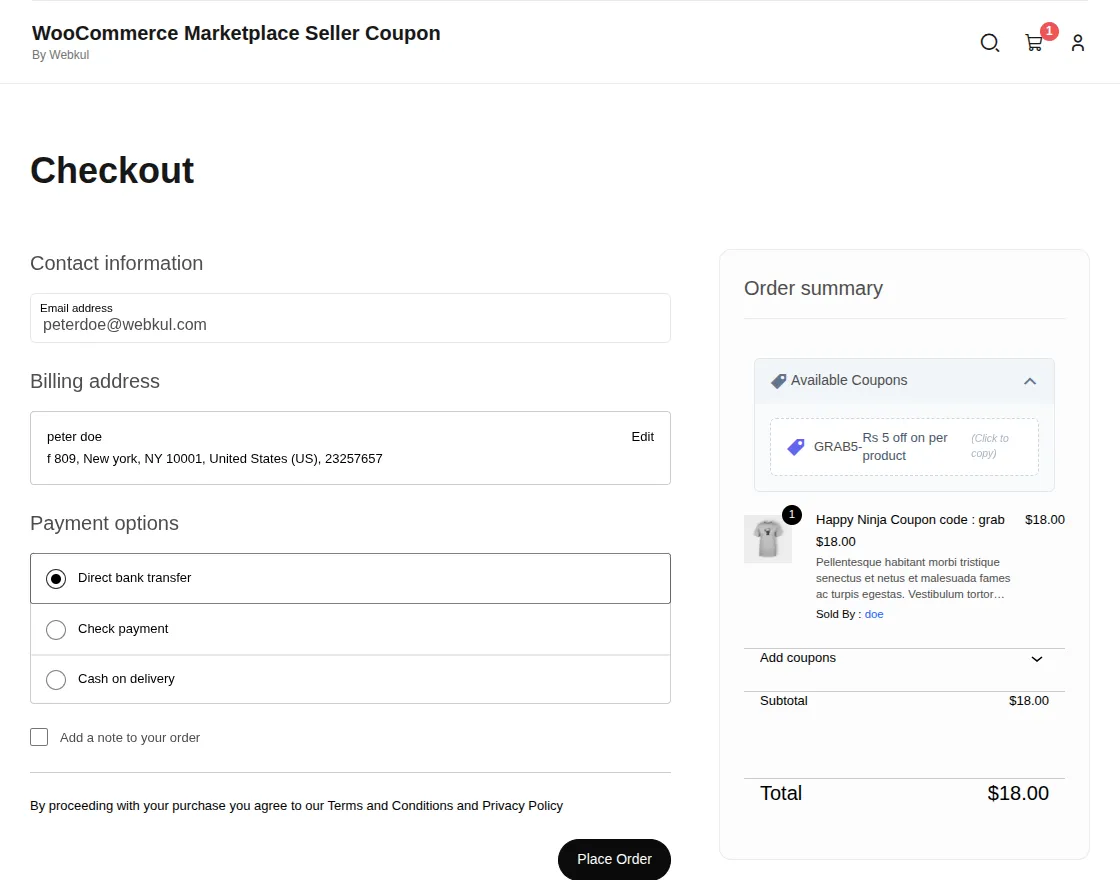
Applying a Coupon
Customers can apply a coupon by entering the coupon code during checkout. If the coupon meets all validation conditions, the discount is automatically applied to the order total.
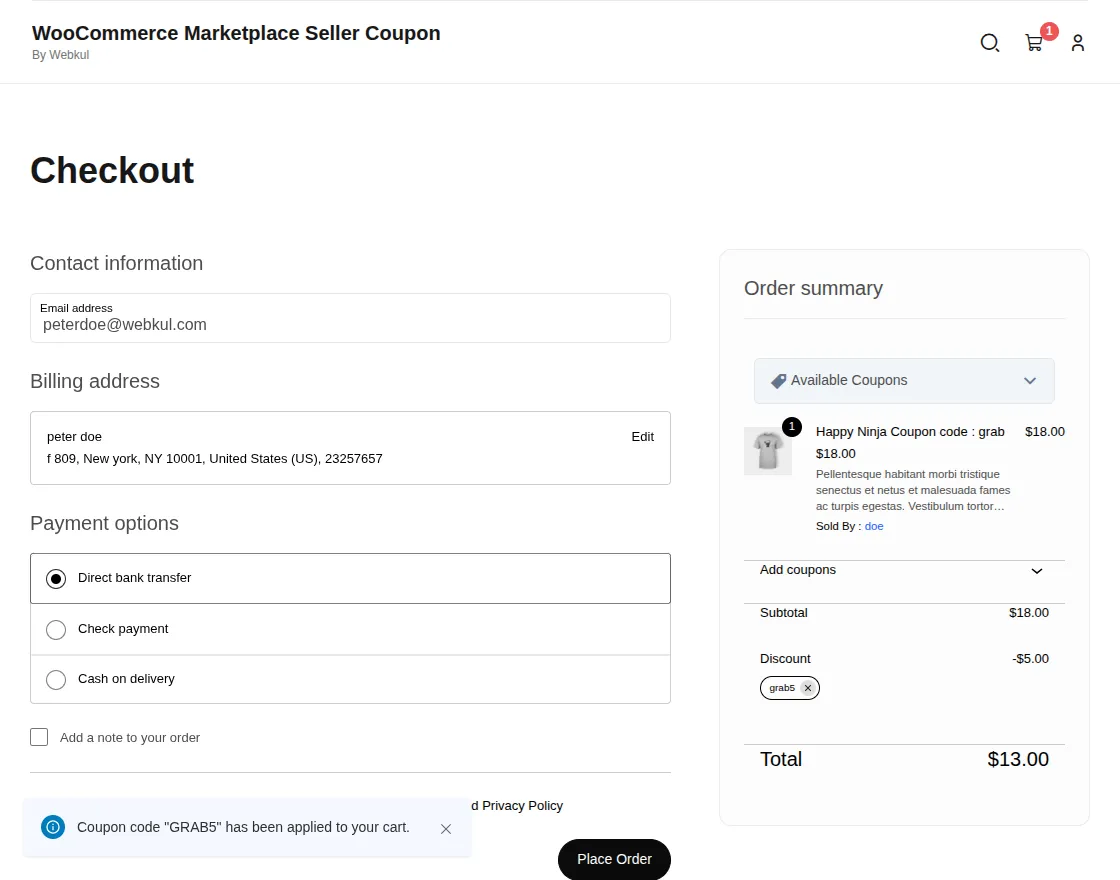
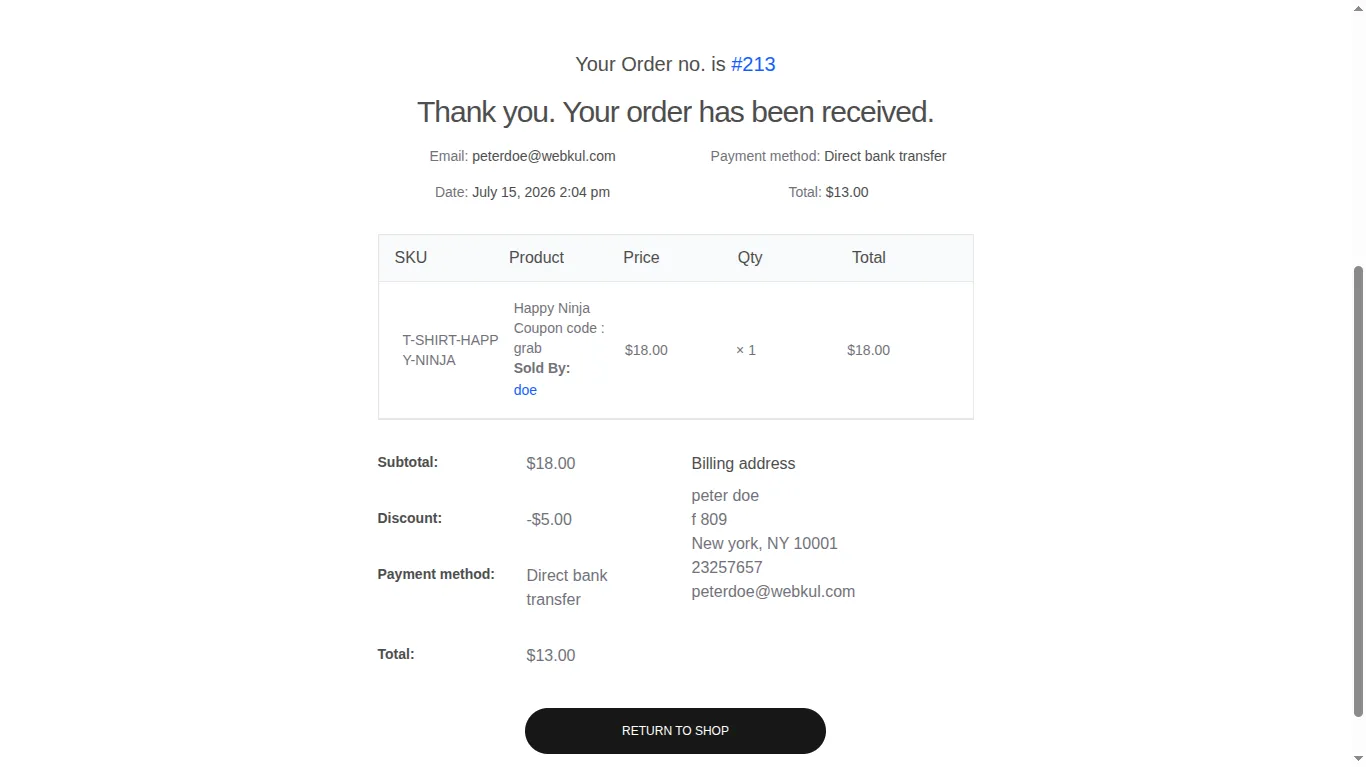
Order Confirmation
After the coupon is successfully applied, the discount is reflected in the order summary. Customers can then complete the checkout and receive their order confirmation with the applied discount.
That’s all for the WordPress WooCommerce Marketplace Seller Coupons Plugin, still have any issue, feel free to add a ticket and let us know your views to make the plugin better at webkul.uvdesk.com
Current Product Version - 1.4.1
Supported Framework Version - WooCommerce: 10.9.4, wordpress: 7.0.0


Be the first to comment.