


















WordPress WooCommerce Reward System will engage store users for sales increment by assigning reward points to them.
This plugin has a complete admin management so that admin can easily manage the reward points of buyers.
It will enable a point-based loyalty program where frequent visitors earn points is a great way.
Reward System boosts the chance of turning the second sale from a first-time buyer.
It will bump an existing customer into a higher paying bracket.
Note:
- This module is now compatible with WooCommerce’s new (HPOS) feature.
- WordPress WooCommerce Reward System is now compatible with WooCommerce’s latest feature Cart and Checkout blocks.
- We provide a production version of the plugin. If you want a development version then you can get it at an additional cost. Please contact [email protected] for it.
Check a brief of the plugin working –
Features – WooCommerce Reward System
- Reward points for new user registration, product purchase and product review.
- Customers earn reward points when they refer another customer to the store using their referral code.
- The admin can choose whether to award referral reward points when the customer registers or after the referred customer places their first order.
- The admin can set the limit of reward point usage.
- Customers can convert their reward points into coupon codes for discounts at checkout.
- The admin can allow customers to share generated reward coupons with others or restrict redemption to the coupon owner only.
- The admin can define the weightage of reward points.
- The admin can manually credit, debit, or update reward points for customers.
- The admin can award reward points in bulk to selected customers, specific user roles, or all customers.
- The admin can enter reward points for individual products.
- The admin can choose the position of reward notices displayed across the storefront.
- The system automatically credits guest order reward points to an existing customer account when the billing email matches a registered account.
- The system automatically credits reward points for completed guest orders when a customer registers with the same billing email.
- The admin can prevent specific users from earning reward points through a setting in the customer’s profile.
- Customers can view complete details of their earned and redeemed reward points.
- Customers can redeem reward points during checkout to reduce the order total.
Installation Procedure – WooCommerce Reward System
The user will get a zip file which he has to upload in the “Add New” menu option in the WordPress admin panel.
For this login to WordPress Admin Panel and Under the Dashboard hover your mouse over the “Plugins” menu option which brings out a Sub-Menu and then select the “Add New” option.

After this, you will see an option on the top of your page that is “Upload Plugin”, click the option to upload the zip file.

Now, clicking on the “Upload Plugin” option, below that you will see a button “Choose File” click on the button to browse for the zip file as per the snapshot below.

After browsing the file, click the “Install Now” button to install the plugin as per the snapshot.

Now when the plugin is installed correctly, you will see the success message and an option to activate the plugin. Click on “Activate Plugin” to activate the installed plugin.

Plugin Activation Process – Via Purchase Code
Check how to activate your WooCommerce plugin through the purchase code.
Module – Initial Configuration Settings
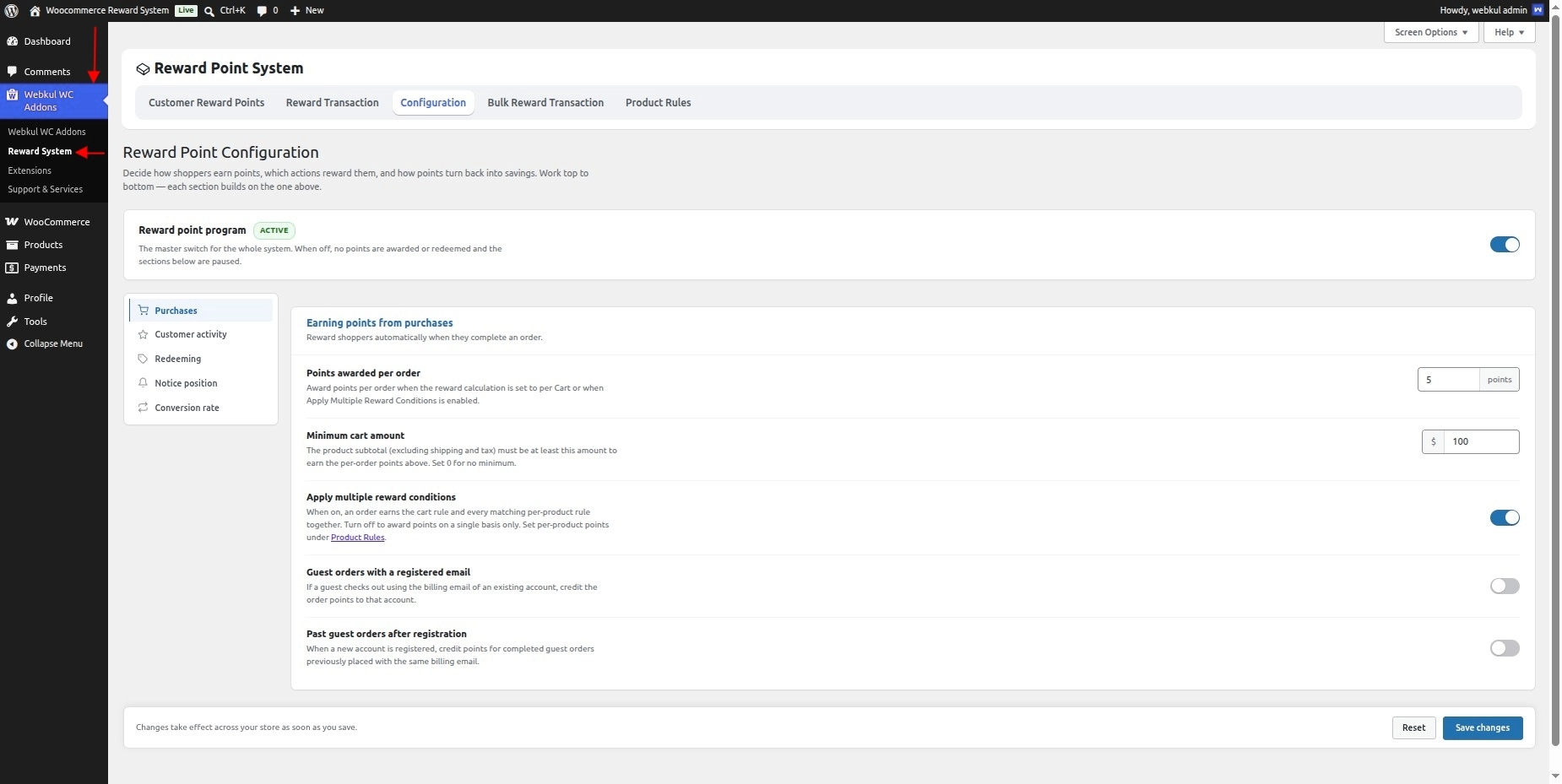
After successfully installing and activating the module, navigate to the Configuration section to configure the Reward Point System settings, as shown below:
Reward Point Program
The Reward Point Program option acts as the master switch for the entire reward point system.
- Enable: Activates all reward point functionalities across the store.
- Disable: Turns off the complete reward point system. Customers cannot earn or redeem reward points.
Once enabled, the admin can configure the reward point settings available under different sections.
Purchases
Under this section, the admin can configure how customers earn reward points for purchases.
- Points Awarded Per Order: Enter the number of reward points customers earn per order.
The system awards these points when it calculates rewards based on Per Cart or when you enable Apply Multiple Reward Conditions.
- Minimum Cart Amount: Set the minimum product subtotal (excluding shipping and taxes) required to earn reward points. Set 0 for no minimum limit.
- Apply Multiple Reward Conditions: Enable this option to award reward points based on both Per Product and Per Cart conditions.
If disabled, customers earn reward points based on only one reward condition.
The admin can choose whether customers earn reward points per product or per cart.
- Guest Orders with a Registered Email: Enable this option to match guest orders with existing customer accounts.
If a guest places an order using the billing email of a registered customer, the system credits the applicable reward points to that account.
- Past Guest Orders After Registration: Enable this option to reward completed guest orders after customer registration.
If a customer registers with an email address they previously used for guest orders, the system credits the applicable reward points to the new account.
Customer Activity
The Customer Activity section lets the admin configure reward points for non-purchase activities.
Customers can earn these reward points by completing the configured activities.
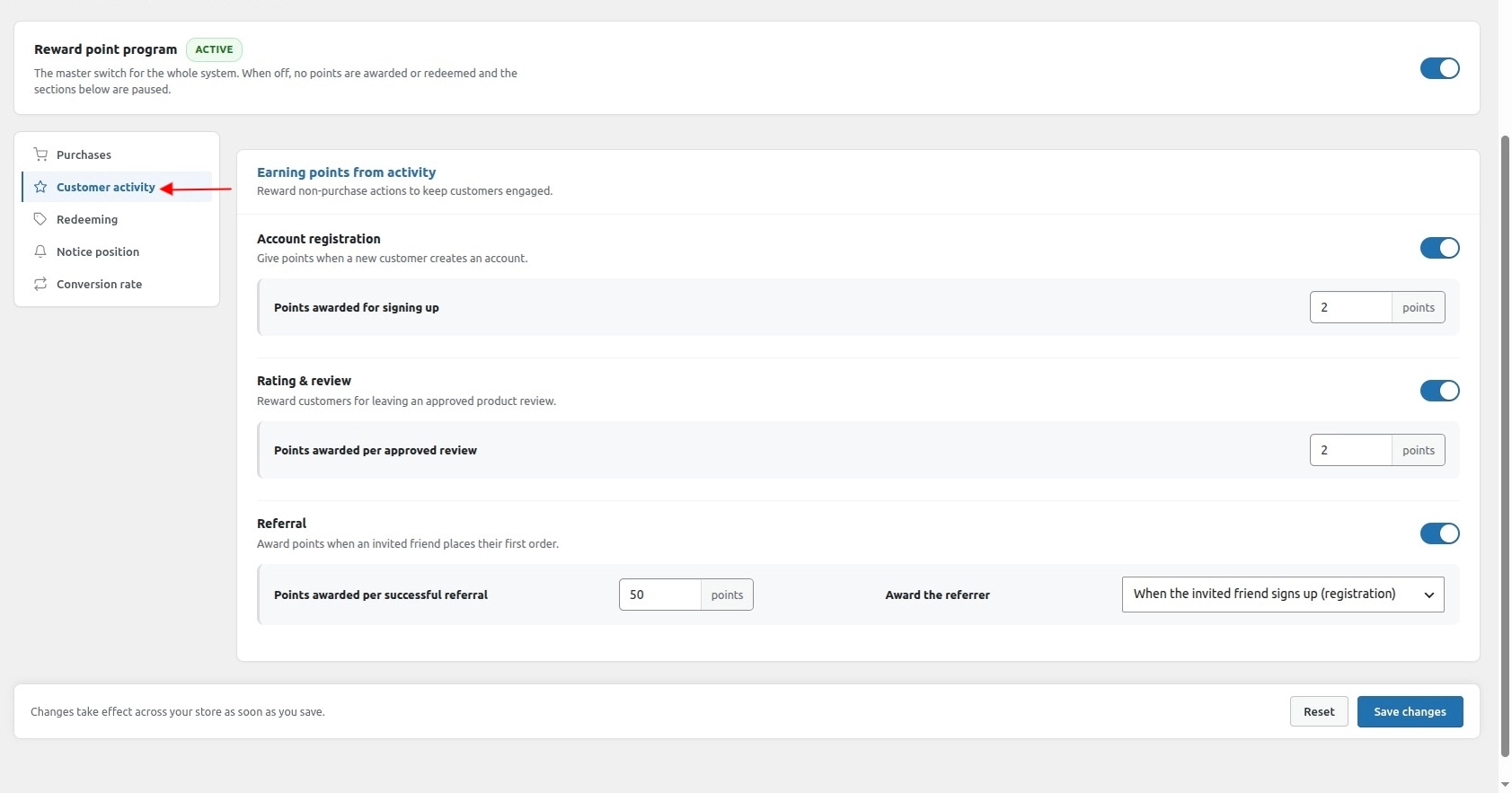
- Account Registration: Enable this option to award reward points when a customer registers an account on the website.The admin can specify how many reward points customers earn after successful registration.
- Rating & Review: Enable this option to award reward points when a customer submits a product rating or review.
The admin can specify the number of reward points awarded for each approved review.
- Referral: Enable this option to award reward points when a new customer joins the store using another customer’s referral code.
The admin can specify how many reward points customers earn for each successful referral.
In this section, the admin can also choose when the referring customer will receive the reward points:
- On Registration: The system credits reward points as soon as the referred customer successfully registers on the website.
- On First Order: The system credits reward points only after the referred customer places their first order on the store.
Lastly, save the changes under this section.
Redeeming
The Redeeming section allows the admin to configure how customers can redeem their earned reward points.
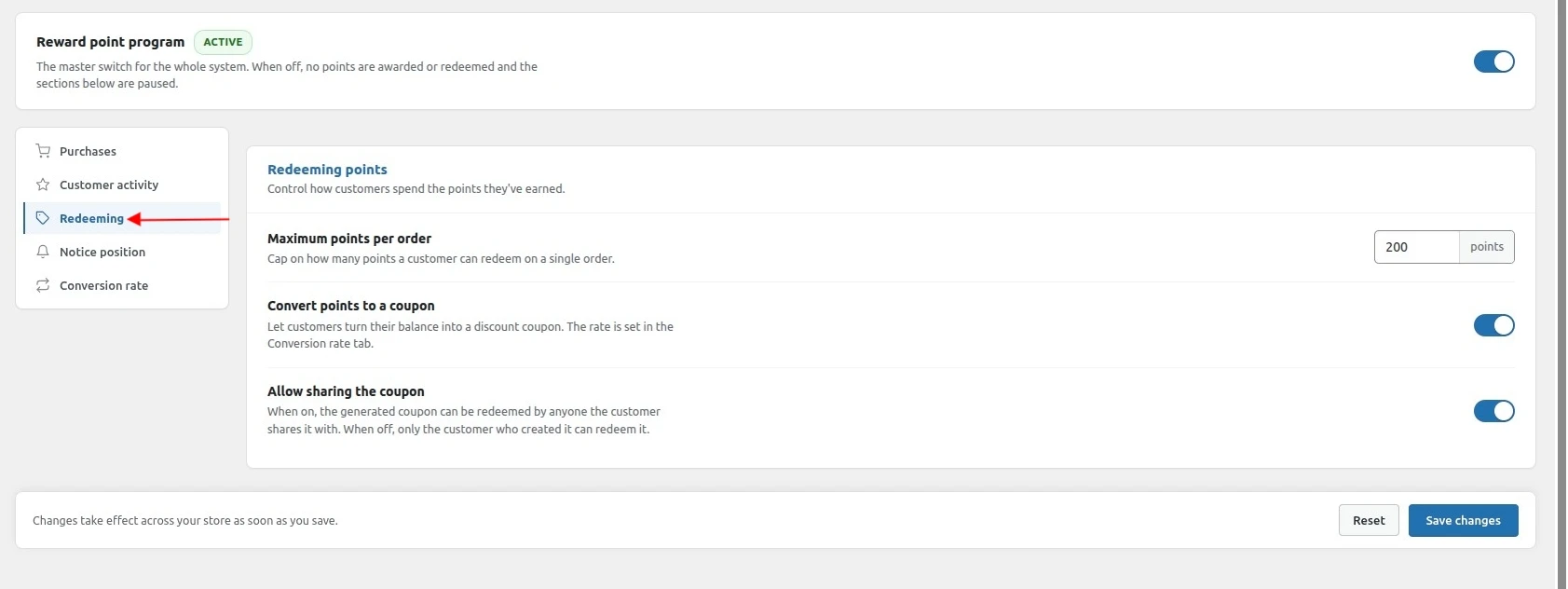
- Maximum Points Per Order: Specify the maximum number of reward points that a customer can redeem in a single order.
- Convert Points to a Coupon: Enable this option to let customers convert their available reward points into a discount coupon and apply it during checkout.
- Allow Sharing the Coupon: Enable this option to allow customers to share their generated coupon codes with other users.
- Enabled: The generated coupon can be redeemed by anyone who has the coupon code.
- Disabled: Only the customer who generated the coupon can redeem it.
Lastly, save the changes under this section.
Notice Position
The Notice Position section allows the admin to choose where the storefront displays reward point notices.
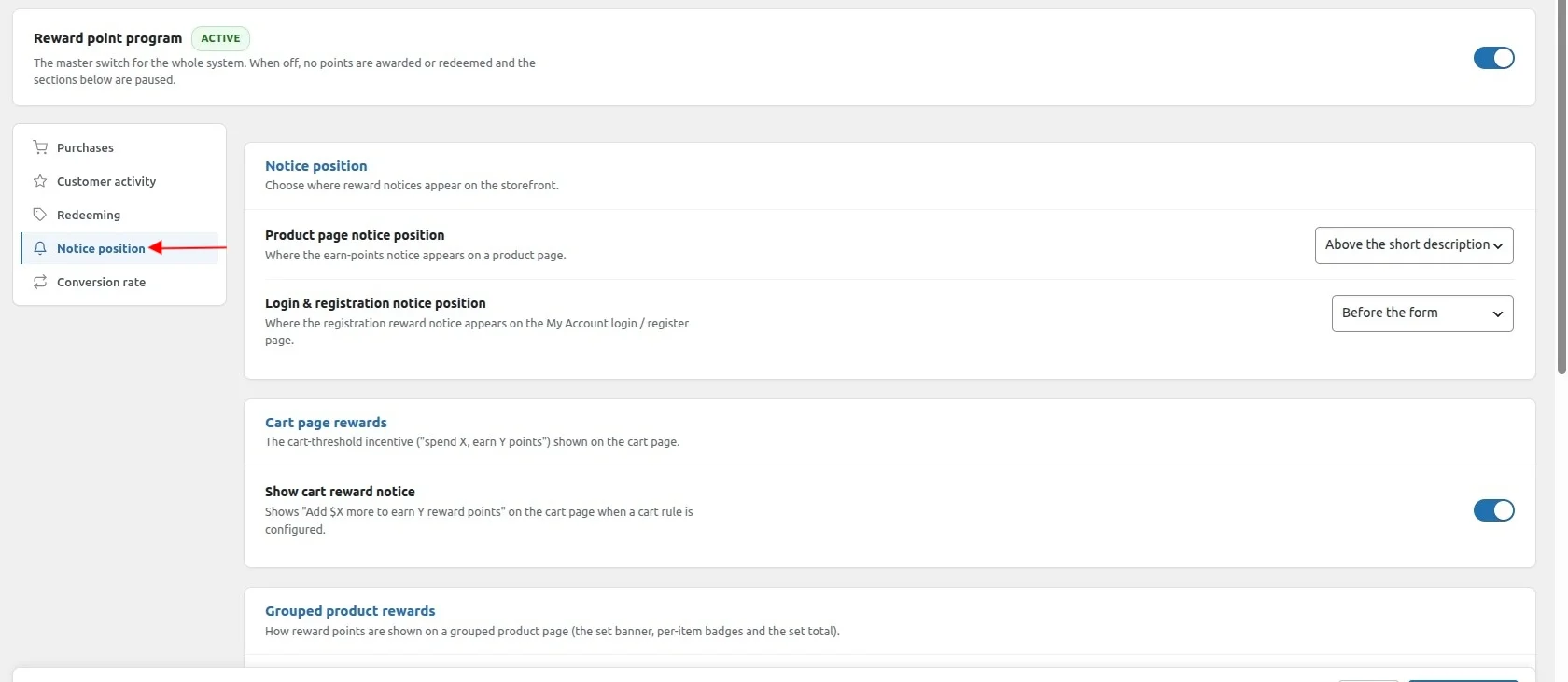
- Product Page Notice Position: Select where the Earn Reward Points notice will appear on the product page.
- Login & Registration Notice Position: Select where the registration reward notice will be displayed on the My Account login and registration page.
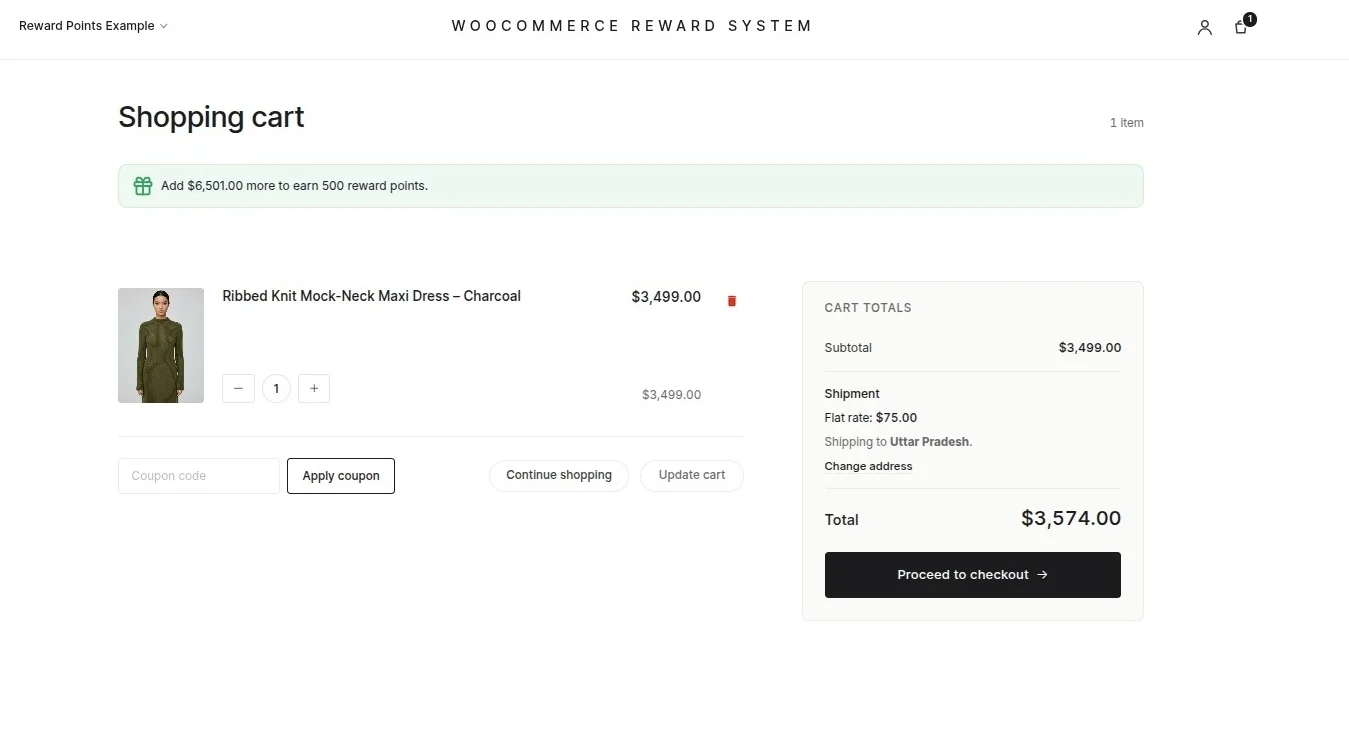
- Show Cart Reward Notice: Enable this option to display a reward notice on the cart page.
The notice tells customers how much more they need to spend to earn reward points.
For example, the customer will see a message such as “Add $X more to earn Y reward points” when a cart-based reward rule is configured.
Lastly, save the changes under this section.
Grouped Product Rewards
The Grouped Product Rewards section allows the admin to control how the storefront displays reward points for grouped products.
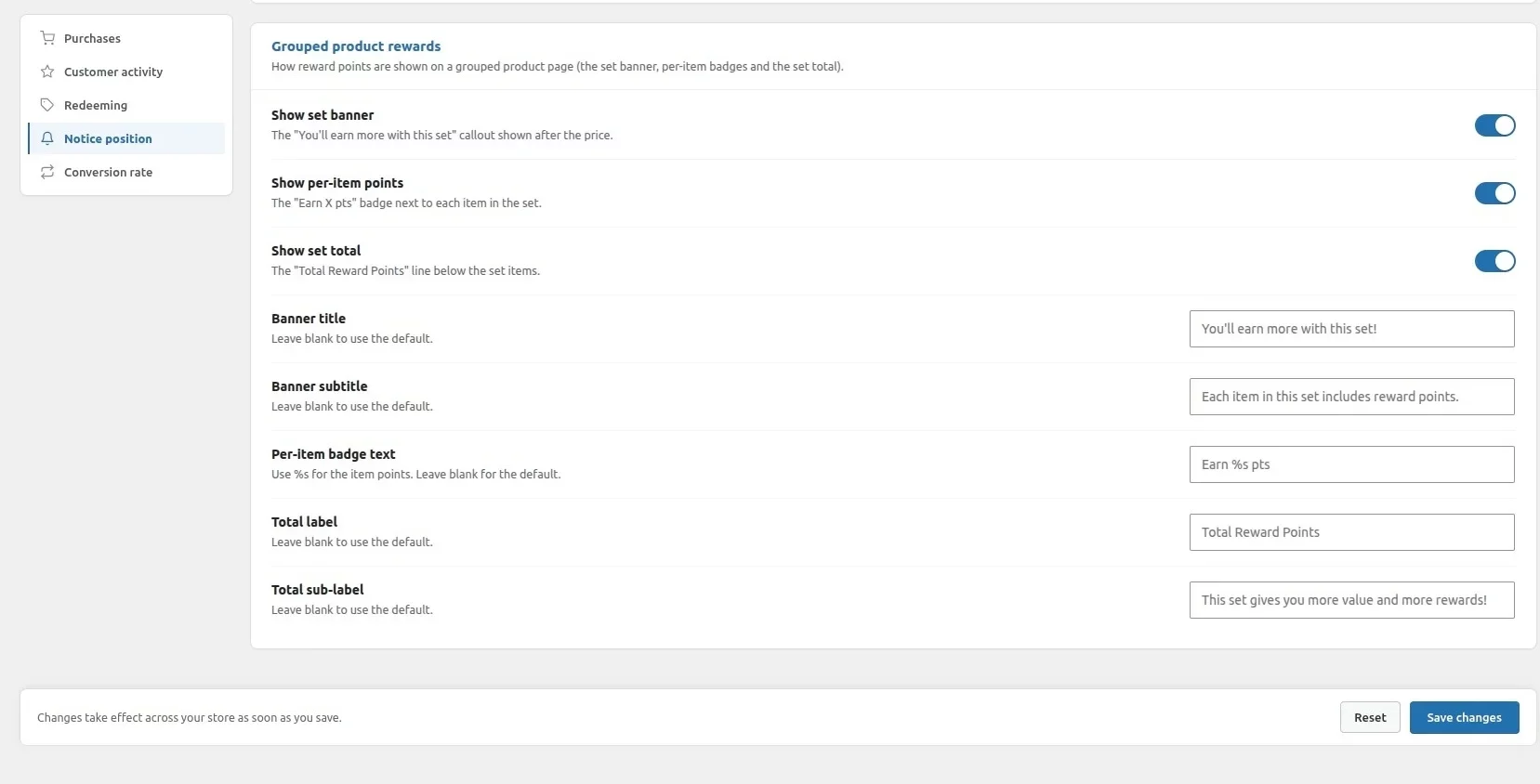
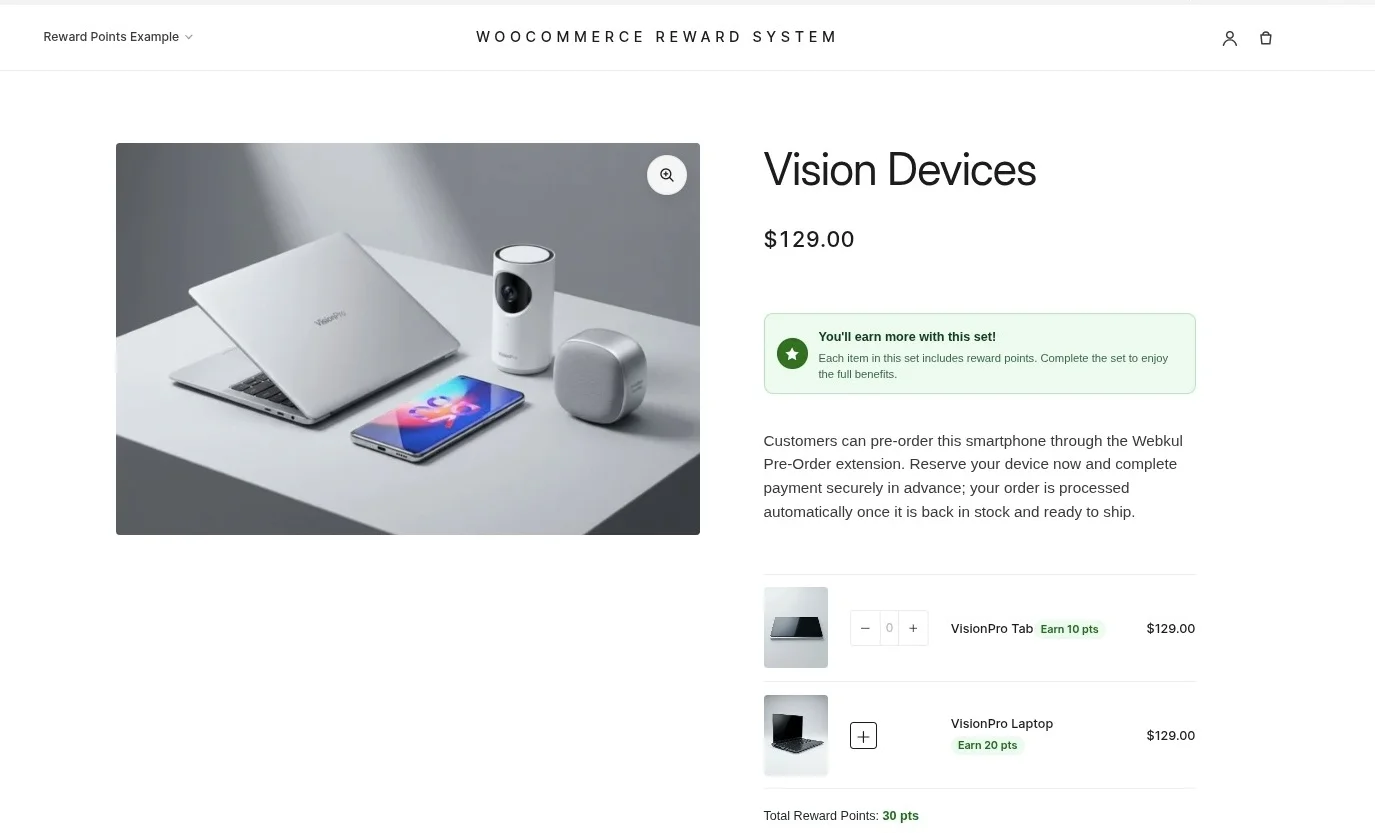
- Show Set Banner: Enable this option to display a “You’ll earn more with this set” banner after the price on the grouped product page.
- Show Per-Item Points: Enable this option to display an “Earn X pts” badge next to each product included in the grouped product.
- Show Set Total: Enable this option to display the total reward points customers can earn by purchasing the complete grouped product.
The storefront displays this information below the grouped product items.
- Banner Title: Enter the title that appears on the grouped product reward banner.
- Banner Subtitle: Enter the subtitle that appears below the banner title.
- Per-Item Badge Text: Customize the text displayed for the reward points badge shown beside each item in the grouped product.
Use %s as a placeholder for the reward points value. If you leave this field blank, the system uses the default text.
- Total Label: Enter the label that shows the total reward points customers can earn by purchasing the grouped product.
- Total Sub-Label: Enter the sub-label that appears below the total reward points label.
Lastly, save the changes under this section.
Conversation Rate
The Conversion Rate section allows the admin to define the monetary value of reward points.
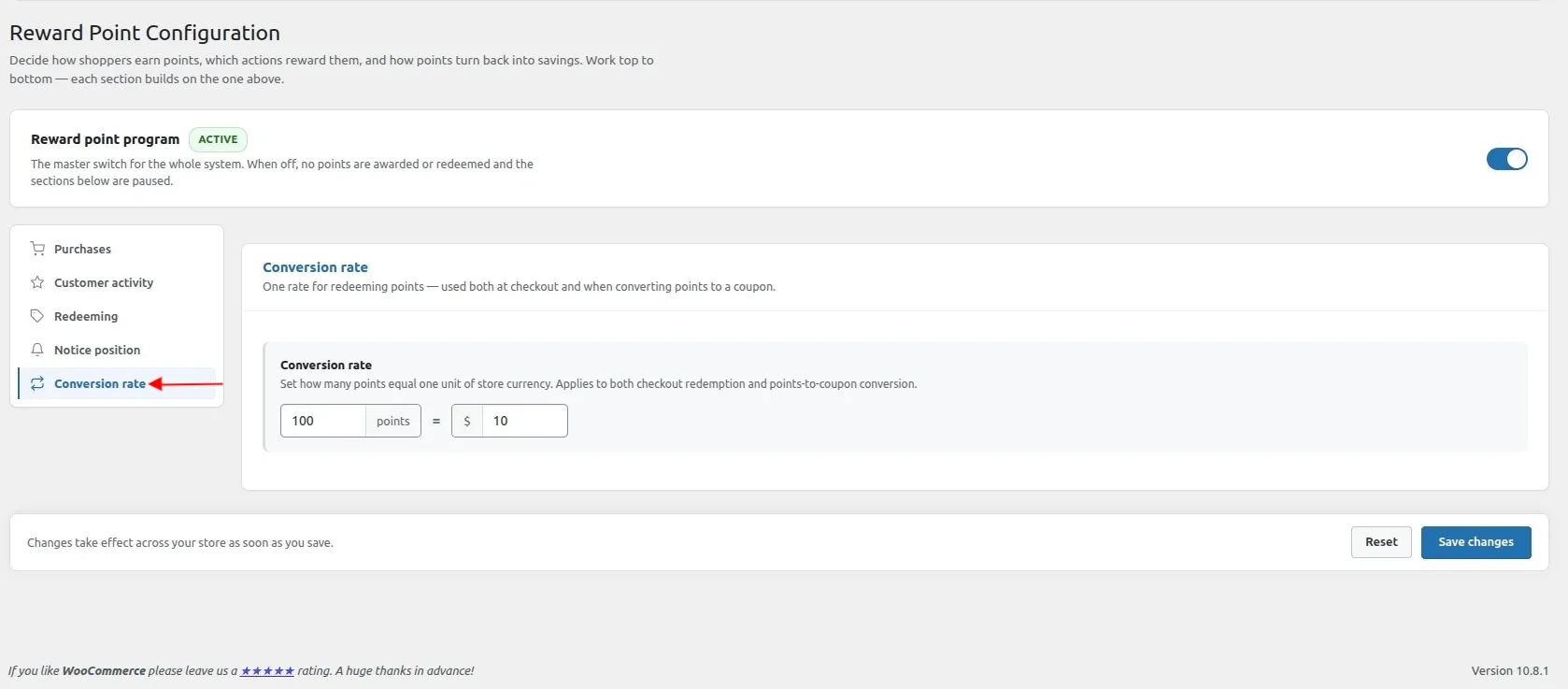
- Conversion Rate: Specify the number of reward points and their equivalent value in the store currency.
For example, the admin can configure 100 reward points = 10 USD.
The system uses this conversion rate when customers redeem reward points or convert them into coupons.
Admin – Configure Product-Based Reward Rules
The admin can configure product reward points in two different ways.
The first method uses Global Product Reward Rules, which let the admin apply the same reward configuration to multiple products.
Global Configuration
Navigate to the Product Rules section to create a product reward rule, as shown below:
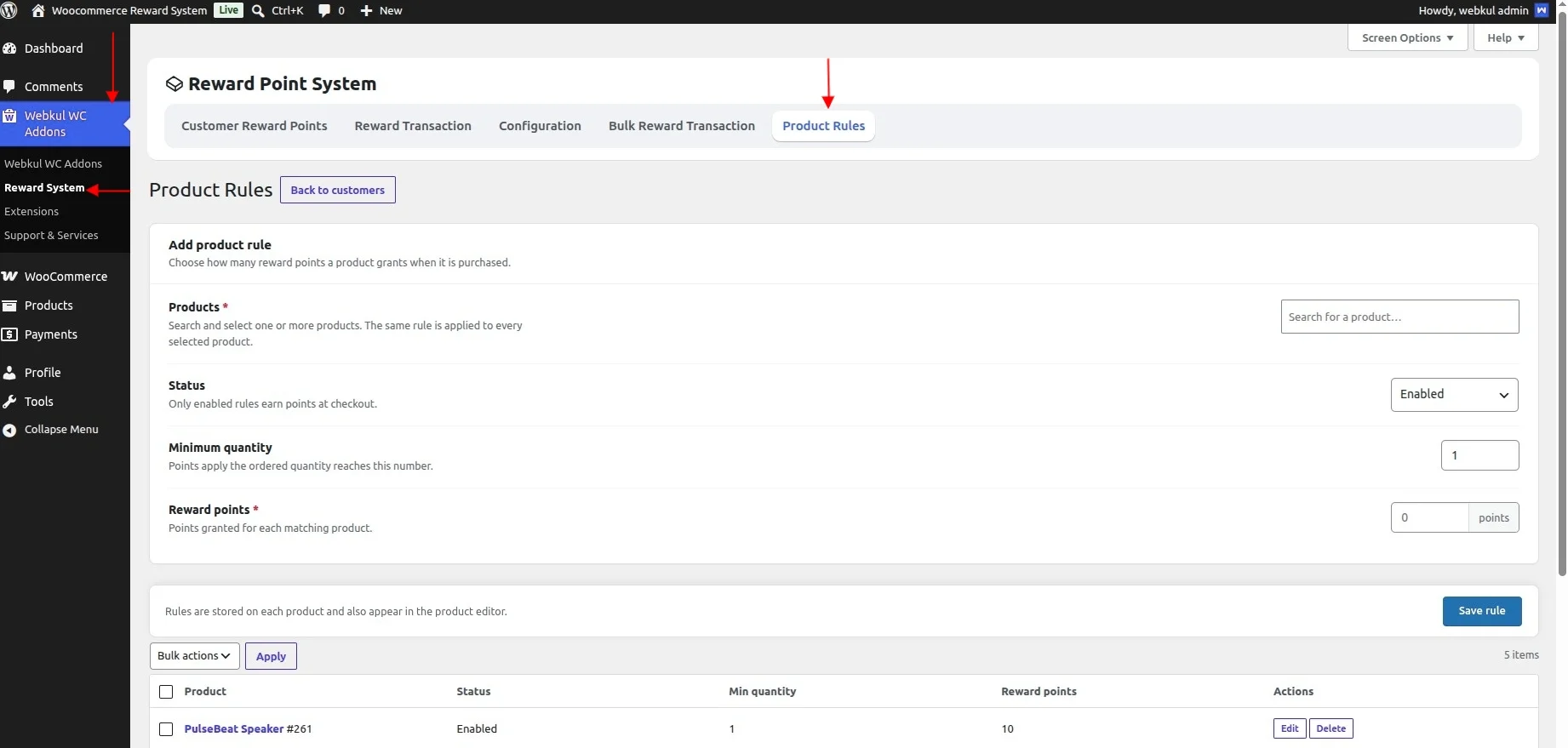 The following options are available while creating a global product reward rule:
- Products: Search and select one or more products. The system applies the same reward point configuration to every selected product.
- Status: Enable or disable the reward rule as required.
- Enabled: The selected products will award reward points according to the configured rule.
- Disabled: The rule will remain inactive.
- Minimum Quantity: Specify the minimum quantity of the selected product(s) that a customer must purchase to become eligible for reward points.
- Reward Points: Enter the number of reward points customers earn when they purchase the selected product(s) and meet the minimum quantity requirement.
Per Product Configuration
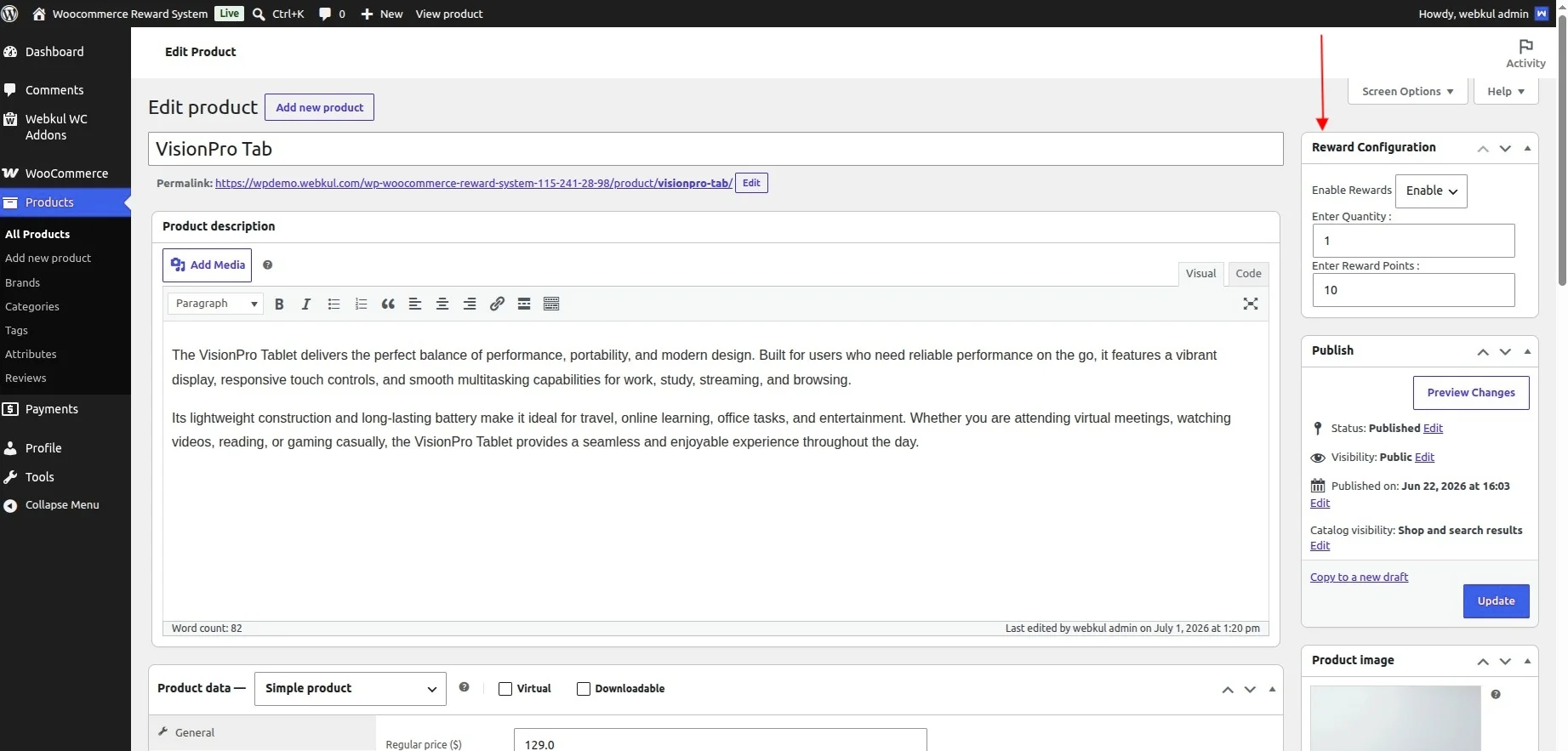
The admin can also configure reward points individually for each product.
To do so, navigate to the desired product and edit it. Under the Reward Points section, the admin can define product-specific reward point settings, as shown below:
Customer Reward Points
The Customer Reward Points section allows the admin to view the reward points earned by customers and manually manage their reward point balances.
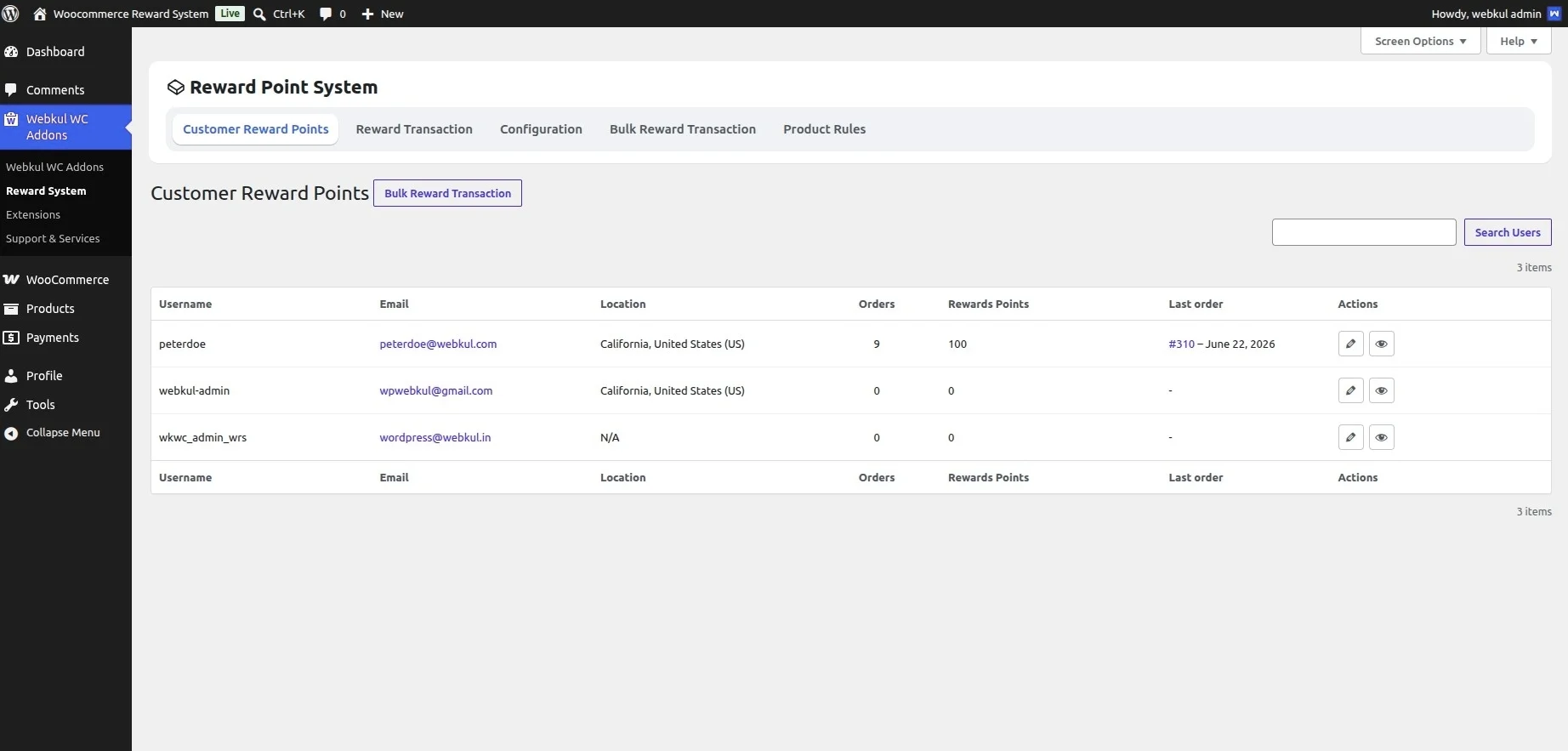
From this section, the admin can credit, debit, or update the reward points of any customer.
To manage a customer’s reward points, navigate to the Customer Reward Points section and click the Edit icon corresponding to the desired customer.
After clicking Edit, the admin can view the customer’s current reward point balance and perform the required transaction, as shown below:
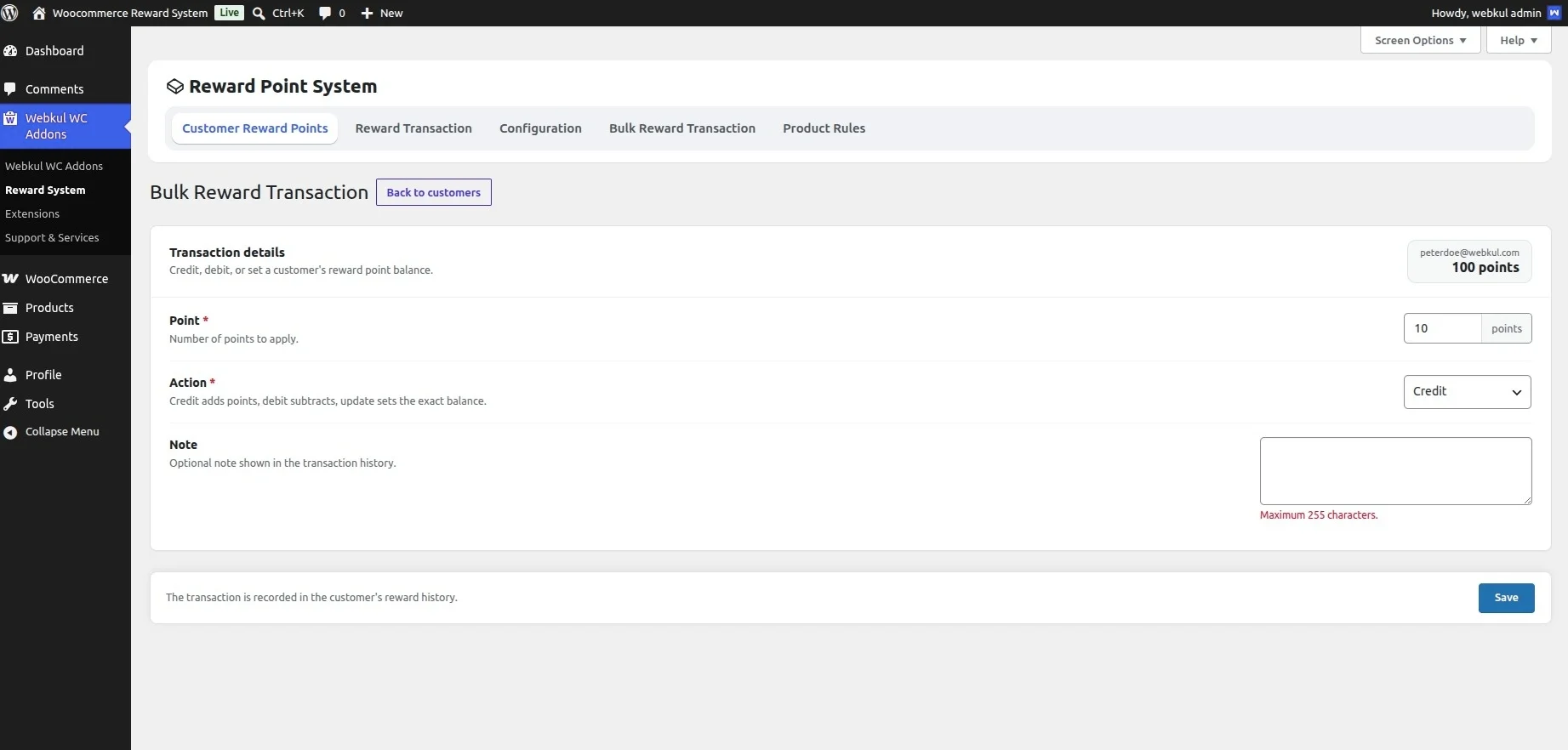
The following options are available:
- Transaction Details: Displays the customer’s current reward point balance along with the transaction details.
- Points: Enter the number of reward points that you want to credit, debit, or update for the selected customer.
- Action: Select the type of reward point transaction to perform.
The available actions are:
- Credit: Adds the specified reward points to the customer’s balance.
- Debit: Deducts the specified reward points from the customer’s balance.
- Update: Replaces the customer’s existing reward point balance with the entered value.
- Note: Enter an optional note to record the reason for the reward point transaction.This helps maintain a clear history of manual reward point adjustments.
Admin – Bulk Reward Transaction
The Bulk Reward Transaction section lets the admin credit or debit reward points for multiple customers in a single action.
The admin can apply the transaction to specific customers, selected user roles, or all registered users.
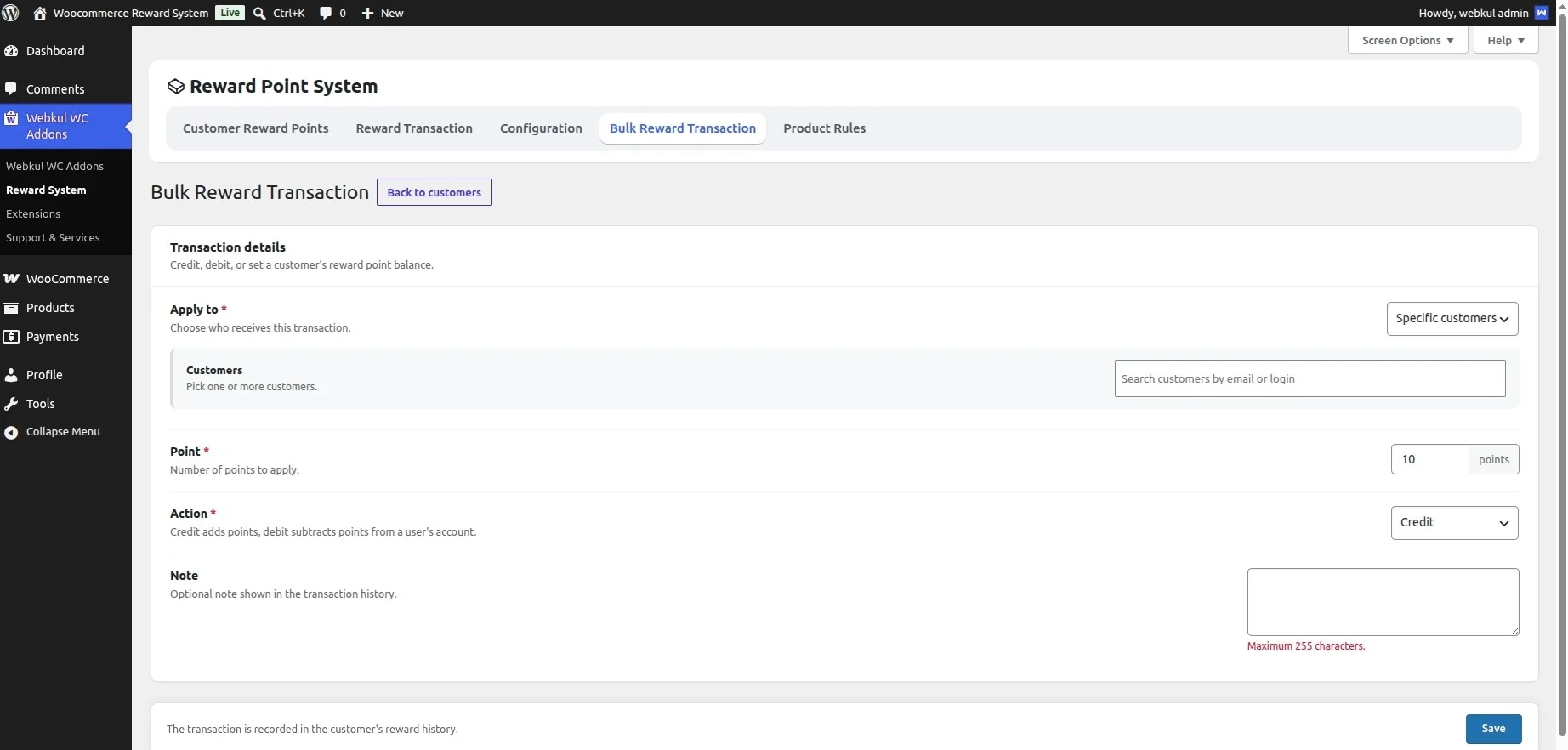
The following options are available:
- Apply To: Select the users who should receive the bulk reward point transaction.
The available options are:
- Specific Customers: Apply the transaction only to selected customers.
- User Roles: Apply the transaction to all customers belonging to the selected user role(s).
- All Users: Apply the transaction to every registered user on the store.
- Customers / User Roles: Depending on the option selected under Apply To, this field allows the admin to select the recipients of the bulk transaction.
- If Specific Customers is selected, search and choose one or more customers using their email addresses.
- If User Roles is selected, choose one or more user roles to which the transaction should be applied.
This field is not required when All Users is selected.
- Points: Enter the number of reward points to credit or debit for the selected customers.
- Action: Select the type of bulk reward point transaction to perform.
The available actions are:
- Credit: Adds the specified reward points to the selected customers’ accounts.
- Debit: Deducts the specified reward points from the selected customers’ accounts.
- Note: Enter an optional note to record the reason for the bulk reward point transaction.This helps maintain a clear history of manual reward point adjustments.
Admin – Reward Points Transaction Details
The Reward Points Transaction Details section provides a complete record of all reward point transactions performed within the store.
This section includes transactions that the system creates automatically.
It also includes manual transactions performed by the admin, such as Credit, Debit, Update, and Coupon transactions.
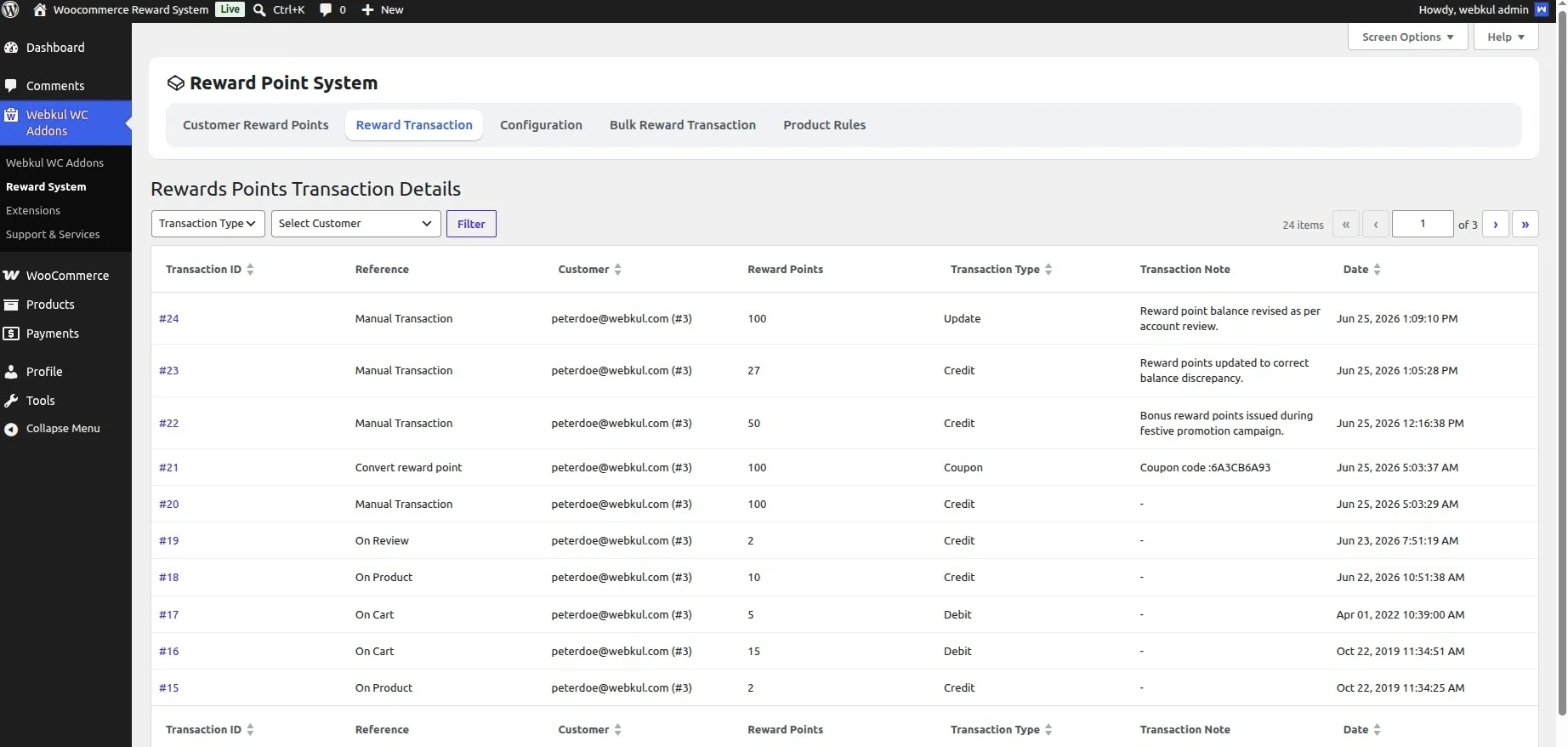
To make it easier to review transaction history, the admin can use the available filters.
- Filter by Transaction Type: The admin can filter the transaction report based on the type of reward point transaction.
The available transaction types are:
- Credit
- Debit
- Coupon
- Update
- Filter by Customer: The admin can also filter the transaction history for a specific customer to view only the reward point transactions associated with that customer.
Admin – Ban Customer from Earning Reward Points
The admin can prevent specific customers from earning reward points by enabling the Ban from Collecting Points option in the customer’s profile.
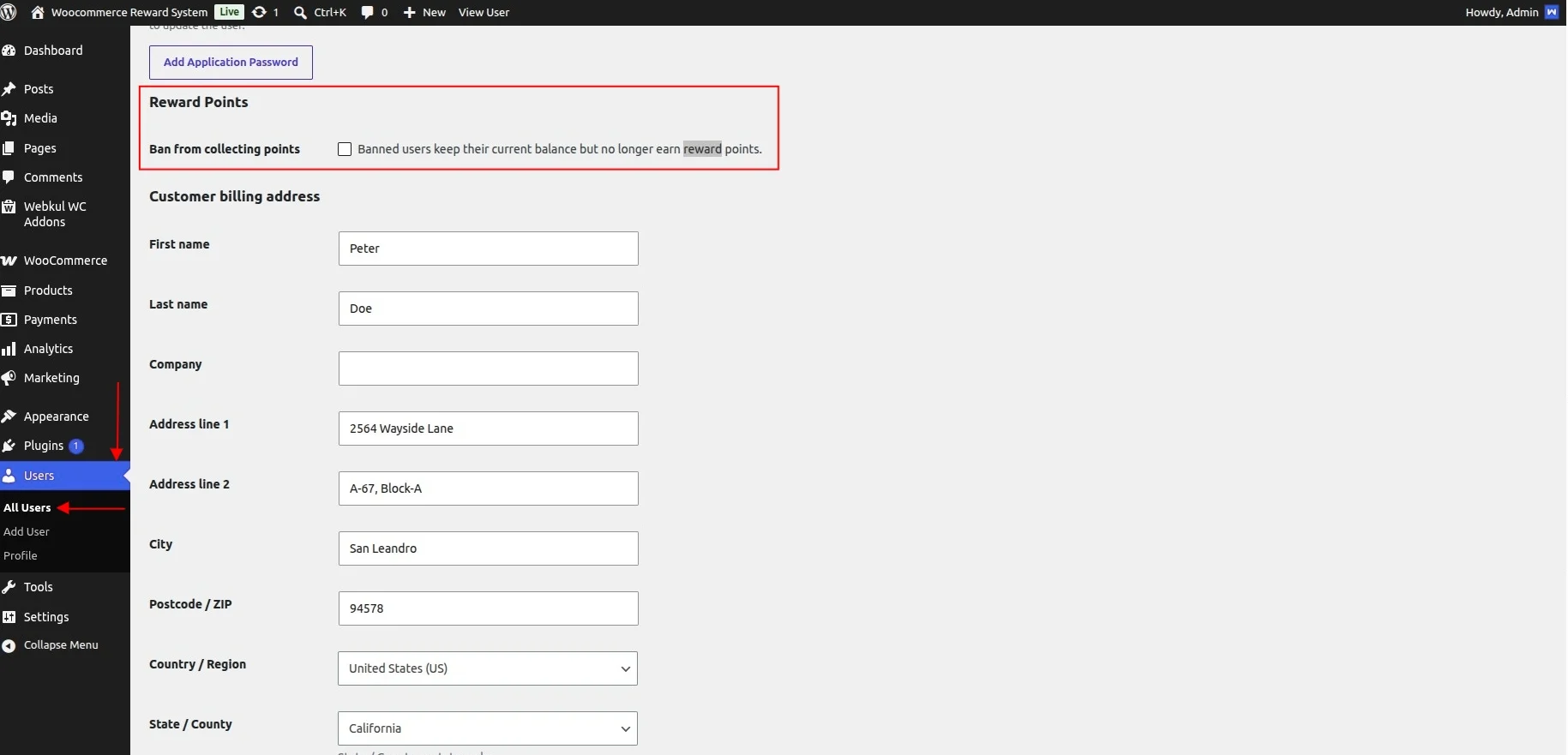
When the admin enables Ban from Collecting Points, the selected customer can no longer earn reward points.
The restriction applies to purchases, registrations, reviews, referrals, and all other reward-eligible activities configured in the module.
This setting only prevents the customer from earning new reward points.
Any reward points already available in the customer’s account remain unchanged unless the admin manually modifies them.
WooCommerce Storefront – Workflow
Registration Reward
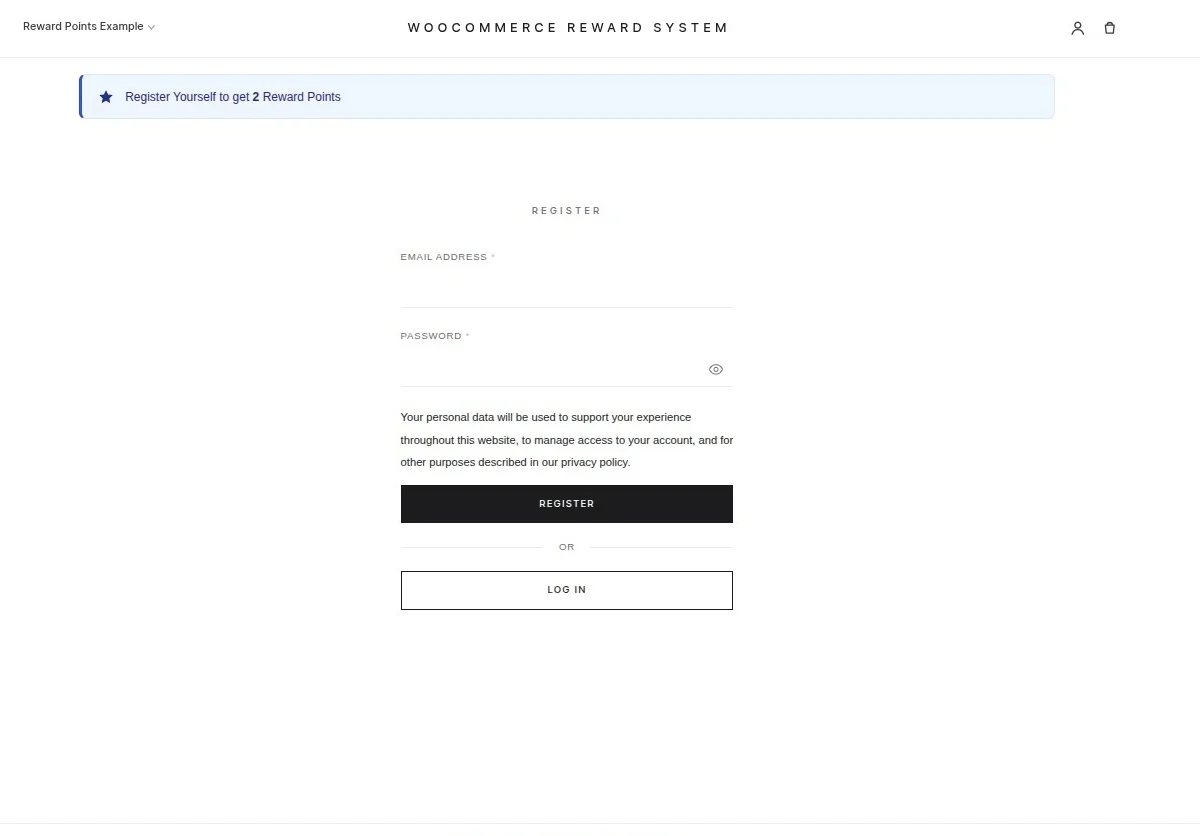
When a customer navigates to the Registration page, they will see a notice displaying the reward points they can earn upon successfully registering on the store, as shown below:
Customer Dashboard
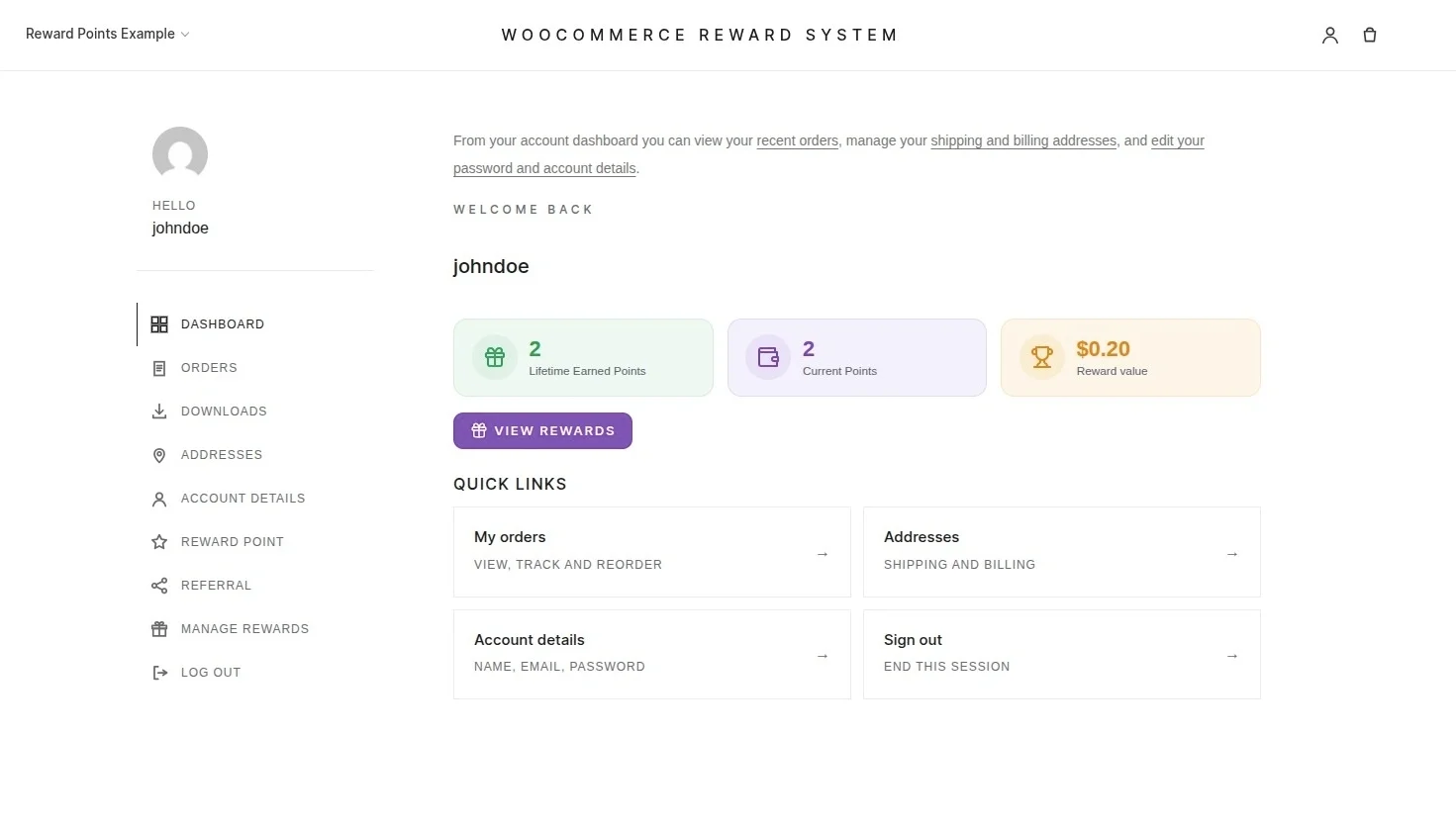
After registering and logging into their account, customers can view an overview of their reward points directly from the My Account dashboard.
The dashboard displays:
- Lifetime Earned Points
- Current Available Points
- Reward Value
Reward Points History
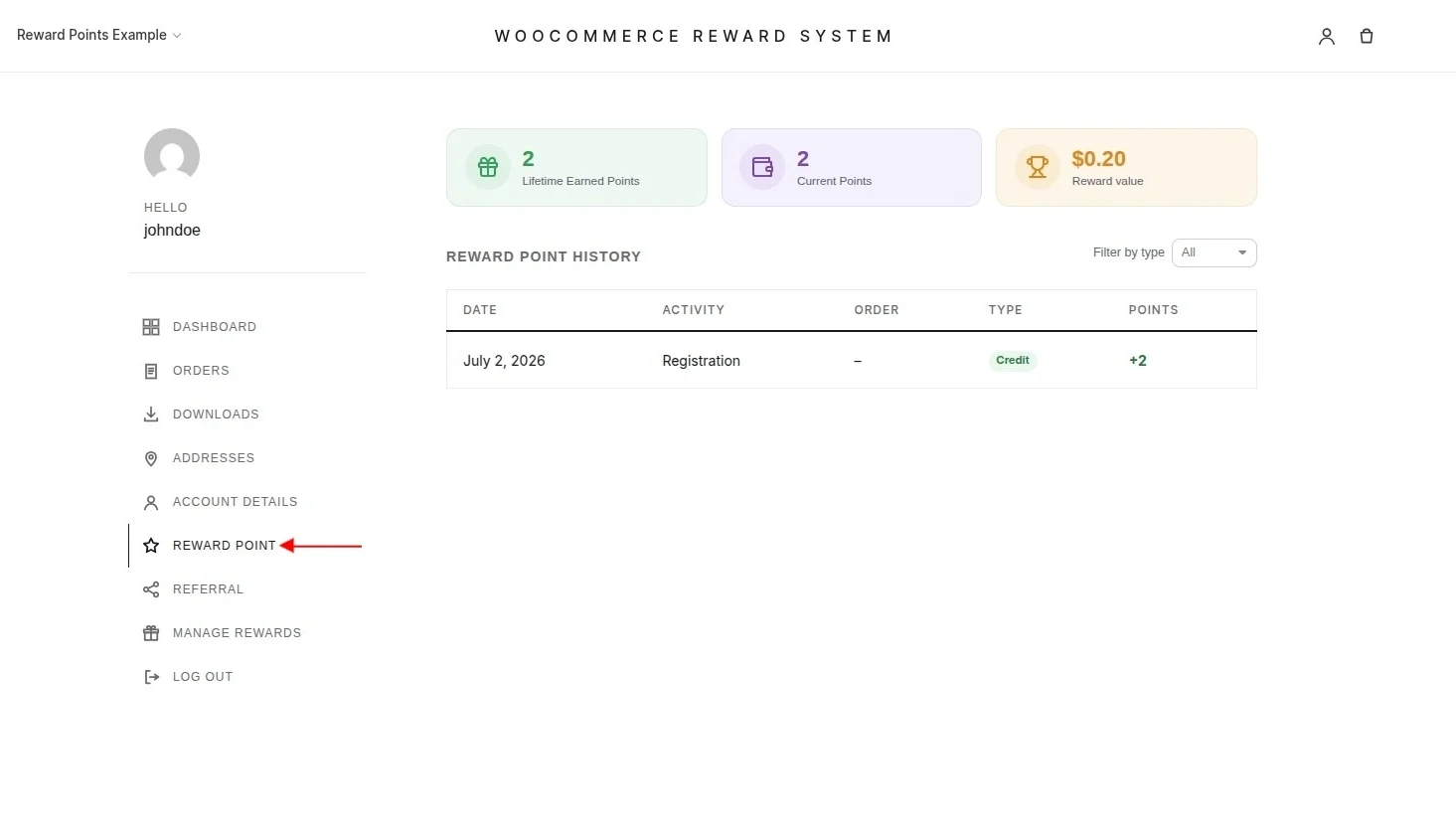
Customers can navigate to the Reward Points section under My Account to view a complete history of their reward point transactions.
This section displays details of both earned and redeemed reward points, allowing customers to easily track their reward point activity.
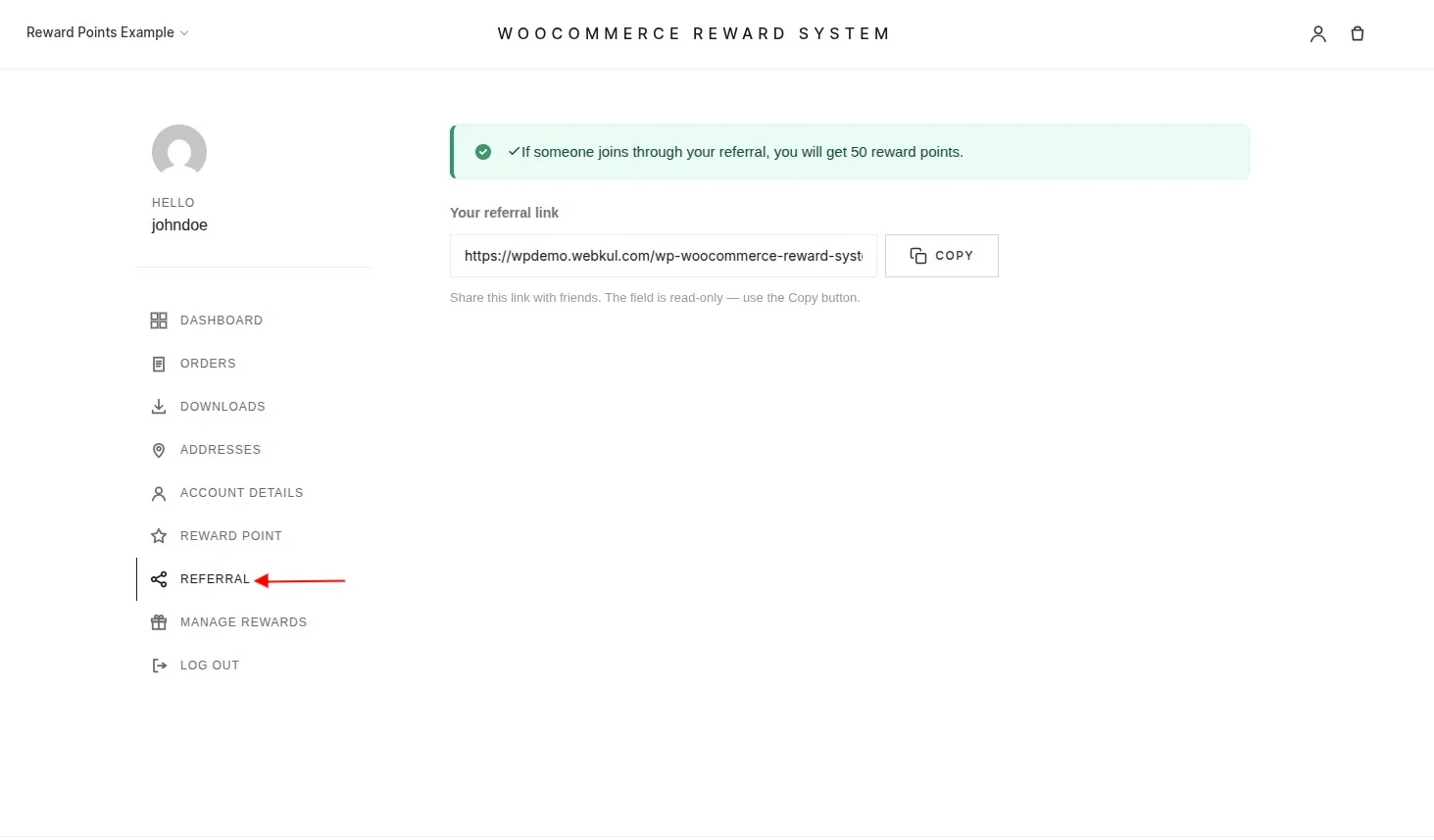
Referral
Customers can earn additional reward points by referring new users to the store.
From the Referral section in their account dashboard, each customer receives a unique referral link to share with friends and family.
When a new customer registers or places their first order (depending on the admin configuration) through that link, the referring customer earns the configured reward points.
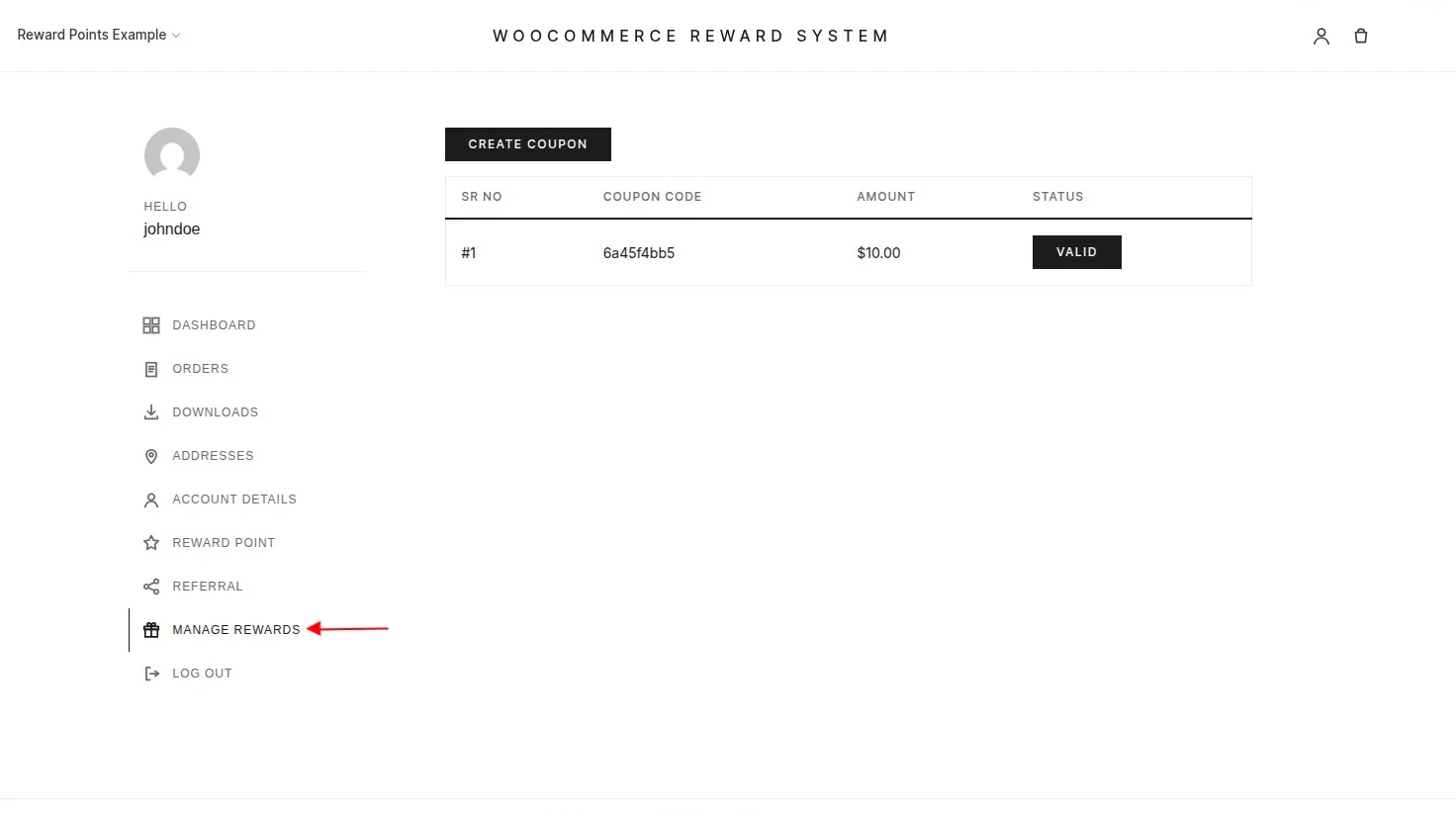
Coupon Creation
Customers can also convert their available reward points into discount coupons from the Manage Rewards section.
After generating a coupon, customers can redeem it during checkout to receive a discount on future purchases.
If the admin enables Allow Sharing the Coupon, customers can also share the coupon code with other users.
Convert Reward Points to a Coupon
To create a coupon, the customer needs to click the Create Coupon button available in the Manage Rewards section.
After clicking the button, the customer can enter the number of reward points they wish to convert into a coupon code.
The process is shown below:
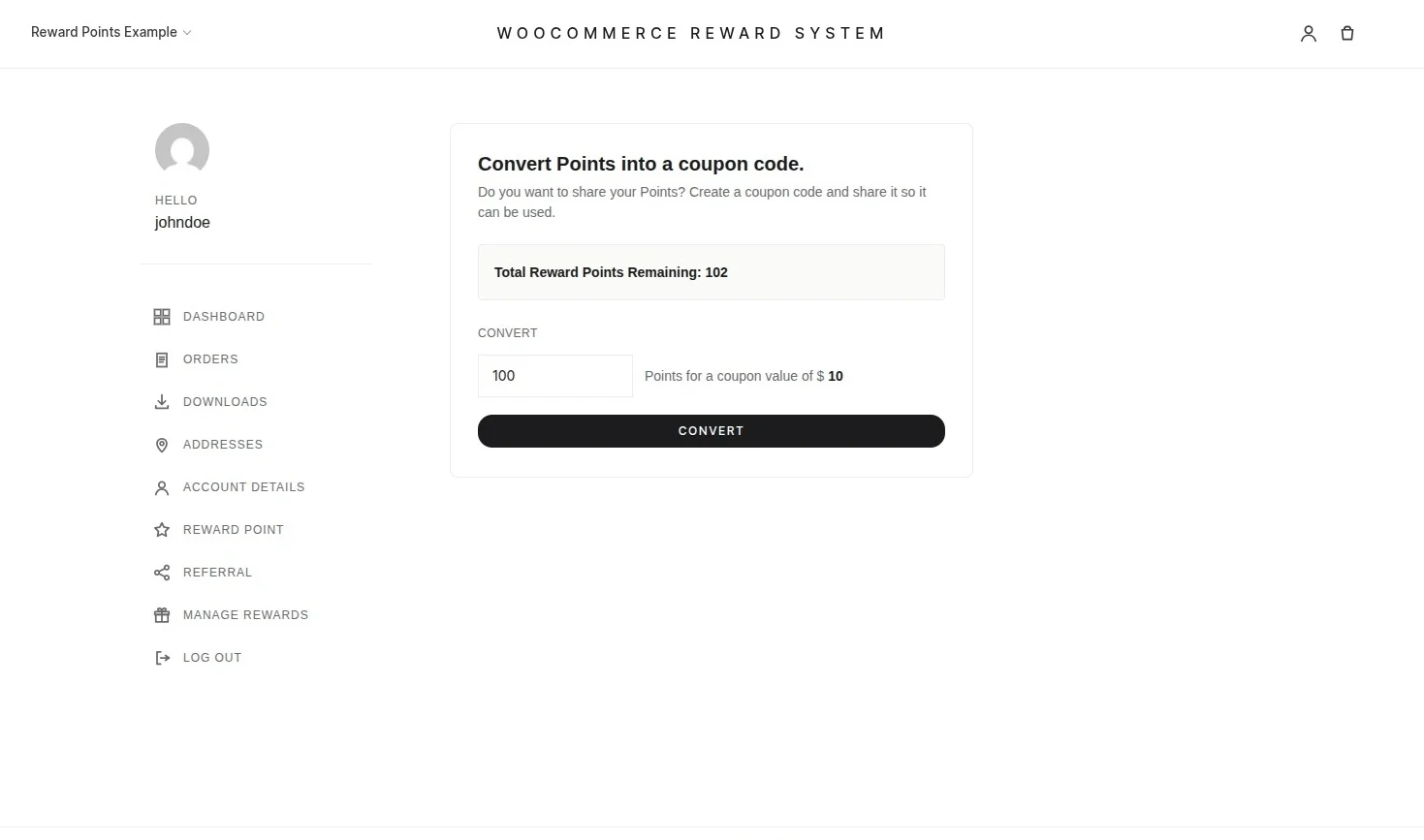
After entering the required reward points, the customer can generate the coupon.
The system creates the discount coupon according to the configured reward point conversion rate if the customer has enough reward points.
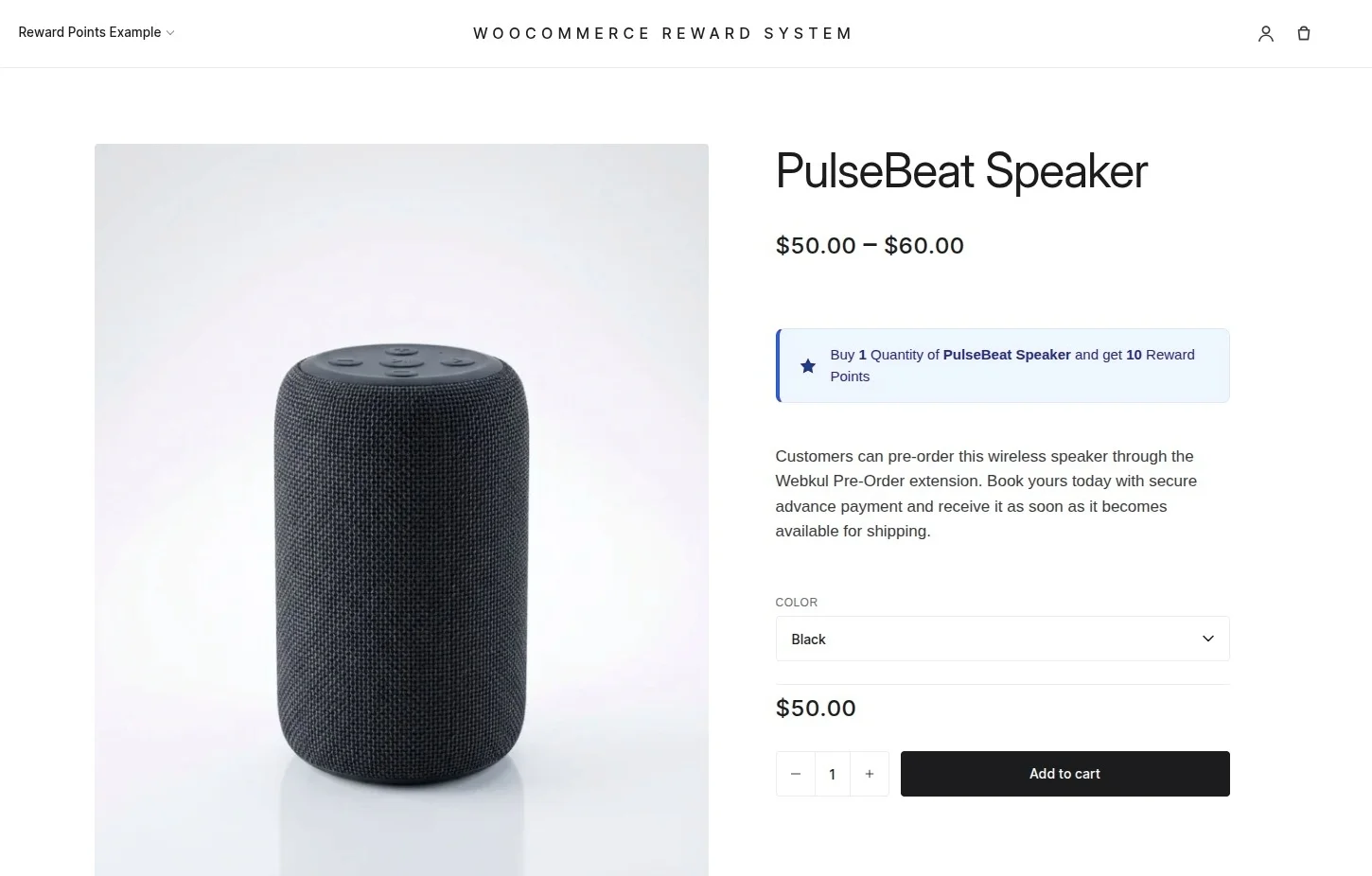
Product Page Reward Notice
When the admin configures reward points for a product, the product page displays a reward notice.
The notice shows the reward points customers can earn by purchasing that product.
For example, the product page displays a notice such as “Buy X quantity of this product and earn Y reward points,” as shown below:
Grouped Product Reward Notice
For grouped products, customers can view detailed reward information directly on the product page.
Depending on the admin configuration, the page can display:
- A reward banner for the grouped product.
- The reward points customers can earn for each individual product in the group.
- The total reward points customers can earn by purchasing the complete grouped product.
Cart Reward Notice
If the customer’s cart does not meet the minimum cart amount required to earn reward points, the cart page displays a reward notice.
The notice informs the customer how much more they need to spend to become eligible for reward points.
For example, the customer may see a message such as “Add items worth $X more to earn Y reward points.”
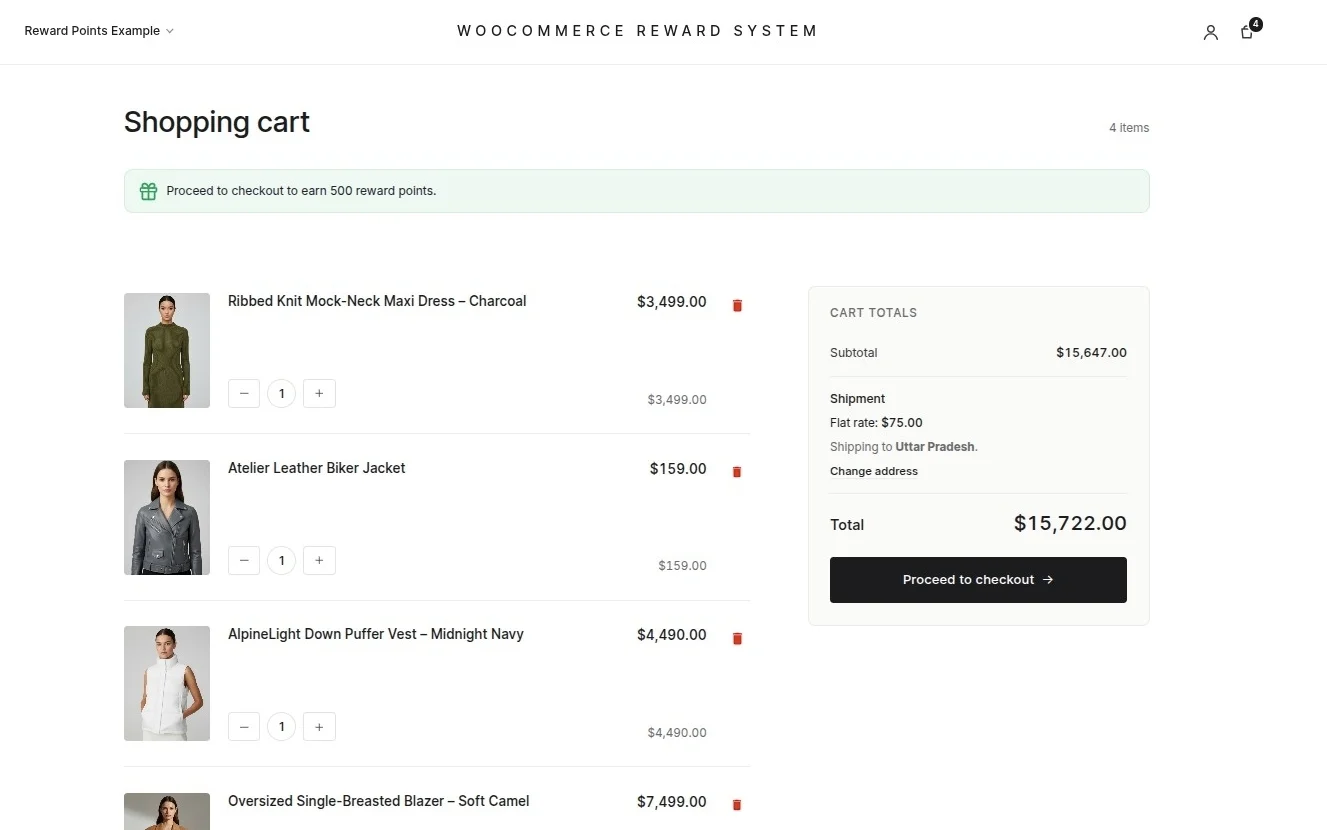
Once the customer adds enough items to satisfy the minimum cart amount, the system updates the notice to show the reward points the customer will earn for the current order.
Checkout
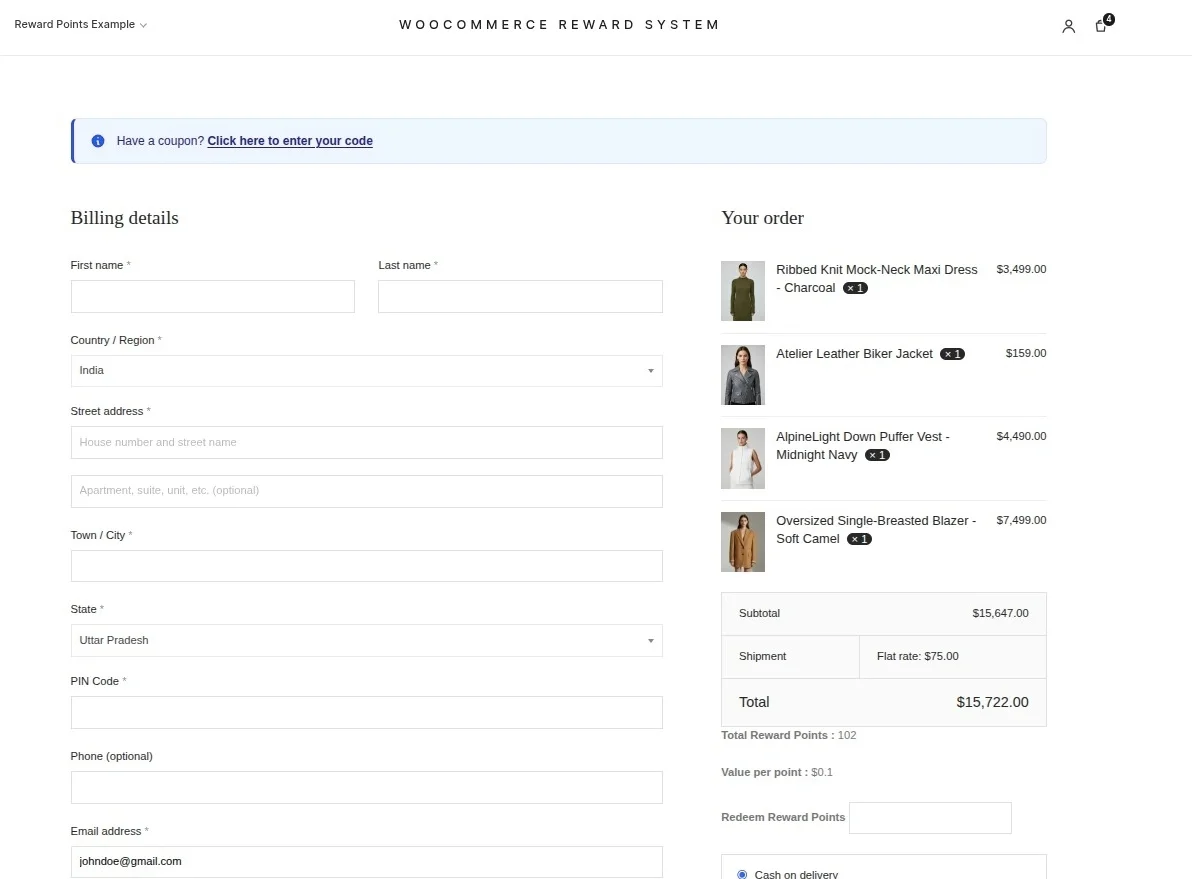
On the checkout page, customers can view their available reward points along with the configured reward point conversion value.
Customers can redeem their available reward points to receive a discount on the order.
Customers can also apply any valid reward coupons they previously generated during checkout.
Review Reward Notice
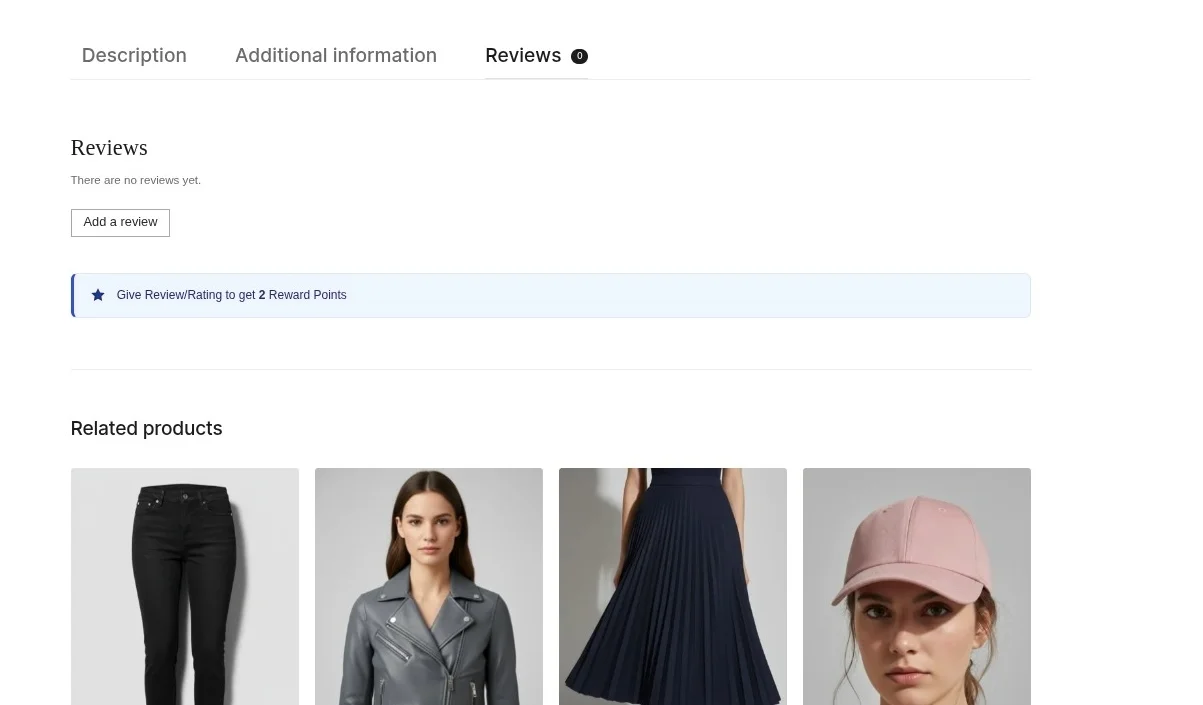
If the admin enables review rewards, the product page displays a notice that tells customers how many reward points they can earn by submitting an approved review for that product.
Support
That’s all for the WordPress WooCommerce Reward System Plugin, still have any issue, feel free to add a ticket and let us know your views to make the plugin better at webkul.uvdesk.com.
We will do our best to answer as quick as it is possible.
Don’t give us a low rate without contacting support on the issue you’ve faced with.
We are always happy to help you.
You may also check our quality WooCommerce Plugins.
Current Product Version - 1.3.0
Supported Framework Version - WordPress - 6.5.4 WooCommerce - 8.9.2

Be the first to comment.