CS-Cart Extended Video Tutorial add-on allows store admins to add video tutorials directly within the admin and vendor panels.
Admins can easily embed YouTube and Vimeo videos by entering video IDs and assigning them to specific pages.
The add-on helps users access tutorial videos from the desired area of the admin or vendor panel.
Store owners can manage all tutorials from a dedicated backend section and add up to two videos for each URL dispatcher.
Features
- Well integrated with CS-Cart Multi-vendor.
- In addition Functionality to insert videos at any desired area (i.e; Admin area or vendor area).
- Also, Option to add video tutorials from YouTube and Vimeo.
- Allows a maximum of 2 videos per URL Dispatcher.
- Moreover, easy to use and manage at the admin end.
- Admin can add product video on CS-Cart admin and vendor both panels.
Note: Before installing the add-on, extract the downloaded package.
- Install the License Manager add-on first.
- Then install the required add-on.
- Follow the license activation steps to generate your license key.
Video Tutorial
Installation
After downloading the CS-Cart Extended Video Tutorials add-on, you’ll get one zip file, one install.txt file, and a relevant User Guide manual doc.
Read it carefully for proper configuration.
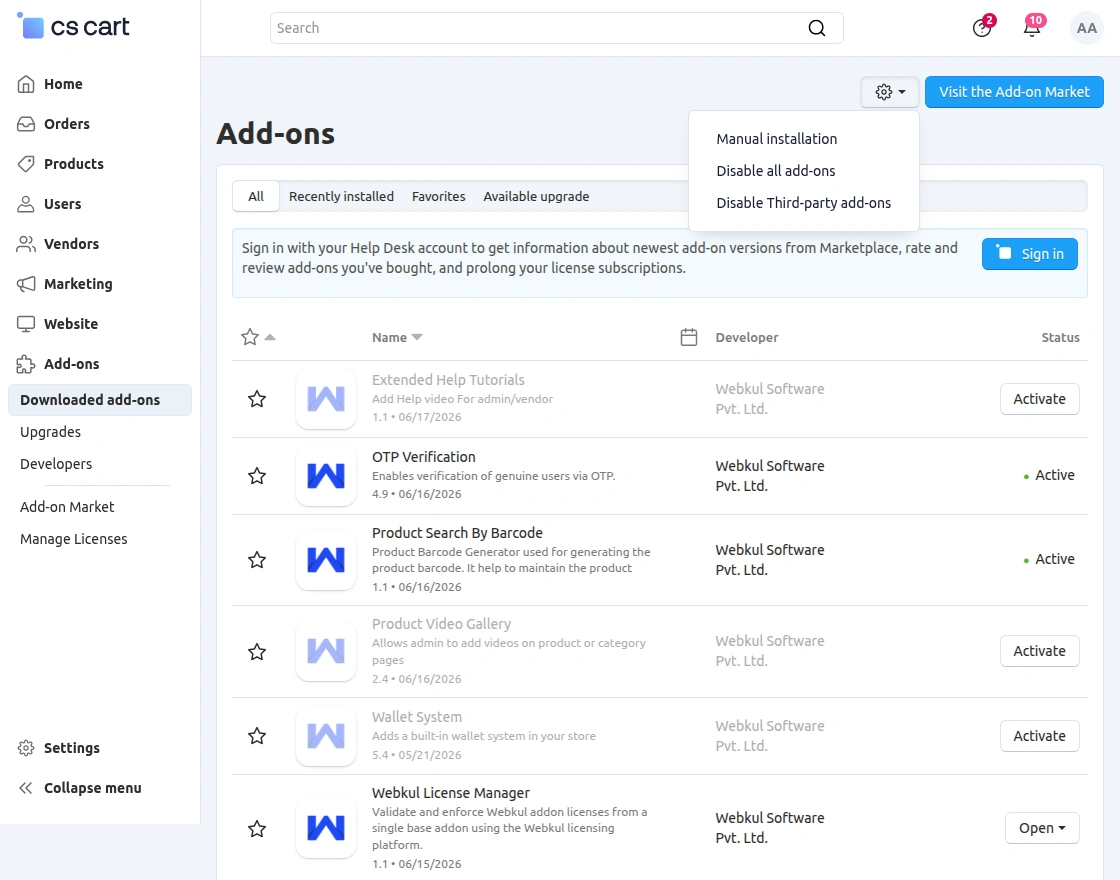
Go to Manage Add-ons, and click on “Manual Installation” as shown below in the snapshot.
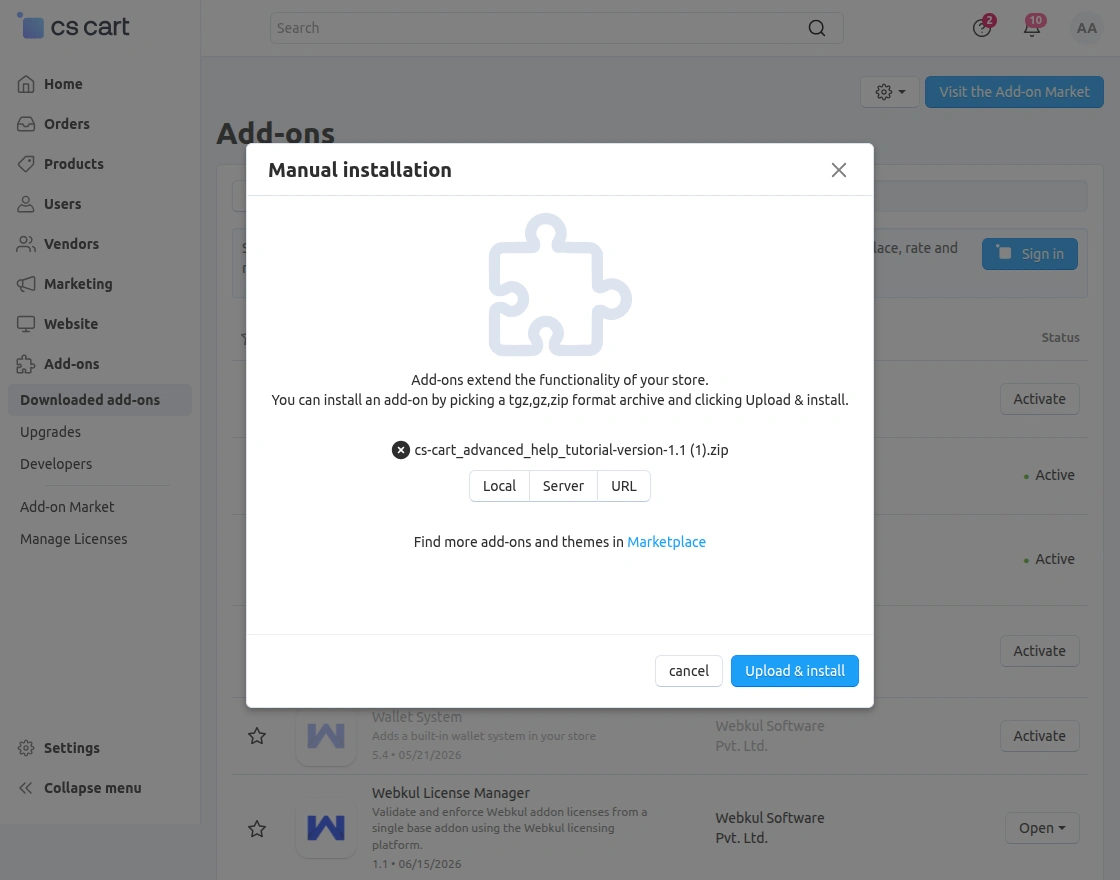
 Click on “Local” to browse the zip file and then click on “Upload & Install” as shown below in the snapshot.
Note: Add-on “Extended Video Tutorial” is incompatible with the “CS-Cart Default Video tutorials” add-on. This add-on is automatically disabled once Extended Video Tutorials is activated.
Note- If you want to provide video streaming directly on TV then you can use CS-Cart TV app for the same.
Add-On Configuration
After installing the add-on, you will find CS-Cart Extended Video Tutorials in the list of available add-ons. We will then configure the settings.
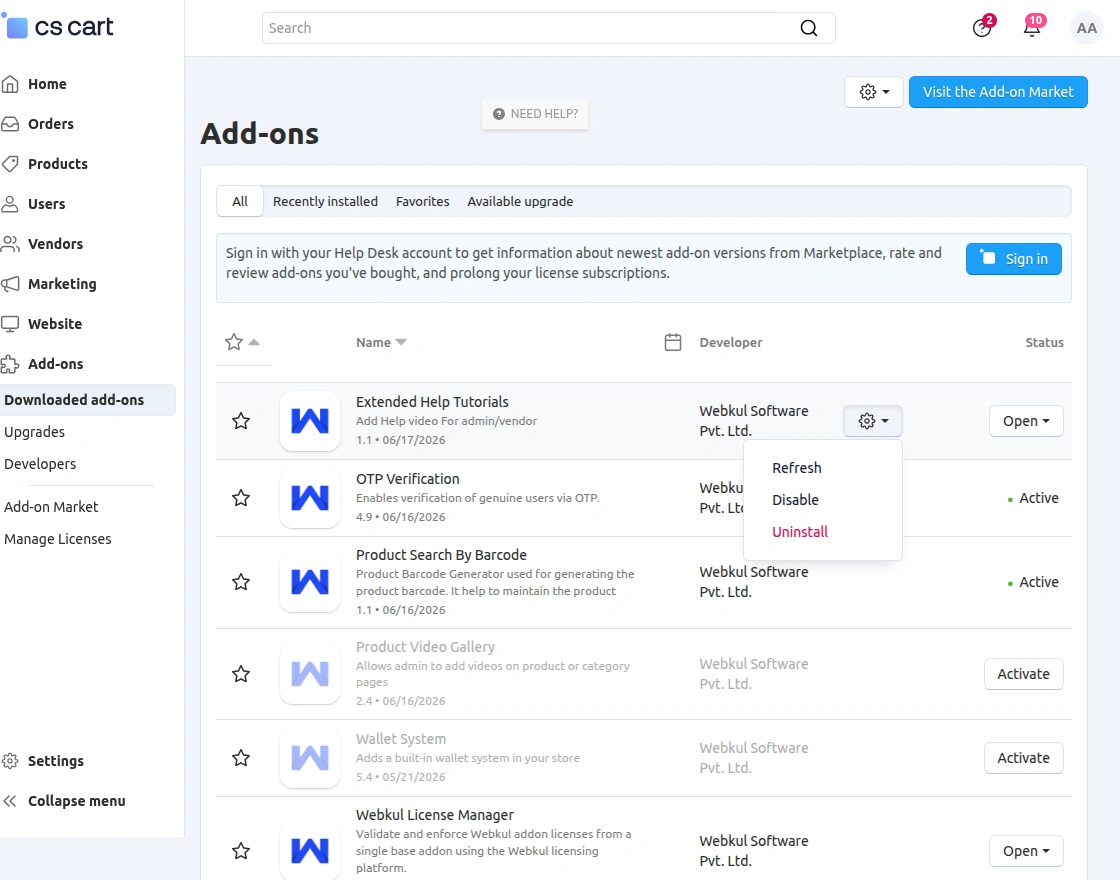
Click on “settings” to enable, disable, install, or refresh.
Make sure the add-on is activated, as shown in the snapshot below.
How To Insert Video Tutorials
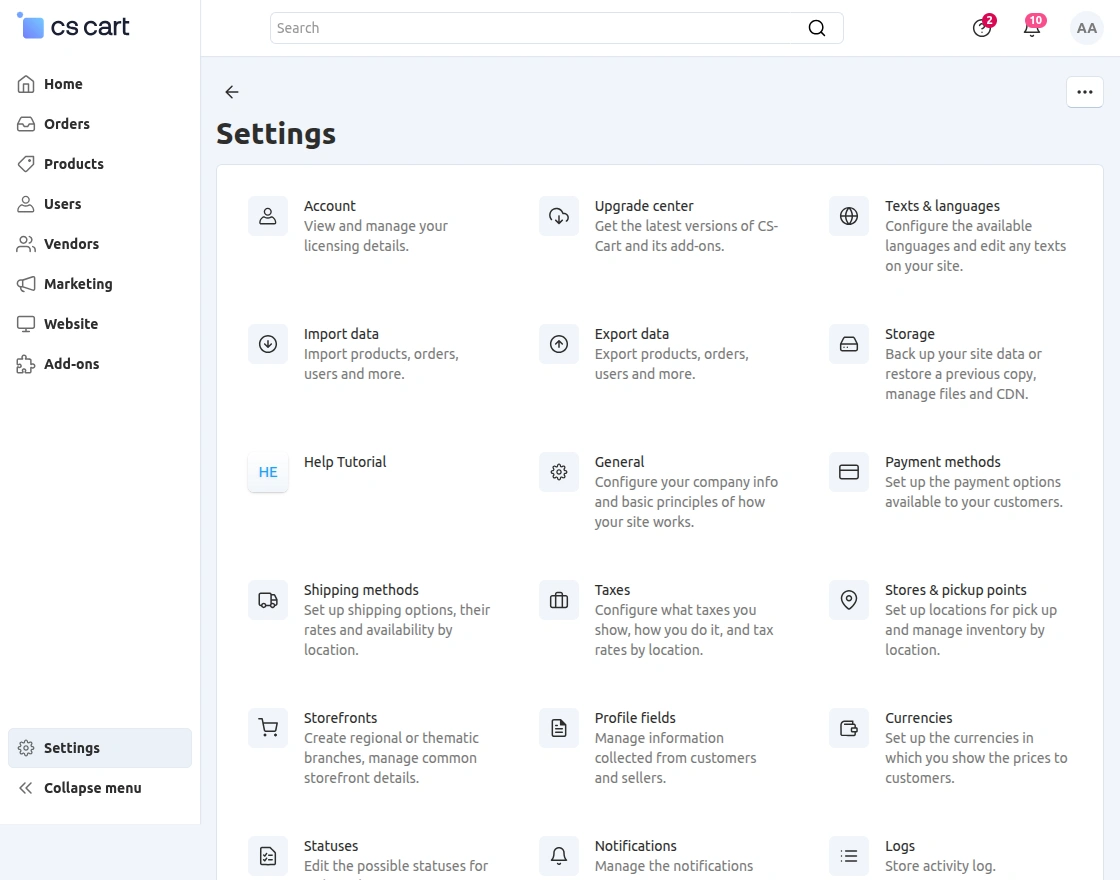
Step 1: Go to Settings -> Help Tutorial as per the screenshot below.
Step 2: Click on the + button to add a video tutorial.
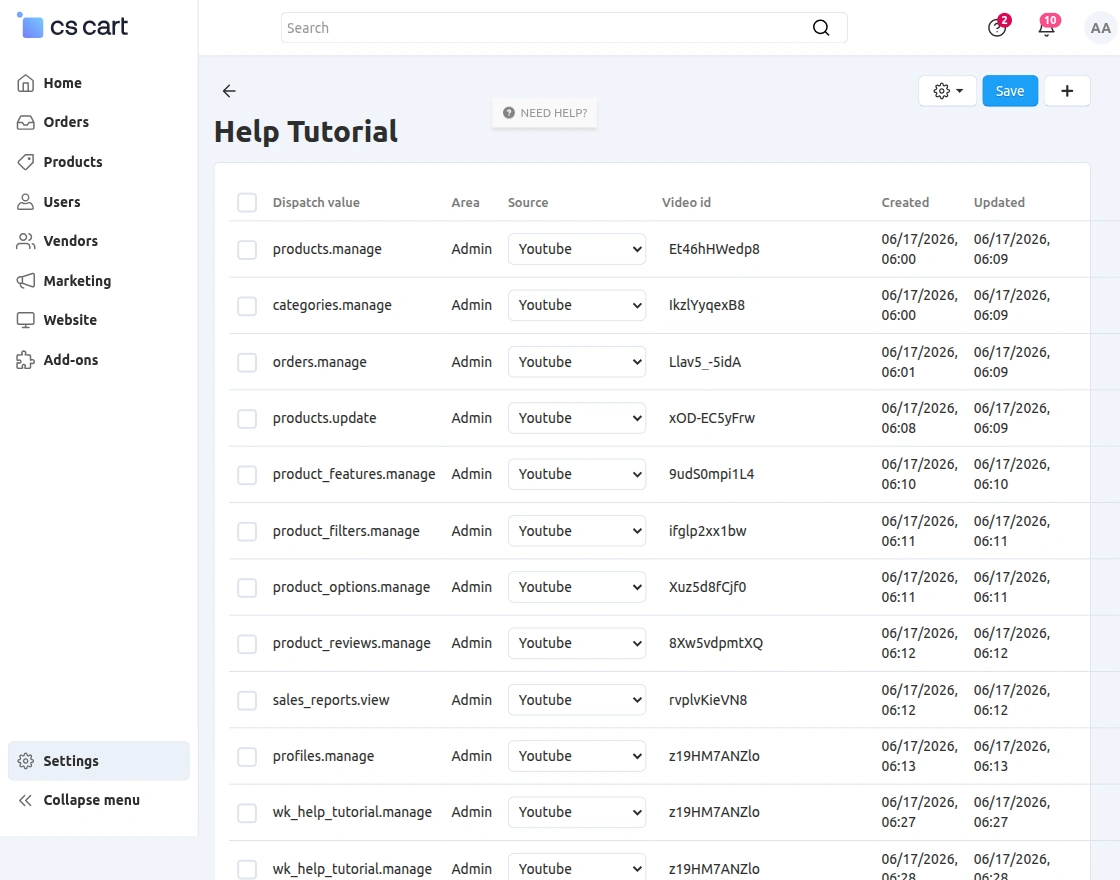
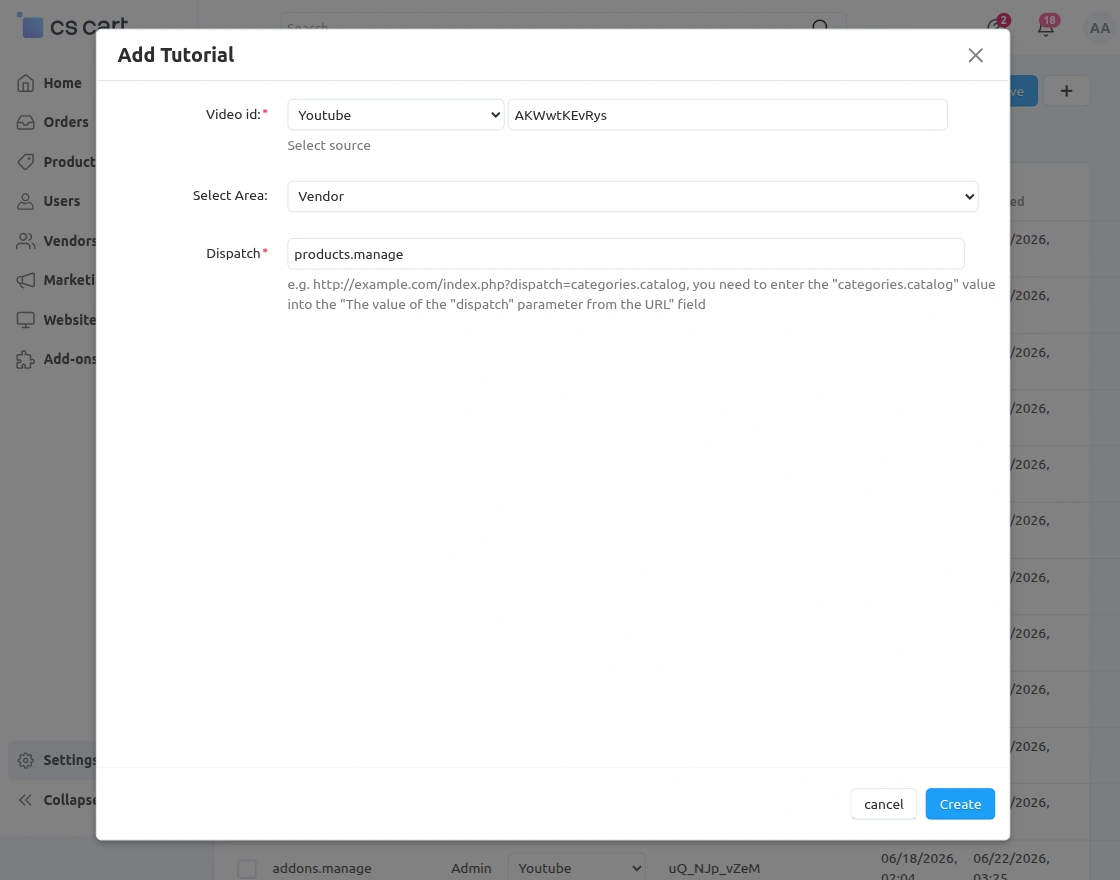
Next, enter the required details as shown below.
- Firstly Select the video source (YouTube or Vimeo) from the dropdown.
- Insert the video id of the tutorial from YouTube or Vimeo.
- Select an area (i.e Vendor or Admin area) to insert video.
- Enter the URL dispatcher where the tutorial needs to be added.
- Finally, Click on Create button to add a tutorial to the desired area.
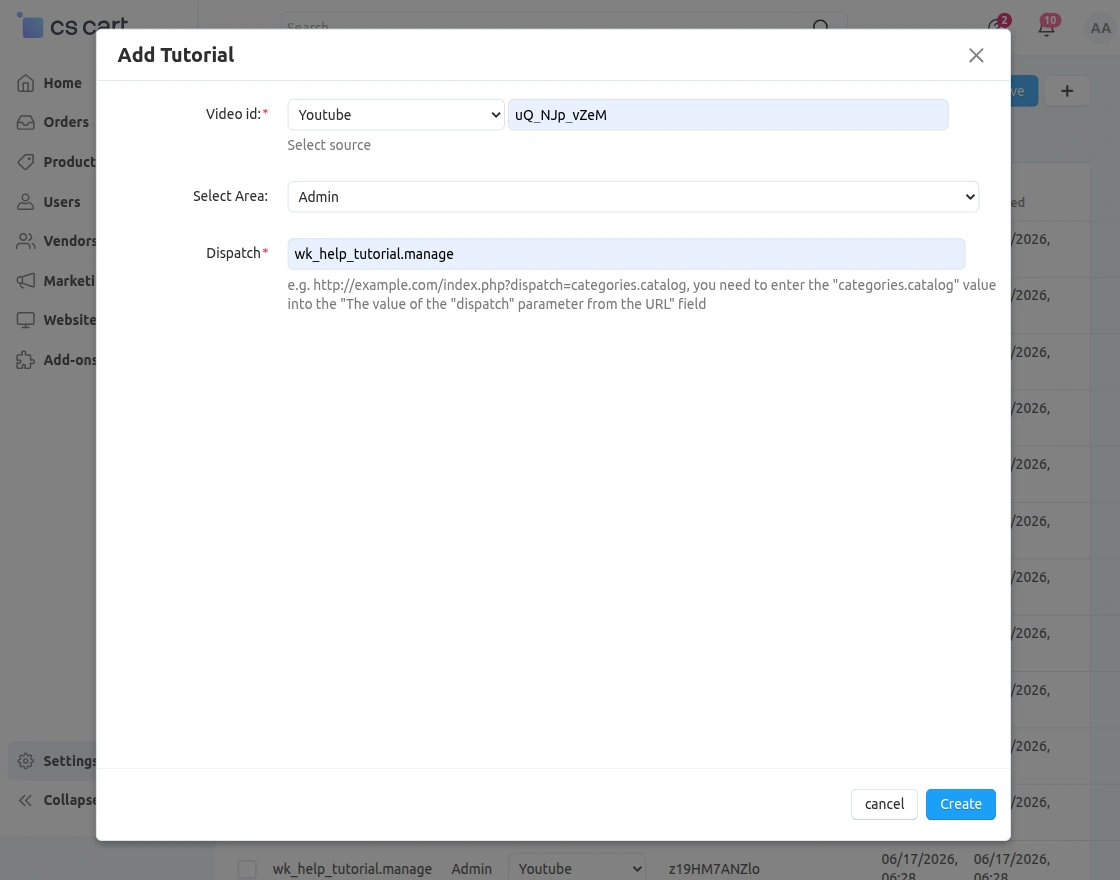
And List of tutorials can be viewed and edited here.
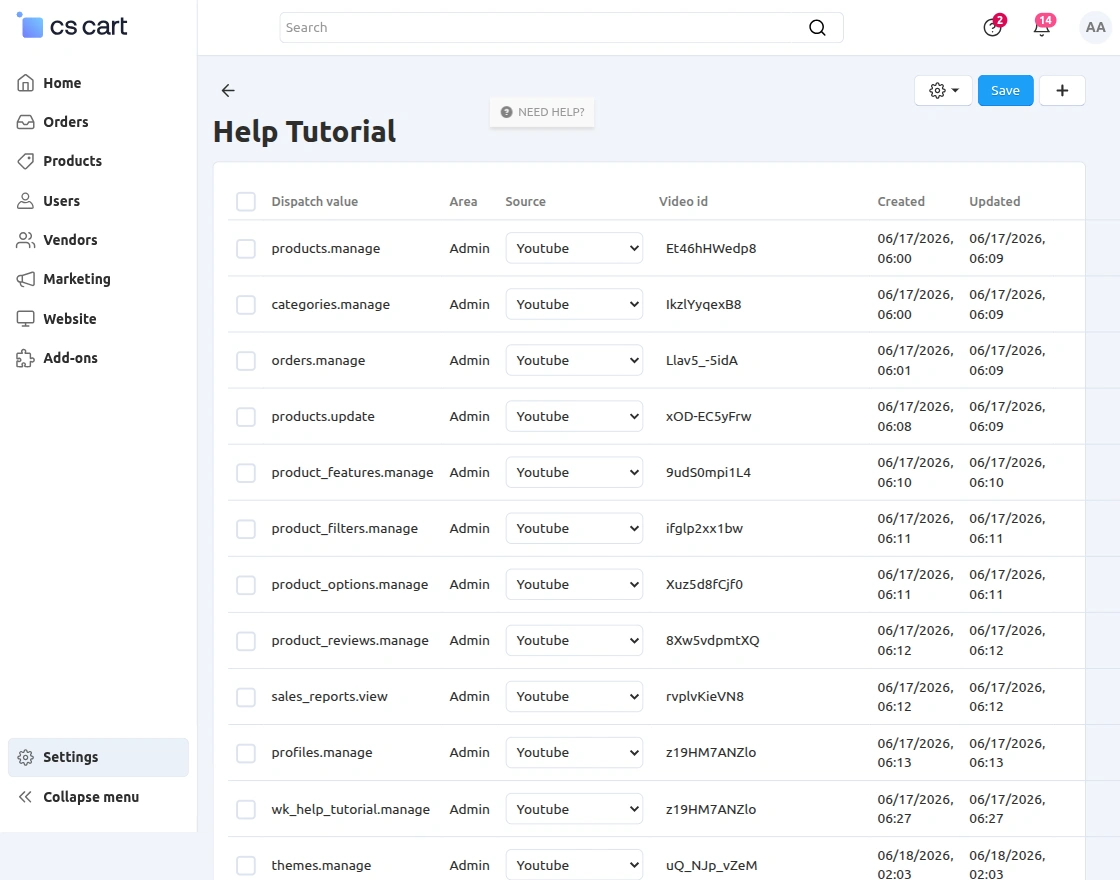
View of Help Tutorials
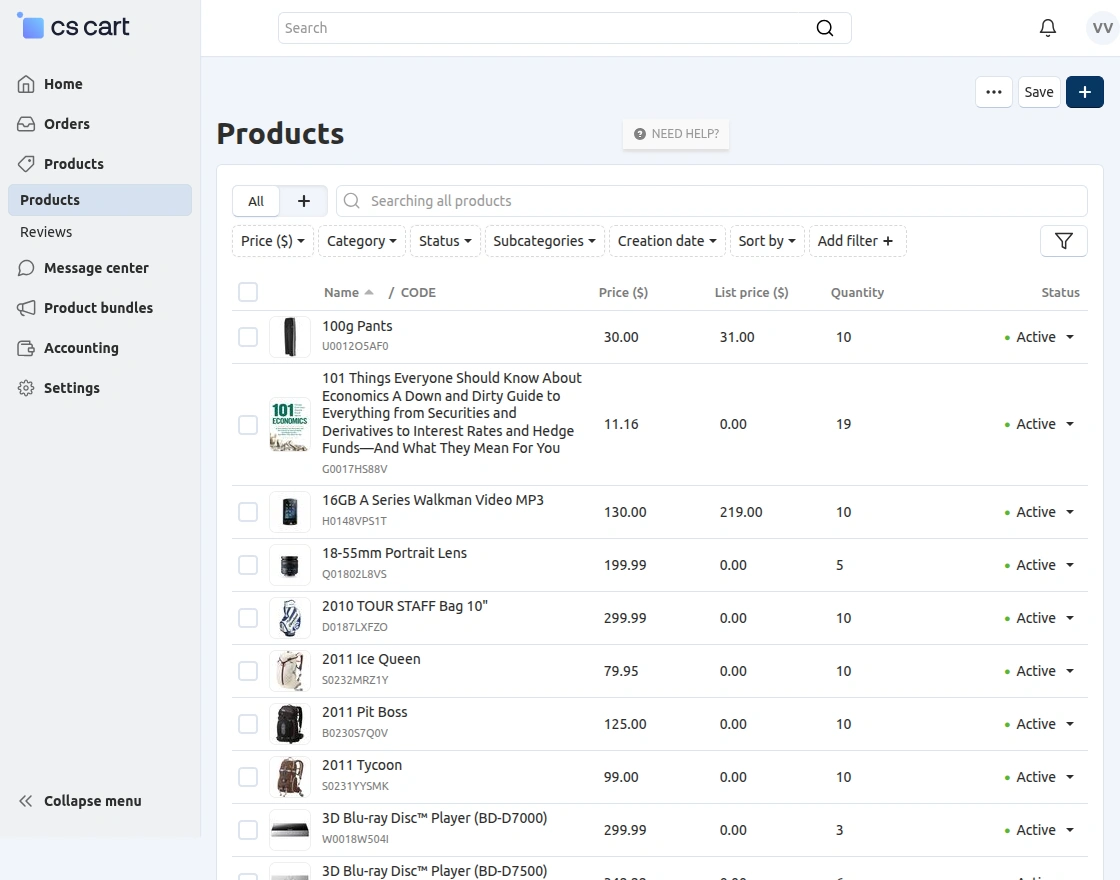
Moreover, NEED HELP? the button is available where you have inserted video tutorials.
Users can click the button to preview the added videos, as shown in the snapshots below.
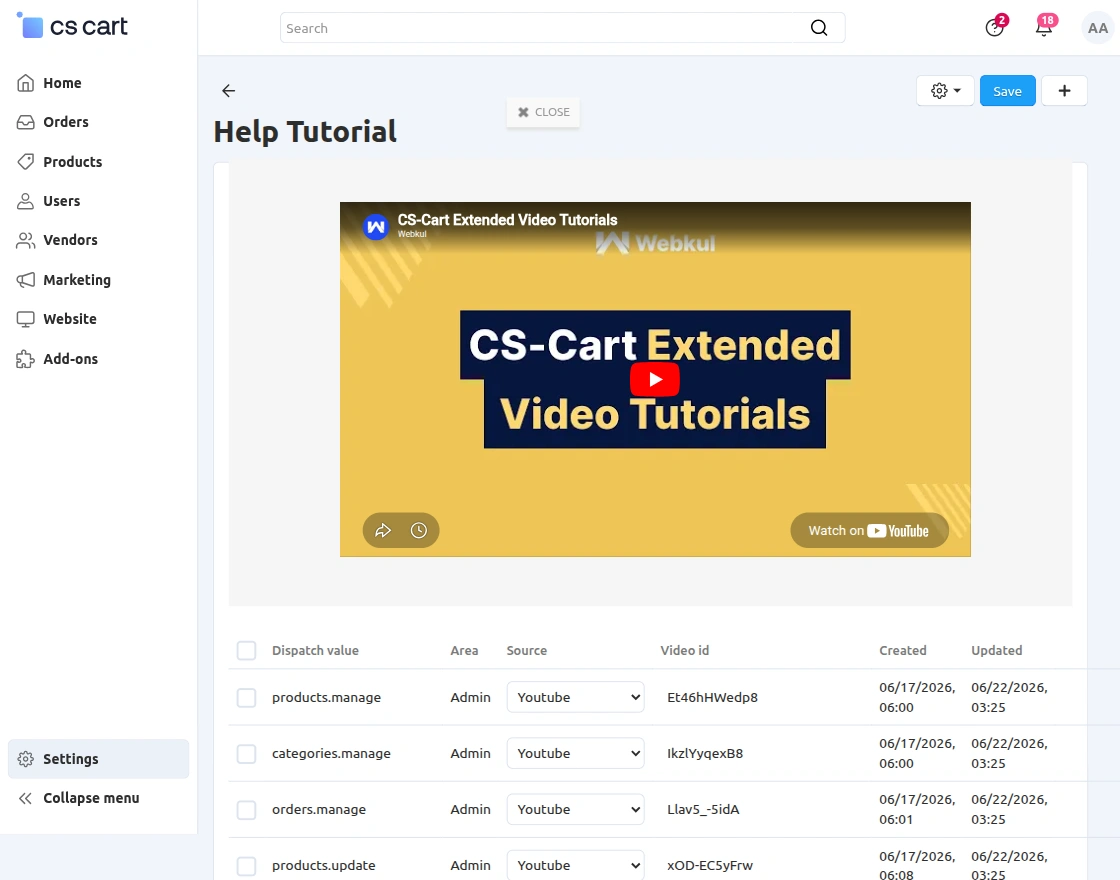
Vendor Panel
Admin can add a tutorial for the vendor panel by clicking on add button and then fill the details as mentioned below in the image:
Afterward, the vendor can click the Need Help button in the vendor panel to access the tutorial videos.
Now, the vendor can see the video by clicking on need help in the vendor panel.
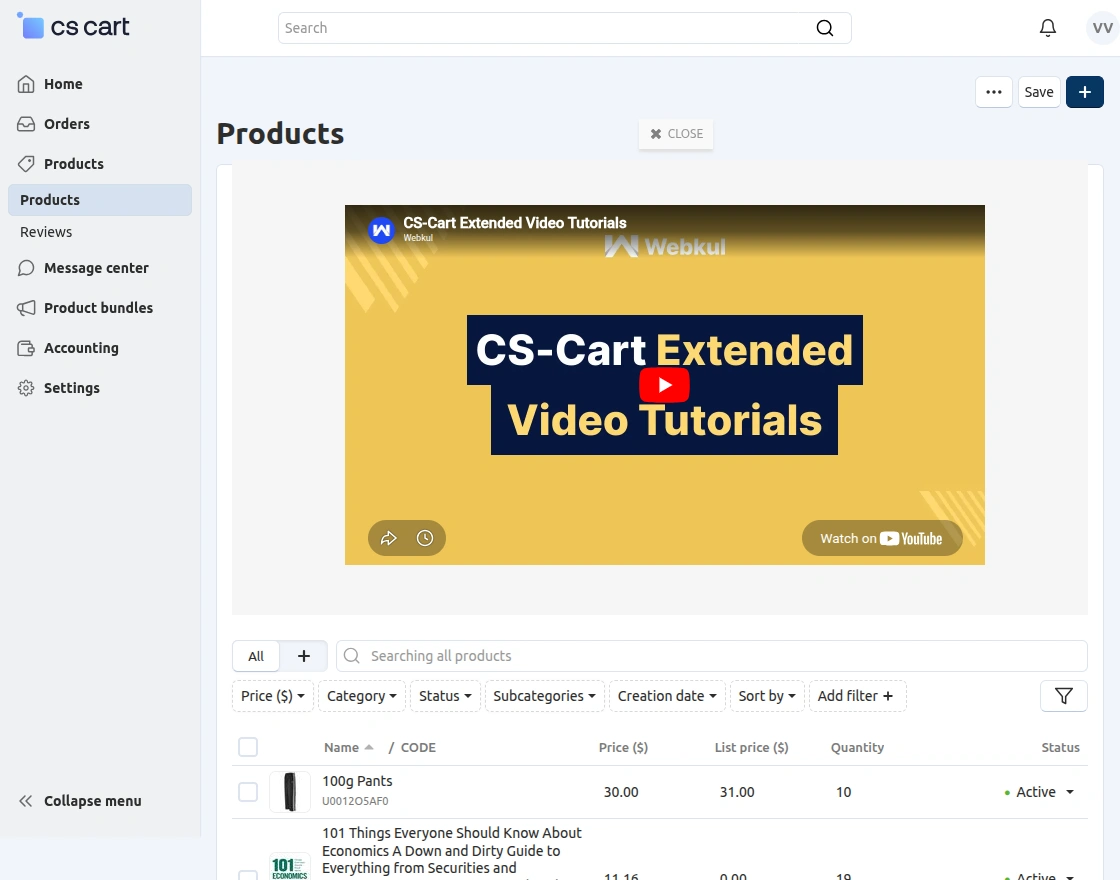
Additionally, the admin can add video tutorials to any desired area of the vendor panel.
Support
If you have any questions, suggestions, or customization requests, feel free to contact us at [email protected] or submit a ticket at webkul.uvdesk.com.
Explore our premium-quality CS Cart Extensions to enhance your store functionality.
You can also explore our CS-Cart Development Services and Quality CS-Cart add-ons.
Current Product Version - 1.1
Supported Framework Version - 4.18.x, 4.19.x, 4.20.x


I would like to know how can we add a video on the home page (Dashboard) of the backEnd?
There is no dispatch.
Thanks!