


















Bagisto Advanced Product Filters module improves product discovery with filters like category, rating, offer, discount and availability.
It also adds popular product filters and a customer feedback form, while the admin keeps full control from the admin panel.
Complete Features List for Bagisto Advanced Product Filters
- The admin can enable or disable the whole Advanced Product Filters module.
- A category filter lists the sub categories of the category the customer views.
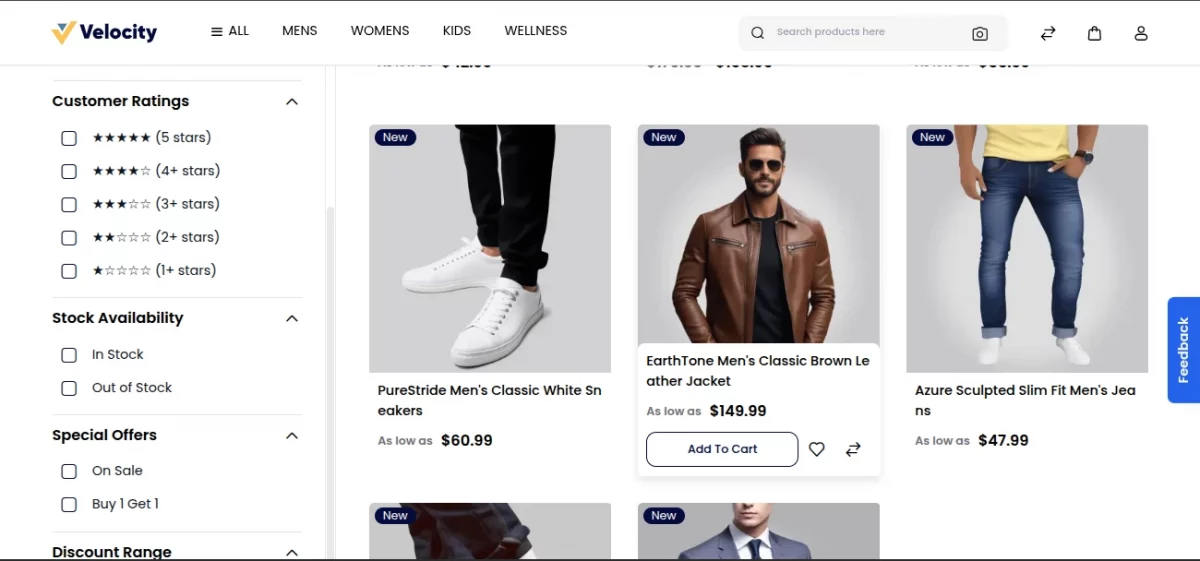
- A Customer Ratings filter offers 1 to 5 stars.
- Customers also filter by Stock Availability: In Stock and Out of Stock.
- Special Offers offers On Sale and Buy 1 Get 1.
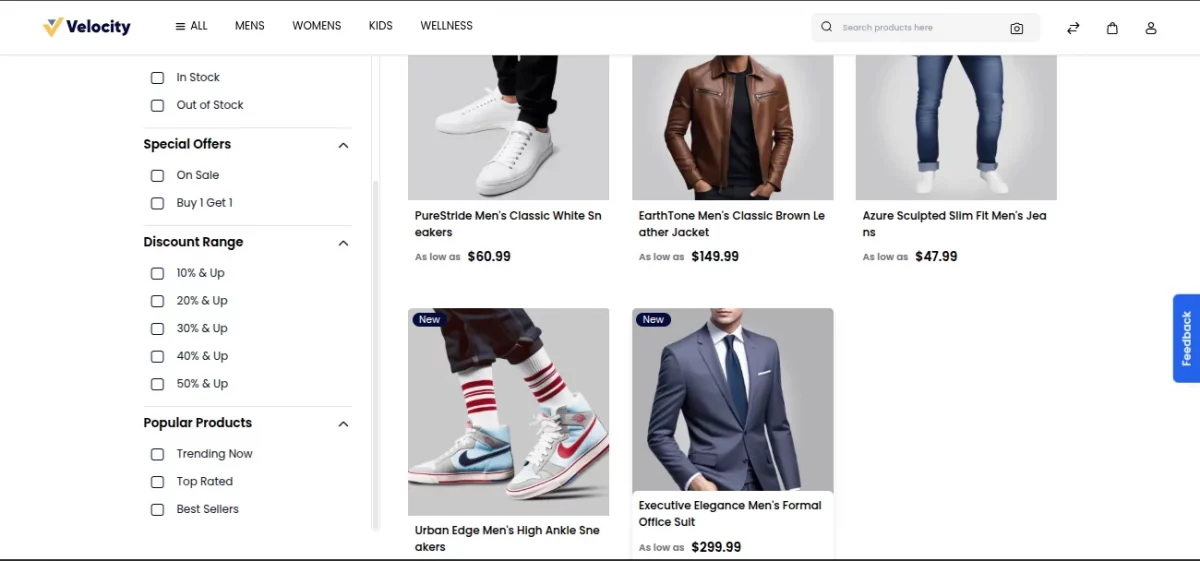
- The Discount Range filter offers 10%, 20%, 30%, 40% and 50% & Up.
- Popular Products covers Trending Now, Top Rated and Best Sellers.
- The price range slider of Bagisto works together with all of these filters.
- A customer feedback form takes a Yes or No answer and an optional comment.
- Guests give a name and an email with their feedback, and logged-in customers use their account details.
- The admin reads every feedback in a grid and opens each one in a detail drawer.
- The module runs on MySQL, MariaDB and PostgreSQL.
Requirements
- Bagisto: v2.5.0
- PHP: 8.4 or later
- Database: MySQL, MariaDB or PostgreSQL
INSTALLATION
Bagisto Version: v2.5.0
Install Bagisto Advanced Product Filters by following these steps.
Step 1: Extract Package
Unzip the extension package and merge the packages folder into your project root.
Step 2: Register Service Provider
Go to the bootstrap/providers.php file and add the following line under Provider.
Webkul\AdvancedFilters\Providers\AdvancedFiltersServiceProvider::class,
Then go to the composer.json file and add the following line under ‘psr-4‘.
"Webkul\\AdvancedFilters\\": "packages/Webkul/AdvancedFilters/src"
Finally, run the commands below to complete the setup.
composer dump-autoload
php artisan advancedfilters:install
The install command runs the module migrations, clears the cache and builds the Buy 1 Get 1 product index.
Admin Configuration
After the installation, open Configure>General>Advance Filter in the admin panel.

Enable Advance Filter: Turn the filters on or off for the storefront. It is on by default.
Show Feedback Form: Show or hide the “Did you find what you were looking for?” form on category pages. It is off by default.
Show Out of Stock: Show or hide the Stock Availability filter group. It is on by default.
Show Popular Products Section: Show or hide the Popular Products filters: Trending Now, Top Rated and Best Sellers. It is on by default.
All these settings are channel based, so you can set them differently for each channel.
Shop Filters Overview
With the module on, customers see the extra filters on category pages. So they find products faster.
Category Filter
Customers pick one or more sub categories of the category they view. They can also search the list.
The list loads in pages, which keeps the page fast.

Customer Ratings Filter
Customers filter products by average rating. The options are:
- 5 Stars
- 4 Stars & Up
- 3 Stars & Up
- 2 Stars & Up
- 1 Star & Up
So customers quickly find highly rated products.
Stock Availability Filter
Customers filter products by stock status.
- In Stock – Shows products that are available now.
- Out of Stock – Shows products that are not available.
The filter supports configurable products. A parent product counts as available when any variant is in stock.
Special Offers Filter
Customers find products with active promotions. The options are:
- On Sale – Shows products with a discounted price.
- Buy 1 Get 1 – Shows products linked to an active Buy 1 Get 1 cart rule.
Therefore, shoppers find promotional deals easily.
Discount Range Filter
Customers filter products by discount percentage. The options are:
- 10% & Up
- 20% & Up
- 30% & Up
- 40% & Up
- 50% & Up
The module calculates the discount with this formula:
((Regular Price – Sale Price) / Regular Price) × 100
Popular Products Filter
Customers find products through popularity filters.
Trending Now shows the five most ordered products of the last 30 days.
Top Rated shows products with approved reviews, with the highest average rating first.
Best Sellers shows products with the most completed orders.
So customers quickly find popular and trusted products.
Price Range Filter
Customers pick a price range with the price slider of Bagisto. The slider fits the prices of the viewed category.
Customer Feedback System
The module also has a customer feedback feature. A Feedback button sits on the right side of category pages.
A click opens a popup with the question “Did you find what you were looking for?”
Customers select Yes or No. They can also write a comment, and then they click Submit Feedback.
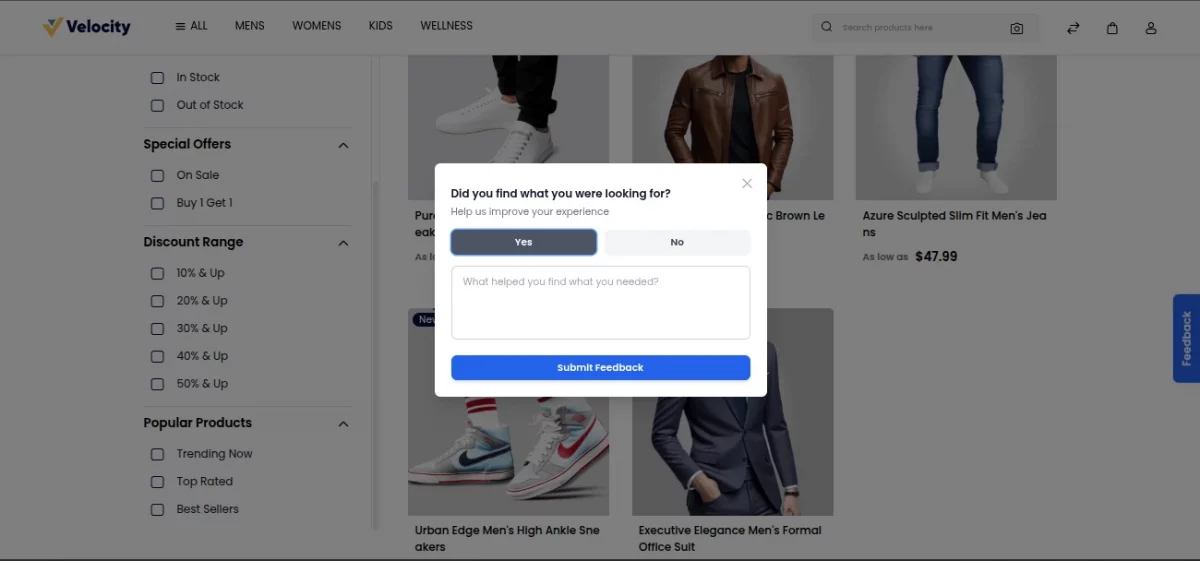
Logged-in customers need no extra details, because the module takes their name and email from the account.
Guests enter a name and an email, and both are required. So store owners know who gave each answer.
The module also saves the category of the page. As a result, store owners see which category needs better products.
Admin Feedback Management
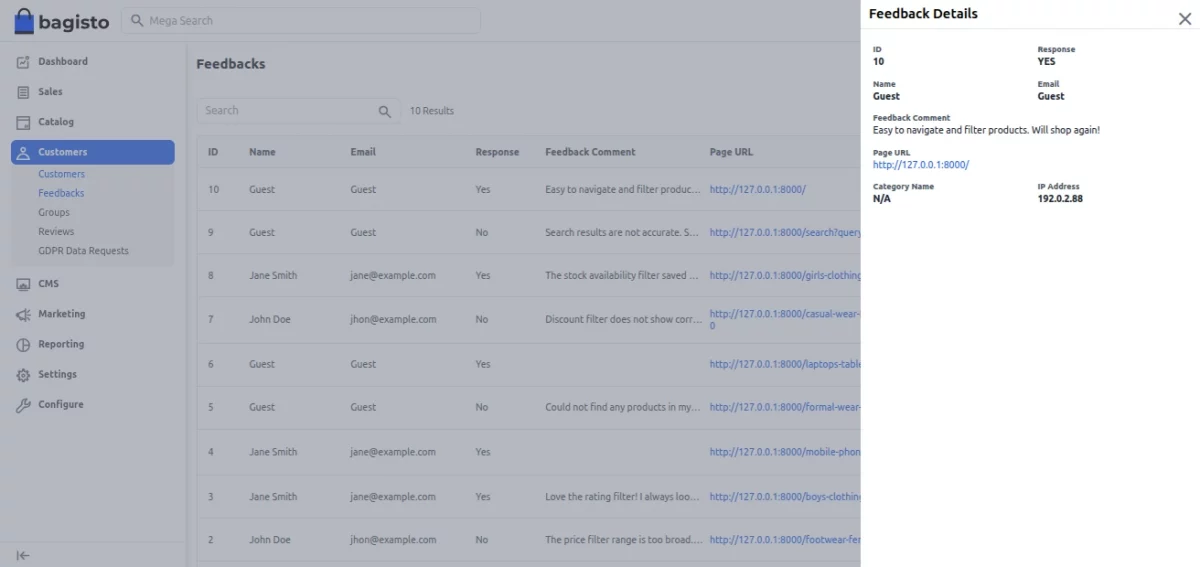
The admin reviews feedback at Customers>Feedbacks.
The feedback grid shows these columns:
Feedback ID
Each feedback gets its own unique id.
Customer Details
The name and the email of the customer or guest.
Response
A green badge means Yes, and a red badge means No.
Feedback Comment
The comment of the customer. The grid shows a short version, and the drawer shows the full text with a Read More option.
Category Name
This is the category of the page. When there is none, the grid shows N/A.
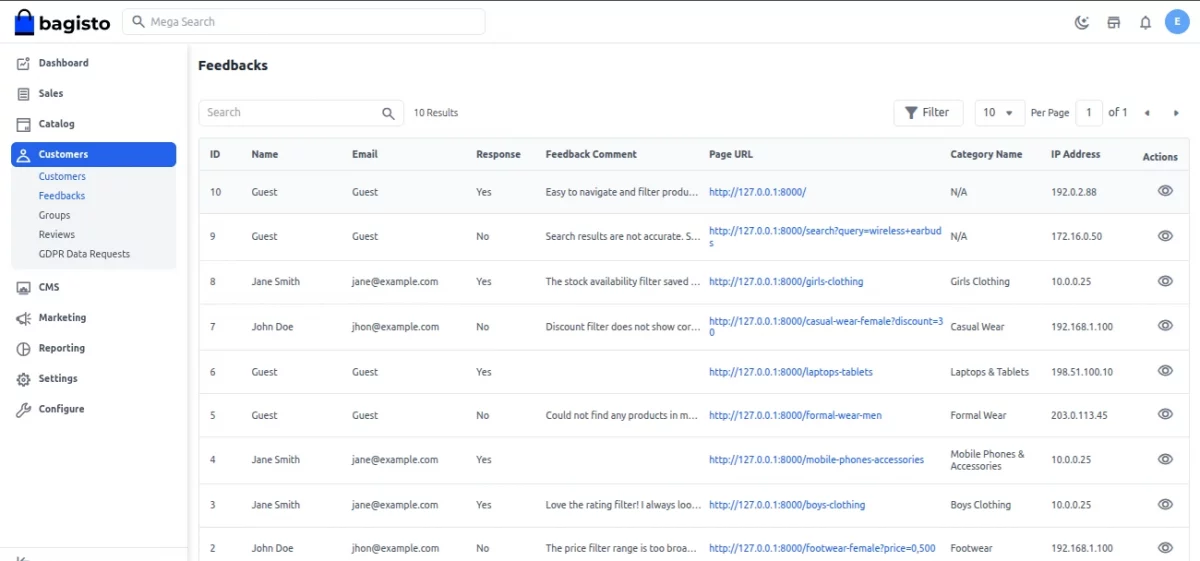
The admin clicks the view icon to open a drawer. It shows the ID, response, name, email, category, comment, created date and updated date.
Access to the grid follows the customers.feedbacks permission, so the admin sets it for each role.
Buy 1 Get 1 Index
The Buy 1 Get 1 filter reads a ready index, so it stays fast. The index updates itself when you save a Buy 1 Get 1 cart rule or a product.
You can also rebuild the index by hand with this command:
php artisan advancedfilters:bogo:index
The module also runs it every day at 00:01 through the Laravel scheduler. So keep the scheduler cron entry active on the server.
Support
So, that was all about the User Guide of the Bagisto Advanced Filters Module. For any queries or doubts, reach out to us at [email protected].
We hope this guide helps you. Do you still have a question? Feel free to raise a ticket. Just visit: https://bagisto.uvdesk.com/en
Current Product Version - v2.5.0
Supported Framework Version - v2.5.0

Be the first to comment.