CS-Cart Subscription Delivery System helps store owners automate and manage subscription-based product deliveries in their online store.
The add-on allows businesses to create subscription-enabled products, schedule recurring deliveries, automate payment renewals, and provide flexible delivery management for customers.
With this add-on, customers can choose delivery frequencies, manage subscriptions, skip deliveries, pause subscriptions, and track scheduled deliveries directly from their account dashboard.
The system also supports prepaid wallet management, secure recurring payments, blackout date handling, and inventory-aware subscription processing.
Note: Before installing the add-on, extract the downloaded package.
- Install the License Manager add-on first.
- Then install the required add-on.
- Follow the license activation steps to generate your license key.
Features
- Create subscription-enabled products with recurring pricing and flexible purchase options.
- Allow customers to choose delivery schedules and subscription frequencies easily.
- Enable customers to schedule future one-time deliveries directly from the storefront.
- Manage subscription renewals, pauses, cancellations, and skipped deliveries smoothly.
- Provide an interactive calendar for managing deliveries and schedules.
- Configure blackout dates, holidays, and automatic delivery shifting rules.
- Offer prepaid wallet management with balance top-ups and automatic deductions.
- Support secure recurring payments through Stripe, wallet, and future payment gateways.
- Automate recurring renewals using queue-safe cron processing workflows.
- Reserve inventory efficiently for subscription-based deliveries and recurring orders.
- Execute reminders, retries, and delivery tasks using scalable background cron jobs.
- Track failed operations and manage retry queues with recovery tools.
- Allow customers to manage subscriptions, wallets, and delivery history from their dashboard.
- Centralize delivery operations, exports, retries, and analytics from the admin panel.
Note: To use wallet-based payments and prepaid wallet functionality, you must install the CS-Cart Wallet System add-on.
- Payments for subscription orders can only be processed using Stripe or the Wallet System.
Additionally, if you’re looking for advanced product booking functionality, you can check the CS-Cart Pre Order add-on.
CS-Cart Subscription delivery Installation
After downloading the CS-Cart Subscription delivery add-on, you’ll get one zip file, one install.txt file, and a relevant User Guide manual doc.
Please read it carefully for proper configuration.
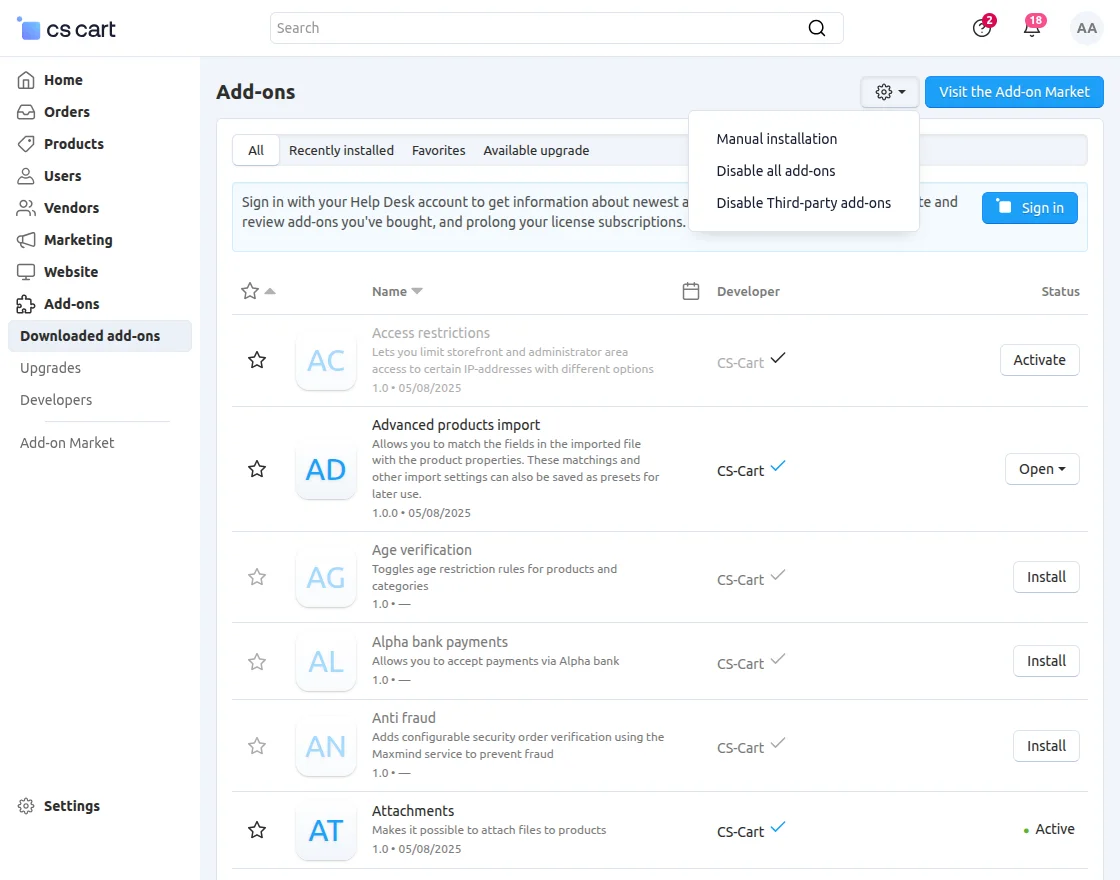
Go to Manage Add-ons, and click on “Manual Installation” as shown below in the snapshot.
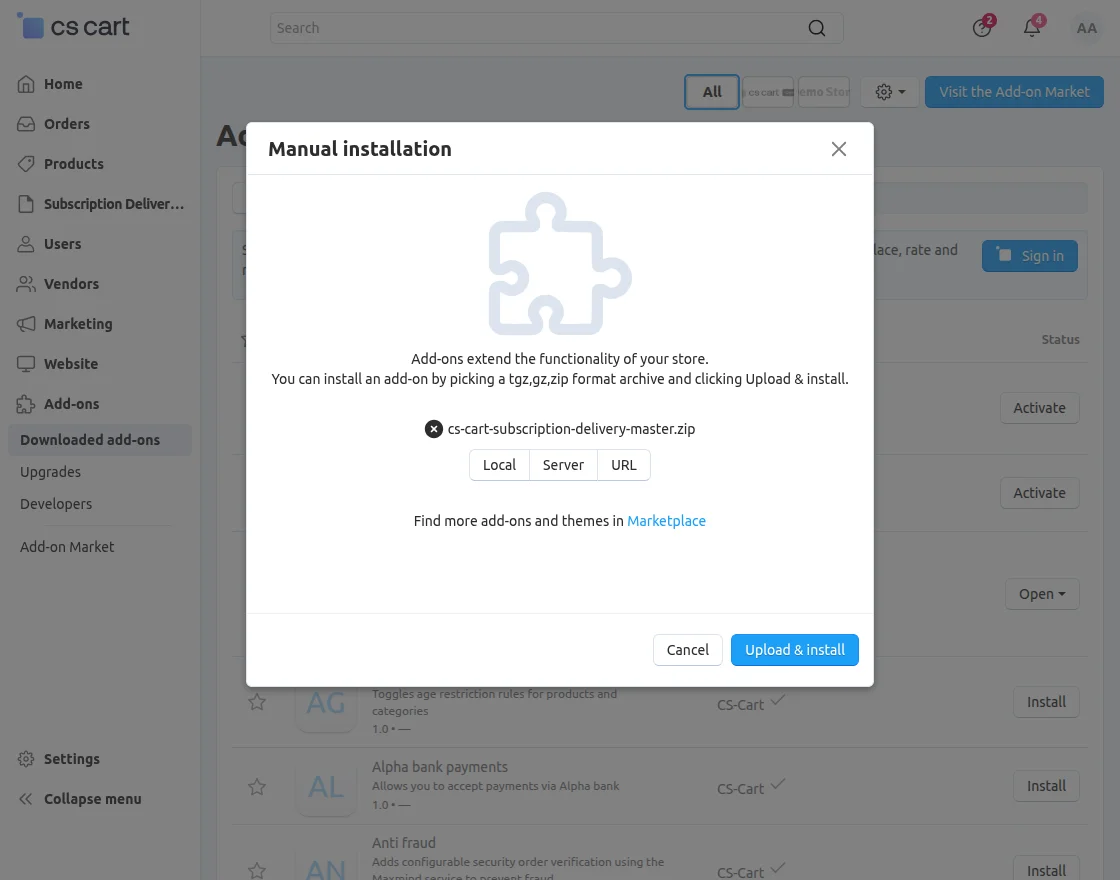
Click on “Local” to browse the zip file, and then click on “Upload & Install” as shown below in the snapshot.
Module Configuration
General Settings
To configure the module, go to the Add-Ons >> Developers >> Webkul Software Pvt Ltd. >> Subscription Delivery >> Settings.
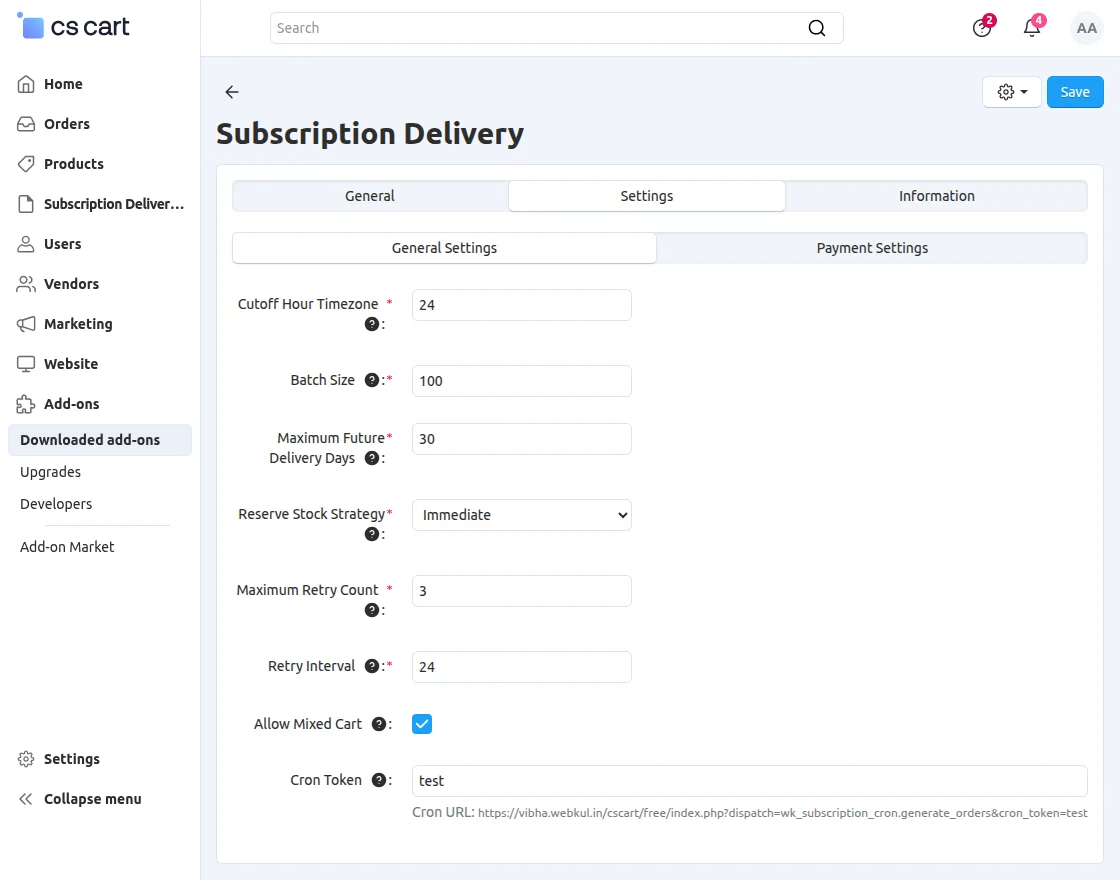
- Cutoff Hour Timezone: Enter the cutoff time before which customers can modify their scheduled deliveries.
- Batch Size: Define the number of subscriptions or orders processed in a single cron execution.
- Maximum Future Delivery Days: Set the maximum number of days customers can schedule deliveries in advance.
- Reserve Stock Strategy: Choose when inventory should be reserved for subscription-based products.
- Maximum Retry Count: Define the maximum number of retry attempts allowed for failed subscription renewals.
- Retry Interval: Set the retry interval duration in hours for failed subscription renewal attempts.
- Allow Mixed Cart: Allow customers to purchase subscription and normal products together in the same cart.
- Cron Token: Enter a secure token to validate and protect subscription cron requests.
Payment Settings
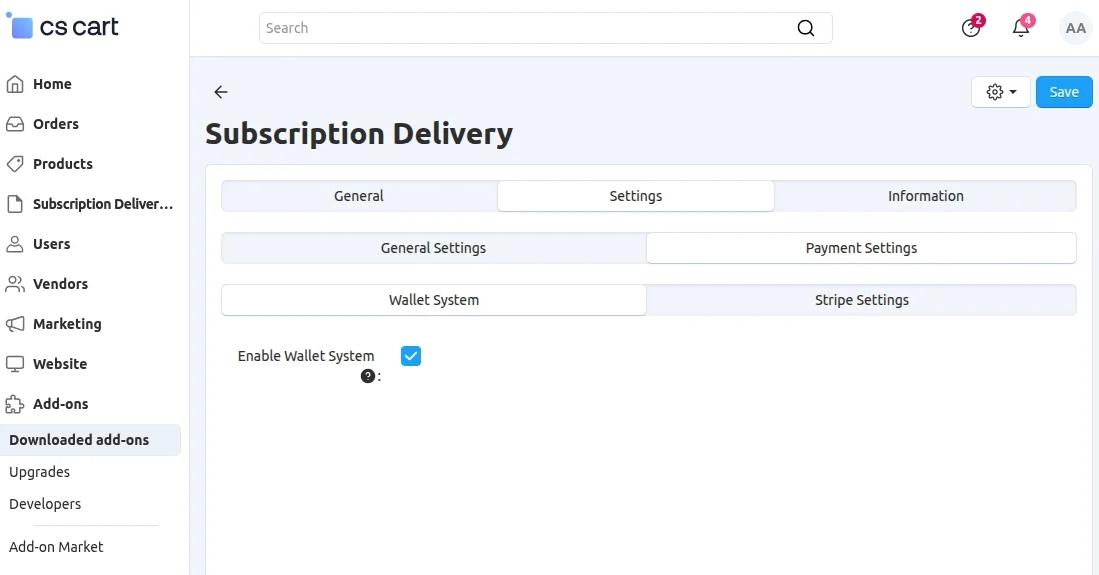
- Enable Wallet System: Enable wallet-based payments functionality for subscription orders.
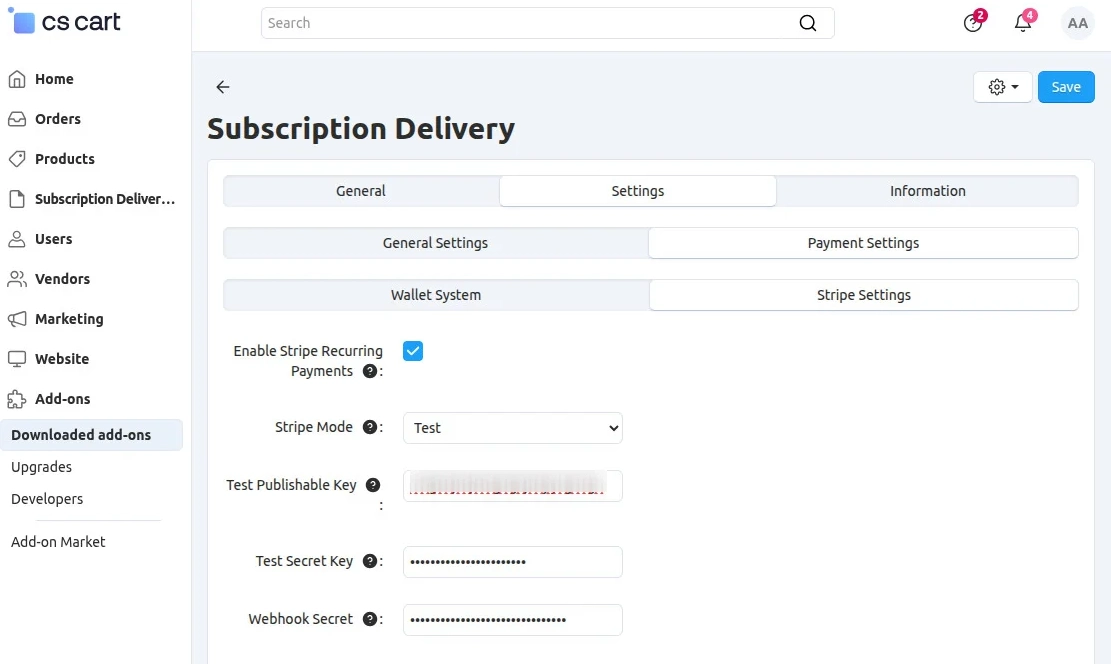
Enable Stripe Recurring Payments: Enable automatic recurring payment processing using Stripe for subscription renewals.
Fill in the required Stripe credentials and save the configuration successfully.
Products
To enable subscription delivery for a product, navigate to Products >> Subscription Delivery.
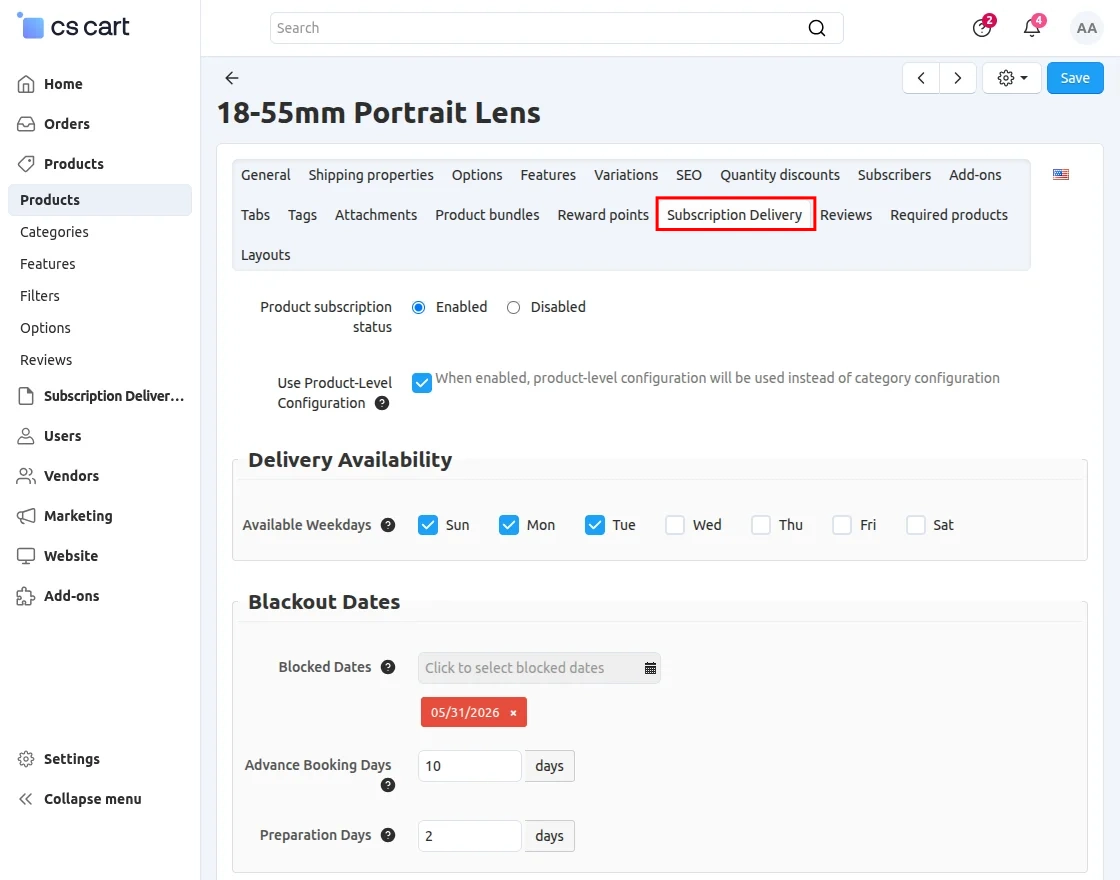
- Product Subscription Status: Enable subscription delivery for the product.
- Use Product-Level Configuration: Enable this option to use product-specific subscription settings instead of category configurations.
- Available Weekdays: Select the weekdays available for subscription deliveries.
- Blocked Dates: Configure specific dates when deliveries will not be available for this product.
- Advance Booking Days: Set the maximum number of days customers can schedule deliveries in advance.
- Preparation Days: Define the minimum preparation time required before processing deliveries.
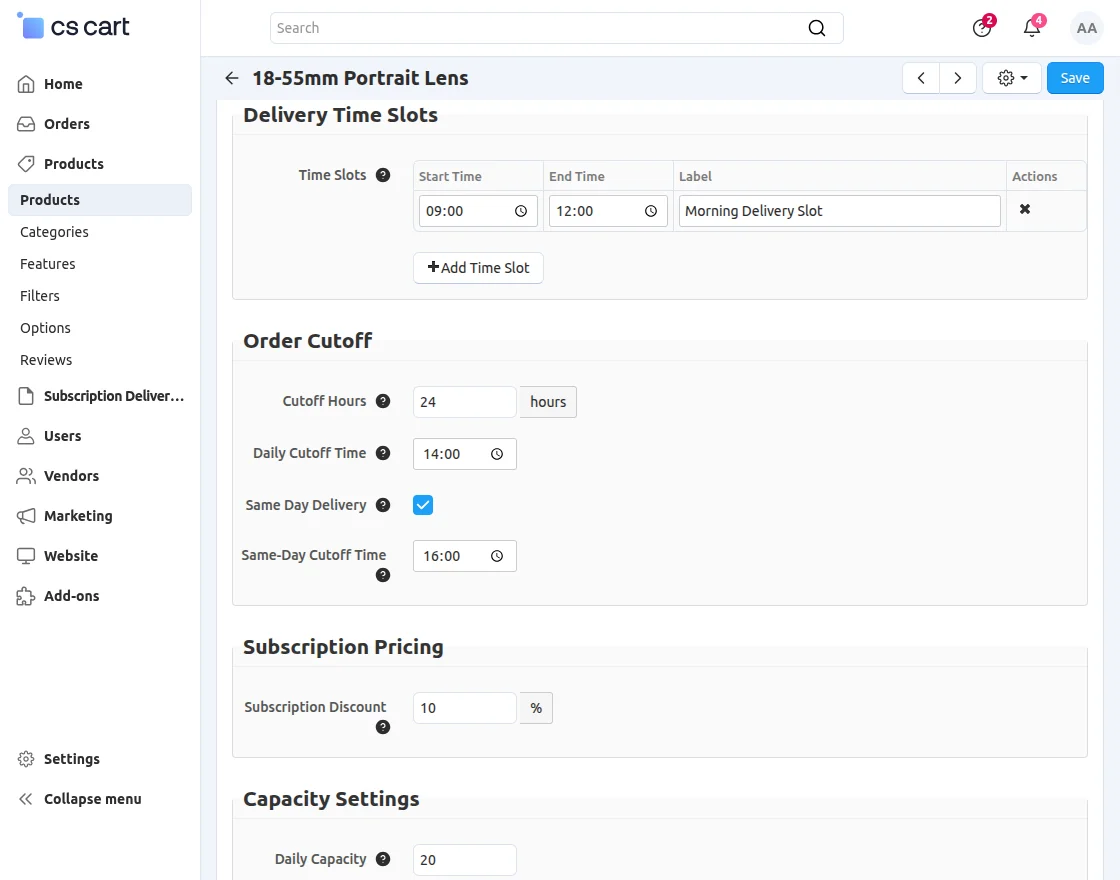
- Time Slot: Enter the available delivery time windows for customers.
- Cutoff Hours: Define the number of hours before delivery when customers can no longer modify their subscription.
- Same Day Delivery: Enable same-day delivery for subscription orders.
- Same-Day Cutoff Time: Set the cutoff time for placing same-day delivery orders.
- Daily Capacity: Define the maximum number of deliveries allowed for a specific day or time slot.
Category
To enable subscription delivery for a category, navigate to Categories and configure the subscription delivery settings.
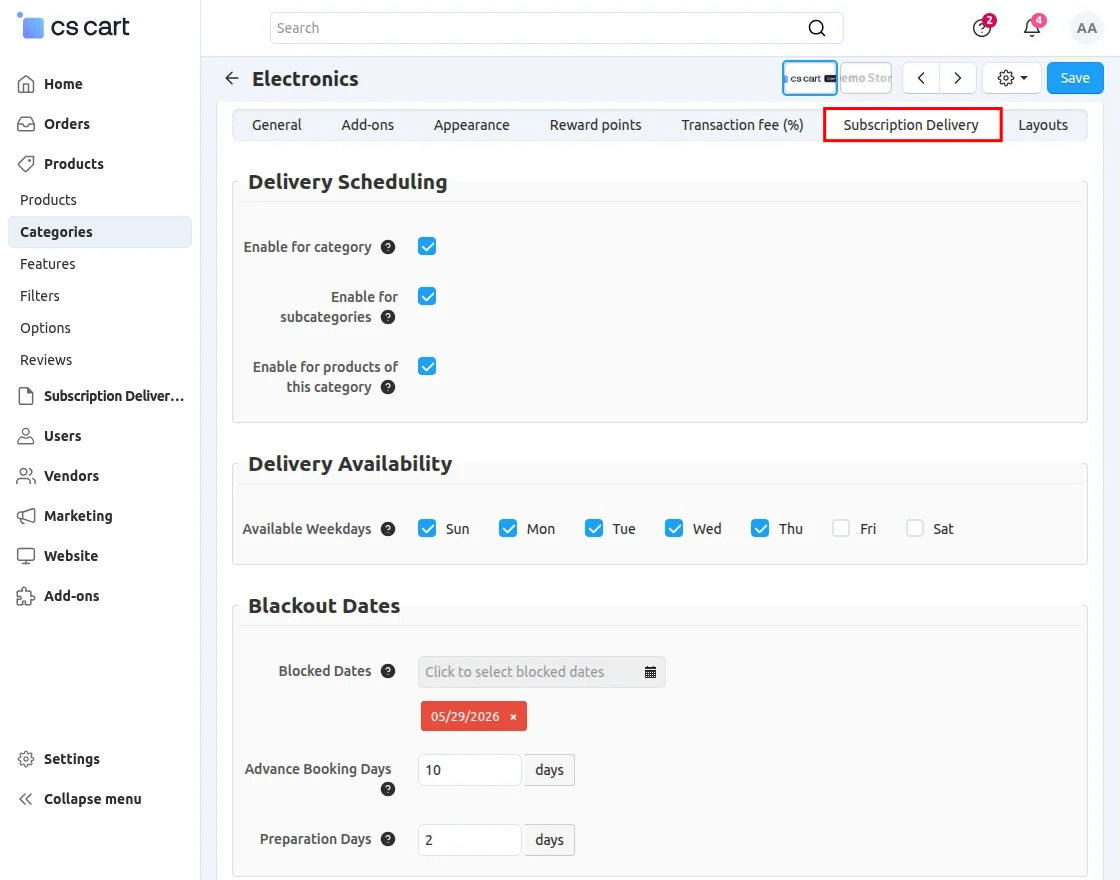
- Enable for Category: Enable subscription delivery scheduling for this category.
- Enable for Subcategories: Apply subscription delivery settings to all subcategories under this category.
- Enable for Products of this Category: Enable subscription delivery for all products assigned to this category.
After enabling subscription delivery for products in the category, configure all required settings and credentials similar to product-level subscription configuration.
Subscriptions
To check and manage subscriptions, navigate to Subscription Delivery System >> Subscriptions.
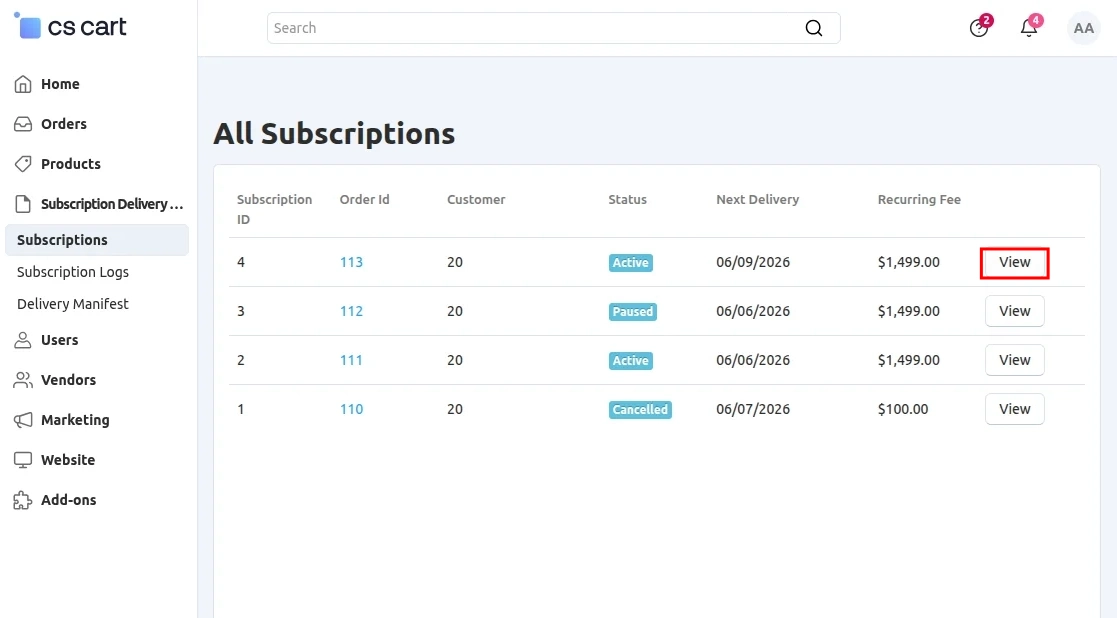
Here, you can view and manage the list of all subscription orders.
You can also view complete subscription details from this section.
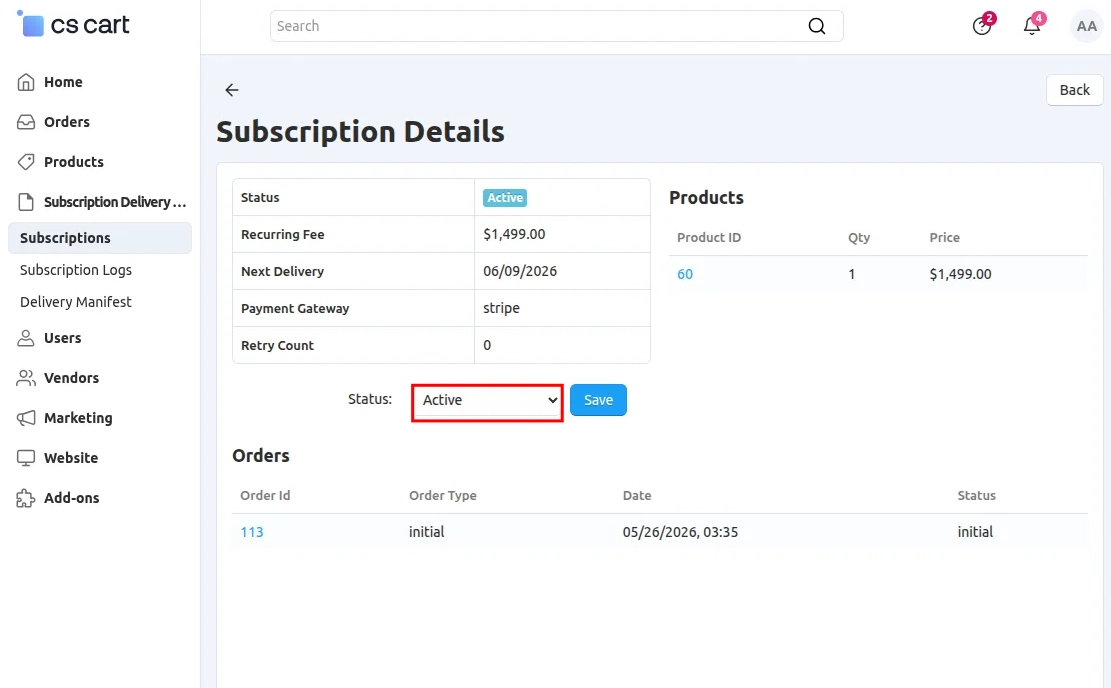
You can change and manage the status of subscriptions from this section.
Subscription Logs
To check subscription logs, navigate to Subscription Delivery System >> Subscription Logs.
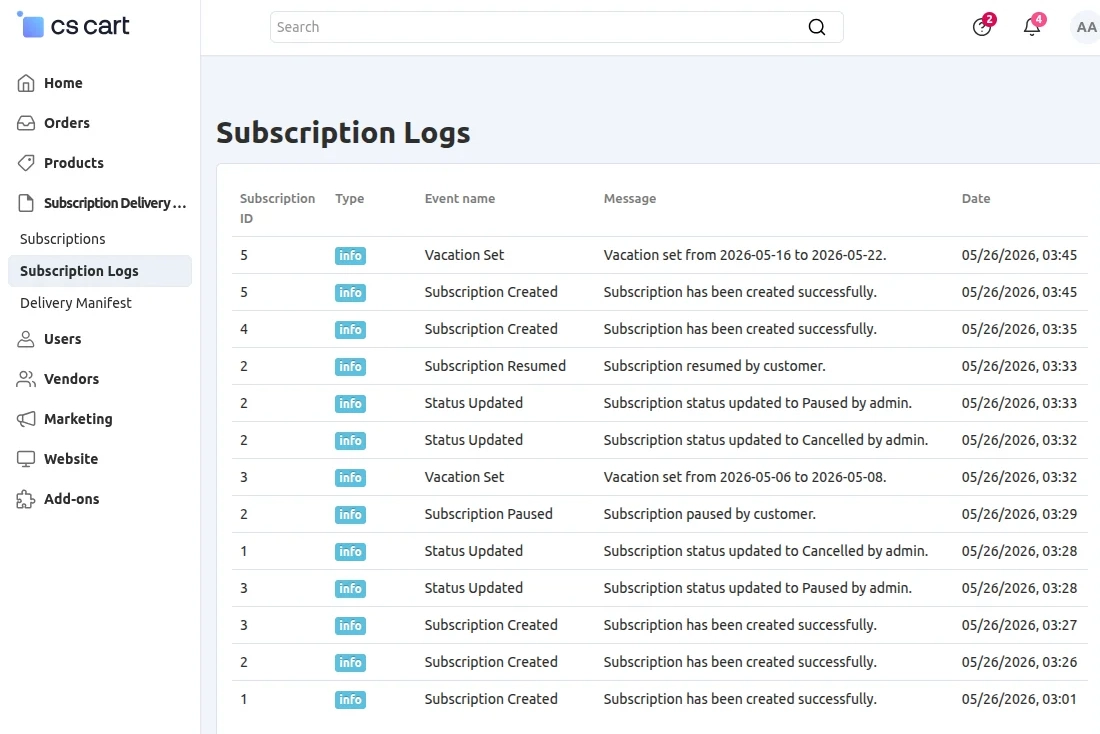
From here, you can view all subscription activity logs and processing details.
Delivery Manifest
To check delivery details, navigate to Subscription Delivery System >> Delivery Manifest.
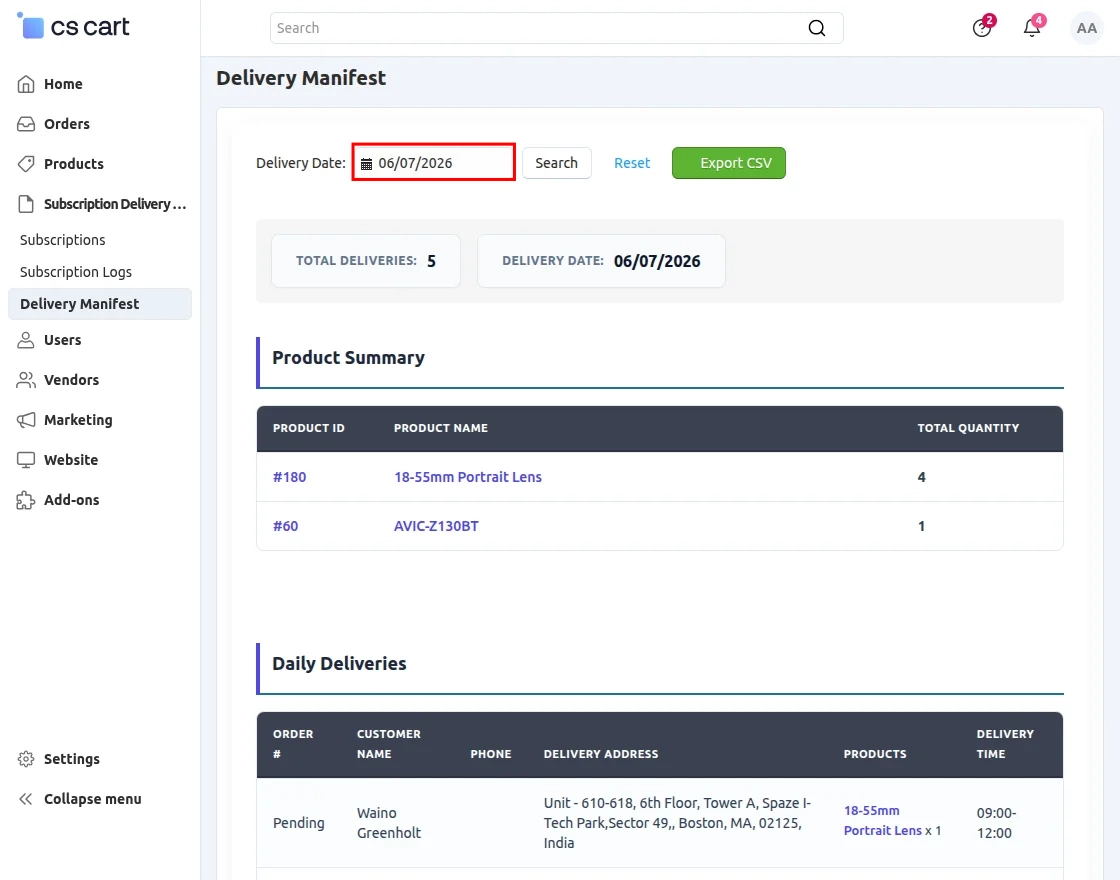
Enter the delivery date to view all delivery schedules, customer details, and product information.
You can also export product and delivery details in CSV format.
Customer View
When customers log in to their account and open a subscription-enabled product, they can view the available subscription options and delivery schedules.
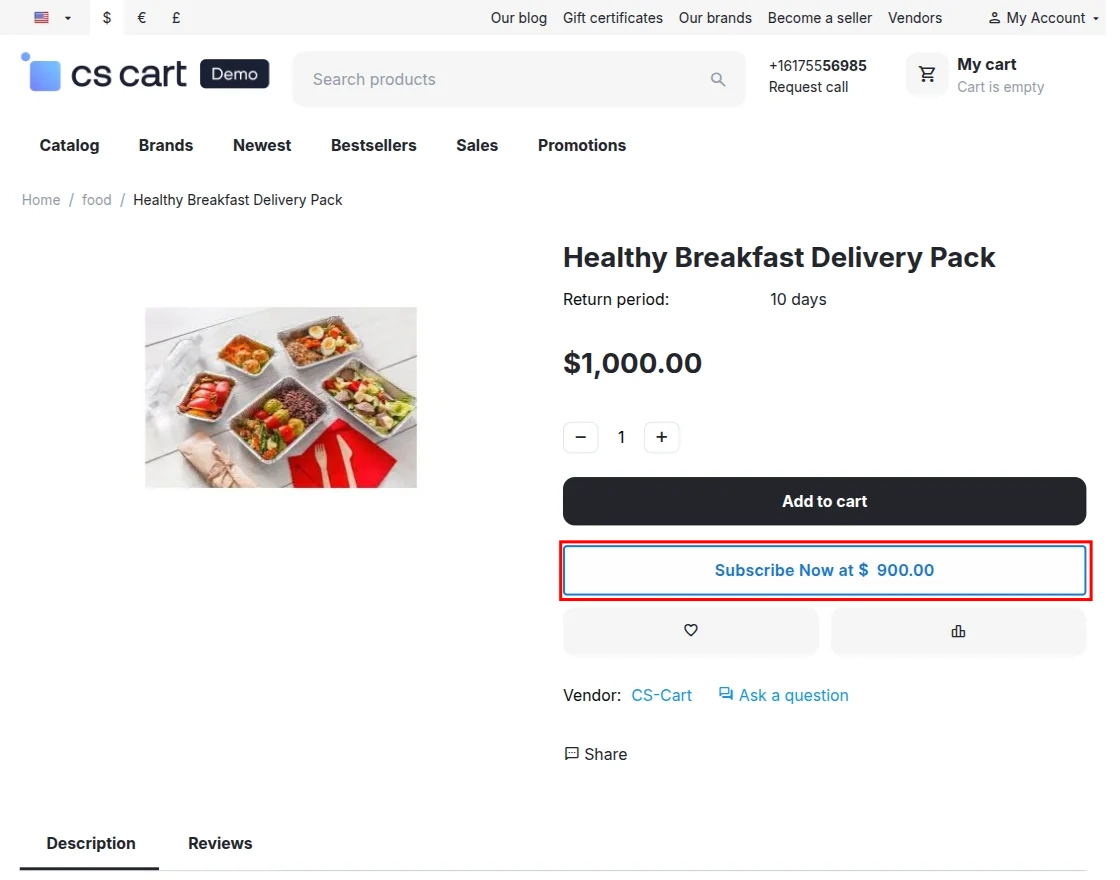
Customers need to click the Subscribe button to start a product subscription.
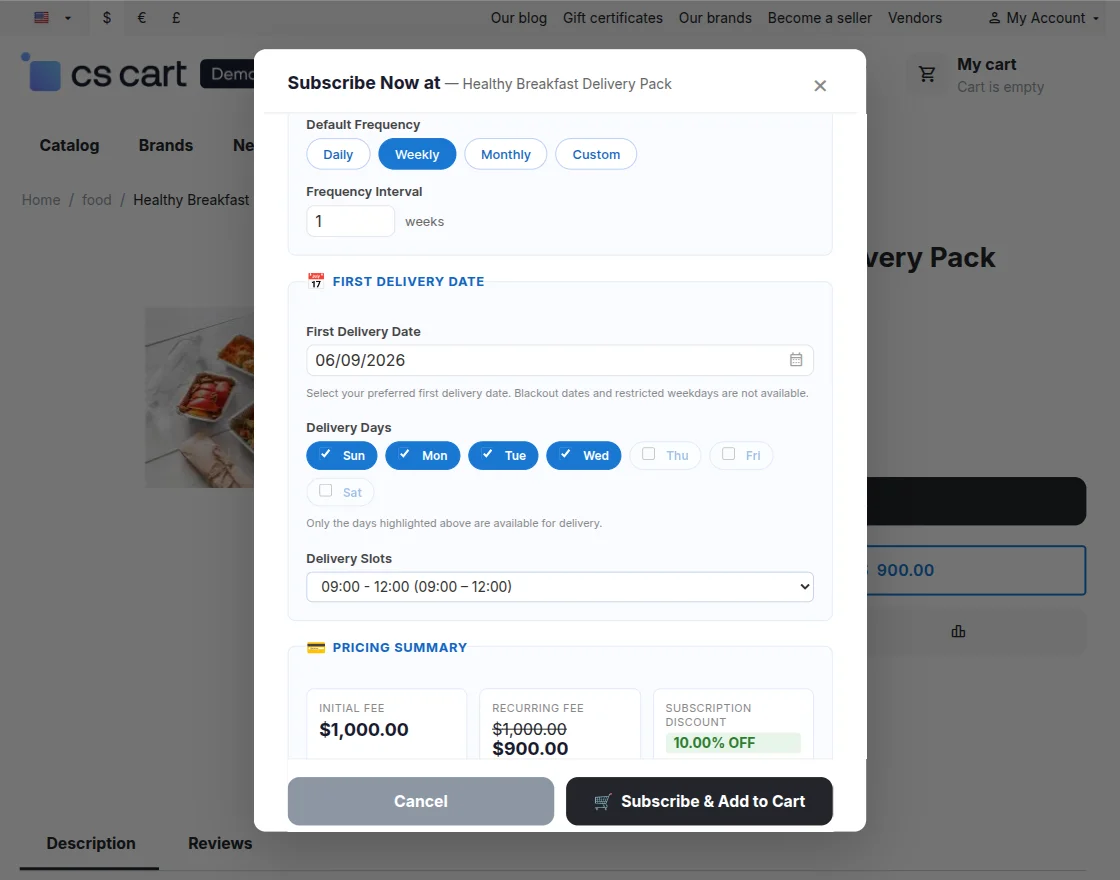
Customers need to fill in the required subscription details, and all subscription-related information will be displayed on the page.
Checkout Page
Subscription details are also displayed on the checkout page for customer review before placing the order.
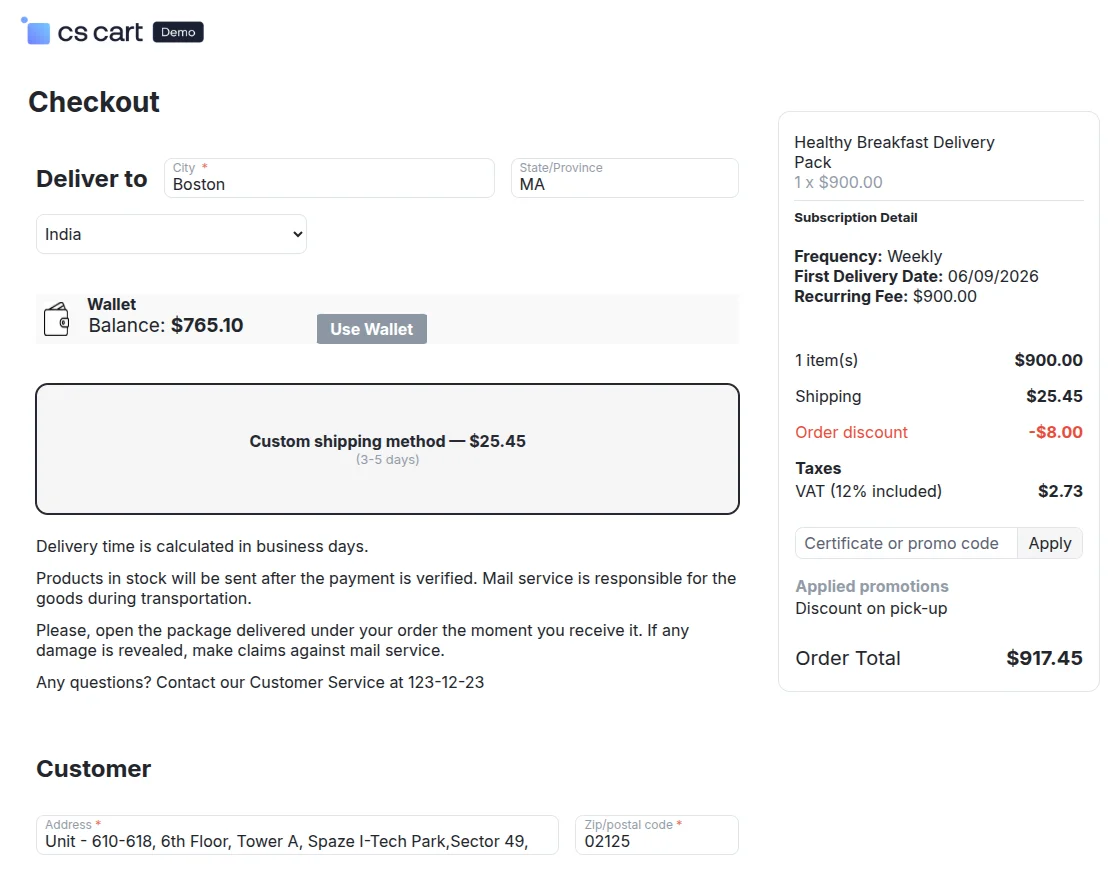
From here, customers can choose Wallet Payment or Stripe as the payment method for subscription orders.
Subscription Details
When customers navigate to Profile >> My Subscriptions or Profile >> Calendar, they can manage and track their subscription deliveries.
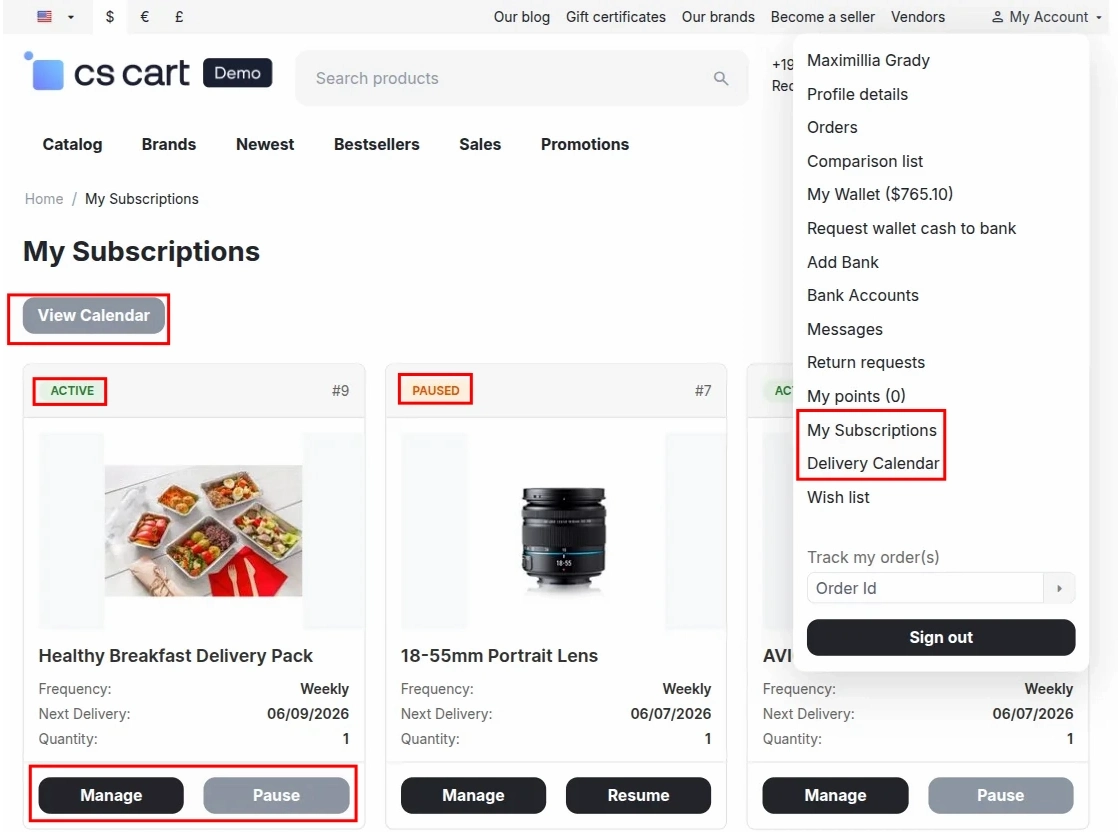
From here, customers can manage subscriptions, view delivery calendars, and set vacation periods for scheduled deliveries.
Calendar
Customers can view subscription and delivery details directly on the calendar.
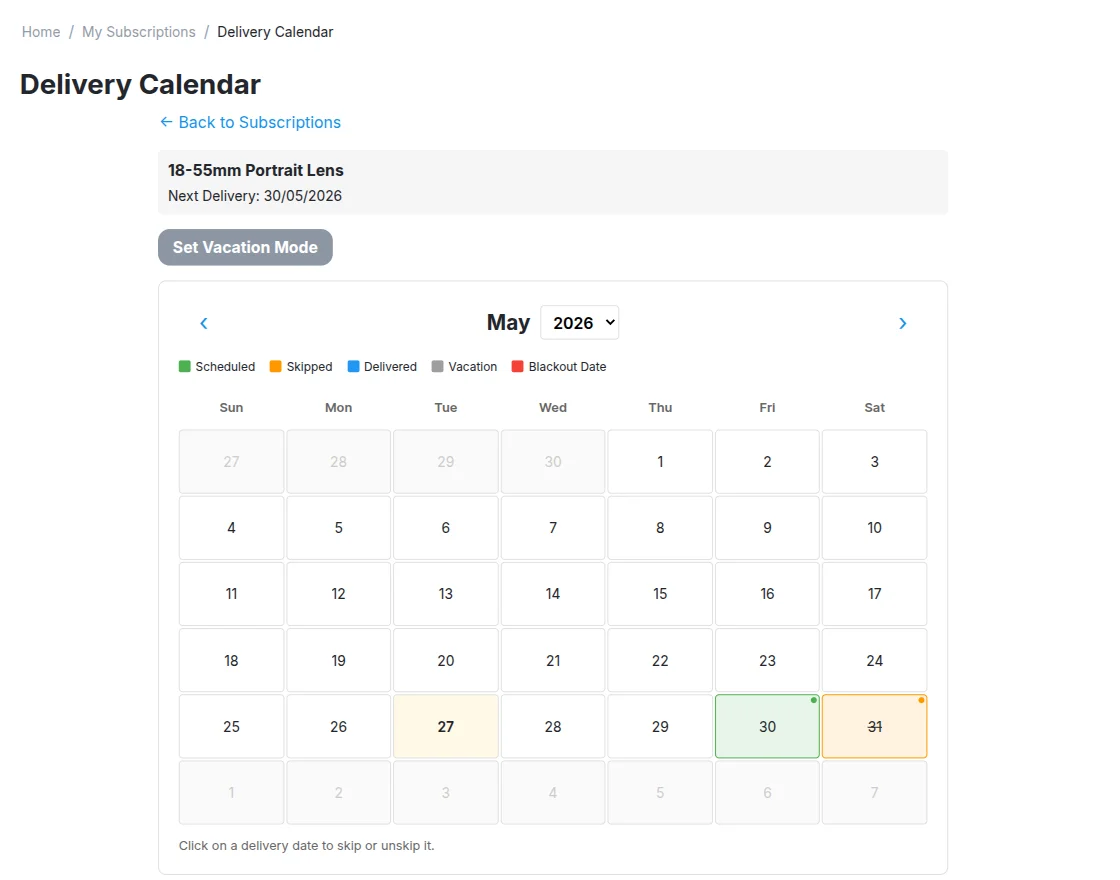
All delivery statuses will be visible on the calendar for customers to track easily.
Support
If you have any questions, suggestions, or customization requests, feel free to contact us at [email protected] or submit a ticket at webkul.uvdesk.com.
Explore our premium-quality CS Cart Extensions to enhance your store functionality.
You can also explore our CS-Cart Development Services and Quality CS-Cart add-ons.
Current Product Version - 1.0
Supported Framework Version - 4.18.x, 4.19.x, 4.20.x

Be the first to comment.