The Easy Group Buy app is now integrated with the Multi-vendor Marketplace App for Shopify.
Enabling this feature app, you can allow the customer to create a group or join the existing groups to purchase the products at a discounted price.
Features:
- This app allows sellers to add “group buy” products to the app.
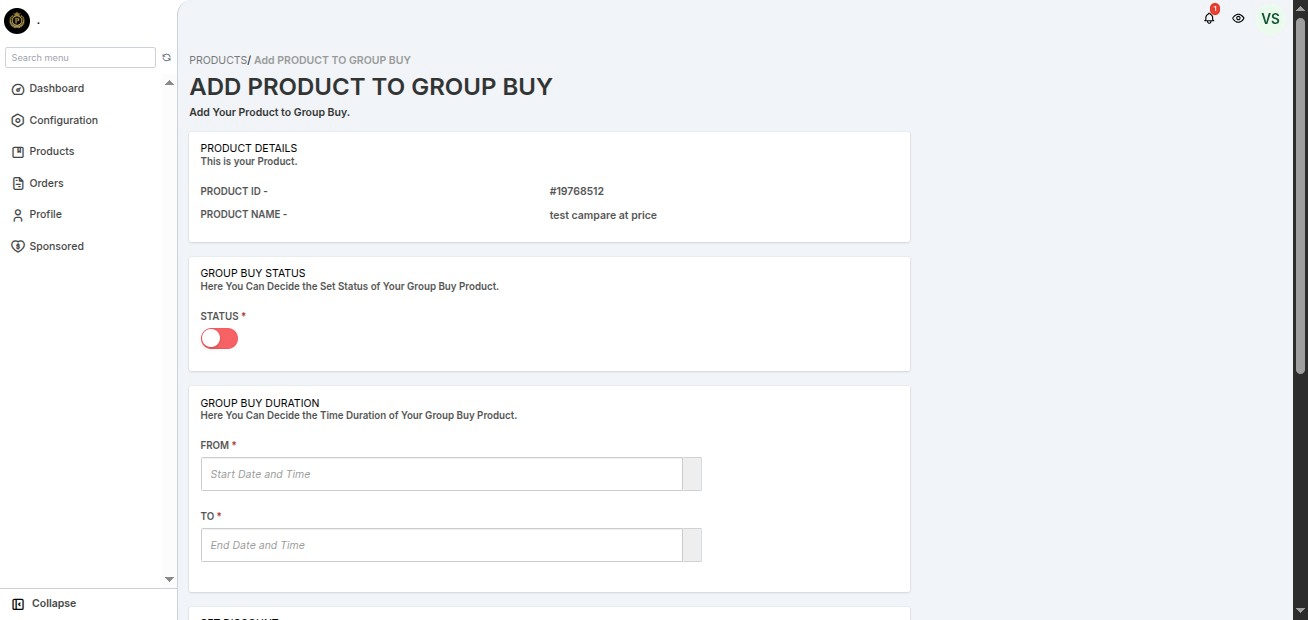
- They need to enter a discount percentage, Minimum member limit per group, and group product validity.
- Customers can create private groups and invite other customers to join the groups to purchase products at discounted prices.
- Sellers can also allow customers to create a public group i.e. anyone can join the group.
- Offering Group buying can reduce cart abandonment and increase conversion rates.
- Increase average order value, as buyers save more when they buy more in a single checkout.
Let’s dig deeper and know the app configurations.
Admin Panel Configurations:
First, the admin needs to enable the Easy Group buy feature app by navigating to the feature apps section
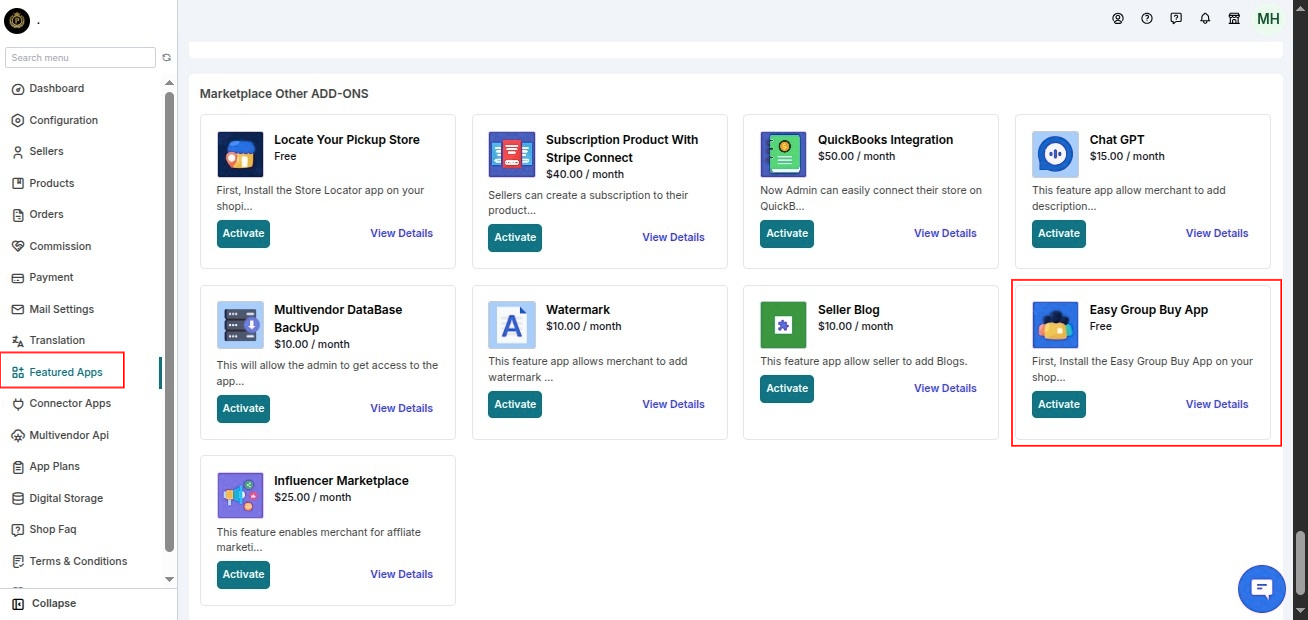
If you haven’t already installed the Easy Group Buying app for Shopify, you need to install it before enabling this feature application.
Admin Shopify Configuration:
For Admin Shopify end-related configuration Kindly refer to the user guide: Admin Shopify Documentation
Code Pasting for Online Store 2.0
If you are using Online Store 2.0 (e.g., Dawn), you will need to follow the steps to add the codes.
To display the “Group Buy” widget on the product page, you can use either of the following methods:
Method 1 :
You can add it directly to the theme. After installing the app on the store, navigate to Online Store >> Themes >> Customize.
Additionally, you can either set this as the default option for all products or look for the specific product applicable for buying in groups and then add the block accordingly.

This is how the block will appear on the page, you can easily drag and adjust the block from the left-hand menu options.
The effects are shown, allowing you to easily decide where to add the app block.

Method 2 :
To show “Group Buy” products on the product description page, add the below code into main-product.liquid template file:-
Note:- Make sure to paste the code just after ‘</product-form>‘
<div id='wk_group_buy_product' pid='{{ product.id }}' cid='{{ customer.id|default: 0 }}' cemail='{{ customer.email|default: 0 }}'></div>
Code to display “Group Buy Account” include in the account.liquid file on top of the liquid file:
<button type="button" style="border-radius: 2px;border: 2px solid black;background: inherit;display: block;margin: 0 auto;"><a href="pages/group-buy-account" style="color: black;text-decoration: none;font-size:20px;">{{shop.metafields.wk_group_buy_labels.translation_labels.group_buy_account_btn|default: "Group Buy Account"}}</a></button>
Group Buy Product Listing:-

On Product Page:–

On the storefront, the customers will have two options whether to create a new group or join an existing group.
You can allow customers to create any of the two groups either public groups or private groups.
You can visit the Global Configuration & manage the group settings.
CASE 1: Public Group
A public group will be shown to all customers and anyone can join a public group
In this case, anyone can create groups and purchase the “group buy product”. Clicking the Create Group button, the customer will simply enter the group name.
Then, click the Create Group & Buy button and proceed to purchase the product.

The customer can Join the existing groups and buy products.

CASE 2: Private Group
A private group will be shown only to the invitees. Note:- Only those customers can join the group who are invited.
Clicking the Create Group button, the customer will enter the group name, enter email. Thus, an email will be sent to the invitee.
After that, click the Create Group & Buy button and then proceed to purchase the product.

Customer end
For customer end-related details kindly refer to this link: Customer End- User Guide
Seller Panel
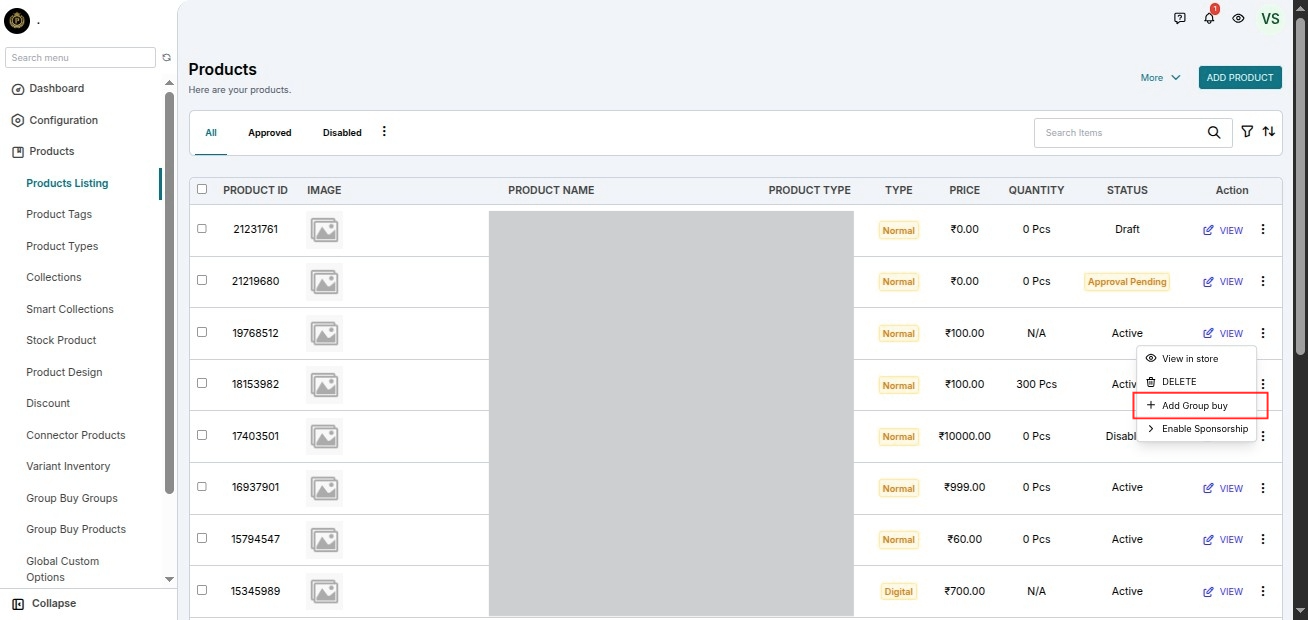
Sellers can add products for buying in groups by navigating to Product>>product listing>> Add group buy
Set group buy duration, discount, and member limit.
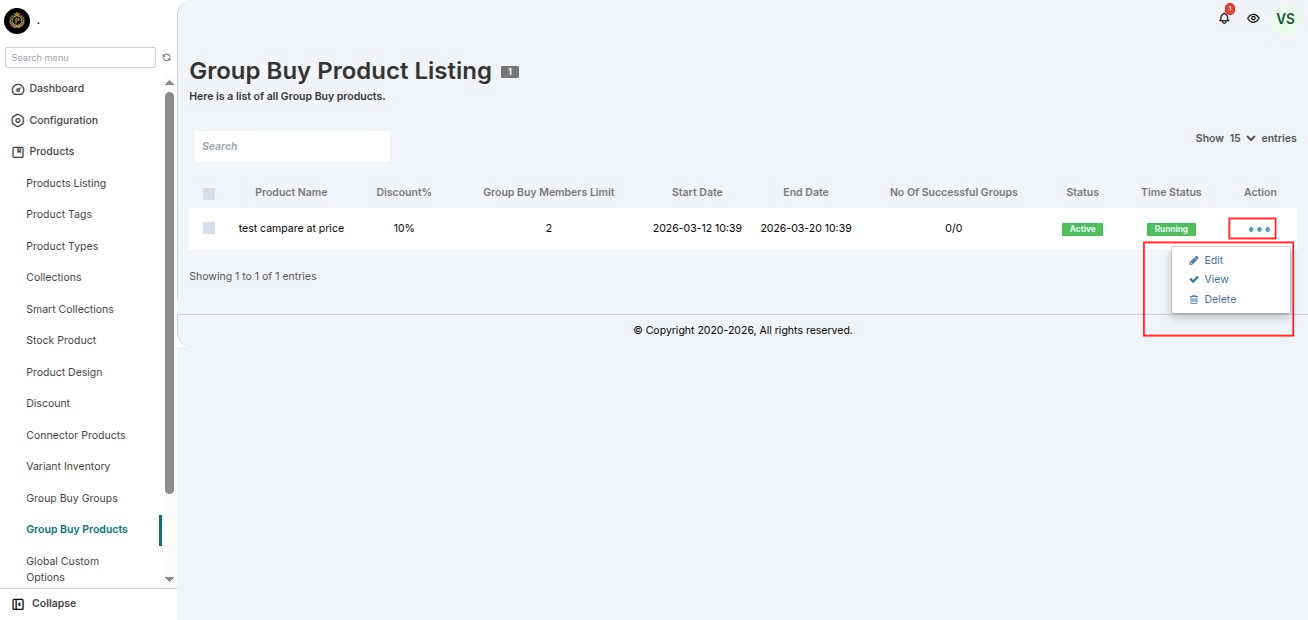
You can see and edit products added to the groups by navigating to Product >> Group Buy Products.
You can access groups by navigating to Product >> Group Buy Groups.

Need Help?
For any technical assistance please raise a ticket or reach us by email at [email protected]. Thanks for Your Time! Have a Good Day!

Be the first to comment.