Magento 2 POS Thermal Printer(Adobe Commerce) allows the POS agent to select any server-connected printer as default and print receipts as required through the same.
The admin can connect their printers to the server which are then available for selection to the other POS agents globally and the POS agent can use any of the available printers to print the receipt.
POS agents can easily use the printers that are connected with the server to print their invoices in different locations.
Apart from that, the admin can also upload logo image files on the top of the invoice as it enhances the invoice’s appearance for brand awareness.
If you want to extend your store with more POS add-ons, you can check Barcode Inventory Label Print which allows the store owner to create labels/stickers for products.
Note:
- This plugin is an add-on to the Magneto 2 POS extension, so it must be installed first before making use of the Adobe Commerce POS Thermal Printer.
Features
- The admin can integrate and manage multiple printers with POS.
- POS agent can manage all connected printers from their end.
- POS agent can select any printer connected to the POS server as their default printer.
- The admin can use this POS module with Windows, Linux, and MacOS operating systems.
- It offers an auto-print option without requiring any command.
- Provides instant order printing for the placed orders from POS to the selected default printer
Installation
The installation is quite simple just like the standard Magento 2 extensions.
#Download Module
Firstly, you need to log in to the Webkul Store, go to My Account>My Purchased Products section, verify, and then download and extract the contents of this zip folder on the system.
#Upload Folder
Once the module zip extracts, follow path src>app and then copy the app folder into the Magento 2 root directory on the server as shown below:

# Run Commands
You need to run the following commands:
composer require mike42/escpos-php
php bin/magento setup:upgrade
php bin/magento setup:di:compile
php bin/magento setup:static-content:deploy
php bin/magento indexer:reindex
php bin/magento cache:flush
Language Translation
For translating the module language, navigate through the app/code/Webkul/PosThermalPrinter/i18n and edit the en_US.csv file.
Thereafter, rename the CSV as “en_SA.csv” and translate all right side content after the comma in the Arabic language. After editing the CSV, save it.

Now, upload it to the path app/code/Webkul/PosThermalPrinter/i18n where the installation of Magento 2 is on the server.
The Magento 2 POS Thermal Printer gets translated into Arabic. It supports both RTL and LTR languages.
The user can edit the CSV like the image below.

Manual Installation
Unzip the respective extension zip and then move “NextJs” folder into directory where you want to install it.
Setup env
I. Duplicate env.template rename duplicate to .env
II. Update the values mentioned in .env file.
III. env values :
MAGENTO_URL=https://magento-url.com/ (your Magento BASE URL)

IMAGE_DOMAIN=magento-url.com (domain from where images will be load eg: magento-url domain, cloudflare-domain)

APP_URL=http://localhost:3000/ (Headless app URL)

MODE=production

FALLBACK_LOCALE=en (fallback locale)

[email protected] Demo123 (demo credentials of your pos application login)

SOCKET_SERVER_URL="<YOUR_HOST>:<PORT_OF_SOCKET_SERVER>" ("HOST:PORT", for local system HOST is ipv4 address of your system)

PORT=5000 (port for the socket server)

SOCKET_TIMEOUT=6000 (designated amount of time from when the socket connects until the connection breaks.)

CERT_KEY_FILE=<dir_path/cert.txt> (certificate file needed only in deployment)

PRIVATE_KEY_FILE=<dir_path/private.txt> (certificate file needed only in deployment)

INVOICE_LOGO_FILE_PATH=<dir_path/invoice-logo.txt> (invoice-logo.txt file needed for the network printer feature. Make this file in the root directory of the project and paste the complete path of this file inside this field of the env)

HTTPS=false (https status of the socket server, make this value true for secure communication.)
Open two terminals in the root directory of ‘NextJS‘ folder.
Run the following command in first terminal: for socket server.
npm run node-server OR yarn node-server
Run the following command in second terminal : for POS application
npm install OR yarn install
npm run build OR yarn build
npm run start OR yarn start
POS application will served on 3000 port to your server for eg: http://localhost:3000/
Synced the POS application
Unzip the pos-thermal-printer desktop application zip and then move “POS Thermal Printer-linux-x64” folder into directory where you want to run it.
Open the terminal in root directory of ‘pos-thermal-printer‘ desktop application and run the following command
sh launch.sh
Follow the following steps
Reset the application by going to the Settings and clicking on the ‘Reset‘ button
Connect the application via go to the Home and enter HOST (ipv4 address of the system), PORT (port of the socket server) and tick the ‘Server is HTTPS supported?‘ option
if ‘HTTPS=true‘ and click on the ‘Connect‘ button.
Initial Configuration Settings
You can access the Initial configuration by navigating POS->POS Configuration->Thermal Printer Configuration.

The admin can also navigate through stores->Configuration->Thermal Printer Configuration for making the initial configuration settings.
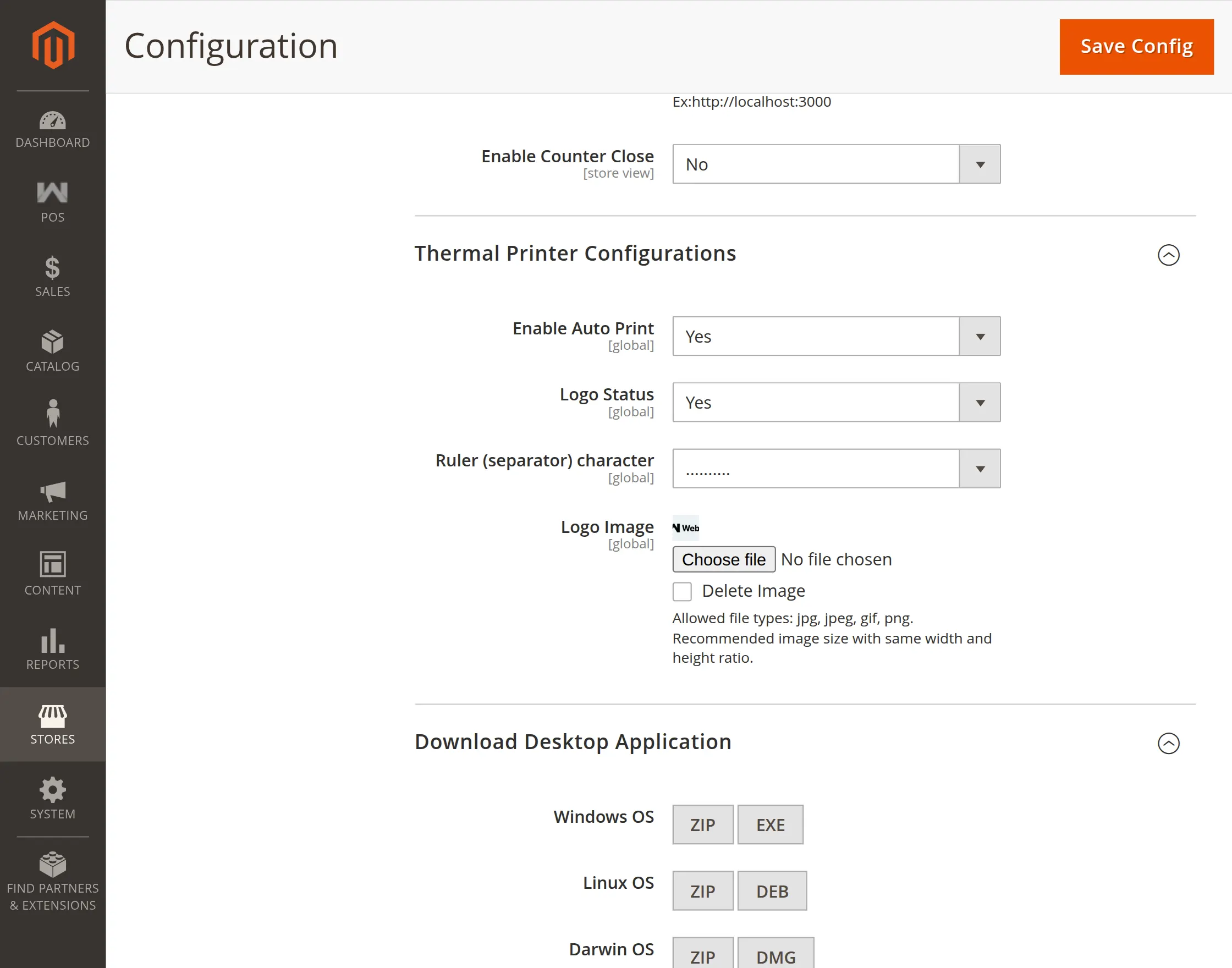
Thermal Printer Configuration
Enable Auto Print : Enable this option to print the order invoice automatically when a new order is received at the POS. It removes the need for manual printing.
Logo Status : Admin can enable or disable the Logo Status. For enabling set Yes or for disabling set No.
Ruler(separator) Character : Admin can use the separator to divide the components of the invoice for more clarity.
Logo Image : The admin can add the desired image for the Logo.
Download Desktop Application
The admin can use this extension on their respective device after installing the app for Windows, Linux, and Darwin OS separately.

After clicking on the respective file format for the Linux OS, the desktop application will start downloading.

Once the download is completed Then extract the Zip file on your system.

Now right-click on the Launch.sh file and move to the permission option.

Once the execute permission is enabled the admin can launch the app on their system.
App Settings
Once the app gets installed the admin can configure the app settings.

The admin will enter the domain URL or IP address and port number.

The admin needs to click on the connect button to connect the app to the server port.

Click on the printer’s option to check the connected printers and connect new ones.

Check the log setting on the app and download or clear any logs from the POS thermal app.

Once the Invoice is printed the user can see the job completed message in the logs.
POS Outlet -Workflow
Once the app is configured the POS agent can open the POS app and use it. They can log in to the POS system and view the list of available printers.

Click on the Printer icon to see all the connected printers.

The POS agent can select any printer as their default printer.

Once the printer is select the agent can add any product to the cart and proceed with the checkout.

Click on the Confirm Payment Button to proceed with an order. Once the order is placed the print request will sent to the thermal printer.
The POS agent can also view the order history and print the invoice by clicking on the button Print Invoice.

POS Invoice With Logo and Ruler Character
By clicking on the Print Invoice button, the invoice will be generate along with the logo and the ruler separator.

Support
That’s all about the Magento 2 POS Thermal printer. If you still have any issues feel free drop us a mail at [email protected]
Also, you can add a ticket and let us know your views to make the module better at our HelpDesk System.
Current Product Version - 4.0.3
Supported Framework Version - Magento 2.0.x, 2.1.x, 2.2.x,2.3.x, 2.4.x

Be the first to comment.