Magento 2 ChatGPT Product Review Summary AI extension automatically generates the product review summary according to the reviews of the product, using your choice of nine AI providers, including ChatGPT (OpenAI), Gemini, and Anthropic Claude.
After the admin approves the product reviews, the AI product review summary extension automatically generates the review summary.
The concise summary is visible on the product page under the customers say section.
You can also generate the product, category, and CMS page descriptive content as per your requirement using the Magento 2 ChatGPT Content Generator extension.
Also, you can add an AI-generated order success message after an order gets placed using the Magento 2 ChatGPT Checkout Message Generator extension.
Check the plugin configuration and workflow –
Features
- AI generates a product review summary of what customers review about the product.
- A Customers Say section is created on the product page with a concise review summary.
- Help customers purchase the product by checking the respective product review summary.
- Both positive and negative reviews will be used to generate a concise product review summary.
- Save the customer’s time in checking the review.
- Choose from nine AI providers, including ChatGPT, Gemini, Anthropic Claude, Mistral AI, OpenRouter, Cerebras, Cohere, DeepSeek, and self-hosted Ollama.
- API keys are validated and the model list loads dynamically before you can save the configuration.
- API keys are stored encrypted and masked in the admin form.
- Summaries are generated per store, in the store’s own language, and regenerated automatically when review statuses change.
- A CLI command (
generate:reviewsummary) regenerates summaries for the whole catalog in one run. - This Magento 2 AI extension works with nine AI providers, including ChatGPT, Gemini, and Anthropic Claude.
Installation
The installation is quite simple just like the standard Magento 2 extensions.
#Download Module
Firstly, you need to log in to the Webkul Store, go to My Account>My Purchased Products section, verify, and then download and extract the contents of this zip folder on the system.
#Upload Folder
Once the module zip extracts, follow path src>app and then copy the app folder into the Magento 2 root directory on the server as shown below:

#3 Run Commands
After uploading the module folder, you need to run the following commands in the Magento 2 root directory:
php bin/magento setup:upgrade
php bin/magento setup:di:compile
php bin/magento setup:static-content:deploy
php bin/magento indexer:reindex
php bin/magento cache:flush
composer require \
        symfony/ai-agent:^0.7 \
        symfony/ai-platform:^0.7 \
        symfony/ai-open-ai-platform:^0.7 \
        symfony/ai-gemini-platform:^0.7 \
        symfony/ai-anthropic-platform:^0.7 \
        symfony/ai-mistral-platform:^0.7 \
        symfony/ai-ollama-platform:^0.7 \
        symfony/ai-open-router-platform:^0.7 \
        symfony/ai-generic-platform:^0.7 \
        symfony/ai-cerebras-platform:^0.7 \
        symfony/ai-cohere-platform:^0.7 \
        symfony/ai-deep-seek-platform:^0.7
Language Translation
For translating the module language, navigate through src/app/code/Webkul/AIProductReviewSummary/i18n and edit the en_US.csv file.
Thereafter, rename the CSV as “en_SA.csv” and translate all right side content after the comma in the Arabic language. After editing the CSV, save it.

Now, upload it to the path src/app/code/Webkul/AIProductReviewSummary/i18n where the installation of Magento 2 is on the server.
The module is translated into the Arabic Language. It supports both RTL and LTR languages.
The user can edit the CSV like the image below.

How to Get API Keys for LLM Providers
To use the AI Product Review Summary extension, generate an API key from your chosen AI provider using the links below:
- OpenAI API Key: Generate your OpenAI API key here
- Gemini AI API Key: Generate your Google Gemini AI API key here
- Anthropic API Key: Generate your Anthropic API key here
- Mistral AI API Key: Generate your Mistral AI API key here
- OpenRouter API Key: Generate your OpenRouter API key here
- Cerebras API Key: Generate your Cerebras API key here
- Cohere API Key: Generate your Cohere API key here
- DeepSeek API Key: Generate your DeepSeek API key here
- Ollama: No API key required — just run a local Ollama server and provide its endpoint URL (e.g.
http://localhost:11434). An API key is only needed if you enable authorization on your Ollama server
Initial Configuration Settings – Admin End
After the installation of the Magento 2 AI Product Review Summary extension, the admin will navigate through Store->Configuration->Webkul->AI Product Review Summary.
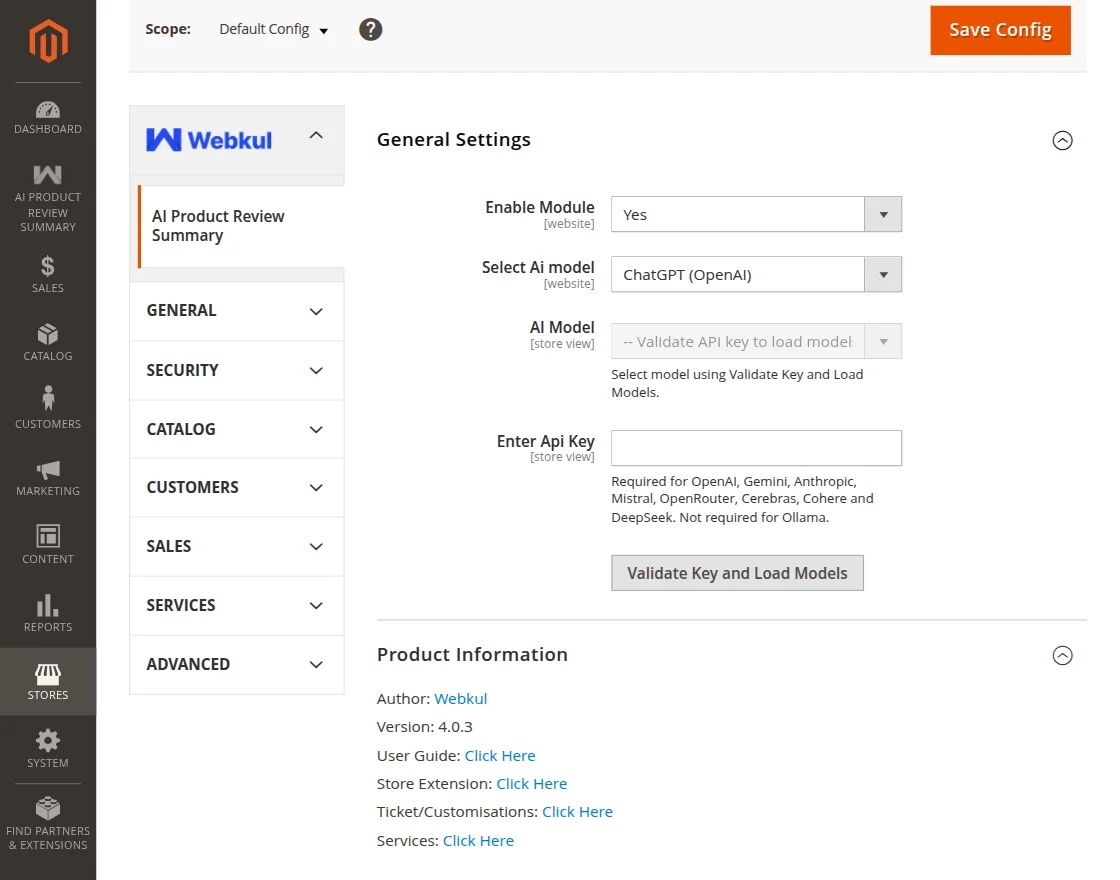
General Settings:
- Enable Module: Enable or disable the extension.
- Select Ai model: Choose the AI provider used to generate the review summary.
Cloud AI Providers availability – The cloud providers depend on the optional symfony/ai-agent, symfony/ai-platform, and provider bridge packages. If these packages are not installed, the admin form shows an availability warning beneath the provider field and the cloud provider fields are hidden, so you cannot save half-broken cloud credentials. Install the Composer packages listed under Installation (or use Ollama) before configuring a cloud provider.
Configuration when a Cloud AI provider is selected
This applies to ChatGPT (OpenAI), Google Gemini, Anthropic Claude, Mistral AI, OpenRouter, Cerebras, Cohere, and DeepSeek.
- Enter Api Key: API key of the selected provider (required, stored encrypted, masked in the form).
- AI Model: The model used to generate the review summary. The field is populated only after the key is validated.
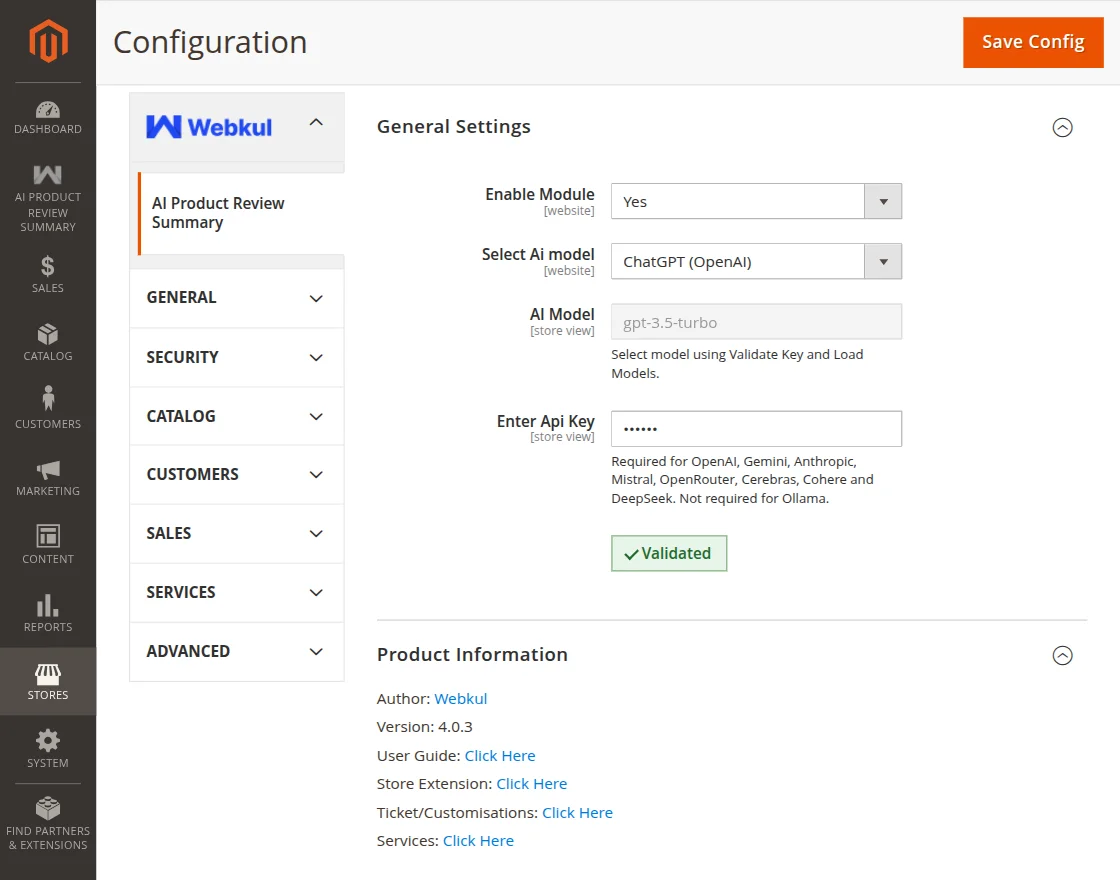
First click Validate Key and Load Models to validate the key and load the available models, then Save Config. The form blocks saving until the key is validated and a model is selected.
Configuration when Ollama is selected
Use this when you run your own local Ollama server. No API key is required, but you may enable authorization.
- Is Authorized: Set to Yes to use an API key with your Ollama server.
- Enter Api Key: API key used to authenticate against Ollama (required only when Is Authorized is enabled, stored encrypted).
- Ollama Endpoint: URL of your Ollama server, e.g.
http://localhost:11434. - AI Model: Select an installed Ollama model (loaded after validation).
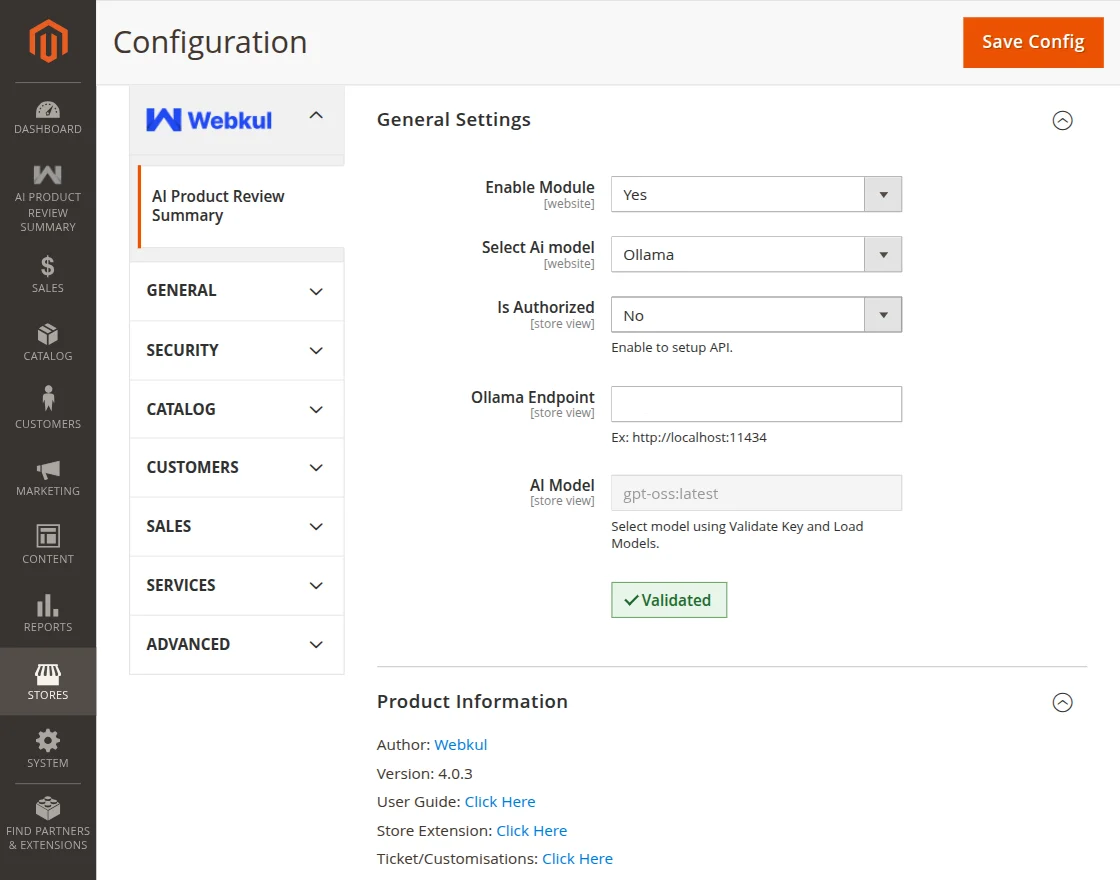
Click Validate Key and Load Models to fetch the installed models from the Ollama endpoint, then Save Config.
Also, if you want to create categories based on the product images then you can check the Magento 2 AI Category Prediction extension.
Workflow
The customers will make a review on the product page as shown below in the screenshot.

After submitting the review, the customer will see that after moderation the review will be visible.

Now, the admin will approve the review by navigating through Marketing->All Reviews

After approval, the admin will see a success message.

The admin can also run the following command from the Adobe Commerce root directory to generate summaries for every product that has approved reviews in one go:
php bin/magento generate:reviewsummary
Now, on the product page, users can see a Customers Say section that has the AI-generated product review summary as shown below in the snapshot.

Note – If you want to translate your product reviews in your store base language, then you can use our Magento 2 AI Review translator extension for translation
Support
So, that is all about the Magento 2 ChatGPT Product Review Summary extension. If you have any queries regarding the plugin, please contact us at [email protected].
If you’re looking to create a custom e-commerce website, it’s a great idea to hire Magento developers who can help you build a powerful and scalable online store.
Current Product Version - 4.0.3
Supported Framework Version - Magento 2.0.x, 2.1.x, 2.2.x,2.3.x, 2.4.x

Be the first to comment.