CS-Cart Amazon S3 addon allows store owners to integrate their CS-Cart store with Amazon S3 (Simple Storage Service).
Amazon S3 is a highly scalable and reliable cloud storage service that allows users to store and retrieve any amount of data from anywhere on the web.
Using this add-on will allow the admin of the CS-Cart store to upload the files, and product images to the Amazon S3 server.
Note: Before installing the add-on, extract the downloaded package.
- Install the License Manager add-on first.
- Then install the required add-on.
- Follow the license activation steps to generate your license key.
Features
- Supports Ultimate/Multivendor.
- Download Files From The Amazon Server.
- Distribute Load Of Local Server.
- Store Files On Amazon Server.
- Useful for downloadable products.
- Saves important uploads over the dedicated Amazon server.
- All images and media files are directly uploaded and stored on the Amazon S3 bucket, ensuring optimized storage and improved site performance.
In this video, check the addon overview –
Queue Handler Import Support
The Amazon S3 add-on now includes a queue handler for data imports. Instead of processing imports directly, you can trigger the import job through the queue handler by accessing the following URL:
baseurl/index.php?dispatch=queue_handler.import_data
Note:
- Amazon S3 credentials are not available in the Live Demo, customers can enter their own Amazon S3 credentials in the Live Demo to check the working of the module.
- Initially, the user needs to register themselves to the Amazon AWS account.
How to Create an Amazon S3 Bucket:
Log in to AWS Console and Navigate to S3
Sign in to your AWS Management Console.
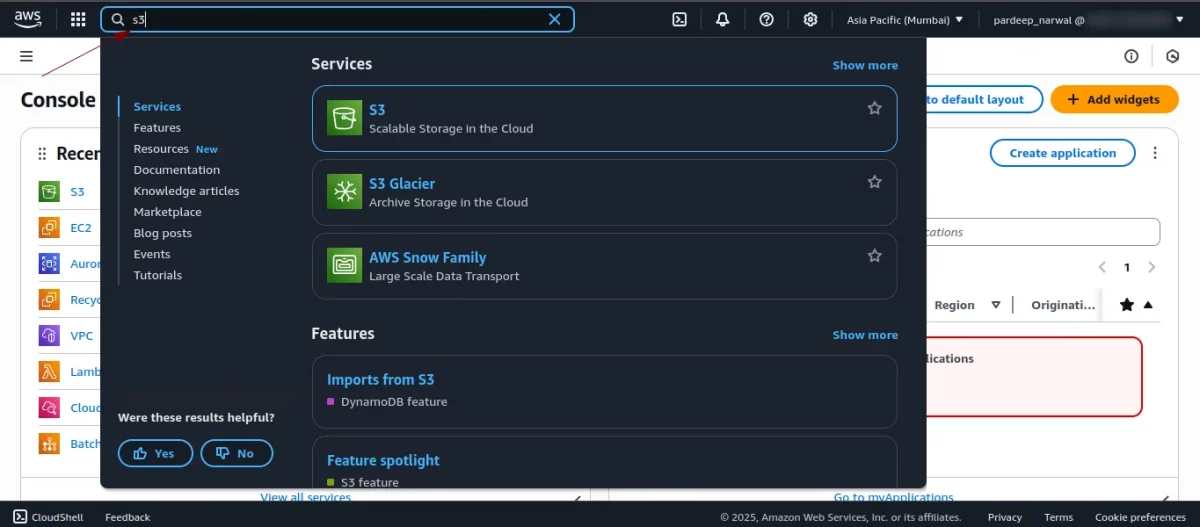
In the search bar at the top, type S3 and select Amazon S3 – Scalable Storage in the Cloud.
- This will take you to the S3 dashboard.
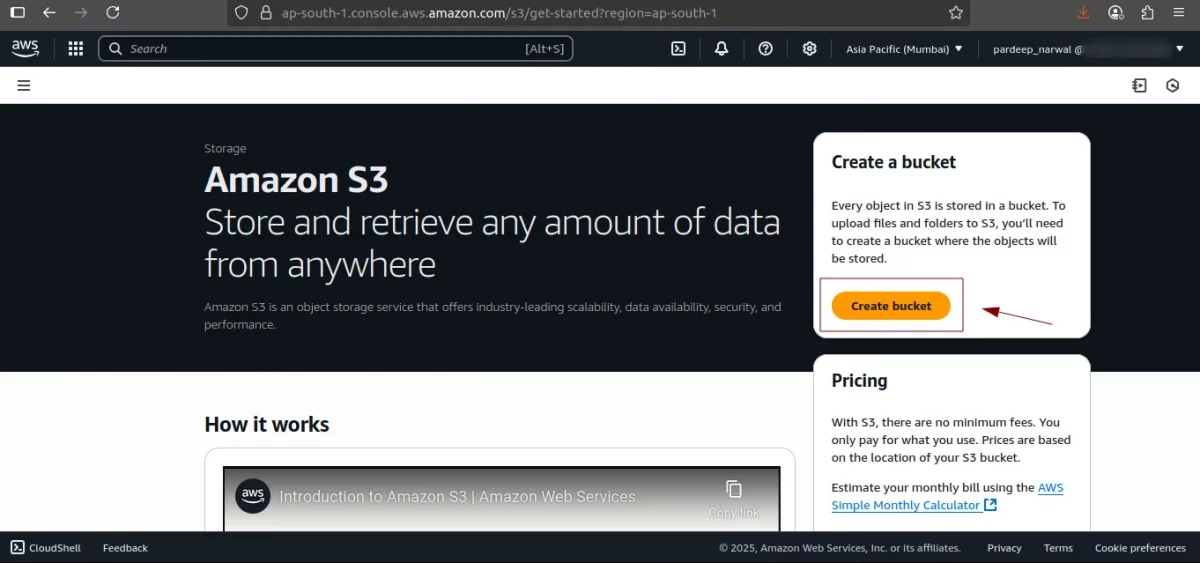
Click on “Create bucket.”
- On the S3 dashboard, click the Create bucket button.
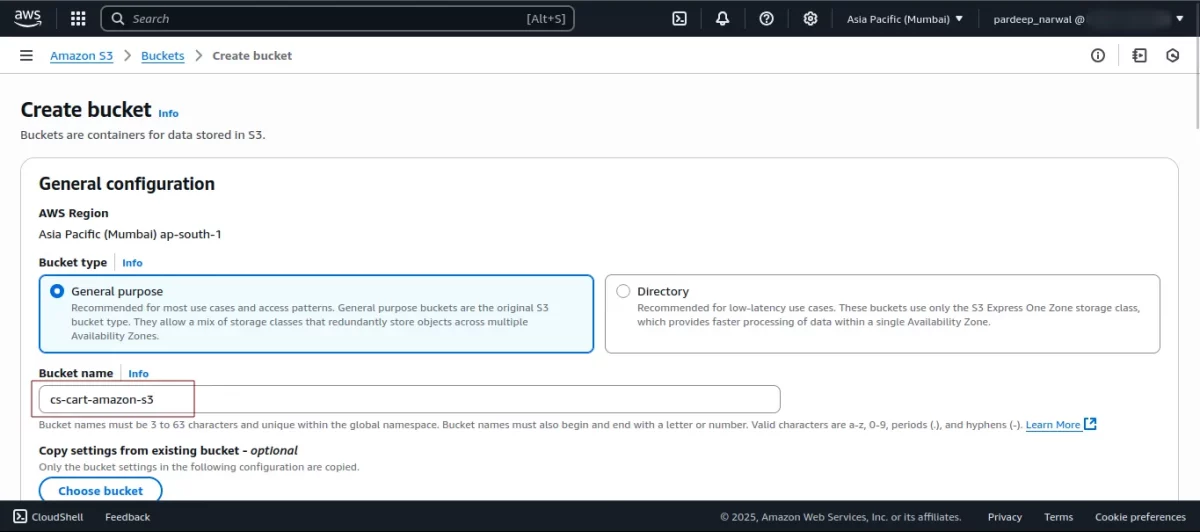
Enter Bucket Name and Choose Region
Bucket Name: Enter a globally unique name (3–63 characters, lowercase letters, numbers, hyphens, and periods only).
- Region: Choose the AWS Region closest to your users or your preferred region (e.g., Asia Pacific (Mumbai) – ap-south-1).
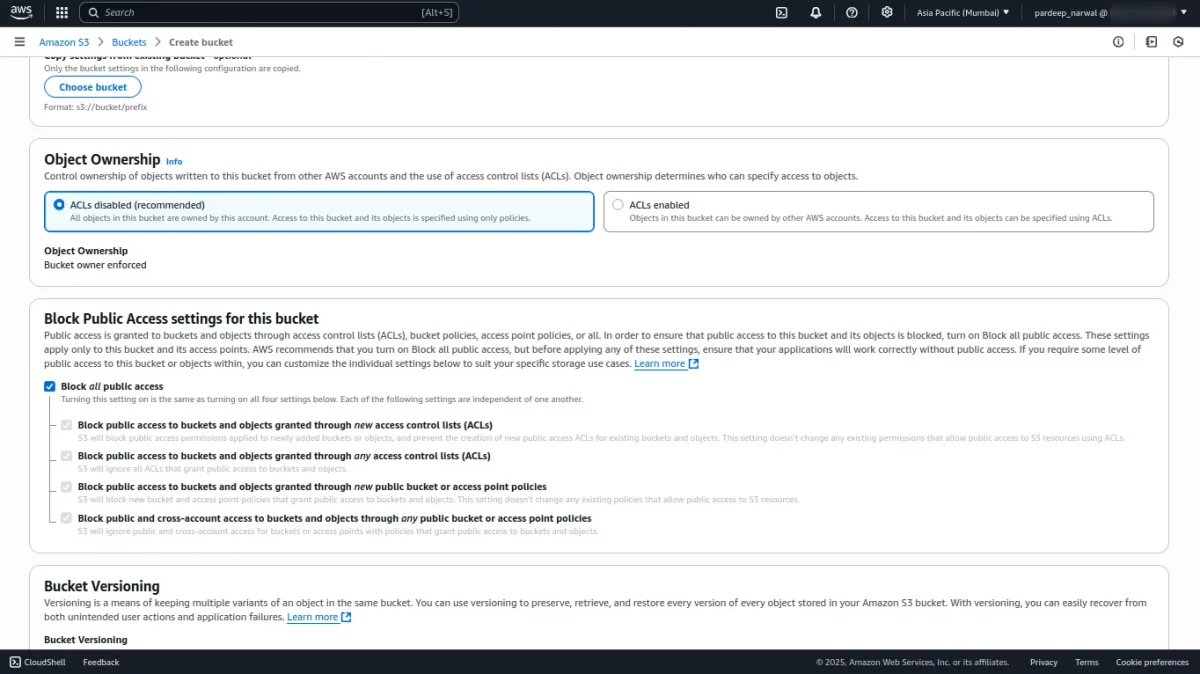
Configure Optional Settings
Object Ownership: Use the recommended default “Bucket owner enforced” to disable ACLs.
- Block Public Access settings: Leave these enabled to block all public access unless you specifically want the bucket to be public.
- Optional features you can enable:
- Versioning to keep multiple versions of an object.
- Tags for organizing buckets.
- Encryption for data security.
Step 5: Review and Create the Bucket
Review all settings carefully.
- Click the Create bucket button at the bottom.
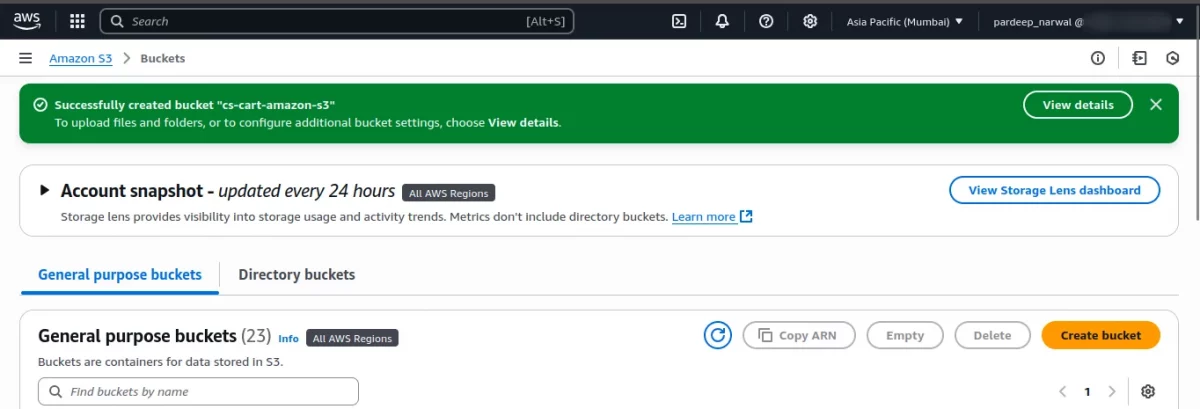
You should see a confirmation message like:
“Successfully created your bucket.”
Obtain S3 Access Key and Secret Key
To programmatically access your S3 bucket (e.g., via SDKs, CLI, or APIs), you need an AWS Access Key ID and Secret Access Key. Follow these steps:
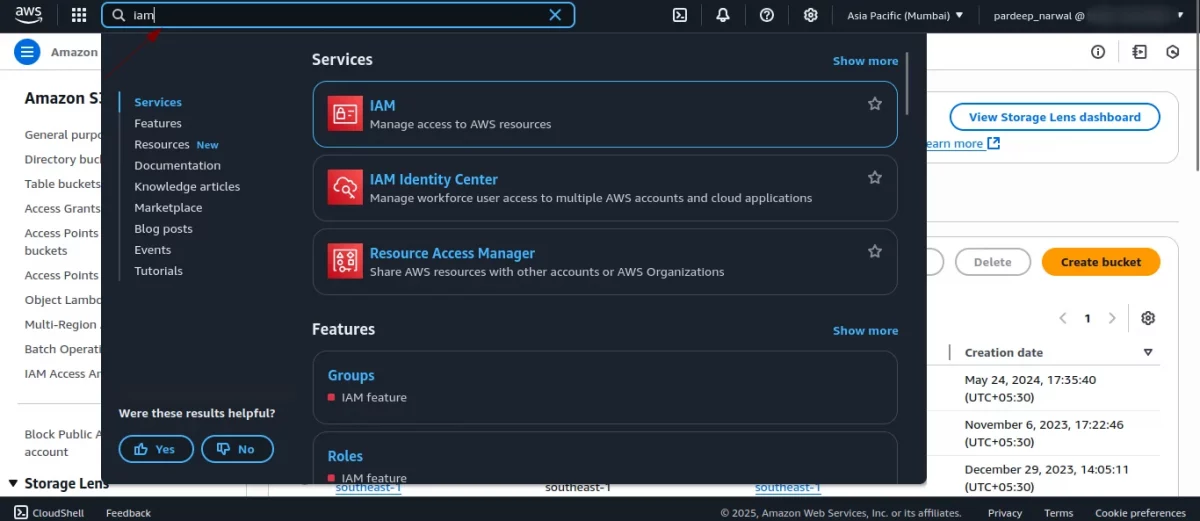
- Navigate to IAM:
- In the AWS Console, search for IAM in the top search bar and select IAM – Manage access to AWS services.
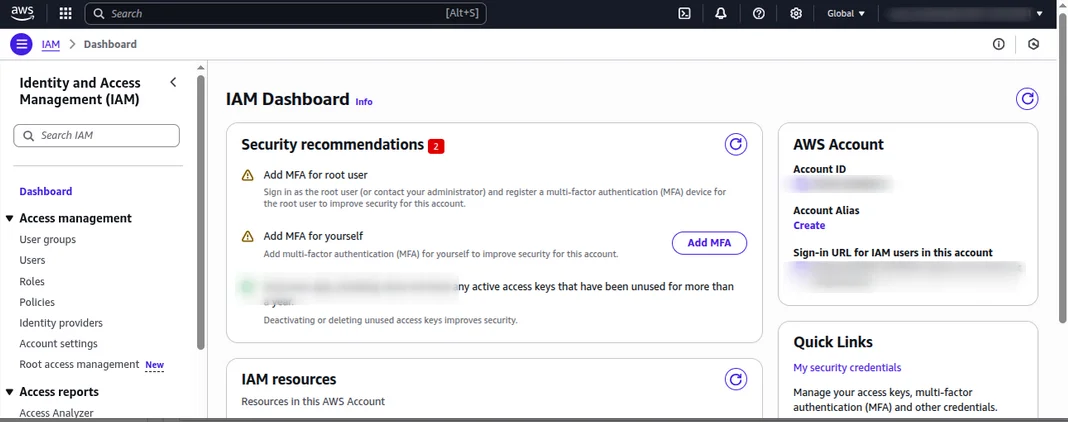
- Go to Users:
- In the IAM dashboard, click Users in the left sidebar, then click Create user or select an existing user.
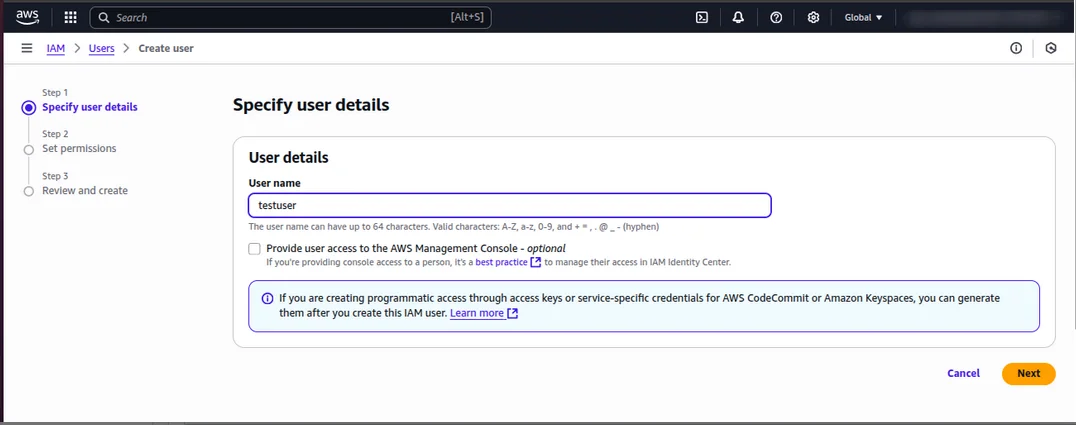
- Create or Select a User:
- If creating a new user, enter a user name (e.g., test-user) and select Programmatic access under “Access type.”
- If using an existing user, select the user and go to the Security credentials tab.
- Set Permissions:
- Attach a policy to the user, such as AmazonS3FullAccess for full S3 access or a custom policy for specific permissions (e.g., access to a single bucket).
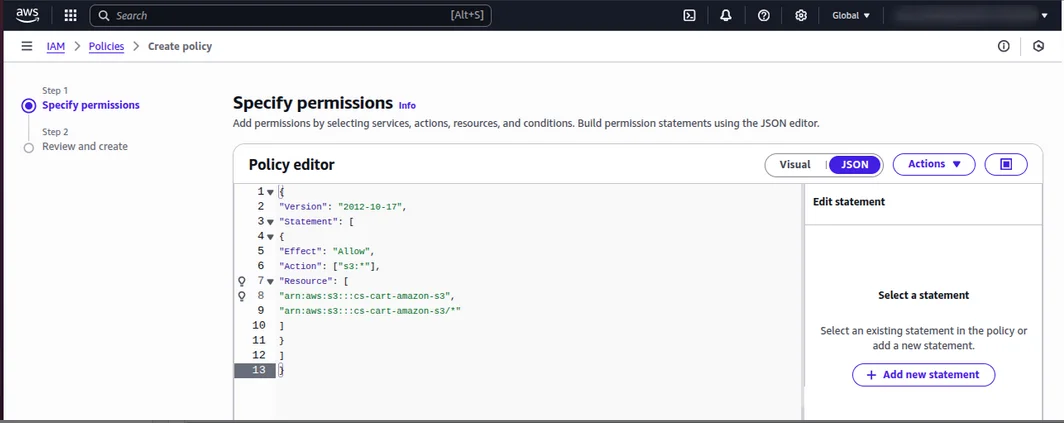
Create Access Key:
- For a new user, proceed through the wizard and create the user. On the final screen, you’ll see the Access Key ID and Secret Access Key.
- For an existing user, in the Security credentials tab, click Create access key, then select Application running outside AWS (or another relevant option) and create the key.
- Download the .csv file containing the Access Key ID and Secret Access Key or copy them securely. Note: The secret key is shown only once, so store it safely.
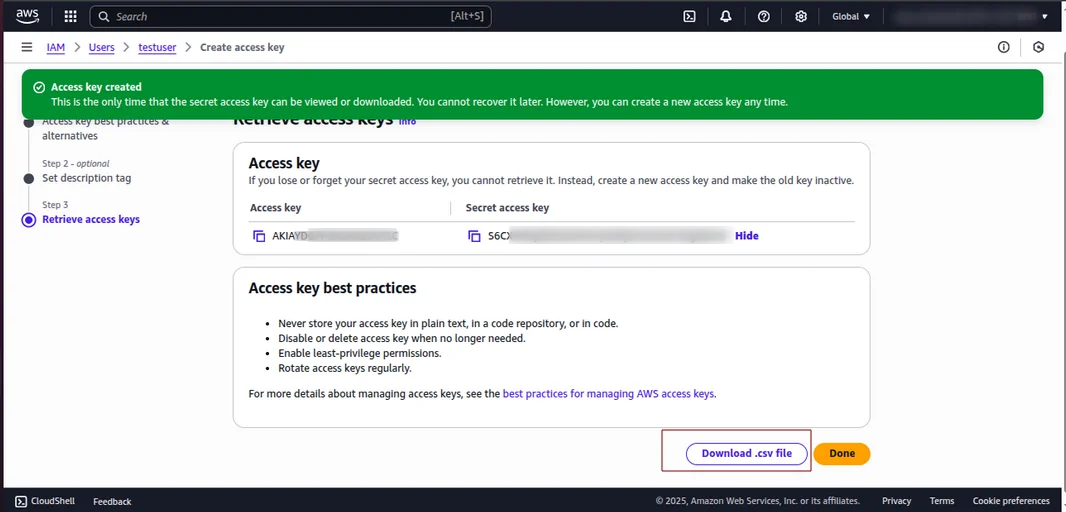
Installation
After downloading the CS-Cart Amazon S3 add-on, you’ll get one zip file, one install.txt file, and a relevant User Guide manual doc. Read it carefully for proper configuration.
Go to Manage Add-ons, and click on “Manual Installation” .
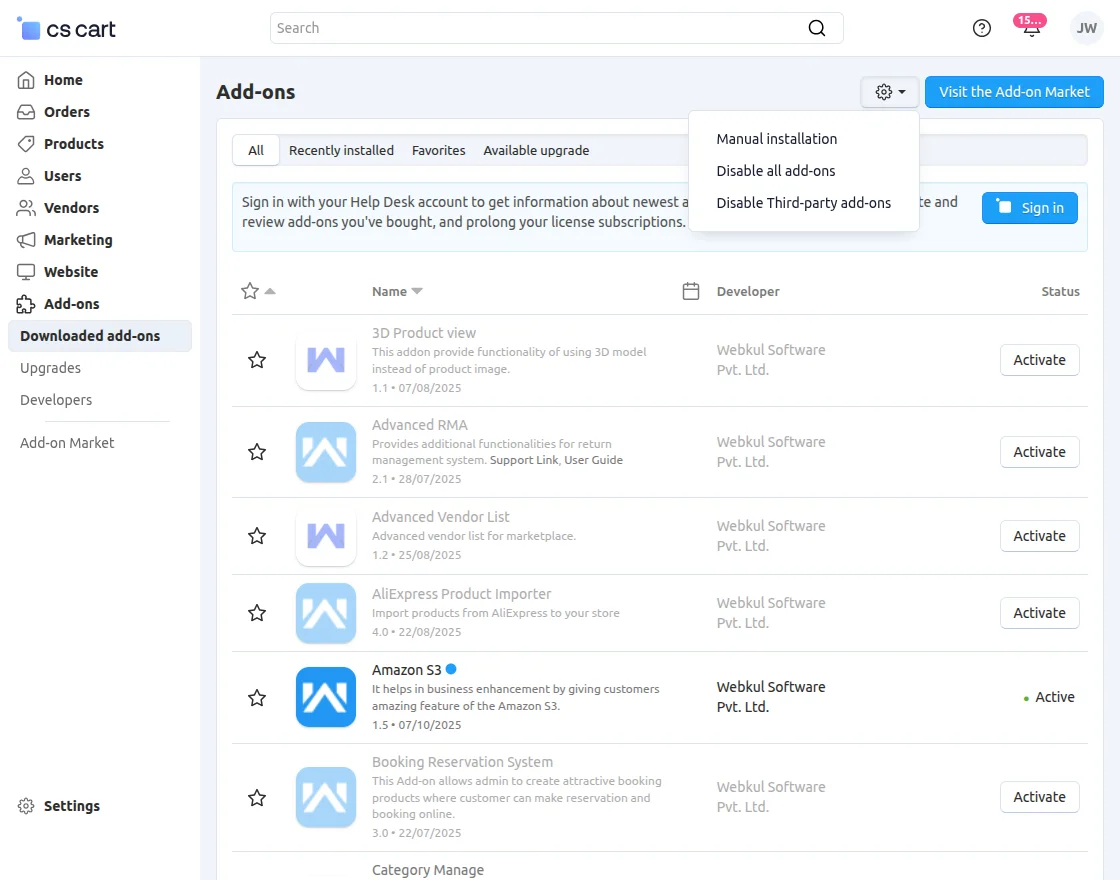
Click on “Local” to browse the zip file, and then click on “Upload & Install” .
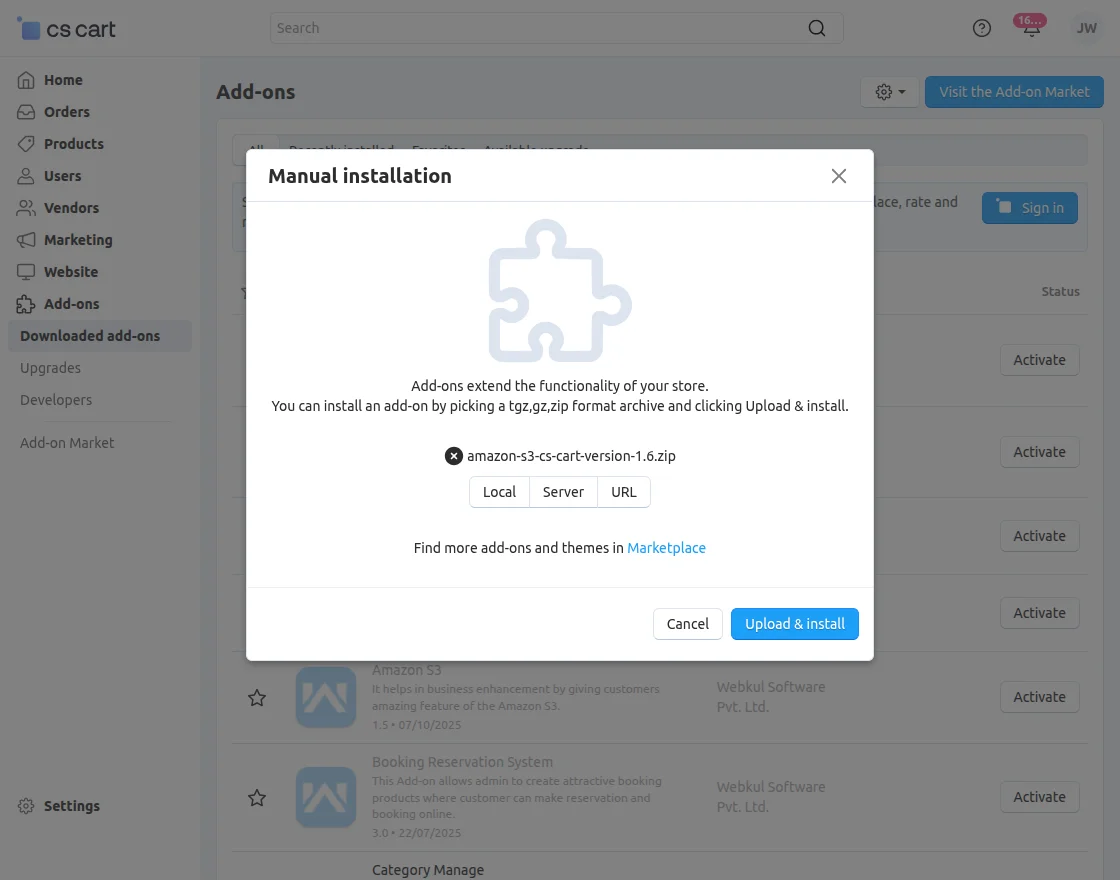
Add-on Configuration
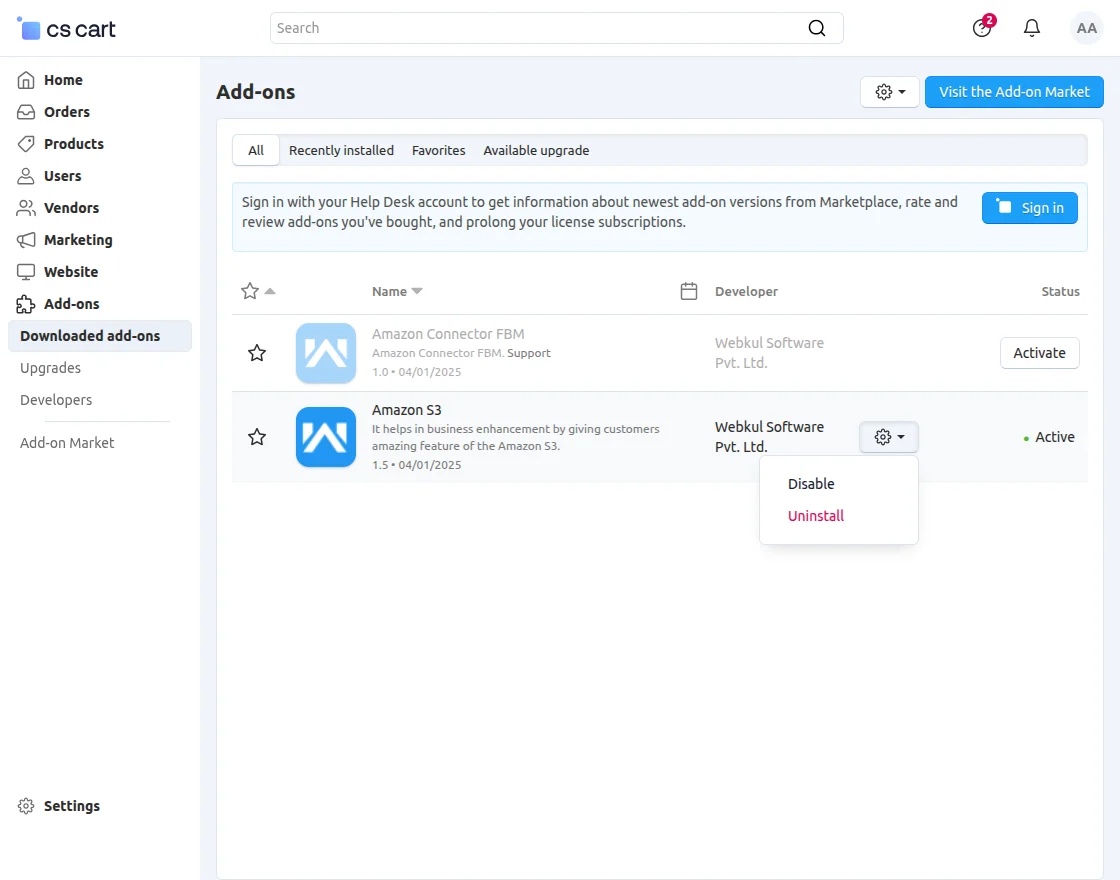
After installing the add-on, you will find CS-Cart Amazon S3 in the list of available add-ons. We will then configure the settings.
Click on “settings” to enable, disable, install, or refresh.
Make sure the add-on is activated, as shown in the snapshot below.
Module Configuration | Admin
To configure the module, go to the Add-Ons >> Developers >> Webkul Software Pvt Ltd. >> Amazon S3 >> Settings.
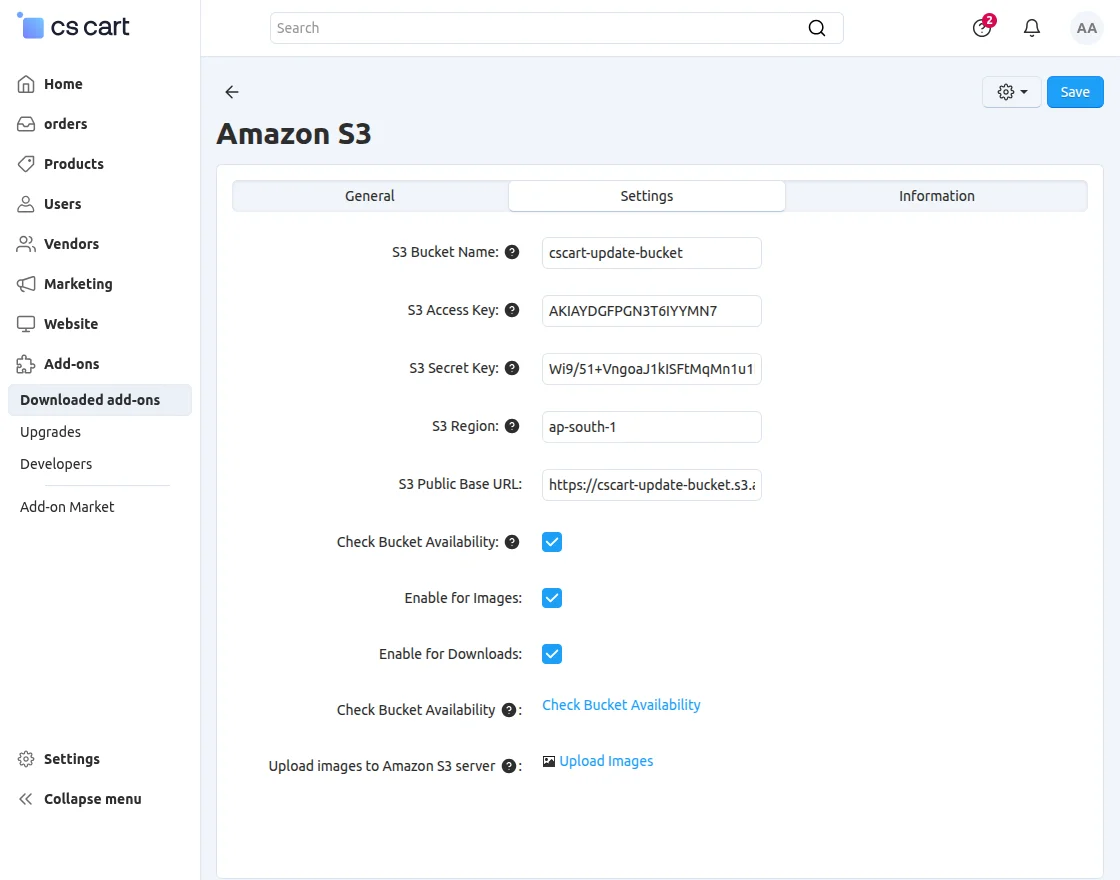
- Bucket Name for S3: Enter the bucket name.
- S3 Access Key: Enter the access key for your Amazon S3 server.
- Secret Key for S3: Enter the secret key for your Amazon S3 server.
- Enter Amazon S3 Region: Enter the region for your Amazon S3 Account.
- Check Bucket Availability: Tap, to check the bucket availability.
After setting up all the details, you can tap the Save button on the top right-hand corner.
Now you can upload the:
- Images: Tap this link to upload all product images and downloadable files to the AmazonS3 server.
How CS-Cart Amazon S3 Works – An Example(Downloadable Product)
First, navigate to the product section, select an individual product, and enable it as a downloadable product.
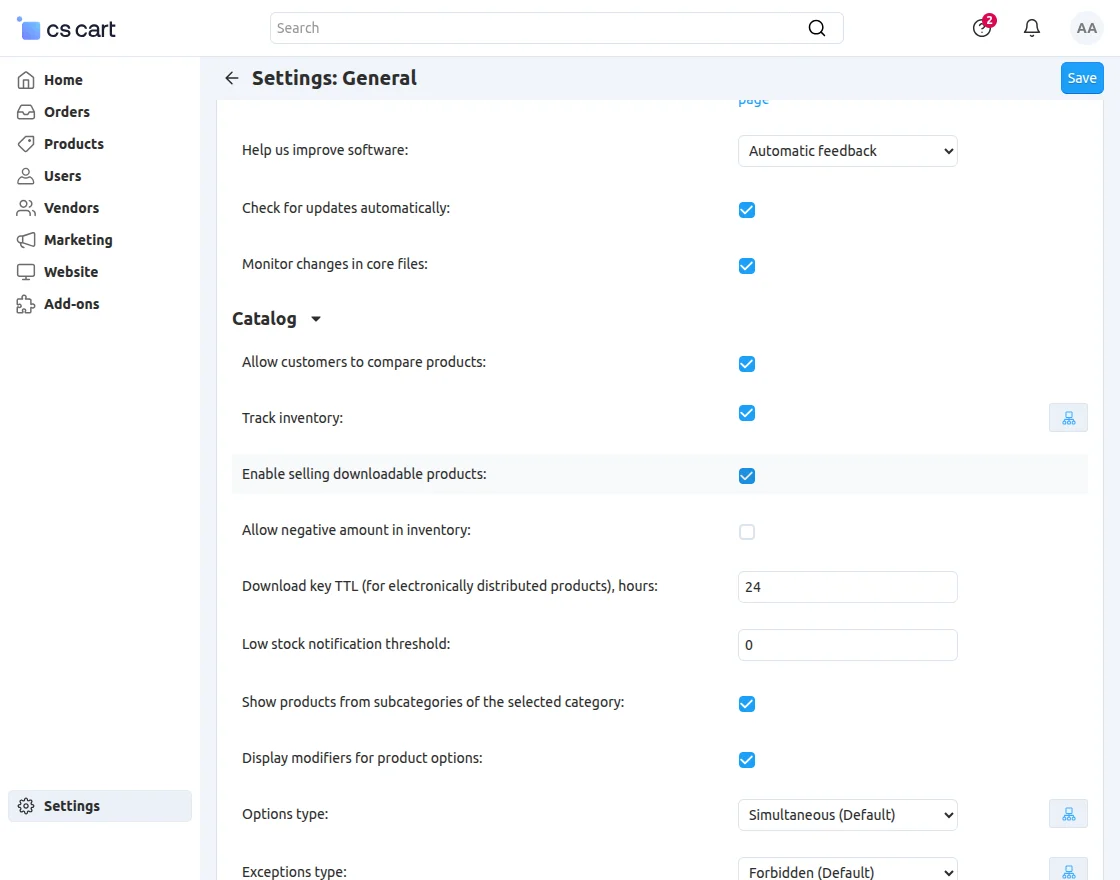
NOTE: To display the ‘Downloadable’ option in product settings, you must first enable it from the general settings.

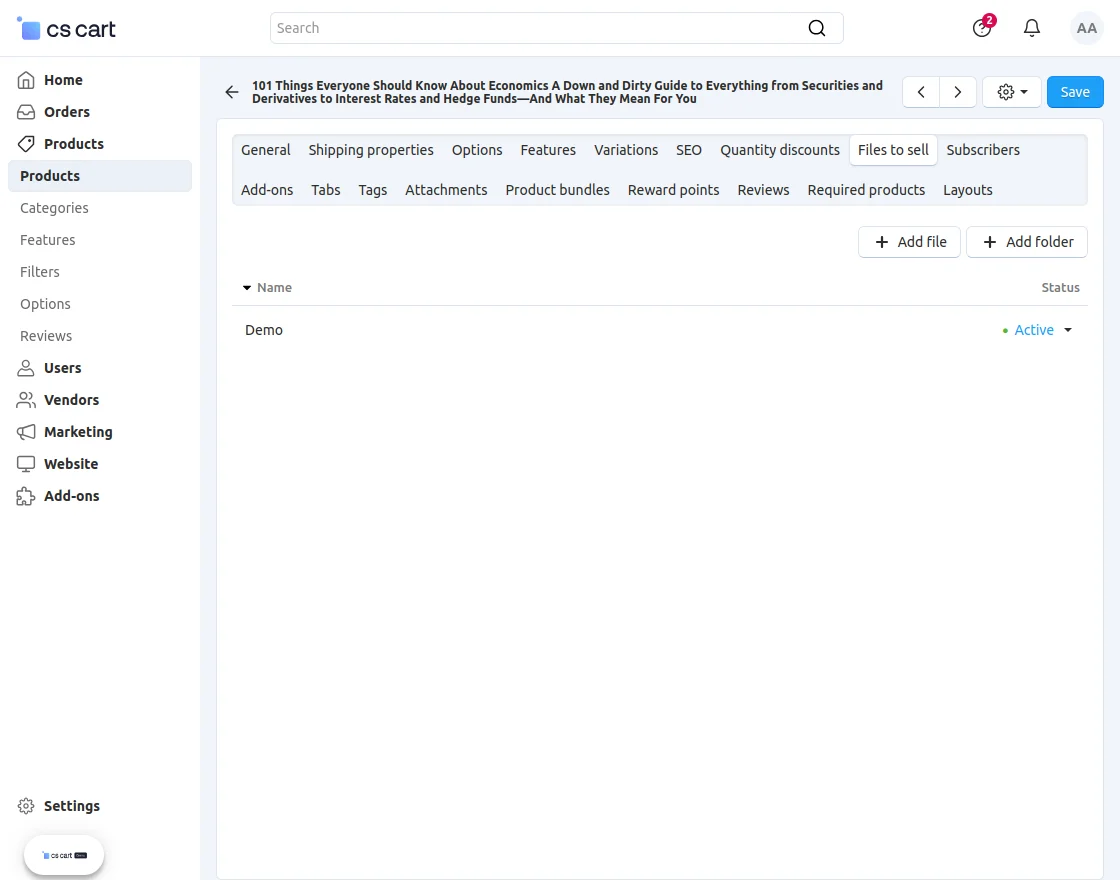
To add files for a downloadable product, go to the ‘Files to Sell‘ option.
Click ‘Add File’ to upload files that customers can download after placing an order.
Downloadable Option: To enable the downloadable option, go to Settings >> General >> Catalog.
Enable the ‘Selling Downloadable Products’ option to display the downloadable setting in the product configuration.
Frontend View
When a customer places an order for a downloadable product and opens that order, they can view the file in the Downloads section.
The file URL, visible when hovering over the download link, points to the Amazon S3 server.
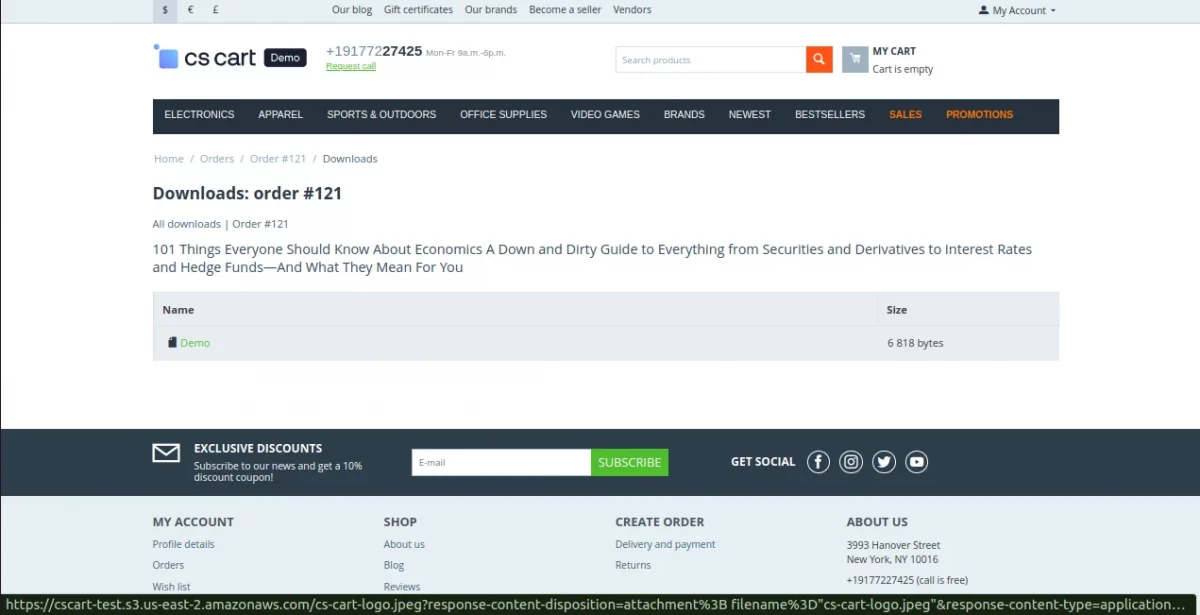
You can also inspect the downloadable file and verify that its URL belongs to the Amazon S3 server.

Support
If you have any questions, suggestions, or customization requests, feel free to contact us at [email protected] or submit a ticket at webkul.uvdesk.com.
Explore our premium-quality CS Cart Extensions to enhance your store functionality.
You can also explore our CS-Cart Development Services and Quality CS-Cart add-ons.
Current Product Version - 1.7
Supported Framework Version - 4.18.x, 4.19.x, 4.20.x

Be the first to comment.