Magento 2 Reward Points extension allows the admin to reward customers with points.
The admin can allocate reward points to the customers according to their-
- Purchases: Product-wise, category-wise, or cart amount-wise purchases.
- Activities: Customer registration and product reviews.
Thus, the customers can redeem their points at checkout. Magento 2 Reward Points modules is also compatible with Adobe Commerce Cloud edition.
Check the mentioned below video for getting to know the workflow of the module:
Features of Adobe Commerce Reward points
General Reward Point Management
- Enable or disable reward points.
- Manage reward points for customer activities.
- Create and manage shopping cart reward rules.
- Assign reward points to all or selected products and categories.
- Credit or debit customer reward points.
- Export reward point reports in CSV and XML formats.
- Create reward rules based on product attributes.
- Set time-based reward rules for products and categories.
- Set fixed or percentage-based reward points for cart rules.
- Add custom conditions to cart reward rules.
- Set reward point limits for eligible purchases.
- Configure reward point validity and expiration periods.
- Set a credit period for eligible reward points.
- Bulk upload reward transactions using CSV.
- Configure store-wise reward point assignments.
- Allow reward point redemption with discount codes.
Customer Rewards & Redemption
- Earn reward points for purchases, product reviews, and registration.
- Redeem reward points during checkout.
- Track reward point transaction history.
- View reward points through customer accounts and email notifications.
- Configure birthday reward points.
- Receive notifications before reward points expire.
- Sort, search, and filter reward point transactions.
- View reward points available for product purchases.
- View applicable reward points during checkout.
- Redeem points based on order totals or product prices.
- Set a credit period for reward points earned from eligible orders.
Advanced Features & Compatibility
- Support GraphQL API for reward point integration.
- Configure store-wise reward point assignments.
- Allow reward point redemption with or without discount codes.
- Support Hyvä Theme for Magento 2.
- Set fixed or percentage-based reward points for cart rules.
- Add custom conditions to reward cart rules.
- Bulk upload reward transactions using CSV.
- Support Adobe Commerce Cloud edition.
- Maintain reward point data across multiple store views.
- Integrate reward points with Magento checkout.
Installation – Magento 2 Reward Points
Follow these steps to install Magento 2 Reward Points extension.
Step 1: Extract Extension Files
- Extract the downloaded ZIP file on your system.
- Open the extracted folder and locate the src folder.
- Inside src, you will find the app folder.
Step 2: Upload Files
Upload the app folder to the Magento 2 root directory on your server.
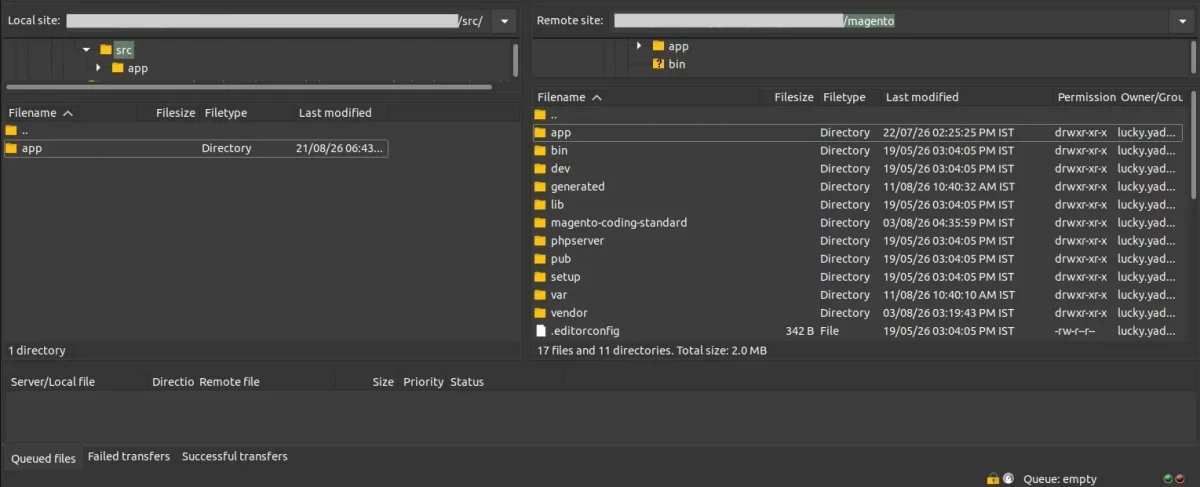
Step 3: Run Setup Commands
Open the Magento 2 root directory and run the following commands.
First Command –
php bin/magento setup:upgrade
Second Command –
php bin/magento setup:di:compile
Third Command –
php bin/magento setup:static-content:deploy
Fourth Command
php bin/magento indexer:reindex
Fifth Command
php bin/magento cache:flush
After completing these steps, Magento 2 Reward Points extension is ready to configure.
Multi-Lingual Configuration
Magento 2 Reward Points supports multiple languages.
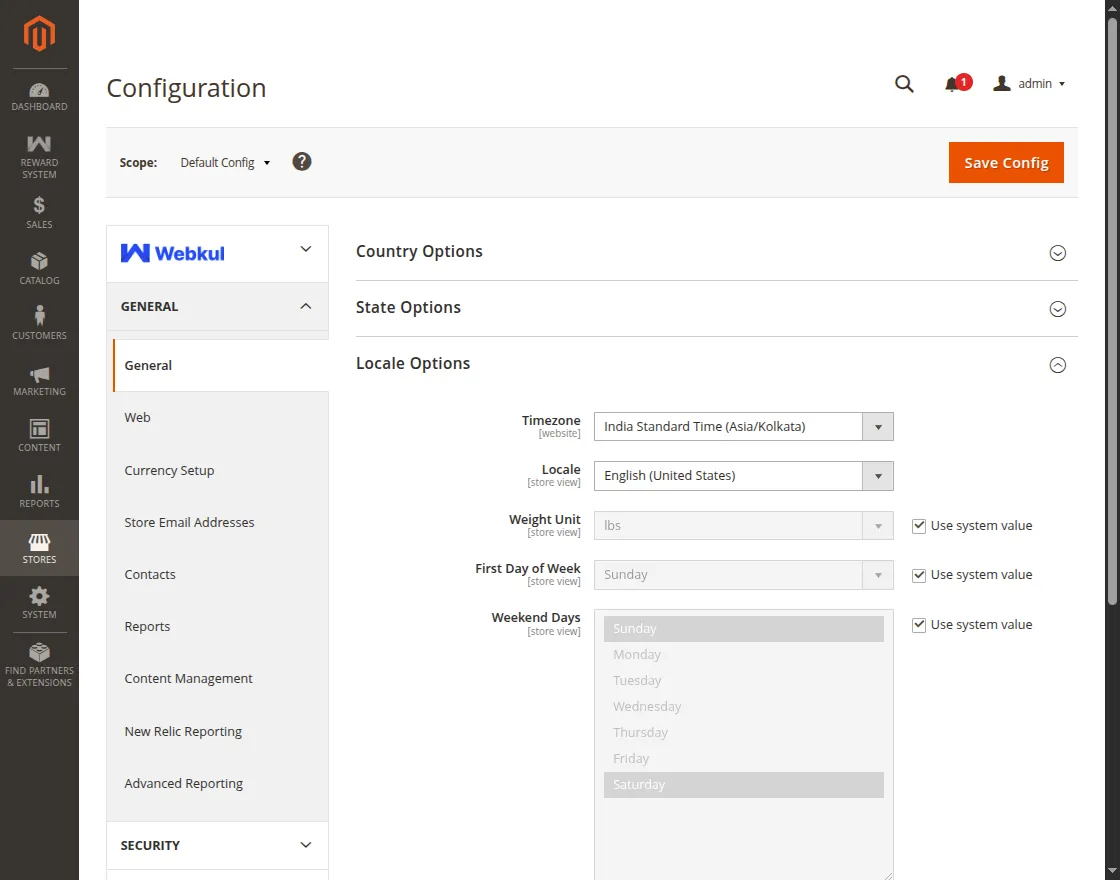
To configure the store language:
- Go to Stores > Configuration.
- Open General > Locale Options.
- Select the required language from the Locale field.
- Save the configuration.
Clear Magento cache after changing the locale settings.
Language Translation
Magento 2 Reward Points supports module text translation through CSV files. Follow these steps to translate module text:
Step 1: Open the Translation File
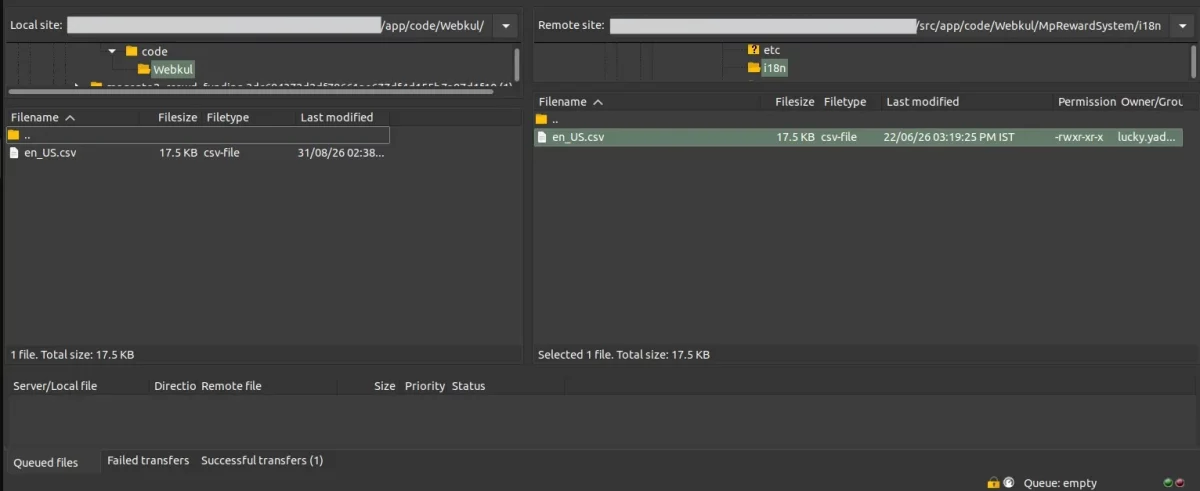
Go to app/code/Webkul/RewardSystem/i18n/en_US.csv in your Magento installation and open en_US.csv in a text or CSV editor.
Step 2: Translate the Module Text
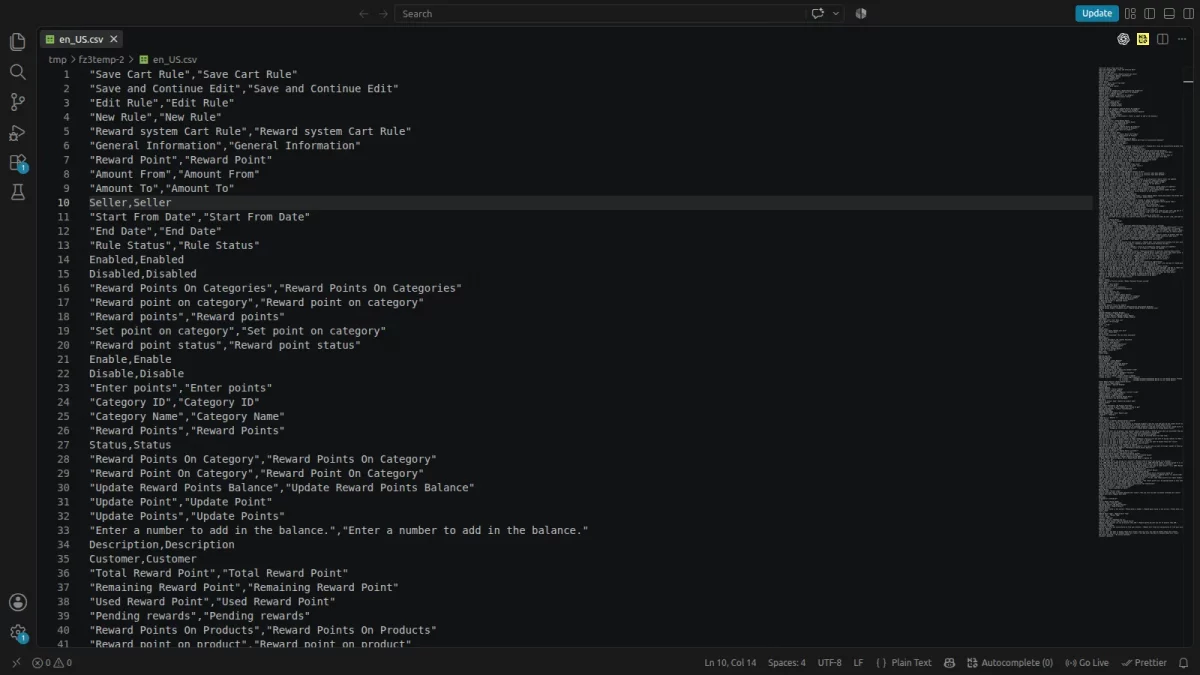
Find the text you want to translate and replace the text after the comma with your translation, such as “Reward Points”,”Punkte”, while keeping the original text on the left unchanged.
Step 3: Save the Translation File
Save the translated CSV file using the appropriate language and country code, such as de_DE.csv.
Step 4: Upload the Translation File
Upload the translated CSV file to app/code/Webkul/RewardSystem/i18n/ and ensure the file name matches the language and country code configured for your store.
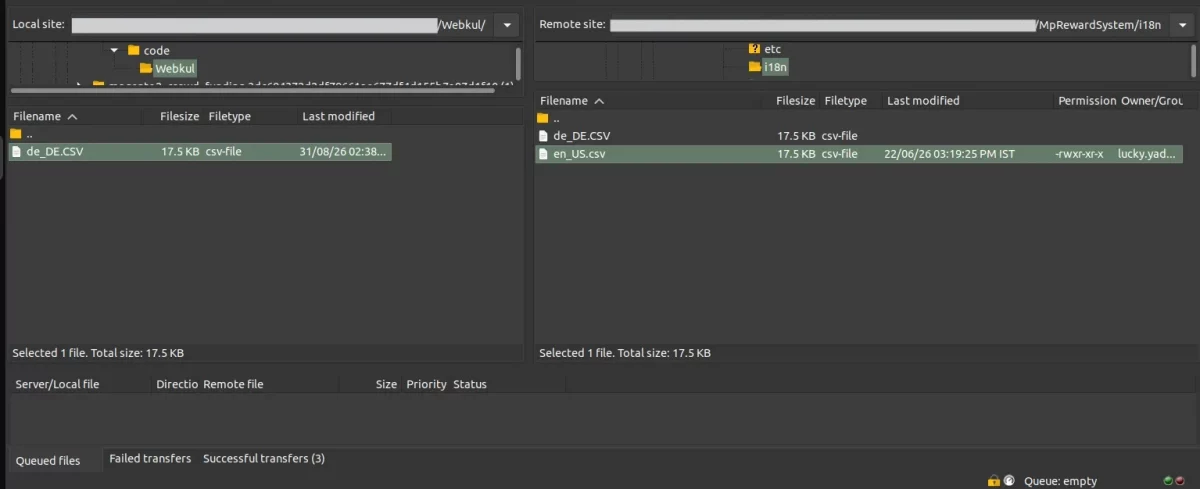
Clear Magento cache after uploading the translation file to apply the changes and complete the module translation.
Module License Verification & Activation
Reward System configurations require Webkul license verification. Verify your license after installing the module to access its configuration settings.
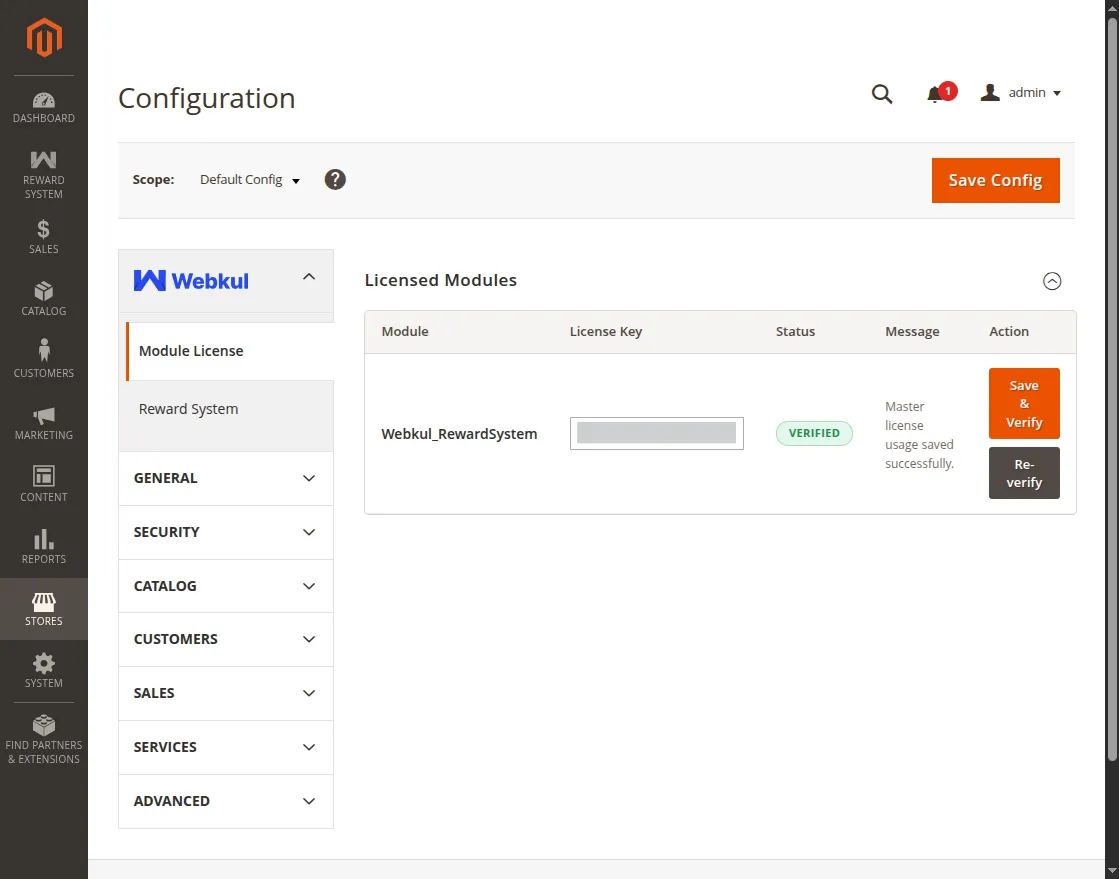
Follow these steps to verify your license:
- Log in to the Magento Admin Panel.
- Go to Stores > Configuration > Webkul > Module License.
- Find Webkul_RewardSystem under Licensed Modules.
- Enter your purchased License Key.
- Click Verify.
- The system validates the license key with Webkul’s centralized licensing service.
- After successful verification, the module status changes to Verified.
- Reward System configuration sections are now available for setup and use.
Configuration of Magento 2 Reward Points
After the successful installation, the admin can configure the module by navigating to Stores>Configuration>Webkul>Reward system.
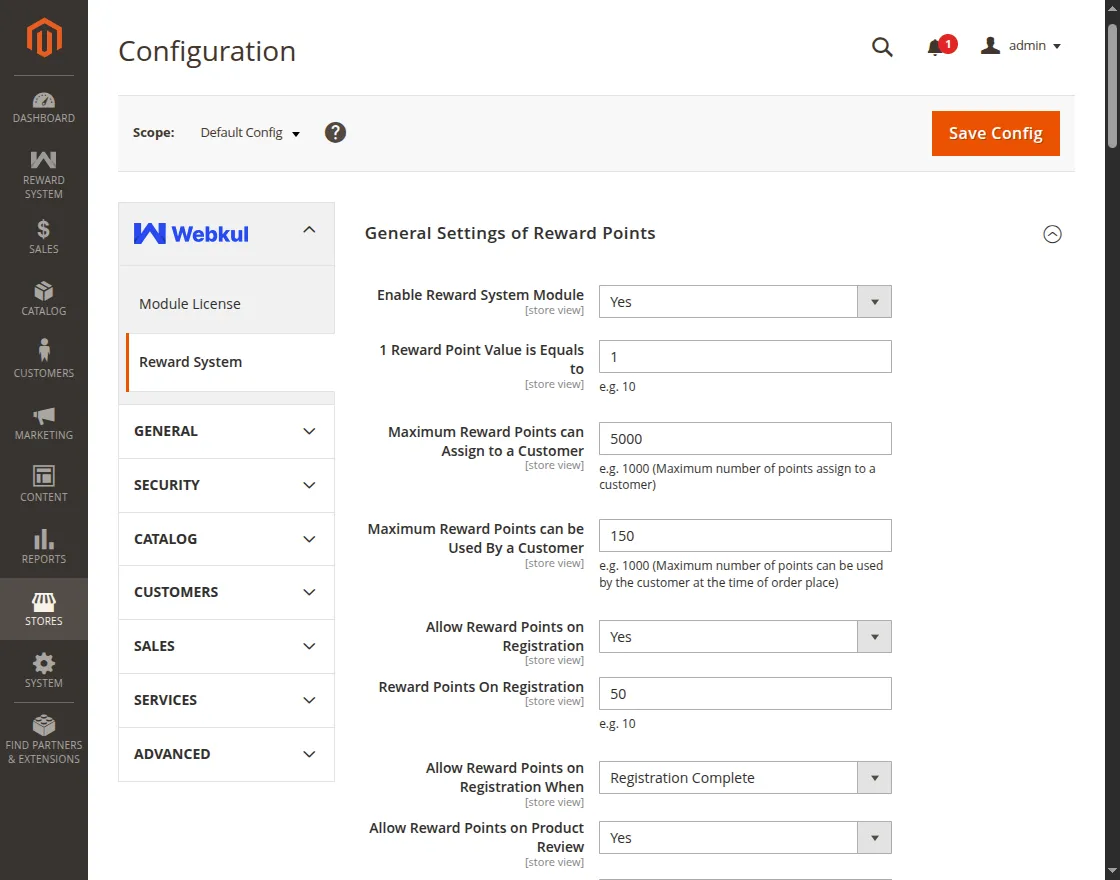
Here the admin can:
General Reward Point Settings
- Enable Reward System Module: Select Yes to enable Magento 2 Reward Points or No to disable the module.
- 1 Reward Point Value is Equal To: Set the monetary value of one reward point for customers.
- Maximum Reward Points Can Assign to a Customer: Set the maximum number of reward points that can be assigned to a customer.
- Maximum Reward Points Can Be Used by a Customer: Set the maximum number of reward points a customer can redeem at one time.
Reward Earning & Order Settings
- Allow Reward Points on Registration: Select Yes to award reward points when a customer registers or No to disable registration rewards.
- Reward Points on Registration: Set the number of reward points awarded for customer registration.
- Allow Reward Points on Registration When: Choose whether to credit registration points after registration or after the customer completes their first order.
- Allow Reward Points on Product Review: Select Yes to award reward points when a customer submits a product review.
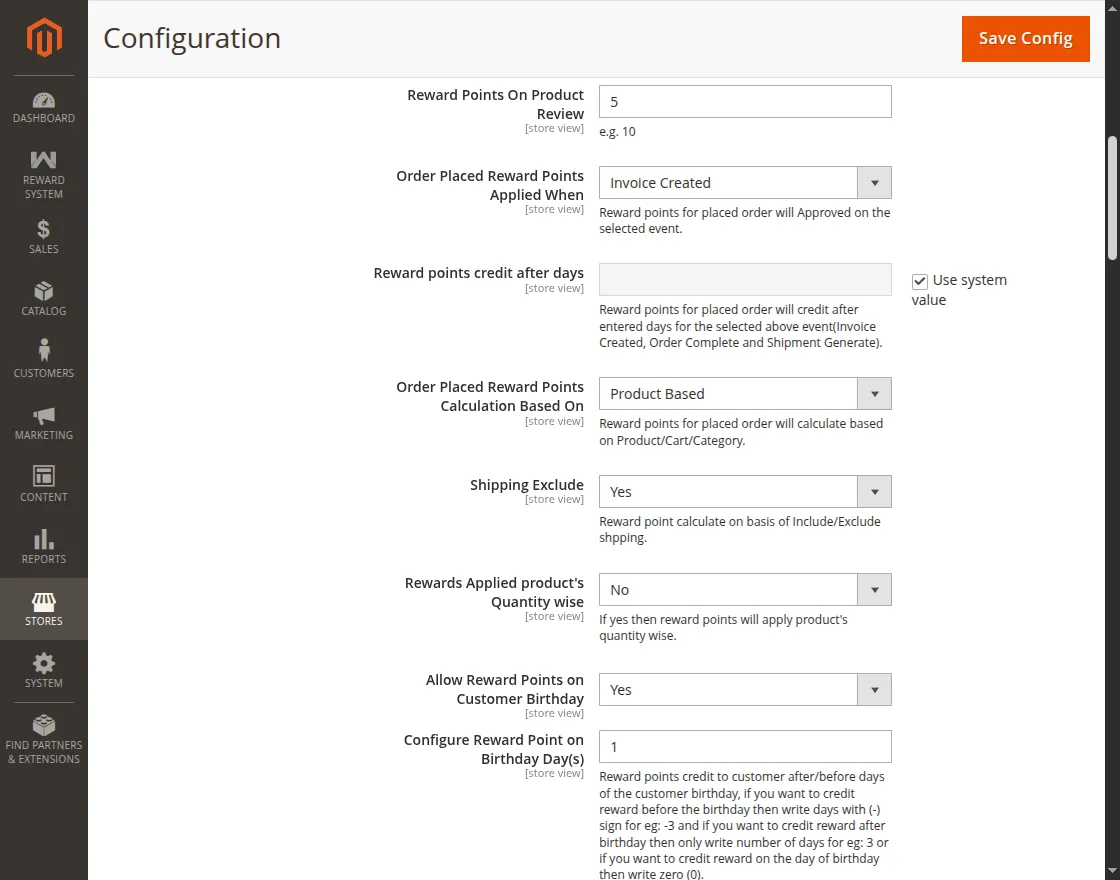
- Reward Points on Product Review: Set the number of reward points awarded for submitting a product review.
- Order Placed Reward Points Applied When: Select the order event when reward points should be applied.
- Reward Points Credit After Days: Set the number of days after which order-based reward points are credited.
- Order Placed Reward Points Calculation Based On: Select Cart, Product, or Category as the basis for calculating order reward points.
- Shipping Exclude: Select Yes to exclude shipping charges from reward point calculations.
- Rewards Applied Product Quantity Wise: Select Yes to calculate reward points based on product quantity.
Birthday, Expiry & Redemption Settings
- Allow Reward Points on Customer Birthdays: Select Yes to award reward points to customers on their birthdays.
- Configure Reward Points on Birthday Day(s): Set the number of days before or after the customer’s birthday to credit reward points, or enter 0 to credit them on the birthday.
- Reward Points on Birthday: Set the number of reward points awarded to customers for their birthday.
- Reward Points Expire After Days: Set the number of days after which reward points expire.
- Send Notification Before Points Expire (in Days): Set how many days before expiration customers receive a reward point expiry notification.
- Allow Reward Points Redeem With Discount Code: Select Yes to allow customers to redeem reward points with a discount code during checkout.
- Reward Points Redeem On: Choose whether customers can redeem reward points against the order total or product price.
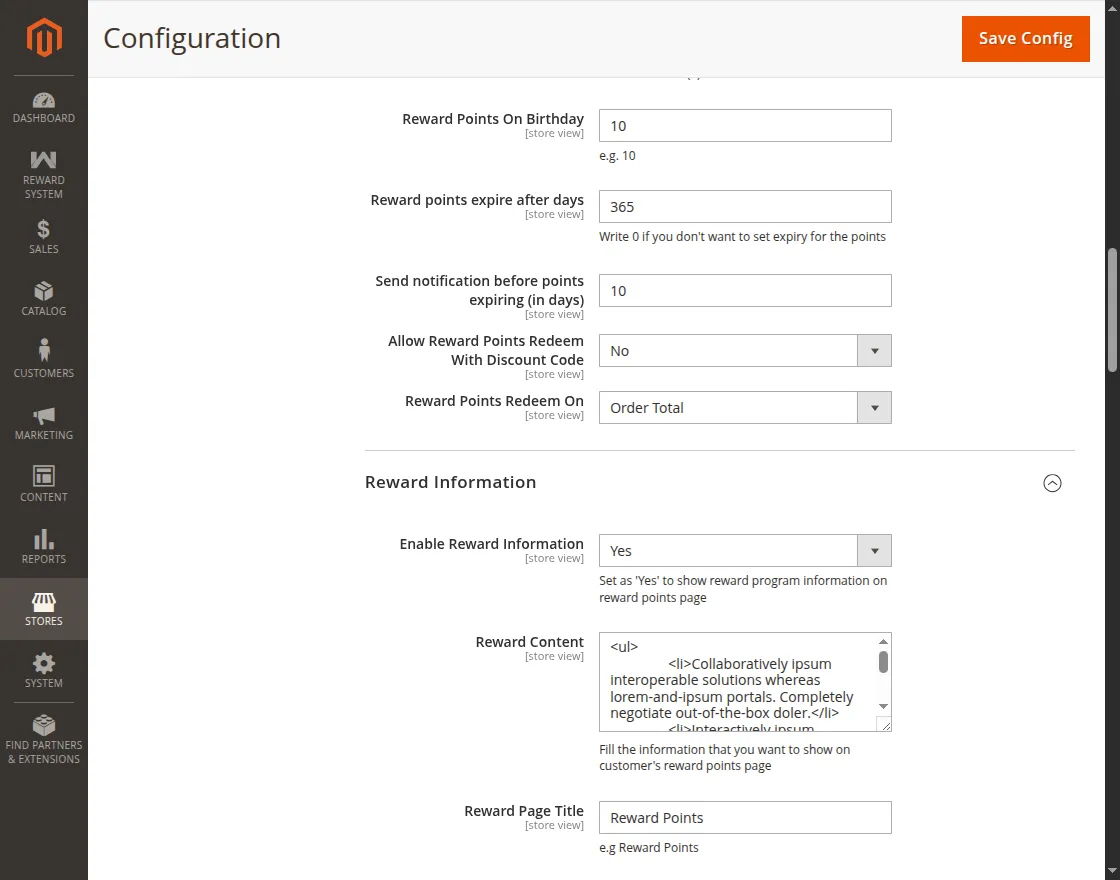
Reward Information
- Enable Reward Information: Select Yes to display reward program information on the customer reward points page.
- Reward Content: Enter the reward program information displayed on the customer reward points page.
- Reward Page Title: Set the title displayed on the customer reward points page.
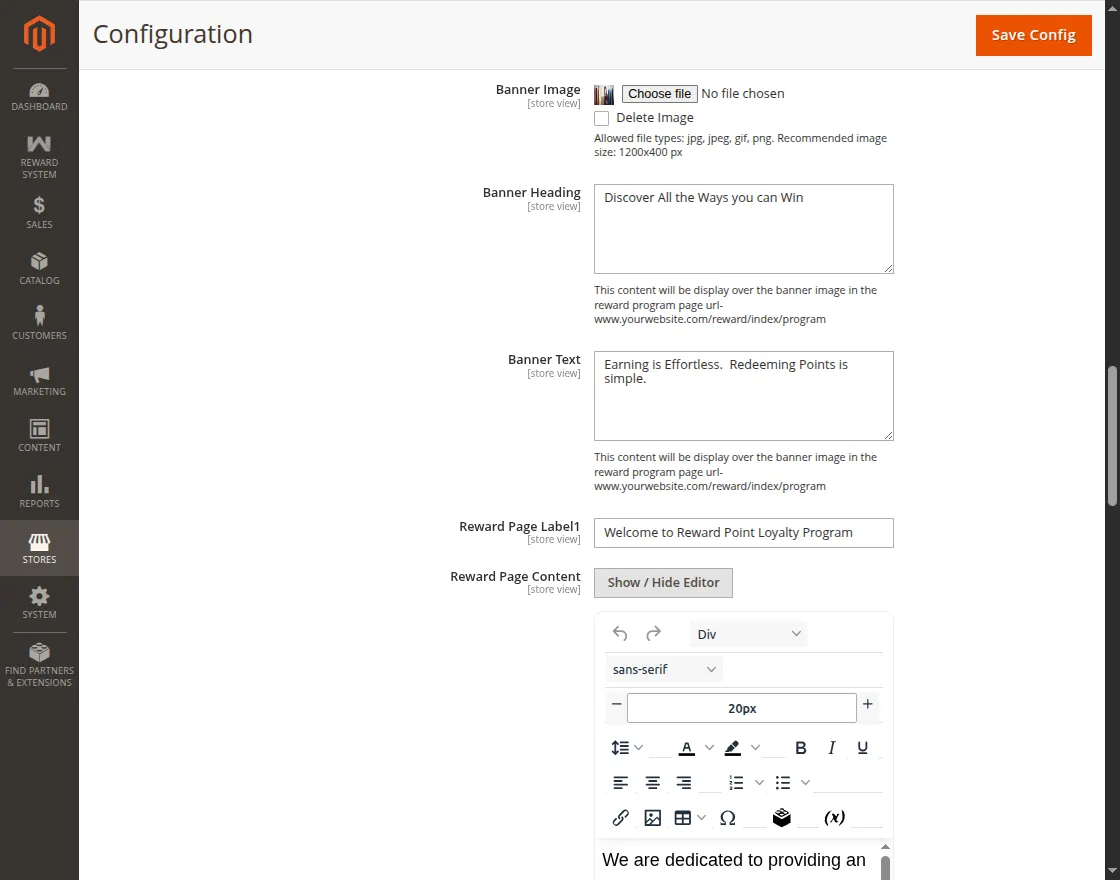
- Display Banner: Enable or disable the reward program banner on the reward points page.
- Banner Image: Upload the image displayed on the reward program banner.
- Banner Heading: Enter the heading displayed over the banner image.
- Banner Text: Enter the text displayed below the banner heading.
- Reward Page Label: Enter the label displayed in the reward program information section.
- Reward Page Content: Add content to display in the reward program information section.
- Reward Flow Image: Upload an image that explains the reward points earning and redemption process.
Referral Program
- Enable Referral Program: Select Yes to enable the customer referral program or No to disable it.
- Allow Reward Points for Referrer On: Select when reward points should be approved for the referrer.
- Reward Points for Customer: Set the reward points awarded to the referrer for a successful referral.
- Reward Points for Referee: Set the reward points awarded to the referred customer.
- Referral Program Content: Enter the information displayed on the referral program page.
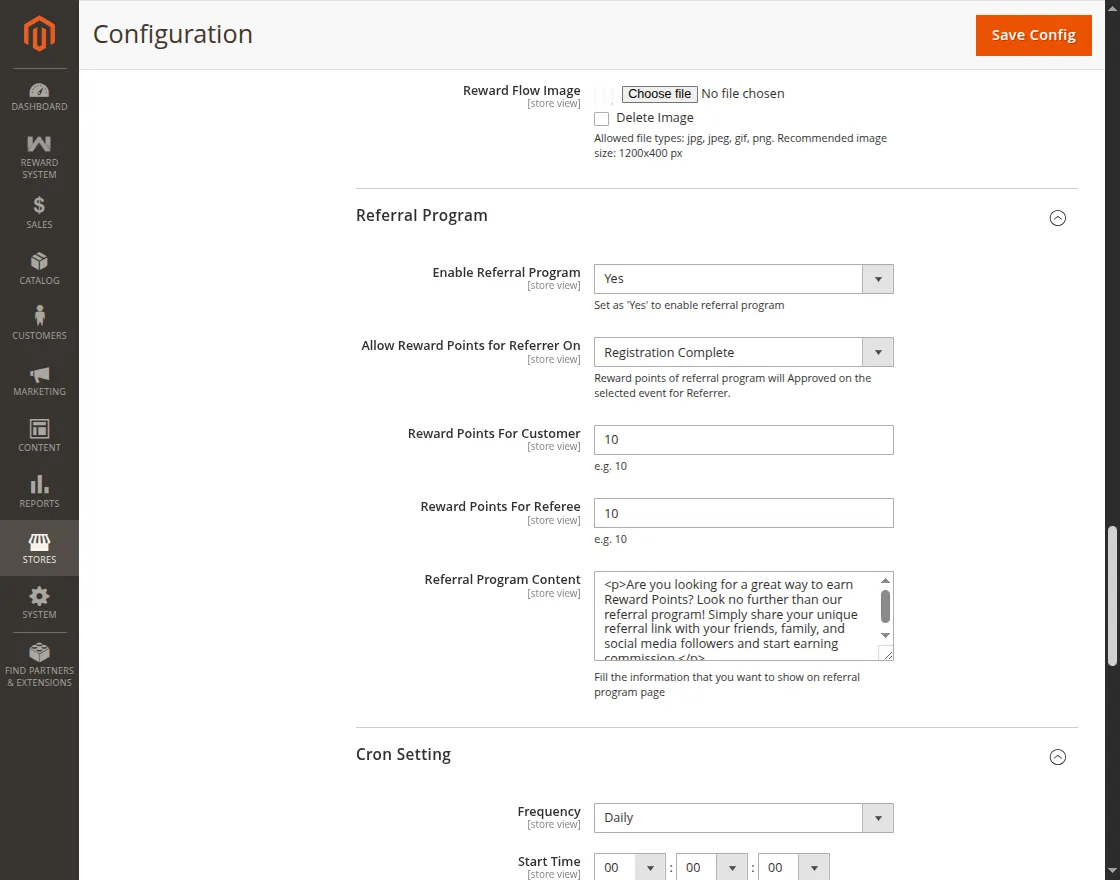
Cron Setting
- Frequency: Set how often the reward point cron job should run.
- Start Time: Set the time when the reward point cron job should start.
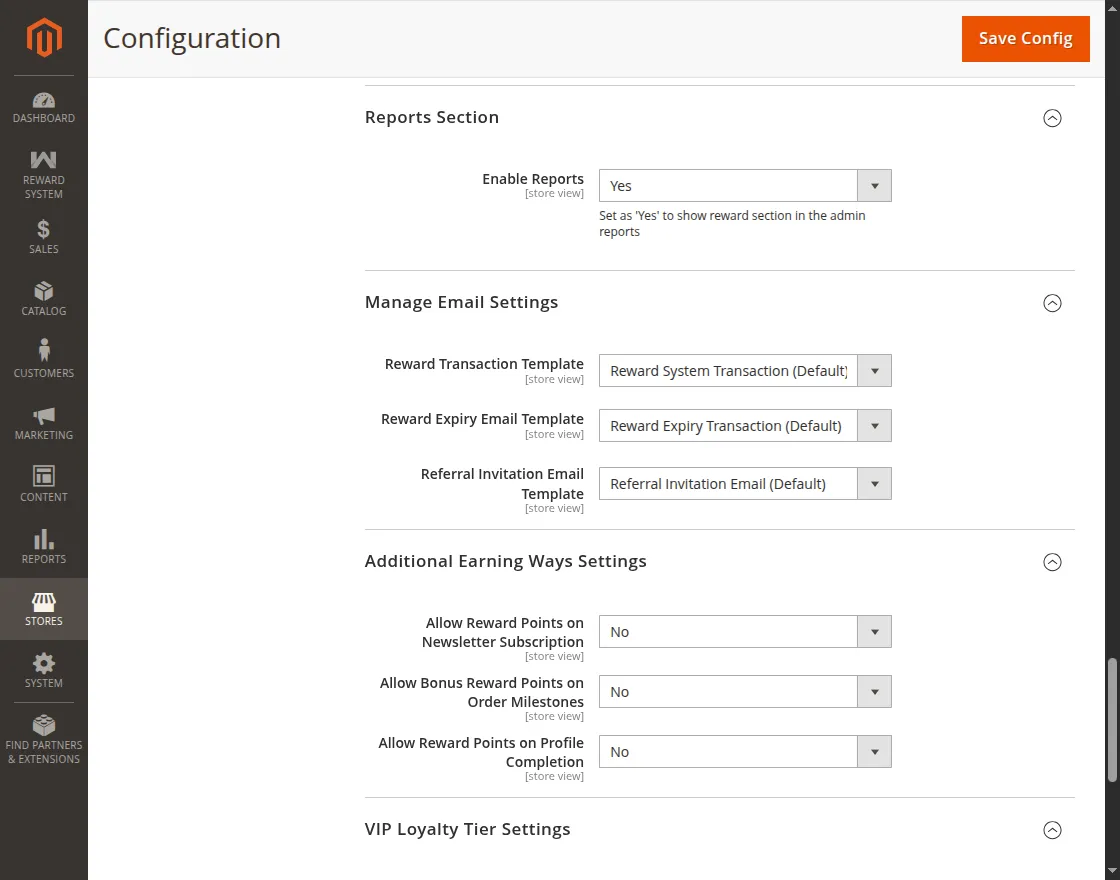
Reports Section
- Enable Reports: Select Yes to display reward point reports in Magento Admin or No to disable them.
Manage Email Settings
- Reward Transaction Template: Select the email template used for reward point transaction notifications.
- Reward Expiry Email Template: Select the email template used for reward point expiry notifications.
- Referral Invitation Email Template: Select the email template used for referral invitation notifications.
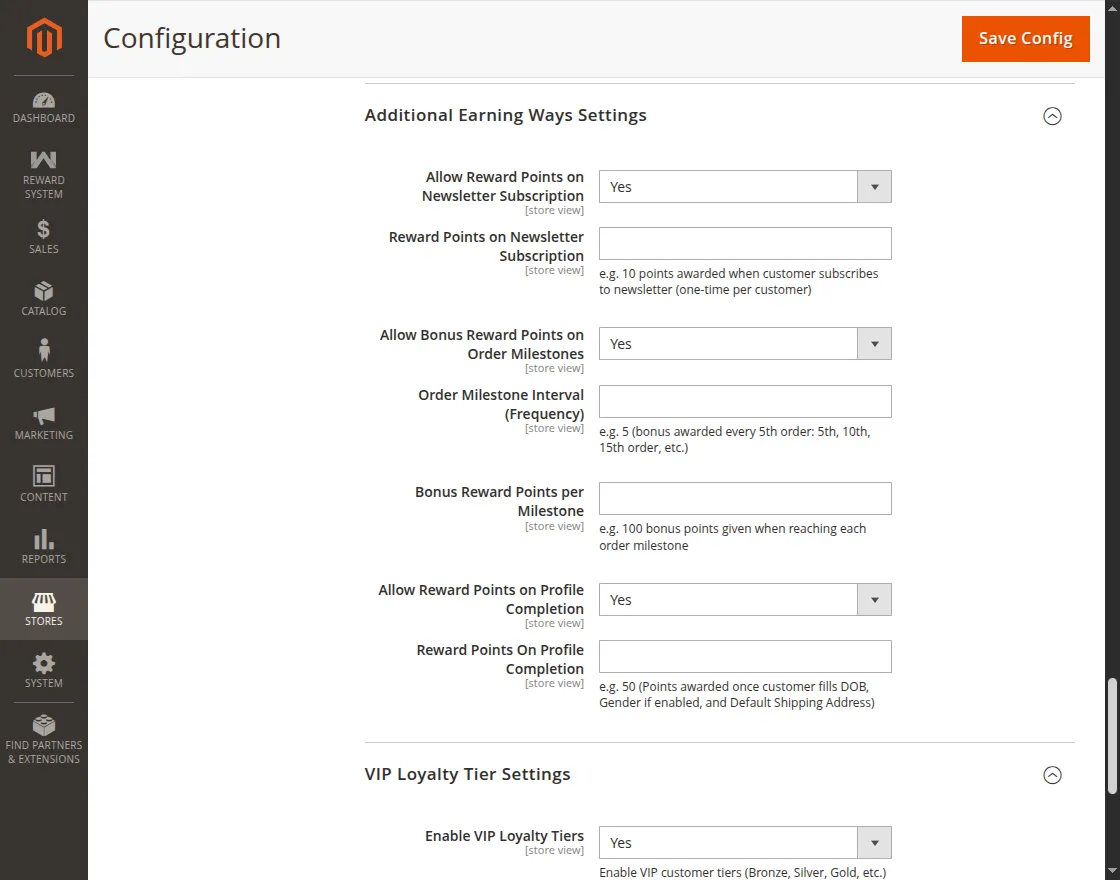
Additional Earning Ways Settings
- Allow Reward Points on Newsletter Subscription: Select Yes to award reward points when customers subscribe to the store newsletter.
- Reward Points on Newsletter Subscription: Set the reward points awarded for a newsletter subscription, credited only once per customer.
- Allow Bonus Reward Points on Order Milestones: Select Yes to award bonus reward points when customers reach defined order milestones.
- Order Milestone Interval: Set the number of orders required to trigger a milestone reward, such as every 5th, 10th, or 15th order.
- Bonus Reward Points per Milestone: Set the bonus reward points awarded each time a customer reaches an order milestone.
- Allow Reward Points on Profile Completion: Select Yes to award reward points when customers complete their required profile information.
- Reward Points on Profile Completion: Set the reward points awarded after customers complete the required profile information.
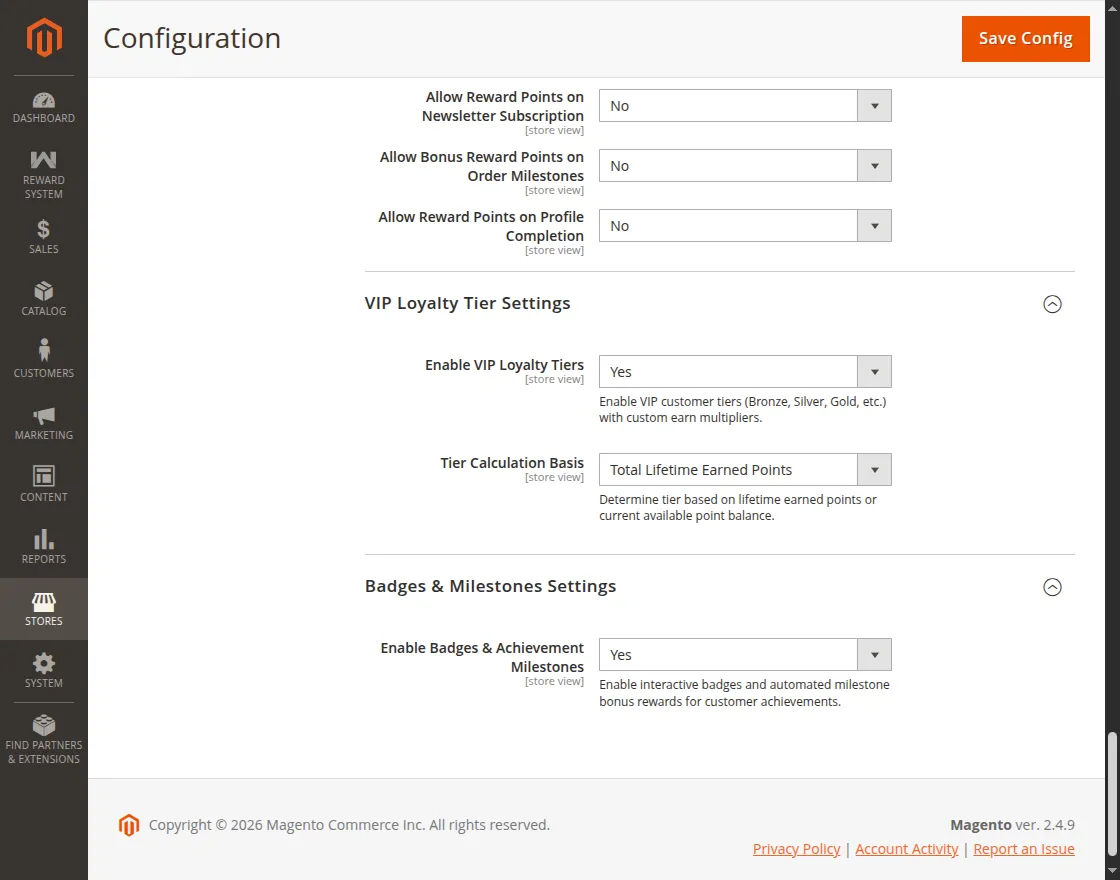
VIP Loyalty Tier Settings
- Enable VIP Loyalty Tiers: Select Yes to enable VIP loyalty tiers such as Bronze, Silver, and Gold.
- Tier Calculation Basis: Choose whether to calculate VIP tiers using lifetime earned points or the customer’s current available point balance.
Badges & Milestones Settings
- Enable Badges & Achievement Milestones: Select Yes to enable interactive customer badges and automatic milestone bonus rewards or No to disable them.
Reward System Analytics Dashboard
Reward System Analytics Dashboard helps admins analyze reward point activity, customer engagement, and loyalty program performance; access it via Module Menu > Reward System > Reward System Analytics Dashboard.
- View issued, redeemed, expired, active, and unredeemed reward points.
- Track monetary liability from unredeemed points.
- Analyze monthly reward point trends through charts.
- Compare orders with and without reward point redemption.
- View average order value (AOV) impact.
- View the top 10 customers by reward point balance.
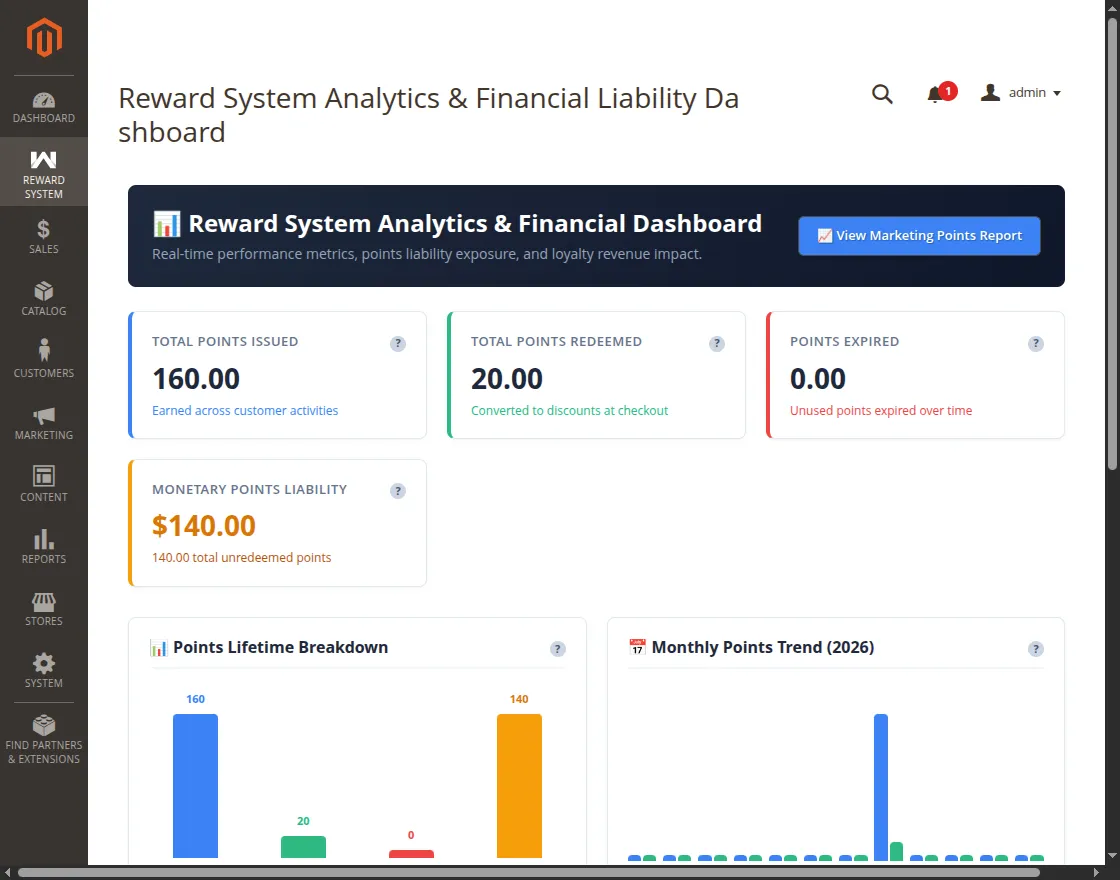
View Marketing Points Report
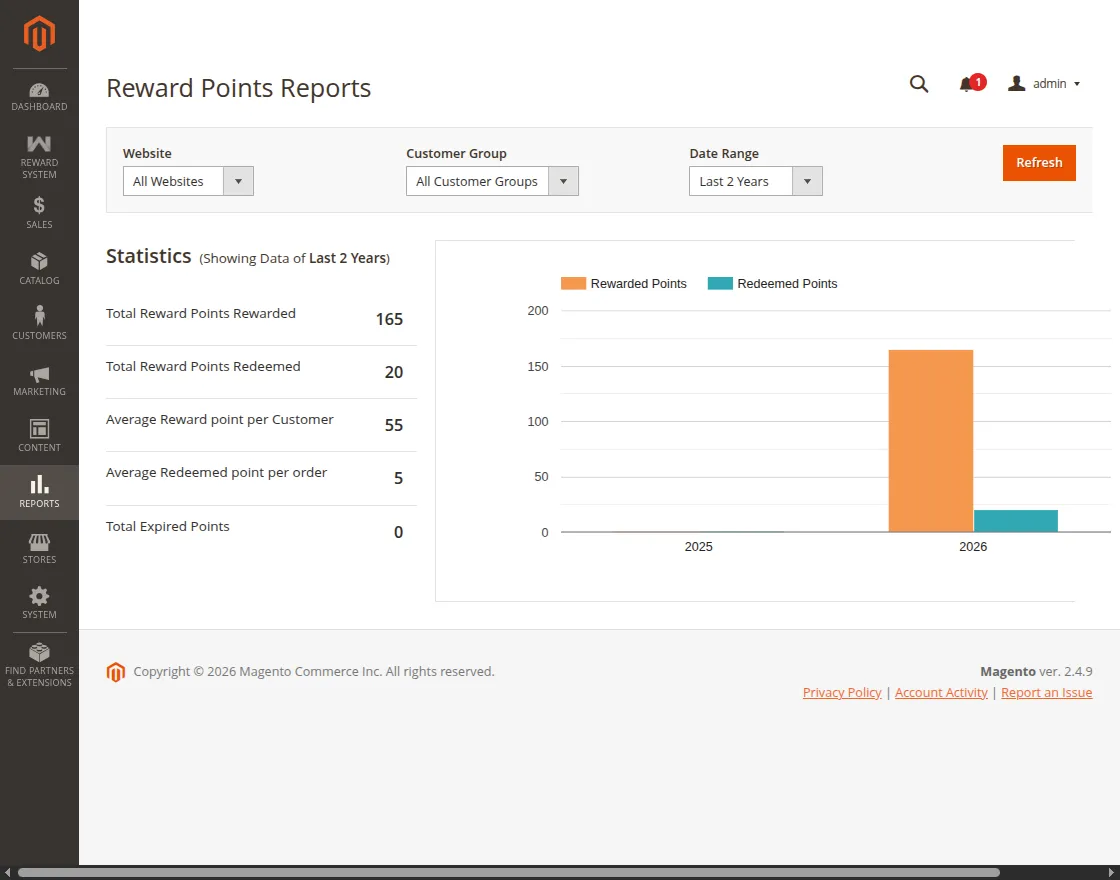
- Access View Marketing Points Report for detailed reward point analysis.
- Filter reports by website, customer group, and date range.
- Compare rewarded and redeemed points by year.
- View reward point statistics, including averages and expired points.
Product-Based Reward Points
Product-based reward points apply when Order Placed Reward Points Calculation Based On is set to Product-based.
Go to Reward System > Manage Reward Points on Product to manage product-based reward points.
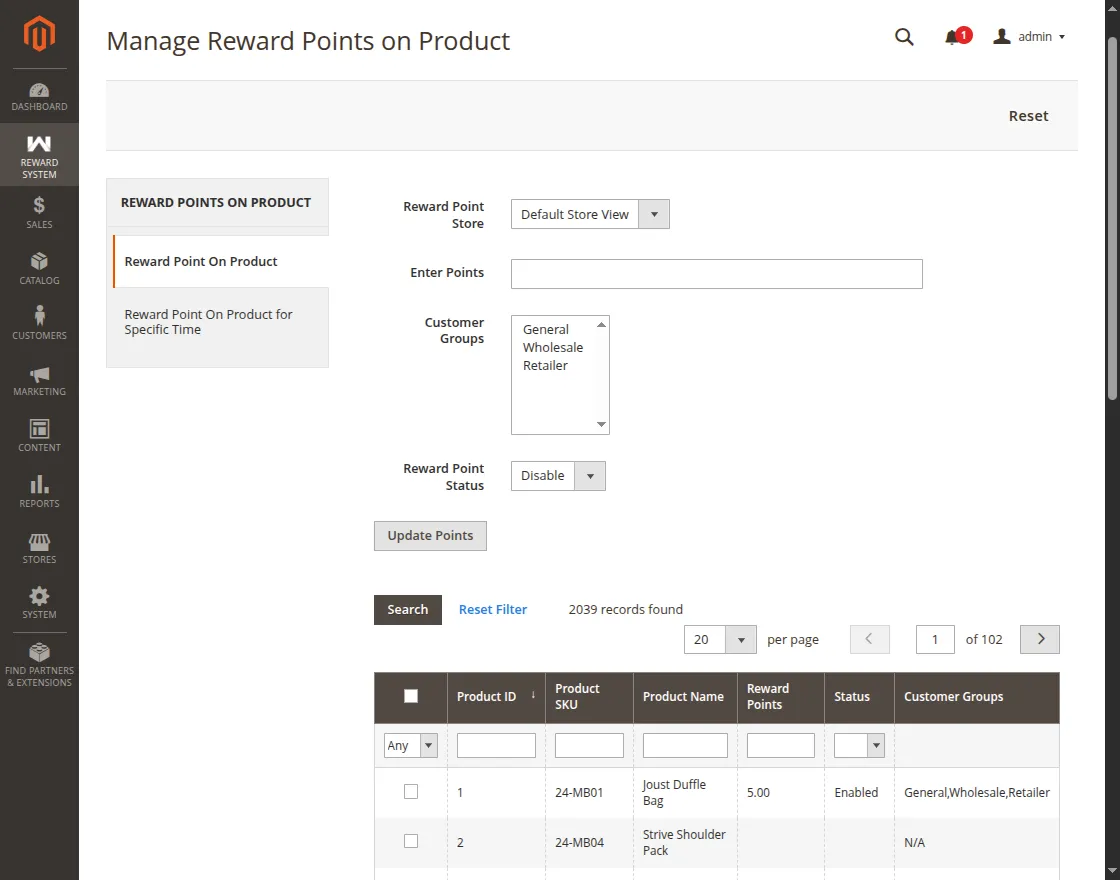
- Select one or more products.
- Enter the reward points.
- Enable or disable reward points for selected products.
- Click Update Points to save the changes.
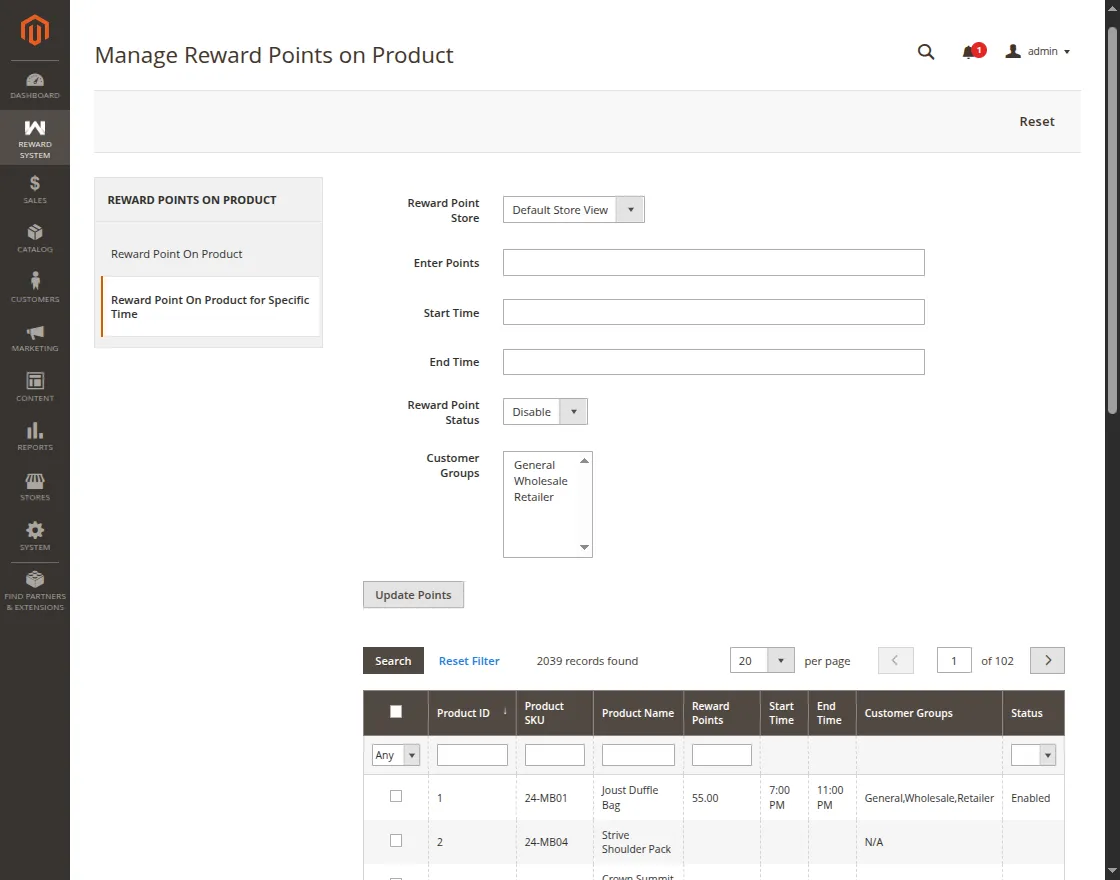
Reward Point On Product for Specific Time
Select products, set reward points with a start time and end time, and apply reward points for the configured period.
Category-based Reward Points
Category-based reward points apply when Order Placed Reward Points Calculation Based On is set to Category-Based.
Go to Reward System > Manage Reward Points on Category to manage reward points for product categories.
Reward Point On Category
Select one or more categories, enter reward points, enable or disable reward points, and click Update Points to save the changes.
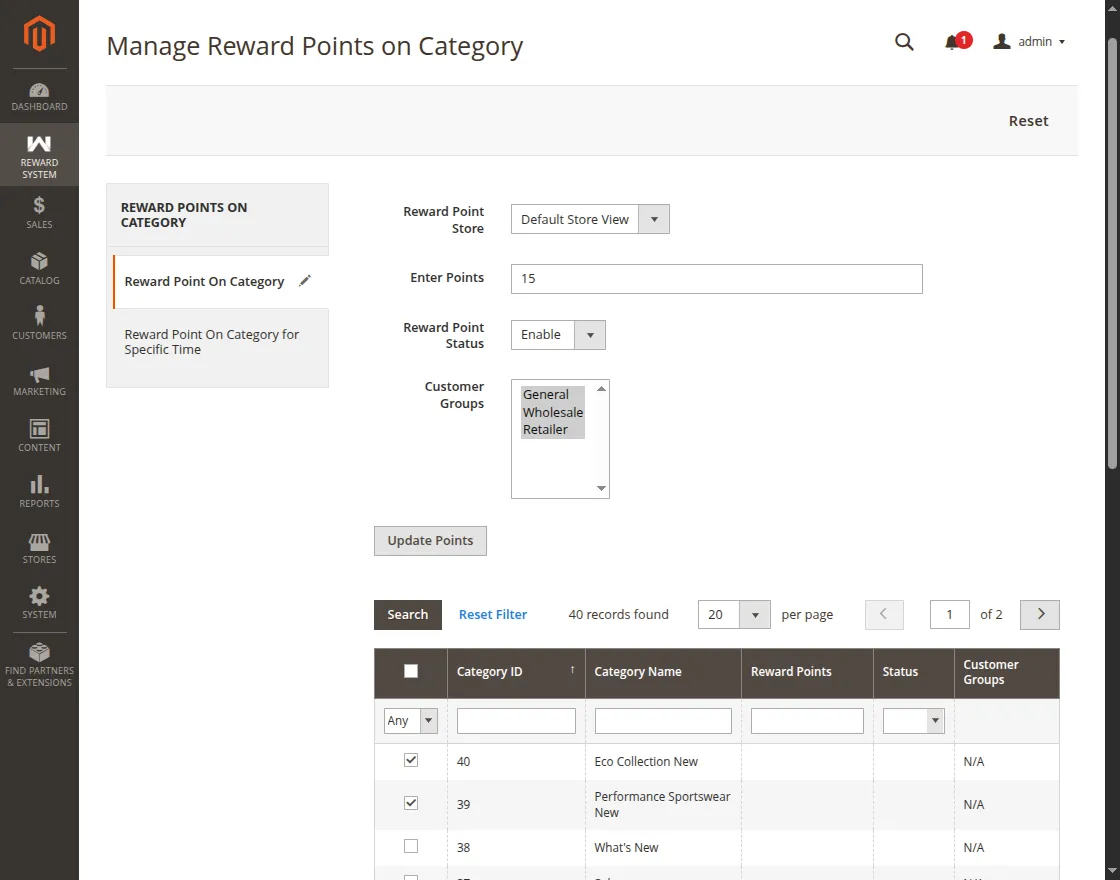
To manage the reward points based on category, the admin will follow:
- Select one or more than one category for which the admin wants to update the Reward points.
- Enter Points: Enter the reward points.
- Reward Point Status: Enable/Disable the reward points for the selected category.
- Proceed by clicking on the “Update Points” button.
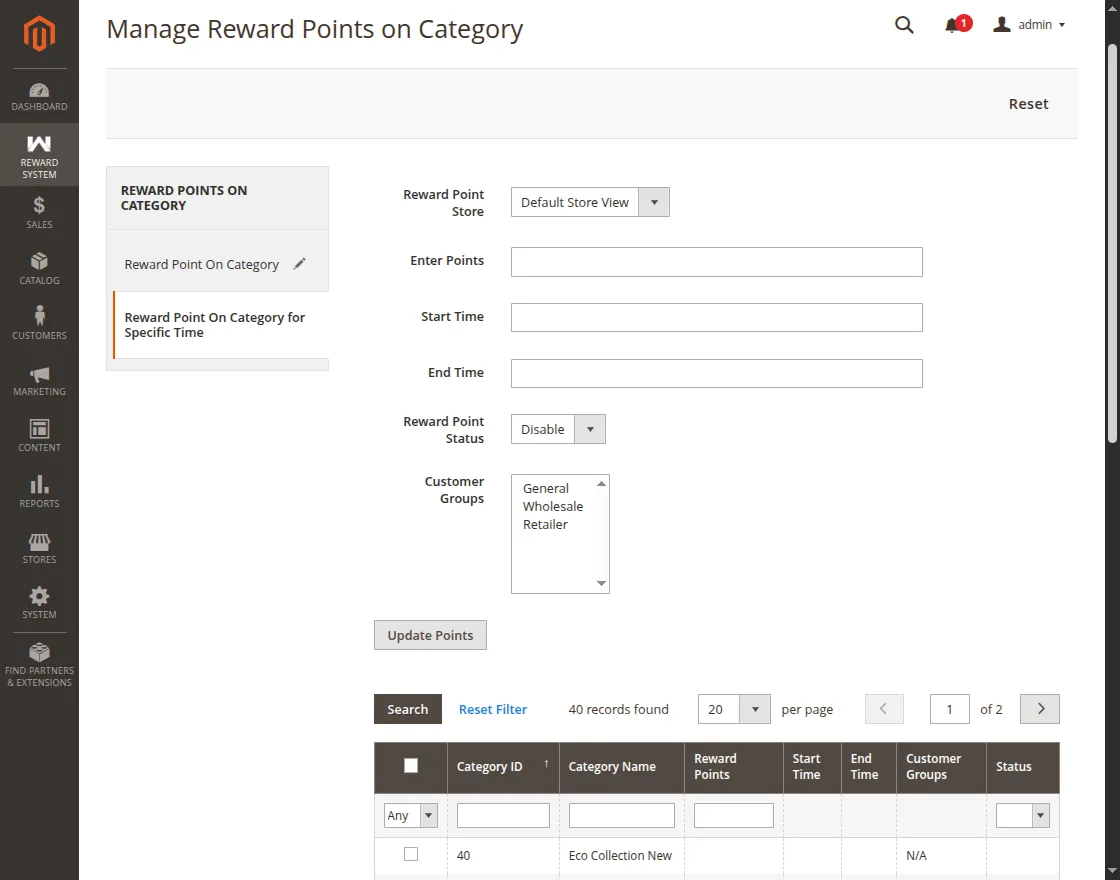
Reward Point On Category For Specific Time-
Select a category, set the reward points, and define a Start Time and End Time for the reward points.
Cart-based Reward Points Calculation
Cart-based reward points apply when Order Placed Reward Points Calculation Based On is set to Cart Based.
Go to Reward System > Manage Reward Points on Cart to manage cart-based reward rules.

- Edit Cart Rule: Click Edit to modify an existing cart rule.
- Update or Delete Cart Rule: Select the required action from the Actions dropdown.
- Add New Cart Rule: Click Add New Cart Rule to create a new cart-based reward rule.
Add New Cart Rule
Configure the following options when creating a new cart rule:

- Reward Point Type: Select Fixed or Percent as the reward point type.
- Reward Point: Enter the reward points awarded when the cart amount meets the defined rule conditions.
- Amount From and Above: Enable this option to apply the reward rule to the specified amount and all higher cart amounts.
- Amount From: Enter the minimum cart amount required for the reward rule.
- Amount To: Enter the maximum cart amount for the reward rule.
- Start From Date: Set the date when the cart reward rule becomes active.
- End Date: Set the date when the cart reward rule becomes inactive.
- Rules Status: Select Yes to enable the cart rule or No to disable it.
Note:
Cart Rule Amount Range : Avoid overlapping cart amount ranges when creating multiple cart rules. For example, if one rule covers 10.00–500.00, set the next rule to start from 501.00 or above.
Manage Reward Points on Attribute
Attribute-based reward points allow admins to assign reward points based on selected product attributes. First, go to Stores > Configuration > Webkul > Reward System > Order Placed Reward Points Calculation Based On and select Attribute-Based.
Manage Attribute-Based Reward Rules
Next, go to Reward System > Manage Reward Points on Attribute to view, manage, or add attribute-based reward rules.

Add an Attribute Reward Rule
Click Add to create a new attribute reward rule. Select the required product attribute, enter the reward points to be awarded to customers, and set the Rule Status to enable or disable the rule. Finally, click Save Attribute Rule to save the configuration.
Here, the admin can manage/ add a new rule for the reward points on the basis of the attributes as shown in the image below-

Manage VIP Loyalty Tiers
VIP loyalty tiers let you create multiple loyalty levels based on reward point thresholds. Each tier can offer a different earning multiplier and exclusive customer perks.
VIP Loyalty Tier Management
Go to Reward System > Manage VIP Loyalty Tiers to manage the available loyalty tiers.
From this section, admin can view existing tiers, create new tiers, update tier details, configure earning multipliers, manage tier status, and set the display order.
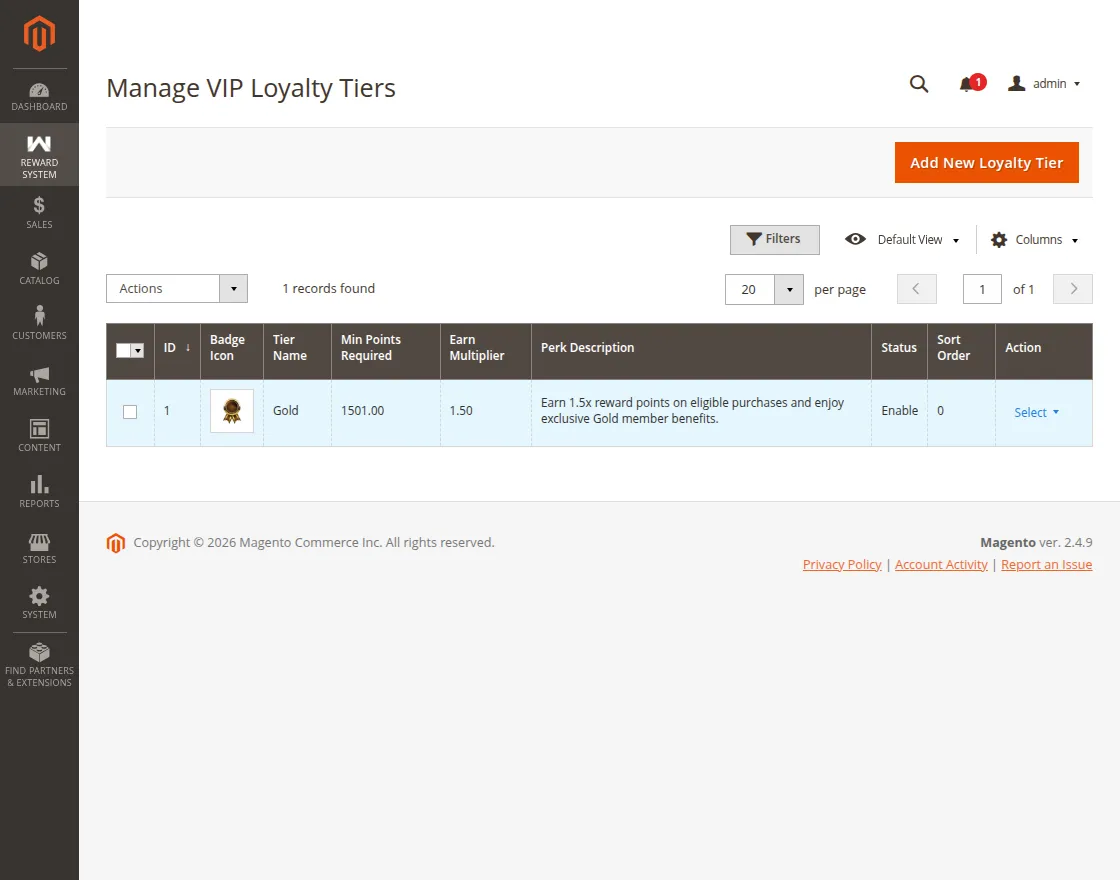
Add New Loyalty Tier
Click Add New Tier to create a new VIP loyalty tier and configure the following details:
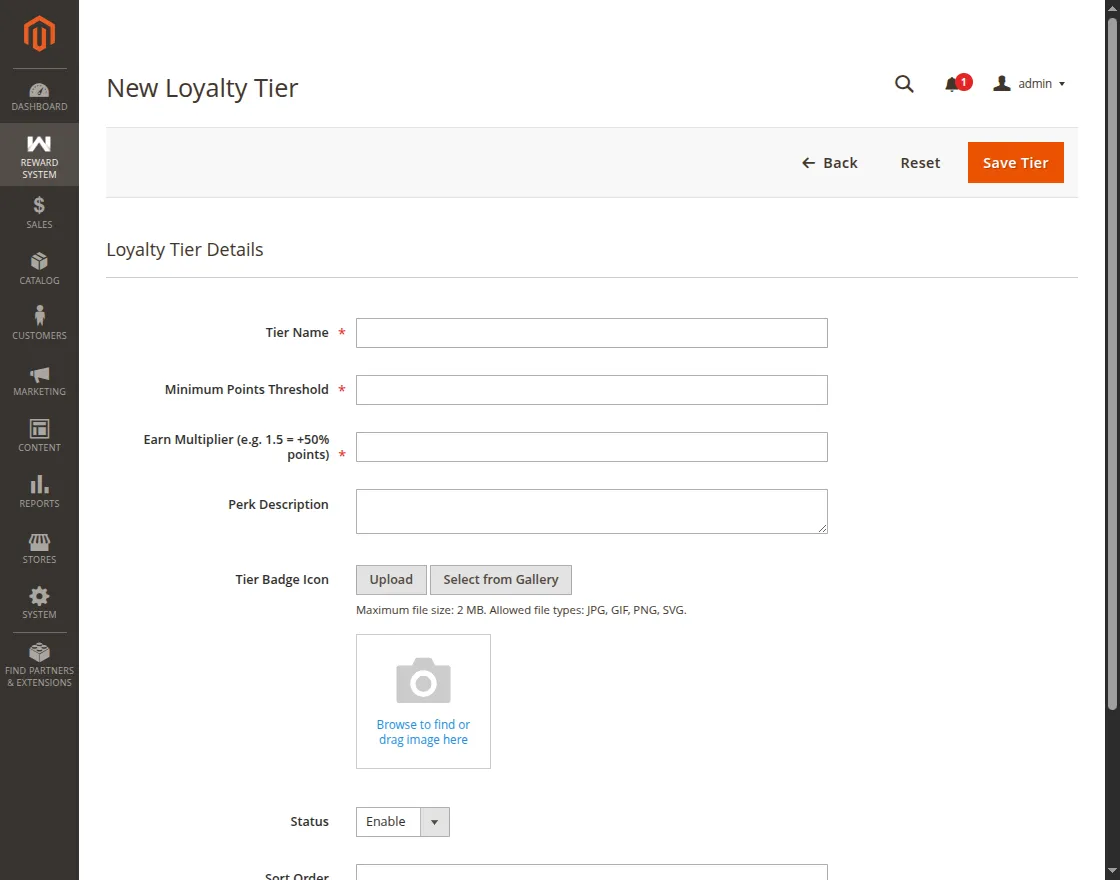
- Tier Name: Enter the name of the loyalty tier.
- Minimum Points Threshold: Set the minimum reward points required for the customer to qualify for the tier.
- Earn Multiplier: Define the points multiplier applicable to customers in the tier, such as 1.5 for an additional 50% points.
- Perk Description: Enter the benefits or perks available to customers in the tier.
- Tier Badge Icon: Upload a badge icon for the loyalty tier. The maximum file size is 2 MB, with JPG, GIF, PNG, and SVG formats supported.
- Status: Enable or disable the loyalty tier.
- Sort Order: Set the display order of the loyalty tier.
After entering the required details, click Save Tier to create the VIP loyalty tier.
Manage Badges & Milestones
Achievement badges and milestones encourage customer engagement by rewarding customers for completing activities such as purchases, product reviews, and other store interactions.
Badge & Milestone Management
Go to Reward System > Manage Badges & Milestones to view and manage achievement badges.
From this section, you can create new badges, configure milestone conditions, assign bonus reward points, upload custom badge icons, update existing badges, and enable or disable them.
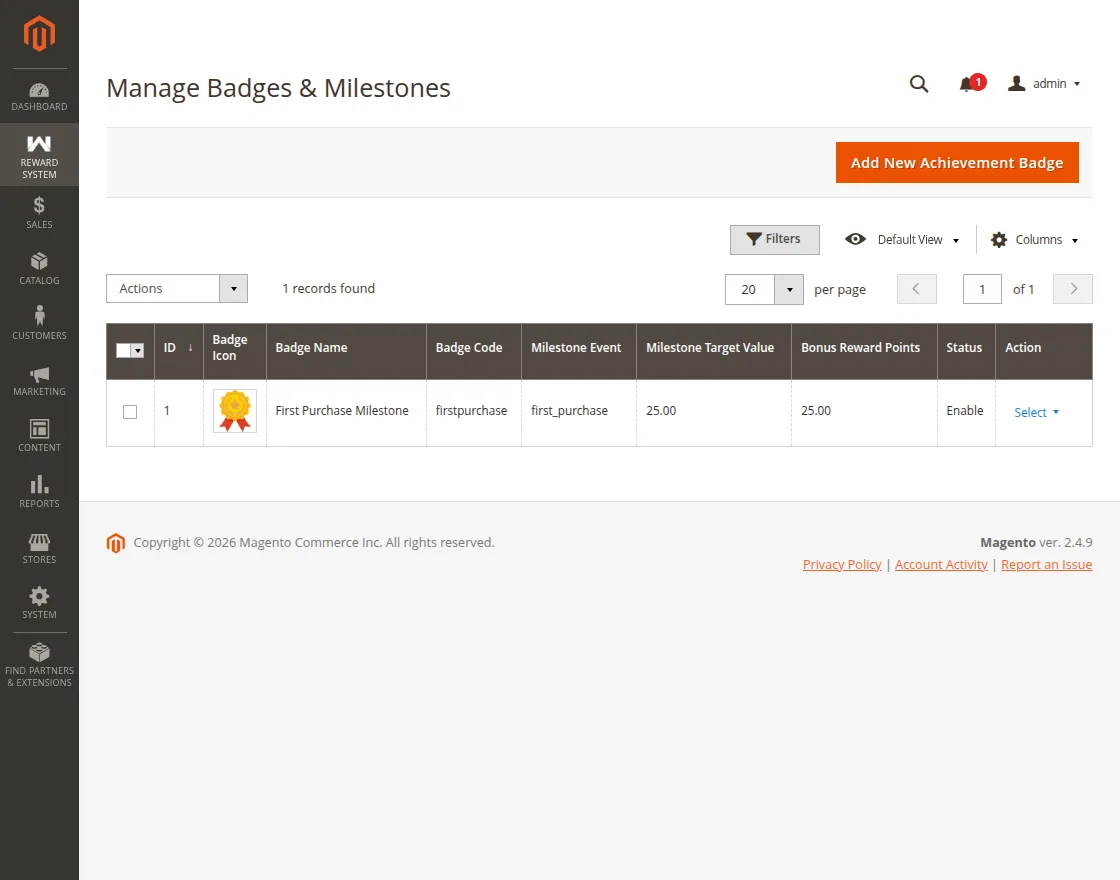
Add New Achievement Badge
Click Add New Badge to create an achievement badge and configure the following details:
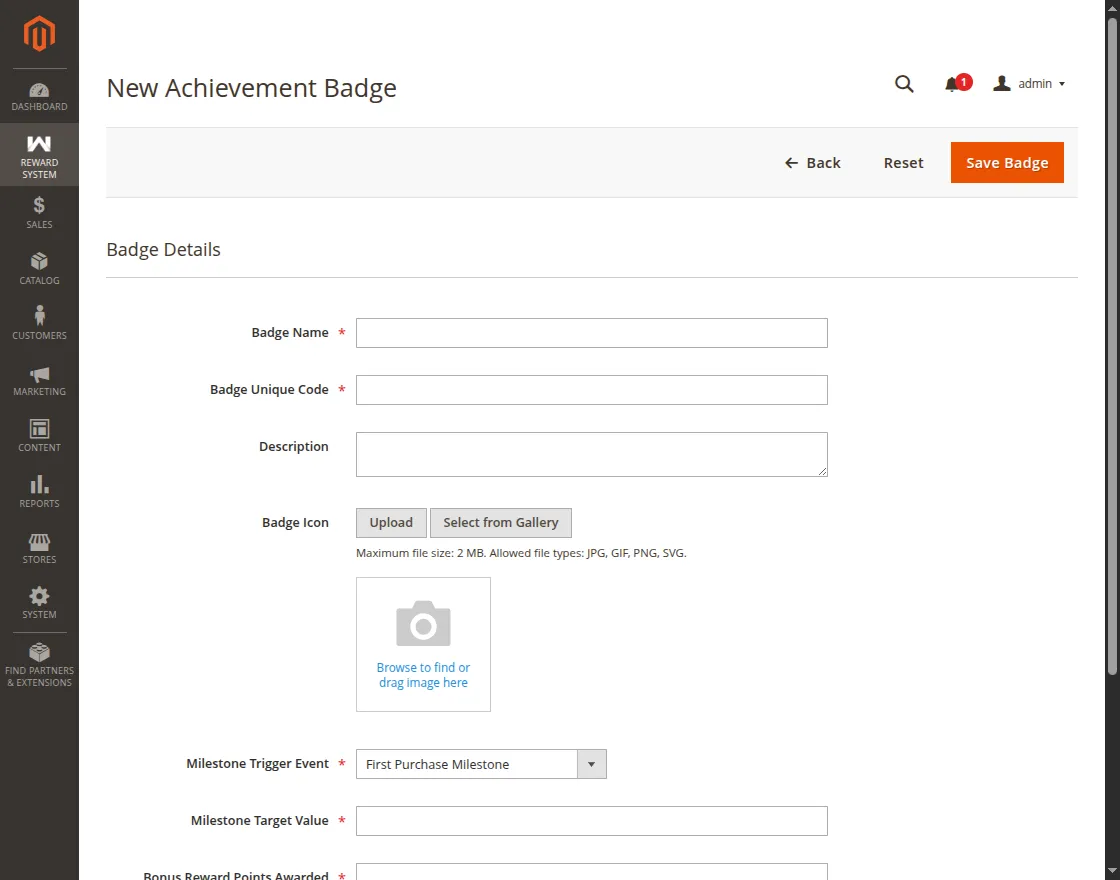
- Badge Name: Enter the name of the achievement badge.
- Badge Unique Code: Enter a unique code to identify the badge.
- Description: Add a brief description of the achievement.
- Badge Icon: Upload a custom badge icon in JPG, GIF, PNG, or SVG format with a maximum file size of 2 MB.
- Milestone Trigger Event: Select the customer activity that triggers the achievement.
- Milestone Target Value: Set the target value required to complete the milestone.
- Bonus Reward Points Awarded: Set the reward points credited after the customer achieves the milestone.
- Status: Enable or disable the achievement badge.
After entering the required details, click Save Badge to create the achievement badge.
Reward System Details
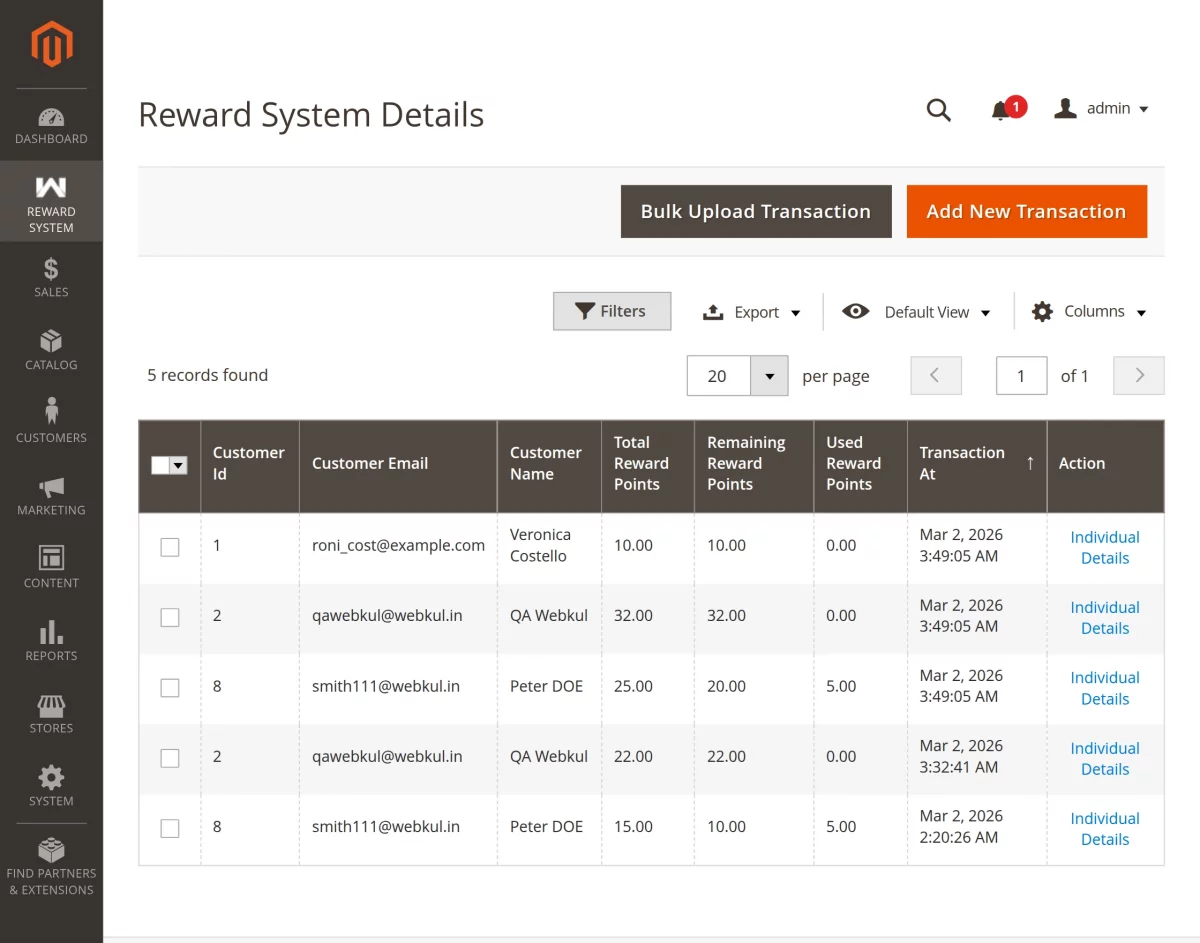
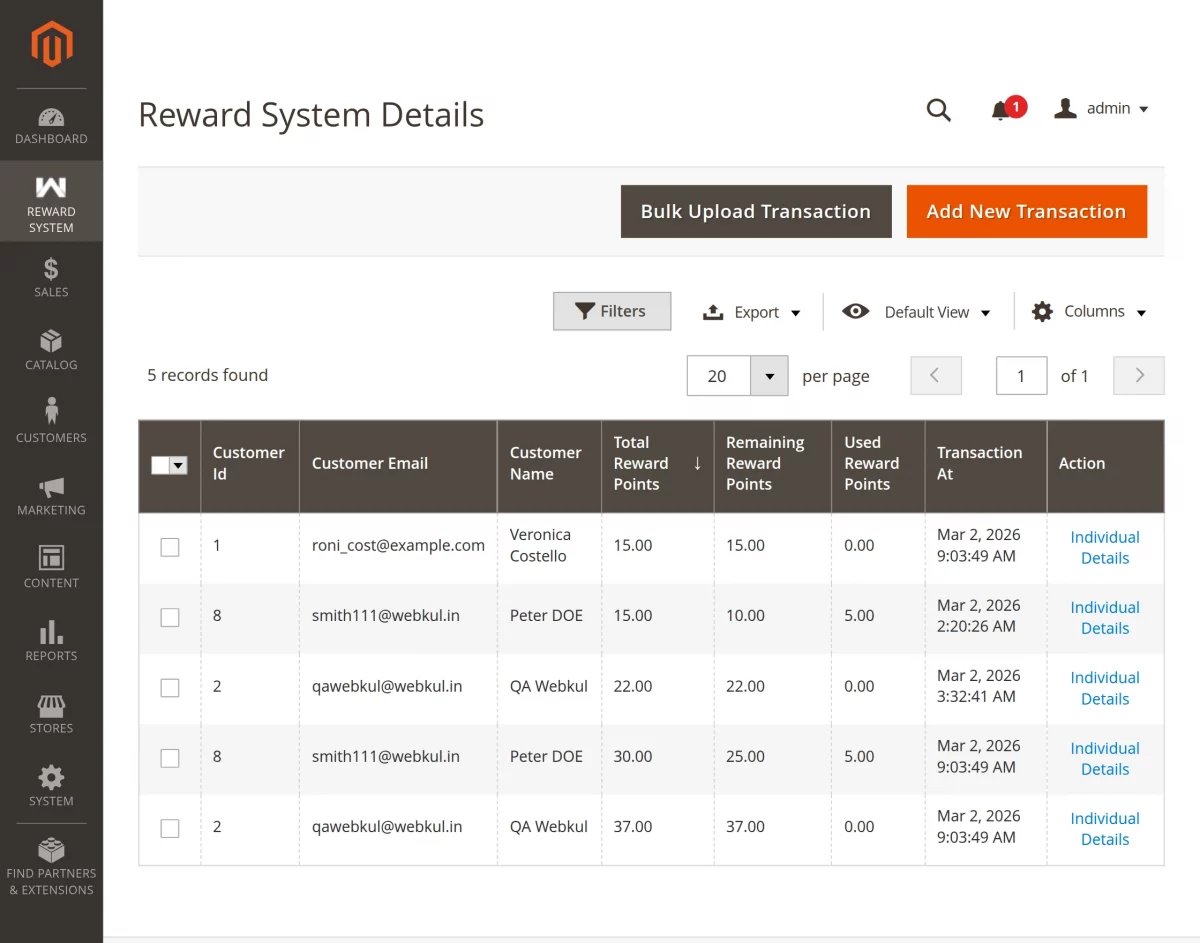
The Reward System Details page offers a complete overview of customer reward point transactions, including customer ID, customer name, total points, remaining points, used points, transaction date, and available actions.

Reward Point Transactions
Admins can view individual credit and debit transactions for each customer, along with the transaction date, time, and related order notes
Export Reward Point Reports
Go to Reward System > Reward System Details to export reward point reports in CSV or Excel XML format. Select one or multiple customer IDs and click Export to download their reward details.

Cron Functionalitsy of Magento 2 Reward Points:
To configure the cron functionality in the module admin needs to configure it from Stores> Configuration > Advance > System > Cron configuration for the group.
After configuration, the admin needs to run two commands for the cron functionality.

First Command –
php bin/magento cron:install
Second Command –
php bin/magento cron:run
Manage Product Reviews for Reward Points
Customers can earn reward points for approved product reviews when Allow Reward Points on Product Review is enabled.
Go to Marketing > Reviews to manage customer product reviews and approve eligible reviews for reward points.

Select multiple reviews to delete them or update their status in bulk. Use the Actions dropdown to choose Delete or Update Status, select Approved, Not Approved, or Pending, and click Submit to apply the changes.
You can also click New Review to add a review or Edit to update an existing review.
Tracking Reward Points
This module enables the feature of tracking the reward points with the complete details of credit and debit reward points of every customer. The admin as well as the customers can track the reward points.
Tracking – Admin End
Admins can track each customer’s reward points by navigating to Reward System > Reward System Details. On this page, they can view the customer’s reward information and transaction details.

The “Reward System Details” page will display the customer list along with reward points details. The admin can click on the “Individual Details” link against any customer to view the complete reward points details.
This will display the complete reward points details for every credit and debit of reward points.

Credit/ Debit Rewards-
Here, the admin also has an option where the admin can credit or debit the reward points to a customer. To credit or debit the reward point to a customer the admin can click on the Add New Transaction button.

The admin needs to fill in the details to credit or debit the reward points. The admin can select Prefered Action as Credit or Debit, enter the Reward Points, and add a note message.

Now, the admin can click on the Add Selected Customers, to add the customers for whom the admin wants to credit or debit the rewards.

Now, the customers will add to the transaction list and the admin can click on Save Transaction.

Thus, the credit points will add to the customer’s account. The customer can see the reward details from the My Rewards Point.
Manage Reward Points Redeem Rule:
Admins may manage reward points and redeem rules based on product price.

To create new reedem rules, click on the add new reedem rules button and then enter the details shown in the below image.

You have the option to select the product price from and to, or from and above.

Bulk Upload Reward – Admin End :
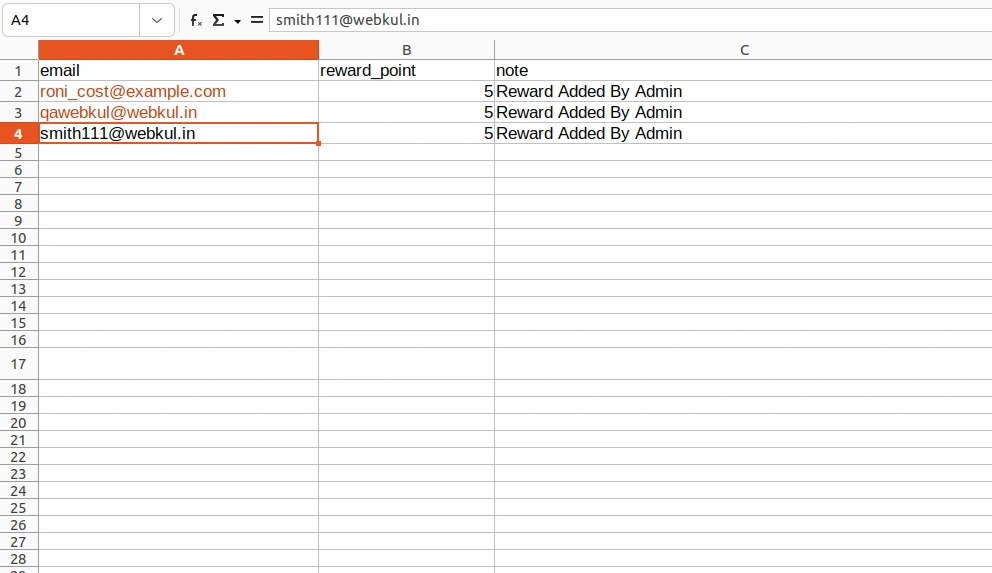
CSV Bulk Upload Reward Transaction feature for Admin to upload multiple reward transactions at once. This makes the process faster, easier, and more efficient.
Step 1: Go to Reward System
From the left admin panel, click on Reward System to open the reward management menu.
Step 2: Open Reward System Details
Select Reward System Details to view customer reward transactions and access available management options.
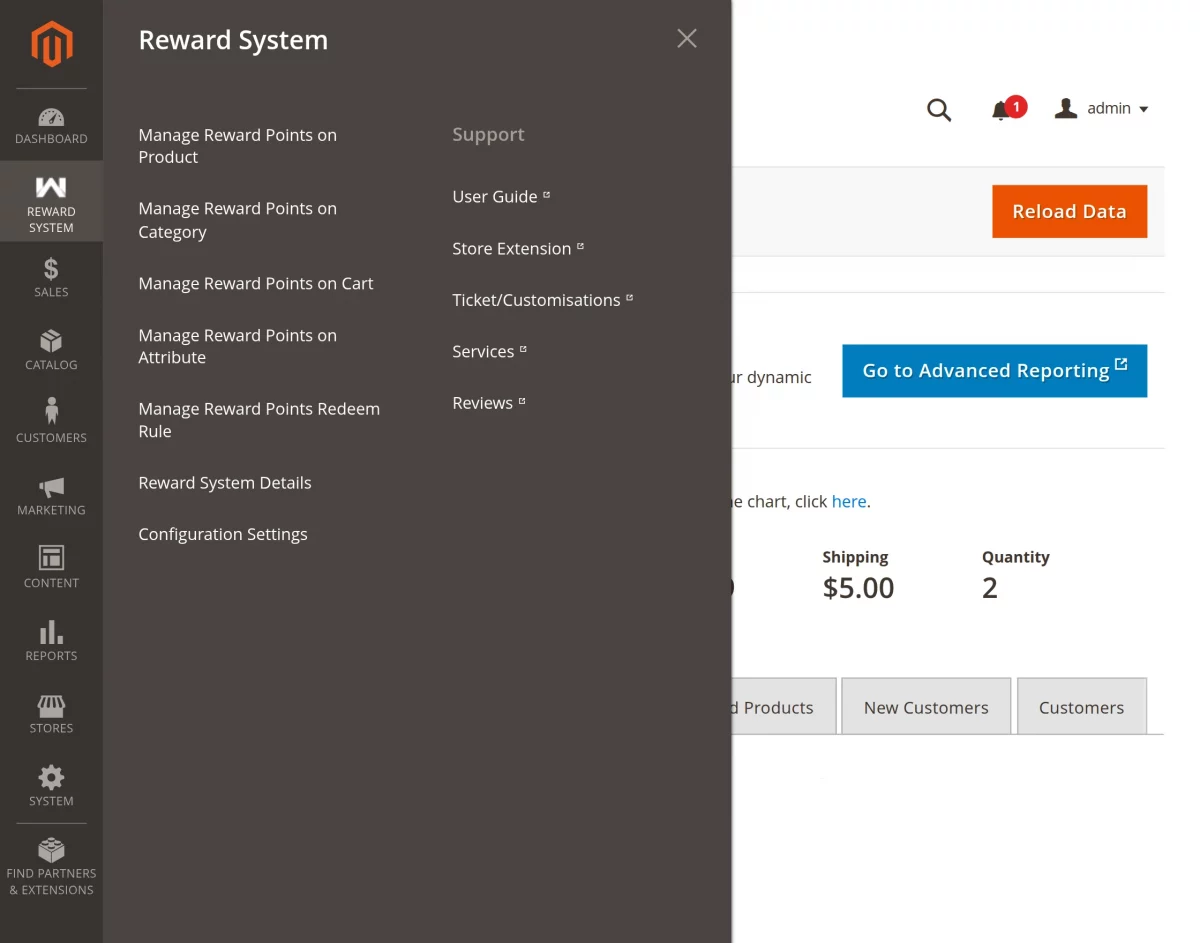
Step 3: Click on Bulk Upload Transaction
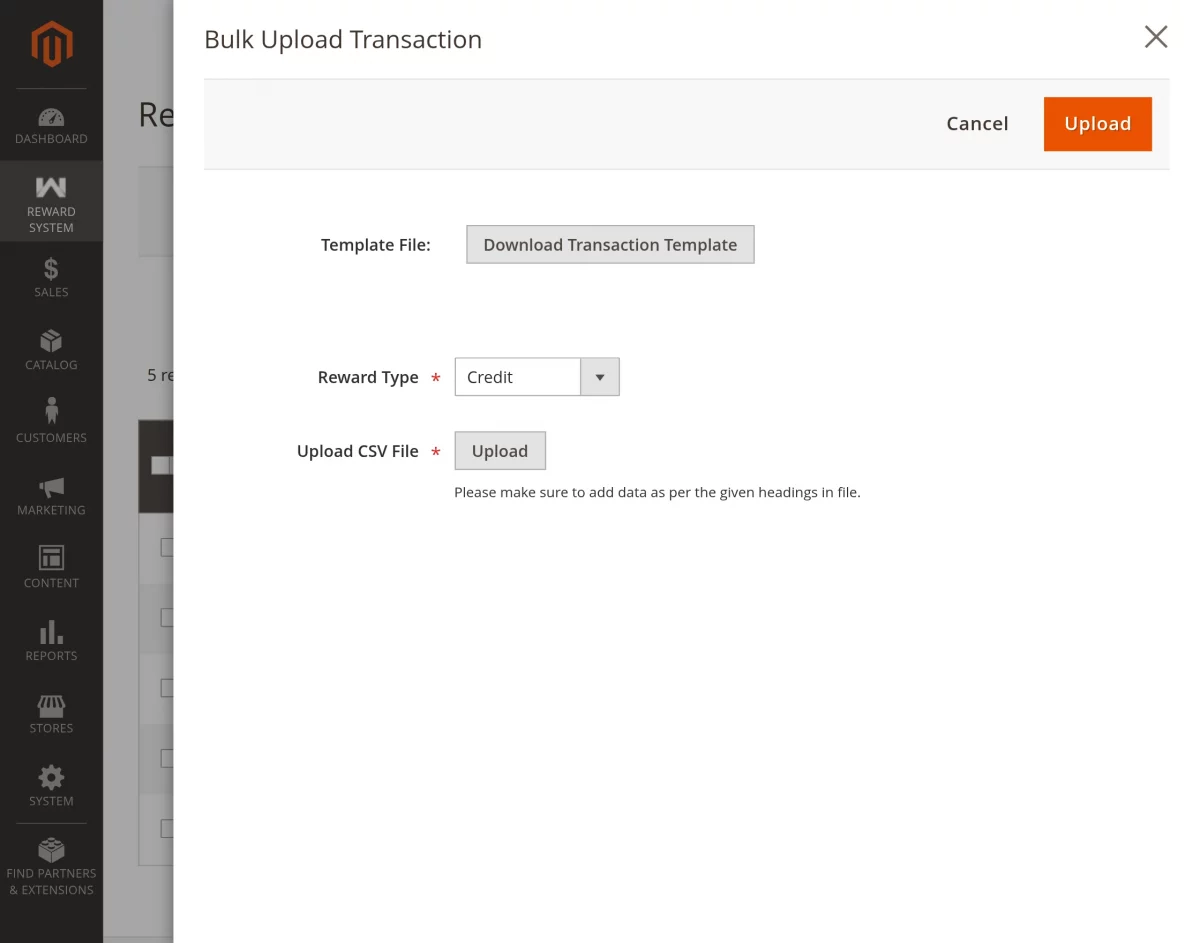
On the Reward System Details page, click Bulk Upload Transaction to open the bulk upload popup.
Download the template (if needed), choose the reward type(credit, Debit, or expired), upload your CSV file, and click Upload to process the transactions.
The CSV file has been uploaded successfully, and bulk reward transactions have been processed.
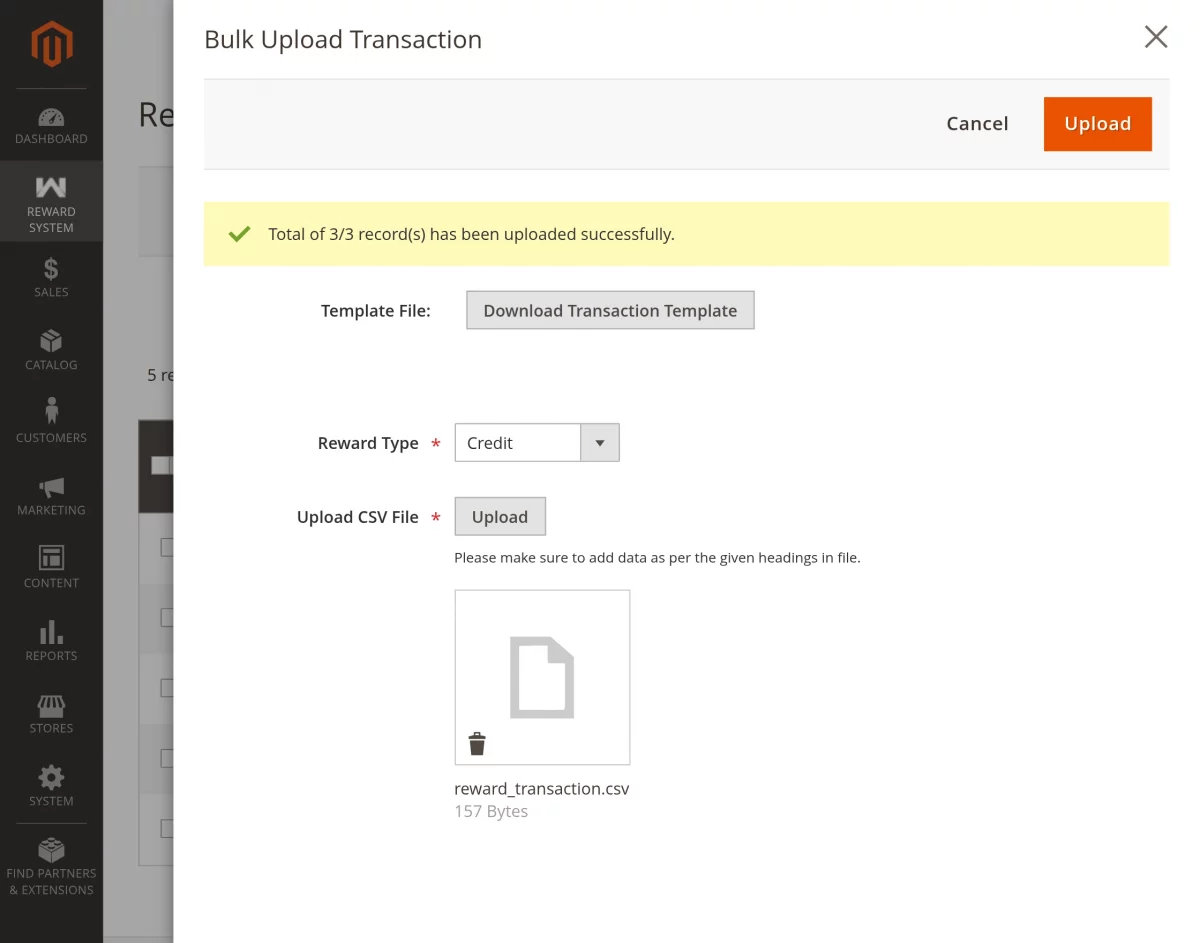
All reward points are now updated in the system as per the uploaded data.
Here is an example for the Magento2 Reward System, Bulk upload file.
Reward Points Loyalty Program: Customer End
Customers can earn reward points for registration, purchases, birthdays, product reviews, referrals, and other configured activities. Available rewards depend on the settings enabled by the store.

Registration Reward Points
When Allow Reward Points on Registration is enabled, registered customers can earn reward points for creating an account. Guest users must register before receiving registration rewards.

After logging in, customers can view their reward points from Reward Points in their account and receive reward notifications by email.

Customers can filter transactions by Type, Points, and Status and sort the available reward point records.

Birthday Reward Points
Customers can receive birthday reward points based on the configured birthday reward settings. Points can be credited before, on, or after the customer’s birthday.
Customers can view their birthday reward points from the Reward Points section and receive email notifications about the credited points.

Reward Point Expiry
Customers can view the expiration details of their reward points and receive notifications before their points expire, based on the configured expiry settings.

Referral Program
Customers can view their referral activity in the Referral Program section. From there, they can invite friends by entering their email addresses.
Customers can also copy their referral links and share them through available social media options.

How can Customers use their Reward Points?
This module enables customers to earn Reward Points by:
- Registration on the web store site.
- Submitting/posting product reviews( approved by admin required)
- Specific product purchase.
- Customer’s total purchase.
- Specific product category purchase.
Customers can easily use their allocated Reward Points while placing an order. For this, the customers will navigate to the checkout page as per the image.

Here, customers can use their reward points if they want to. Under the “Reward Points” section the customers can also enter the rewards points they want to use while placing an order.
And before applying their reward points, the customers can check the amount equivalent to their entered reward points value.
Then, the entered amount will be deducted from the cart’s total amount.

However, the entered reward points value should be less than or equal to the reward point limit set by the admin. If not then the customer will get an error message.
NOTE:
- For every debit and credit of Reward Points, the customer will get an email notification on their registered email id.
- Customers can check their reward points by clicking on the “Reward Points” through their accounts.
Magento 2 Reward Point – Product Page
However, the customer can view the reward points required on both the product and cart pages.
The customer can view the reward that will be required on the purchase of the product.

The reward points will also display in the mini shopping cart as per the screenshot below.

Furthermore, customers can get reward points on the basis of the product they carry in their cart while checkout.

Here the customer can view the reward points that they will accrue while they purchase the product. However, the customer can view the number of reward points deducted from their purchase.
Herein, if the customer can purchase the product even if the reward balance is low.
For example, as shown below the customer had 50 rewards. Thus, 50 rewards were deducted and the rest amount was paid via other payment methods.

Note:
If the admin has set the “Rewards Applied Product’s Quantity Wise” option to “Yes” then the reward will be applied product quantity-wise.
For example, if the customer has purchased 2 quantities of P1 product and the reward point per quantity for product P1 is set to 25 reward points by the admin. Then, the customer will get 2 x 25=50 reward points.

Otherwise, if the admin has set the “Rewards Applied Product’s quantity Wise” option to “No” then the reward will not be applied to the product’s quantity wise.
Whatever quantity of a product the customers will purchase, reward points will be credited only for the single quantity of a product.
For example, if the customer has purchased 2 or can say 10 quantities of product P1. The reward point per quantity for product P1 is set to 25 reward points by the admin. Then, the customer will get 1 x 25=25 reward points only.
Shopping cart of Magento 2 Reward points
The customers can get the reward points based on their cart amount. For this, the customer’s cart total amount should meet the defined cart rule amount of the admin.

Reward points will be credited to the customer’s account after the successful order is placed. If the customer’s cart total amount after purchase meets any of the defined cart rules by the admin.
For which the customers get notified via email. Also, they can check it by clicking on the “Reward Points” option in their accounts.

Related Products
Now, when a customer will purchase an item and the admin has set that product under the reward attribute. Once the admin generates the invoice, the reward will add to the customer’s rewards point after


The customer can see the reward point on the product catalog and also can see the received rewards points on that product from the My Reward Points.
Review and Payments – Magento 2 reward Point
Customers can get reward points on the basis of the product category they carry in their cart while checkout.

However, the reward points will be allocated to the customers after the successful order is placed. For which the customers get notified via email. Also, they can check it by clicking on the “Reward Points” option in their accounts.

NOTE: WHEN A SINGLE PRODUCT BELONGS TO MULTIPLE CATEGORIES
If the customer’s cart carries a product P1 which belongs to more than one category say C1 and C2.

And, the reward points are set as 5 for category C1 and 10 for category C2 by the admin.
Then, the reward points for the category with the highest reward points value will credit to the customer’s account ie; 10 reward points for category C2.

Product Review
For this, the customers need to navigate to the product page for which they want to submit the product reviews.

Under the “Review” section, the customer can fill in the product review details and can submit it by clicking on the “Submit Review” button.
Once the admin approves the product reviews, customers can check their reward points for product reviews. For which the customers get notified via email.
Additionally, they can check it by clicking on the “Reward Points” option in their accounts.


Tracking – Customer End
The customer can track their reward points along with the complete details of every credit and debit of reward points.“Reward Points” Menu Option
For this, the customer can click on the “Reward Points” option in their accounts.

Here, the customers can check for every debit and credit detail of Reward Points.“My Orders” Menu Option
By navigating to “My Orders” the customers can view the complete details of their Debited reward points. The customers will redirect to the “My Orders” page as per the image.
Here, they can click on the “View Order” link against any order for which they want to see the reward points details which have got debt.

Furthermore, the customers can click on the “Items Ordered” or “Invoice” tab to check the complete details of their reward points. And check the debited point from their account.

NOTE: For every debit and credit of Reward Points, the customers will get an email notification on their registered email id.
VIP Loyalty Tiers
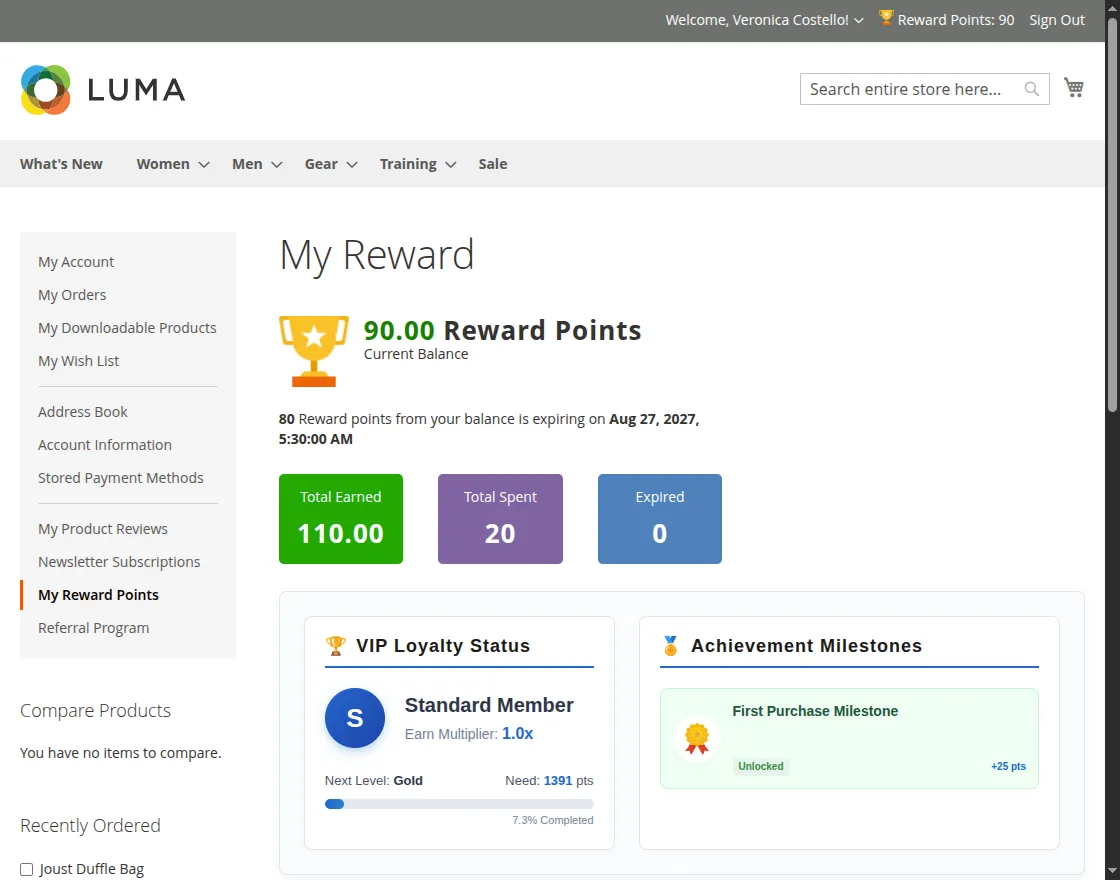
Customers can view their current VIP tier, reward points, available perks, and progress toward the next tier from their account dashboard. Tier status updates automatically as customers earn or redeem points.
To view their VIP status, customers can navigate to the Reward System section from their account. Here, they can check their tier badge, progress toward the next tier, applicable point multipliers, and available tier benefits.
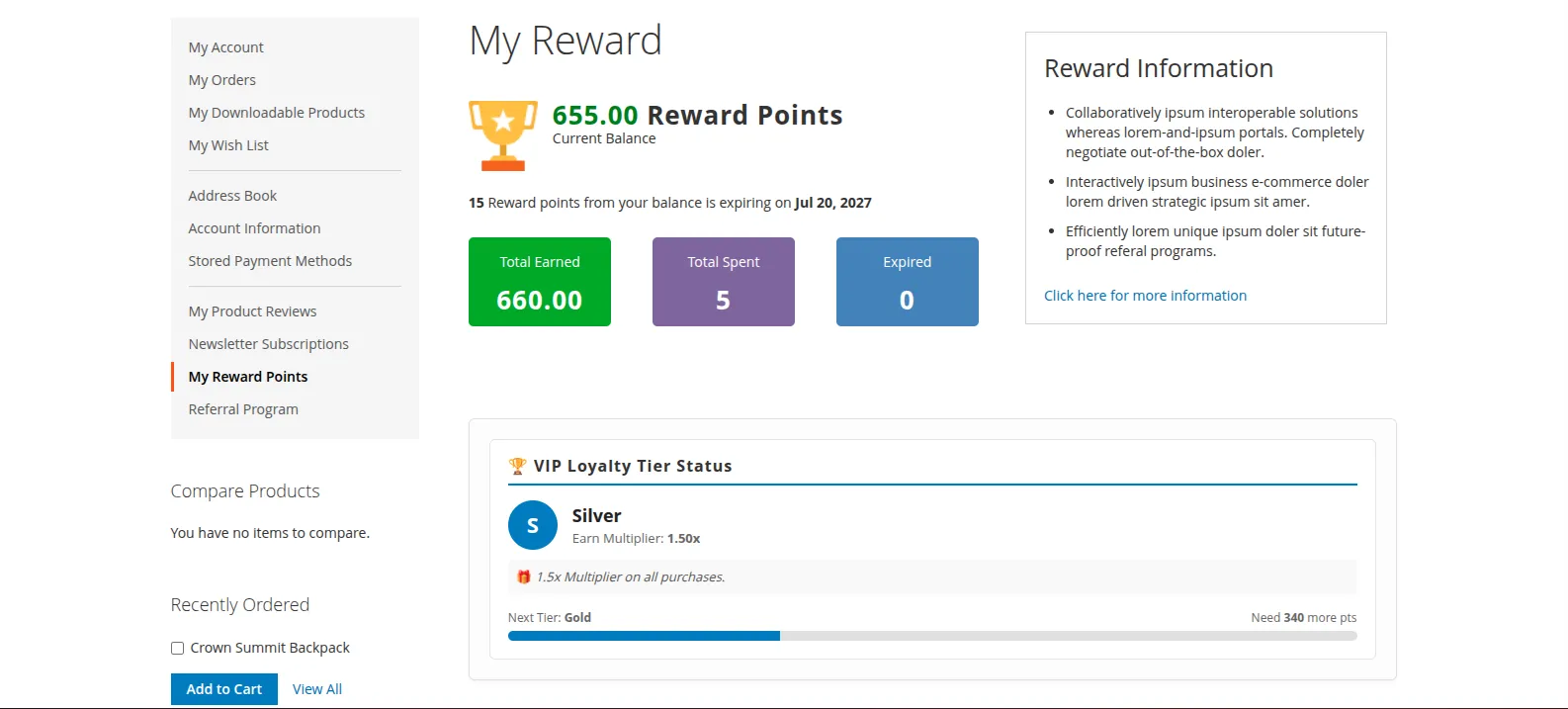
As customers earn more points through purchases, their progress updates automatically, helping them unlock higher VIP tiers and benefits.
Badges & Achievement Milestones
Customers can earn achievement badges by completing activities such as purchases, reviews, or account milestones. The system automatically awards badges and any associated reward points.
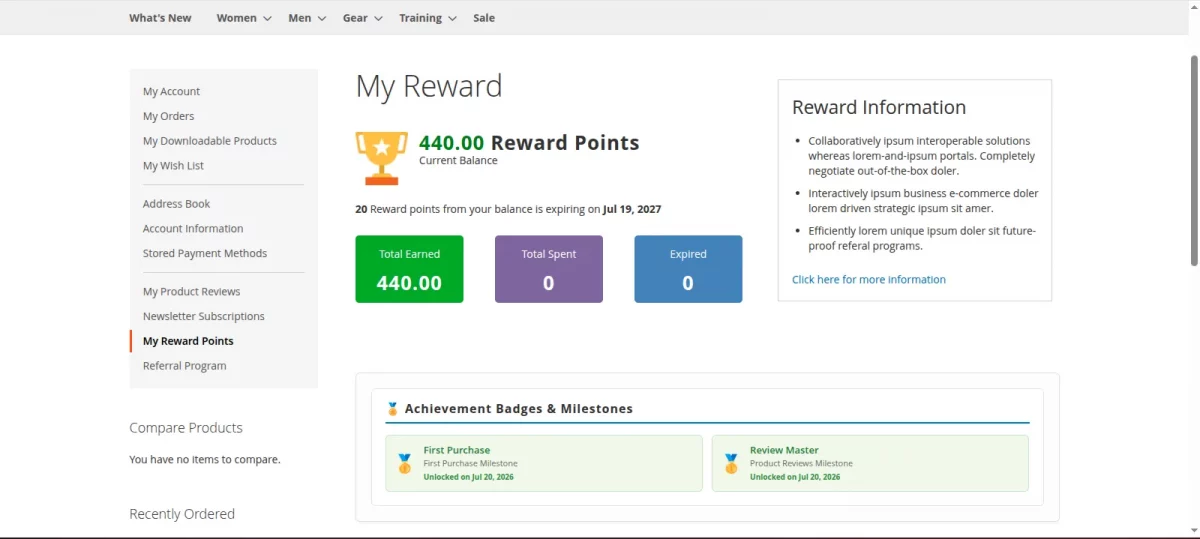
Customers can view their earned badges and achievement progress from the My Account section. Notifications inform them when a new milestone is completed.
That’s all for the Magento (Adobe Commerce) 2 Reward Points for any queries or doubts reach out to us at [email protected]. You can also raise a ticket at our HelpDesk system webkul.uvdesk.com
Current Product Version - 4.1.4
Supported Framework Version - Magento 2.0.x, 2.1.x, 2.2.x,2.3.x, 2.4.x

Be the first to comment.