CS-Cart Stripe Connect Standard Account provides a secure and flexible payment solution for multi-vendor marketplaces.
It allows customers to make payments through Stripe while automatically managing payments and payouts for multiple vendors.
The add-on supports direct, destination, and separate charges, giving the admin flexibility to choose the payment flow that best suits the marketplace.
The admin can configure Stripe Connect settings, manage vendor commissions, and control the payment and payout process from the backend.
Vendors can connect their Stripe accounts to receive their payments securely.
The add-on also supports both Test and Production modes, making it easier to test payment flows before going live.
Also, If you are looking for an extension that connects your POS store with the POS Stripe terminal, you can use our CS-Cart Stripe POS Terminal Connector.
⭐ Official Stripe Partner – Webkul is an official Stripe Partner, delivering secure, reliable, and seamless Stripe payment integrations for CS-Cart stores and Multi-Vendor marketplaces.
Note:
Before installing the add-on, extract the downloaded package.
- Install the License Manager add-on first.
- Then install the required add-on.
- Follow the license activation steps to generate your license key.
Features
- Easy Configuration allows the admin to easily configure and manage Stripe Connect settings.
- Complete Admin Control lets the admin manage payments, payouts, commissions, and other Stripe Connect settings.
- Card Payment Support includes Visa, Mastercard, American Express, and other major cards.
- Digital Wallet Support includes Apple Pay, Google Pay, Microsoft Pay, and other popular wallets.
- Flexible Charge Types support direct, destination, and separate charges for Stripe Connect payments.
- Vendor Stripe Account Connection allows vendors to connect their Stripe accounts and receive payouts.
- Recurring Payment Support enables recurring payments for subscription-based products and services.
- Stripe Checkout Integration provides customers with a smooth and secure checkout experience.
- Optimized Code Structure improves the add-on’s maintainability, scalability, and efficiency.
Note: Recurring Payment Method add-on is required to enable recurring payments.
Installation
After downloading the CS-Cart Stripe Connect Payment add-on, you’ll get one zip file, one install.txt file, and a relevant User Guide manual doc.
Please read it carefully for proper configuration.
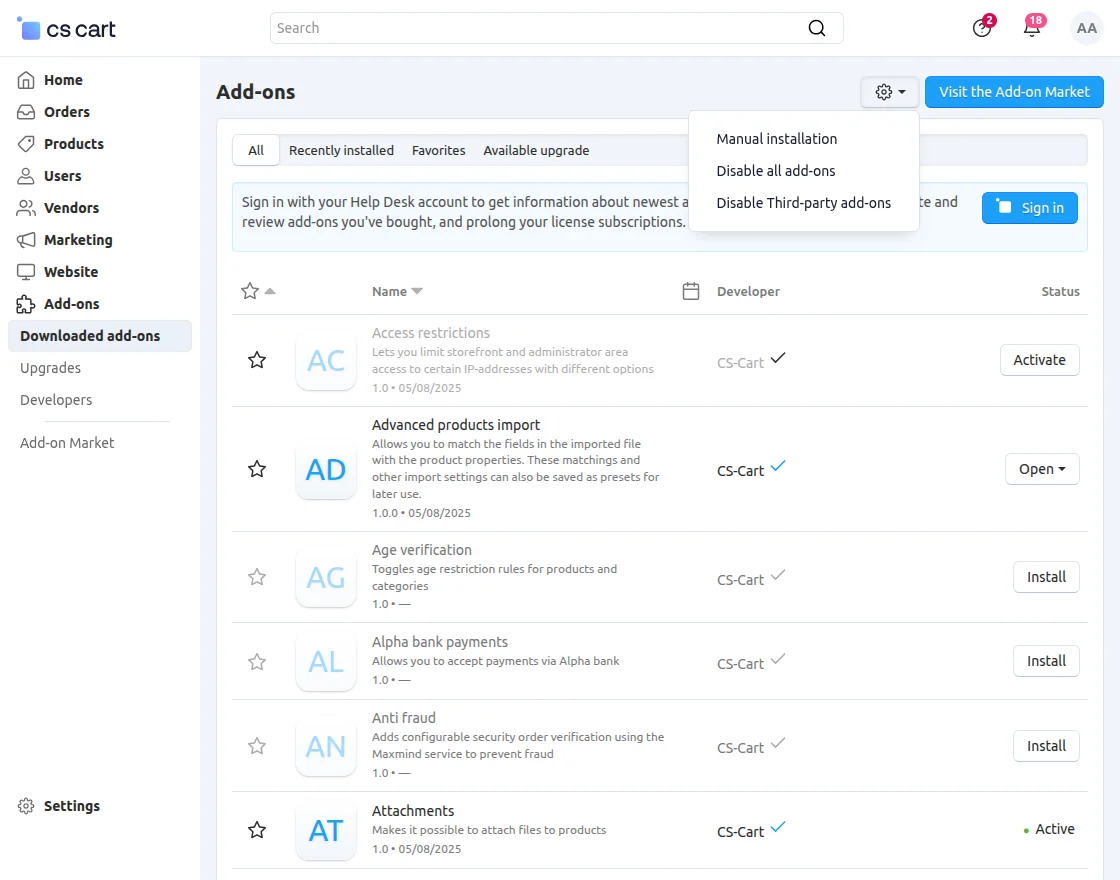
Go to Manage Add-ons, and click on “Manual Installation” as shown below in the snapshot.
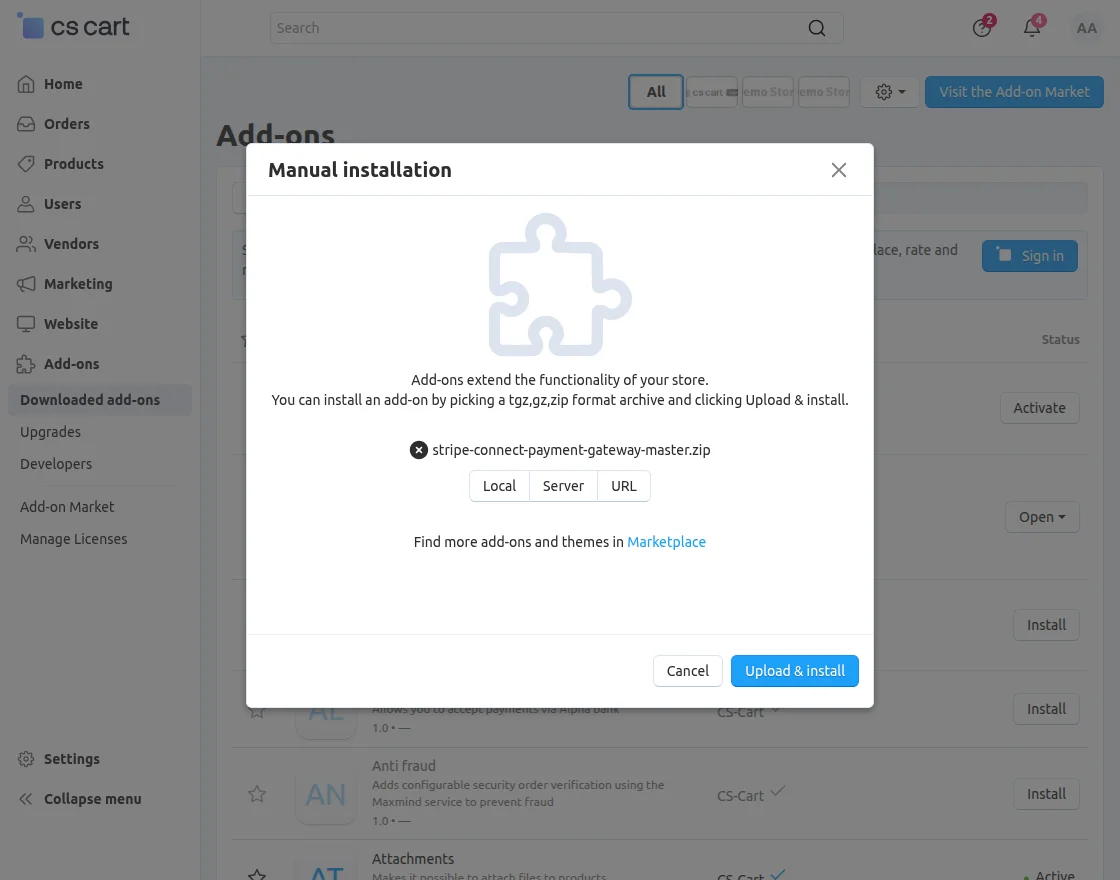
Click on “Local” to browse the zip file, and then click on “Upload & Install” as shown below in the snapshot.
Credentials from Stripe Payment Gateway
To obtain the required credentials from Stripe, sign up or log in to your Stripe account.
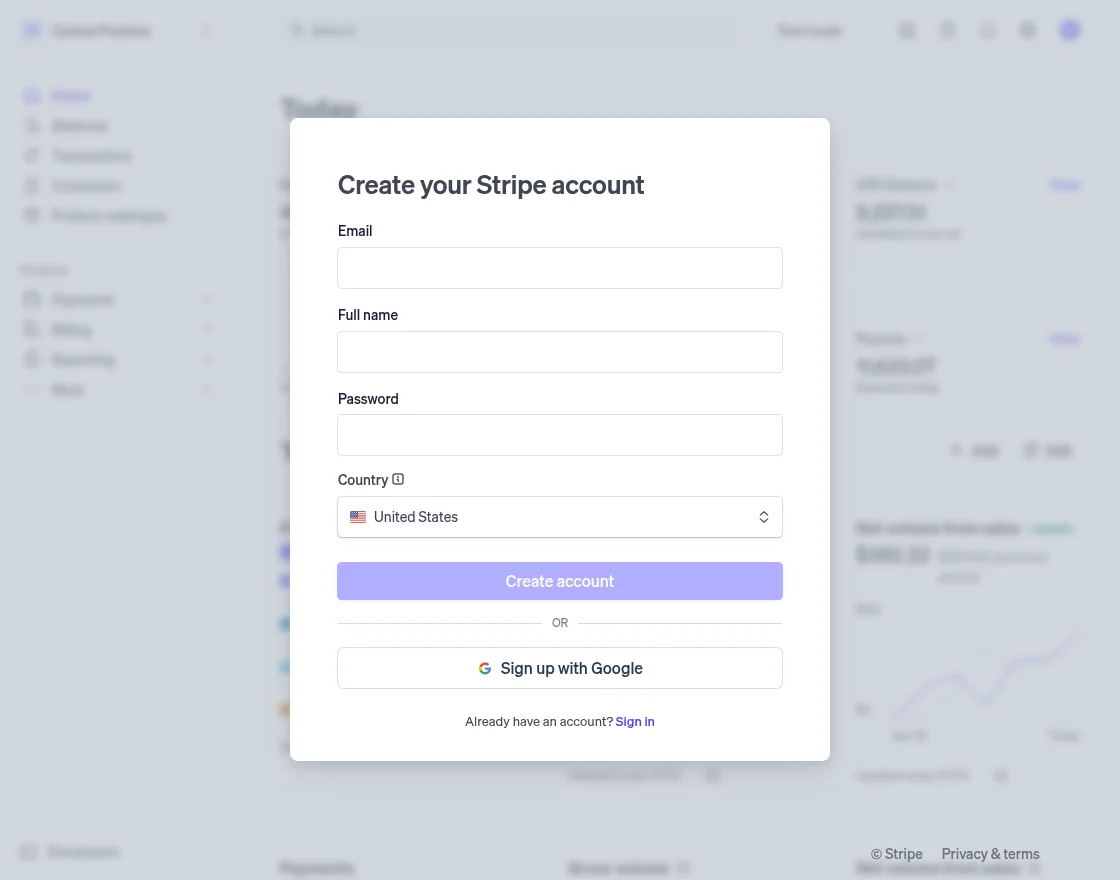
Enter the required account details and credentials to sign up for a Stripe account.
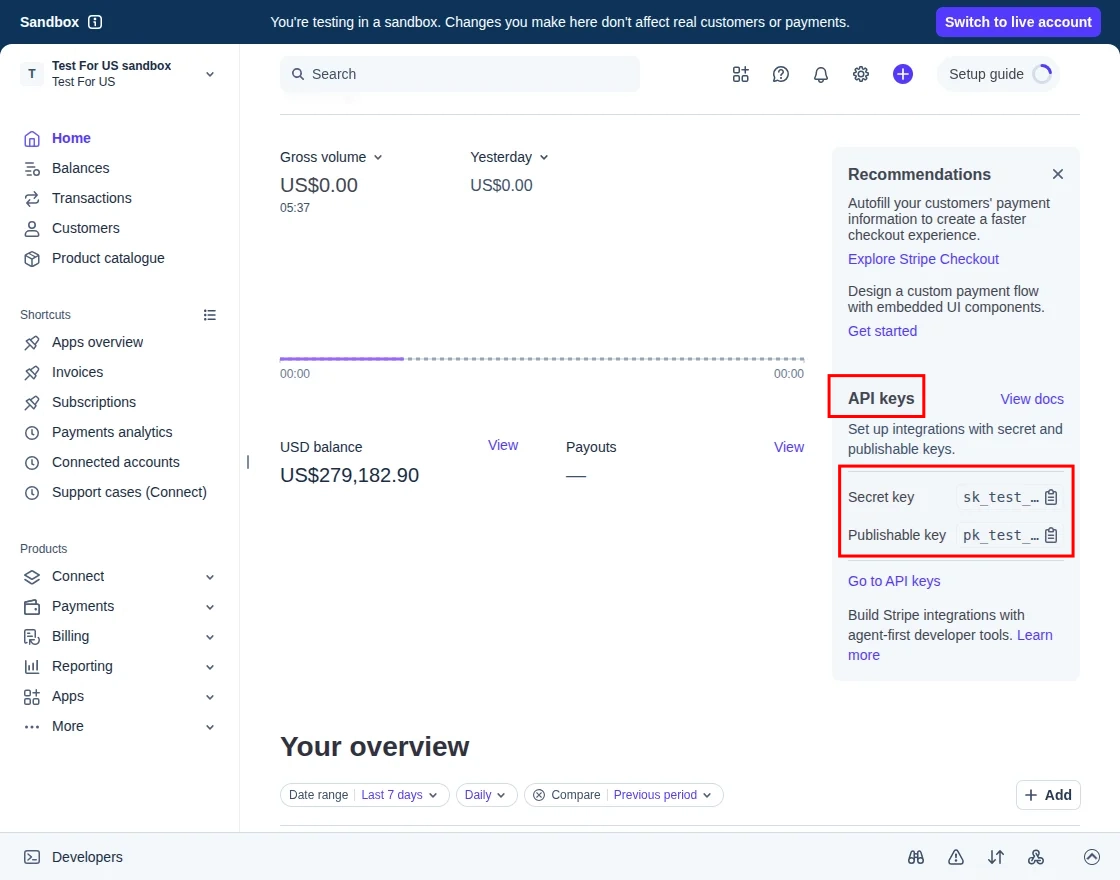
Secret Key and Publishable Key
Navigate to the Stripe Dashboard to fetch the Secret Key and Publishable Key.
Redirect Uri
To add the redirect URL, navigate to Settings >> Connect >> Onboarding options >> OAuth in your Stripe account.
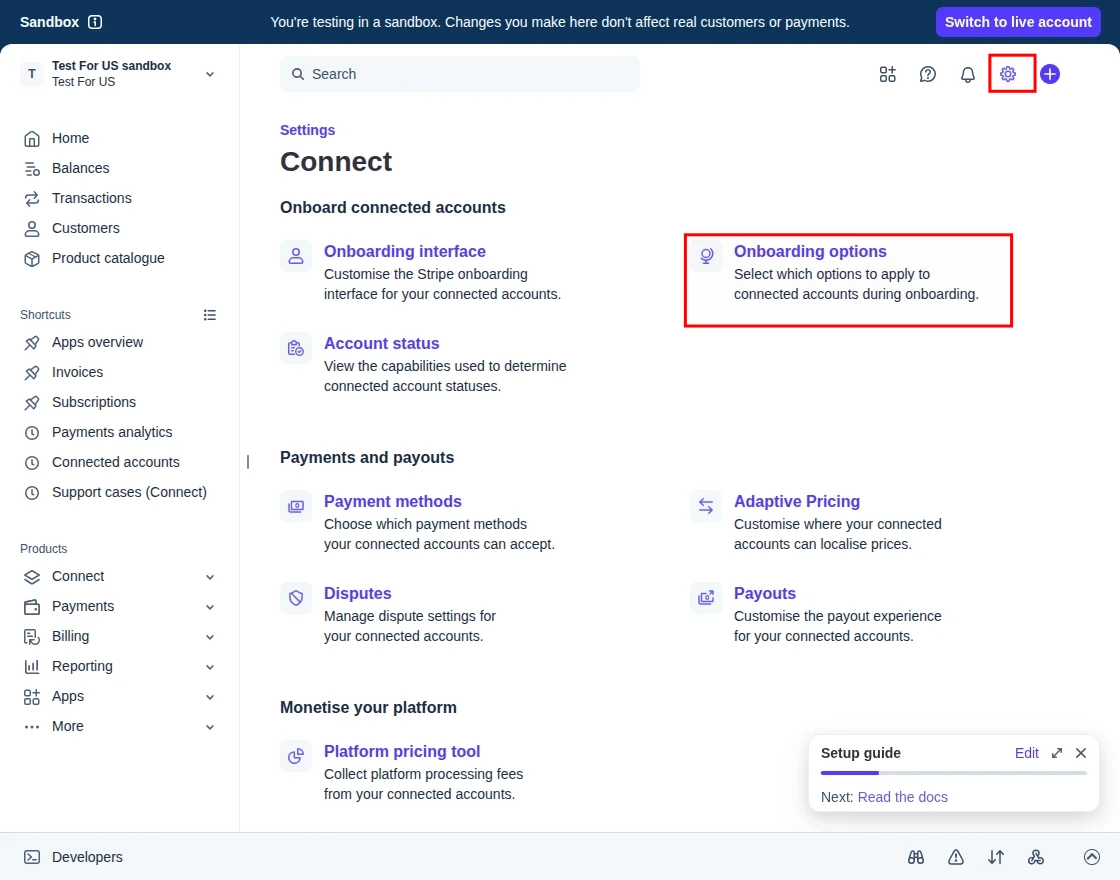
After opening Onboarding Options, go to the OAuth section.
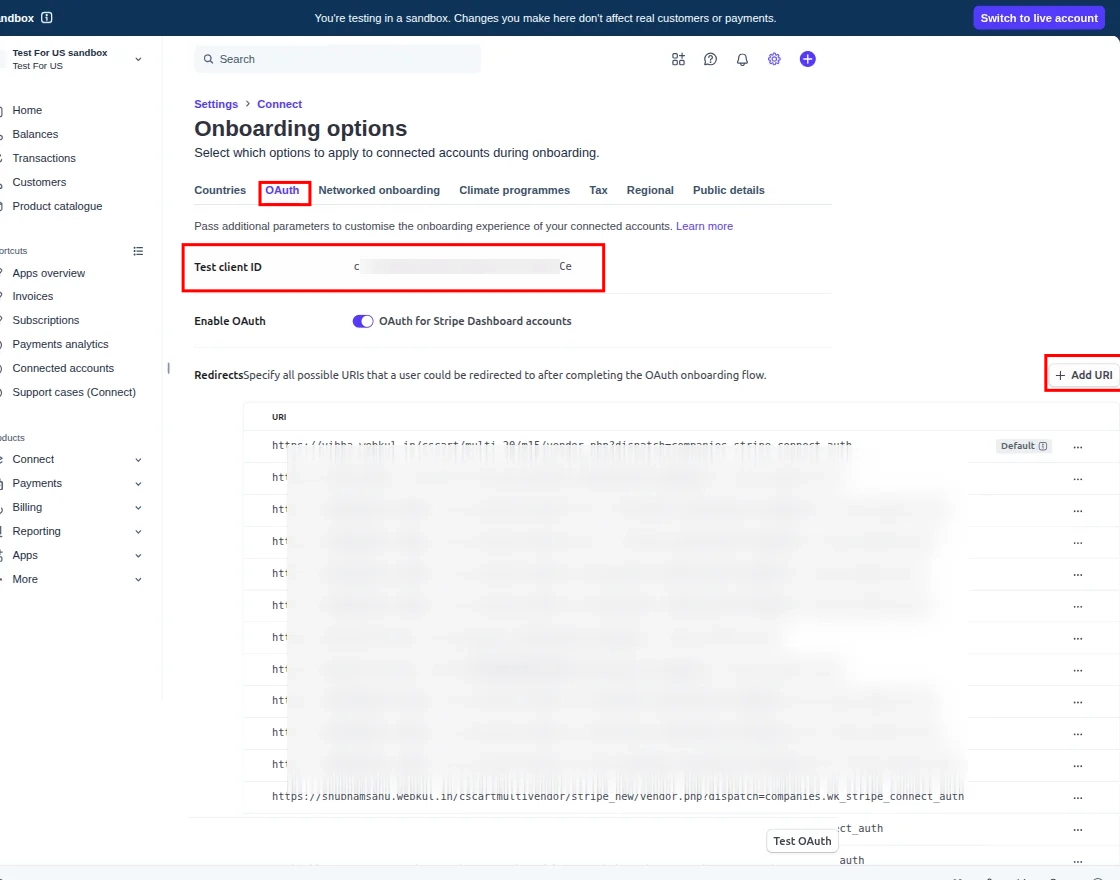
- Enter the redirect URL in the following format:
your_store_url/vendor.php?dispatch=companies.stripe_connect_auth
- Client ID: You can find the Client ID here.
Module Configuration | Admin
To configure the module, go to the Add-Ons >> Developers >> Webkul Software Pvt Ltd. >> Stripe Connect Payment Gateway >> Settings.
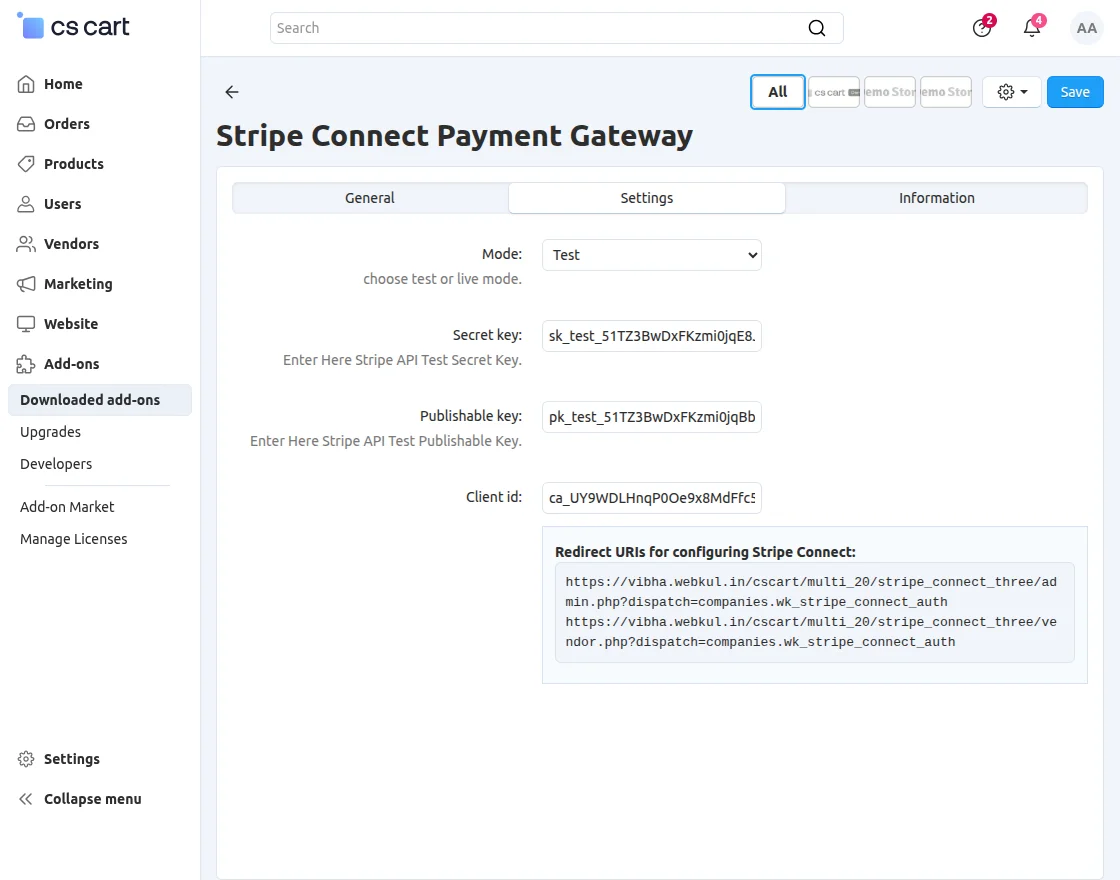
- Mode: Select the mode for connecting the Stripe account.
- Secret Key: Enter the Stripe API Test Secret Key.
- Publishable Key: Enter the Stripe API Test Publishable Key.
- Client ID: Enter the Stripe Connect Client ID.
Payment Method
Navigate to Settings >> Payment Methods to add the payment method.
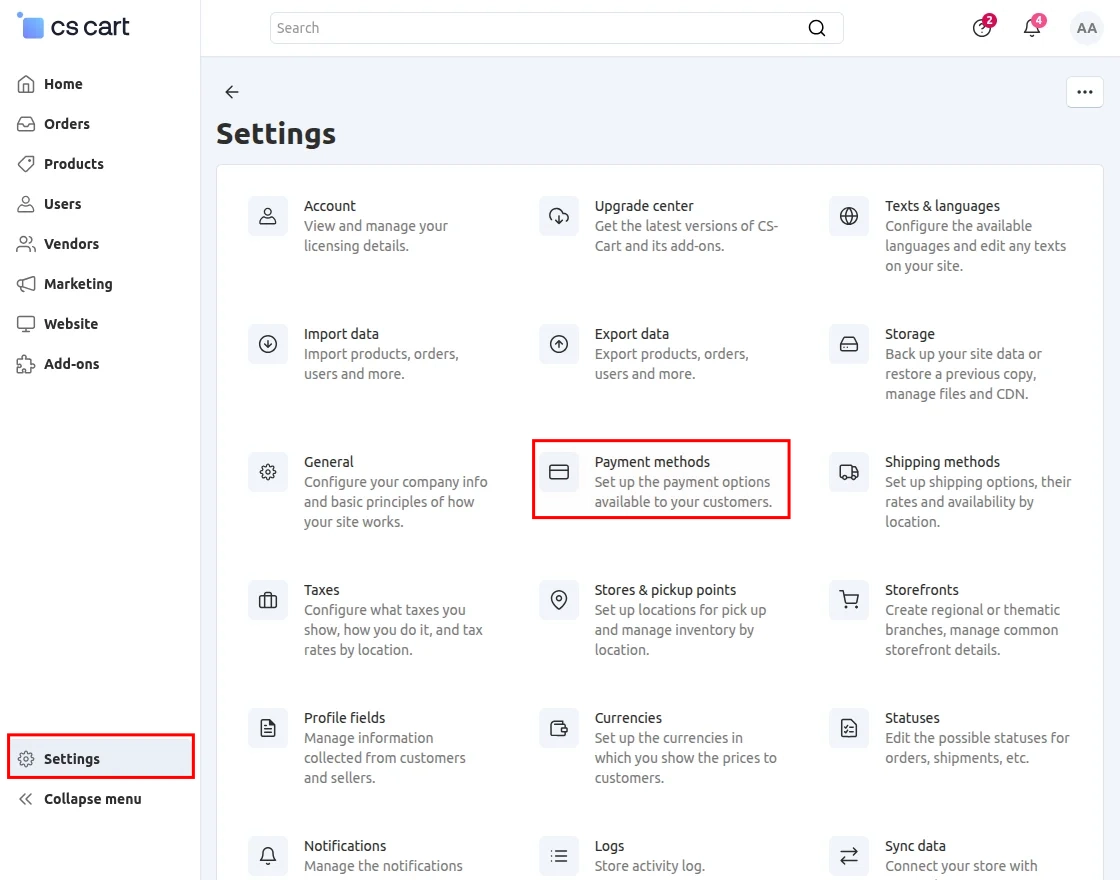
Stripe Connect
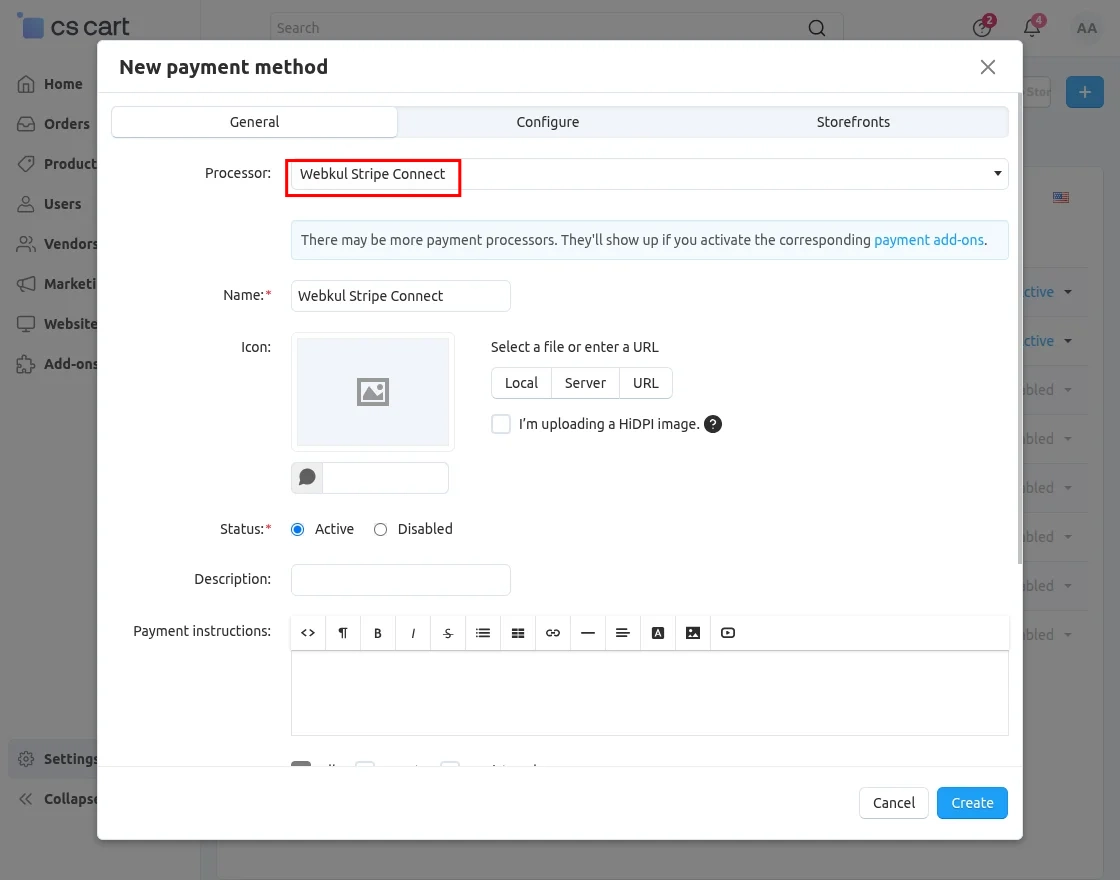
To add the Stripe Connect Payment Method, select Webkul Stripe Connect from the available payment methods.
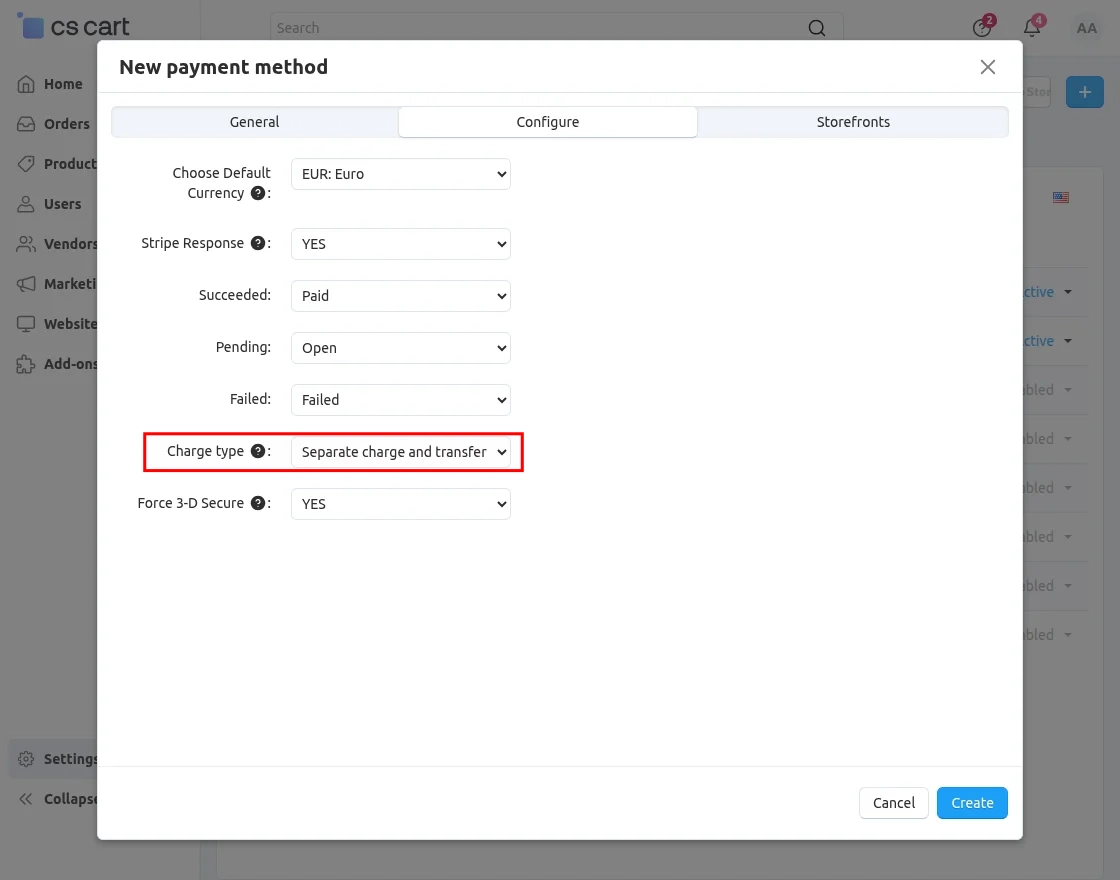
- Choose Default Currency: Select the default currency for Stripe payments.
- Stripe Response: Select Yes or No to enable Stripe response handling.
- Succeeded: Enter the response status for successful transactions.
- Pending: Enter the response status for pending transactions.
- Failed: Enter the response status for failed transactions.
- Charge Type: Select the charge type for Stripe Connect payments.
- Direct Charge: Charges the customer directly on the connected vendor’s Stripe account.
- Destination Charge: Charges the customer on the platform account and transfers the vendor’s share to their connected Stripe account.
- Separate Charge and Transfer: Charges the customer on the platform account and transfers the payment amount to one or more connected vendor accounts separately.
- Force 3-D Secure: Enable this option to require 3-D Secure authentication for eligible payments.
Stripe Connect Inline
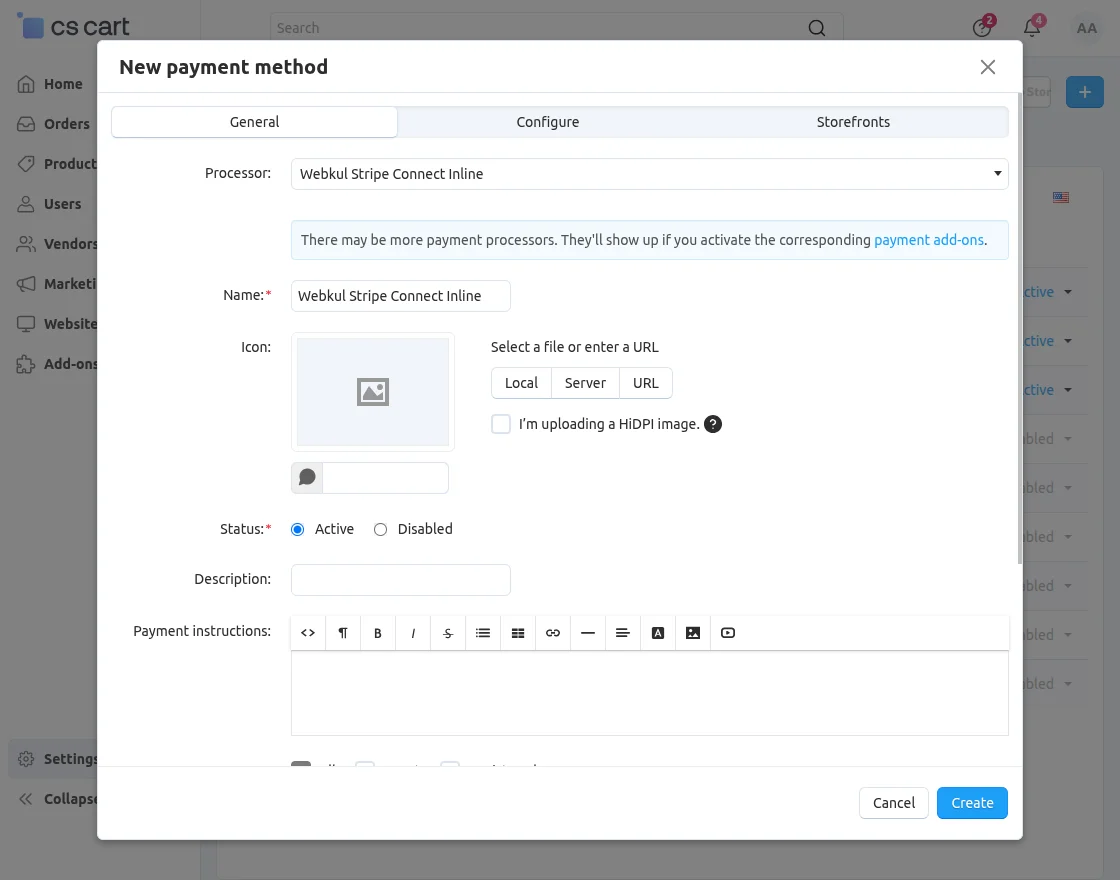
To add Stripe Payment Inline, select Stripe Payment Inline from the available payment methods.
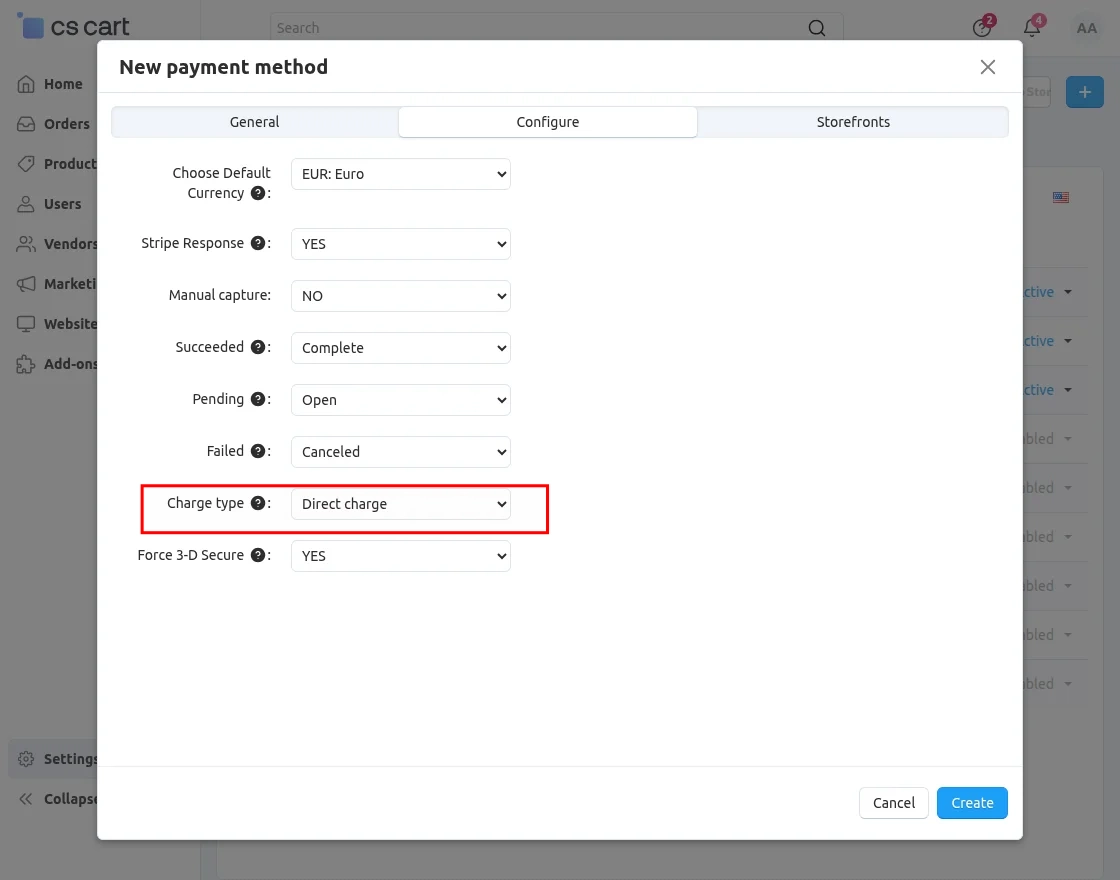
- Choose Default Currency: Select the default currency for Stripe payments.
- Stripe Response: Select Yes or No to enable Stripe response handling.
- Manual Capture: Select Yes to authorize the payment without capturing it immediately, or No to capture the payment automatically.
- Succeeded: Enter the response status for successful transactions.
- Pending: Enter the response status for pending transactions.
- Failed: Enter the response status for failed transactions.
- Charge Type: Select Direct Charge, Destination Charge, or Separate Charge and Transfer according to your payment flow.
- Force 3-D Secure: Enable this option to require 3-D Secure authentication for eligible payments.
Vendor Panel
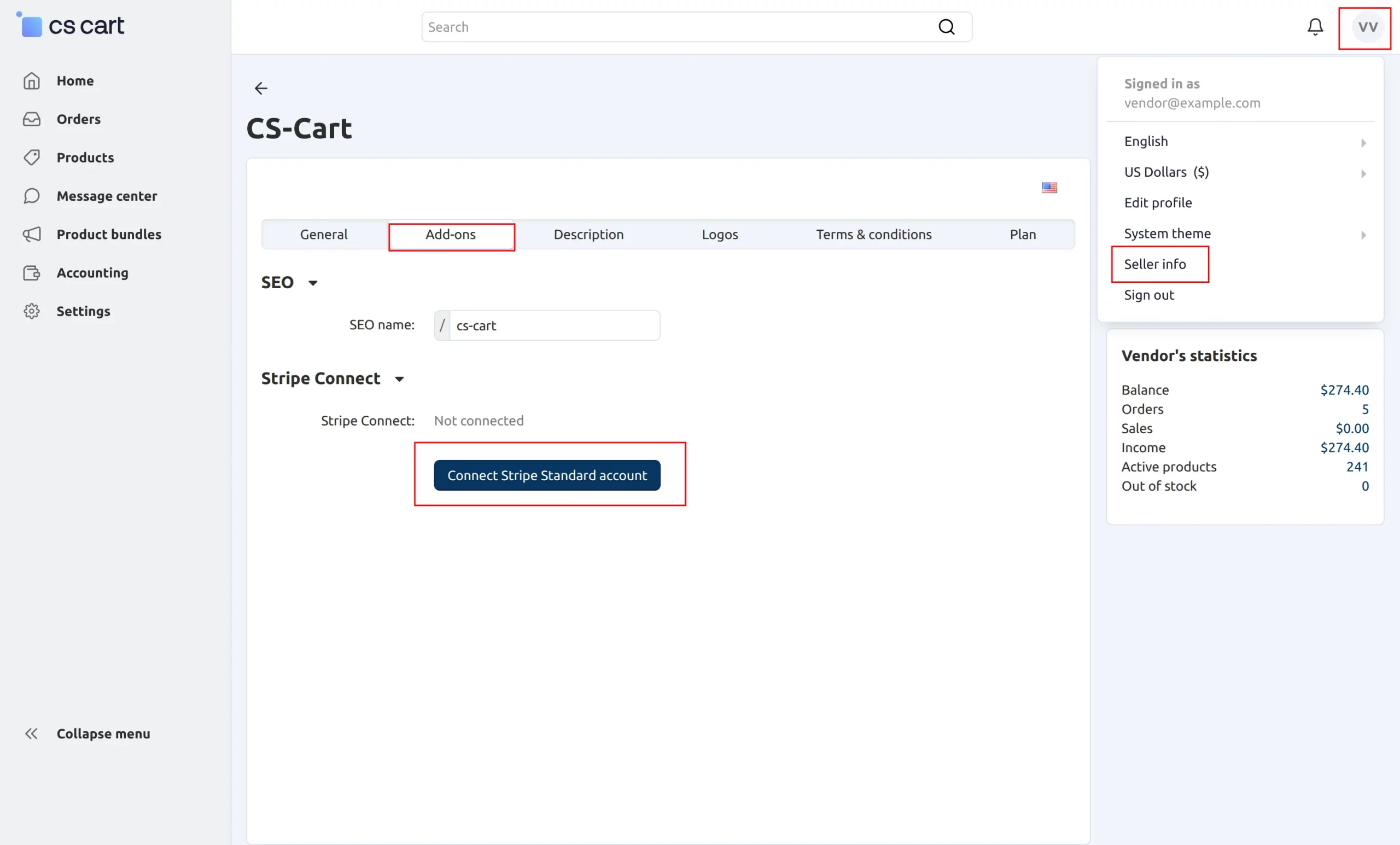
Vendors need to navigate to Account Information >> Add-ons and connect their Stripe account.
Front-End View
When customers place an order, they need to select a payment method to complete the purchase.
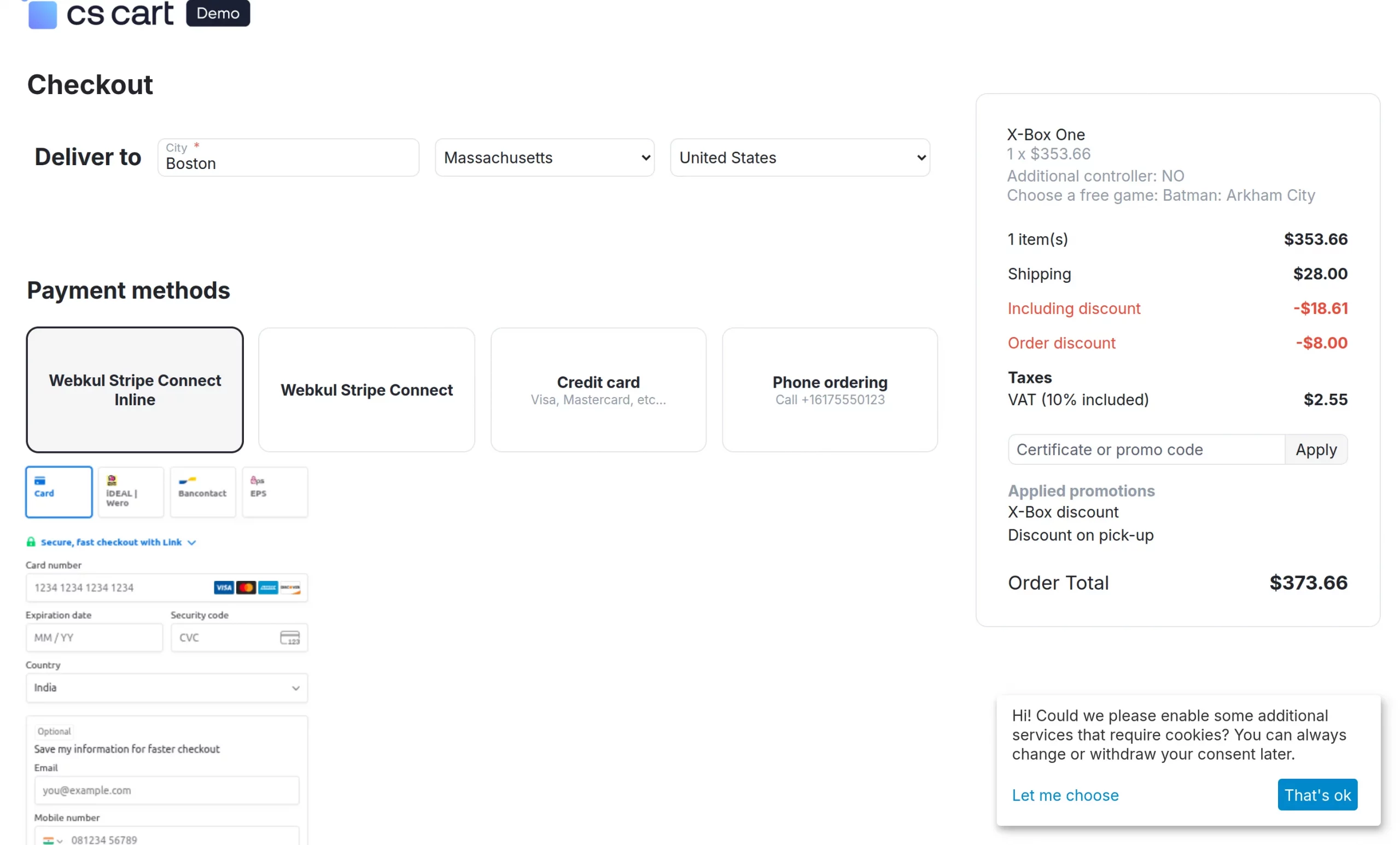
When Customers Select the Stripe Connect Payment Method
Customers need to select Stripe Connect as their preferred payment method during checkout.
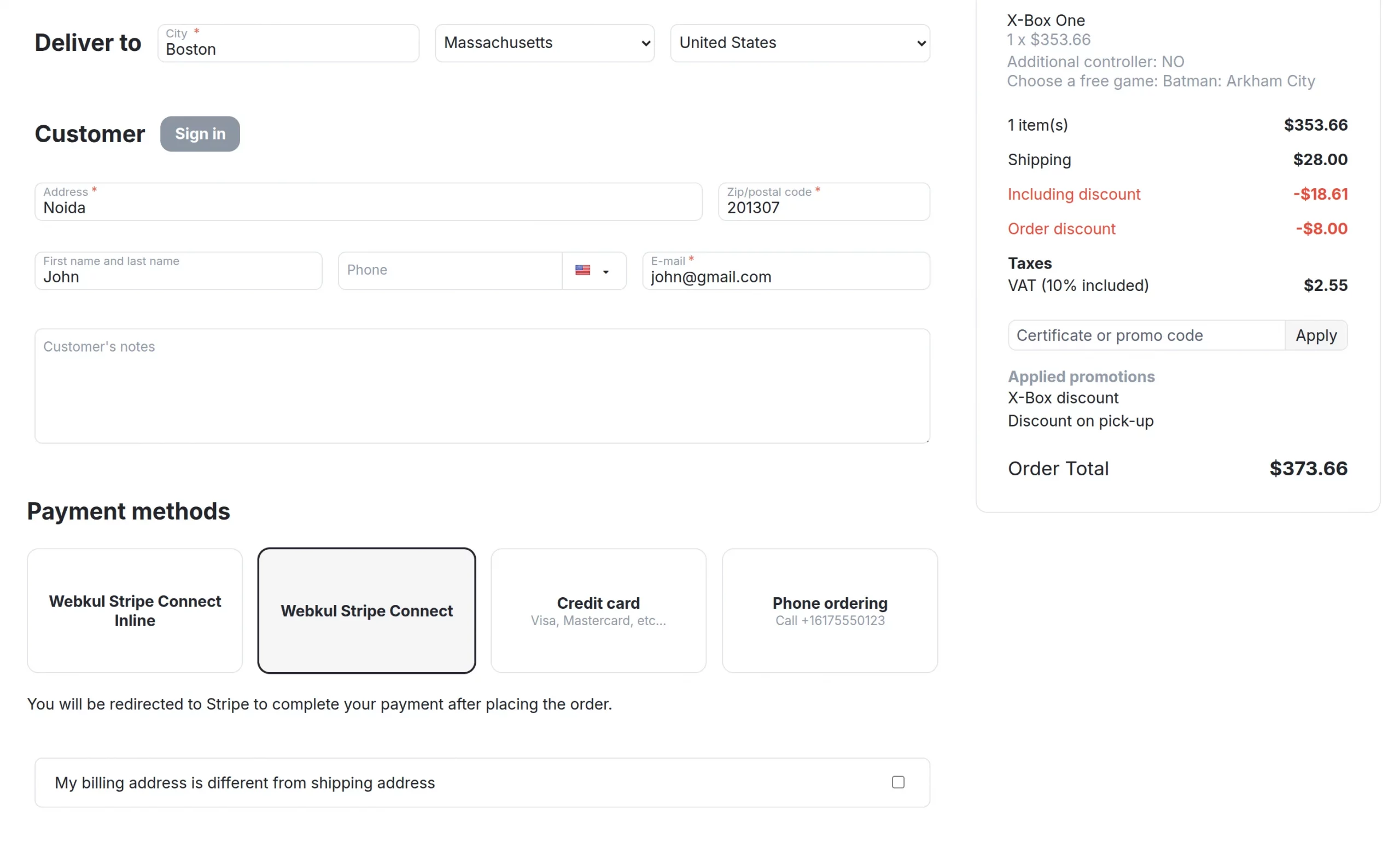
After selecting Stripe Connect, customers are redirected to the Stripe payment gateway to complete the payment.
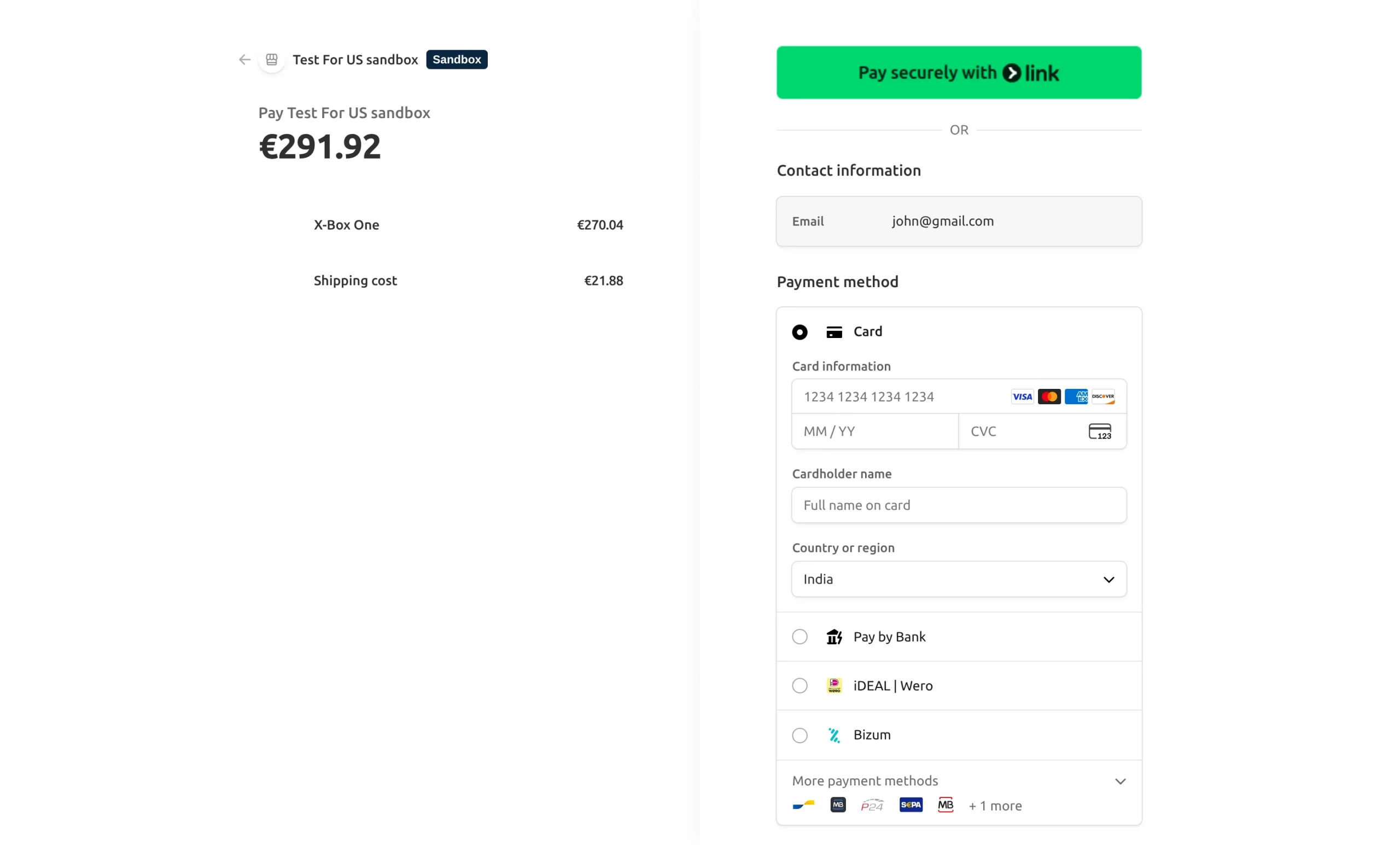
Customers need to enter their Stripe payment credentials to complete the payment.
Support
If you have any questions, suggestions, or customization requests, feel free to contact us at [email protected] or submit a ticket at webkul.uvdesk.com.
Explore our premium-quality CS Cart Extensions to enhance your store functionality.
You can also explore our CS-Cart Development Services and Quality CS-Cart add-ons.
Current Product Version - 2.3
Supported Framework Version - 4.18.x, 4.19.x, 4.20.x

Be the first to comment.