Back to Top

CS-Cart Product Availability By Pincode/Zipcode

Updated 2 March 2026

CS-Cart Product Availability By Pincode/Zipcode add-on will enable Product availability by pincode/zipcode in your CS-Cart store.

With the support of this magnificent add-on, the customers can easily find out whether the product they want to order can be delivered in the desired postal address.

It is as simple as entering the zip code and checking the availability, which also helps in decreasing the abandonment rate of the site.

Check a brief overview of the add-on –

FOzVF0-g-84

Features

  • Customers can check Cash on Delivery (COD) availability by entering their Pincode/Zipcode directly on the product detail page.

    Find the Best CS-Cart
    Development Company
    Find out More
  • The add-on allows customers to verify COD availability from the Quick View page without opening the full product page.

  • The system validates the shipping address at checkout and automatically restricts the COD option based on the entered Pincode/Zipcode.

  • Admins and vendors can easily import or export CSV files containing Pincode/Zipcode and product IDs for bulk management.

  • The add-on fully integrates with CS-Cart Multi-Vendor, ensuring smooth marketplace operations.

  • The admin can enable or disable COD for specific listed products as needed.

  • The admin can assign multiple products to a Pincode/Zipcode in a single action.

  • The module offers a simple and flexible configuration from the admin panel.

  • The system provides a user-friendly interface for managing product availability by location.

  • The add-on works without modifying any core files, ensuring safe upgrades and long-term compatibility.

Installation

After downloading the COD Availability by Pincode/zipcode add-on, you’ll get one zip file, one install.txt file, and a relevant User Guide manual doc.

Please read it carefully for proper configuration.

Go to Manage Add-ons, and click on “Manual Installation” as shown below in the snapshot.
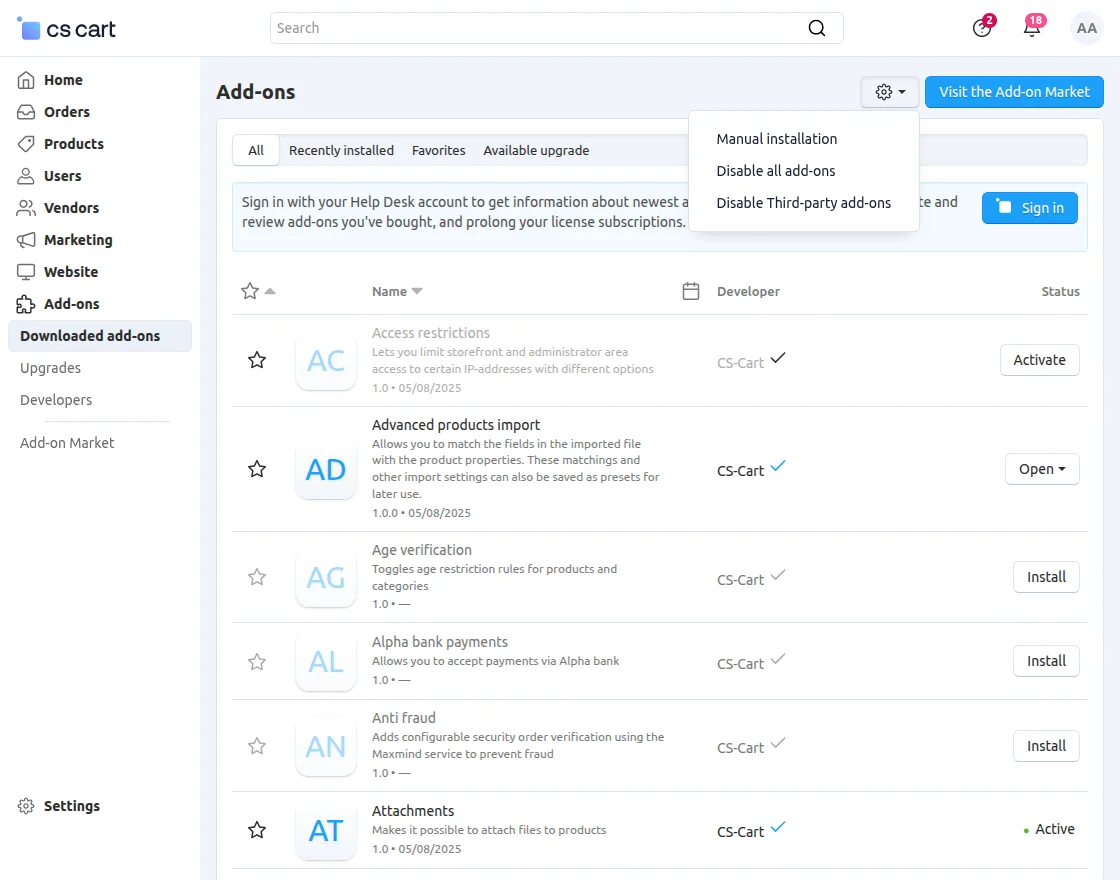
CS-Cart manual installation

Click on “Local” to browse the zip file, and then click on “Upload & Install” as shown below in the snapshot.
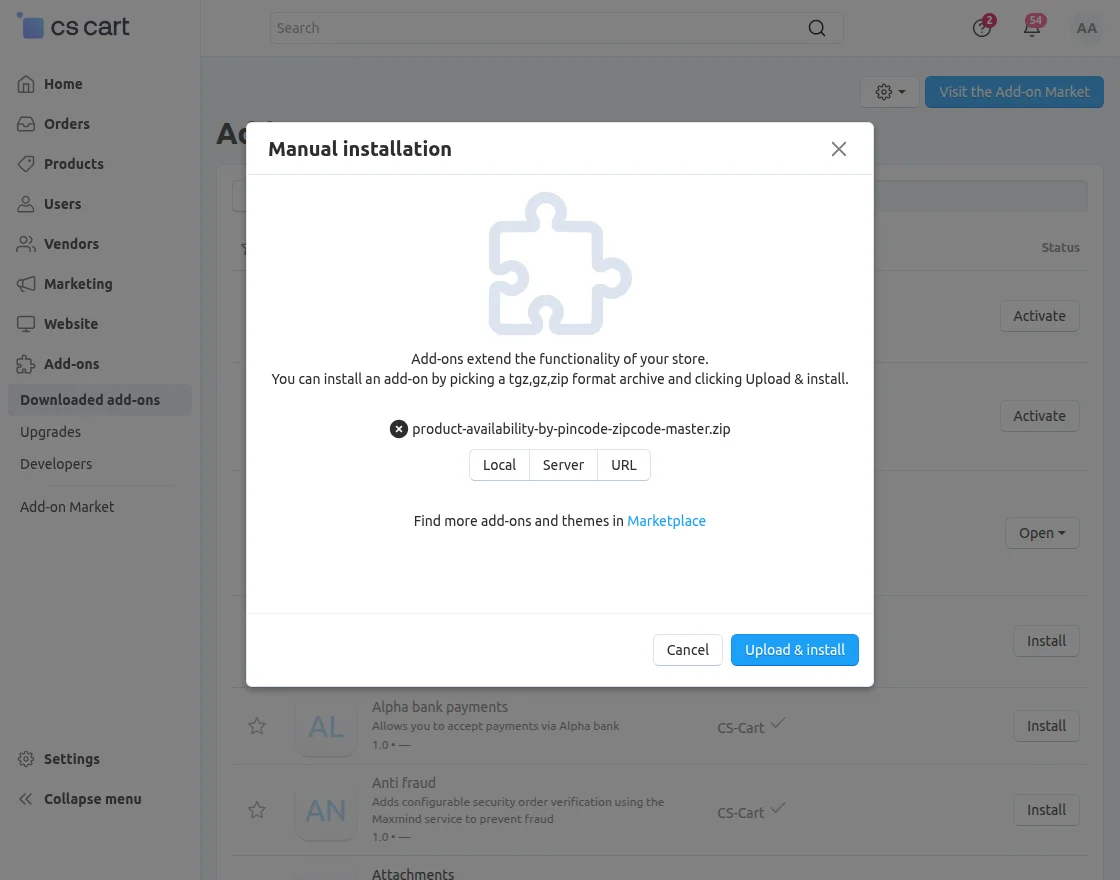
CS-Cart Product Availability By Pincode/Zipcode addon installation

Module Configuration | Admin

To configure the module, go to the Add-Ons >> Developers >> Webkul Software Pvt Ltd>> COD Availability by Pincode/zipcode >> Settings.

CS-Cart pincode configuration

  • COD for Selected Pincode/Zipcode: Enable this option to allow COD for selected Pincode/Zipcode areas.
  • Min Price: Set the minimum order value required to allow COD.
  • Max Price: Set the maximum order value up to which COD will be available.
  • Multi Seller Checkout: Check the checkbox to allow COD for multi-seller checkout.
  • Customer Login: Check the checkbox to enable COD only for logged-in customers.
  • Start Date: Enter the start date and time to make COD available.
  • End Date: Enter the end date and time to disable COD automatically.

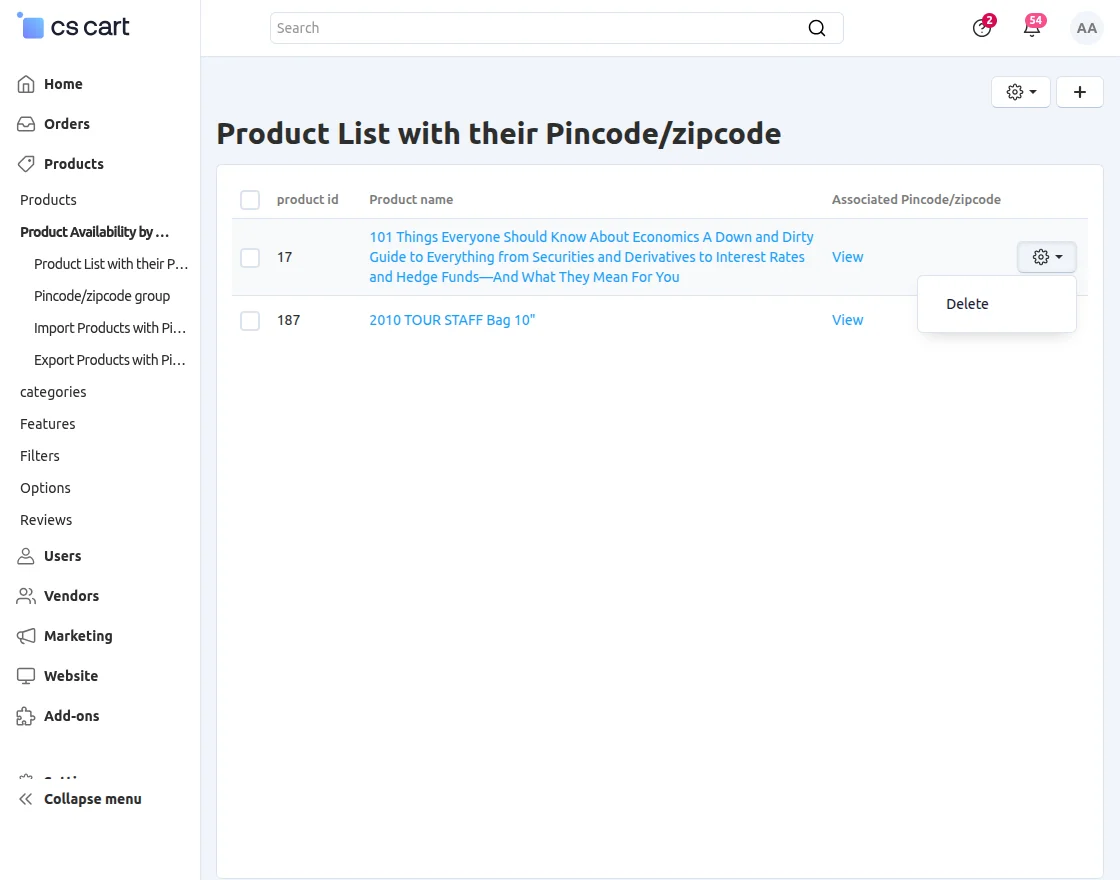
Product List with their Pincode/zipcode

Navigate to Products >> COD Availability by Pincode/Zipcode >> List View to manage the products.

CS-Cart Product Availability By Pincode/Zipcode list view

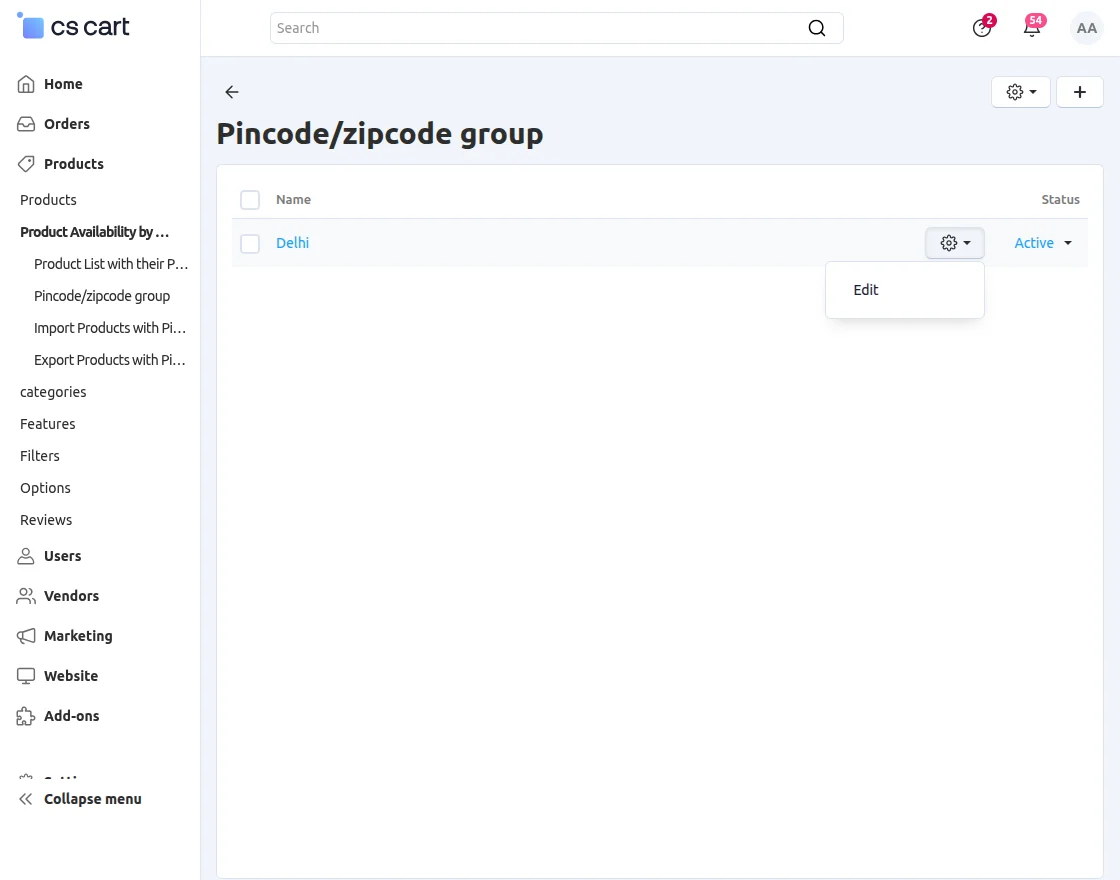
Pincode/Zipcode Group:

To create a product group, navigate to Products >> COD Availability by Pincode/Zipcode >> Manage Pincode/Zipcode Group.

CS-Cart pincode group

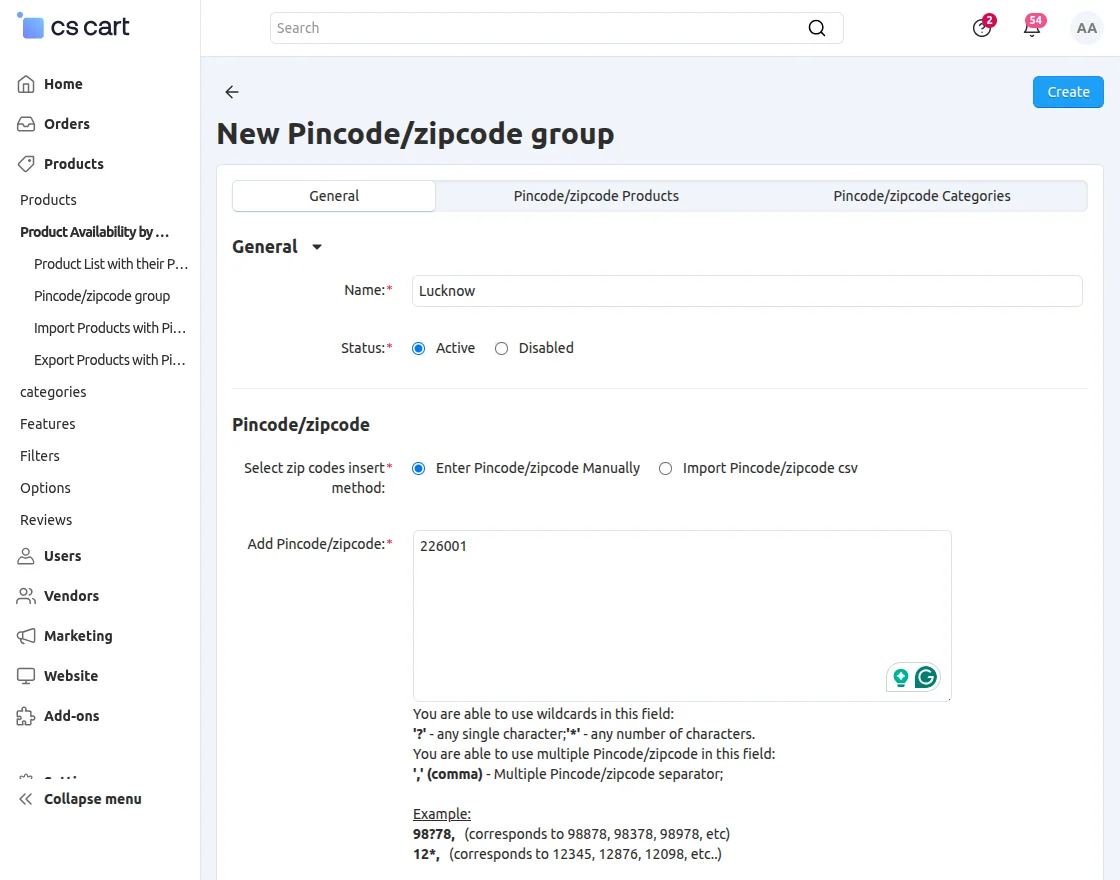
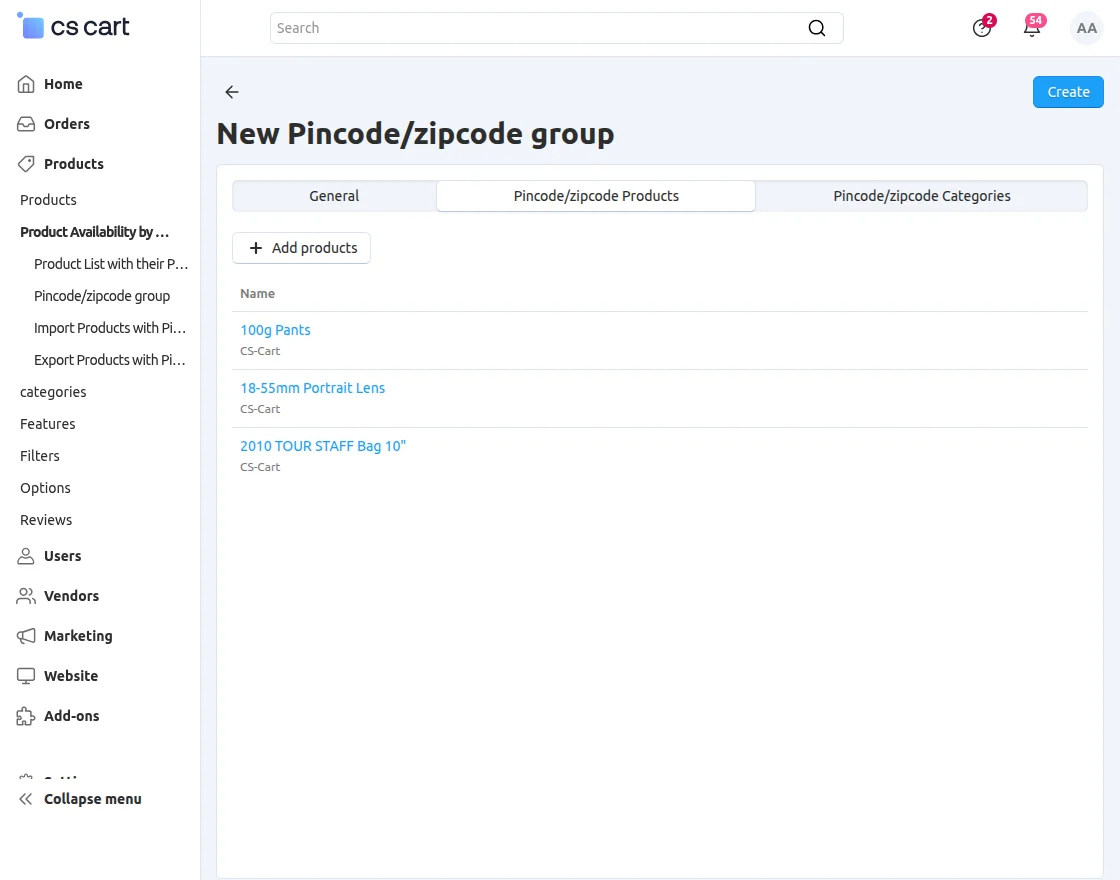
From here, you can add, edit, or delete groups.

CS-Cart new pincode group

Import data:

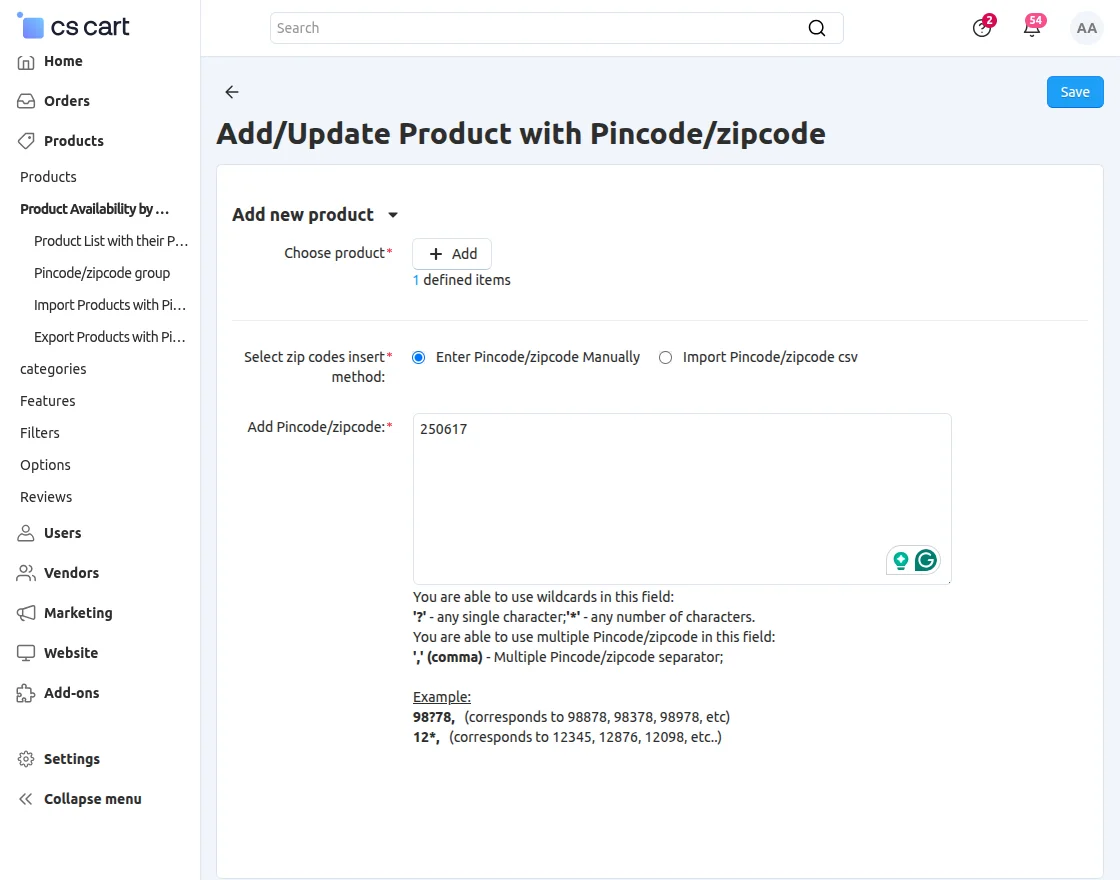
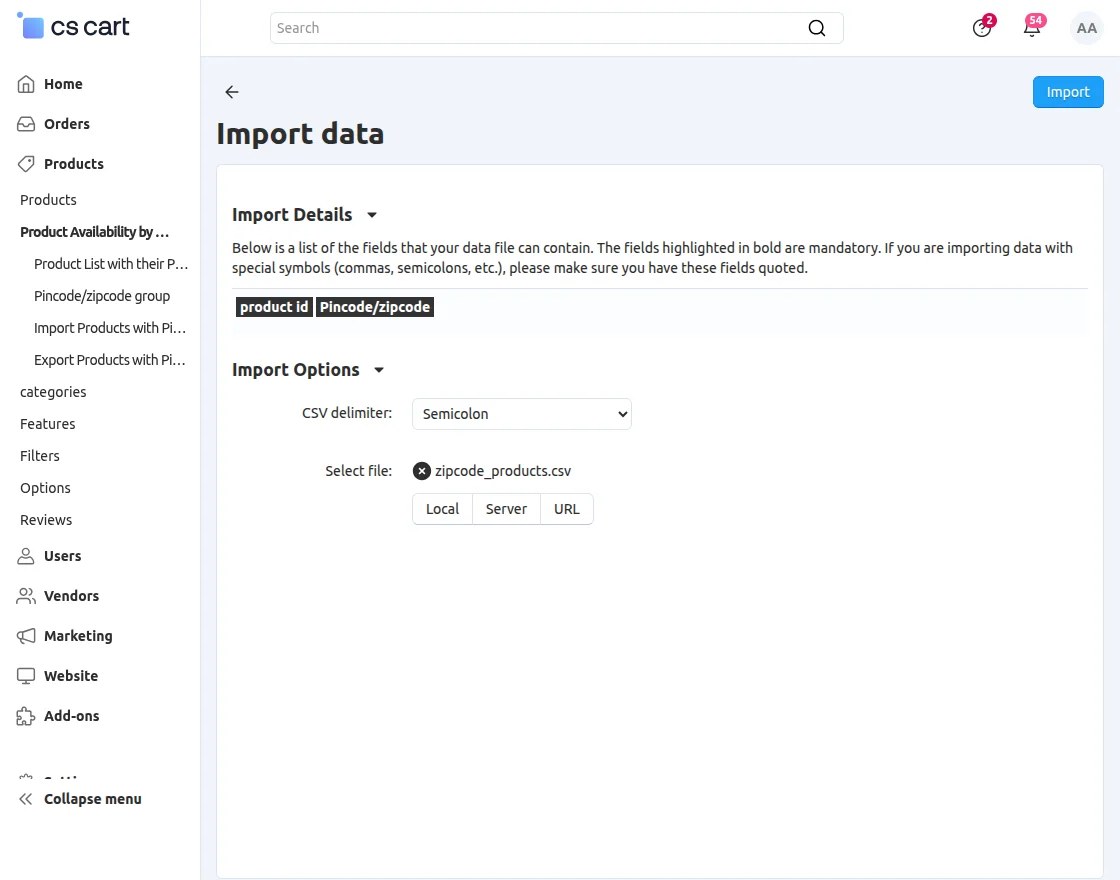
To import content of CSV file which must contain “product id” and “Pincode/zip code”. Click on the “Import products with Pincode/Zipcode” at the right side. For better understanding please view the snapshot below. To import data, users have following options by which he can import CSV file. The functionality of CSV delimiter is provided. A delimiter is a sequence in which a user can separate two terms i.e. Product ID and Pincode/zipcode. Here three delimiters are provided that includes a semicolon, tab, and comma. A user can select either of these options accordingly. The upload of CSV file can be done via local, server and URL. Then Click on “Import” to import the file.import data

How to export data:

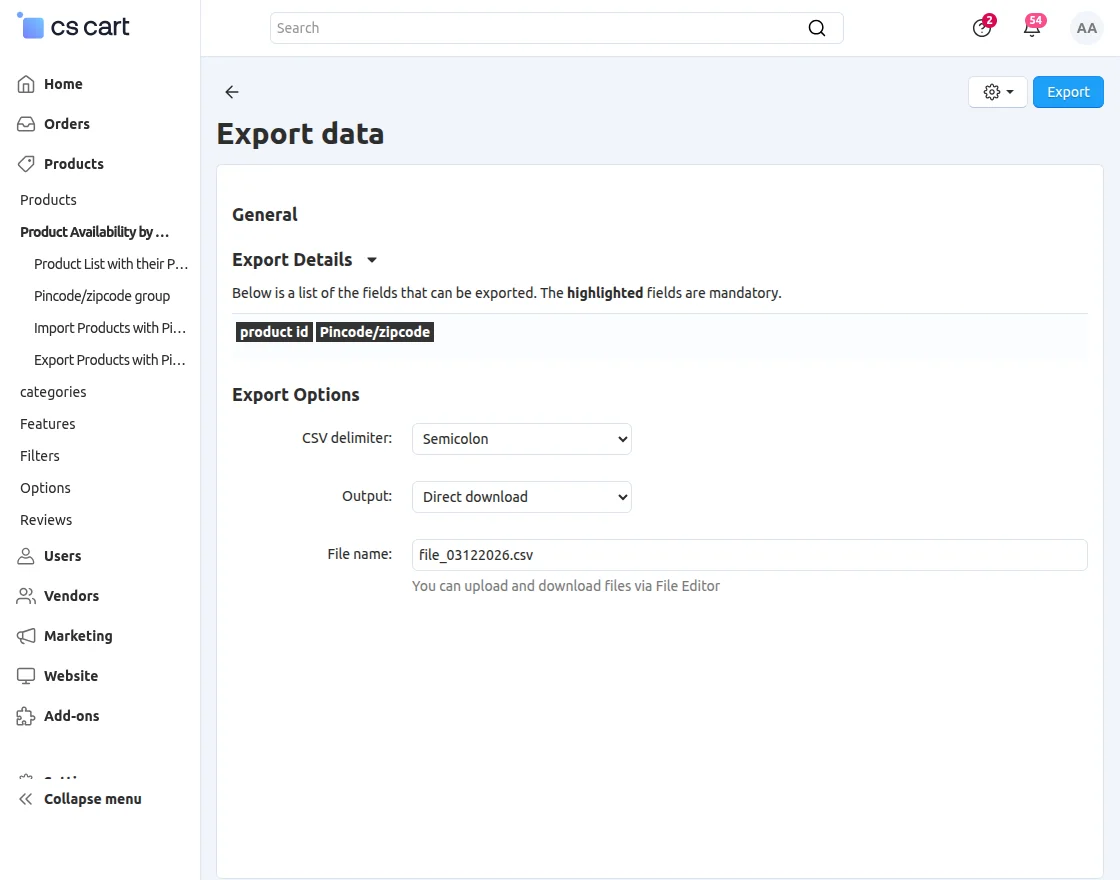
Click on “Export products with Pincode/Zipcode”. To export data user needs to select CSV delimiter for a file to export, select output which contains direct download, screen, and server. At last user needs to enter a name for his CSV file.export

Frontend View

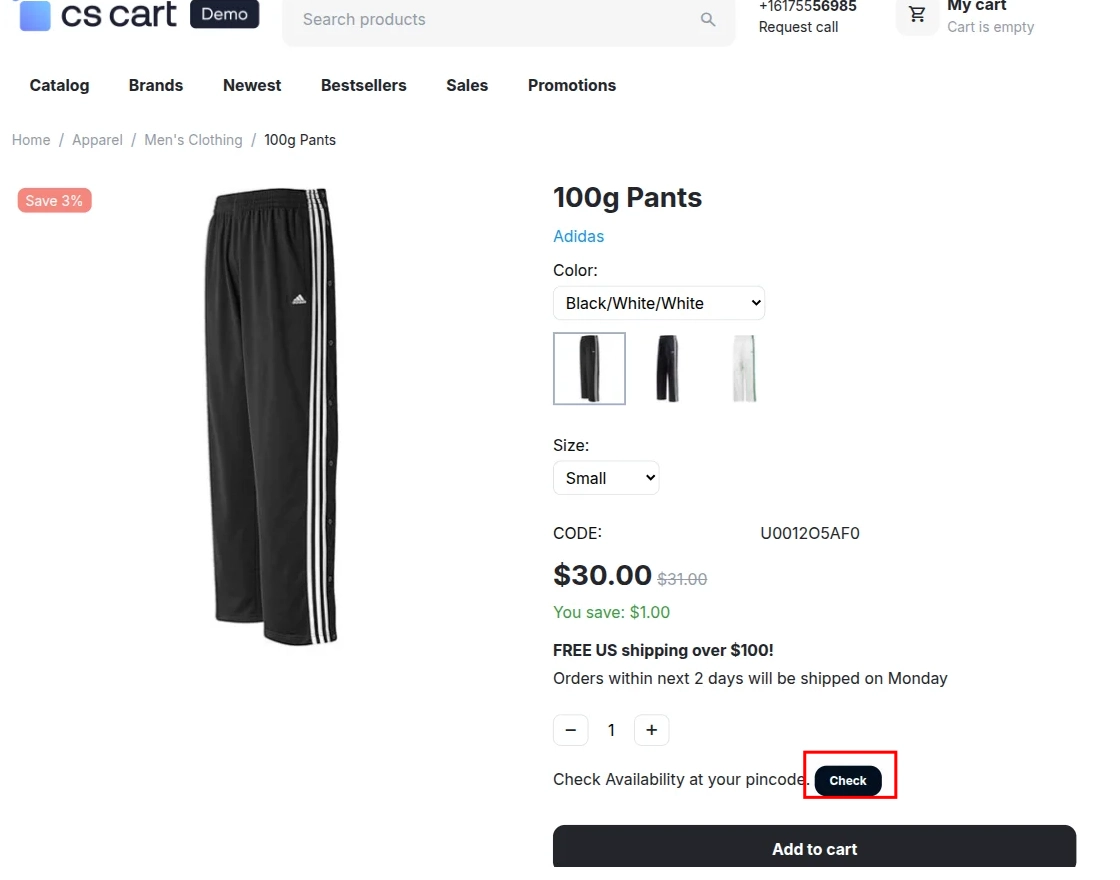
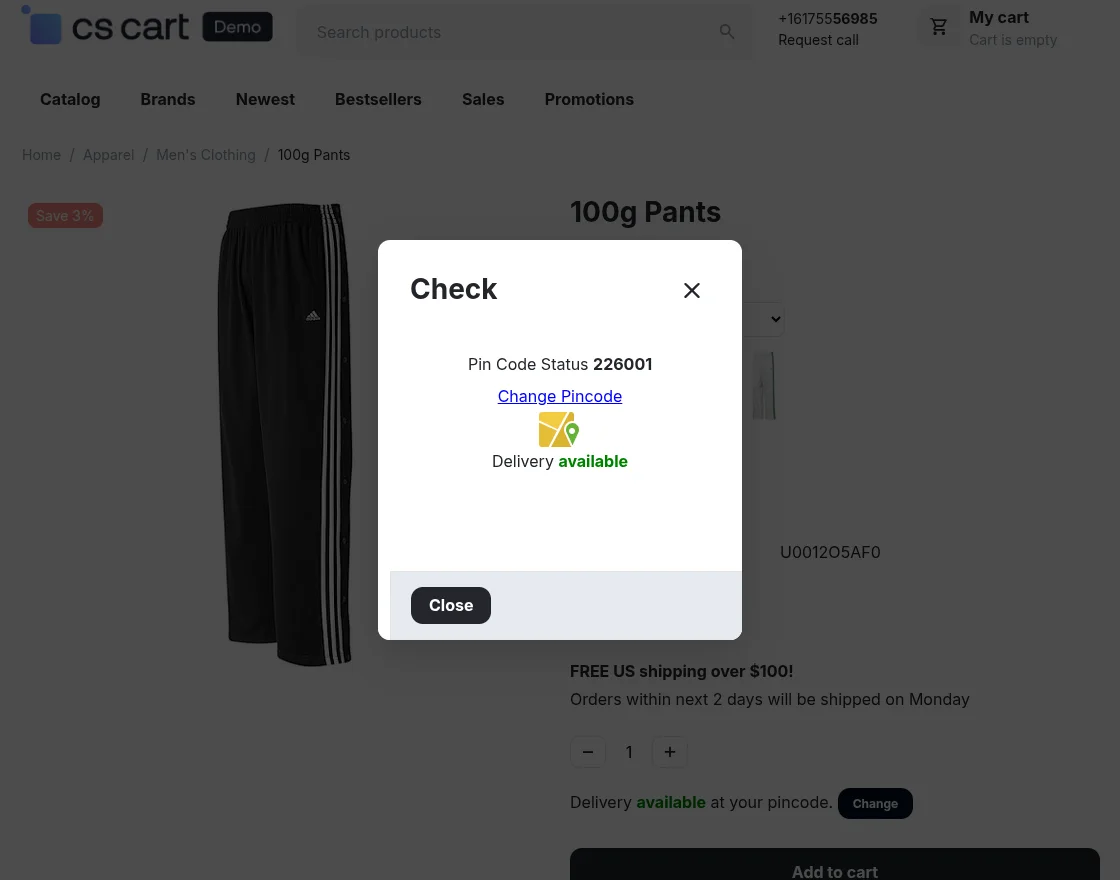
Product Availability in “Product View” page view:

Pincode/Zipcode check availability in the product view page at the front end.

CS-Cart zipcode availability

From here, you can modify the Pincode/Zipcode.

CS-Cart change zipcode

After changing the Pincode/Zipcode, users can check whether COD is available for their location.

CS-Cart COD availability on the checkout page

When COD is available for the customer’s location, it will appear on the checkout page.

CS-Cart 
COD not available

When COD is not available for the customer’s location, it will not appear on the checkout page. 

Support

If you have any questions, suggestions, or customization requests, feel free to contact us at [email protected] or submit a ticket at webkul.uvdesk.com.

Explore our premium-quality CS Cart Extensions to enhance your store functionality.

You can also explore our CS-Cart Development Services and Quality CS-Cart add-ons.

Current Product Version - 1.4

Supported Framework Version - 4.18

Blog Version - 4.18
  • Version 4.18
  • Version 4.13.x - 4.18.x
. . .

Leave a Comment

Your email address will not be published. Required fields are marked*


2 comments

  • Lavanya D R
    • Rani Kumari (Moderator)
  • Back to Top

    Message Sent!

    If you have more details or questions, you can reply to the received confirmation email.

    Back to Home

    CS-Cart Product Availability By Pincode/Zipcode