Introduction
Odoo Website Customer Geolocation Openstreetmap Address module allows users to pin their location with just one click. It saves time by avoiding manually typing long addresses.
Users can view multiple street views according to their needs. It works on a secure HTTPS network, so you don’t have to compromise your security.
This module works directly with your Odoo website. This makes location sharing simple and easy to use while keeping everything in one place.
Features
- Users don’t need to type long addresses manually.
- Location sharing can be easy by directly setting their current location.
- we can see through different street views using custom and interactive maps.
- Can easily zoom in and zoom out by just one button.
- Full-screen view for a clearer view of the map.
- It only works on an HTTPS connection for security.
- It can update automatically if you change the pin location.
- If API doesn’t provide value it’ll show a map without markers.
- There is no need for configuration separately, you just need to install it and it will work.
- This module successfully integrates the OpenStreetMap into your Odoo website.
Installation
- Once you purchase the App from the Webkul store, you will receive a link to download the module’s zip file.
- After the download finishes, extract the file on your system. You will see a folder named ‘geolocation_share_openstreetmap’.
- Copy and paste this folder inside your Odoo Add-Ons path.
- Now, open the Odoo App and click on the Settings menu. Here, click on Activate the Developer Mode.
- Then, open the Apps menu and click ‘Update Modules List.’
- In the search bar, remove all the filters and search ‘geolocation_share_openstreetmap’.
- The module will appear in the search results. Click on ‘Install’ to install it.
Workflow
- After installing Odoo Website Customer Geolocation Openstreetmap Address users can easily set their location using just one click instead of typing long address.
Navigate to the map, then click the button in the top-right corner to view multiple map options.

2. Navigate to the map and place the pin on your desired location.

3. While setting the pin, if you encounter any issues, you can use the button in the top-left corner to switch to a full-screen view for a clearer look.

4. After you set the pin, the module automatically fills in your address and saves it for you.
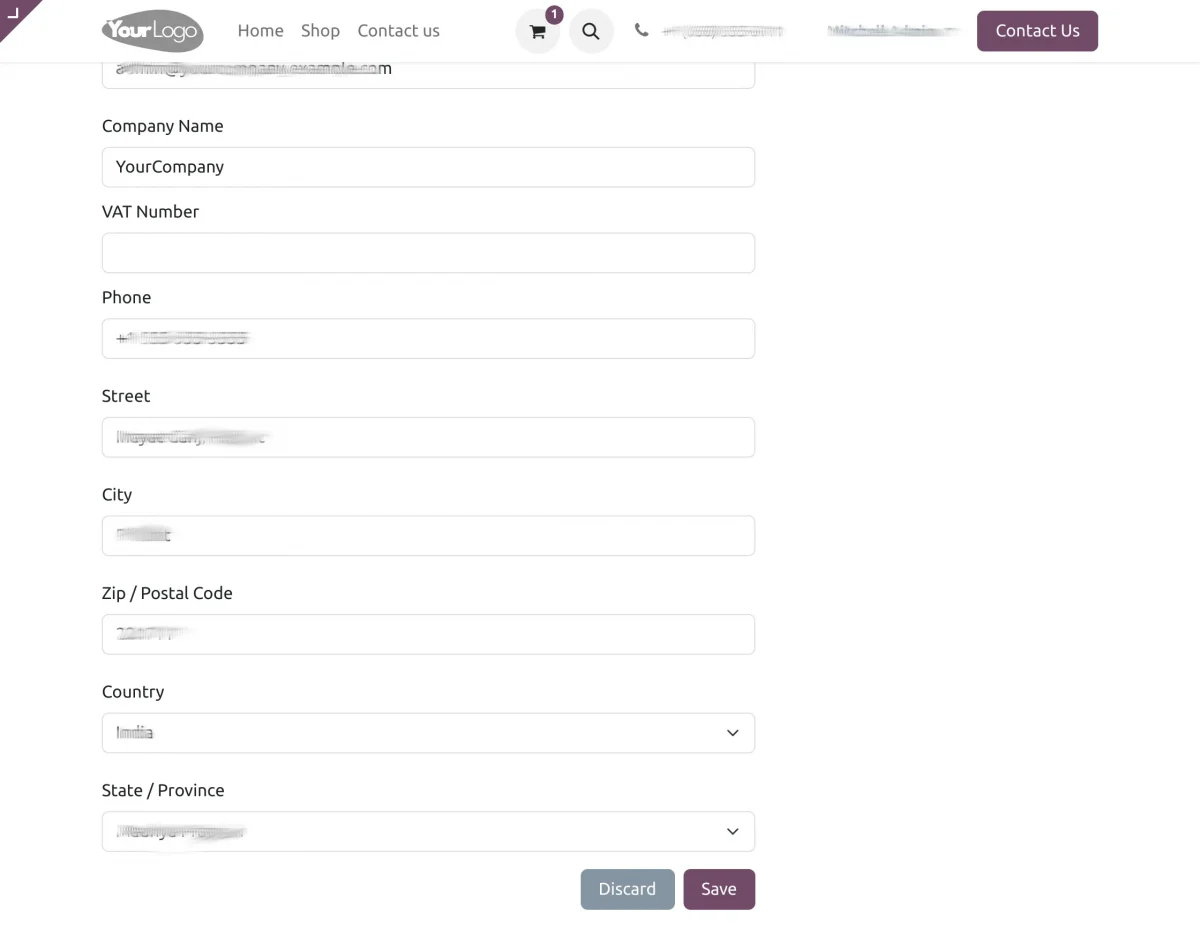
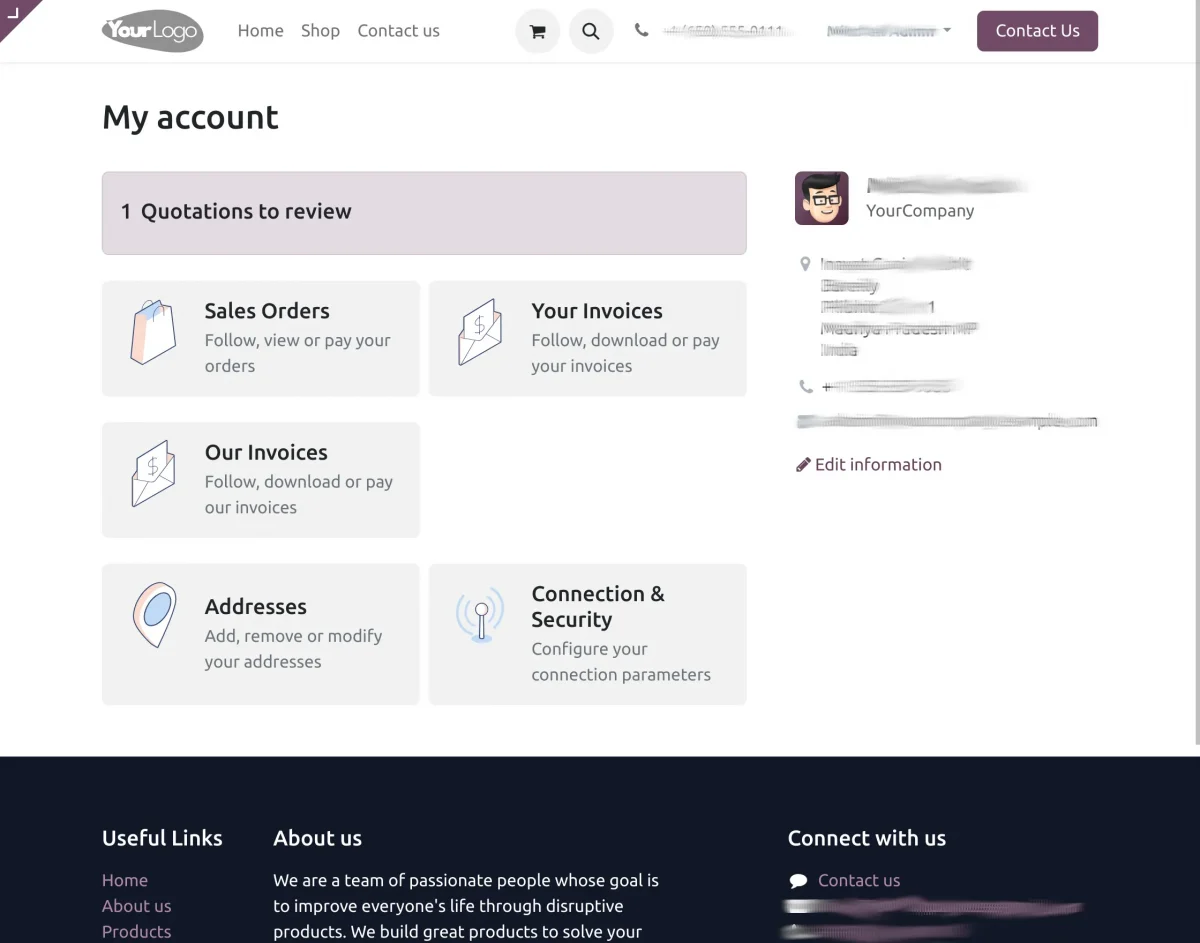
5. Once set, your address will be saved automatically.
Need help?
Hope you find the guide helpful! Please feel free to share your feedback in the comments below.
If you still have any issues/queries regarding the same, please raise a ticket at the UV Desk.
I hope this helps. In case of any further queries, contact us at our support mail.
Thanks for paying attention!!
Current Product Version - 1.0
Supported Framework Version - Odoo V13, V14,V15,V16,V17,V18

Be the first to comment.