Odoo Multichannel Walmart Connector is a dependent module on Odoo Multi-Channel Sale Module, which is the framework module to provide the structure to integrate Walmart with Odoo. Install the base module first for Odoo Multichannel Walmart Connector to work properly.
INTRODUCTION
Odoo Multichannel Walmart Connector connects Walmart with Odoo and helps businesses manage Walmart products, orders, customers, stock, and other marketplace data in Odoo.
The connector supports scheduled synchronization of Walmart orders only through cron jobs. Products and categories are imported through their supported manual import flows.
It also supports product and category exports, order-status mapping, category attribute management, and a Dynamic Dashboard to help users monitor and manage Walmart data from Odoo.
But, how to connect Walmart store(s) with Odoo?
Odoo Multichannel Walmart Connector offers you the perfect solution to connect Odoo to Walmart.
If you are also managing one or more Walmart Stores or Walmart seller accounts then Odoo Multichannel Walmart Connector can help you in the best way.
FEATURES
Here is the concise list of the features. Visit the Store Page to know the detailed features of Odoo Multichannel Walmart Connector
- Import Walmart Products and Categories into Odoo.
- Import Orders with Complete Details.
- Schedule Automatic Imports with the Cron Scheduler.
- Export Products in Bulk or Individually to Walmart.
- Map Walmart and Odoo Order Statuses.
- Sync Orders, Shipments, Invoices, Cancellations, Refunds, and Inventory in Real Time.
- Monitor Walmart Data with the Dynamic Dashboard.
- Analyze Data with Donut Charts and Line Graphs.
- Track Imports and Exports with Synchronization History.
INSTALLATION
1) After purchasing Odoo Walmart connector, you will get a link at your registered email Id to download the module.
2) Extract the file on your system after the download finishes. You will be able to see a folder named- ‘walmart_odoo_connector’.
3) Copy and paste this folder inside your Odoo Add-Ons path.
4) Now, open the Odoo App and click on the Settings menu. Here, click on Activate the Developer Mode.
5) Then, open on Apps menu and click on ‘Update Modules List’.
6) In the search bar, remove all the filters and search ‘walmart_odoo_connector’.
8) You will be able to see the module in the search result. Click on ‘Install’ to install it.
WORKFLOW
1. Connect Walmart with Odoo
- Open the Odoo Multichannel Walmart Connector module in Odoo and click Connect to add a Walmart store.
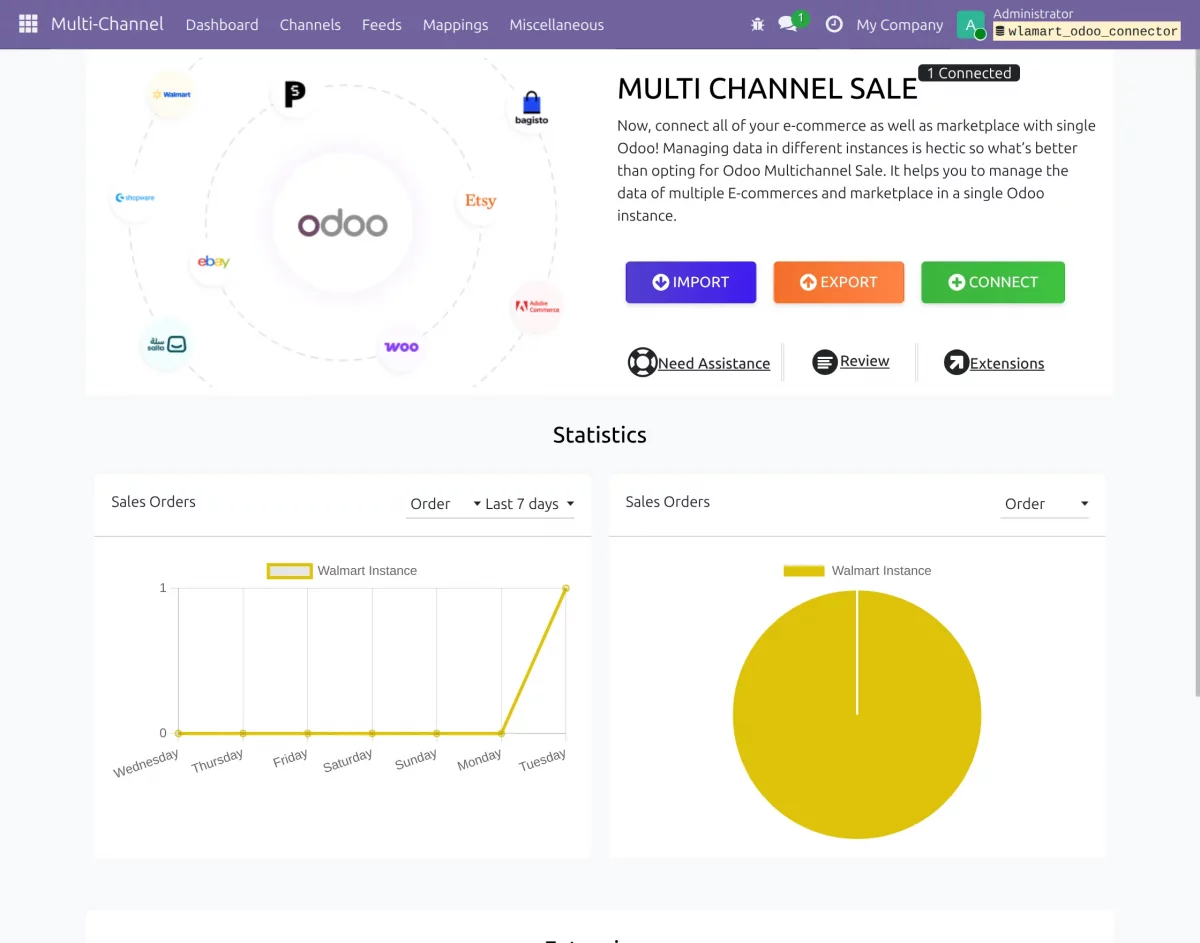
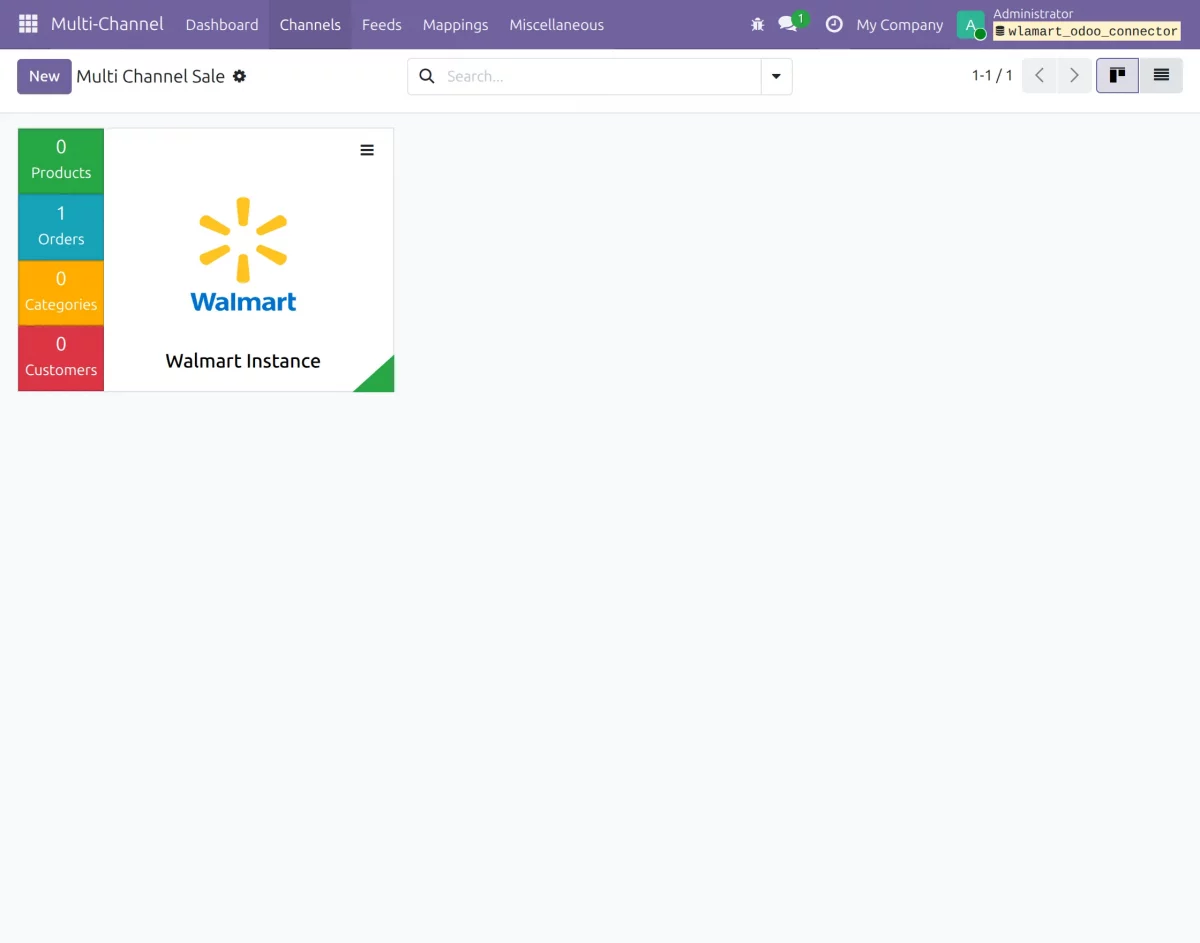
2. Walmart Instance
- In the Channels section, select the Walmart Instance to open and manage its configuration.
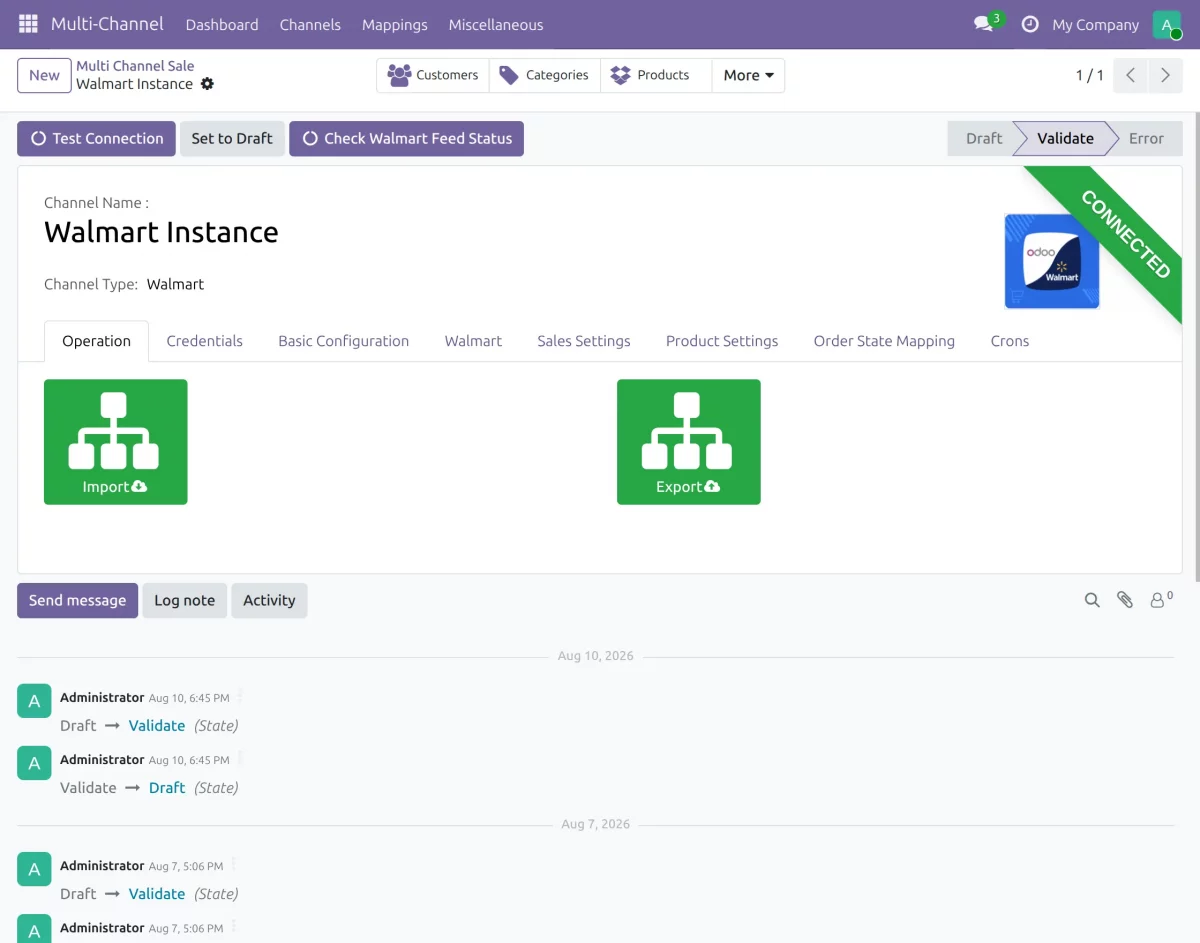
3. Walmart Instance Configuration
- Open the Walmart Instance and use the available tabs to configure credentials, basic settings, sales, products, order states, and cron jobs.
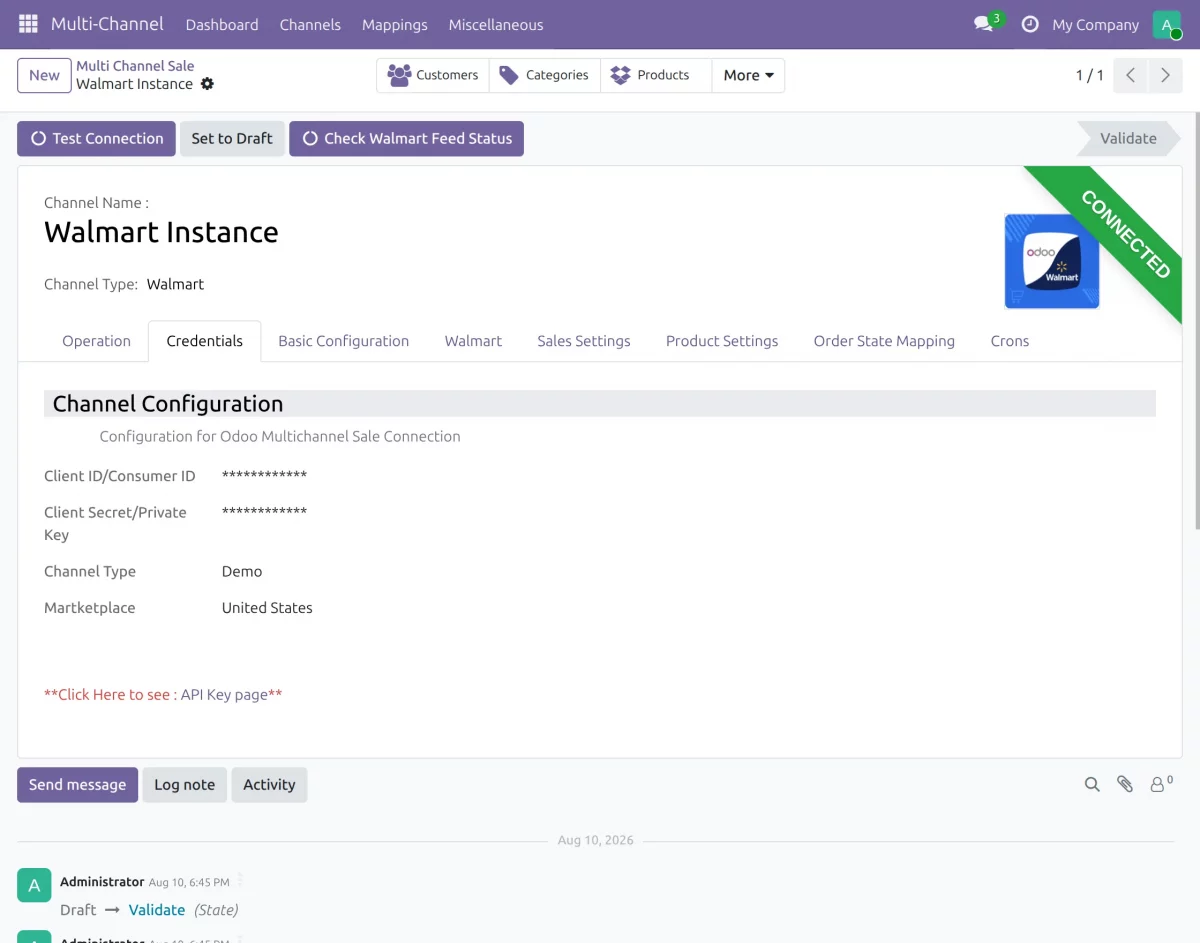
4. Configure Walmart Credentials
- Enter the Client ID/Consumer ID and Client Secret/Private Key, then select the required Walmart marketplace.
- Click Test Connection to verify the Walmart credentials and co
5. Import Walmart Data
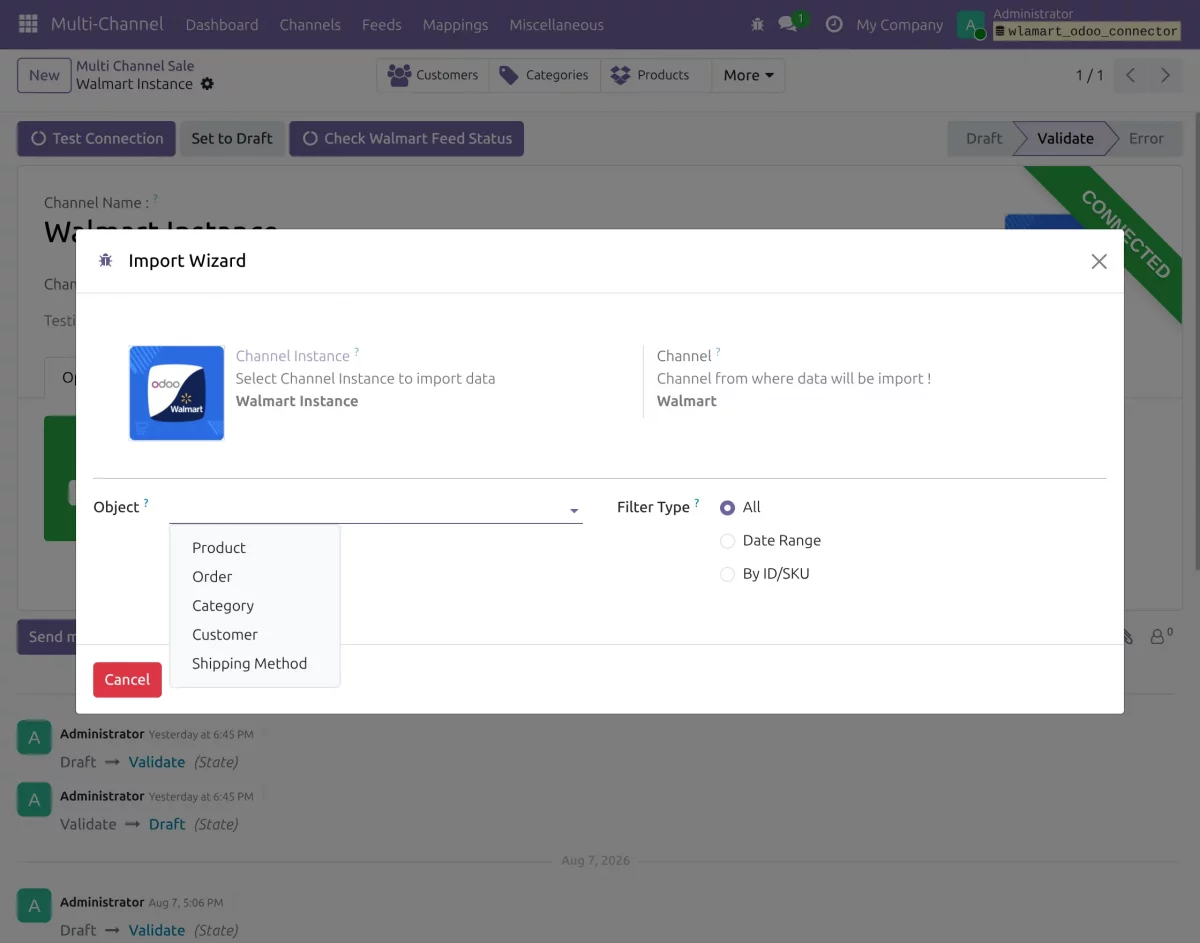
- Click Import and select the required object, such as Product, Order, Category, or Shipping Method, then choose the required filter type.
- Customers are created automatically during order import.
6. Export Walmart Data
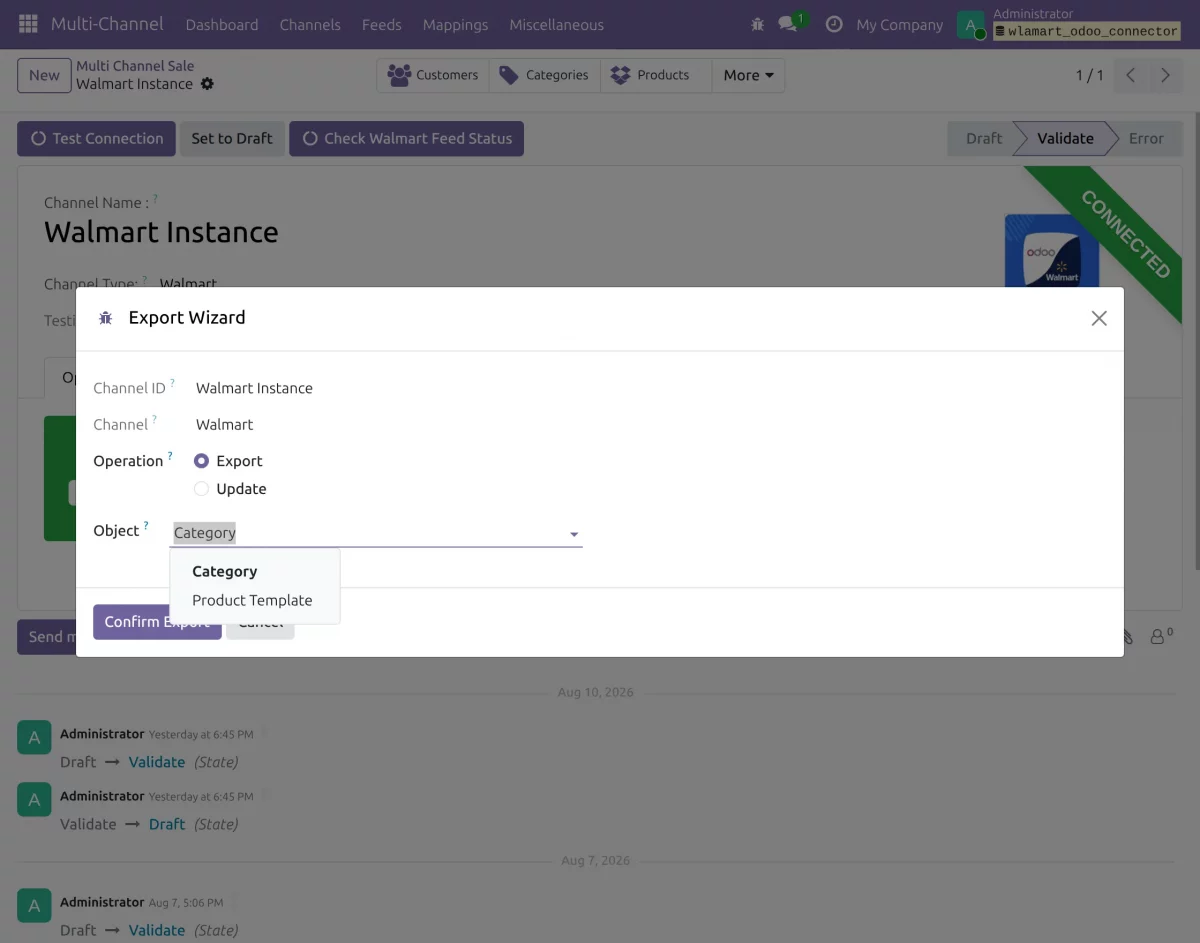
- Click Export, select Category or Product Template, and choose Export or Update as required.
- Walmart integration includes Category Attribute Management, with full attribute specification fetching and validation UI.
7. Configure Basic Settings
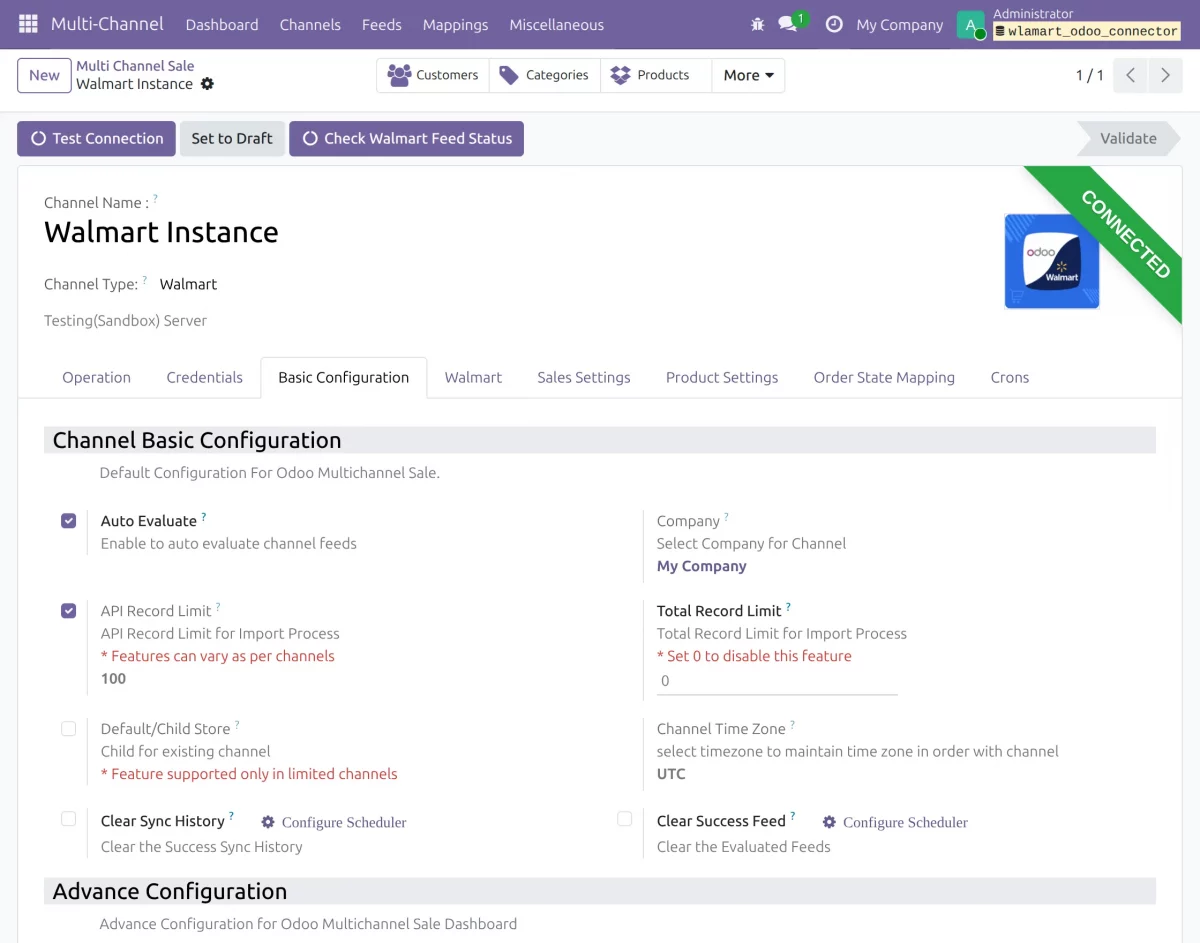
- Open the Basic Configuration tab and configure options such as Auto Evaluate, API Record Limit, Company, Total Record Limit, and Time Zone as required.
8. Configure Order Settings
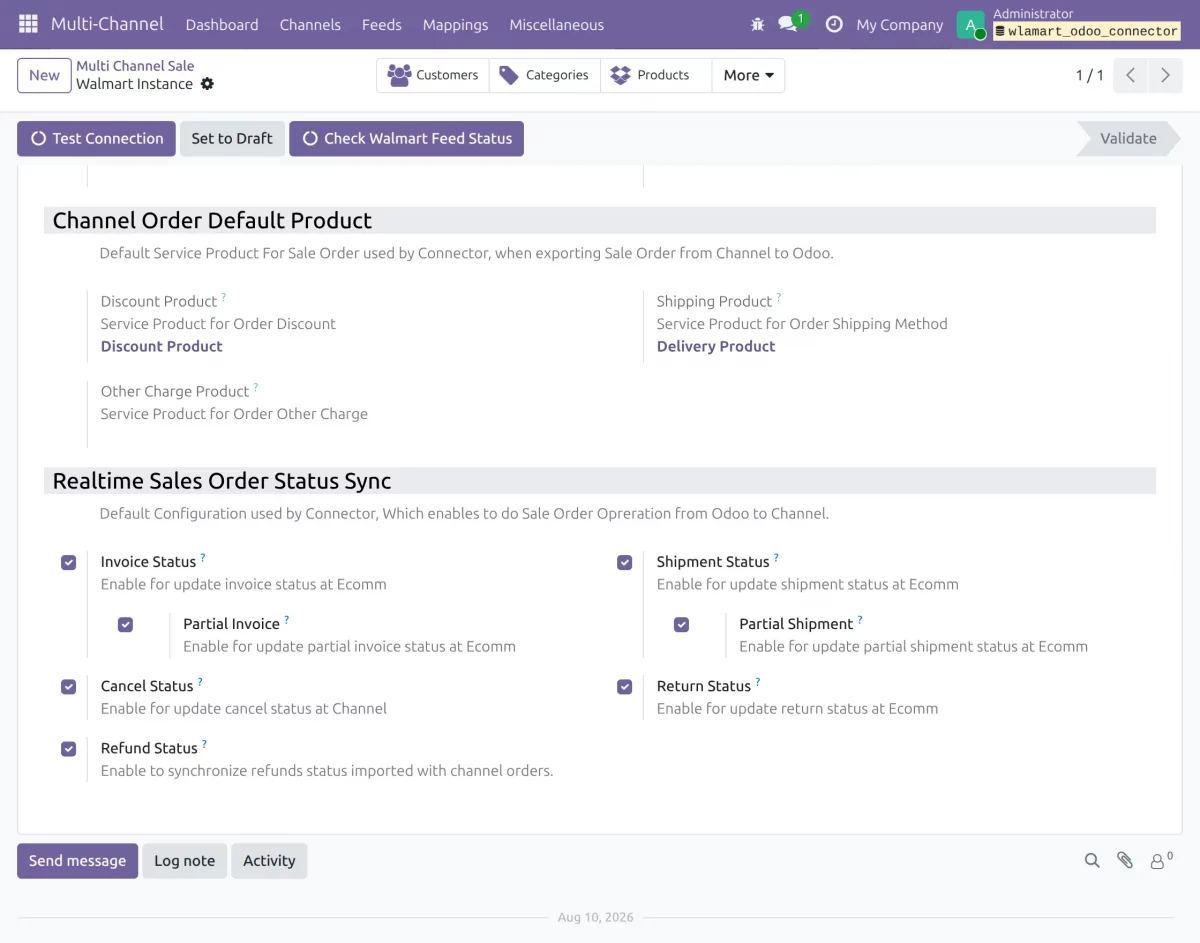
- Set the Discount, Shipping, and Other Charge Products used for Walmart orders. Enable the required Invoice, Shipment, Cancel, Return, and Refund Status options for real-time updates.
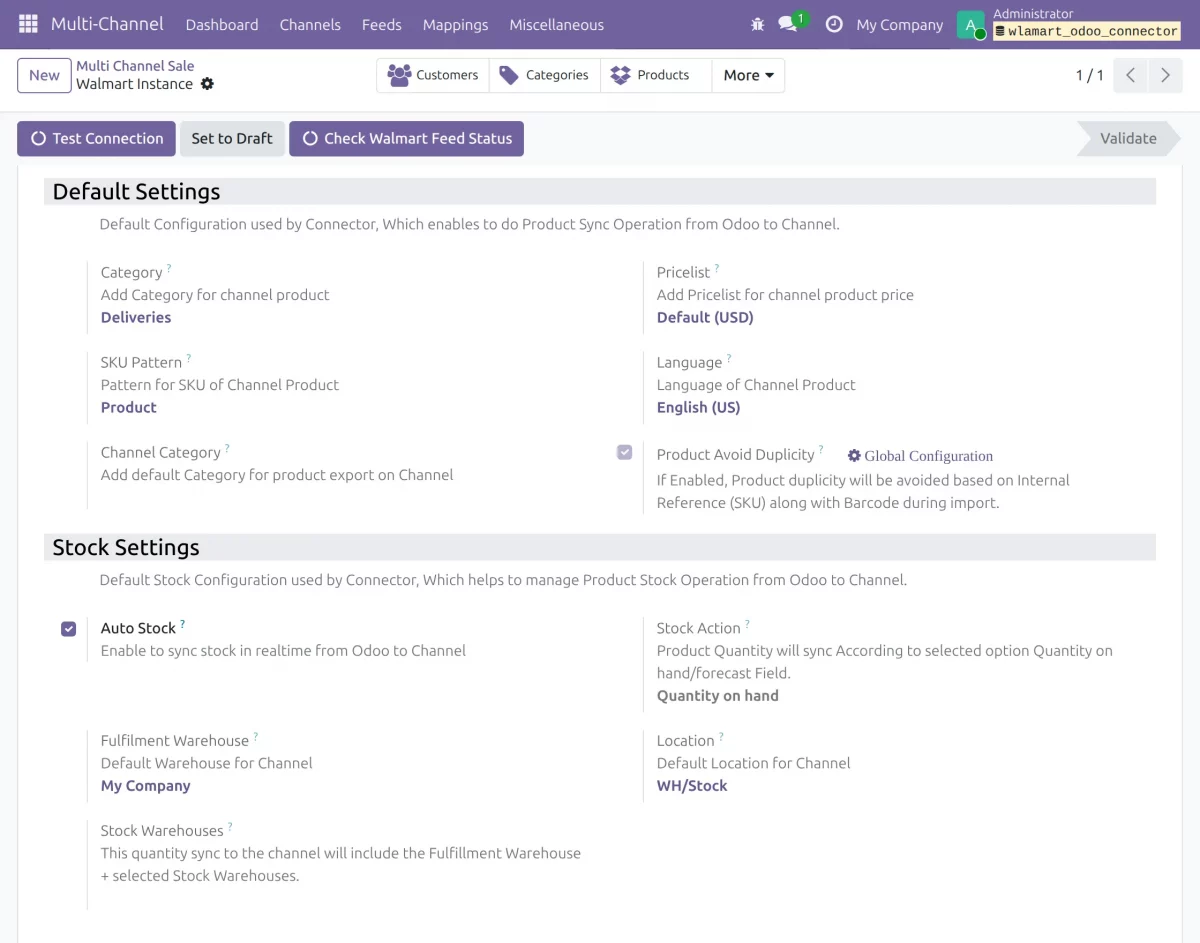
9. Product and Stock Settings
- Set the default Category, Pricelist, SKU Pattern, Language, and Channel Category for Walmart products.
- Enable Auto Stock and configure the Warehouse, Location, and Stock Action for inventory synchronization.
10. Order State Mapping
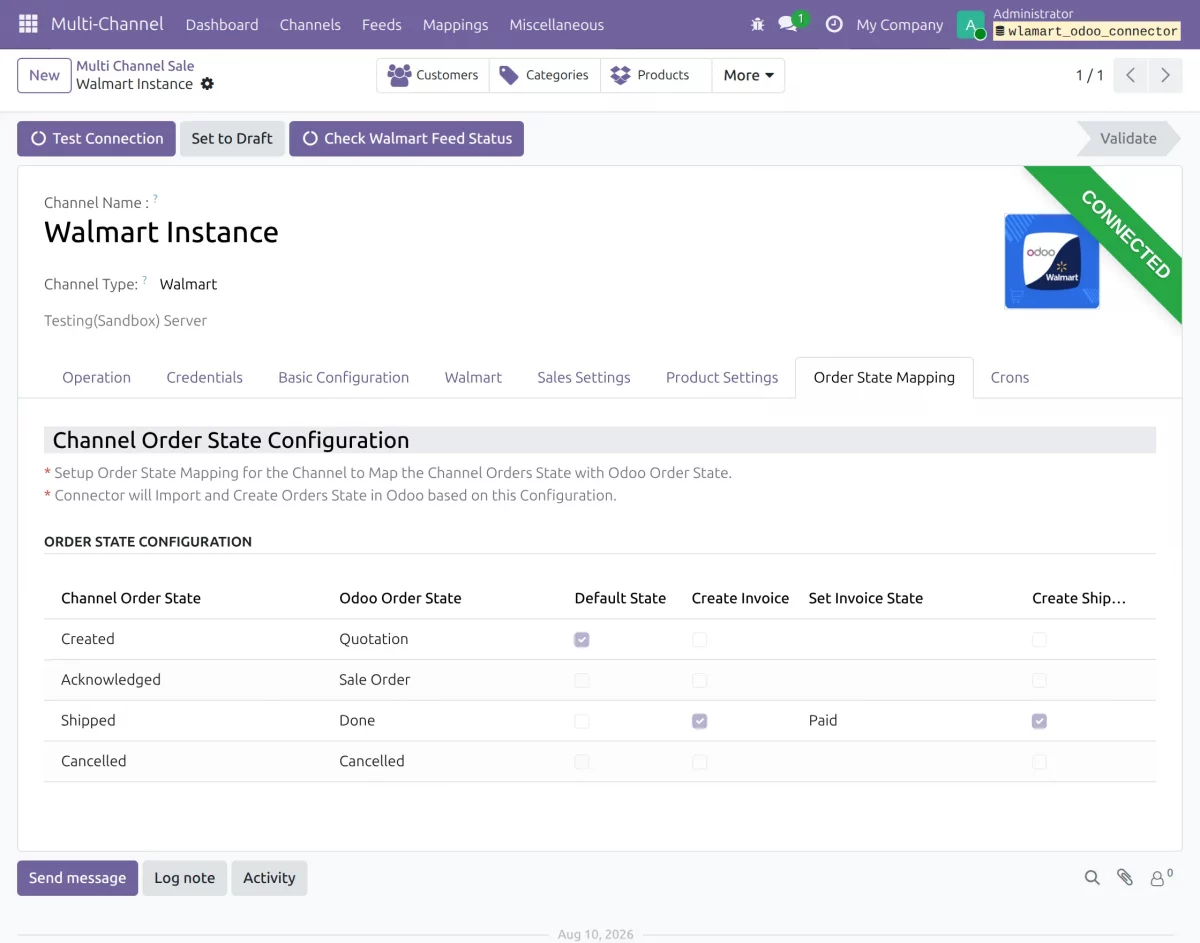
- Map Walmart order statuses with the matching Odoo order states in the Order State Configuration table. This mapping controls how Walmart order statuses are created and managed in Odoo.
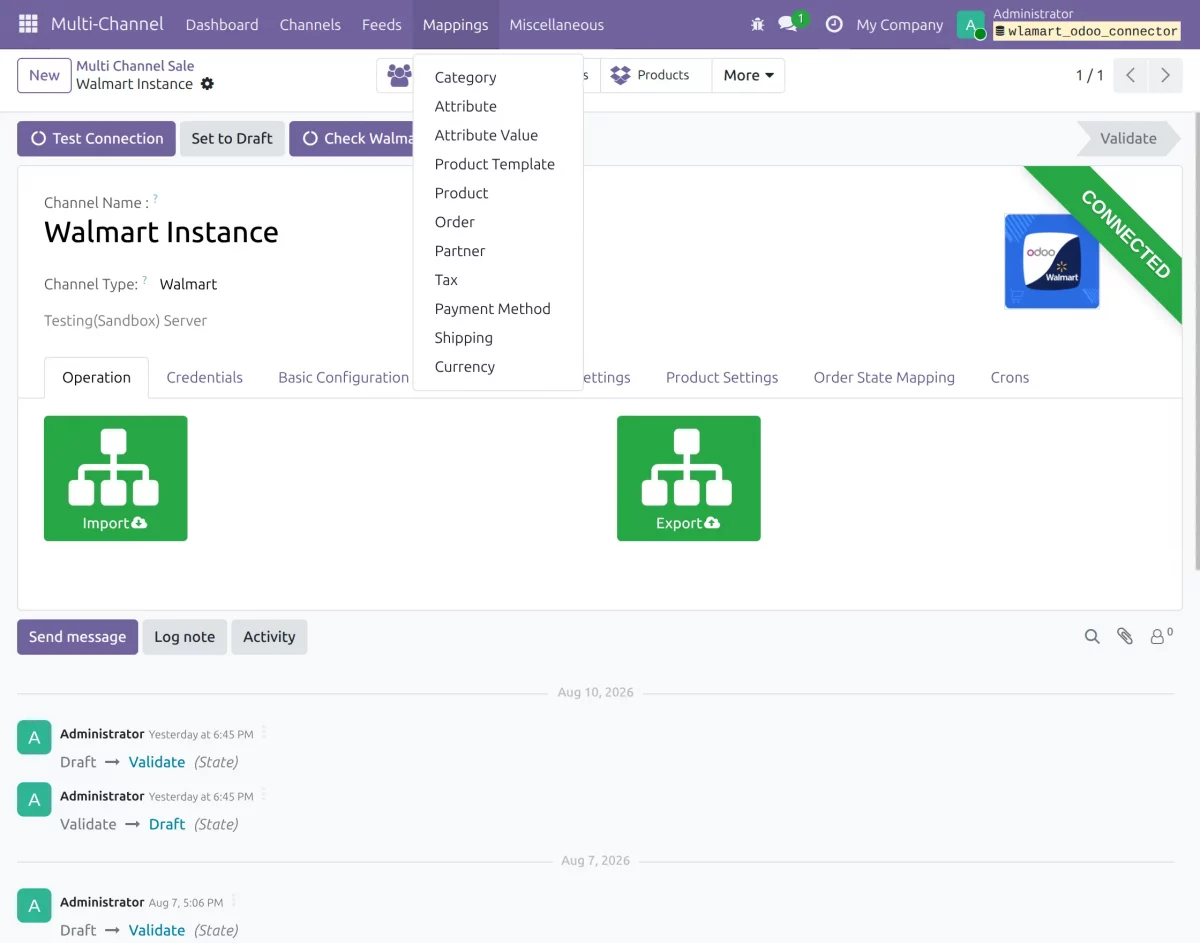
- Use the Mapping feature to configure and manage how Walmart data and fields are mapped with the corresponding records in Odoo for accurate synchronization.
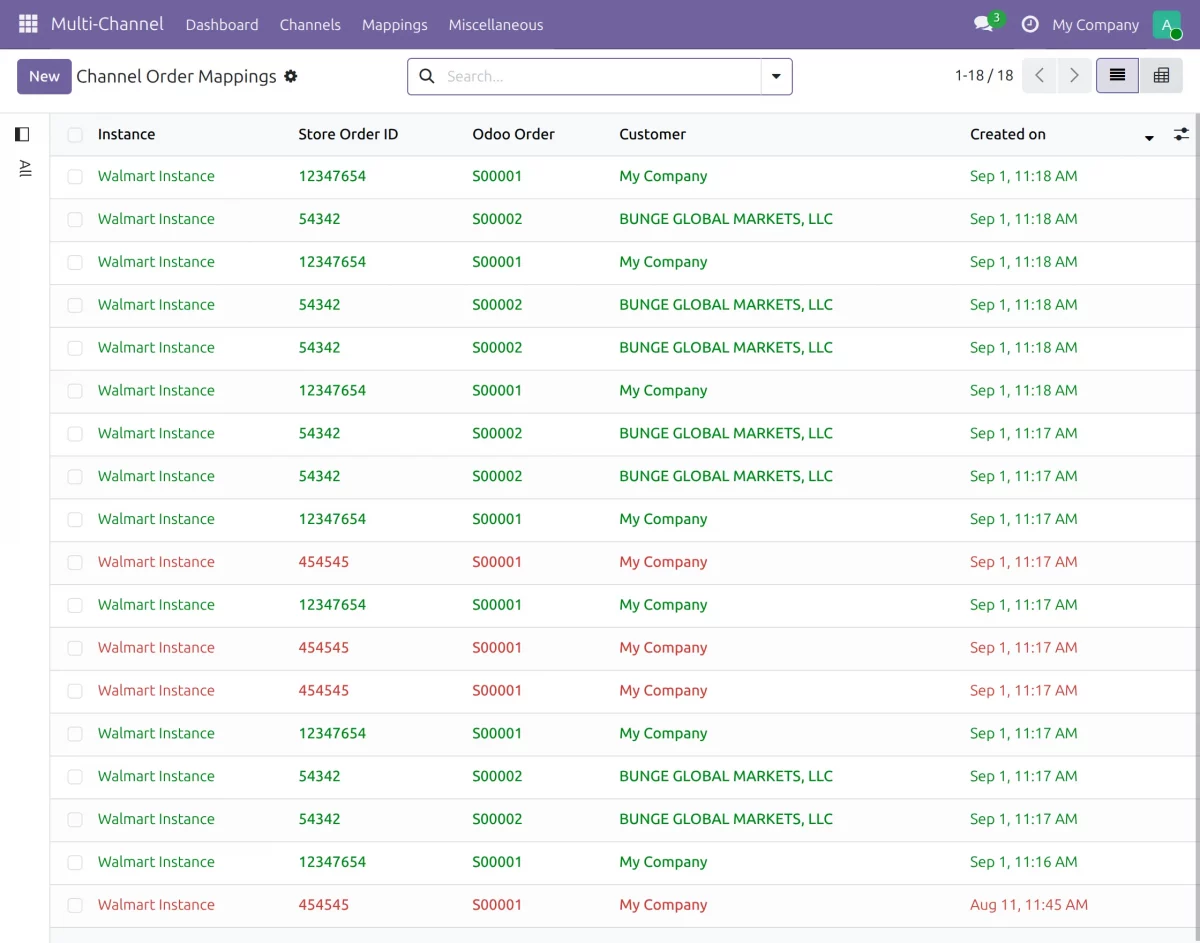
- View the mapping between Walmart store orders and their corresponding Odoo orders in one table.
- Track the customer details and creation date for each mapped order record.
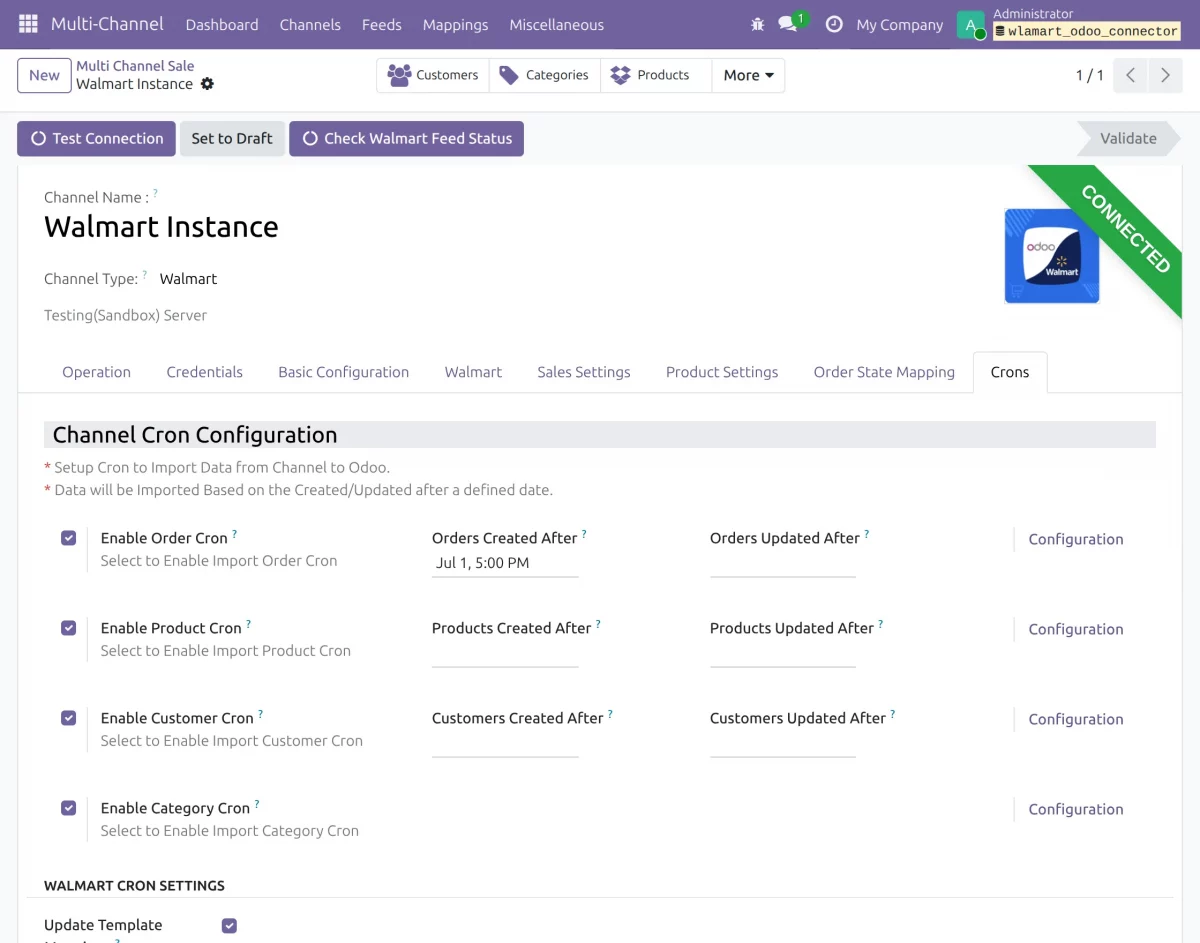
11. Cron Configuration
- Enable cron jobs to synchronize orders automatically. Products and categories are imported through their supported manual import flows.
- The module includes a separate “Update Template Mappings” cron feature.
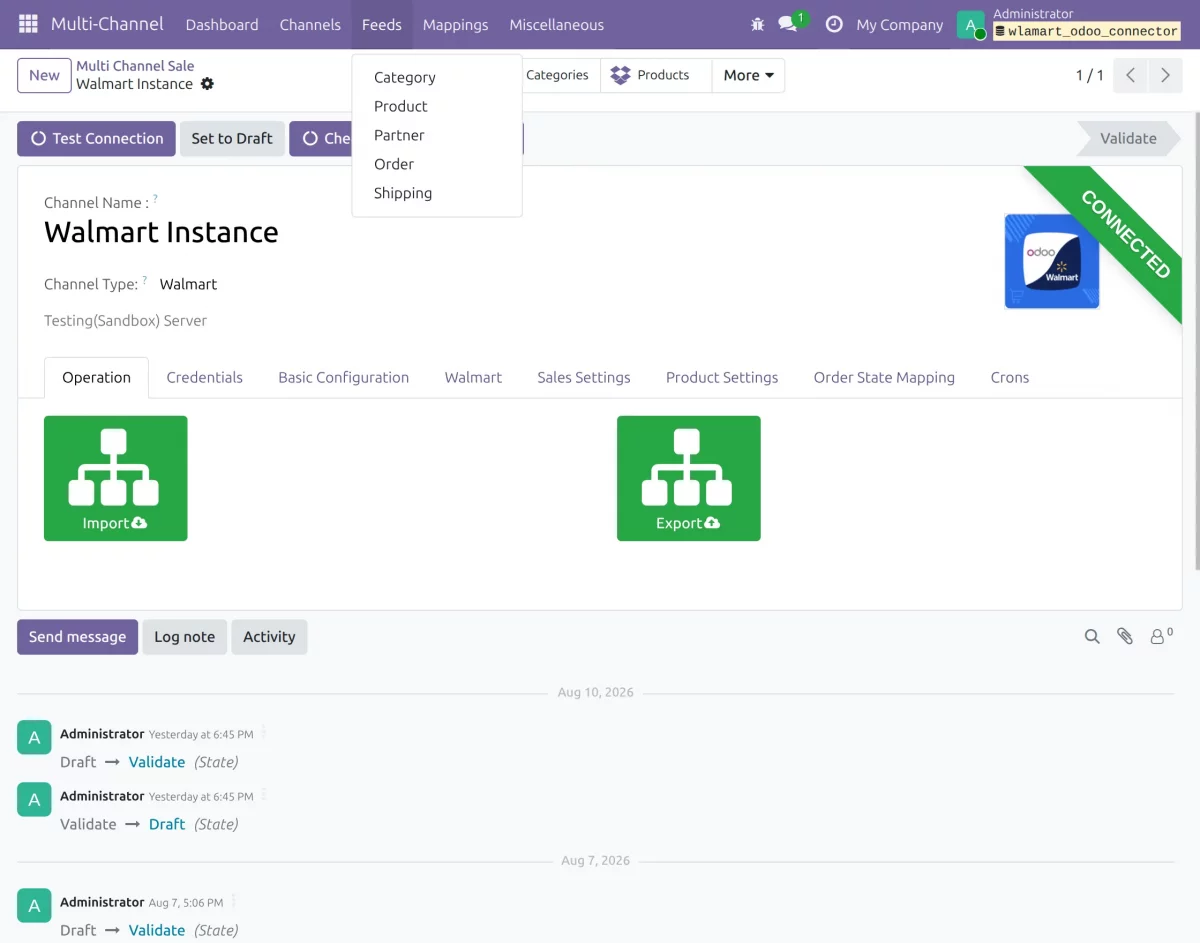
12. Managing Feeds
- The Feeds section displays the records created during Walmart Multichannel Connector import and export operations.
- You can check the feed records to view the status of the related operation and track the data processed by the connector.
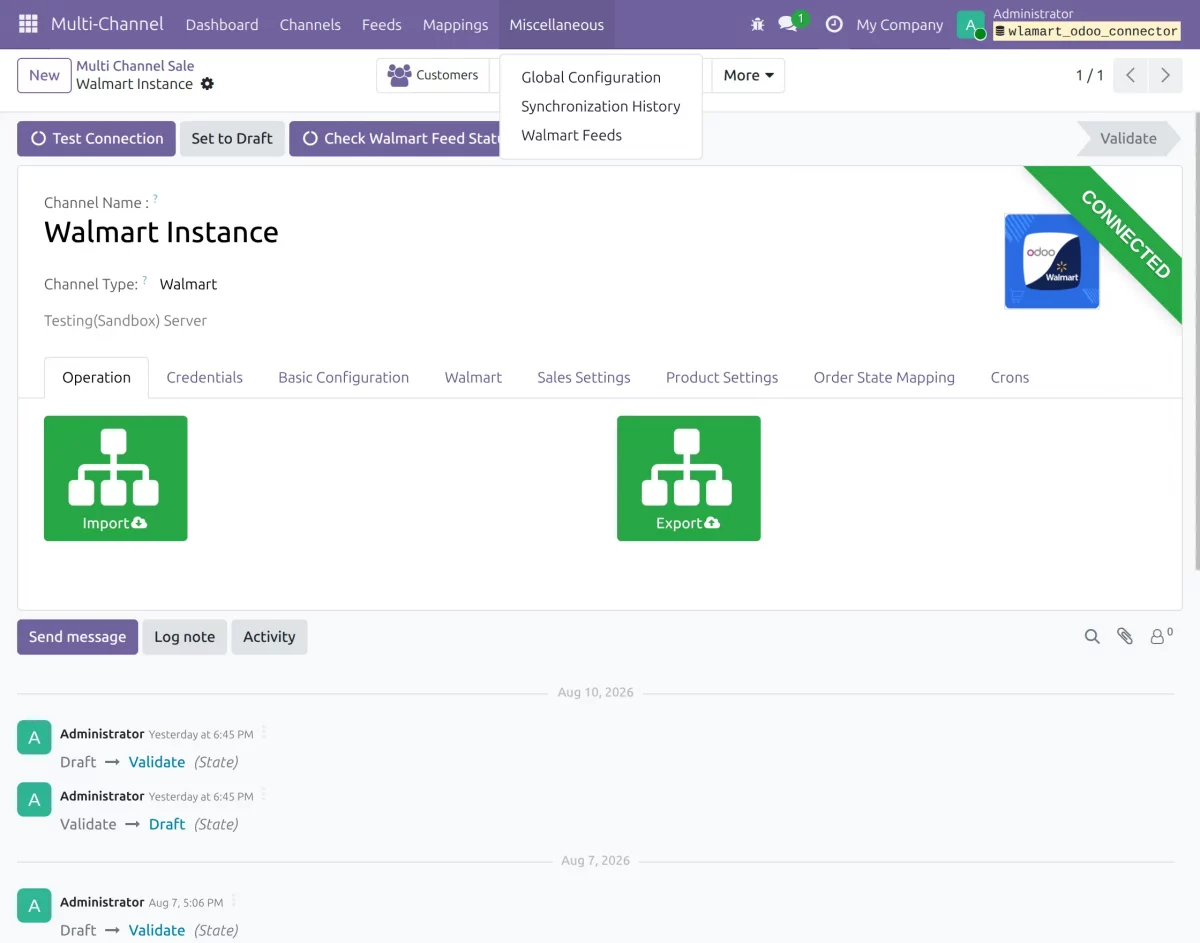
13. Synchronization History
- Click Synchronization History from the More menu to view the synchronization records and track the history of Walmart data synchronization.
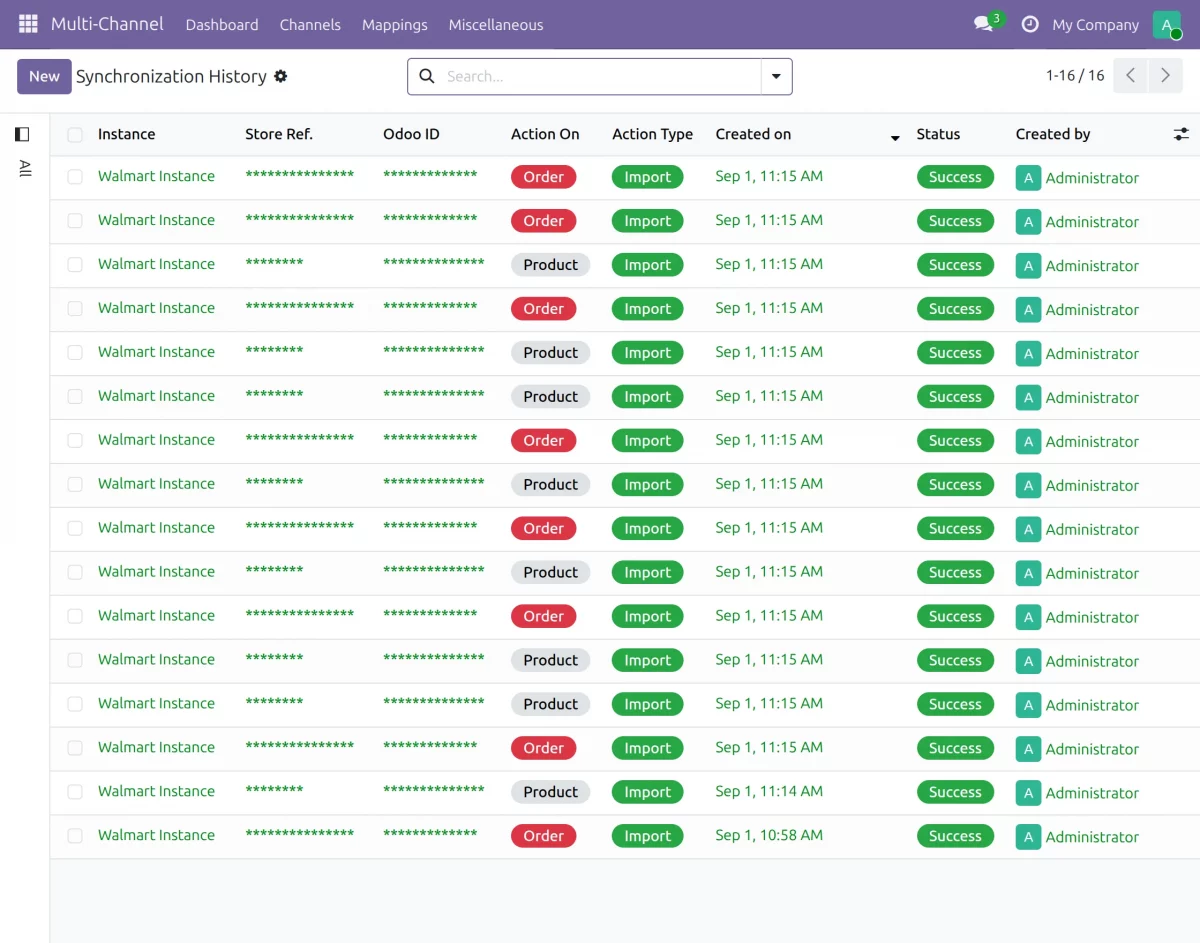
- View all synchronization records and their details in the Synchronization History.
- Track the synchronization date, action type, status, and other related information.
Need Help
Hope you find the guide helpful! Please feel free to share your feedback in the comments below.
However, if you still have any issues/queries regarding the module then please raise a ticket at https://webkul.uvdesk.com/en/customer/create-ticket/
For any doubt contact us at [email protected].
Thanks for paying attention!!
🙂 😌
Current Product Version - 1.0.7
Supported Framework Version - Odoo V13

Nice Module