PrestaShop Sales Count On Product Page facilitates the store owner to display the number of products sold on the product details page.
Before making the purchase, a customer wants to know about the product’s popularity and how many customers have bought it.
Showcasing the number of products sold helps the store owner gain customers’ trust and encourages them to complete the purchase.
Also, the store owner can show the increased number of product sales that create curiosity among the customers and they end up making the purchase.
Displaying the sales count of products influences the purchase decision of customers and increases sales conversion in the store.
Note: Prestashop Sales Count On Product Page module is compatible with PrestaShop new catalog page V2.
Check the overview of the plugin in the video mentioned below –
Features of Prestashop Sales Count On Product Page
- Prestashop Sales Count On Product Page is multi-shop compatible.
- Choose to show the actual number of products sold or the custom number of products sold.
- Select whether the real sales count to display will increase on the order confirmation or validated order.
- Option to display sales information on the catalog page or not.
- Show sales count on below product image thumbnail, below product price, or after add to cart block on the product page.
- Customize the product sales count block by setting its background and foreground colors.
- Choose to display product sales count in a particular time duration.
Installation
- Go to back office ->modules.
- Upload the module zip file.
- The module will automatically get installed on your Prestashop.


Configuration
After the installation of the module, a new tab “Product Sales Information” gets added under Catalog from where the admin can configure module settings.

Prestashop Sales Count On Product Page configuration is basically divided into three parts:
- Configuration
- Timelines
- Product Sales Bulk Action
Timelines
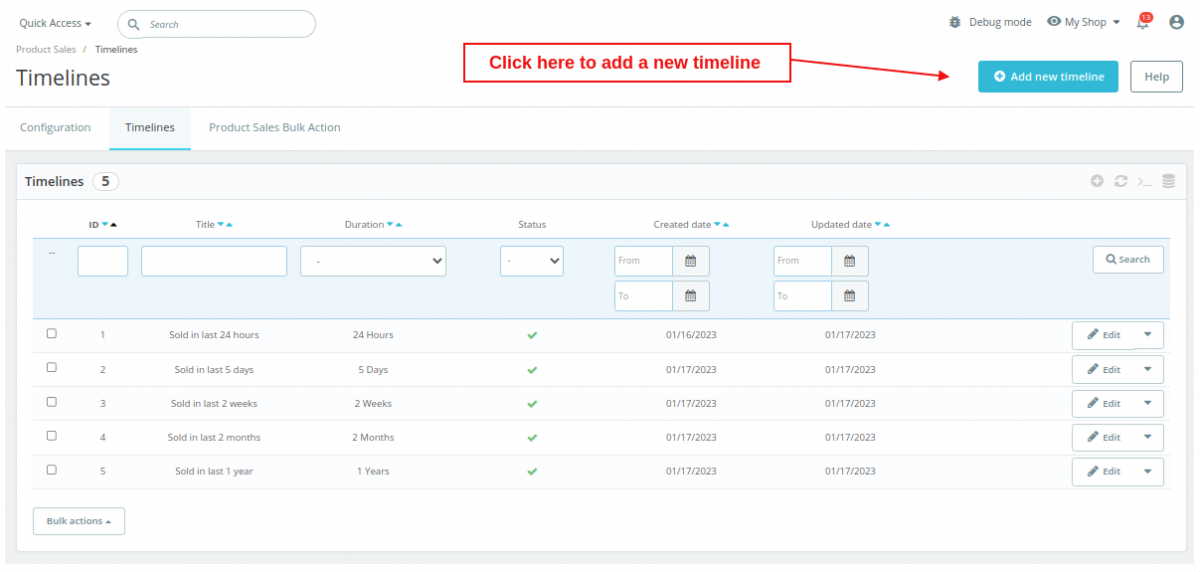
Under “Timelines”, the admin can set:
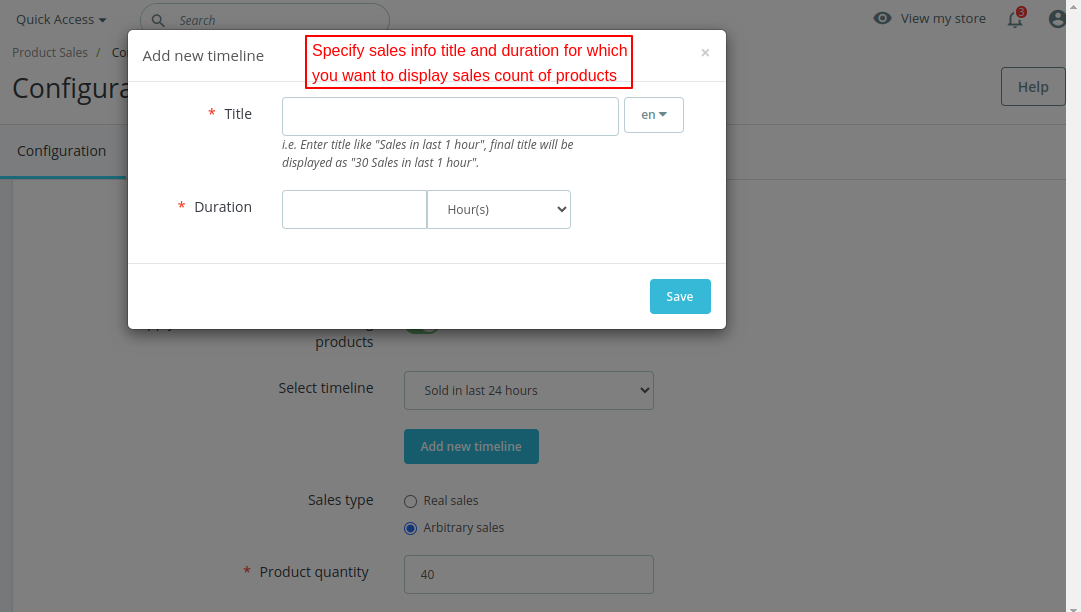
- Duration for which he wants to display the product sales count and
- Product sales info title with which a number of products sold will display at the front end.
Suppose admin has set the title as “Units sold in last 24 hours”. After applying this timeline to a product, the number of products sold let’s say 25 will be added in the prefix of the title.
Now, at the front end “25 units sold in last 24 hours” will display in the product sales info block.
Also, the admin can set the title in multi languages.

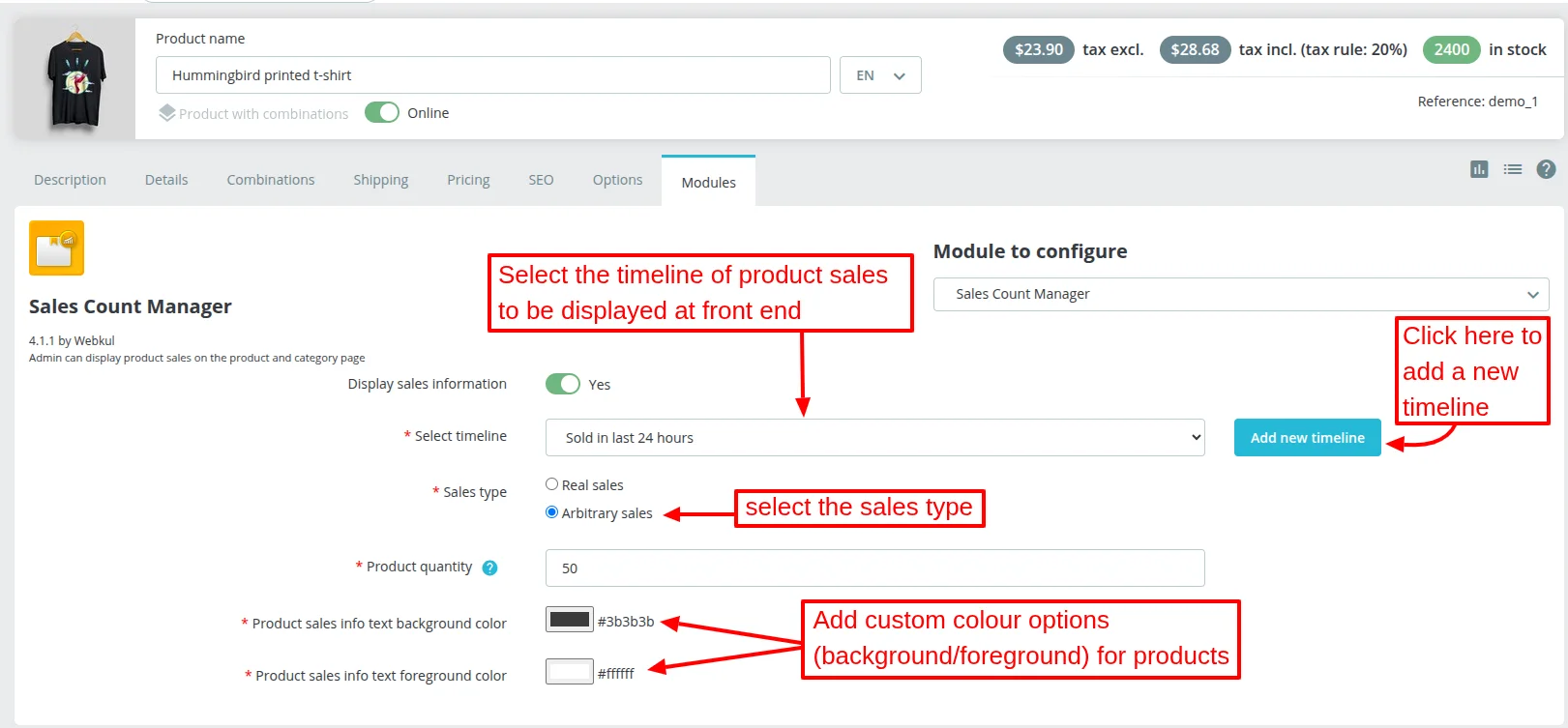
Application of Timeline to a Product
Admin can apply a timeline to a product so that its sales information will display at the front end under the Modules tab of the product page as shown below:


Sales Type
If selected “Real Sales”, then an actual number of products sold will display in the product sale information block.
Admin can also set the custom number of products sold to be displayed at the front end.
Front End View

Configuration
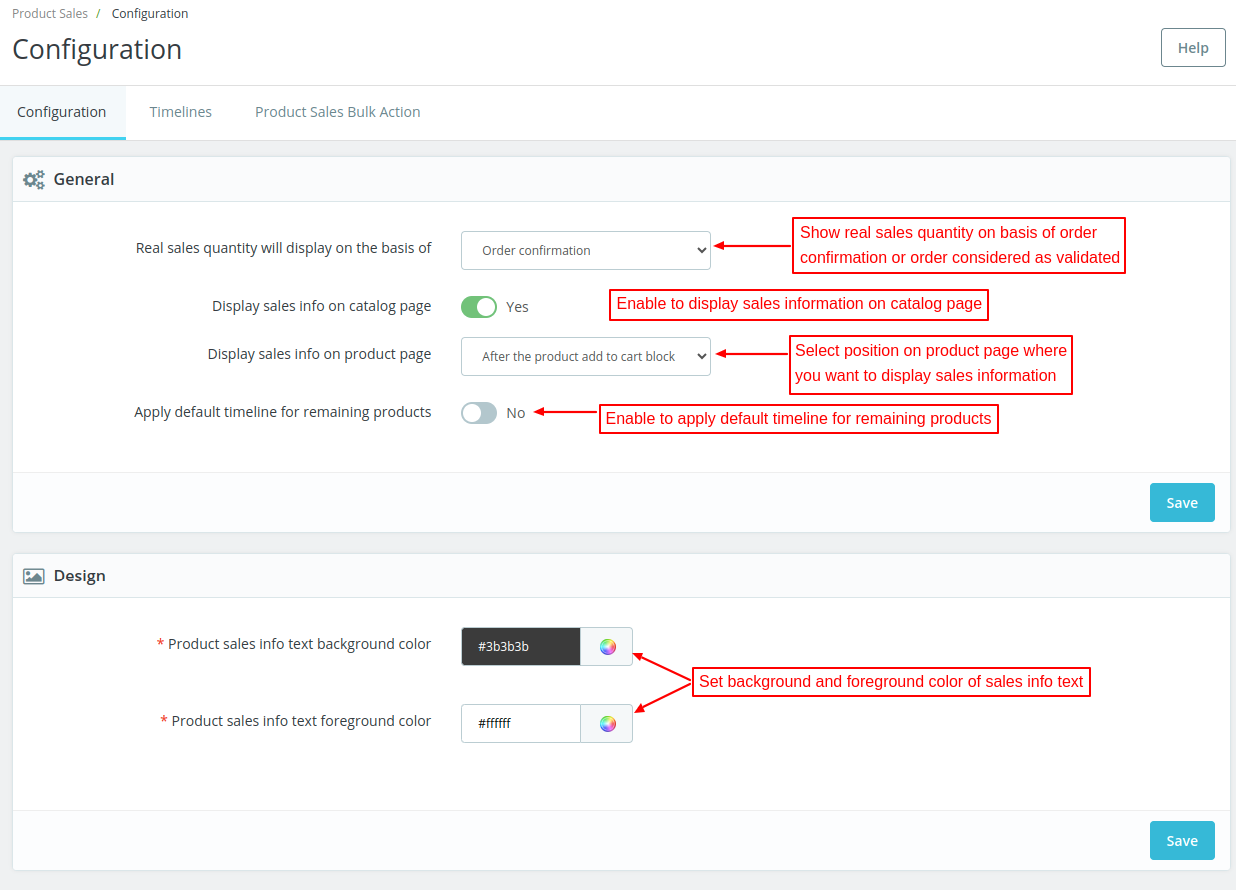
Under configuration, the admin can:
- Set whether real sales quantity will display on the basis of order confirmation or order considered as validated. If selected order confirmation, then sales count will increase upon order confirmation. If the selected order is considered validated, then the sales count will increase once the admin validates the order.
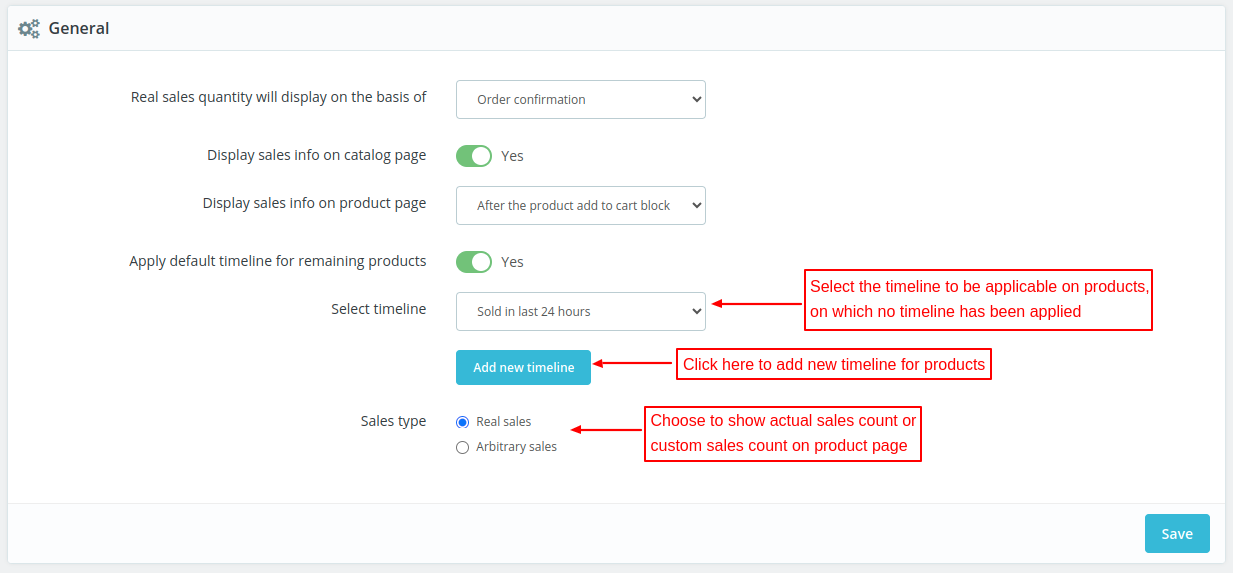
- Select position on the product page where he wants to show product sales information.
- Choose to display sales information on the catalog page or not.
- Choose to apply a default timeline for the remaining products.
- Configure the look and feel settings of the sales count block.
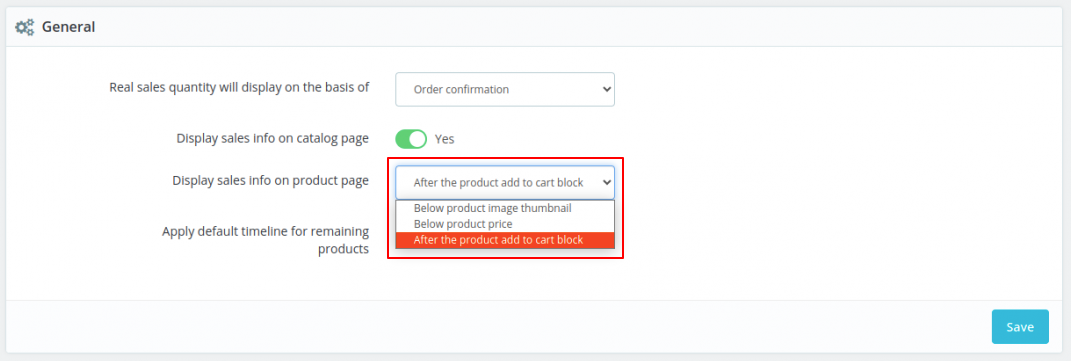
Display sales info on product page
On the product page, the admin can choose to show sales info on:
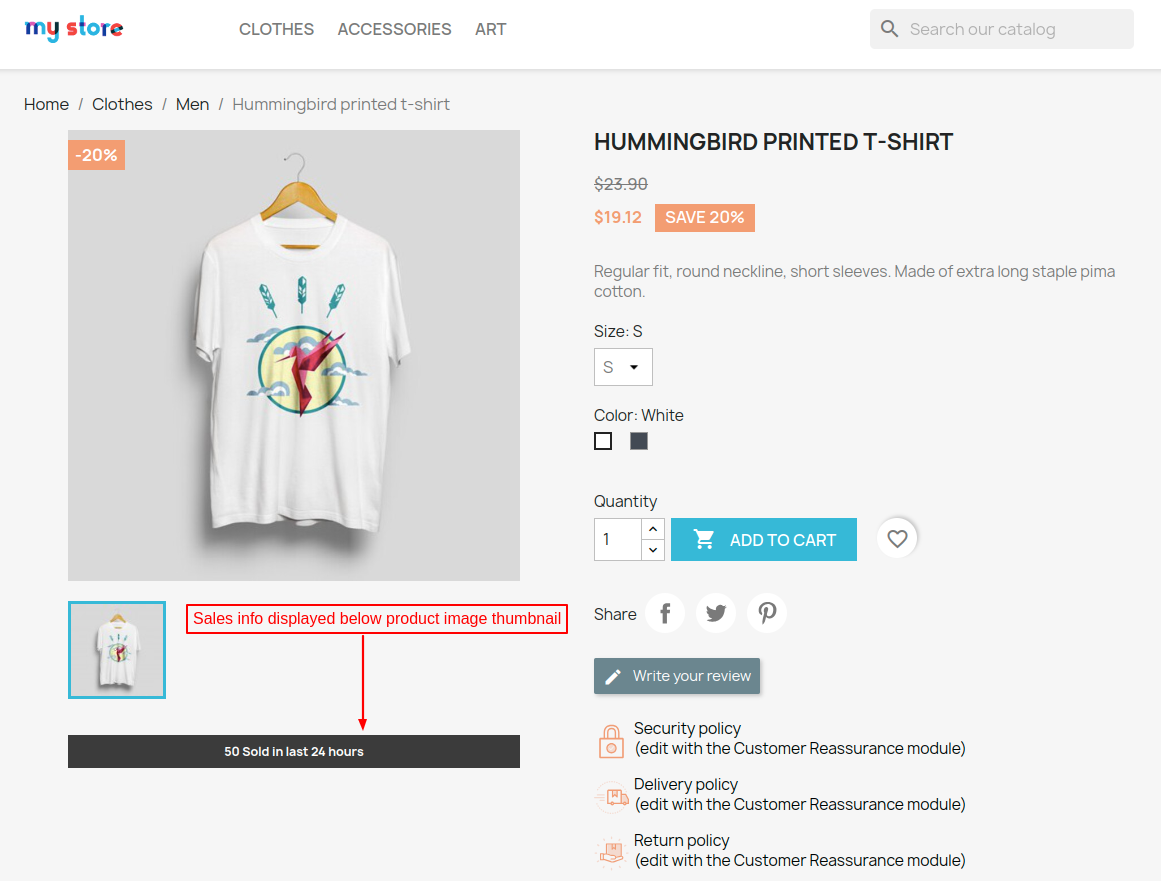
- Below product image thumbnail
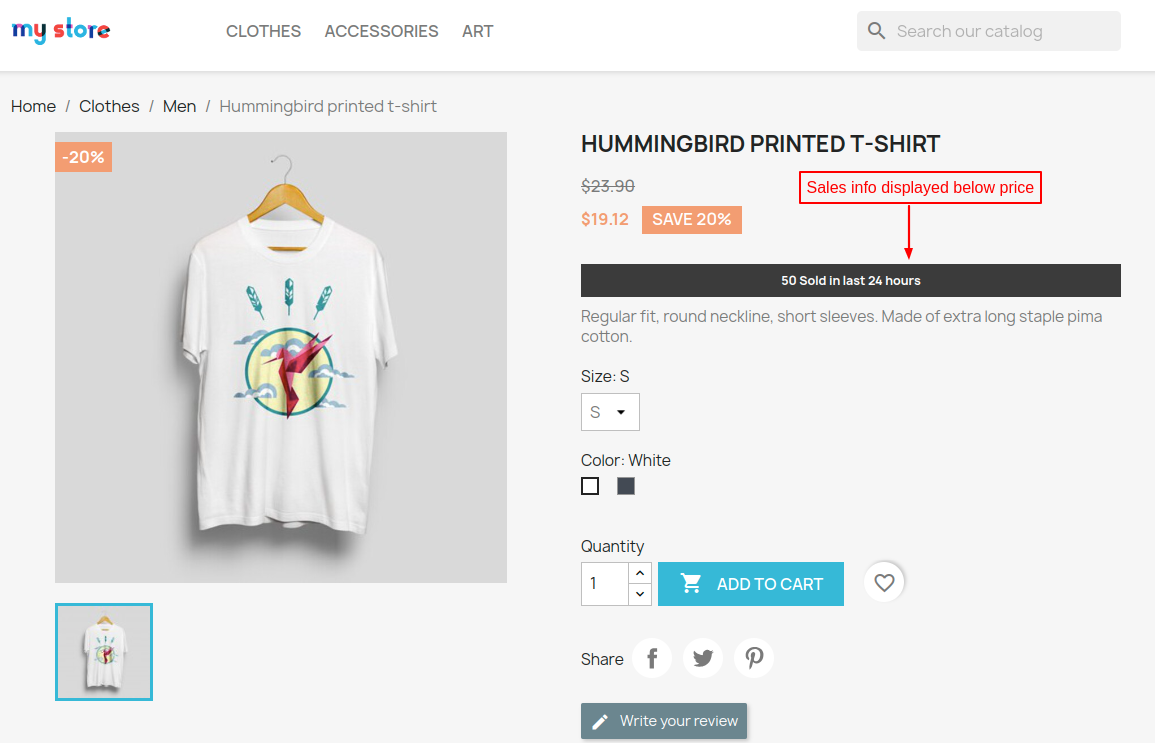
- Below product price
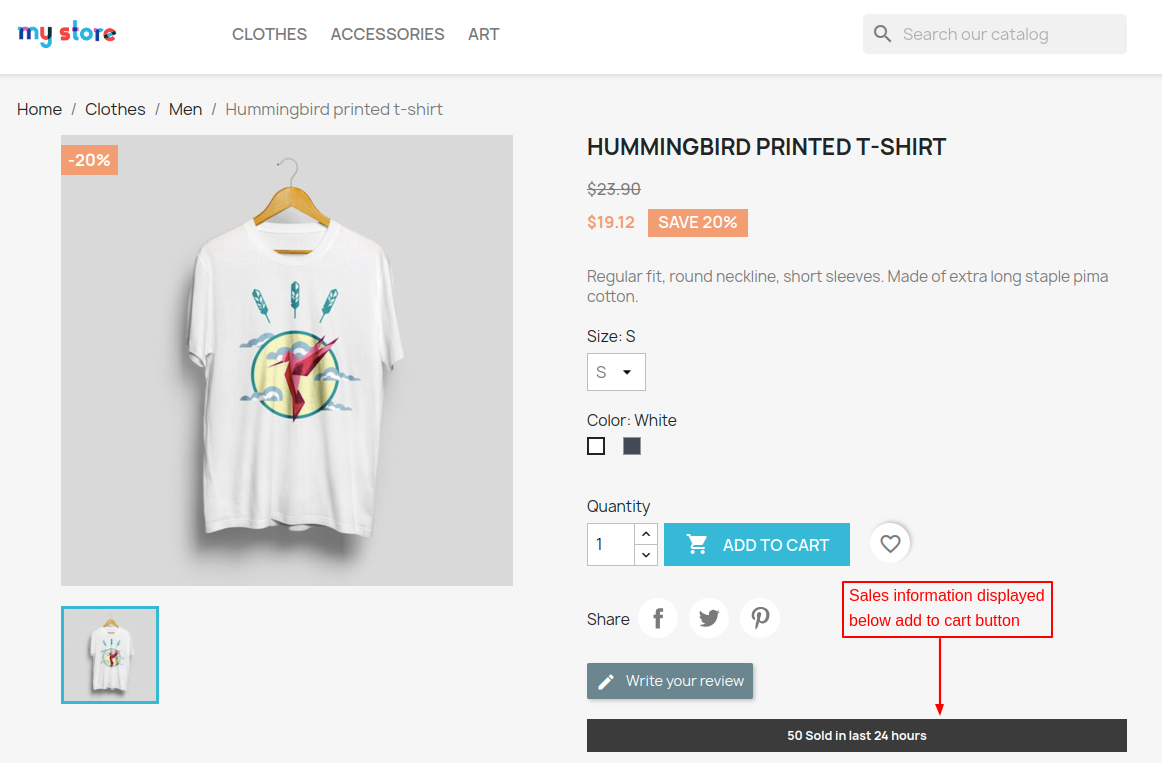
- After the product add to cart block
Below product image thumbnail
Below product price
After the product add to cart block
Apply default timeline for remaining products
If enabled, then admin can apply the default timeline on all those products on which no particular timeline has been selected.
When admin clicks on “ADD NEW” button, a popup appears on screen from where he can add a new timeline for the remaining products.
Product Sales Bulk Action
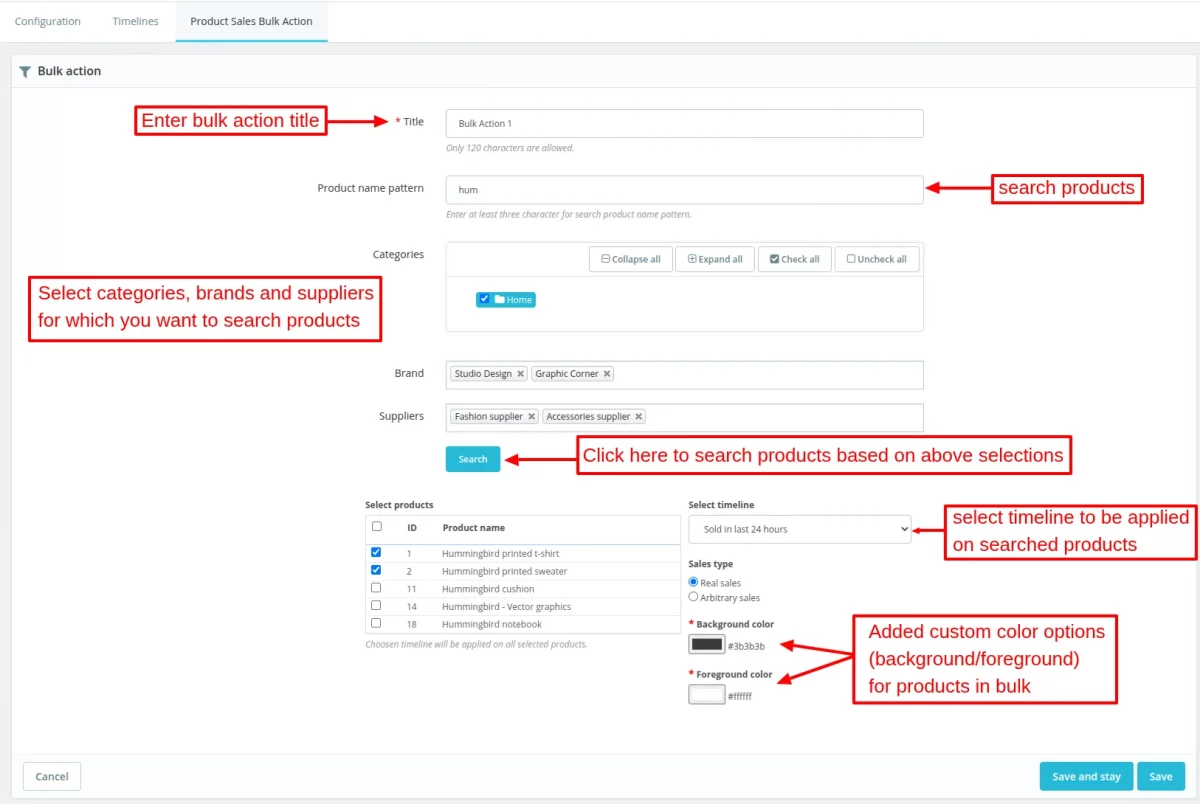
Under “Product Sales Bulk Action”, admin can apply a timeline to multiple products at a time.
Admin can filter the products on the basis of categories, brands, and suppliers on which he wants to apply the timeline.

Front End Workflow of Prestashop Sales Count On Product Page
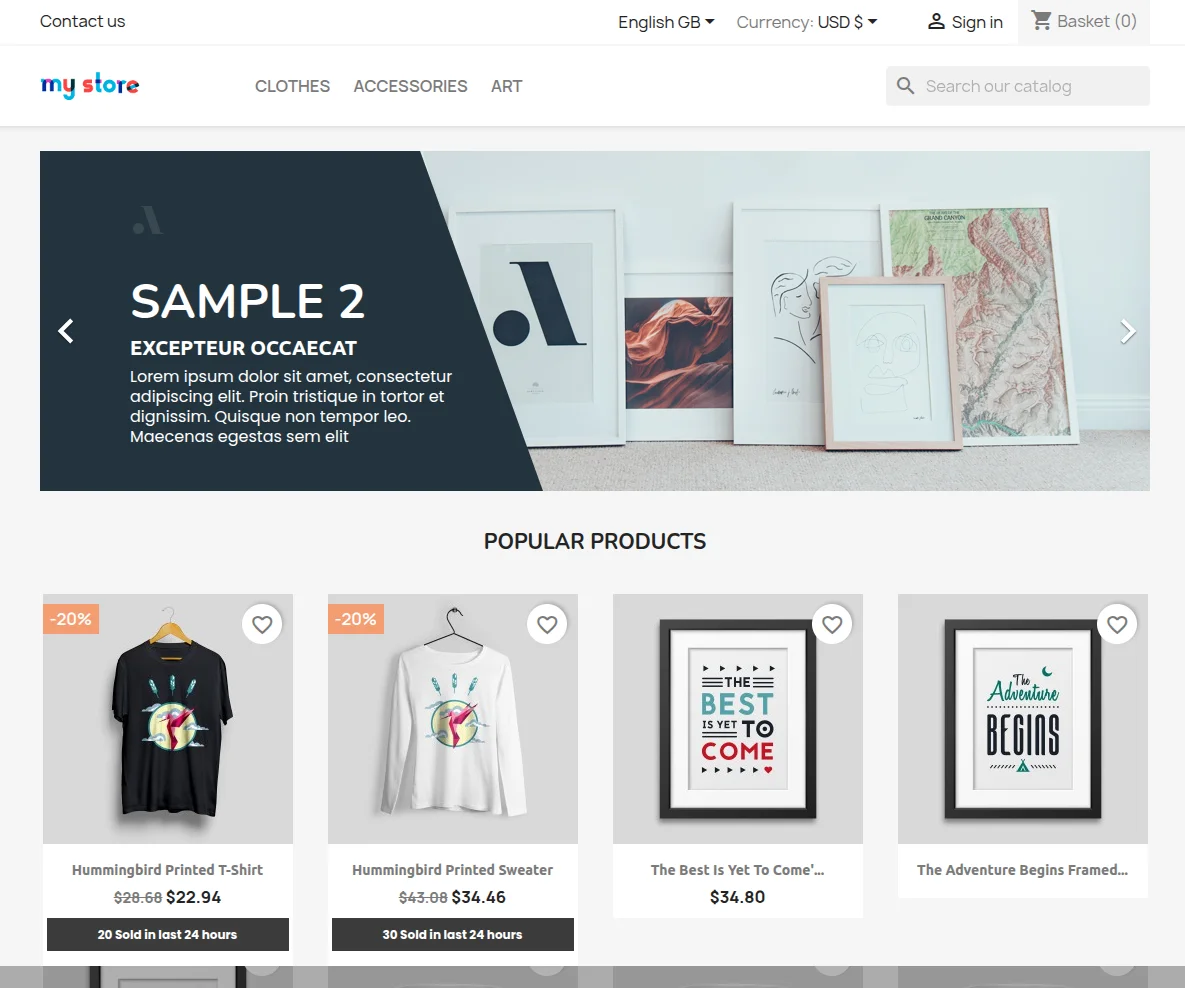
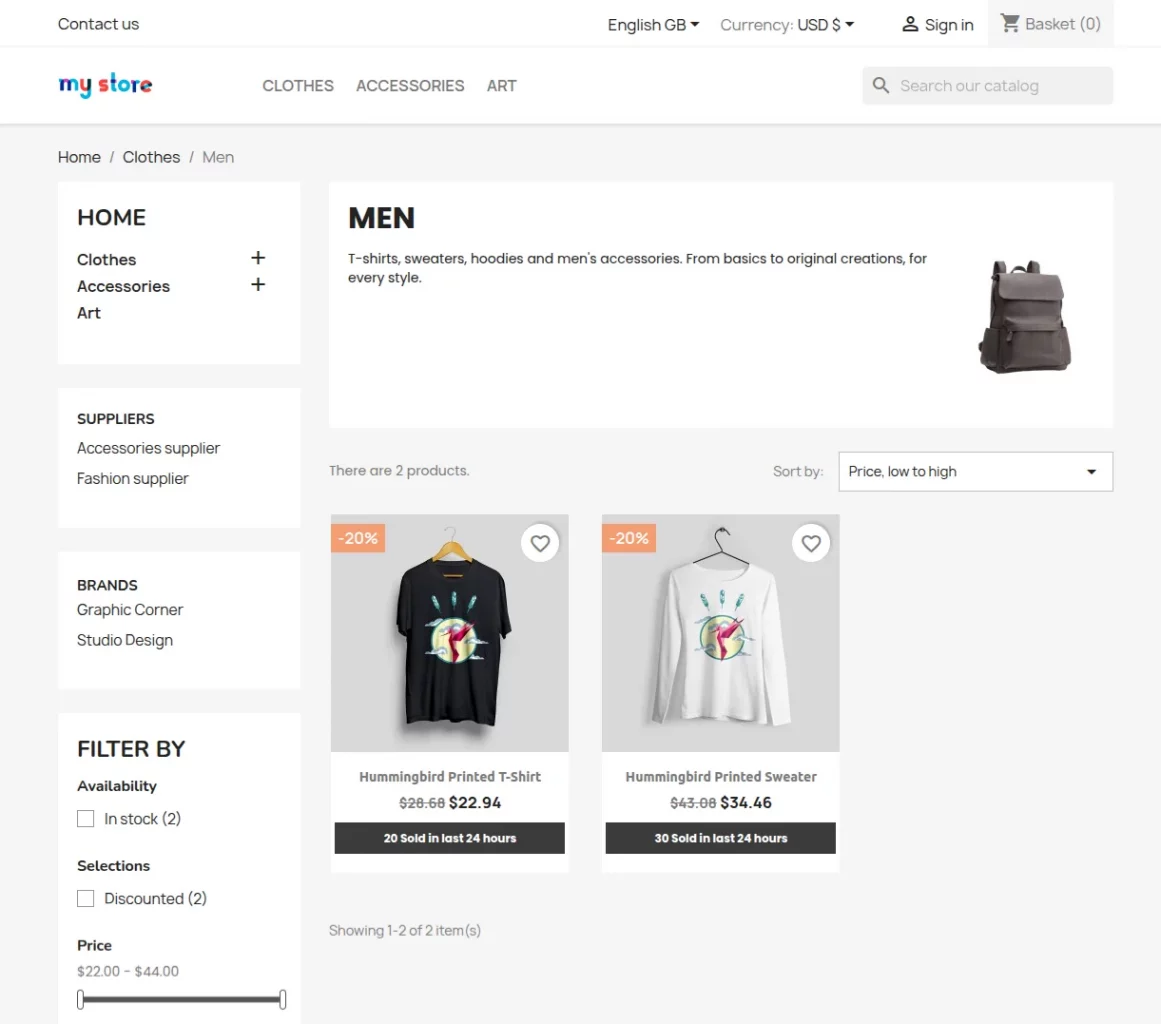
At the front end, a user can view sales count of a product on the home page, category page, and product page.
Home Page
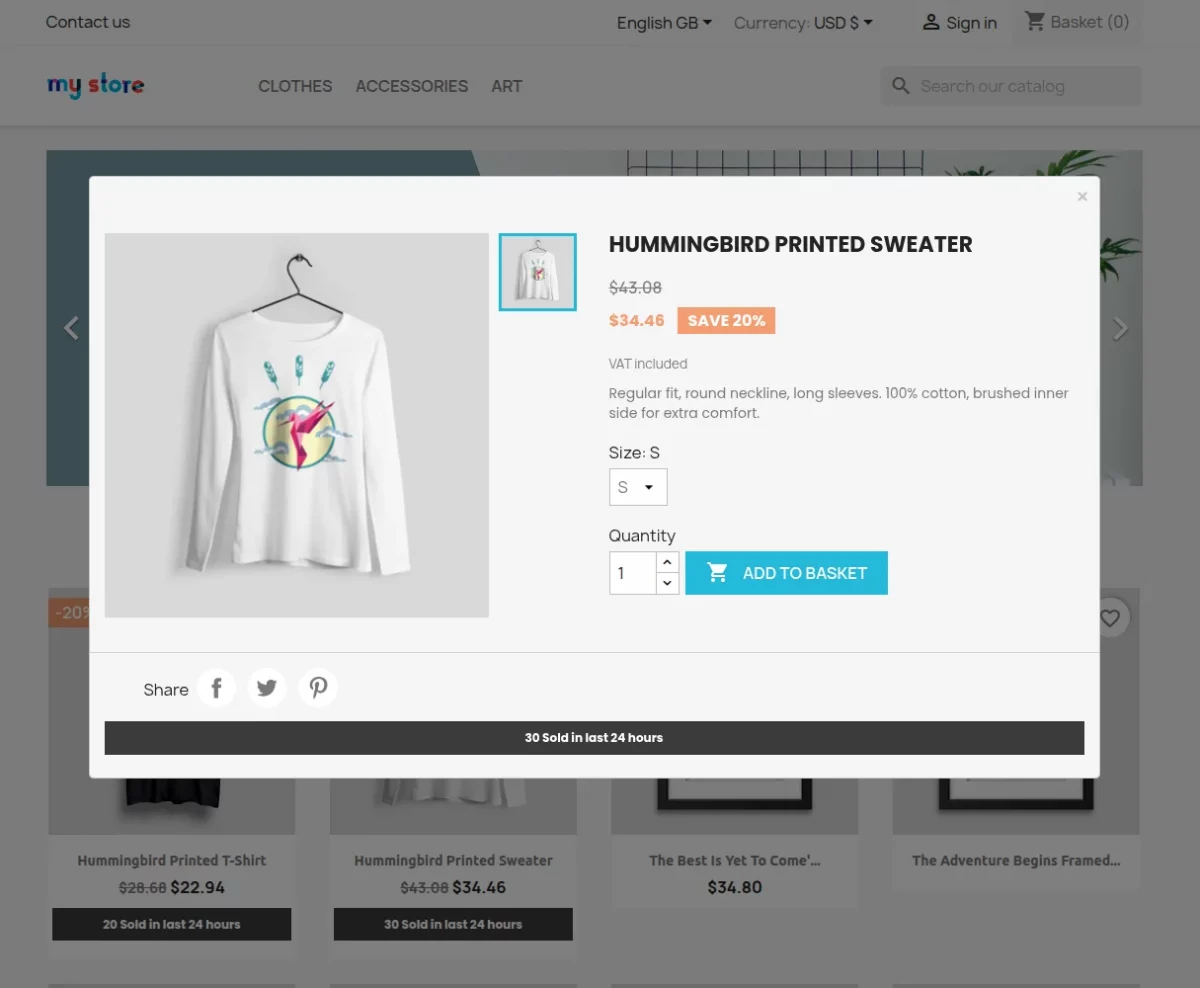
A user can also view the product sales count on Quick View popup.
Category Page
Product Page
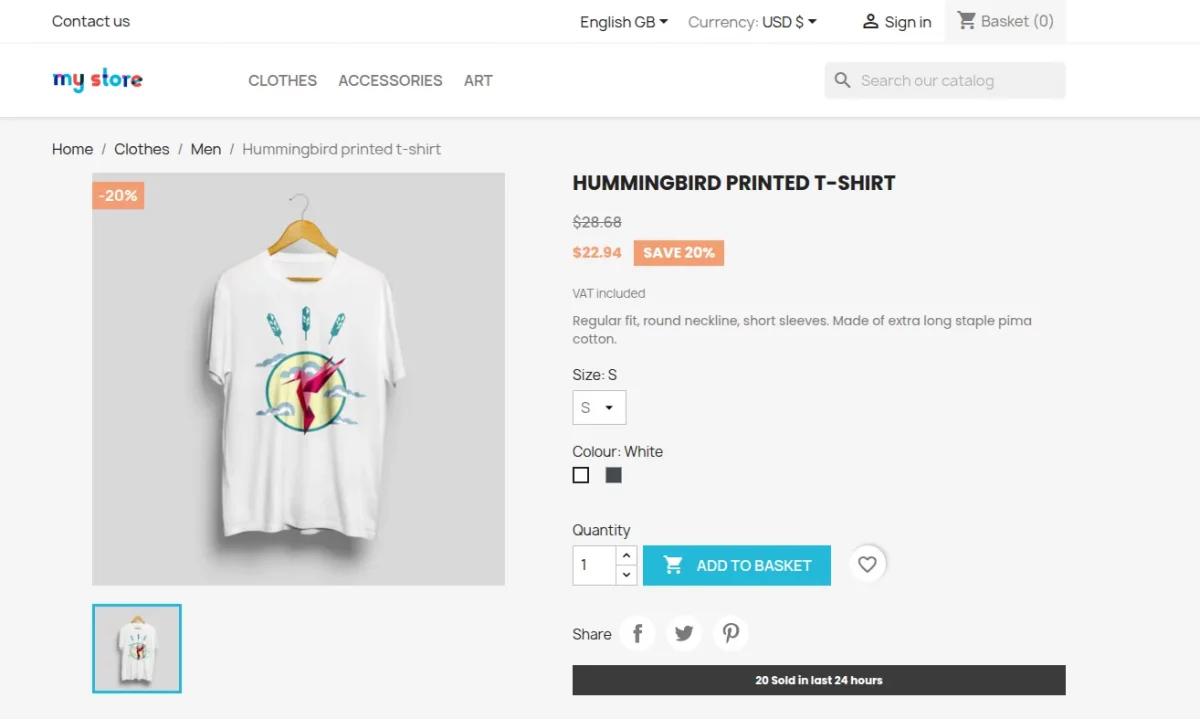
That’s all about Prestashop Sales Count On Product Page.
Support
For any kind of technical assistance or query, please raise a ticket at http://webkul.uvdesk.com or send us a mail at [email protected]
Also, please explore our Prestashop development services and vast range of quality Prestashop addons.
Current Product Version - 4.1.1
Supported Framework Version - 9.x.x, 8.x.x, 1.7.x.x

Be the first to comment.