PrestaShop Shopify Connector is a simple and reliable solution to connect your PrestaShop website with Shopify.
This comprehensive tool provides you with the ability to export the entire product listings from your online store to Shopify.
Synchronize products, orders, and customers from Shopify to PrestaShop. Update products and customers on PrestaShop in real-time.
Features of the PrestaShop Shopify Connector
Import/Export Products
- Synchronize PrestaShop store products to Shopify and vice-versa.
- Export all the PrestaShop products to Shopify at once or specific products.
- Export disabled or deactivated products.
- Sync all the new products from PrestaShop store to Shopify and vice-versa.
- Sync the products created in a specific date range from PrestaShop store to Shopify and vice-versa.
- Import all the Shopify products to PrestaShop at once or individual products by product ID.
- Revise all or specific products from PrestaShop to Shopify and vice-versa.
- Synchronize all the products of a specific Shopify collection to PrestaShop.
- Select the publication channels where you want to export products.
- Select the data to send in ‘product type’ field on Shopify while exporting products.
Sync Orders
- Import Shopify orders to PrestaShop store.
- Synchronize all the orders from Shopify to PrestaShop at once or one by one via order ID.
- Import orders for a specific date range.
Sync Customers
- Synchronize customers from Shopify to PrestaShop and vice-versa.
- Import all the customers from Shopify to PrestaShop at once or specific customer by customer ID.
- Import customers by their date of registration in a specific time interval.
- Export all the PrestaShop customers to Shopify at once or specific customers.
Real Time Updates
From Shopify to PrestaShop
- Update product quantity on PrestaShop if product is updated or ordered on Shopify.
- Update the whole product on PrestaShop when updated on Shopify.
- Import order instantly on PrestaShop when order is created on Shopify.
- Update customer on PrestaShop when updated on Shopify.
- Delete customer on PrestaShop when deleted on Shopify.
- Update order status to ‘payment accepted’ in PrestaShop if order is paid fully paid in Shopify.
From PrestaShop to Shopify
- Instantly update product quantity from PrestaShop to Shopify.
- Update exported product/customer on Shopify when updated on PrestaShop.
- Delete customer on Shopify when deleted on PrestaShop.
Mapping
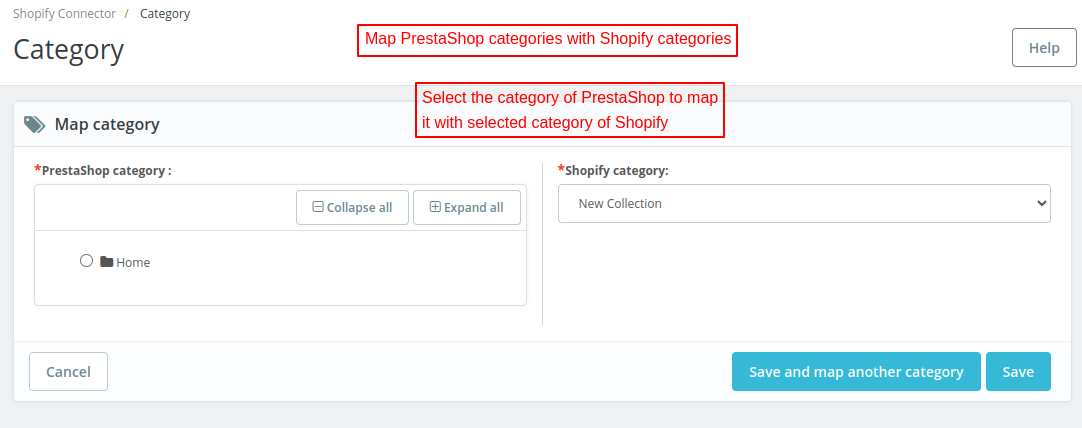
- Map PrestaShop categories with Shopify categories.
- Manually map PrestaShop products with Shopify products.
- Map PrestaShop payment methods with Shopify payment methods.
- Map Shopify product ‘vendor’ to manufacturer in PrestaShop.
Configuration Settings
- Select default category to be assigned to Shopify products in case no category is found while importing product.
- Choose default carrier, payment method, and order status to be assigned to the imported orders.
How to install the PrestaShop Shopify Connector module
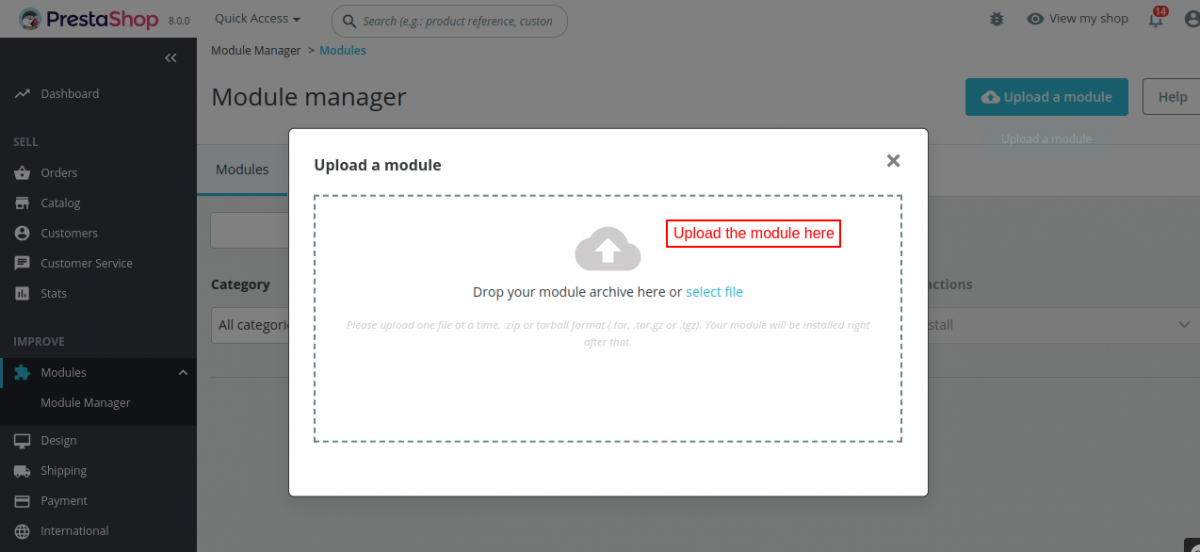
- Firstly, go to the module manager in the back office and click on ‘upload a module’.
- After that, drag and drop the module file or select the file from the system.
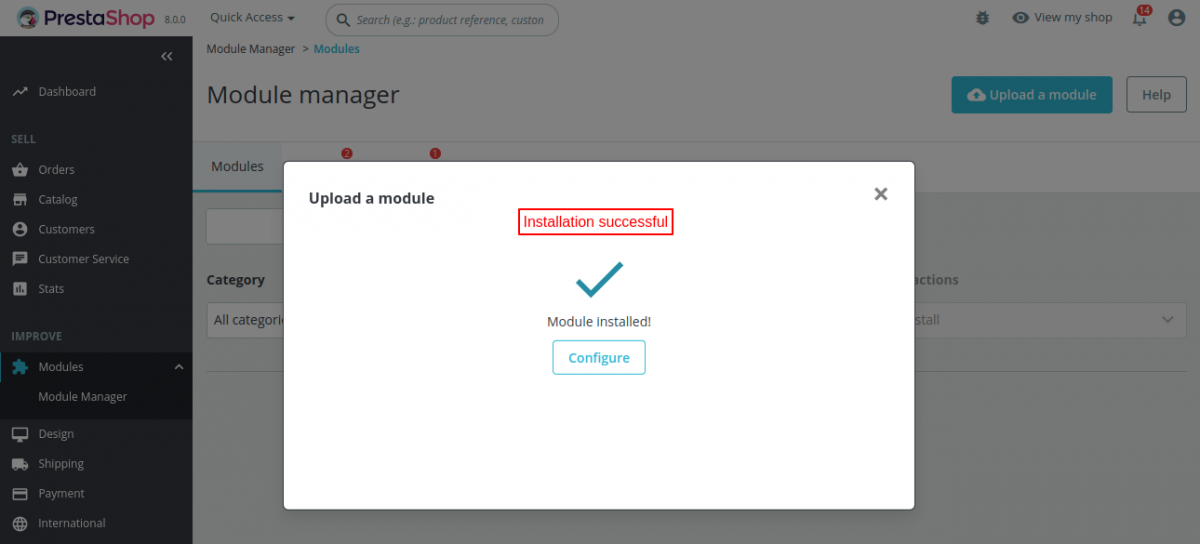
- In this way, the module installation will be successful.

App build by Dev Dashboard method
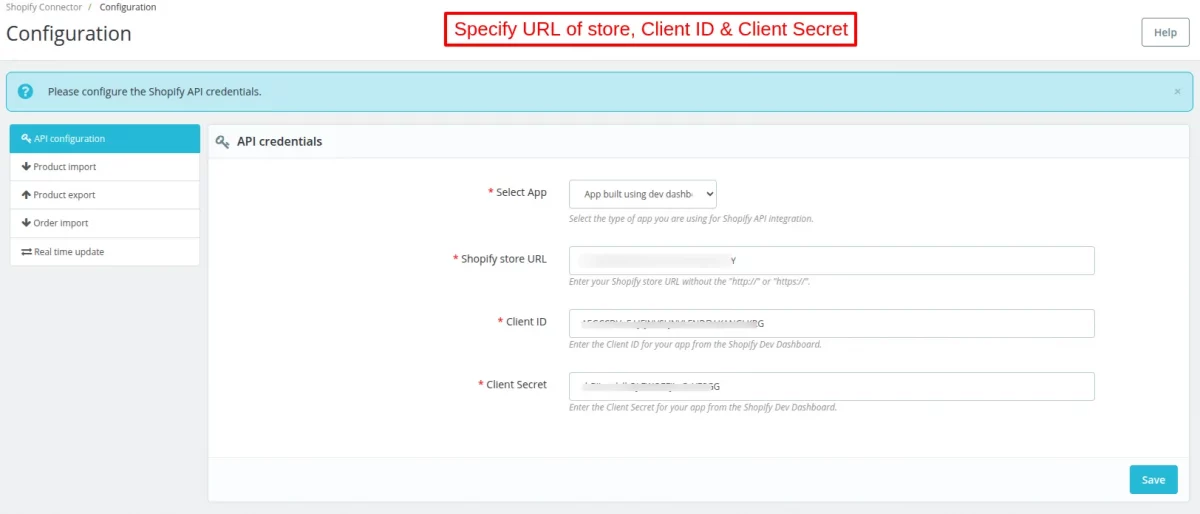
Under API Credentials, the admin needs to specify the Shopify store URL, Client ID, and Client Secret to connect your PrestaShop store with Shopify.
How to get API access Client ID and Client Secret
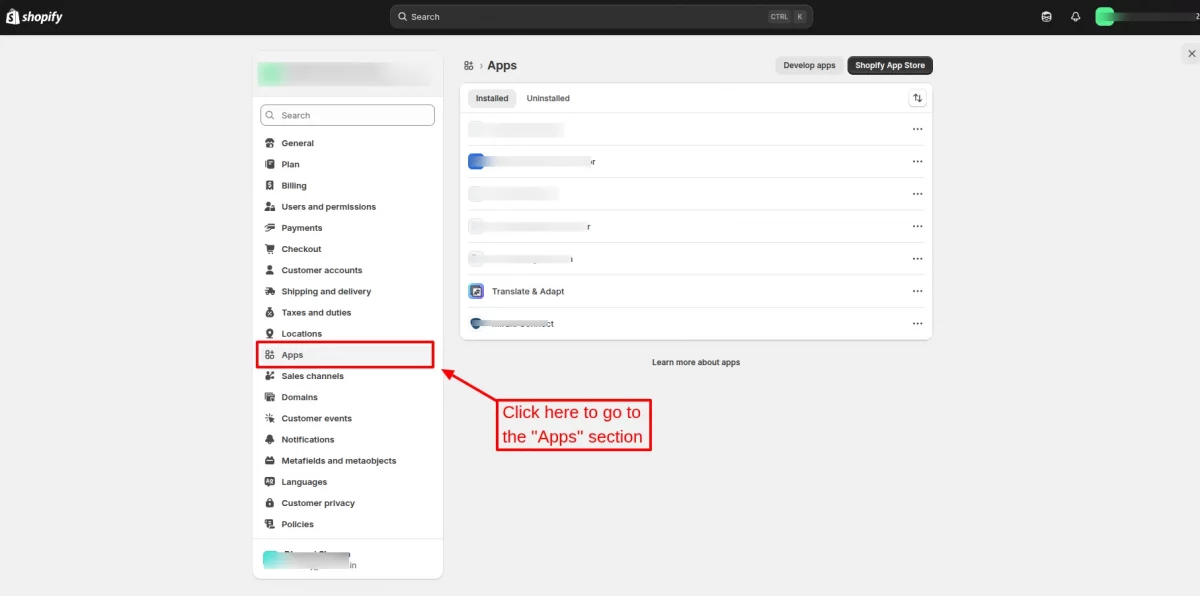
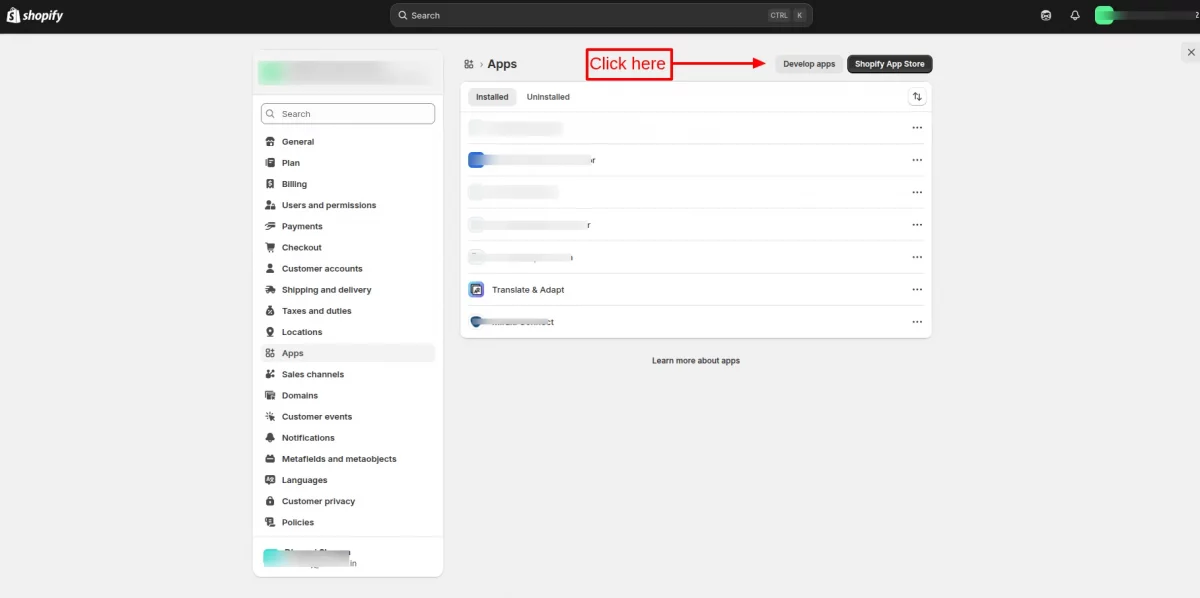
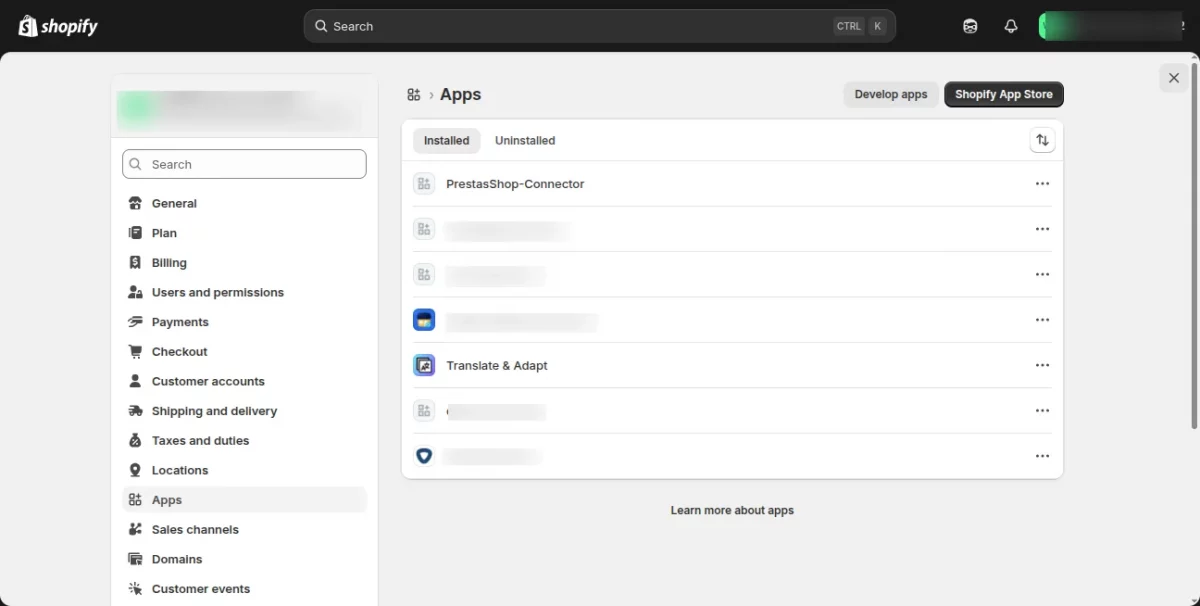
Open your Shopify store & go to the ‘apps’ section.
Now, click on “Develop apps”
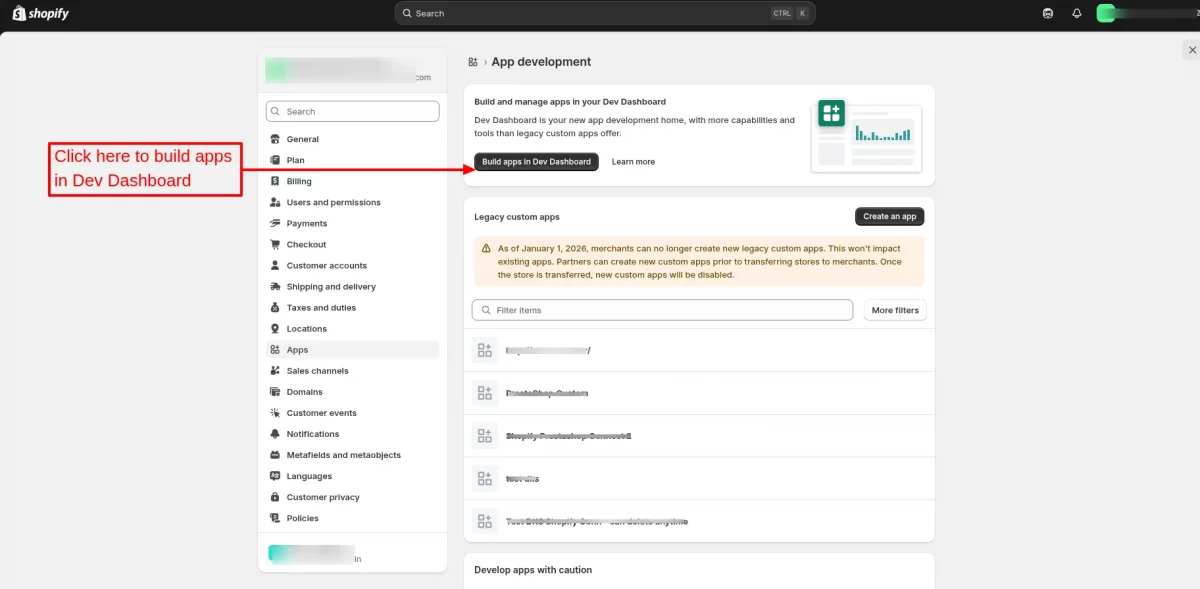
Click on “Build app in Dev Dashboard” button to create a new app.
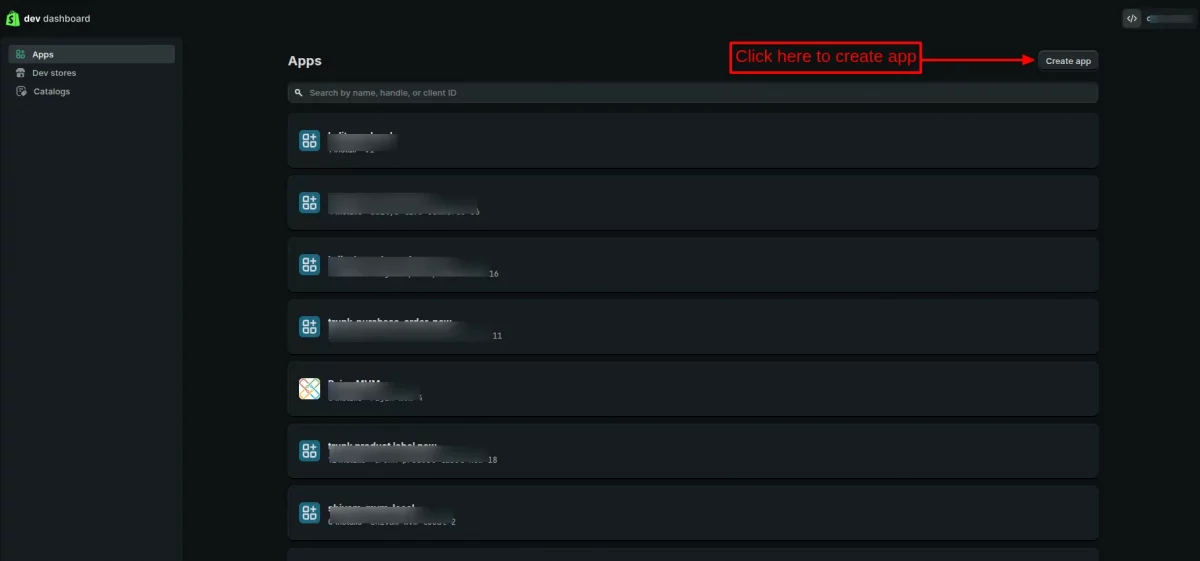
On clicking the button, you will be redirected to the dev dashboard. Here, you will create a new app, so please click the “Create app” Button.
On clicking the create app button, a form will open, where the Admin needs to specify the app name.
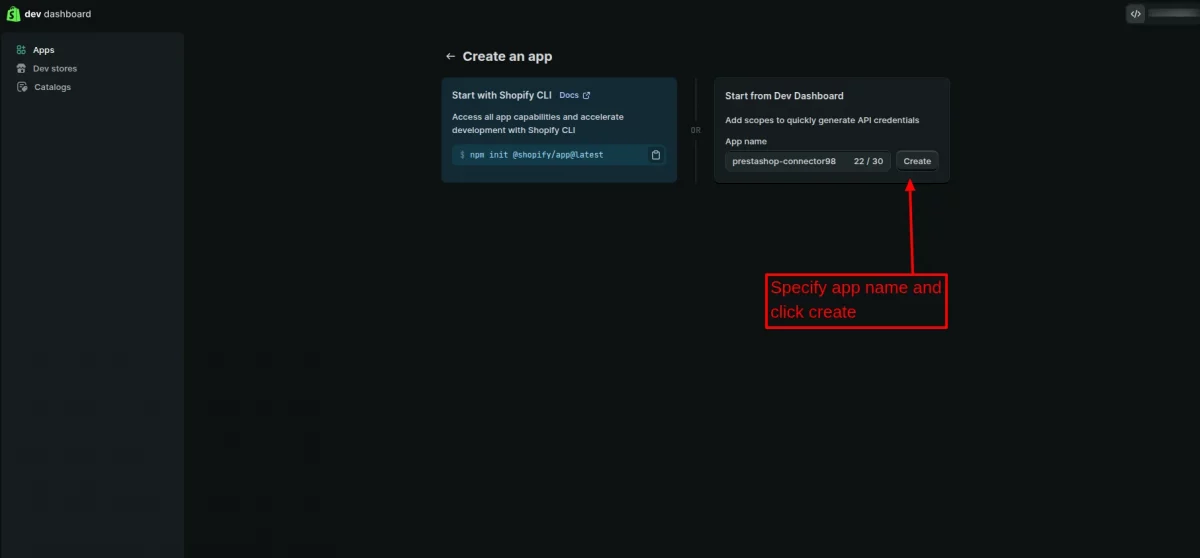
After entering the app name, click on the create button.
The admin now needs to create a new dev dashboard app by entering the required details.
- Enter the PrestaShop front office URL in the App URL field.
- Uncheck the Embed app in the Shopify admin.
- Select the Webhooks API Version to 2026-01.
- Select the required access scopes.
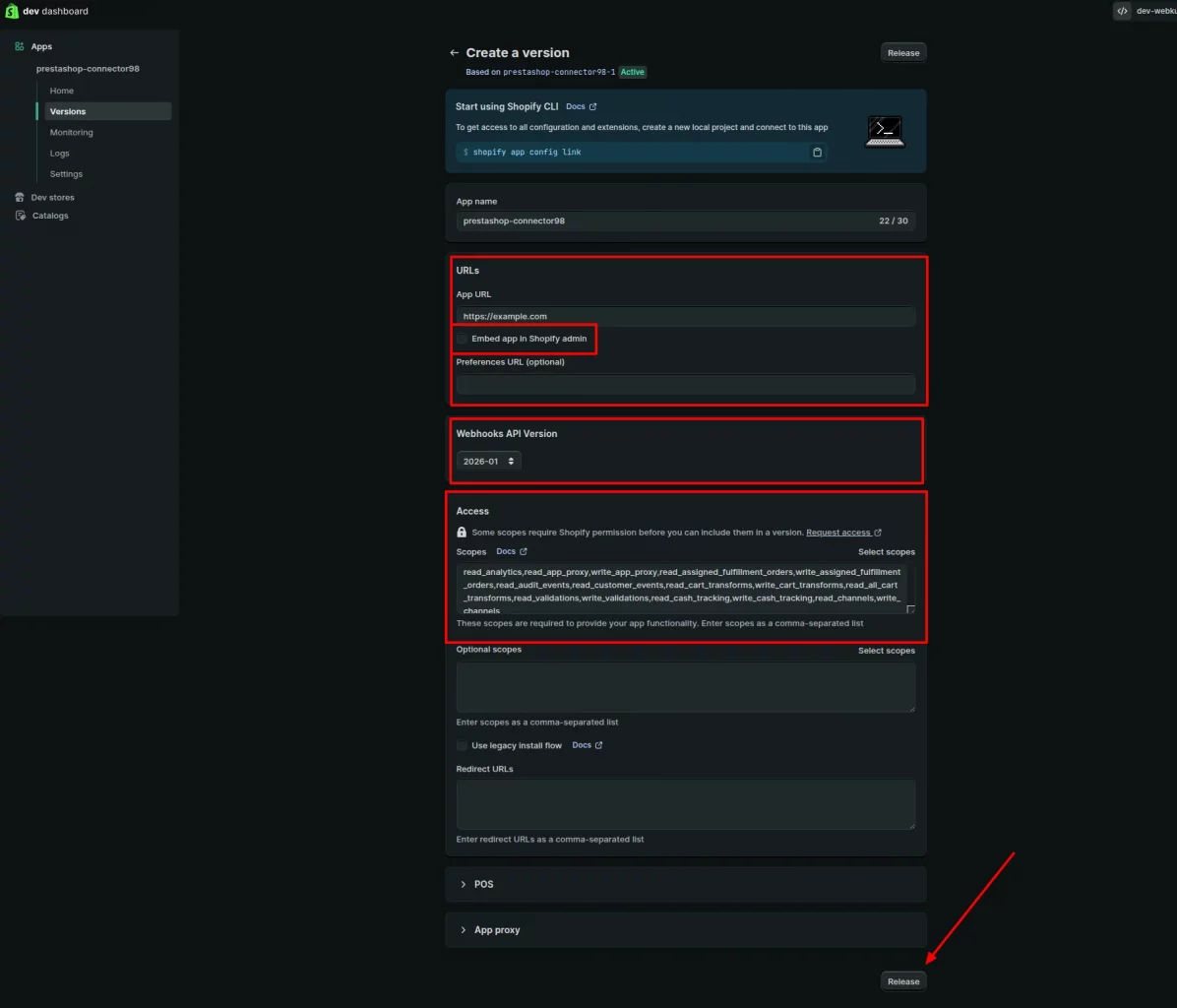
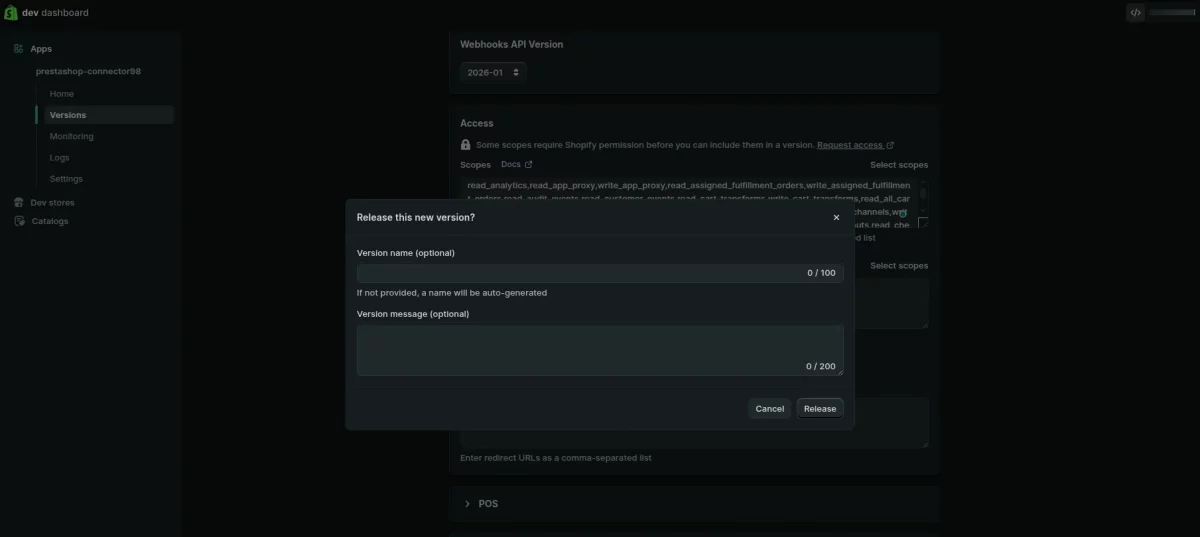
After filling in all the details, click on the release button.
A pop-upwill appear, and you can click on the release button as both fields
on the pop-up are optional.
After releasing the app, go to the home page of new created Dev Dashboard app.
If your Shopify account displays the “Select Distribution” option, click on Select Distribution method in the Distribution section.
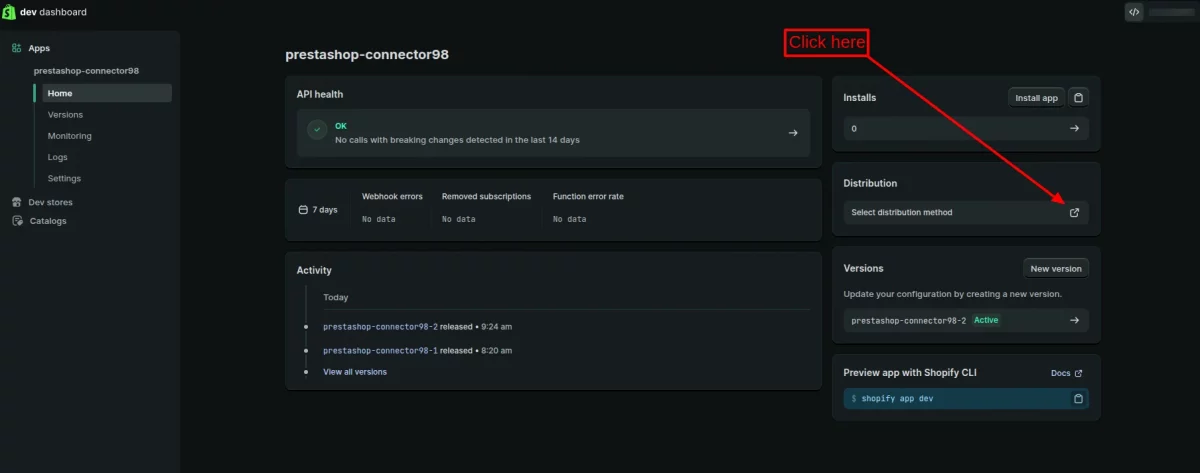
Once you click on the “Select Distribution” option, you will be redirected to a page where you can choose the appropriate distribution method.
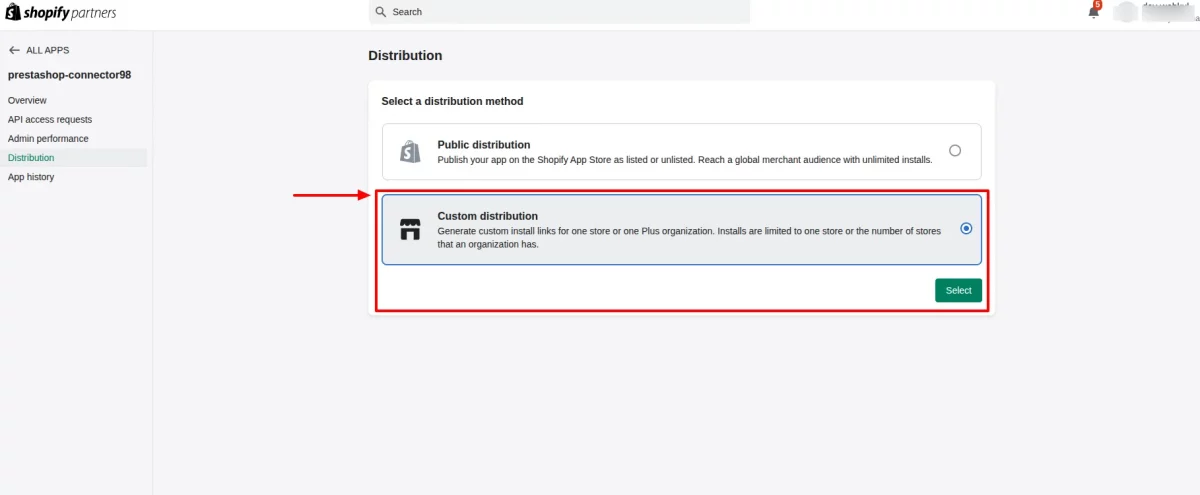
Select the Custom distribution, as we are creating a custom app to select for PrestaShop connector purposes.
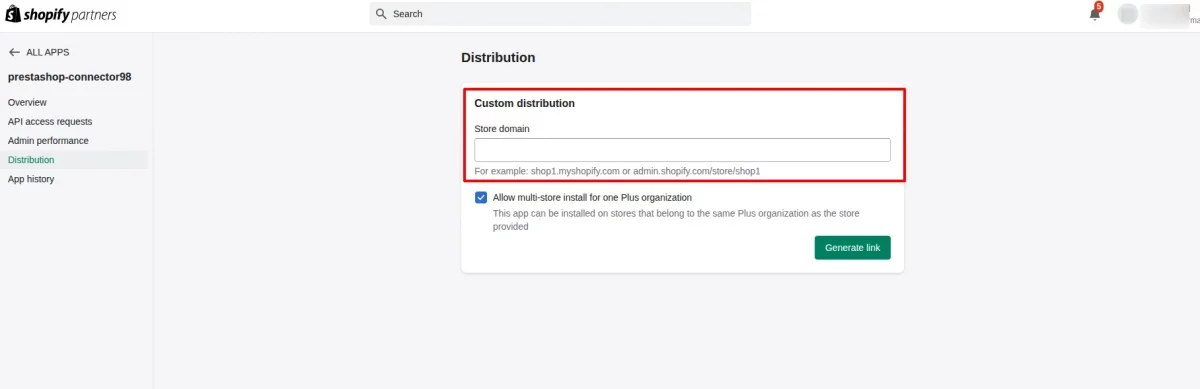
After selecting the custom distribution and clicking the select button, you will be redirected to a form, where the admin needs to fill in the Shopify store URL and click on the generate link.
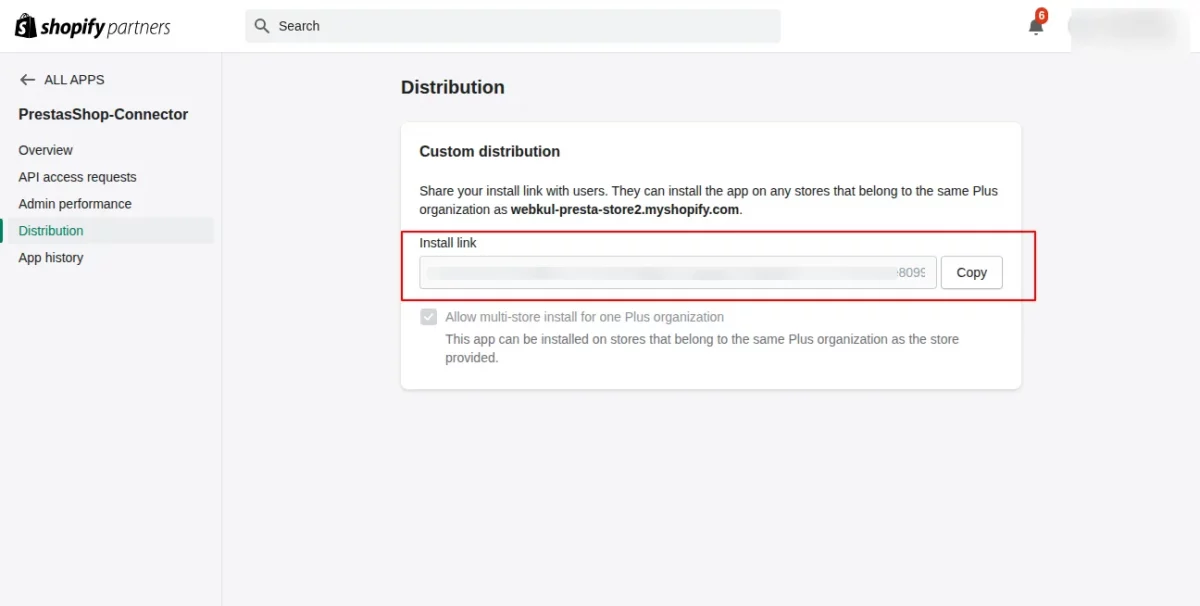
This will generate an install link, copy the install link, and open it in a new tab.
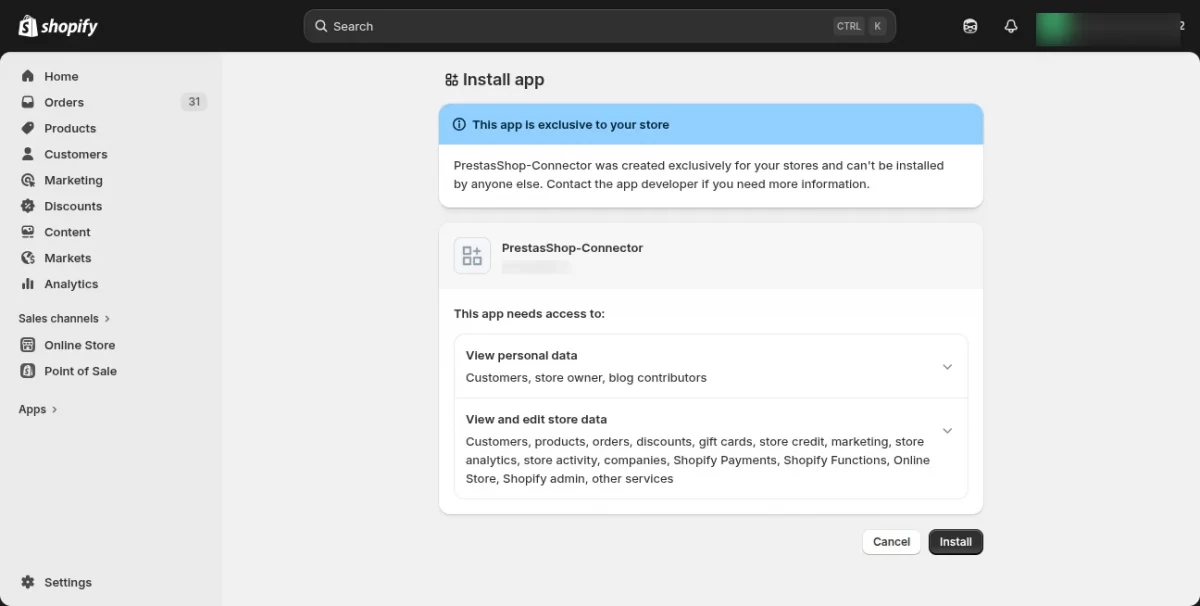
It will redirect the admin to the Shopify admin panel, with the Install option, so install the App on Shopify.
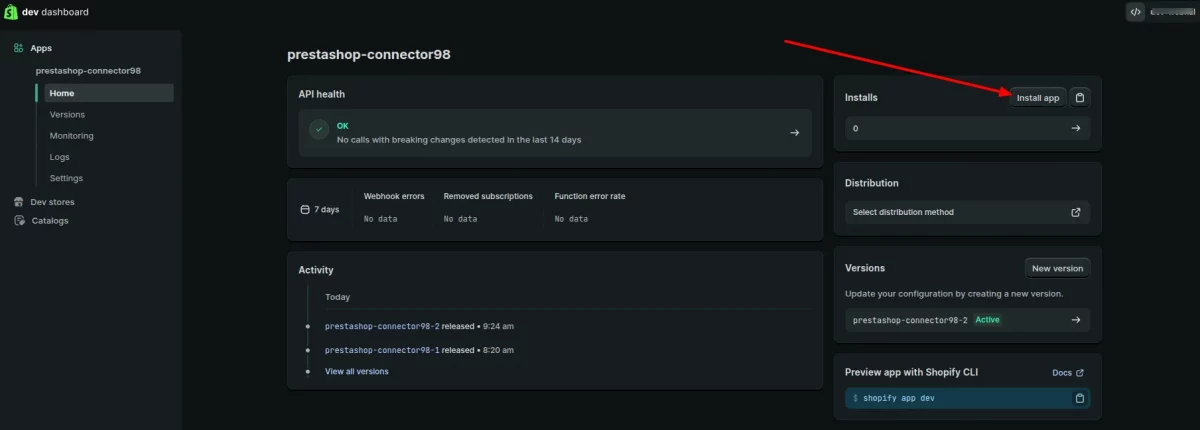
In case the “Select Distribution” option is not available in your account, the admin can simply click on the “Install App” button to proceed with the installation.
It will redirect the admin to the Shopify admin panel, with the Install option, so install the App on Shopify
Now the app is installed at your shopify admin panel.
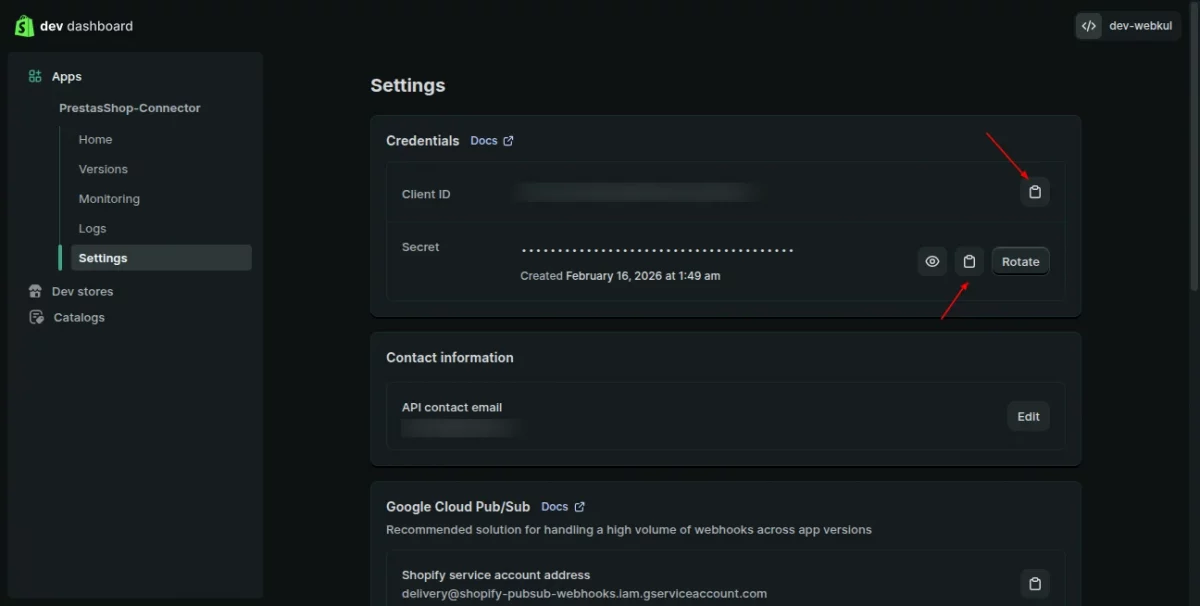
Now go back to the Dev Dashboard and click on Settings. Under the Credentials section, copy the Client ID and Client Secret.
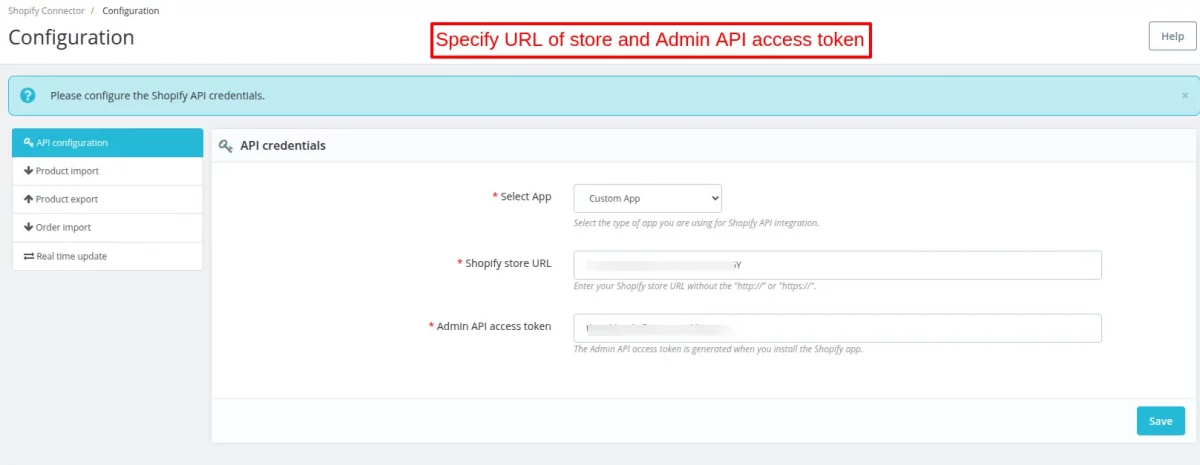
Then configure the Client ID, Client Secret, and your Shopify store URL in the module.
App build by Custom App method
Under API Credentials, the admin needs to specify the Shopify store URL and Admin API access token to connect your PrestaShop store with Shopify.
How to Get API Access Token
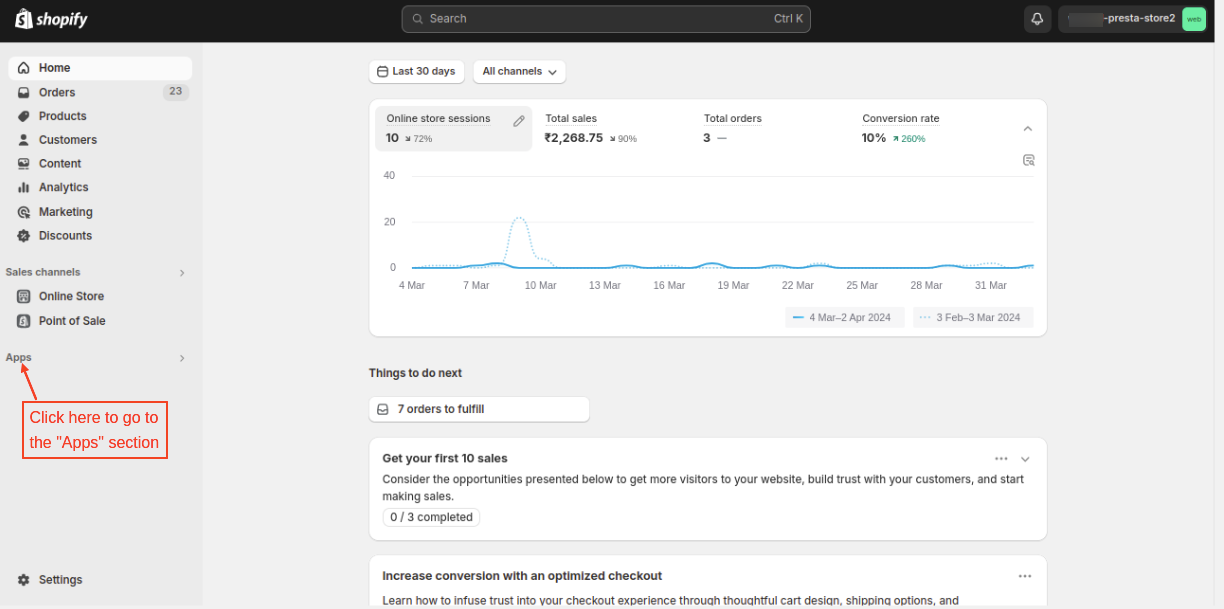
Open your Shopify store & go to the ‘apps’ section.
Now, click on “Develop apps”.
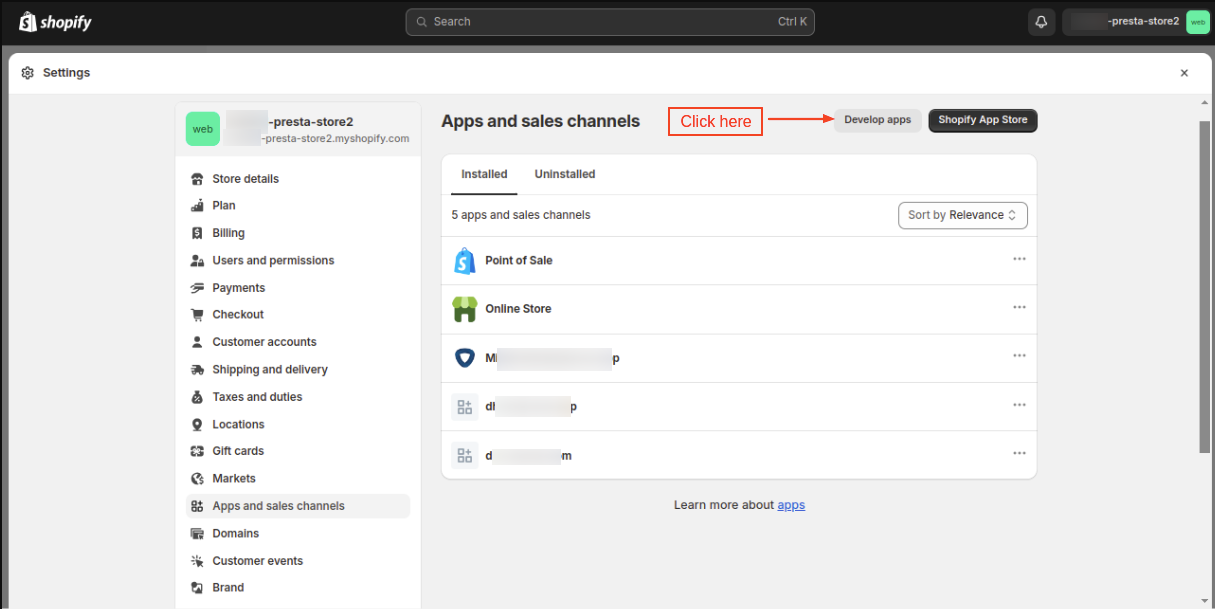
Click on “Create an app” button to create a new app.
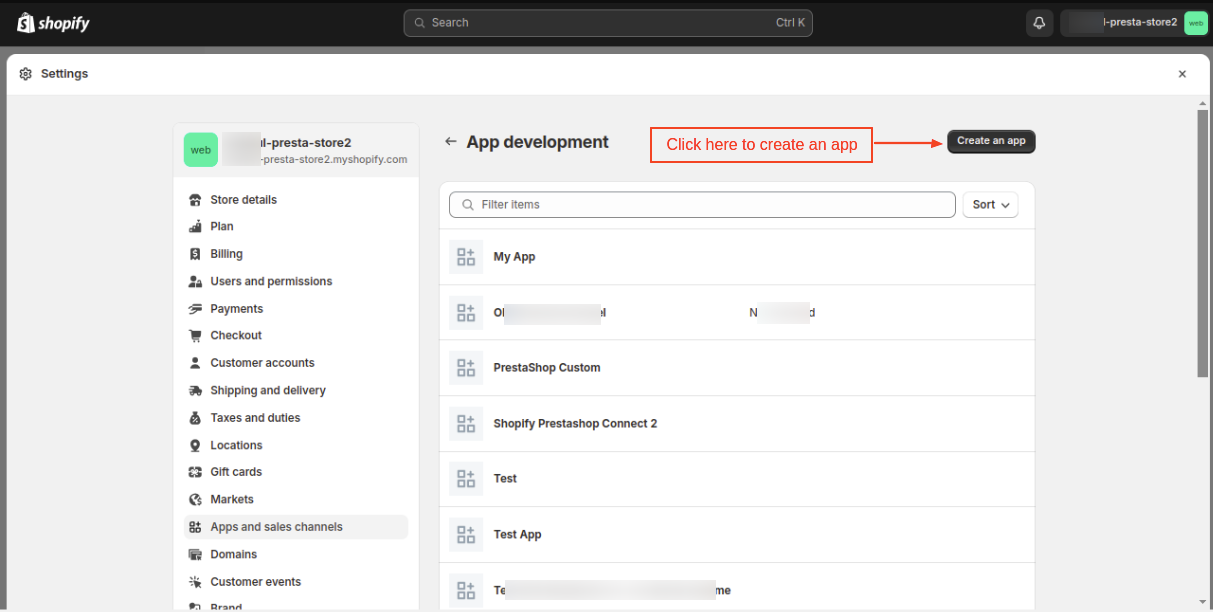
On clicking the button, a popup appears on the page where the admin needs to specify the app name.
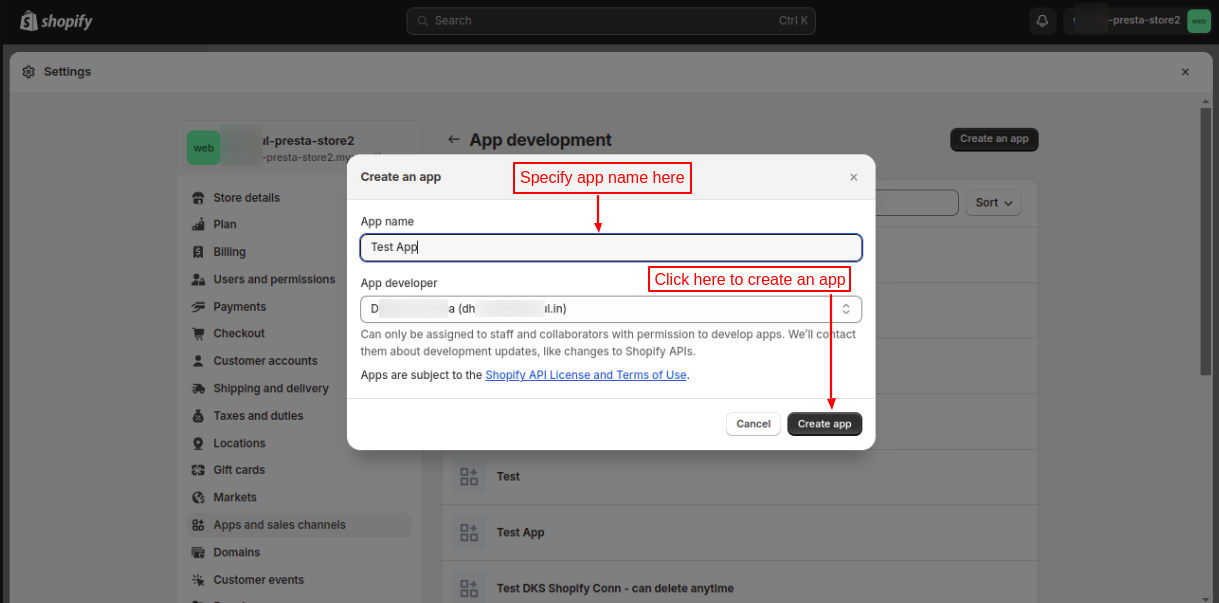
After entering the app name, click on the “Create app” button.
Now, click on “Configure Admin API scopes” under the Overview tab.
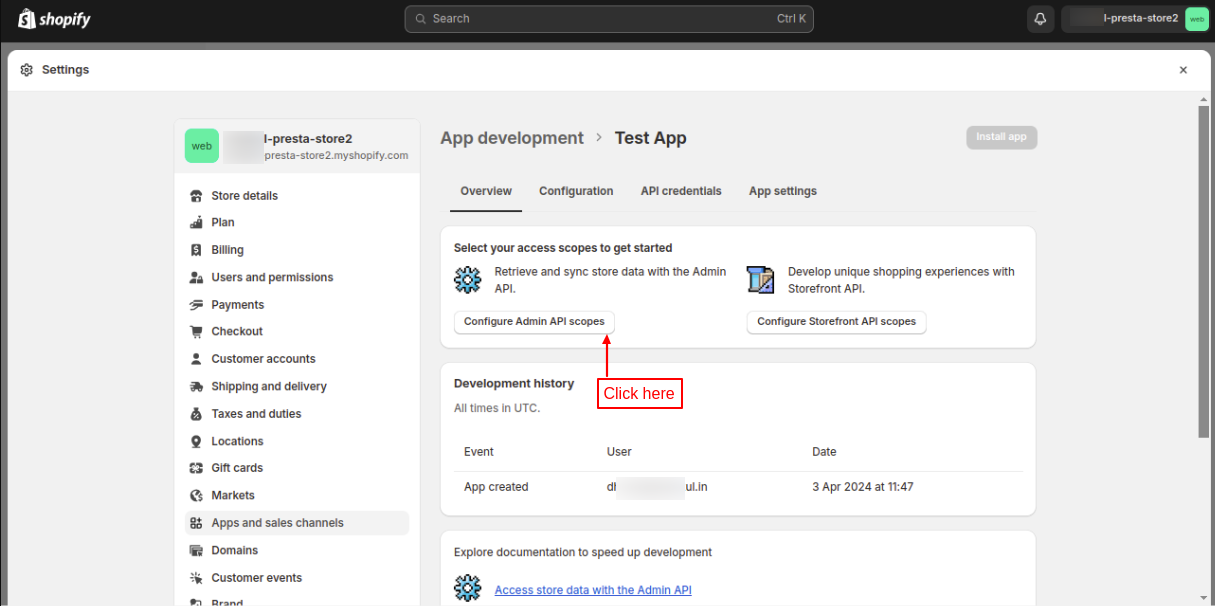
On clicking the button, the admin redirects to the Configuration tab where he needs to provide read and write permissions for the elements he wants to import.
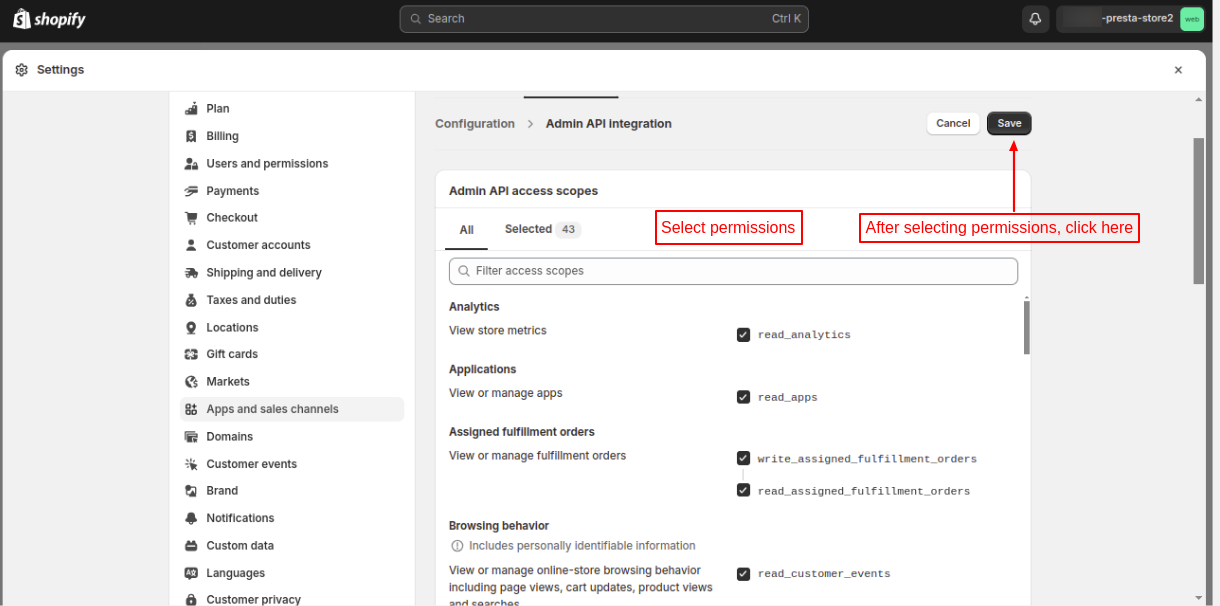
After selecting the permissions, click on Save.
Now, click on the “Install app” button under API credentials to get the Admin API access token.

On clicking the “Install app” button, a popup for app installation appears on the page where the admin needs to click on the Install button.
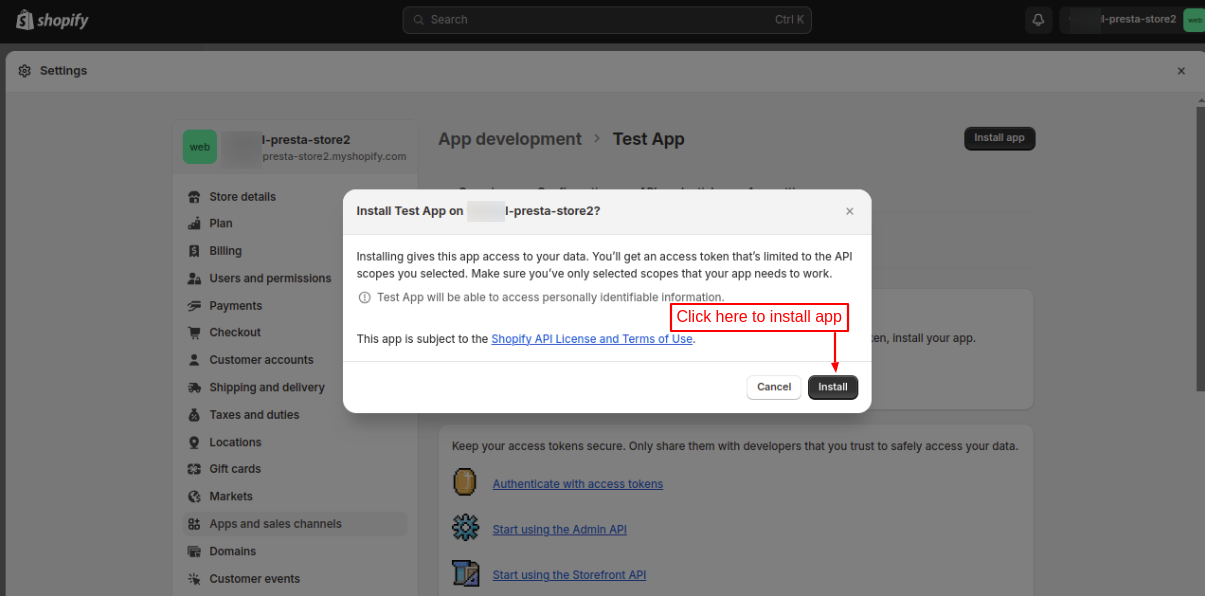
Now, the admin can view the API access token under API credentials.

Note: For importing and exporting products on Shopify, we have changed API method from REST to GraphQL.
Module Configuration
Product Import
Under Product Import, the admin can select:
- Default category to import products of the Shopify to PrestaShop. This category is assigned to Shopify products in case no category is found while importing the product.
- Currency in which the product is at Shopify. It will help the admin convert the currency of Shopify to default currency of PrestaShop.
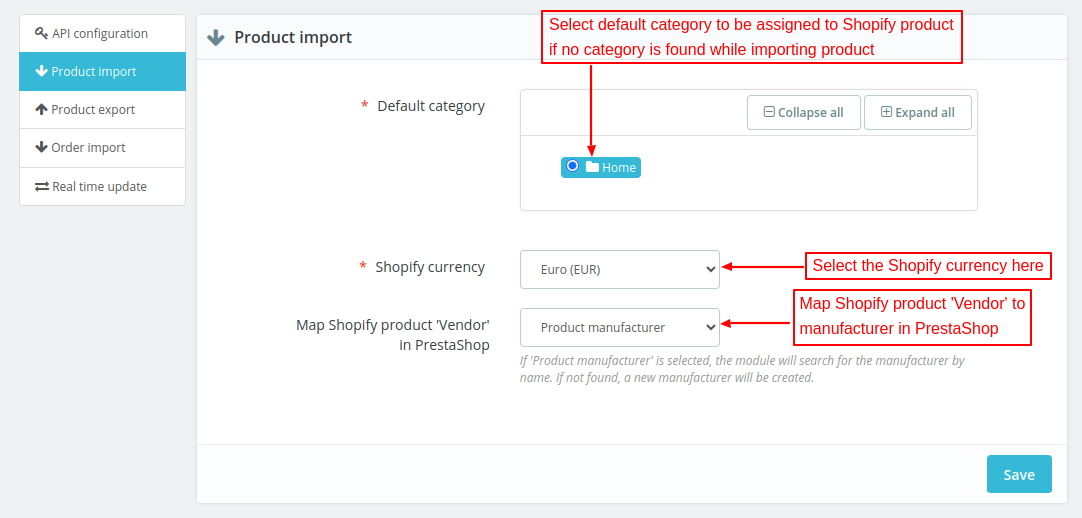
Map Shopify product ‘Vendor’ in PrestaShop
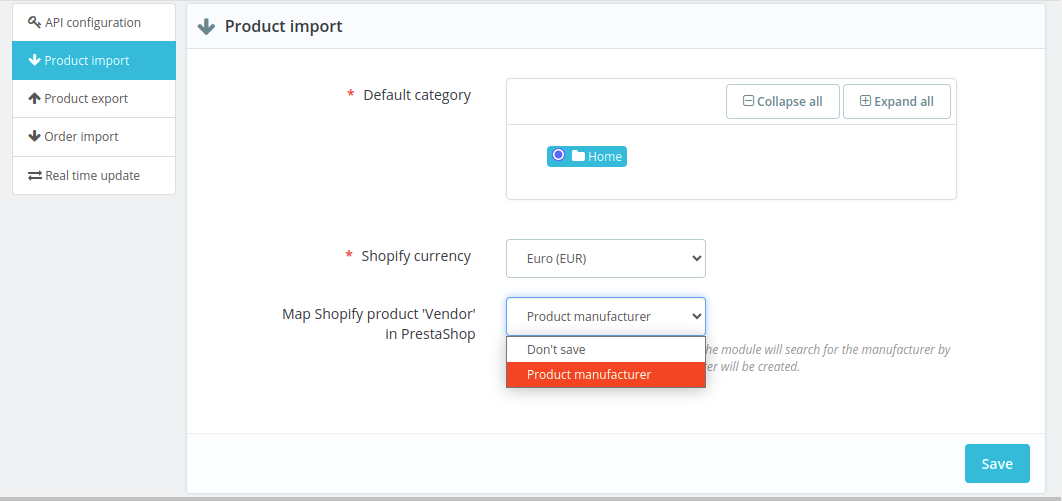
The option allows the admin to map Shopify product ‘Vendor’ to manufacturer in PrestaShop.
If selected ‘Product manufacturer’, then the module will search for the manufacturer by name during product import. If a manufacturer is not found, the module will create a new manufacturer.
The admin can select ‘Don’t save’ if he do not wish to map Shopify product ‘Vendor’ to manufacturer in PrestaShop.
Product Export
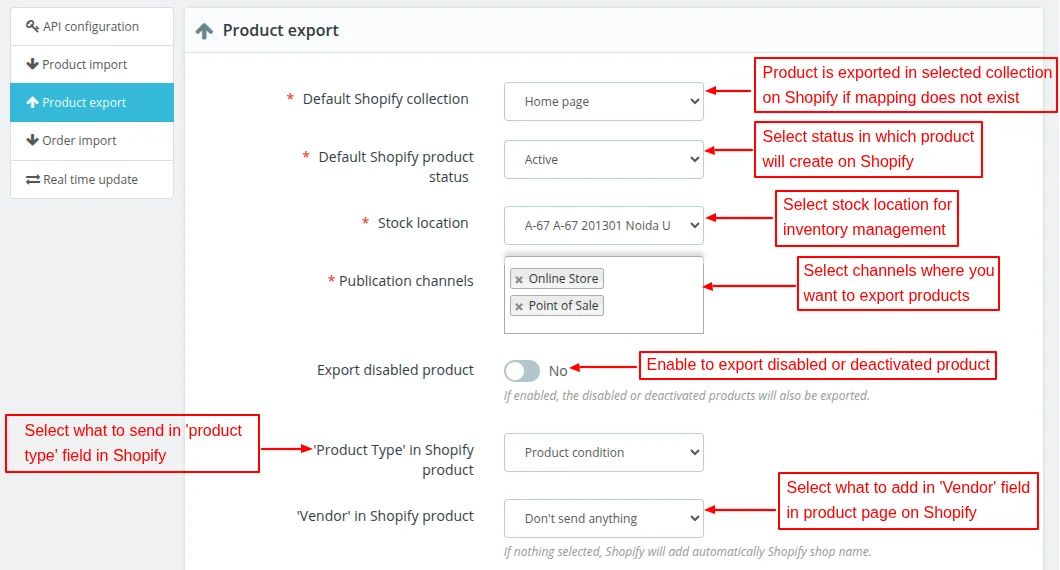
Under Product Export, the admin can:
- Select default Shopify collection in which the product will export if the mapping does not exist.
- Select default status in which the exported product will create on Shopify.
- Choose stock location where inventory will be managed.
- Select channels where he wants to export products
- Choose to export disabled or deactivated products.
- Choose what to send in ‘product type’ field on Shopify.
- Select what to show in “Vendor” field on Shopify product page.
Publication Channels
Here, the admin can select multiple stores and POS where he wants to export the products.
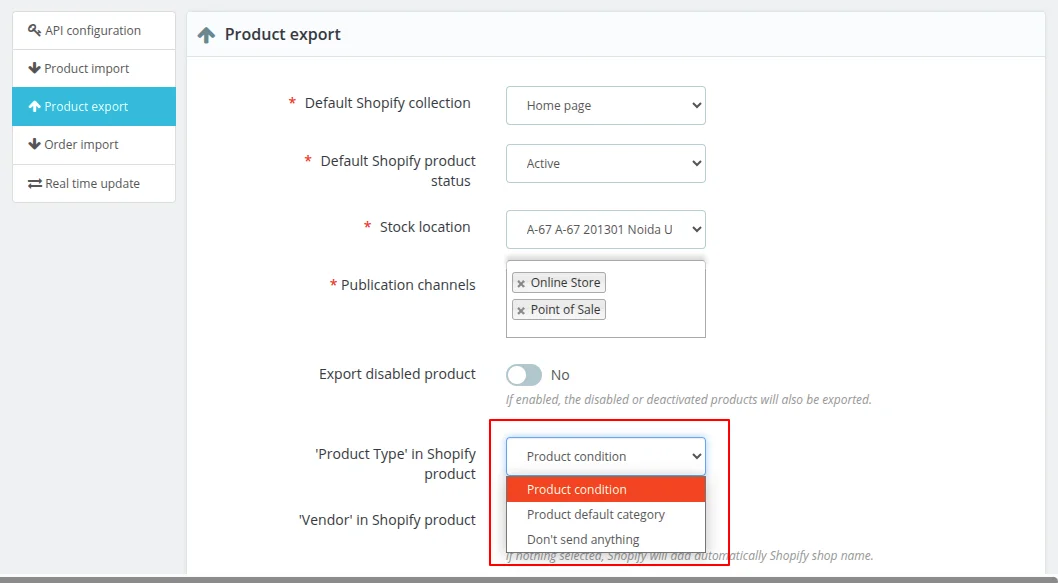
‘Product Type’ in Shopify product
This field lets admin decide what data to send in ‘product type’ field on Shopify while exporting products. The admin can choose to send product condition, product default category, or nothing.
Order Import
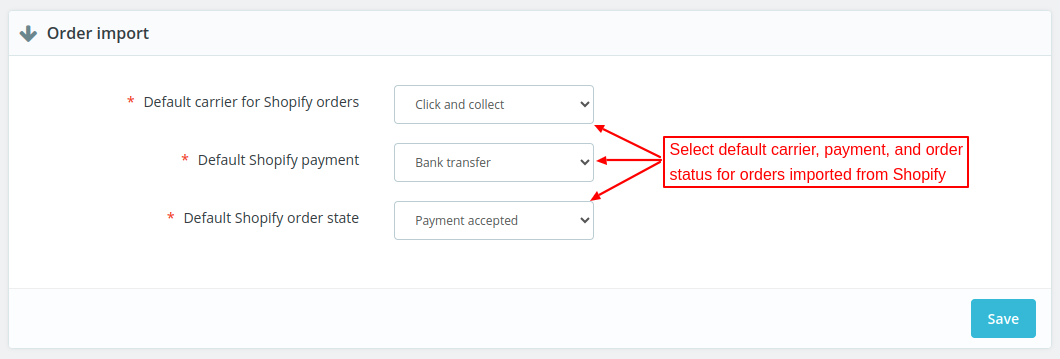
Under Order import, the admin can select default carrier, payment method, and order status of orders imported from Shopify to PrestaShop.
Real Time Update Settings
PrestaShop to Shopify
The admin can choose to:
- Update quantity/product on Shopify when updated on PrestaShop.
- Delete product on Shopify when updated on PrestaShop.
- Update/Delete customer on Shopify when updated/deleted on PrestaShop.

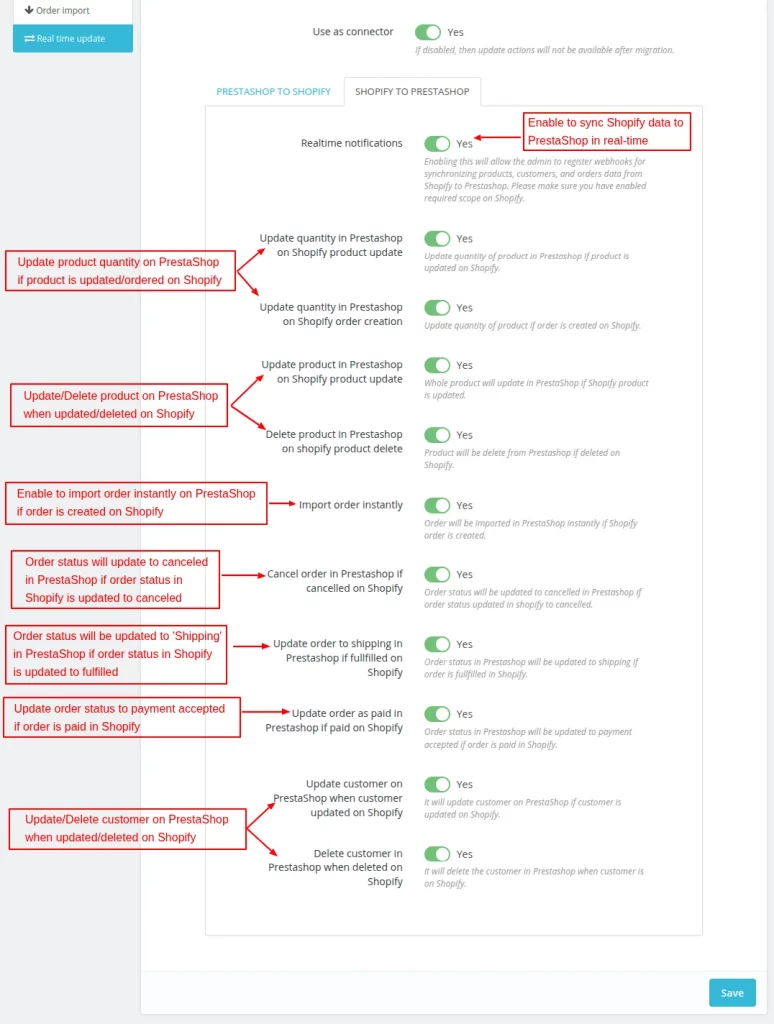
Shopify to PrestaShop
The admin can choose to:
- Update product quantity on PrestaShop if product is updated/ordered on Shopify.
- Update/Delete product on PrestaShop when updated/deleted on Shopify.
- Instantly import order on PrestaShop when created on Shopify.
- Update/Delete customer on PrestaShop when updated/deleted on Shopify.
- Cancel order is PrestaShop if order is canceled on Shopify.
- Update order status to ‘payment accepted’ in PrestaShop if order is paid fully paid in Shopify.
Workflow of the Module
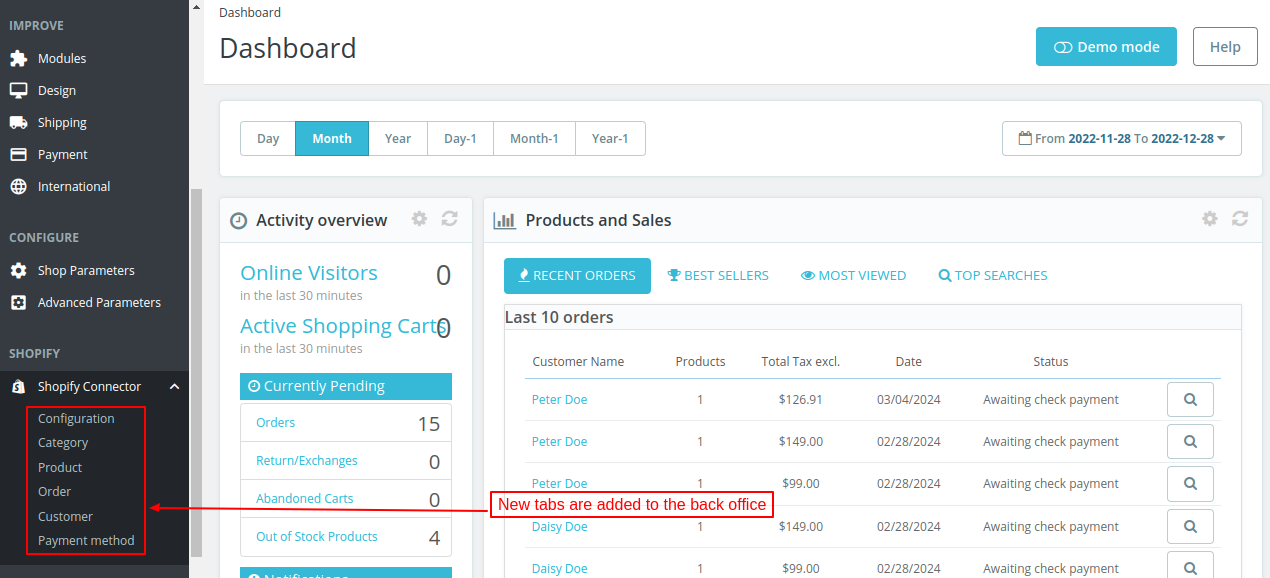
After the installation of the module, new tabs get available under Shopify Connector section.
Import/Map Categories
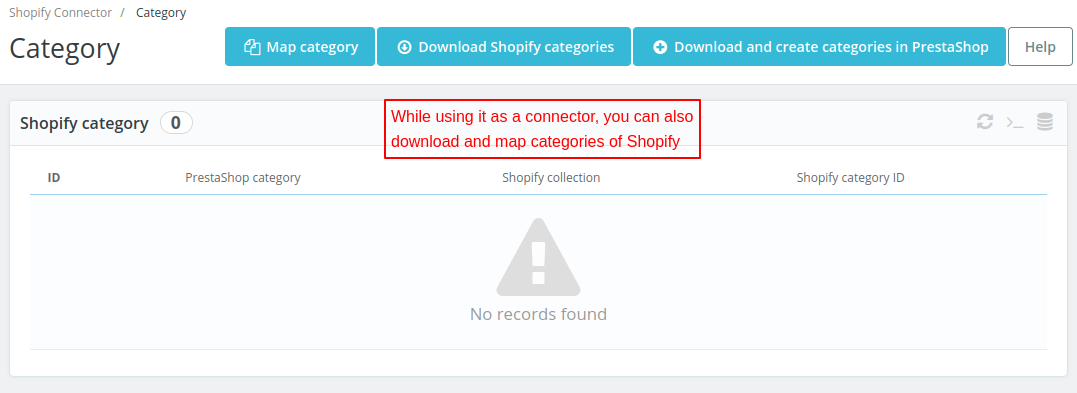
The admin can import Shopify categories to PrestaShop. Also, the admin can map Shopify categories with PrestaShop.
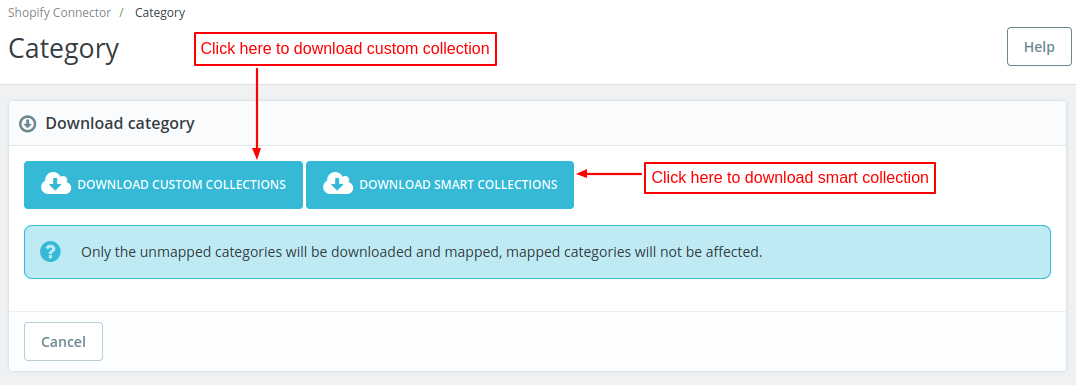
At the Shopify end, there are two types of collections:
- Custom Collection
- Smart Collection
Select the type of collection to import from Shopify to PrestaShop.
View the name of all the categories imported from Shopify to PrestaShop.

A list of all the Shopify categories that are successfully imported to PrestaShop is available under the Shopify category tab.
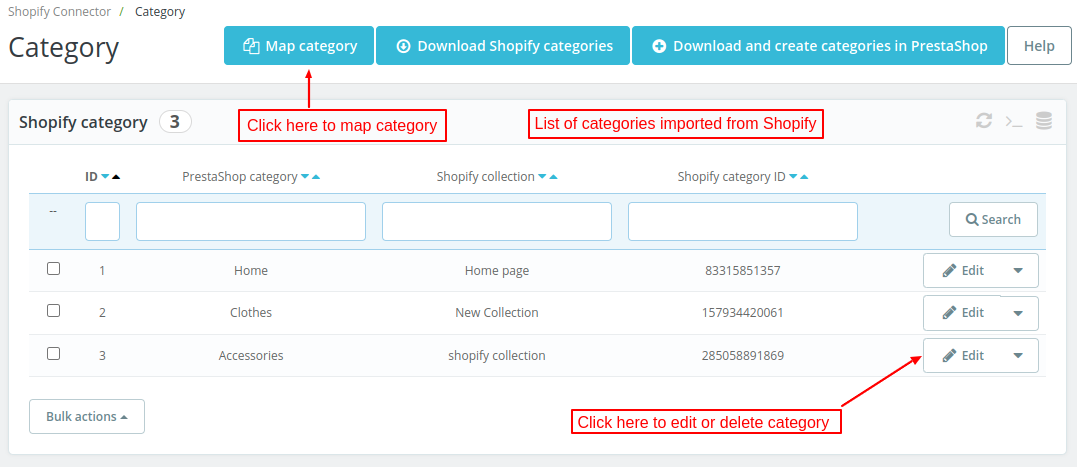
To map the PrestaShop category with Shopify, click on “Map category” button.
Need for category mapping
Let’s suppose that a product was successfully imported from Shopify to PrestaShop. And, the product category(of Shopify) is not available at the PrestaShop end.
Now, while importing the product, we need to put it into some category.
To overcome this obstacle, either we need to create a category or map the Shopify category to PrestaShop.
And, if the mapping of Shopify categories & PrestaShop categories is already complete, then the mapped category will be allocated to the product.
Sync Products
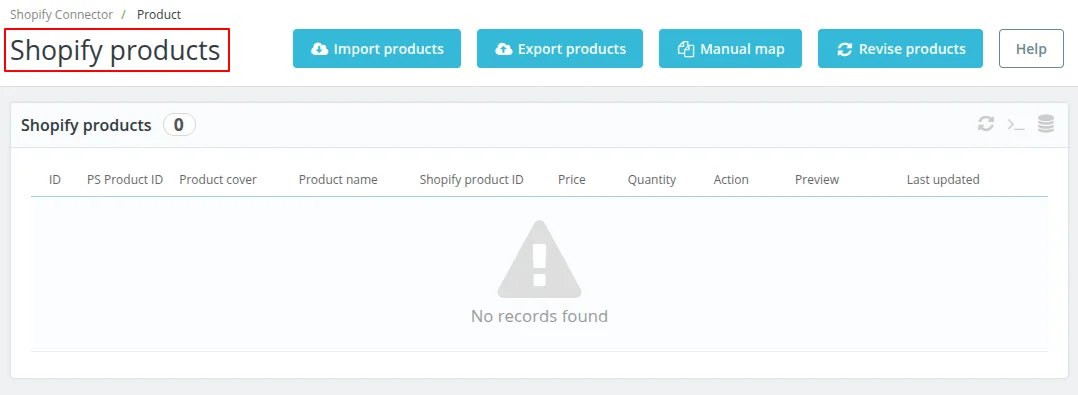
Under Products tab, the admin can:
- Import products from Shopify to PrestaShop.
- Export products from PrestaShop to Shopify.
- Manually map PrestaShop product with Shopify product.
- Update products from Prestashop to Shopify and vice-versa.
Import Products
Click on “Import products” button to import products from Shopify to PrestaShop. There are 5 criteria to import a product.
- New Products: If you choose to import new products, then all the unmapped products will be imported to PrestaShop.
- Import products by ID: Import products by their specific product ID.
- Products created in specific time: In this option, select a timeline to import all the products added in that specific period on Shopify.
- Import products from Shopify collection: This option enables you to import products from a specific Shopify collection.
- All products: Import all the products of Shopify in one go.

Export Products
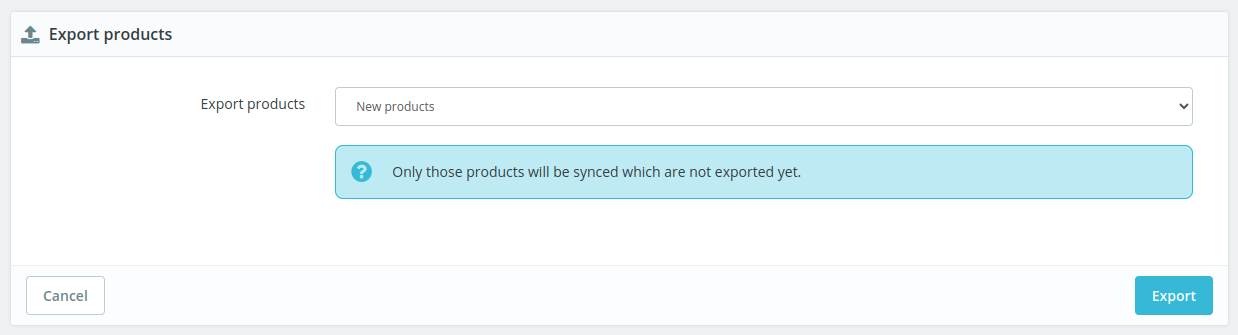
Click on Export Products button to export the products from PrestaShop to Shopify. There are 5 ways in which the admin can export products to Shopify.
- New products
The admin can export all the new products from PrestaShop to Shopify. Please note that the products which are not exported yet will be synced.
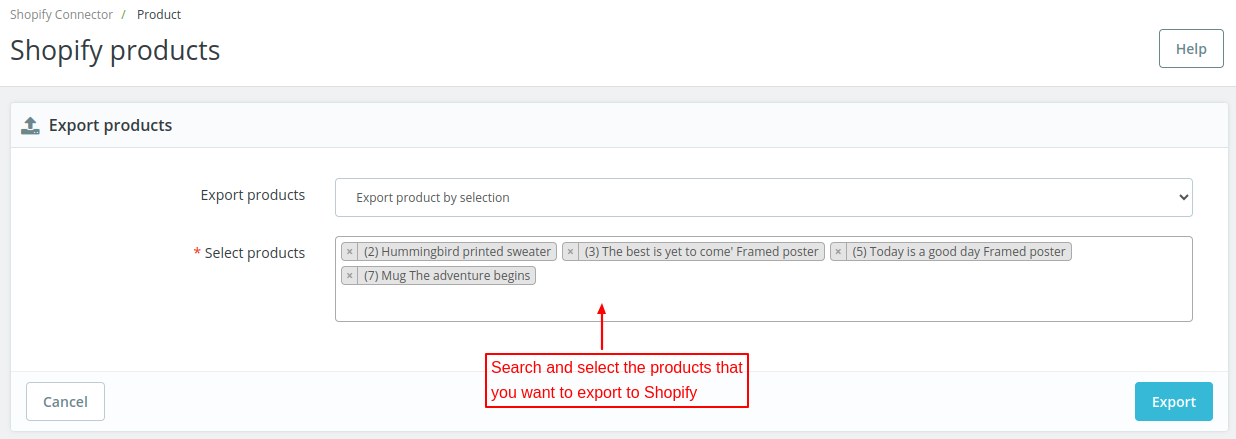
2. Export product by selection
This option lets admin export specific products from PrestaShop to Shopify. Enter the name of the product and select it from the dropdown list.
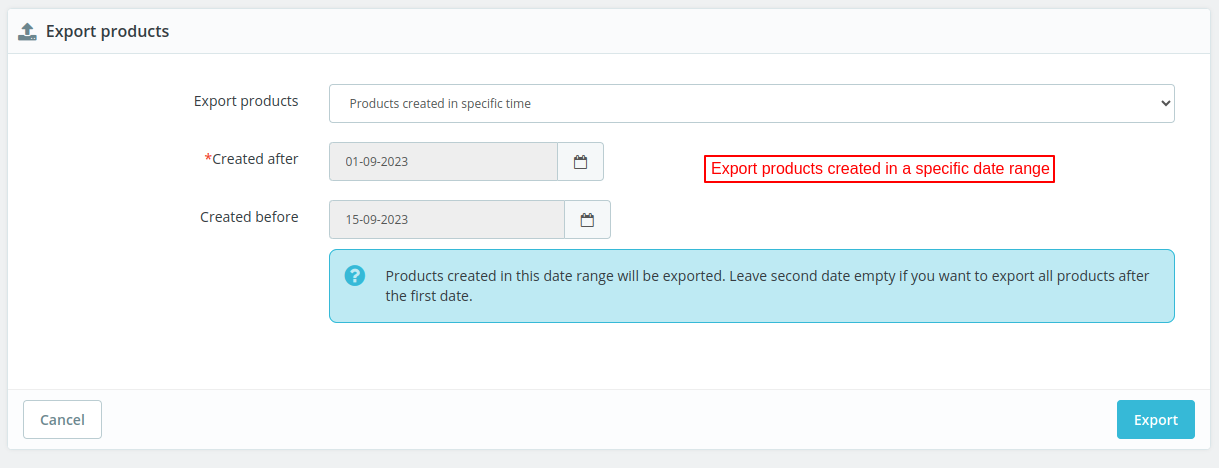
3. Products created in specific time
The admin can also export the products created in a specific date range. Select the dates in created after and created before fields to export products.
4. Export products from PrestaShop category
This option lets admin export all the products of a specific category to Shopify.

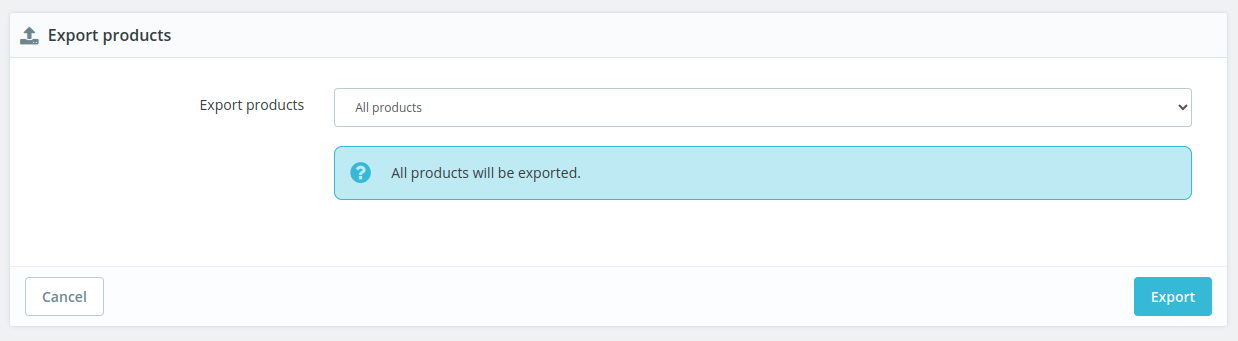
5. All products
This option lets admin export all the PrestaShop store products to Shopify at once.
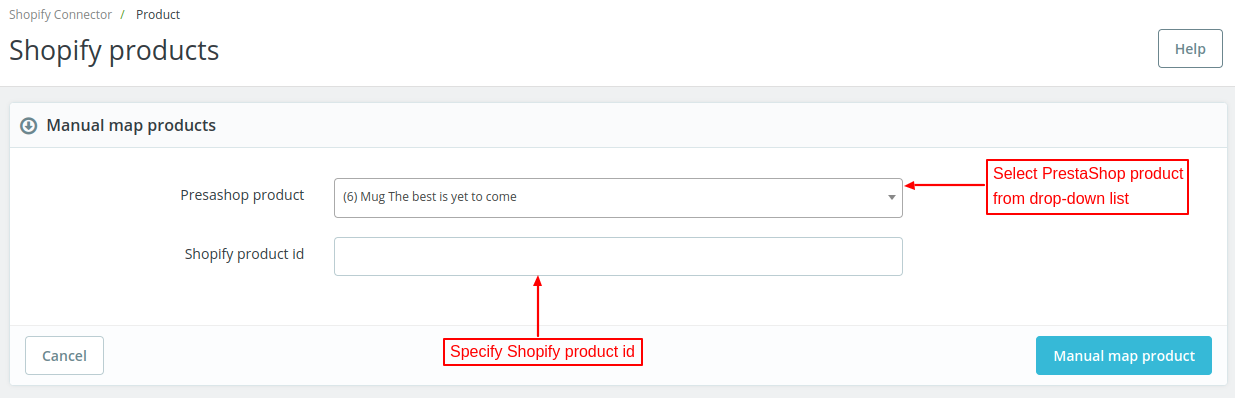
Manual map
The admin can manually map PrestaShop product with Shopify product. Select the PrestaShop product and specify Shopify product id.
Revise Products
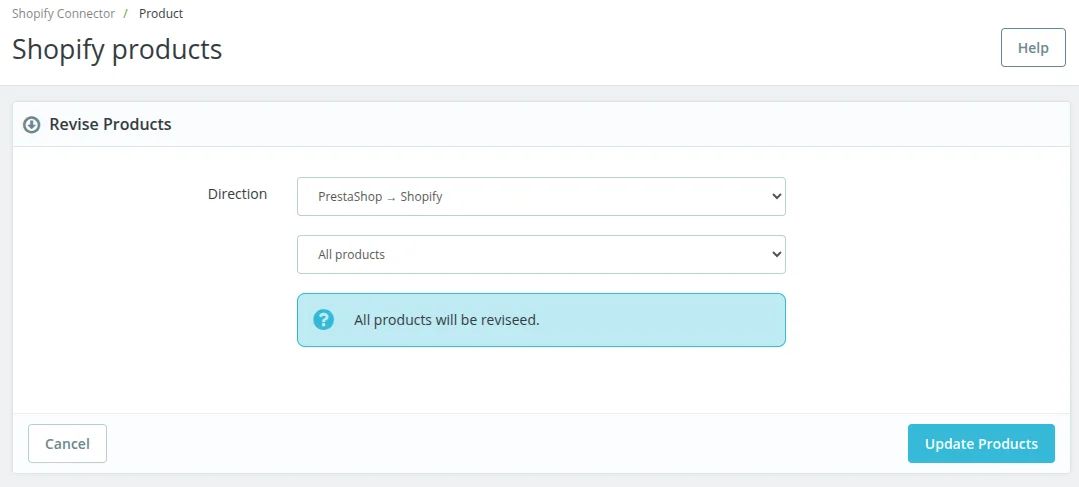
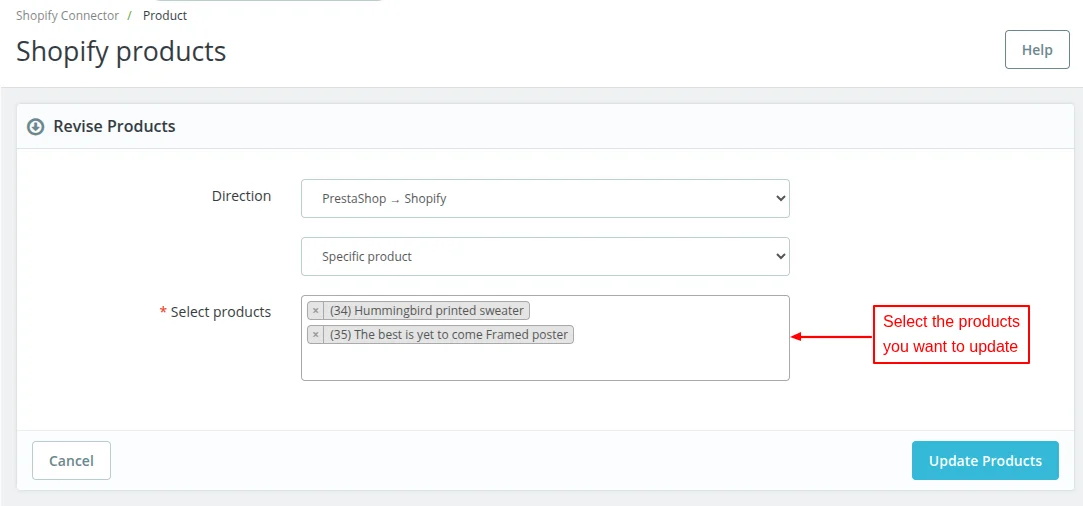
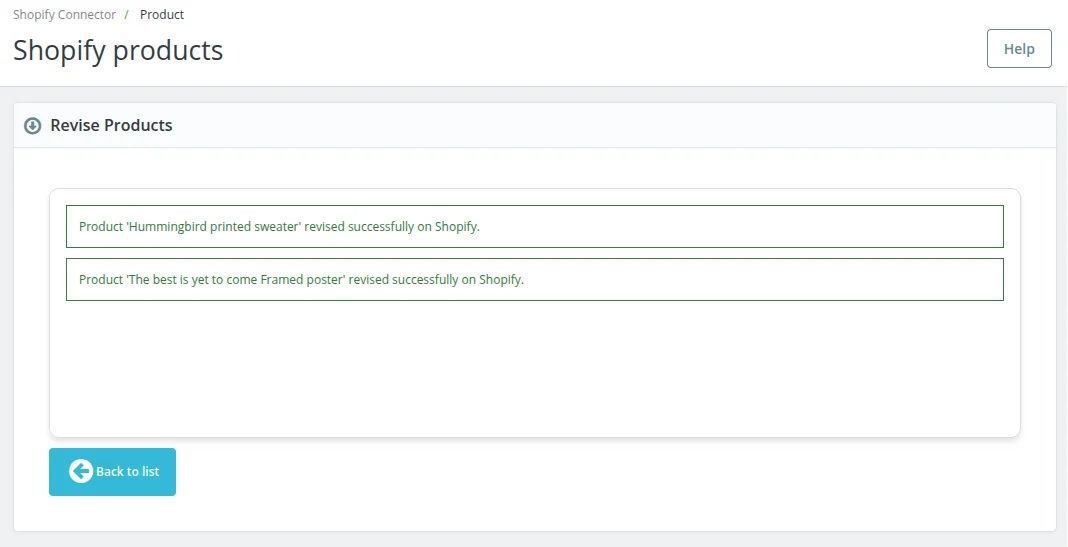
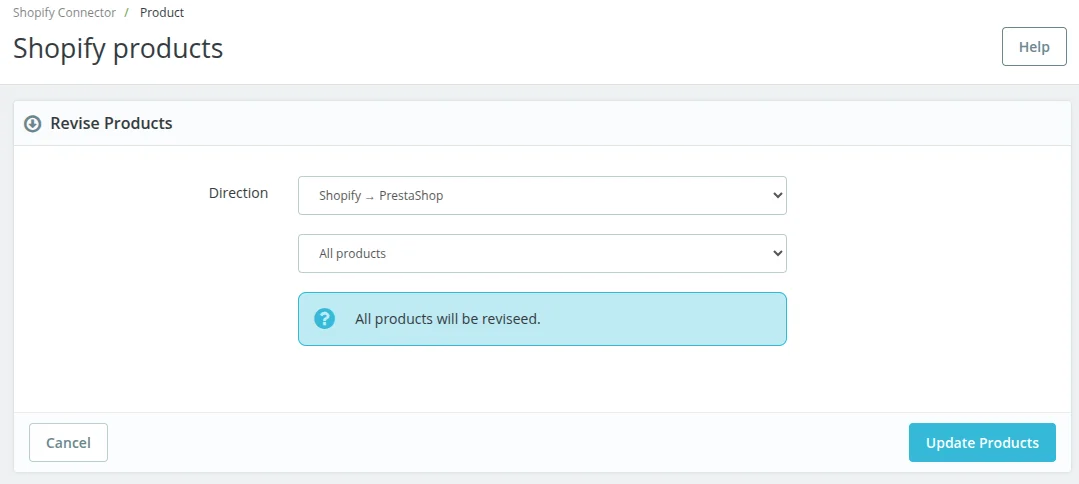
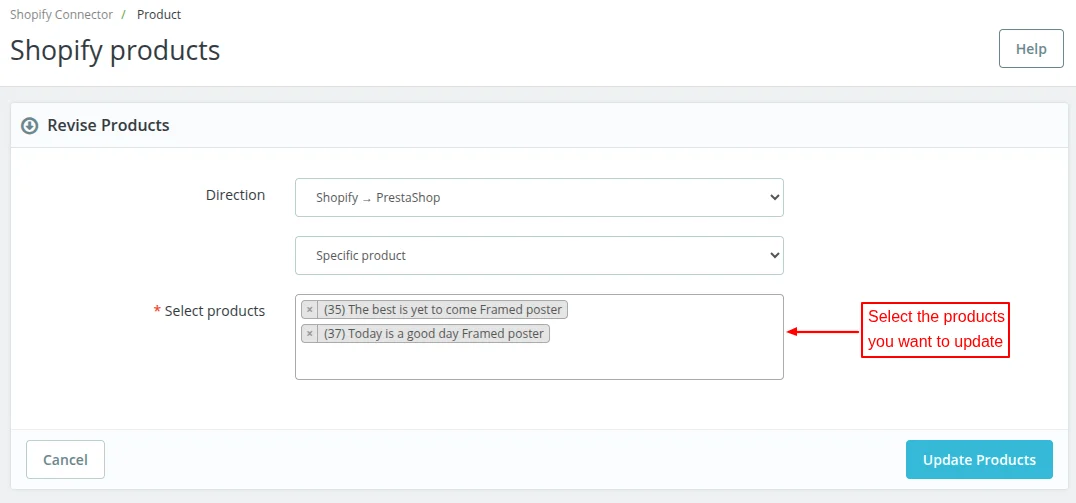
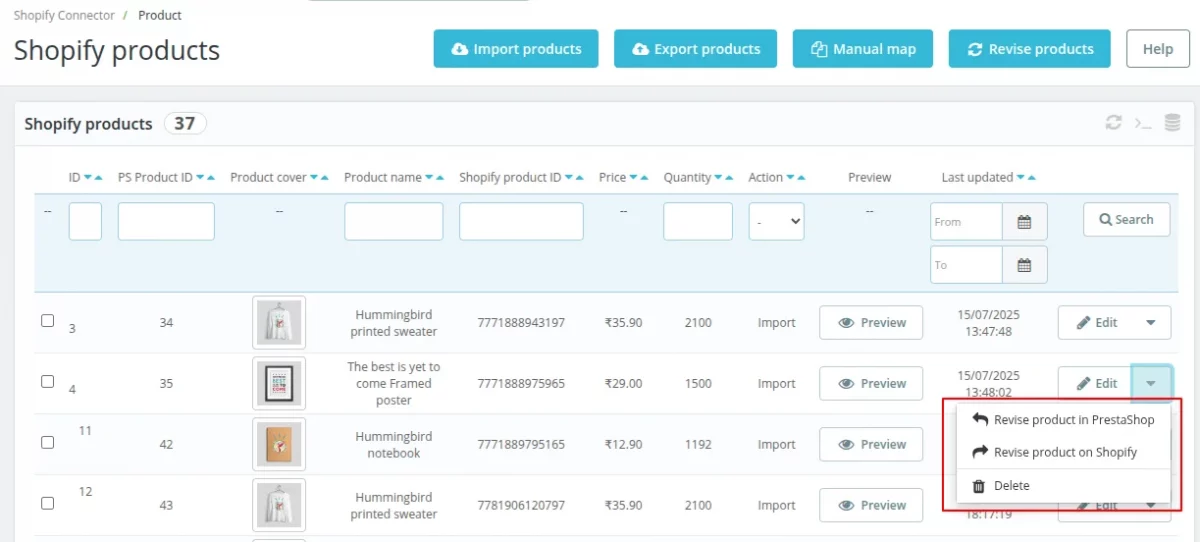
The admin can update the products in bulk from PrestaShop to Shopify and vice-versa.
PrestaShop to Shopify
Update all or specific products from PrestaShop to Shopify.
Shopify to PrestaShop
Update all or specific products from Shopify to PrestaShop.
Admin can view a list of all the imported and exported products under Shopify Products.
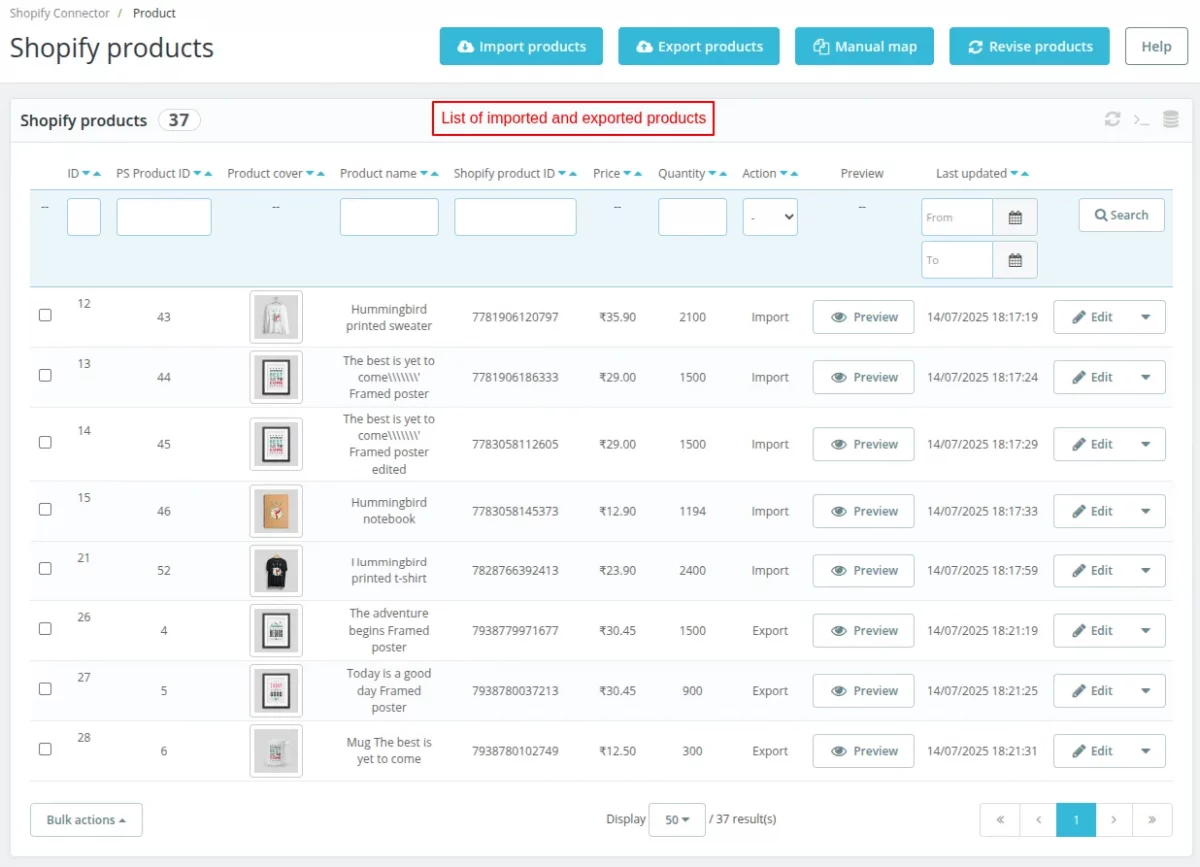
Under Shopify Products, the admin can edit, delete, and revise products.
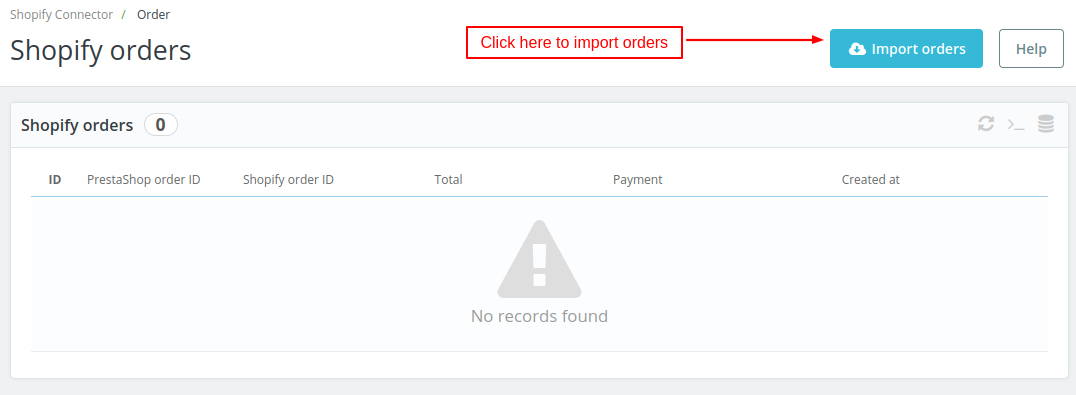
Import Orders
Click on Import orders button to import the orders from Shopify to PrestaShop.
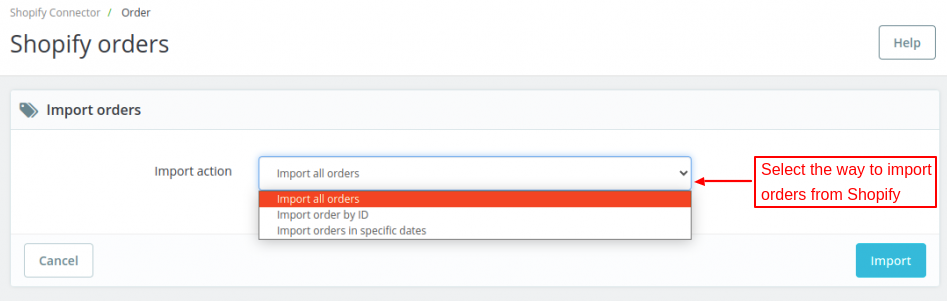
There are 3 ways to import orders.
- The first option lets you import all the Shopify orders to PrestaShop.
- Import any specific order to PrestaShop by using the order ID.
- You can also choose to import all the orders from Shopify to PrestaShop for the selected time interval.
Once imported, the admin can view the list under Shopify Orders.
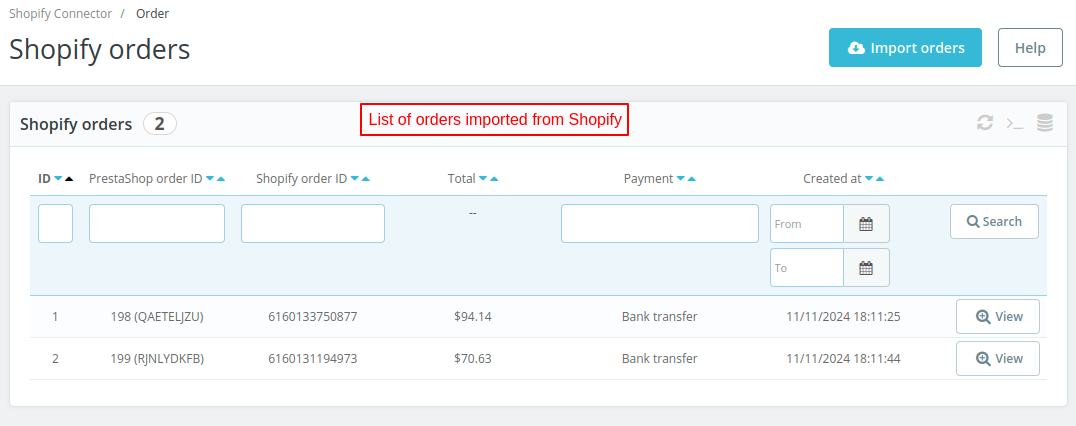
Customers
The admin can synchronize customers from PrestaShop to Shopify and vice-versa.
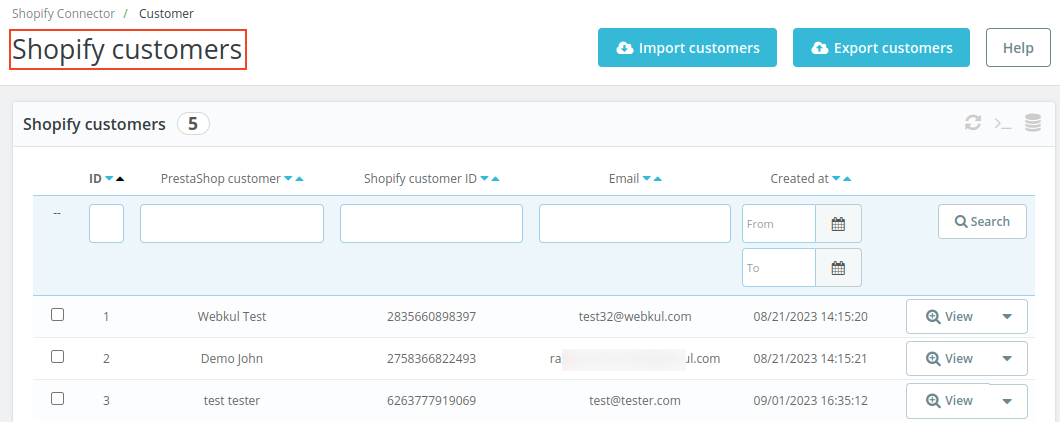
Import Customers
Click on Import customers button to import the customer from Shopify to PrestaShop. There are 3 ways to import customers to PrestaShop.
- Import all the customers in one go.
- Another way is to import a customer by a specific customer ID.
- Admin can also import customers by their date of registration for a specific time interval.

Export Customers
The admin can export all the customers from PrestaShop to Shopify or specific customers.


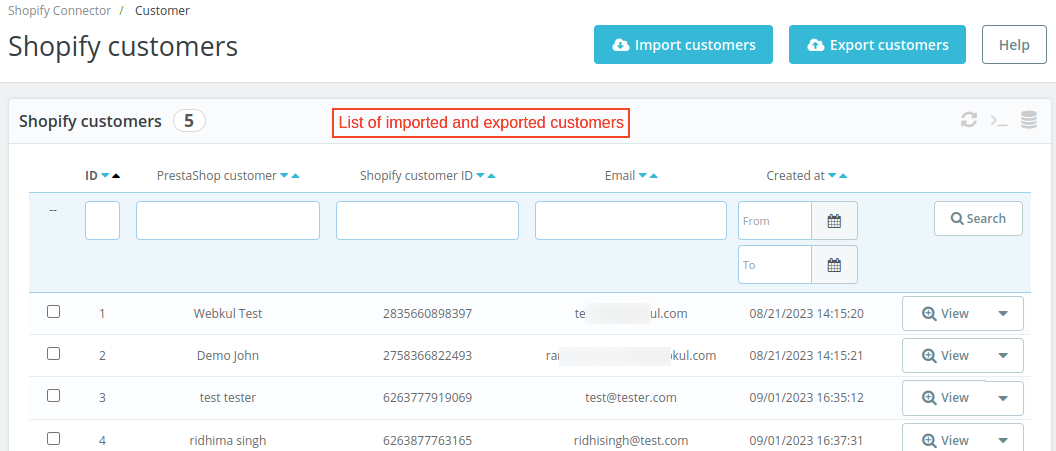
The admin can view a list of imported and exported customers under Shopify Customers.
Payment method
The admin can map PrestaShop payment methods with those of Shopify under “Payment method” tab.
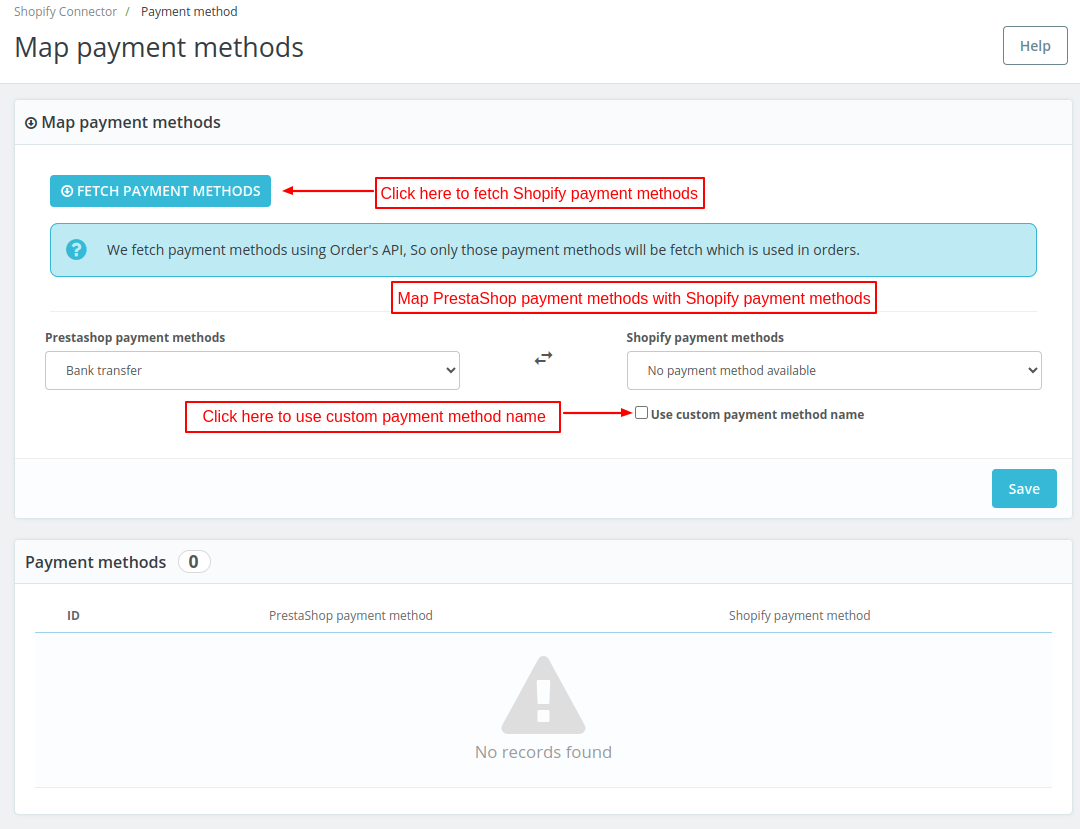
The admin can fetch Shopify payment methods by clicking on “FETCH PAYMENT METHODS” button.
Please note that the module fetch payment methods using order’s API. So, only those payment methods will be fetched which are used in orders.
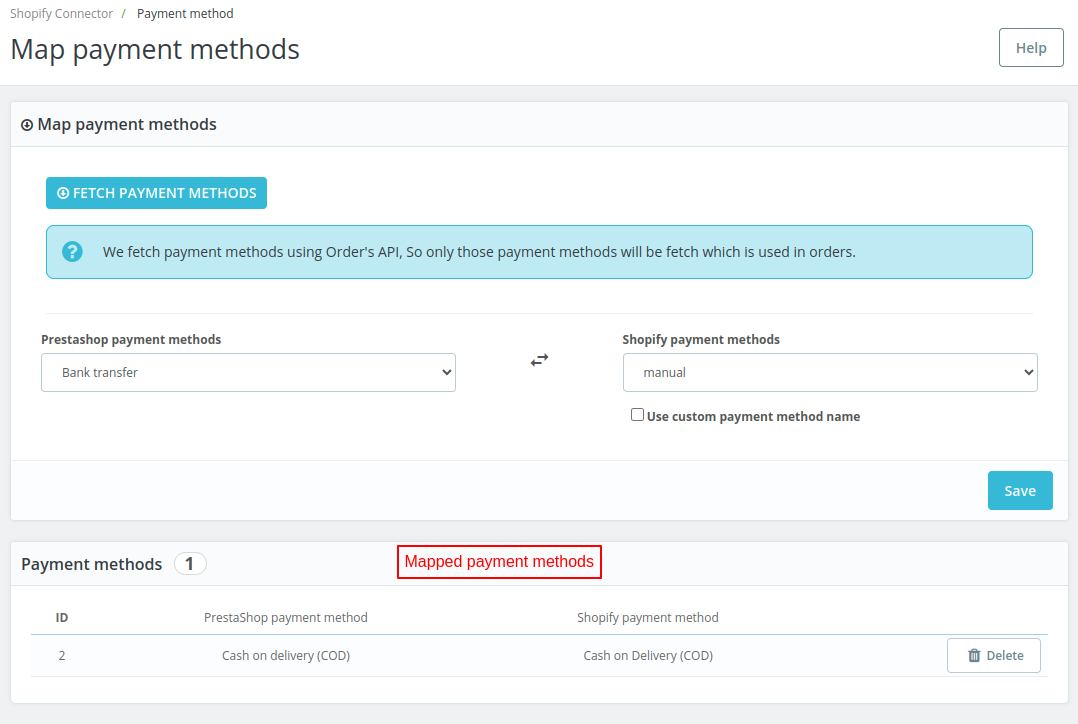
If the shop owner has used a technical name for a payment method on Shopify and he wants to map that payment method with PrestaShop payment method, then he can select “Use custom payment method name.

The mapped payment method will be assigned to orders imported from Shopify to PrestaShop.
If the admin has not mapped payment method, then the default payment method selected under “Order import” settings.
This was all about the PrestaShop Shopify Connector module. I hope this document will help you in checking the functionality of the module in a better way.
And, do let us know about your views in the comments.
Support
For any kind of technical assistance or query, please raise a ticket or send us a mail at [email protected]
Also, please explore our PrestaShop development services and vast range of quality PrestaShop addons.
Current Product Version - 6.0.1
Supported Framework Version - 9.x.x, 8.x.x, 1.7.x.x


Will this module be able to synch multiple shopify accounts from one prestashop instance?.
Best regards,
Julio