Introduction
Odoo Reminder Mail module helps you to remember all the important dates and events. Moreover, you can send a reminder email to other users to complete their work before the deadline.
Send repeat reminder notifications on a daily, weekly, and monthly basis to Odoo users via Odoo Reminder Mail. Odoo Admin and users can set reminders in Odoo for internal users.
Features
- Allows Odoo Admin and users to set reminders for internal users within Odoo system.
- Enables Odoo users to send reminder emails to users directly within the Odoo system.
- Supports sending daily task reminders, deadline alerts, event reminders, and meeting notifications.
- Provides an option to set Odoo reminders for a single user or multiple users at once.
- Allows the admin to configure multiple alert notifications for the same Odoo reminder easily.
- Supports setting alert frequency as daily, weekly, or monthly based on the requirement needs.
- Provides an option to define start date and end date for reminder alert scheduling.
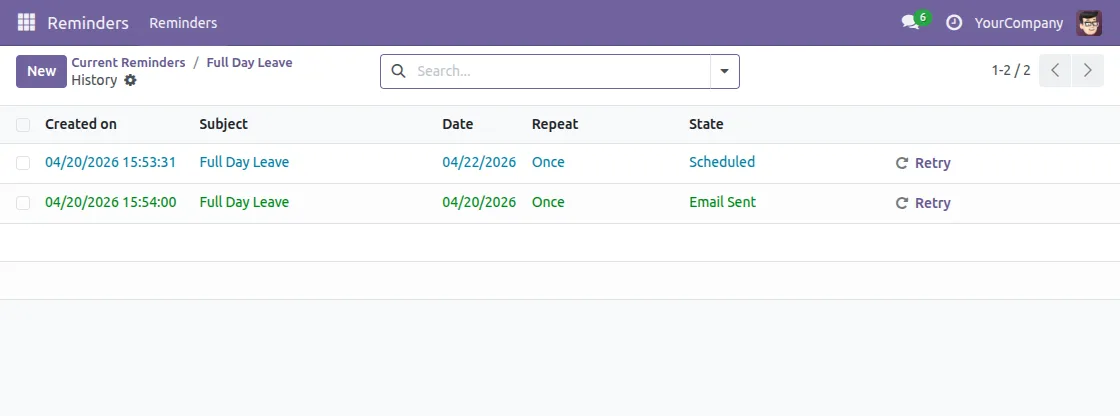
- Allows viewing the history of all sent reminder emails directly from Odoo reminder form
Installation
- Once you purchase the App from the Webkul store, you will receive a link to download the module’s zip file.
- Extract the file on your system after the download finishes. As a result, you will be able to see a folder named ‘odoo_reminder’.
- Copy and paste this folder inside your Odoo Add-Ons path.
- Now, open Odoo App and click on the Settings menu. Here, click on Activate Developer Mode.
- Then, open the Apps menu and click on ‘Update Modules List.’
- In the search bar, remove all the filters and search ‘odoo_reminder’.
- You will be able to see the module in the search results. Click on ‘Activate’ to install it.
Workflow
1. After installing the Odoo Reminder Mail module. Go to the Reminder module and click on the New button to create a Reminder.
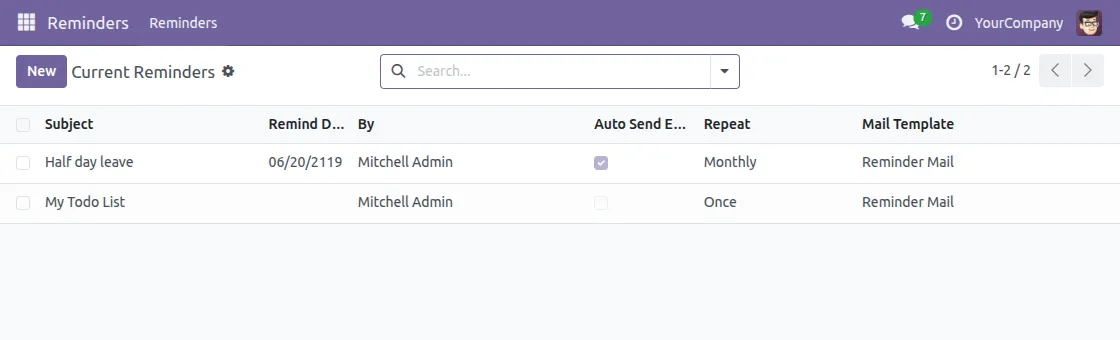
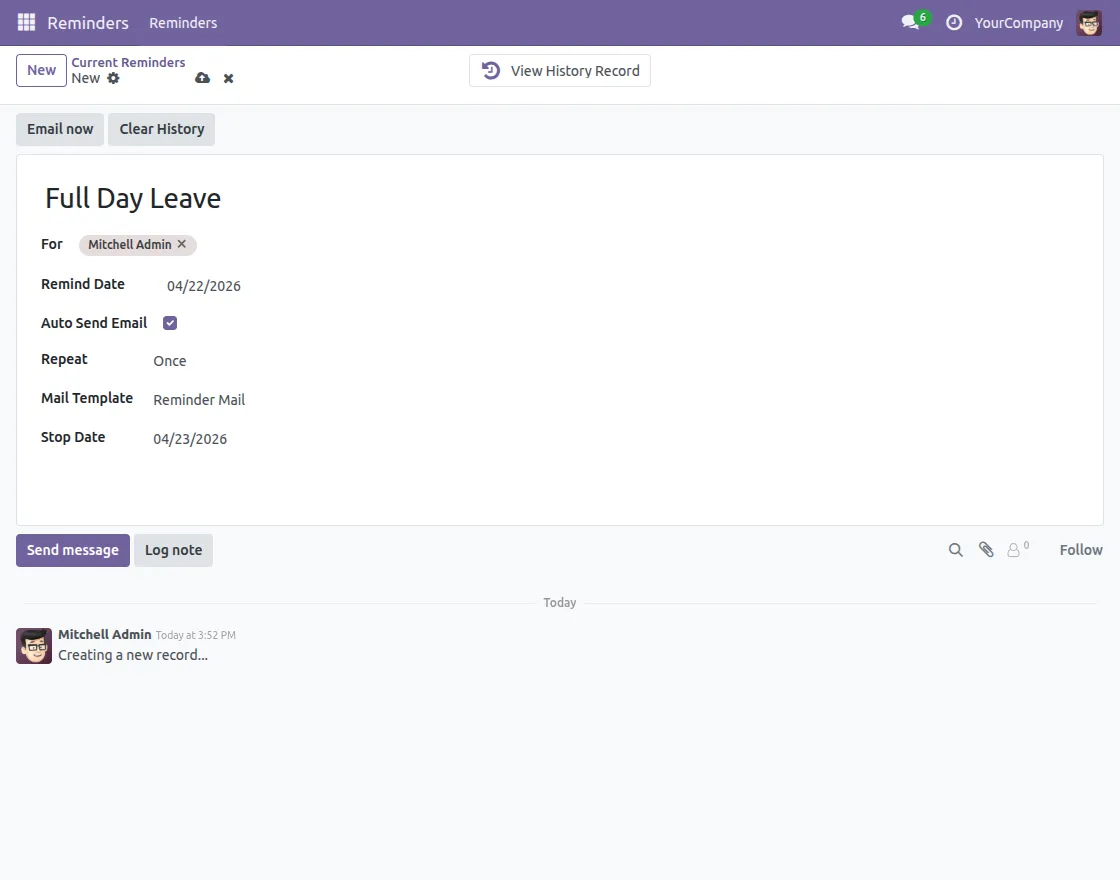
2. Add the Subject and the recipient to whom you want to send the reminder mail.
You can also enable the Auto-Send Email Checkbox to send repeat notifications for the reminder on a daily, weekly, or monthly basis.
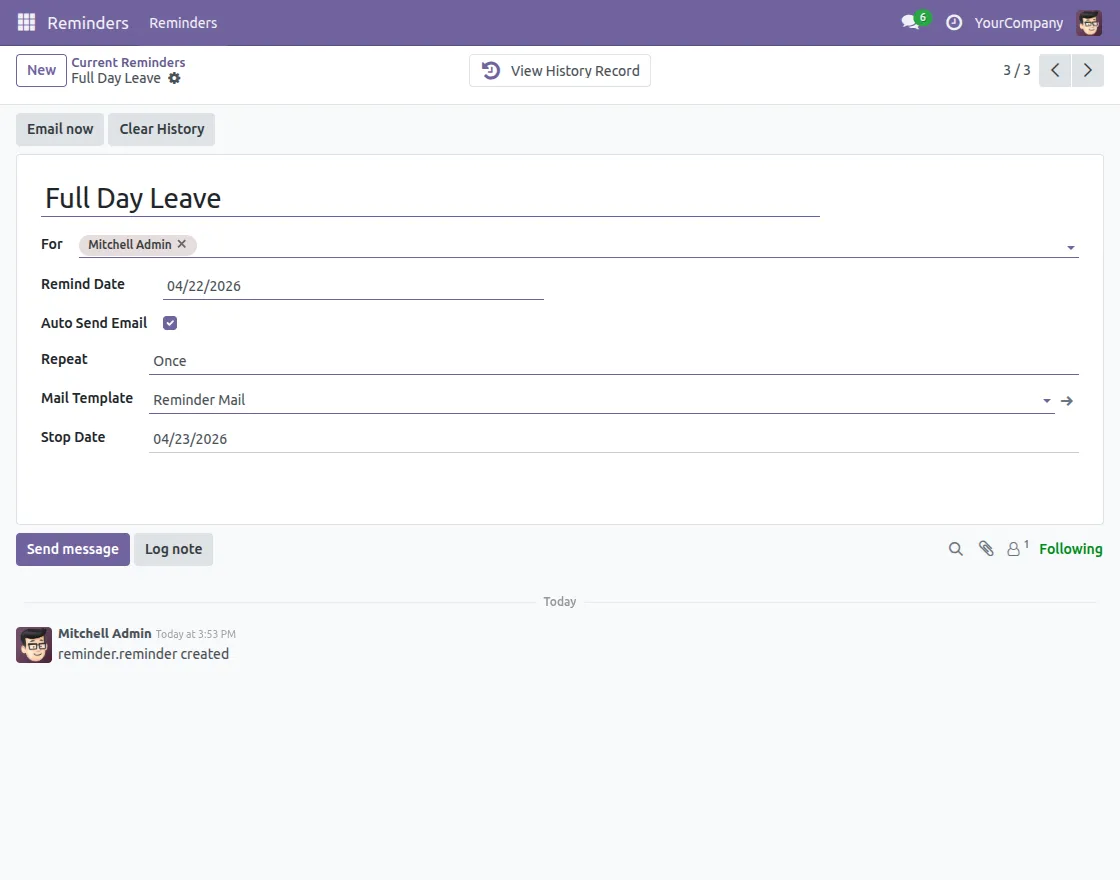
3. To send a reminder email manually, click on the ‘Email now’ option.
You can also send multiple reminders at once by selecting them, then clicking the ‘Actions‘ button and choosing ‘Email now’.
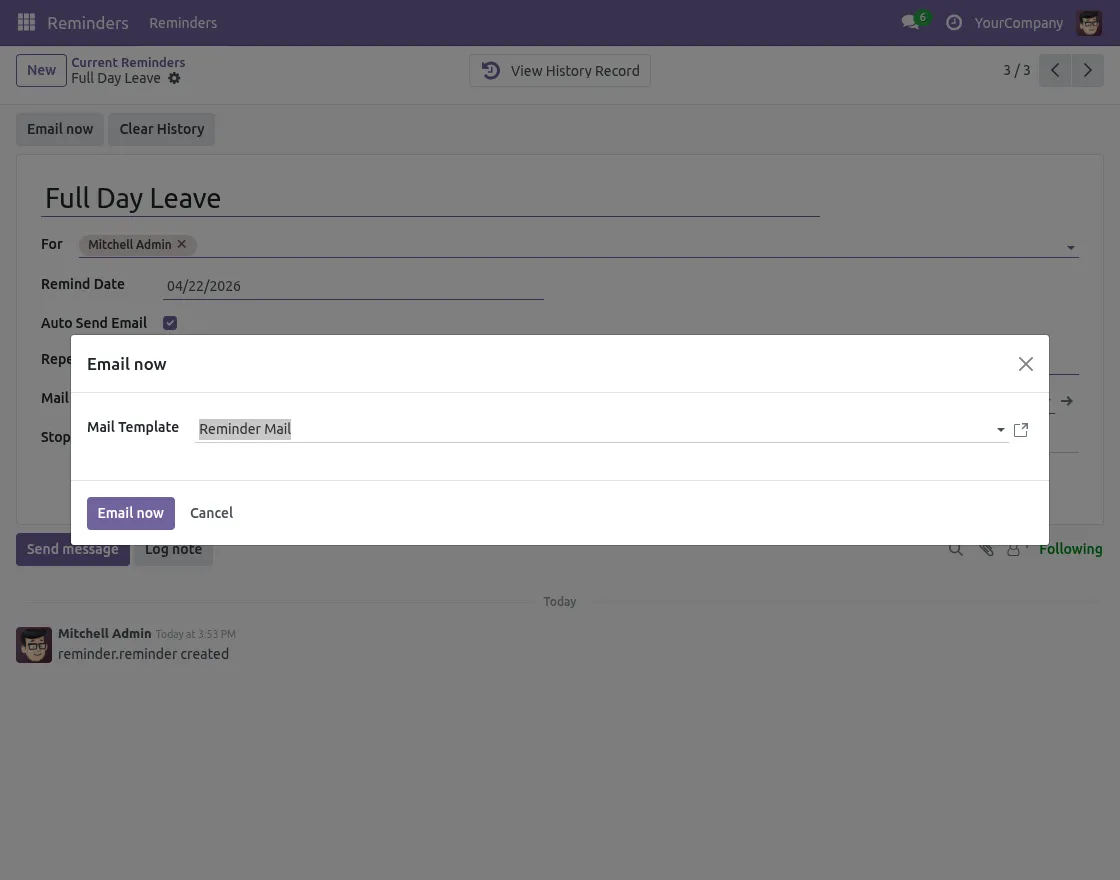
4. After clicking on ‘Email now’, a pop-up will appear with a Mail Template. Click on the ‘Email now’ button to send the reminder email.
5. Click on View History Record to check the History of the reminders.
Need Help?
Hope you find the guide helpful! Please feel free to share your feedback in the comments below.
If you still have any issues/queries, please create a ticket at the UV Desk.
I hope this helps. In case of any further queries, contact us at our support mail.
Thanks for paying attention!!
Current Product Version - 1.0.3
Supported Framework Version - Odoo V17, 18, 19

Be the first to comment.