PrestaShop Marketplace Seller Staff facilitates sellers to add staff who can manage their store.
The sellers can give permissions of specific tabs including dashboard, products, orders, and transactions to the staff.
They can permit staff to view, add, edit, or delete the products right from their accounts.
Adding staff to manage products and orders will help reduce the workload of sellers and improve store management.
Note:
- PrestaShop Marketplace Seller Staff version 5.1.2 is compatible with Advanced Marketplace Version 5.1.6 and above.
- Module version 5.1.1 is compatible with Advanced Marketplace Version 5.1.6 to 6.0.2
- Module version 5.1.3 is fully compatible with Marketplace version 6.0.1, 6.0.2, 7.0.3, and above.
- Version 3.1.0 is compatible with Advanced Marketplace Version 3.1.6 and above.
- For Advanced Multi-Vendor Marketplace versions 7.0.0 to 7.0.1, the module works correctly, but the seller-side header is hidden for staff members using JavaScript.
- For Advanced Multi-Vendor Marketplace version 7.0.2, some changes are required in the marketplace module.
- PrestaShop Marketplace Seller Staff module is MultiShop compatible.
Features of Prestashop Marketplace Seller Staff
- Sellers can add staff to manage their store.
- Sellers can give specific permissions of the store to the staff.
- Staff can view dashboard and transactions if permitted by the seller.
- Staff can view, add, edit, or delete products if permitted by the seller.
- If permitted, the staff can view and edit orders.
- Sellers can enable, disable, or delete the staff.
- View actions that have been performed by the staff in seller’s account.
- Admin can view a list of staff that have been added by sellers.
- View permissions given by seller to the staff.
- Add staff on seller’s behalf.
- Give specific permissions of the store to the staff on seller’s behalf.
- Enable, disable, or delete staff.
- Allow customers to verify themselves as seller’s staff.
How to Install Prestashop Marketplace Seller Staff
For installing this module, you need to install the Prestashop Advanced Multi Vendor Marketplace module first.
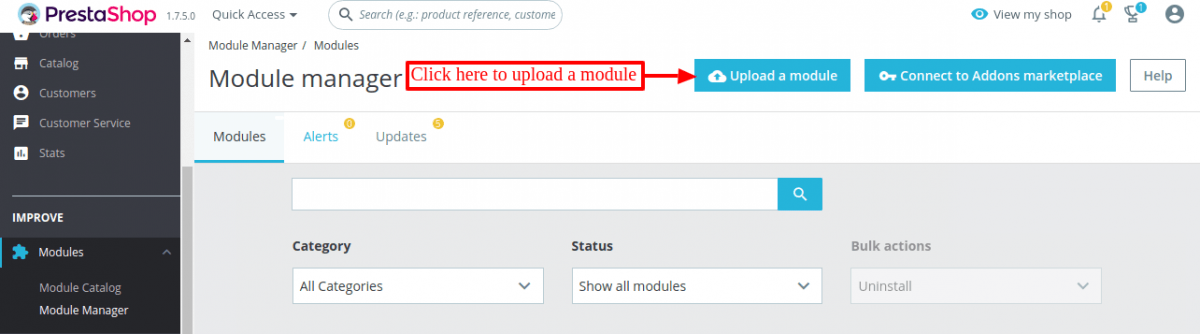
- Firstly, go to the module manager in the back office and click on ‘upload a module’.
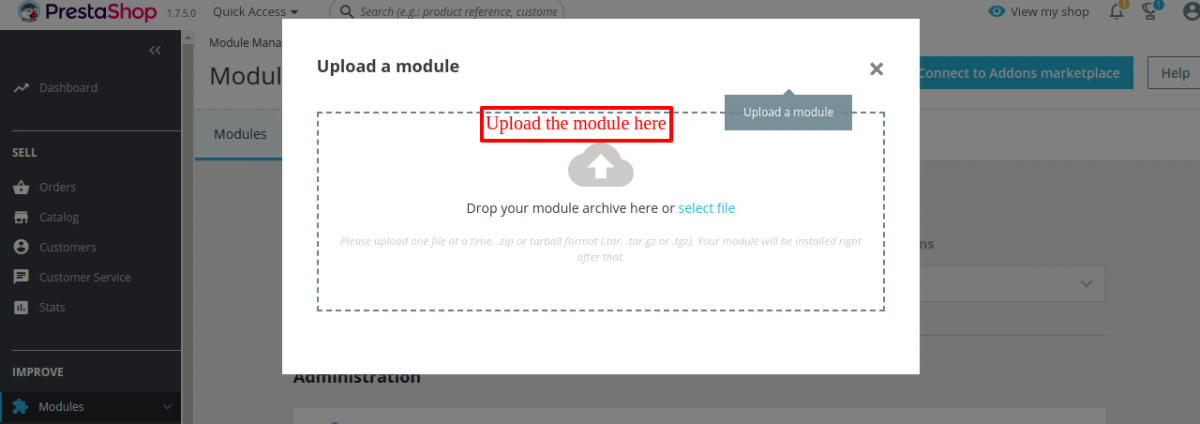
- After that, drag and drop the module file or select the file from the system
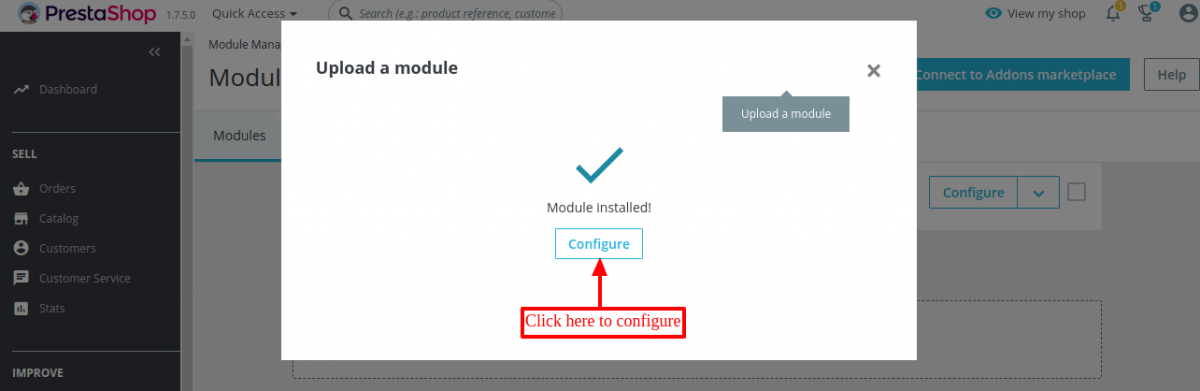
- In this way, the module installation will be successful.
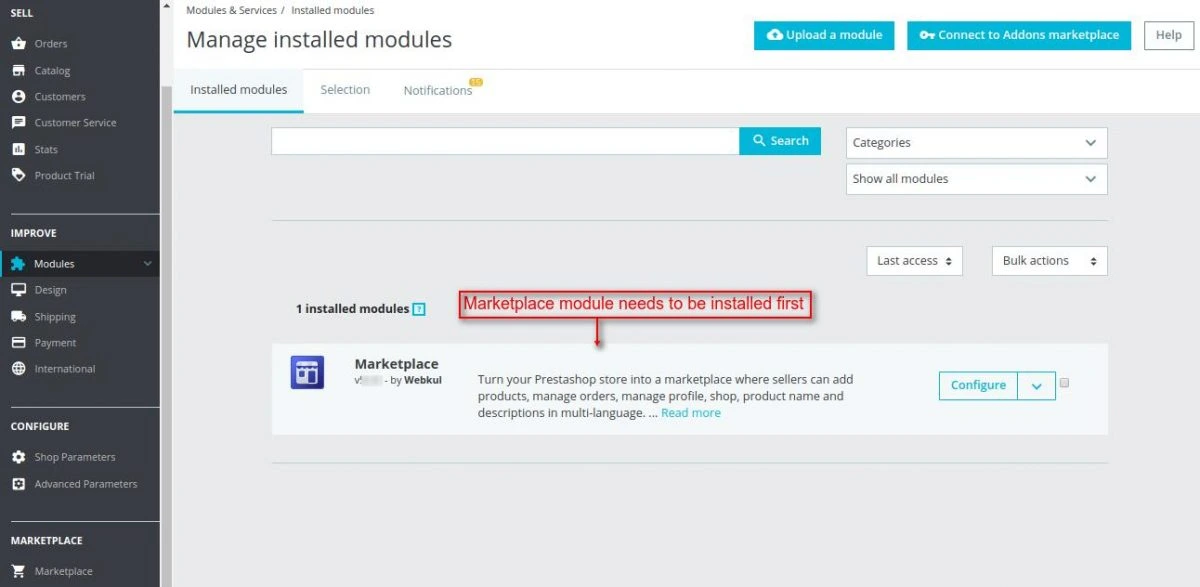
- Go to Modules -> Module Manager -> Upload a module.
- After that, drag and drop the module file or select the file from the system
- In this way, the module installation will be successful.
Module Configuration
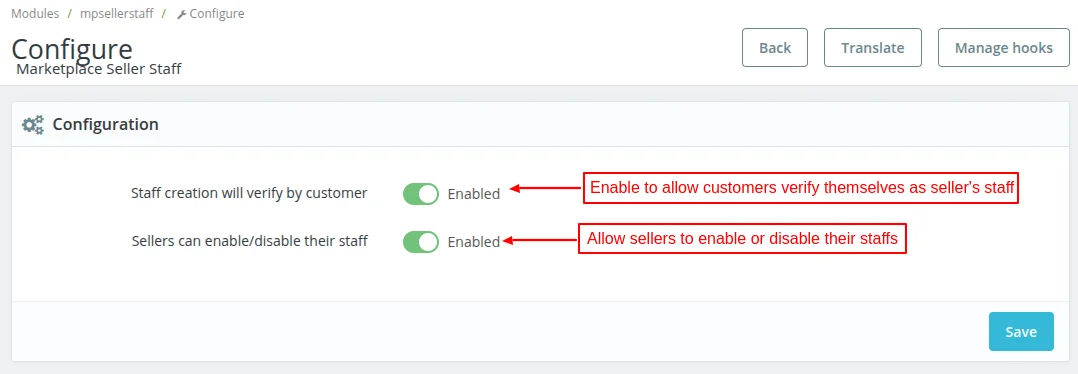
Under Configuration, the admin can:
- Allow customers to verify themselves as staff of the seller.
- Allow sellers to enable or disable their staffs.
Seller End Workflow
After the successful installation of the module, a new tab “Manage Staff” gets added in the seller panel. From here the seller can add and manage staff.
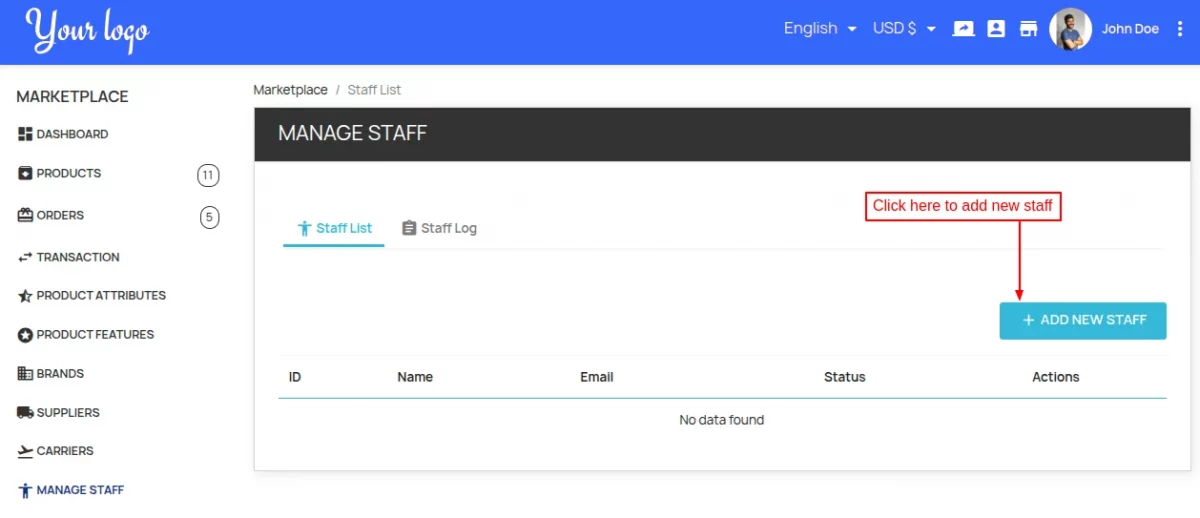
Click on “ADD NEW STAFF” button to add staff.
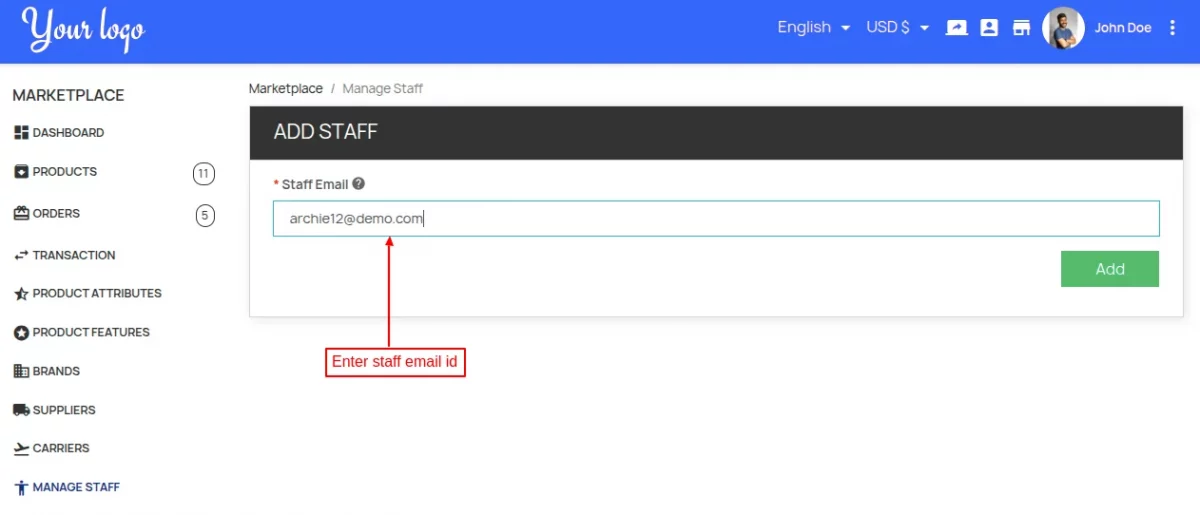
If the admin has enabled “staff verification” under configuration, then the staff added by seller will remain in pending state as shown in the below screenshot.
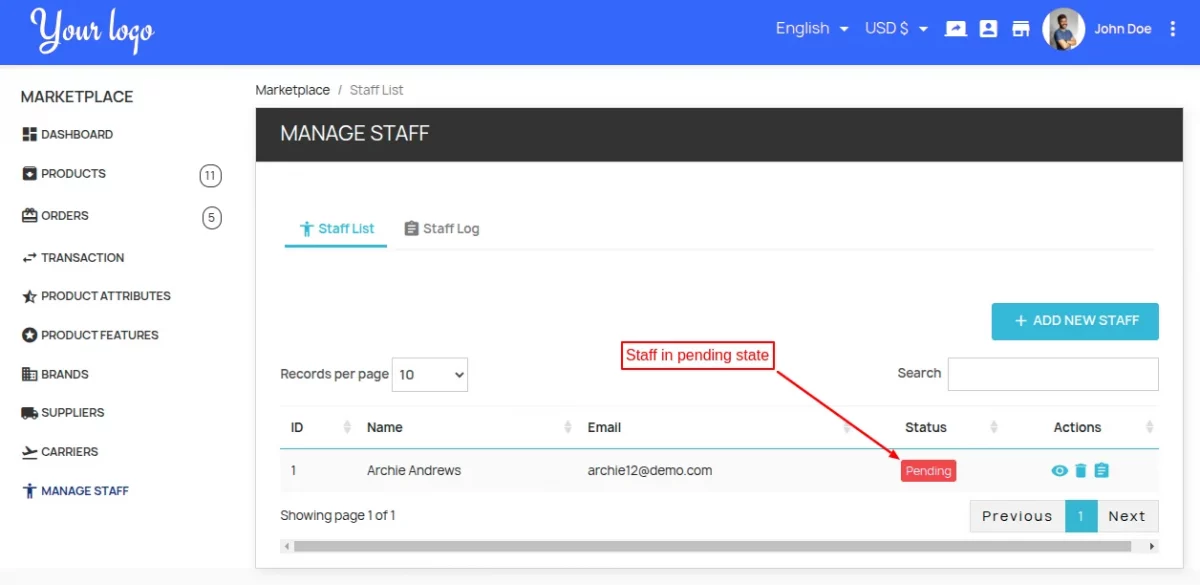
As per configuration, the staff has to verify himself from his account.
A new tab “Manage Seller Store” gets available in customer’s account.
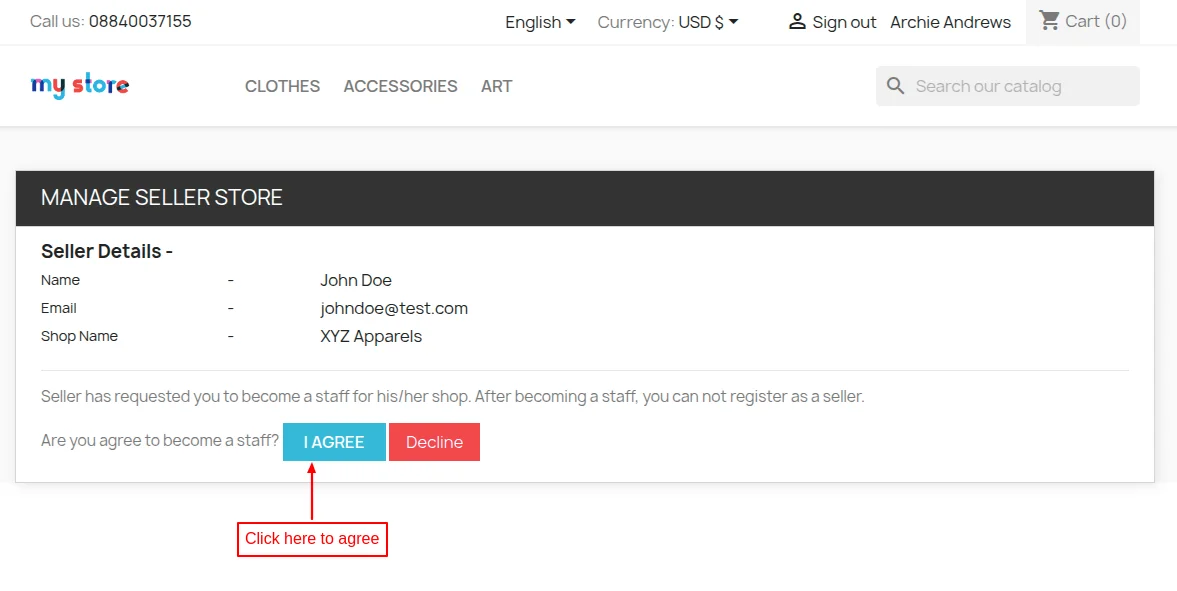
A user can become a staff by clicking on ‘I AGREE’ button.
On clicking the button, the status of request will change from pending to approved as shown in the below screenshot.
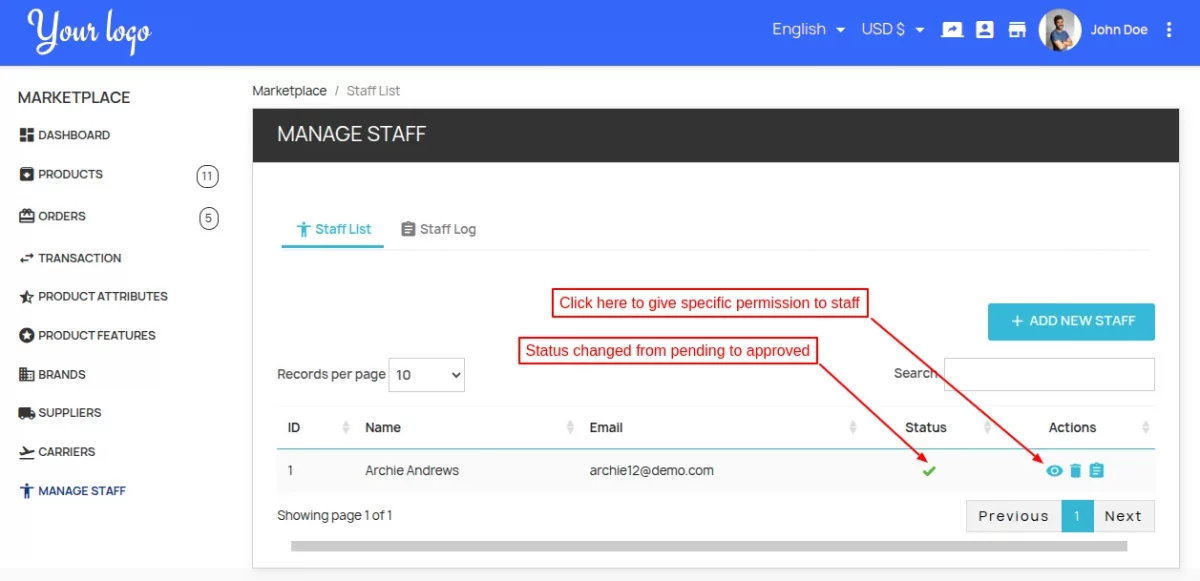
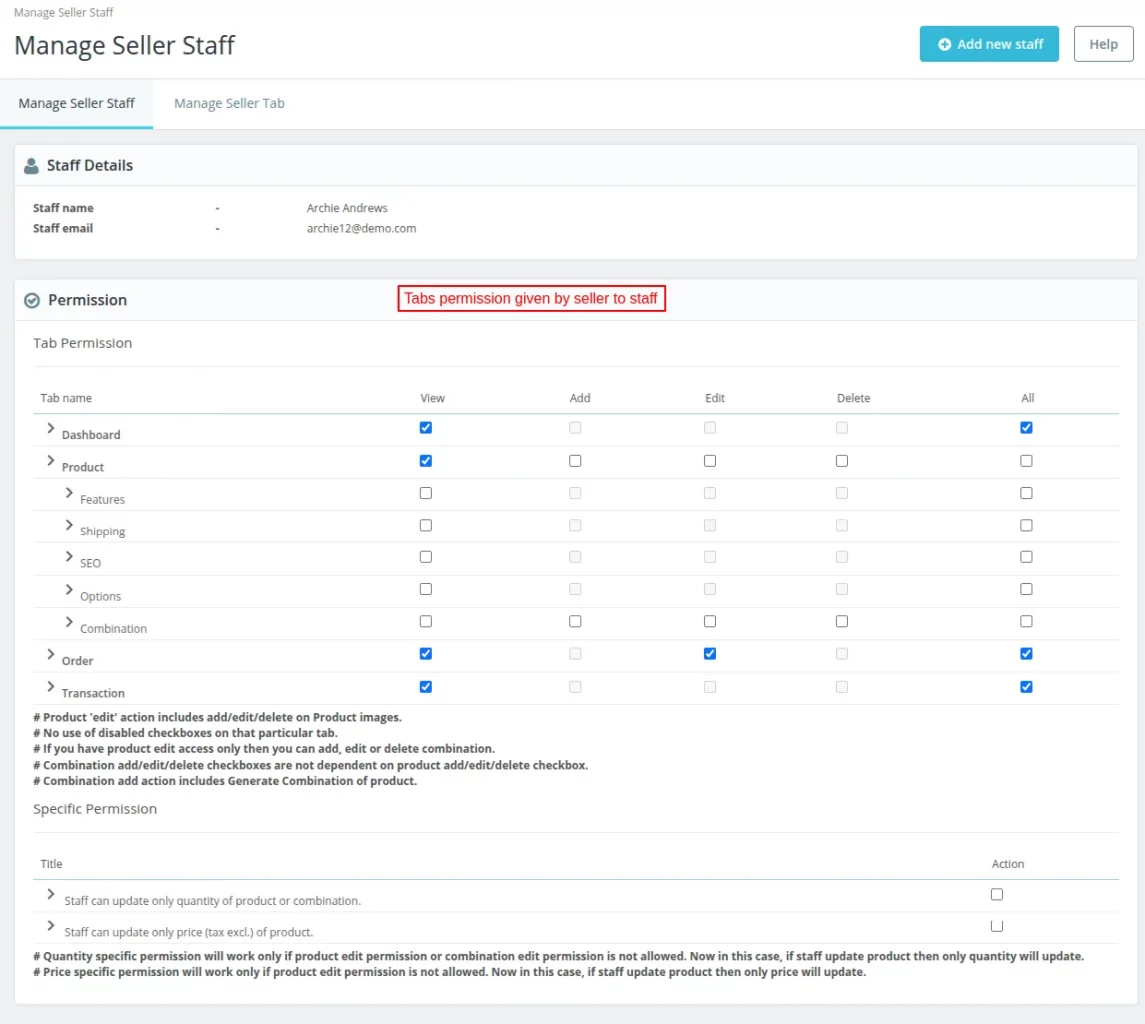
Seller can give tab permission to staff by clicking on the ‘eye’ icon.
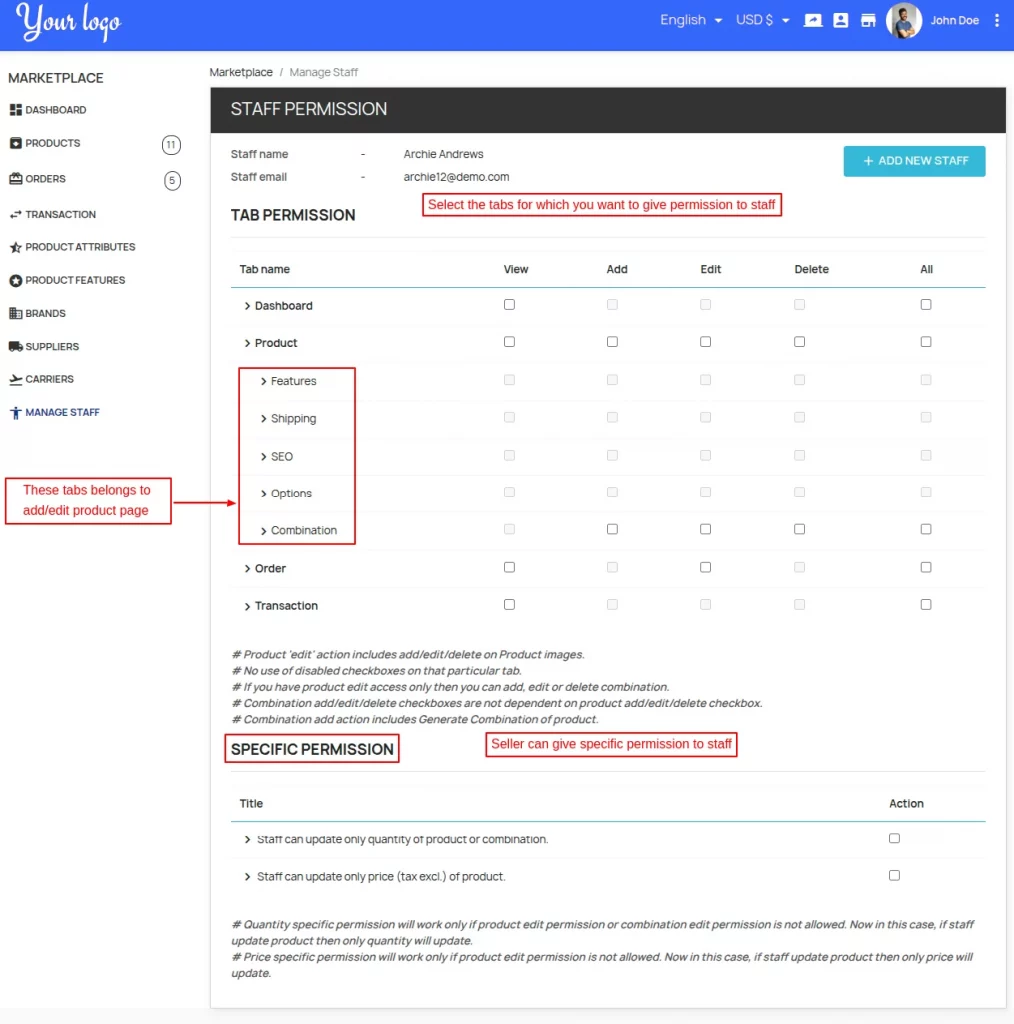
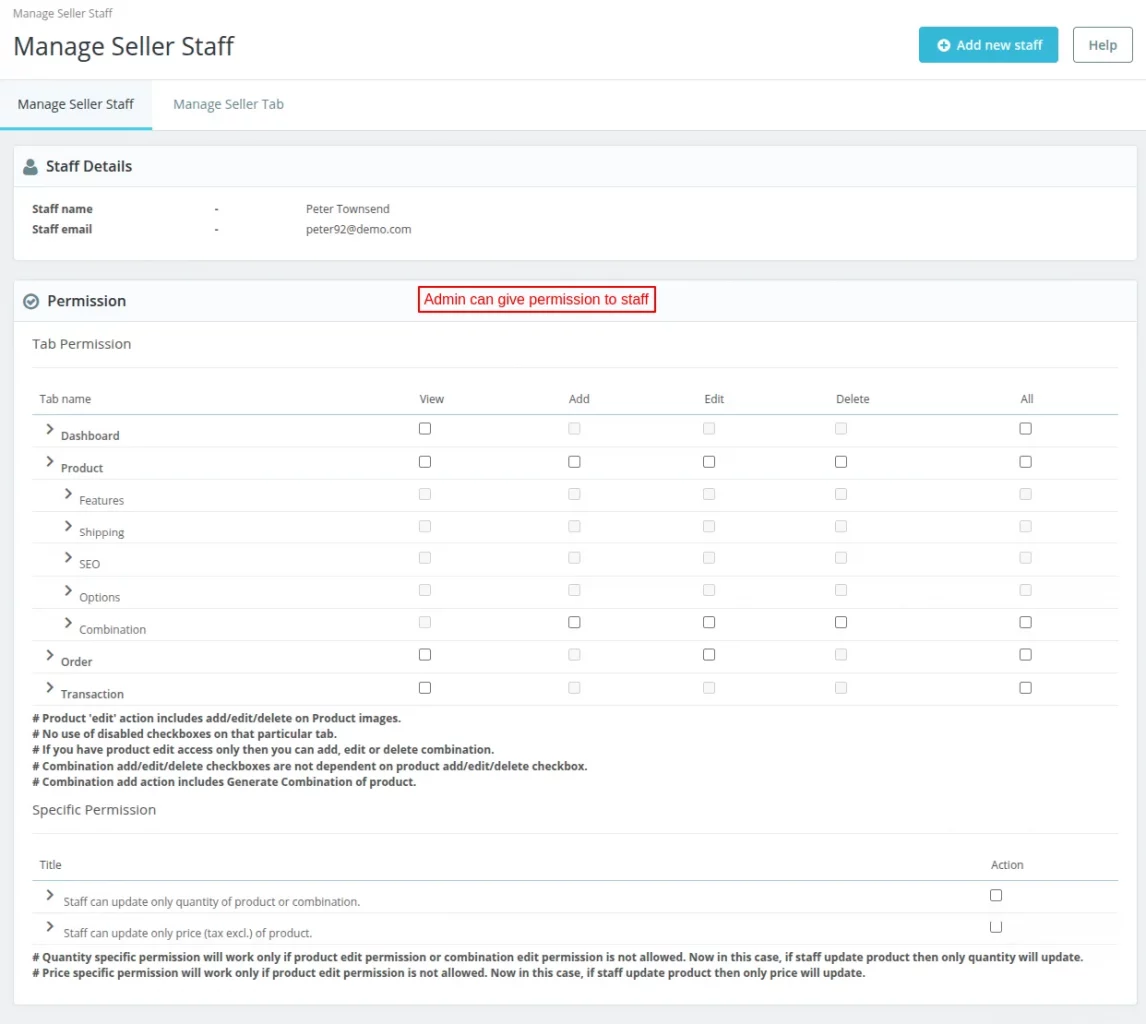
Under staff permission, the seller can select the tabs for which he wants to give permission to the staff. Seller can give permission for the following tabs to the staff.
- Dashboard – Allow staff to view the dashboard.
- Product – Allow staff to view, add, edit, or delete the products.
- Order – Give permission to staff to view or edit the order.
- Transaction – Allow staff to view transactions.
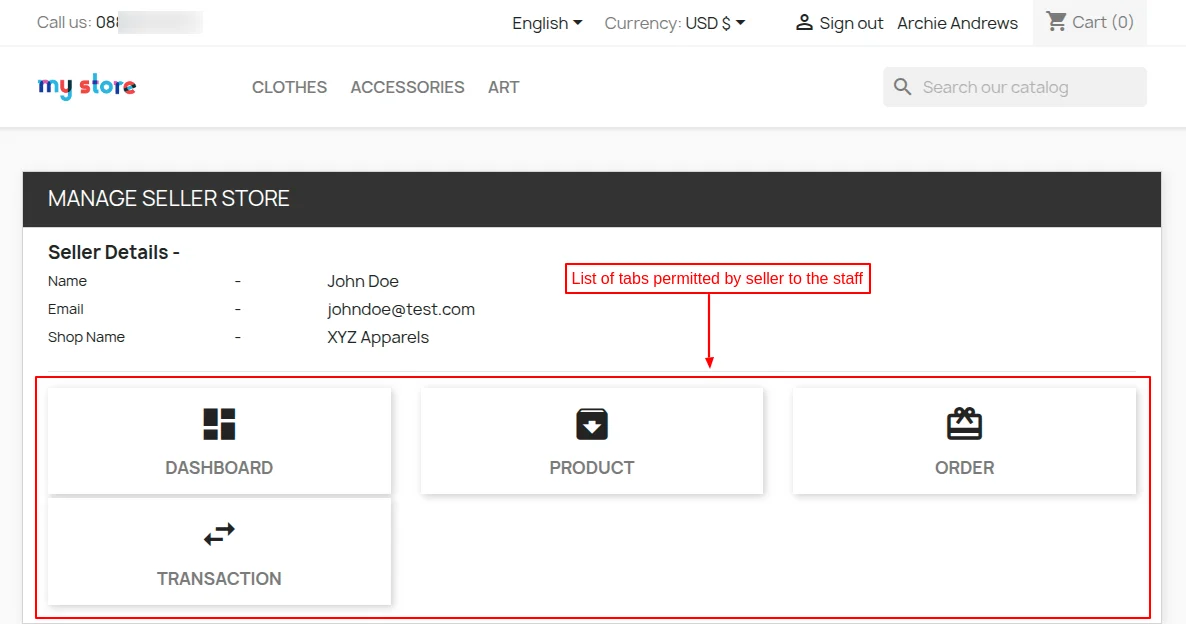
Staff can view the tabs for which the seller has given the permission under manage seller store tab in his account.
Products
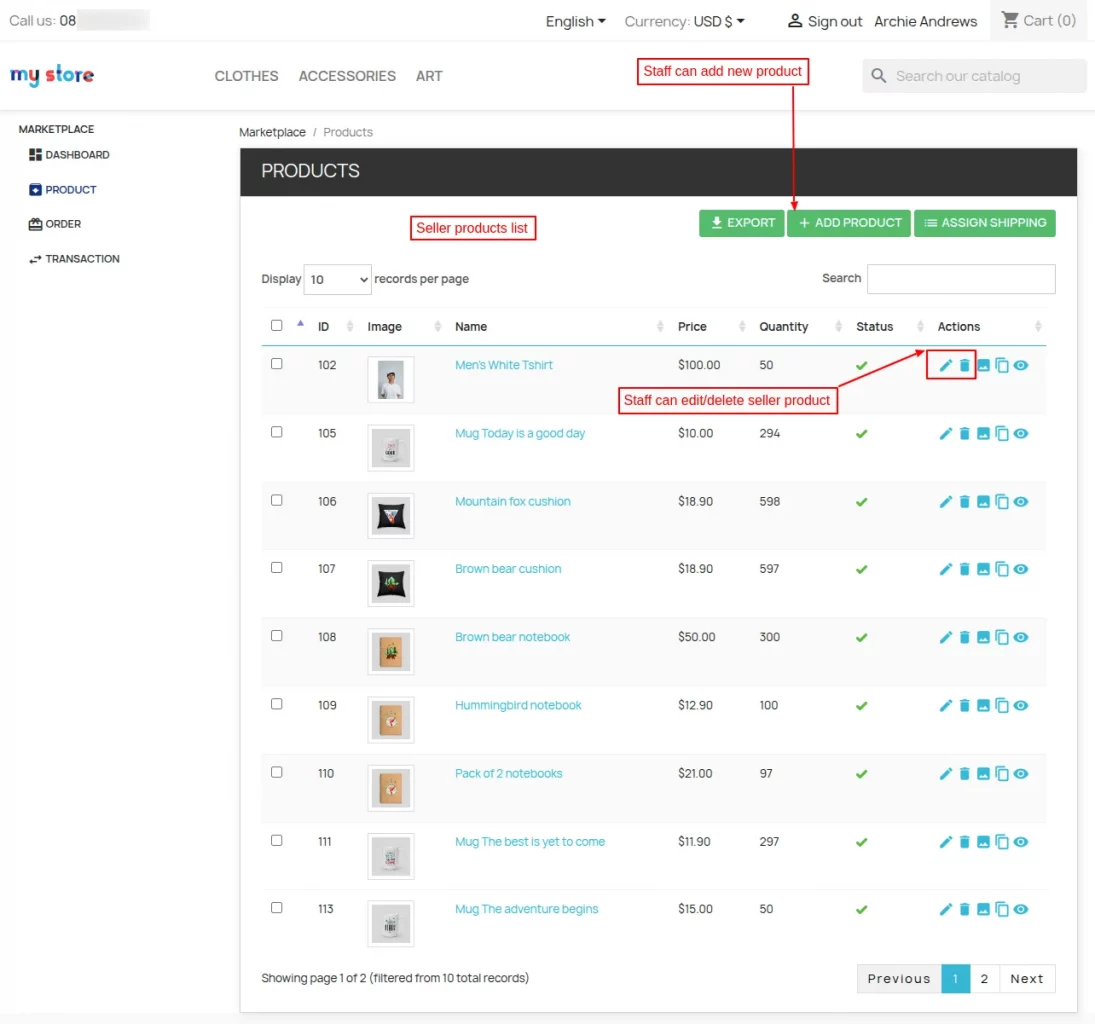
As permitted by seller, the staff can view, add, edit, or delete products.
Suppose a seller gives only view product permission, then the staff won’t be able add, edit, or delete product.
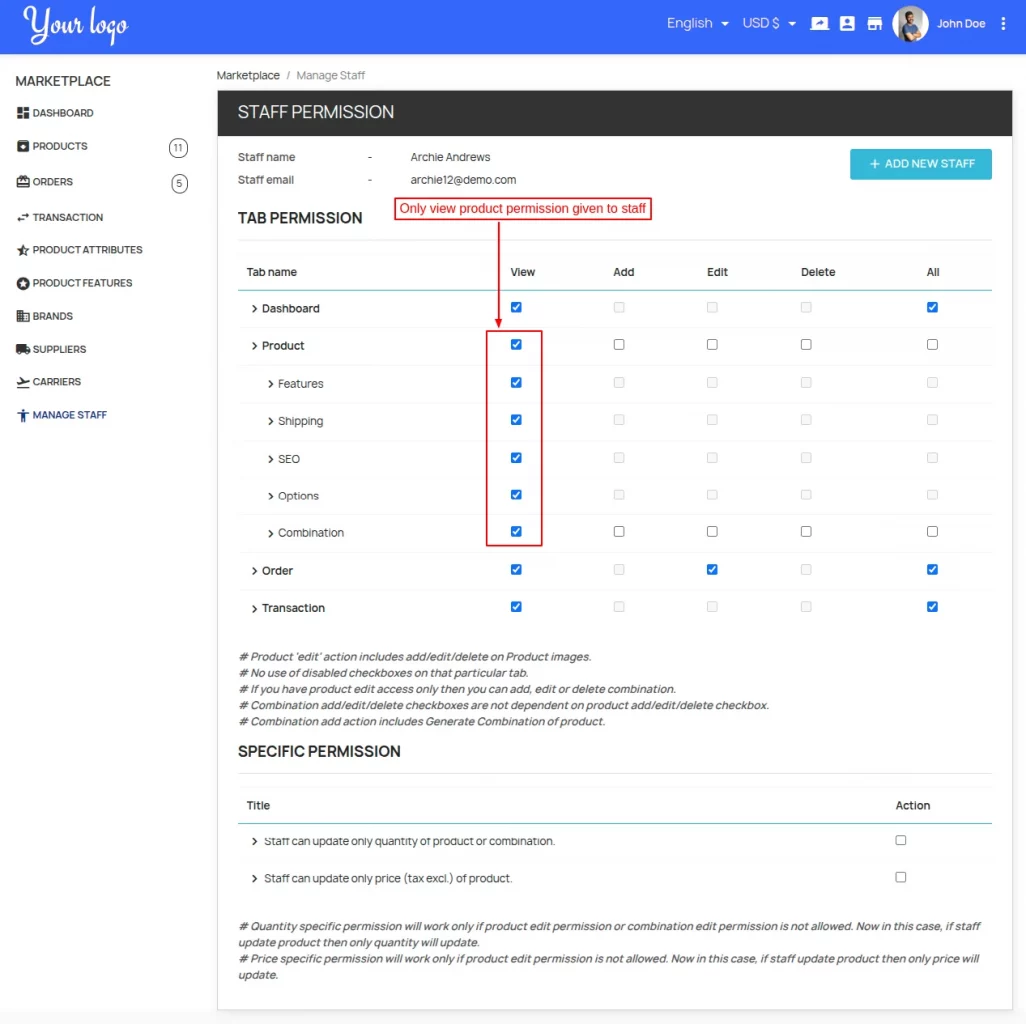
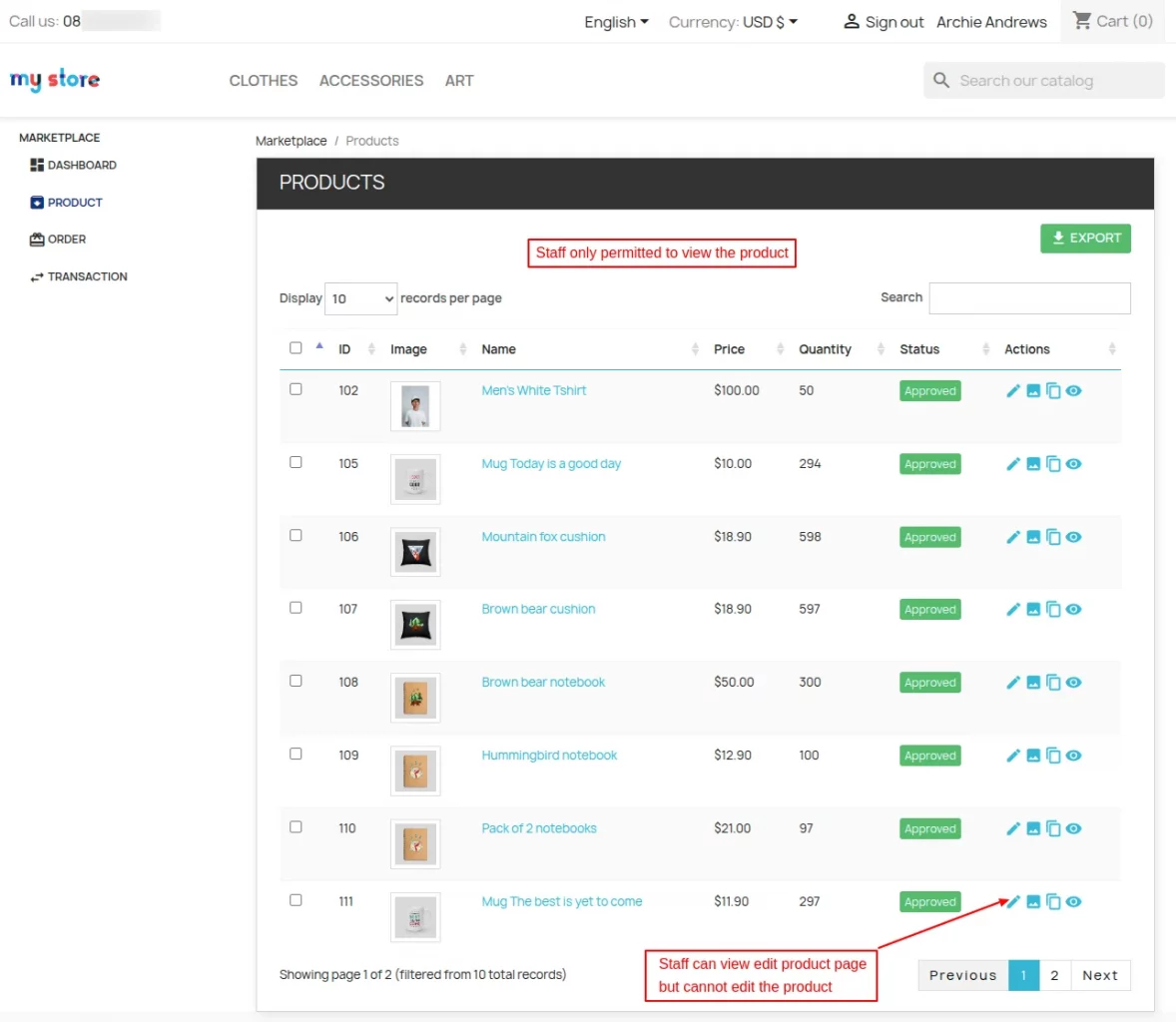
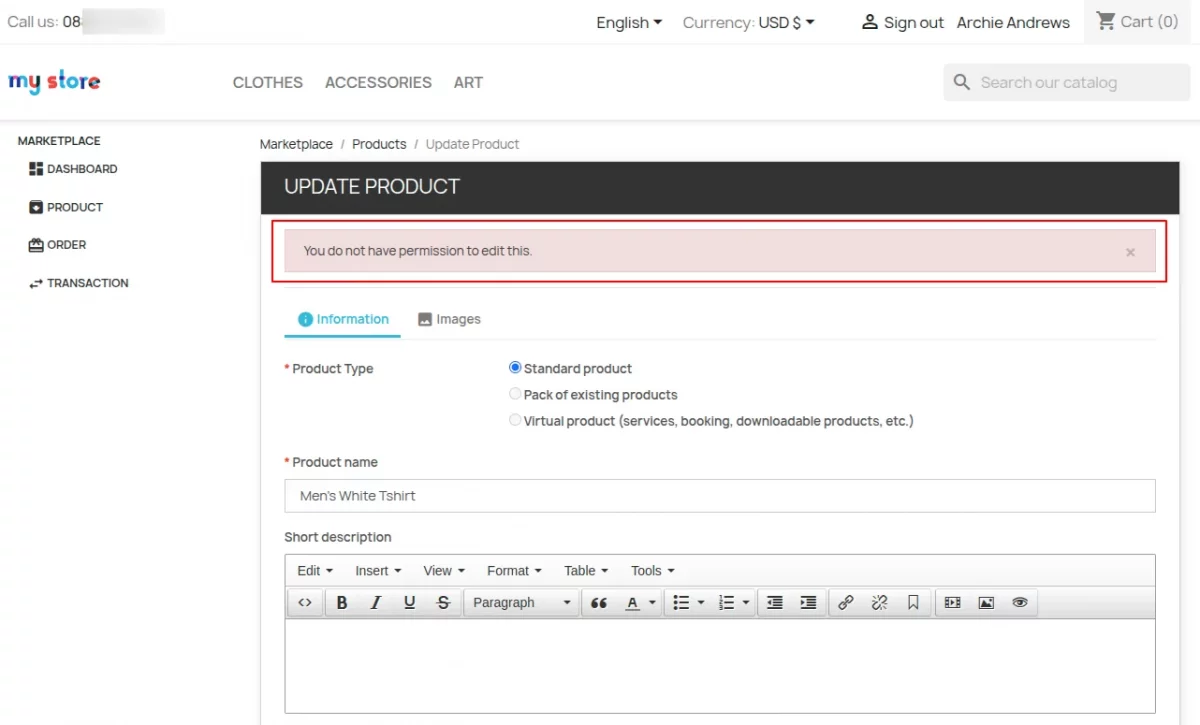
The seller has given only view permission to the staff. If the staff tries to add a new product or edit product information, a warning message will display on the page.
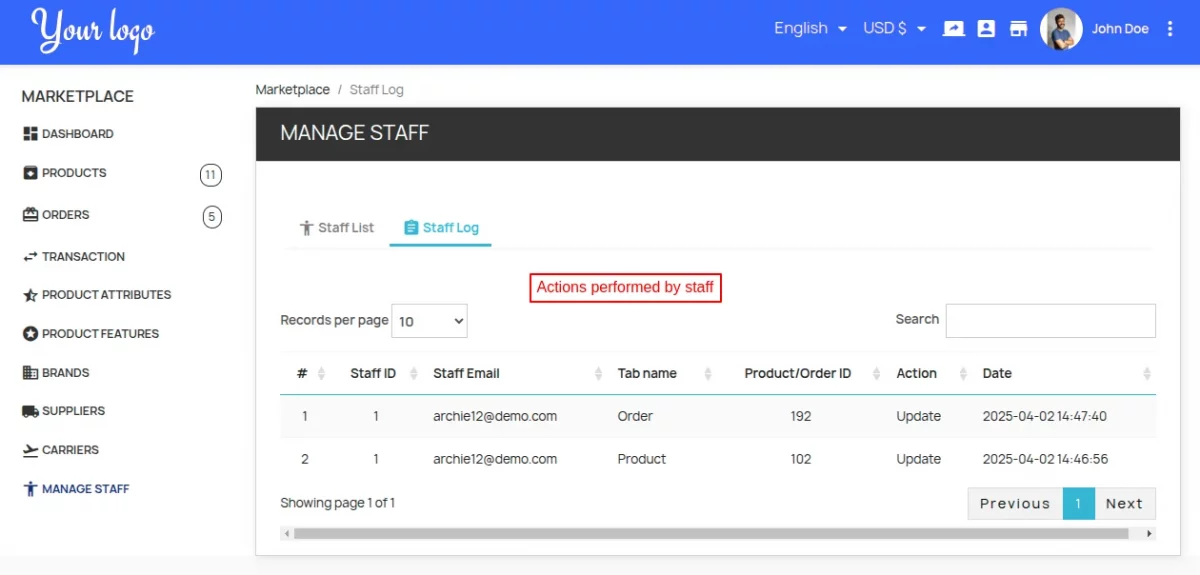
Staff Log
All the actions performed by the staff will be logged under “Staff Log” tab.
Admin End Flow
After the successful installation of the module, a new tab “Manage Seller Staff” gets available in the marketplace section in back office.
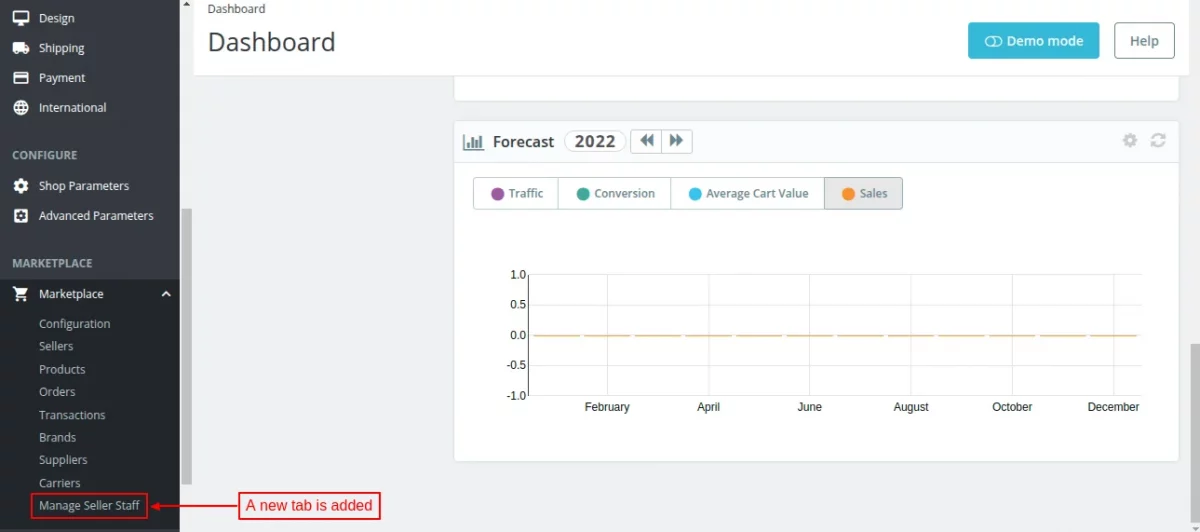
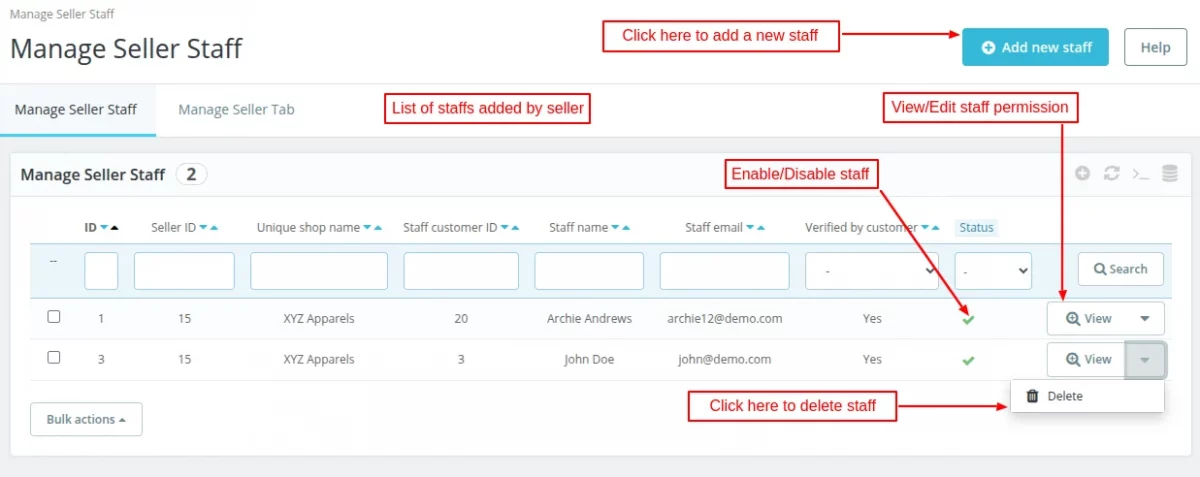
From this tab, the admin can:
- View a list of staffs added by the sellers.
- View/Edit staff permission.
- Enable/Disable staff.
- Delete staff.
- Add new staff on seller’s behalf.
Click on ‘view’ button to see/edit staff permission.
Add new staff
Click on ‘add new staff’ button to add a new staff on behalf of a seller. Admin needs to select a seller for whom he wants to add staff and customer who needs to be added as staff.
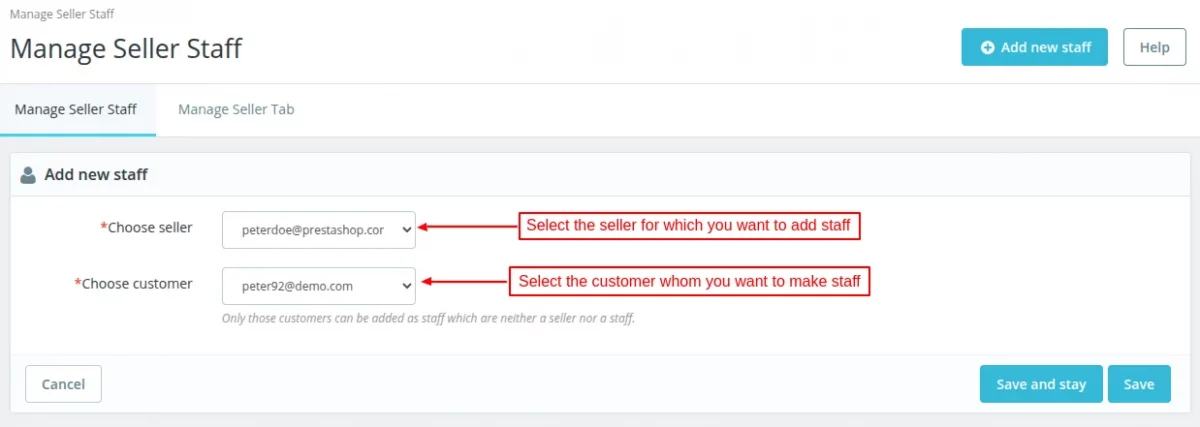
Once added, the admin can give tabs permission to the staff.
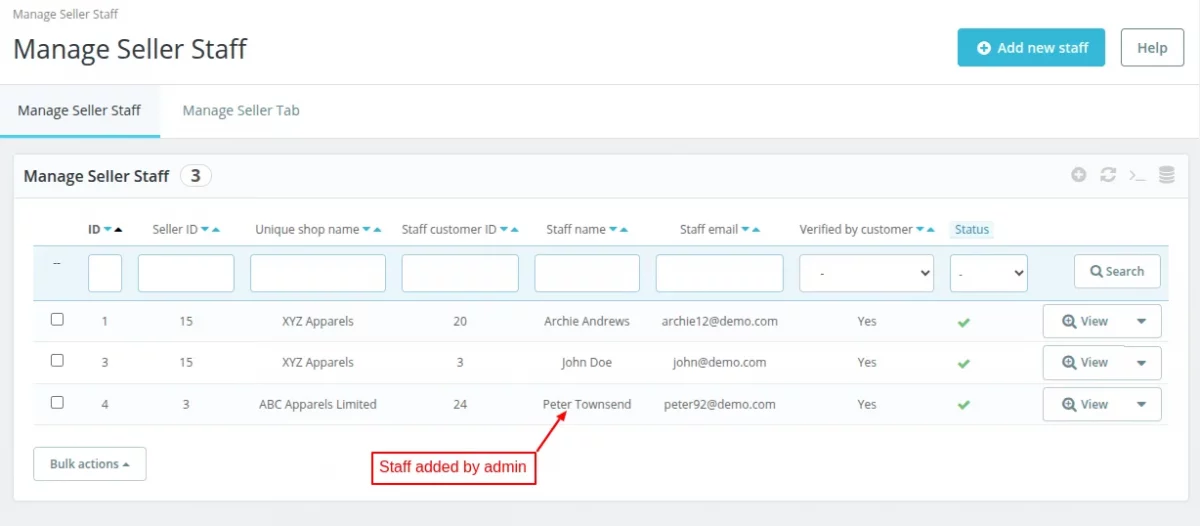
Click on the view button to give permission to staff.
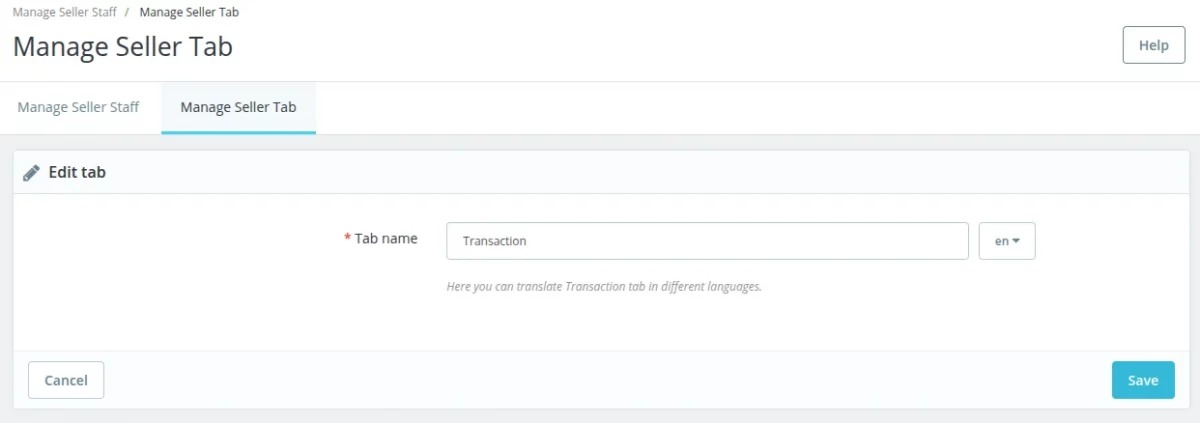
Manage Seller Tab
Under this tab, a list of all the tabs are mentioned that are displayed under under “Manage Staff” in the seller panel.
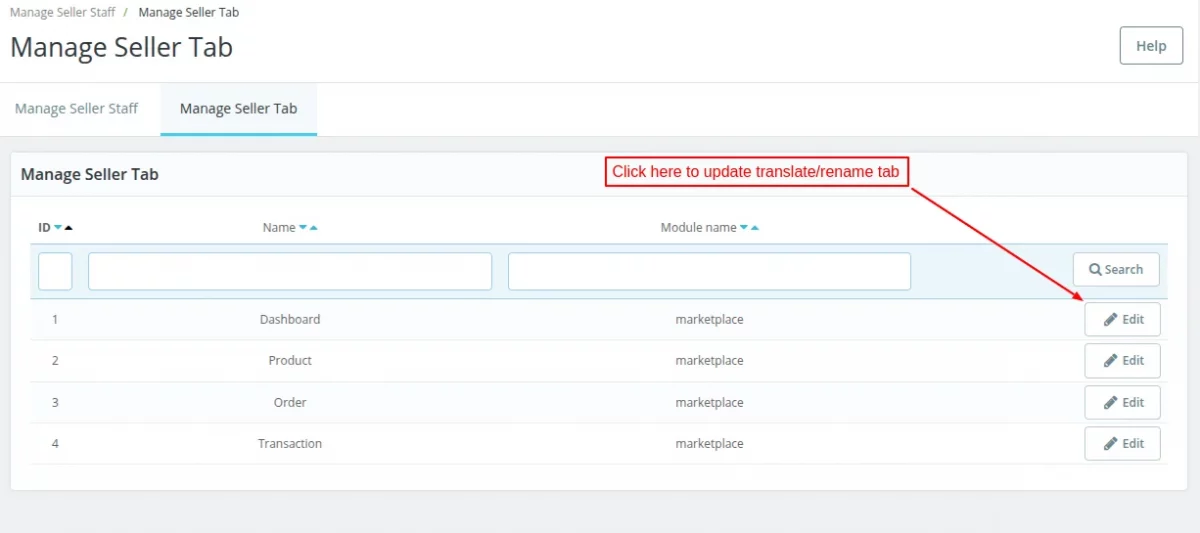
Click on the ‘Edit’ button to translate or rename the tab.
So, this was all about the PrestaShop Marketplace Seller Staff module. I hope this document will help you in checking the functionality of the module in a better way.
Also, do let us know about your views in the comments.
Support
For any kind of technical assistance or query, please raise a ticket at http://webkul.uvdesk.com or send us a mail at [email protected]
Also, please explore our PrestaShop development services & vast range of featureful PrestaShop Addons.
Current Product Version - 5.1.3
Supported Framework Version - 8.x.x, 1.7.x.x


Be the first to comment.