INTRODUCTION
Odoo GDPR module while following GDPR policy, allows users to request to download their personal information stored about or ask for it to be deleted conveniently.
Admin can delete the user’s details or their address from the system, ensuring alignment with GDPR policy. If the billing and shipping addresses are the same, addresses will not be deleted.
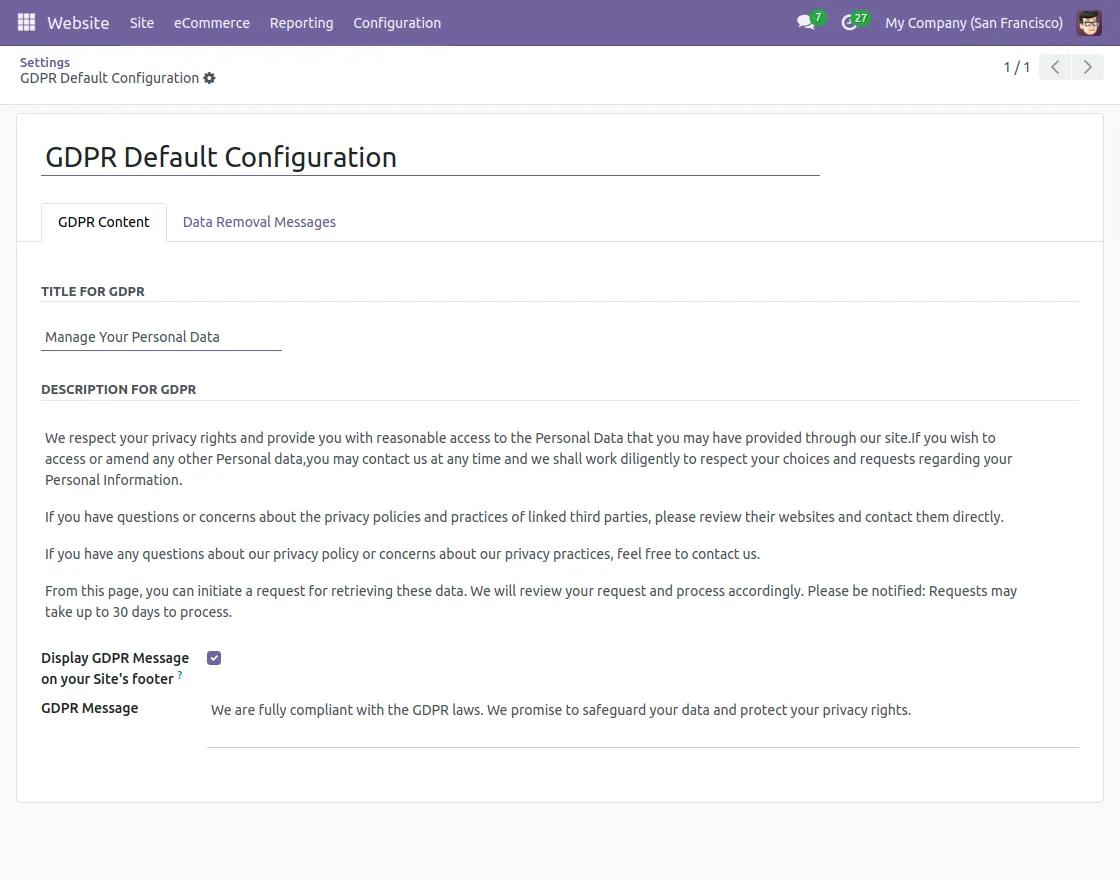
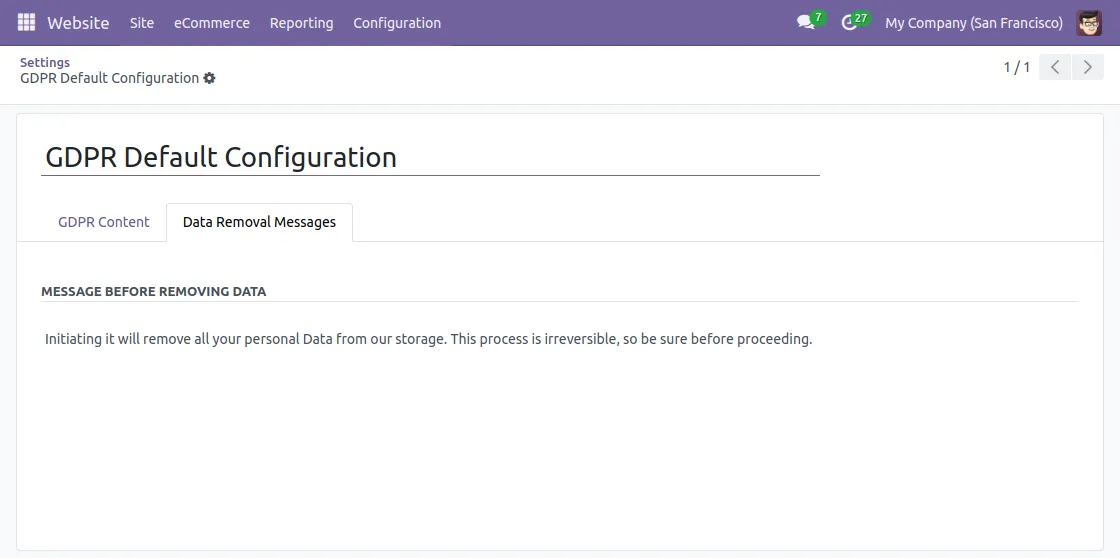
In Odoo GDPR, Admin can also configure the contents of the GDPR configuration form such as its description or messages. When users delete data, admins can modify the message that appears.
FEATURES
- Admins can configure GDPR settings, including messages and descriptions.
- GDPR content customization is available for better communication with users.
- Admins can approve or deny user requests directly from the backend.
- User data requests are fully reviewable by the admin.
- Admins can create GDPR templates for managing user and address data.
- Users can request to download a copy of their data.
- Users can also request the deletion of their data when needed.
- The GDPR module ensures compliance and simplifies data management.
INSTALLATION
- Once you purchase the App from the Webkul store, you will receive a link to download the module’s zip file.
- Extract the file on your system after the download finishes. As a result, you can see a folder named- ‘odoo_gdpr’.
- Copy and paste this folder inside your Odoo Add-Ons path.
- Now, open the Odoo App and click on the Settings menu. Here, click on Activate the Developer Mode.
- Then, open the Apps menu and click ‘Update Modules List.’
- In the search bar, remove all the filters and search ‘odoo_gdpr’.
- You will be able to see the module in the search results. Click on ‘Install’ to install it.
WORKFLOW
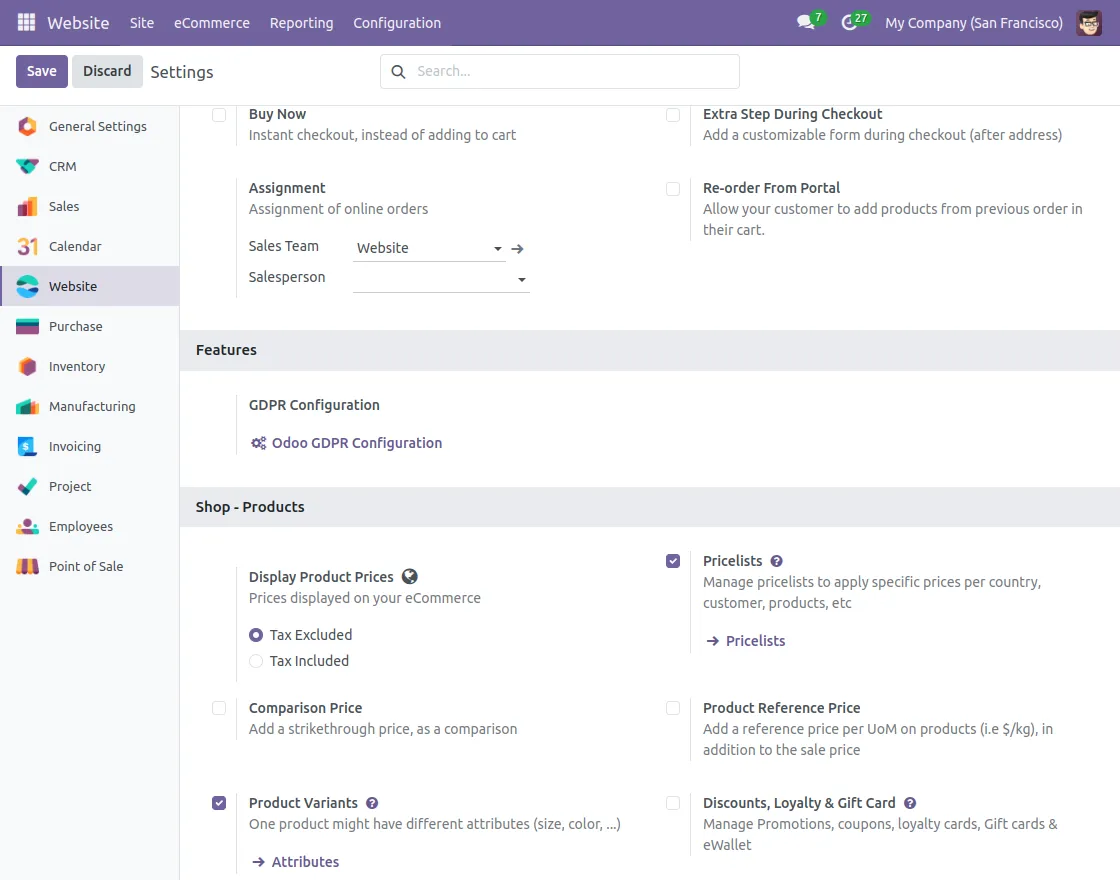
- Once installation is completed, the admin can modify GDPR content, to do so navigate to Configuration>Settings>Features>Odoo GDPR Configuration.
- Admin can customize the Odoo GDPR content written in the configuration form of the GDPR.
- Customize the data removal message displayed at the time of data deletion by users.
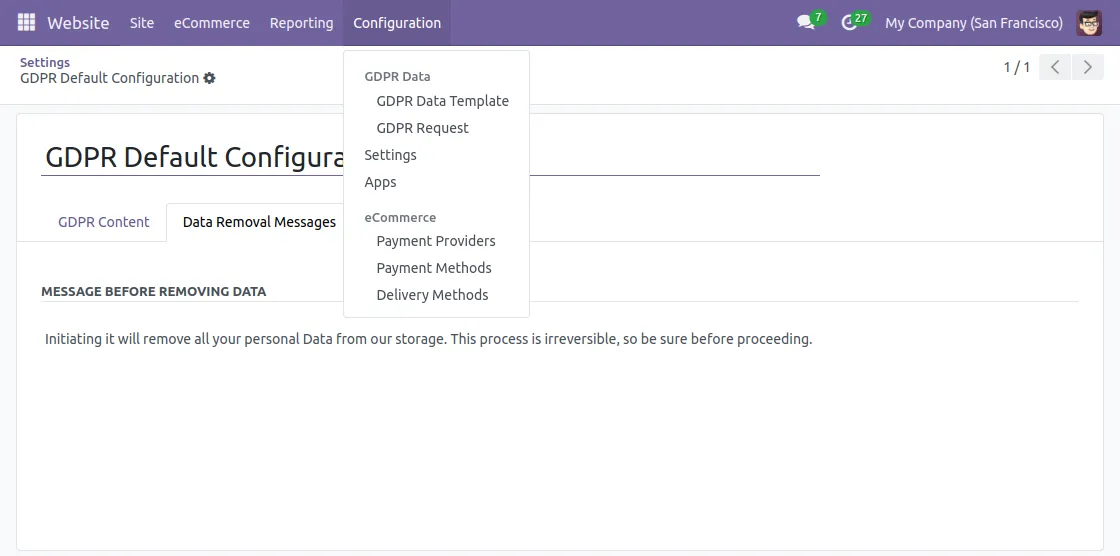
- After the configuration is done, navigate to Configuration> GDPR Data Template.
- Admin can view the Odoo GDPR data template list in the control view for GDPR.
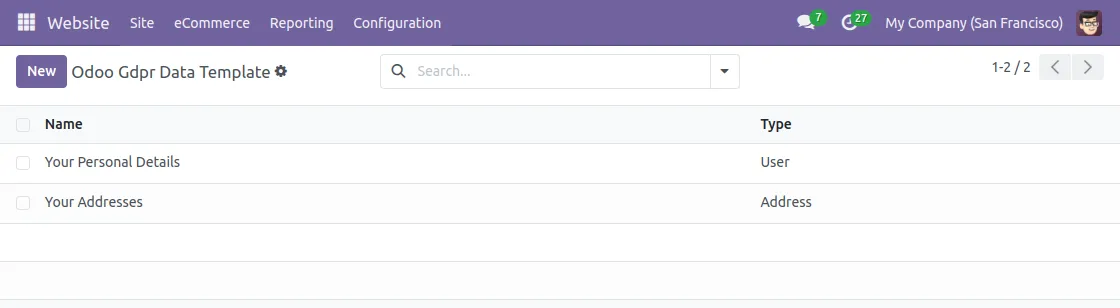
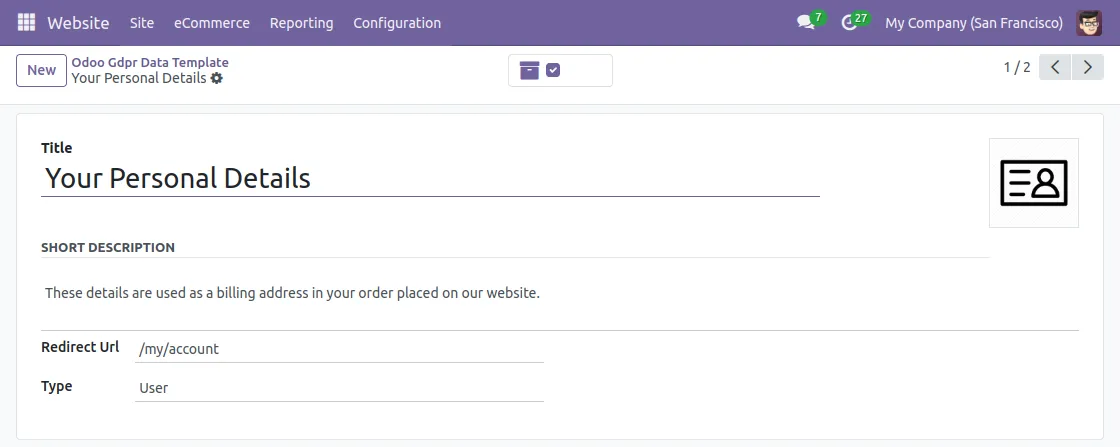
- When the admin selects User, all data related to the customer will be deleted.
- When the admin selects Address, all the user’s shipping address data will be deleted.
Please Note: If the shipping address and billing address are the same, in that case, the Address data will not be wiped.
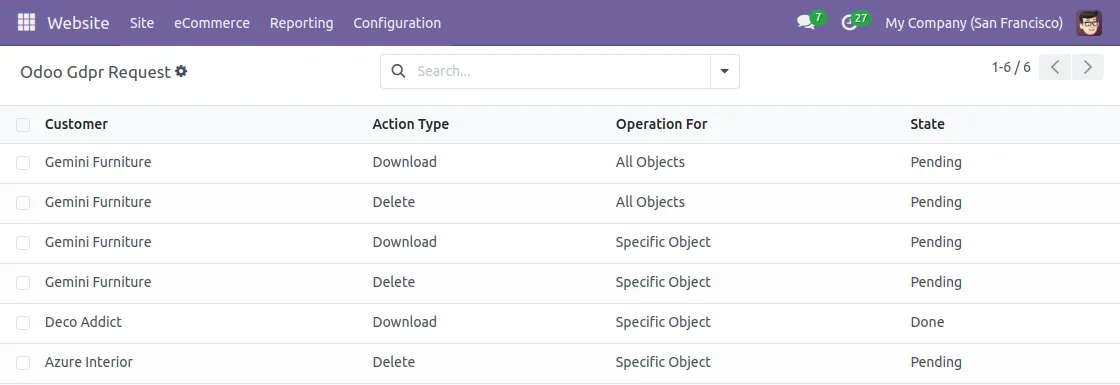
- To view users’ requests the admin can navigate to Website > Configuration > GDPR Request.
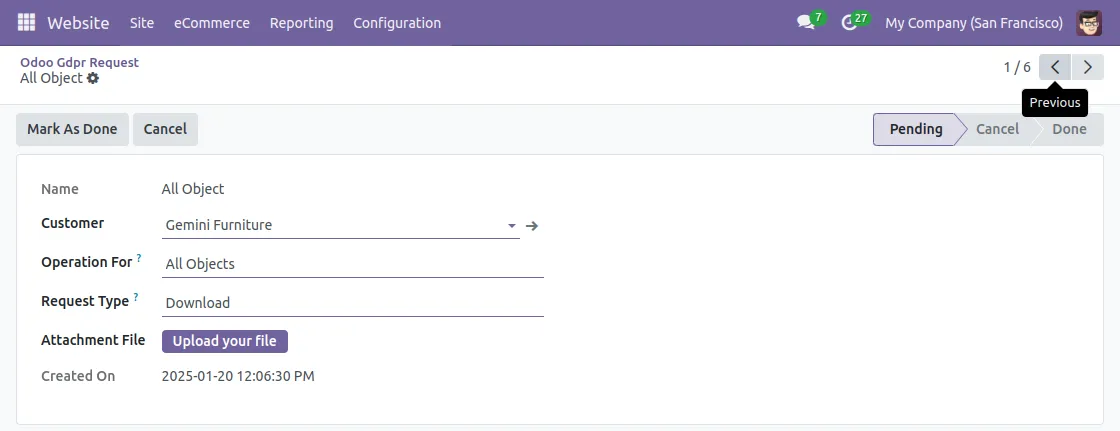
- Admin can click on the Mark as Done option to approve users’ requests. This will let users download their data.
- If the user wants to request information, can click on the ‘Manage your Personal Data’ option.
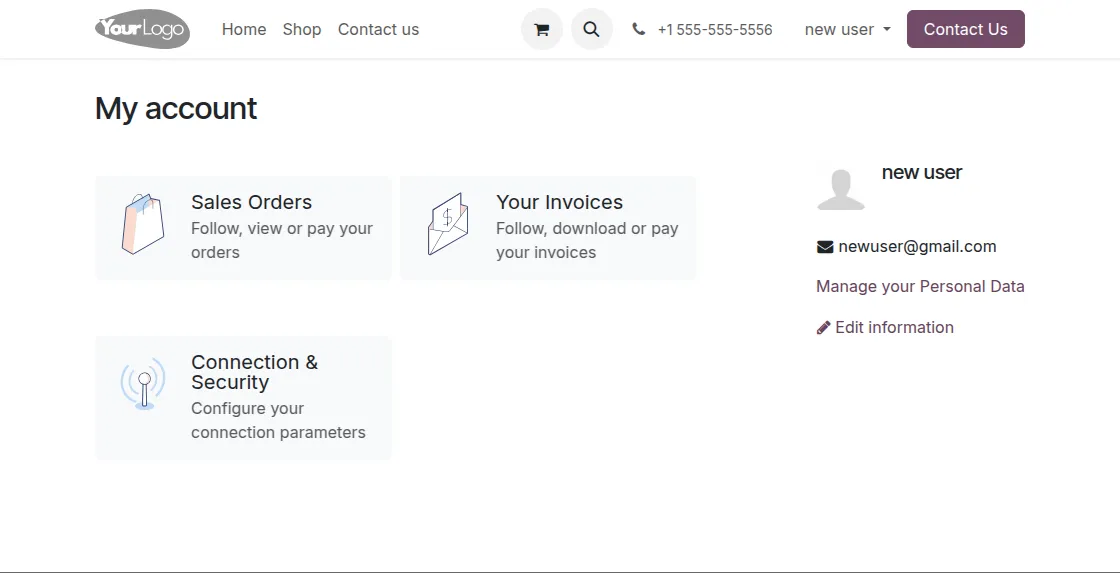
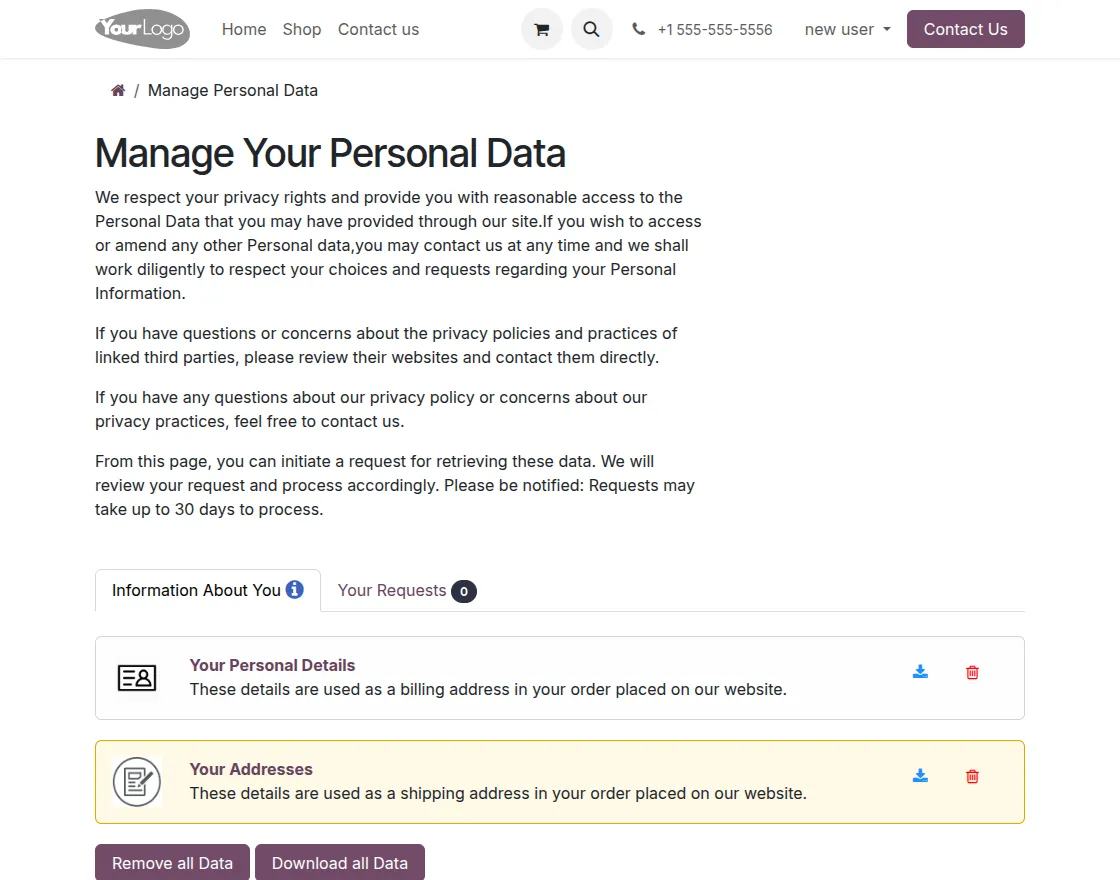
- In the ‘Manage your Personal Data’ option users can view the information about them.
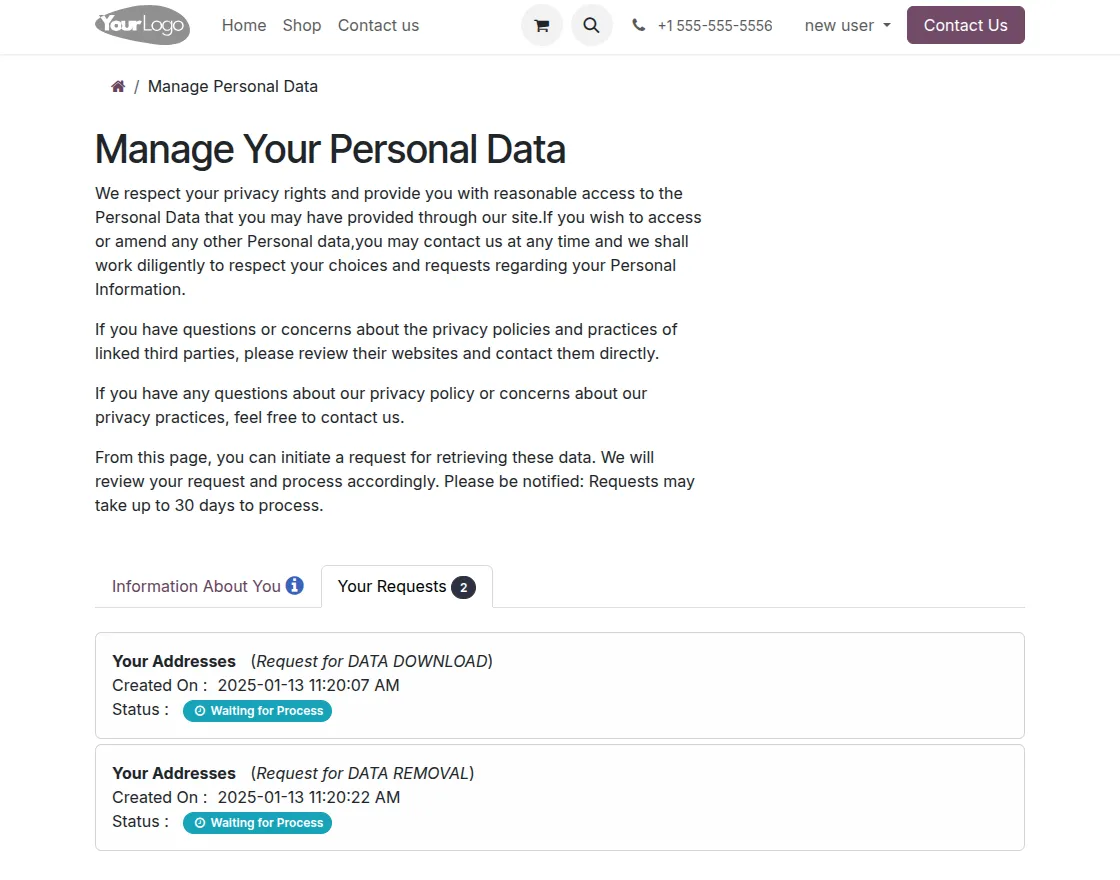
- Users can also view the status of the request in the Your Requests Tab they have made either to download or to delete their data.
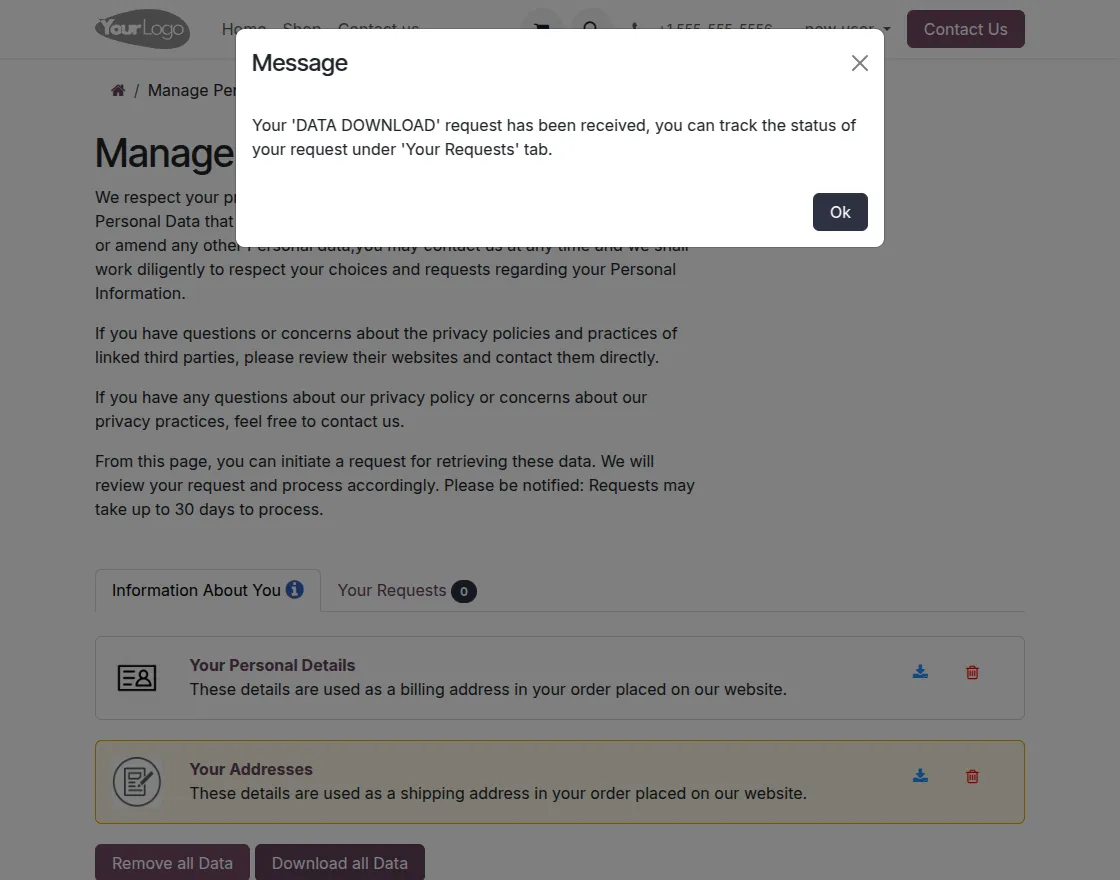
- Users can request to download or delete their data. Once their request is approved from the backend, a message will pop up on the user’s window informing them about their requests as shown.
Need Help?
Hope you find the guide helpful! Please feel free to share your feedback in the comments below.
If you still have any issues/queries regarding the same, please raise a ticket at the UV Desk.
I hope this helps. In case of any further queries, contact us at our support mail.
Thanks for paying attention!!
Current Product Version - Odoo V16, V17, V18
Supported Framework Version - 1.0.0

Be the first to comment.