PrestaShop Marketplace Seller Price Comparison is an add-on of the Marketplace module. By using this addon, the admin can create global products by converting store products into global products.
Sellers can assign single/multiple global products in any language to their shops with their own price, stock, description, image, and select the combination for the product.
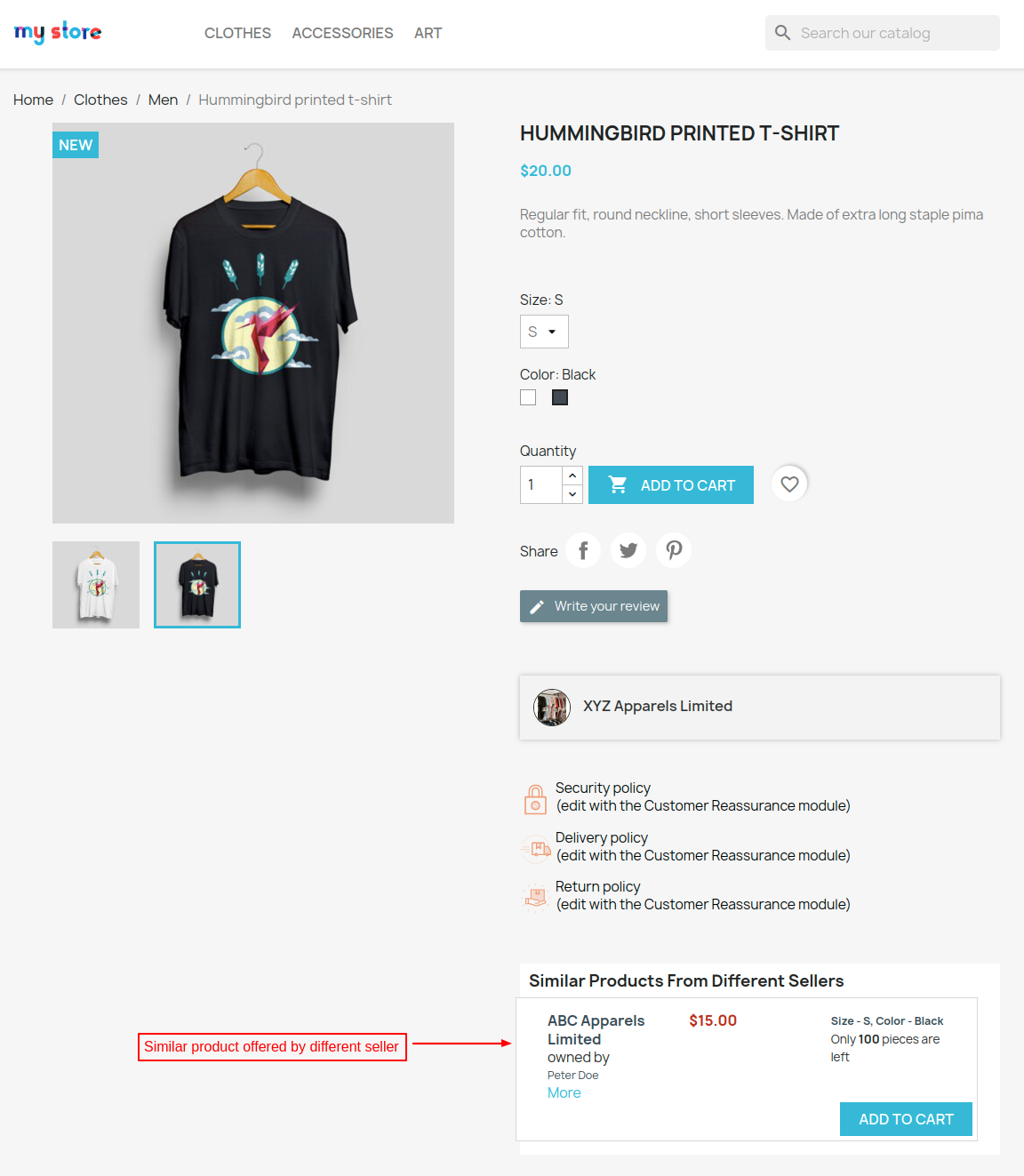
A new block on the global product page will display the list of all sellers selling the same global product.
It will also contain details of the price and stock availability. This module will help buyers to compare the same product from different sellers.
Note:
- PrestaShop Marketplace Seller Price Comparison module is compatible with the PrestaShop multi-store feature.
- The module is compatible with PrestaShop Advanced Multi-Vendor Marketplace version 7.0.0.
Features of PrestaShop Marketplace Seller Price Comparison
- Admin can create global products.
- An admin can create multiple products as global products.
- Admin can enable/disable the display of only lowest price global products on the category pages.
- A seller can assign global products to their shop.
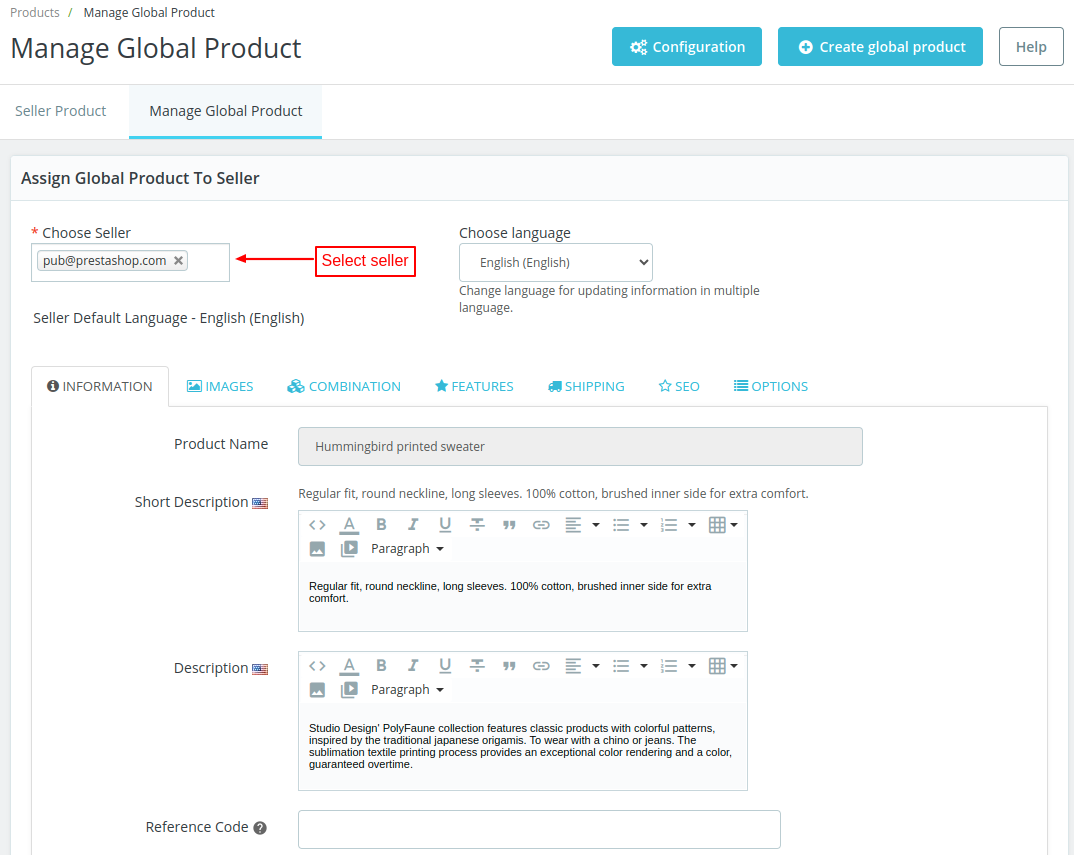
- Admin can assign global products to marketplace sellers.
- Assign global product to multiple sellers at once –
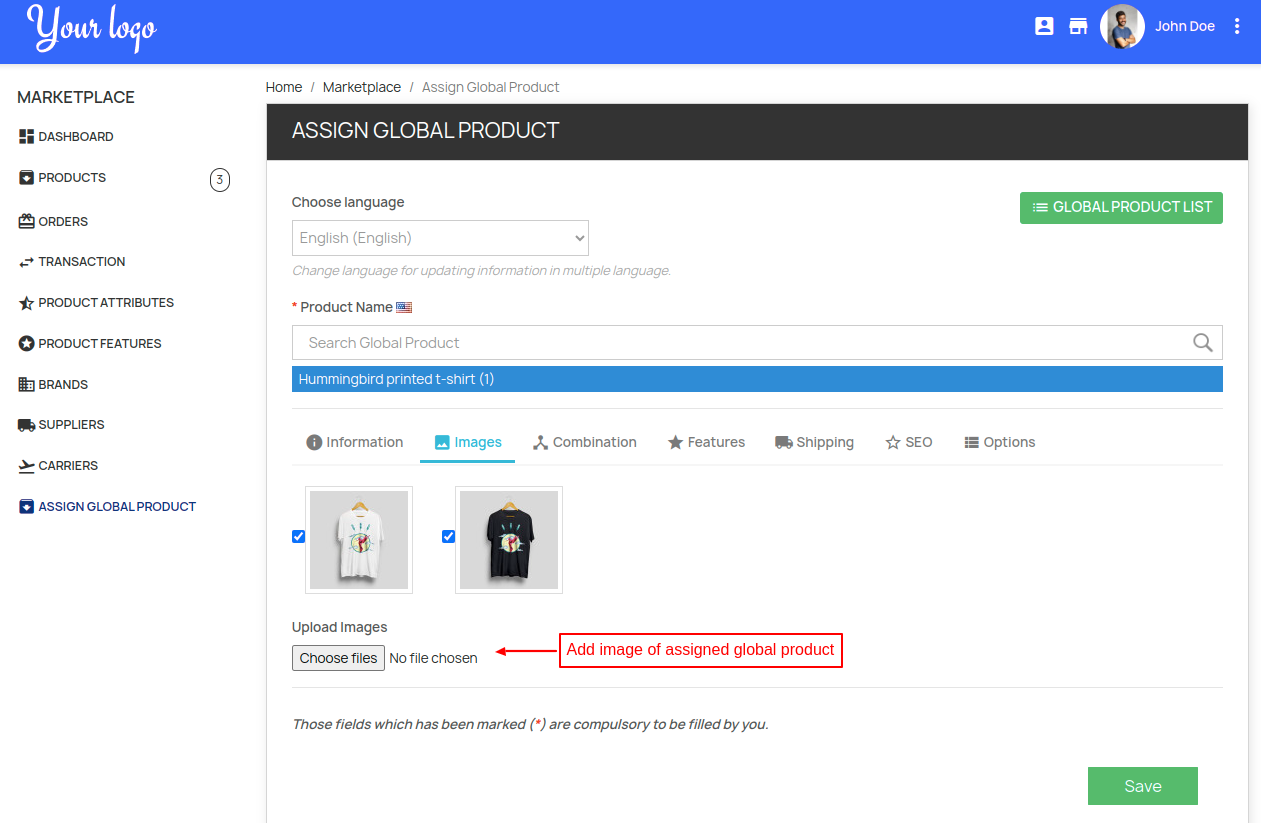
- Sellers can select the images to display on their global product page.
- Buyer can compare the same product of different sellers.
- Sellers list selling same global product will display on the product page.
- If an admin has made its own product as a global product, then the admin can enable/disable the activation of its product on deleting the global product.
- Admin can assign global product in any language to the seller.
- A seller can also assign global products in different languages.
- Separate products will exist for each language.
- Admin can set the criteria for displaying the lowest product on the category page.
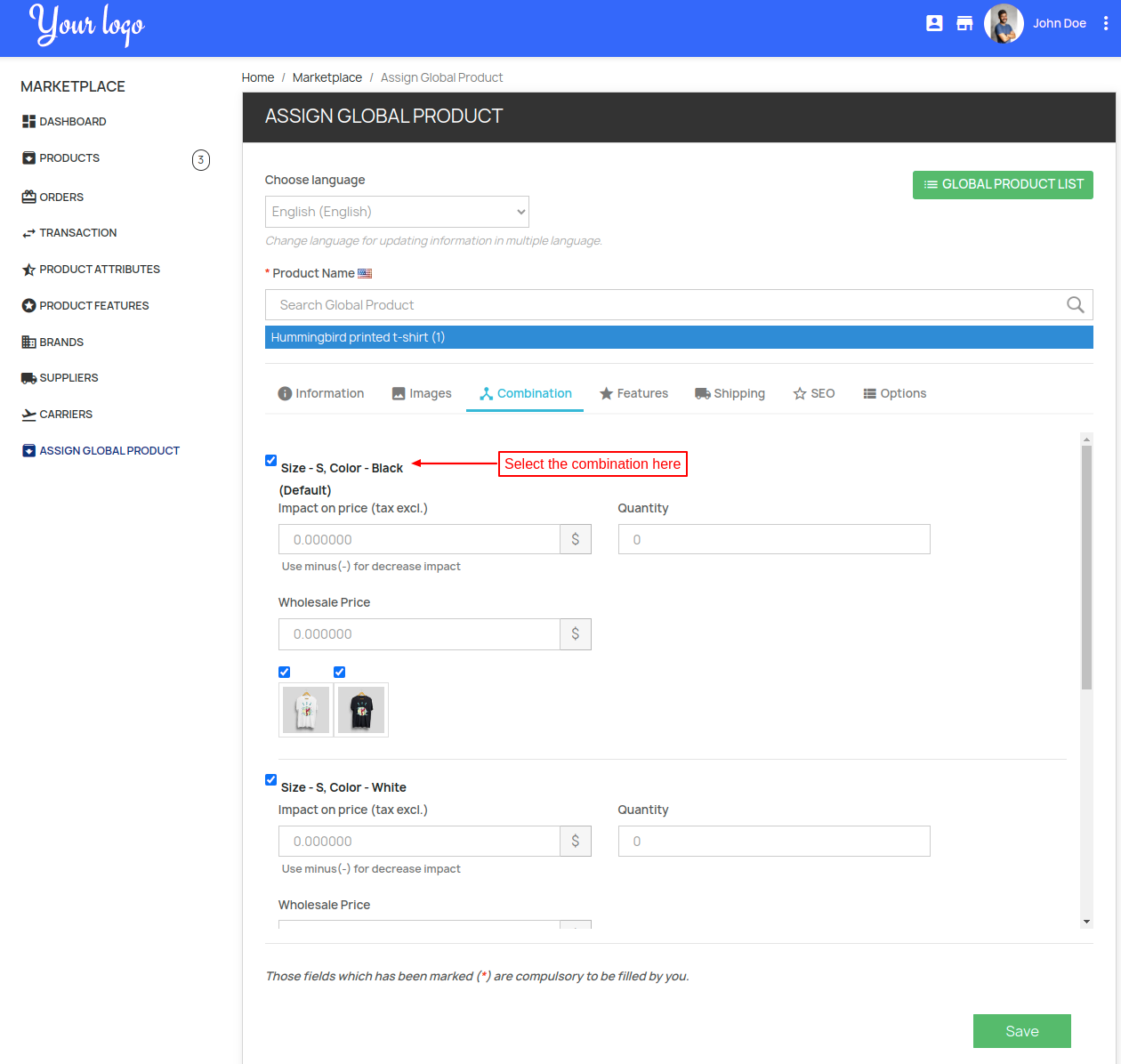
- Sellers can also select the desired combination for the global product.
- Sellers can even select the image for the combination separately.
- Seller can specify the price and quantity for combination.
- A seller can add wholesale price on their assigned global product.
- Seller can select default category on their assigned global product.
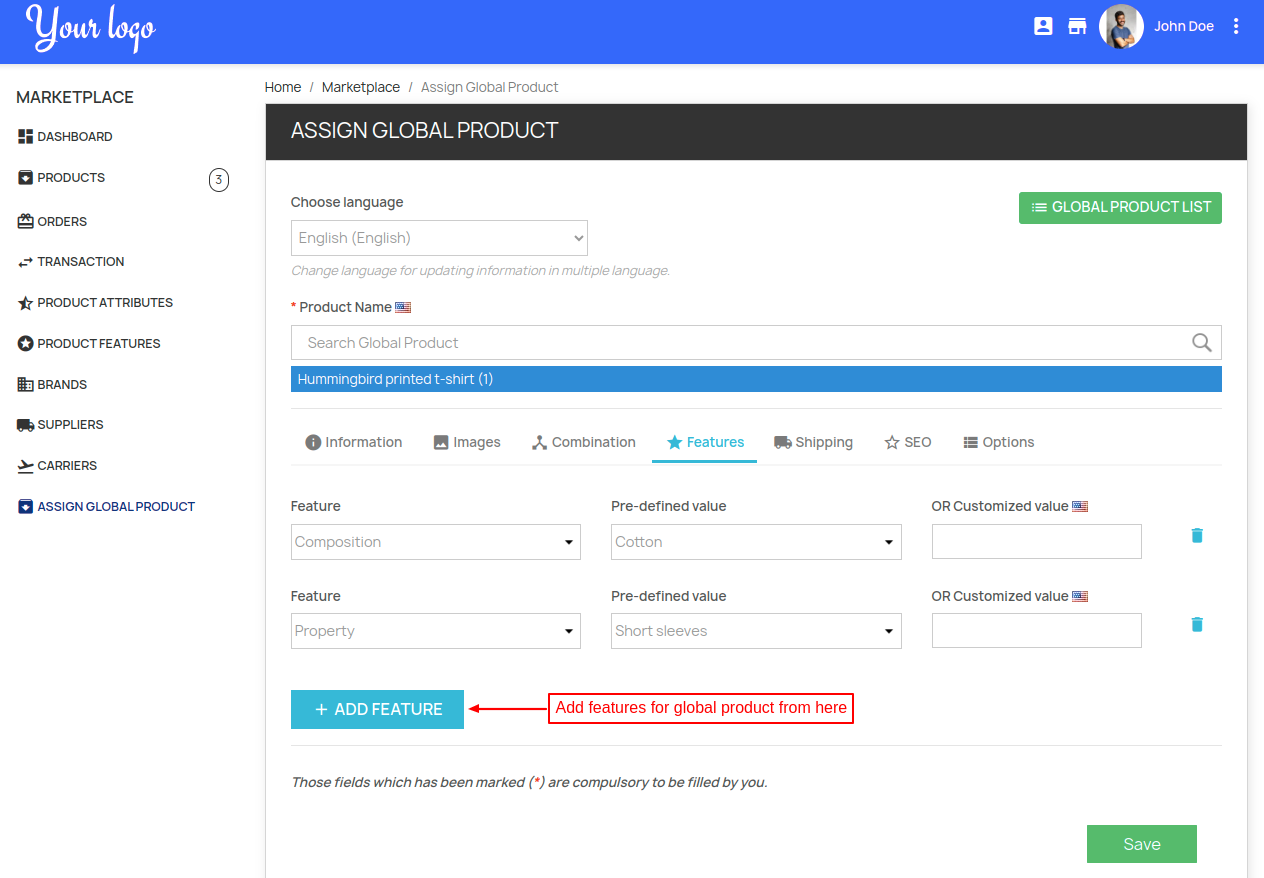
- Seller/Admin can add features to their assigned global product.
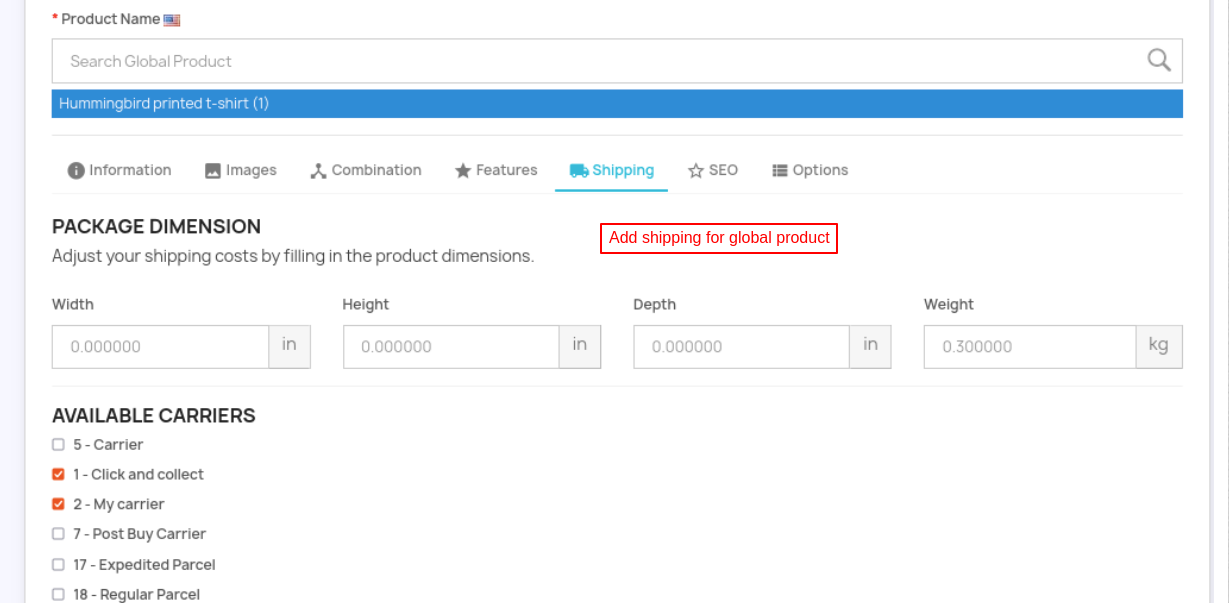
- A seller/admin can apply specific shipping to their assigned global product.
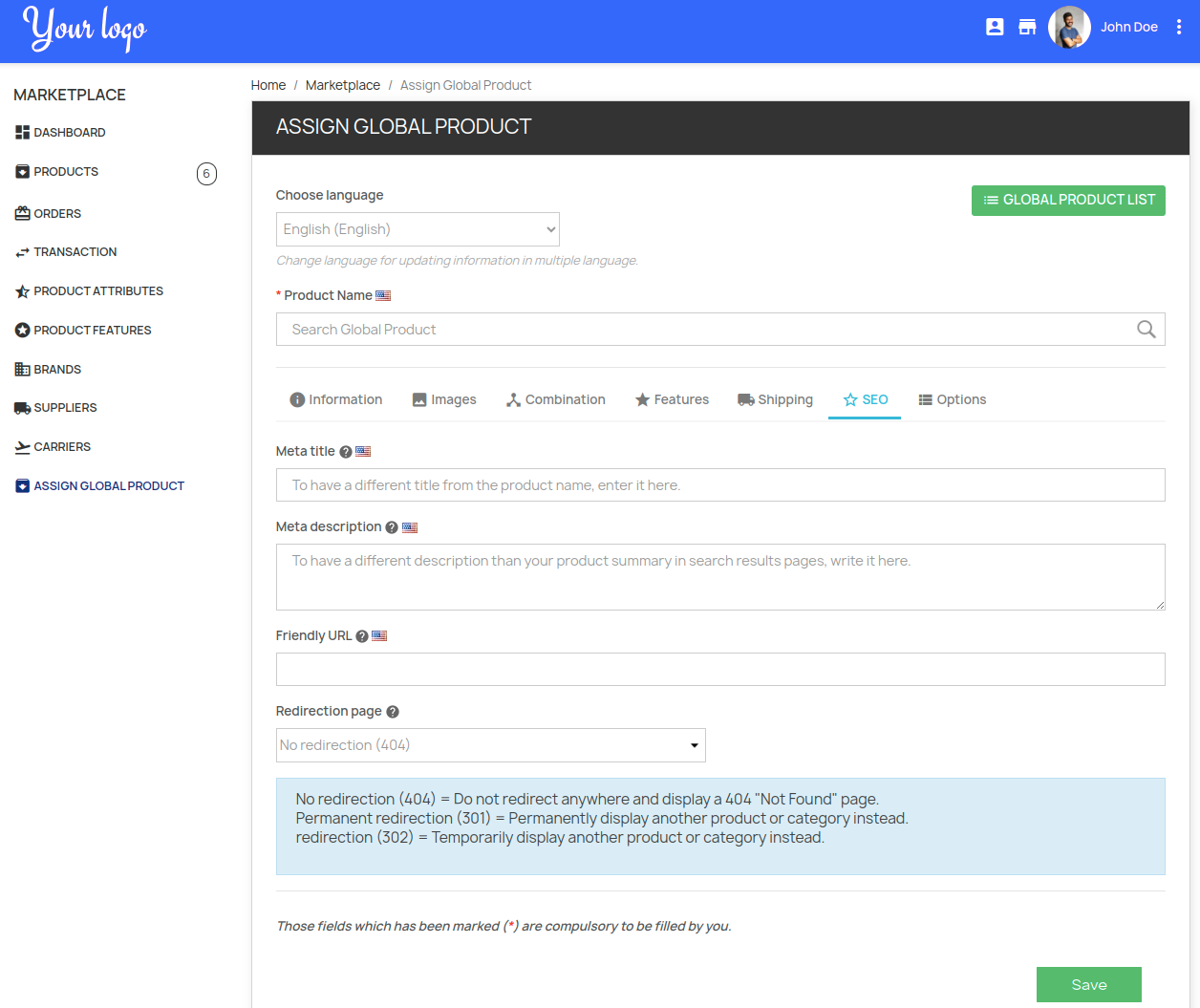
- Seller/Admin can add SEO to their assigned global product.
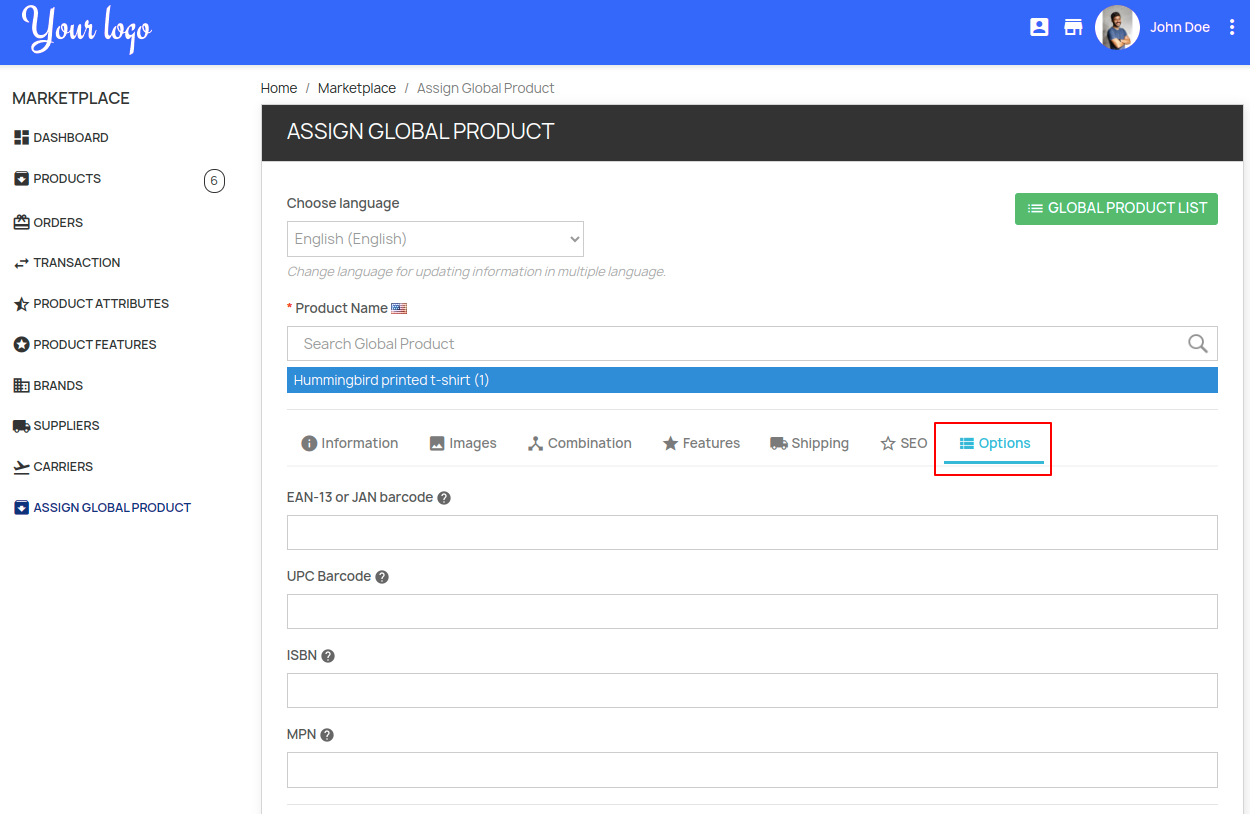
- A seller/admin can add EAN, JAN, UPC, ISBN to their assigned global product.
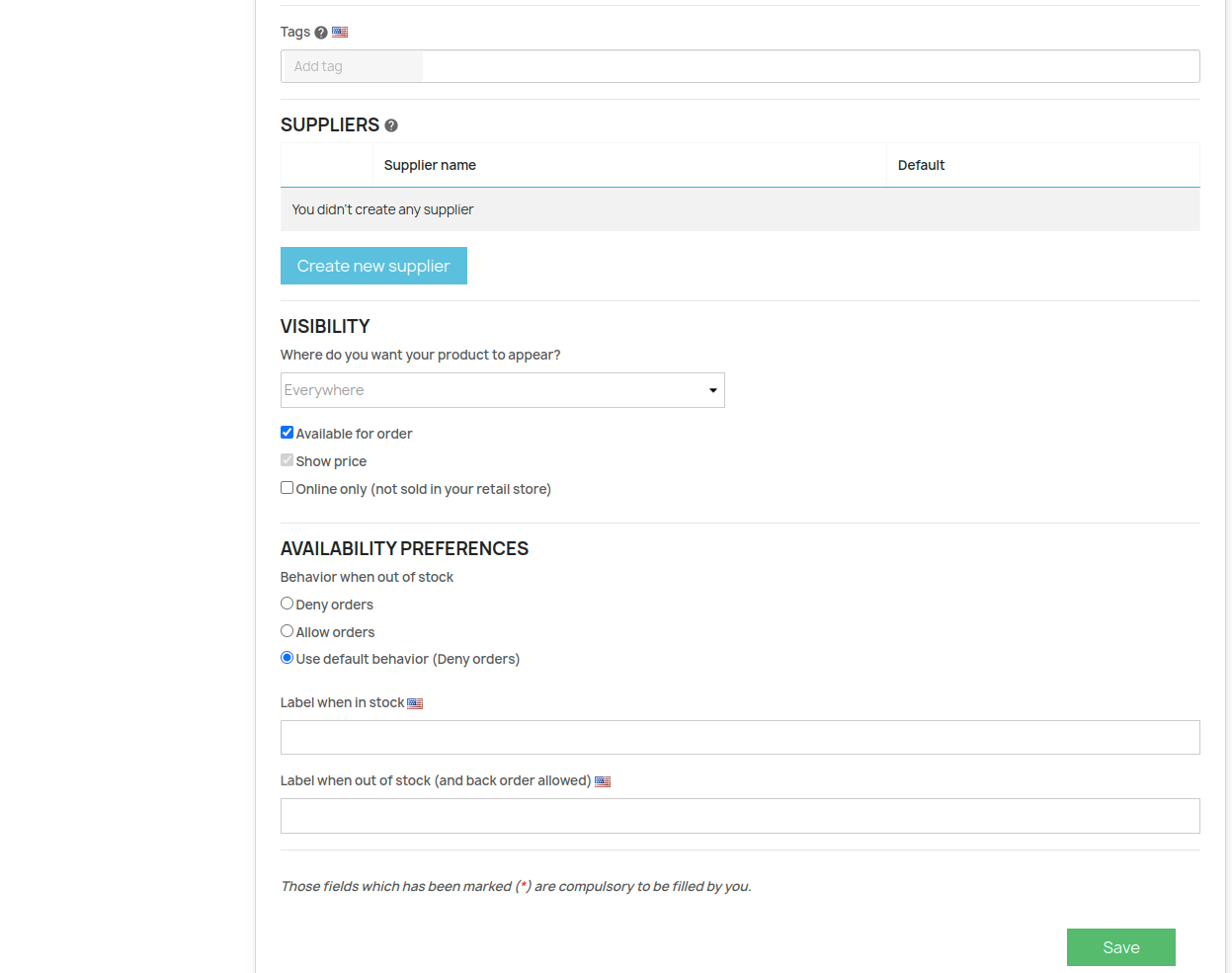
- Seller/Admin can manage the visibility of assigned global product on the store.
- Seller/Admin can select the behaviour of order i.e. to allow/deny order when product is out of stock.
- Admin can allow/disallow sellers to assign multiple products with the same global product.
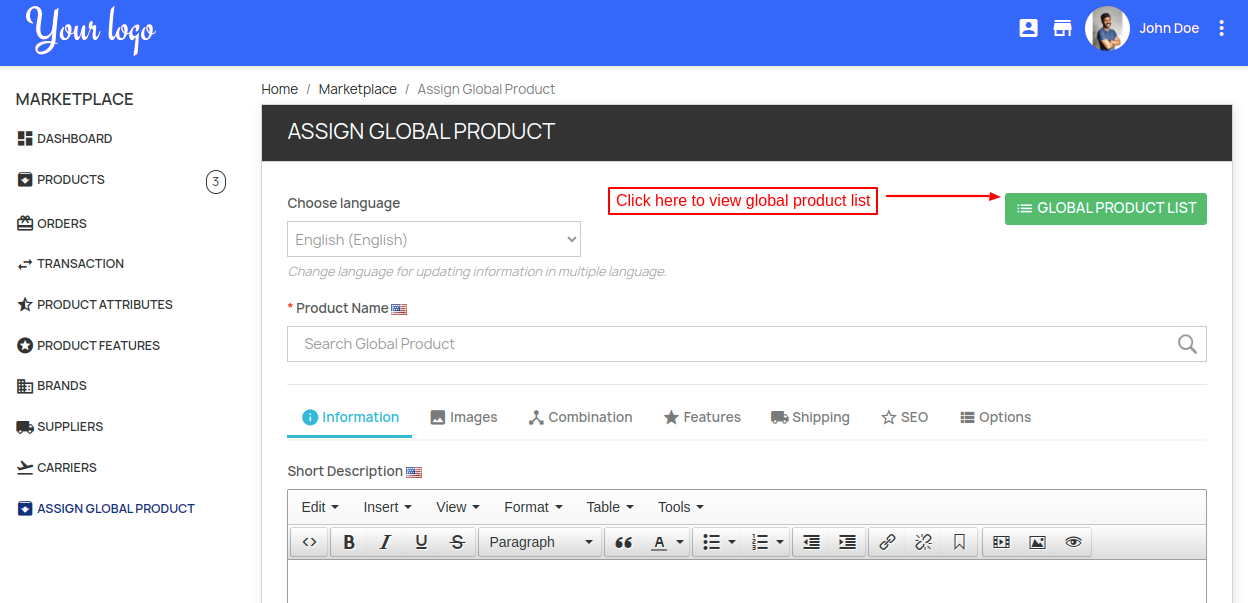
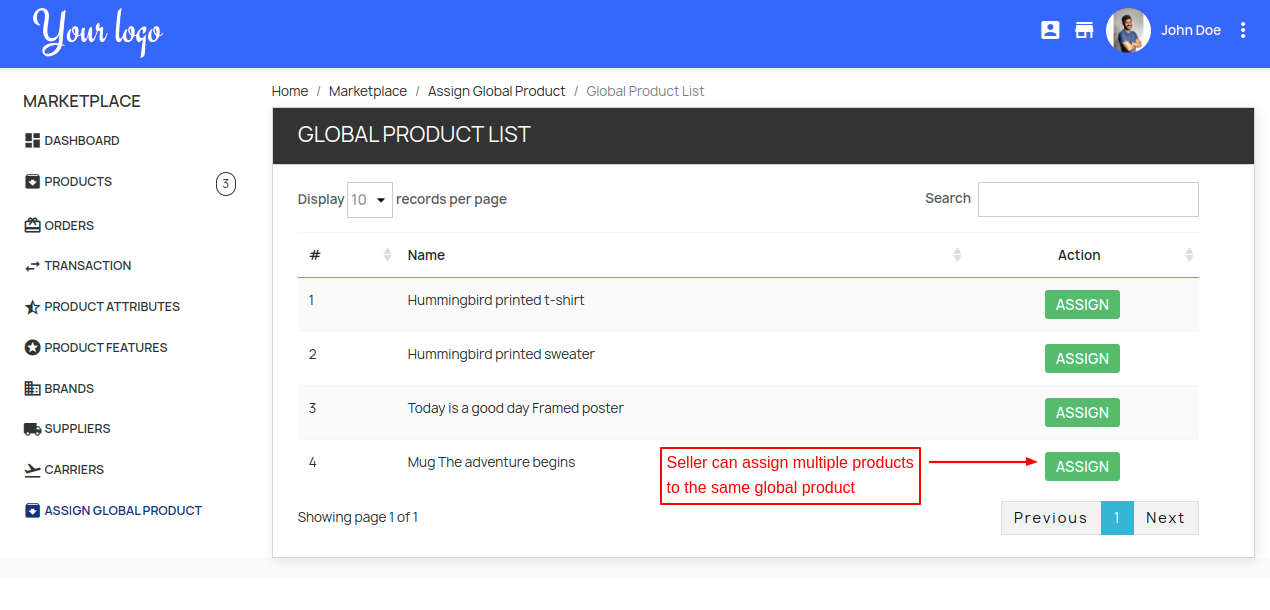
- A seller can view global product list and further can select and assign global product from the list.
How to Install PrestaShop Marketplace Seller Price Comparison
In order to install the module, you need to install the PrestaShop Advanced Multi-Vendor Marketplace module first.
After installing the marketplace module, you can now proceed to install the PrestaShop Marketplace Seller Price Comparison module.
- Firstly, Go to the Module Manager in Back office and click on ‘Upload a module’.
- After that, Drag and drop the module file or select the file from the system.
- In this way, the module installation will be successful.


PrestaShop Marketplace Seller Price Comparison Configuration
After the successful installation of the module, the admin needs to configure it.
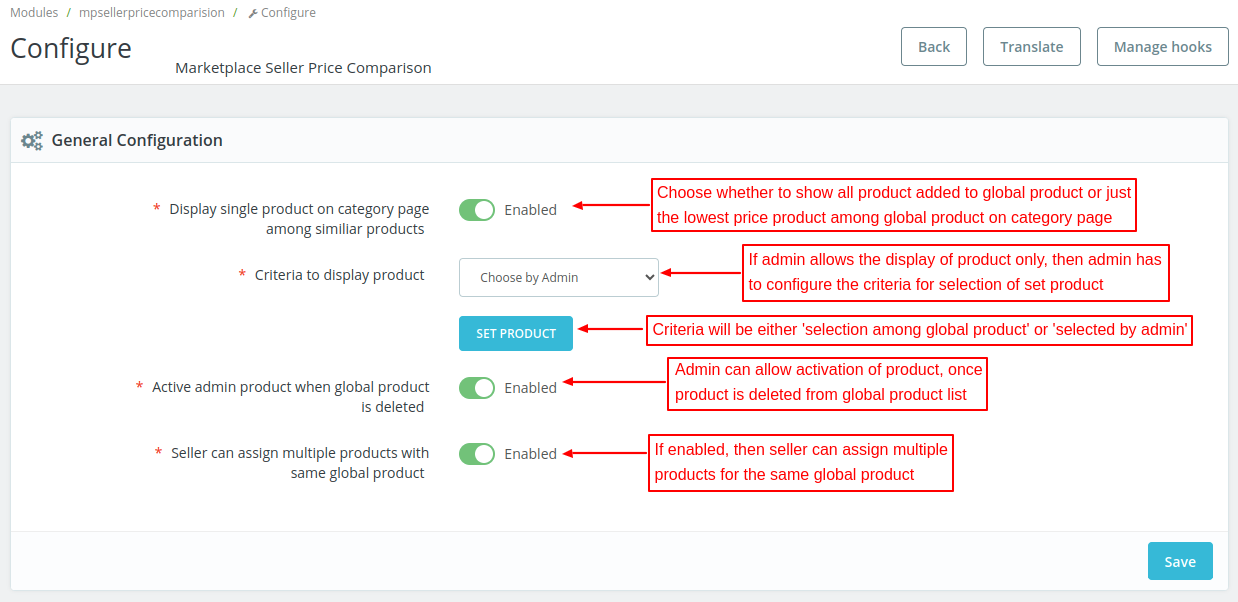
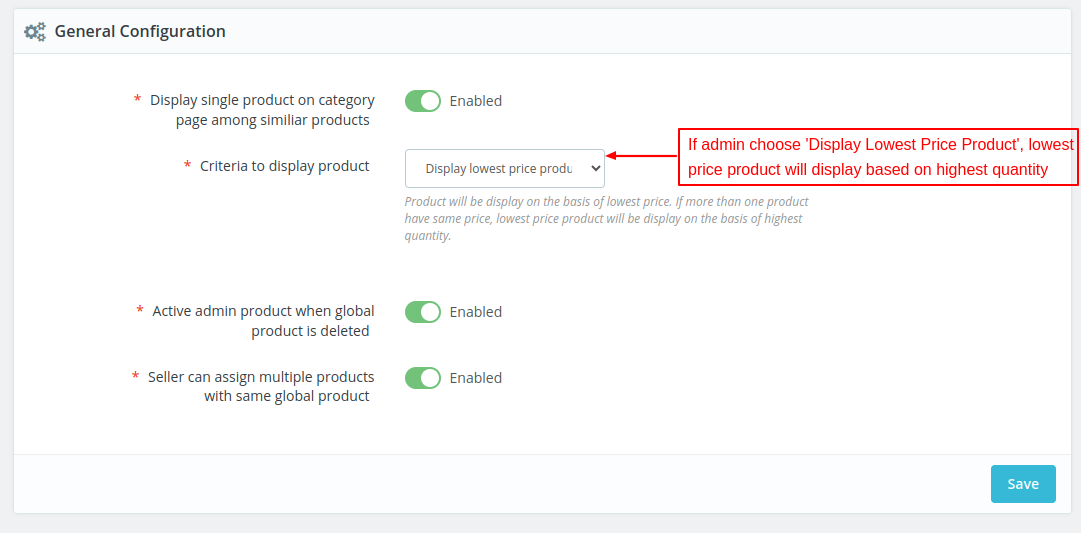
Note:-
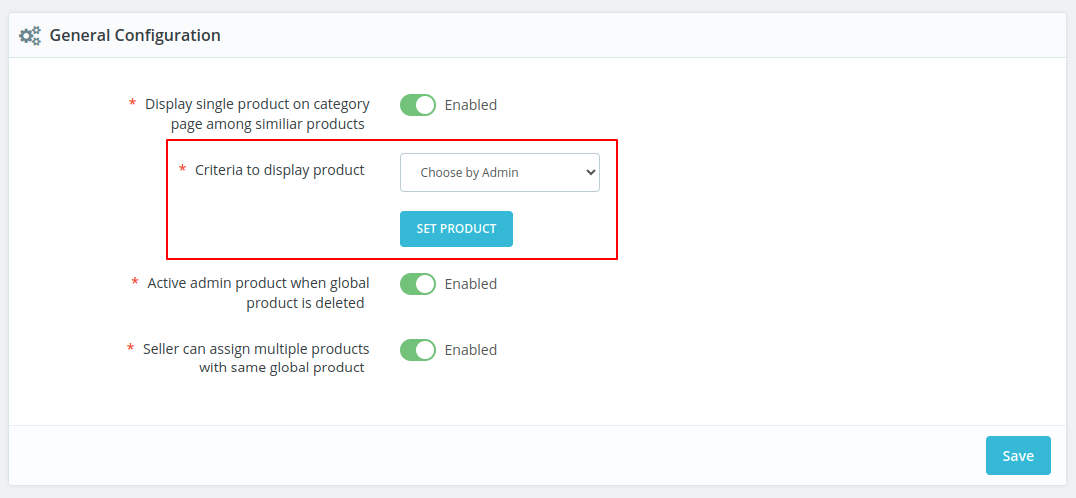
- If you enable “single product”, then only the lowest price global product will display in the categories. And, all other products will display only in the comparison list.
- There are two criteria to display the product on the category page.
- Admin can choose to display the lowest price product or set the product.
- If you disable “single product”, then all the global products of different sellers will display in the categories.
- If admin delete the global product from the list, then admin can decide whether to enable/disable the product as admin’s normal product.
- Admin can allow the seller to assign multiple products to the same global product.
Admin End Workflow
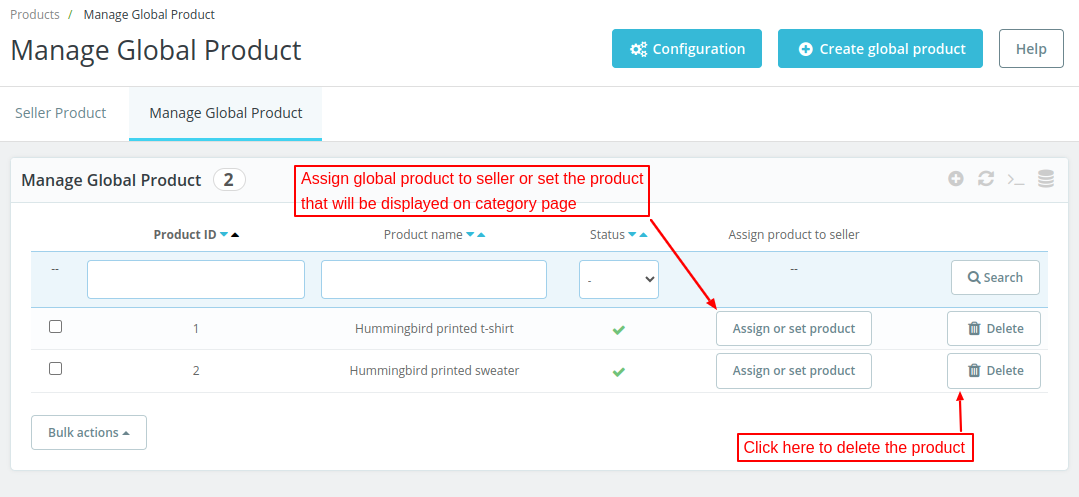
After successful installation of the module, a new tab ‘Manage Global Product’ under Products.
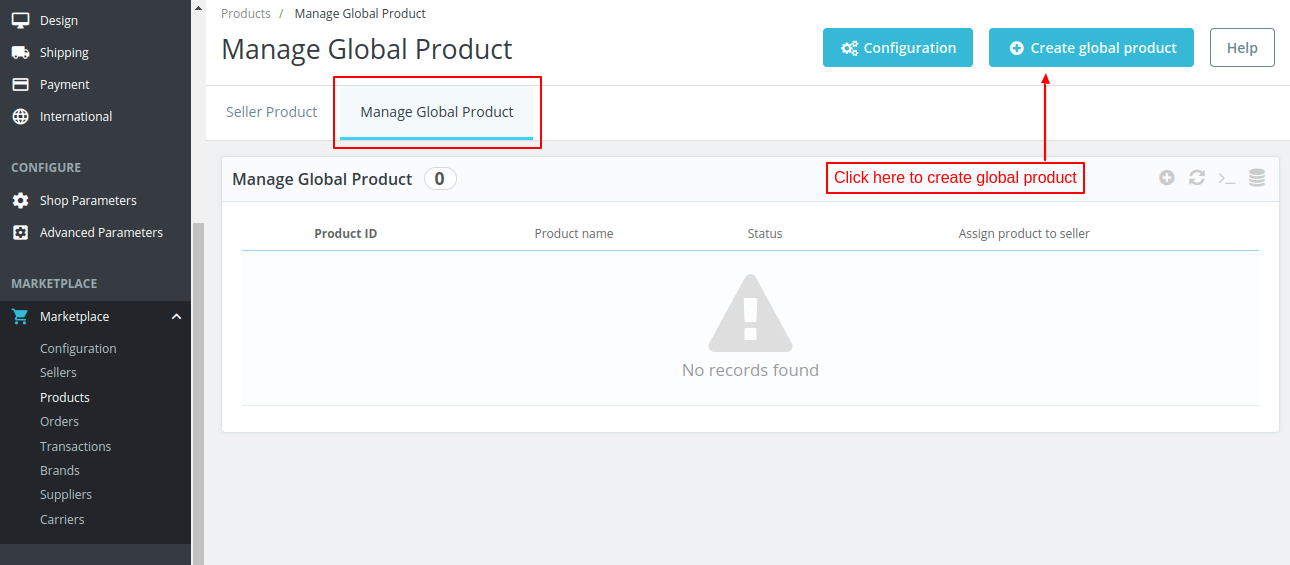
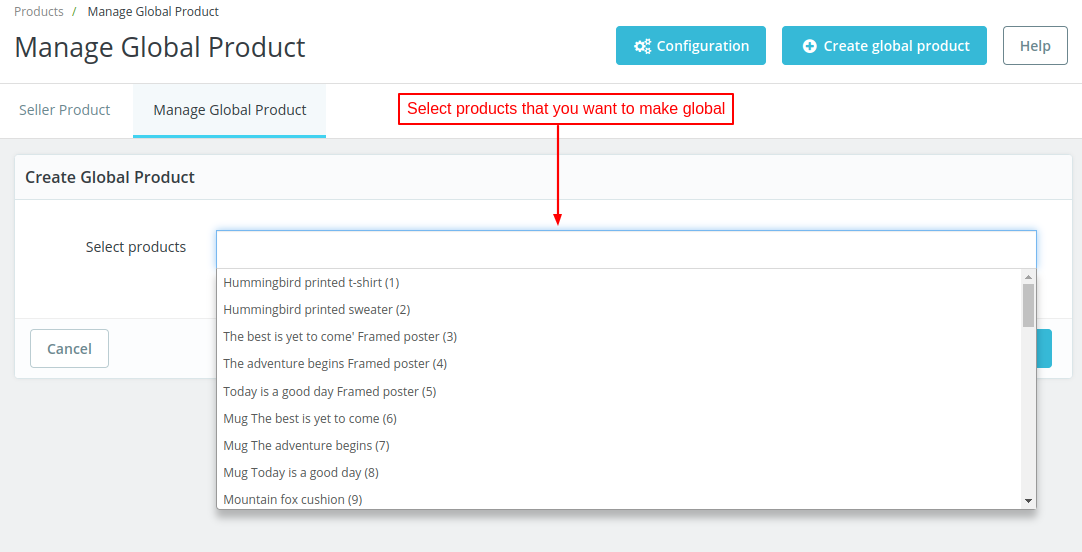
Admin can select single/multiple products to add as global products.
List of all the global products added by the admin will be shown here. Admin can assign these global products to sellers or also set the product to display from here.
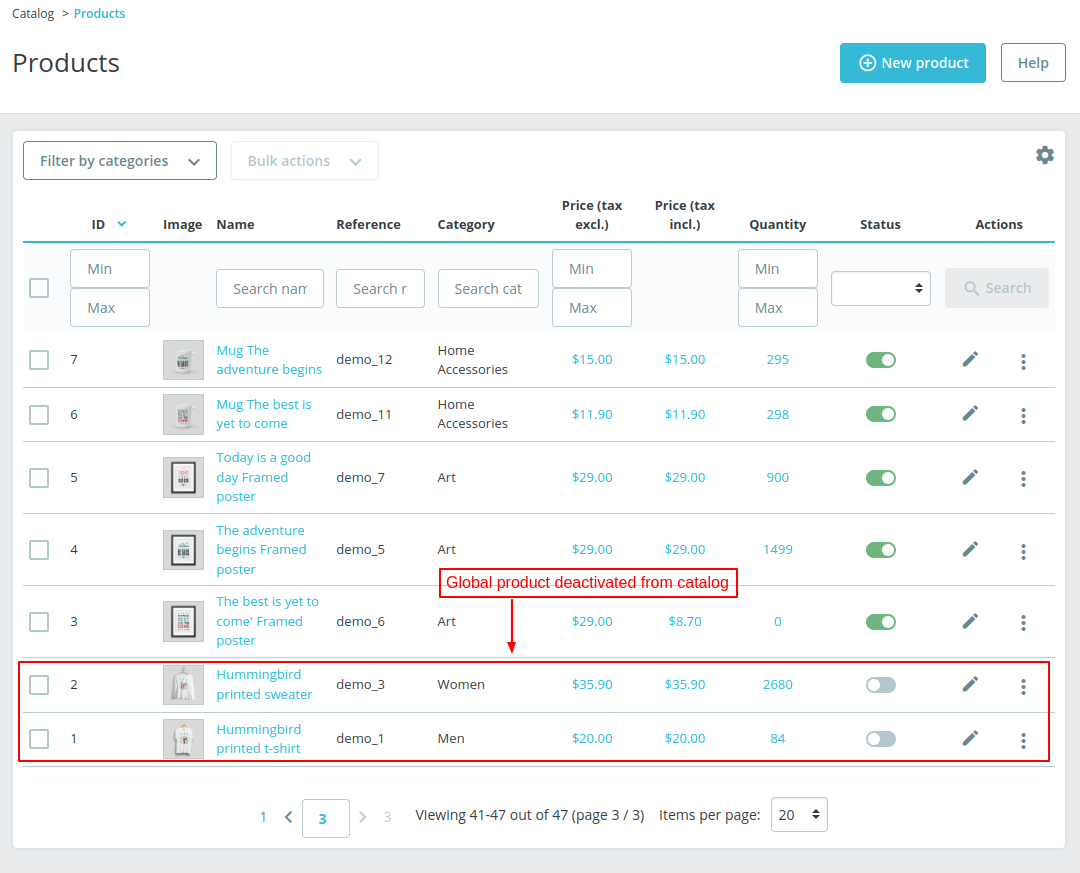
Note:- If admin has added own product as global product then that product will be deactivated from the product list.
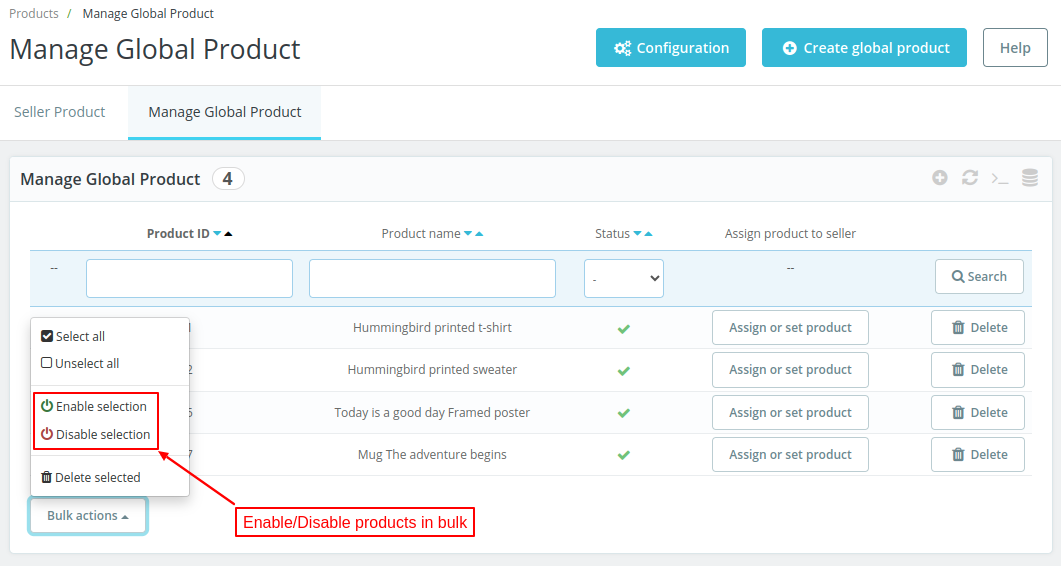
Admin can also choose to enable or disable the global products in bulk.
Assign Global Product
After the successful installation of the module, a new tab ‘Assign Global product’ gets added to seller’s account.
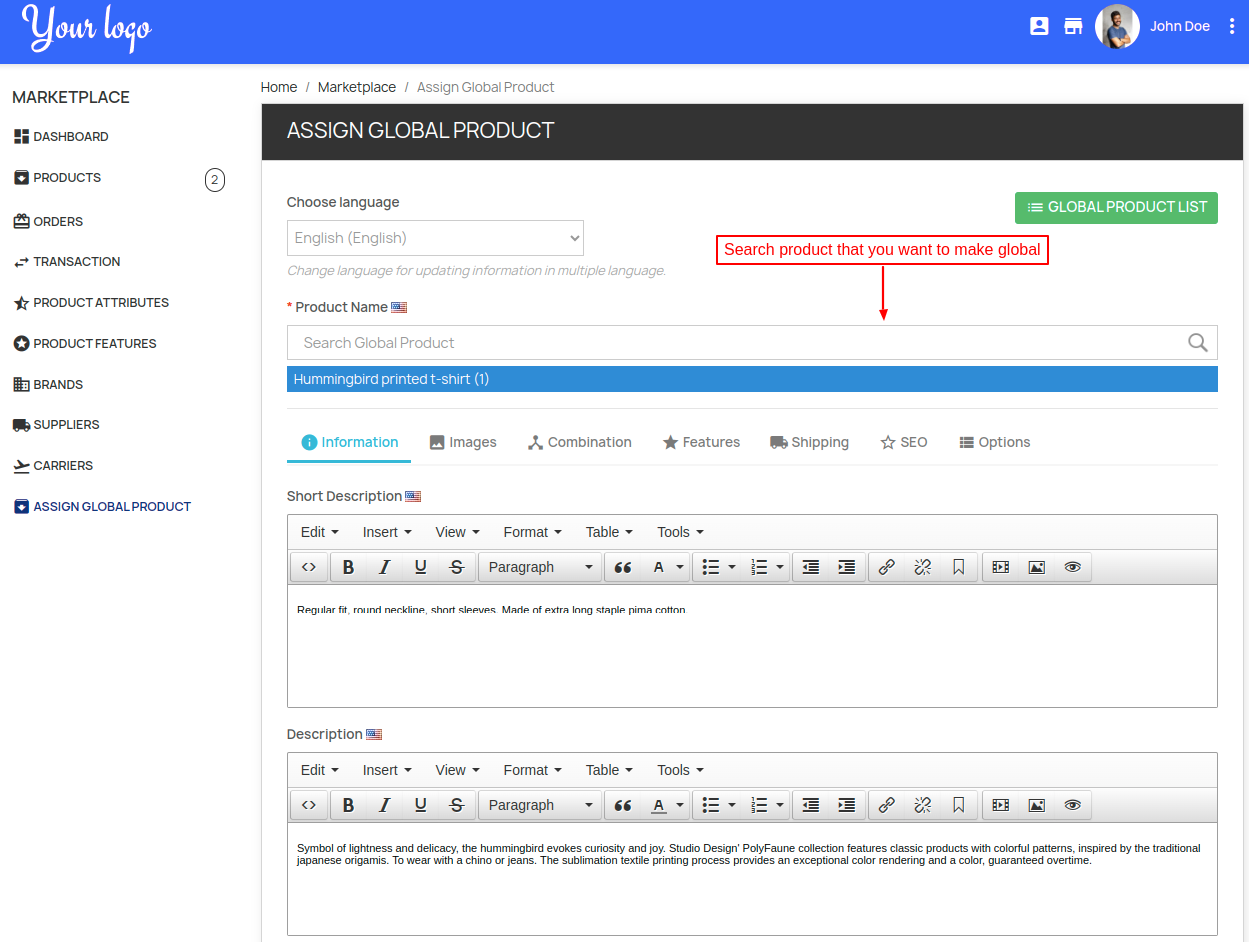
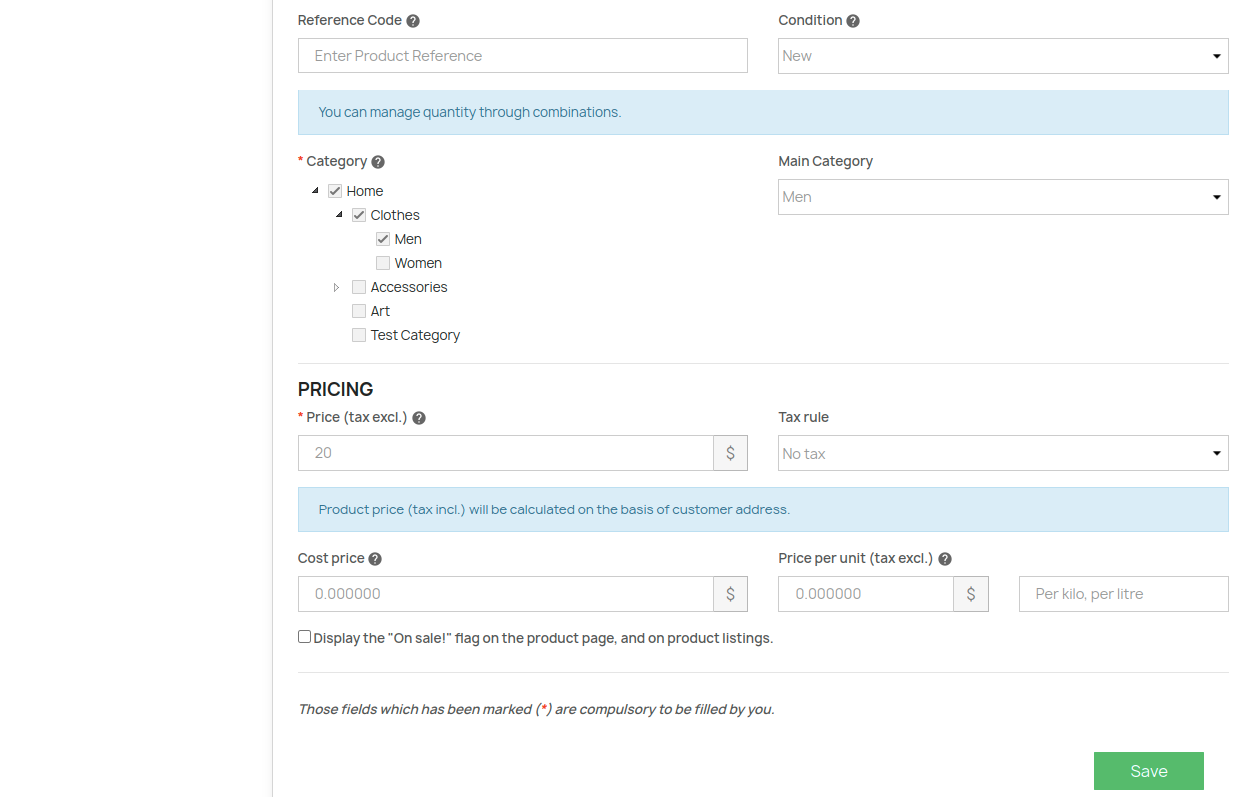
In the above screenshot it can be seen that the seller has assigned a global product ‘Hummingbird printed t-shirt (1)’ to the shop.
Similarly, sellers can assign or add as many global products as per requirement.
Add image for global product
Combinations
The seller can create different combinations for global product and can also add features.
Add shipping to global product
SEO
Options
Front End Workflow
On the product page, a customer can view a new block displaying details of all the sellers who are offering this product.
Note:- In case admin deletes the global product, then all other assigned products to the same global products will not be deleted. Admin can also configure the module to enable its own product.
The seller can view the global product list.
Seller can assign multiple products to the same global product at different prices.
Back End Workflow
Admin can assign the global product to any seller from back-end. Go to Manage Global Product -> Assign/Set Lowest button.
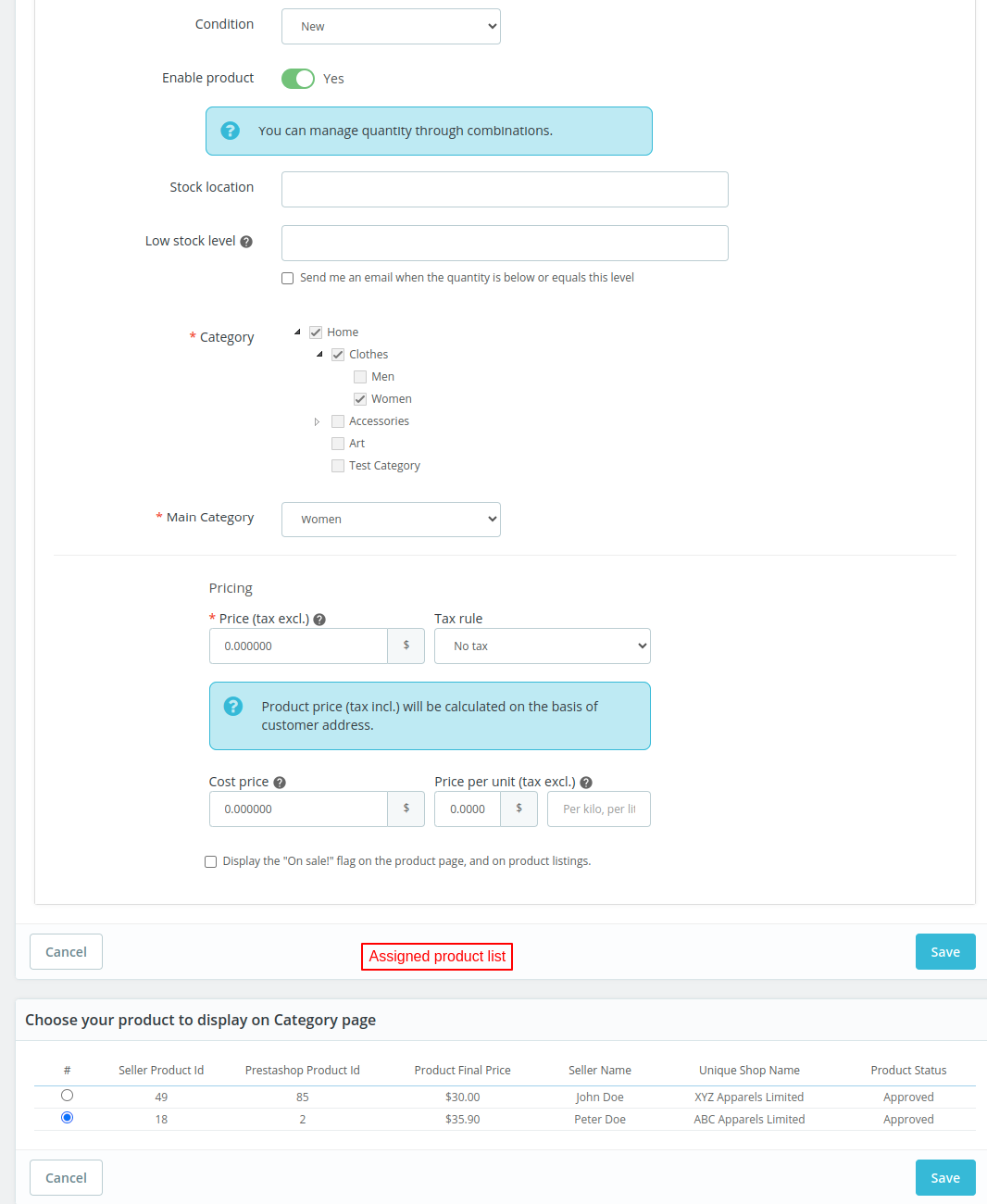
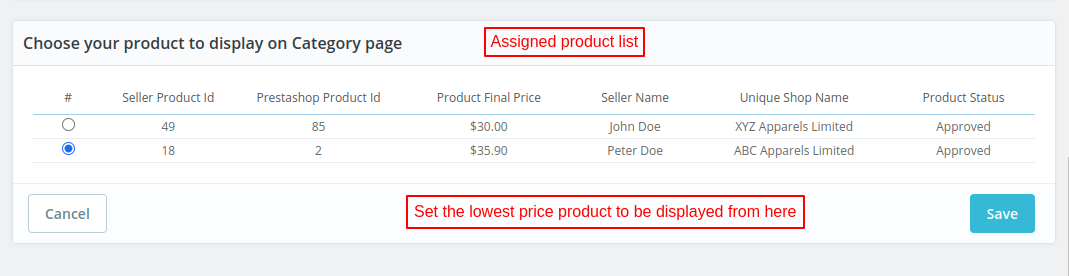
If admin has selected the criteria as “Choose by Admin”, then the admin has to select the product among the list of sellers.
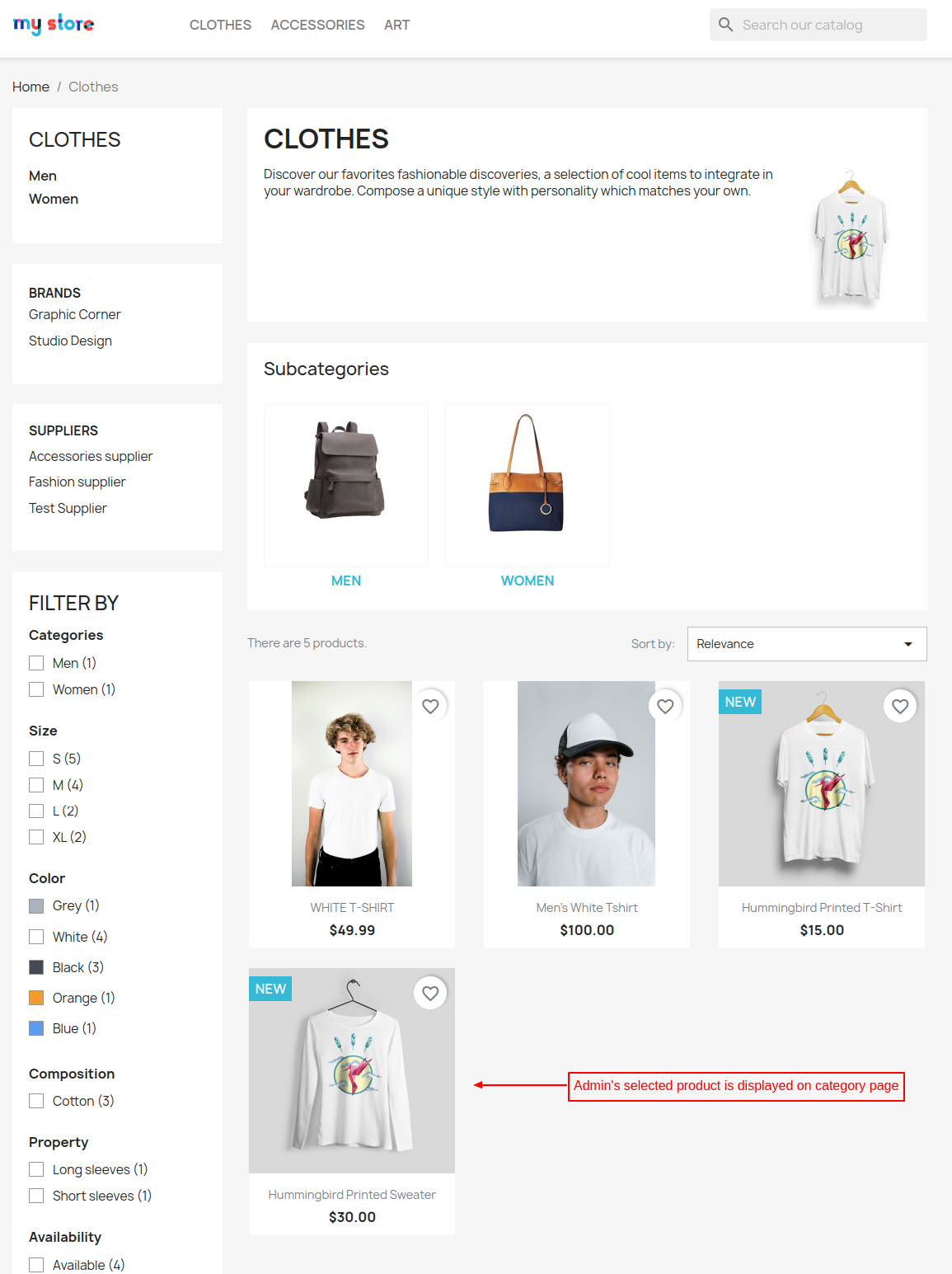
Front-end display of the category page if admin selects even one product.
This was all about the PrestaShop Marketplace Seller Price Comparison Module. I hope this document will help you in checking the functionality of the module in a better way.
Also, do let us know about your views in the comments.
Support
For any kind of technical assistance or query, please raise a ticket or send us a mail at [email protected]
Also, please explore our Prestashop development services and a vast range of quality Prestashop addons.
Current Product Version - 5.1.3
Supported Framework Version - 9.x.x, 8.x.x, 1.7.x.x

Be the first to comment.