Introduction
Build your brand with Odoo Website Product Brand!
Odoo Website Product Brands helps you create and manage product brands in Odoo and display them seamlessly across your website.
Build your brand identity and enhance product visibility to ensure prospective customers can recognize and connect with your products effortlessly.
You can assign products to brands, organize products brand-wise, and allow customers to filter products by their favorite brands with minimal effort.
With Odoo Website Product Brands, you can streamline your overall catalog management and provide a fast, convenient, and effortless shopping experience for your website visitors.
Features
- Create and manage unlimited product brands directly from the Odoo backend.
- Upload brand logos and show brand details across your website for better visibility.
- Assign existing or new products to brands directly from product records with minimal effort.
- Perform bulk brand assignments to add multiple products without repetitive effort.
- Display all available brands on a dedicated website page with an integrated search bar.
- Enable brand-based product filtering and combine it with existing website attribute filters.
- Automatically display dynamic brand showcases on your website homepage.
- Keep products organized with efficient brand-wise categorization and listing.
With Odoo Website Quick Order customers can add products to a shopping list and make bulk orders without any hassle.
Installation
- Once you purchase the App from Webkul store, you will receive the link to download the zip file of the module.
- Extract the file on your system after the download finishes. You will be able to see a folder named- ‘website_product_brands.’
- Copy and paste this folder inside your Odoo Add-Ons path.
- Now, open the Odoo App and click on the Settings menu. Here, click on Activate the Developer Mode.
- Then, open the Apps menu and click on ‘Update Modules List.’
- In the search bar, remove all the filters and search ‘website_product_brands.’
- You will be able to see the module in the search result. Click on ‘Activate’ to install it.
Workflow
- After installing Odoo Website Product Brands, Go to the Odoo backend and navigate to Website > Product Brands > All Brands. Click the New button to create a new product brand.
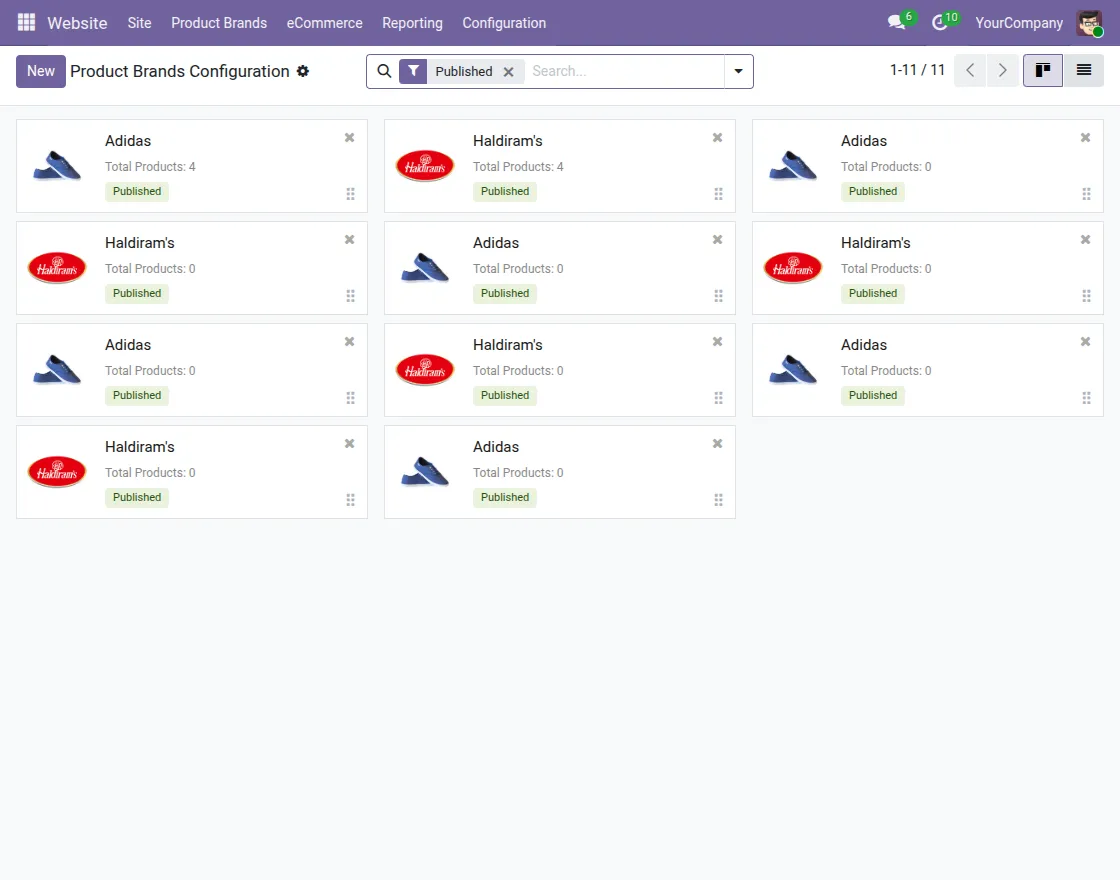
2. In the brand creation form, add the brand name, upload the brand logo, enter the website details, and sequence. Attach products in bulk or individually under the Products tab.

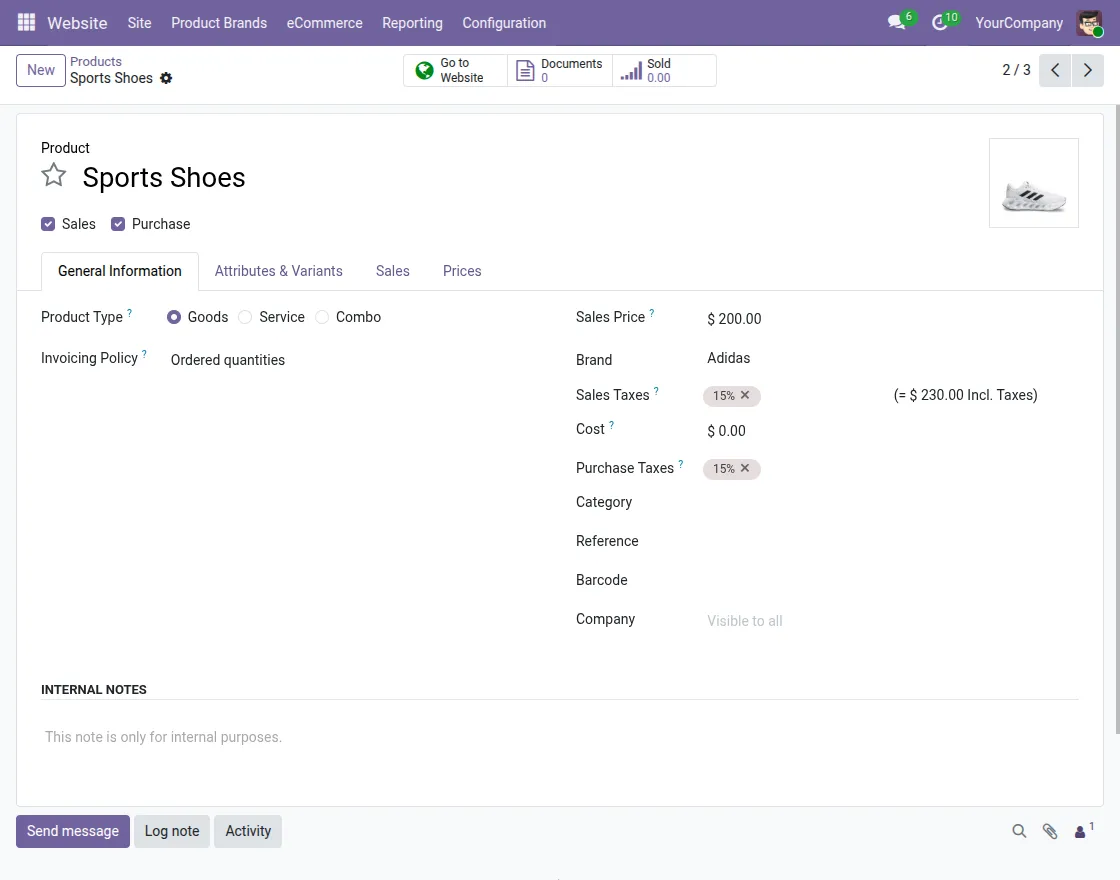
3. You can also assign products directly to a brand by opening any product record under Website > Products, going to the General Information tab, and selecting the desired brand from the Brand field.
4. To view products organized brand-wise in the backend, navigate to Website > Products, click on the Group By filter, and select Brands.

WEBSITE VIEW
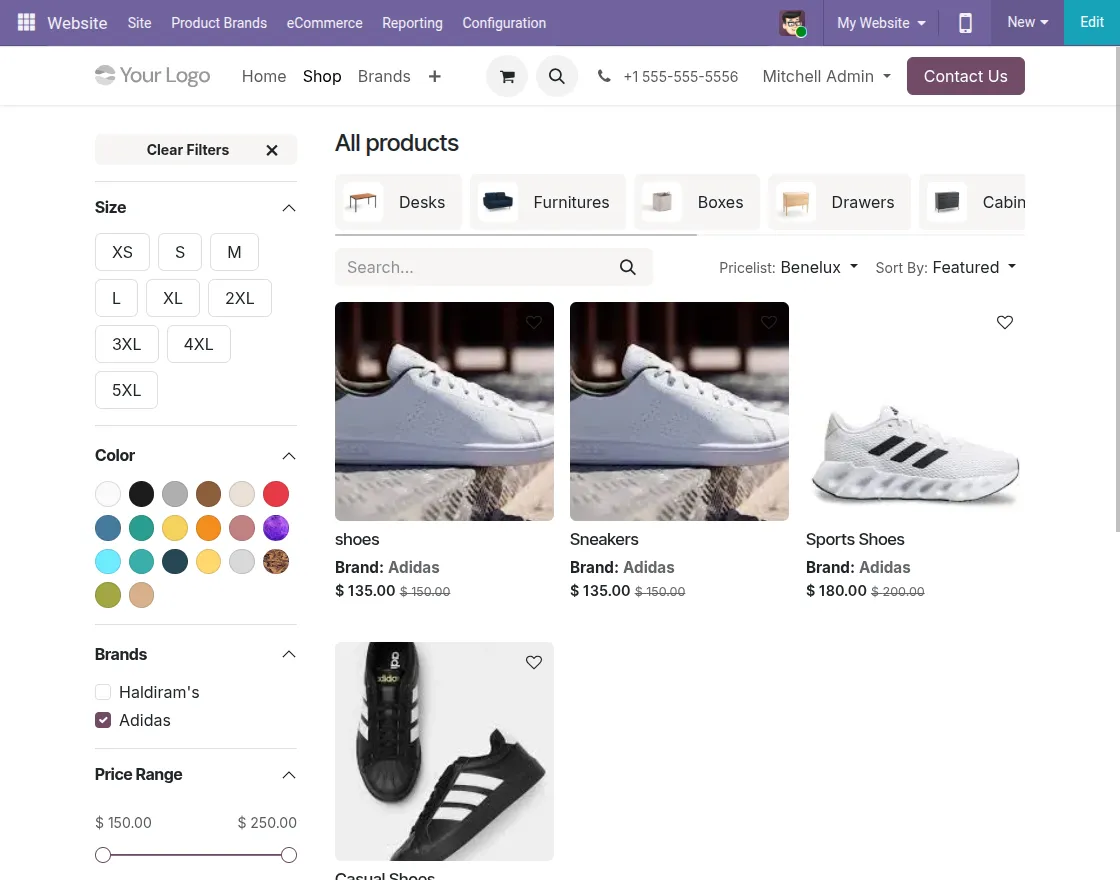
5. On the website shop page, customers can filter products using the Brand filter sidebar, which works alongside existing attribute filters to simplify product discovery.
6. Navigate to the dedicated Brands menu on the website to view all listed brands, logos, and product counts, or use the brand search bar to find a specific brand quickly.

7. Click on any brand logo or card to land on its dedicated brand page, displaying all products offered under that specific brand.

OTHER ODOO WEBSITE MODULES
- Odoo GST e-Invoicing System
- Odoo Zoom Meeting Integration
- Website Micropayment Gateway Integration
- Odoo Website Product Files Upload
- Odoo Quickbooks Timesheet Synchronization
- Website Variants in Table
NEED HELP?
Hope you find guide helpful! Please feel free to share your feedback in the comments below.
If you still have any issues/queries, please create a ticket at theUV Desk.
I hope this helps. In case of any further queries, contact us at our support mail.
Thanks for paying attention!!
Current Product Version - 1.1.2
Supported Framework Version - Odoo V17, V18, V19

Be the first to comment.