Our comprehensive WordPress 7 AI Guide explains how artificial intelligence is brought directly into the core WordPress software for the very first time.
Learn how WordPress 7 introduces built-in AI features with our complete guide. Next, explore how to use Core AI Connectors for WooCommerce products to unlock AI-powered ecommerce
What is the Core WordPress 7 AI Guide System?
In older versions of WordPress, using AI required installing many different third-party plugins.
WordPress 7 changes this by building one shared AI system right into your website dashboard.
This new system connects four simple building blocks: the AI Client, Connectors, Abilities, and MCP
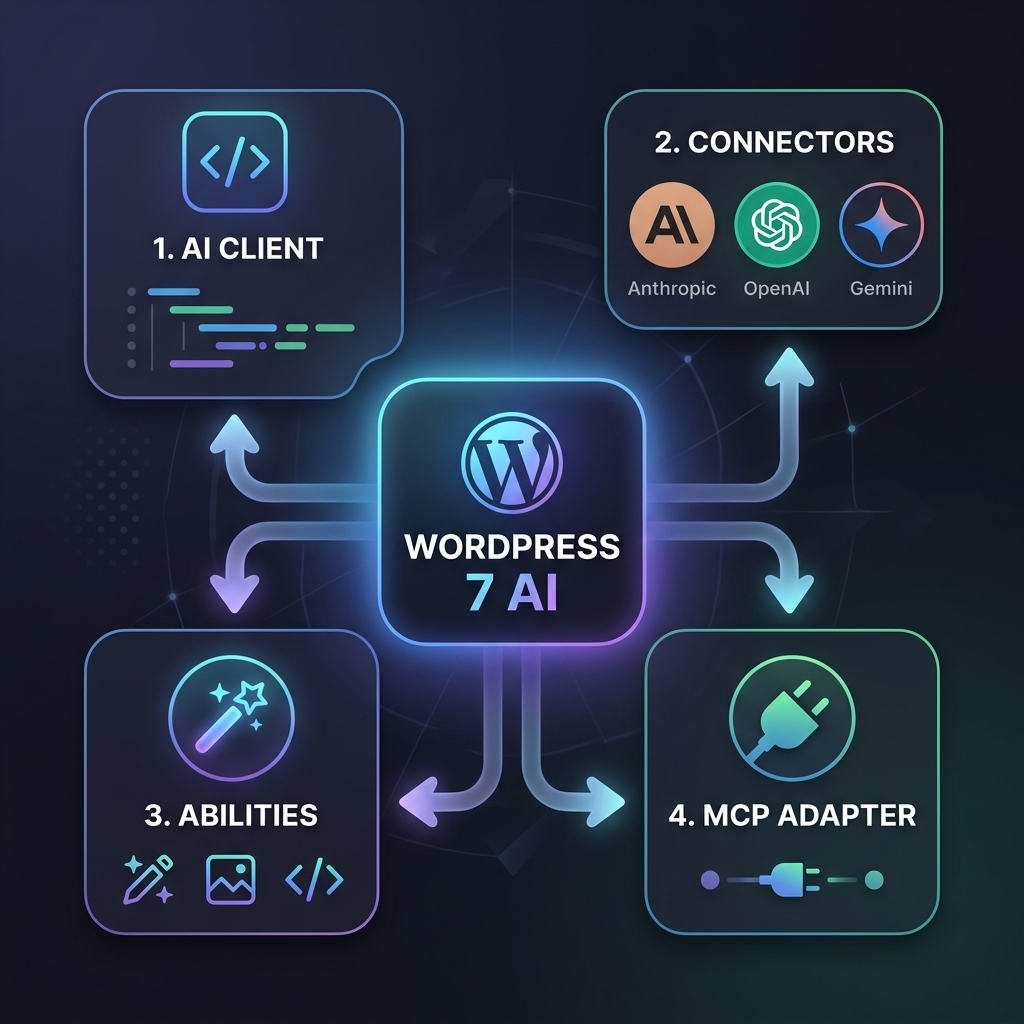
Setting Up Providers in this WordPress 7 AI Guide
You can manage all your AI service connections easily under Settings > Connectors in your dashboard.
WordPress 7 supports popular AI services right out of the box, including Anthropic Claude, Google Gemini, and OpenAI.
You only need to enter your API keys once in this single central place for your whole website.
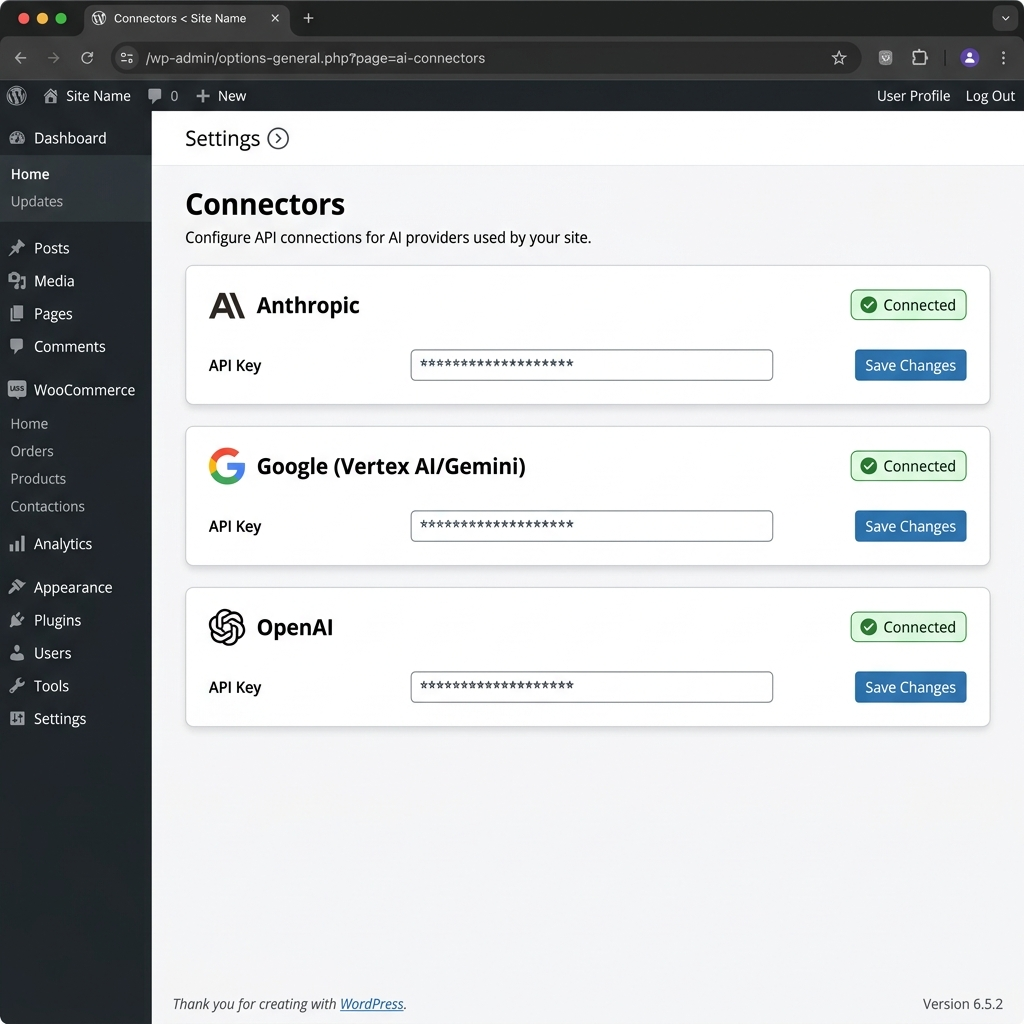
This screen routes all your website prompts safely to your favorite AI models like Claude 3.5 Sonnet or GPT-4o.
If you want to turn off all built-in AI features completely, add one simple line to your wp-config.php file.
define( 'WP_AI_SUPPORT', false );
This code completely disables native WordPress AI tools and hides the Connectors screen.
Using the WordPress AI Client SDK
The WP AI Client gives developers one clean way to send prompts to any AI model.
Instead of writing separate code for every AI provider, you write one simple prompt command.
use WordPress\AI\AI_Client;

$response = AI_Client::prompt( 'Summarize this blog post in two easy sentences.', [
    'model' => 'anthropic/claude-3-5-sonnet',
] );
This code sends a short request to Anthropic Claude using the built-in WordPress AI client.
You can also set backup AI choices so your site automatically tries another provider if one is busy.
$builder = new WP_AI_Client_Prompt_Builder();
$builder->using_model_preference( [ 'anthropic/claude-3-5-sonnet', 'openai/gpt-4o' ] )
        ->set_prompt( 'Write a short headline for this page.' );
This code sets Claude as your first AI choice and GPT-4o as a backup.
Sharing Actions with the Abilities API in WordPress 7 AI
The Abilities API lists all the tasks your WordPress website is allowed to do.
It helps AI tools understand how to create post drafts, edit pages, or view user lists safely.
Front-end JavaScript components can easily check available site abilities using @wordpress/core-abilities.
import { useSelect } from '@wordpress/data';

const abilities = useSelect( ( select ) => {
    return select( 'core/abilities' ).getAbilities();
}, [] );
This React hook gets a list of all active site abilities inside the block editor.
Connecting Desktop Apps with the MCP Adapter
The MCP (Model Context Protocol) Adapter connects your website to outside desktop AI apps.
Popular tools like Claude Desktop or Cursor can link directly to your WordPress site.
This allows your favorite desktop assistant to draft posts or fix issues directly on your website.
Using AI Skills and Smart Helpers in WordPress 7 AI
WordPress AI Skills combine site abilities and instructions to finish tasks step-by-step automatically.
Smart helpers can write alt text for images, check spelling, or suggest design layouts while you write.
Instead of running manually, these helpers work alongside you right inside the editor comments and revisions.
Helpful Links to Learn More
Check out these official links to read more and follow WordPress AI updates:
- WordPress 7.0 Field Guide: Read official developer notes for the WordPress 7 release.
- WordPress AI GitHub Repository: Explore official open-source WordPress AI code.
Summary
WordPress 7 makes using artificial intelligence simple, open, and friendly for everyone.
Starting with these basic tools will help you build smarter websites faster than ever.


Be the first to comment.