Introduction
Odoo Zoom Meeting Integration lets you create, update, and delete Zoom meetings directly from Odoo, ensuring automatic synchronization between the two platforms.
Meeting agendas, timing, recurrence, and time zones are synced, and a meeting summary is added in Odoo when the meeting ends via webhook.
Odoo Zoom Meeting Integration also lets you manage settings like alternative hosts, audio/video preferences, and track the organizer of each meeting created through Odoo.
Features
- Create, update, and delete Zoom meetings directly from Odoo with bi-directional sync.
- Automatically add a meeting summary in Odoo when a Zoom meeting ends via webhook.
- Added webhook URL in Odoo for event subscription to configure and manage Zoom event triggers.
- Supports creating, updating, and deleting Zoom meetings via webhook for seamless automation.
- Authenticate Zoom meetings from users and company accounts in Odoo.
- Secure meetings by adding passwords and manage meeting types: Instant, Scheduled, Recurring, etc.
- Configure each meeting individually, including options like Mute upon Entry, Host Video, Watermark, and more.
- Track the organizer (user_id) of each meeting and webhook for better record management using Odoo Zoom meeting integration.
Installation
- Once you purchase the App from Webkul store, you will receive the link to download the zip file of the module.
- Extract the file on your system after the download finishes. You will be able to see a folder named- ‘zoom_meeting.’
- Copy and paste this folder inside your Odoo Add-Ons path.
- Now, open the Odoo App and click on the Settings menu. Here, click on Activate the Developer Mode.
- Then, open the Apps menu and click on ‘Update Modules List.’
- In the search bar, remove all the filters and search ‘zoom_meeting.’
- You will be able to see the module in the search result. Click on ‘Activate’ to install it.
Workflow
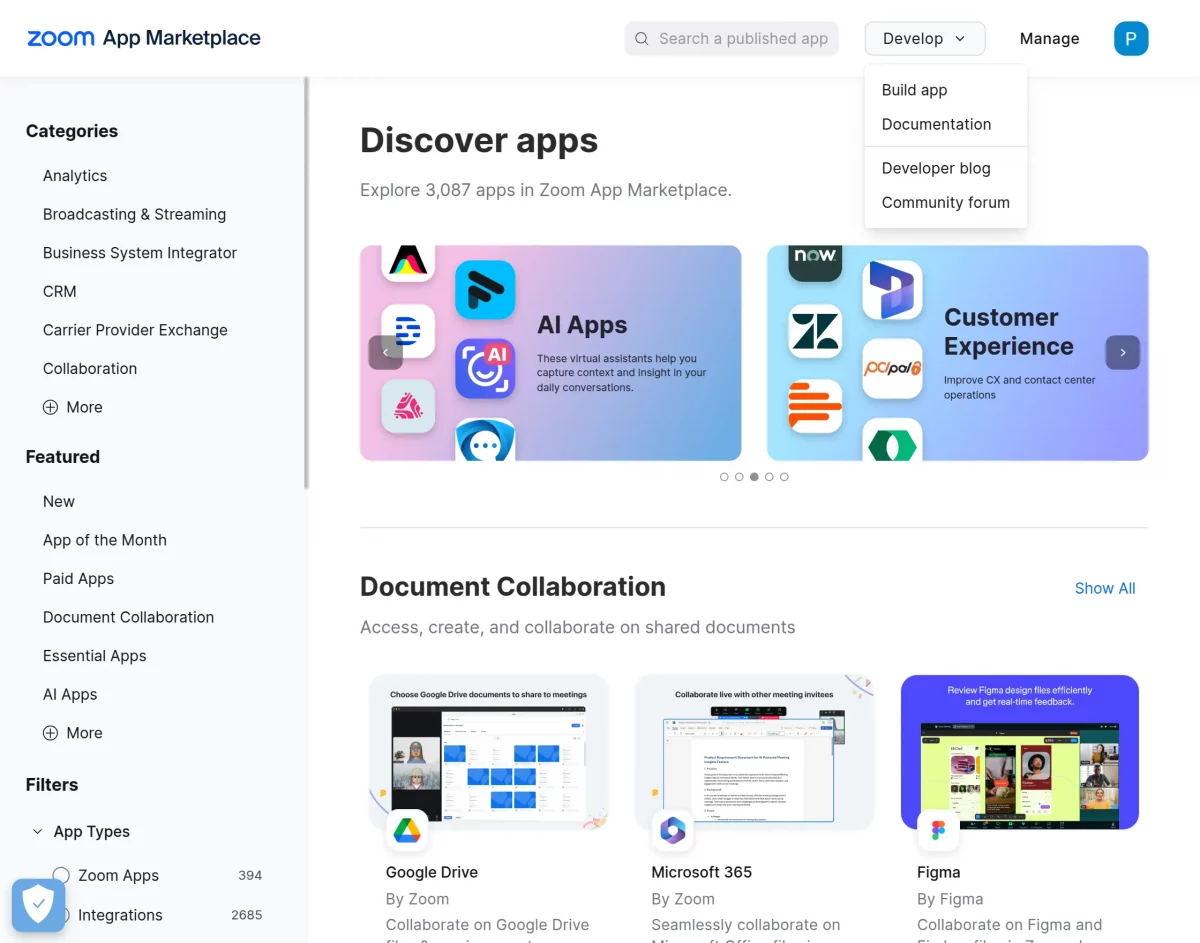
1. Log in to your Zoom account and create a general app on the Zoom end.
Zoom Marketplace > Develop > Build App.
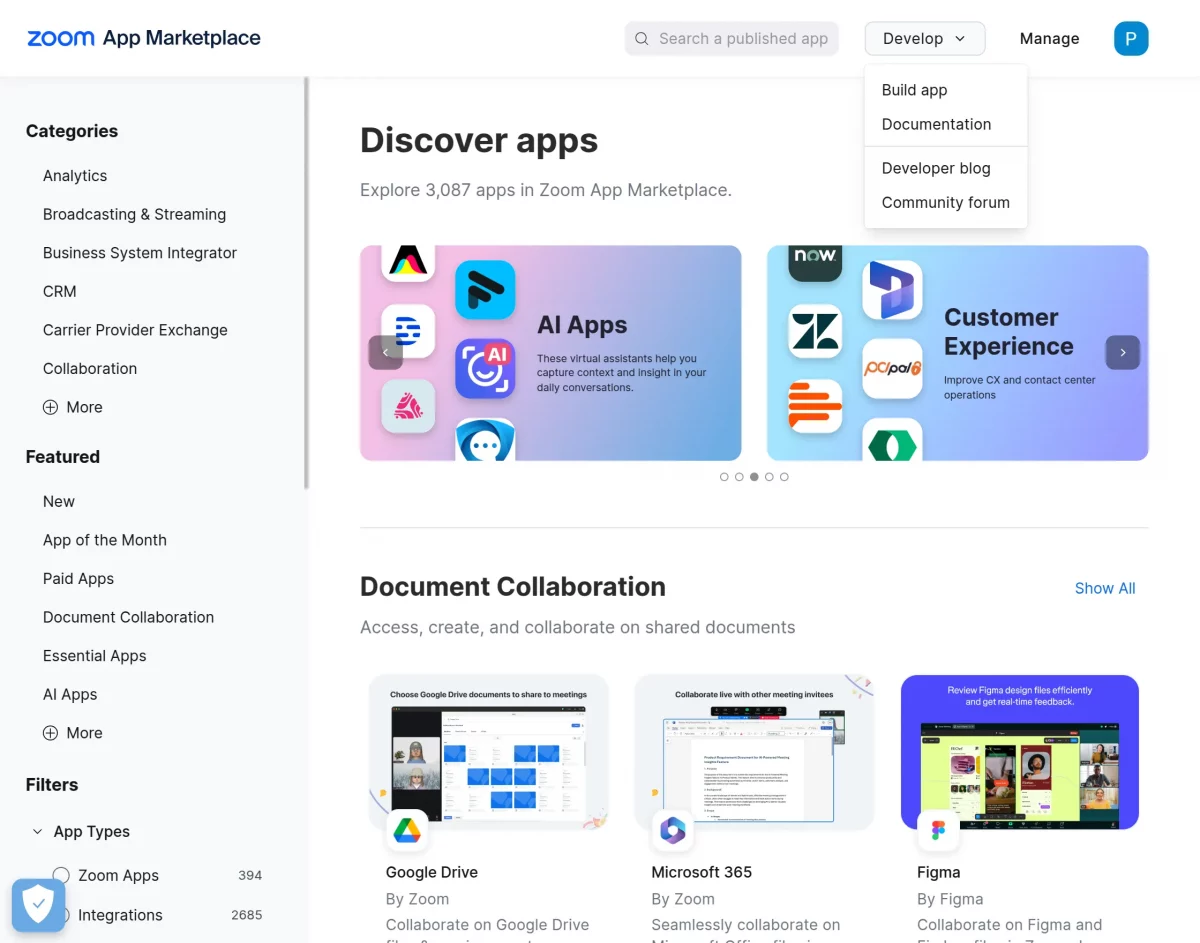
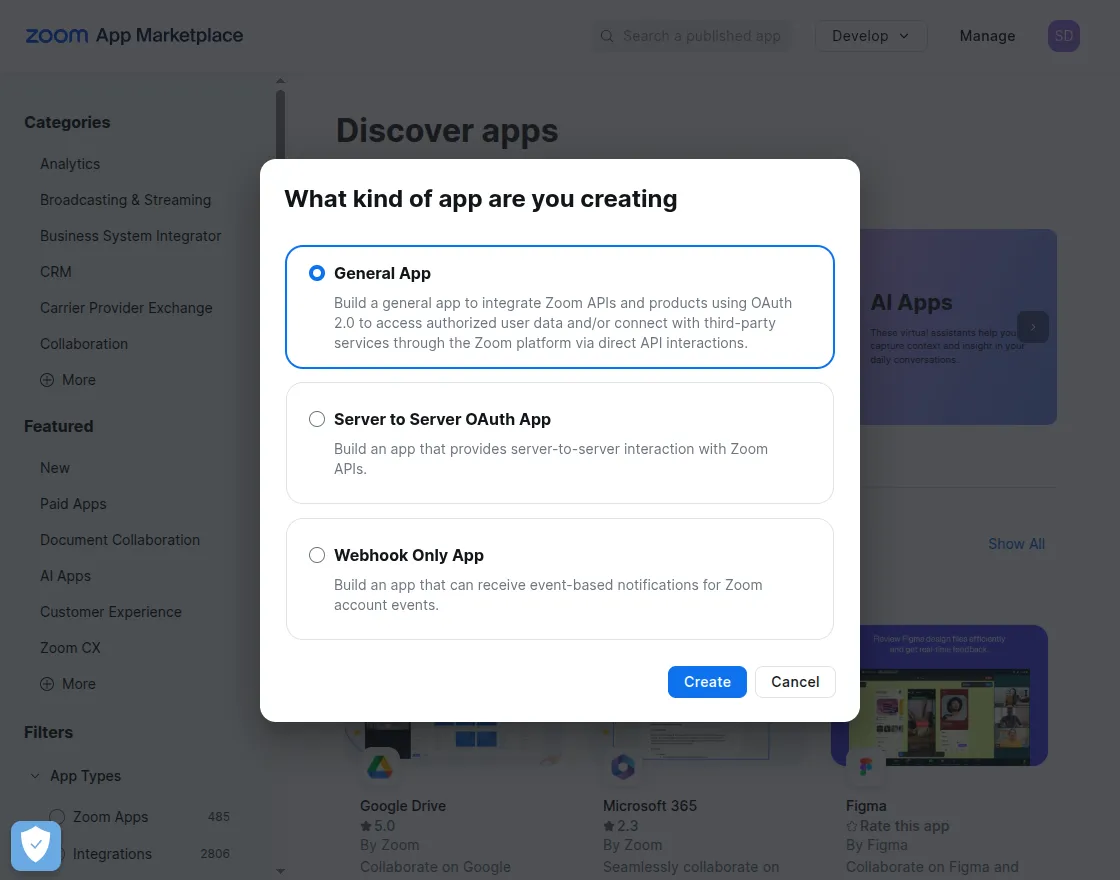
2. Select General app as the app type and click Create.
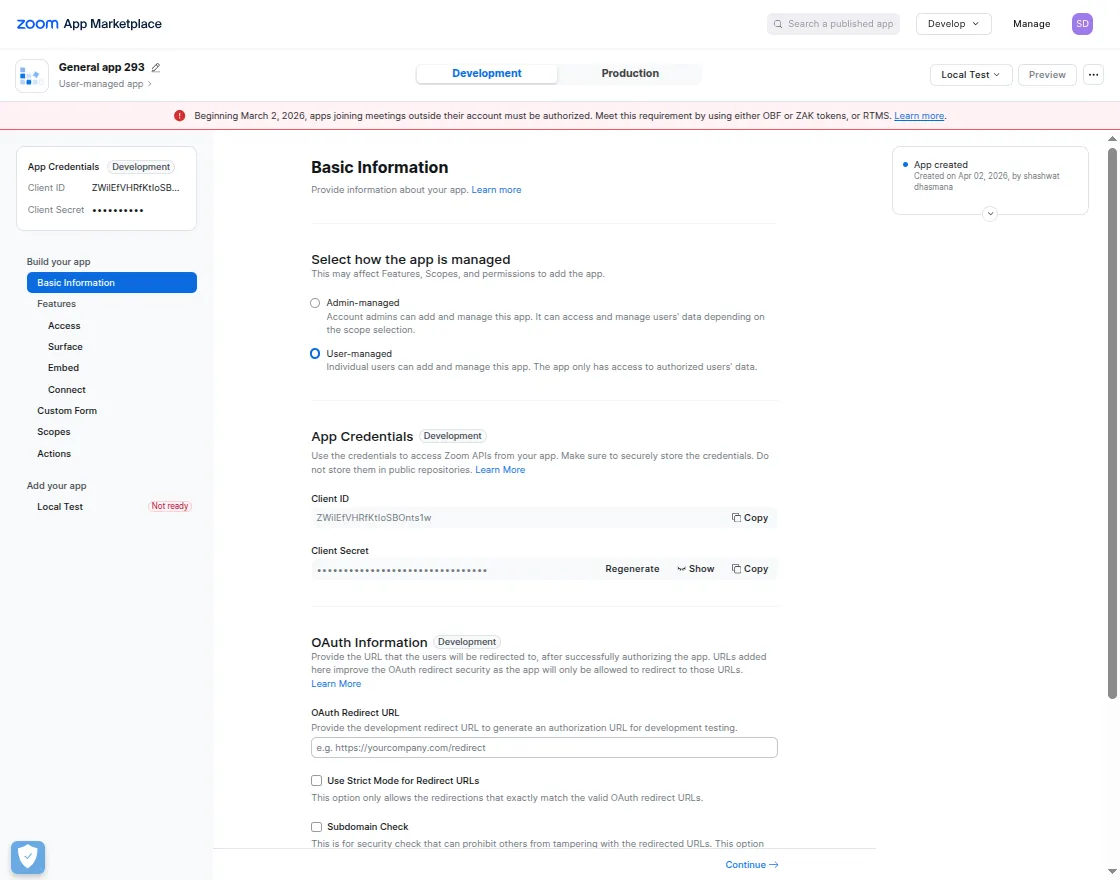
3. Fill up the basic information and click Continue.
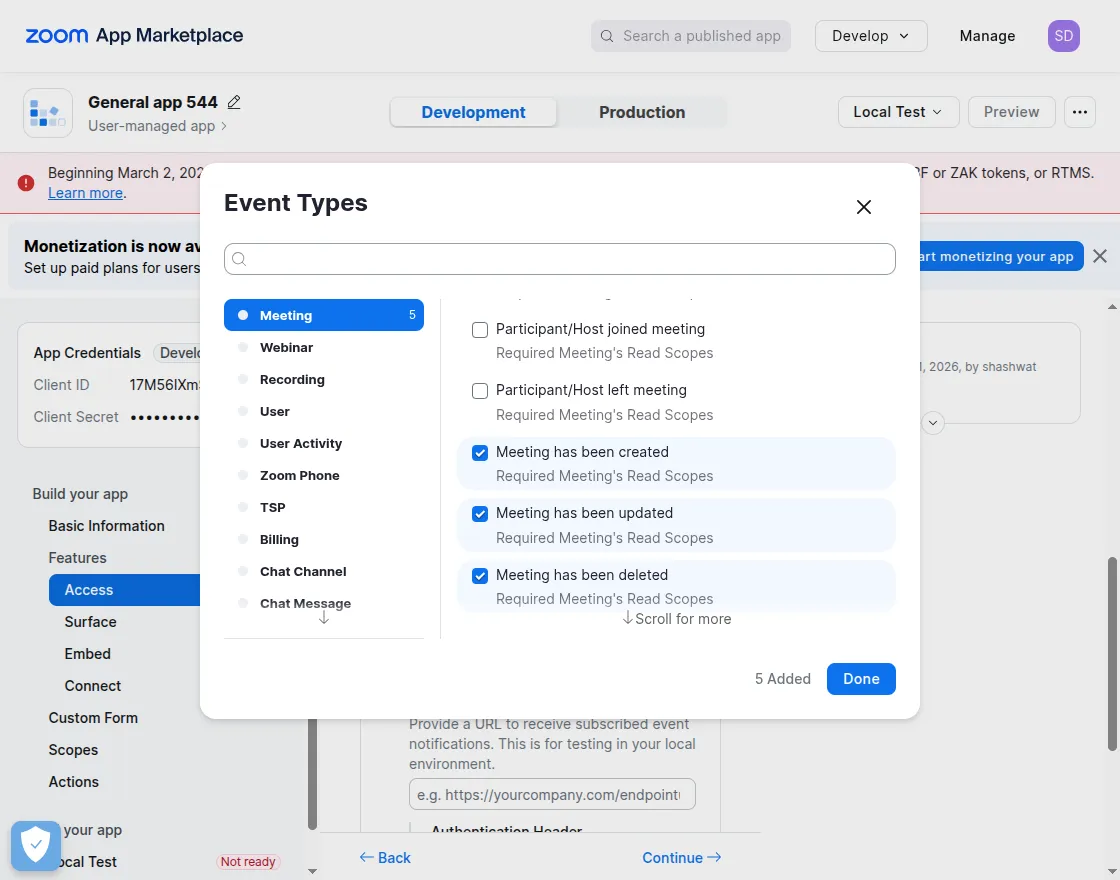
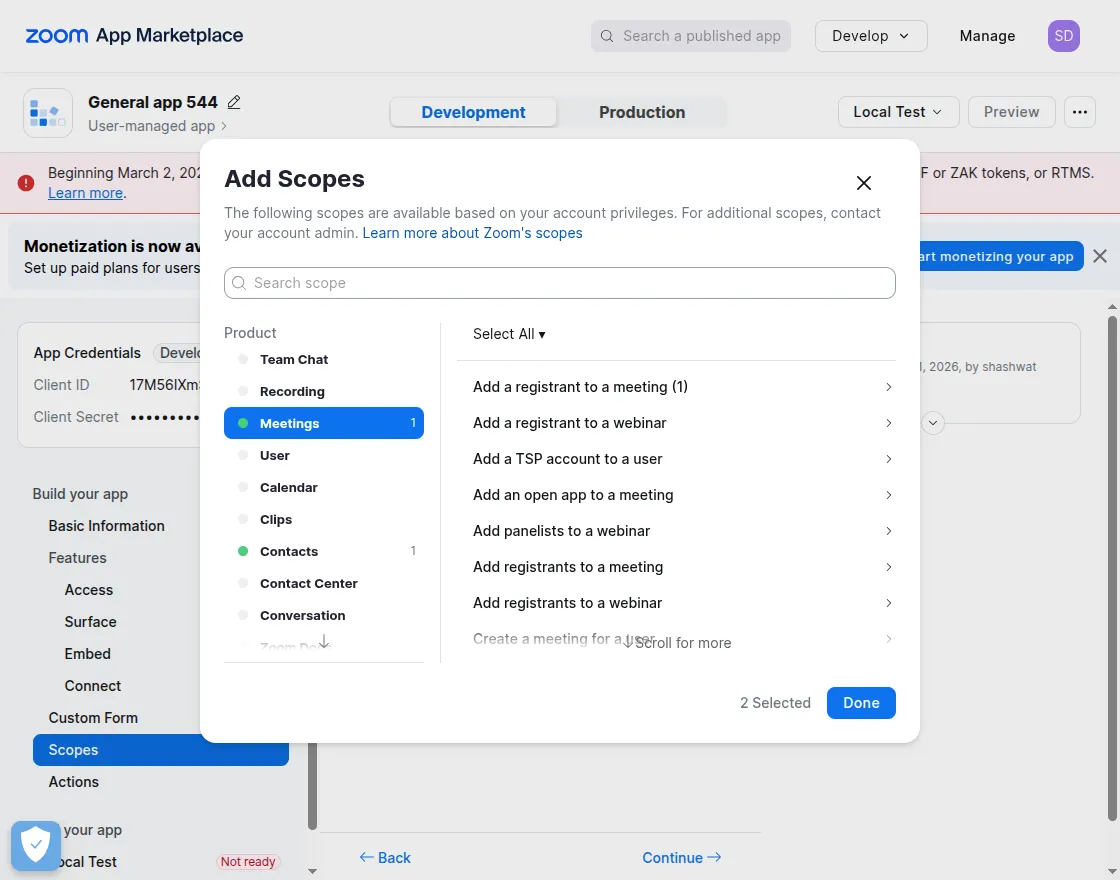
4. Enable event subscription to configure and manage Zoom event triggers, and you can also add scopes to define access levels.
You can enable the required events like: –
- Start meeting.
- End meeting.
- Meeting has been created.
- Meeting has been updated.
- Meeting has been deleted.
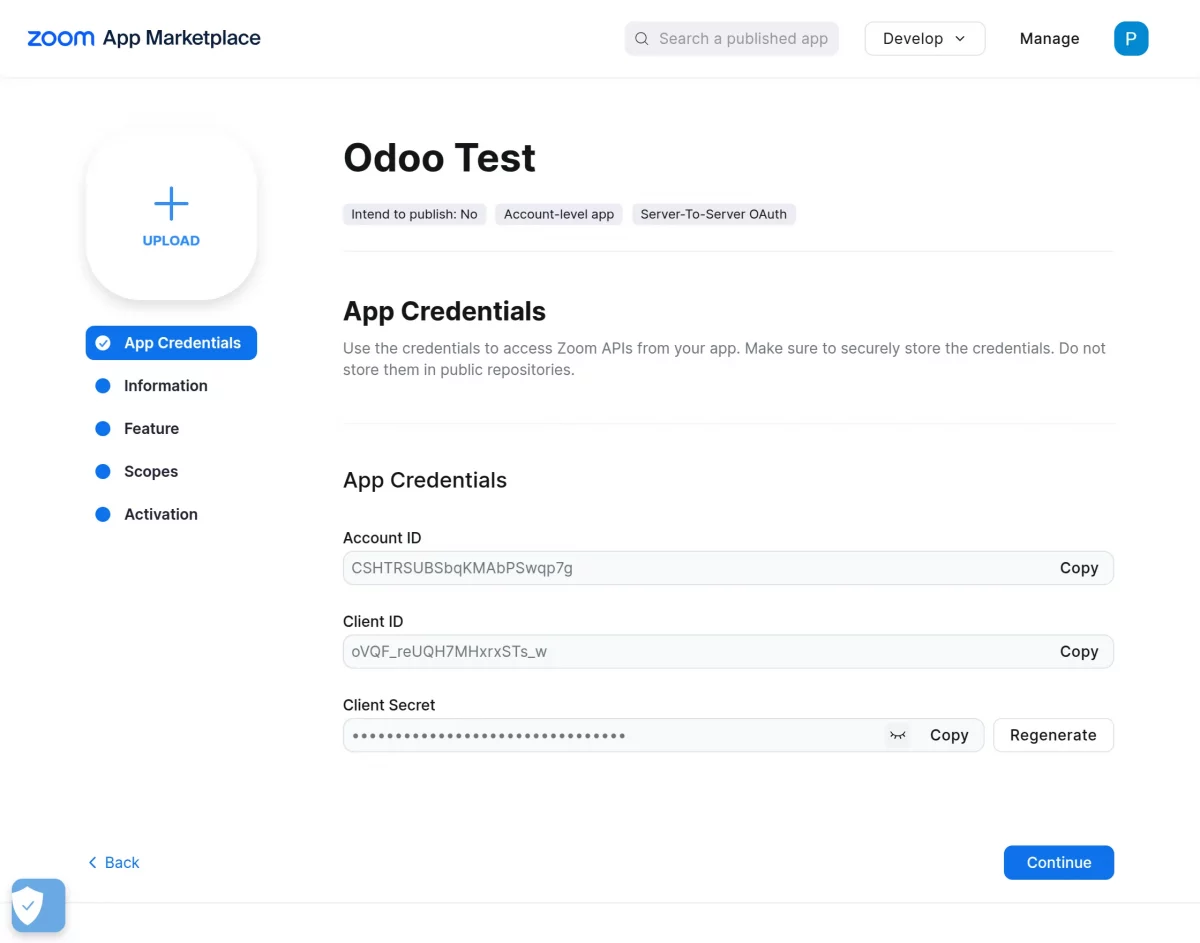
5. Provide the required app details. You will now see the Client ID and Client Secret, which you can copy.
Authorizing Zoom Account in Odoo and Creating Redirect URL
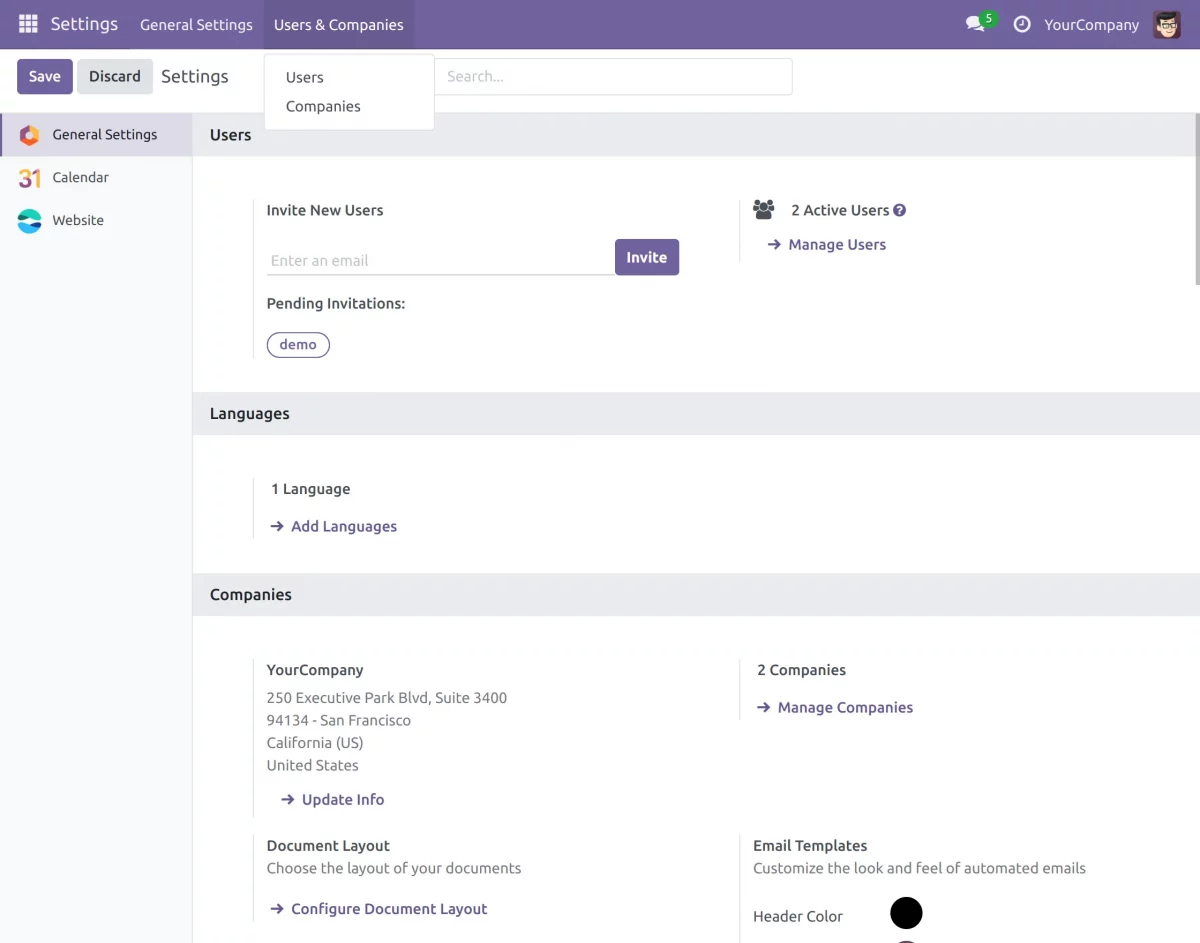
6. Log in to Odoo and navigate to Settings > Users & Company > Company, click Edit, and go to the Zoom Meeting tab.
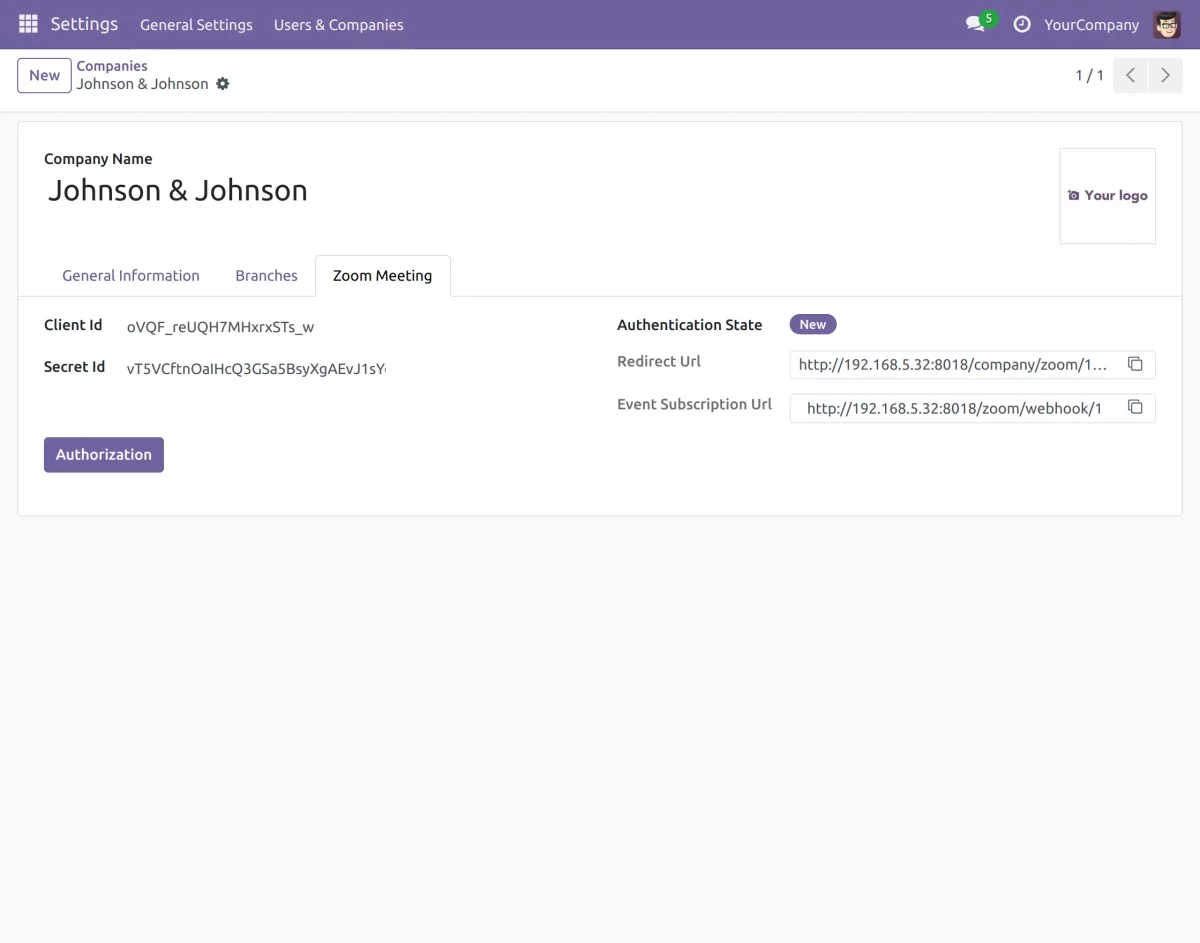
7. Paste the Redirect URL generated automatically in Odoo into the Zoom end under the OAuth Redirect URL field in the Basic Information section.
8. Enter the Client ID and Secret ID obtained from Zoom into the Odoo end and then click Authorization.
Creating Zoom Meetings in Odoo
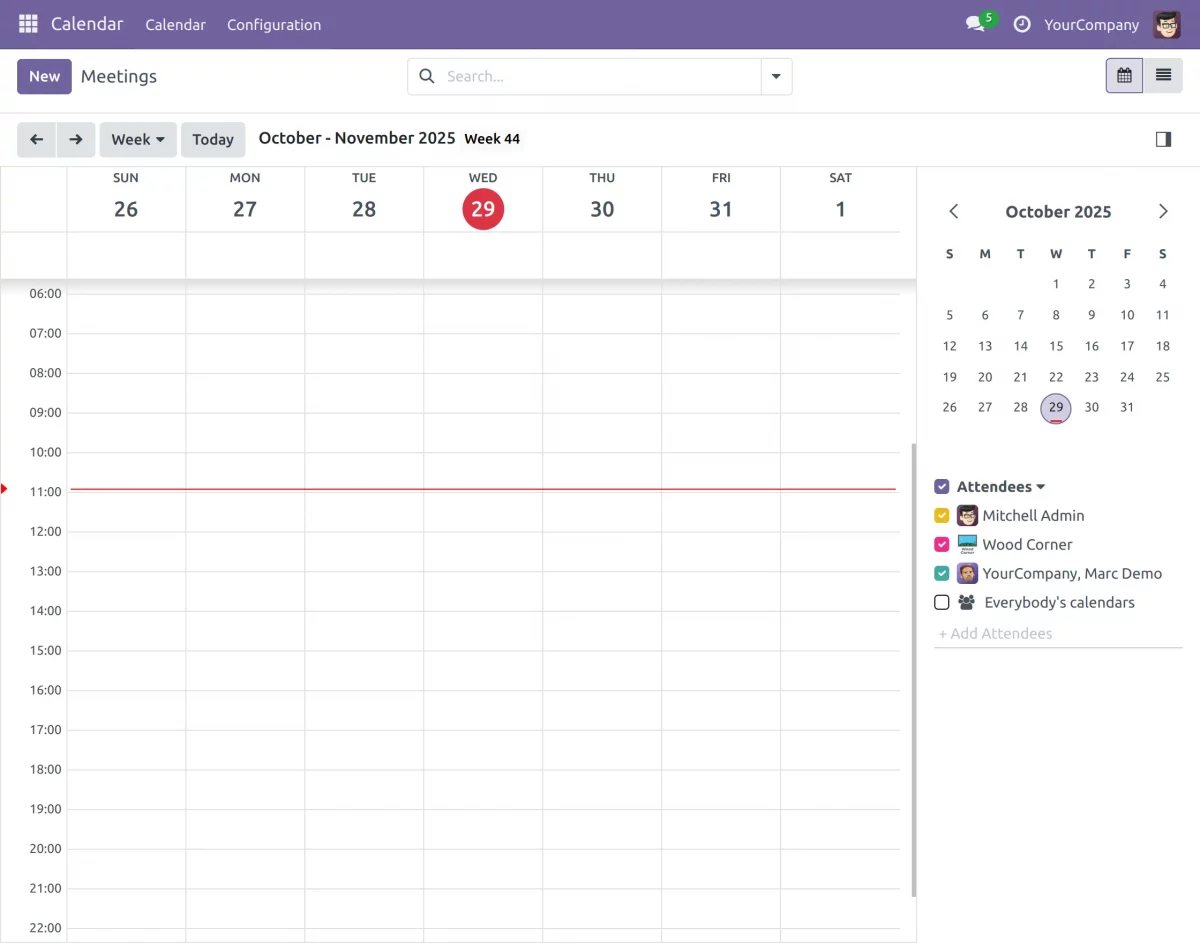
9. Go to Calendar and click on a date and time.
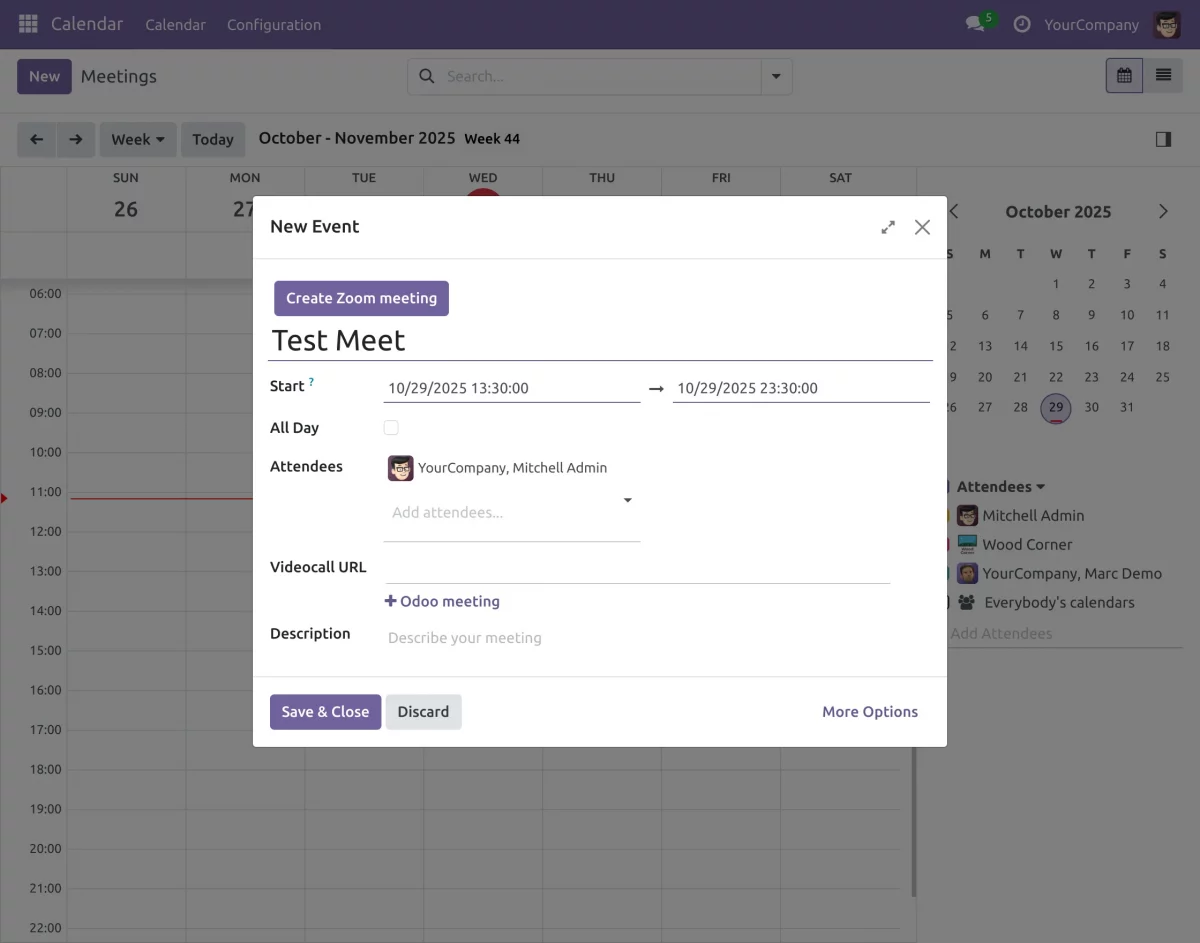
10. You will receive a pop-up of scheduling the meeting, fill up all the entries.
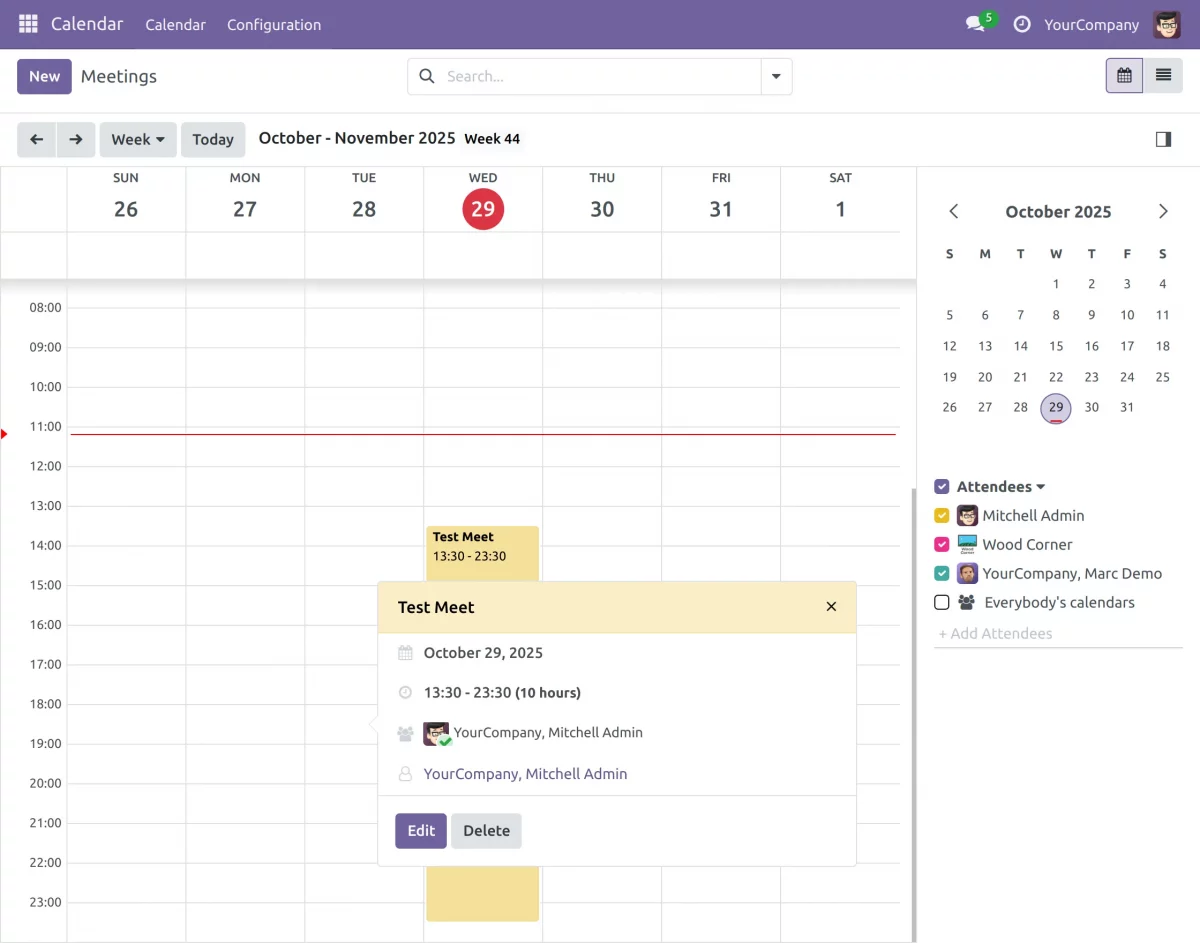
11. After this step, you will see that the meeting has been scheduled and visible on your odoo calendar.
12. Now click on edit button to configure your meeting and then create it.
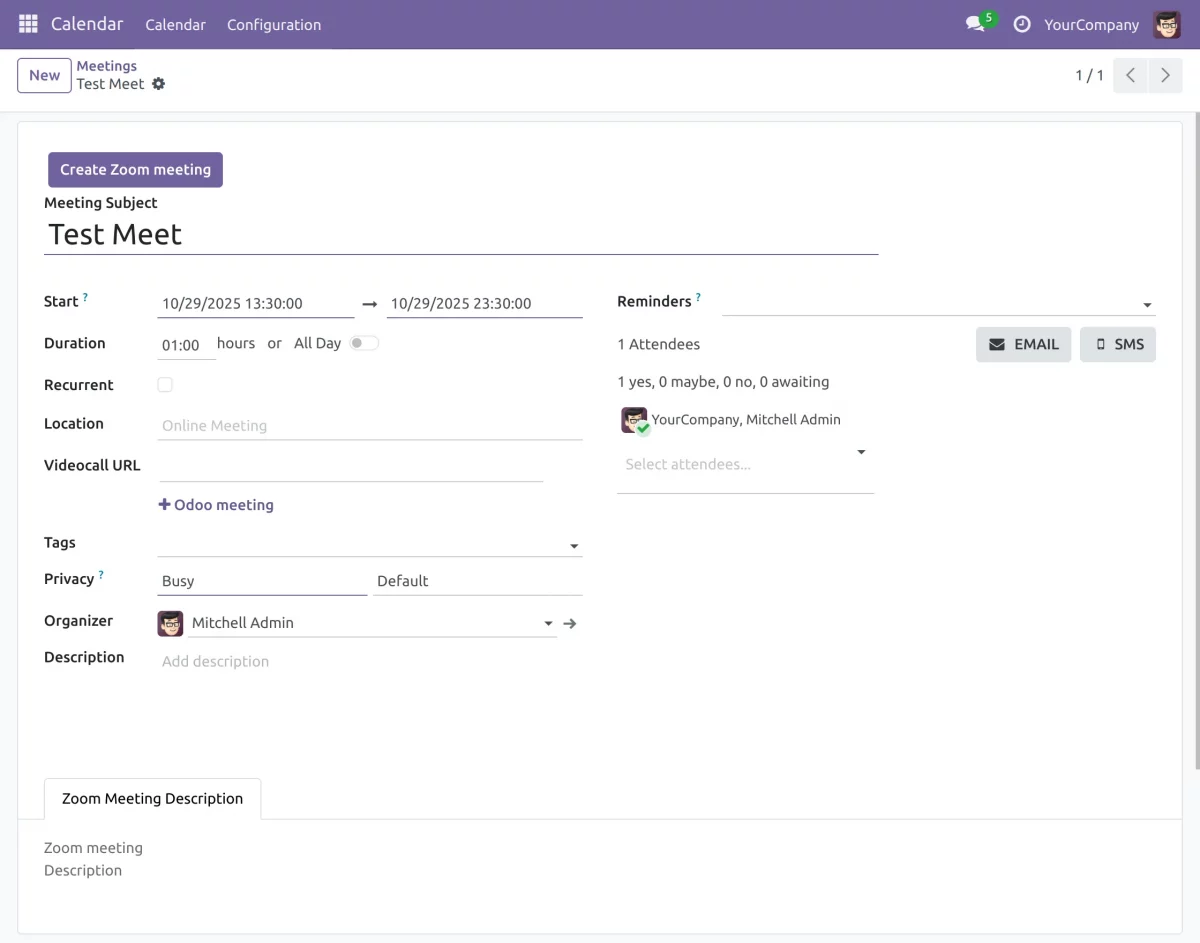
Once all details are filled, click Create Zoom Meeting to open the Zoom meeting configuration pop-up.
Creating Zoom Meeting Link in Odoo Zoom Meeting Integration Module
13. Click Create Zoom Meeting:
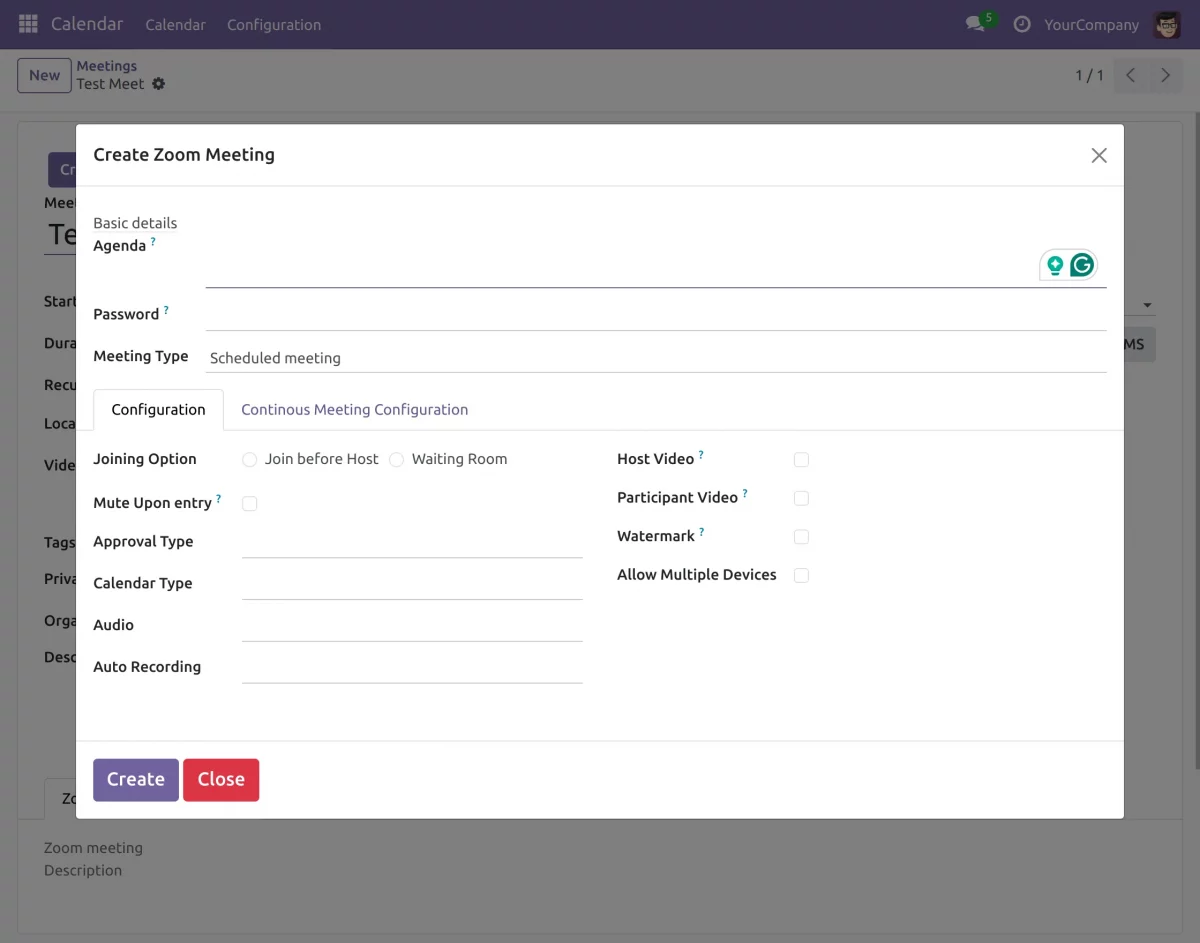
14. Enter the details to create the Zoom meeting.
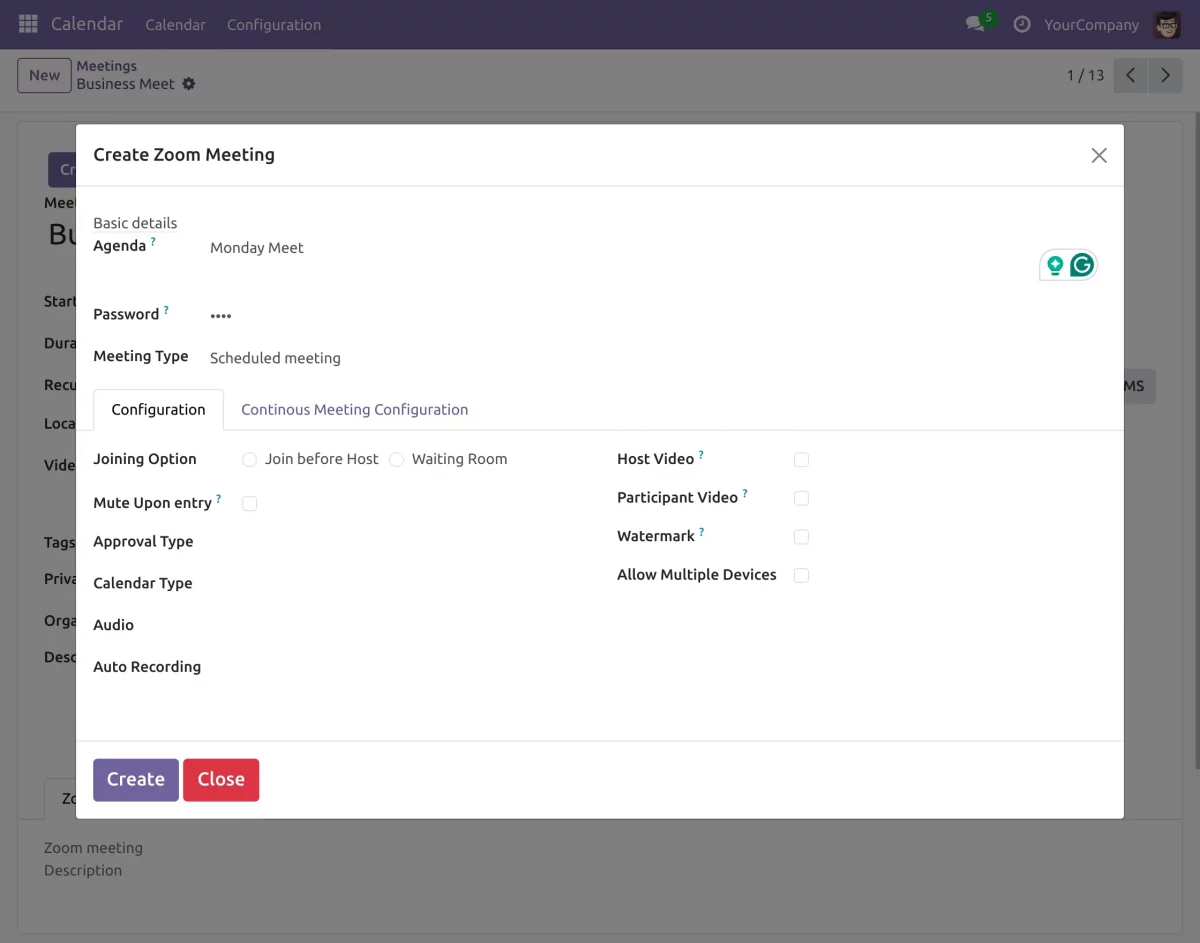
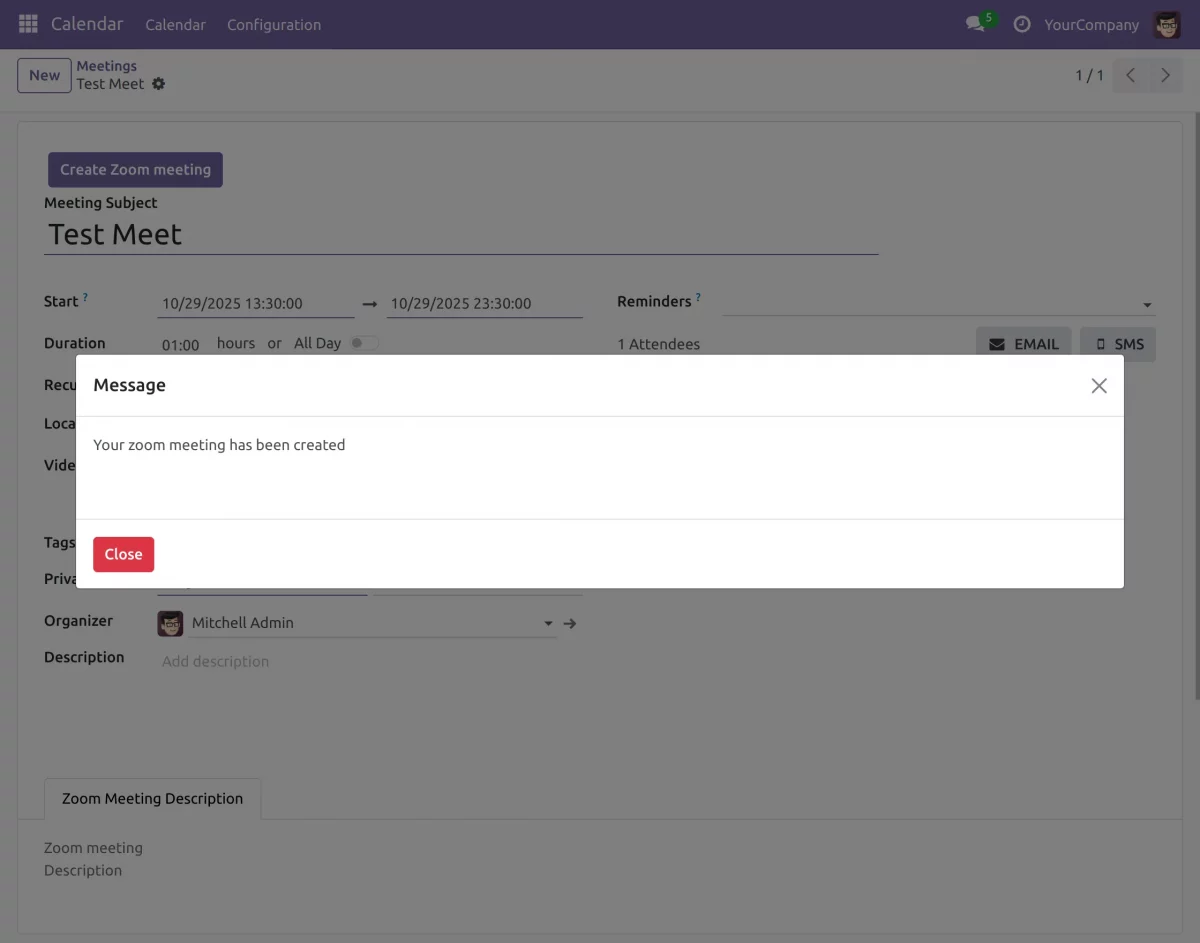
15. Click Create. A success message will appear.
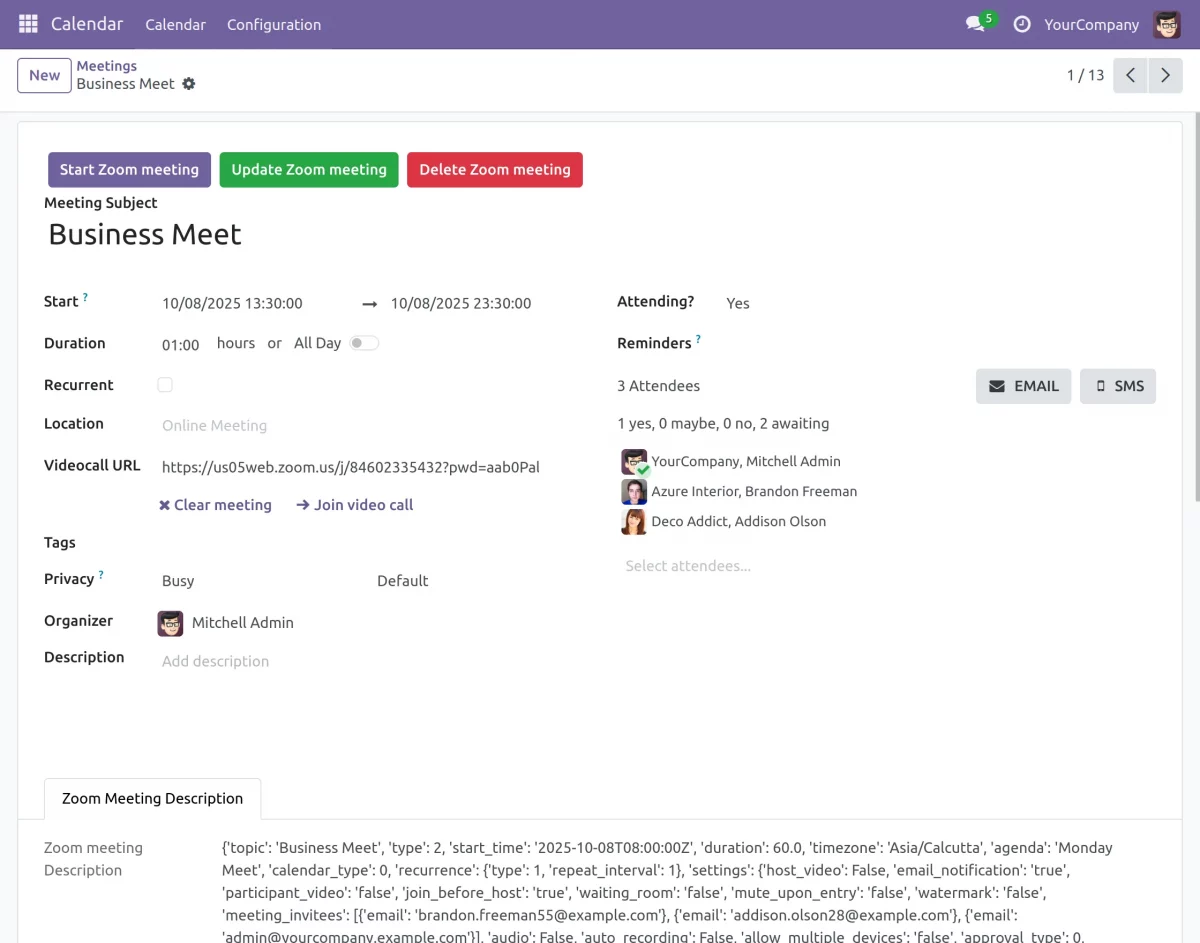
16. The Meeting URL will be visible, and you will have Start, Update, Delete buttons.
Bi-Directional Sync and Webhook Updates
- Meetings created, updated, or deleted in Zoom are automatically reflected in Odoo, and vice versa.
- A meeting summary is automatically added to Odoo when the Zoom meeting ends via a webhook.
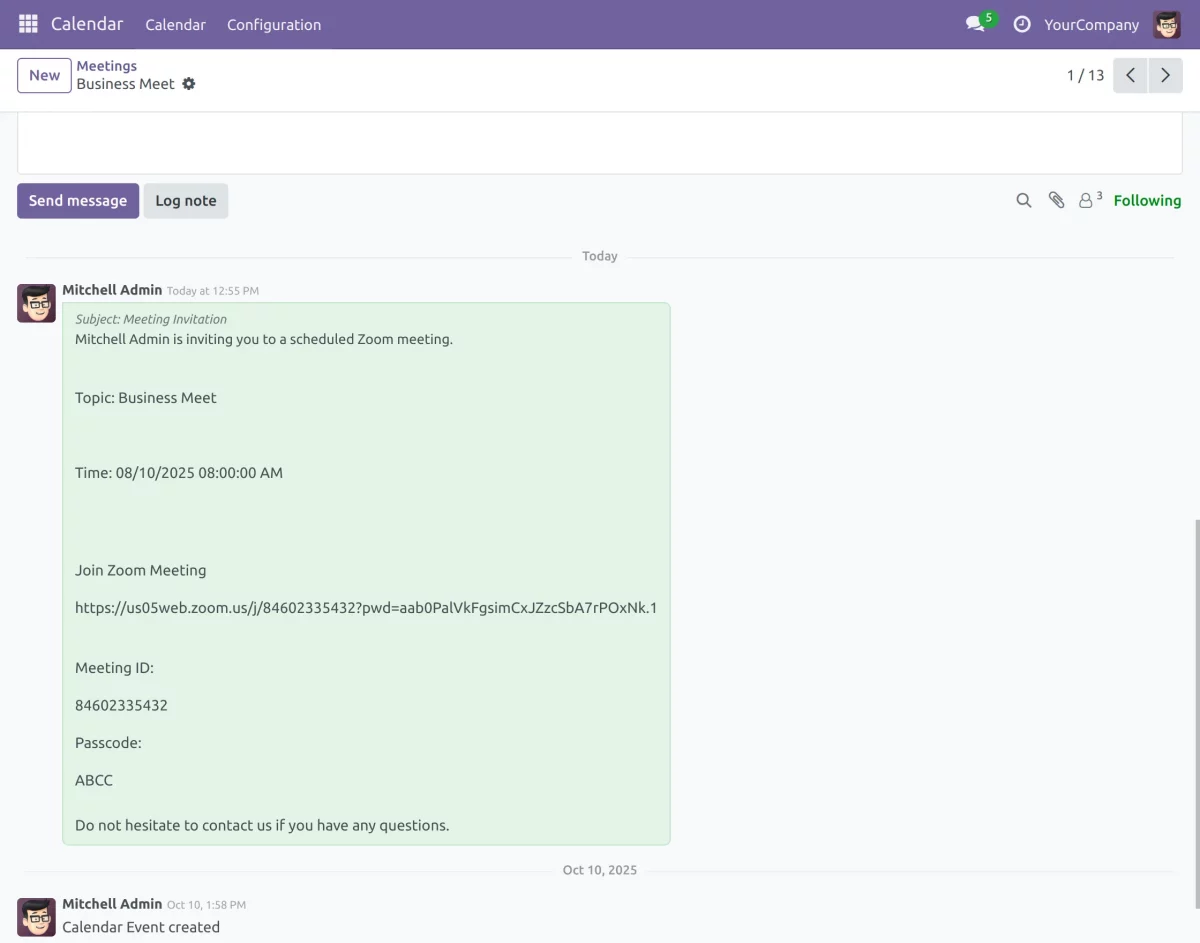
- The webhook tracks the organizer (user_id) who created the meeting for audit and record management.
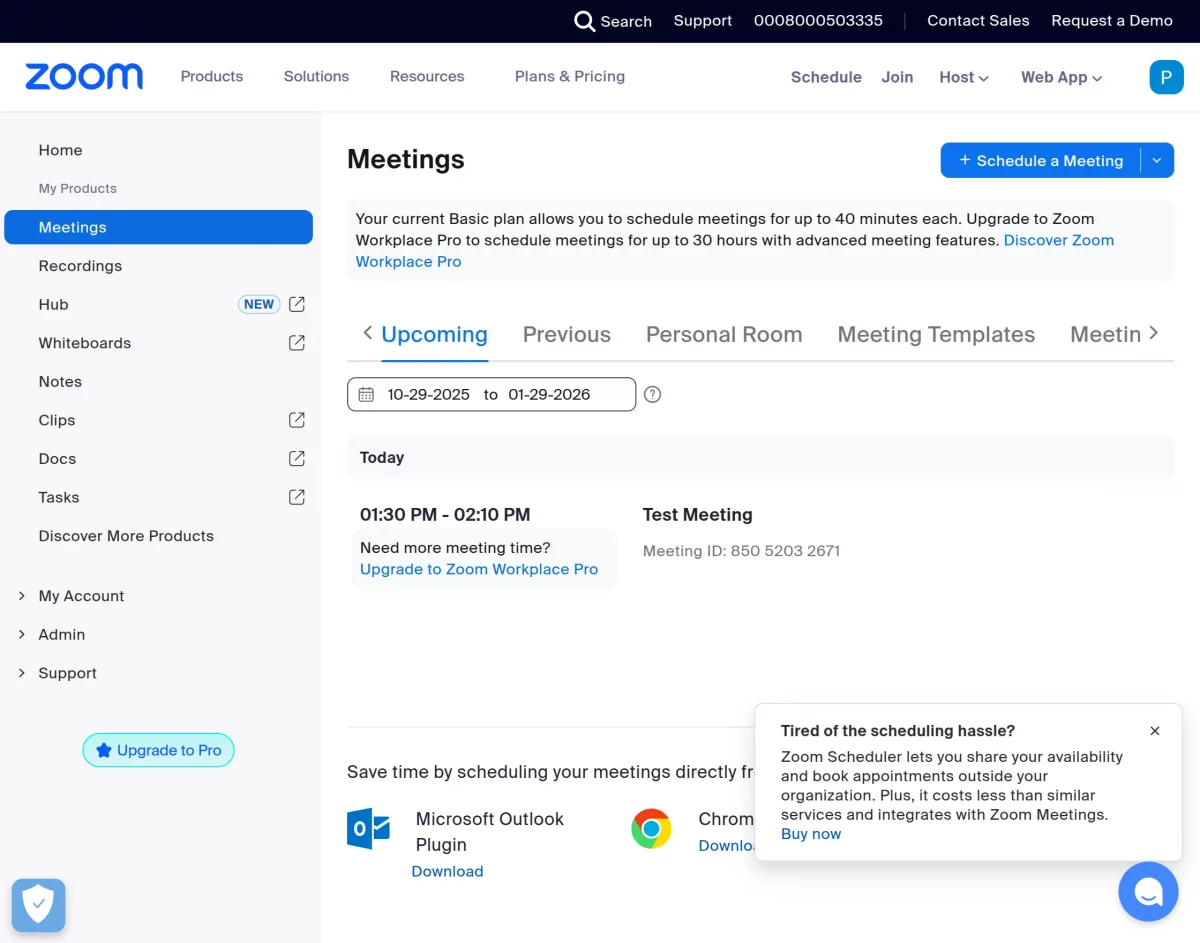
Checking the Meeting on Zoom
17. Go to your Zoom account under Meetings to verify the newly created meeting.
OTHER ODOO INTEGRATION MODULES
- Odoo Google Drive Integration
- Twilio Whatsapp Integration
- Odoo Social Catalog Integration
- Odoo DPD Shipping Integration
- Nextcloud Odoo Integration
- Odoo DHL Shipping Integration
Need Help?
Hope you find the guide helpful! Please feel free to share your feedback in the comments below.
If you still have any issues/queries regarding the module, please raise a ticket at https://webkul.uvdesk.com/en/customer/create-ticket/.
Also, please explore our Odoo development services & an extensive range of quality Odoo Apps.
For any doubt, contact us at [email protected].
Thanks for paying attention!!
Current Product Version - 1.0.1
Supported Framework Version - Odoo V19, V18, V17

2 comments
We have created a ticket on your behalf and our team will connect you soon regarding your queries.
Thanks and Regards,
Team Webkul