Introduction
Purchase Quotation from CRM allows users to create Purchase Quotation directly from CRM Leads while continuing work within the CRM workflow. The module removes the need to switch between CRM and Purchase modules.
Using the Purchase Quotation from CRM module, sales teams can initiate purchase requirements during lead discussions without delays. This improves coordination between CRM and Purchase teams.
Features
- Create Purchase Quotation directly from CRM Leads using a dedicated New Purchase Quotation button
- Stay within the CRM workflow while initiating and managing Purchase Quotation from CRM
- Select an existing customer or vendor during Purchase Quotation creation
- Create a new customer or vendor directly from the Purchase flow
- Manually add products with required quantities and pricing in Purchase Quotation lines
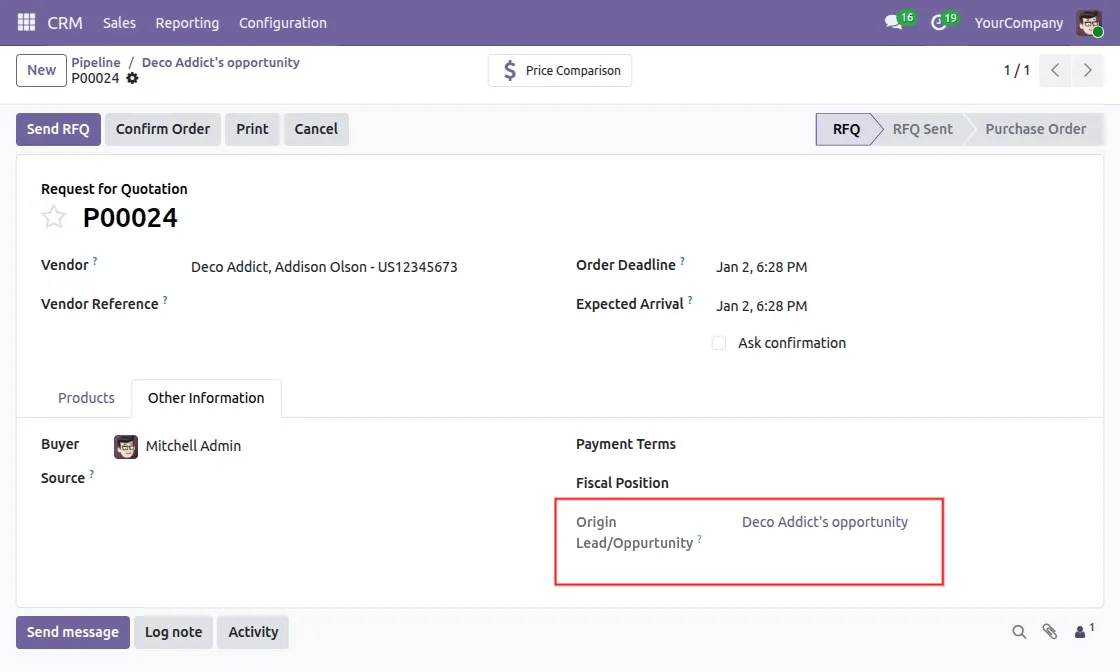
- Automatically link each Purchase Quotation to its originating CRM Lead
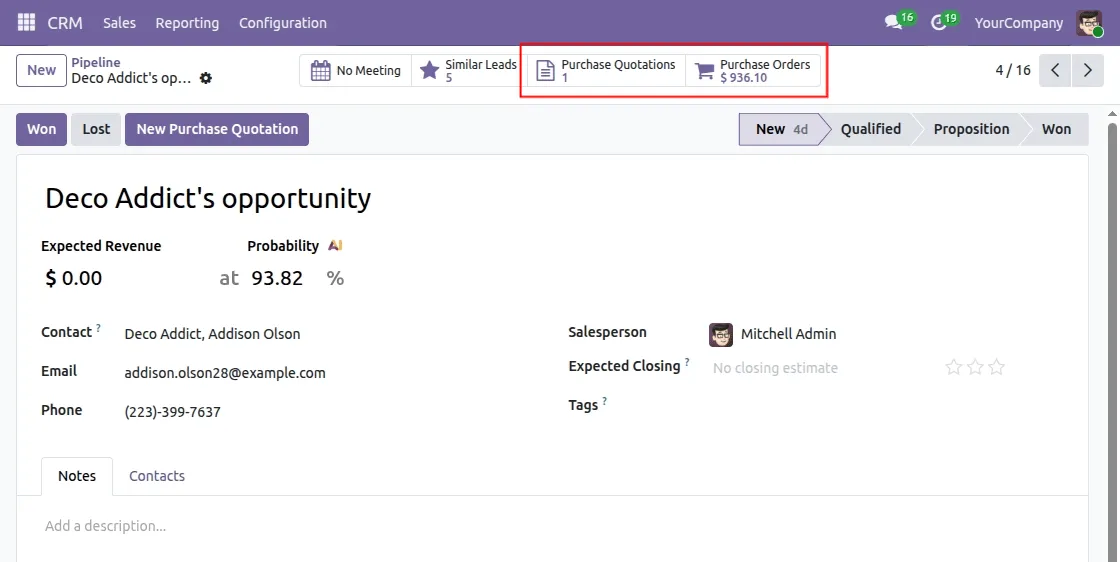
- View related Purchase Quotation and Orders directly from the CRM Lead for better tracking
- Control access based on standard Odoo CRM and Purchase user roles
- Works with native Odoo CRM and Purchase workflows without process changes
Installation
- Once you purchase the App from Webkul store, you will receive a link to download module’s zip file.
- Extract the file on your system after download finishes. As a result, you will be able to see a folder named- ‘wk_purchase_crm’
- Copy and paste this folder inside your Odoo Add-Ons path.
- Now, open Odoo App and click on the Settings menu. Here, click on Activate Developer Mode.
- Then, open Apps menu and click on ‘Update Modules List.’
- In the search bar, remove all the filters and search ‘wk_purchase_crm’
- You will be able to see module in the search results. Click on ‘Activate’ to install it.
Workflow
- Open any lead or pipeline to view all the details
- Click on the New Purchase Quotation button at the top.

- You will see a pop-up to link to any existing customer or create a new customer.
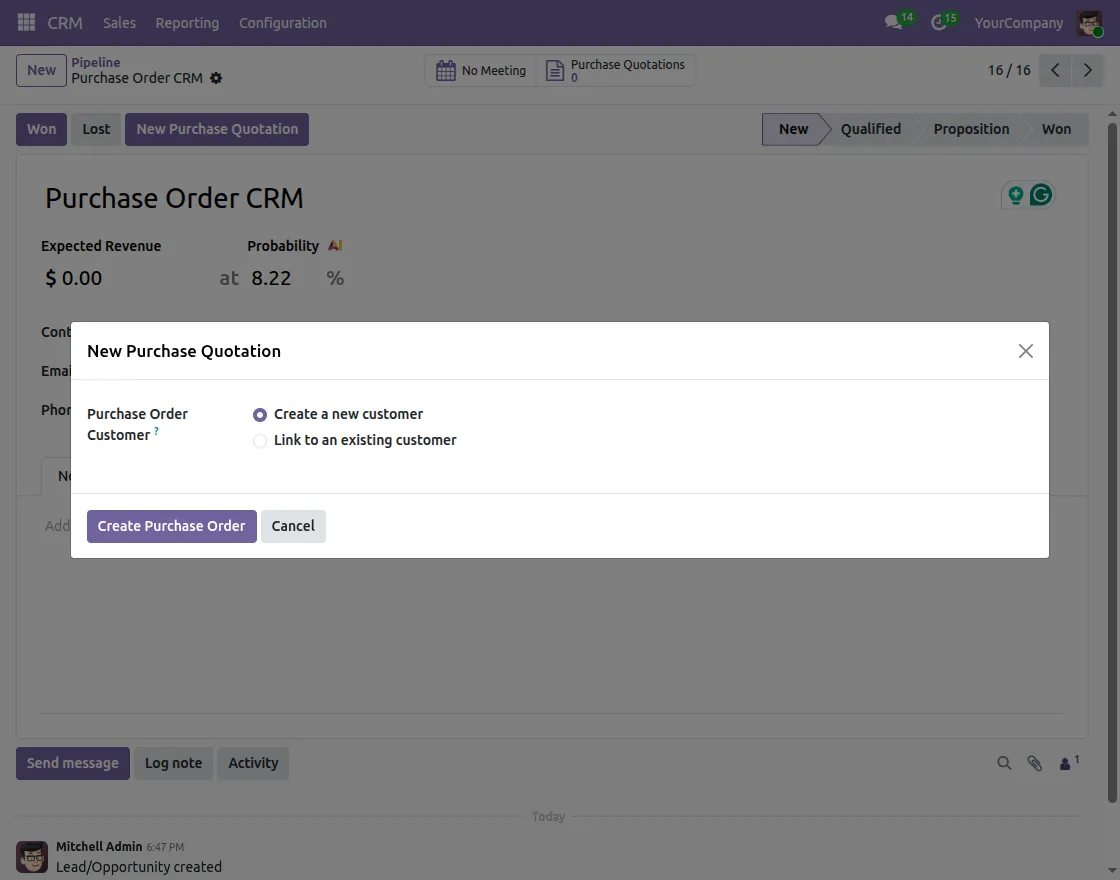
- Click on the Create Purchase Order button and add the products manually in the order line.
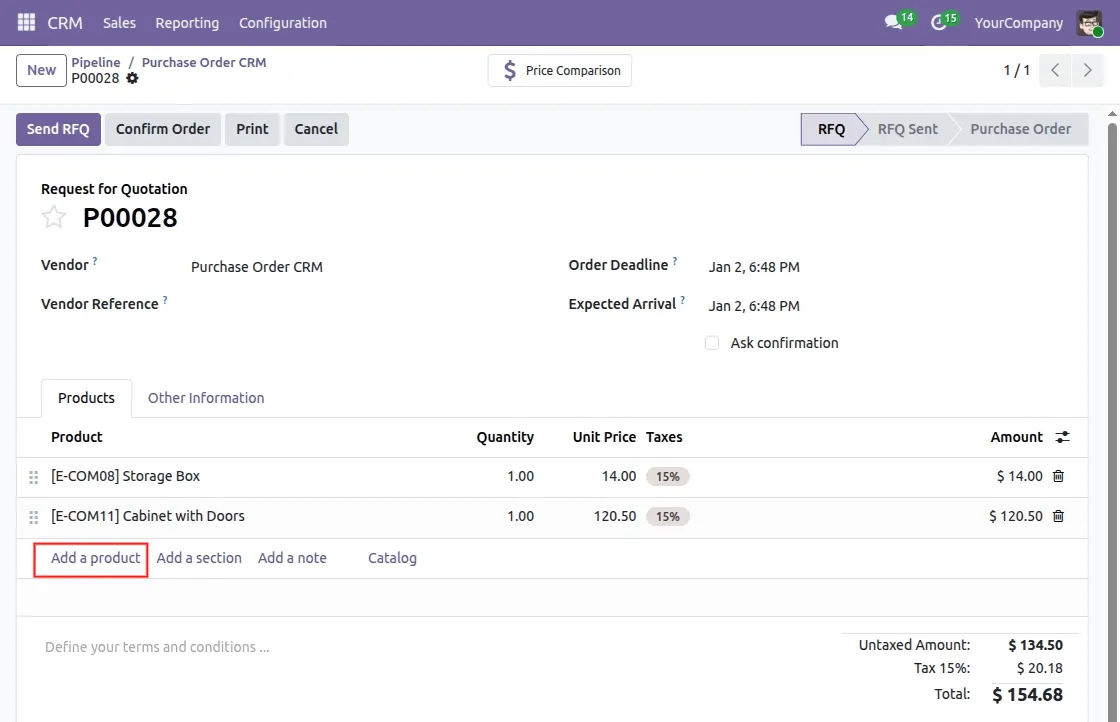
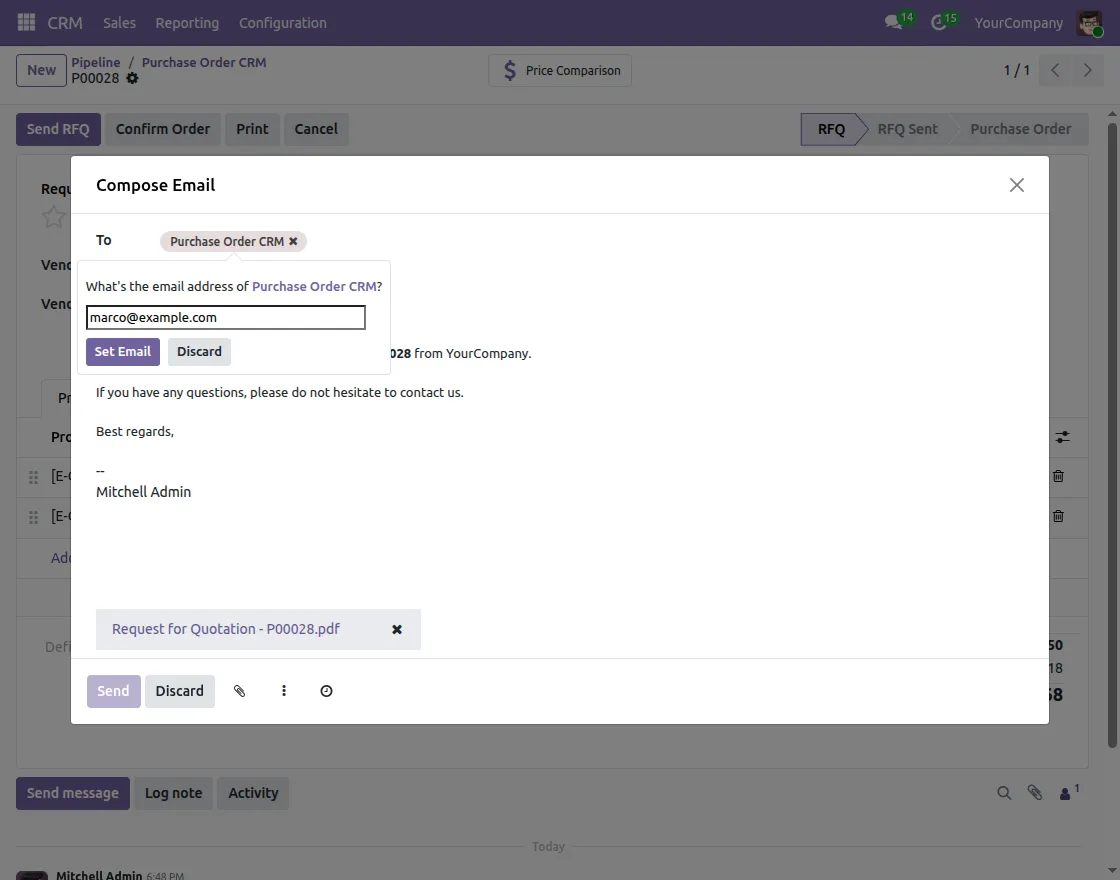
- Click on the Send RFQ button to send the quotation to the client.
- If a new customer is selected, you need to set the email id of the customer and send the quotation.
- All the quotations are linked to the lead they originated from.
- You can also view all the quotations and the order amount in the Lead
Need Help?
Hope you find guide helpful! Please feel free to share your feedback in the comments below.
If you still have any issues/queries, please create a ticket at the UV Desk.
I hope this helps. In case of any further queries, contact us at our support mail.
Thanks for paying attention!!
Current Product Version - 1.0.0
Supported Framework Version - Odoo V19, Odoo V18, Odoo V17


Be the first to comment.