Introduction
ERPNext Website Product Stock helps businesses display live product stock availability on the ERPNext Webshop. Customers can easily see whether a product is In Stock, Low Stock, or Out of Stock before placing an order.
The module lets businesses customize stock messages, badge colors, and stock display settings to match their website. It can also show the available stock quantity and use different stock rules for individual products.
Businesses can control product ordering by hiding the Add to Cart button for out-of-stock items. The module also supports warehouse groups, product-specific stock settings, and automatically handles non-stock and backorder products without changing the standard ERPNext webshop process.
Prerequisites for using ERPNext Website Product Stock
ERPNext module name works in conjunction with the following module:
You must install the above-mentioned module to use the ERPNext Website Product Stock.
Features
- Display live stock badges on webshop product listing pages.
- Show stock status on individual product pages.
- Display In Stock, Low Stock, and Out of Stock status.
- Customize stock badge colors and status messages.
- Show live stock quantity using the {qty} placeholder.
- Display stock status, stock quantity, or both together.
- Configure custom stock rules for individual Website Items.
- Select a display warehouse for product-specific stock.
- Hide the Add to Cart button for out-of-stock products.
- ERPNext Website Product Stock supports stock calculation across warehouse groups.
- Automatically treat non-stock items as always available.
- Skip stock badges for products that allow backorders.
Insatallation
1. After purchasing the app from the Webkul store, you will receive a link to download the module ZIP file.
2. Extract the downloaded ZIP file, and you will see a folder named ‘ErpNext_Website_Product_Stock’.
3. Set up the module in your Git repository.
4. If the app is hosted on GitHub, fetch it using the command:
bench get-app --branch main

https://github.com/your_account/ErpNext_Website_Product_Stock.git
(Replace “main” with your branch name and replace the “HTTPs URL” with your HTTPS clone URL.)
5. Install the app on your site using the command:
bench --site <your-site_name> install-app ErpNext_Website_Product_Stock
6. Finally, run the “bench migrate” command to complete the installation.
Workflow
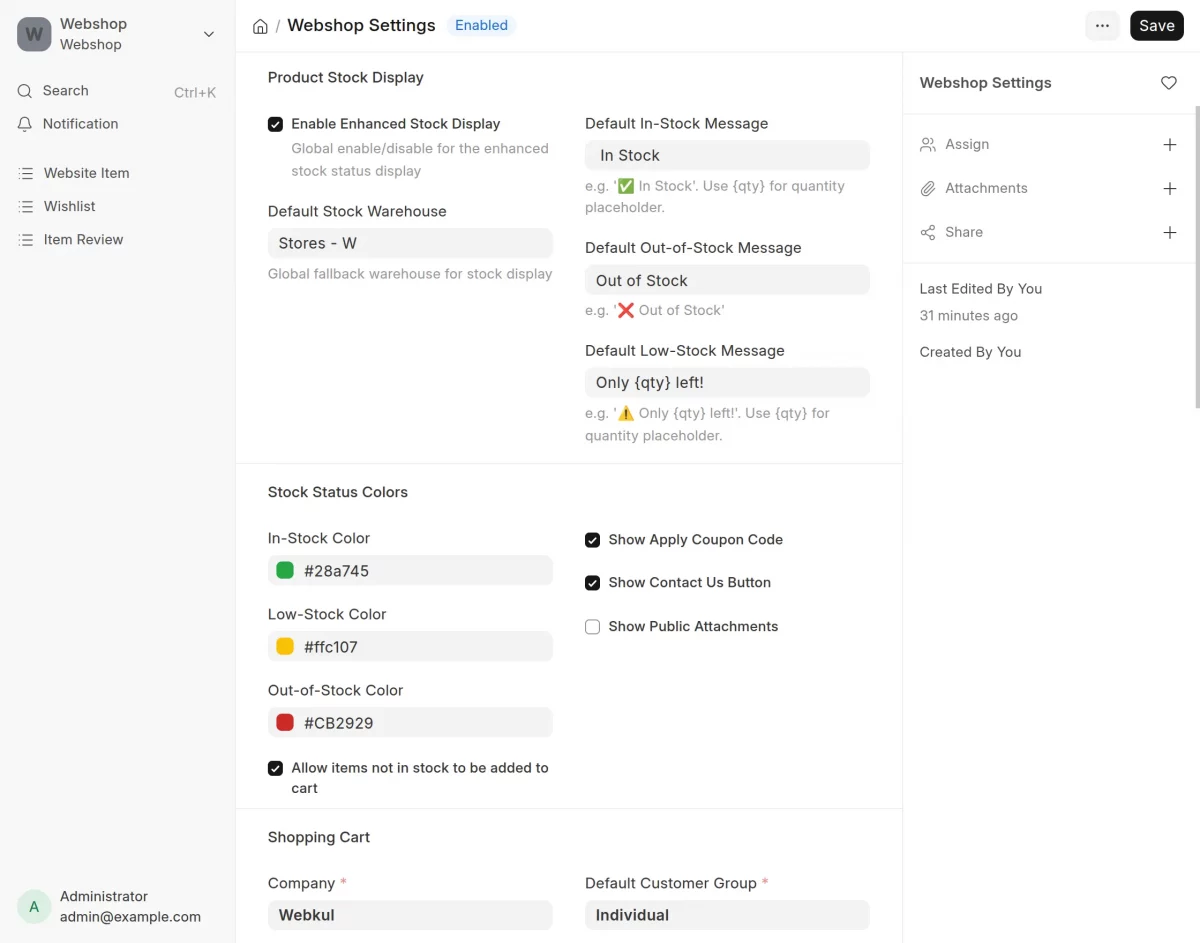
1. First, open Webshop Settings from the ERPNext backend and scroll down to the Product Stock Display section. Here, you can configure ERPNext Website Product Stock.
You can set the Default Stock Warehouse, Default In Stock Message, Default Low Stock Message, and Default Out of Stock Message.
You can also customize the Stock Status Colours and enable or disable options such as the Apply Coupon Code button, Contact Us button, and Show Public Attachments button according to your requirements.
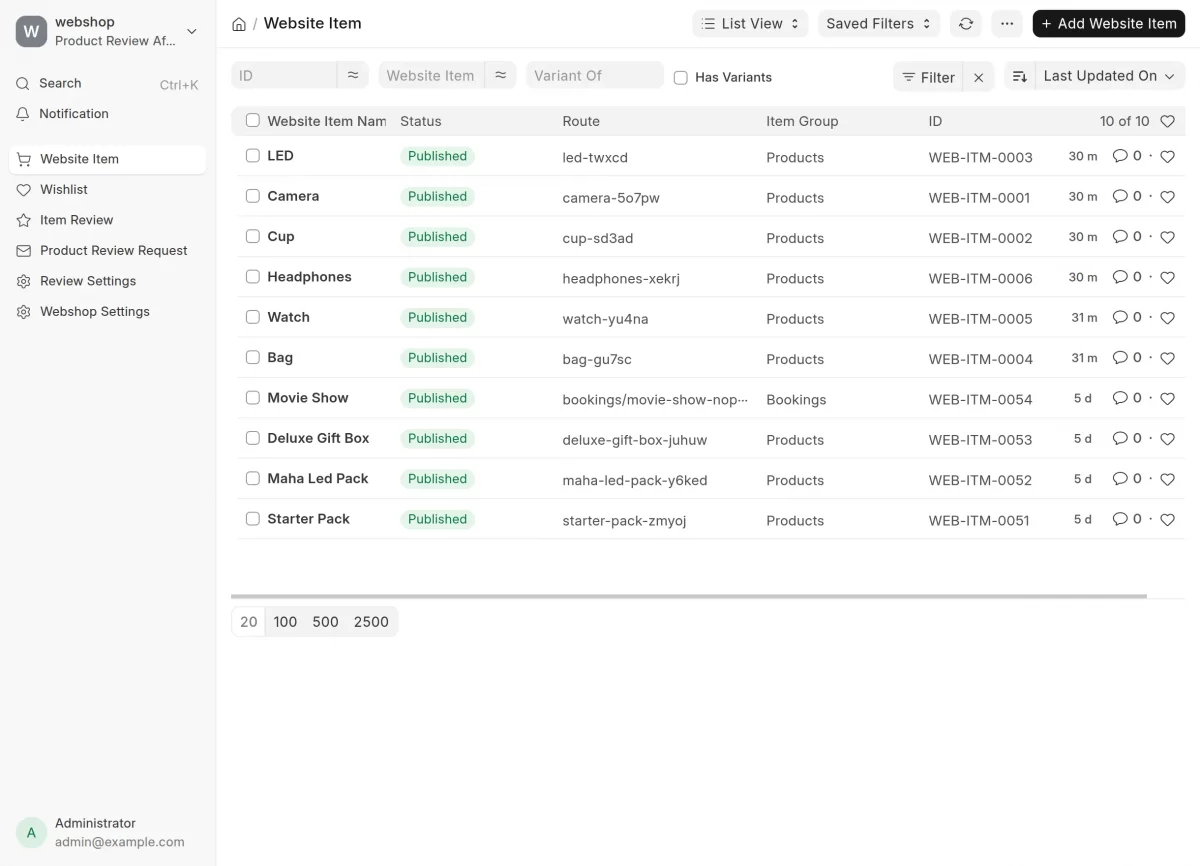
2. Next, click on Website Item to open the Website Item List. From the list, select the Website Item you want to configure.
This will open the item’s details, where you can manage its stock display settings.
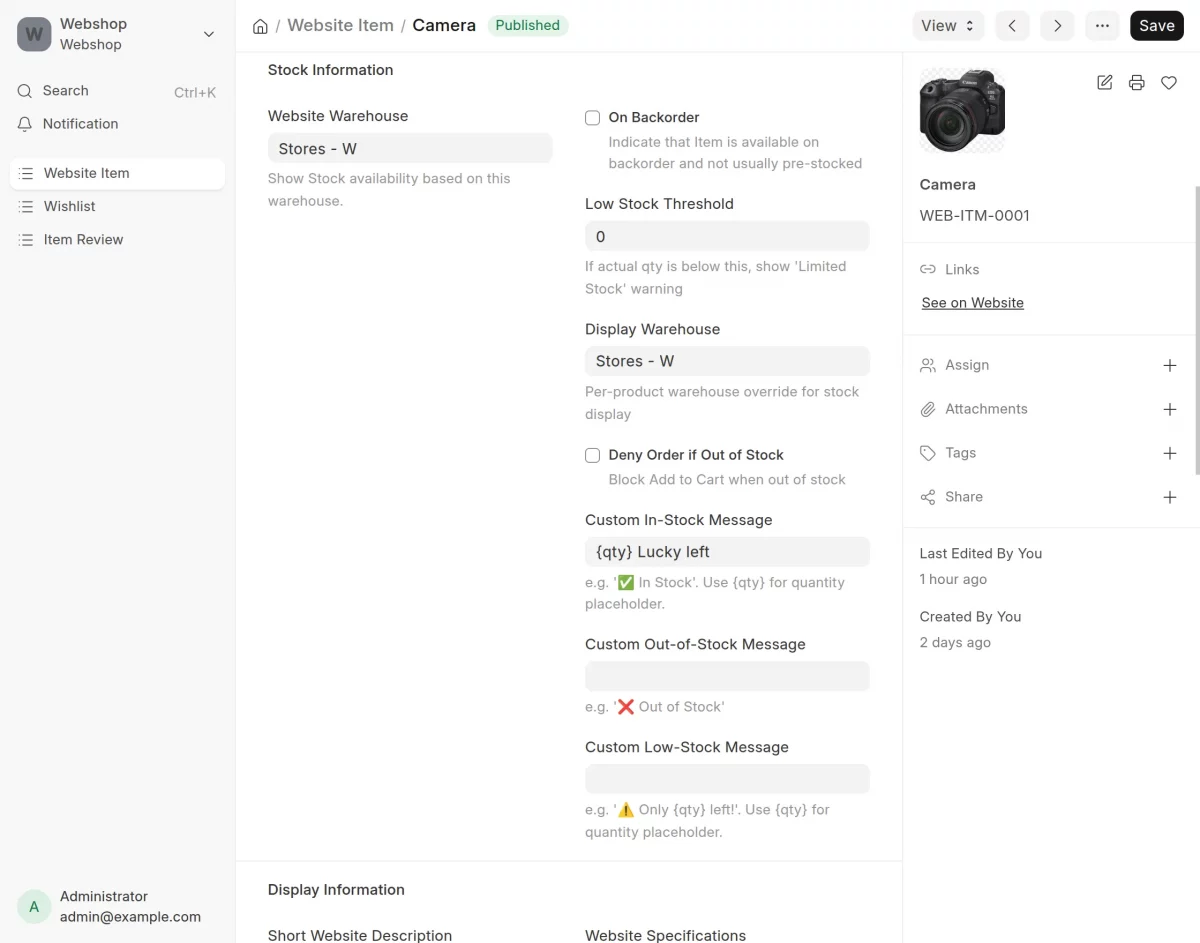
3. After selecting the Website Item, scroll down to the Stock Information section.
Here, you can configure stock settings for that specific product by setting the Low Stock Threshold, Display Warehouse, Custom In Stock Message, Custom Low Stock Message, and Custom Out of Stock Message.
These settings override the default stock display configuration for the selected product.
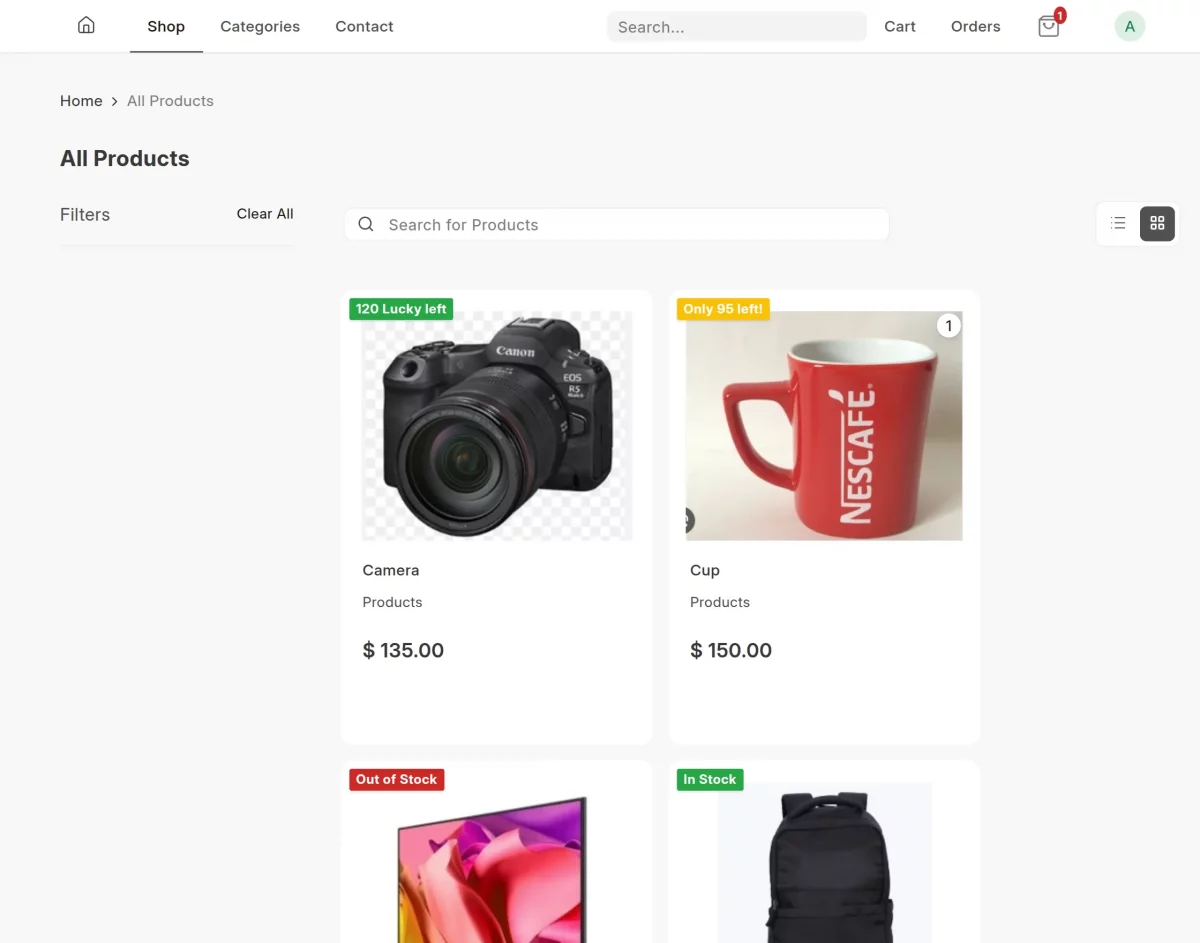
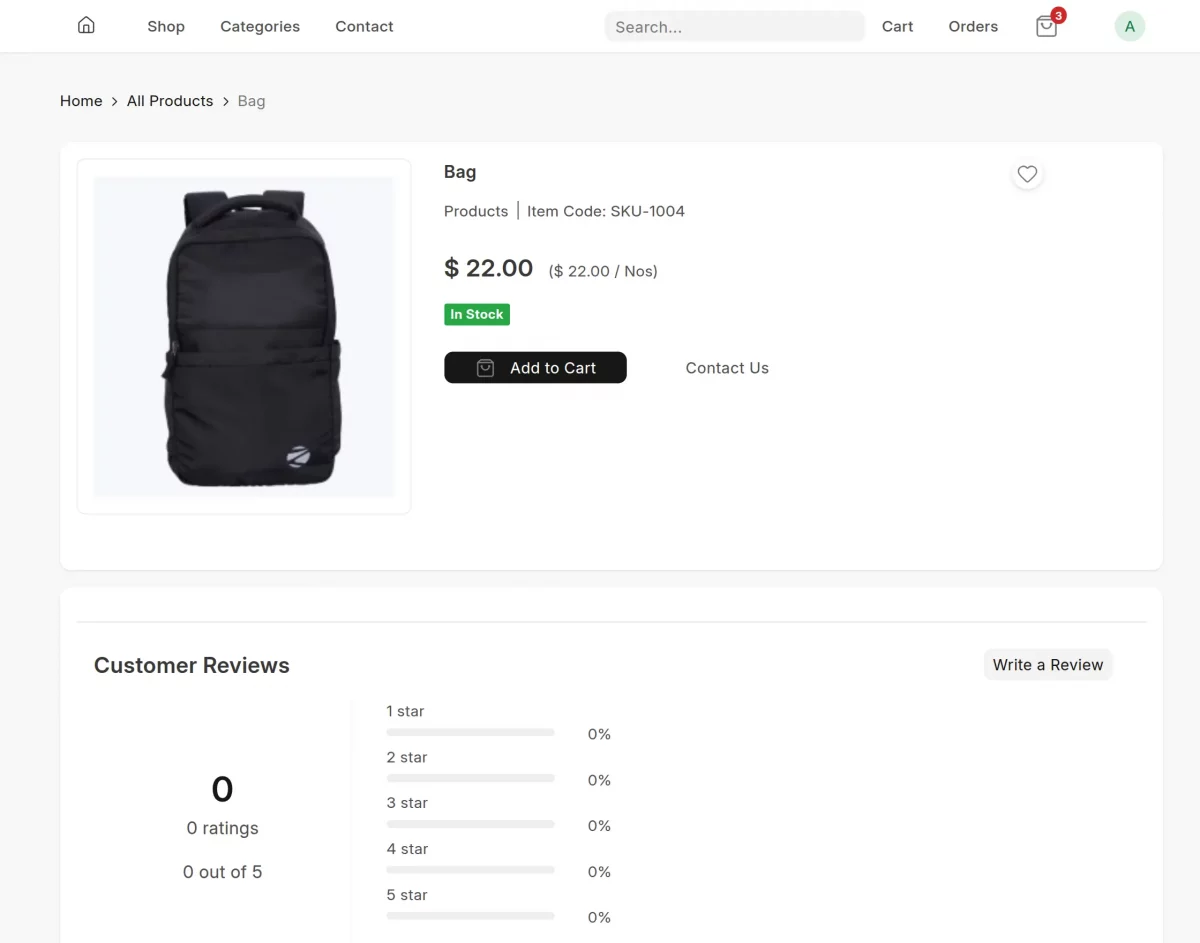
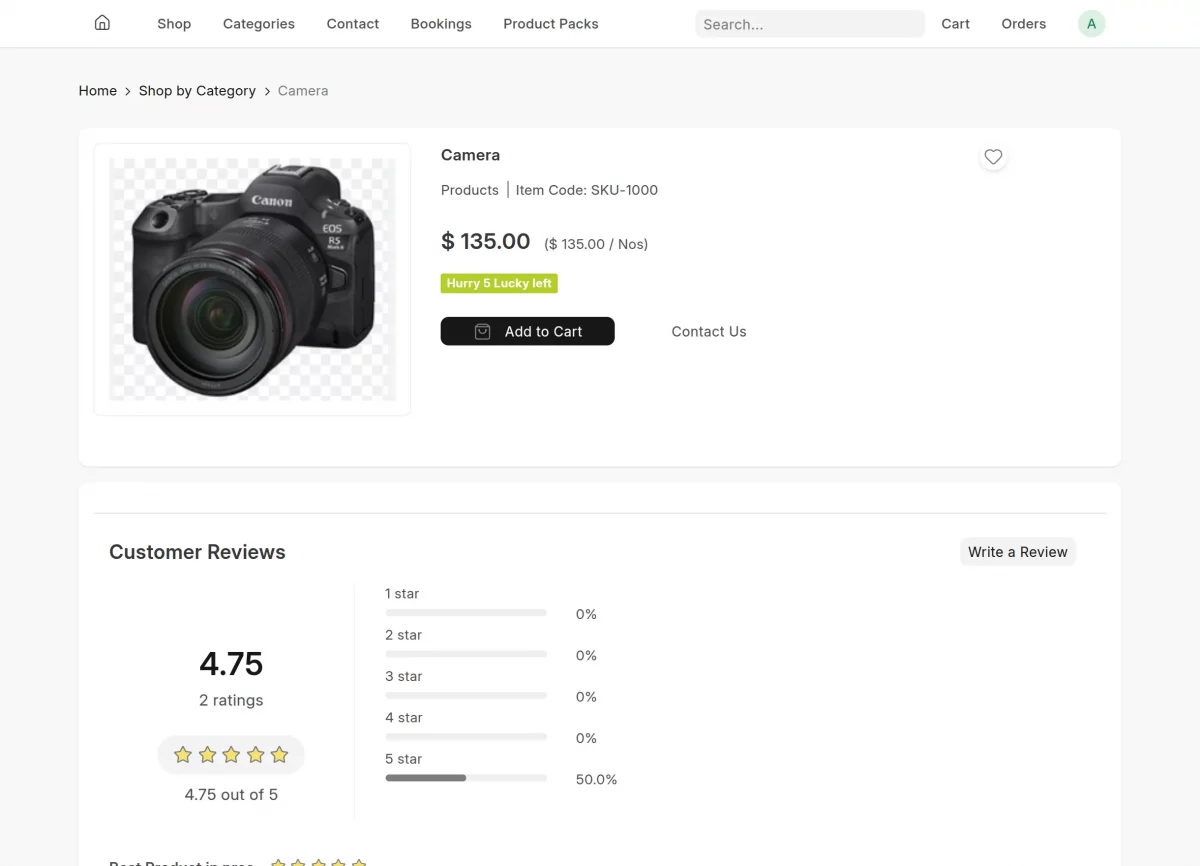
4. After saving the stock settings, the stock status will be displayed on the Webshop.
As a result, customers will be able to see the current availability of each product.
5. For In Stock and Low Stock products, the product page remains available, and customers can place an order normally.
Moreover, for Low Stock products, the quantity selected must be equal to or less than the available stock quantity shown on the product page.
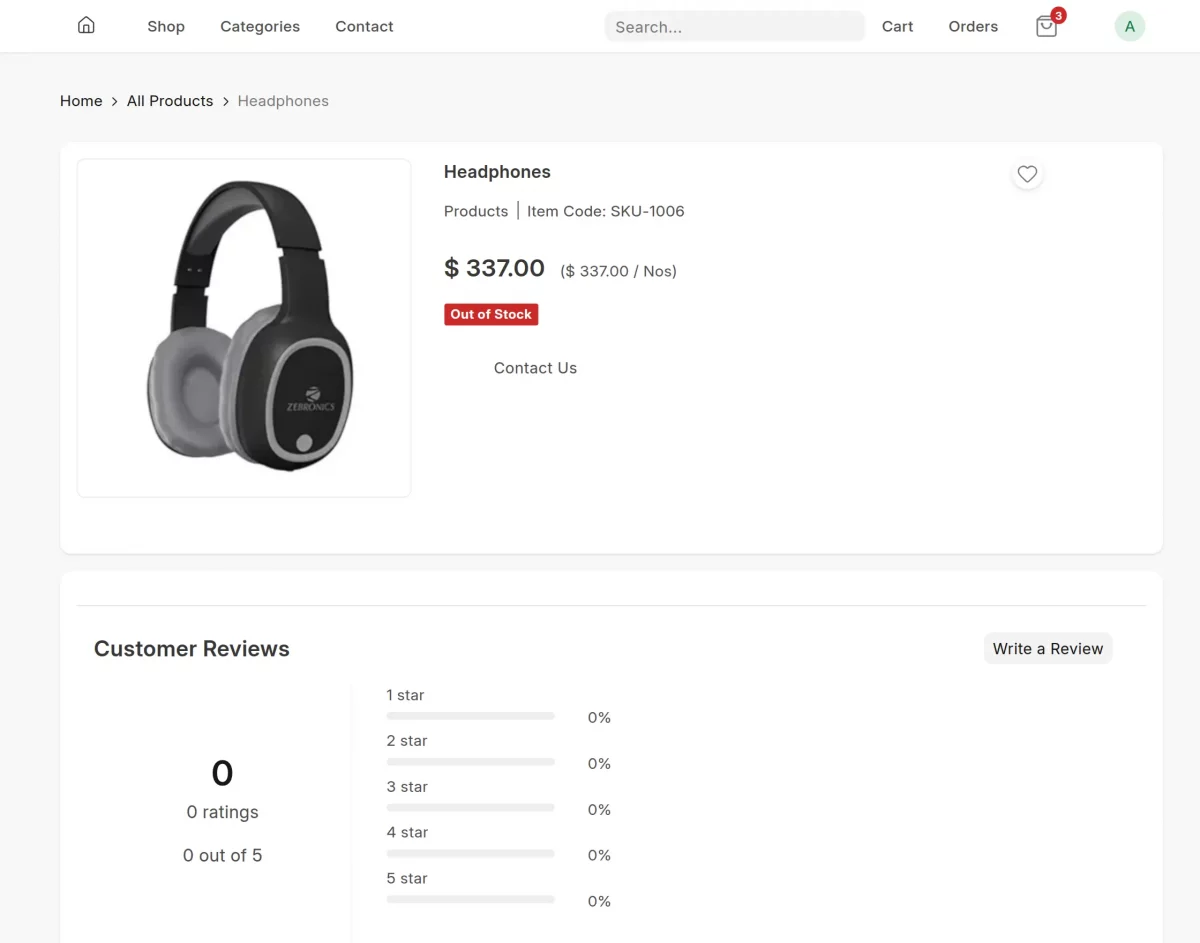
6. For out-of-stock products, the Add to Cart button is automatically hidden, preventing customers from placing an order for an unavailable product.
Accordingly, the Out of Stock message is also displayed to clearly inform customers that the product is currently unavailable.
Need Help?
Hope you find guide helpful! Please feel free to share your feedback in the comments below.
If you still have any issues/queries, please create a ticket at the UV Desk.
I hope this helps. In case of any further queries, contact us at our support mail.
Thanks for paying attention!!
Current Product Version - 0.0.1
Supported Framework Version - ERPNext V16

Be the first to comment.