Prestashop Product Comparison: Make customers’ purchase process easier by letting them compare similar products.
Present products alongside each other in a table so the customers can analyze the main features and purchase the right product.
- Allows customers to compare the features and prices before making the purchase.
- Highlight product similarities and differences in a comparison table.
- Share the comparison list on social media platforms like Facebook, Twitter, Pinterest etc.
- Improve customers’ shopping experience and boost conversions.
Note:
- Prestashop Product Comparison module is compatible with PrestaShop multi-store feature.
- Prestashop Product Comparison module is compatible with catalog’s new product page.
FEATURES of Prestashop Product Comparison
- Limit/Restrict the number of products to compare at a time.
- Show best selling products from the same category for comparison on the product page.
- Show popular products from the same category for comparison on the product page.
- Manually add the products that you want to show for comparison on the product page.
- Customize compare badge background & text colour, text size etc.
- Customize compare table background, border & highlight colour.
- Choose to enable/disable shadow of the comparison table.
- Products added in comparison table can be removed & table will update accordingly.
- Customize “Title and Description” of popup message when there are no products to compare.
- Choose to share the comparison through various social platforms i.e Facebook, Twitter, Pinterest etc.
- Choose to show compare badge at top right, top left, bottom right & bottom left positions of a page.
How to Install Prestashop Product Comparison
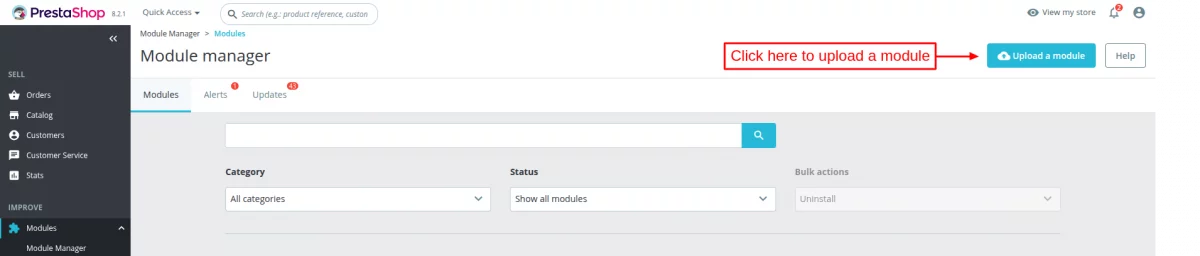
- Firstly, go to the module manager in the back office and click on ‘upload a module’.
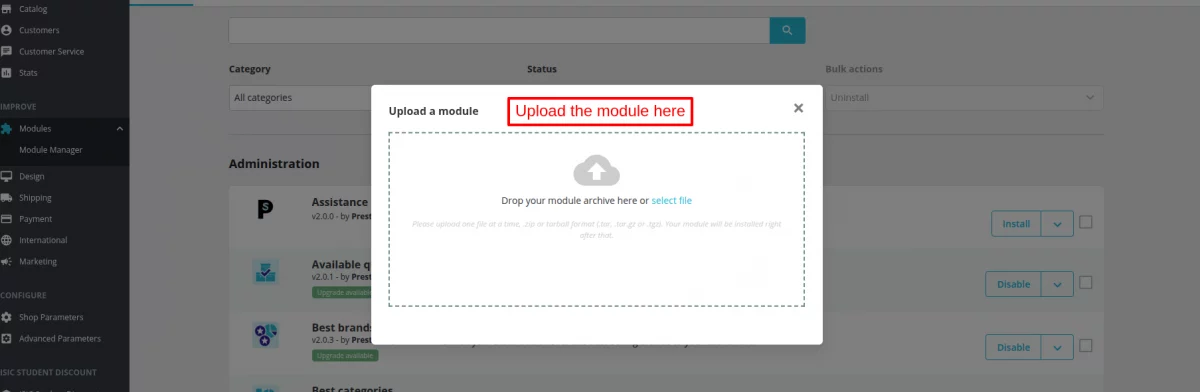
- After that, drag and drop the module file or select the file from the system.
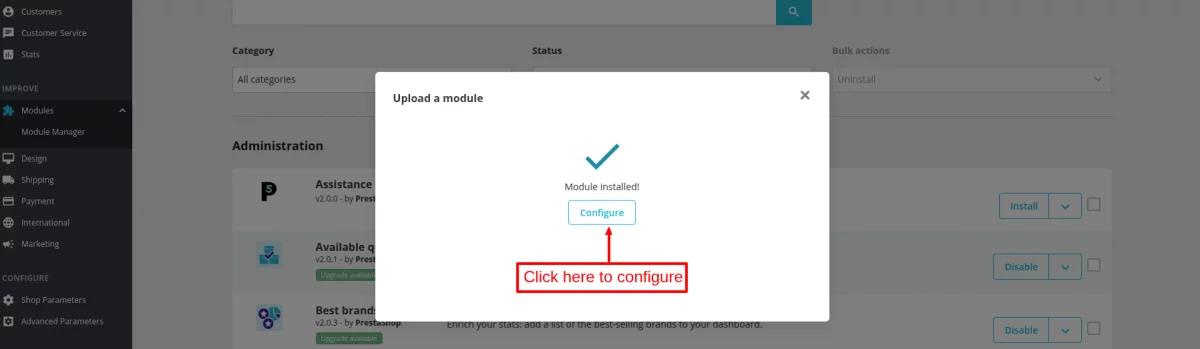
- In this way, the module installation will be successful.
CONFIGURATION
After successful installation of the module, admin needs to configure it.
General Settings
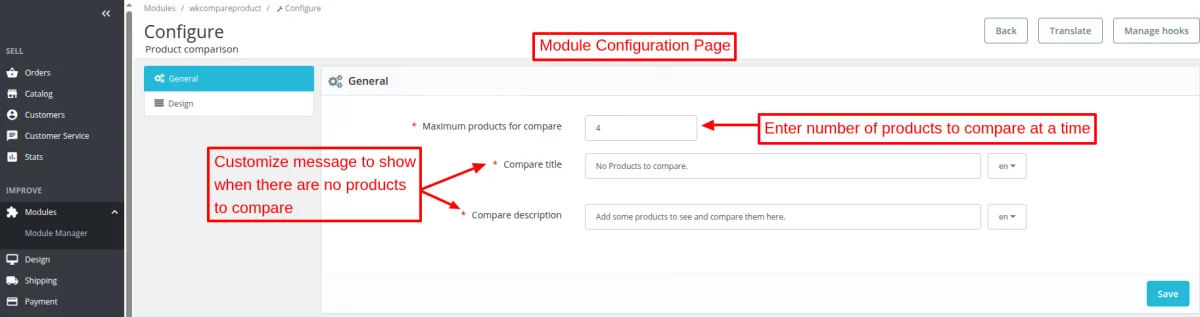
Under General Settings, admin can:
- Configure the number of products that can be compared at a time.
- Set a custom message to show on a popup when there are no products to compare.
Theme Setting
Under Theme Setting, admin can:
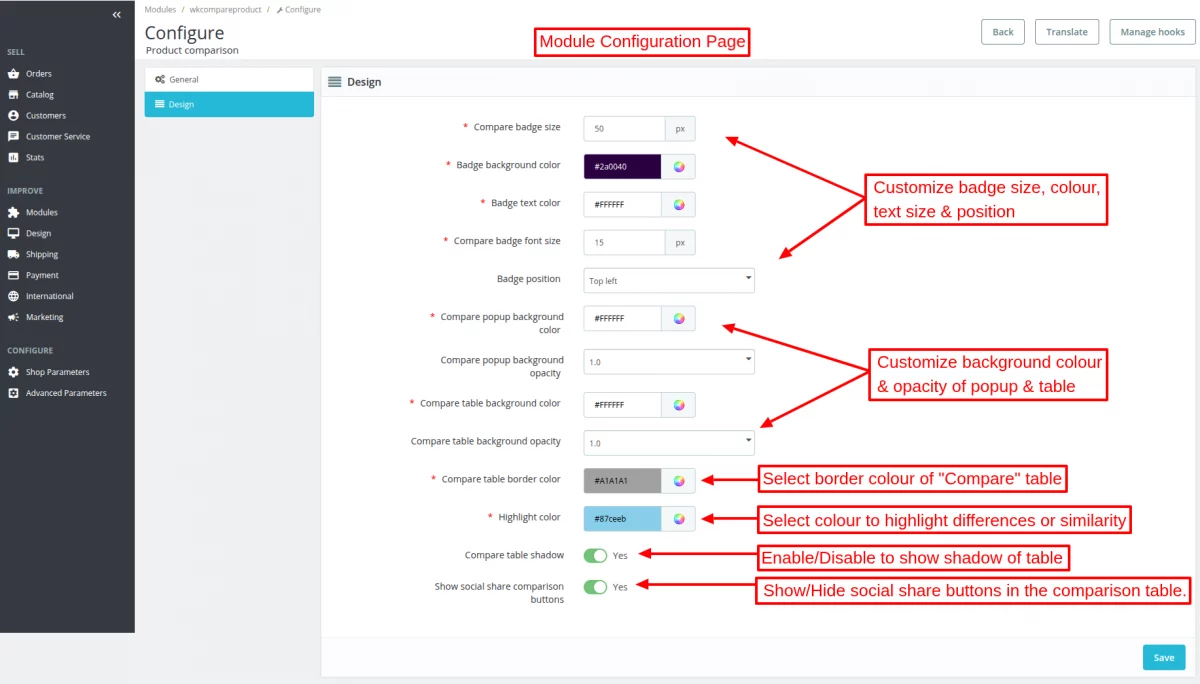
- Customize the appearance of compare badge by setting its size, background color, text color, and font size.
- Set the background color and opacity of compare popup.
- Select the background color, opacity, and border color for compare table.
- Enable to display shadow of the table.
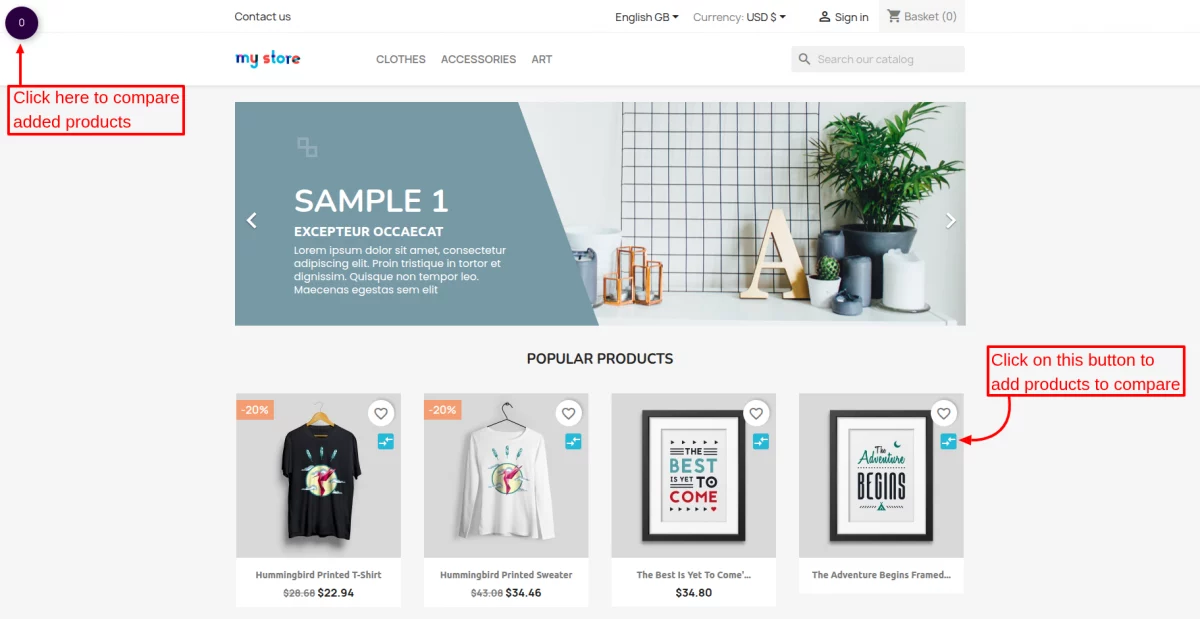
WORKFLOW
After configuring the module successfully, following options are added as shortcuts to compare products.
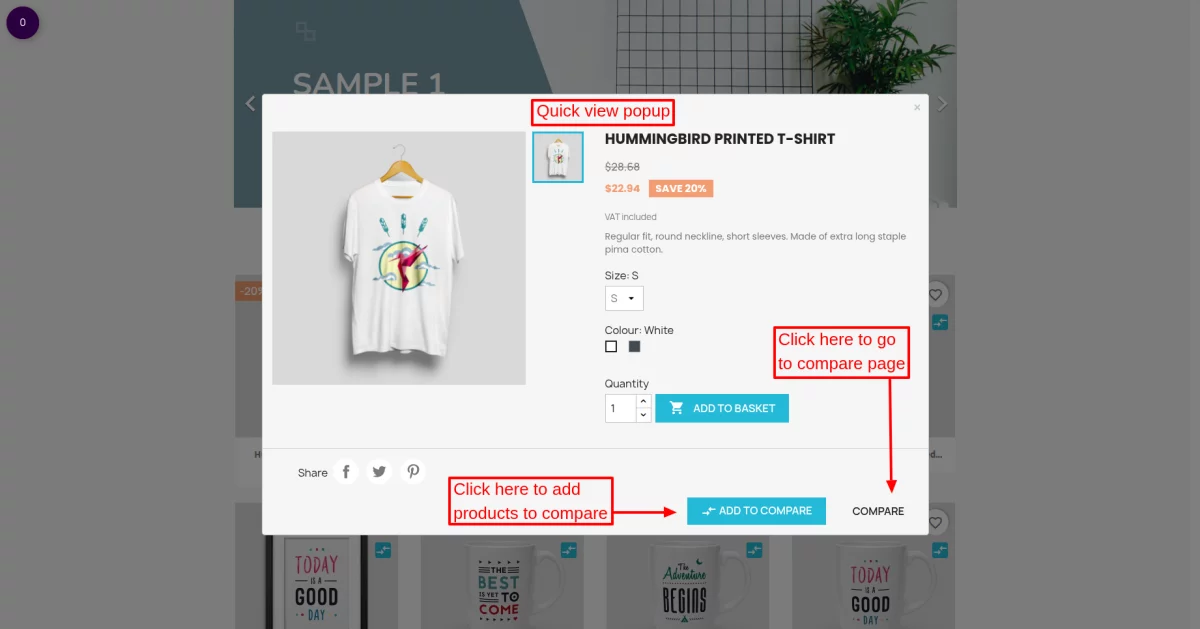
‘Add to compare’ and ‘Compare’ buttons are also available in quick view pop-up. A view of “quick view pop-up” is shown in the screenshot below.
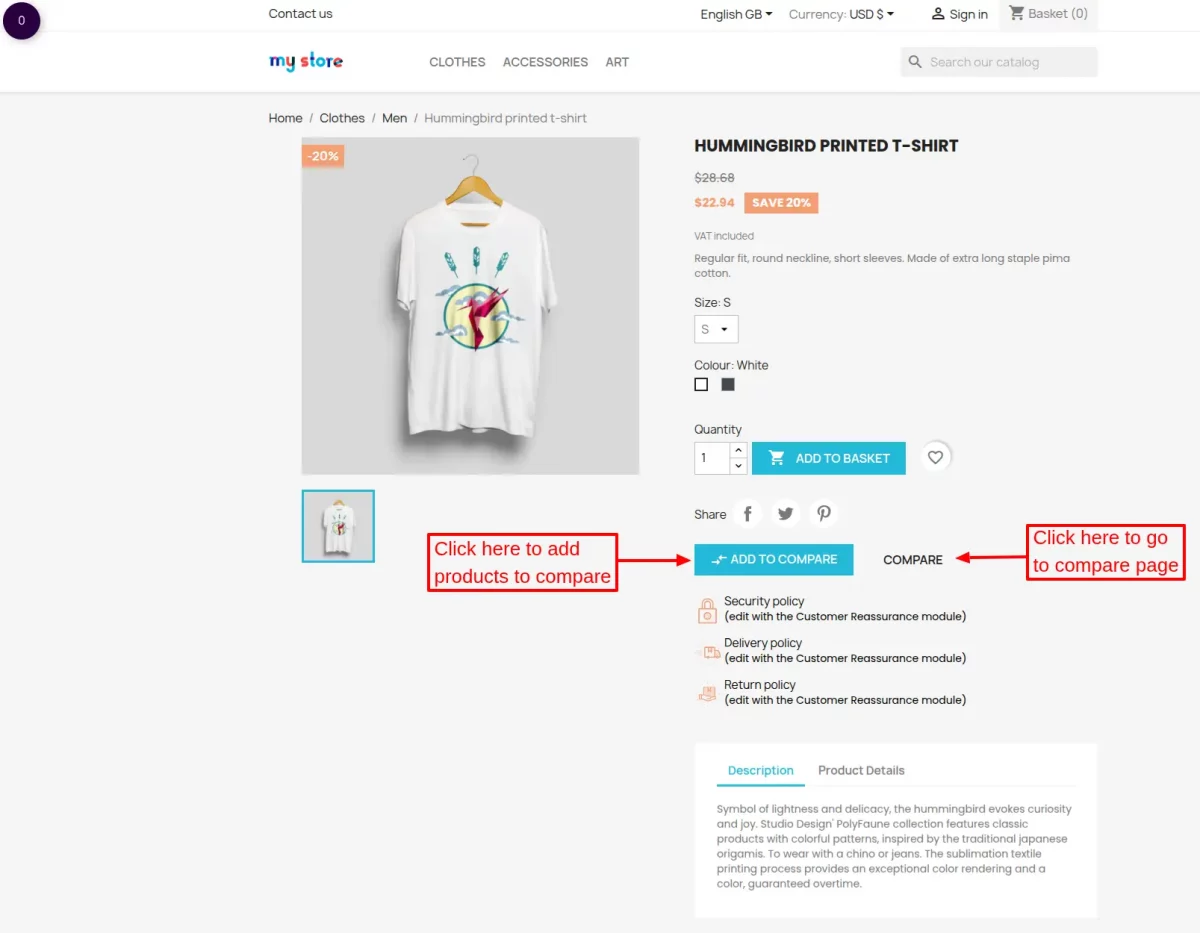
‘Add to compare’ & ‘Compare’ buttons are also available on the product page. A view of “Product Page” is shown in the screenshot below.
After clicking on compare badge, a popup will open containing comparison table of added products. The table has been shown in the screenshot below.
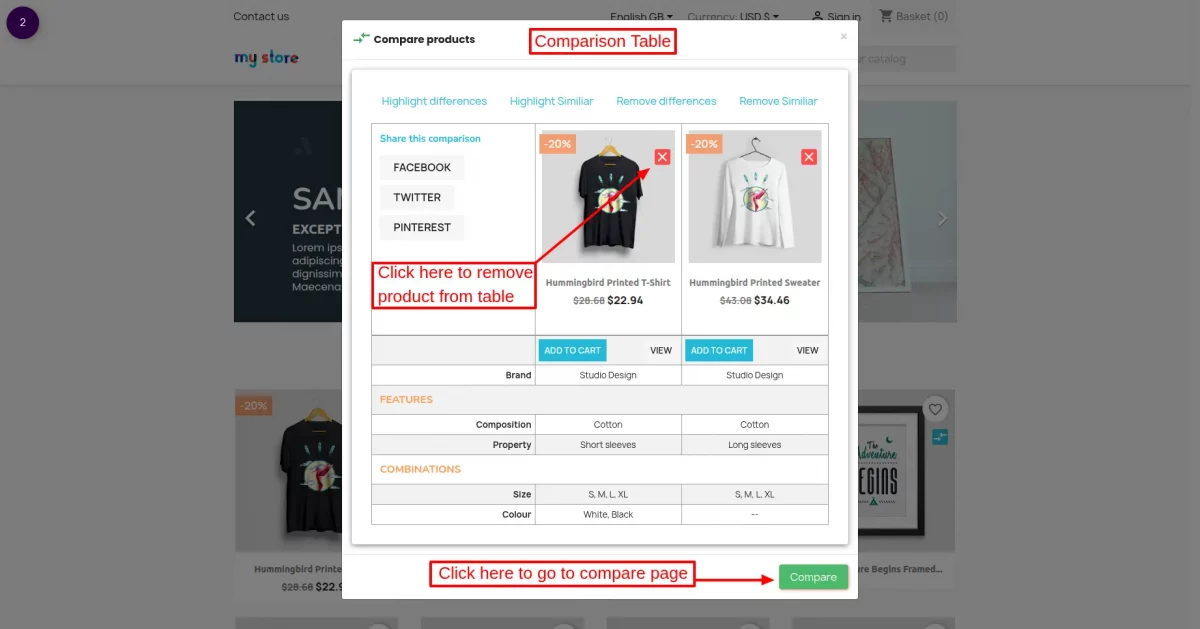
Upon clicking “Compare”, the page shown in screenshot below will open.
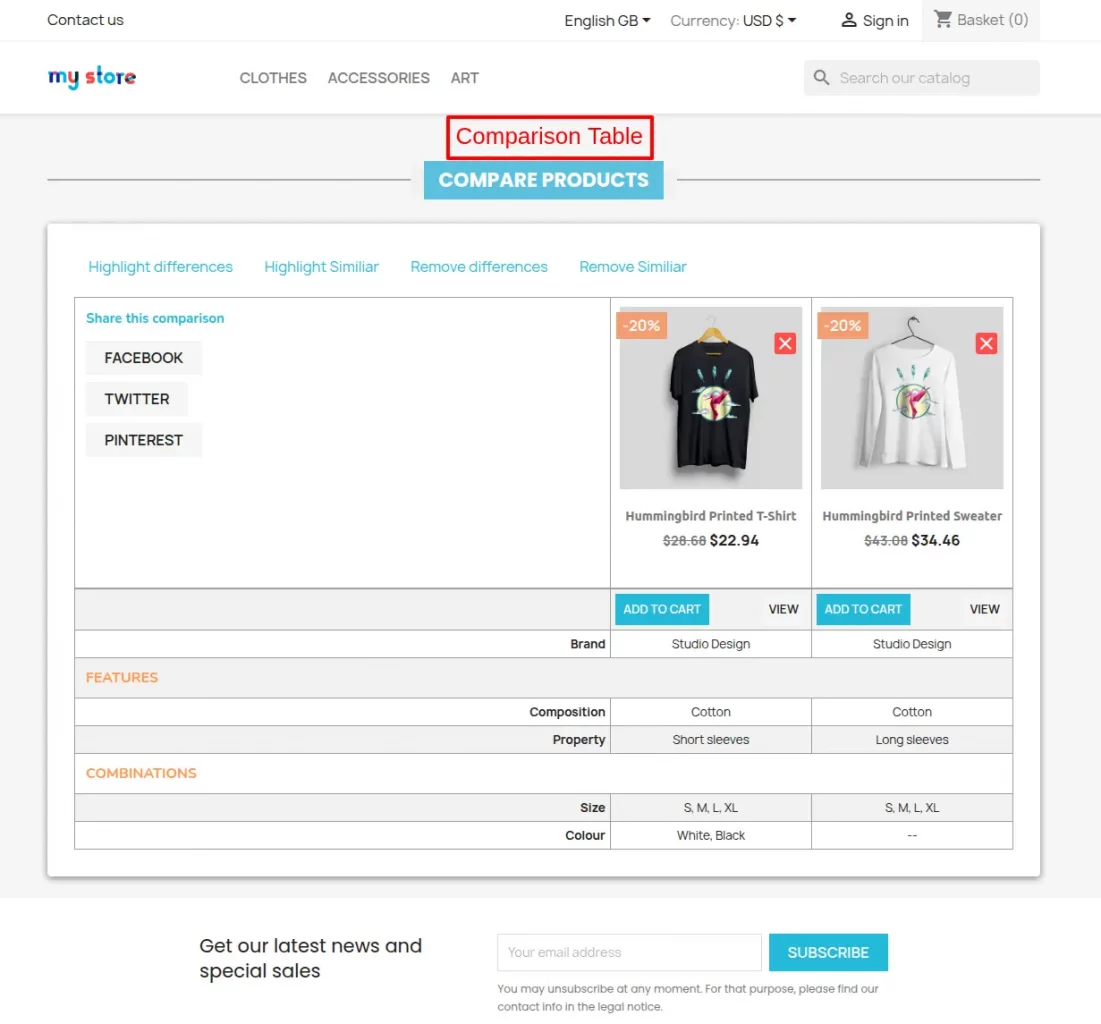
The options available in the table are as follows
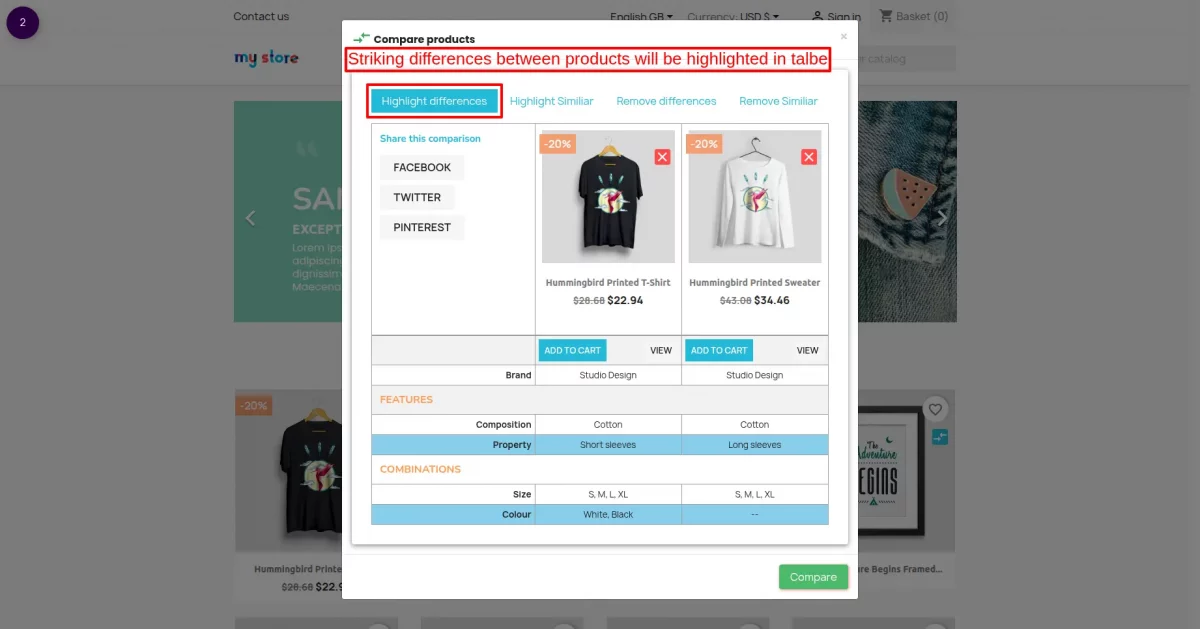
Highlight differences
This option highlights the differences between the products.
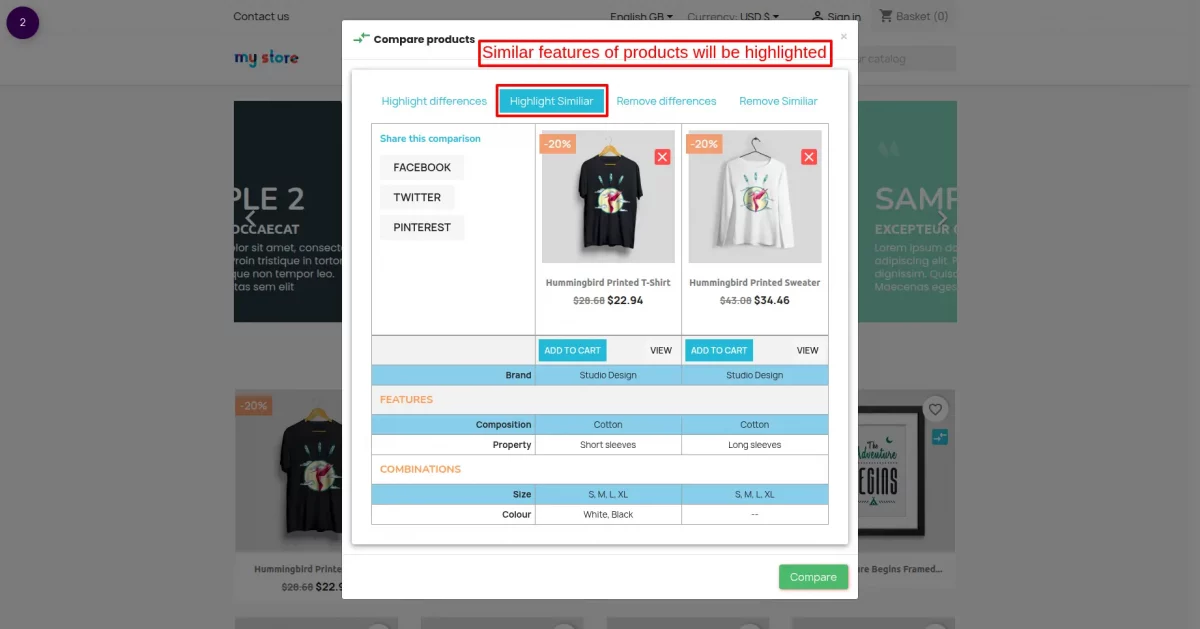
Highlight Similar
This option highlights the similarities between the compared products.
Remove differences
This option removes the differences between the compared products.
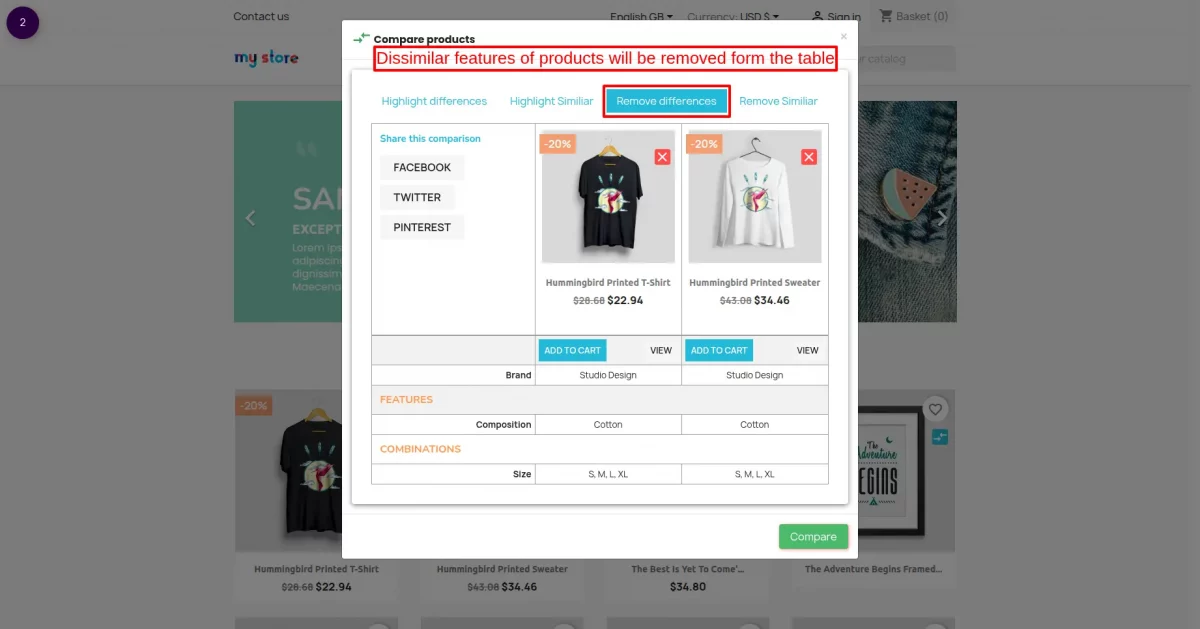
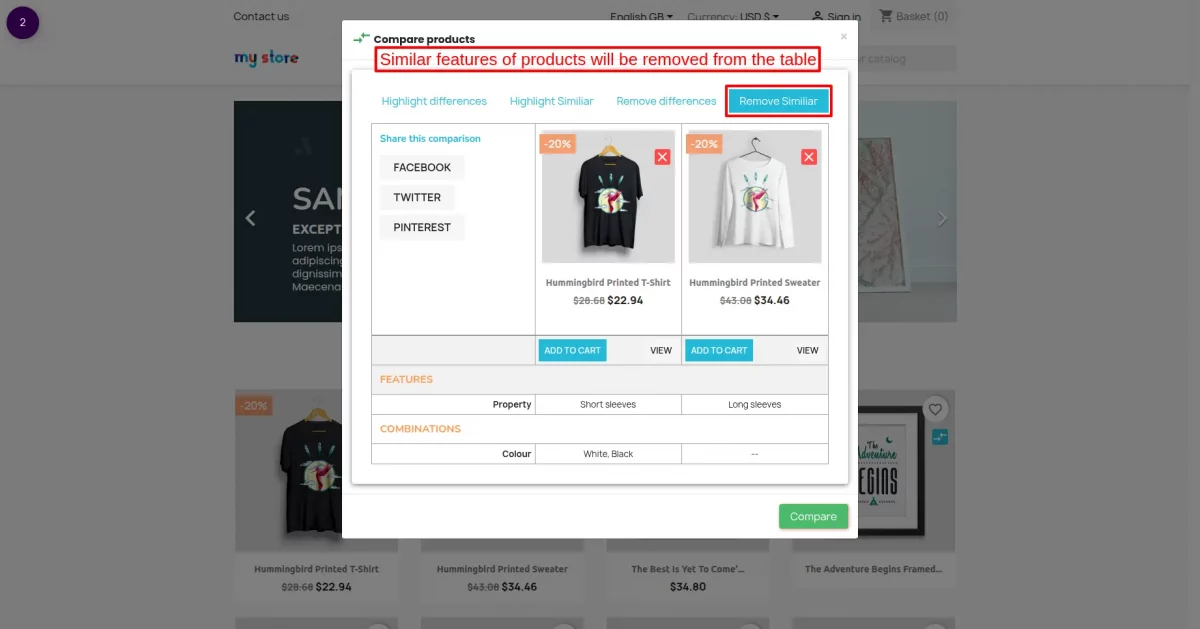
Remove Similar
This option removes the similarities between the compared products.
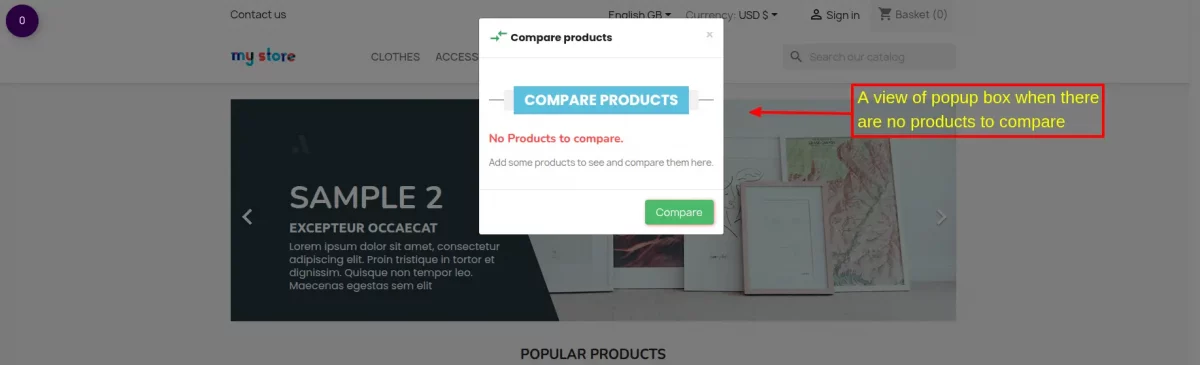
When there are no products to compare a popup will open upon clicking the compare badge button as shown in the screenshot below.
The message will display in a popup as set by admin from the back office.
Product Comparison Type
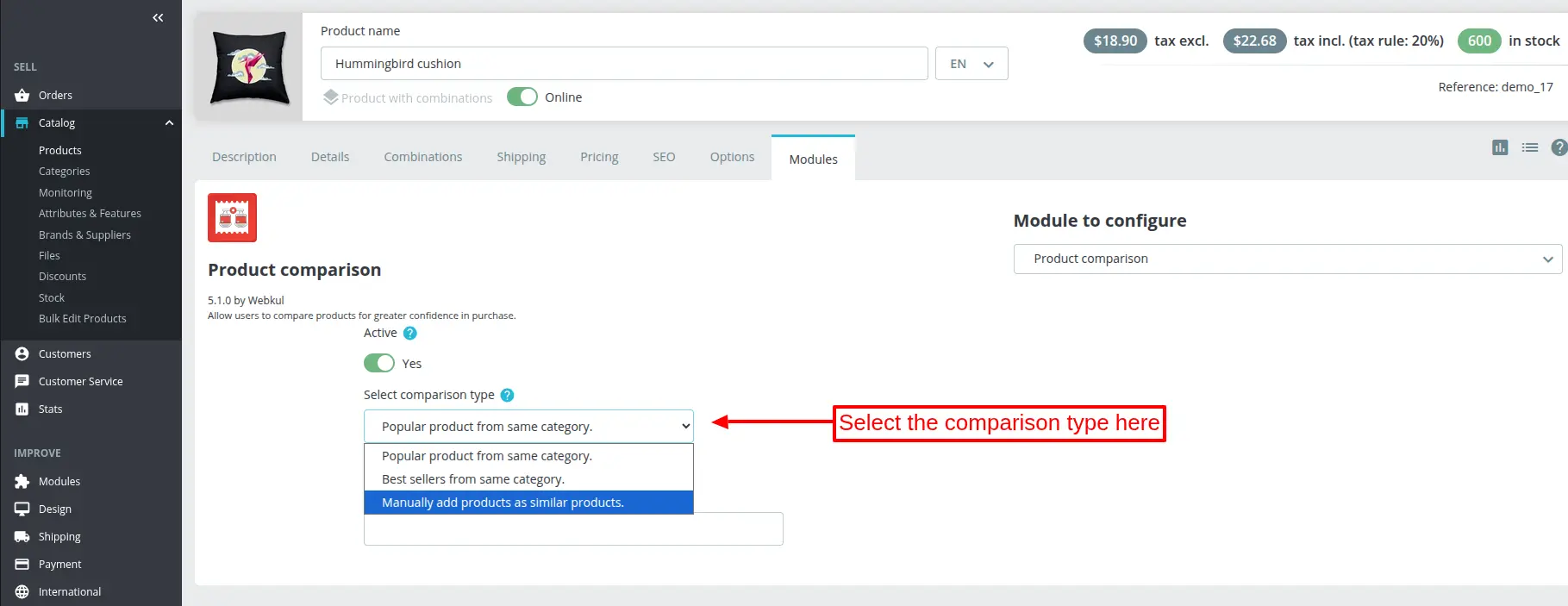
The admin can show the products that the customers can compare on the product page in 3 ways:
- Popular product from the same category
- Best sellers from same category
- Manually add products as similar products
Lets discuss these comparison types one by one.
To select the comparison type, go to Catalog -> Products -> Edit product -> Modules.
Manually add products as similar products
This comparison type lets admin manually select the products that he wants to show on the product page for comparison.
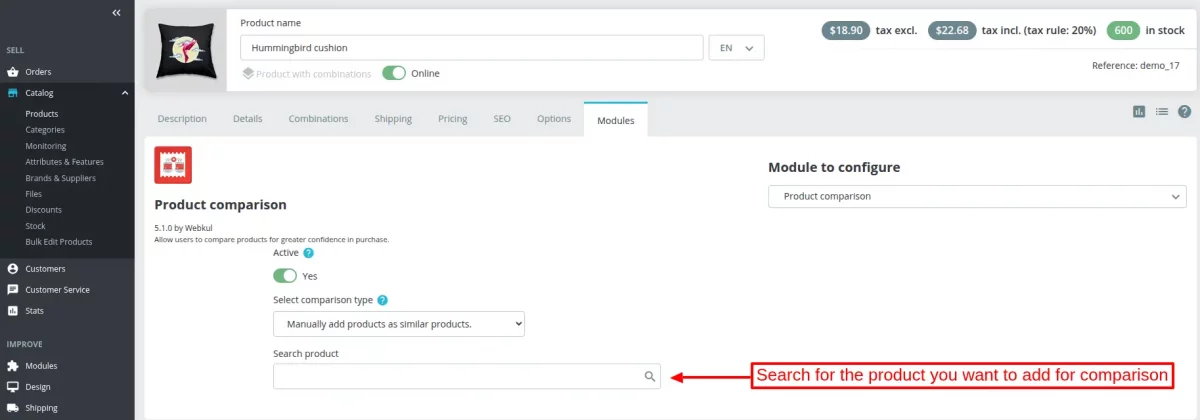
Search for the product that you want to add for comparison.
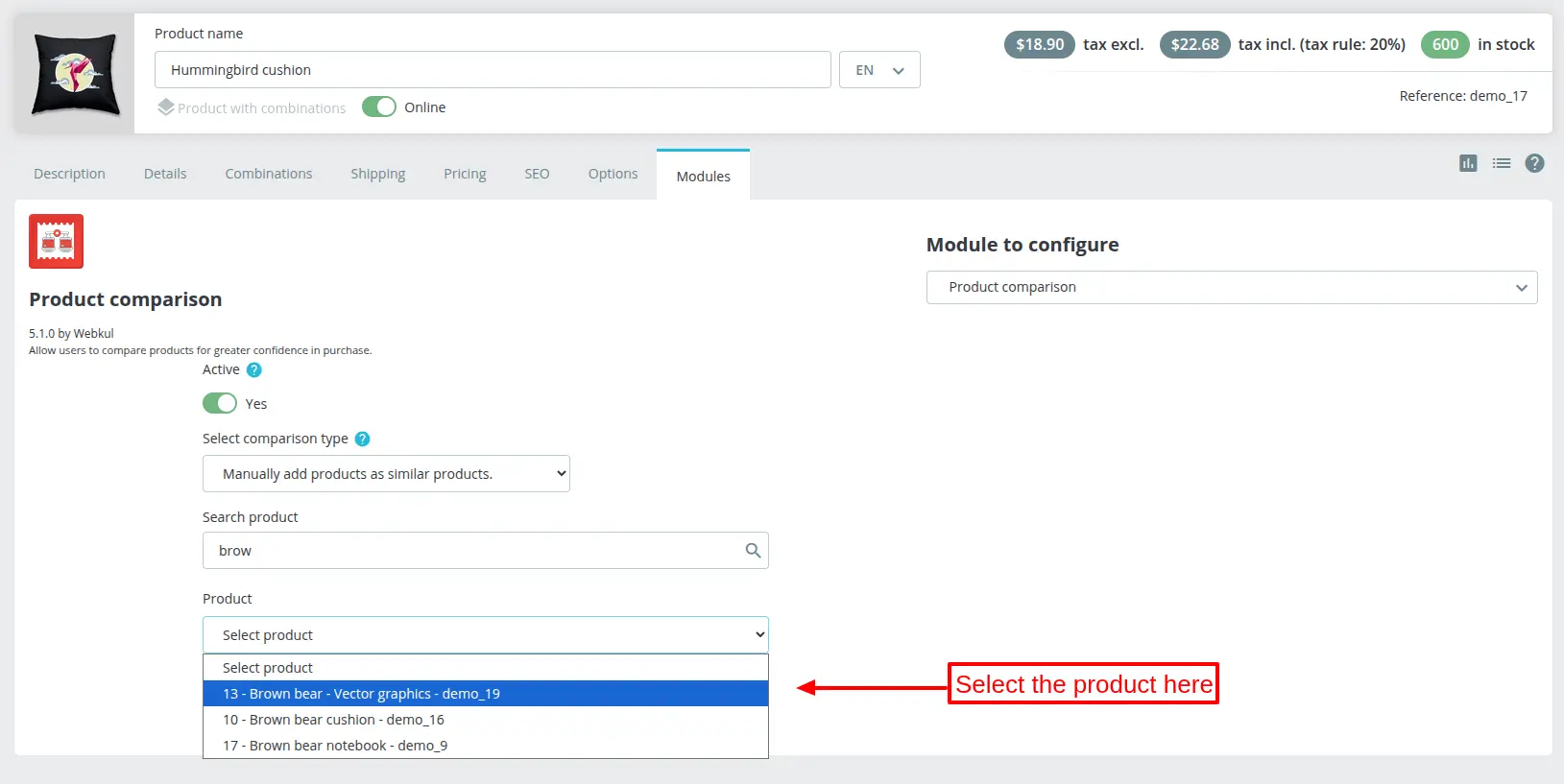
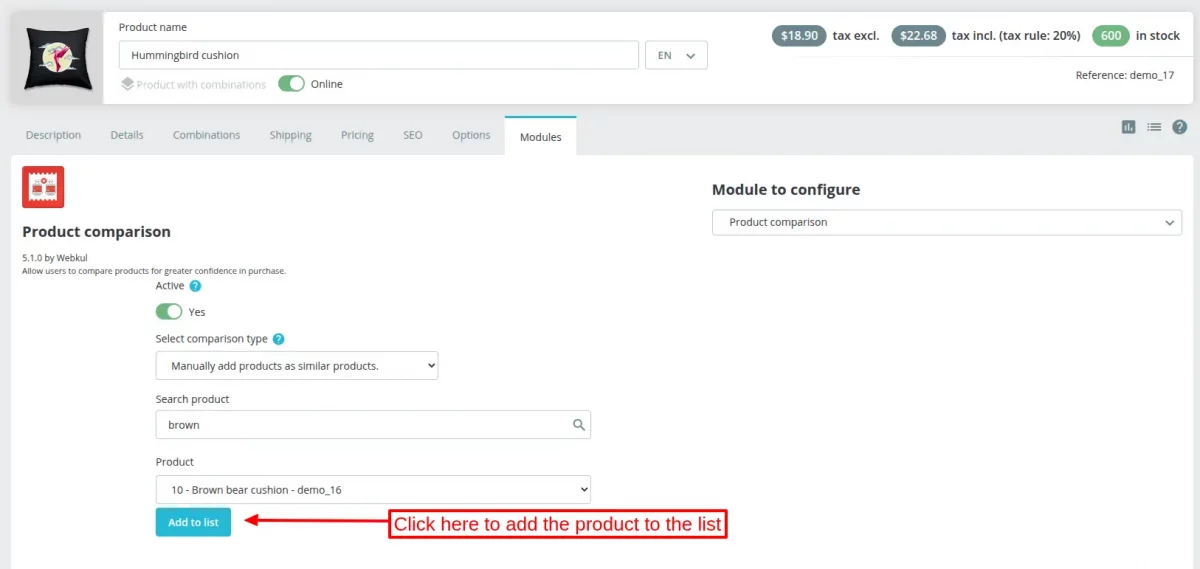
After selecting the product, click on “Add to list” button.
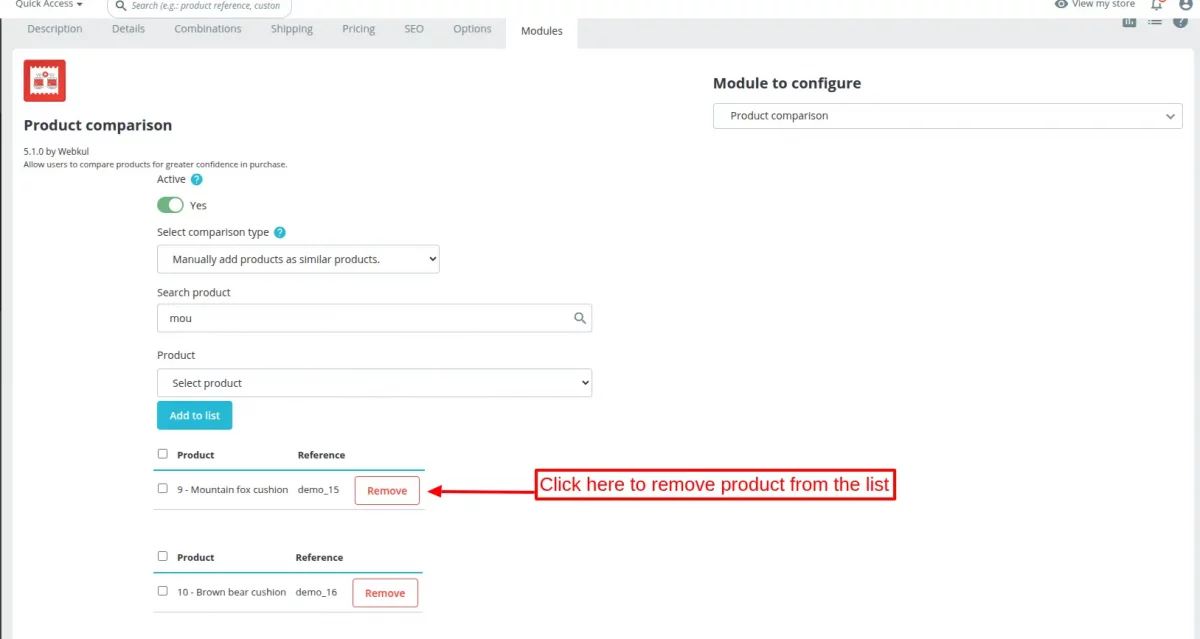
Once added, the admin can remove the product from the list by clicking on Remove button.
Front End View
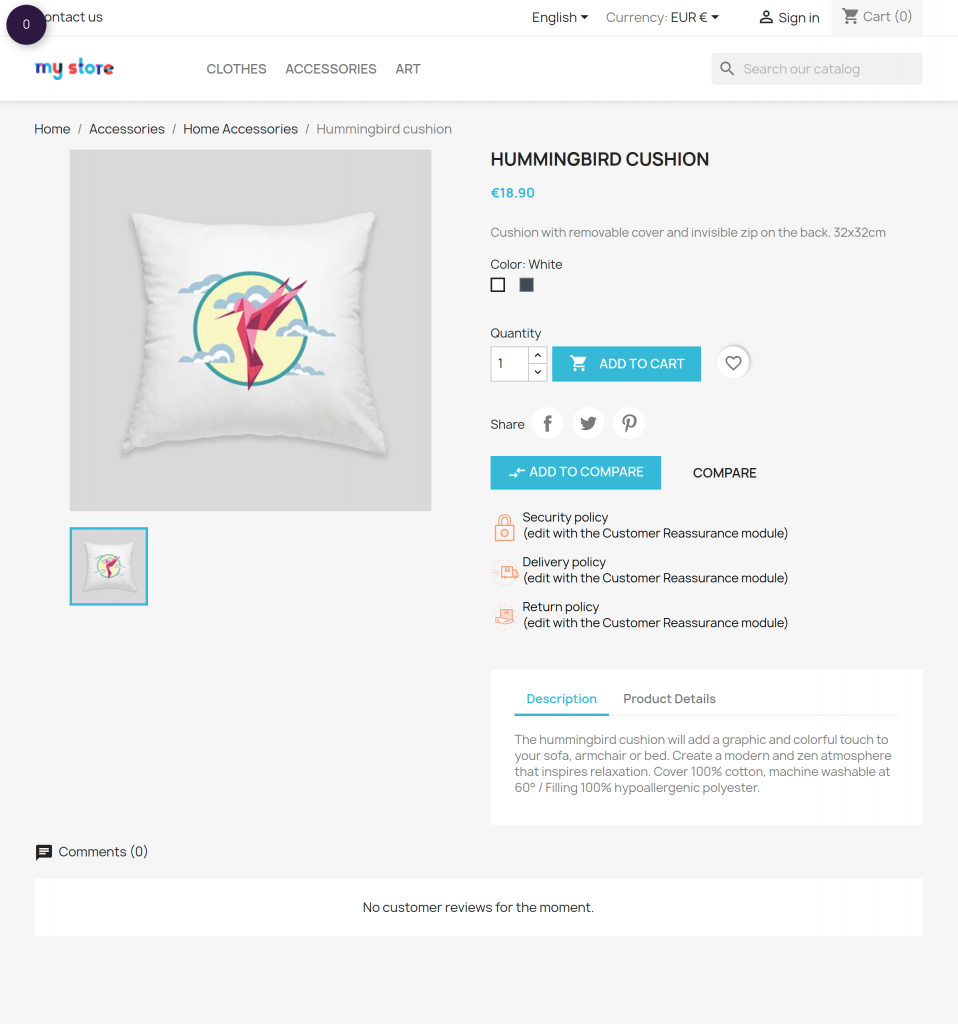
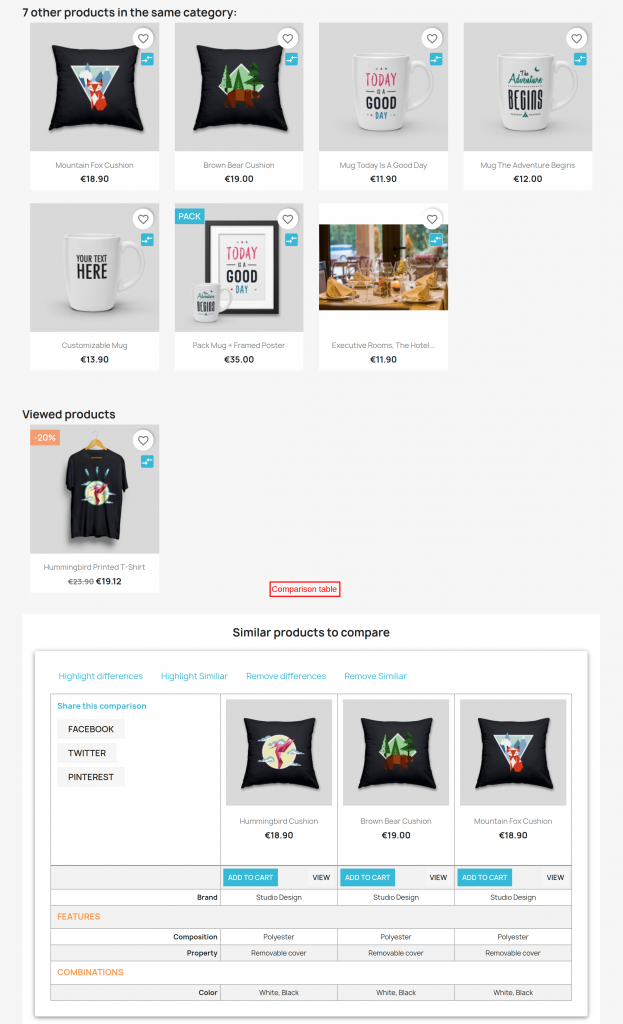
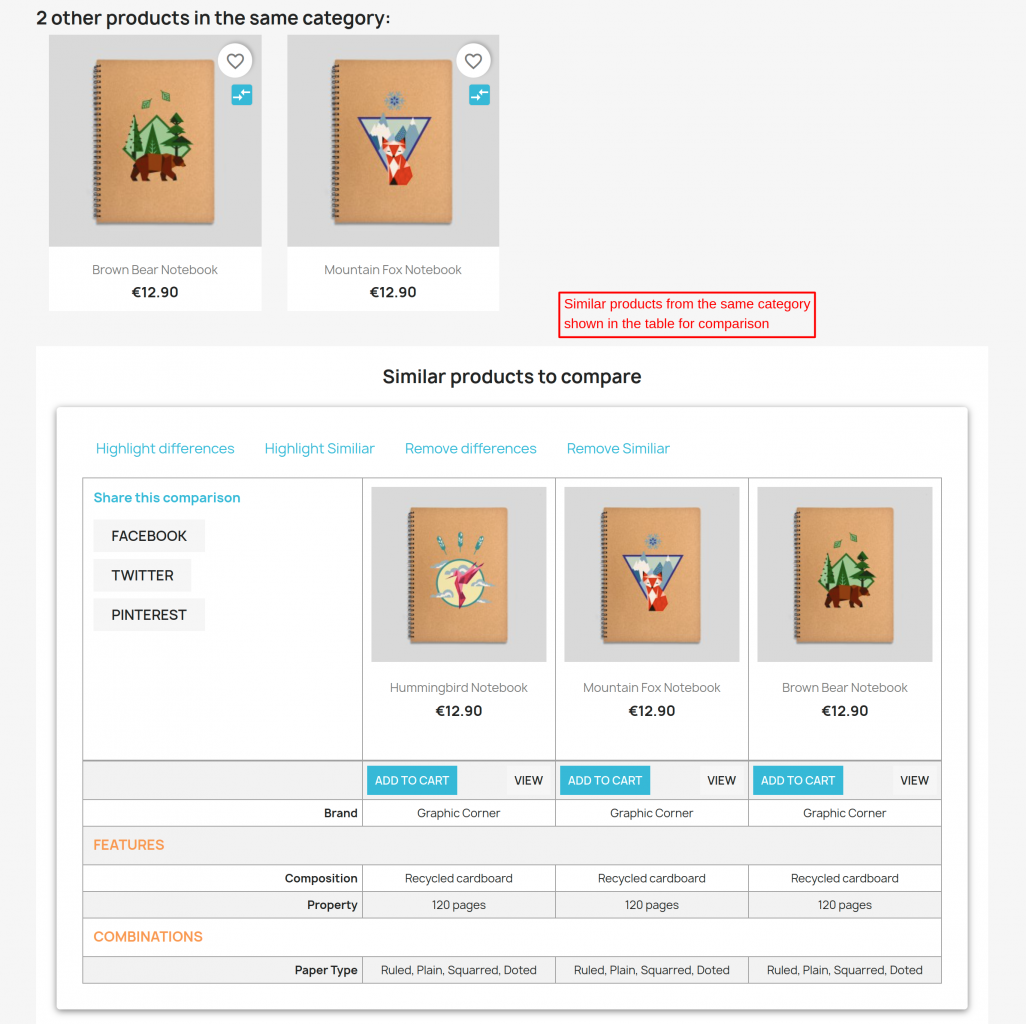
The products added by admin for comparison will show on the product page as shown below.
Popular product from same category
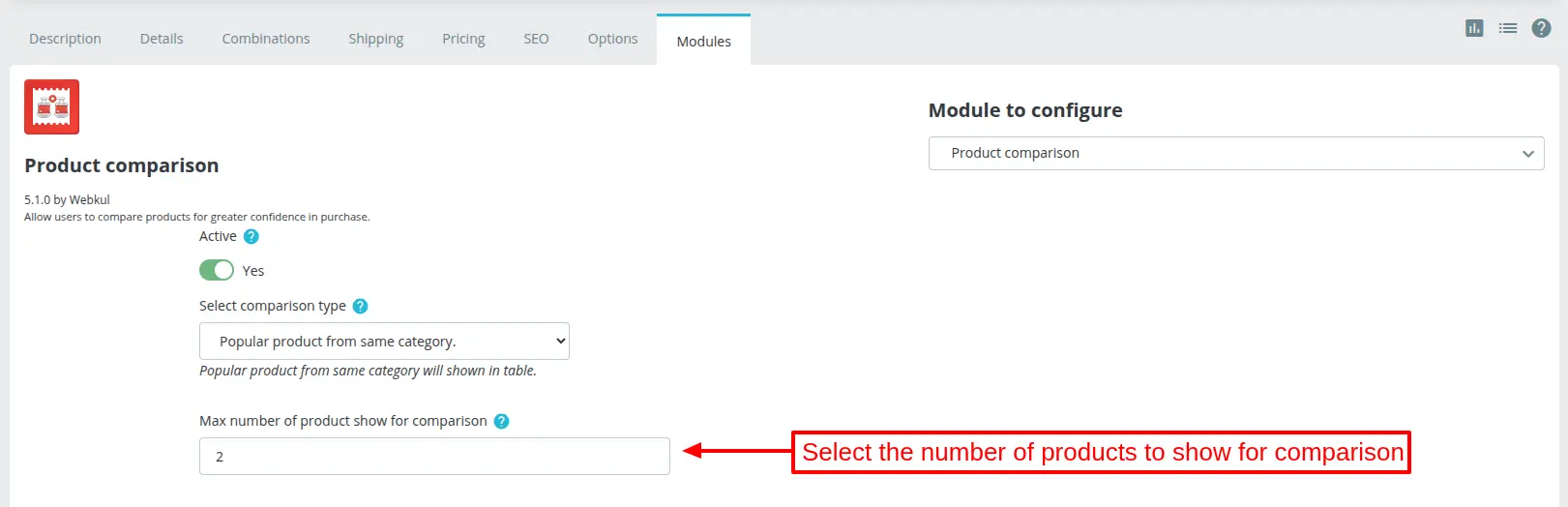
This comparison type allows admin to show the popular products from the same category for comparison in the table. The admin can choose the number of products that he wants to show for comparison.
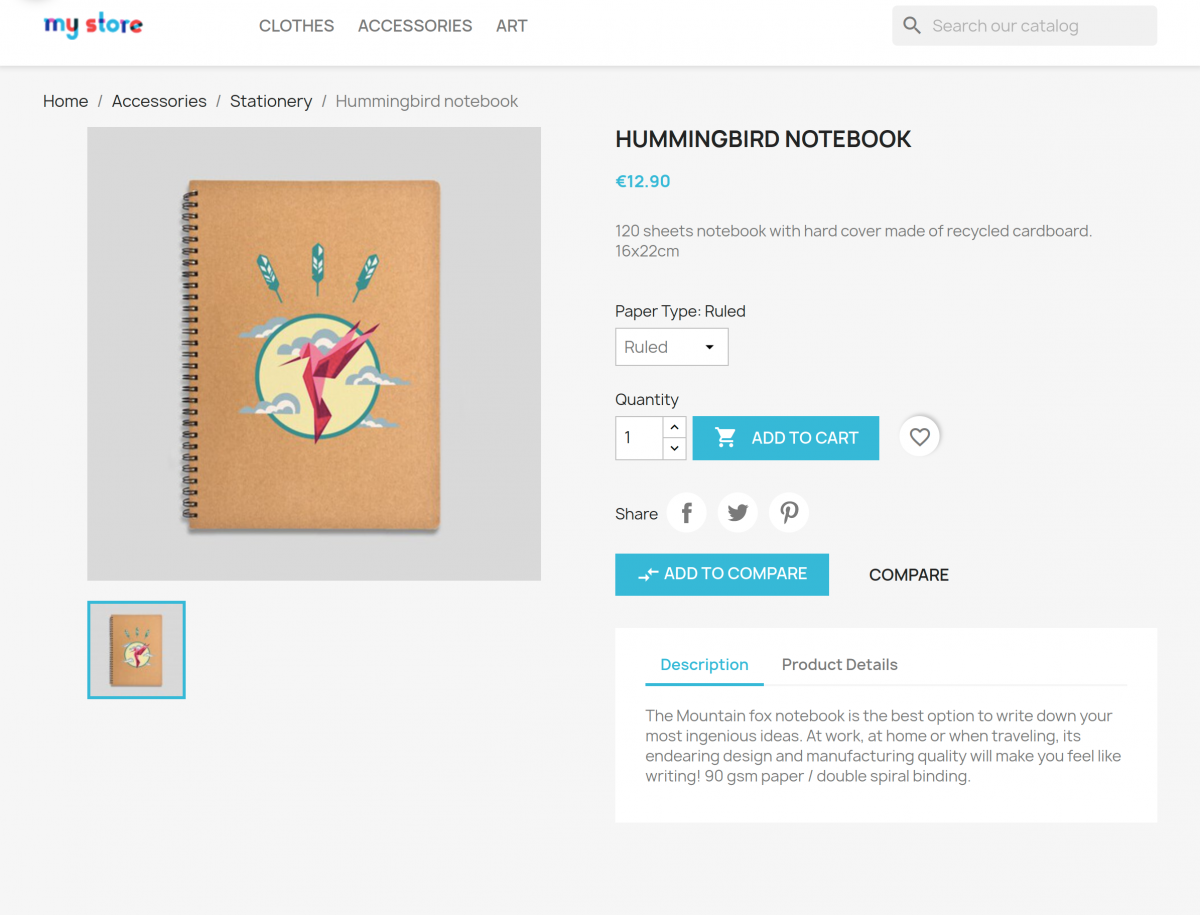
Front End View
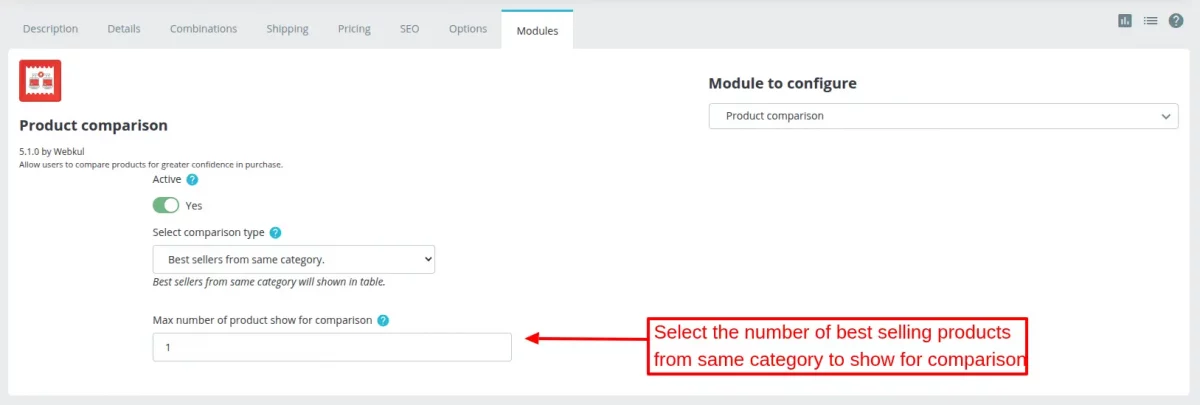
Best sellers from same category
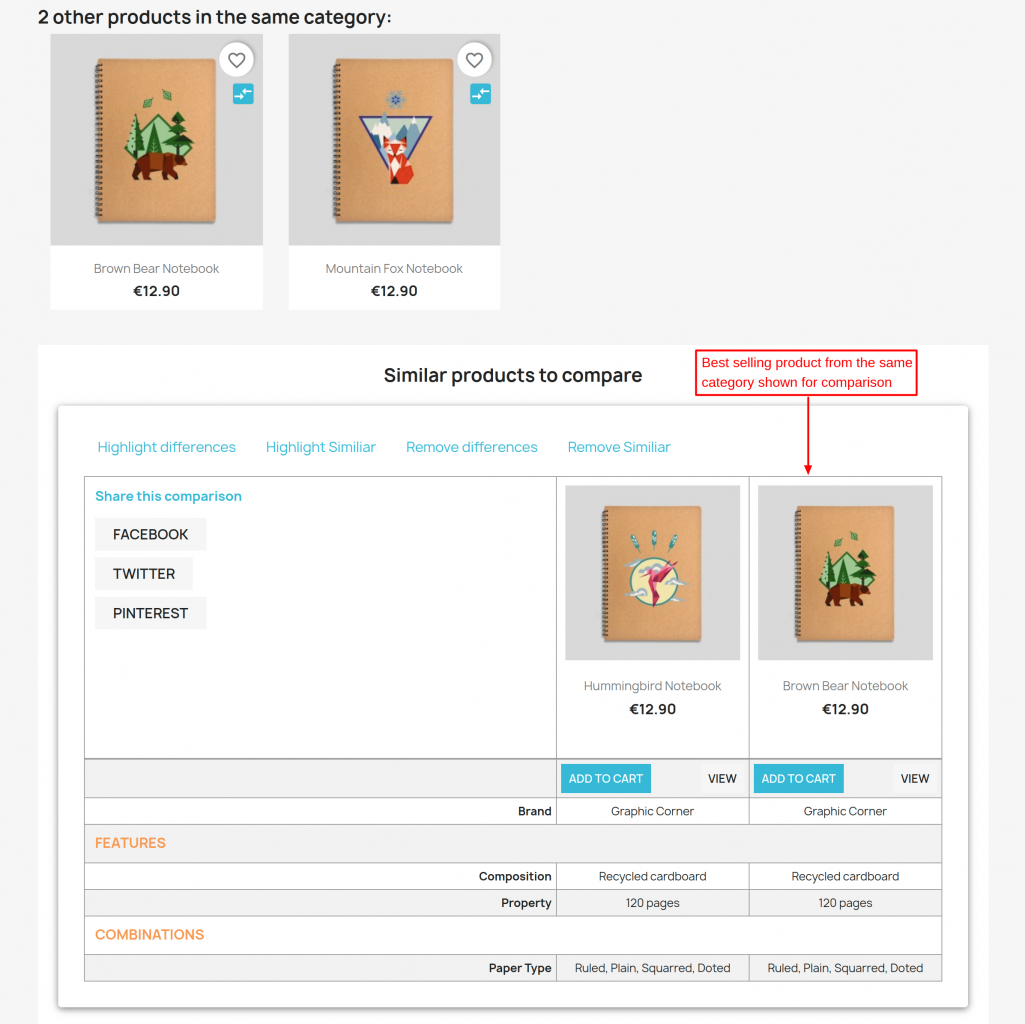
This comparison type lets admin show the best selling products from the same category for comparison on the product page.
The admin can choose the number of products that he wants to show for comparison.
Front End View

This was all about Prestashop Product Comparison Module. I hope this document will help you in checking the functionality of the module in a better way.
Also, do let us know about your views in the comments.
SUPPORT
For any kind of technical assistance or query, please raise a ticket or send us a mail at [email protected]
Also, please explore our Prestashop development services and vast range of quality Prestashop addons.
Current Product Version - 5.1.1
Supported Framework Version - 9.x.x, 8.x.x, 1.7.x.x

Be the first to comment.