Is tracking your customer’s address proving to be a time-wasting task for you? Don’t worry, we have got the perfect solution for you.
The PrestaShop Set Your Delivery Location module lets your customers mark their exact delivery location on Google Maps so that you don’t have to search for it yourself at the time of order delivery.
Note: The PrestaShop Set Your Delivery Location module is compatible with the PrestaShop multi-store feature.
Features of Prestashop Set Your Delivery Location
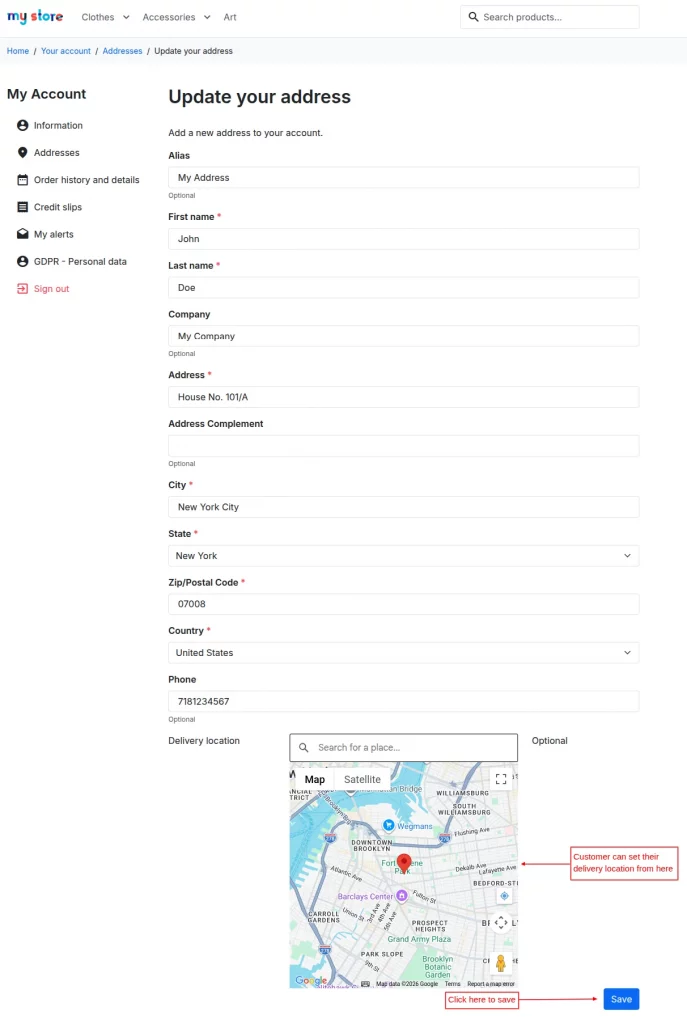
- Customers can set their delivery location while adding or updating their address.
- Option to set delivery location on the checkout page.
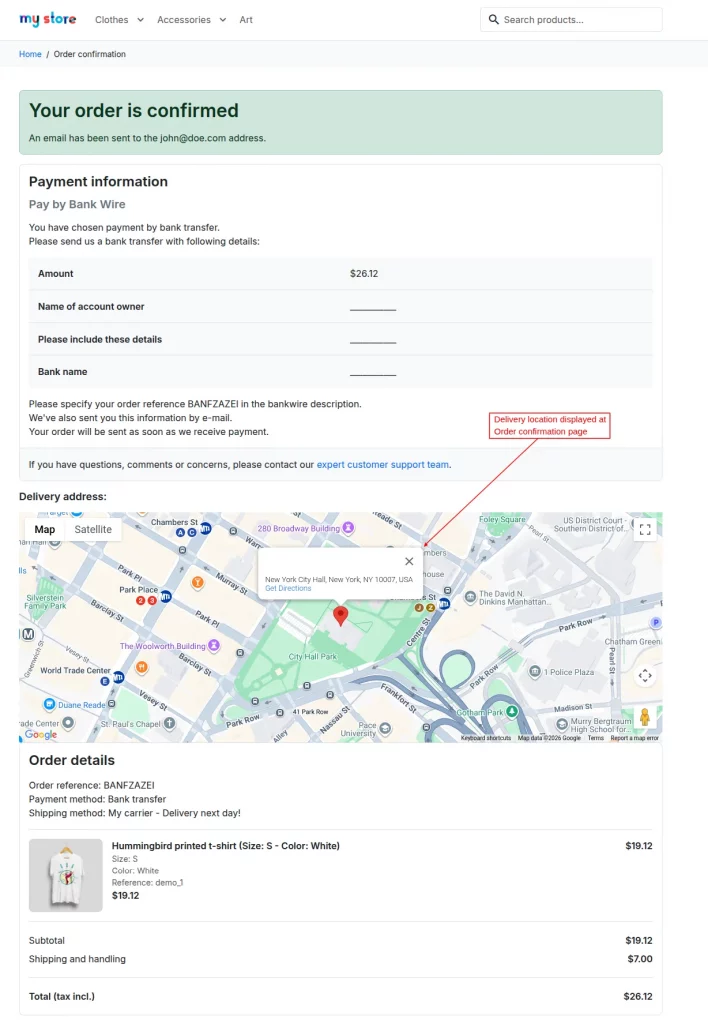
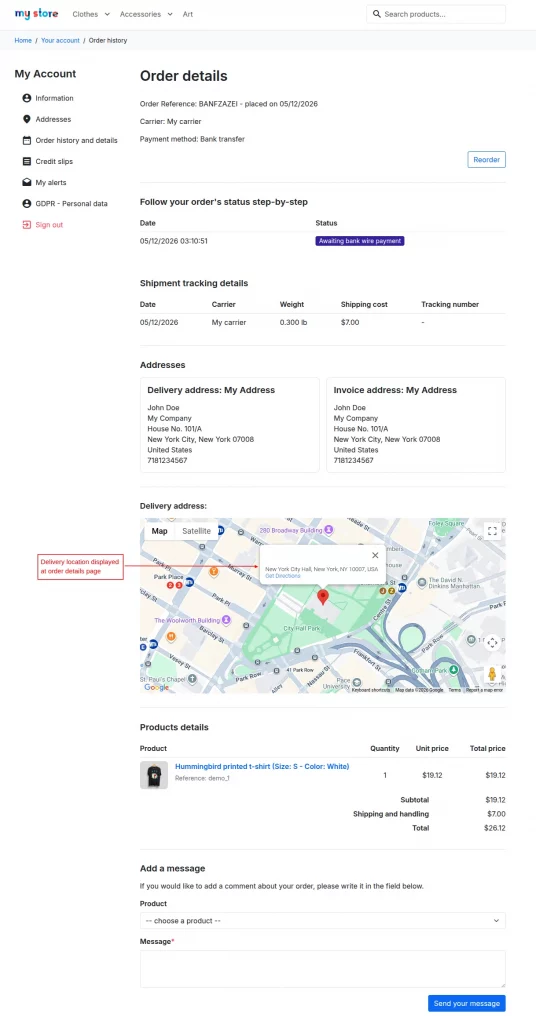
- View the delivery location on the checkout, order confirmation, and order details pages.
- Customers can search for their location by exact address, places such as businesses or landmarks, and geocodes of the physical address.
- “Locate me” button to fetch the current location in the delivery location maps
- Admin has the capability to change/set the delivery location for the customer’s address.
- Admin can view/change the delivery location of the orders.
- Saves the admin’s time as the admin does not have to search for the customer’s address.
How to Get the Google Maps API Key
To configure this module, you will need a Maps JavaScript API key and a Places API key. You can get this API by following the steps given below:
- Go to: https://console.cloud.google.com
- Login in and go to API’s and Services > Dashboard.

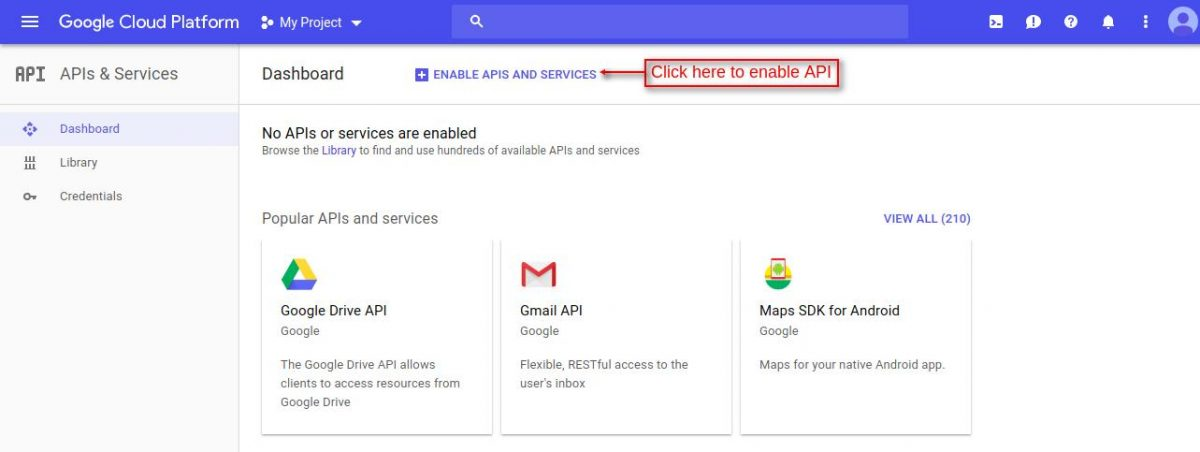
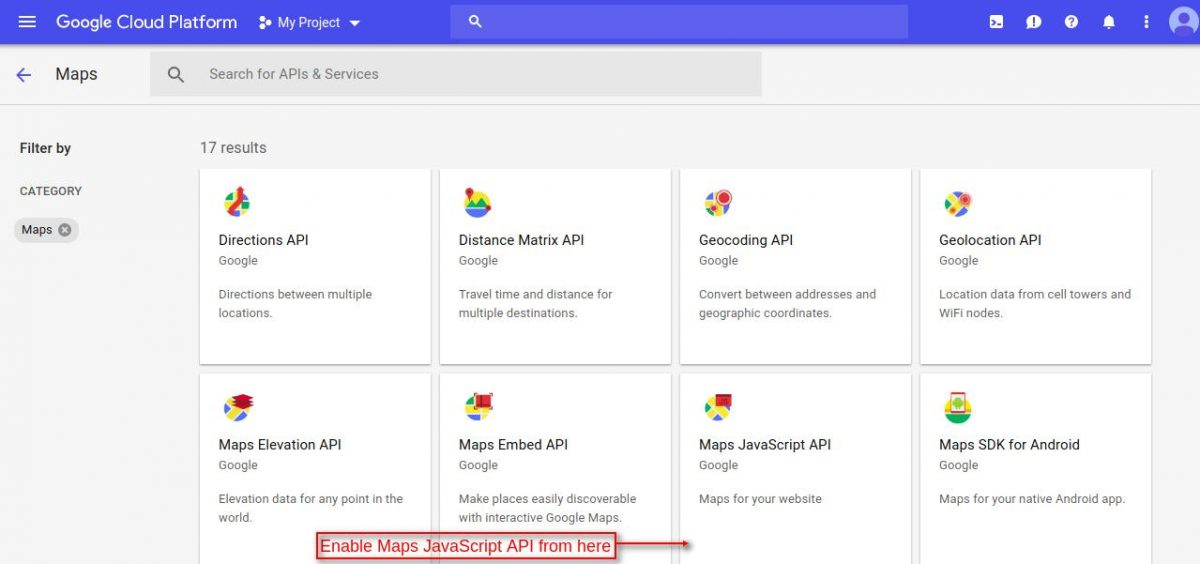
- Select API key from the option and Click on create credentials.
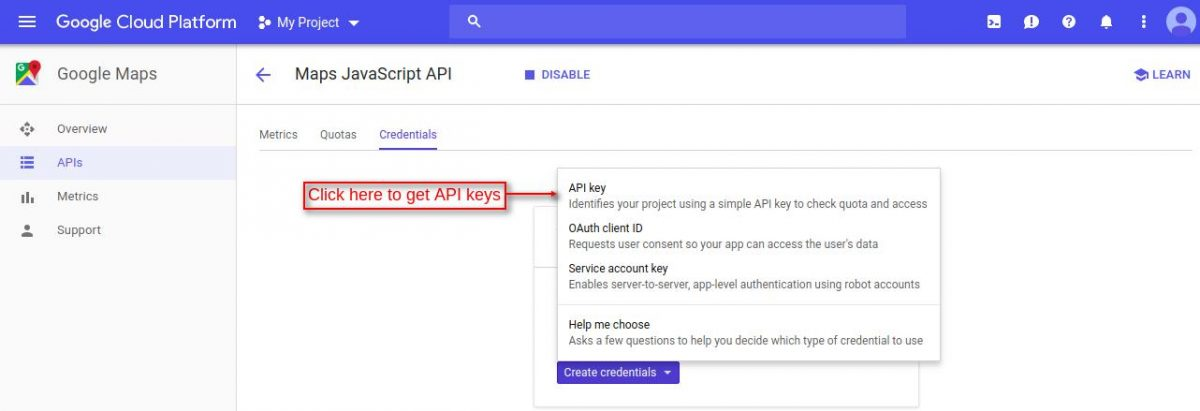
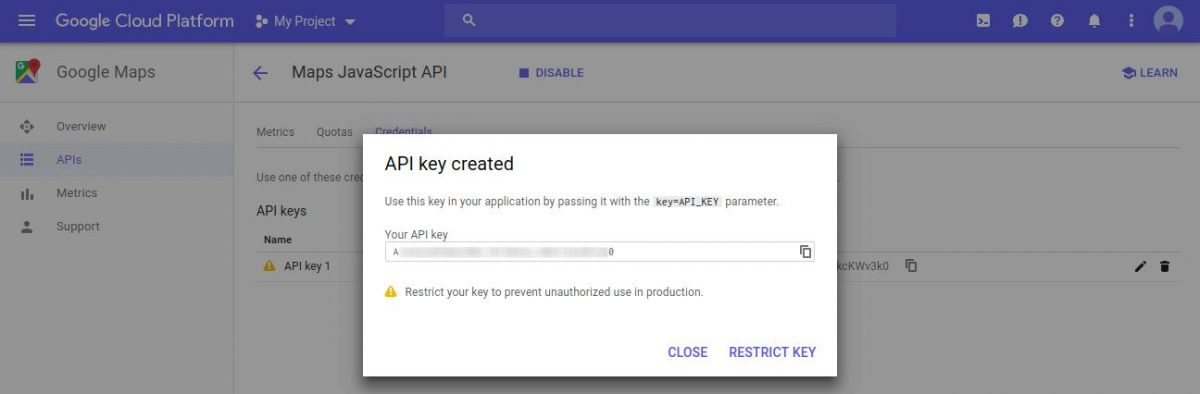
In a similar way, you need to enable the Place API.
Installation
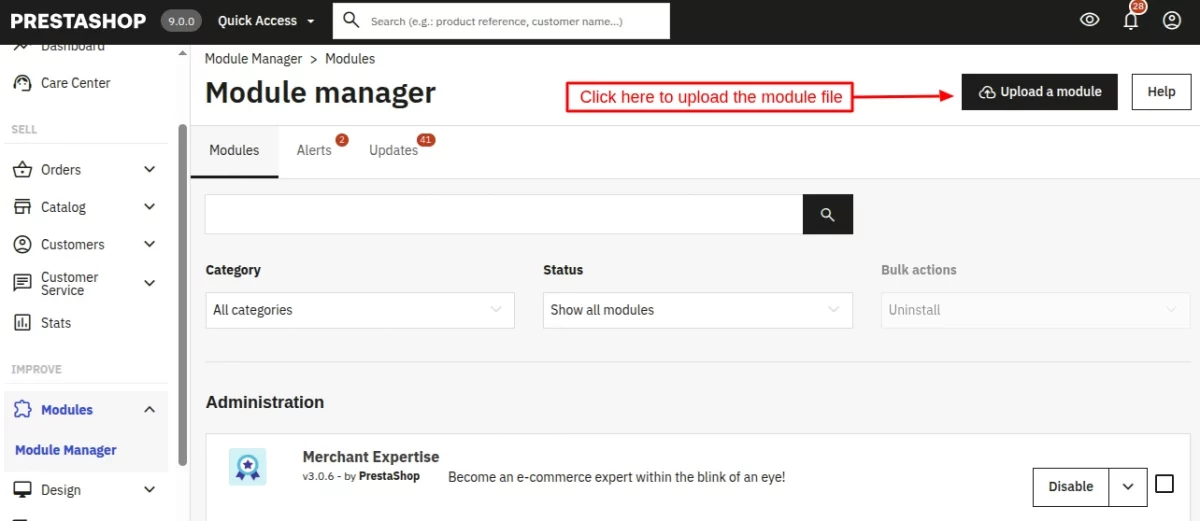
- Go to the back office-> modules -> modules & services -> Upload a module.
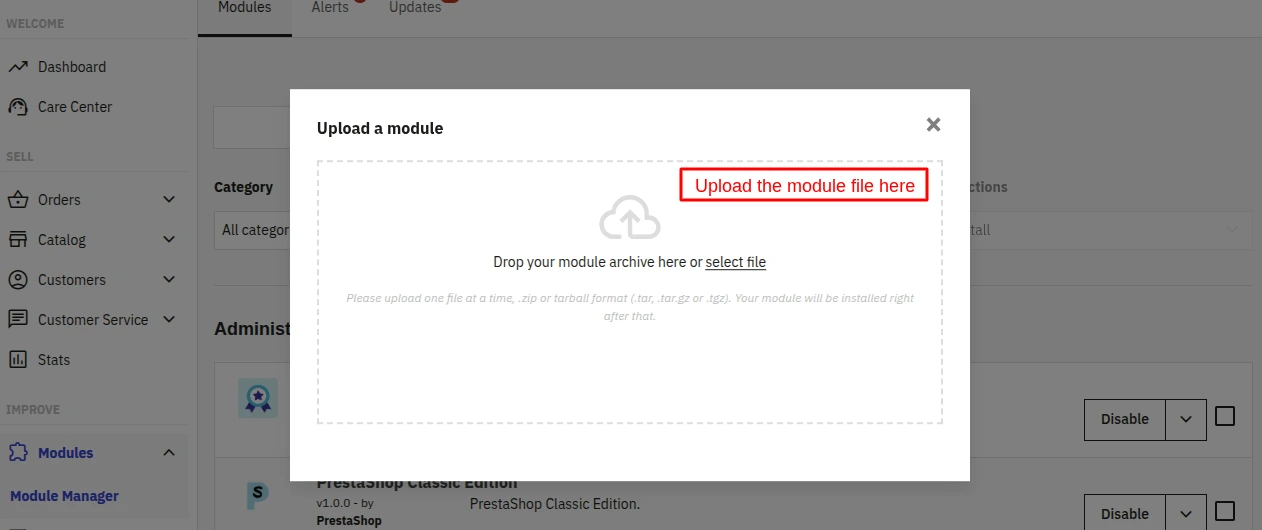
- Upload zip file of “Set Your Delivery Location” module.
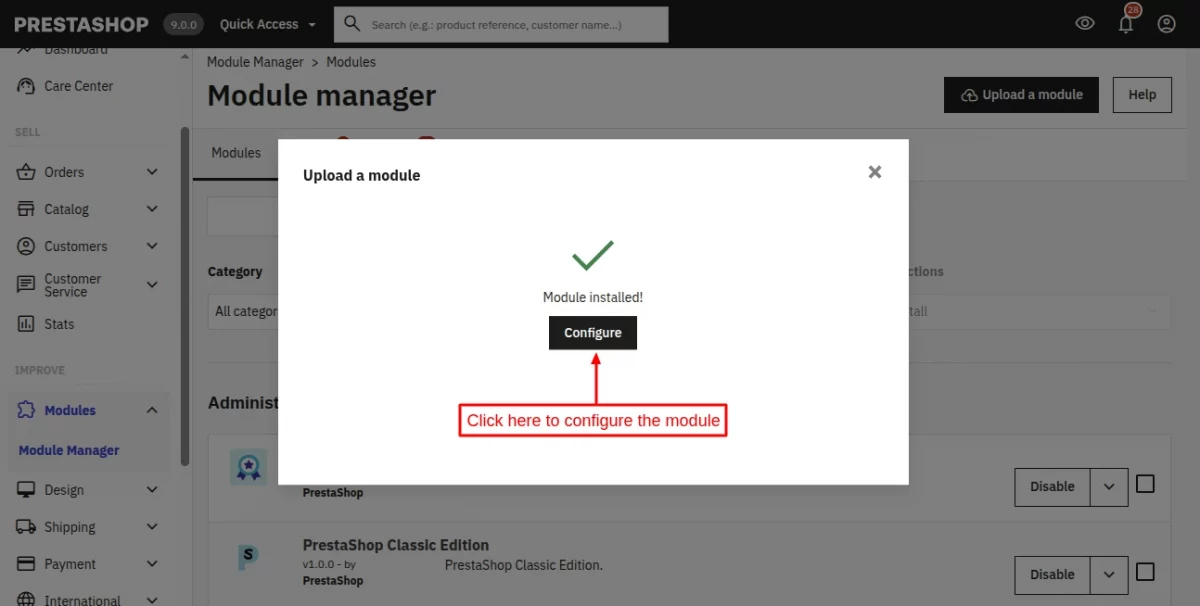
- The module will automatically get installed on your Prestashop.
Module Configuration
Under “General Settings”, the admin can find the following options to configure the module:
Google Maps API key: Enter the Google Maps API to display the map.
Default coordinates: Enter the coordinates of a location that will display on Google Maps if the customer has not set the delivery location.
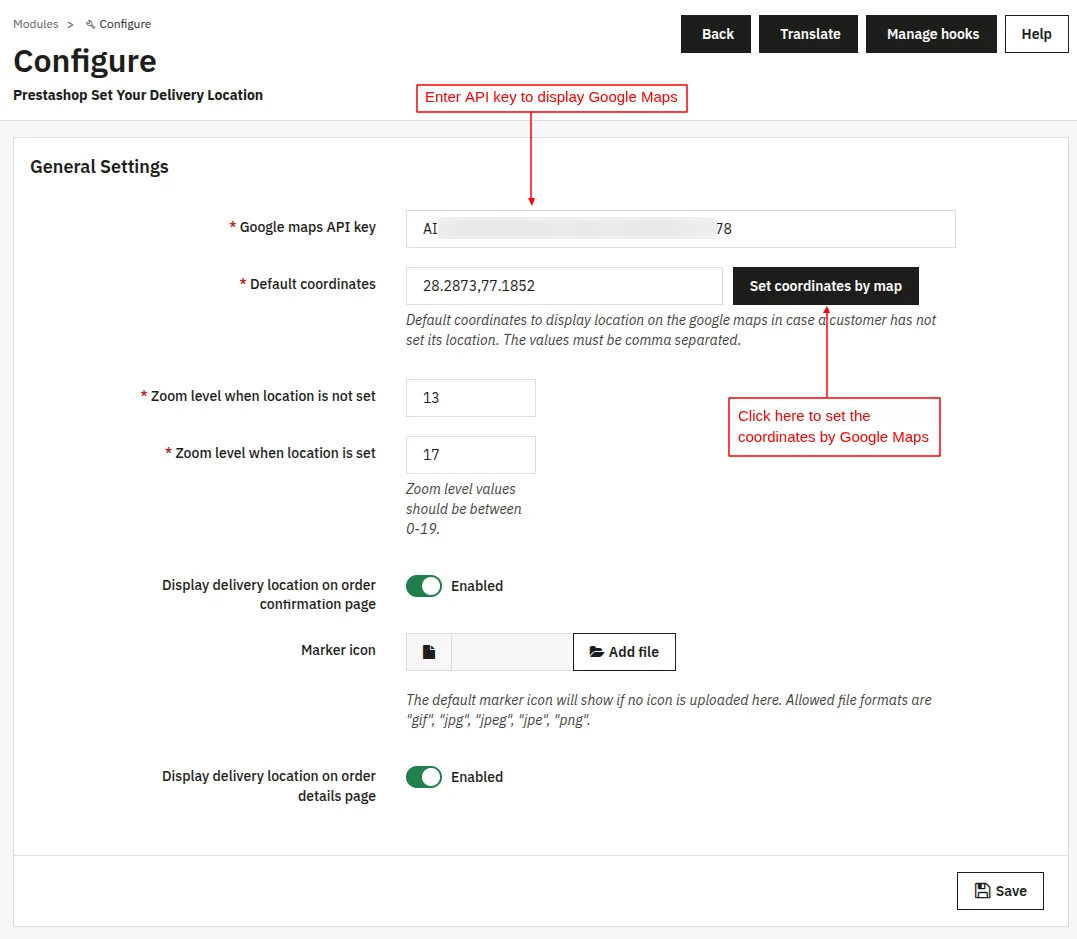
The admin can set it by entering the coordinates manually or can set it via Google Maps by clicking on “Set coordinates by map”.
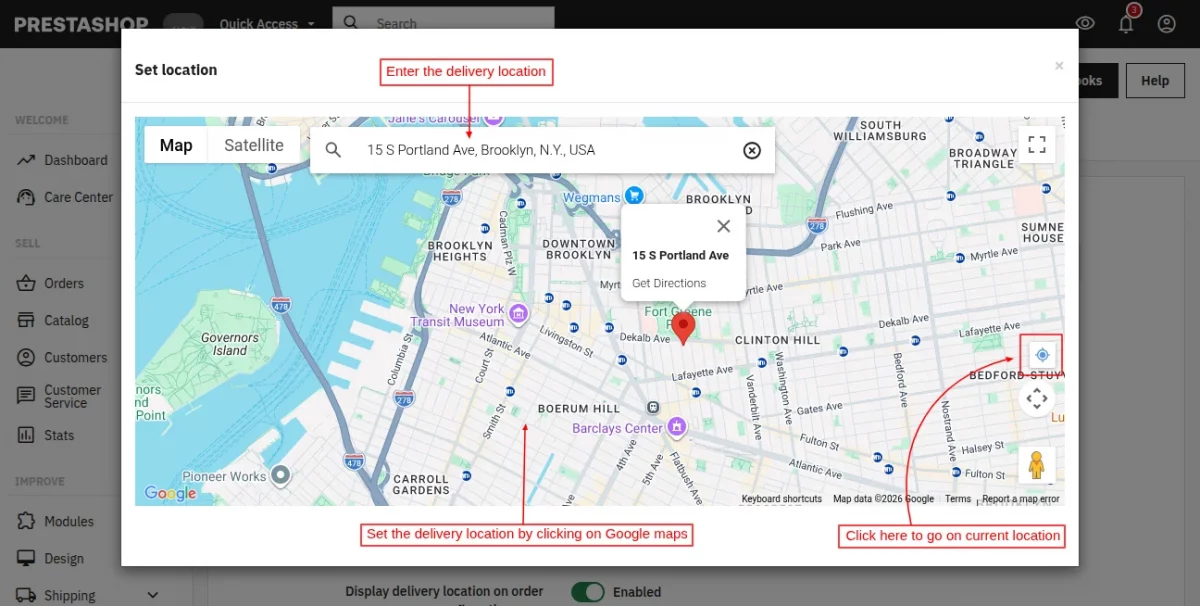
Zoom level when location is not set: Set the zoom level for Google Maps when the delivery location is not set by the customer.
Zoom level when location is set: Set the zoom level for Google Maps when the delivery location has been set by the customer.
Display delivery location on order confirmation page: Enable the display of the customer’s delivery location on the order confirmation page
Marker icon: Upload an image for a custom Google Maps marker icon.
Display delivery location on order details page: Enable the display of the customer’s delivery location on the order details page.
Front End Workflow
At the front end, a customer can set their delivery location while adding a new address or updating an existing address under the ‘Addresses’ tab.
While setting the delivery location, a customer can search for the places such as landmarks or businesses, addresses, and geocodes of a physical address as per his/her preference.
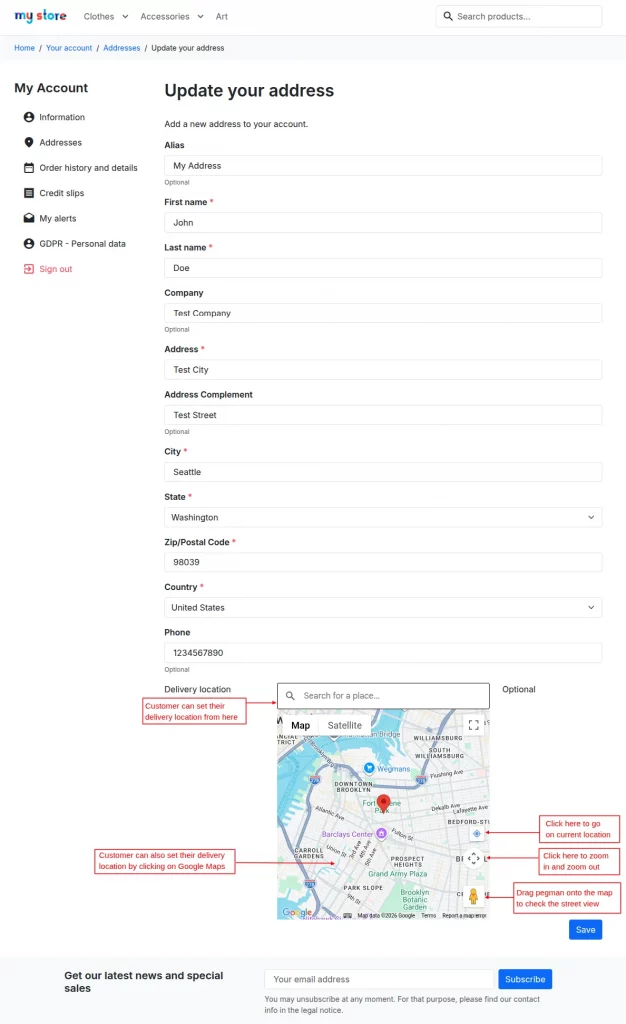
After saving the delivery location, a customer can view it on:
- Checkout page under ‘Addresses’.
- Order confirmation page.
- Order details page.
Delivery location on checkout page
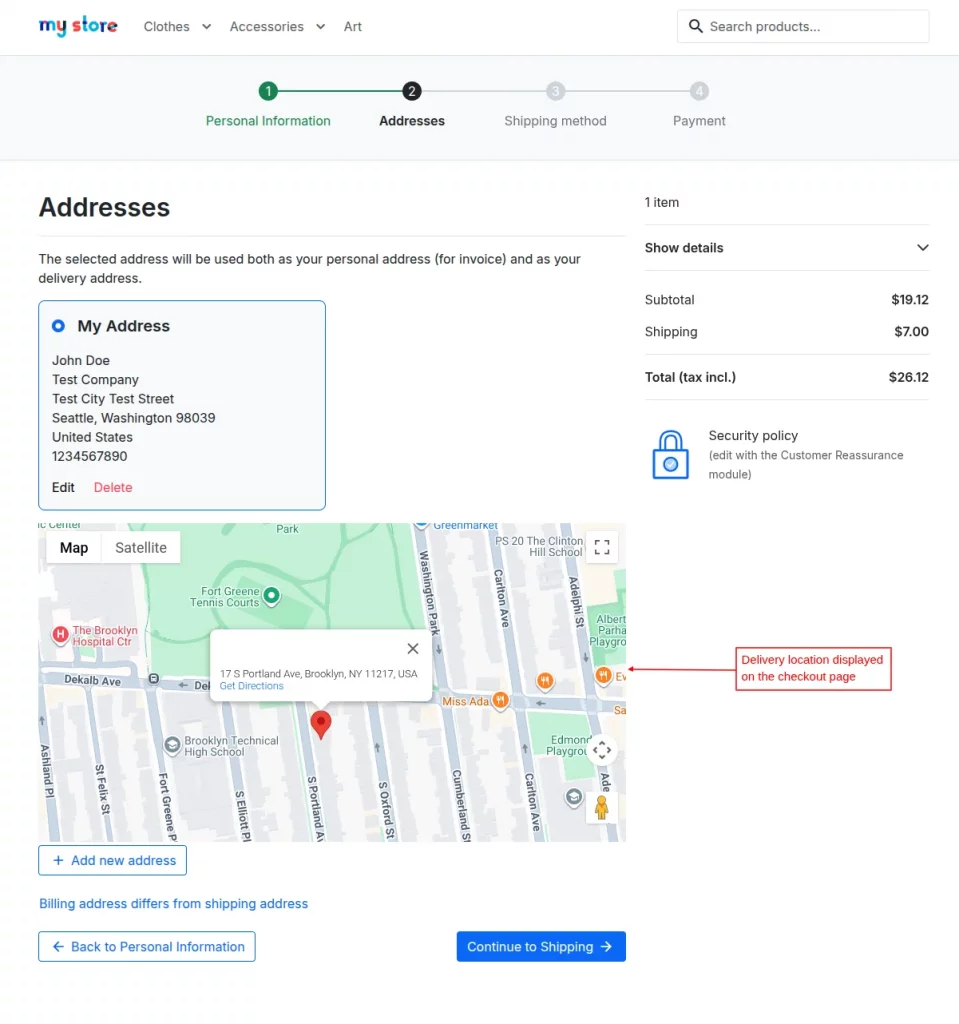
If a customer has not set their delivery location while adding the address, then on the checkout page a “Set delivery location” link will be displayed.
By clicking on “Set delivery location” a customer can set their delivery location.
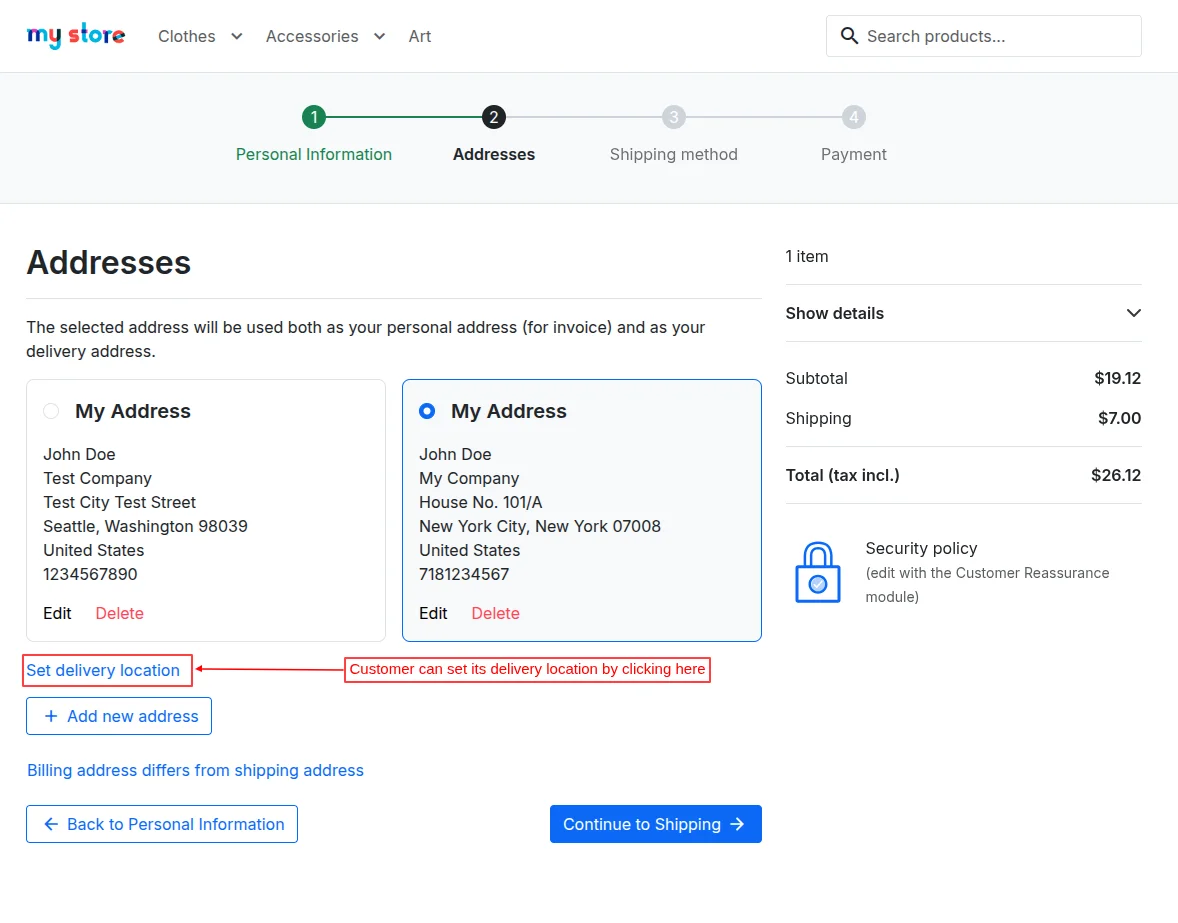
By clicking on the “Set delivery location”, a customer gets redirected to the ‘Addresses’ tab, from where he/she can set the delivery location.
Once the order gets completed, the delivery location is displayed on the order confirmation page if enabled by the admin from the backend.
A customer can also view the delivery location of the order on the order details page if enabled by the admin from the backend.
Admin End View
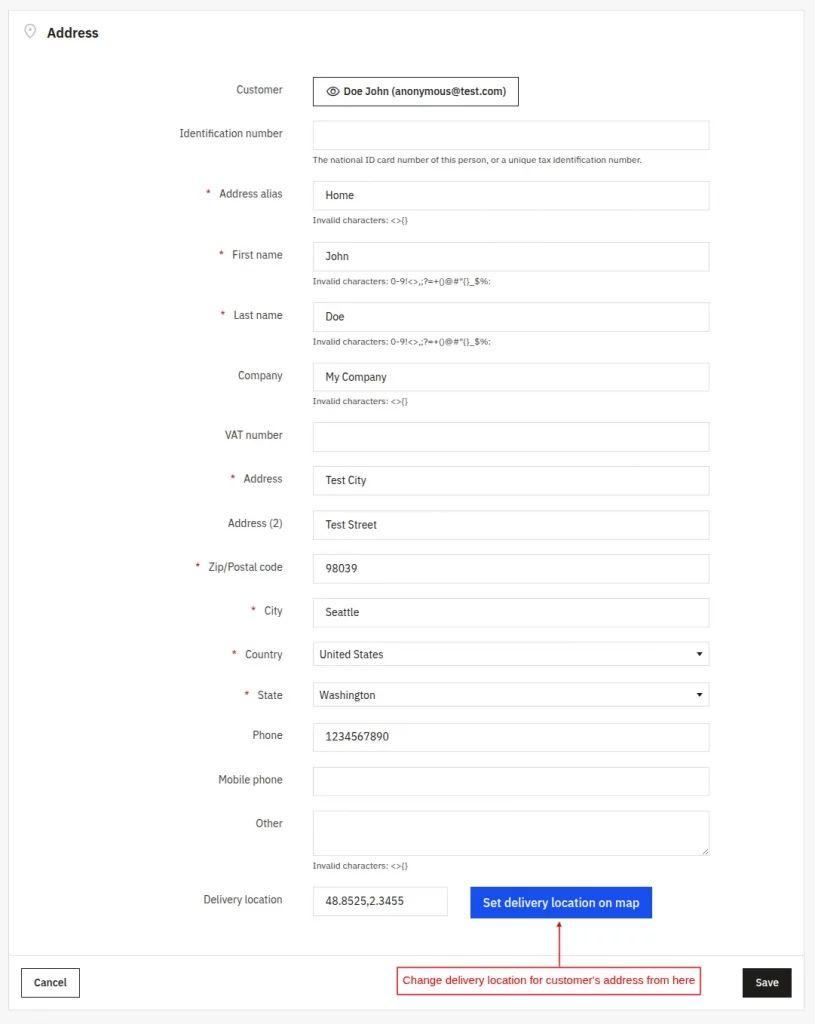
Admin can view/change/set the delivery location of a customer’s address by navigating through Customers-> Addresses.
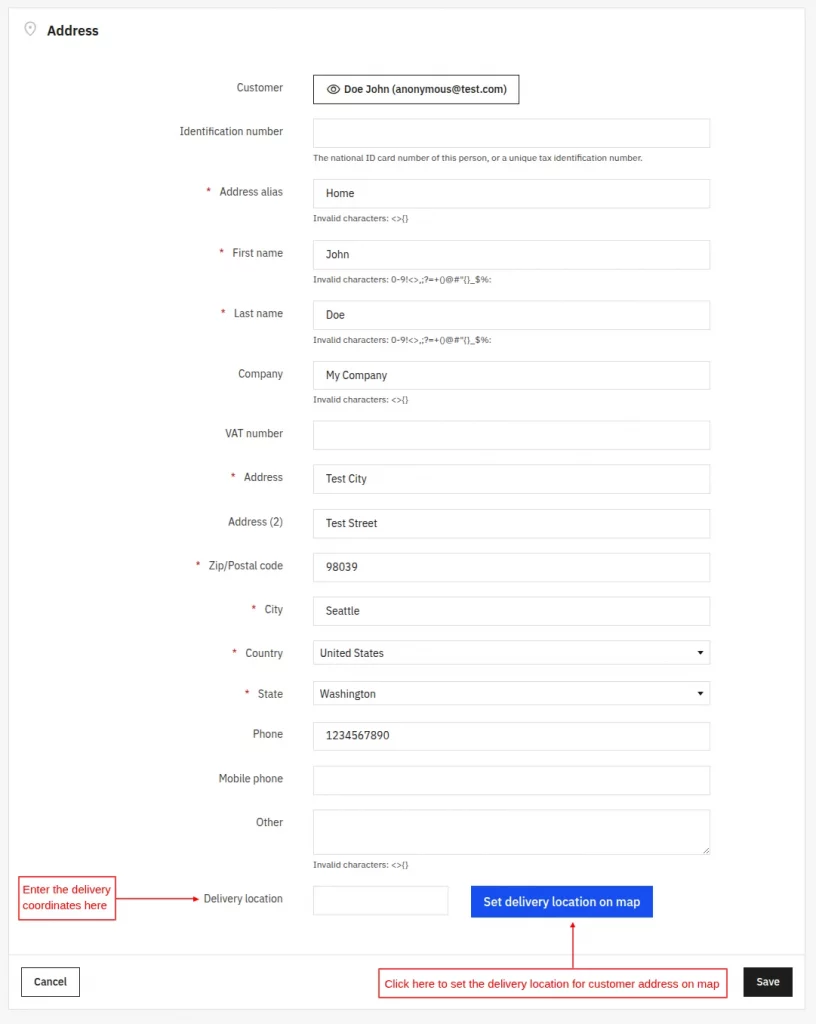
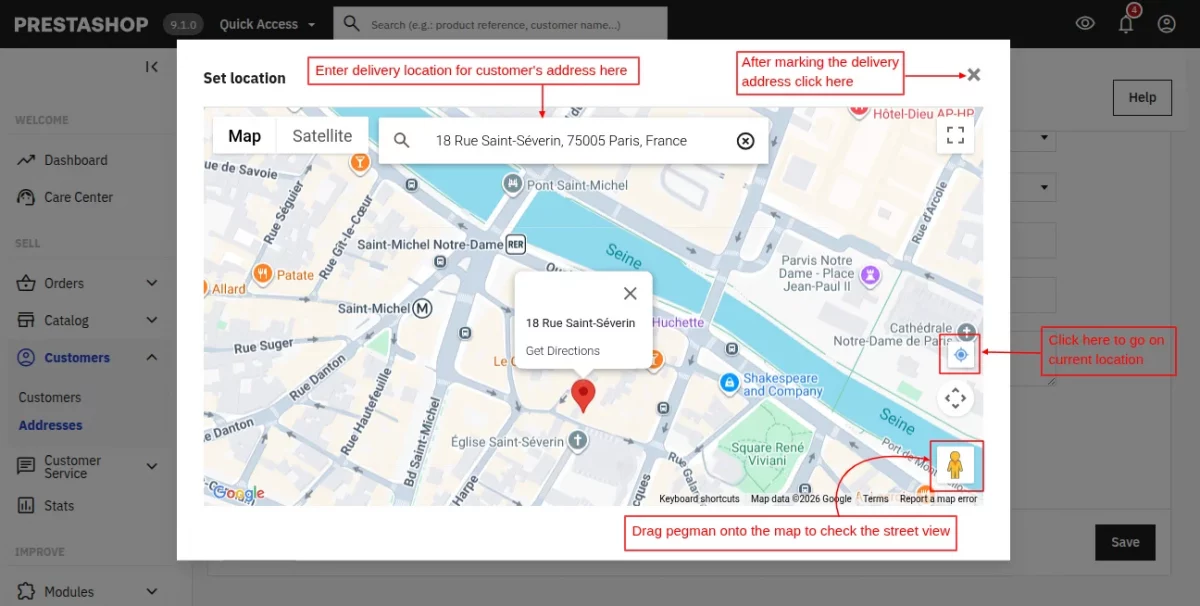
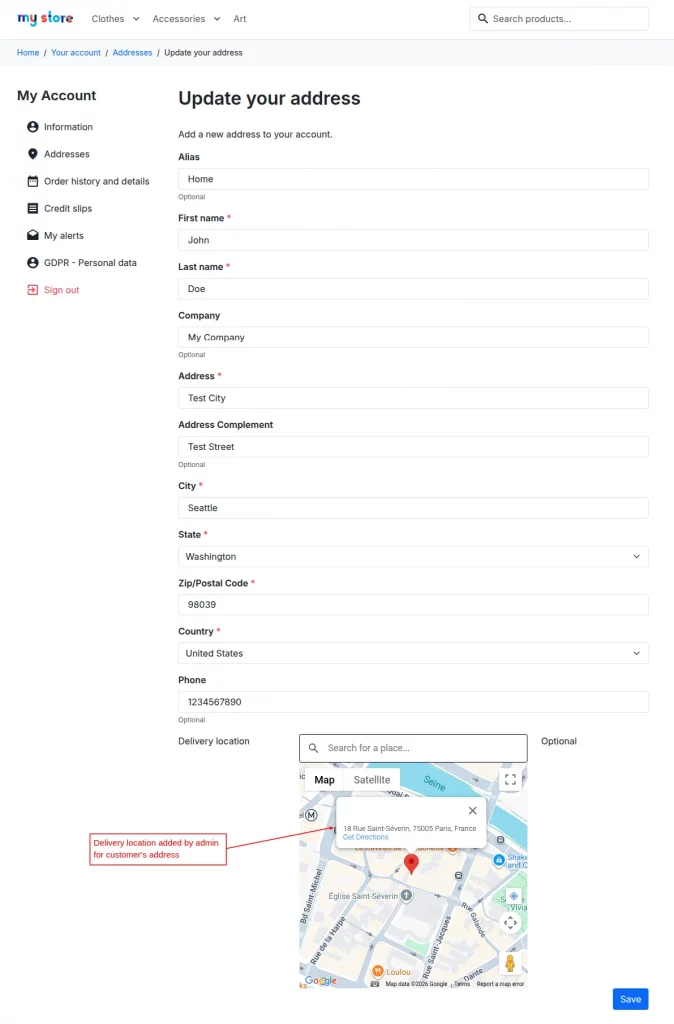
Once the delivery location for customer’s address has been saved by the admin, then the customer can view it under ‘Addresses’ at the front end.
Admin can also change the delivery location for the customer’s address.
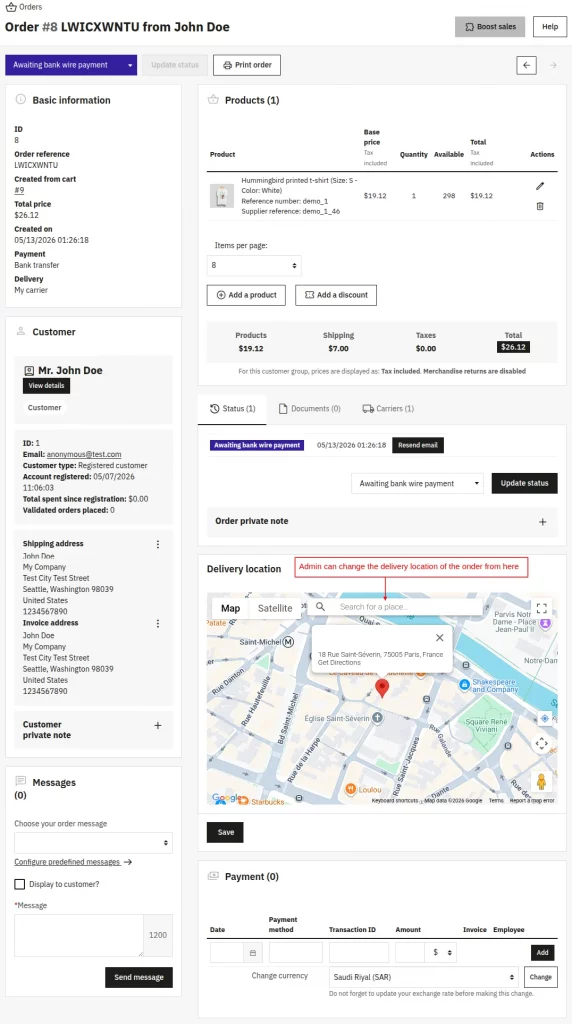
Admin can view/change the delivery location of the orders under ‘Orders’ as shown below:
This was all about the PrestaShop Set Your Delivery Location Module. I hope this document will help you in checking the functionality of the module in a better way.
Also, do let us know about your views in the comments.
Support
For any kind of technical assistance or query, please raise a ticket or send us an email at [email protected]
Also, please explore our Prestashop development services and vast range of quality Prestashop addons.
Current Product Version - 5.0.5
Supported Framework Version - 9.x.x, 8.x.x, 1.7.x.x

2 comments
Thanks for showing interest in our product
Well, the Google Map is provided to set the delivery location, where, customers can search their location by exact address, places such as businesses or landmarks, and geocodes of the physical address.
Customers can set their delivery location while adding or updating their address. Also, there is an option to set a delivery location on the checkout page.
In case of any query/doubt, please raise a ticket at our support ticket system https://webkul.com/ticket/ or you can mail us at [email protected].
Thanks & Regards