


















PrestaShop AI OCR Invoice to Order reads your PDF invoices and pulls out every product name, quantity, price, customer email, and address — then builds a ready-to-go PrestaShop order in seconds.
You upload a PDF, review a clear preview, and click Create Order. No more retyping, no more copy-paste mistakes, and no more spending 10 minutes on every single invoice.
Using AI-powered OCR (Optical Character Recognition) — the technology that reads text from scanned documents and images — the module understands every line on your invoice.
It supports OpenAI, Google Gemini, Anthropic Claude, OpenRouter, Cerebras, and DeepSeek. You can also connect your own preconfigured OCR endpoint if you already use one.
After the AI reads an invoice, you can view a clear preview showing which products matched your catalog, which will be created, and any quantities that look uncertain.
Then you click on the “Create Order” button, and the module builds the order using your real catalog prices, tax rules, carriers, and payment methods — exactly like a customer checkout.
NOTE: PrestaShop AI OCR Invoice to Order is compatible with the PrestaShop Multi-store feature.
Features of PrestaShop AI OCR Invoice to Order
- Reads PDF invoice data using AI — extracts products, quantities, prices, customer details, addresses, and currency.
- Supports OpenAI, Gemini, Anthropic, OpenRouter, Cerebras, and DeepSeek as AI providers.
- Supports a preconfigured OCR endpoint for self-hosted services.
- Validates your AI provider connection before you start uploading invoices.
- Shows a detailed preview before creating an order — highlights matched, to-be-created, and not-found products.
- Creates new customer accounts automatically when the invoice contains customer details.
- Creates new catalog products automatically when a product is not yet in your store.
- Uses your shop prices, taxes, and shipping rules — invoice prices are for reference only.
- Keeps a full history of all imports with statuses: Draft, Order Created, and Failed.
- Download original PDFs, preview stored extractions, and create orders from drafts.
- Encrypts your AI API keys with AES-256-CBC for security.
How to Install PrestaShop AI OCR Invoice to Order
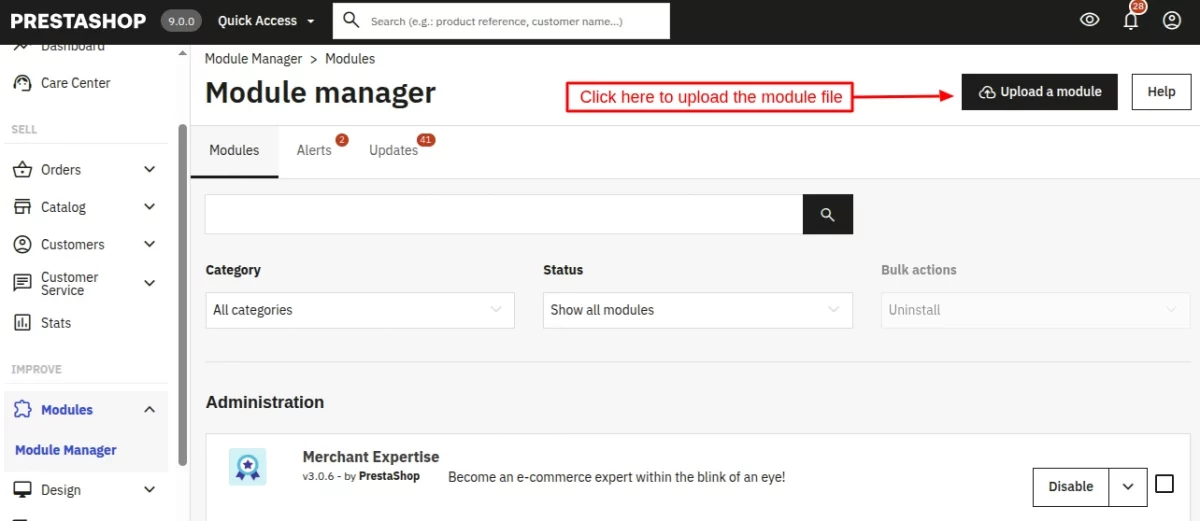
- Firstly, go to the module manager in the back office and click on ‘Upload a module’.
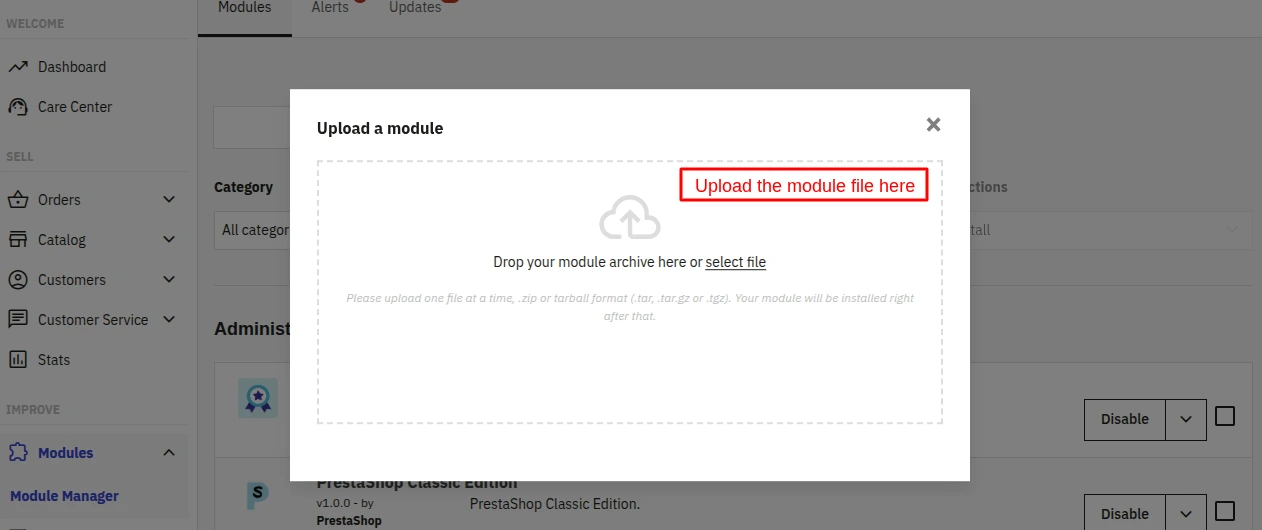
- After that, drag and drop the module file or select the file from the system.
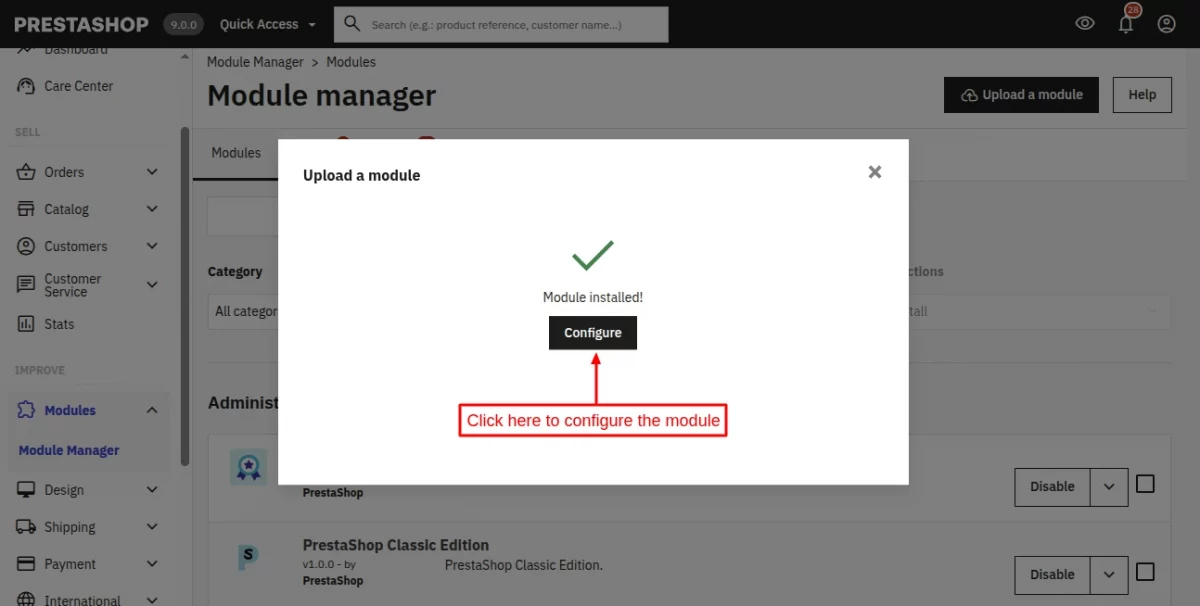
- In this way, the module installation will be successful.
Minimum System Requirements (API Setup)
The following minimum system requirements are needed for this extension,
- Python Version – 3.10
- Space (8 GB)
- RAM (1 GB)
- API Key (Anthropic Claude, Gemini, OpenAI, Grok, etc.)
- Server key and cert files (for Flask API)
- An Active Port (5000)
Note: The selected LLM model may have different Rate Tier Limits. It supports various LLM models like Anthropic Claude, Gemini, OpenAI, Grok, etc.
To install the AI module, we need SSH access. You can also check the AI Models Server Installation Guide.
How to Get API Keys for LLM Providers
To use this module, generate an API key from your preferred LLM provider using the links below:
- OpenAI API Key: Generate your OpenAI API key here
- Gemini AI API Key: Generate your Google Gemini AI API key here
- Anthropic API Key: Generate your Anthropic API key here
- OpenRouter API Key: Generate your OpenRouter API key here
- Cerebras API Key: Generate your Cerebras API key here
- DeepSeek API Key: Generate your DeepSeek API key here
PrestaShop AI OCR Invoice to Order Module Configuration
After the successful installation, the admin will have to configure the module. To do so, navigate to the Module Manager tab, find the module, and click Configure.
General Configuration
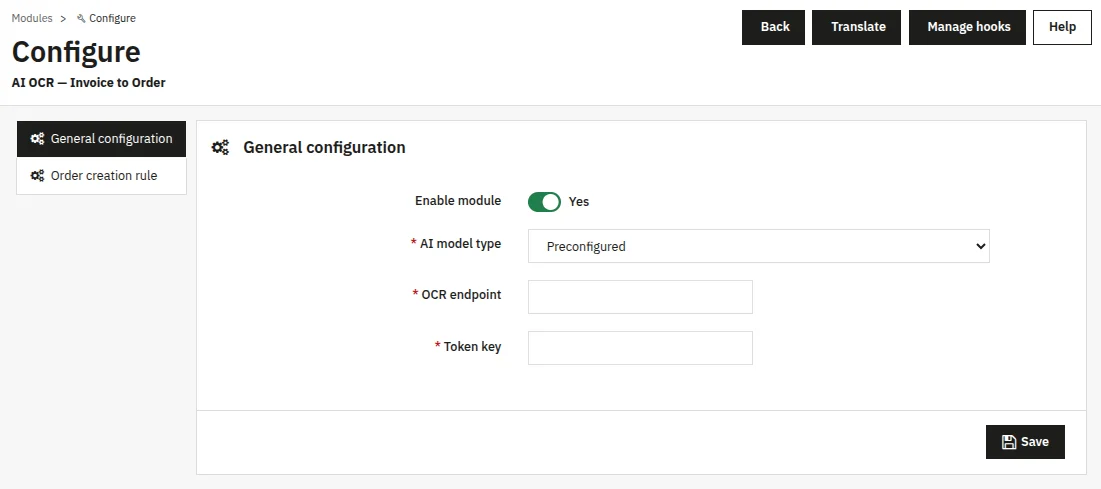
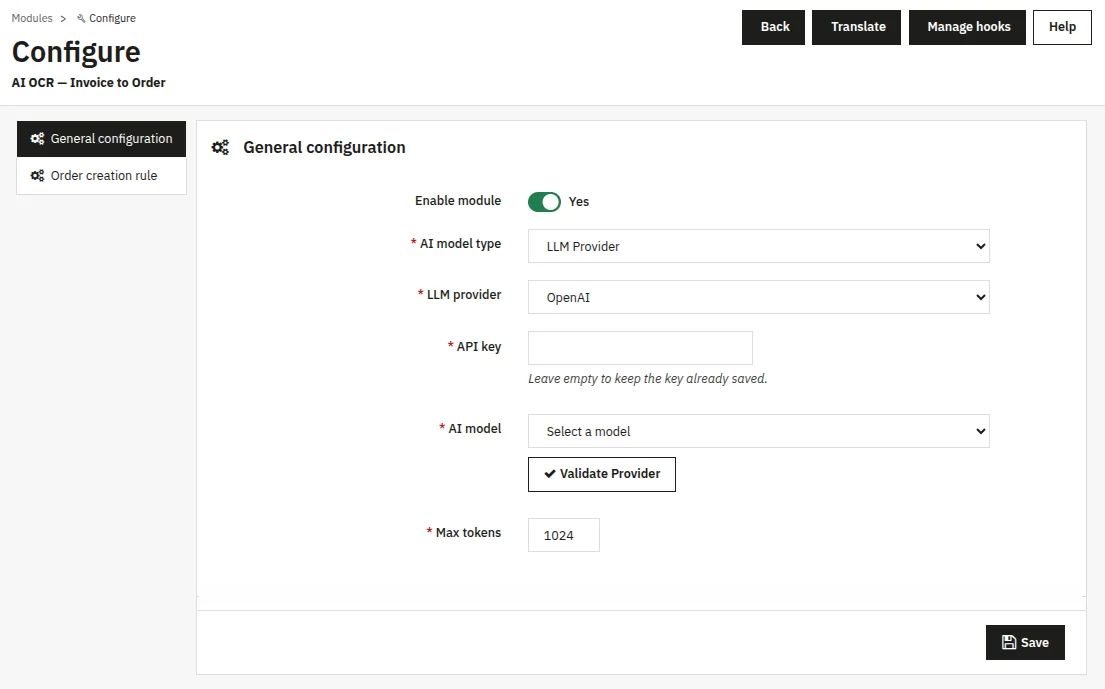
The General configuration tab is where you connect your AI provider and set up how invoices are processed.
This tab has two modes — Preconfigured and LLM Provider — and the fields that appear depend on which mode you choose.
Preconfigured:
- Enable Module: A Yes / No switch that turns the entire module on or off. When set to No, no invoices can be uploaded or processed.
- AI Model Type: Choose between Preconfigured (use your own OCR endpoint) or LLM Provider (connect to a supported AI service like OpenAI, Gemini, or Anthropic).
- OCR Endpoint: Visible only when Preconfigured is selected. Paste the URL of your OCR service here. The module supports Ollama and OpenAI-compatible endpoints.
- Token Key: Visible only when Preconfigured is selected. Enter the bearer token or API key that your OCR endpoint expects for authentication.
LLM Provider:
- LLM Provider: Visible only when LLM Provider is selected. Choose which AI service you want to use: OpenAI, Gemini (Google), Anthropic (Claude), OpenRouter, Cerebras, or DeepSeek.
- API Key: Visible only when an LLM Provider is selected. Enter the API key for your chosen provider.
- AI Model: Visible only when LLM Provider is selected. This is a dropdown that is populated automatically once you have saved your provider and API key.
- Max Tokens: Controls how much text the AI is allowed to return in its answer. If the extraction looks cut off or incomplete, increase this number.
Order Creation Rules
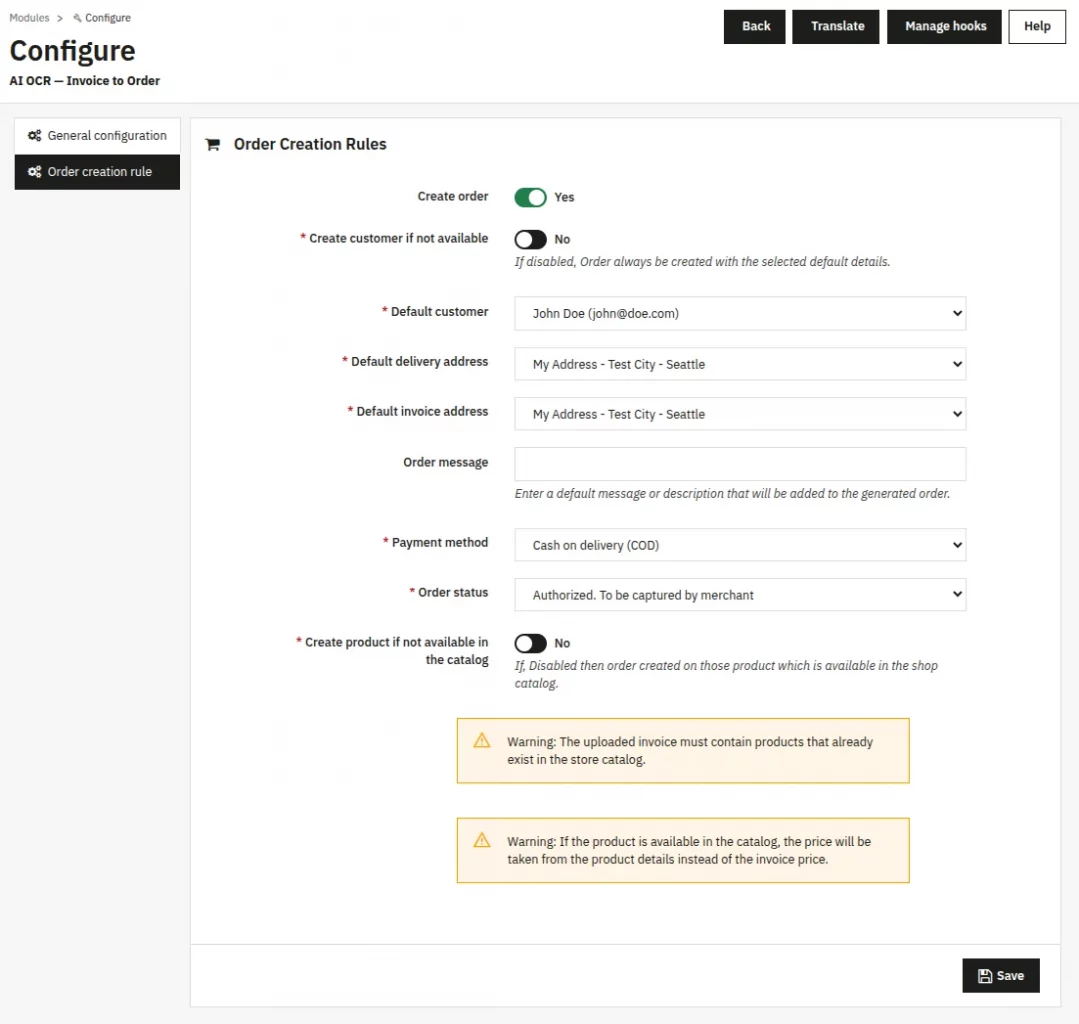
The Order creation rules tab controls what happens after an invoice has been read by the AI.
You decide whether orders are created, which payment method and order status they receive, and how missing customers and products are handled.
- Create Order: When enabled, the module creates real PrestaShop orders from extracted invoice data. When disabled, the module only extracts and shows a preview — it won’t create an order.
- Create Customer if Not Available: Creates a new customer account using the name and email found on the invoice. If a customer already exists, the existing account is reused. If disabled, all orders use the selected Default Customer.
- Default Customer: Visible and required when Create Customer is set to No. Choose an existing customer from your shop that will be assigned to all imported orders.
- Default Delivery Address: The delivery address used when customer creation is off, or when the invoice does not contain a delivery address.
- Default Invoice Address: The billing address used when customer creation is off, or when the invoice does not include a billing address.
- Order Message: A text message that will appear on every order created by this module. You can use this to note that the order came from an invoice import.
- Payment Method: Choose which payment module to attach to each created order. The order will behave like a real paid order in your back office and reports.
- Order Status: Choose the order status that the created order starts with. For example, select Payment Accepted if you want these orders to look like confirmed payments.
- Create Product if Not Available in Catalog: Automatically creates missing invoice products using their name, reference, price, and stock. If disabled, missing products are flagged and the order cannot be created until fixed.
Managing AI OCR Invoice from the Admin Panel
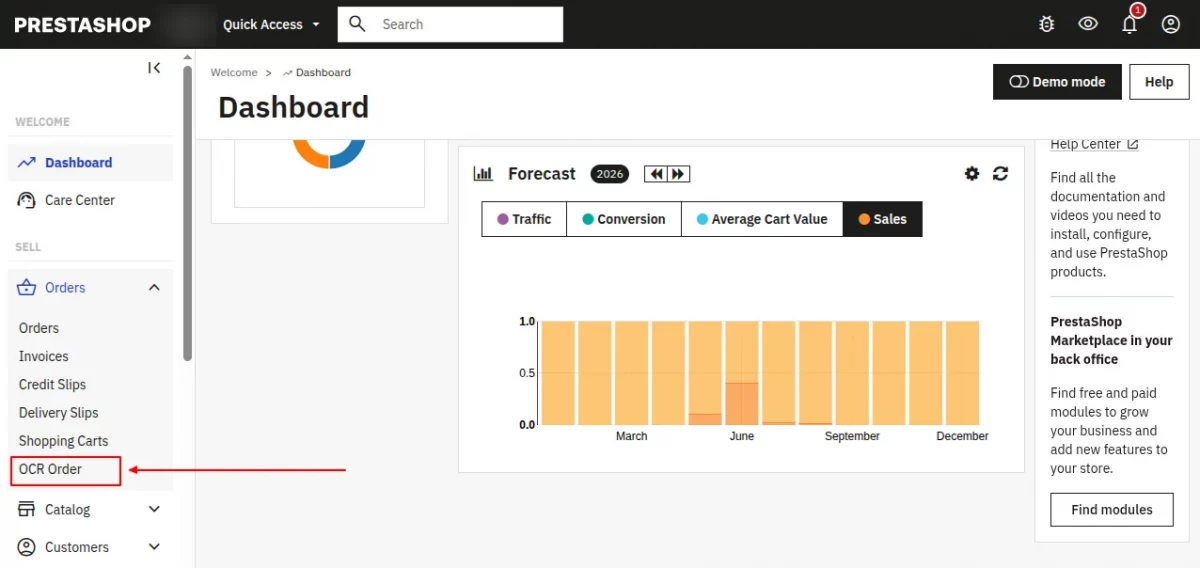
To view the list of your imported invoices, navigate to Sell > Orders > OCR Orders.
OCR Orders list page
Each row on the listing page shows the invoice PDF name, a download link, the PrestaShop order number (if created), the import status, and the date it was uploaded.
Statuses:
- Draft means the invoice was read, but no order was created yet.
- Order Created means a PrestaShop order exists for this import.
- Failed means the extraction or order creation ran into an error.
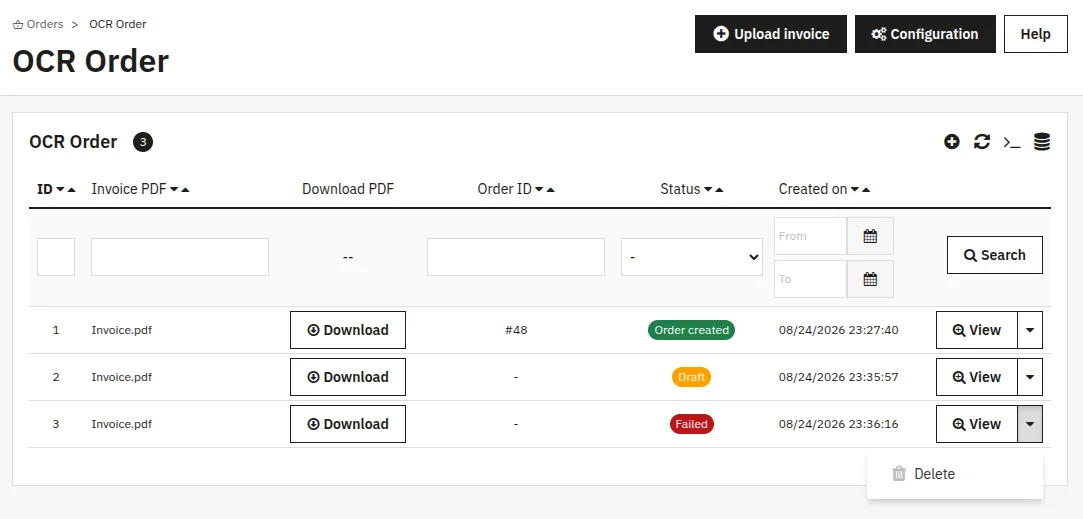
- To download a previously uploaded PDF, click the download button.
- To see the details of an import, click the View button in the last column of the row.
- To remove an import, click the Delete button. This removes the draft record and the stored PDF file.
Uploading and extracting an invoice
To import a new invoice:
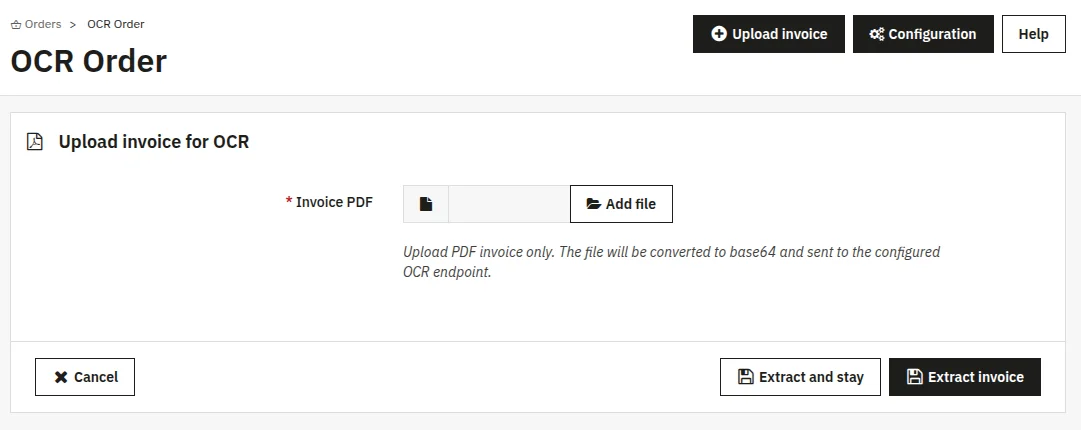
- From the OCR Orders list, click the Upload invoice button.
- Select and upload your PDF invoice from your computer.
- Click Extract invoice. The module will send the PDF to your AI provider and wait for the result.
- Once the extraction completes, you are taken to the preview screen automatically.
You will see an alert if the module is disabled, if no AI provider or endpoint is configured, or if the uploaded file is not a valid PDF.
Preview screen
The preview screen is where you review the extracted data before creating a PrestaShop order. It is divided into three areas.
- At the top, you’ll see the invoice PDF name, current status, and either a Create order button or a link to the existing order.
- The next row shows the customer details found on the invoice. If no email was found, a placeholder account is created, and a warning is shown.
- Below, two columns display the extracted invoice and delivery addresses, including street, postcode, city, and country.
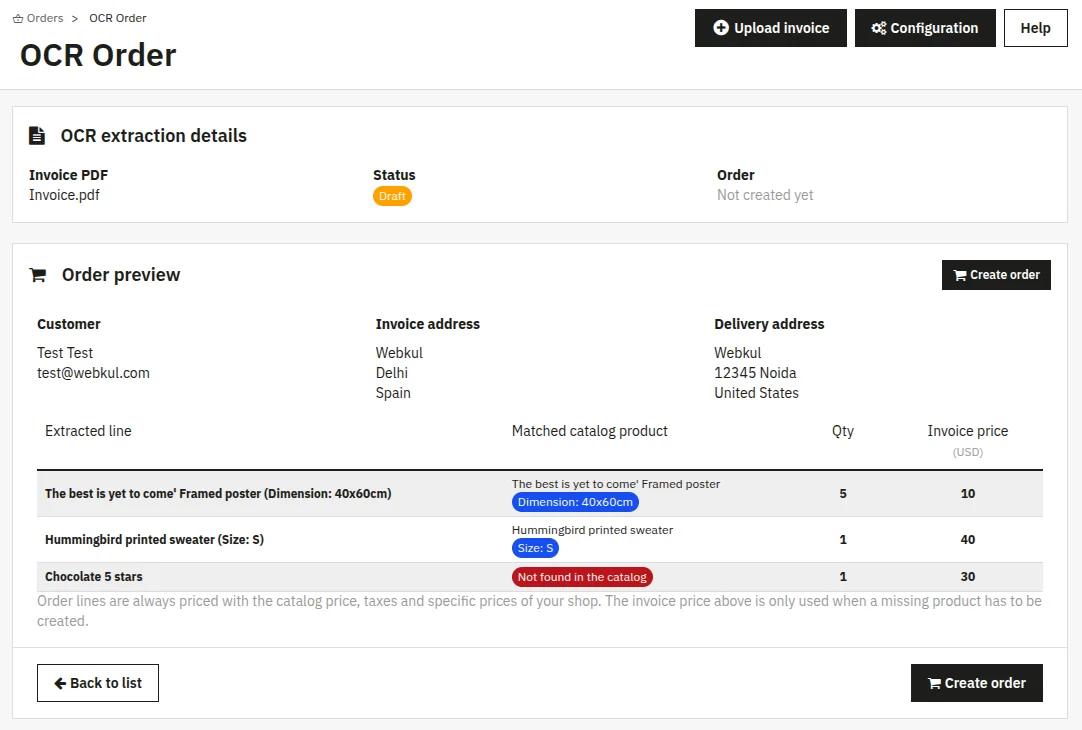
The table displayed above compares each extracted product line against your catalog. For every line, you can see:
- Extracted line: the product name exactly as it appeared on the invoice.
- Matched catalog product: Matched (product found in catalog), Will be created (product does not exist yet, but your setting allows auto-creation), or Not found (product is missing and cannot be created).
- Qty: the quantity extracted from the invoice. A “defaulted” warning badge appears when the AI could not read a quantity and used 1 instead. A “received qty” badge appears when the invoiced quantity was missing, and the received quantity was used.
- Invoice price: the unit price the AI read from the invoice. A note under the table explains that order totals always use your catalog prices, taxes, and rules — the invoice price is only used when a new product must be created.
After reviewing, click Create order. If there is an error, the error message appears on the same screen so you can fix it without losing your review.
Raw extraction data
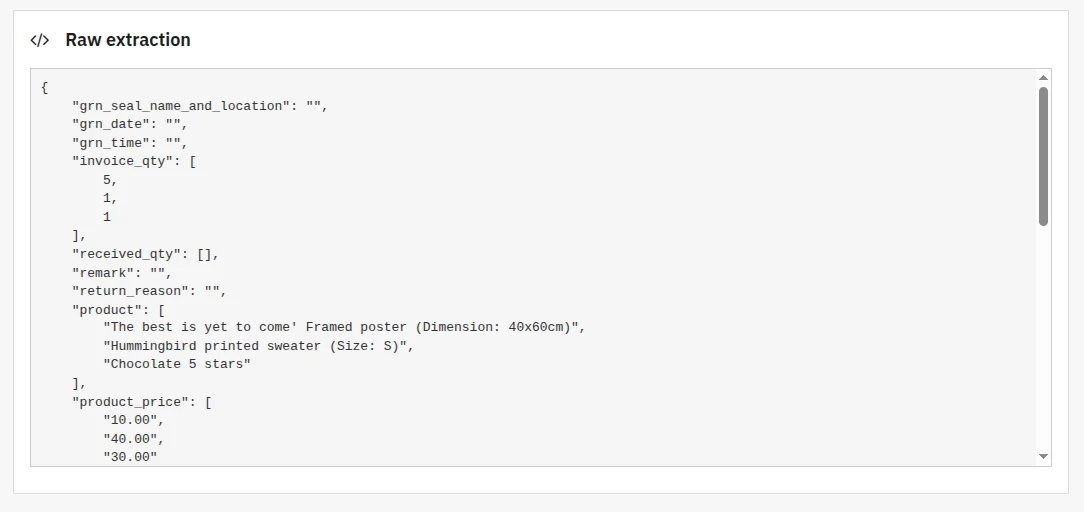
Below the preview table, there is a Raw extraction section. This shows the complete JSON data exactly as the AI returned it, formatted for readability.
You can copy this if you need to investigate a parsing issue or contact support. This section is for reference only and is never sent to anyone automatically.
Created Order Display
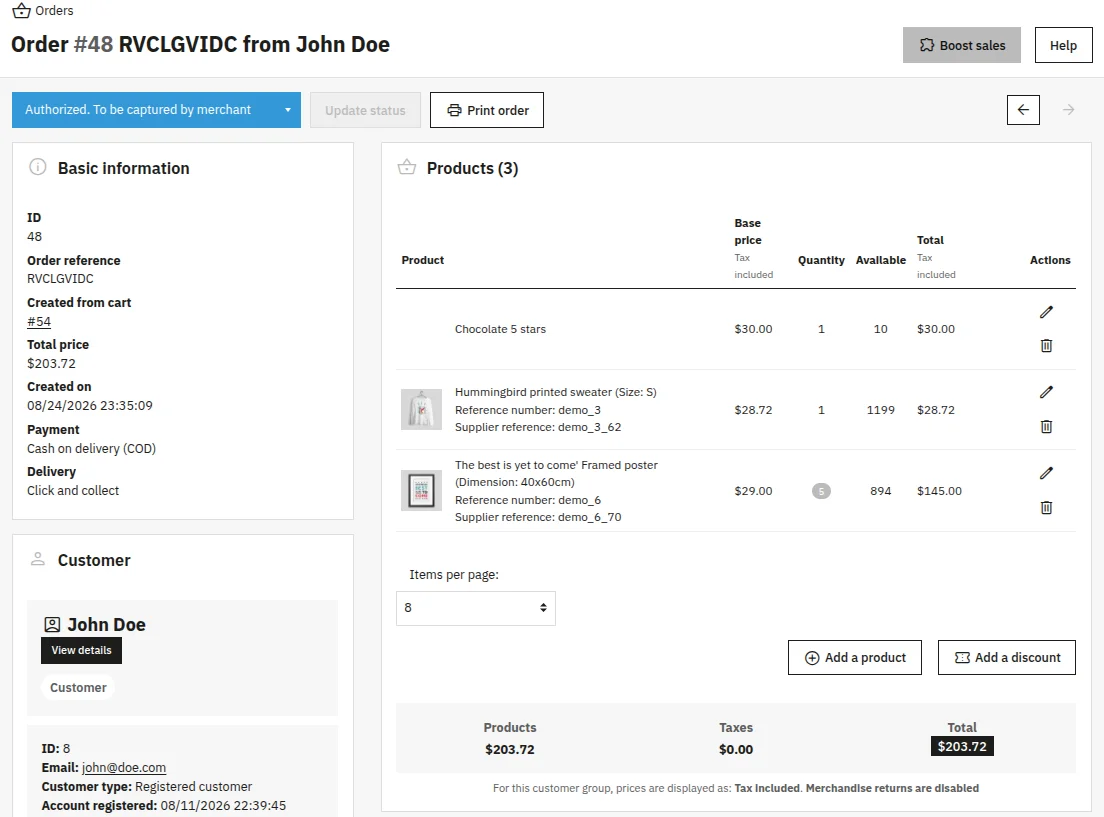
When you click Create Order on the preview screen, the module builds a real PrestaShop order using the standard order system.
The order appears in your back office carrying the same order number format, status, and invoice number as if the customer had placed it on the storefront.
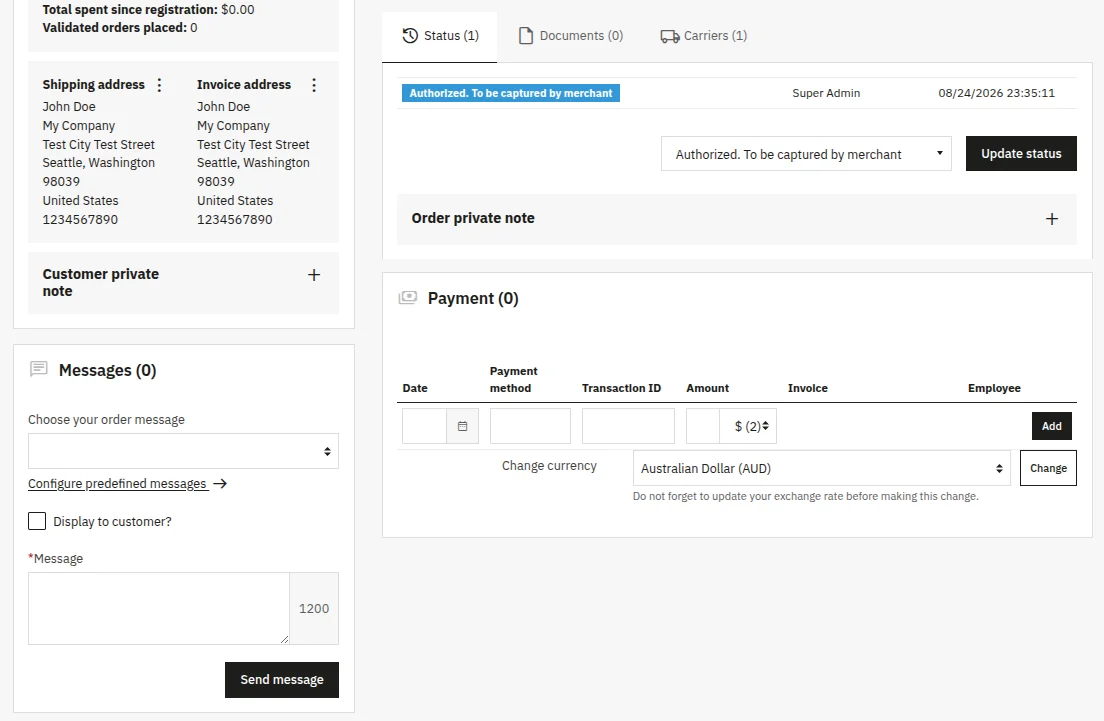
What the customer sees
If the order was created for an existing customer account (or a new account with a real email), the customer can log in to their account and view the order.
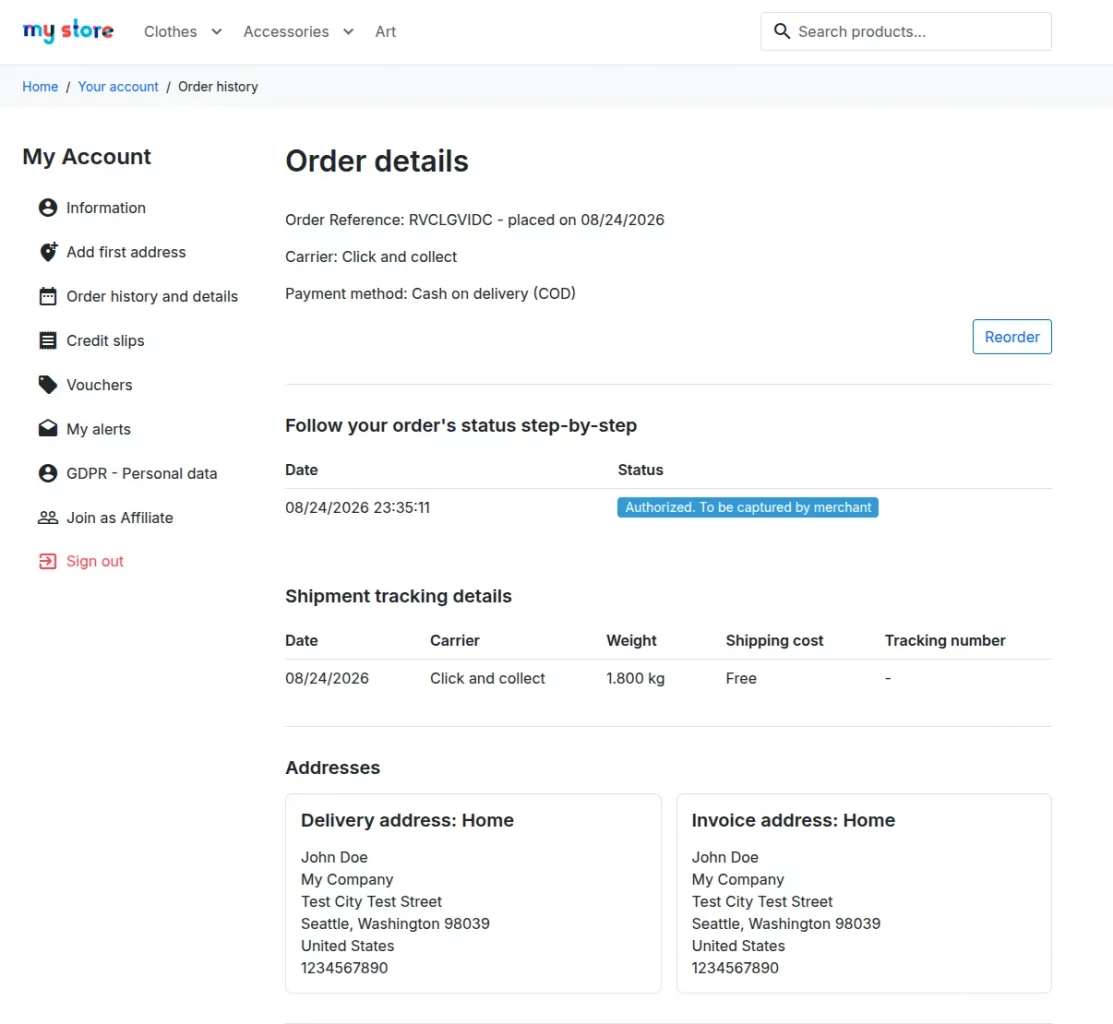
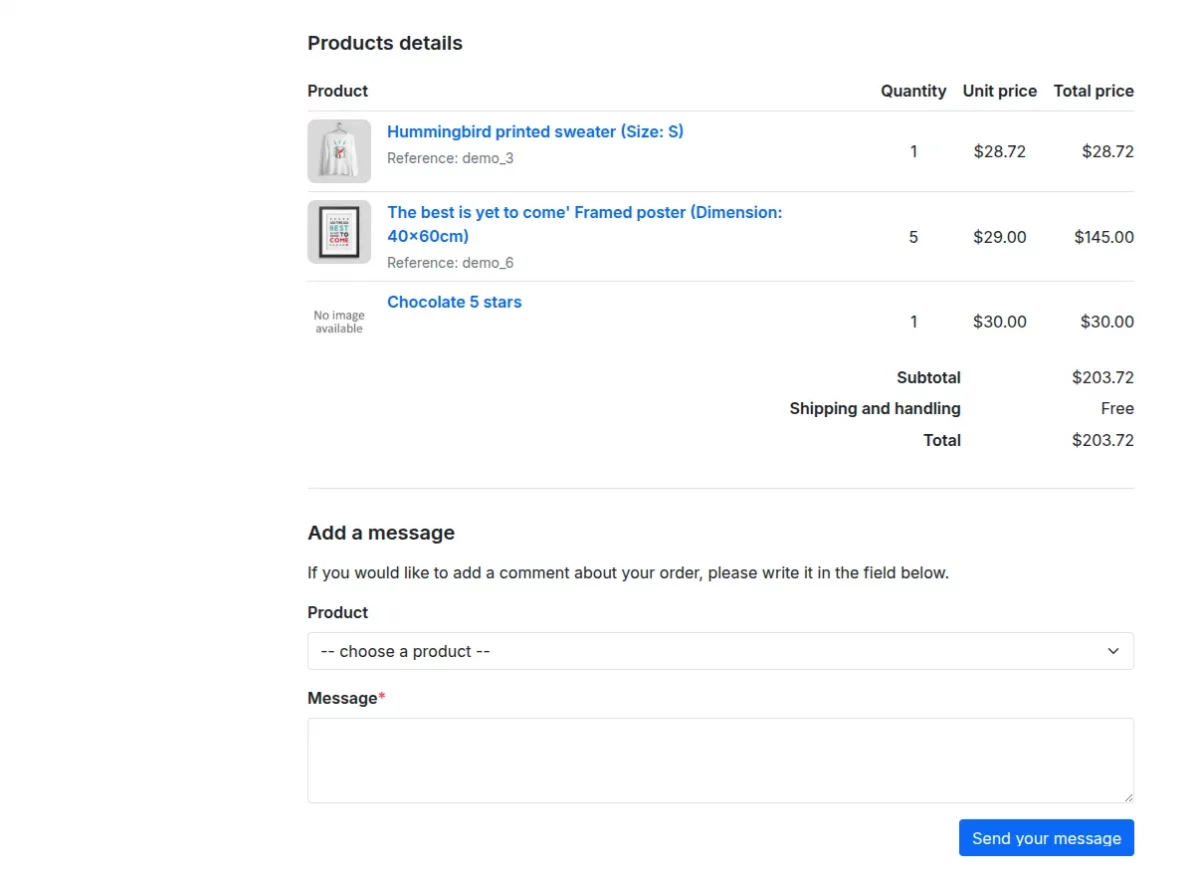
This was all about the PrestaShop AI OCR Invoice to Order Module. I hope this document will help you in checking the functionality of the module in a better way.
Also, do let us know about your views in the comments.
Support
For any kind of technical assistance or query, please raise a ticket or send us an email at [email protected]
Also, please explore our Prestashop development services and vast range of quality Prestashop addons.
Current Product Version - 1.0.0
Supported Framework Version - 9.x.x, 8.x.x, 1.7.x.x

Be the first to comment.