PrestaShop Agentic commerce with ChatGPT allows the admin to export their products in supported formats and share it with OpenAI, making their products eligible to appear in ChatGPT shopping results.
By leveraging AI-powered product discovery, merchants can significantly improve product visibility and reach potential customers through conversational interfaces.
The module provides automated feed generation, secure access, and flexible configuration to ensure smooth integration with OpenAI systems.
NOTE:
- PrestaShop Agentic commerce with ChatGPT is compatible with the PrestaShop Multi-store feature.
- According to ChatGPT, merchants can currently register only in the United States, and the shopping feature is available to users within the United States.
Features of PrestaShop Agentic commerce with ChatGPT
- Generate OpenAI commerce feeds for ChatGPT merchant integrations.
- Export feeds in CSV.GZ and JSONL.GZ formats for OpenAI delivery.
- Secure feed and cron URLs using token-based access.
- Manually generate feeds from the admin panel with ready-to-copy URLs.
- Automatically update feeds via product create, update, delete, and stock changes.
- Use queue and cron-based processing for pending catalog updates.
- Support cache TTL to reuse feeds and regenerate only when needed.
- Keeps shard structure consistent across updates, unless capacity or size limits require rebalancing.
- Filter products by category and optionally exclude out-of-stock items.
- Configure seller info, return policy, privacy policy, and checkout eligibility.
- Support remote uploads via SFTP, FTPS, and FTP with connection testing.
- Enable Agentic Checkout with Stripe payment processing for in-ChatGPT purchases.
How to Install PrestaShop Agentic commerce with ChatGPT
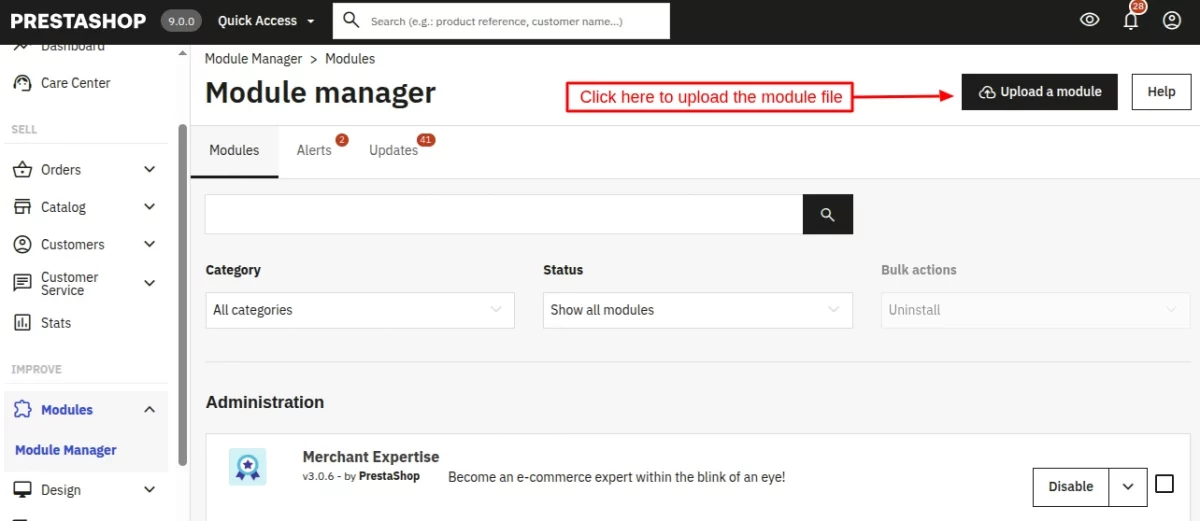
- Firstly, go to the module manager in the back office and click on ‘upload a module’.
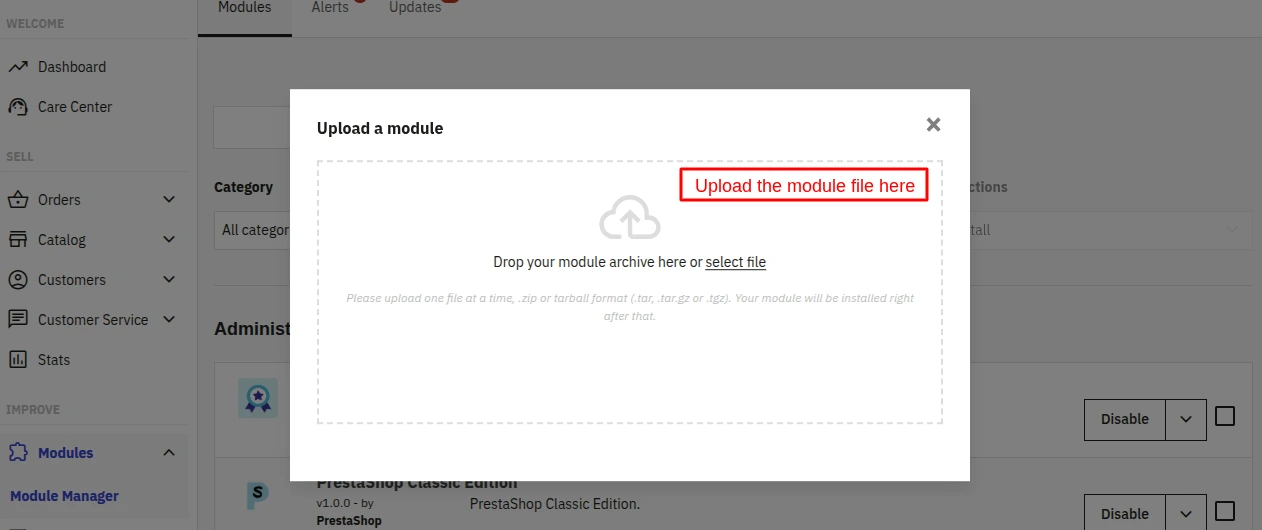
- After that, drag and drop the module file or select the file from the system.
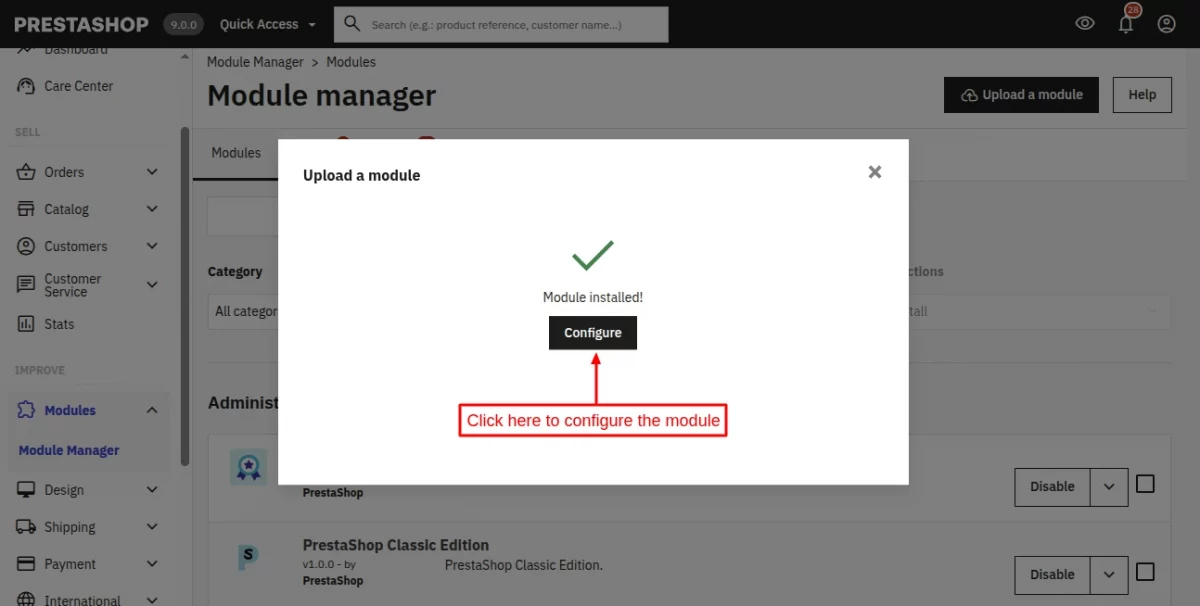
- In this way, the module installation will be successful.
How to apply for the OpenAI merchant program
To use the generated feeds, the admin must first apply for OpenAI’s merchant program and receive approval.
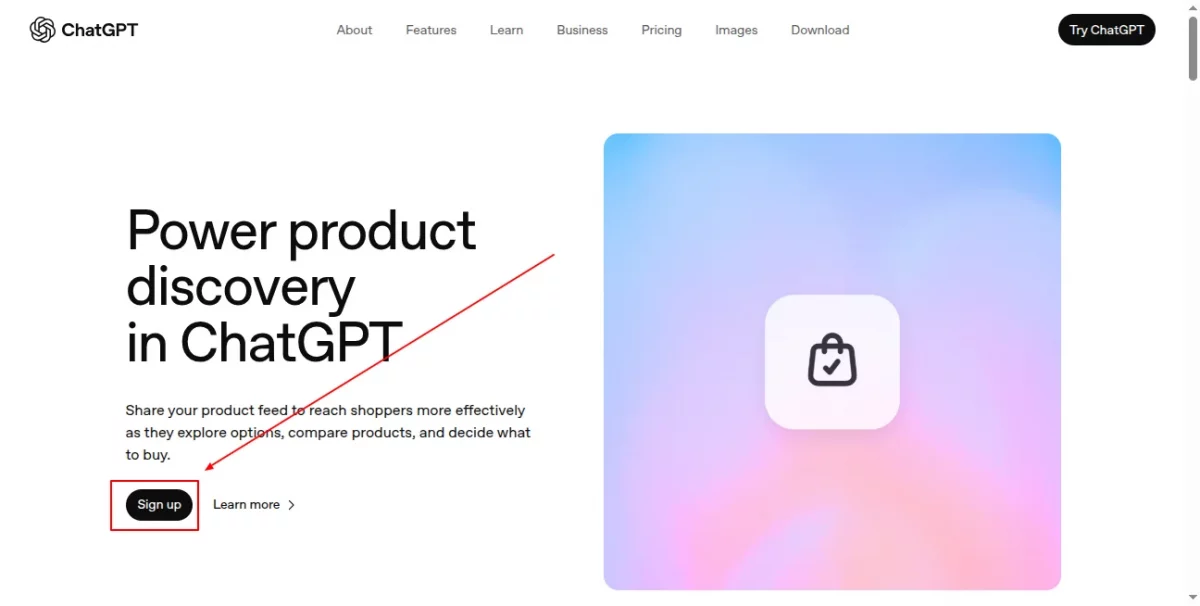
Upon selecting the signup option, the user will be redirected to the registration section, where they are required to provide accurate personal and business information.
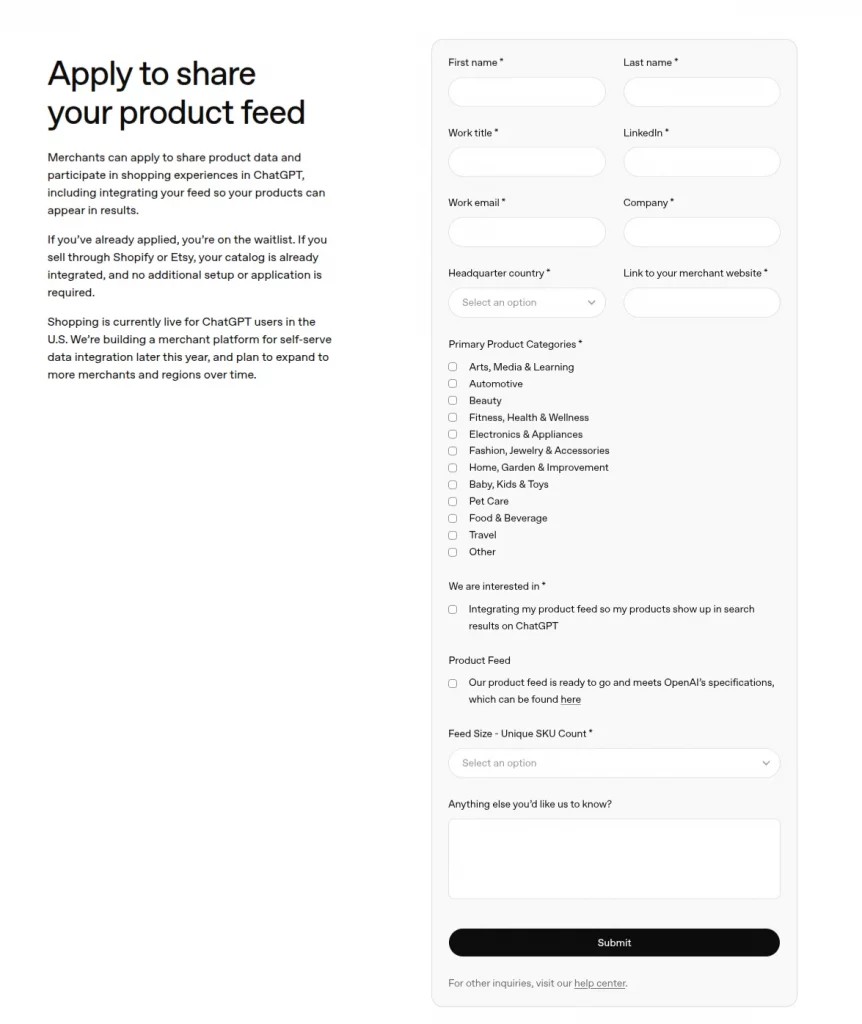
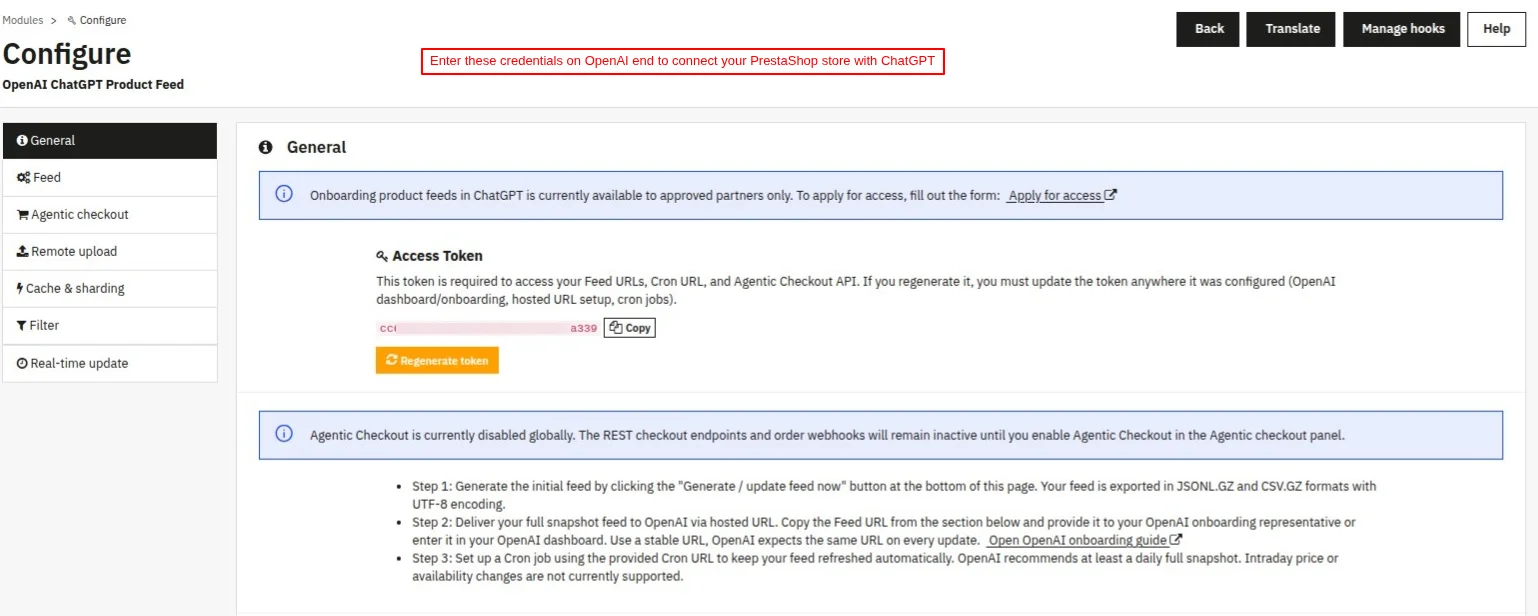
Then, the admin must enter the Access Token, Agentic Checkout endpoints, and Feed URLs provided within the module configuration for a successful integration.
How to get the Stripe Secret API key
In order to get the Stripe Secret API key, you must have an account on https://stripe.com/.

You can use the live keys if you are using it for the live site and if you are just testing the module then you can use the test keys.
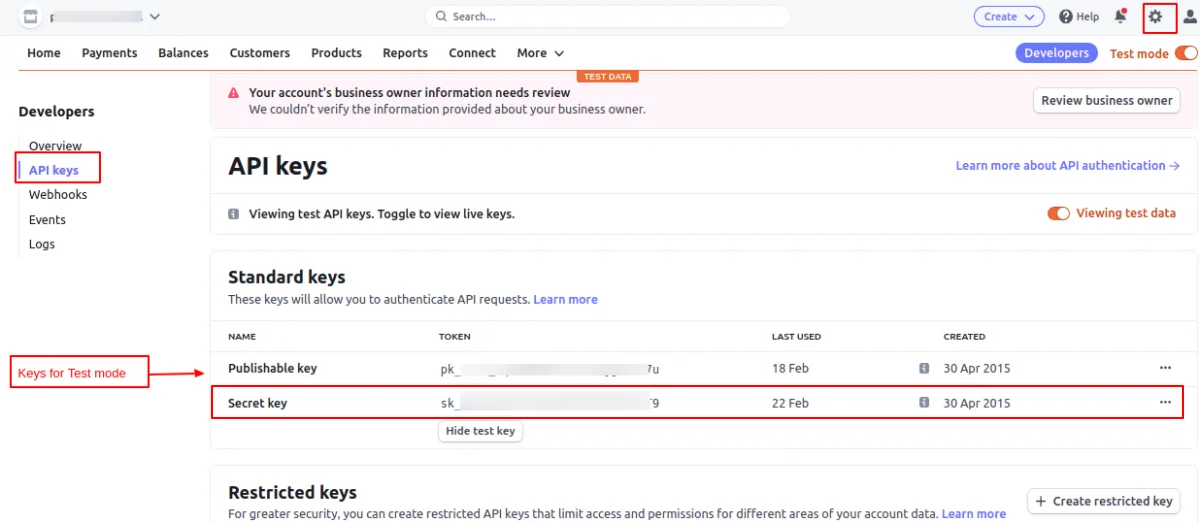
For new SCA(Strong Customer Authentication), an admin has to enable Checkout Client Integration as shown below:

As per the requirement, an admin can fill the Stripe Secret API key in the module configuration.
PrestaShop Agentic commerce with ChatGPT Module Configuration
After the successful installation of the module, the admin will have to configure the module.
General Settings
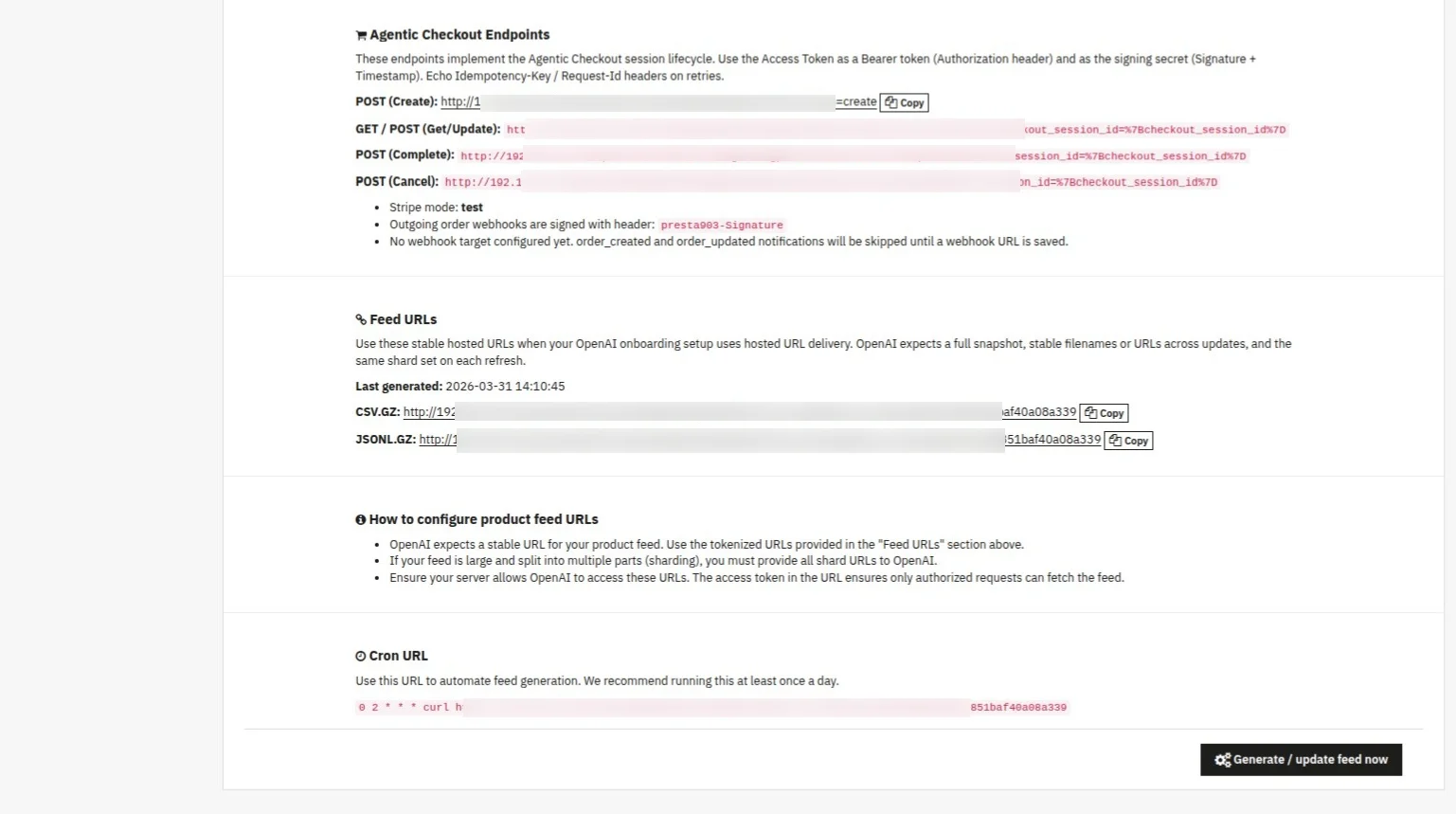
Under General Settings, the admin can access the Token, Checkout Endpoints, and Feed URLs required to connect their PrestaShop store with ChatGPT on the OpenAI platform.
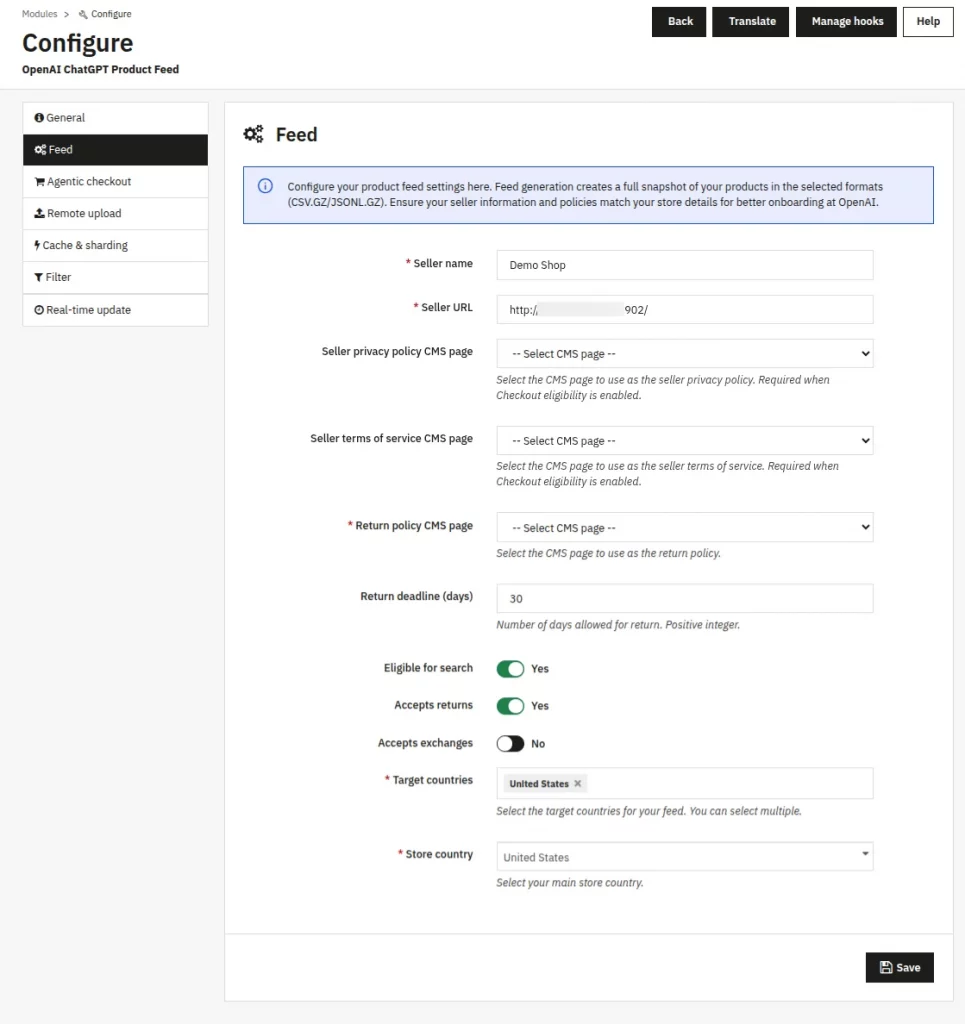
Feed Settings
In the feed settings, the admin will provide basic seller information and configuration details. This includes details such as:
- Seller name
- Seller URL
- Privacy policy CMS page
- Terms of service CMS page
- Return policy CMS page and return duration
- Enable search and allows products to appear in ChatGPT results
- Accept returns and exchanges of products
- Choose target countries where products will be available
- Choose the store’s operating country
These details are added to the product feed and shared with OpenAI. Providing accurate information is important to meet platform requirements and policies.
This information is mandatory when checkout functionality is enabled, as it ensures proper compliance.
Agentic Checkout Settings
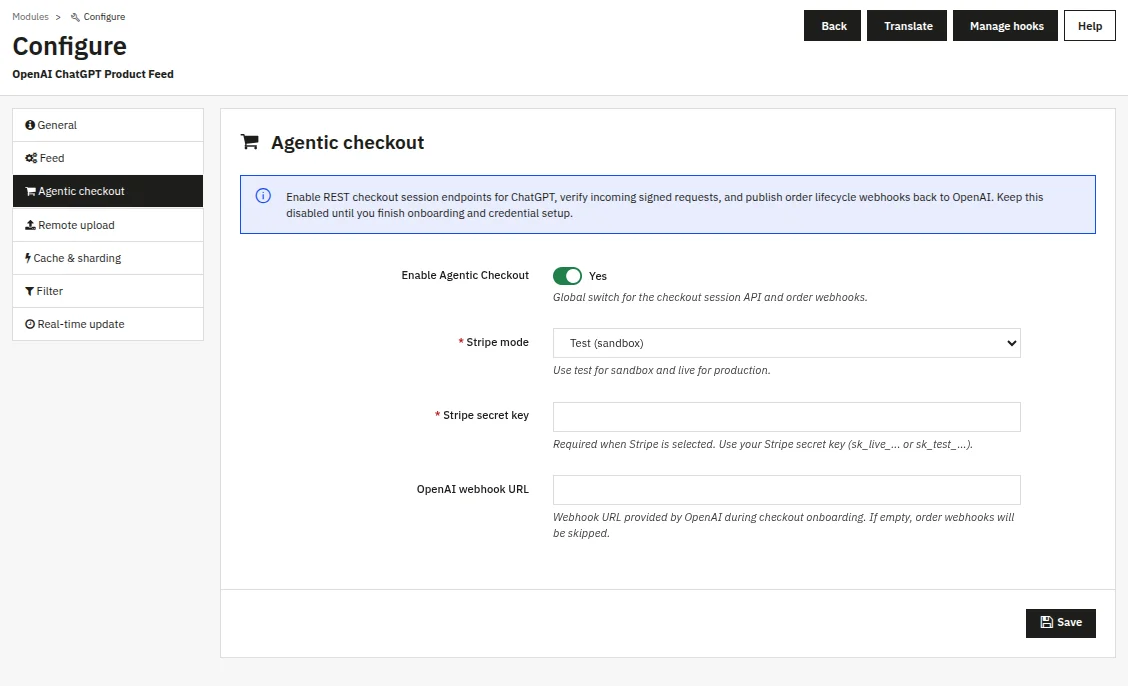
In the Agentic checkout settings, the admin can enable or disable the checkout feature for their products from ChatGPT. This configuration includes:
- Enable Agentic checkout: Enable/Disable users to purchase products directly through ChatGPT.
- Stripe mode: Choose between Test mode (for testing transactions) and Live mode (for real payments).
- Stripe secret key: Enter your Stripe secret key to process payments.
- OpenAI webhook URL: Enter webhook URL provided by OpenAI during checkout onboarding.
Remote Upload Settings
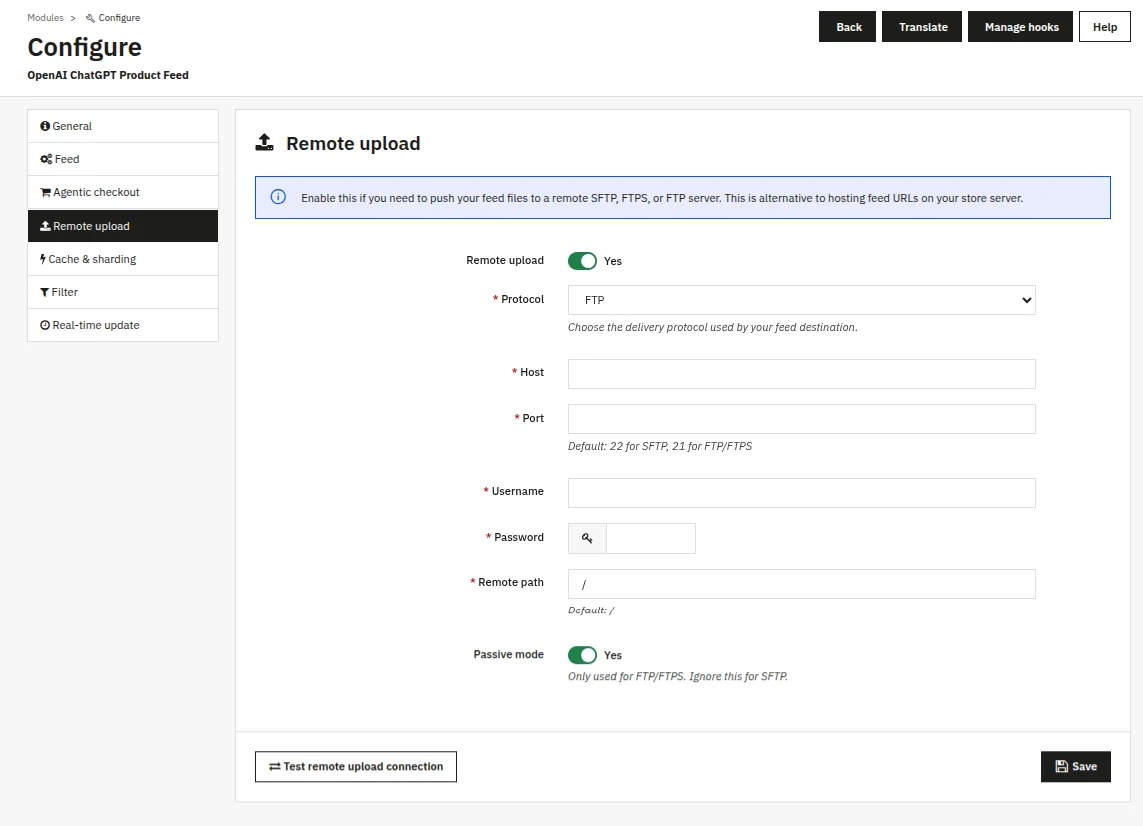
The module also allows the admin to automatically upload feeds to a remote server. The admin needs to configure the FTP/SFTP/FTPS credentials provided by OpenAI for using the Remote upload feature.
A test connection feature is also available to verify the configuration before enabling automatic uploads.
Caching & Sharding Settings
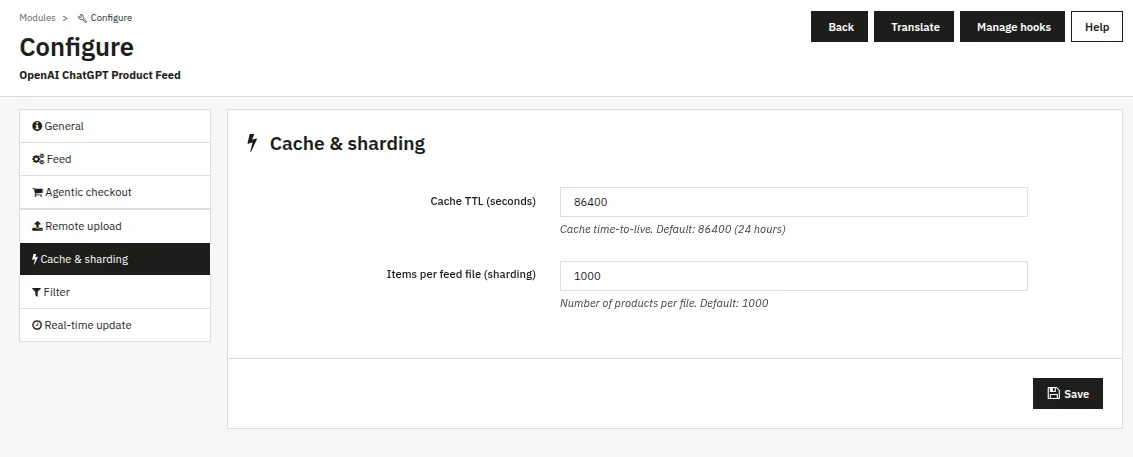
The module allows the admin to configure how feeds are generated and managed. This includes setting cache duration and defining the number of items per feed file.
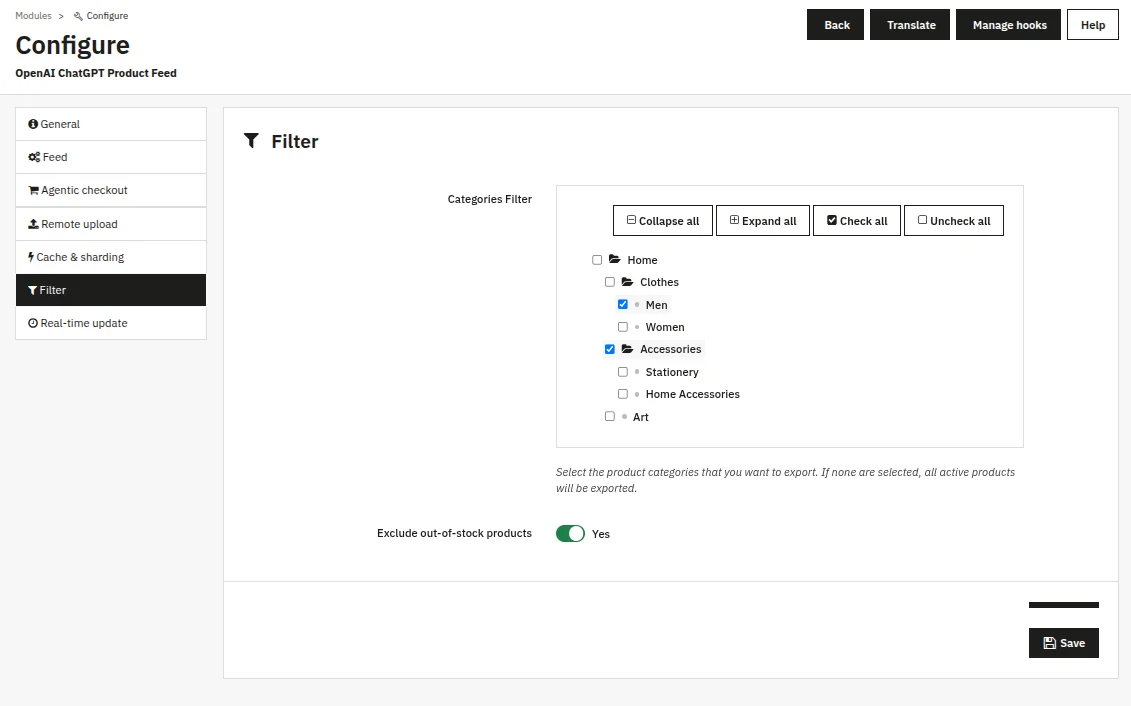
Filter Settings
The filter settings allow the admin to control feed content. If the admin selects only specific categories, all active products within those categories will be exported.
If no categories are selected, all active products in the store will be included by default. From this tab, the admin can also choose to include or exclude the out-of-stock products from the feed.
Real-Time Update Settings
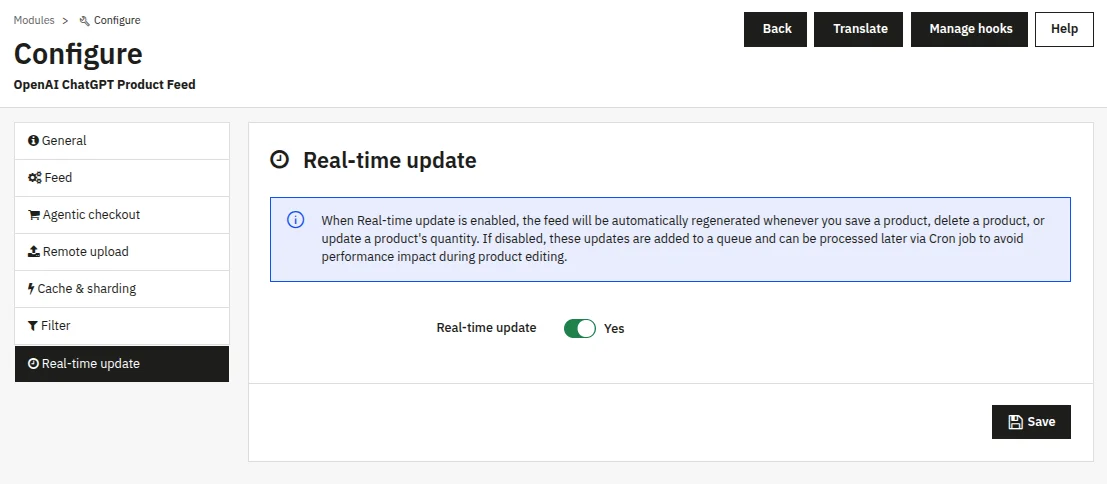
If this feature is enabled, the feed will be automatically regenerated whenever you save a product, delete a product, or update a product’s quantity.
If disabled, these updates are added to a queue and can be processed later via Cron job to avoid performance impact during product editing.
Feed Generation Workflow
Once the module is configured, the admin can generate the product feed either manually or automatically.
Manual Feed Updates
The admin can choose to generate the product feed either manually from the general settings tab.
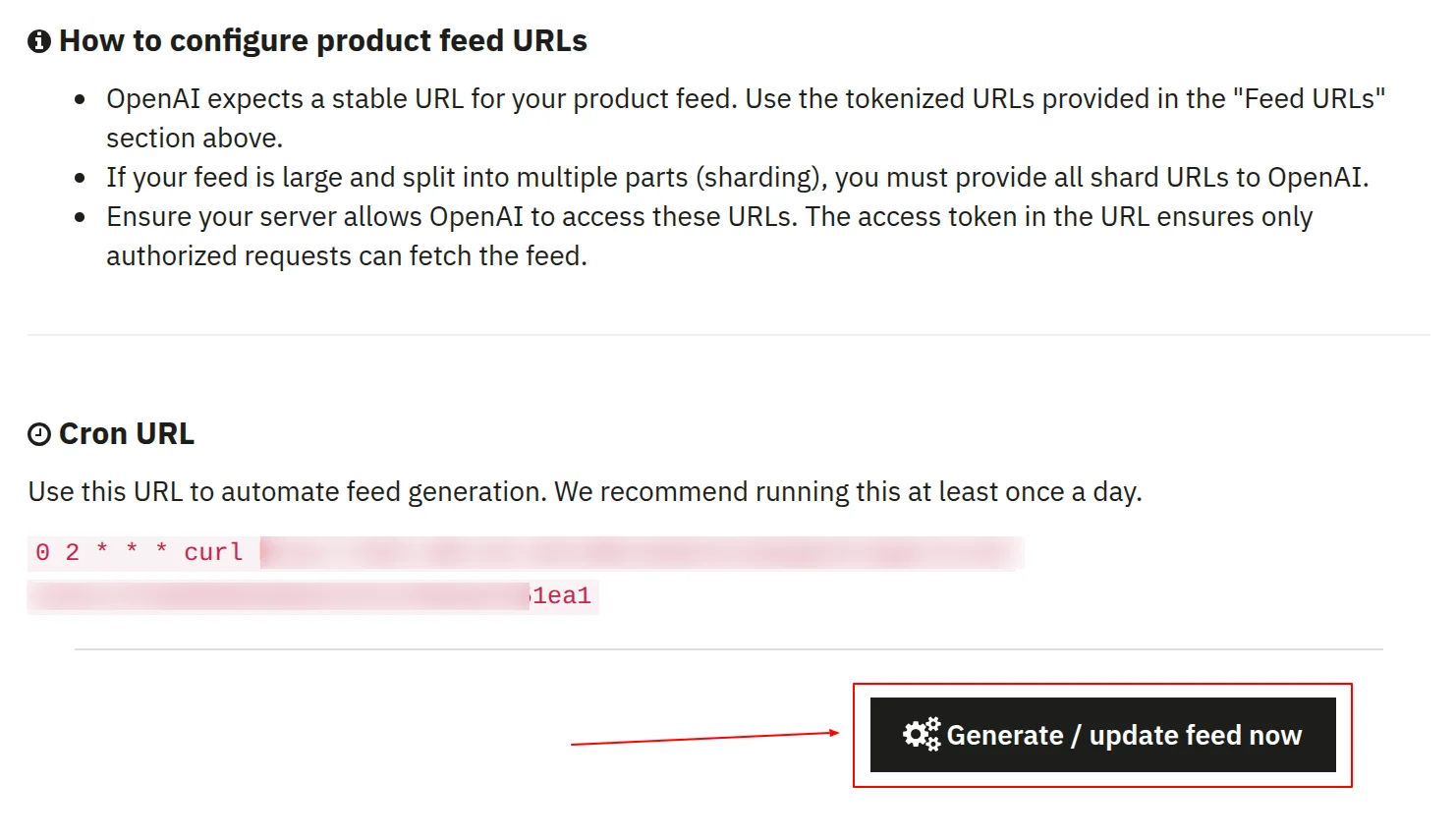
During feed generation, the module collects all active products and their combinations, formats the data, and compresses it into the required formats.
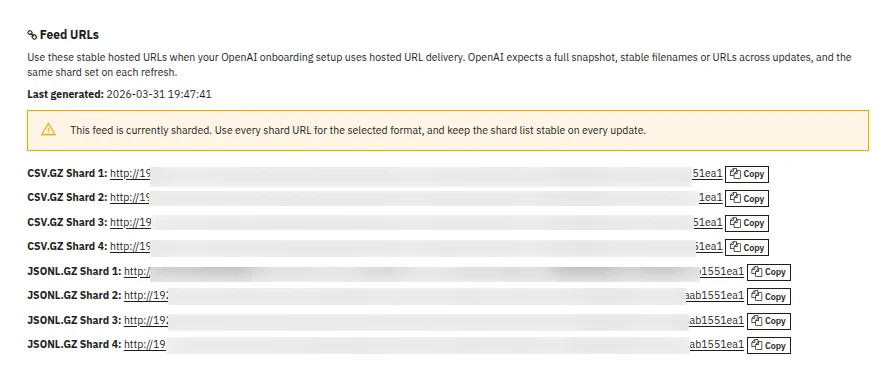
For large catalogs, you can split the data into multiple files based on the caching and sharding configuration. After generation, the module provides feed URLs that you can share with OpenAI.
Automated Feed Updates
1. Cron-Based Updates
The module supports automated feed generation using cron jobs. By setting up a cron job on the server, the admin can ensure that the feed is updated regularly without manual intervention.
This is especially useful for stores with frequently changing product data.
2. Hook-Based Updates
The module integrates with PrestaShop hooks to detect changes in product data. Whenever a product is created, updated, deleted, or its stock changes, the module marks the feed for update.
This ensures that the feed remains synchronized with the store data at all times.
Feed URLs and Access
Each generated feed is accessible via a secure URL that includes a unique token. This token ensures that only authorized access is allowed.
The admin can regenerate the token if needed. It is important to keep the token confidential to prevent unauthorized access.
For large catalogs, multiple shard URLs are generated, and all of them must be shared with OpenAI.
Workflow on ChatGPT
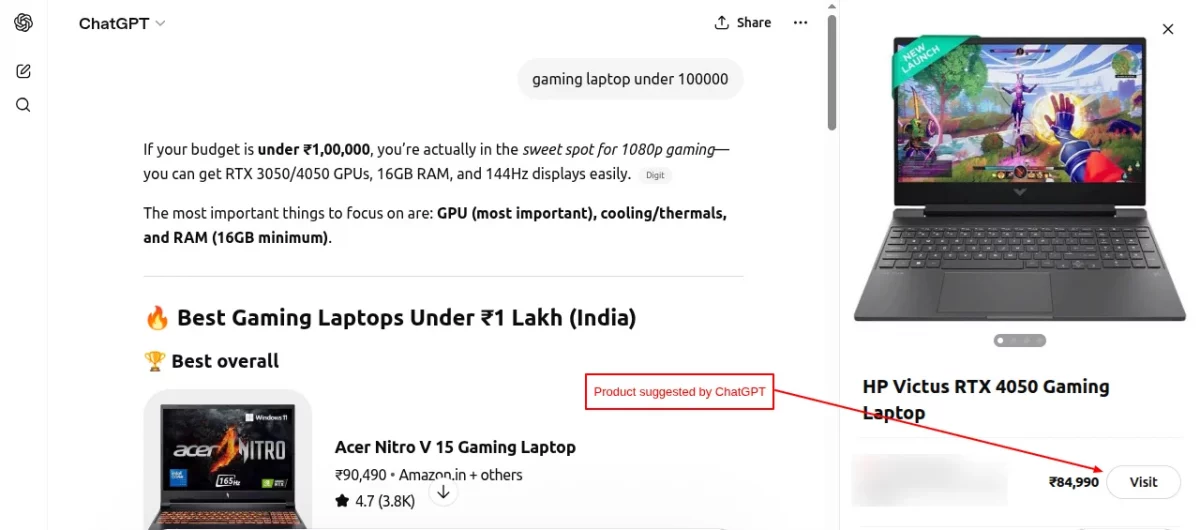
Once the admin configures the module and shares the product feed on ChatGPT, it will suggest these products when customers make related queries.
Users can then choose to either visit the website or buy the products directly within ChatGPT.
Troubleshooting
Feed Generation
If the feed is not generated, the admin should check directory permissions, ensure that products are active, and review server logs for errors.
Token
If an invalid token error occurs, the admin should verify the token in the URL, ensure it is copied correctly, and regenerate it if necessary.
Remote Upload
If remote upload fails, the admin should verify server credentials, test the connection, and check firewall or security settings.
Performance
For large catalogs, feed generation may take longer. In such cases, increasing server execution time, reducing items per file, and using cron jobs can help improve performance.
This was all about the PrestaShop Agentic commerce with ChatGPT Module. I hope this document will help you in checking the functionality of the module in a better way.
Also, do let us know about your views in the comments.
Support
For any kind of technical assistance or query, please raise a ticket or send us an email at [email protected]
Also, please explore our Prestashop development services and vast range of quality Prestashop addons.
Current Product Version - 1.0.0
Supported Framework Version - 9.x.x, 8.x.x, 1.7.x.x

Be the first to comment.