INTRODUCTION
Odoo POS Kitchen Receipt Print On Order Validation is designed to streamline kitchen operations by printing kitchen receipts as soon as an order is validated in POS.
Helps reduce errors, improves order accuracy, and enhances communication between front-of-house and kitchen teams, especially during busy hours.
Odoo POS Kitchen Receipt Print On Order Validation lets you choose between automatic and manual receipt printing.
You can also preview orders before printing to avoid mistakes and ensure smooth operation.
FEATURES
- Automatically print kitchen receipts after order confirmation in POS.
- Manually print receipts using print button on the receipt screen.
- Preview kitchen receipt before sending it to a printer.
- Customize backend settings to toggle between automatic and manual printing.
- Instantly route order details from POS to the kitchen.
- Improve collaboration between kitchen staff and order-taking staff.
- Avoid miscommunication and reduce kitchen errors.
- Control all settings from Odoo backend without technical help.
- Odoo POS Kitchen Receipt Print On Order Validation is compatible with multiple POS terminals for seamless operations.
INSTALLATION
- Once you purchase the App from Webkul store, you will receive a link to download the module’s zip file.
- Extract the file on your system after the download finishes. As a result, you will be able to see a folder named- ‘pos_print_kot_on_order_validation’
- Copy and paste this folder inside your Odoo Add-Ons path.
- Now, open Odoo App and click on the Settings menu. Here, click on Activate the Developer Mode.
- Then, open the Apps menu and click on ‘Update Modules List.’
- In the search bar, remove all the filters and search ‘pos_print_kot_on_order_validation’
- You will be able to see the module in the search results. Click on ‘Install’ to install it.
WORKFLOW
- After installing Odoo POS Kitchen Receipt Print On Order Validation, go to POS settings, enable ‘Print Kitchen Receipt’ and ‘Show Preview,’ and choose when to print, on button click or after validation.
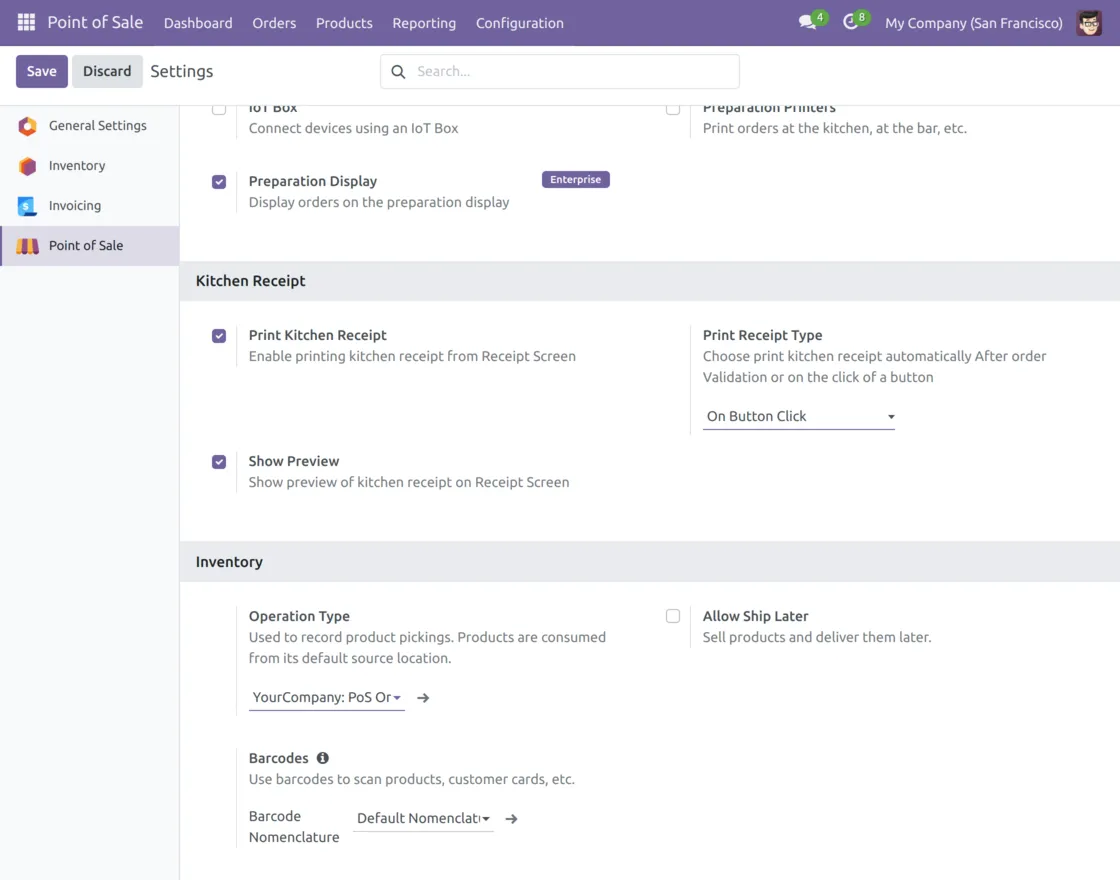
2. You can configure the system to automatically set receipt type to be printed after order validation.

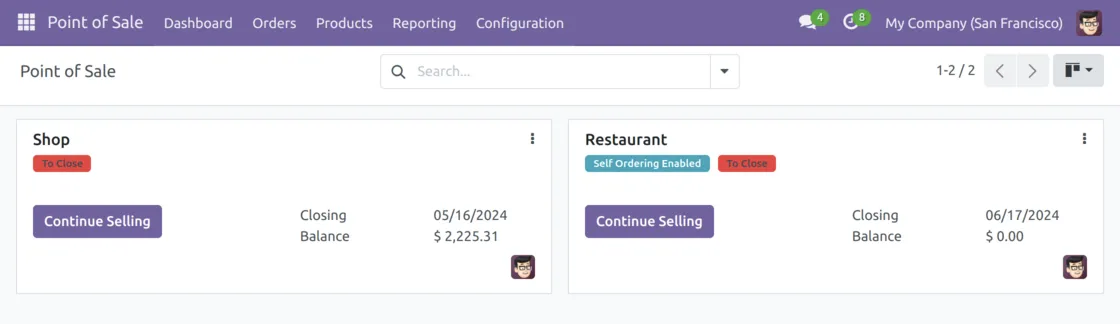
3. Here, you can view all POS sessions that are currently active.
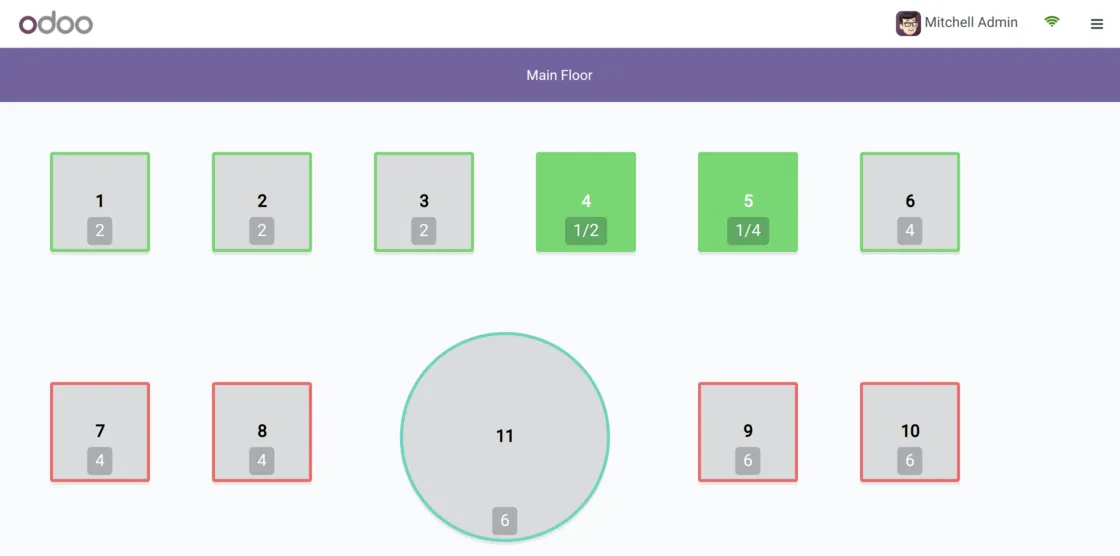
4. In POS frontend view, the tables are displayed as either occupied or available, depending on their current status.
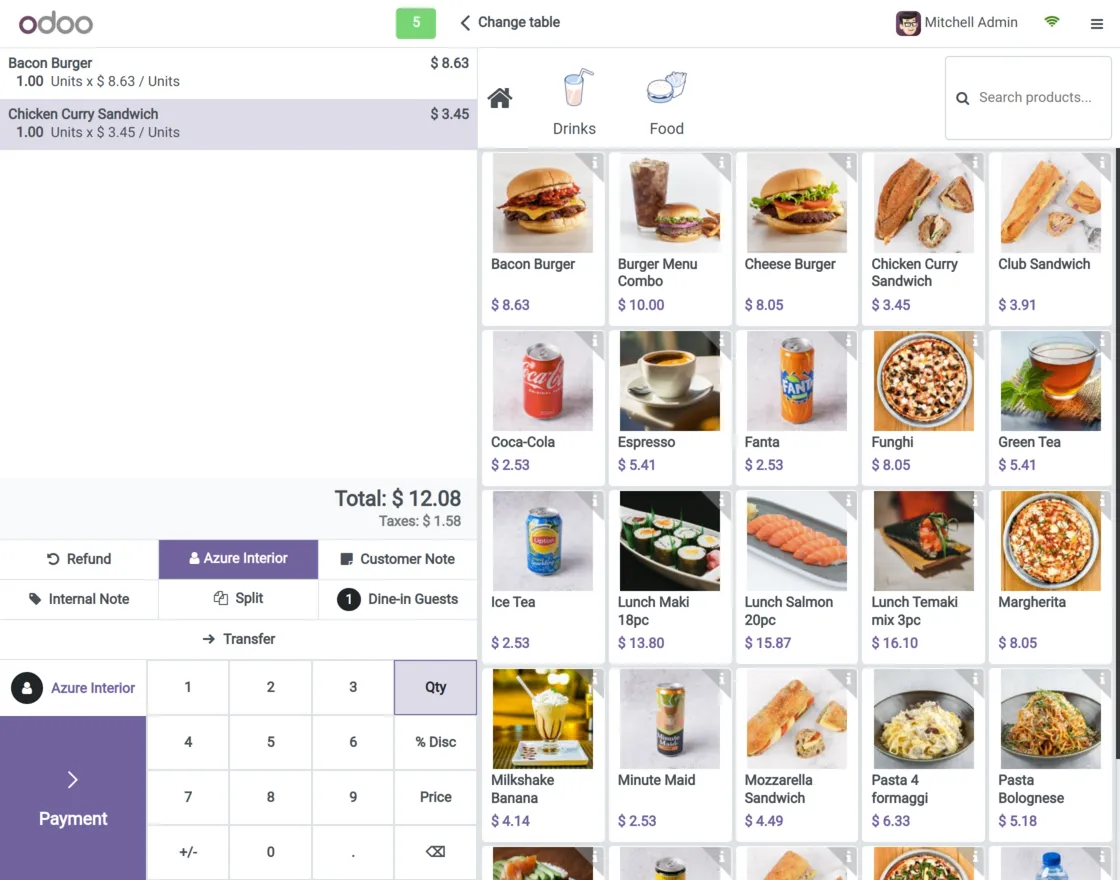
5. Select products and proceed to the available payment options.
6. Choose payment method and validate the transaction.

7. Here, you can see that order has been successfully validated, along with the option to print a receipt and view recent transactions.
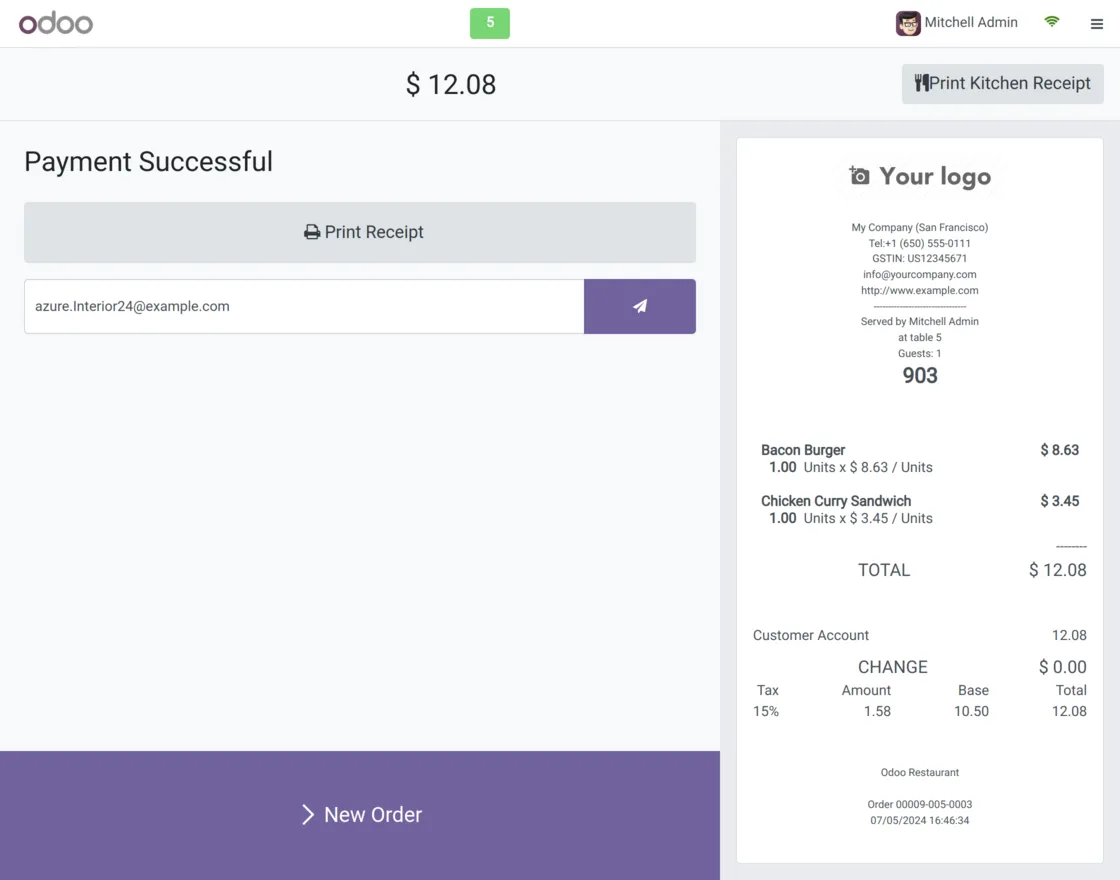
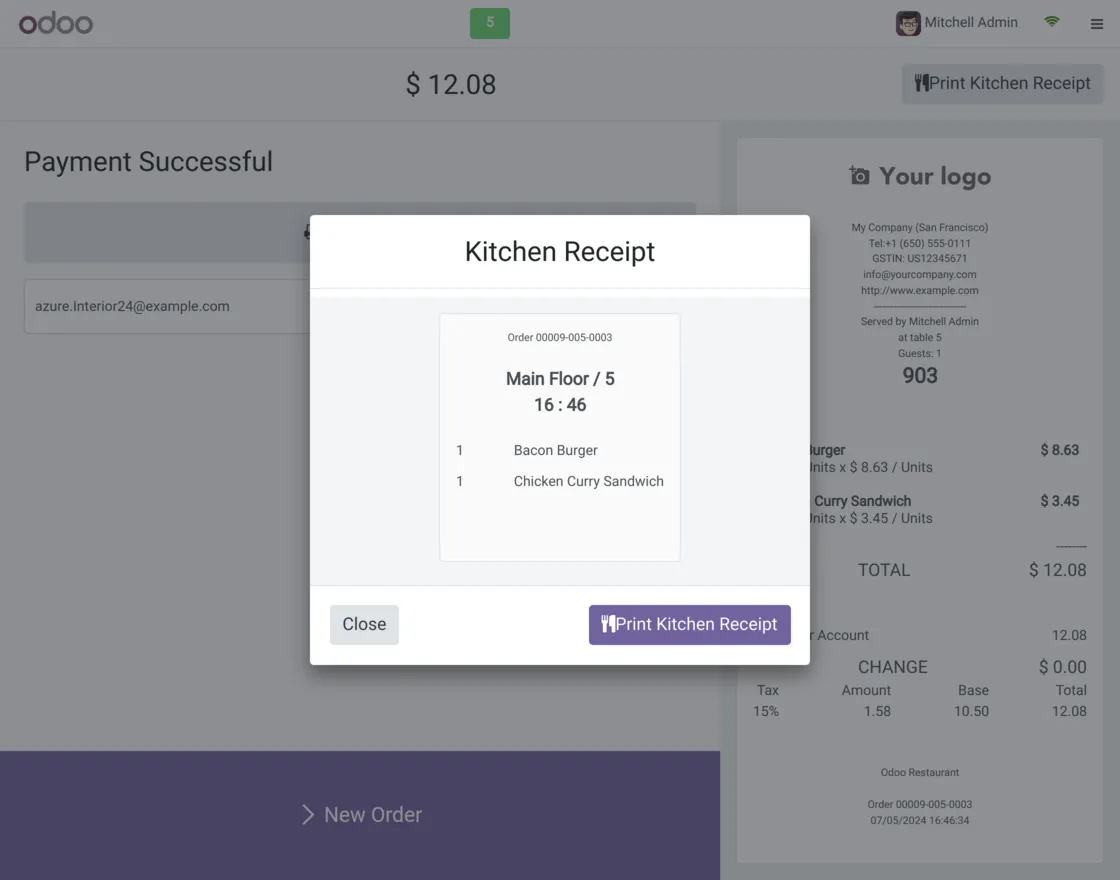
8. A confirmation pop-up will now appear for printing the kitchen receipt, which includes all the necessary details for the kitchen staff.
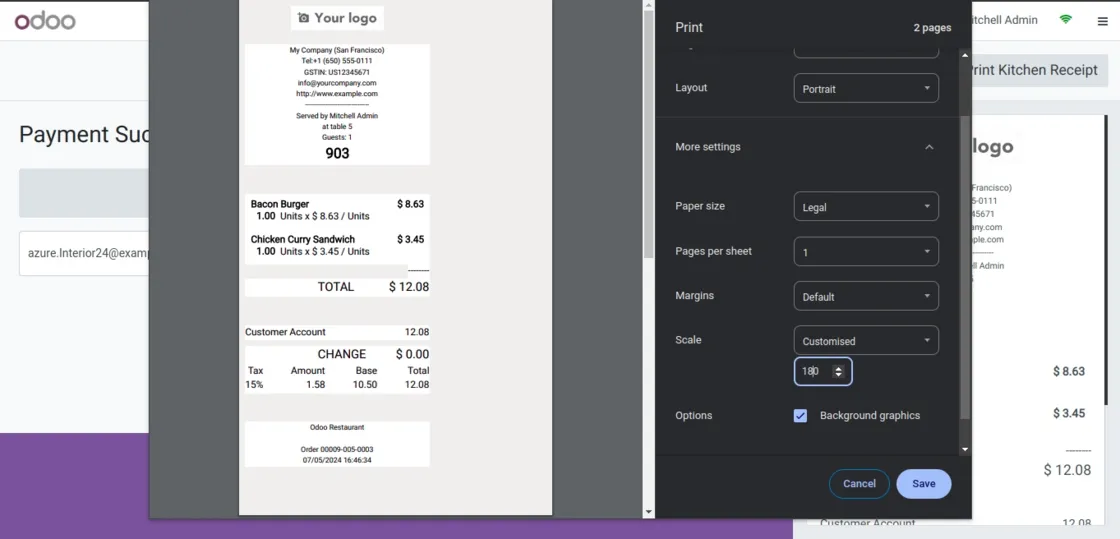
9. Finally, you can print the kitchen receipt upon completion of the order.
NEED HELP?
Hope you find the guide helpful! Please feel free to share your feedback in the comments below.
If you still have any issues/queries regarding the same, please raise a ticket at the UV Desk.
I hope this helps. In case of any further queries, contact us at our support mail.
Thanks for paying attention!!
Current Product Version - 1.0.0
Supported Framework Version - V18, V17, V16

Be the first to comment.