Introduction
POS BlueSnap Payment Acquirer module integrates BlueSnap with Odoo Point of Sale. It allows cashiers to accept customer payments through a QR code.
The module displays the order amount and reference on the payment screen. Customers can scan the QR code and enter their card details to complete the payment.
It also records payment transactions in Odoo. Users can review transaction details and check payment statuses from the backend.
Prerequisites for using POS BlueSnap Payment Acquirer
POS BlueSnap Payment Acquirer works with the following Odoo modules:
You must install the required modules and configure a BlueSnap merchant account with valid API credentials before using POS BlueSnap Payment Acquirer.
Features
- Accept BlueSnap payments through Odoo POS.
- Generate a QR code for customer payments.
- Display the order amount and reference on the payment screen.
- Let customers enter card details on a payment page.
- Configure BlueSnap API credentials.
- Switch between test mode and production mode.
- Display payment status in the POS.
- Record successful and failed payment attempts.
- Review payment transactions and their details in Odoo.
Installation
- Once you purchase the App from Webkul Store, you will receive a link to download the module’s zip file.
- Extract the file on your system after download finishes. As a result, you will be able to see a folder named- ‘pos_bluesnap_payment_acquirer’.
- Copy and paste this folder inside your Odoo Add-Ons path.
- Now, open Odoo App and click on the Settings menu. Here, click on Activate Developer Mode.
- Then, open Apps menu and click on ‘Update Modules List.’
- In the search bar, remove all the filters and search for ‘pos_bluesnap_payment_acquirer’.
- You will be able to see the module in the search results. Click on ‘Activate’ to install it.
Workflow
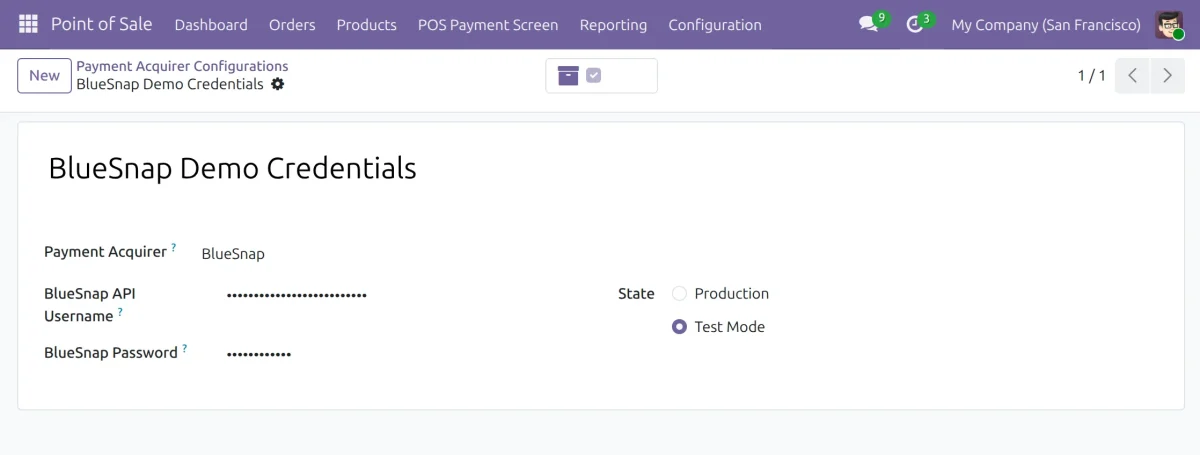
1. To configure BlueSnap, go to the Point of Sale module and open the payment acquirer configuration. Open the BlueSnap Demo Credentials record.
Enter your BlueSnap API username and password. Select Test Mode to test payments or Production to process live payments. Save the configuration.
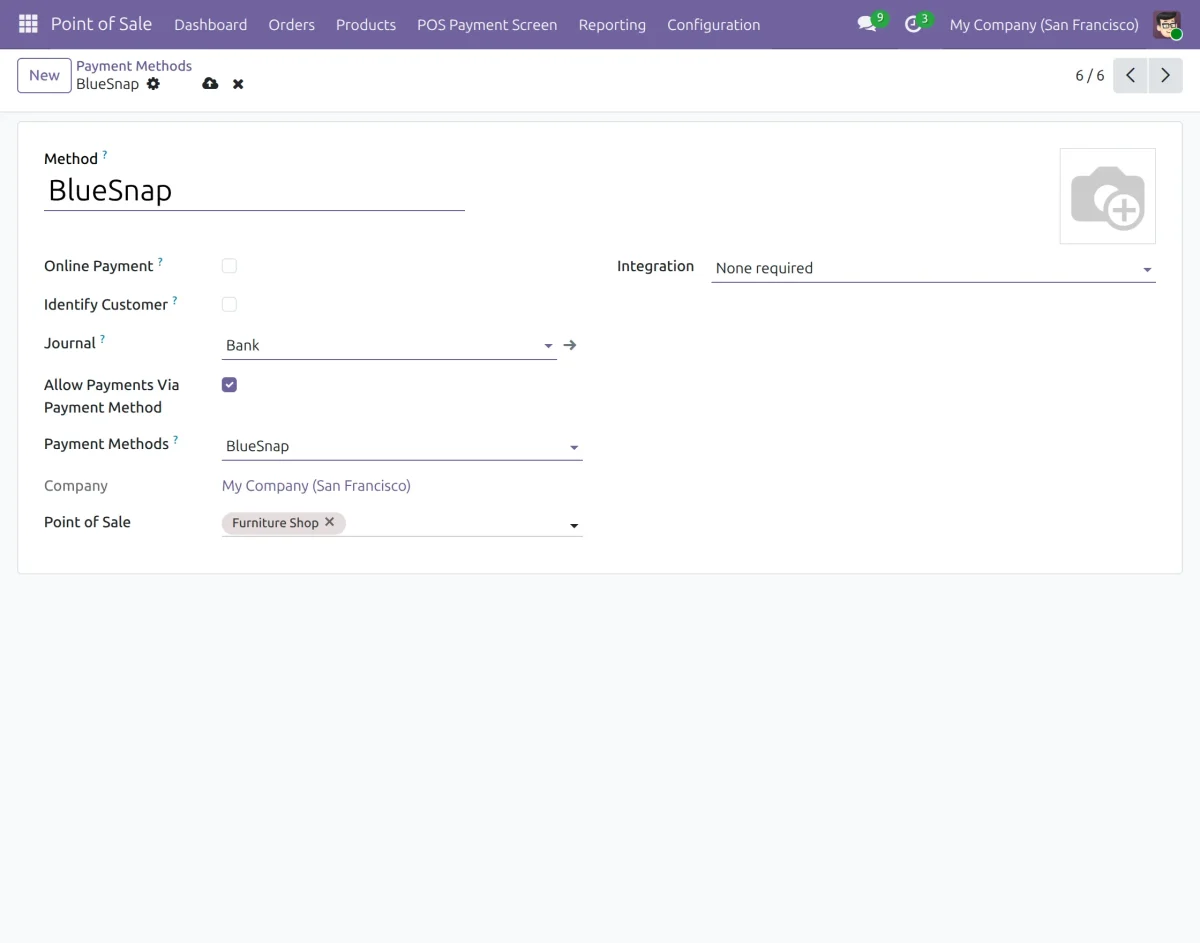
2. Navigate to Point of Sale → Configuration → Payment Methods and open the BlueSnap payment method.
Set the journal to Bank and enable Allow Payments Via Payment Method. Select BlueSnap under Payment Methods and assign the relevant Point of Sale. Save the configuration.
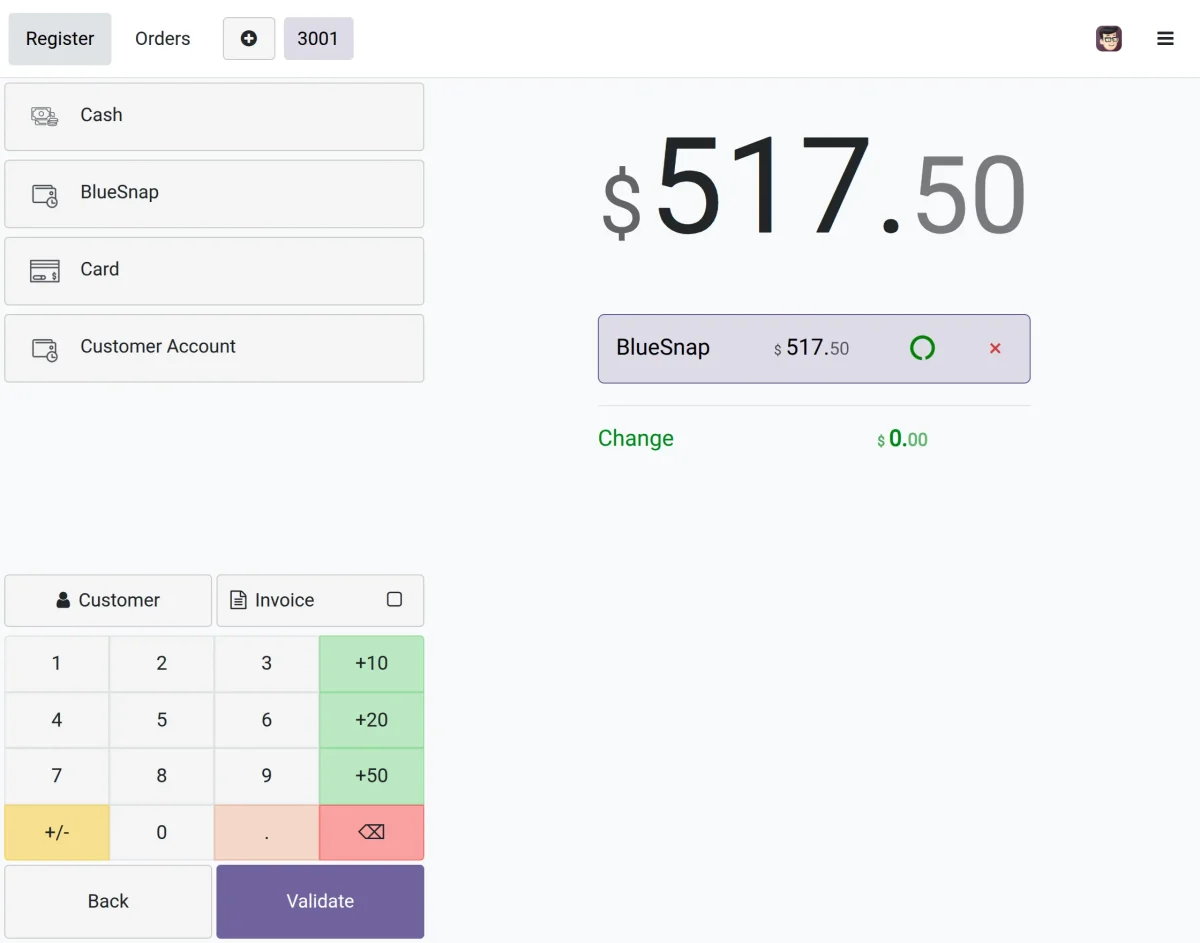
3. Open the Point of Sale session and add the required products to the order. Click Payment to proceed to checkout.
Select BlueSnap from the available payment methods. The order amount appears on the payment screen. Check that the displayed amount matches the total due.
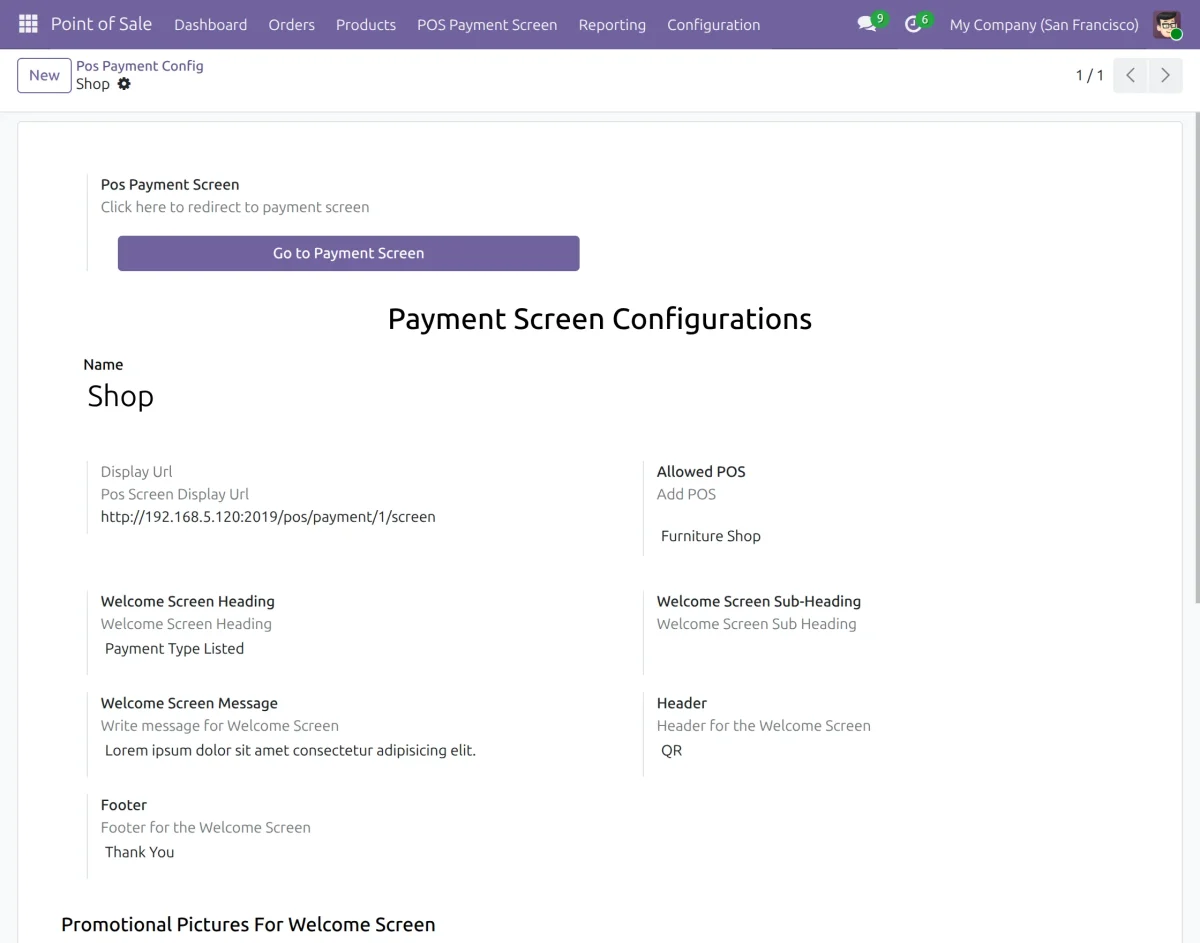
4. Open the POS Payment Screen configuration from the Point of Sale backend. Select the relevant configuration and review the allowed POS and display URL.
Click Go to Payment Screen to open the customer-facing payment screen.
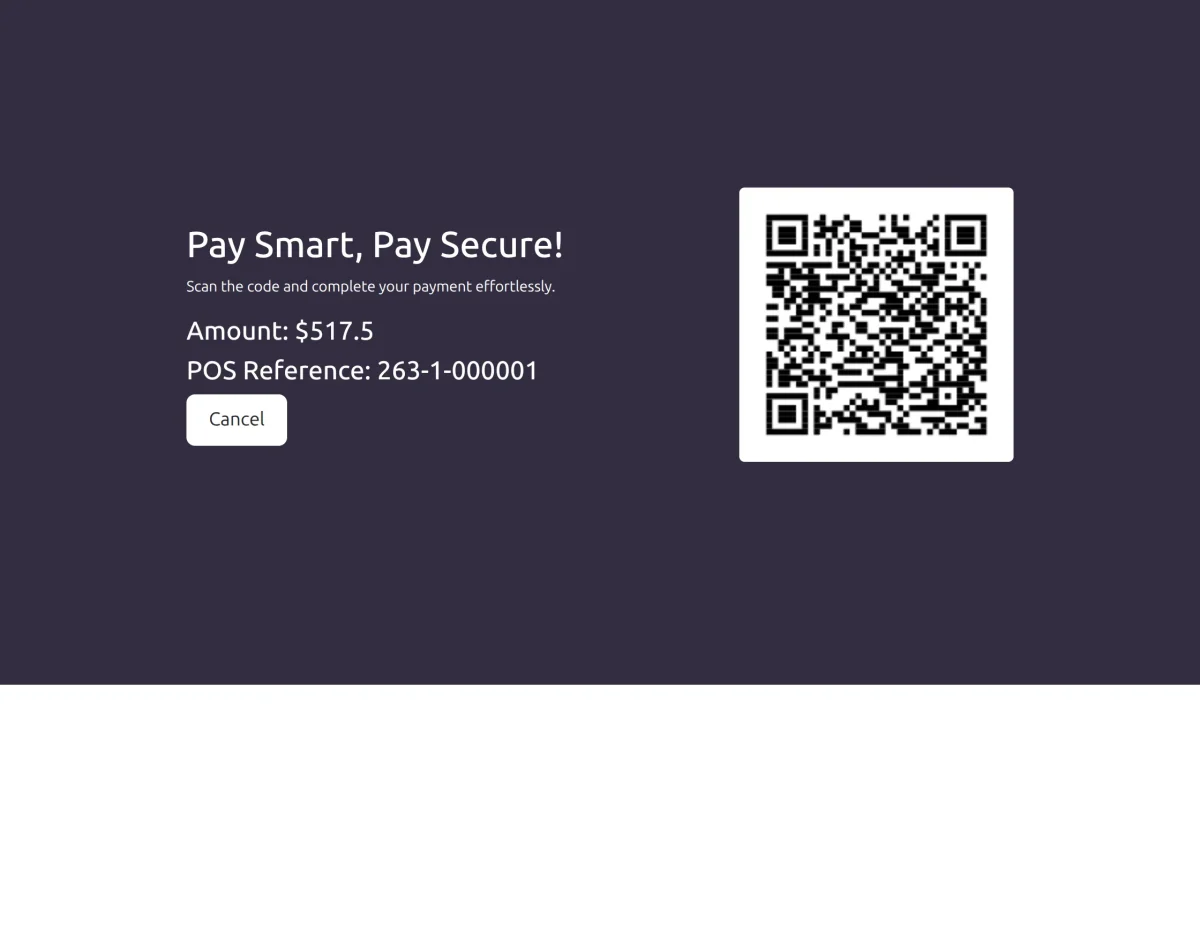
5. The payment screen displays the payment amount, POS reference, and QR code. Verify that the amount matches the POS order, then ask the customer to scan the QR code with their phone to open the payment page.
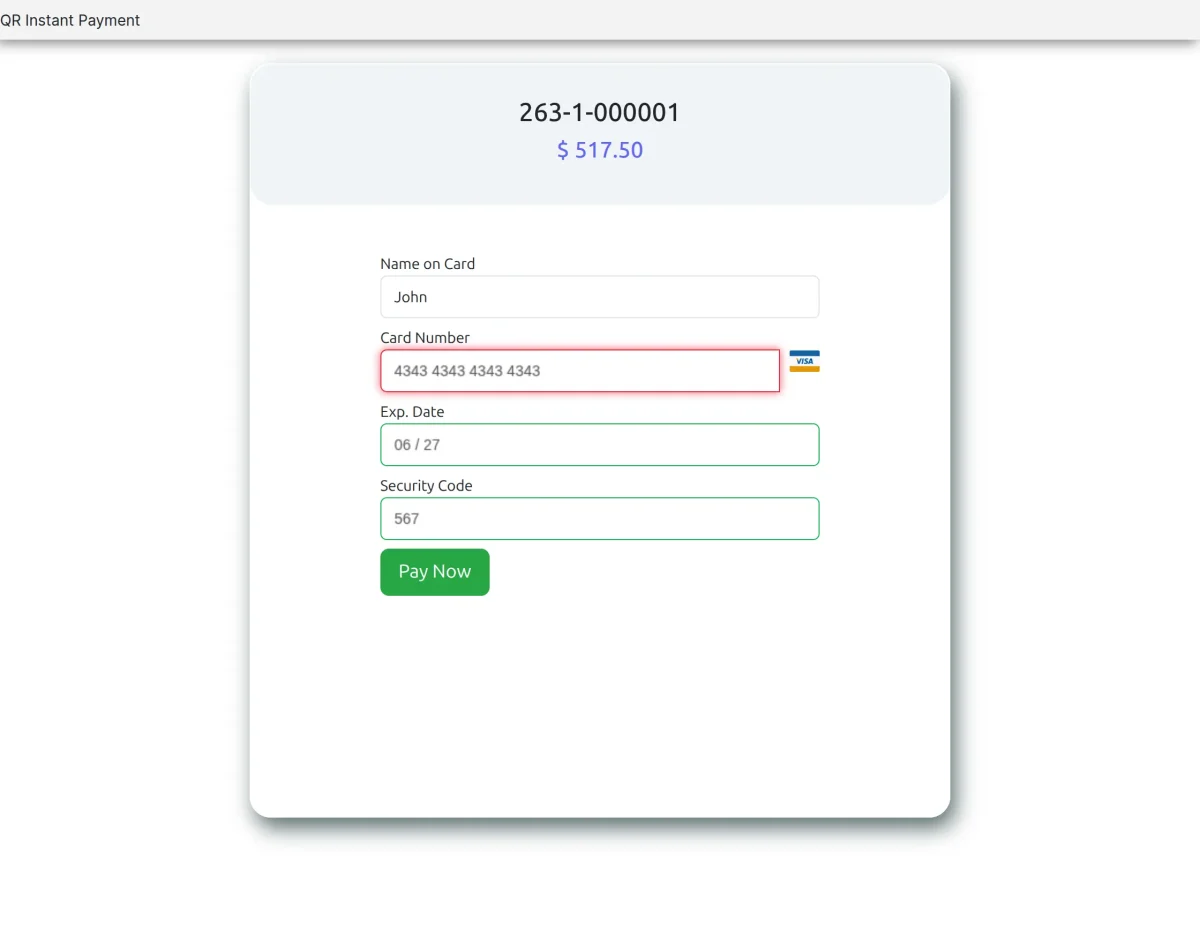
6. After scanning the QR code, the customer can access the QR Instant Payment page. The page displays the order reference and payment amount.
The customer must enter the name on the card, card number, expiry date, and security code. Click Pay Now to submit the payment.
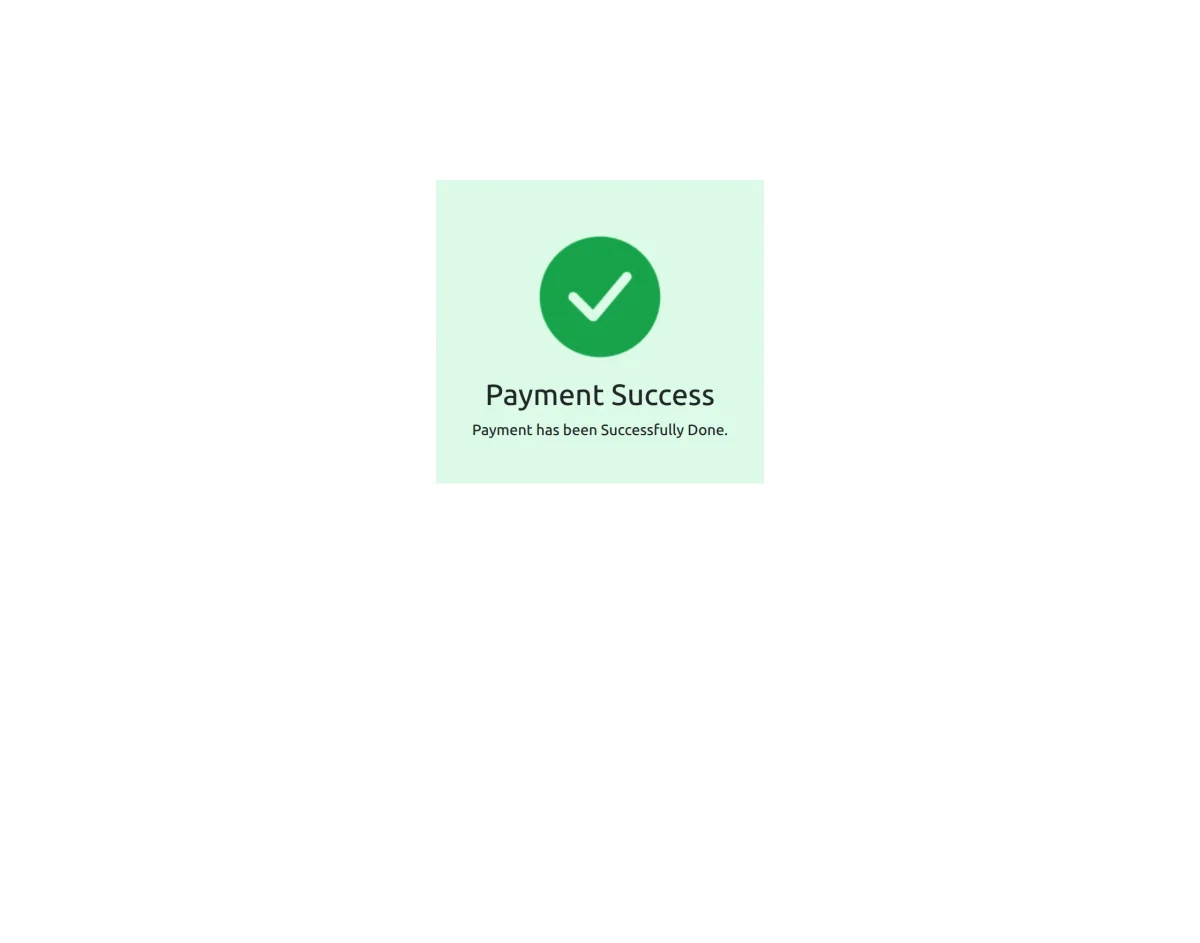
7. After the customer submits the payment, the payment page displays the result. A successful transaction shows a Payment Success message.
Check the confirmation before proceeding with the POS order.
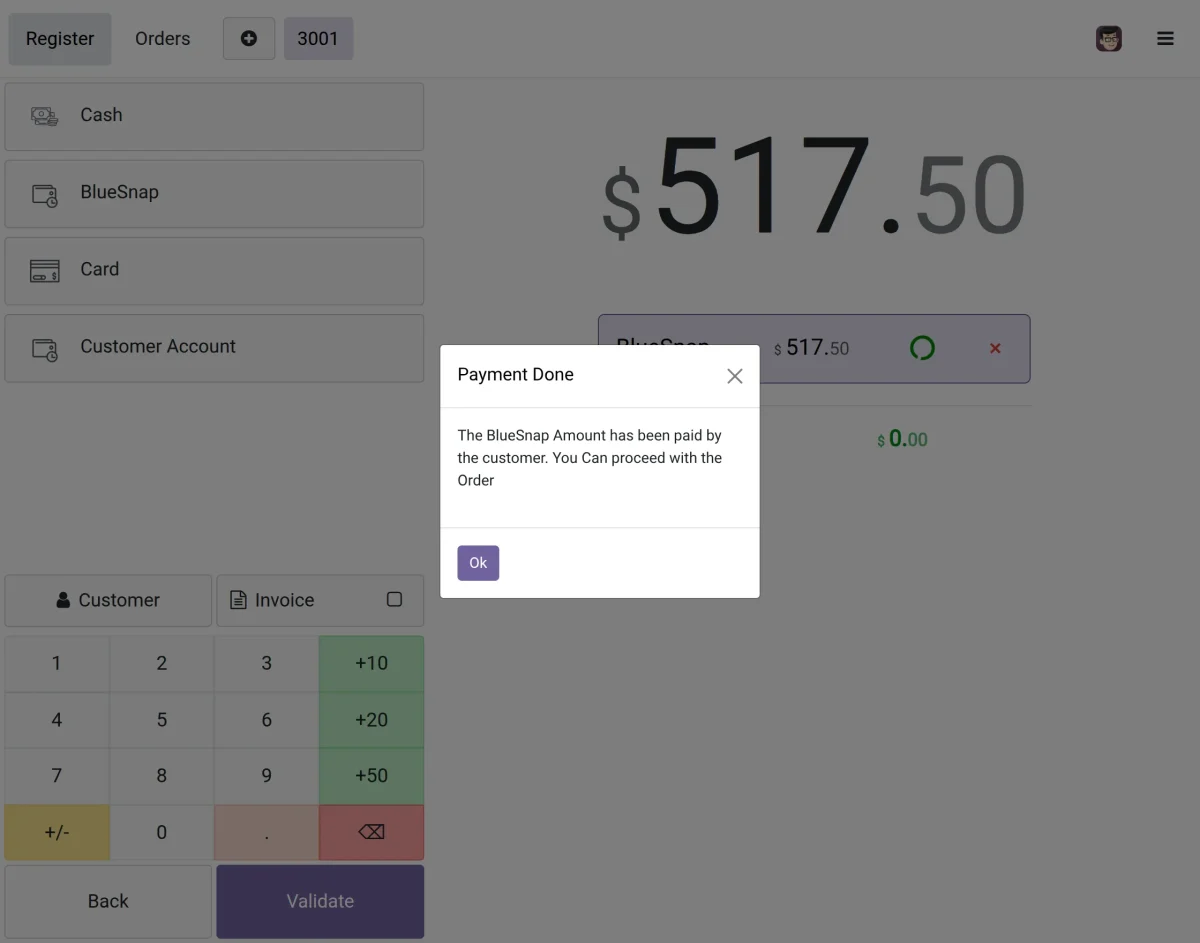
8. Return to the POS checkout screen after the payment is processed. A confirmation message appears when the BlueSnap payment is completed.
Click OK to close the message and continue with the order.
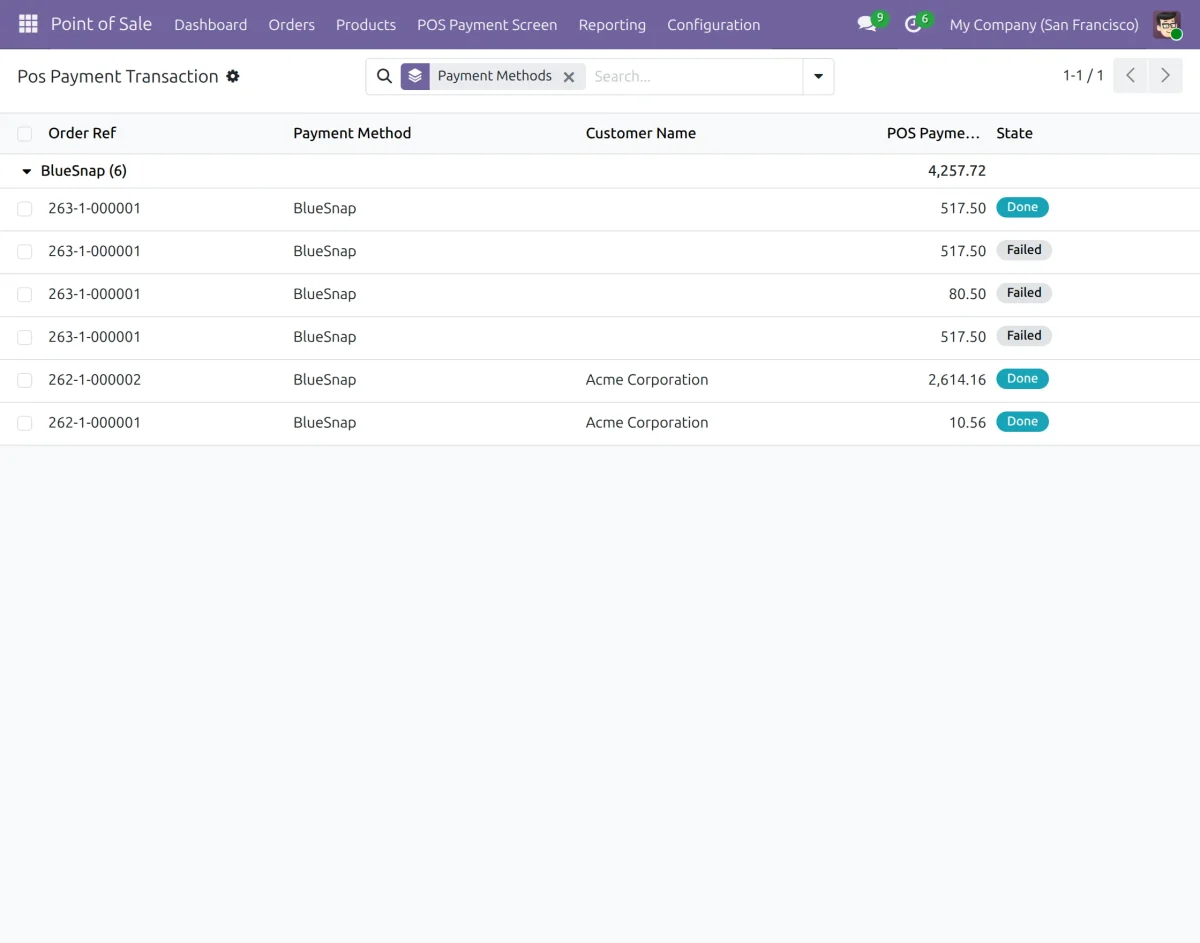
9. Navigate to Point of Sale → Orders → POS Payment Transaction to review recorded BlueSnap payment attempts.
The list displays details such as the order reference, payment method, customer name, amount, and transaction state. Use this view to check whether a payment is marked as Done or Failed.
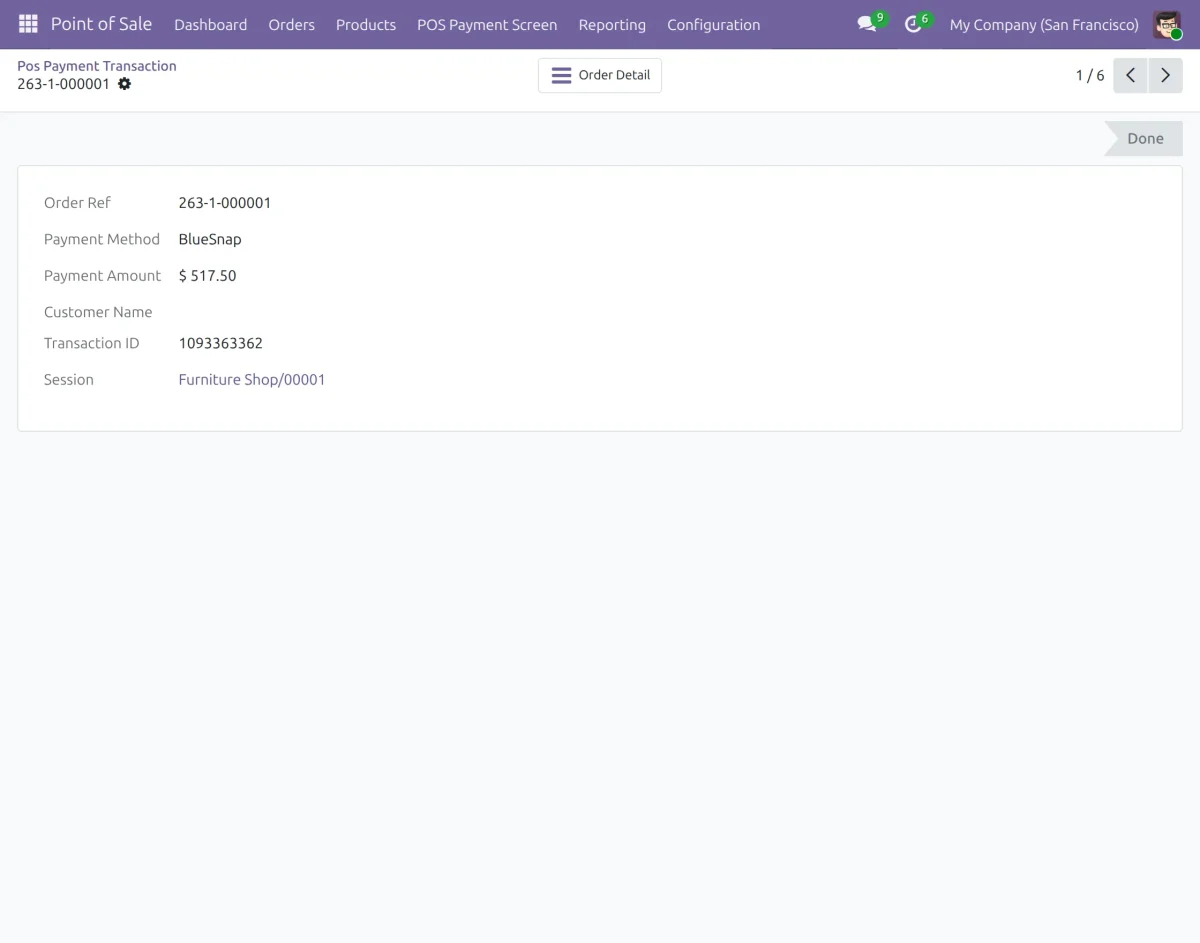
10. Open a transaction from the payment transaction list to view its details. Review the order reference, payment method, amount, transaction ID, and related POS session shown in the record.
Need Help?
Hope you find this guide helpful! Please feel free to share your feedback in the comments below.
If you still have any issues or queries regarding the POS BlueSnap Payment Acquirer module, please create a ticket at the UV Desk.
For further queries, contact us at our support mail.
Thanks for paying attention!
Current Product Version - 1.0.0
Supported Framework Version - Odoo V20, V19, V18

Be the first to comment.