


















Introduction
The Pimcore 12 Odoo 19 Connector keeps your catalog in sync between Pimcore and Odoo 19.
It syncs categories, attributes, products, and variant (configurable) products automatically, in both directions. Moreover, every sync runs as a background job inside Pimcore Studio.
As a result, catalog management is faster and far more reliable.
Keeping a Pimcore catalog and an Odoo instance aligned by hand doesn’t scale. So Webkul built the Pimcore 12 Odoo 19 Connector to remove the copy-paste.
It bridges your Pimcore data model and your Odoo database. As a result, categories, attributes, products, and product variants all flow automatically, in both directions.
It’s built natively for Pimcore 12 and Odoo 19. Also, it brings two big upgrades. First, every sync runs as a restartable background job.
So large catalogs no longer block your screen or time out. Meanwhile, you watch each run on a live progress view. Second, it’s bidirectional.
It both imports from and exports to Odoo. Because of that, you can seed Pimcore from an existing Odoo database, then push curated changes back out.
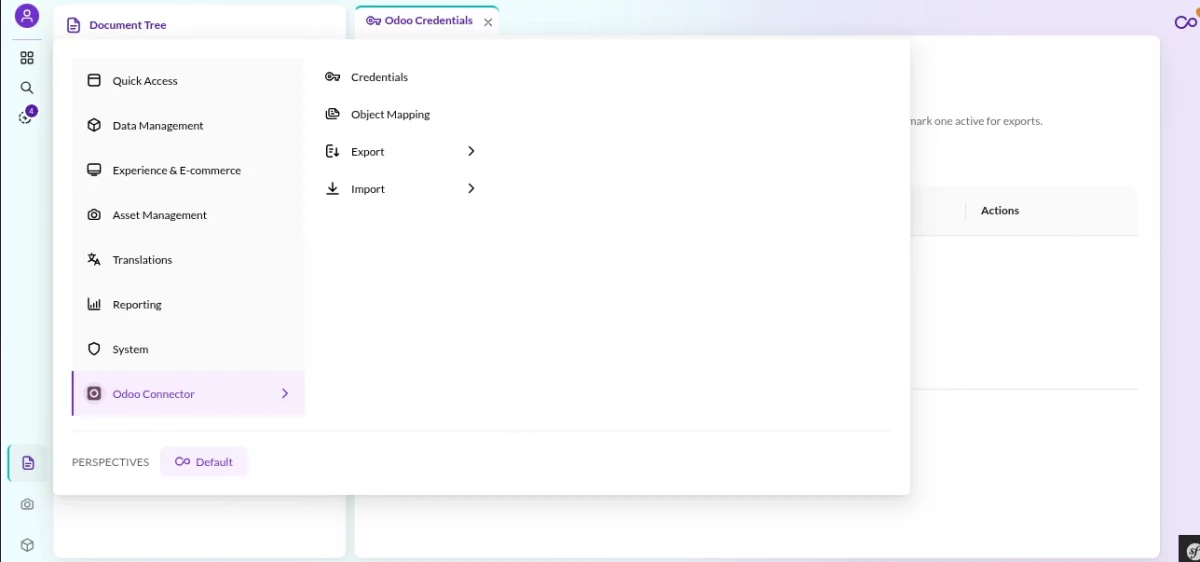
The Pimcore 12 Odoo 19 Connector also lives natively inside the new Pimcore Studio UI. Furthermore, it adds its own screens for credentials, mapping, and the job runner.
So there are no separate tools to learn.
Server Requirements
The connector runs on top of a standard Pimcore 12 install, so if Pimcore runs, the connector runs. Here is what that stack needs.
| Component | Requirement |
|---|---|
| PHP | 8.4 or 8.5 (CLI + FPM), with pdo_mysql, intl, mbstring, curl, gd / imagick, zip, exif, opcache |
| Symfony | 7.4 (installed as a Pimcore dependency) |
| Pimcore | Pimcore 12 — Platform 2026.1 (pimcore/pimcore: 2026.1.x) with the Studio UI bundle |
| Database | MariaDB 10.11+ or MySQL 8.0+ |
| Web server | Nginx or Apache 2.4 |
| Composer | Composer 2 |
| Node.js | 20+ — only if you rebuild the Studio UI assets yourself |
| Message queue | A running Symfony Messenger worker (Supervisor is recommended) — this is what drives the background sync jobs |
| Odoo | Odoo 19 — self-hosted or Odoo.com, reachable from the Pimcore server over HTTP(S) |
A few PHP settings matter for large catalogs. So set memory_limit to at least 512M (1G for big product imports), and raise max_execution_time for the CLI. Because the syncs run in the background, the web request itself never has to wait.
Key Features of the Pimcore 12 Odoo 19 Connect
Bidirectional sync — import and export for Categories, Attributes, Products, and Variant Products.
Asynchronous job engine — syncs run in the background, so they never block your work.
Live Job-Execution view — real-time status, read / created / updated counts, a run-history grid, and a one-click Stop.
Multi-language aware — maps your localized Pimcore content to Odoo’s translated fields.
Config-driven mapping — point the connector at your Pimcore classes; nothing to hard-code.
Reliable matching — a shared link between records keeps Pimcore and Odoo in step, so re-runs update instead of duplicating.
Variant support — Pimcore variant products map to Odoo product templates and their variants.
Connecting the Pimcore 12 Odoo 19 Connector to Odoo
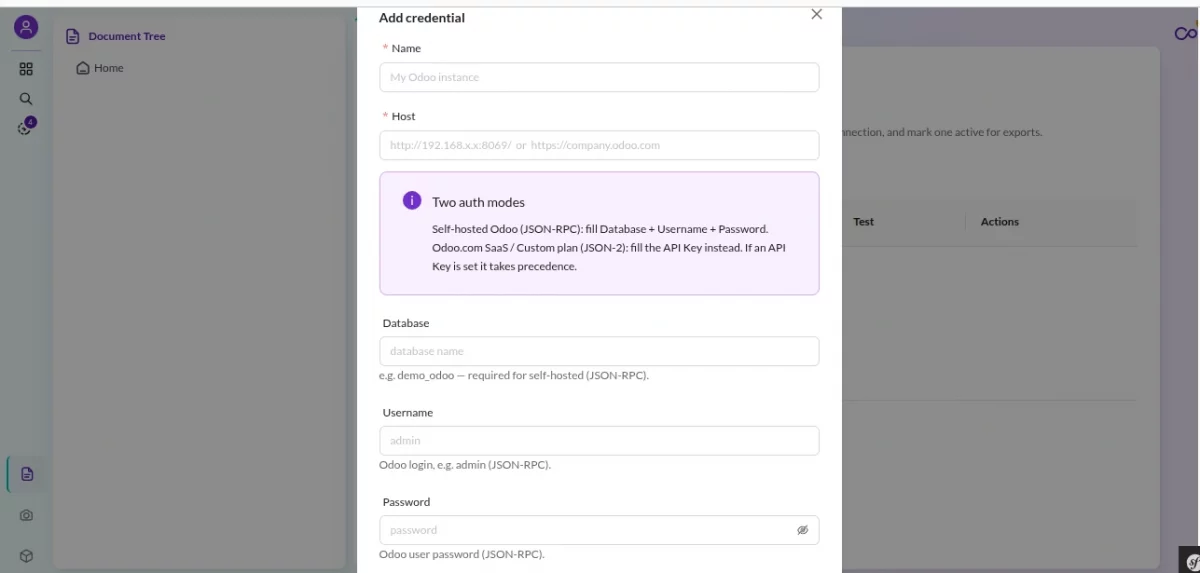
The connector talks to Odoo over JSON-RPC. It supports two ways to authenticate, so it works with both self-hosted and Odoo.com (SaaS) instances.
- Self-hosted Odoo — use your Host URL, Database name, Username, and Password.
- Odoo.com / Custom plan — use your Host URL and a Bearer API Key instead of a username and password.
That’s all you need from the Odoo side.
Setting Up the Pimcore 12 Odoo 19 Connector in Studio
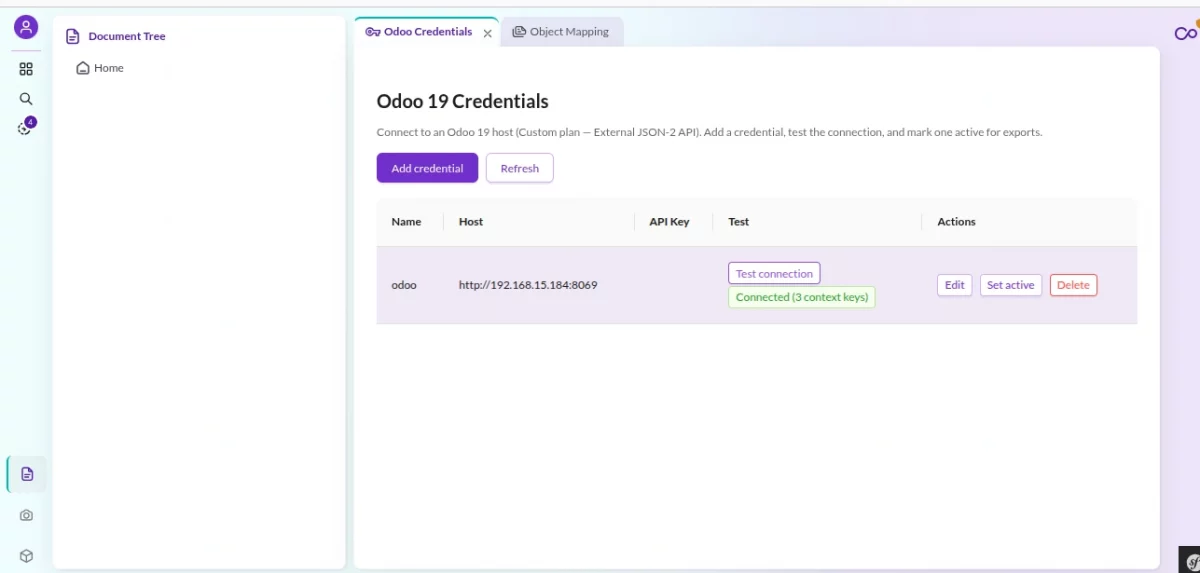
In Pimcore, open Odoo Connector → Credentials. Then click Add credential and enter your Host, Database, Username, and Password (or an API Key). Next, click Test.
The connector checks Odoo live and confirms the connection. So you get instant confirmation that everything is wired up.
Object Mapping: the Connector Adapts to Your Catalog
Most connectors force you into fixed class names. This one, however, treats “which Pimcore class is an Odoo Product?” as a simple setting.
On the Object Mapping screen, you point each Odoo entity at whatever classes your team already uses. So the connector adapts to your data model, instead of the other way around.
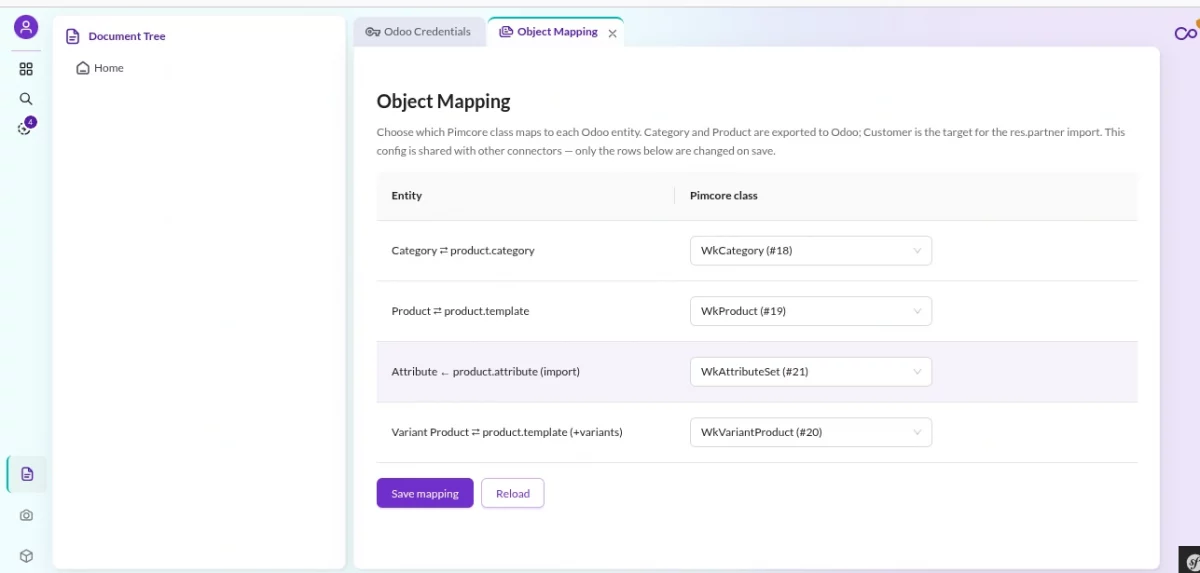
It comes pre-configured, so the Pimcore 12 Odoo 19 Connector works out of the box. Also, you can repoint it any time.
Attributes & Categories
Categories sync both ways as a real tree. Import mirrors Odoo’s product category tree into Pimcore. Export, in turn, pushes your Pimcore hierarchy out and preserves nesting.
Attributes carry your catalog’s own fields (color, size, material…). The connector keeps the attribute definitions and their option lists aligned between Pimcore and Odoo, so dropdowns stay in sync automatically.
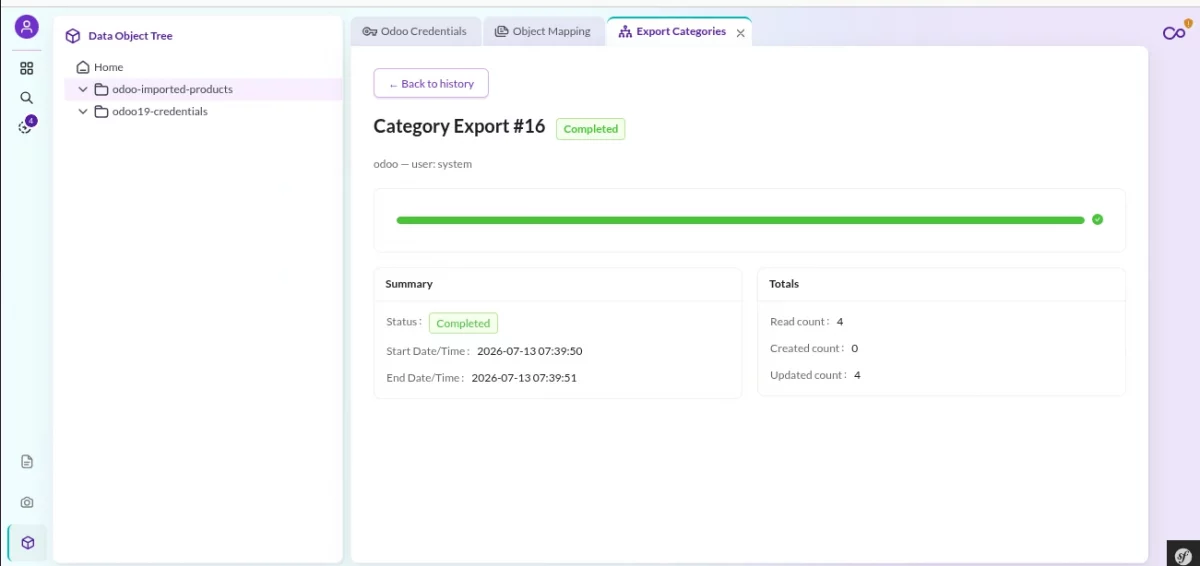
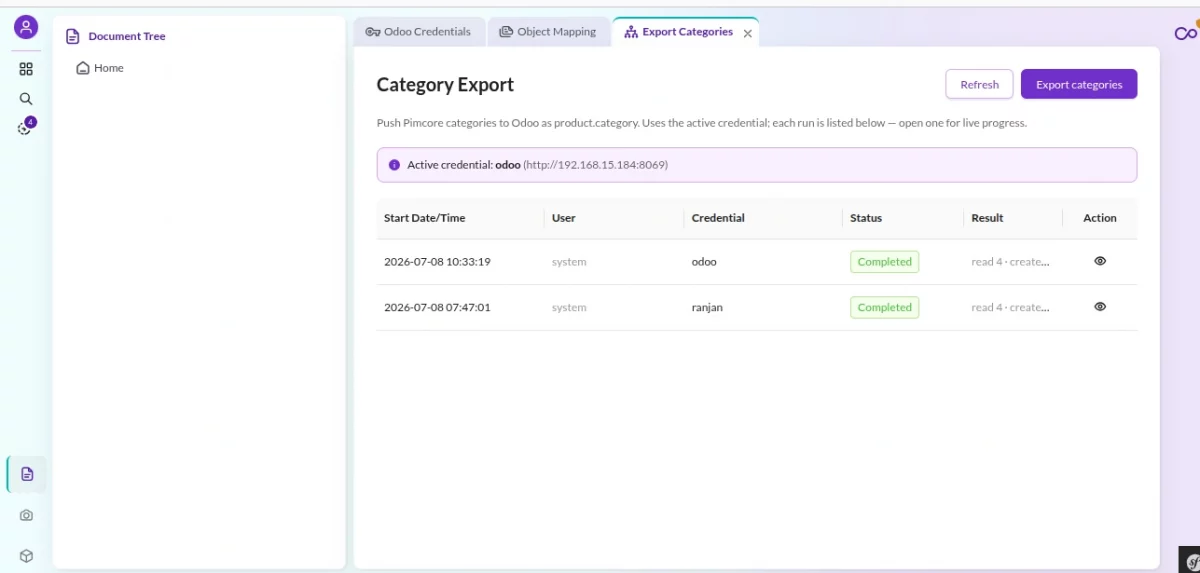
Exporting to Odoo 19
With your mapping saved, open Export → Product. Then pick the connection and click Start. The connector then pushes your products out with the right localized values and categories.
Exports are safe to re-run. Instead of duplicating, the connector updates what already exists. Sometimes a product can’t be exported. In that case, it’s flagged as a clear warning that tells you exactly what to fix.
When standing up a fresh Odoo database, export Categories and Attributes first. Then add Products and Variant Products on top.
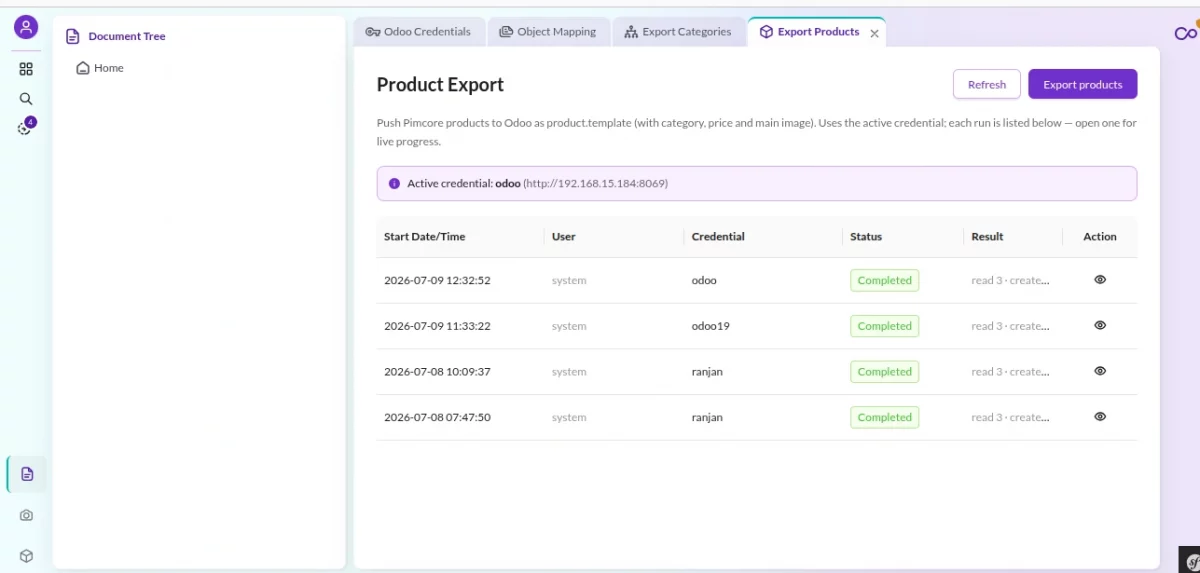
Variant (Configurable) Products
Pimcore variant products map cleanly onto Odoo’s model. On Export → Variant Product, the connector turns a Pimcore parent-and-variants set into an Odoo product template plus its variants, matching on attribute combinations so re-runs update instead of duplicating.
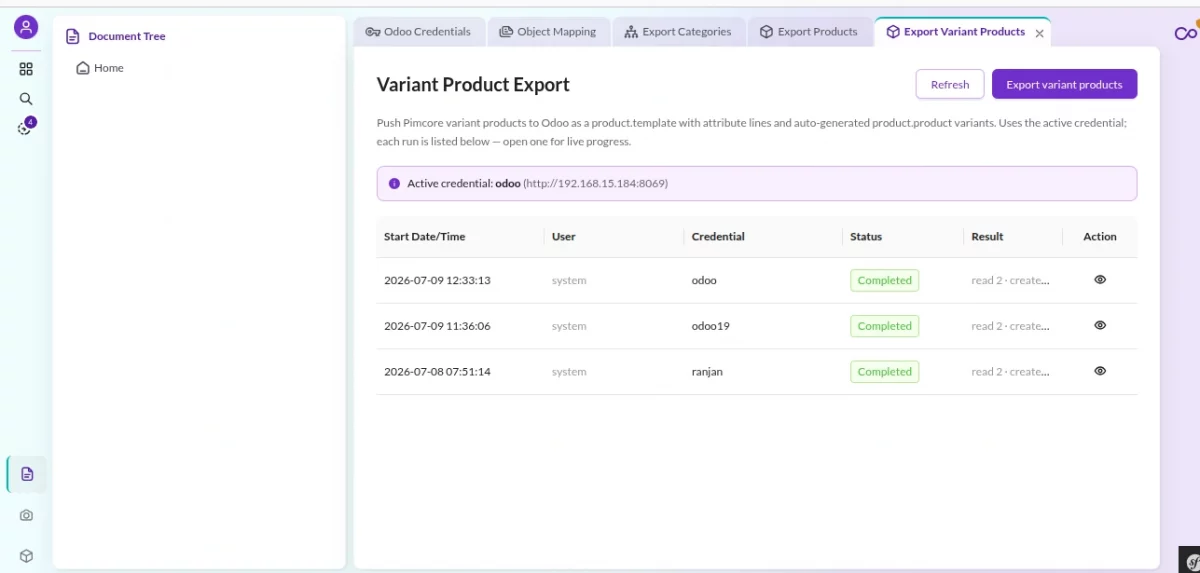
Importing from Odoo 19
Already have a live Odoo database? Then import it into Pimcore in a few clicks. In fact, it’s the fastest way to onboard a catalog. Import is also additive.
So each run creates what’s missing and updates what exists. As a result, you can bootstrap once and re-run any time without duplicates.
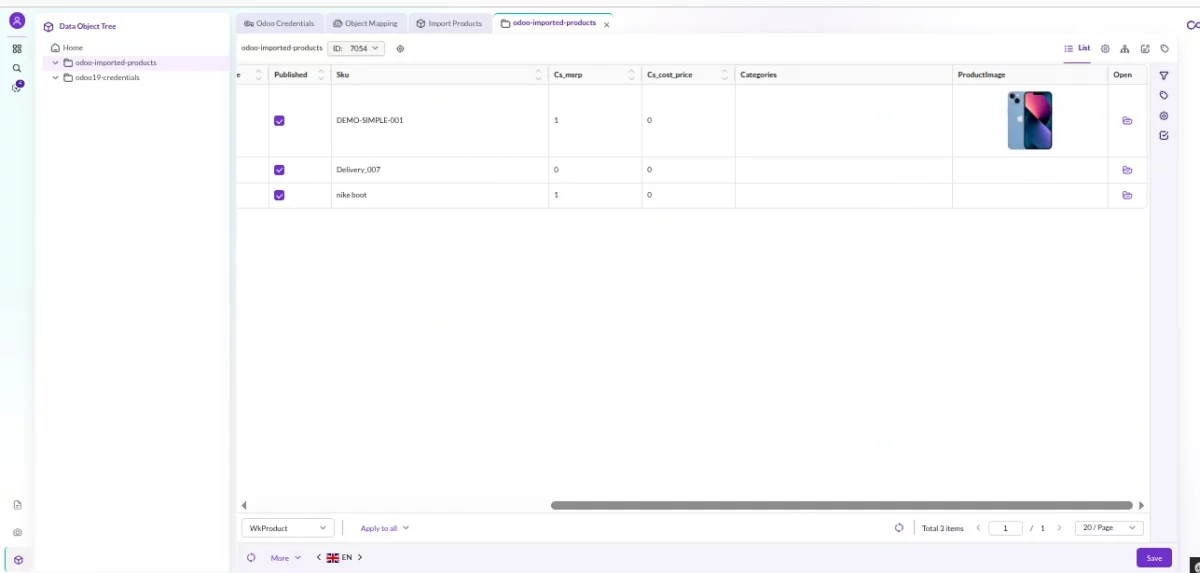
Run the imports in order: Attributes, Categories, Products, then Variant Products. Product import then brings in the core fields, categories, and custom attributes.
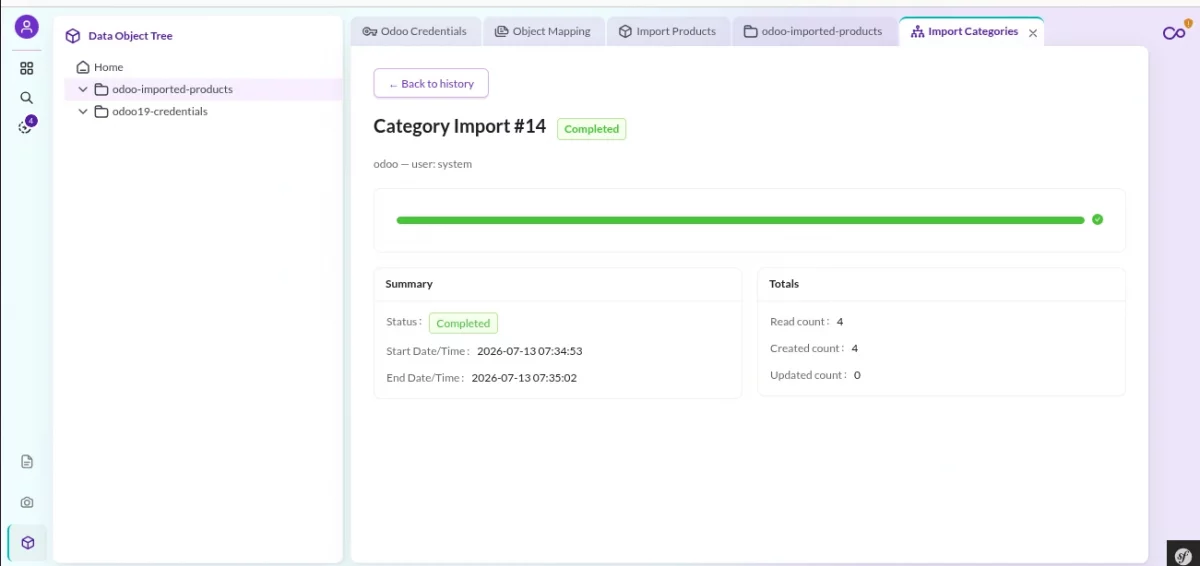
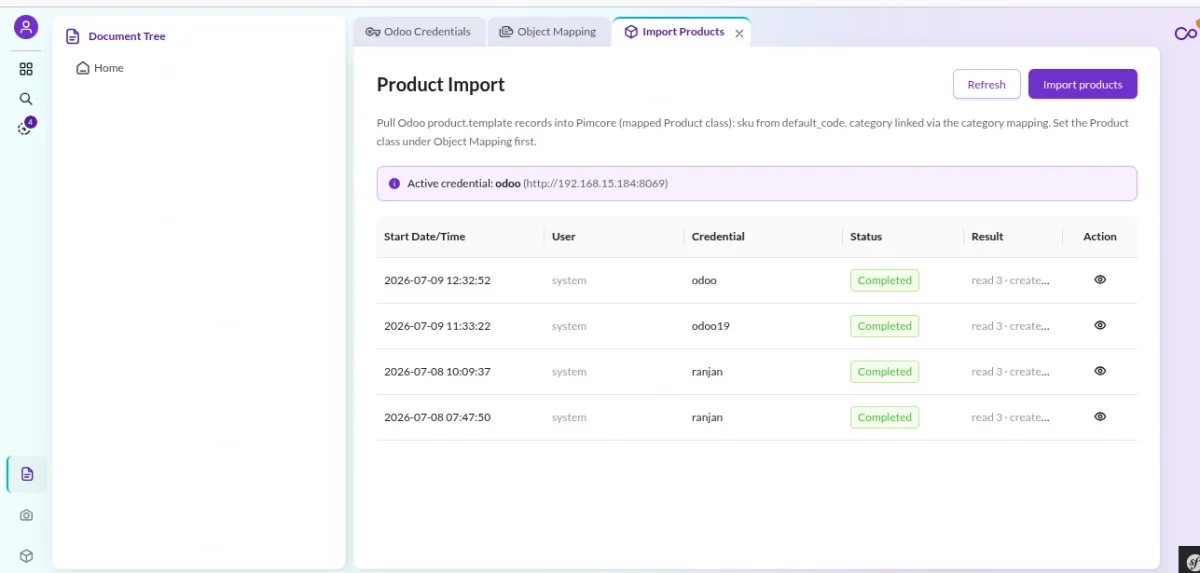
Because import and export stay linked, the workflow is simple. First, import to seed Pimcore. Then enrich your content there. Finally, export it back.
As a result, every change lands on the original Odoo record.
The Result in Your Odoo 19 Database
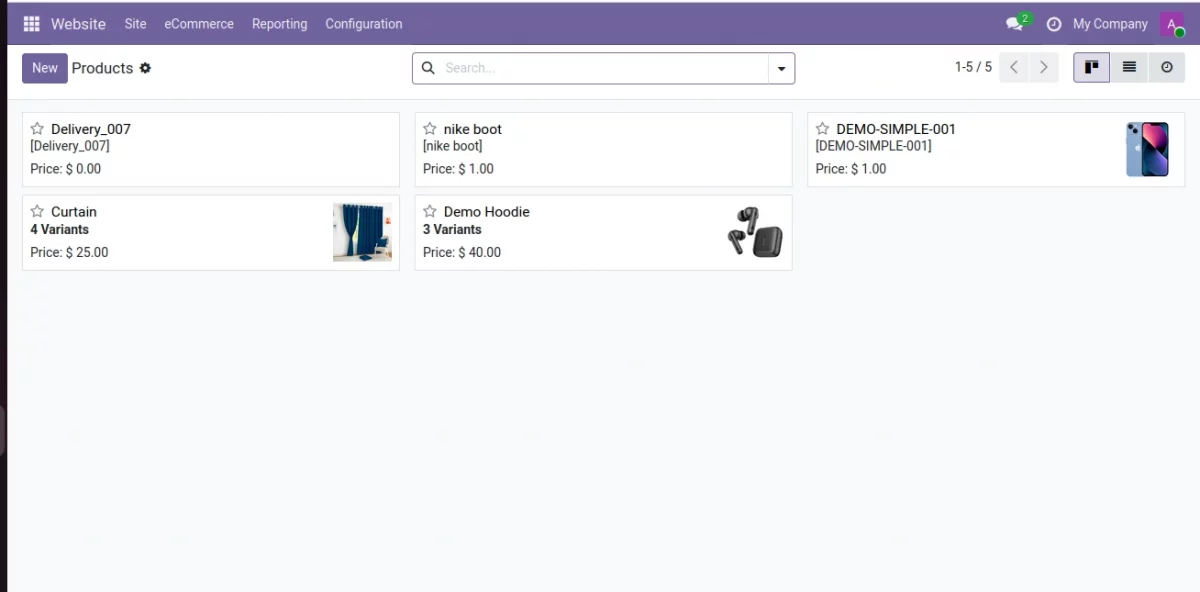
Once the export finishes, your Pimcore data is live in Odoo. That includes categories, attributes, products, and their variants.
For example, categories appear under Inventory / Sales → Product Categories with their hierarchy intact. Meanwhile, products appear in Sales → Products with their attributes and variant combinations.
Try the Pimcore 12 Odoo 19 Connector
Want to see it in action? Then try the live demo. It gives you a Pimcore 12 Studio environment with the connector already installed and connected to an Odoo instance.
So you can map entities and run a sync without setting anything up. Finally, when you’re ready to roll it out, grab it from the Webkul Store.
Your purchase includes the bundle, documentation, and support.

Be the first to comment.