INTRODUCTION
Odoo Website Payment Braintree Recurring: Effortlessly Manage Subscription Payments with Braintree!
Odoo Website Payment Braintree Recurring provides a streamlined solution for managing subscription payments, offering automated renewals and secure transactions.
It ensures that businesses can handle recurring billing with ease, reducing missed payments and maintaining a steady revenue stream.
The module supports multiple payment methods, enhancing customer convenience and satisfaction.
Prerequisites for using Odoo Website Payment Braintree Recurring
This module works with these other modules:
- Odoo Website Braintree Payment Acquirer.
- Website Subscription Management.
- Odoo Subscription Management.
You must install these basic modules for Odoo Website Payment Braintree Recurring to work.
FEATURES
- Odoo Website Payment Braintree Recurring automates the billing and payment process.
- It ensures that all payments are processed securely.
- The module supports a variety of flexible payment methods like credit cards, debit cards, or PayPal.
- It allows for easy management of subscriptions.
- The module provides detailed tracking of all transactions.
- It integrates seamlessly with Braintree for a smooth experience.
- The module includes customizable billing cycles to fit different needs.
- It helps enhance customer retention by making payments easy and reliable.
- Comprehensive reporting features are available for better financial management.
INSTALLATION
- Once you purchase the app from the Webkul store, you will receive the link to download the module zip file.
- Extract the file on your system after the download finishes. As a result, you will be able to see a folder named- ‘website_payment_braintree_recurring
- Copy and paste this folder inside your Odoo Add-Ons path.
- Now, open the Odoo App and click on the Settings menu. Here, click on Activate the Developer Mode.
- Then, open the Apps menu and click on ‘Update Modules List.’
- In the search bar, remove all the filters and search ‘website_payment_braintree_recurring’
- You will be able to see the module in the search results. Click on ‘Install’ to install it.
WORKFLOW
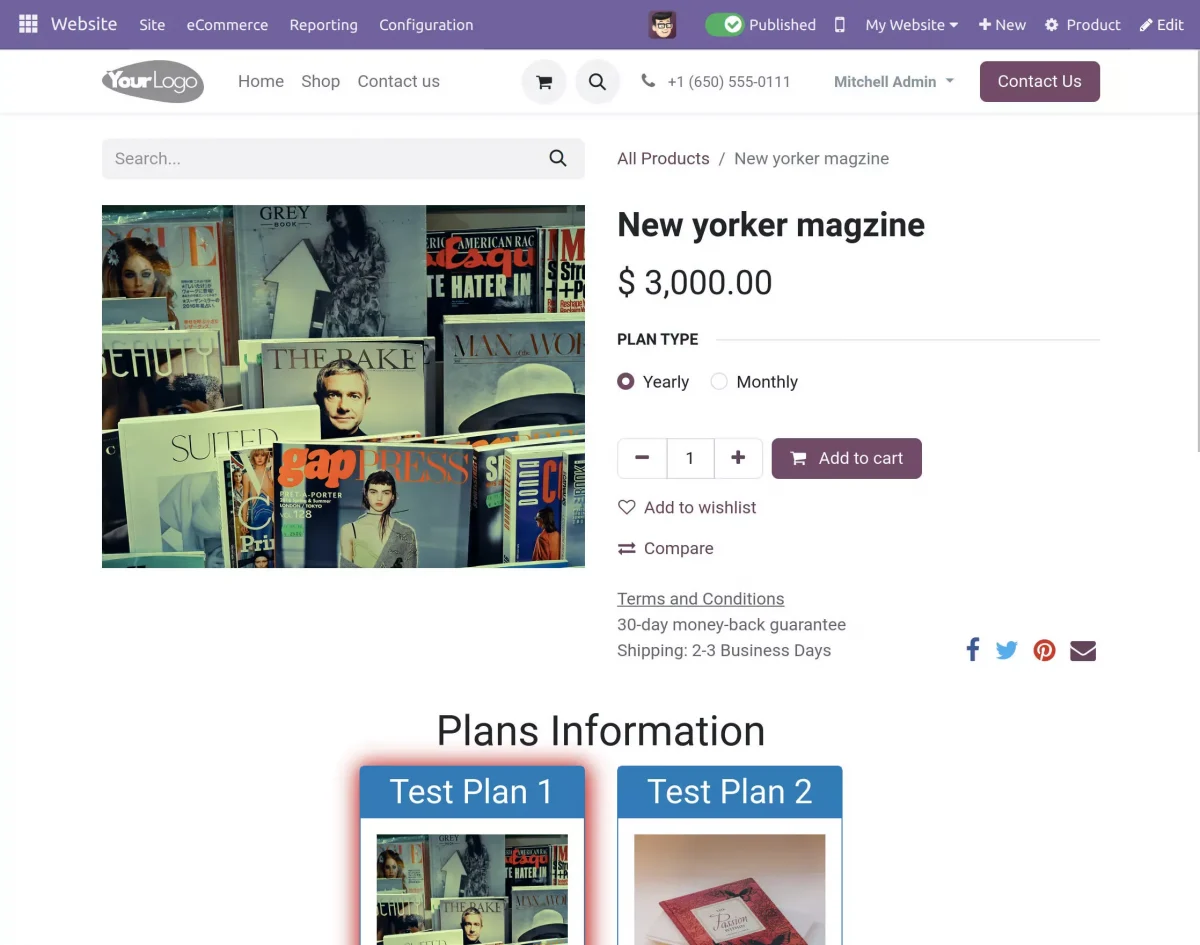
- Choose the subscription-based product you prefer from the Odoo Website, then select the plan type for that product.
- Add the product to your cart by clicking the “Add to Cart” button to proceed with the purchasing process checkout.
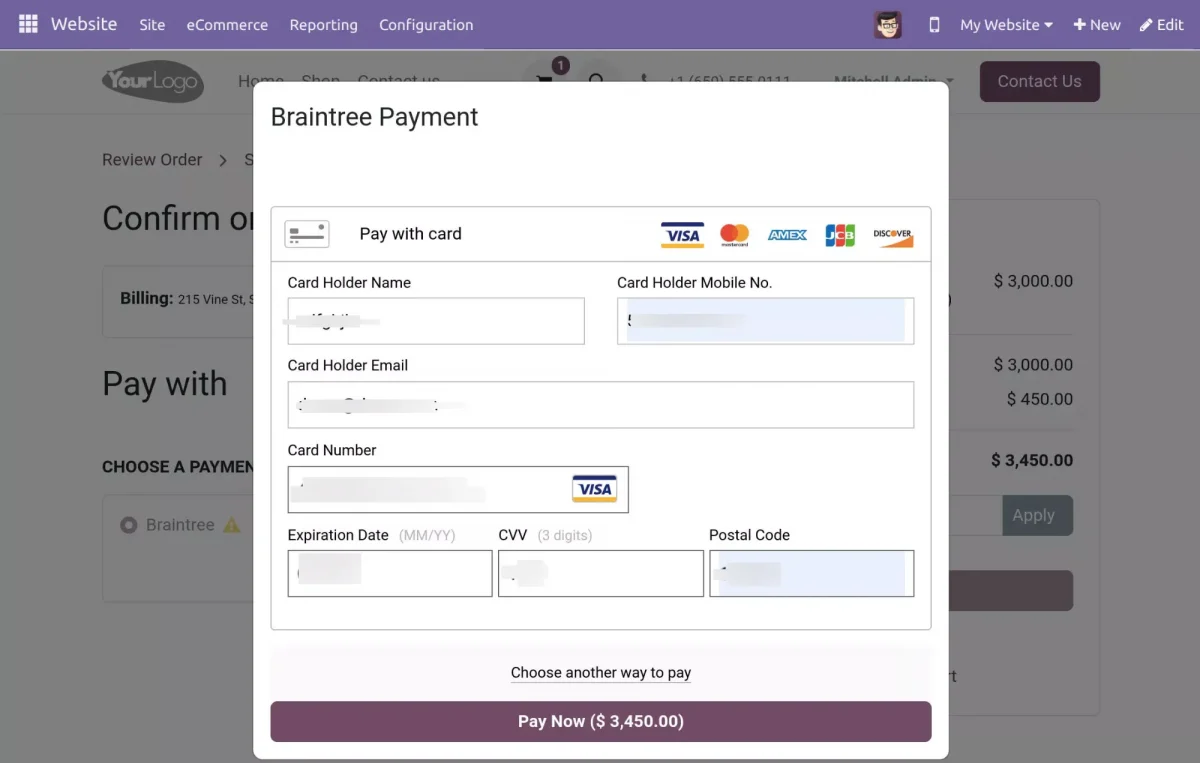
3. Customers can pay for the product using the Braintree payment method available on the payment page.

4. Customers can use their PayPal, Debit card, or credit card to make the payment through Braintree for their purchase.
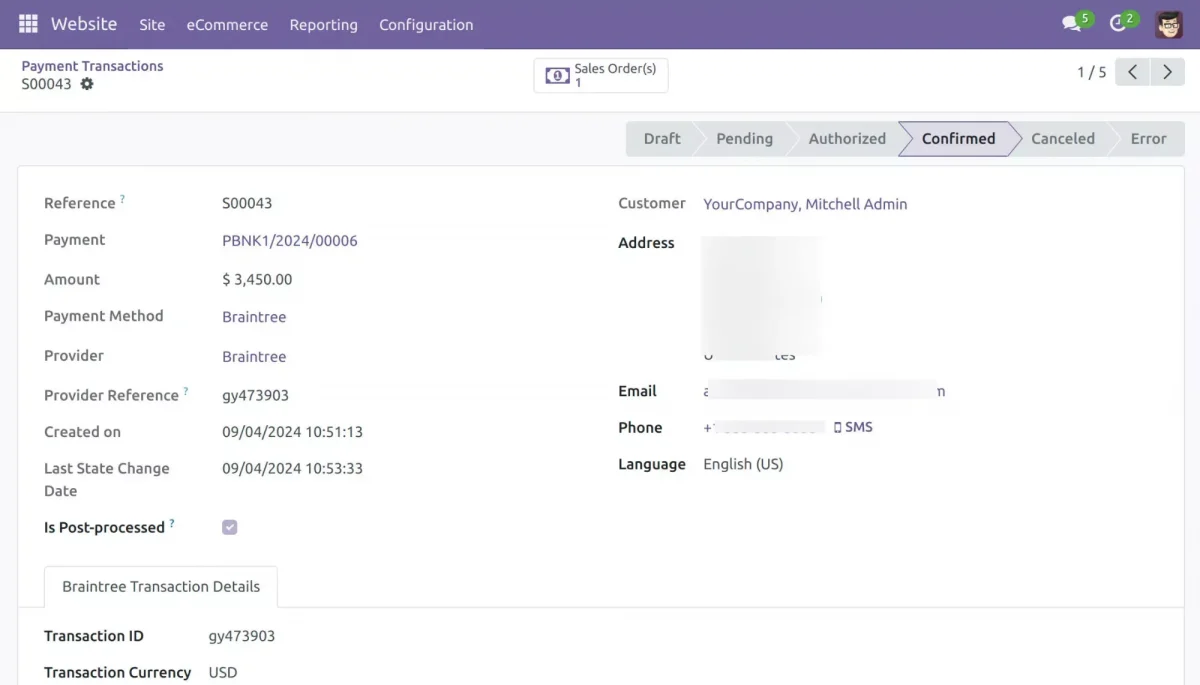
5. Go to the ‘Configuration’ section and select ‘Payment Transaction’.
There, click on theunique reference number to access information such as the total amount, payment method, service provider, and transaction ID.
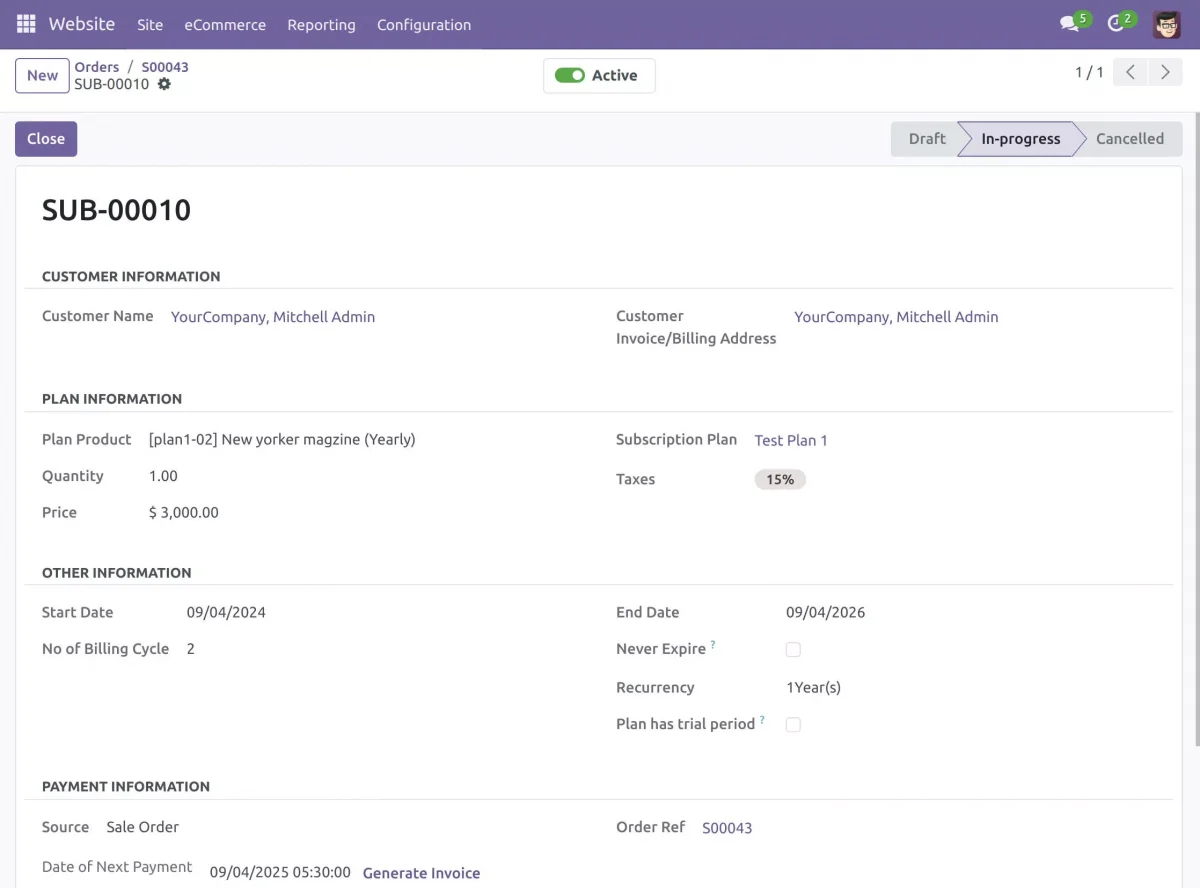
6. To access your subscription details, navigate to ‘eCommerce’ and select ‘Orders’.
From there, click on ‘Subscription’. You can view customer information, plan details, start and end dates, recurring payments, and the date of your next payment.
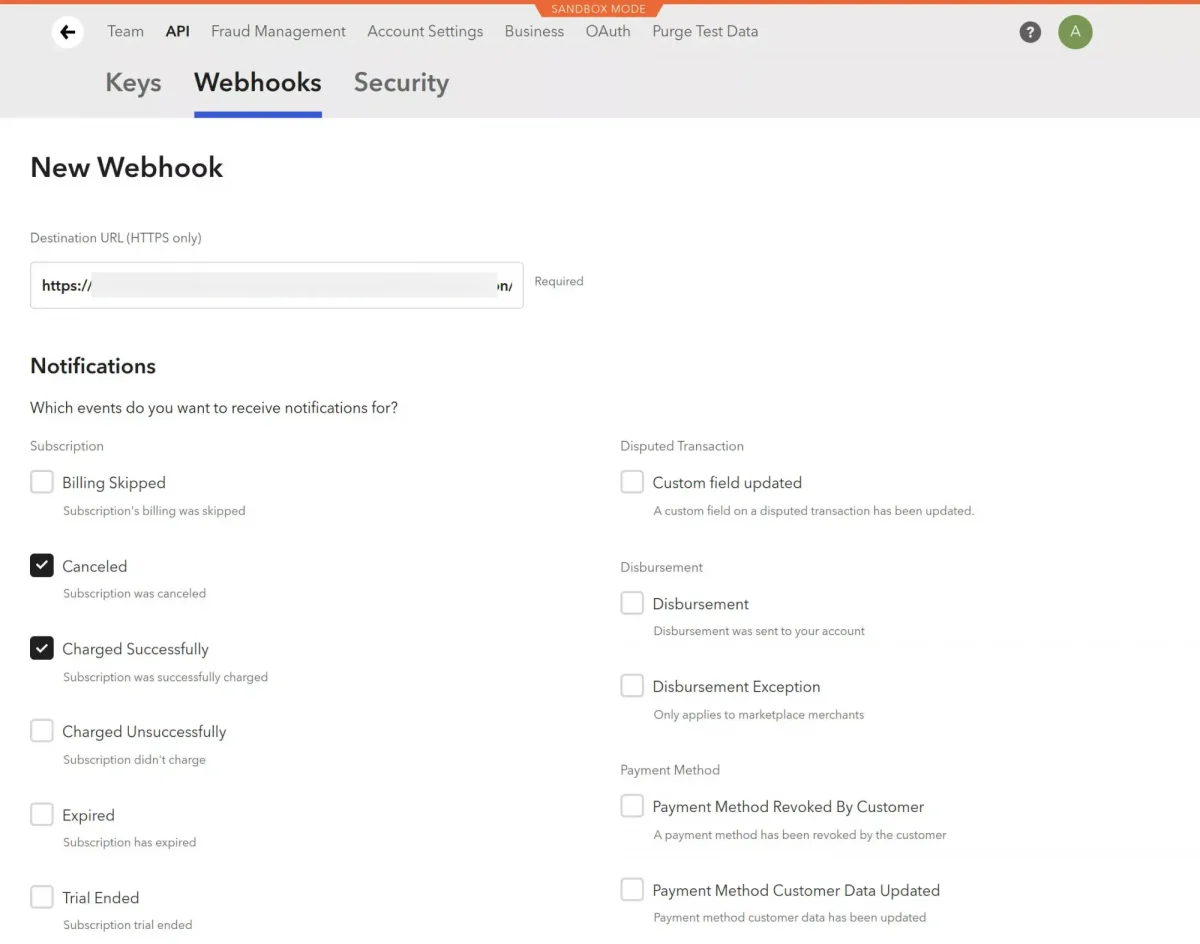
7. Recurring your subscription, create a new webhook navigate to the gear icon, and select ‘API’. Then, choose the ‘Webhook’ option.
In the destination URL field, paste your specific URL followed by ‘/braintree/subscription/response’.
For instance, https://3130-103-80-65-178.ngrok-free.app/braintree/subscription/response.
Ensure that both the ‘Cancelled’ and ‘Charged Successfully’ options are checked before clicking on ‘Create Webhook’ to complete the process.
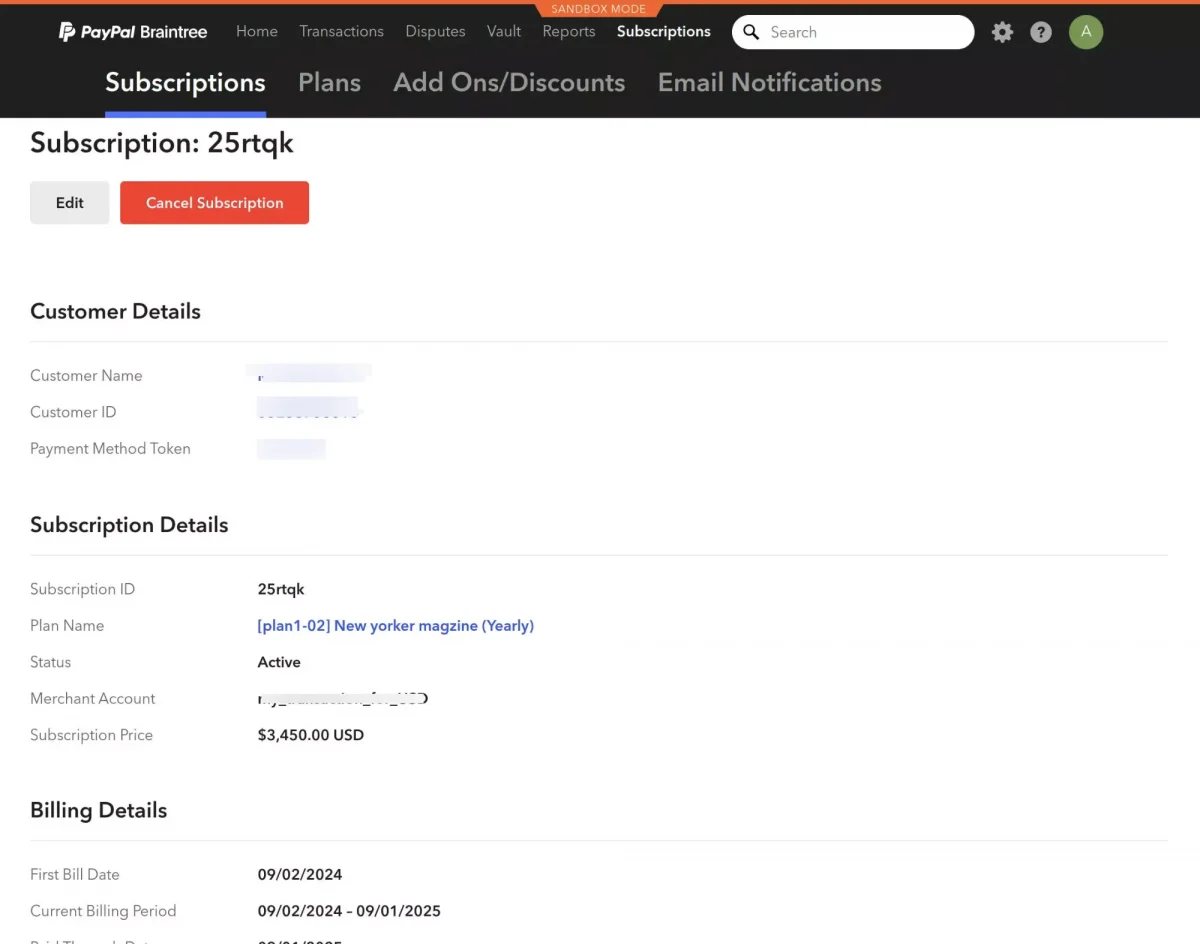
8. Go to ‘Subscriptions’ and click on the ‘Search’ option. Once you find the specific subscription, click on its corresponding ‘Subscription ID’.
This will display detailed information about the subscription details, including customer details, billing information, historical data, and other relevant subscription specifics.
NEED HELP?
Hope you find the guide helpful! Please feel free to share your feedback in the comments below.
If you still have any issues or queries about it, please raise a ticket at the UV Desk.
I hope this helps. In case of any further queries, contact us at our support mail.
Thanks for paying attention!!
Current Product Version - 1.0.0
Supported Framework Version - V17, V16, V15

Be the first to comment.