Introduction
Odoo Vodafone M-Pesa Payment helps businesses accept secure online payments through Vodafone M-Pesa on their Odoo website. Customers can choose Vodafone M-Pesa during checkout and complete payments using their registered mobile number.
Odoo Vodafone M-Pesa Payment connects your Odoo website with your Vodafone M-Pesa merchant account. It lets you manage payment settings, customer help messages, and payment availability from the Odoo backend. This helps businesses offer a simple, secure, and reliable mobile payment experience.
Features
- Accept secure online payments through Vodafone M-Pesa.
- Add Vodafone M-Pesa as a payment option during checkout.
- Configure Vodafone M-Pesa credentials from the Odoo backend.
- Manage payment settings from one place.
- Control payment availability using countries and currencies.
- Display a custom customer help message during checkout.
- Let customers pay using their registered mobile number.
- Redirect customers through a secure payment flow.
- Offer a simple mobile payment experience.
Installation
- Once you purchase the App from Webkul store, you will receive a link to download module’s zip file.
- Extract the file on your system after download finishes. As a result, you will be able to see a folder named- ‘wk_payment_mpesa’.
- Copy and paste this folder inside your Odoo Add-Ons path.
- Now, open Odoo App and click on the Settings menu. Here, click on Activate Developer Mode.
- Then, open Apps menu and click on ‘Update Modules List.’
- In the search bar, remove all the filters and search ‘wk_payment_mpesa’ ’.
- You will be able to see module in the search results. Click on ‘Activate’ to install it.
Workflow
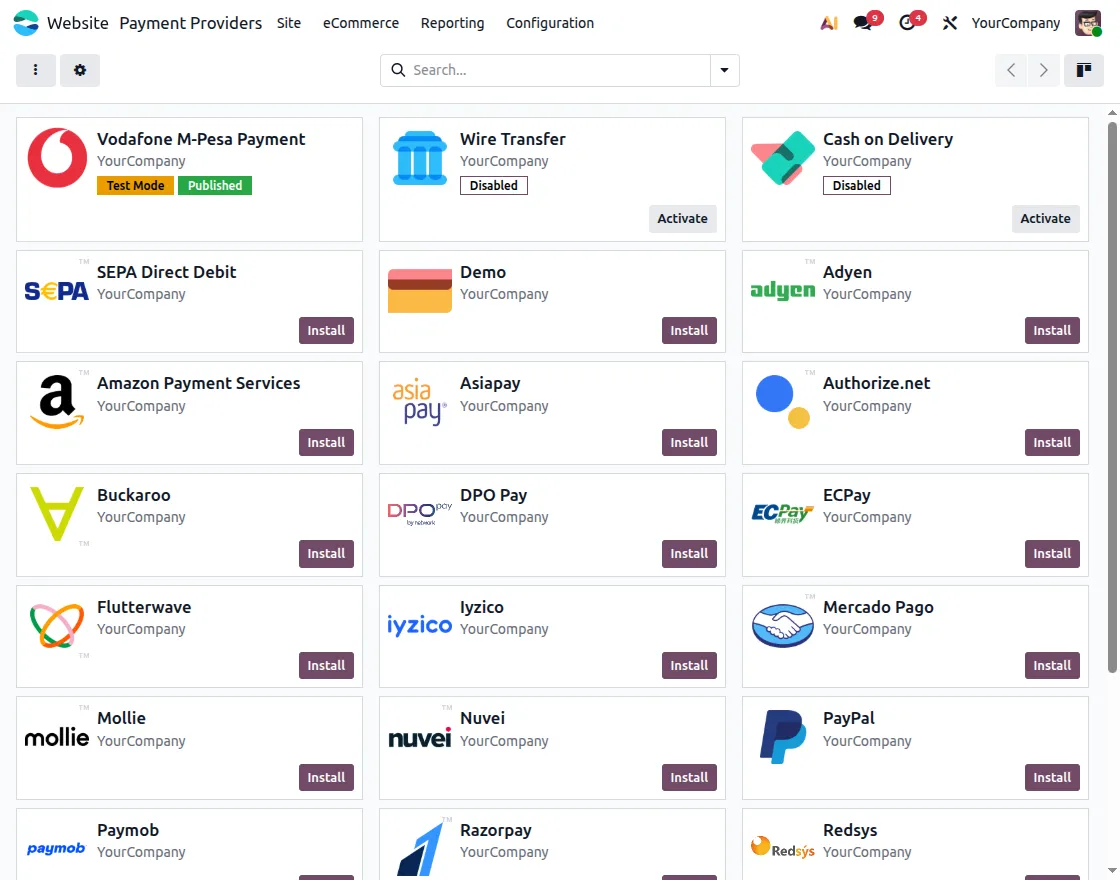
1. Open Vodafone M-Pesa Payment Provider
Go to Website > Configuration > Payment Providers. Then, open Vodafone M-Pesa Payment from the available payment providers.
This opens the Vodafone M-Pesa payment settings so you can configure the payment provider for your website.
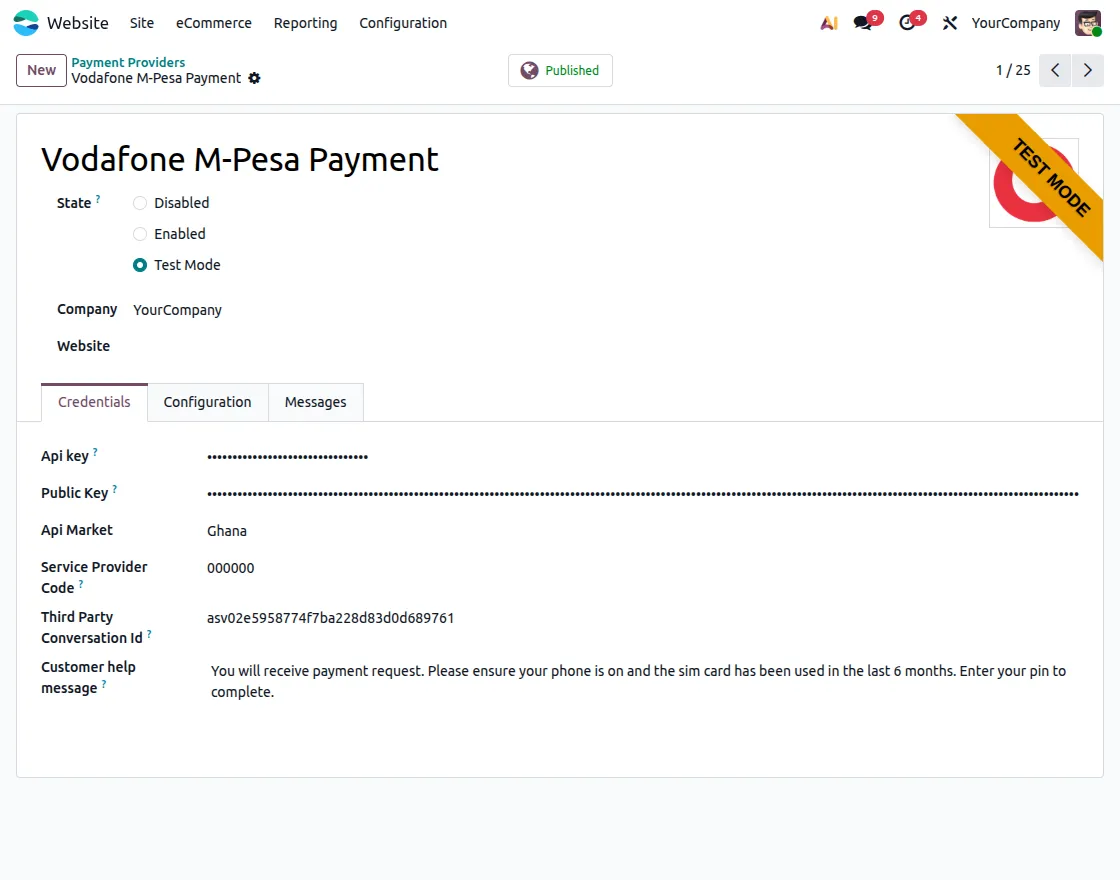
2. Configure Vodafone M-Pesa Credentials
Open the Credentials tab in the Vodafone M-Pesa payment provider. Then, enter the required API Key, Public Key, API Market, Service Provider Code, and Third Party Conversation ID.
You can also configure the Customer Help Message. Finally, save the details to connect Vodafone M-Pesa with your Odoo website.
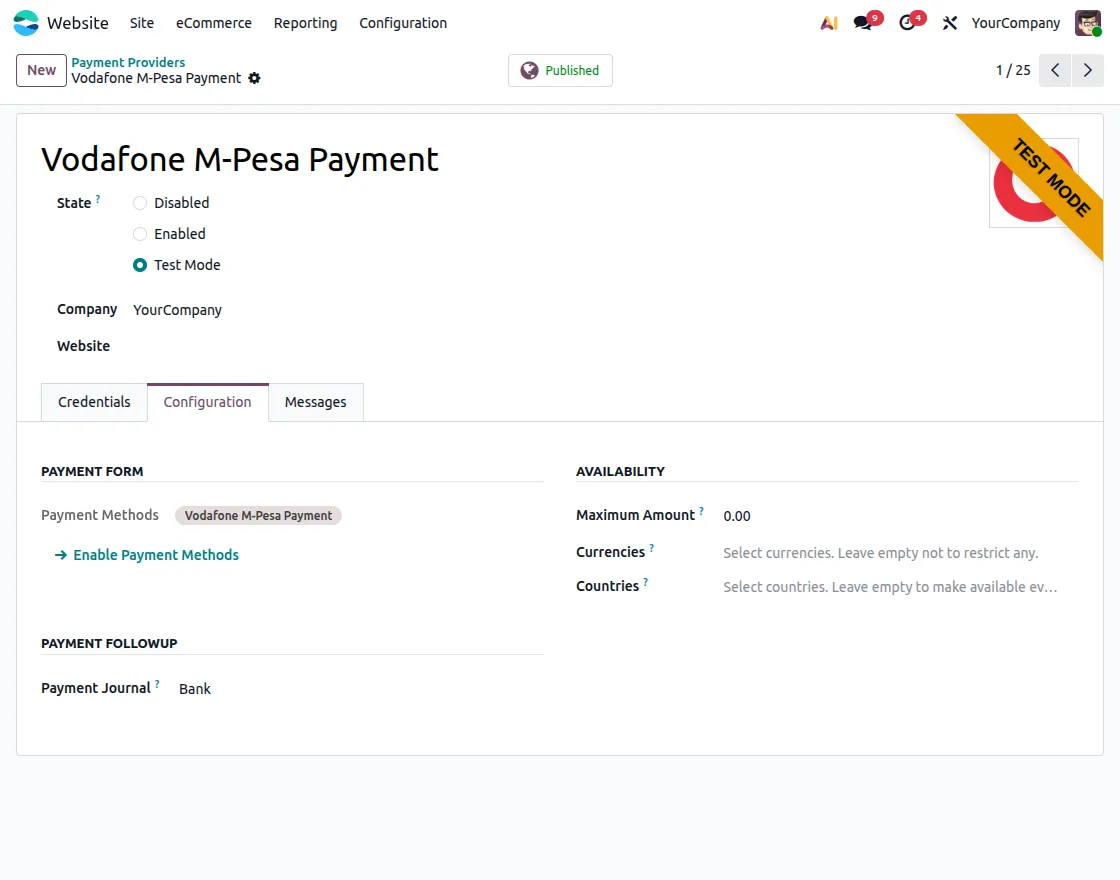
3. Configure Payment Settings
Open the Configuration tab in the Vodafone M-Pesa payment provider. Then, configure the payment method, supported countries, currencies, payment journal, and maximum payment amount.
Finally, save the configuration to make Vodafone M-Pesa available for website payments.
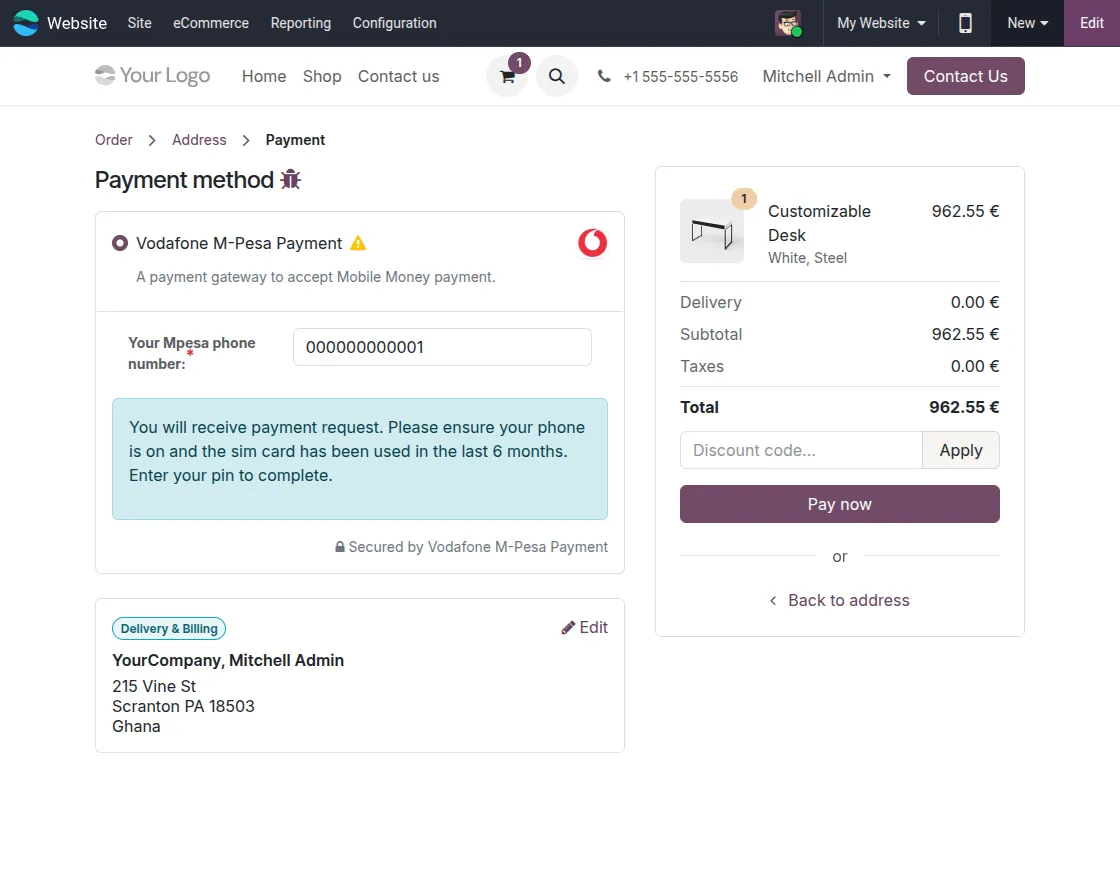
4. Website Checkout
Add products to the cart and proceed to the checkout page. Select Vodafone M-Pesa as the payment method, enter the registered mobile number, and click Pay Now.
A payment request is sent to the customer’s registered mobile number to complete the payment.
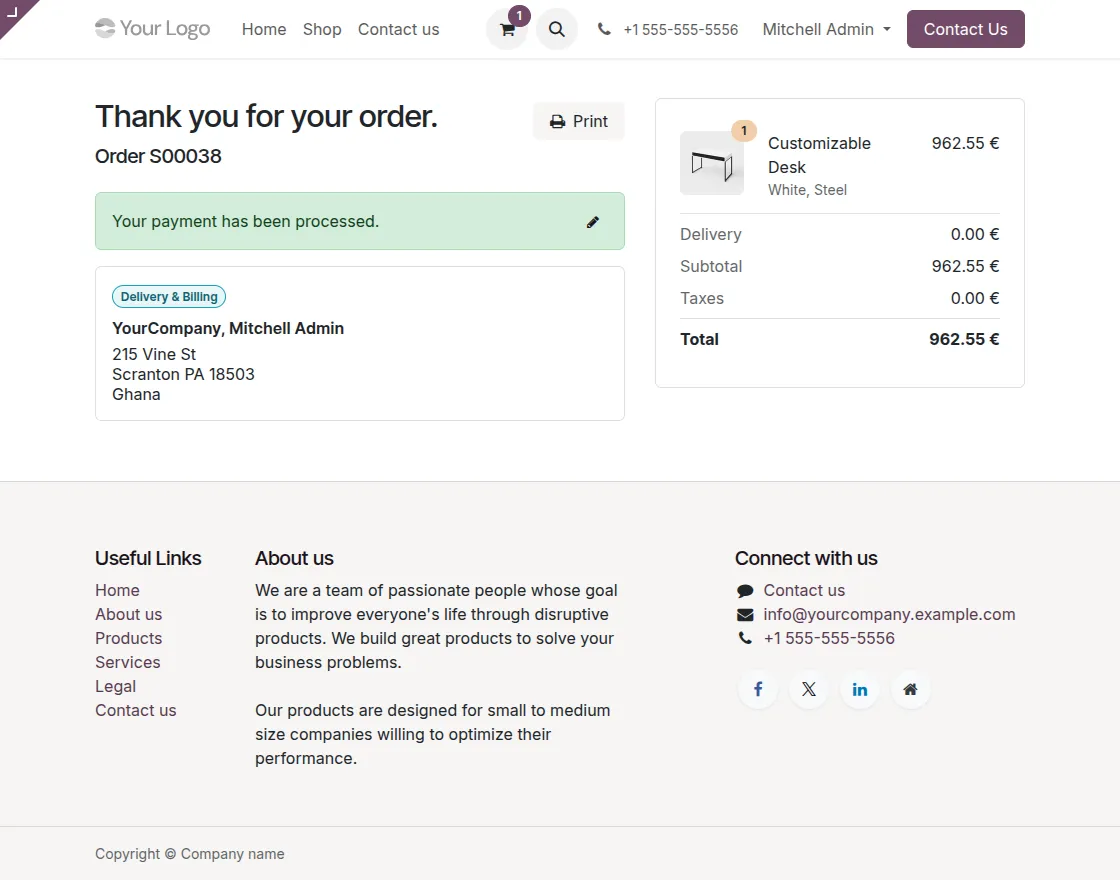
5. View Order Confirmation
Once the payment is completed successfully, the website displays the order confirmation page.
Customers can review the order details and confirm that the payment was processed successfully.
Need Help?
Hope you find guide helpful! Please feel free to share your feedback in the comments below.
If you still have any issues/queries, please create a ticket at theUV Desk.
I hope this helps. In case of any further queries, contact us at our support mail.
Thanks for paying attention!!
Current Product Version - 1.0.0
Supported Framework Version - Odoo V19, V18, V17, V16

Be the first to comment.