INTRODUCTION
Odoo SEO-URL Redirect/Rewrite enhances the search engine optimisation of Odoo website. It allows administrators to create user-friendly URLs for products and categories directly from Odoo backend, improving both user experience and search engine rankings.
This module supports rewriting and redirecting URLs.. Additionally, it offers options to add suffixes such as ‘.php’ or ‘.html’ to URLs and to display category hierarchies within product URLs.
FEATURES
- With Odoo SEO-URL Redirect/Rewrite create SEO-friendly URLs by rewriting and redirecting product and category URLs directly from Odoo backend.
- Remove default prefixes like ‘/shop’ or ‘/product’ for more optimised URLs using Odoo SEO-URL Redirect/Rewrite
- Add custom suffixes such as ‘.html’ or ‘.php’ to URLs.
- Display category hierarchy in product URLs for better navigation.
- Easily manage redirects for moved or updated pages.
- Odoo SEO-URL Redirect/Rewrite improves search engine indexing with structured and optimized URLs.
- Enhance user experience with clear and descriptive links.
- Odoo SEO-URL Redirect/Rewrite simplifies URL customization without any need for technical coding.
INSTALLATION
- Once you purchase the App from Webkul store, you will receive the link to download the zip file of the module.
- Extract the file on your system after the download finishes. You will be able to see a folder named- ‘seo_url_redirect.’
- Copy and paste this folder inside your Odoo Add-Ons path.
- Now, open the Odoo App and click on the Settings menu. Here, click on Activate the Developer Mode.
- Then, open the Apps menu and click on ‘Update Modules List.’
- In the search bar, remove all the filters and search ‘seo_url_redirect.’
- You will be able to see the module in the search results. Click on ‘Install’ to install it.
WORKFLOW
Let’s begin the configuration of the Odoo SEO-URL Redirect/Rewrite.
CONFIGURATION
- Once Odoo SEO-URL Redirect/Rewrite is installed, go to ‘Website> SEO URL Rewrite> SEO Rewrite Configuration> New’ to start creating settings.
Now, on the page, configure the following settings:
- Enter a name for the Product SEO rewrite setup.
- Tick the option ‘Add Suffix to URL’ to allow suffixes in category and product links.
- Turn on ‘Web Server Rewrites’ — this will clean the URL by removing parts like shop/product/category.
- When everything is set, click the Save button.
- After saving, press the ‘Ready to Generate URL Keys’ button.
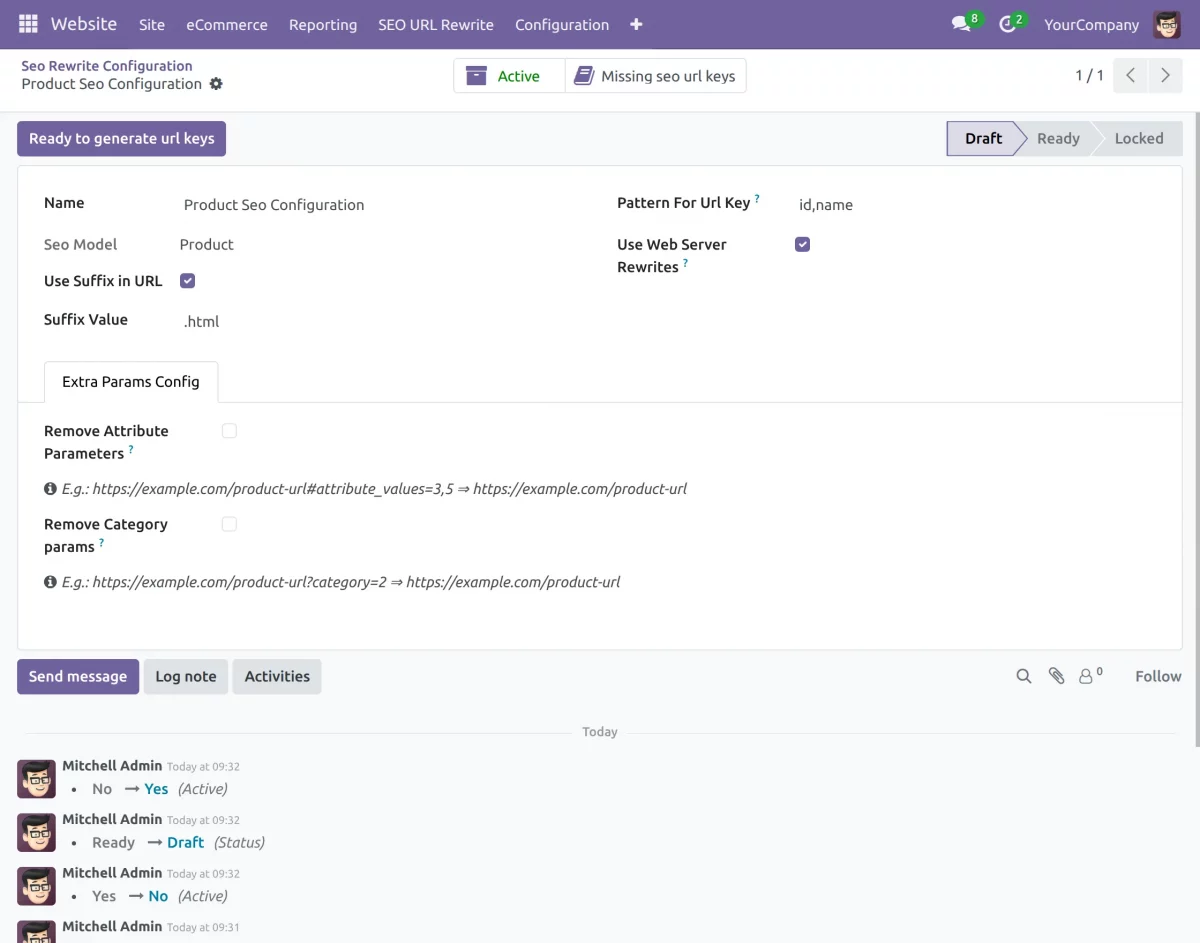
2. After that, click the ‘Generate Product SEO URL Keys’ button to create SEO URL keys for every product listed in the store

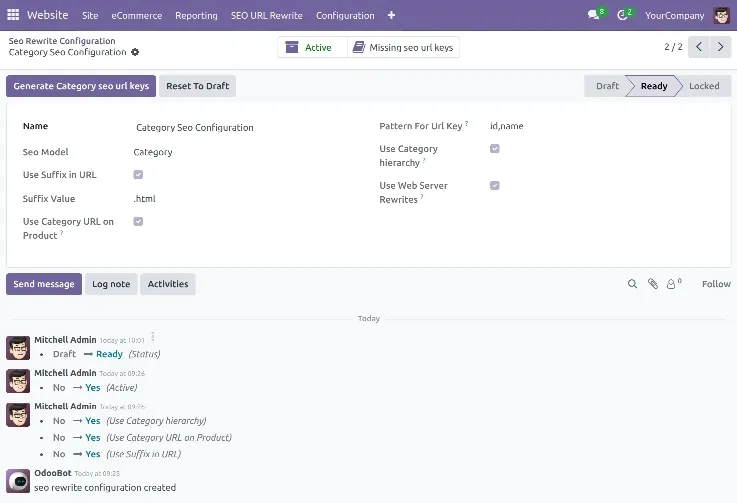
3. Then, navigate to Website >> SEO URL Rewrite >> SEO Rewrite Configuration >> Category Seo Configuration and click on “Ready to generate URL keys”
Now, click on ‘Generate Category Seo URL Keys’
REWRITING A URL SLUG-
1. Go to ‘Website> SEO URL Rewrite> Product’ to view all product URL redirects.
From the list, choose any desired product and change its URL. This will change that product slug, which is the last part of the product URL.
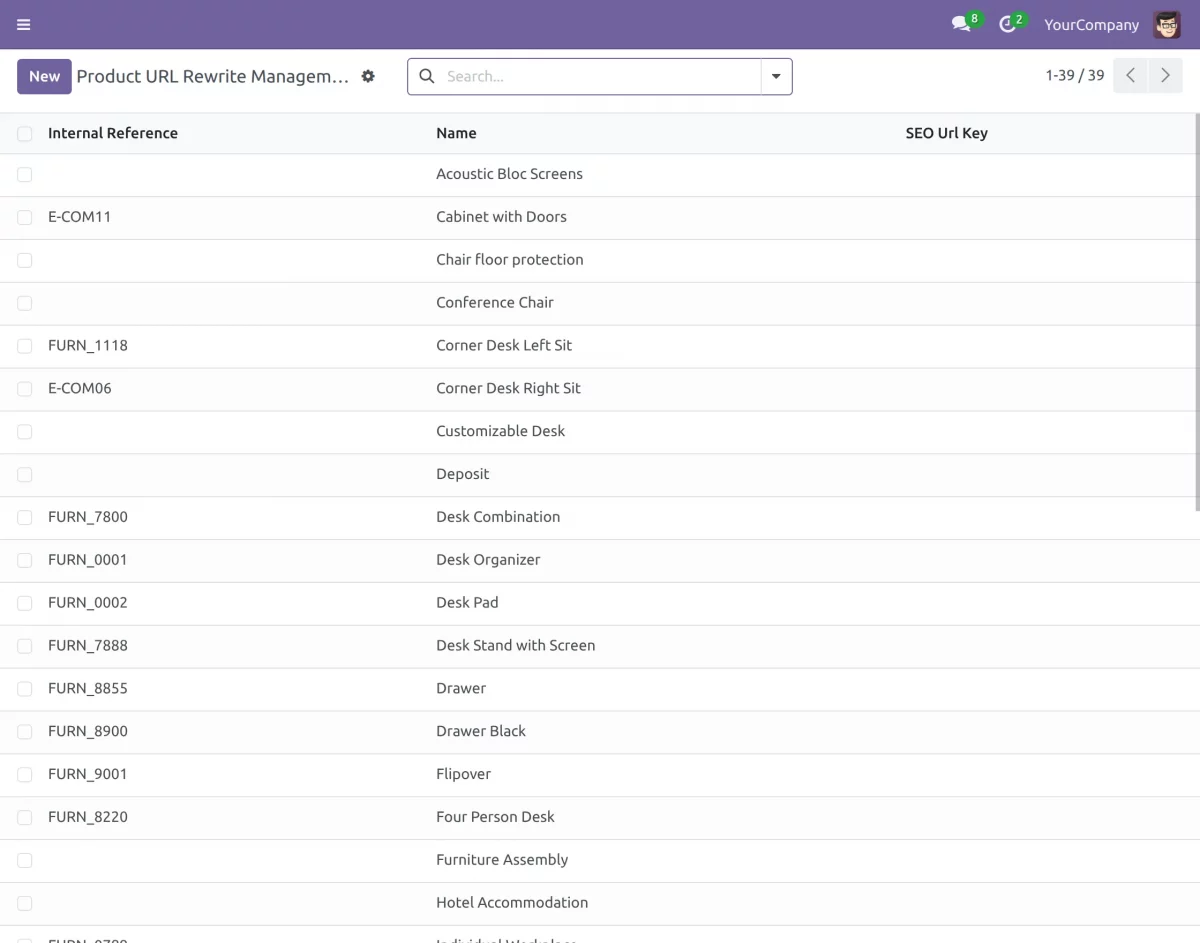
2. After you change any SEO URL key, save it

3. This is how a new URL will look after making any changes.
Before SEO URL Key was updated-
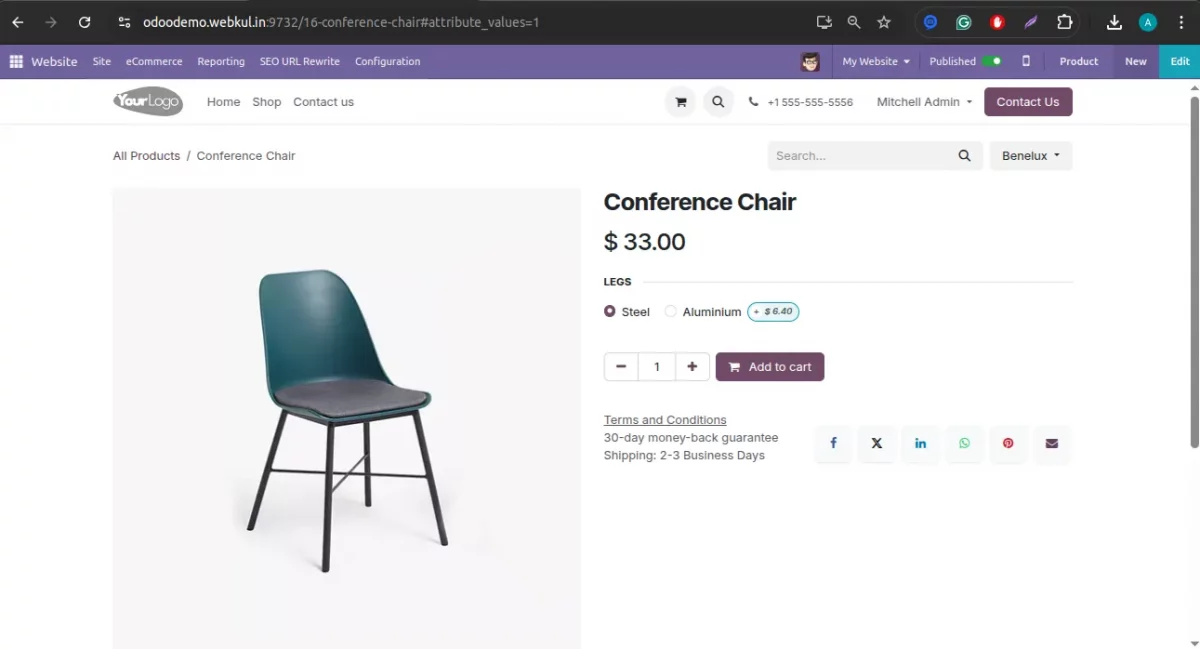
4. After the Change is made in SEO URL
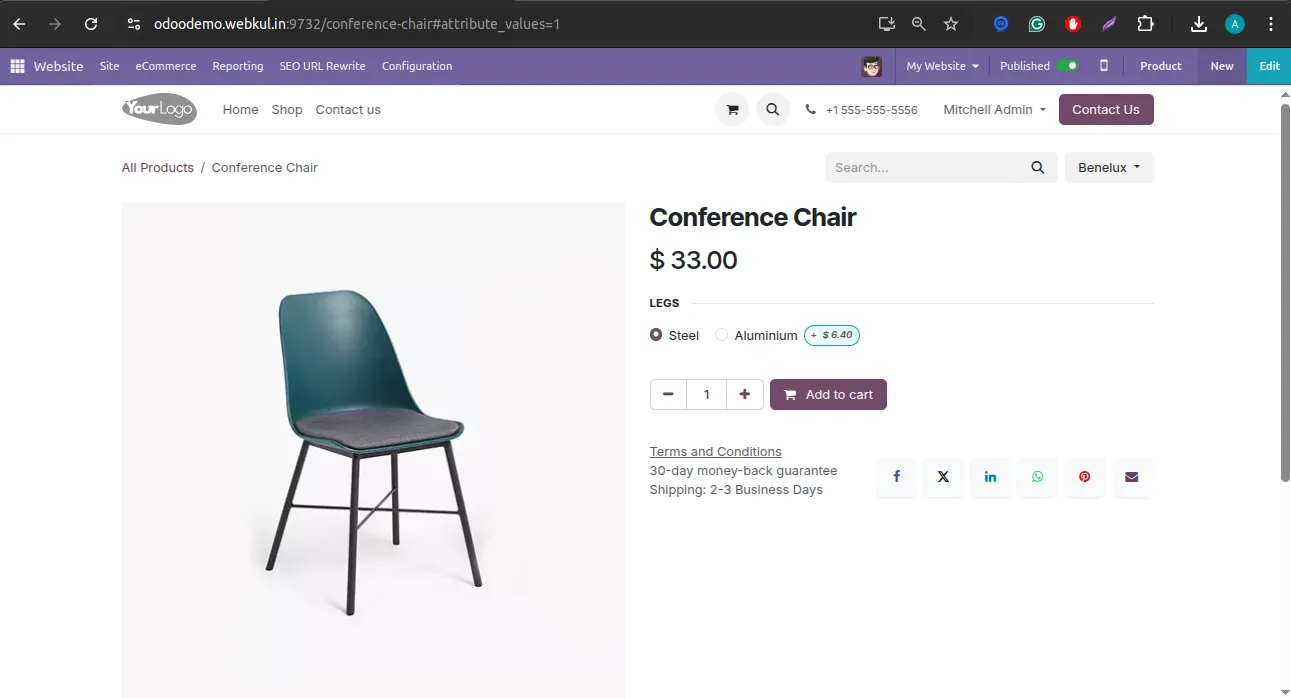
NOTE: The system creates a redirect automatically for every rewrite. This is because each URL is unique and rewriting a URL means you are creating a new one. So a permanent auto-redirect needs to be assigned to event page to direct traffic from any old slug to a new slug.

USING PRODUCT CATEGORY URL REWRITES-
- You can also change URL keys for product categories of your Odoo website. Go to ‘Website> SEO URL Rewrite> Category.’
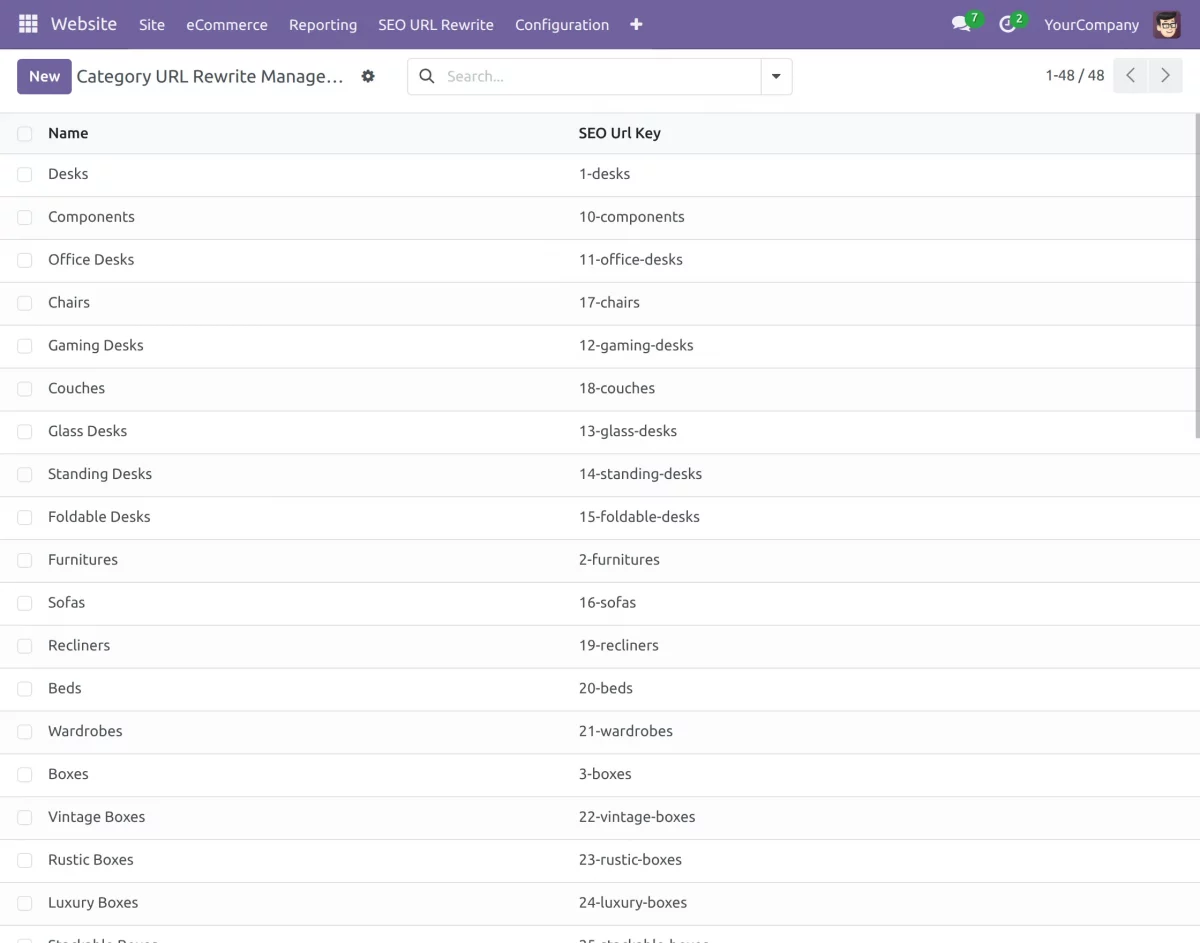
2. From the list, pick any Category to update the URL. Once updated, click on Update SEO URL
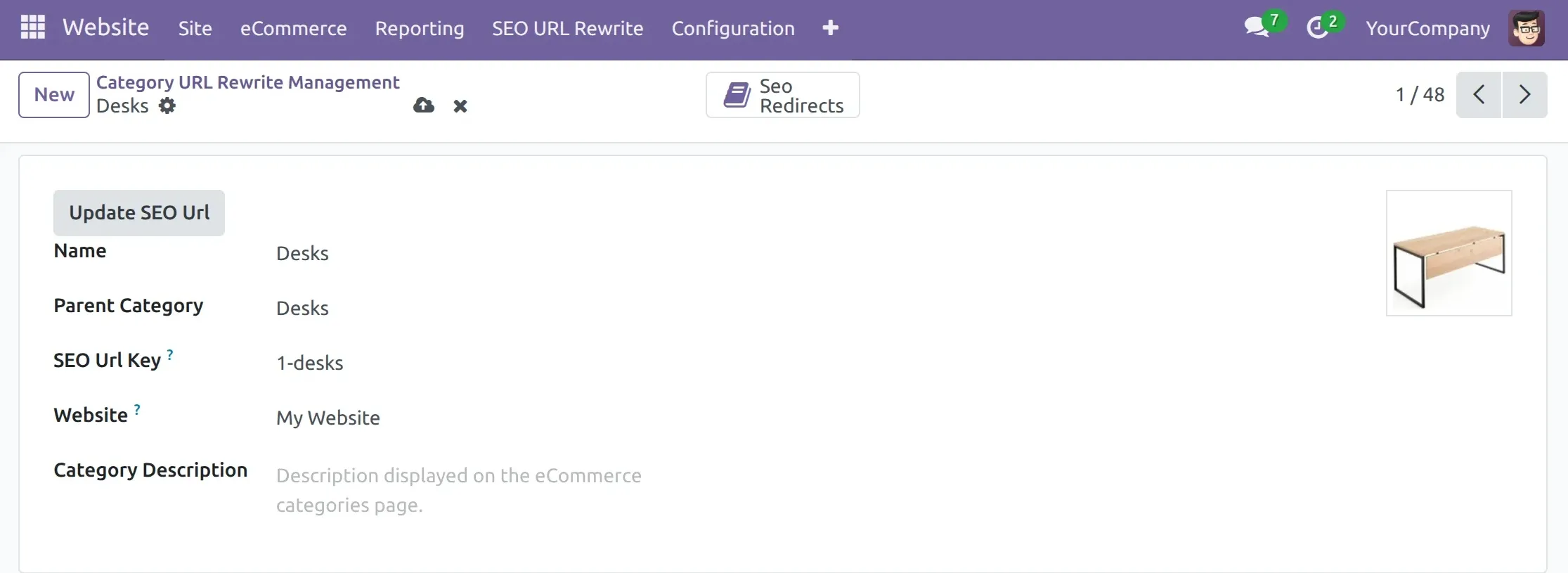
USING URL REDIRECTS IN ODOO-
3. Go to ‘Website> SEO URL Rewrite> SEO Redirects> New.
- Once everything is ready, hit ‘Save’ icon.
- Action – Not found, moved permanently, moved temporarily, redirect/rewrite (404, 301, 302, and 308 respectively).
- URL from – Old URL which you want to change. (NOTE: The slug of source URL should be from your Odoo website).
- URL to – URL you want to change to. (NOTE: Target page should exist, otherwise it will show a 404 error).
- Create URL Rewrites – Choose between custom, product, and category.
- Is Old Redirect – Tick this checkbox if ‘URL to’ already exists.
- Website – Useful when you manage multiple websites.
- Enable status as active.
- Type – Pick between System and Custom based on your needs.

NEED HELP?
We hope this guide has been helpful. Share your feedback in the comments section below.
For any issues or further inquiries, please raise a ticket on UV Desk or contact our support team via email.
Thank you for choosing us, and we’re here to assist you further!
Current Product Version - 1.1.0
Supported Framework Version - Odoo 8.x, 10.x, 11.x, 12.x, 13.x, 14.x, 15.x, 16.x, 17.x, 18.x

Be the first to comment.