Introduction
Odoo POS Direct Print enables businesses to print receipts and invoices directly from the Point of Sale interface without requiring any IoT box or additional hardware.
Odoo POS Direct Print simplifies this process by allowing instant printing directly from the POS screen. It supports ESC/POS and network printers and also works smoothly on Windows, Linux, macOS, Android, and iOS, so you can use it on desktops, tablets, or mobile devices without any compatibility issues.
Additionally, the module supports automatic cash drawer opening, helping businesses speed up checkout operations and improve efficiency.
Check the video mentioned below for a brief overview of Odoo POS Direct Print:
Features
- Print POS receipts instantly without downloading files
- Automatically print invoices after order validation
- Supports a wide range of printers, including ESC/POS and network printers
- Works with multiple printers across different setups
- Automatically open the cash drawer on payment validation
- It allows you to reprint receipts anytime directly from the POS
- Works on Windows, Linux, macOS, Android, and iOS
- Easy setup with no IoT hardware required
Prerequisites for using Odoo POS Direct Print
Odoo POS Direct Print works in conjunction with the following module:
Odoo Direct Print
You need to install the above module first for Odoo POS Direct Print to work properly.
To use this module, you must first install the Desktop/Mobile application provided by our Webkul team. Please contact us at [email protected]for the desktop application.
Android App: https://play.google.com/store/apps/details?id=com.webkul.printdirect
iOS App: https://apps.apple.com/us/app/print-direct-for-odoo/id6754629830
Installation
- Once you purchase the App from the Webkul store, you will receive a link to download the module’s zip file.
- Extract the file on your system after the download finishes. As a result, you will be able to see a folder named- ‘pos_direct_print’
- Copy and paste this folder inside your Odoo Add-Ons path.
- Now, open the Odoo App and click on the Settings menu. Here, click on Activate the Developer Mode.
- Then, open the Apps menu and click on ‘Update Modules List.’
- In the search bar, remove all the filters and search ‘pos_direct_print’
- You will be able to see the module in the search results. Click on ‘Activate’ to install it.
Workflow
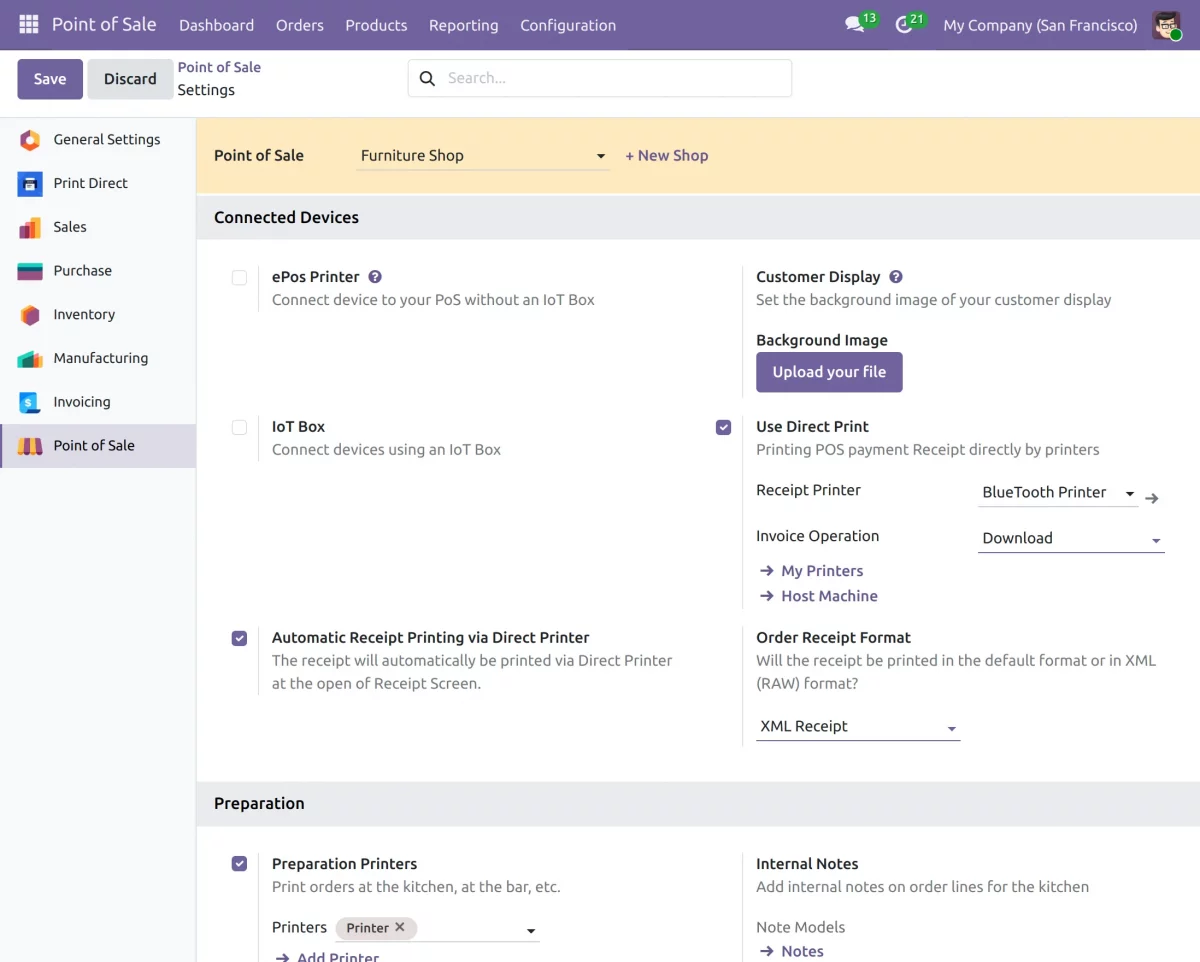
1. After installing Odoo POS Direct Print Module, navigate to the Direct Print settings and configure the required options.
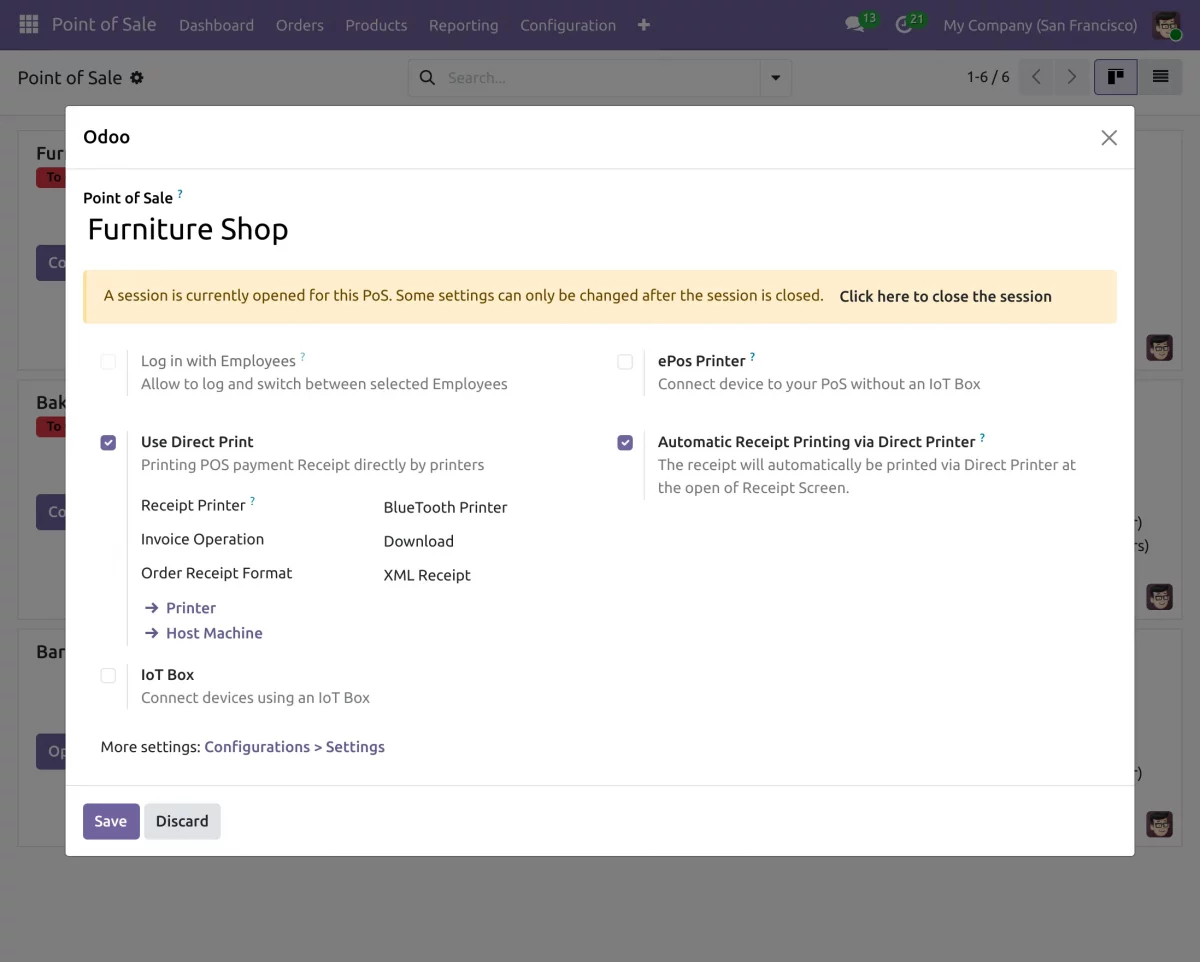
2. Before starting a POS session, configure the Direct Print settings from the POS dashboard.
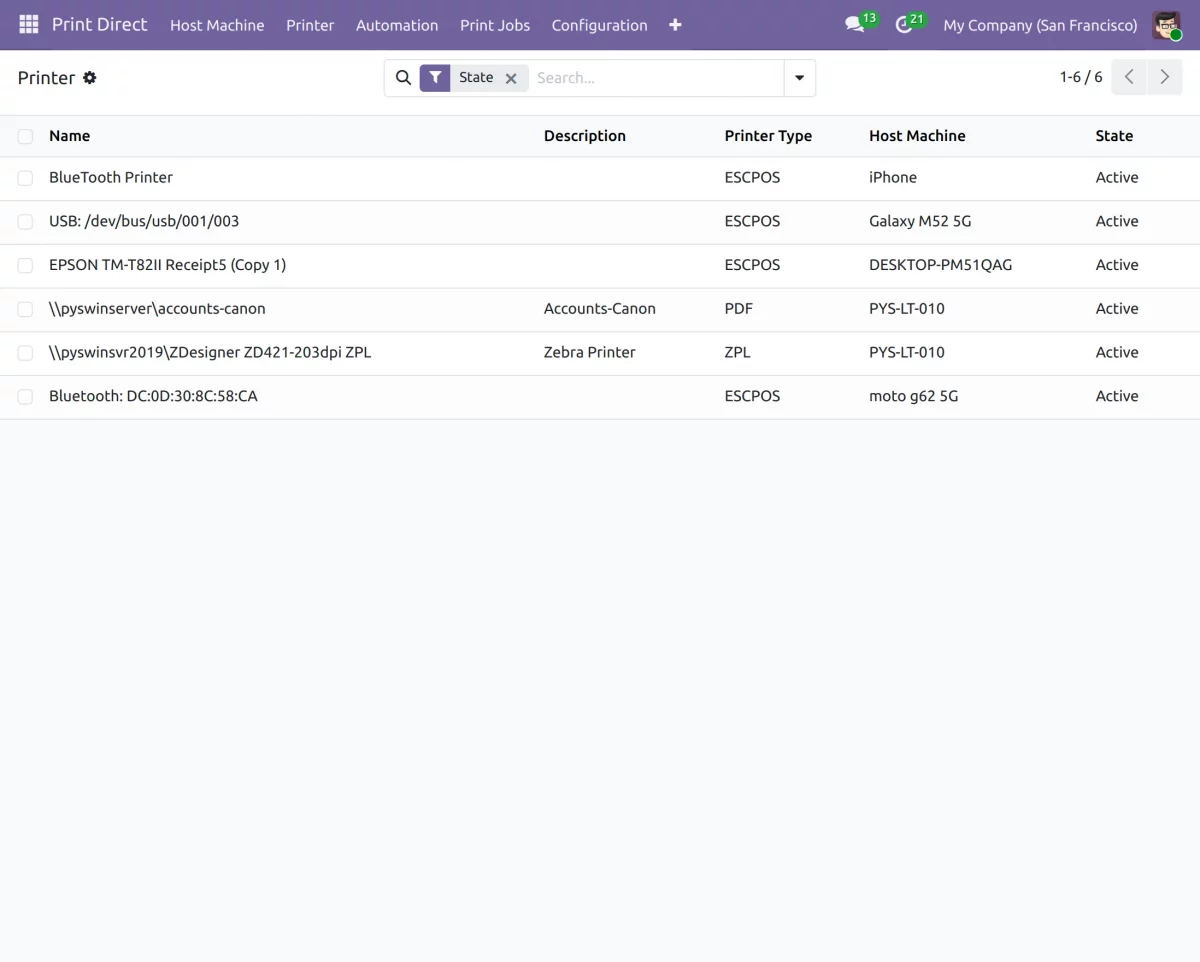
3. In the Print Direct tab, add and manage multiple printers as per your business requirements.
4. Select a printer to enable and configure cash drawer integration.
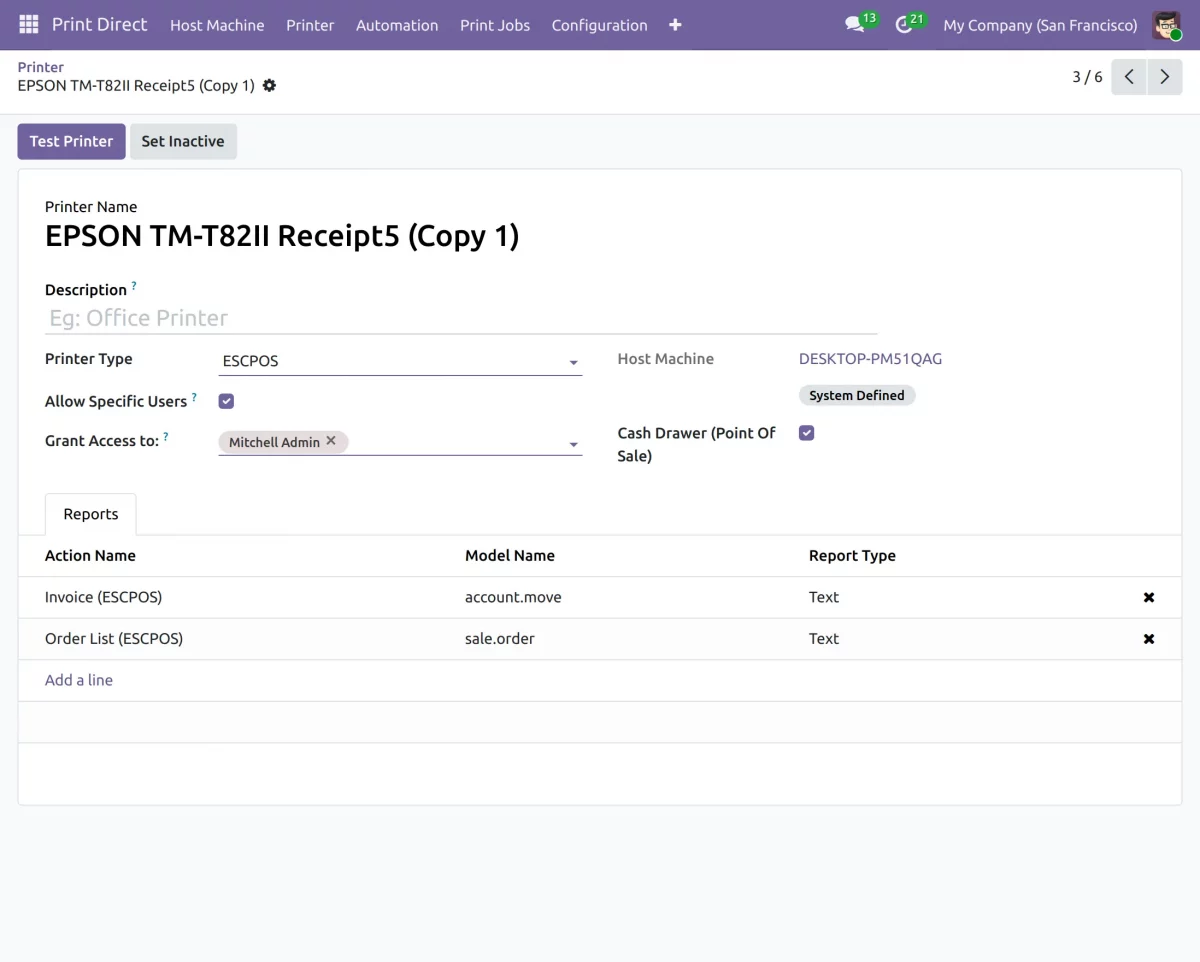
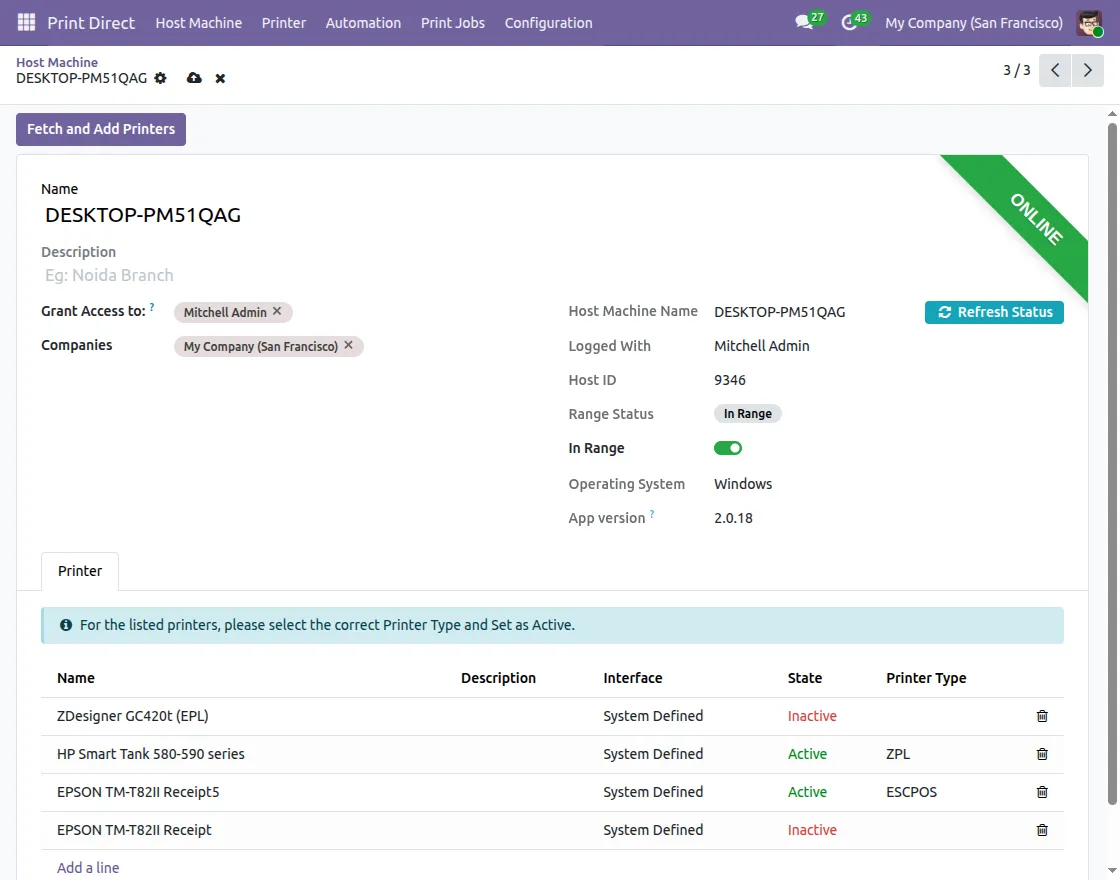
5. Verify the printer configuration and check its connection status.
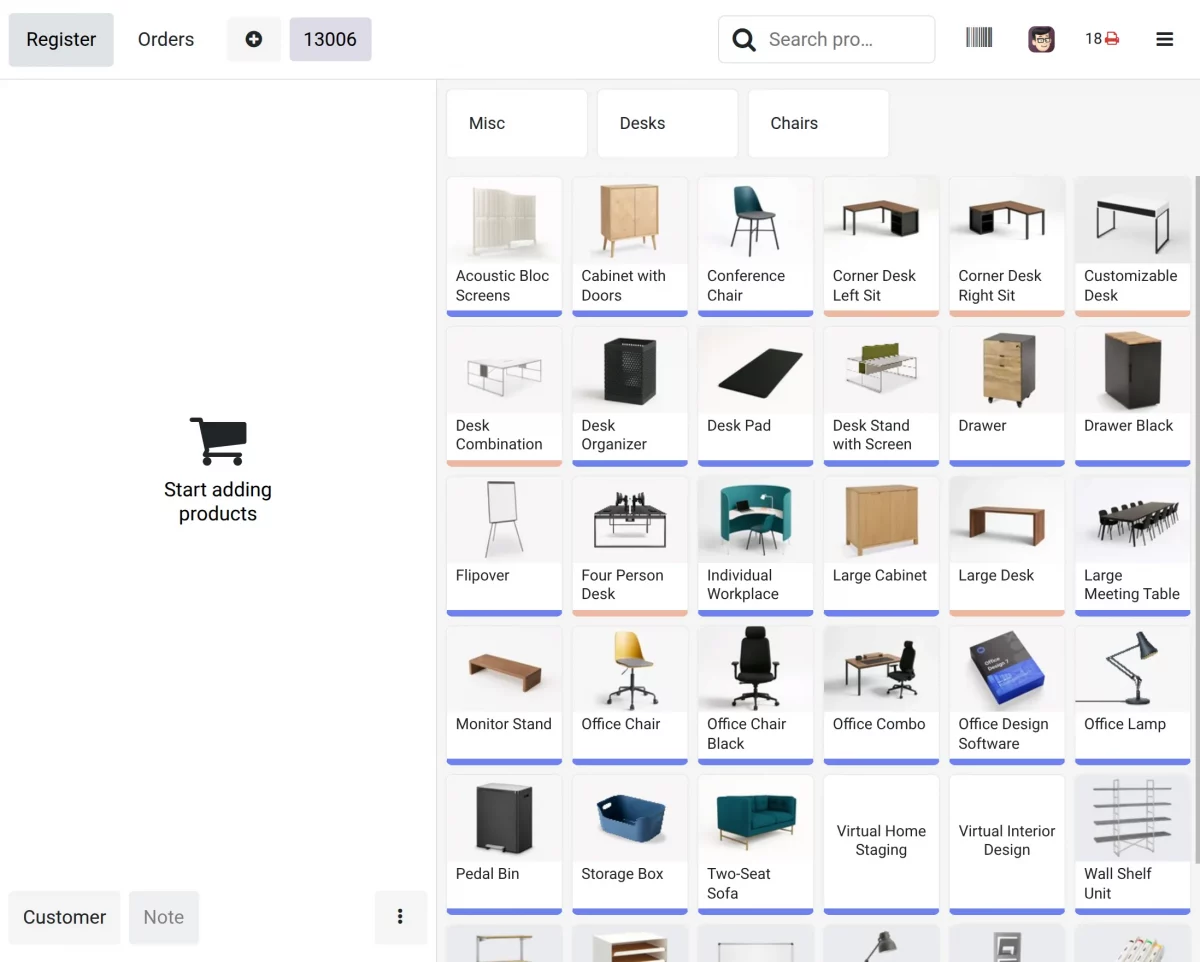
6. In the POS frontend, queued receipts are visible and will be processed automatically once the printer reconnects.
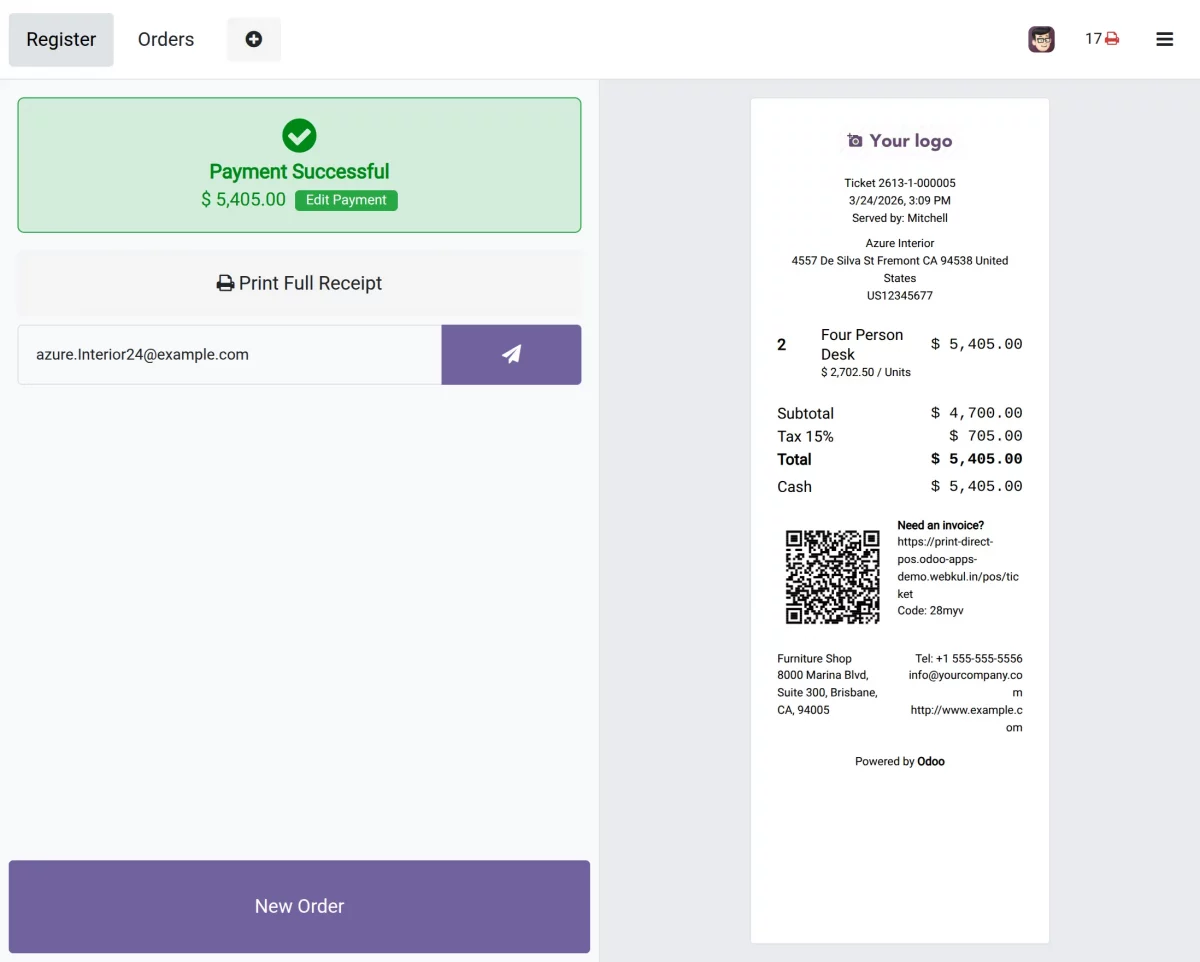
7. After validating the POS order, the receipt is printed automatically.
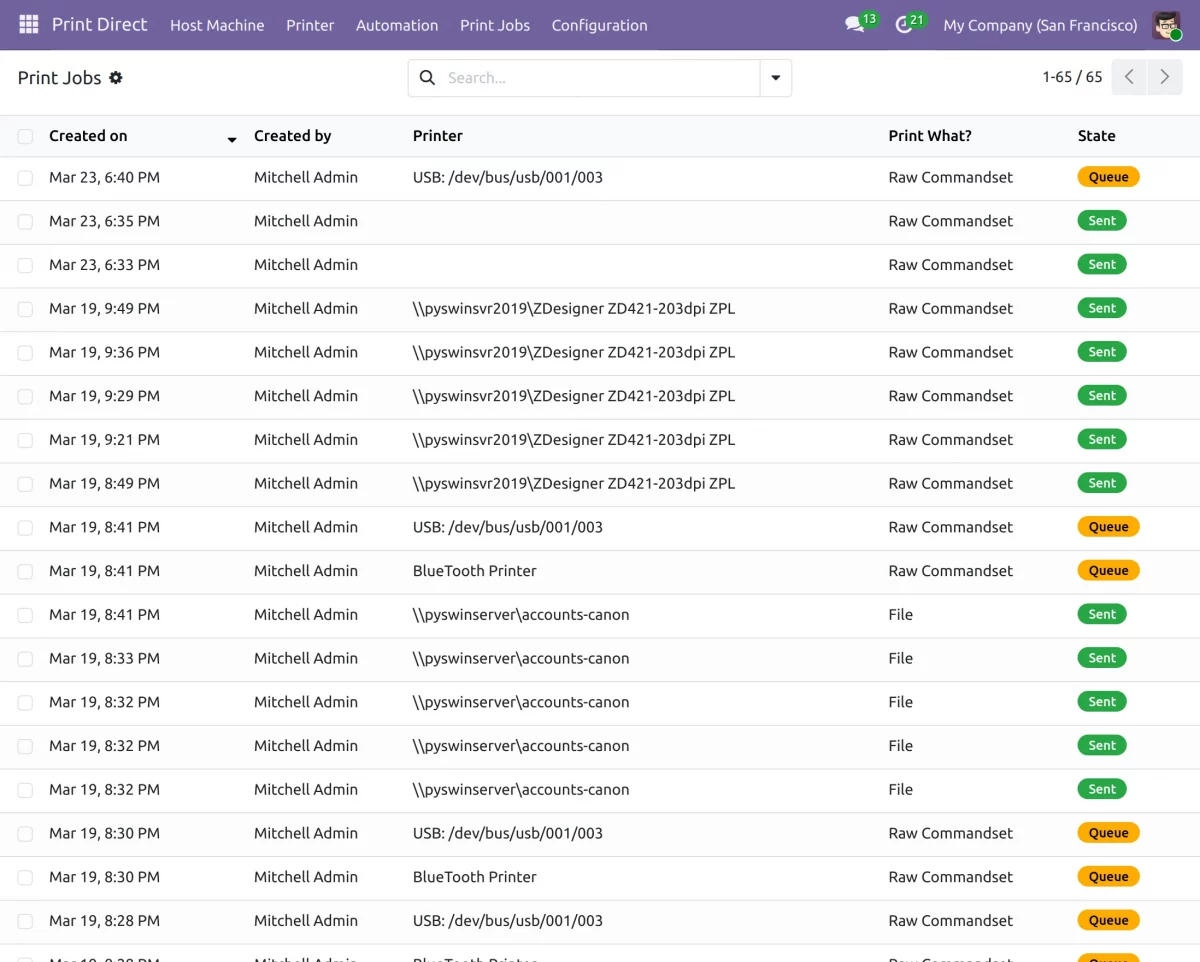
8. In the Print Jobs section, you can view and track all printing activities.
Need Help?
Hope you find guide helpful! Please feel free to share your feedback in the comments below.
If you still have any issues/queries, please create a ticket at the UV Desk.
I hope this helps. In case of any further queries, contact us at our support mail.
Thanks for paying attention!!
Current Product Version - 1.0.6
Supported Framework Version - Odoo V19, V18, V17, V16, V15, V14, V13, V12, V11

4 comments
We have raised a ticket on your behalf, and our team will reach out to you soon regarding your queries.
Thanks and Regards,
Team Webkul
Solo sirve para el POS, no se puede utilizar para los otros documentos?
We have created a ticket on your behalf and our team will connect you soon regarding your queries.
Thanks and Regards,
Team Webkul