Introduction
Odoo POS Credit Limit helps businesses manage customer credit purchases directly from the Point of Sale by allowing admins to define and control credit limits for each customer from the backend.
Odoo POS Credit Limit ensures better financial control by showing real-time warnings in POS when a customer exceeds their allowed credit, preventing unauthorized or excess credit usage during checkout.
By streamlining credit monitoring and enforcing limits at the POS level, Odoo POS Credit Limit helps businesses maintain accurate credit records, reduce risks, and improve overall cash flow management.
Features
- Allows admins to set a credit limit for each customer from the backend.
- Displays customer credit balance and remaining limit directly in POS.
- Restricts POS orders when the customer exceeds the defined credit limit.
- Shows clear warning messages to the cashier for exceeded credit limits.
- Supports customer-wise credit tracking for better financial control.
- Automatically updates credit balance after each POS transaction.
- Works seamlessly with existing POS payment workflows.
- Odoo POS Credit Limit ensures secure and controlled credit-based sales at POS.
- Helps businesses reduce credit risk and improve cash flow management.
Installation
- Once you purchase the App from Webkul store, you will receive a link to download module’s zip file.
- Extract the file on your system after download finishes. As a result, you will be able to see a folder named- ‘wk_pos_credit_limit’
- Copy and paste this folder inside your Odoo Add-Ons path.
- Now, open Odoo App and click on the Settings menu. Here, click on Activate Developer Mode.
- Then, open Apps menu and click on ‘Update Modules List.’
- In the search bar, remove all the filters and search ‘wk_pos_credit_limit’
- You will be able to see module in the search results. Click on ‘Activate’ to install it.
Workflow
- After installing Odoo POS Credit Limit, configure the POS Customer Credit Limit from the customer form to enforce real-time credit control and accurate POS credit management during checkout.

2. After configuration, add products to the cart, select the customer, and choose Customer Account as the payment method to process the order using the customer’s credit limit.
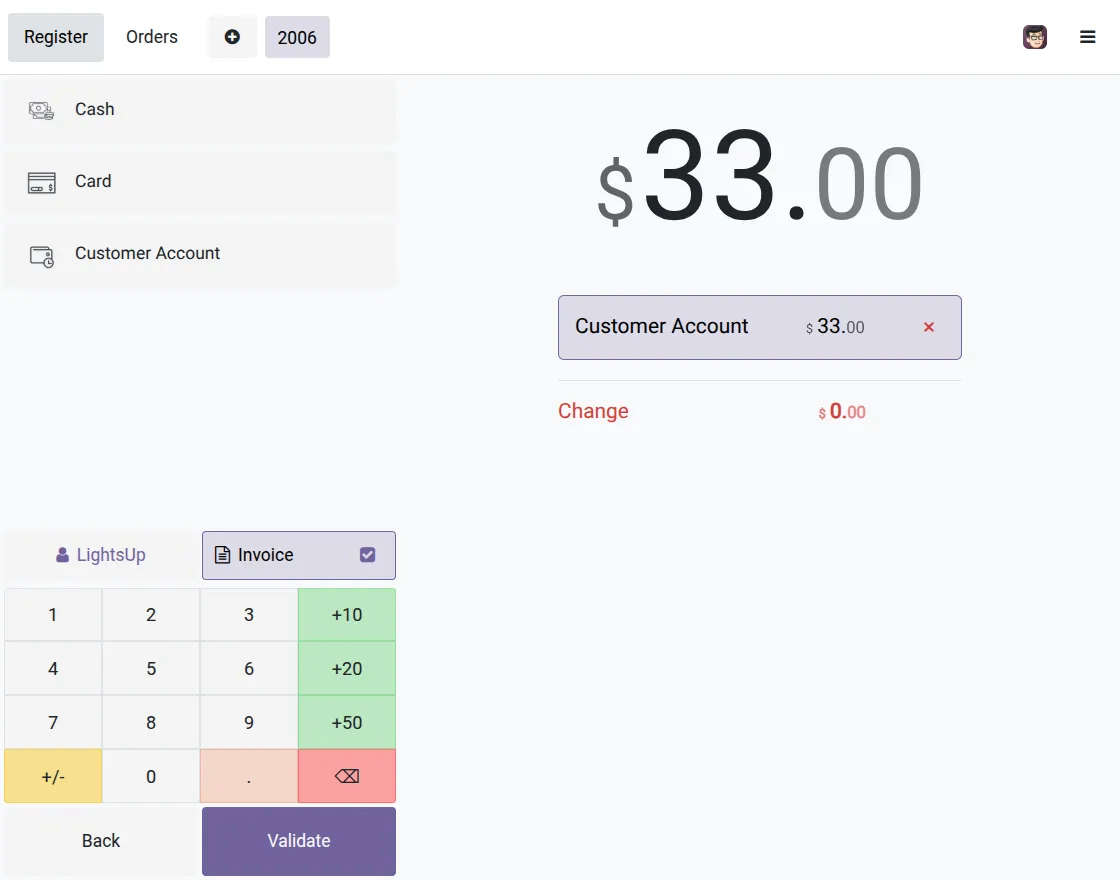
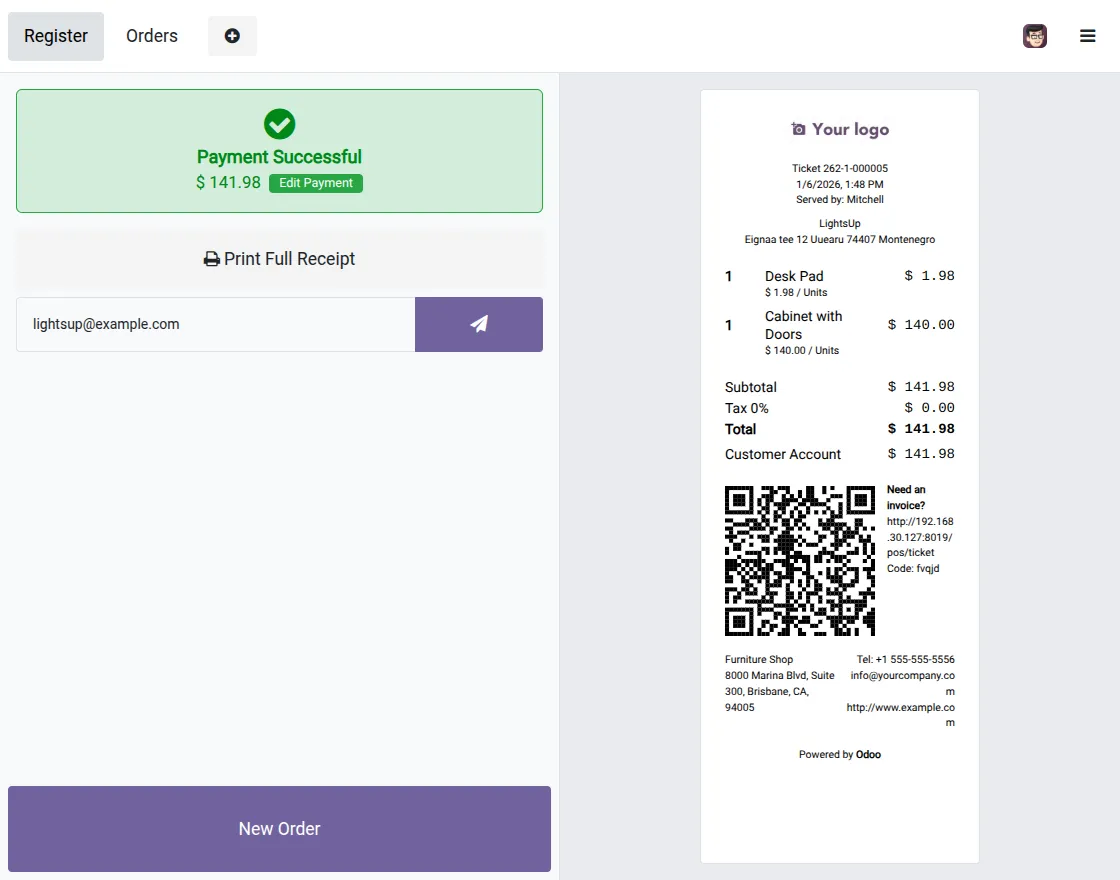
3. Once the Customer Account payment is selected and validated, the order is completed successfully on credit, and the receipt clearly reflects the amount charged to the customer’s credit account.
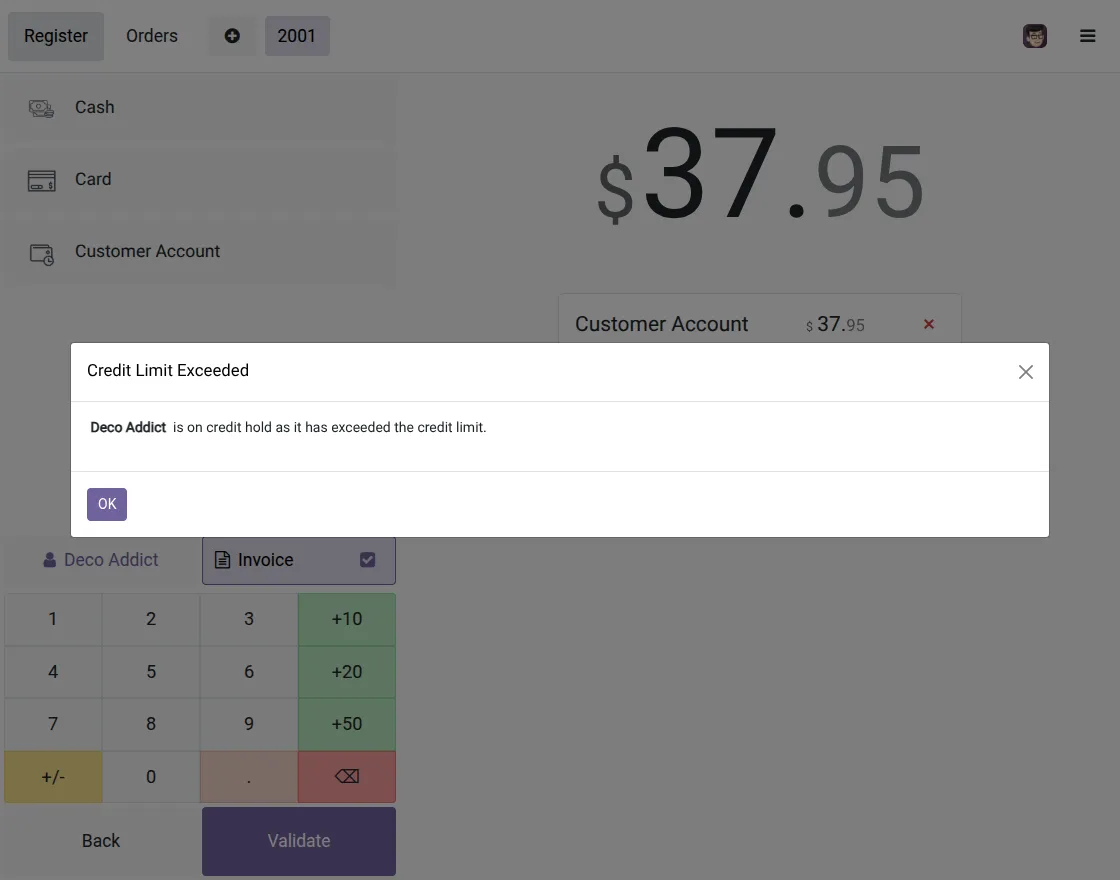
4. When the customer’s credit limit is exceeded, the system blocks the credit payment and displays a clear Credit Limit Exceeded warning message in the POS to prevent further checkout on credit.
5. When a customer is placed on Credit Hold, the POS immediately restricts credit payments and shows a clear Credit Hold warning message during checkout.
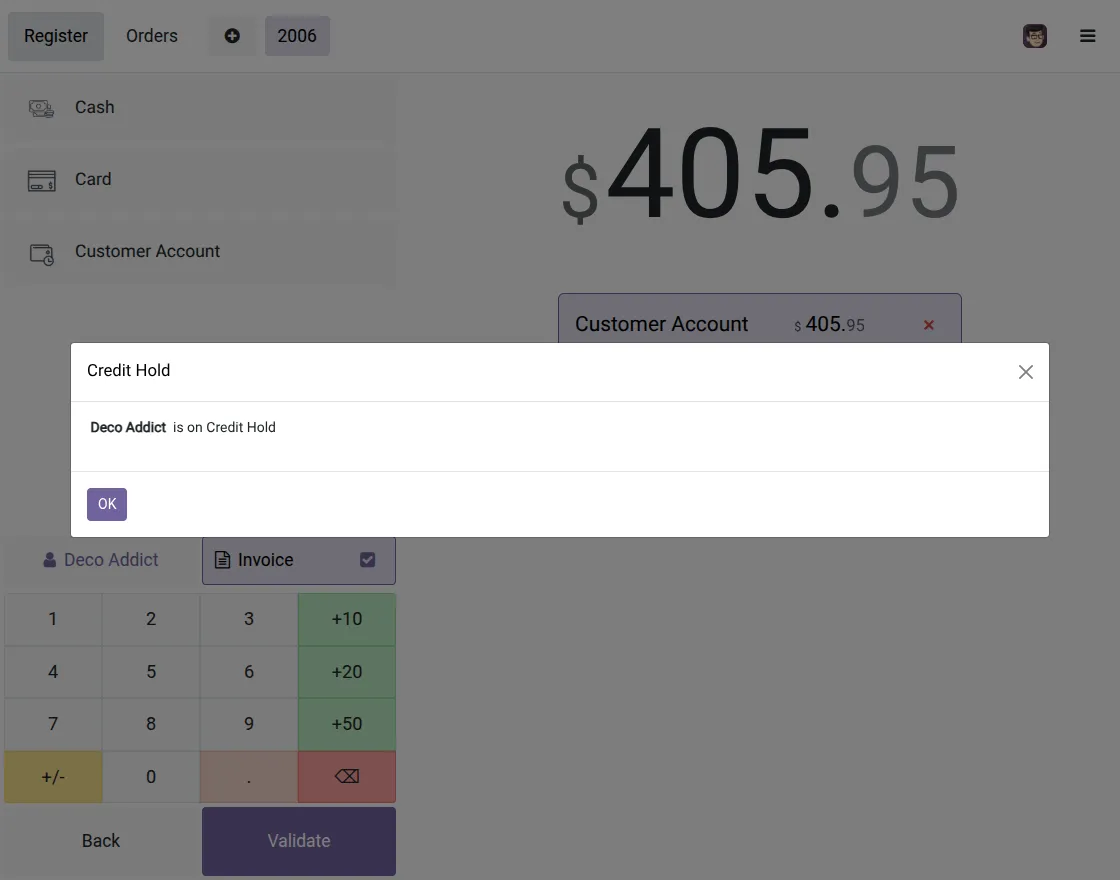
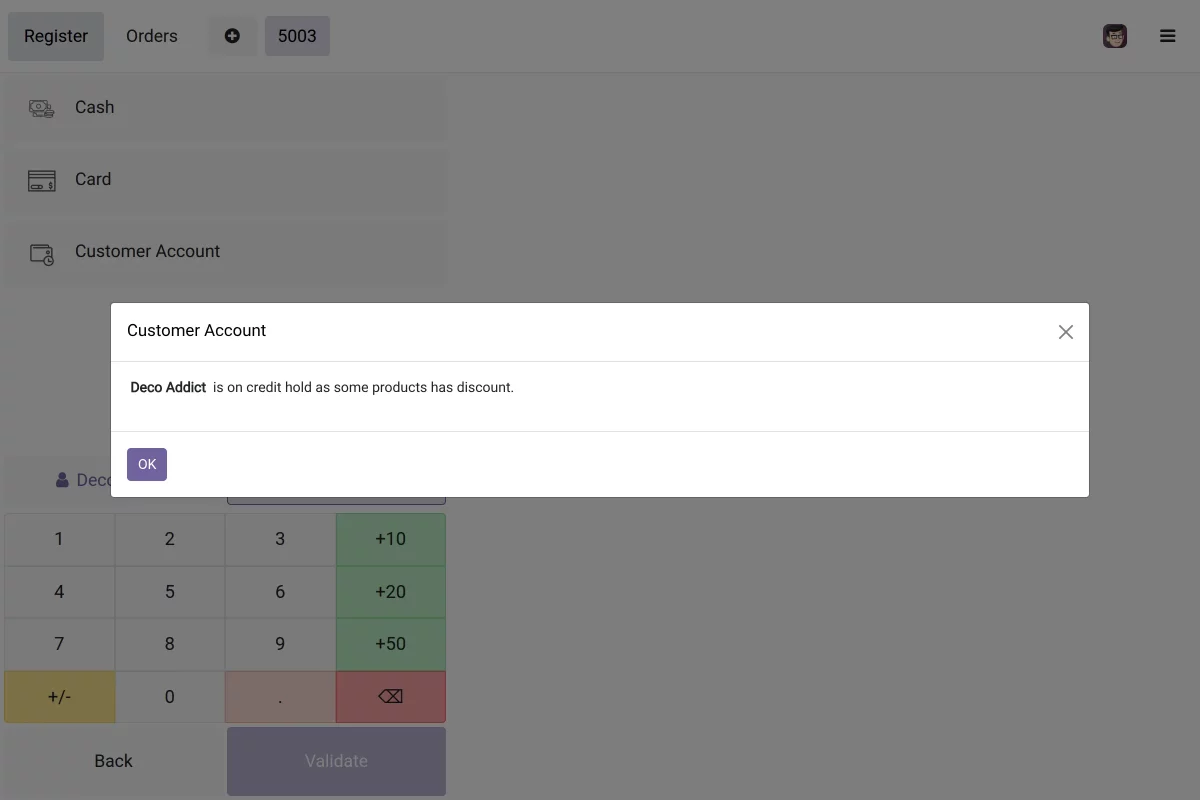
6. When products with discounts are added to the order, the system places the customer on Credit Hold and displays a clear warning popup to restrict credit payment for discounted items.
Need Help?
Hope you find guide helpful! Please feel free to share your feedback in the comments below.
If you still have any issues/queries, please create a ticket at the UV Desk.
I hope this helps. In case of any further queries, contact us at our support mail.
Thanks for paying attention!!
Current Product Version - 1.0.0
Supported Framework Version - Odoo V19, V18, V17, V16

Be the first to comment.