


















Introduction
Odoo PayLater Payment Acquirer-Qatar helps businesses integrate the PayLater payment gateway with their website checkout. Customers can complete secure online payments using Qatari Riyal (QAR) through the PayLater hosted payment page.
The payment process is simple and secure. Customers are redirected to the PayLater payment page during checkout and return automatically after a successful payment. Payment details and transaction records are stored in the backend for easy management.
Features
- Configure the PayLater payment gateway using Merchant ID, Outlet ID, and API Key.
- Switch easily between Test Mode and Live Mode for testing or production use.
- Accept secure online payments through the trusted PayLater hosted payment gateway.
- Allow customers to choose PayLater as a payment option during website checkout.
- Process payments securely in Qatari Riyal (QAR), the supported gateway currency.
- Redirect customers automatically to the secure PayLater payment page for payment.
- Return customers to the website automatically after successful payment completion.
- Update payment and order status automatically after every successful transaction.
- Store and manage payment transactions, references, and payment details from the backend.
Installation
- Once you purchase the App from Webkul store, you will receive a link to download module’s zip file.
- Extract the file on your system after download finishes. As a result, you will be able to see a folder named- ‘wk_payment_paylater’.
- Copy and paste this folder inside your Odoo Add-Ons path.
- Now, open Odoo App and click on the Settings menu. Here, click on Activate Developer Mode.
- Then, open Apps menu and click on ‘Update Modules List.’
- In the search bar, remove all the filters and search ‘wk_payment_paylater’.
- You will be able to see the module in the search results. Click on ‘Activate’ to install it.
Workflow
Configuration of Odoo PayLater Payment Acquirer-Qatar
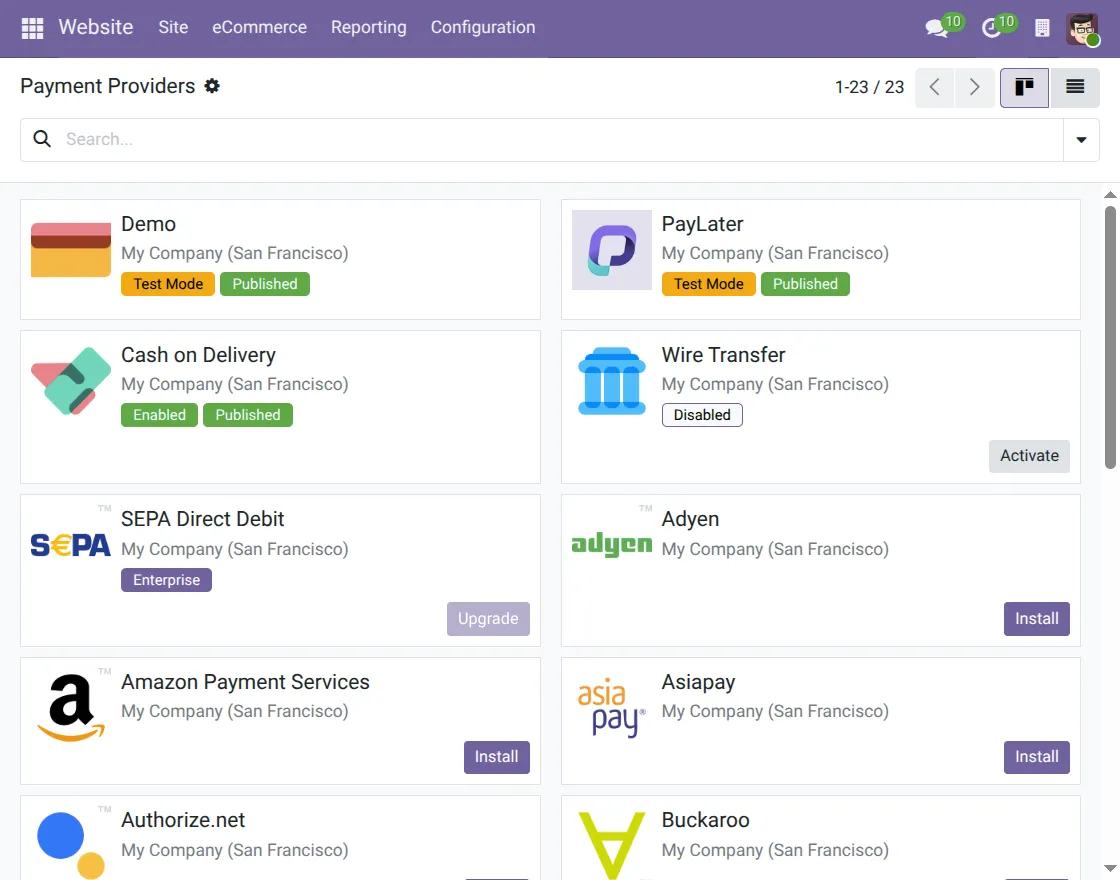
1. Go to Website → Configuration → Payment Providers and open the PayLater payment provider. Set the provider state to Test Mode or Enabled, then save the configuration to activate the payment gateway.
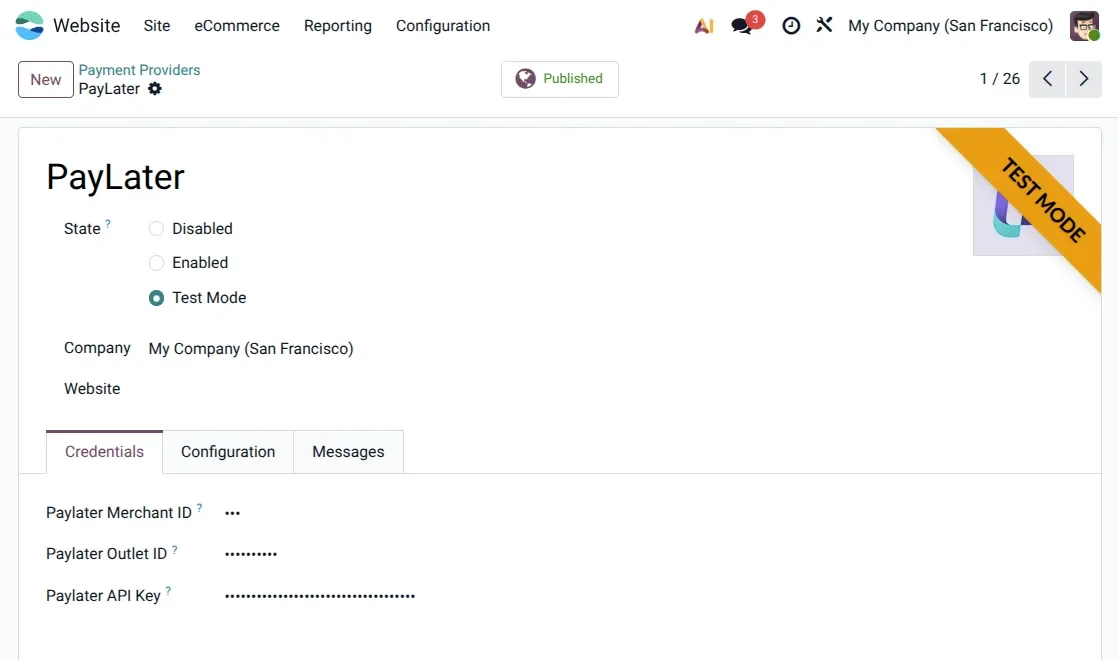
2. Open the Credentials tab and enter the PayLater Merchant ID, Outlet ID, and API Key. Select Test Mode or Enabled, then save the configuration to complete the PayLater gateway setup.
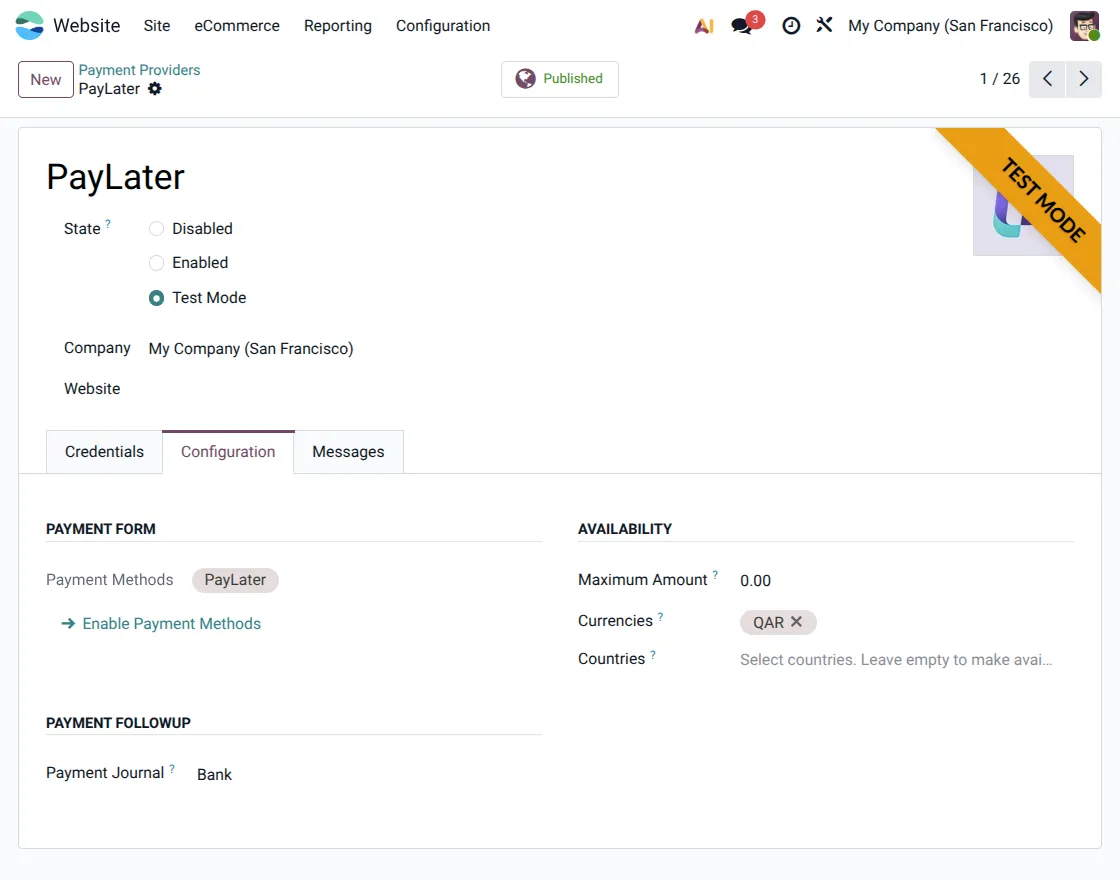
3. Open the Configuration tab to manage the PayLater payment settings. Select the payment journal, keep QAR as the supported currency, and save the configuration.
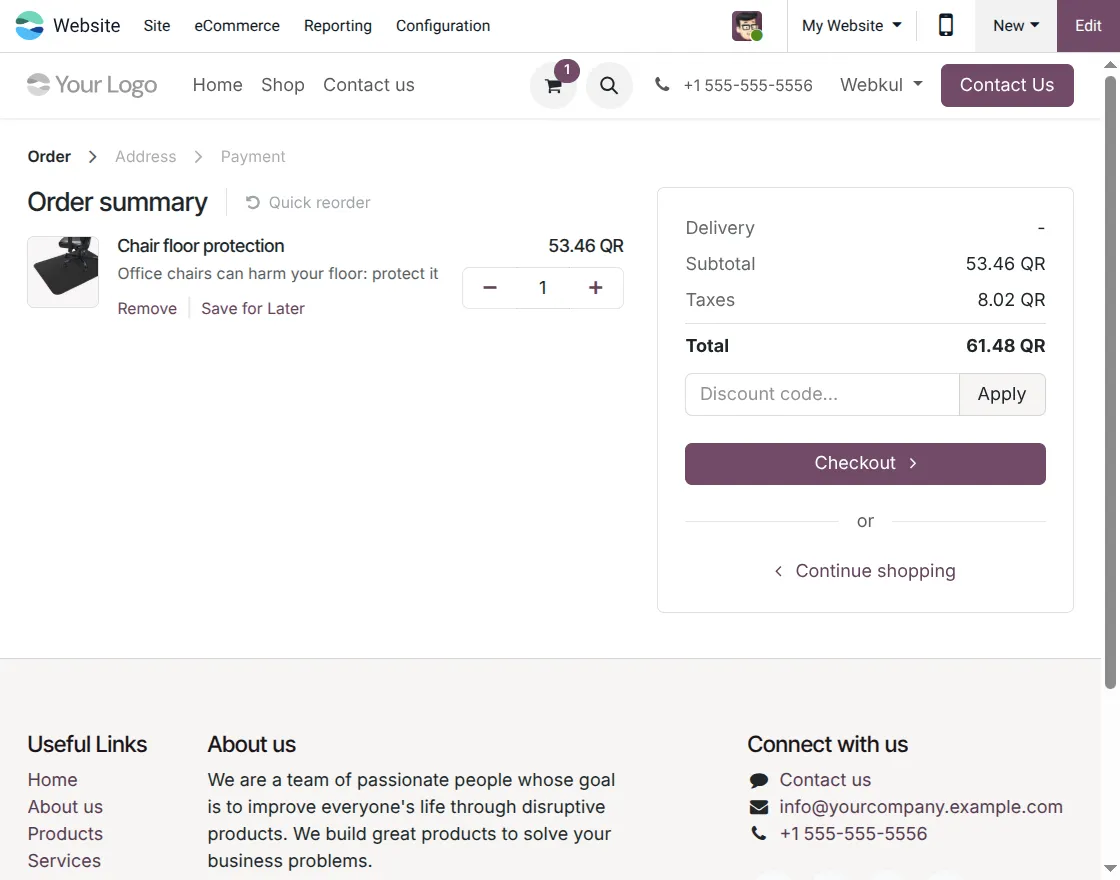
4. Add the required products to the shopping cart and click Checkout. Review the order summary to continue with the website payment process.
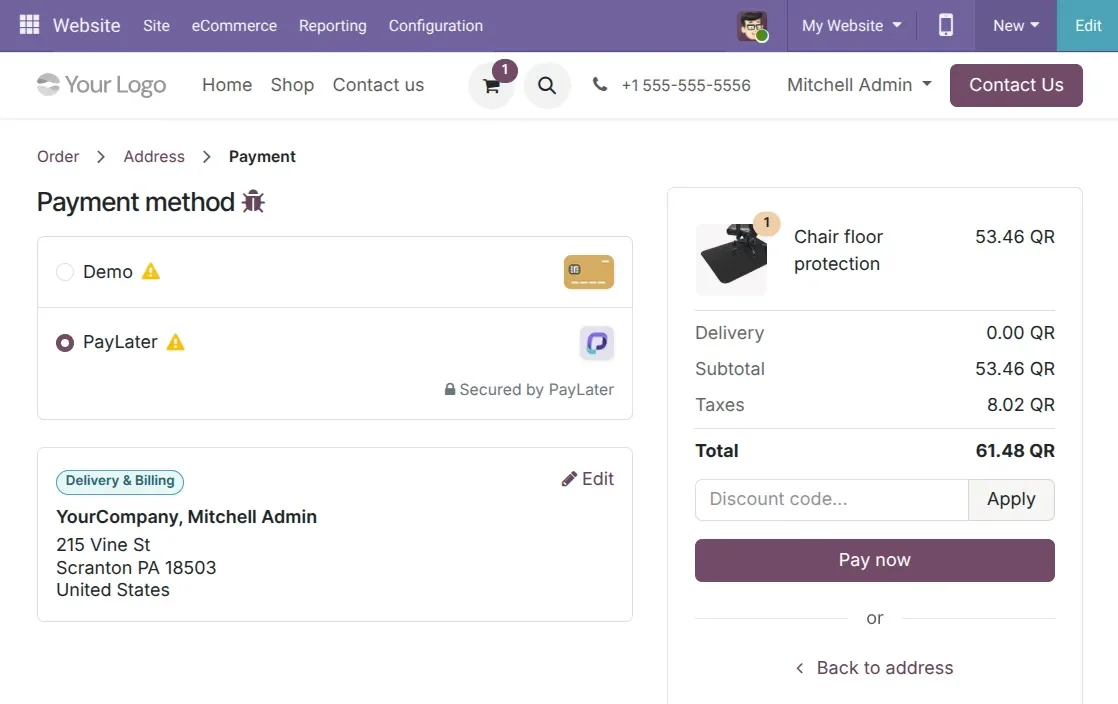
5. Select PayLater as the payment method, review the billing details and order summary, then click Pay Now to continue to the secure PayLater payment page.
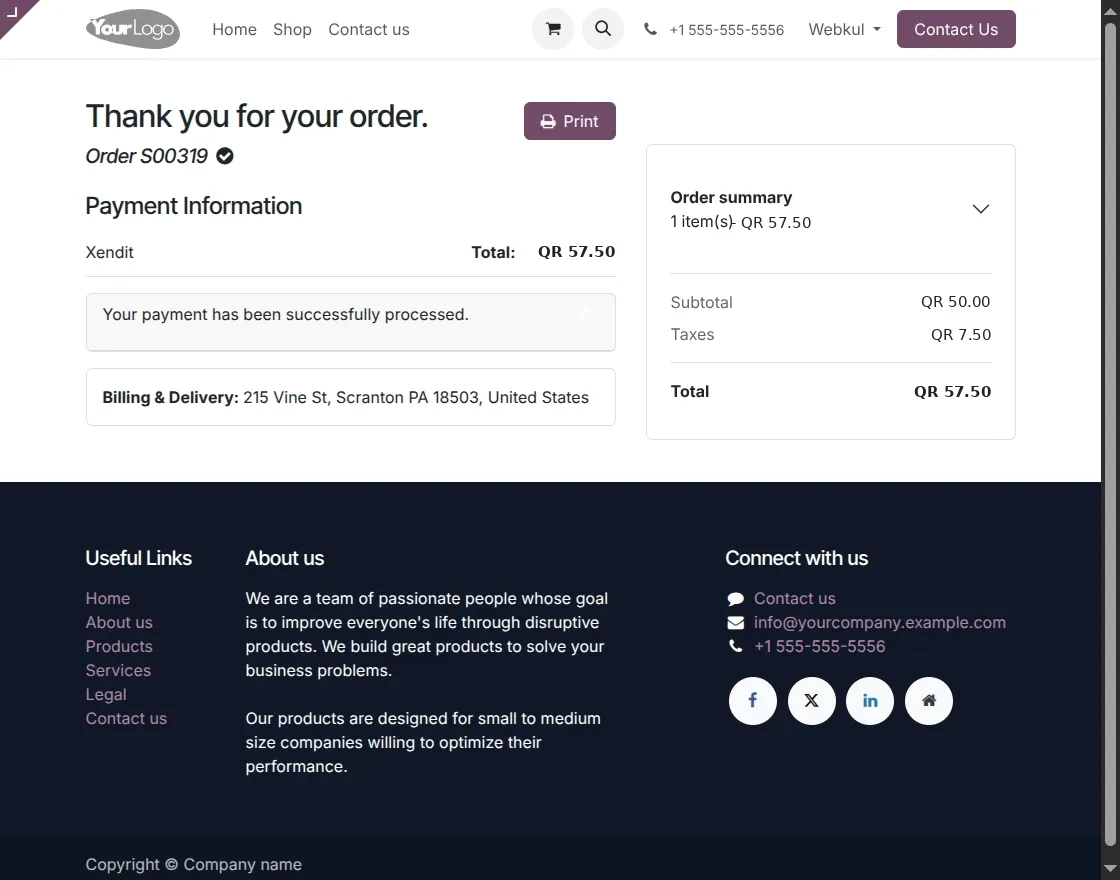
6. After the payment is completed successfully, customers are redirected back to the website. The order confirmation and payment details are displayed automatically.
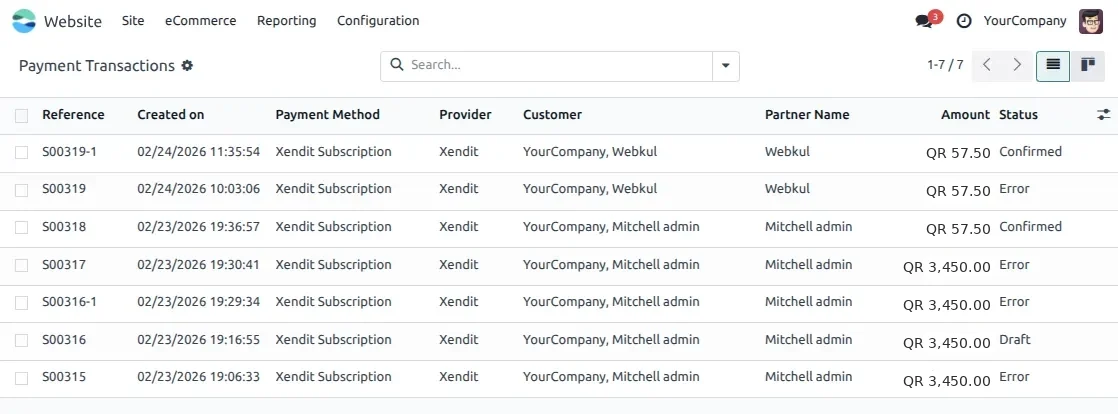
7. Open the Payment Transactions page to view all PayLater payment records. Check transaction status, payment references, customer details, and payment amounts from one place.
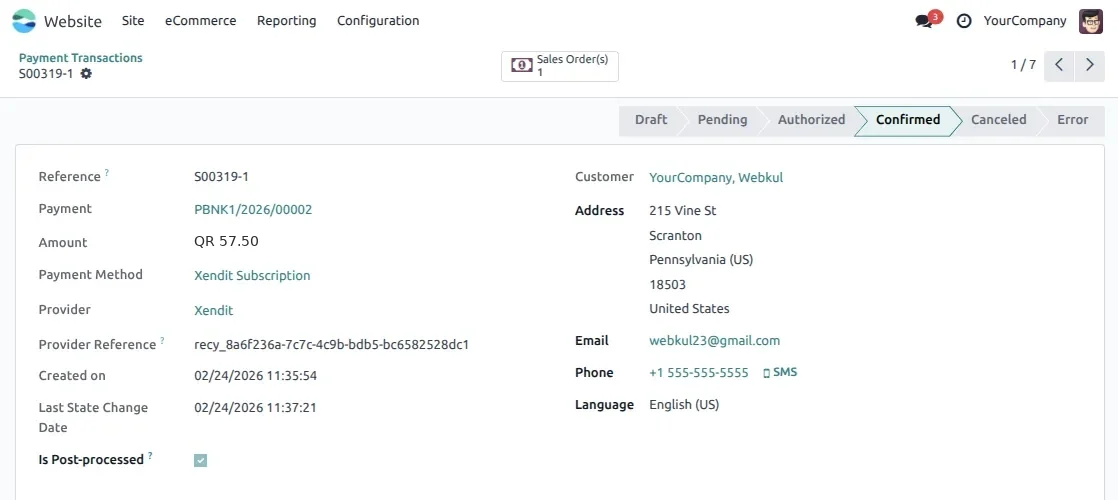
8. Open a payment transaction to view complete transaction information, including the payment status, provider reference, customer details, payment amount, and other transaction records.
Need Help?
Hope you find guide helpful! Please feel free to share your feedback in the comments below.
If you still have any issues/queries, please create a ticket at the UV Desk.
I hope this helps. In case of any further queries, contact us at our support mail.
Thanks for paying attention!!
Current Product Version - 1.0.0
Supported Framework Version - Odoo V20, V19, V18

Be the first to comment.