INTRODUCTION
Fast and secure shipping with Odoo Aramex Shipping Integration!
Aramex is one of the renowned shipping platforms famous for its service across multiple nations globally. Moreover, Aramex logistics services help you deliver products to customers with ease.
What if you can integrate Aramex into your Odoo?
Odoo Aramex Shipping Integration allows you to integrate the Aramex Delivery Carrier into your Odoo.
After configuration, the customer can choose the Aramex delivery method for their products. Moreover, the module automatically calculates the shipping cost after selection.
The admin can also choose the Aramex delivery carrier while creating orders from the Odoo backend.
You can generate the shipping label in the Odoo backend after creating an Aramex shipment for the order.
FEATURES
- Connect Aramex shipping services with Odoo.
- Fetch live Aramex shipping rates based on order weight and service.
- Add Aramex delivery charges to sales orders.
- Configure Aramex credentials from the delivery method.
- Support domestic and international Aramex shipping.
- Configure Aramex Product Group, Product Type, Payment Method, and Service.
- Add package weight and dimensions before shipment.
- Generate Aramex shipping labels during delivery validation.
- Access shipment and tracking details from the delivery order.
INSTALLATION
- Once you purchase the App from Webkul store, you will receive the link to download the zip file of the module.
- Extract the file on your system after the download finishes. You will be able to see a folder named ‘aramex_delivery_carrier’.
- Copy and paste this folder inside your Odoo Add-Ons path.
- Now, open the Odoo App and click on the Settings menu. Here, click on Activate Developer Mode.
- Then, open the Apps menu and click on ‘Update Modules List’.
- In the search bar, remove all the filters and search ‘aramex_delivery_carrier’.
- You will be able to see the module in the search results. Click on ‘Install’ to install it.
POINTS TO REMEMBER WHILE USING THE MODULE
Please keep the following points in mind to avoid getting an error message while placing a delivery with Aramex Shipping Carrier.
1) Valid Credentials
Please use the correct Aramex credentials to configure the module and successfully generate Aramex shipping in Odoo backend and on the website.
2) Correct Destination and Sender Address
In the order, the addresses entered for both user/receiver and warehouse/sender should be valid entries to process the shipping successfully. T
he address range from the source to the destination depends upon the type of Aramex service the admin availed.
3) A Non-Zero Weight of the Package
The product added to Aramex shipping should not have zero as the listed weight in Odoo. Otherwise, the shipment generation request returns an error from Aramex.
To avoid this, the admin can also choose a default weight to be automatically sent to AusPost in case the product’s listed weight is zero.
WORKFLOW
Let’s look at the configuration of Odoo Aramex Shipping Integration.
CONFIGURATION
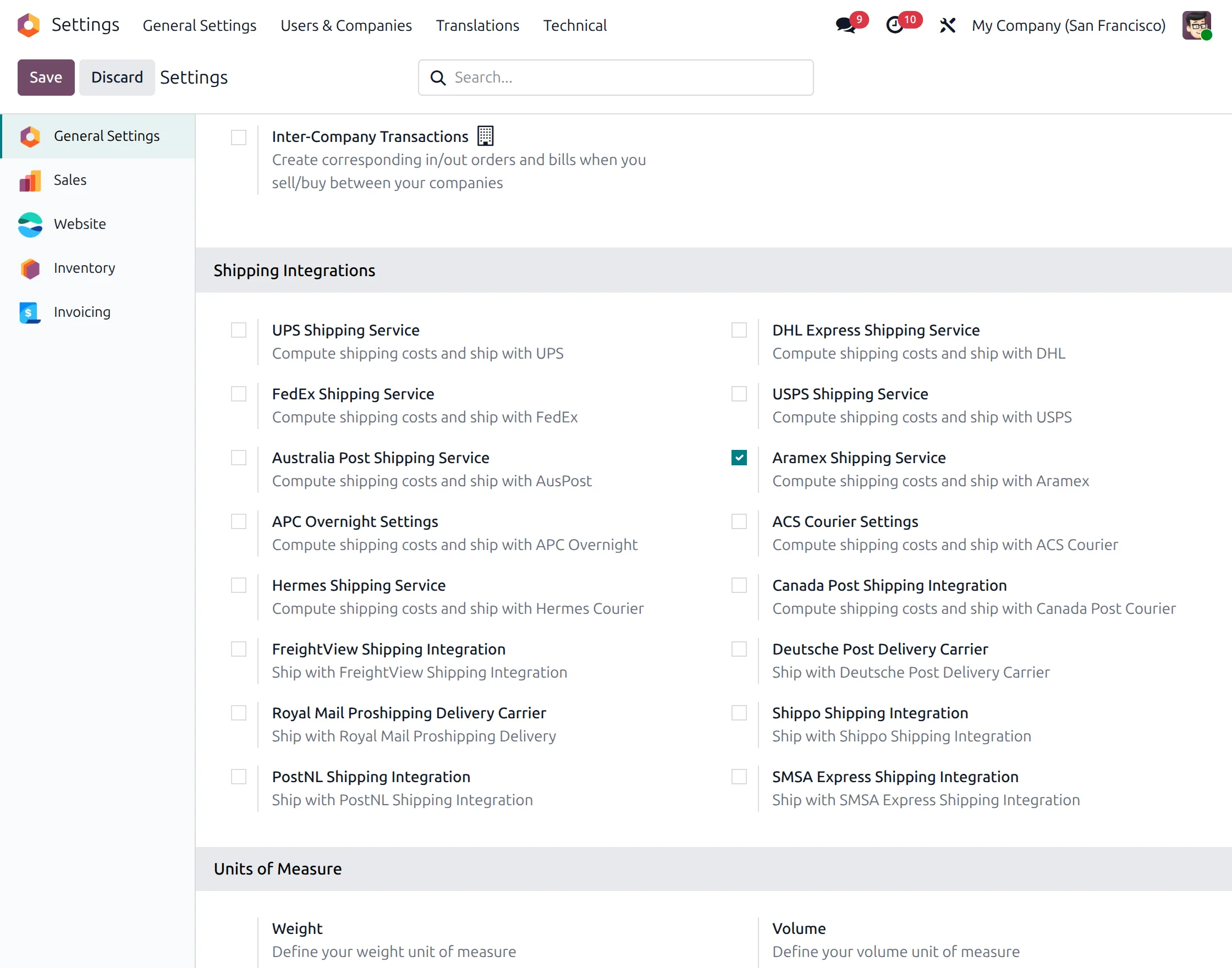
1. Firstly, Log into the Odoo backend, go to ‘Settings> General Settings> Shipping Integration,’ and tick the box next to ‘Aramex Shipping Service.’
2. Open Delivery Methods
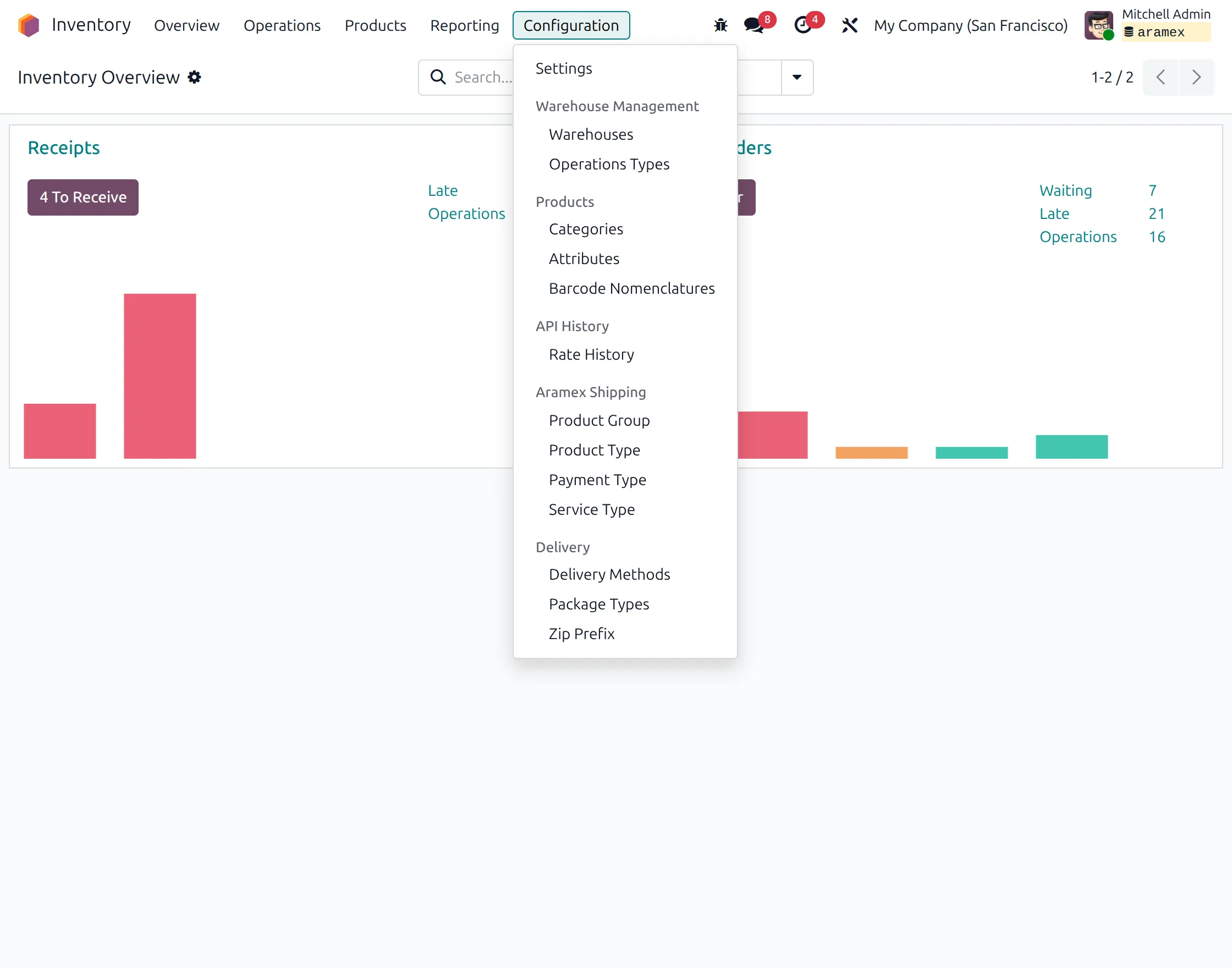
Go to Inventory → Configuration → Delivery Methods and open the Aramex Express Shipping delivery method.
3. Configure the Aramex Delivery Method and Credentials
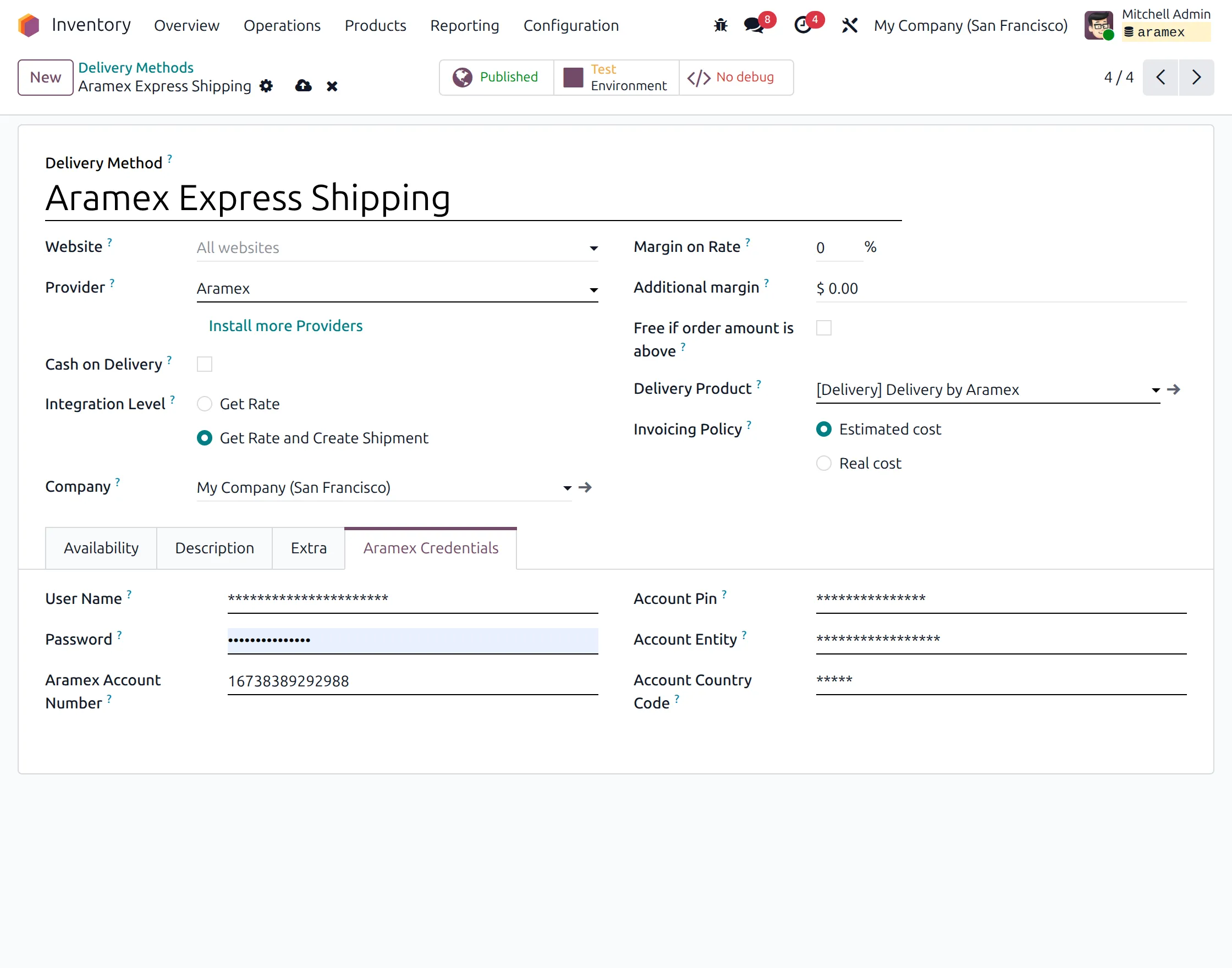
Select Aramex as the provider.
Under Integration Level, select Get Rate and Create Shipment to allow Odoo to create the shipment when the delivery order is validated.
Configure the Margin on Rate, Additional Margin, Delivery Product, and Invoicing Policy according to your requirements.
In the Aramex Credentials section of the same delivery method, enter the required User Name, Password, Aramex Account Number, Account PIN, Account Entity, and Account Country Code.
These credentials connect the delivery method with the Aramex account. The module also provides a Test Environment for checking the connection before production use.
4. Configure Delivery and Aramex Shipping Information
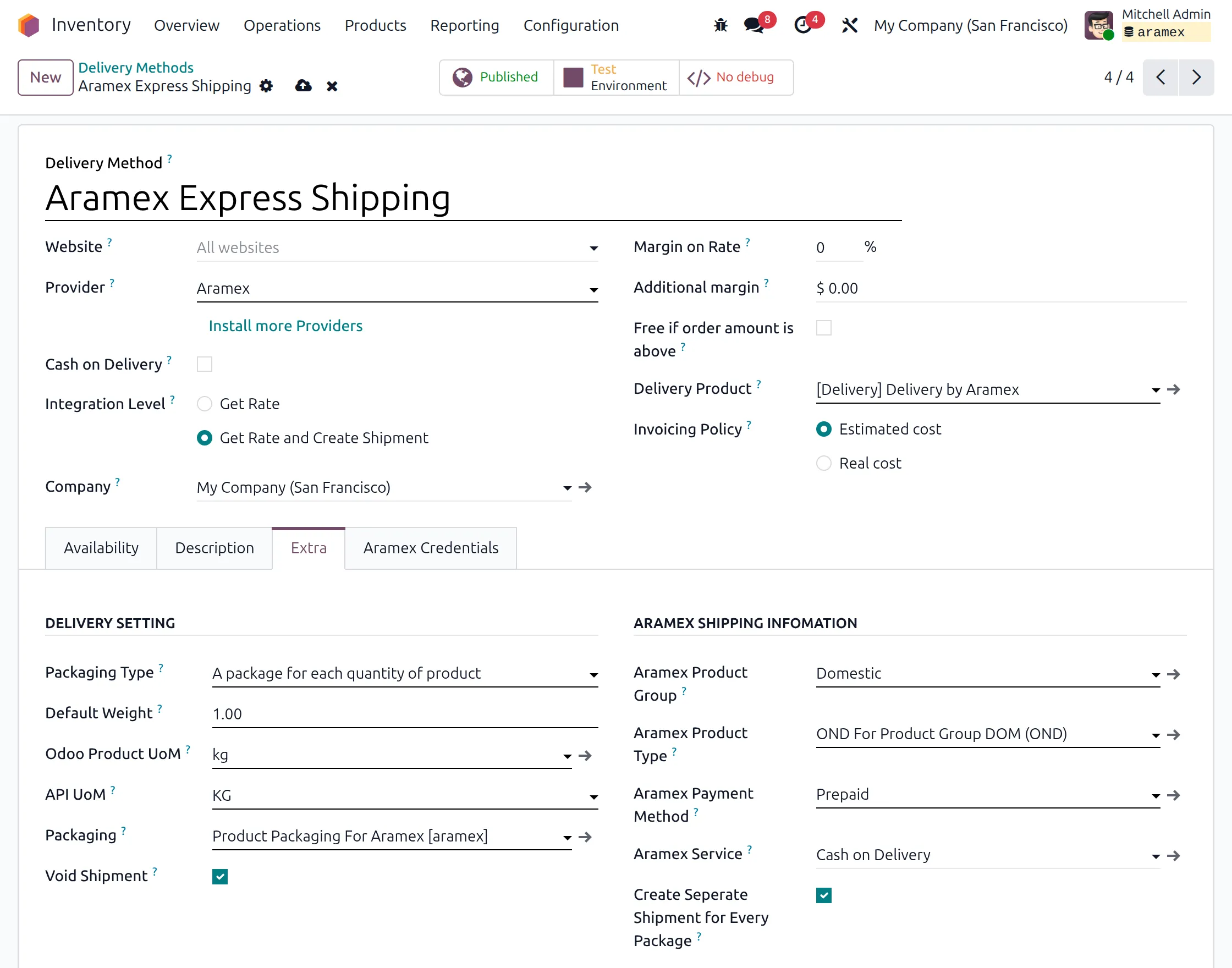
Open the Extra tab.
Under Delivery Setting, configure the Packaging Type, Default Weight, Odoo Product UoM, API UoM, and Packaging.
Under Aramex Shipping Information, select the Aramex Product Group, Aramex Product Type, Aramex Payment Method, and Aramex Service.
GET ARAMEX SHIPPING RATE
5. Create a Sales Order
Go to the Sales module and create a sales order for which you want to apply Aramex shipping.
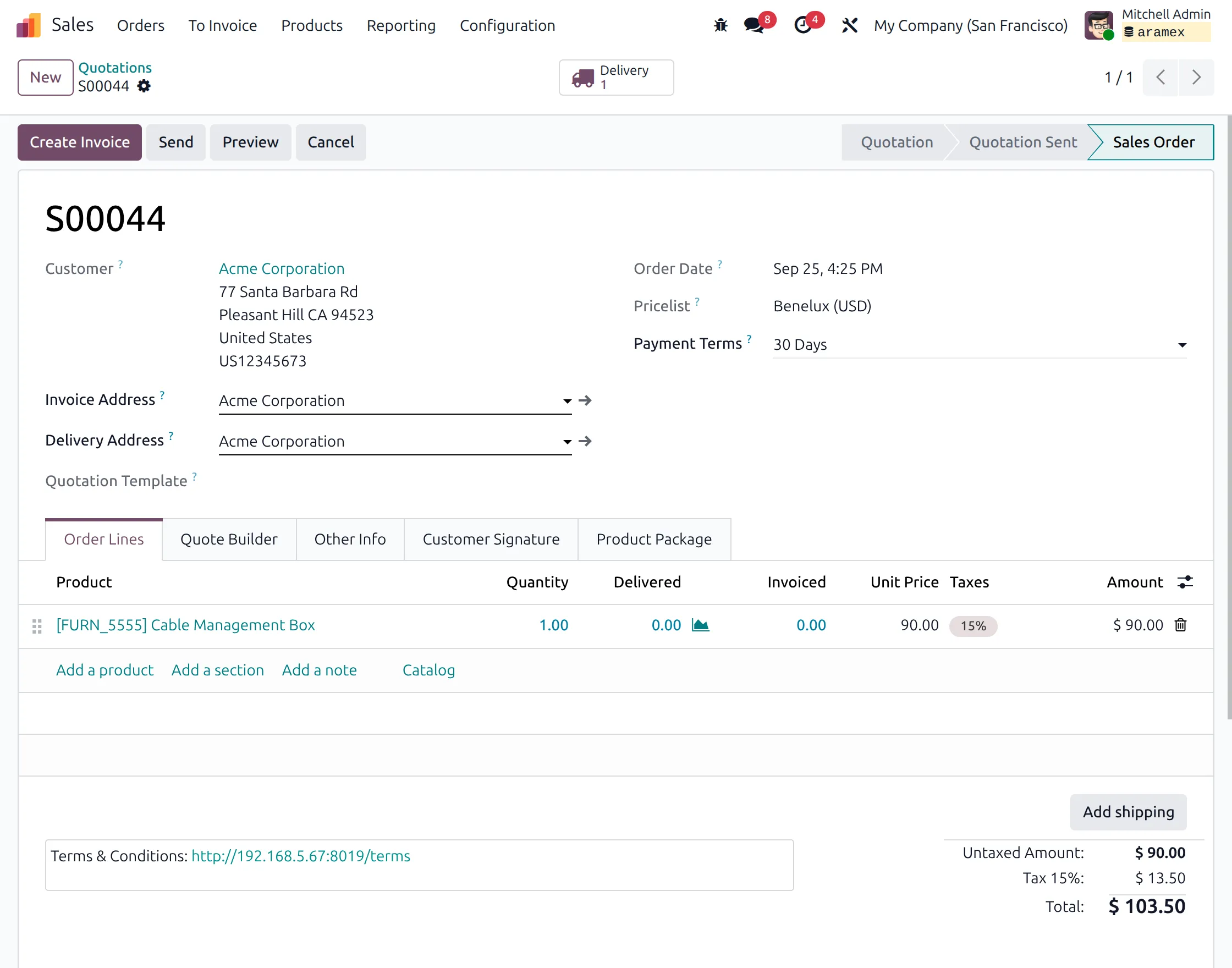
6. Request the Aramex Shipping Rate
Click Add shipping on the sales order.
In the Add a shipping method window, select Aramex Express Shipping. Check the displayed order weight and click Get rate to request the current shipping cost from Aramex.
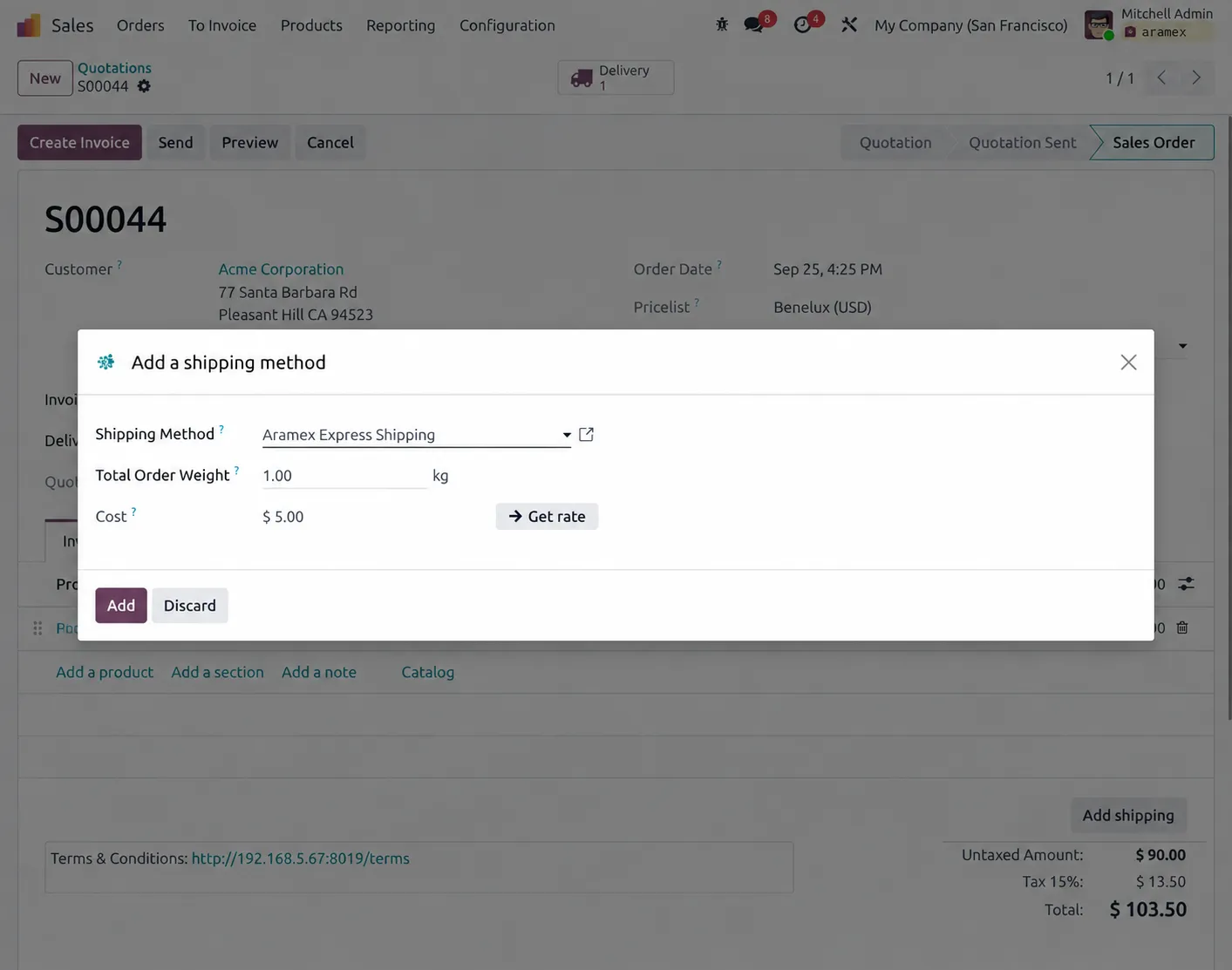
7. Add the Shipping Charge to the Order
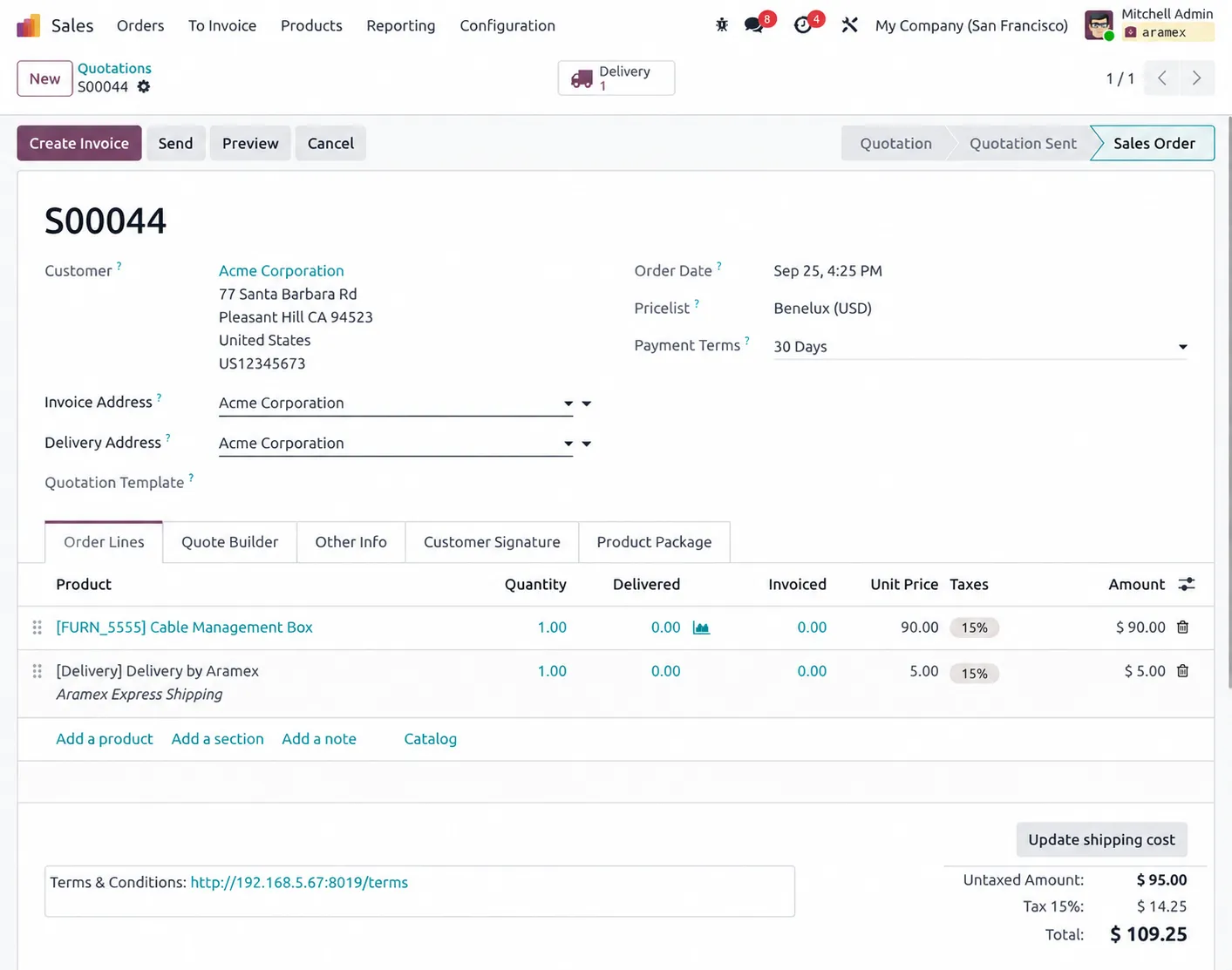
Review the returned Aramex shipping rate and click Add.
The Aramex delivery charge is added as a separate line to the sales order, and the order total is updated accordingly.
PACKAGE PREPARATION
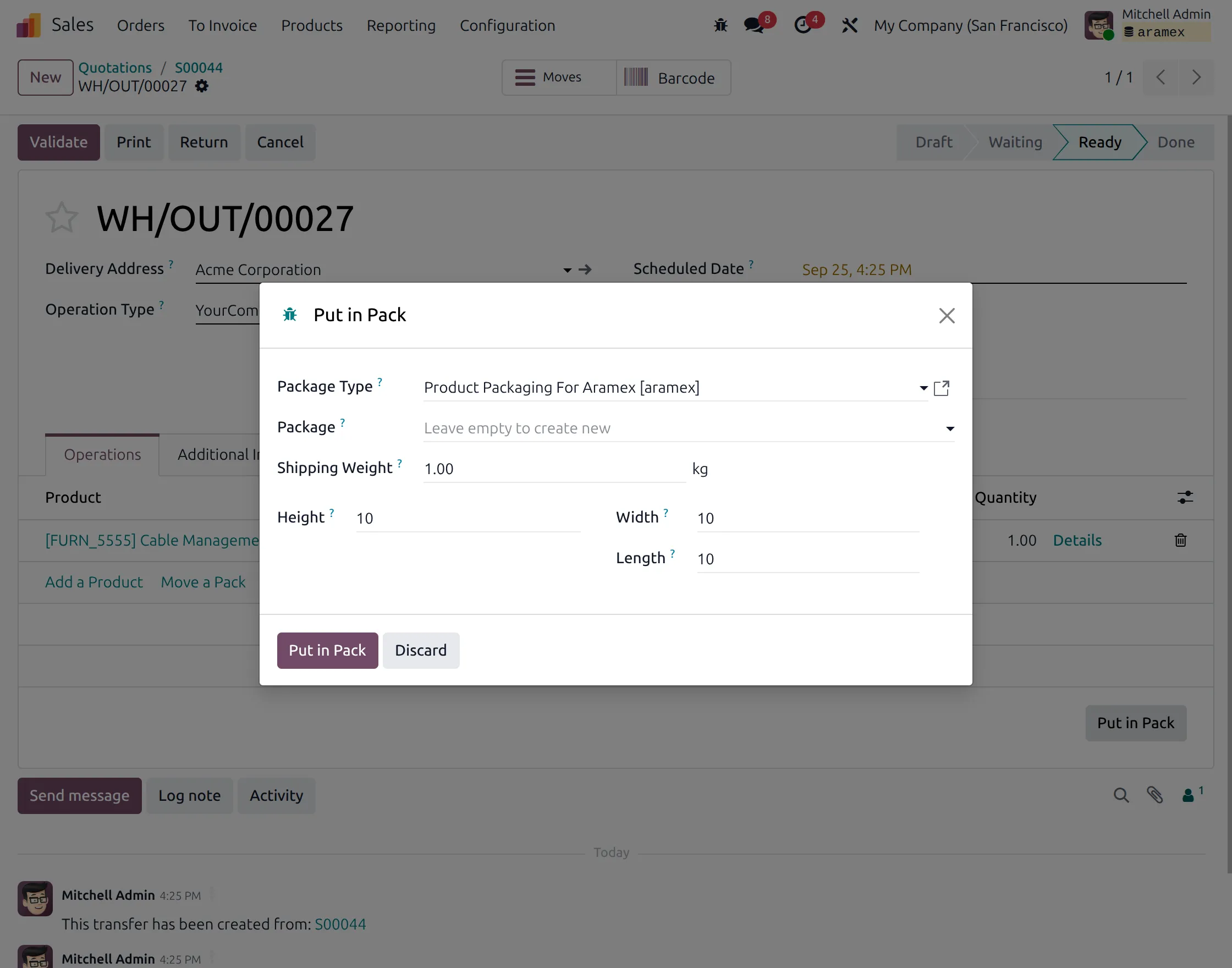
8. Add Package Details
Open the related delivery order and click Put in Pack.
In the popup, select the Package Type and enter the Shipping Weight. Then enter the package Height, Width, and Length.
Click Put in Pack to assign the products to the package.
SHIPMENT AND LABEL GENERATION
9. Validate the Delivery and Create the Shipment
After preparing the package, validate the delivery order.
Since Get Rate and Create Shipment is enabled, Odoo sends the required shipment details to Aramex during validation.
The shipment is created and the Aramex shipping label is generated and attached to the delivery order.
The delivery status changes from Ready to Done, while the delivery chatter records the shipment response and tracking details.
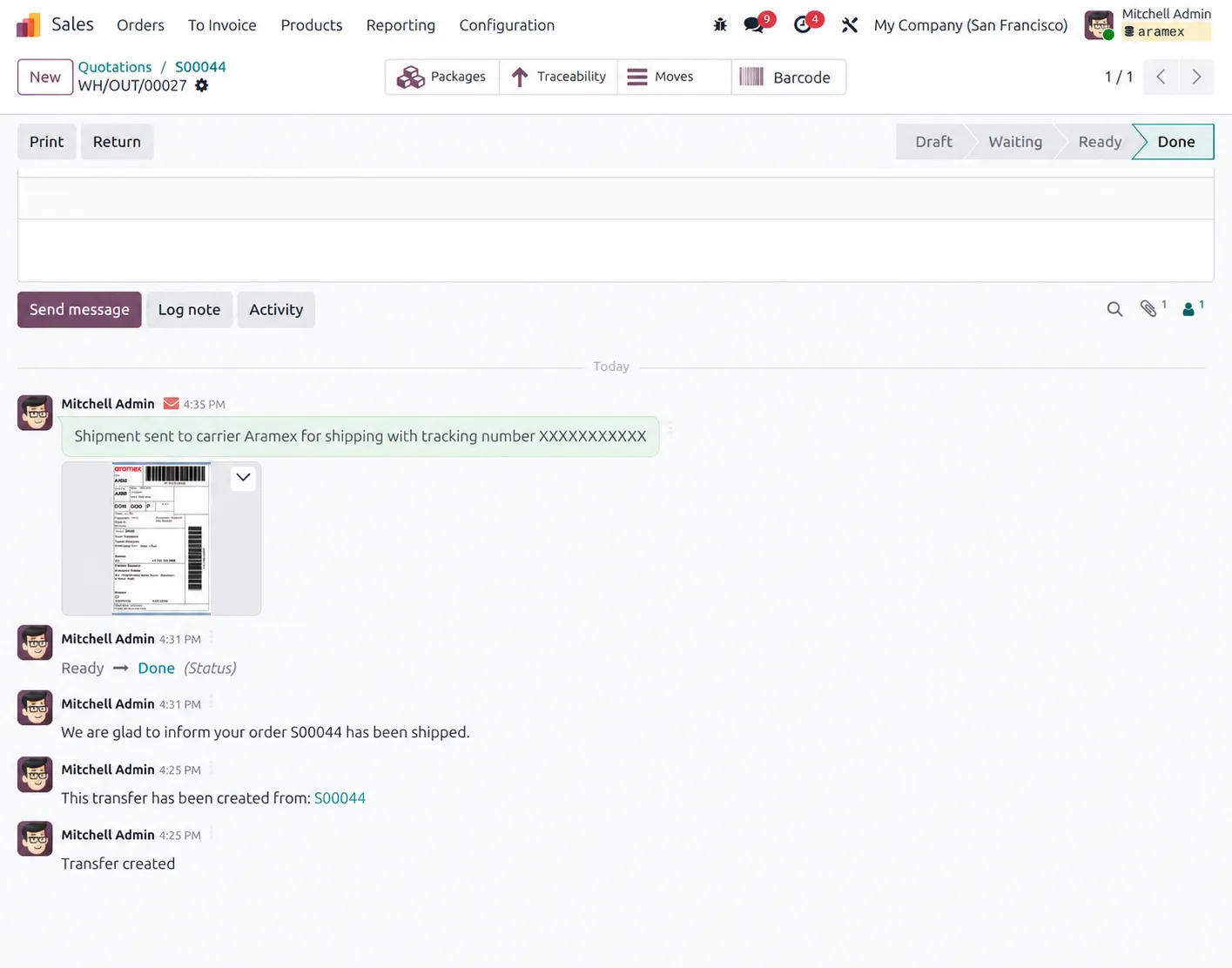
10. View the Aramex Shipping Label
Open the generated shipping label from the delivery order.
The label contains the shipment information required for processing the Aramex package.

OTHER ODOO SHIPPING MODULES
- Odoo UPS Shipping Integration
- Lalamove Shipping Integration
- Odoo DHL Shipping Integration
- Odoo USPS Shipping Integration
- Australia Post Shipping Integration
- Odoo APC Overnight Shipping Integration
NEED HELP?
Hope you find this guide helpful! Please feel free to share your feedback in the comments below.
If you still have any issues or queries, please create a ticket at the UV Desk.
For further assistance, contact us at [email protected].
Thanks for paying attention!
Current Product Version - 1.0.0
Supported Framework Version - V20, V19, V18

Be the first to comment.