


















Introduction
Odoo AI-Powered Image Search for Products enables customers to search products on an Odoo website using an image instead of keywords.
Customers can upload an existing image or capture one using their device camera to find visually similar products.
This module uses AI-powered image embeddings to compare the uploaded image with products in the catalog and displays the closest matches along with their similarity scores.
This helps customers discover products more quickly and improves the overall shopping experience.
Administrators can configure image search settings, control product indexing, generate embeddings, and manage AI image search separately for each website from the Odoo backend.
Features
- Search products using uploaded images.
- Capture product images using the device camera.
- Display similarity scores for matching products.
- Automatically rank search results by similarity.
- Preview images before performing a search.
- Edit images with crop, rotate, and zoom tools.
- Configure AI image search from the backend.
- Generate embeddings using scheduled Cron jobs.
- Support AI image search across multiple Odoo websites.
Installation
- Once you purchase the App from Webkul store, you will receive a link to download module’s zip file.
- Extract the file on your system after download finishes. As a result, you will be able to see a folder named ‘website_product_image_search‘
- Copy and paste this folder inside your Odoo Add-Ons path.
- Now, open the Odoo App and click on the Settings menu. Here, click on Activate Developer Mode.
- Then, open Apps menu and click on ‘Update Modules List.’
- In the search bar, remove all the filters and search ‘website_product_image_search’
- You will be able to see module in the search results. Click on ‘Activate’ to install it.
Work Flow
Configurations
1. After installing Odoo AI-Powered Image Search for Products, the admin needs to configure the AI Image Search for the Odoo website.
2. To configure the module, navigate to Website >> Configuration >> Image Search Configuration.
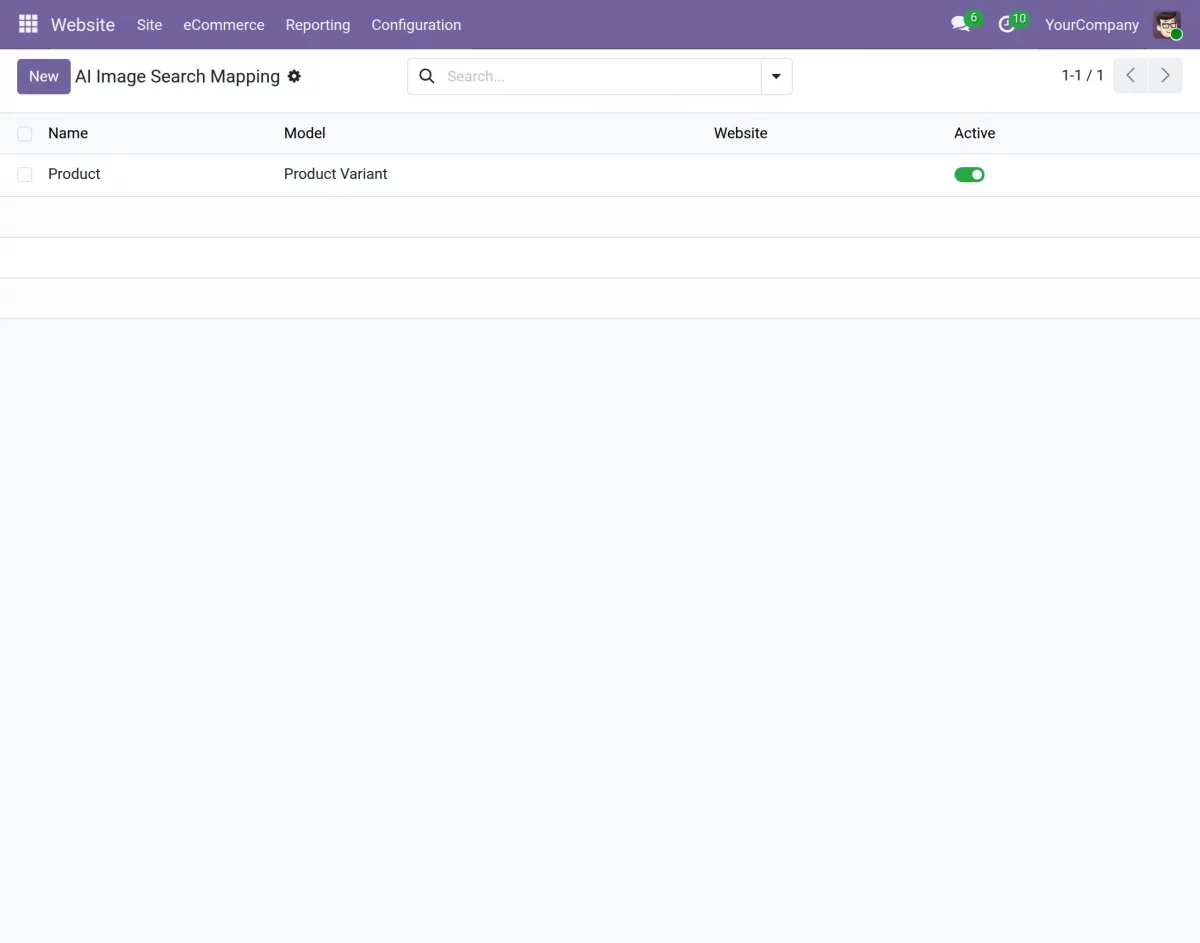
3. In ‘Image Search Configuration’, click on the ‘New’ button to create a new AI Image Search Mapping.
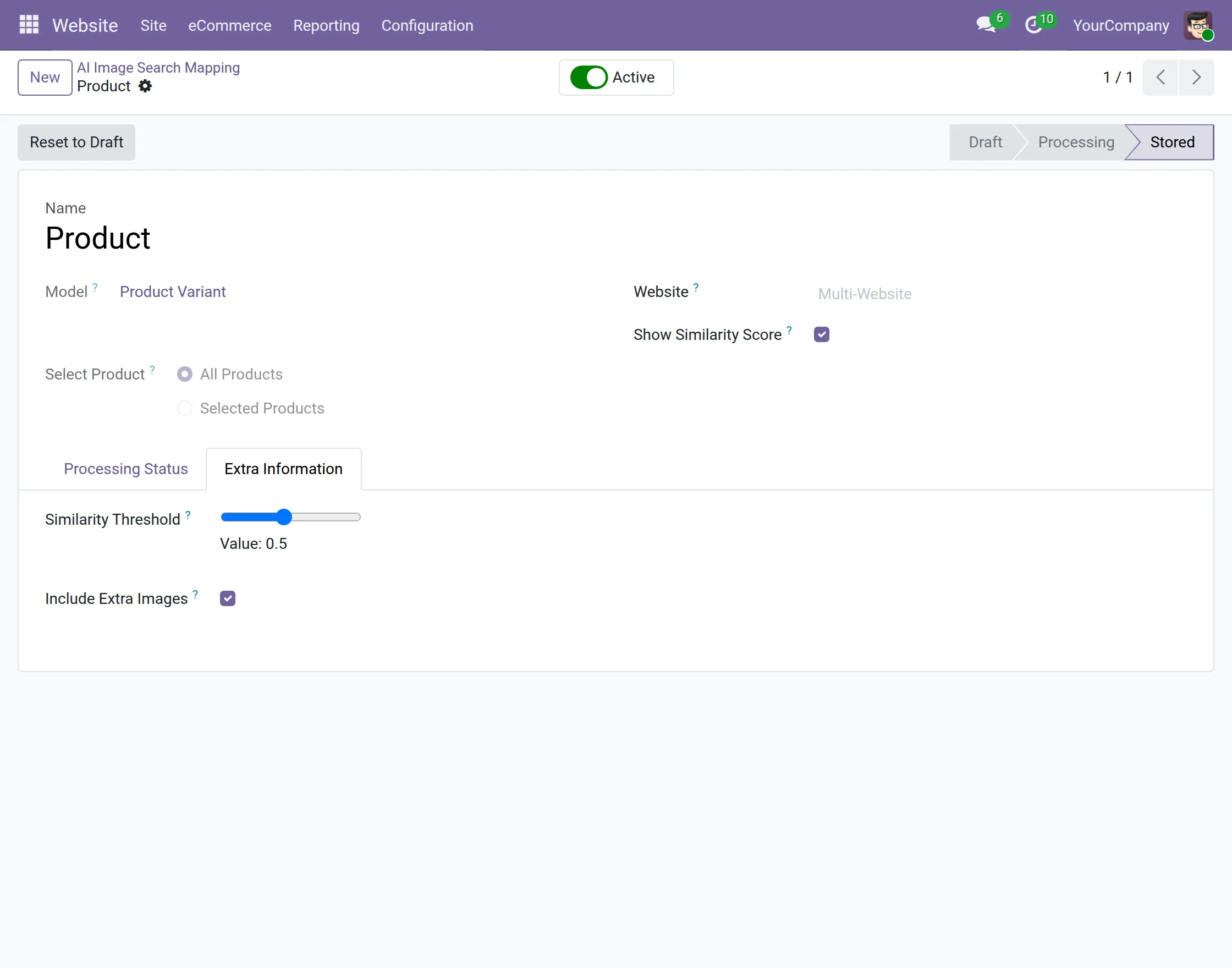
4. Enter the mapping name and select the required website. In the ‘Select Product’ field, choose ‘All Products’ to process the complete catalog or ‘Selected Products’ to configure specific products.
5. Enable ‘Show Similarity Score’ to display the match percentage with the search results on the website.
6. Open the ‘Extra Information’ tab and set the required ‘Similarity Threshold’. Enable ‘Include Extra Images’ if additional product images need to be considered for image matching.
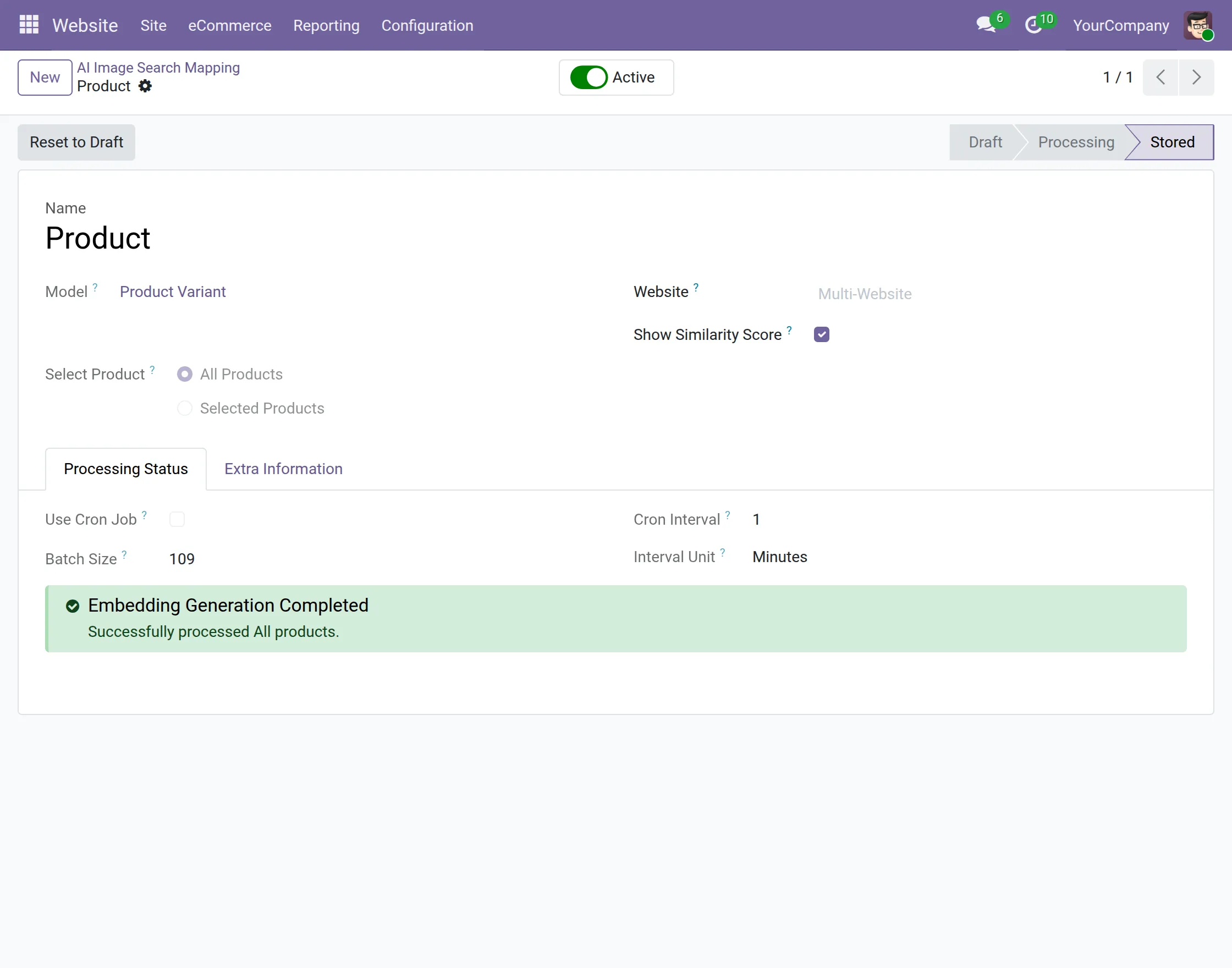
7.Open the ‘Processing Status’ tab to configure embedding generation. For large product catalogs, enable ‘Use Cron Job’ to process embeddings in the background.
8. Set the ‘Batch Size’, ‘Cron Interval’, and ‘Interval Unit’ as required.
9. Click on ‘Store Embeddings’ to start generating embeddings for the configured products. The mapping moves through ‘Draft’, ‘Processing’, and ‘Stored’ stages.
10. Once all product embeddings are processed successfully, the ‘Processing Status’ tab displays the ‘Embedding Generation Completed’ message and the mapping status changes to ‘Stored’.
Website View
1. Navigate to the ‘Shop’ section from the Odoo website navbar. Click on the AI Image Search icon beside the search bar.
2. The ‘AI Image Search’ popup appears with options to upload an existing image or capture a new image.
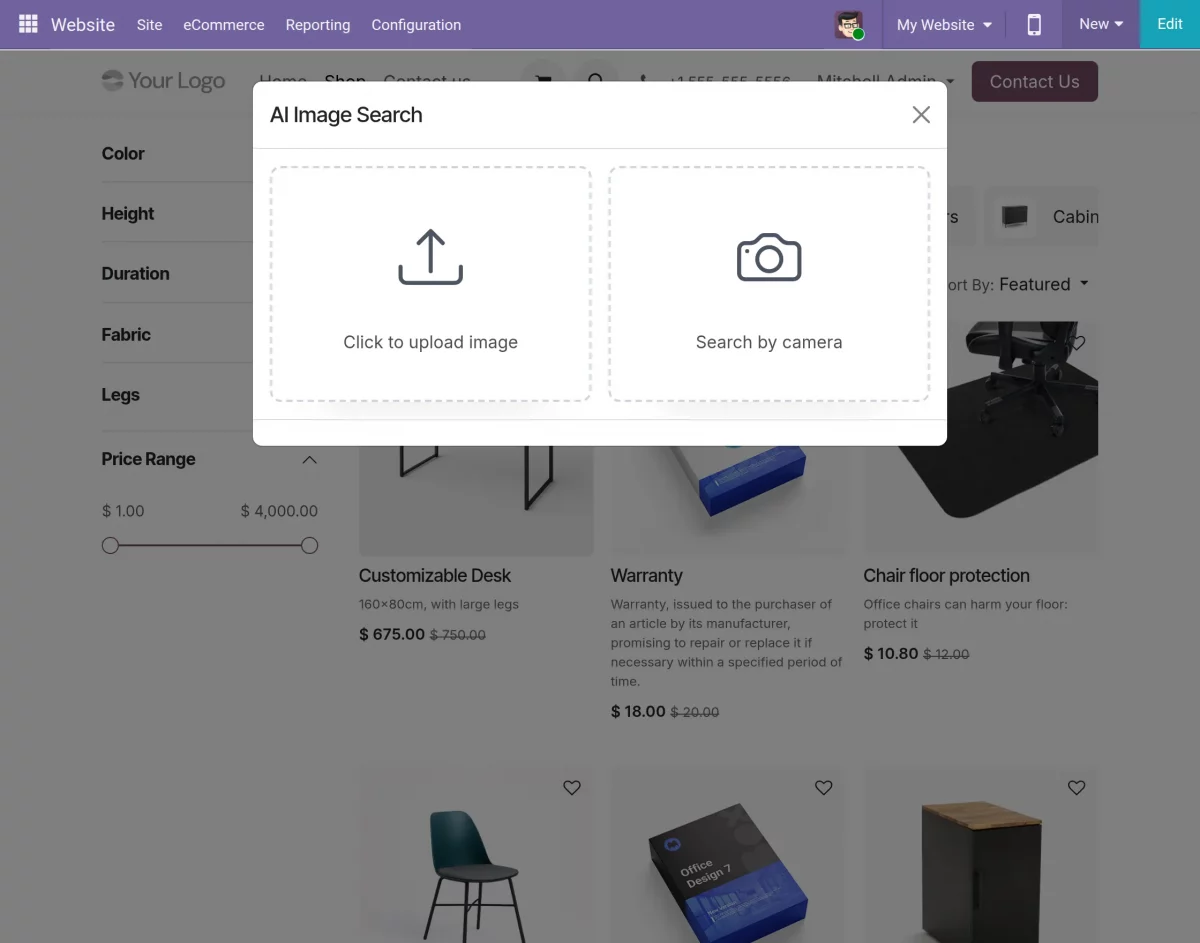
3. Select ‘Click to upload image’ to choose an existing image from the device, or select ‘Search by camera’ to capture a new image.
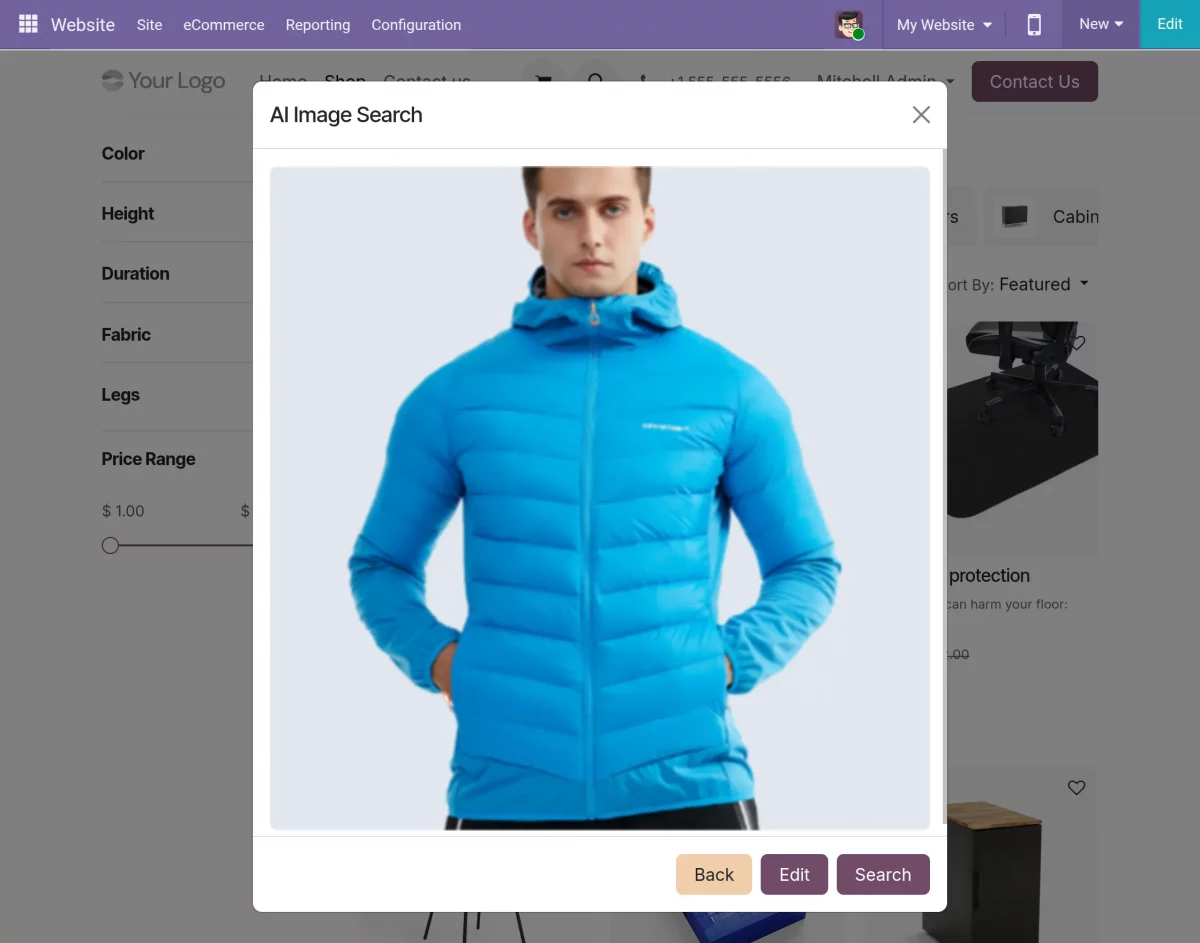
Once the image is selected or captured, its preview appears in the AI Image Search popup.
4. Click on ‘Search’ to continue with the selected image, or click on ‘Edit’ to modify the image before searching.
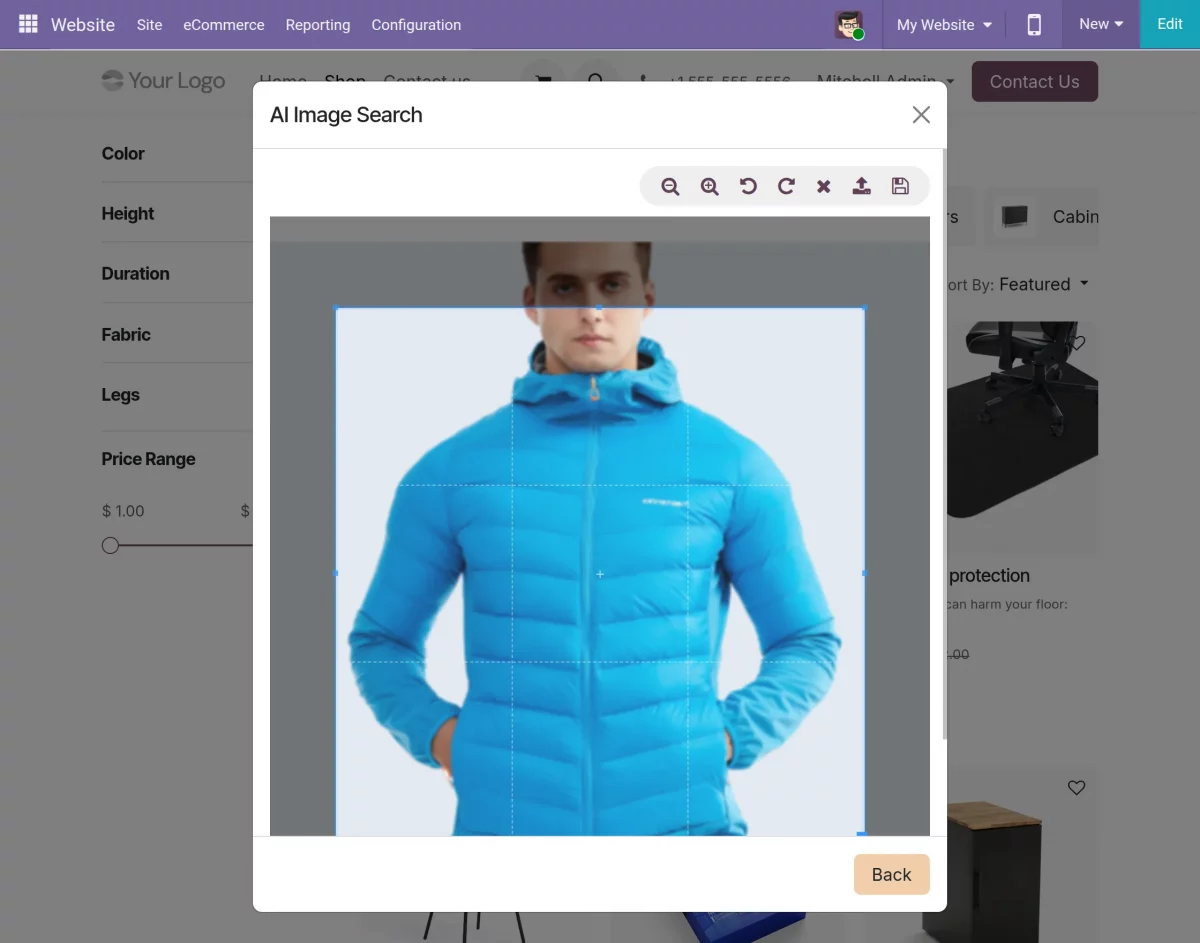
5. On clicking ‘Edit’, the image editor opens. Use the available options to zoom in, zoom out, rotate, remove, re-upload, or adjust the selected area of the image.
6. Save the changes after editing the image.
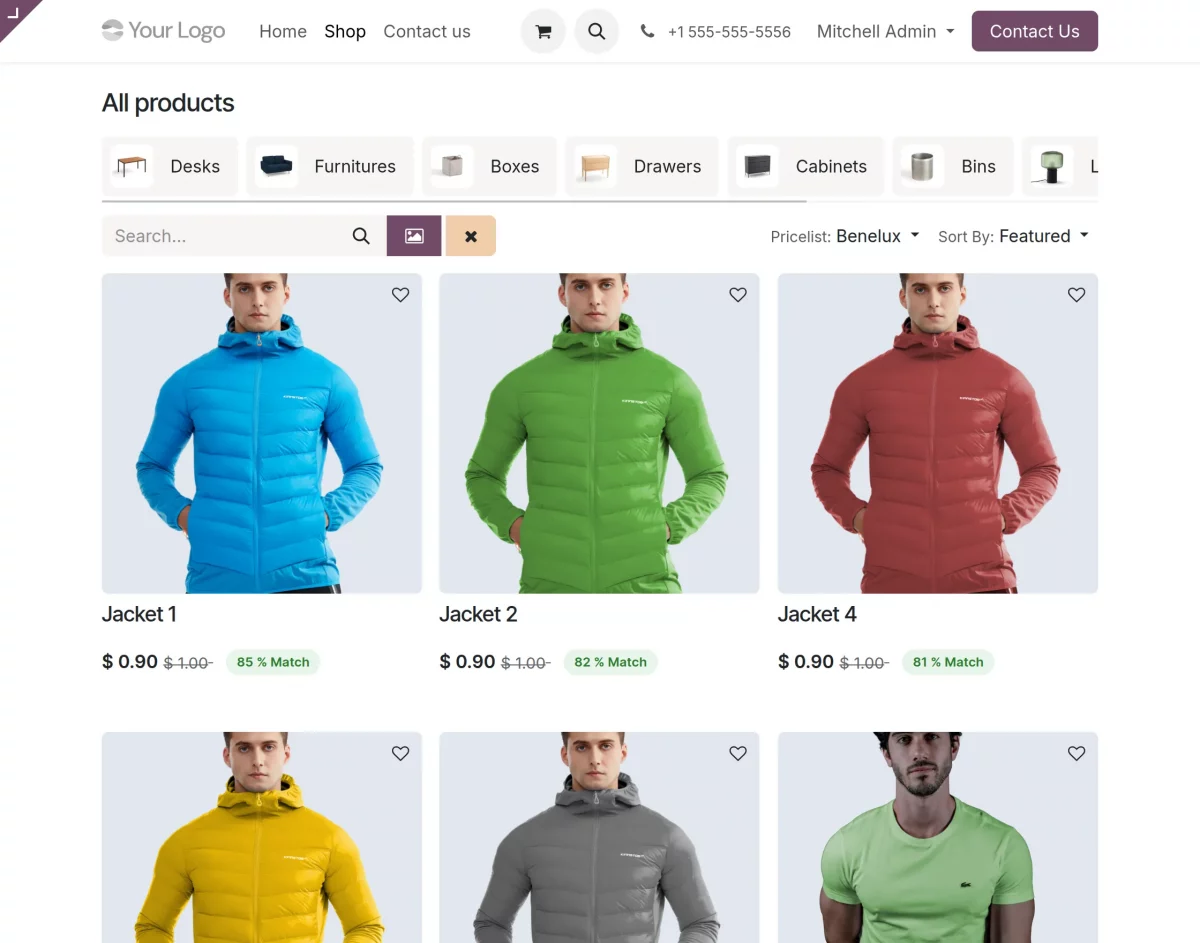
7. Click on ‘Search’ after selecting the required image. The module compares the image with the stored product embeddings and redirects the customer to the matching products on the Shop page.
8. The matching products appear according to their similarity scores, with the closest match displayed first.
9. If ‘Show Similarity Score’ is enabled in the backend, the match percentage is displayed with each product.
NEED HELP?
Hope you find the guide helpful! Please feel free to share your feedback in the comments below.
If you still have any issues/queries regarding the same, please raise a ticket at the UV Desk.
I hope this helps. In case of any further queries, contact us at our support mail.
Thanks for paying attention!!
Current Product Version - 1.1.0
Supported Framework Version - Odoo V19, V18, V17, V16

Be the first to comment.