Magento 2 WhatsApp AI Chatbot connects WhatsApp with your Magento 2 store to offer instant, AI-powered customer support, product assistance, and shopping assistance.
Customers can discover products, get instant answers, view orders and invoices, browse CMS pages, place orders, and track deliveries in WhatsApp.
Powered by open-source Large Language Models (LLMs) and vector-based semantic search, the chatbot understands customer intent and delivers accurate responses.
Admins can enable or disable the chatbot, configure ChromaDB for smart response handling, and manage FAQs and chat history from the backend.
Customers often leave a store when they need to switch between different channels for support and shopping.
AI shopping assistant for Adobe Commerce solution keeps the entire buying journey inside WhatsApp, making shopping faster and easier.
Adobe Commerce WhatsApp AI chatbot is built for Adobe Commerce store owners who want to sell and support customers through WhatsApp.
It is ideal for businesses looking to automate customer service and improve the shopping experience with AI.
Also check out Magento 2 WhatsApp Order Notification to send instant order updates directly to customers on WhatsApp.
You can also go through the below video to get to know the functionality,
Features
- Admin can enable or disable the WhatsApp AI Chatbot module.
- Admin can select default vector storage (elasticsearch / openSearch) or chromaDB storage.
- ChromaDB integration ensures fast and accurate AI-based responses.
- Customers can shop and place order directly on WhatsApp.
- Customers can ask product details, queries & report issues on WhatsApp.
- Customers can add address directly on WhatsApp.
- AI chatbot answers using product name, attributes, ratings, and prices.
- Semantic product search at chat time — customer messages are converted into embeddings and matched against the indexed product catalog.
- Multilingual support enables chatbot conversations in multiple languages.
- Admin can manage FAQs and chat history directly from the backend.
- Admin can see and manage chat history.
- Customers receive order details, invoices, and tracking links on WhatsApp.
- Customers can search CMS pages and FAQs directly from the chatbot.
- Integrates with leading LLM providers, including Google Gemini, OpenAI, Anthropic, Cerebras, OpenRouter, Mistral AI, Voyage AI, and self-hosted Ollama.
- Supports both text embeddings and image embeddings.
- Self-hosted, preconfigured embedding and chat server with complete data sovereignty.
- Generate text embeddings locally with ONNX models—no API keys or cloud calls required.
- Automatically close idle conversations with Magento cron to keep sessions organized and optimize WhatsApp API usage.
- Automatically sync embeddings on product, CMS, and FAQ updates.
- Easy integration using WhatsApp Business API, ChromaDB & configuration files.
Installation
The installation is quite simple, just like the standard Magento 2 extensions.
#Download Module
Firstly, you need to log in to the Webkul Store, go to My Account>My Purchased Products section, verify, then download & extract content of zip folder on system.
#Upload Folder
Once the module zip extracts, follow the path src>app and then copy the app folder into the Magento 2 root directory on the server as shown below:

#Run Commands
You need to run the following commands:
php bin/magento setup:upgrade
php bin/magento setup:di:compile
php bin/magento setup:static-content:deploy
php bin/magento indexer:reindex
php bin/magento cache:flush
php bin/magento generate:embeddings
php bin/magento generate:embeddings -p 1,2,3 -c 1,2,3 -f 1,2,3 -s 1,2,3
Language Translation
For translating the module language, navigate through src/app/code/Webkul/WhatsAppAIBot/i18n and edit the en_US.csv file.
Thereafter, rename the CSV as “en_US.CSV” and translate all right-side content after the comma in the Arabic language. After editing the CSV, save it.

Now, upload it to the path src/app/code/Webkul/WhatsAppAIBot/i18n where the installation of Magento 2 is on the server.
The module supports translation into Arabic; it supports both RTL and LTR languages.
The user can edit the CSV like the image below:

How to Set Up the Meta Account?
First, you have to log in to Meta. After that, you have to create an app in Meta by clicking My Apps.

Click on the Create app to set up the app, as shown in the snapshot below.

After clicking on the Create App, a page will appear as shown in the snapshot below.

The following details are required to be filled in to create the app:
- App name: Enter the name of the app.
- App contact email: Enter the email ID for contacting purposes.
After clicking on the Next button, select Other, then proceed to the Next page, as illustrated in the snapshot below.

Select the Business option from the list, then click Next, as shown in the snapshot below.

The following details are cross-checked to create the app, as shown in the snapshot below.

- App name: Enter the name of the app.
- App contact email: Enter a valid email ID.
- Business Portfolio: It is an optional field that requires you to connect your business portfolio from the dropdown.
Once the app has been created, it will be visible as shown in the snapshot below.

Navigate to the Webhooks configuration and enter the Callback Url, and Verify Token, as shown in the snapshot below.
Enter the whatsappaibot/web/index URL as the webhook endpoint to receive and process WhatsApp AI bot events.

Verify Token is used to validate the webhook configuration with WhatsApp.
The same token is also required for configuring the Magento 2 WhatsApp AI Chatbot.
Navigate to the WhatsApp API Setup and enter the Access Token, as shown in the snapshot below.

While setting up the API, an Access Token is generated in real time.
This token is used to validate the webhook configuration with the Magento 2 WhatsApp AI Chatbot
Module Configuration | Admin
After the successful installation of the module, the admin can now configure it from the back end.
For this, the admin will navigate to Stores > Settings > Configurations > AI General Configuration, as shown in the snapshot below.
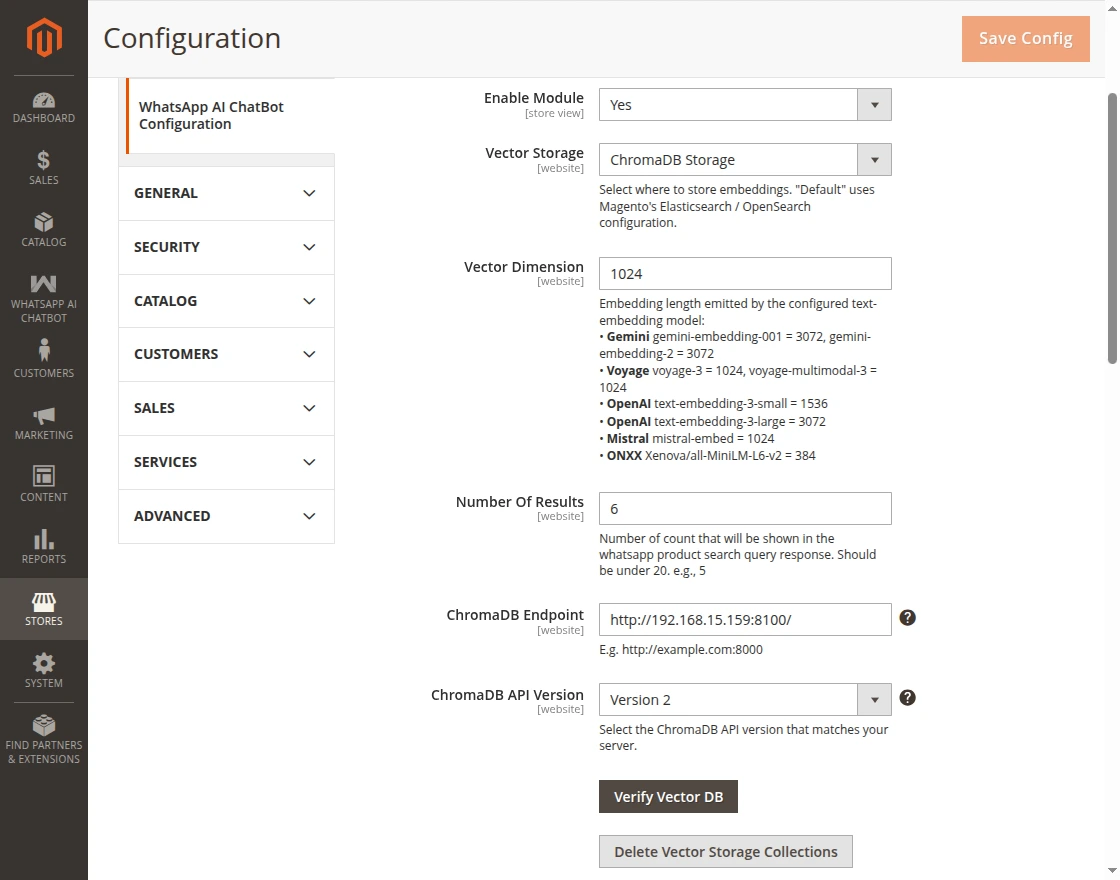
General Settings – ChromaDB Storage
- Enable Module: Option to enable or disable the WhatsApp AI Chatbot module.
- Vector Storage: Choose between Default Vector Storage and ChromaDB for embedding management.
- ChromaDB Endpoint: URL of the ChromaDB server (used for AI memory/search functionality).
- ChromaDB API Version: Dropdown to select the API version 1 or 2 of ChromaDB.
- Vector Dimension: Enter embedding length emitted by the configured text-embedding model.
- Number Of Results: Control the maximum number of products returned in semantic chat searches.
- Verify Vector DB: Validate connectivity to the configured vector database directly from Magento.
- Delete ChromaDB Collections: Button to clear/reset saved collections in ChromaDB.
- Verify Vector DB: Validate connectivity to the configured vector database directly from Magento.
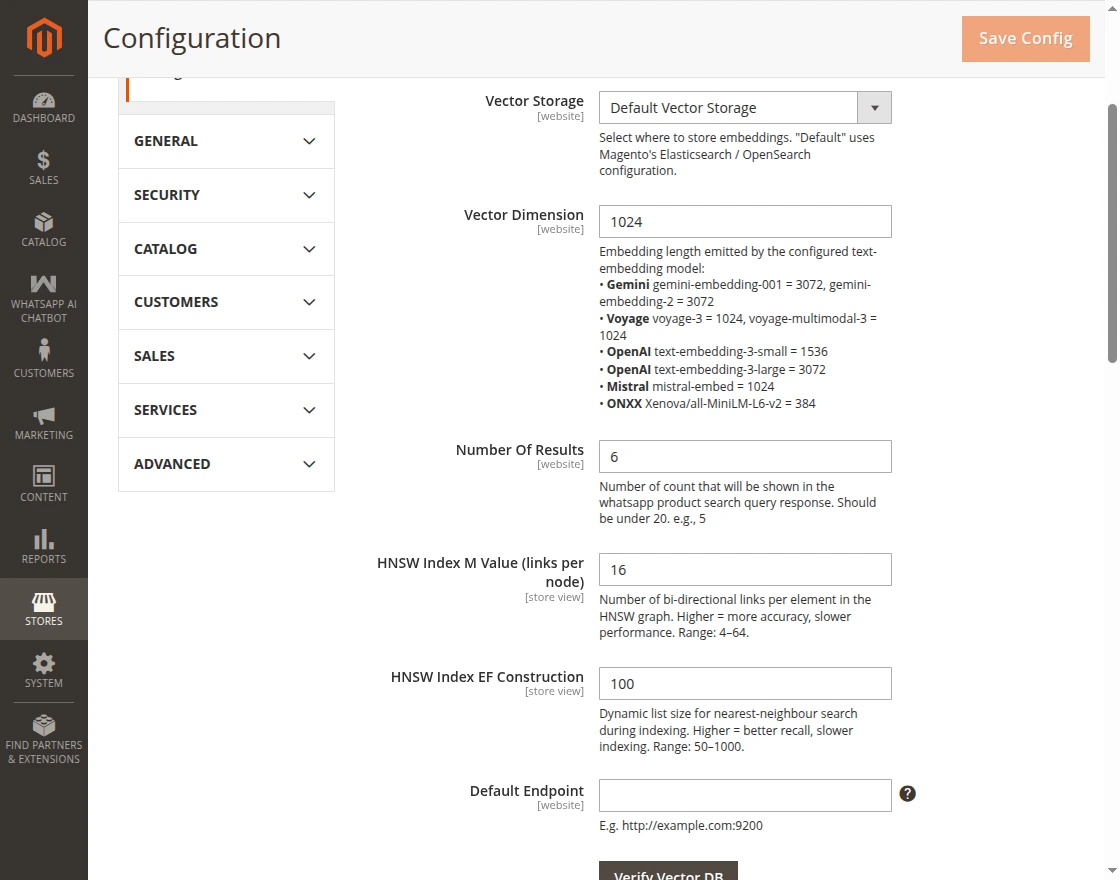
General Settings – Default Vector Storage
- HNSW Index M Value (links per node): Customize HNSW graph connections to balance search speed and accuracy.
- HNSW Index EF Construction: Optimize HNSW index quality for improved vector search performance.
- Default Endpoint: Connect Elasticsearch or OpenSearch as the vector search backend.
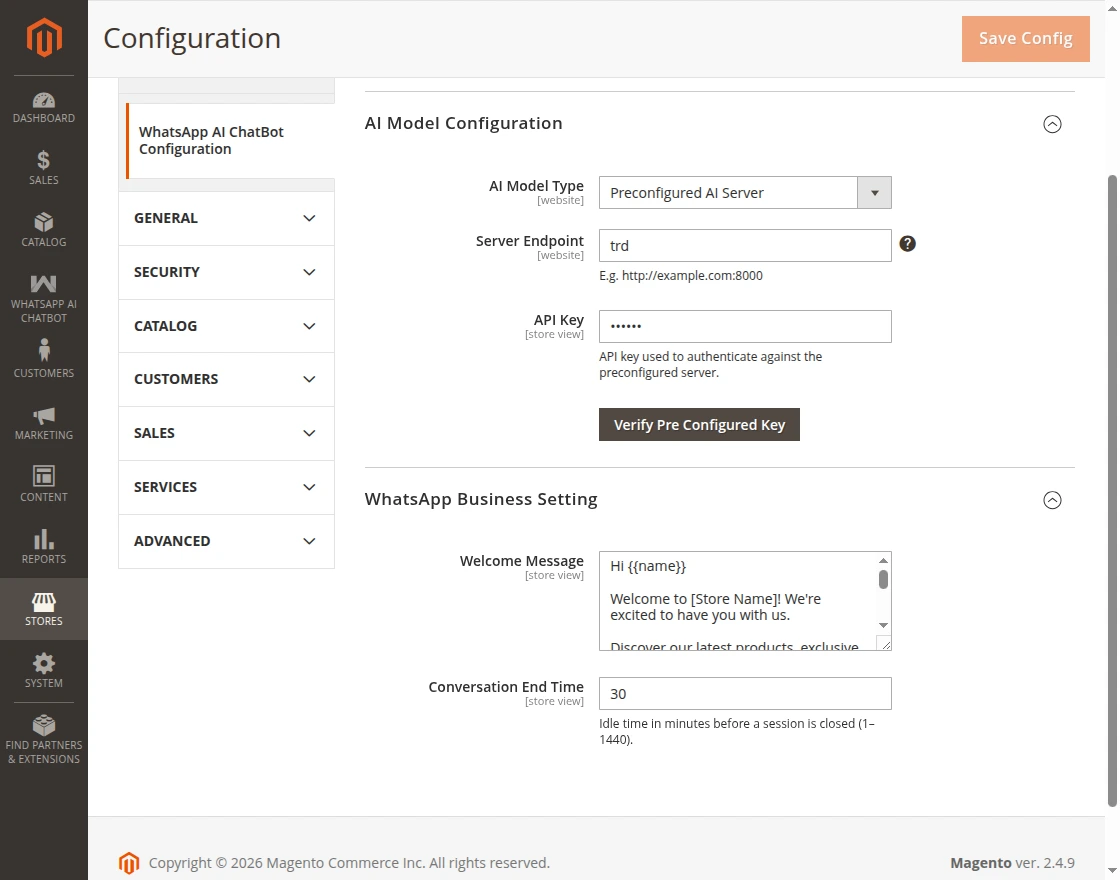
AI Model Configuration
- AI Model Type: Choose Preconfigured AI Server or Cloud LLMs.
Configuration when Preconfigured Model is selected as AI Model Type
- Server Endpoint: Enter server name without protocol of the self-hosted Preconfigured server.
- API Key: Authenticate securely with the Preconfigured server using API key.
- Verify Pre-configured Key: Validate the configured endpoint and API key by running a test embedding and chat request.
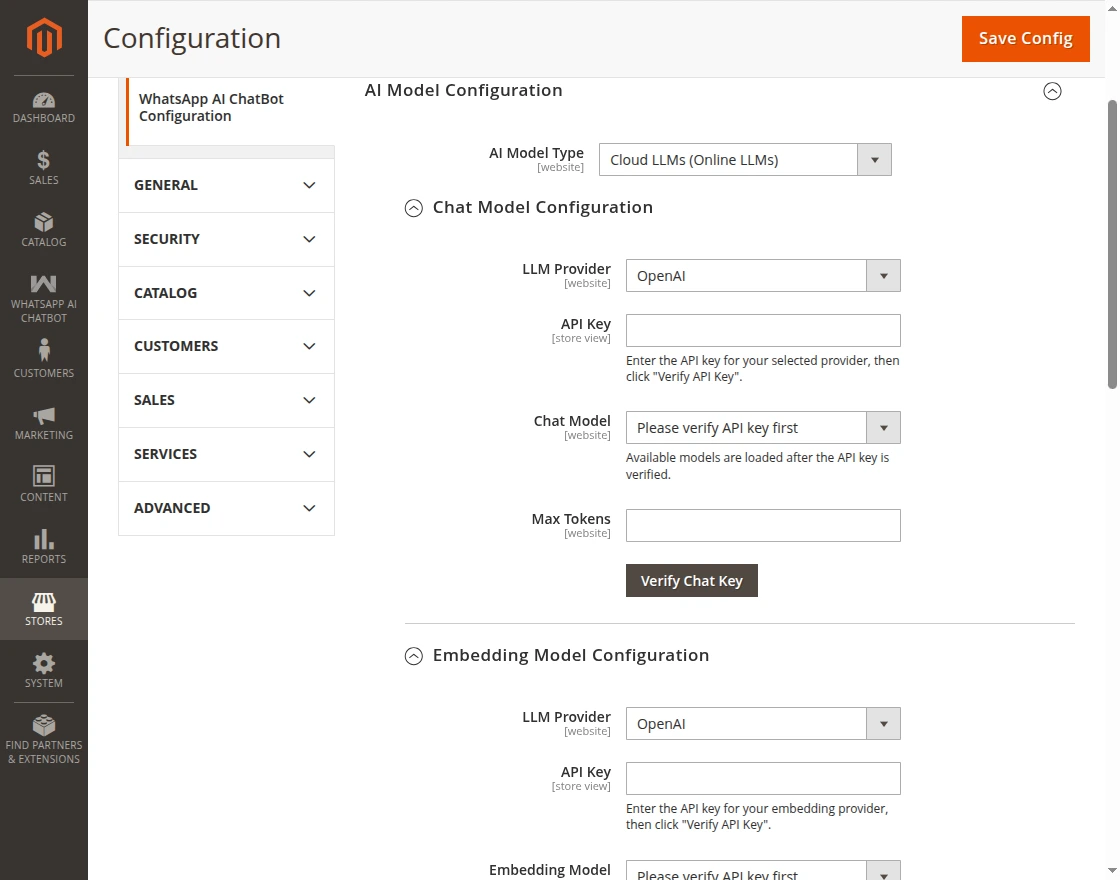
Configuration when Cloud LLMs is selected as AI Model Type
When Cloud LLMs is selected, the admin configures Two independent sub-sections:
- Chat Model Configuration
- LLM Provider: Google Gemini, OpenAI, OpenRouter, or Mistral AI.
- API Key: API key for the selected provider.
- Chat Model: Specific text embedding model (populated after verification).
- Max Tokens: Maximum tokens per embedding request.
- Verify Chat Key: Validate the API key and load available models.
2.Embedding Model Configuration
- LLM Provider: Google Gemini, Voyage AI, OpenAI, OpenRouter, Mistral AI, Ollama (Local) or ONNX.
- API Key: API key for the selected provider. (Not required for ONNX.)
- Embedding Model: Specific text embedding model (populated after verification).
- Max Tokens: Maximum tokens per embedding request.
- Verify Embedding Key: Validate the API key and load available models.
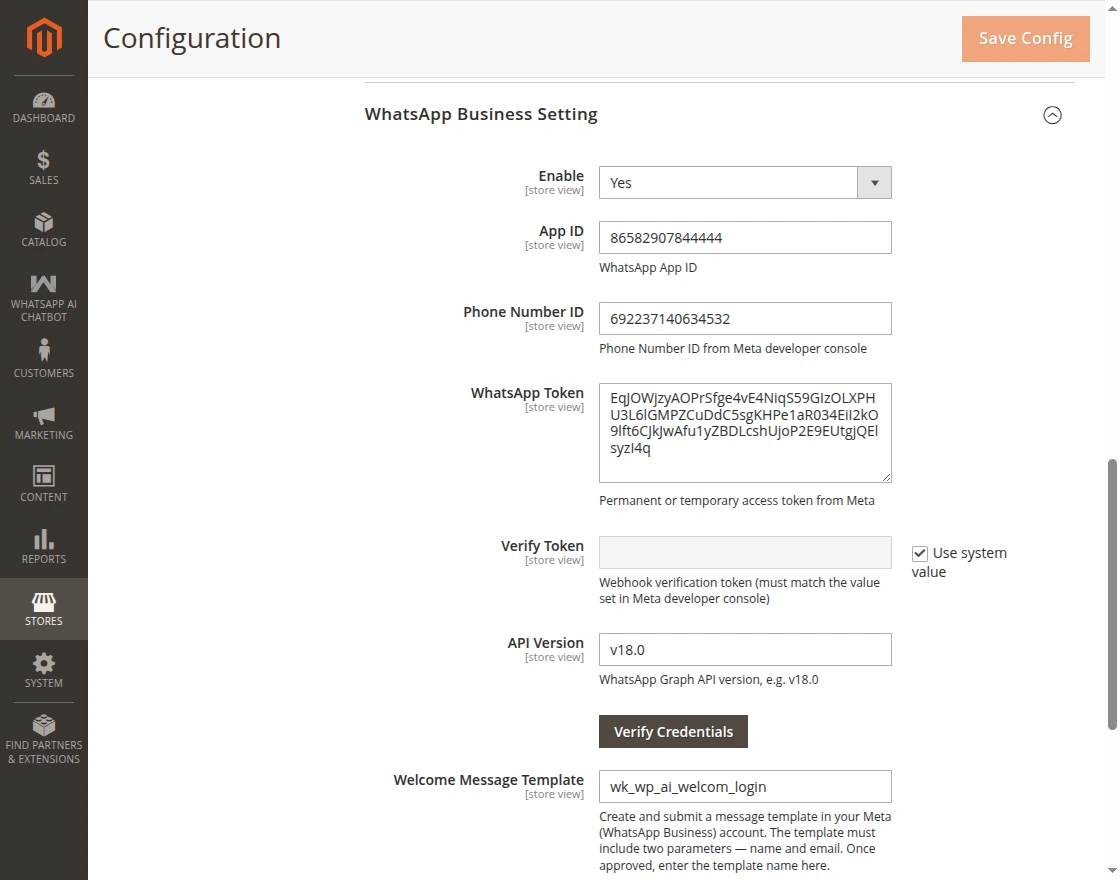
WhatsApp Business Settings
- Enable: Toggle to enable/disable WhatsApp Business integration.
- App ID: WhatsApp App ID (from Meta Developer account).
- Phone Number ID: ID of the WhatsApp Business phone number.
- WhatsApp Token: Token provided by Meta to authenticate API requests.
- Verify Token: Token used to verify webhook configuration with WhatsApp.
- Api Version: The version of WhatsApp API being used (e.g., v22.0).
- Welcome Message Template: Select the approved template containing the required {{name}} and {{email}} parameters for personalized notifications.
- Welcome Message: The first automated message that customers receive when they start a chat.
- Conversation End Time: A scheduled cron job that ends inactive WhatsApp AI chatbot sessions after a set period of no user response.
Once all the details are configured, click on Save Config to apply the changes on the frontend.
Chat History
For this, the admin will go to WhatsApp AI Chatbot > Chat History, as shown in the snapshot below.
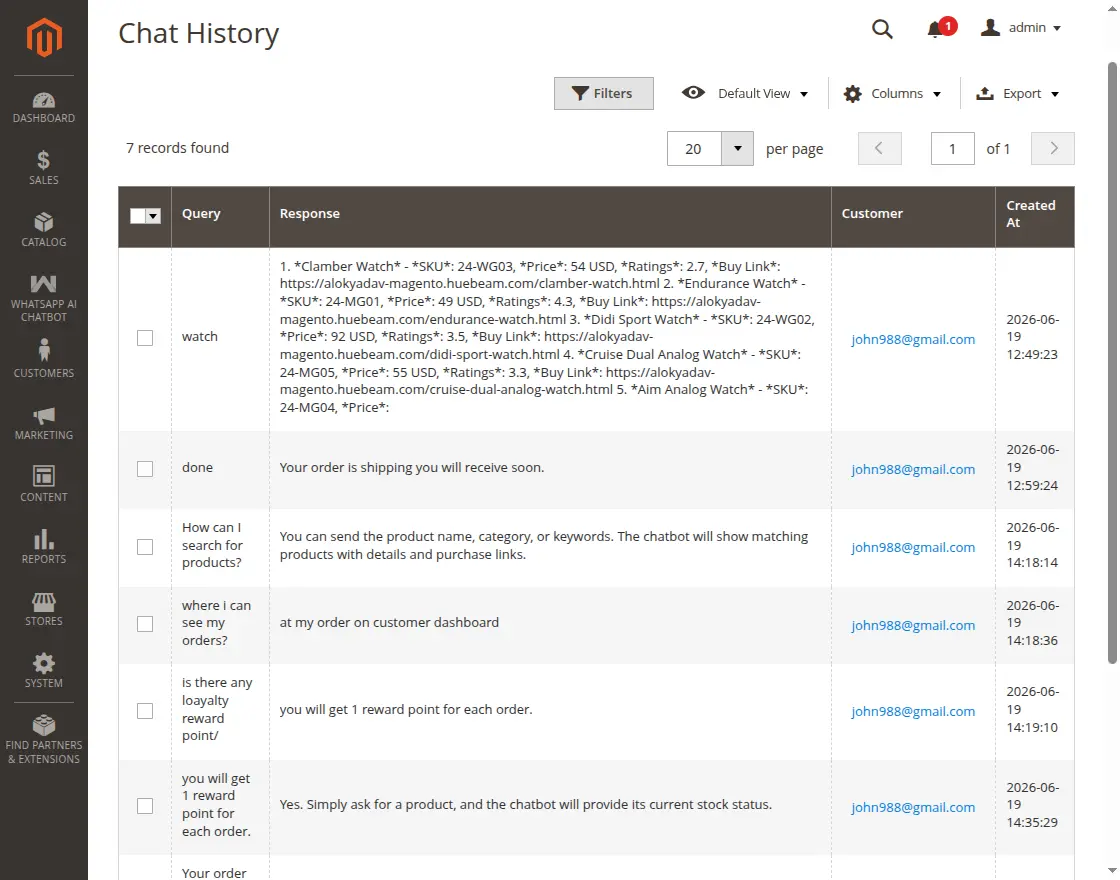
The admin can view and manage complete chat records between customers and the chatbot.
Chat Reports
For this, the admin will navigate to WhatsApp AI Chatbot > Chat Reports, as shown in the snapshot below.
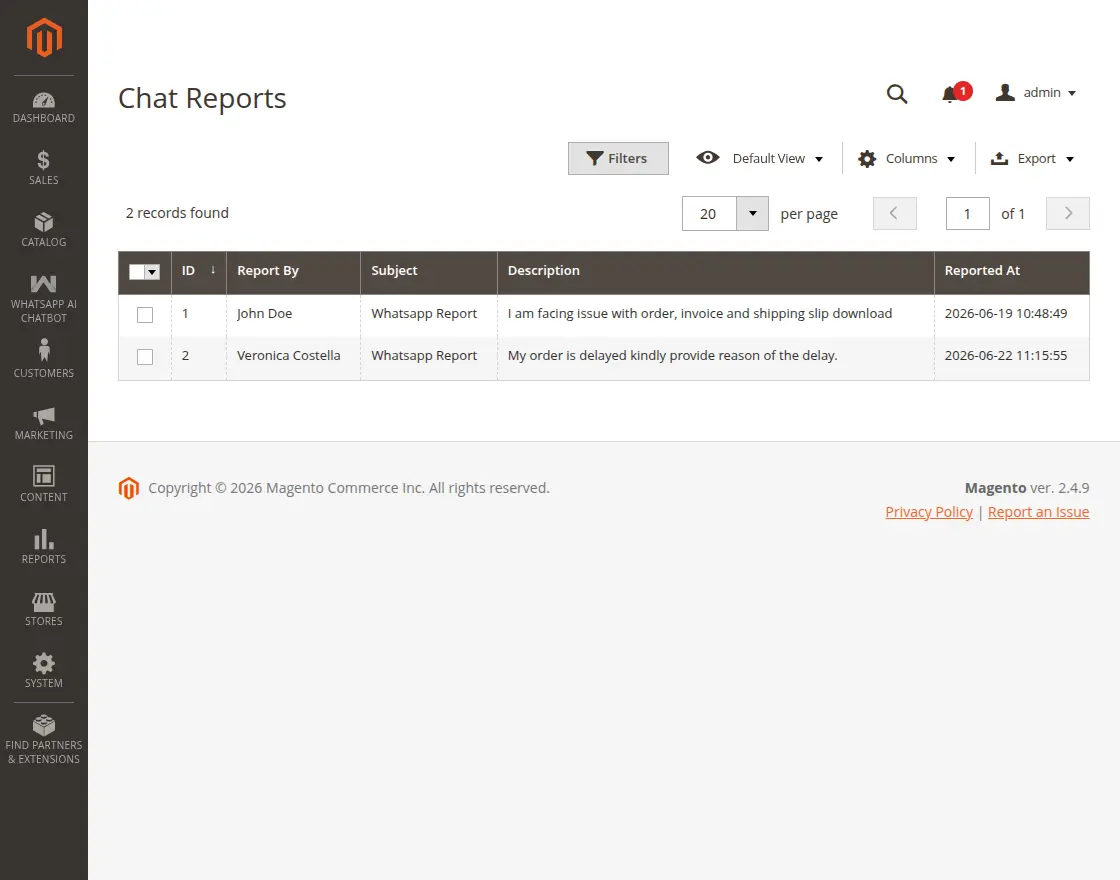
The admin can view reports of customer conversations to measure chatbot effectiveness and improve support quality.
Manage FAQ
For this, the admin will go to WhatsApp AI Chatbot > Manage FAQ, as shown in the snapshot below.

Allows the admin to add, edit & delete FAQs, enabling the chatbot to provide accurate & timely responses to customer inquiries.
By clicking on Add New FAQ button, the admin can create a new FAQ entry as shown in the snapshot below.

Manage CMS Pages
For this, the admin will navigate to the Content > Pages, as illustrated in the snapshot below.

The admin can seamlessly sync and manage store CMS pages, including options to edit, delete, and view pages.
By clicking on the Add New Page button, the admin can create a new page with details as shown in the snapshot below.

This integration allows the chatbot to deliver automated and accurate responses to customer queries.
Magento 2 WhatsApp AI Chatbot | Frontend
Add or Update WhatsApp Number for Registered Users
The customer is allowed to update their registered WhatsApp number, as shown in the snapshot below.

Welcome Message for Users on WhatsApp Number
Customers will receive a welcome message whenever they add or update their WhatsApp number while editing their account information on the store.
Welcome Message Notification
This feature sends a welcome message to customers whenever they add or update their WhatsApp number in their account information.

Users Discover AI Chatbot Options
It enables registered users to quickly navigate and interact with the store for instant support, as shown in the snapshot below.
WhatsApp Chatbot Options Panel
This panel shows all options for users to access through the AI WhatsApp Chatbot.

This panel shows all options for all the registered users to access through the AI Chatbot.
Registered Users Get Instant Bot Responses
The chatbot efficiently addresses users’ general inquiries by providing accurate and contextually relevant responses, as shown in the snapshot below.
AI Chatbot Handles User Queries
Chatbot quickly responds to users general questions accurately.

AI Bot Gives Quick Order Access To Users
WhatsApp AI Chatbot promptly provides users with their order information, ensuring quick and seamless access to order details, as shown below.
AI Chatbot Shares Order Details
WhatsApp AI Chatbot quickly provides users with their order details.

AI Chatbot Delivers Easy Invoice Downloads
WhatsApp AI Chatbot enables users to conveniently download their invoices, ensuring quick and hassle-free access, as shown in the given snapshot.
AI Chatbot Sends Downloadable Invoices
WhatsApp AI Chatbot allows users to download their invoices easily.

Users Receive Quick Tracking Links
WhatsApp AI Chatbot instantly shares the order tracking link, allowing users to monitor their shipment status with ease, as shown in the snapshot below.
AI Chatbot Provides Order Tracking URL
WhatsApp AI Chatbot gives users an order tracking link instantly.

Instant Product Lookup For Users
WhatsApp AI Chatbot promptly delivers comprehensive product information, ensuring users have quick access to essential details, as shown below.
AI Chatbot Shares Product Details
WhatsApp AI Chatbot provides users with complete product information instantly.

Instant Product and Checkout Options Selection For Users
WhatsApp AI Chatbot allows users to conveniently select products and checkout option like view cart, proceed to checkout, ensuring quick and hassle-free shopping experience.
Products Selection and Checkout Options Panel
User Select desired option and proceed for order place.
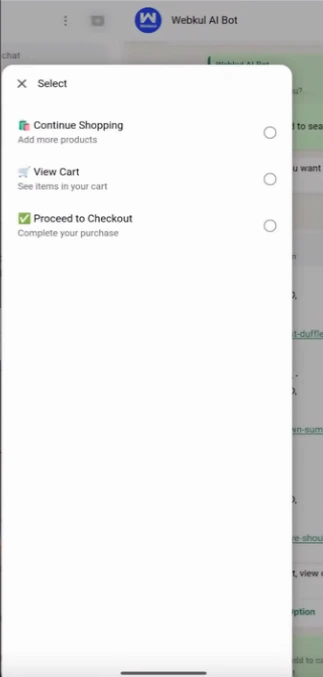
User can add product to cart or proceed to checkout as shown in below snapshot.
Add to Cart and Proceed to Checkout
User Select add to cart or proceed to checkout option and proceed for order place.
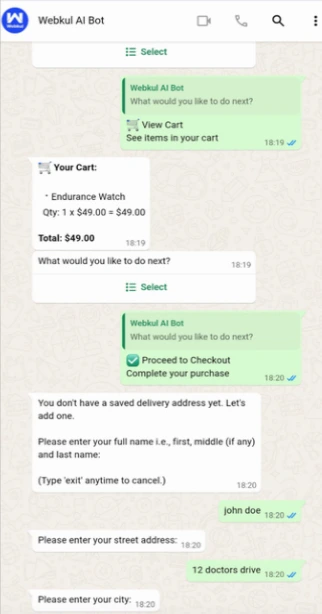
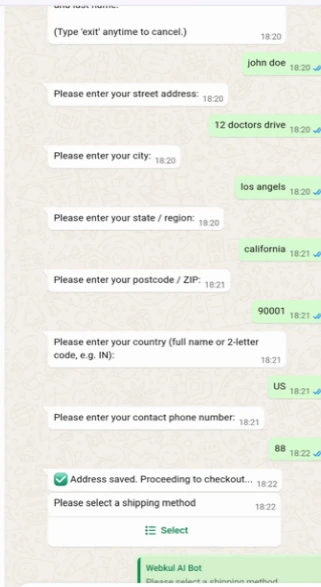
User can add address and select shipping method directly on whatsApp as shown in below snapshot.
AI Chatbot Provide Add Address and Shipping Selection Option
User can add address and select shipping methods required for placing order
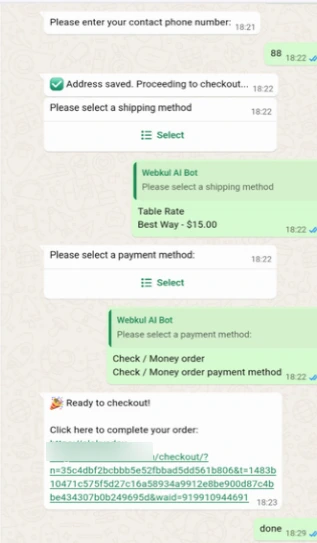
User can select payment method on whatsapp and place order on provided url as shown in below snapshot.
Payment Method Selection and Order Place
User can select payment method and complete order by navigating to provided url.
Users Report Issue via WhatsApp AI Chatbot
WhatsApp AI Chatbot allows users to conveniently report any issues, ensuring quick resolution and improved support, as illustrated below in the snapshot.
AI Chatbot Enables Users To Report Issues
WhatsApp AI Chatbot allows users to easily report any issues.

Support
If you have any questions, suggestions, or customization requests, feel free to contact us at [email protected] or submit a ticket at webkul.uvdesk.com.
Explore our Magento Development Services to Hire Magento Developers who can help you build a powerful, scalable & custom e-commerce online store.
Current Product Version - 4.0.1
Supported Framework Version - Magento 2.0.x, 2.1.x, 2.2.x,2.3.x, 2.4.x

Be the first to comment.