


















Laravel Multi Company SaaS Web Fonts lets every tenant style its storefront and admin panel with Google Fonts.
Each tenant keeps its own font list, active font, and settings, so one company’s choice never changes another company’s website.
Features of Laravel Multi Company SaaS Web Fonts
- Lets each tenant configure Google Web Fonts for its own SaaS website.
- Applies the active font to the storefront, the admin panel, or both, with a separate switch for each.
- Turns the module on or off from the configuration panel.
- Offers a searchable list for finding and selecting Google Fonts quickly.
- Adds several fonts at once and skips the fonts a tenant has already saved.
- Keeps exactly one active font per tenant, so activating a font deactivates the previous one.
- Loads the active font through the Google Fonts stylesheet, with the font category as the fallback.
- Caches the Google Fonts list for each tenant, so no tenant receives a list fetched with another tenant’s API key.
- Provides a simple, no-code interface for managing website typography.
- Keeps font settings isolated, so one tenant’s configuration never affects another tenant’s website.
Requirements for Laravel Multi Company SaaS Web Fonts
This module is an add-on to the Laravel eCommerce Multi Company SaaS extension.
Install that extension first. This version works with Bagisto v2.4.11 and Laravel eCommerce Multi Company SaaS v2.4.11.
Each tenant also needs a Google Fonts Developer API key, which the module uses to list the available fonts.
Installation of Laravel Multi Company SaaS Web Fonts
- Unzip the respective extension zip and then merge “packages” folder into project root directory.
- Goto composer.json file and add following line under ‘psr-4’
"Webkul\\Webfont\\": "packages/Webkul/Webfont/src",
"Webkul\\WebfontSaaS\\": "packages/Webkul/WebfontSaaS/src"
- Goto bootstrap/providers.php file and add following line under ‘providers’, after the SAASCustomizer providers
Webkul\Webfont\Providers\WebfontServiceProvider::class,
Webkul\WebfontSaaS\Providers\WebfontSaaSServiceProvider::class,
- Open
config/concord.phpand add the following line in themodulesarray:
Webkul\Webfont\Providers\ModuleServiceProvider::class,
- Run these commands below to complete the setup
composer dump-autoload
php artisan webfont-saas:install
That is it. Now run the project on your specified domain.
Configure Google Web Fonts for Every Tenant
Once the module is installed, each tenant configures Google Web Fonts for its own website.
To open the configuration, log in to the Tenant Panel and navigate to:
Configure > General > Design > Web Font
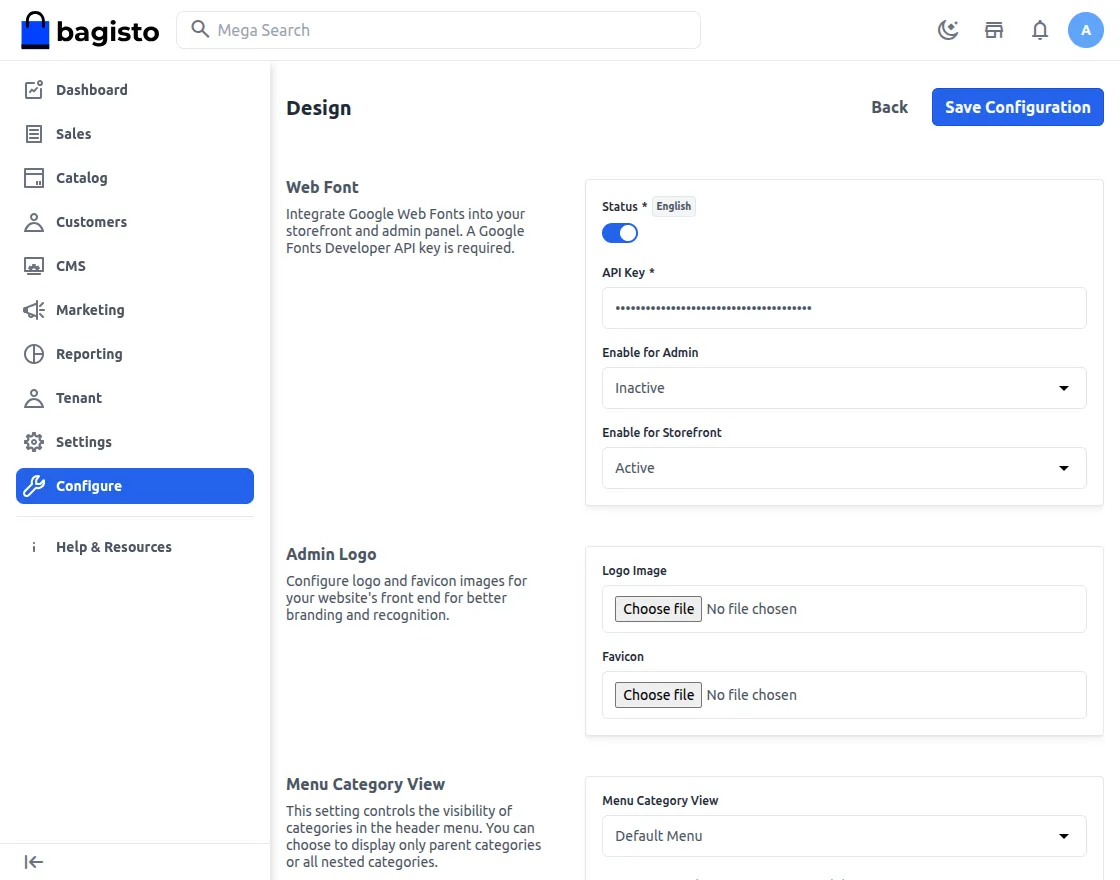
This configuration page includes the following options:
- Status – Enable or disable the Google Web Fonts module for your tenant website.
- API Key – Enter your Google Fonts Developer API Key. The module needs it to search and list Google Web Fonts.
- Enable for Admin – Apply Google Web Fonts to the Admin Panel. Turn it off to keep the default admin typography.
- Enable for Storefront – Apply Google Web Fonts to the Storefront. Turn it off to keep the default storefront fonts.
Switch Status on first, because the other three fields appear only after that. Then click Save Configuration.
Until a tenant switches Status on, the Web Font menu entry stays hidden and its pages return a 404 error.
Managing Google Web Fonts in Laravel Multi Company SaaS Web Fonts
After enabling the module, the tenant opens the font grid from the following menu:
Appearance > Web Font
The grid lists only the fonts that belong to the tenant. From here, the tenant can:
- View the list of saved Google Web Fonts.
- Add new fonts from the Google Fonts library.
- Activate a font, which deactivates the tenant’s previous active font.
- Delete a font, or select several fonts and delete them together.
- Select several fonts and deactivate them together.
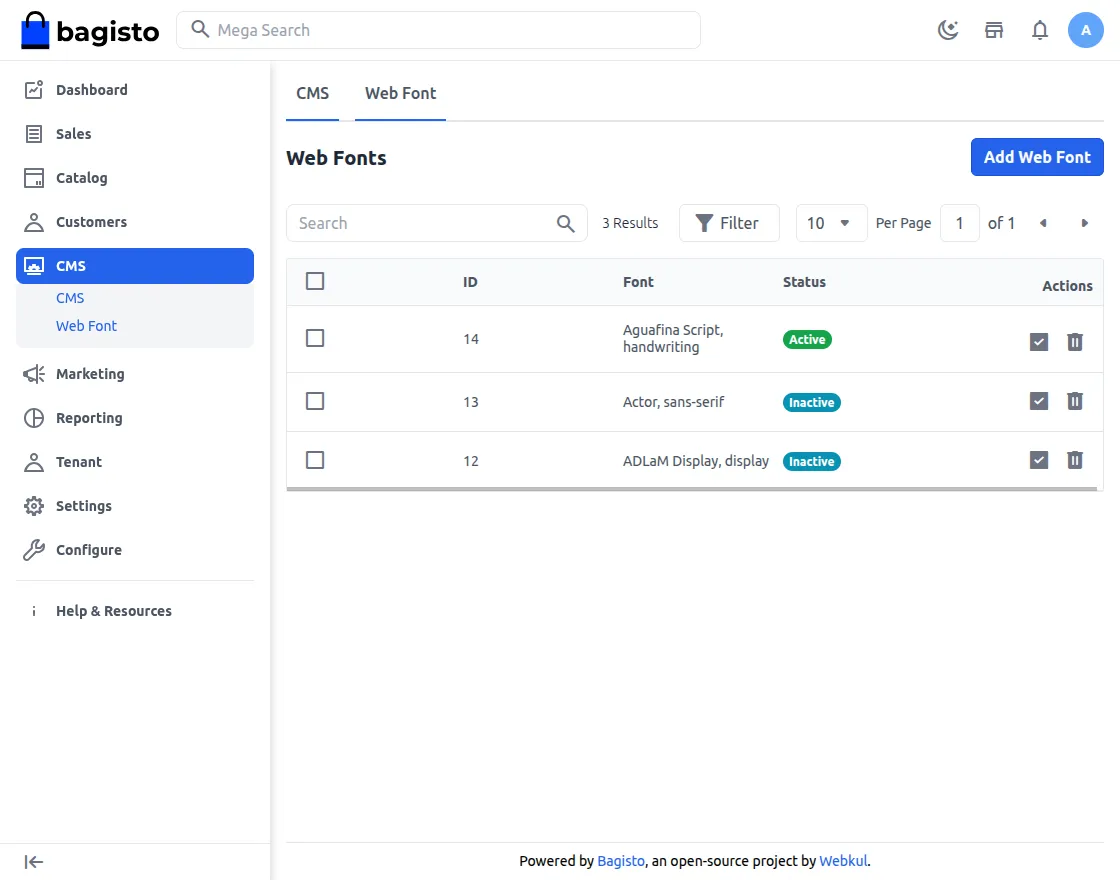
Add Web Font
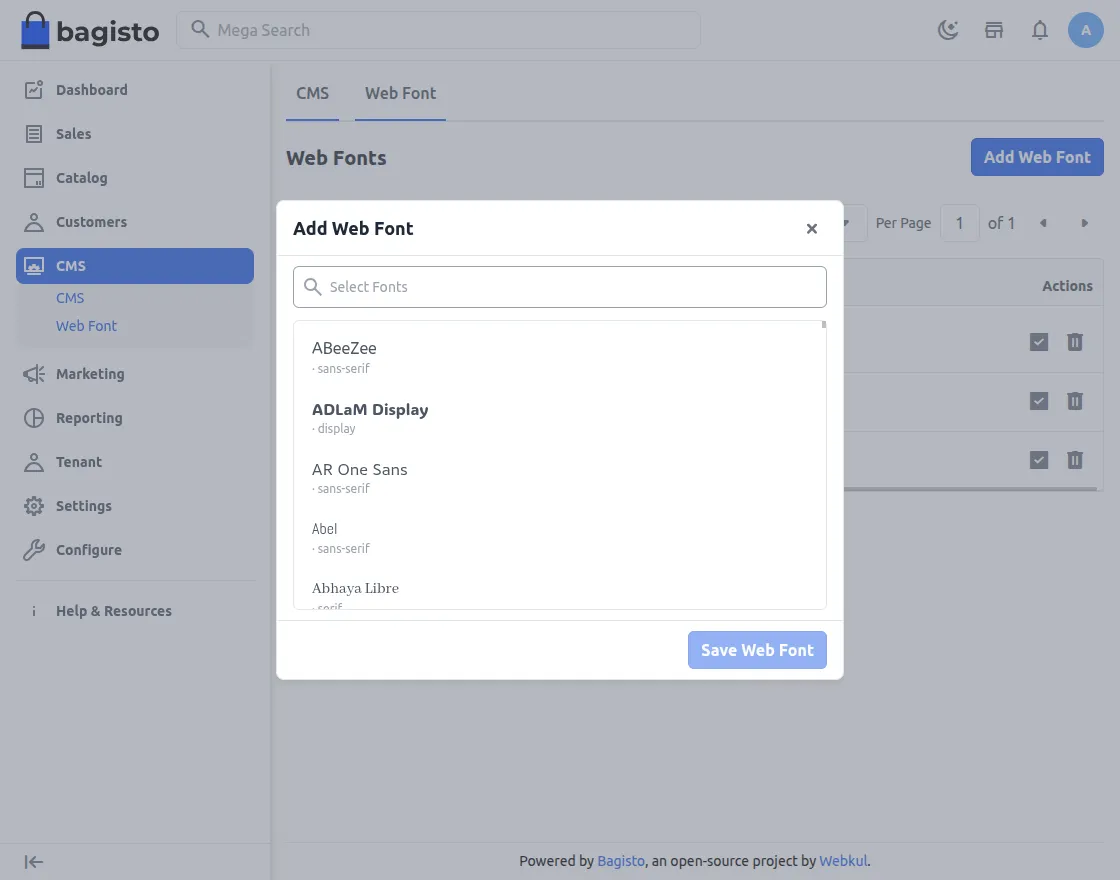
To add a font, click the Add Web Font button on the Appearance > Web Font page.
The window lists the fonts that Google returns for the tenant’s own API key, so the tenant can search instead of scrolling.
In the Add Web Font window, the tenant can:
- Search for a Google Web Font with the search field.
- Browse the full list, with each option shown in its own typeface.
- Select one or more fonts at once.
- Save the selection by clicking the Save Web Font button.
The module stores new fonts as inactive, and it skips any font the tenant has already saved.
To apply a saved font, use the Activate action on its row and confirm. That font becomes the tenant’s only active font.
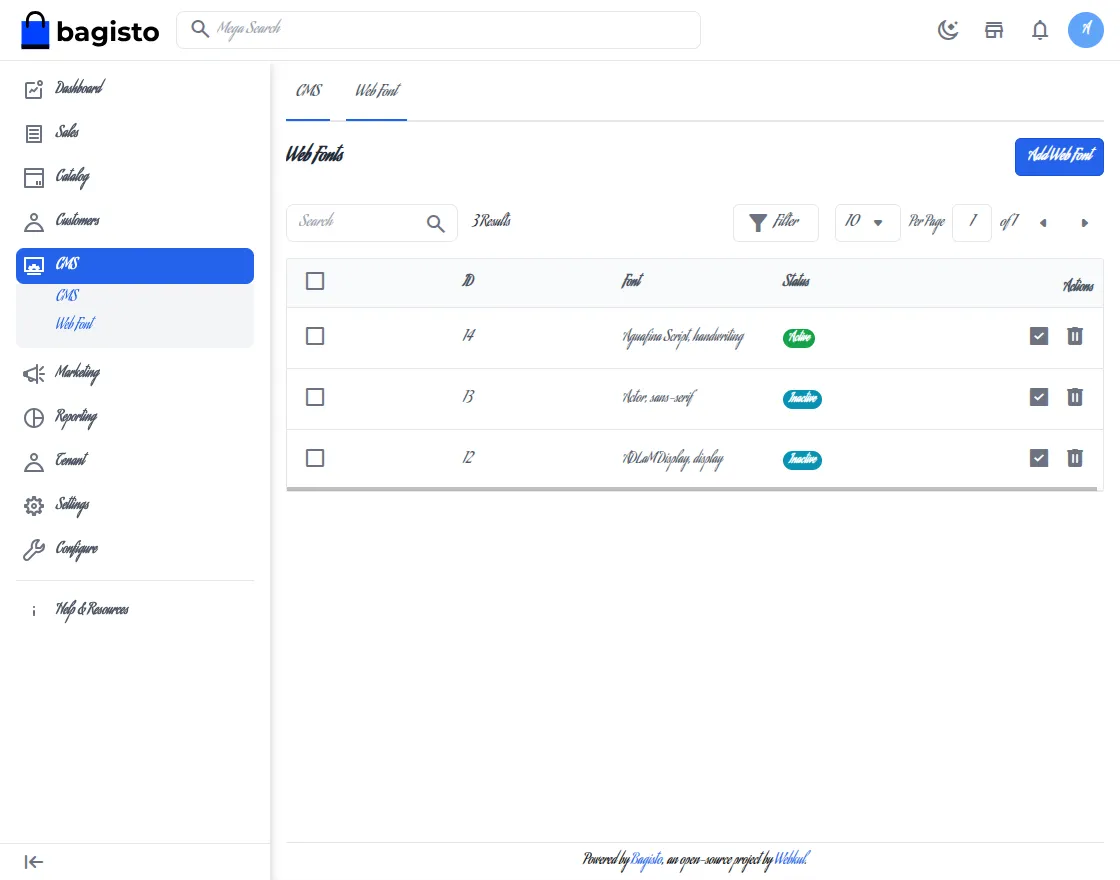
Applied Google Web Fonts
The module applies a font only when three things are true: the module is on, a font is active, and the matching Enable option is set.
With Enable for Storefront on, customers see the active font across the Storefront, which gives them a consistent, branded experience.
With Enable for Admin on, the active font applies to the Admin Panel, which improves readability for the tenant’s staff.
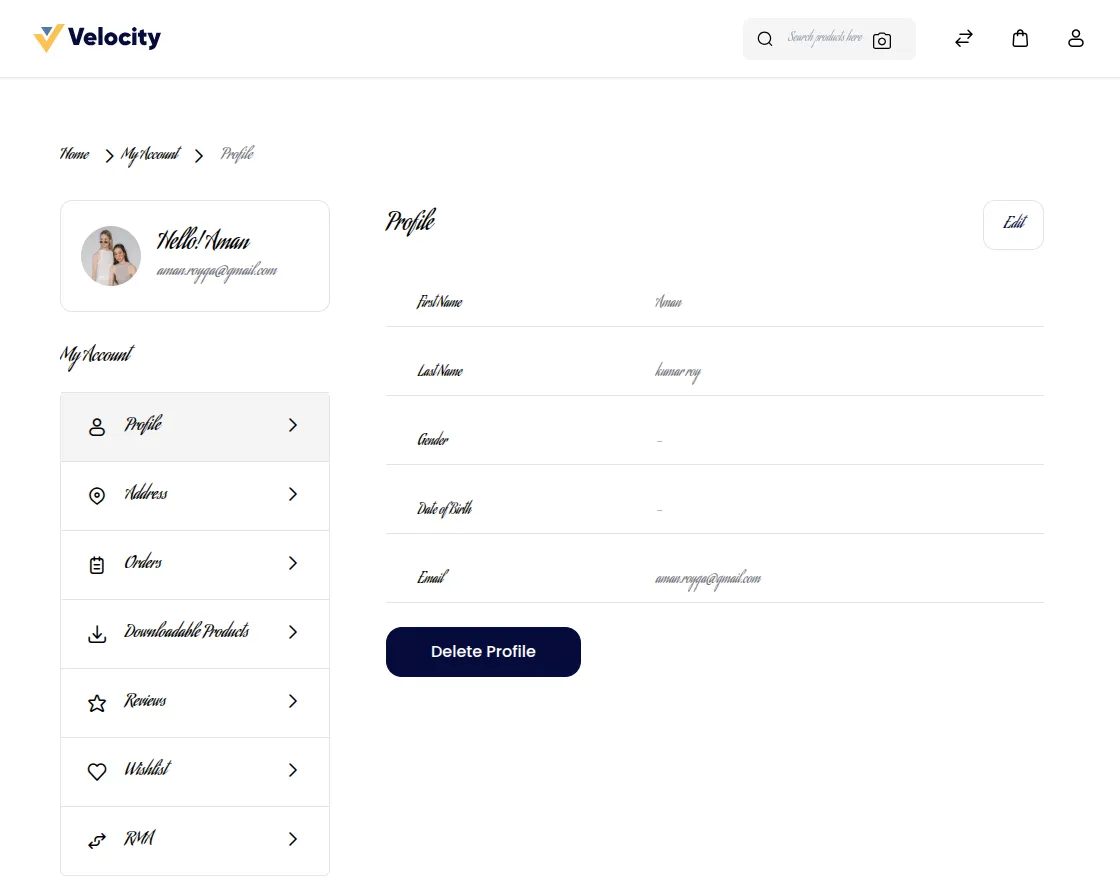
When both options are on, the same font appears across the Storefront and the Admin Panel.
- Admin Panel
- Storefront
Support
So, that was a bit about the Laravel Multi Company SaaS Web Fonts. For any queries or doubts, reach out to us at [email protected].
You can also raise a ticket at our HelpDesk System.
Current Product Version - v2.4.11
Supported Framework Version - v2.4.11

Be the first to comment.