Keeping a Pimcore catalog and a PrestaShop store aligned by hand doesn’t scale. The Pimcore PrestaShop Connector (Pimcore 12 ↔ PrestaShop 9.x) from Webkul removes the copy-paste.
It bridges your Pimcore data model and your PrestaShop 9 store. Categories, products, manufacturers, custom features and related-product links flow automatically — in both directions.
Built natively for Pimcore 12 (Platform 2026.1) and PrestaShop 9.x, it leads with the right transport. Every catalog operation can ride PrestaShop 9’s modern, JSON Admin API over OAuth2.
That’s the secure, future-proof integration path — not the deprecated legacy route. The connector authenticates with the client-credentials grant and caches the bearer token.
It drives the /admin-api/* endpoints for categories, products, features, manufacturers and languages. Webkul has tested it live against PrestaShop 9.1.3.
It also lives natively inside the Pimcore Studio UI. Install the Pimcore PrestaShop Connector and a new nav group appears.
It carries its own screens — Credentials, Object Mapping, Mapping, Import, Export, Sync Mappings and Job History — all native Studio tabs.
There’s no separate tool to host, no middleware to run, and no tab-switching between two admins.
Sometimes PrestaShop 9’s Admin API genuinely can’t do something — assigning features to products, related-product/accessory links, or product variants.
Creating a manufacturer also hits a known PrestaShop 9.1.3 multistore core bug. For those, the connector reaches for an isolated legacy Webservice transport, enabled by a single optional API key.
The modern API stays the default for everything else.

Pimcore PrestaShop Connector: Key Features
- Bidirectional sync — import and export for Categories, Products, Manufacturers and product variants (combinations), plus custom-attribute Features and related-product links.
- Modern Admin API first — connects over PrestaShop 9’s OAuth2 JSON Admin API (Bearer token), the secure, future-proof path.
- Dual-transport, your choice — configure the OAuth2 Admin API, the legacy Webservice, or both on one credential (at least one required). Every job auto-routes to a configured API, and a Webservice-only setup can now drive the full catalog — both directions.
- Product variants (combinations) — two-way sync of PrestaShop combinations and their axes (Size, Colour, …) as a native Pimcore variant tree. Per-combination price/weight impact and per-shop stock ride along.
- Fine-grained roles & permissions — per-module view / manage / execute access control, enforced server-side. Grant read-only auditors, monitor-only operators, or import-only / export-only users.
- Asynchronous job engine — every sync runs as a restartable background job, so it never blocks your screen or times out.
- Live job view with cooperative Stop — per-step progress cards, read/created/updated/skipped/failed counts, and a clean one-click Stop.
- Multi-store & multi-language aware — each PrestaShop shop × language keeps its own names, prices and descriptions, mirroring how PrestaShop stores them.
- Fully dynamic mapping — point each PrestaShop entity at your existing Pimcore classes and fields; nothing is hard-coded.
- Idempotent, self-healing re-runs — records update in place instead of duplicating, and re-link by a unique key if the mapping is ever lost.
- Pre-flight validation — misconfigured jobs are blocked up front with a plain-English fix-it message, never half-run.
- One-command installer — a single script detects Docker or bare-metal and wires everything, workers included.
Connecting the Pimcore PrestaShop Connector
The Pimcore PrestaShop Connector talks to PrestaShop using the modern Admin API secured with OAuth2 client credentials. In your PrestaShop back office, go to Advanced Parameters → Admin API.
Add a new API Client, choose the scopes the connector needs, and generate a client secret. That’s the primary credential — a client ID and client secret against your store’s host URL.
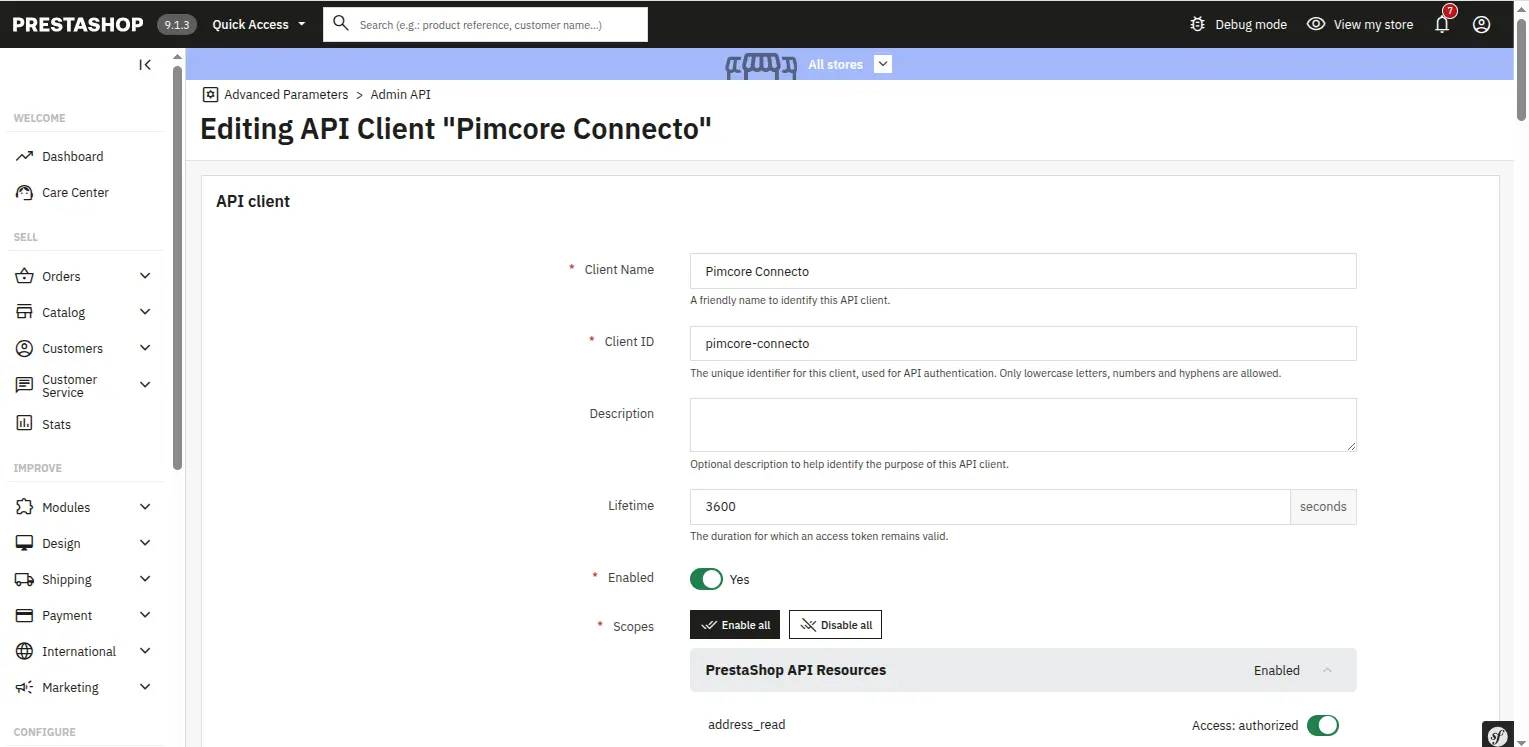
Behind the scenes the connector POSTs grant_type=client_credentials with your client ID, secret and requested scopes to {host}/admin-api/access_token.
It caches the returned JWT until just before it expires. Then it sends that JWT as a Bearer token on every call. The OAuth2 Admin API is the connector’s default and preferred transport.
You can also paste a legacy Webservice API key onto the same credential. The Webservice isn’t just a fallback any more — it’s a first-class, equal transport.
A credential may carry the OAuth2 Admin API only, the Webservice key only, or both (at least one is required). Each job auto-routes to a configured API.
A Webservice-only credential now runs the entire import/export catalogue — categories, products (with images), manufacturers, features and variants — making zero Admin-API calls.
When both are configured, the connector prefers the modern Admin API. A few operations the Admin API simply can’t do always ride the Webservice (more on that below).
Note: PrestaShop 9 enforces HTTPS on the Admin API in production, so point the connector at your store’s secure host URL.
Installing the Pimcore PrestaShop Connector
Standing the Pimcore PrestaShop Connector up is a single command:
bash src/Webkul/PrestaShopConnectorBundle/install/config.sh
The script is idempotent and environment-aware. It auto-detects your PHP runtime — a running Docker php service, otherwise local PHP.
The script then adds the Webkul\ PSR-4 entry and registers the bundle in config/bundles.php (both skipped if already present).
Next comes the install itself: cache split → bundle install → DataObject classes rebuild, creating the connector’s tables, permissions and classes.
Then it auto-configures one Symfony Messenger supervisor worker per job queue — prestashop_import and prestashop_export — across both Docker and bare-metal setups.

Because jobs run asynchronously on durable doctrine-backed queues, those workers are what drain the queue — and the installer sets them up for you so the first sync just works.
Setting Up the Pimcore PrestaShop Connector in Studio
In Pimcore, open PrestaShop Connector → Credentials and click New credential. Enter a name, your store’s host URL, and the OAuth2 client ID and secret from PrestaShop.
The Scopes field arrives pre-filled with every scope the connector needs across its jobs — category read/write, product read/write, manufacturer read/write, feature read/write, and so on.
A guided, free-typeable picker backs it with the full PrestaShop scope catalog. Nothing is missed, so the first sync just works.

Click Test connection and the connector acquires a token against {host}/admin-api/access_token.
It reports a clear inline verdict — green Connection succeeded (HTTP 200) when the client ID, secret and scopes check out. No more discovering a typo mid-import.
Test even works on ad-hoc, unsaved form values, so you can verify before you ever save.

Secrets are write-only: the Credentials list never echoes secret values — it only shows whether a secret is set.
Editing a credential shows a masked “saved — leave blank to keep” placeholder, so re-saving won’t accidentally wipe a stored secret.
The connector keeps exactly one credential active at a time. Activation flips all others off first, then turns the target on.
Even a crash mid-switch leaves zero active credentials — never two. So you never push to the wrong store by accident. Switch stores or environments with a single Set active action.

Object Mapping: the Connector Adapts to Your Catalog
Most connectors force you into fixed class names. The Pimcore PrestaShop Connector treats “which Pimcore class is a PrestaShop Product?” as a simple setting.
On the Object Mapping screen you point each PrestaShop entity — category, manufacturer, product — at whatever DataObject classes your team already uses.
Pick from a dropdown of every class in your install.
The connector resolves the class by name at runtime and references no concrete class of its own, so it adapts to your data model instead of forcing its own.
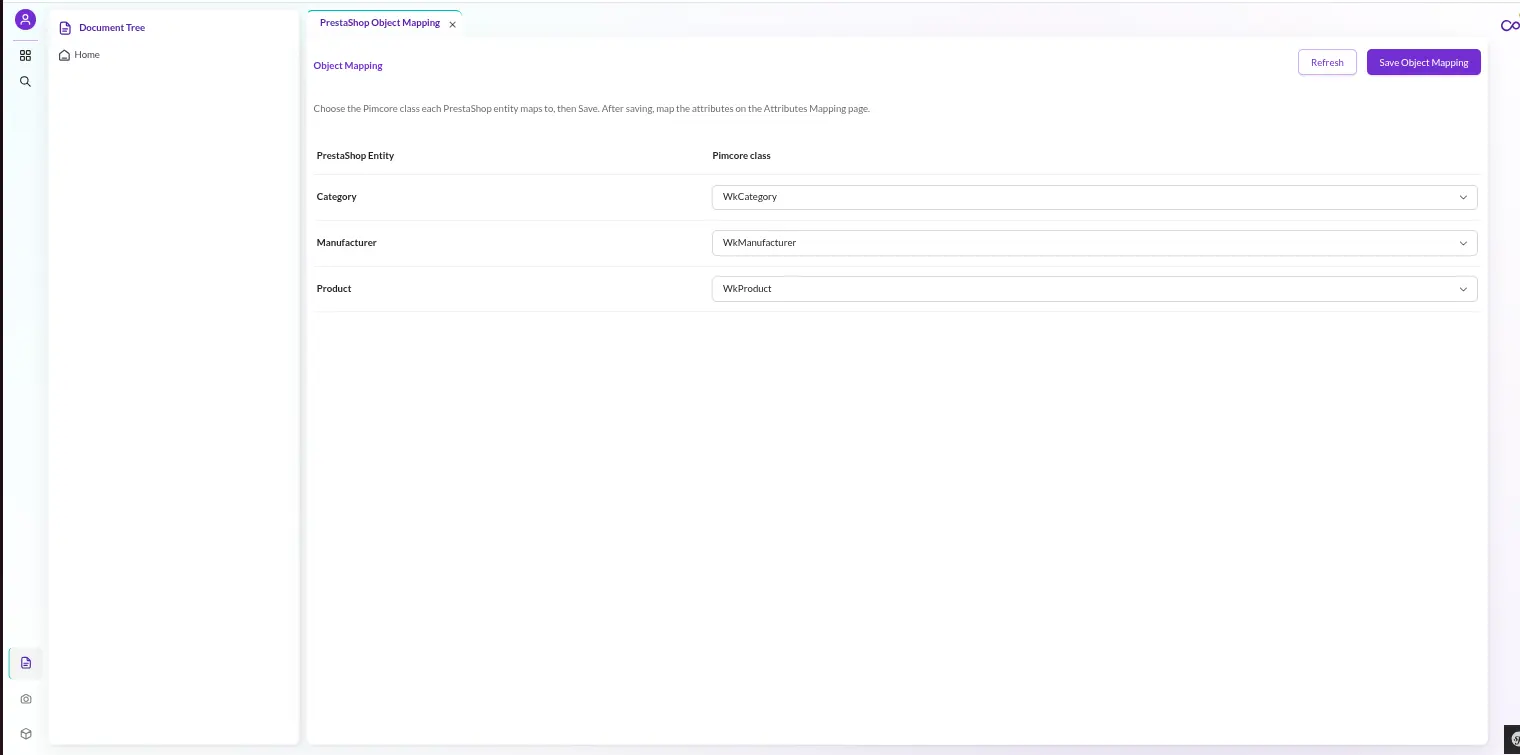
It ships with sensible defaults so it works out of the box, and your saved configuration always wins. Object Mapping is the gate for the rest of setup.
Until it’s saved, the field-mapping tabs stay locked behind a clear “Object Mapping required” panel. So you can’t misconfigure attributes before the class is chosen.
Store & Language Mapping (Shop × Language)
PrestaShop stores per-shop and per-language data separately — ps_product, ps_product_shop, ps_*_lang. The connector mirrors that exactly.
On the Store Mapping tab you map each PrestaShop shop to a Pimcore channel and pick the locales and currency that shop syncs, adding more with + Add shop.

Behind the scenes each shop becomes one item in a Shop × Language store-view FieldCollection grid.
The connector then gives every field a fixed scope — global (class root), shop (per-shop value), or shop-language (per-shop, per-locale).
So one Pimcore model runs across many storefronts and languages. Each one keeps its own product names, prices and descriptions, exactly the way PrestaShop stores them.
You manage shops and currencies here. PrestaShop 9’s Admin API exposes languages, but not a shops list or currencies.
So you map them explicitly rather than rely on auto-discovery the API can’t provide.
Category Mapping
On the Mapping page’s Category tab you map each standard PrestaShop category field to a Pimcore attribute. Categories sync both ways as a real tree.
Import mirrors PrestaShop’s hierarchy into Pimcore, parents-first.
Export pushes your Pimcore hierarchy out, also parents-first — so a child’s parent always exists before the child, and no category is orphaned.
The connector handles product-to-category membership as its own dedicated step on export. PrestaShop ignores the categories field on a product update.
So the connector reads current membership first, then writes the full set only when it differs.
Field & Feature Attribute Mapping
The Mapping page is a tabbed editor — Store Mapping, Category Mapping, PrestaShop Field Mapping, and Product Feature Attribute.
Each entity tab lists the standard PrestaShop fields with a Pimcore-attribute dropdown, so you map each one to the right Pimcore attribute without guesswork.
Save stays disabled until Object Mapping is in place, so the configuration can’t get ahead of itself.

Beyond the standard fields, the Product Feature Attribute tab turns any custom scalar product attribute — material, warranty, capacity — into a searchable PrestaShop Feature.
On export the connector creates one PrestaShop Feature per mapped attribute, creates its predefined values, and then assigns the right value to each product.
That last product↔feature assignment step rides the legacy Webservice, so it needs the optional API key.
This Feature sync is export-only and covers scalar, predefined values that apply globally across shops.

Manufacturers / Brands
The connector syncs your brands both ways. Manufacturer import uses the modern Admin API. Manufacturer export, however, runs over the legacy Webservice.
That’s deliberate: creating a manufacturer over PrestaShop 9.1.3’s Admin API hits a documented multistore core bug.
The exporter builds the manufacturer XML — active flag, name, and localized description, short description and meta fields per language.
It then creates or updates it over the Webservice, matching by name when there’s no existing mapping. Each product’s brand link rides along with the product export.

Because manufacturer export needs the Webservice, it requires the optional API key on the credential; without it, the step skips cleanly.
Related Products (Accessories)
PrestaShop exposes related-products / accessories nowhere in its modern Admin API — so this is exactly where the dual-API design earns its keep.
The connector syncs accessories over the legacy Webservice, in both directions:
- Import runs as a dedicated step of the product import, reading each product’s accessories from the Webservice and setting Pimcore’s related-products field. An empty remote set never wipes links you manage on the Pimcore side.
- Export runs as a step of the product export, resolving each product’s related-products relation to PrestaShop IDs and surgically replacing only the accessories node — the owner’s own ID excluded, deduplicated and sorted.

Both directions are idempotent (diff-then-write), directional (owner → accessory), and gated on the optional Webservice key — without it, the step skips with a warning rather than failing the job.
Product Variants (Combinations)
PrestaShop’s combinations — a t-shirt in Size × Colour, a phone in Storage × Finish — are its answer to variant products, and the connector syncs them both ways.
It’s the PrestaShop equivalent of a Magento configurable product, modelled the way Pimcore expects: a native variant tree.
The parent stays one product object, and each combination becomes a variant child beneath it.
So a product with many combinations is still one product in your catalogue — its variants nested under it, not a separate row each.

The axes come across as first-class objects too. Each attribute group (Size, Colour) and each of its values syncs as its own mapped Pimcore object, idempotently id-mapped.
So the same “Size → S/M/L” set is shared cleanly across every product that uses it.
Every variant then carries its axis tuple (which Size, which Colour it is) plus the per-combination details PrestaShop tracks.
Those details — impact on price, impact on weight, eco-tax, the default-combination flag, and per-shop stock quantity — all ride along.
Variant sync runs as its own dedicated jobs — Product Options Import/Export for the axes and Combination Import/Export for the variants.
Each is visible in the Studio nav and Job History, and each idempotent on re-run.
PrestaShop 9 exposes combination and attribute writes only over the Webservice.
So variant export rides the same isolated Webservice transport as accessories and features, enabled by the optional API key.
Combination import works over either API. Run the axis job before the combination job, and your full variant matrix lands in PrestaShop — or in Pimcore — exactly as configured.
Image & Media
A product’s cover image (and its thumbnail) comes across automatically as a Pimcore Asset.
Because PrestaShop serves product images from a separate endpoint, image sync runs as its own clearly-labelled step on import, so you can watch it distinctly from the data sync.
The connector downloads each image and upserts it as a Pimcore image asset with a deterministic filename. Re-runs hash-compare it, so duplicates never appear.

On export, the connector uploads the product’s cover image — and only when the PrestaShop product has no image yet, so re-runs skip rather than re-upload.
Category images are handled automatically on import without a separate request, since their URL is derived from the category ID.
The Pimcore PrestaShop Connector Dual-API Design
This is what sets the Pimcore PrestaShop Connector apart. Both transports are first-class and optional.
Configure the OAuth2 Admin API only, the legacy Webservice only, or both on a single credential — at least one is required.
They implement the same shared client contract and return an identical result envelope, so the connector’s jobs branch uniformly no matter which API answers.
The job never knows how it authenticated — it just asks for the right transport.
Each job auto-routes to a configured API, and the connector reached full Webservice parity.
A Webservice-only credential now runs every import and export job — categories, products with images, manufacturers, features and variants — making zero Admin-API calls.
When both transports are present, the modern Admin API is preferred. And before a job ever queues, a pre-flight check confirms the active credential can actually drive it.
So a Webservice-only credential is never asked to do an Admin-only job, and you get a plain-English message instead of a mid-run failure.
A small set of operations are physically Webservice-only, because PrestaShop 9’s Admin API has a confirmed gap.
Those are related-products / accessories (no Admin resource at all), product-to-feature assignment, and combination and attribute writes (variant export).
Manufacturer create is Webservice-only too — the PS 9.1.3 multistore core bug.
These always ride the Webservice when the optional key is present and skip cleanly when it isn’t.
You get the advanced relationships and variants the modern API can’t do — without giving up the modern API for everything else, and without breaking an Admin-API-only setup.
Watch Every Sync Run Live
Every transfer — import or export — runs as a background job on a durable queue, so it never ties up your screen or times out a browser tab.
Click Import or Export and the Pimcore PrestaShop Connector dispatches the job and immediately opens its live execution-detail tab.
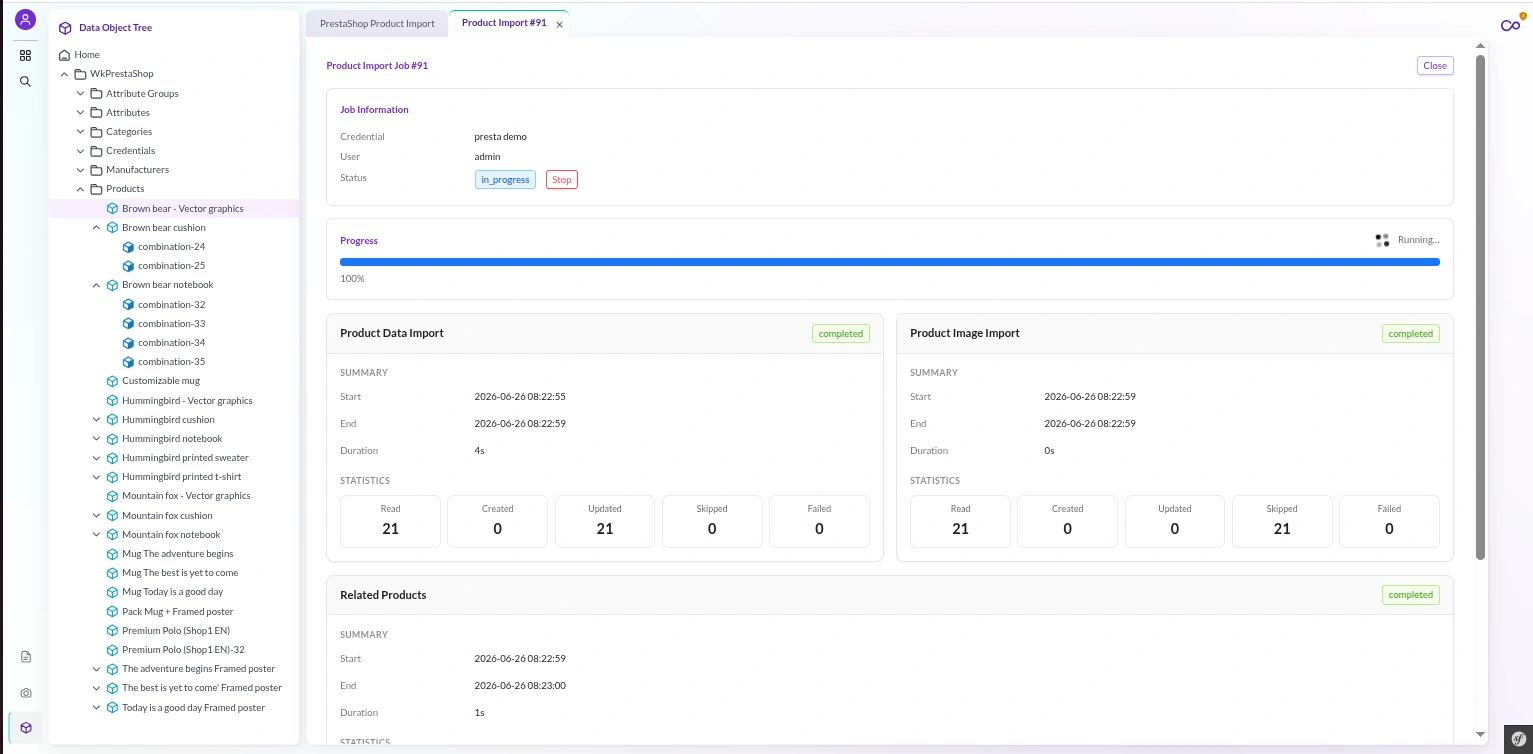
The detail view polls every 1.5 seconds. It shows a job-information card (credential, user, status) and one combined progress bar that only reaches 100% when every step finishes.
Each step gets its own card, with Start/End/Duration and Read/Created/Updated/Skipped/Failed statistics.
A product import, for example, shows side-by-side cards for Product Data Import and Product Image Import. When a Webservice key is configured, a Related Products card joins them.
Any human-readable problems surface on a Warnings & Errors card, e.g. “category #1 skipped: Cannot edit root category.”
Close the tab and the job keeps running. Need to stop one?
The Stop button ends it cooperatively — the engine checks for a stop request at the top of each batch and finishes cleanly between items, so nothing is left half-written.
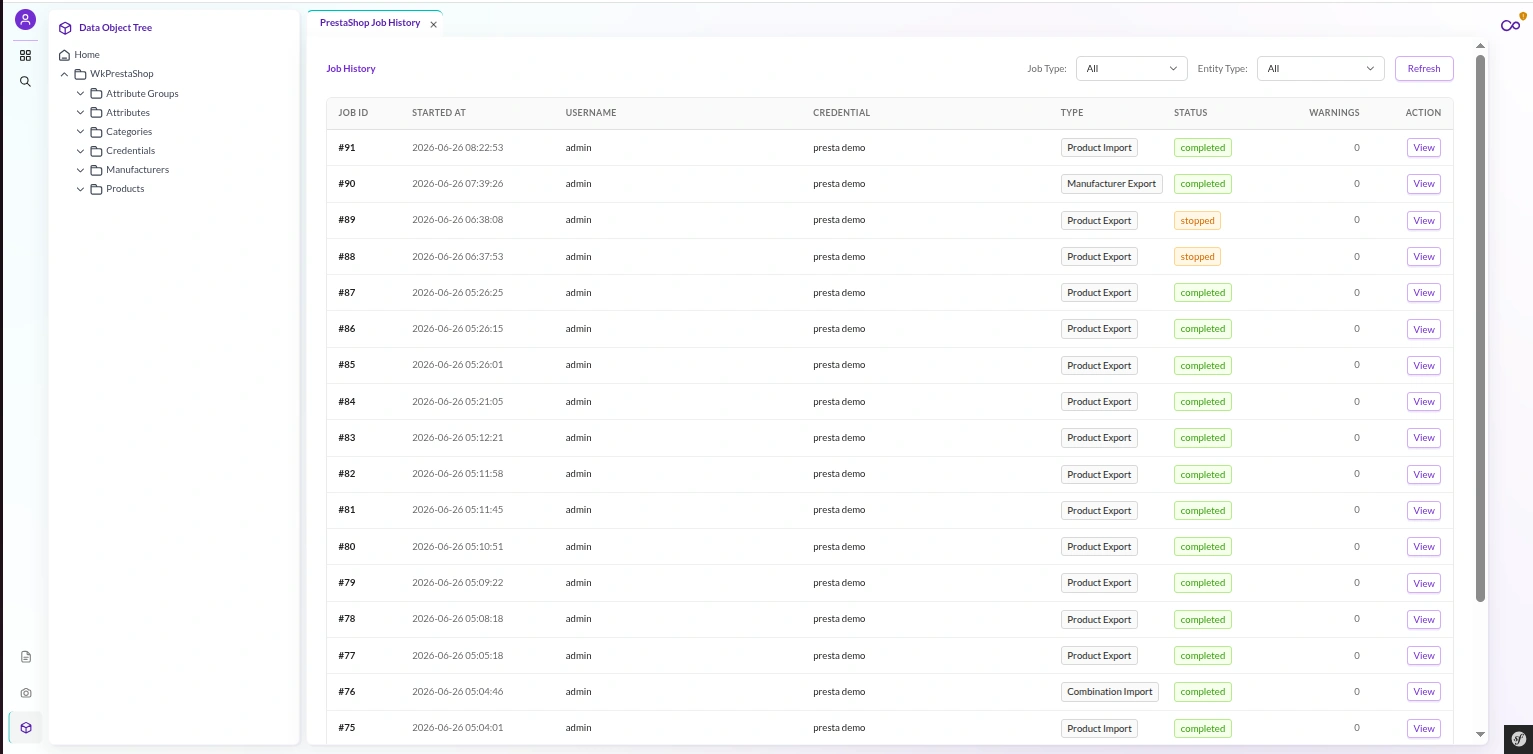
A single Job History page lists every run, import and export alike, with Job Type and Entity filters.
You see who ran what, with which credential, the status and warning count. Each row drills into the same detail view.
Exporting to PrestaShop
With your mapping saved, open Export → Product, optionally narrow scope, and click Export.
The product export runs as a sequence of distinct, visible stages: data export, category membership, image upload, feature assignment, and related-products assignment.
The data step shapes each product into a per-shop payload. It writes that payload once per mapped shop, with localized name, description, price and stock.
A Product Export filter scopes the whole job, not just the first step.
Choose Status — it defaults to Published only as a deliberate safety choice — and optionally a Reference-contains or Name-contains filter.
The reader pins the filter when it lists IDs. So every downstream step only touches in-scope products.

Exports are safe to re-run. The connector treats the ID-mapping as the source of truth.
An existing mapping updates in place; a stored-ID hint re-links and updates; only a genuinely new product is created. So you never end up with duplicates.
Empty or unset values never clear what PrestaShop already has. Their own parents-first job exports categories; a dedicated manufacturer export over the Webservice handles brands.
Importing from PrestaShop
Already have a live PrestaShop store? Import it into Pimcore in a few clicks.
The Import section has a page per entity — Category Import, Manufacturer Import, Product Import — each showing the active credential as a tag, so you always know which store you’re pulling from.

Product import brings core fields, per-shop and per-language values, and cover/thumbnail images as a separate step. When a Webservice key is set, it brings related products too.
A schema-driven filter lets you import only the products you need — by enabled status, reference or name. The filter pushes down to PrestaShop, so you don’t pull the whole catalog.
Per-shop, per-language data lands exactly where it belongs: global attributes once, and each shop × language value in its own store-view row.
So Pimcore represents a multi-store PrestaShop catalog faithfully.
Import is additive and idempotent: each run creates what’s missing and updates what exists.
If the ID-mapping is ever lost, the connector re-links to the matching object by a unique key instead of creating a copy.
When a job finishes, the connector auto-reindexes.
Your new categories, products, brands and assets appear immediately in the Studio Data Object and Asset trees — no manual reindex command, no “where did my data go?”
Because import and export stay linked by the same mapping, the natural workflow is simple: import to seed Pimcore, enrich your content there, then export back.
Every change lands on the original PrestaShop record.
Why the Pimcore PrestaShop Connector Won’t Break
Three design choices keep syncs trustworthy on real catalogs:
- Pre-flight validation (block, don’t fail). Before a job is ever queued, the connector checks that Store Mapping is configured for store-view jobs and that the credential carries the OAuth2 scopes the job needs. If something’s missing, the connector rejects dispatch on the spot with a clear, actionable message — “The credential is missing required OAuth2 scope(s): product_write”. A sync never burns through half a catalog before dying on a cryptic API error.
- Stuck-job auto-recovery. If a container restarts, a deploy lands, or a worker is OOM-killed mid-sync, the connector automatically unlocks and reprocesses the orphaned work the next time the worker starts. It marks any job that ran impossibly long as failed, with a “Timed out — re-run the job” note. No manual queue surgery, no job stuck “running” forever. (The installer wires this recovery step into worker startup for both Docker and bare-metal.)
- Idempotent, self-healing re-runs. An ID-mapping with match-before-create logic keys every record, mirrored across import and export. Re-run a job as often as you like and the catalog converges to one clean copy — even if the link table was wiped — never a pile of duplicate products or categories.
Fine-Grained Roles & Permissions
Not everyone on the team should be able to push the whole catalogue to your live store.
The Pimcore PrestaShop Connector ships per-module, role-based access control.
Each area (Credentials, Mapping, Store Mapping, Import, Export, Job History, Sync Mappings) is split into view / manage / execute permissions, so you grant exactly what a person needs:
- a read-only auditor who can browse mappings and Job History but change nothing,
- a monitor who can watch running jobs and stop one, but not start one,
- a mapping editor who configures field mappings but can’t run a sync,
- import-only or export-only operators — because importing writes your Pimcore catalogue while exporting writes your live PrestaShop store, and those are different levels of trust.
Enforcement is server-side and fail-closed: every connector API call passes through a single permission chokepoint, and the connector denies anything it hasn’t explicitly granted.
A forgotten check can never accidentally leave an endpoint open. The Studio UI follows the same rules cosmetically: nav leaves and action buttons a user isn’t allowed to use simply don’t render.
Administrators bypass everything, and your existing setup keeps working.
The connector keeps the older coarse roles as compatibility grants, and a one-command migration fans them out to the new fine-grained keys without locking anyone out.
(Access control is an HTTP-layer control; CLI and worker runs are governed by server access, as usual.)
The Result in Your PrestaShop Store
Once an export finishes, your Pimcore data is live in PrestaShop — structure, fields, features, brands, media and translations included.
Categories appear in Catalog → Categories with their hierarchy intact. Products appear in Catalog → Products with their category placement, mapped fields, assigned features, brand and cover image.
Switch the shop and language scope in PrestaShop and you’ll see the matching per-shop, per-locale values from Pimcore.
A single edit in Pimcore Studio propagates cleanly into PrestaShop — over the modern Admin API for everything it covers, and the isolated Webservice for the rest. It stays consistent on every run.
Try the Pimcore PrestaShop Connector
Ready to connect Pimcore 12 and PrestaShop 9? Install the Pimcore PrestaShop Connector with a single command.
Add your Admin API credential, point Object Mapping at your existing classes, and run your first sync — all from inside Pimcore Studio.
When you’re ready to roll it out, grab it from the Webkul Store — your purchase includes the bundle, documentation, and support.
Have a question or a non-standard setup in mind? Reach out at webkul.uvdesk.com and our team will be glad to help.


Be the first to comment.